Most agencies don’t have an “ops problem.” They have a handoff problem.
Leads land in inboxes. Creative requests bounce between DMs.
Ad spend lives across dashboards. Invoices get chased “when someone remembers.”
And clients ask for updates because the system doesn’t volunteer them.
This article is for founders and ops leads at small to mid-size agencies (performance, creative, SEO) who want:
- faster first-touch on inbound leads
- fewer production bottlenecks
- one place to see what’s happening across clients
The goal of these automations isn’t “more tools”, but fewer silent failure modes.
This guide is a weekend-friendly automation pack: seven workflows that tighten SLAs, recover lost leads, and keep clients informed, without re-architecting your stack.
The weekend deployment plan (90 minutes per automation)
Ship three automations on Saturday and four on Sunday. Keep each build to ~90 minutes: v1 now, upgrades later.
| Day | Timebox | What you ship | What improves |
| Saturday | 3 × 90 min | Slack lead alerts, creative routing, ad spend roll-up | speed + clarity |
| Sunday | 4 × 90 min | missed-call text-back, weekly client PDF, AR nudger, close-lost reasons | recovery + reporting + cash flow |
What you need before you start
You need three things set up:
- Data integration + destination
- Alerting/communication
- Automation orchestrator
Optionally, add a CRM/telephony layer if you want call/SMS and pipeline workflows.
1. Data integration + destination
Coupler.io — Handles automated data sync from ad platforms, CRMs, and other sources into Google Sheets or another destination of your choice. You can schedule data refresh from monthly to every 15 minutes, removing manual exports and keeping reports up-to-date.
Google Sheets — Acts as your lightweight ops hub and log. Holds intake, AR, close-lost, and normalized ad spend. Easy for non-technical teams to inspect and edit.
2. Alerting/communication
Slack — Delivery channel for alerts and ownership handoffs (lead pings, pipeline snapshots, AR nudges). Reduces inbox latency.
3. Automation orchestrator (choose one)
Zapier — Fastest from template to live. Best for simple, linear flows and quick wins.
Make — Visual router with branching, mapping, and cost control at volume. Good for multi-step logic and formatting.
n8n — Power user/self-host option for complex logic, custom nodes, and on-prem needs. Start with a Webhook trigger for event-driven builds.
Optional: CRM/telephony
GoHighLevel (GHL) — Native telephony/SMS, pipelines, and tasks. Ideal for missed-call text-back, speed-to-lead, and stage-based triggers; plays well alongside the orchestrator and Sheets.
How these tools work together:
The core stack works as a loop: Coupler.io syncs external data into Google Sheets (your central data hub), your automation orchestrator (Zapier/Make/n8n) watches for triggers and executes actions, and Slack delivers alerts to your team. GoHighLevel is only needed when an automation involves calls, SMS, or CRM pipeline stages—specifically for Automation 4 (missed-call recovery) or if you want to extend lead ownership and task workflows with telephony features
As a founder, I believe good automation removes repeat decisions. If it doesn’t eliminate a step your team keeps re-deciding, it’s a gadget, not an automation. Aim for clear ownership, predictable handoffs, and visible logs.
Automation 1: Lead capture alerts in Slack
Leads often sit in inboxes with no clear owner. A Slack alert makes the lead visible to the team in seconds, which increases speed-to-first-touch and prevents silent losses.
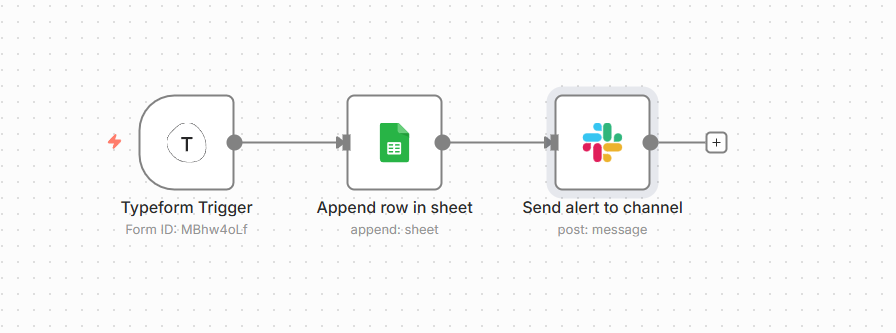
When a new lead submits a form, you log it to a simple Google Sheet and instantly ping a Slack channel so someone takes ownership right away.
This prevents the classic agency leak: the lead exists, but nobody owns it yet. It also improves speed-to-lead because Slack creates visible urgency.

What’s required
- A form (your website form, Webflow, Typeform, or a GoHighLevel form).
- An automation tool to pass the form data to Sheets and Slack: Zapier (quickest), Make (flexible), or n8n (power user / self-host).
- Slack installed and the bot added to the channel (e.g., #new-leads).
- Optional: If your form lives in GoHighLevel (GHL), you can still send a webhook out to Zapier/Make/n8n and follow the same pattern.
How to deploy
Option A — Zapier (fastest to ship)
- Trigger: Choose your form app’s “New submission” trigger. If your site can’t connect directly, use Webhooks by Zapier → Catch Hook and point your form to that URL.
- Action: Google Sheets → Create Spreadsheet Row. Map: name, email, phone, service, source, UTMs, timestamp.
- Action: Slack → Send Channel Message to #new-leads. Put the key fields in the message and a simple instruction like “Reply in thread when you take this.”
Option B — Make (branching and cost control)
- Trigger: Webhook module (or native Typeform/Webflow module).
- Action: Google Sheets → Add a Row. Map the same fields as above.
- Action: Slack → Create a Message to #new-leads. Keep it short and scannable.
Option C — n8n (power/self-host)
- Trigger: Webhook node (this is your form’s destination).
- Nodes: Google Sheets (Append) → Slack (Post). Add an IF node later if you want rules (e.g., different channels by service).
Option D — If the form is in GoHighLevel
- In GHL → Form/Webhook, send submissions to Zapier/Make/n8n (Options A–C).
- Optional: also create a GHL Task for a default owner so there is a backup assignment even if nobody claims in Slack.
For Slack alerts, another approach is using incoming webhooks (post a JSON payload to a unique Slack URL), which works well if you’re building custom integrations or already have webhook infrastructure.
Suggested Sheet columns (copy this structure)
Keep this sheet as your source of truth. Use it to calculate response times and ownership. Slack is the attention layer; your automation tool is the plumbing that keeps both in sync.
| Column | Example | Why it matters |
| timestamp | 2025-12-15 10:12 | SLA tracking |
| name | Alex R. | personalization |
| alex@brand.com | follow-up | |
| phone | +1… | call/SMS |
| service interest | Paid social | routing |
| source | Website | attribution |
| utm_campaign | winter-q4 | performance analysis |
| owner | (blank → assigned) | accountability |
| status | New / Contacted / Booked | pipeline visibility |
Use this sheet as your intake log and single source of truth. Each new lead should arrive with a timestamp, core contact fields, and clean UTMs so you can see where it came from. Keep service_interest and status restricted to a few allowed values, and leave owner blank on insert—fill it the moment someone claims the lead in Slack.
Add a first_contact_at field so you can calculate response time directly in the sheet (first contact minus timestamp), and create simple filter views for “New today” and “Needs contact.” Stable column names and tidy rows make this table plug-and-play for Looker Studio or pivots, while consistent UTMs prevent messy attribution later.
Don’t skip UTMs. If you don’t have consistent tracking, start using Google’s campaign URL builder so your Sheet reflects real acquisition sources.
Metrics to watch
- Time-to-first-touch (submission → first reply) — Track this using Sheet formulas that calculate timestamp differences, or build a simple Looker Studio dashboard
- Form completion rate — Monitor this in your form tool’s analytics or Google Analytics
Nice-to-have upgrades
- UTM dropdown validation — Use Google Sheets data validation rules to keep source/campaign data consistent
- Duplicate checks — Add a filter or conditional logic in your automation tool to flag leads with the same email submitted in the last 7 days
- Assignment buttons in Slack — Configure interactive Slack messages (requires Slack app setup) so team members can claim leads directly from the alert
Automation 2: Route creative requests without back-and-forth
Creative work stalls when briefs are incomplete, owners are unclear, or deadlines are implied. A single intake path plus auto-routing removes the guesswork and cuts revision loops.
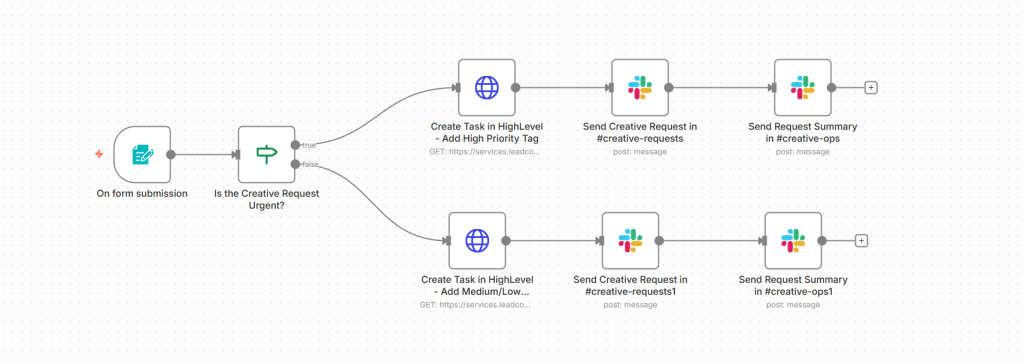
A single “Creative Request” form sends complete briefs to the right person automatically, creates a task with a due date, and posts a short summary to Slack so everyone knows who’s doing what by when.

What’s required
- A form (GHL form, Typeform, Webflow form, Google Form).
- An automation tool to move the form data into your task app and Slack: Zapier (quickest), Make (most flexible for routing), or n8n (power/self-host).
- Your task app can be GoHighLevel (GHL) tasks, Asana, or ClickUp.
- Slack is optional but highly useful for instant visibility.
How to deploy
Option A — Zapier (fast to ship)
- Trigger: Your form’s “New submission” (or Webhooks by Zapier → Catch Hook if you’re posting JSON).
- Router: Filter or Paths by
asset_type,priority, orclientto decide the owner/queue. - Action (Task): Create a task in GHL/Asana/ClickUp with title (“[Client] – [Asset Type] – [Short Goal]”), description (brief/refs), assignee, and due date.
- Action (Slack): Send a concise message to #creative-ops with who, what, when, and a deep link to the task.
Option B — Make (best for branching)
- Trigger: Webhook (or native Typeform/Webflow module).
- Router: Router module branches by asset_type or priority.
- Action (Task): Asana/ClickUp/GHL – create task; map fields; set due date.
- Action (Slack): Create a Message to #creative-requests with assignee + due. Use Error Handler for retries.
Option C — n8n (power/self-host)
- Trigger: Webhook node.
- Nodes: IF (route by type/priority) → Task node (Asana/ClickUp/GHL) → Slack (Post). Add Set nodes to format titles/descriptions consistently.
Option D — If the form is in GoHighLevel
- In GHL → Form/Webhook, send submissions to Zapier/Make/n8n (Options A–C).
- Or build it all inside GHL Workflows: Trigger = “Form submitted” → Create Task (assignee from a custom field or routing rule) → Send Slack (via webhook step) → optional Update Opportunity stage.
Minimum form fields that prevent rework
Publish exactly one request form and make it the only path for new work. Keep the required fields strict so a submission is “ready to start” without a follow-up DM.
Use the asset_type, priority, and client fields to route to the correct owner automatically, and map goal + brief/angle directly into the task description so the assignee can begin immediately.
The due date from the form should set the task’s due date, no separate negotiation. References/specs stay optional, but save you a round of revisions when provided.
| Field | Required? | Why it matters |
| client | ✅ | correct routing |
| asset type | ✅ | correct owner/queue |
| goal | ✅ | better creative decisions |
| brief/angle | ✅ | fewer revisions |
| due date | ✅ | SLA clarity |
| references | optional | faster alignment |
| specs (size/platform) | optional | prevents redo work |
Lightweight tracking table (Google Sheets)
Keep a creative_requests tab as your source of truth (automation appends a row on each submission and writes task ID/assignee).
| Column | Example | Why it matters / what to do |
| timestamp | 2026-02-09 11:20 | Throughput/SLA tracking. |
| client | Acme Co | Filter by account quickly. |
| asset_type | Blog | Route/forecast capacity by type. |
| assignee | Dana S. | Accountability; workload view. |
| due_date | 2026-02-15 | SLA visibility. |
| task_id / link | asana://… | Click-through to work. |
| status | New / In Progress / Done | Standardized progress. |
| revisions | 0 / 1 / 2+ | Spot assets causing rework. |
Use this sheet as the simple “control log” for creative work. Every time the form is submitted, your automation appends a new row with who the client is, what’s being made, who owns it, and when it’s due; when the task is created, write back the task link/ID so anyone can click through.
As work moves, update status (automatically from your task app if possible) and bump the revisions count each time you request changes; this gives you a quick read on bottlenecks and rework.
The sheet then becomes your fast dashboard: filter by client to see everything in flight, scan due_date to spot what’s at risk, and use a pivot on asset_type or assignee to check capacity. Keep column names stable so you can drop this straight into Looker Studio later without fixing anything.
Metrics to watch
- On-time completion rate — Track this in your project management tool’s reporting dashboard or export to Sheets
- Revision count (by asset type) — Log revisions manually in your PM tool or add a “revision requested” field
Nice-to-have upgrades
- SLA tiers (standard vs rush) — Add conditional routing in your automation tool to assign different due dates or priority tags
- Auto-tagging by client/campaign — Configure your automation to add tags or labels based on form inputs
- “Missing brief” auto-reply checklist — Use conditional logic to send an automated response if critical fields are blank
- Capacity guard (orchestrator + Sheet) – Before assigning, check the assignee_capacity tab; if a designer has 5 open tasks, route to the backup.
Automation 3: Consolidate ad spend reporting in Google Sheets with Coupler.io
A scheduled pull of Meta Ads + Google Ads into one Google Sheets, with consistent columns so you can track spend, clicks, leads, and CPL without exporting CSVs or juggling dashboards.
Coupler.io supports automated refresh schedules from monthly to as often as every 15 minutes, which is ideal when you want a live report.
Why it’s essential
Reporting is where trust gets won (or quietly lost). When spend and lead numbers live in different places, you get:
- Slower internal decisions (“give me 10 minutes, I’ll pull it”)
- Slower client comms (“I’ll confirm and circle back”)
- More room for mismatches (“why doesn’t this match my dashboard?”)
A single spreadsheet roll-up becomes your baseline for the rest of this playbook, especially weekly client updates.
How to deploy (quick setup)
- Create a data flow in Coupler.io
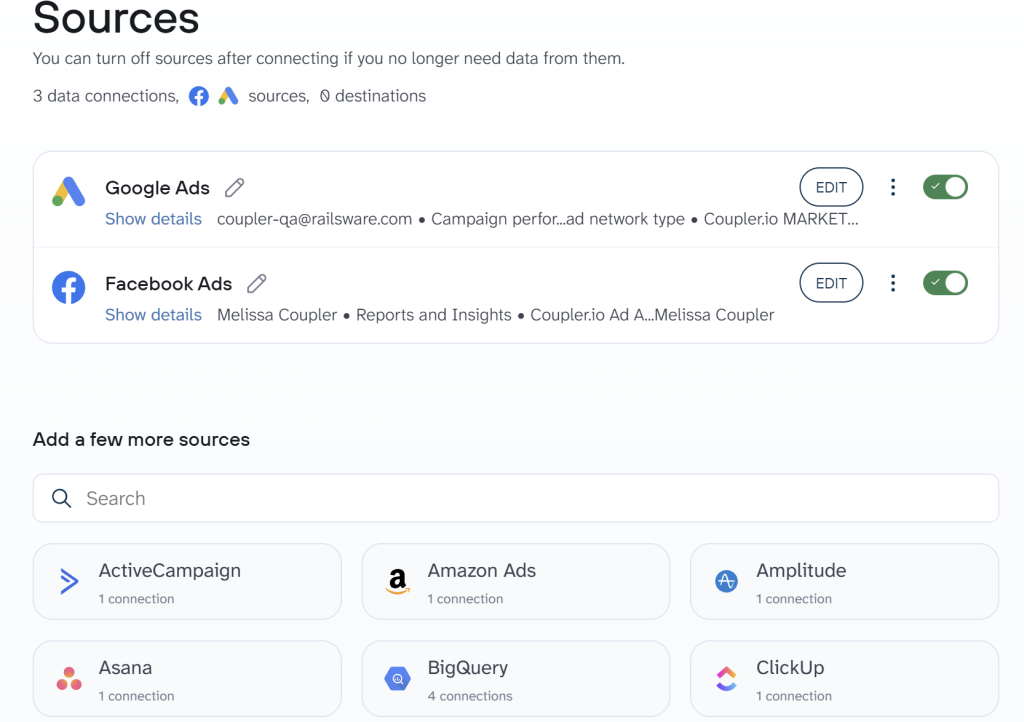
- Add two data sources: Facebook Ads and Google Ads, and specify the metrics you want to have.

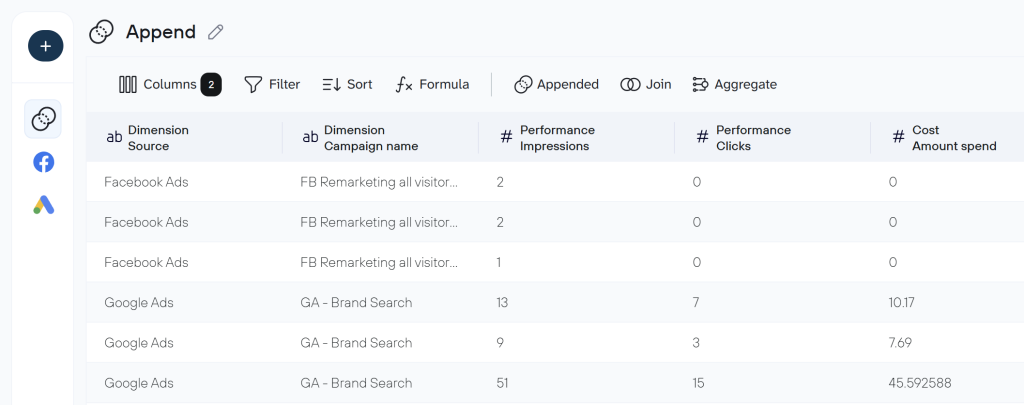
- Combine data from ad platforms using the Append method for data blending.
Important: To append successfully, ensure column names match across both platforms (e.g., both should have “date,” “spend,” “clicks”). You can rename columns in Coupler.io’s data transformation step.

- Connect your Google Sheets account and select a spreadsheet where to load data from ad platforms. Also, enable the automatic data refresh and configure the desired schedule.

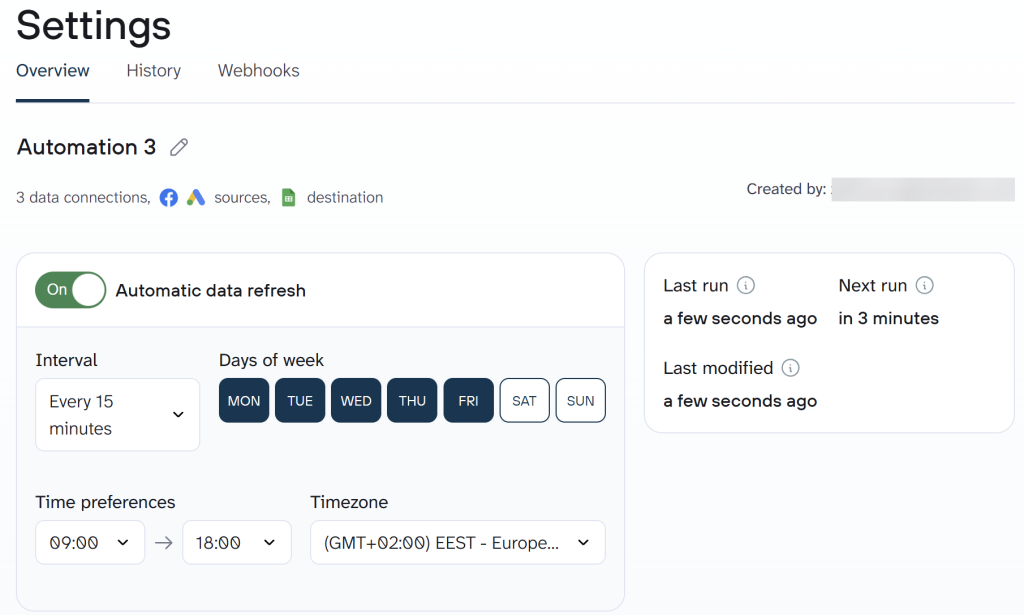
- Build a pivot tab in Google Sheets:
Once data is flowing into your Sheet, create a separate tab with a pivot table or summary formulas to calculate daily spend, CPL, and channel mix. - Optional: Schedule a daily summary notification:
In Zapier, Make, or n8n, set up a scheduled trigger (e.g., daily at 9 AM) that reads your pivot tab and posts a summary to Slack or sends an email.
Automate data flows from over 400 business apps with Coupler.io
Get started for freeSuggested column structure (for consistent reporting)
When setting up your data flow in Coupler.io, map your columns to this structure:
| Column | Example | Notes |
| date | 2025-12-15 | use YYYY-MM-DD |
| channel | Meta / Google | single source label |
| campaign | BF – Prospecting | optional but useful |
| spend | 312.44 | numeric |
| clicks | 391 | numeric |
| leads | 17 | numeric (if available) |
| account/client | Client A | if multi-client |
Pro tip: Coupler.io’s Append mode handles the normalization automatically as long as your column names match. If platforms use different names (e.g., “cost” vs “spend”), use Coupler.io’s column mapping feature to standardize them before the data lands in your Sheet.
Metrics to watch
- Daily spend (total + by channel) — Track this using your pivot tab or a Looker Studio dashboard connected to the Sheet
- CPL (cost per lead) — Calculate this with a simple formula: spend ÷ leads, tracked in your pivot tab
- Channel mix (percent of spend by platform) — Visualize this with a pie chart or percentage calculation in your summary tab
Nice-to-have upgrades
- Campaign tagging by funnel stage — Add a column in Coupler.io that categorizes campaigns as prospecting, retargeting, or brand based on naming conventions
- Pacing widget — Create a “today vs target” comparison in your pivot tab using daily budget targets
- Anomaly alerts — Set up conditional logic in Zapier/Make to flag when spend increases significantly without a corresponding increase in leads
If you’d rather have this packaged as a reusable “client reporting foundation” (same schema, same QA, same error handling), that’s the kind of workflow Dice Systems builds.
Automation 4: Recover missed calls with an automatic text-back (GoHighLevel)
Missed calls are silent leaks. Many prospects won’t leave a voicemail and won’t call again. An instant text-back recovers “hot intent” while it’s still hot.
When a prospect calls, and nobody answers, GoHighLevel automatically sends an SMS that keeps the conversation alive (and pushes them to book).

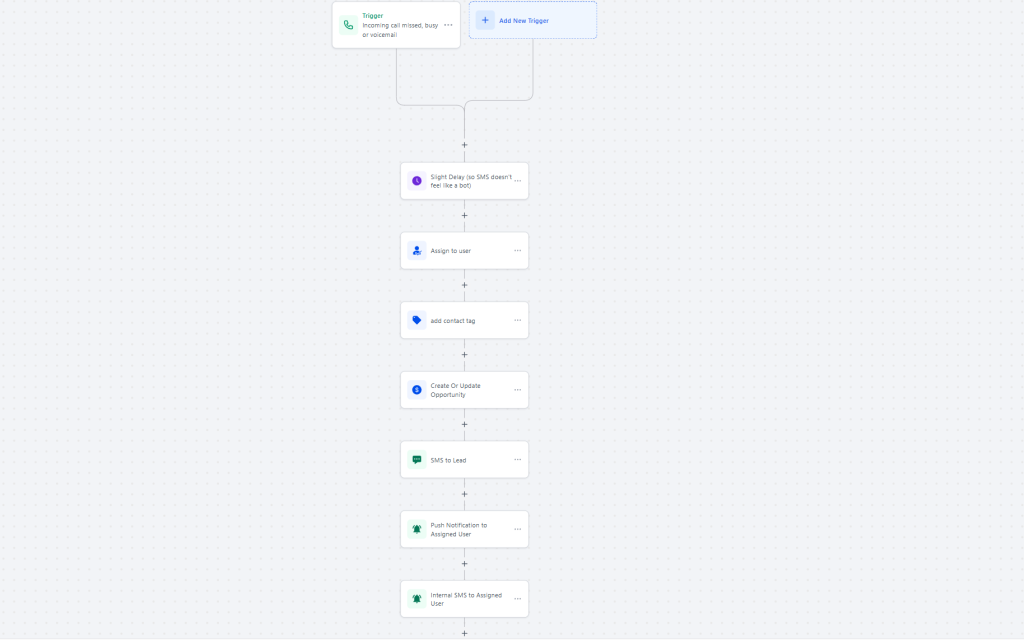
GoHighLevel’s support docs note an important behavior: the missed-call text-back can trigger for every missed call, including repeated attempts close together, so you’ll want guardrails to avoid spamming.
What’s required
- GoHighLevel (GHL) account with phone/SMS enabled (Twilio/LC). You’ll use Workflows → Triggers: Call Status = Not Answered.
- Booking link (GHL Calendar or Calendly) to include in the SMS.
- Lightweight log (Google Sheet) with: timestamp, contact, number, source, sms_sent (y/n), outcome (replied/booked/no-response).
- Optional: Slack/webhook endpoint (for alerts) and an automation tool (Zapier/Make/n8n) only if you want extras like throttling or multi-channel routing.
How to deploy (two clean options)
Option A: Use the built-in missed-call text-back feature (fastest)
- Configure missed-call text-back in GoHighLevel
- Add a short SMS + booking link
- Add business-hours rules if needed
- Add a “run once per X hours” safeguard (if your setup supports it)
Option B: Build a workflow with call status triggers (more control)
GoHighLevel supports a Call Status workflow trigger that can fire on statuses like “not answered,” letting you tailor follow-ups precisely.
Suggested flow
- Trigger: call status = not answered
- Action: send SMS with booking link
- Action: add tag (e.g., missed-call-texted)
- Optional: move pipeline stage (e.g., “Missed call → Text sent”)
- Optional: append a row to your ops Sheet for tracking
A lightweight logging table (so you can measure recovery)
| Column | Example |
| timestamp | 2025-12-15 14:08 |
| contact | Alex R. |
| phone | +1… |
| source | GBP / PPC / referral |
| sms sent | yes/no |
| outcome | replied / booked / no response |
| owner | SDR 1 |
Metrics to watch
- SMS reply rate — Track this in GoHighLevel’s reporting dashboard or export conversation data to Sheets
- Recovered bookings (bookings that happen after the missed-call SMS) — Monitor this using GHL’s pipeline reports or calendar analytics
- Show-up rate (if your calendar tracks it) — Check this in your scheduling tool’s analytics
Nice-to-have upgrades
- Stop messages once booked — Use GoHighLevel workflow conditions to check if a contact has an upcoming appointment before sending SMS
- A second nudge after 24 hours if no reply — Add a delayed follow-up action in your GHL workflow
- “Call connect” tuning — Review call outcome tracking in GHL settings to ensure voicemails don’t trigger missed-call flows incorrectly
Automation 5: Send weekly performance PDFs (without manual reporting)
Proactive reporting reduces churn pressure. Clients stop asking “any update?” when a concise, consistent report arrives like clockwork. You save hours of manual prep and reduce churn pressure because performance is always visible.
This automation enables you to generate a one-page report that emails itself to each client every week. Data stays fresh via scheduled sync, the PDF is generated on a fixed template, and delivery happens on a timer, no screenshots, no last-minute exports.

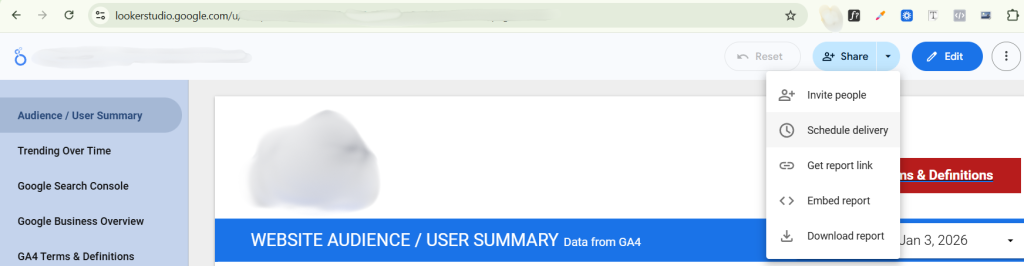
This works especially well when you use Coupler.io to load data to your reports in Looker Studio. It supports over 400 data sources with Looker Studio integrations that automate data refresh according to the set schedule as frequently as every 15 minutes.
What’s required
- Data feed: Use Coupler.io to keep a Google Sheet or BigQuery table up to date (ads, leads, pipeline).
- Report: Build a Looker Studio one-pager on top of that data.
- Send: Either use Looker Studio’s scheduled delivery or send the PDF via Zapier/Make/n8n (export → email).
How to deploy (quick setup)
- Connect your data sources to Looker Studio via Coupler.io: For this, you’ll need to create a data flow for your data sources (Meta Ads, Google Ads, Google Search Console, HubSpot, etc.) and automate data refresh. Once set up, your data flows directly into Looker Studio without manual exports.
- Build a one-page client report in Looker Studio:
Keep it tight. One page is a feature, not a limitation.
Time-saving tip: Consider using a pre-built Looker Studio dashboard template. Coupler.io offers over 170 templates for marketing, sales, finance, and more. For example, the multi-channel PPC performance dashboard template shows spend, conversions, and ROI across platforms in a single view. You can copy and customize it for your client’s branding and KPIs.
PPC multi-channel dashboard template in Looker Studio

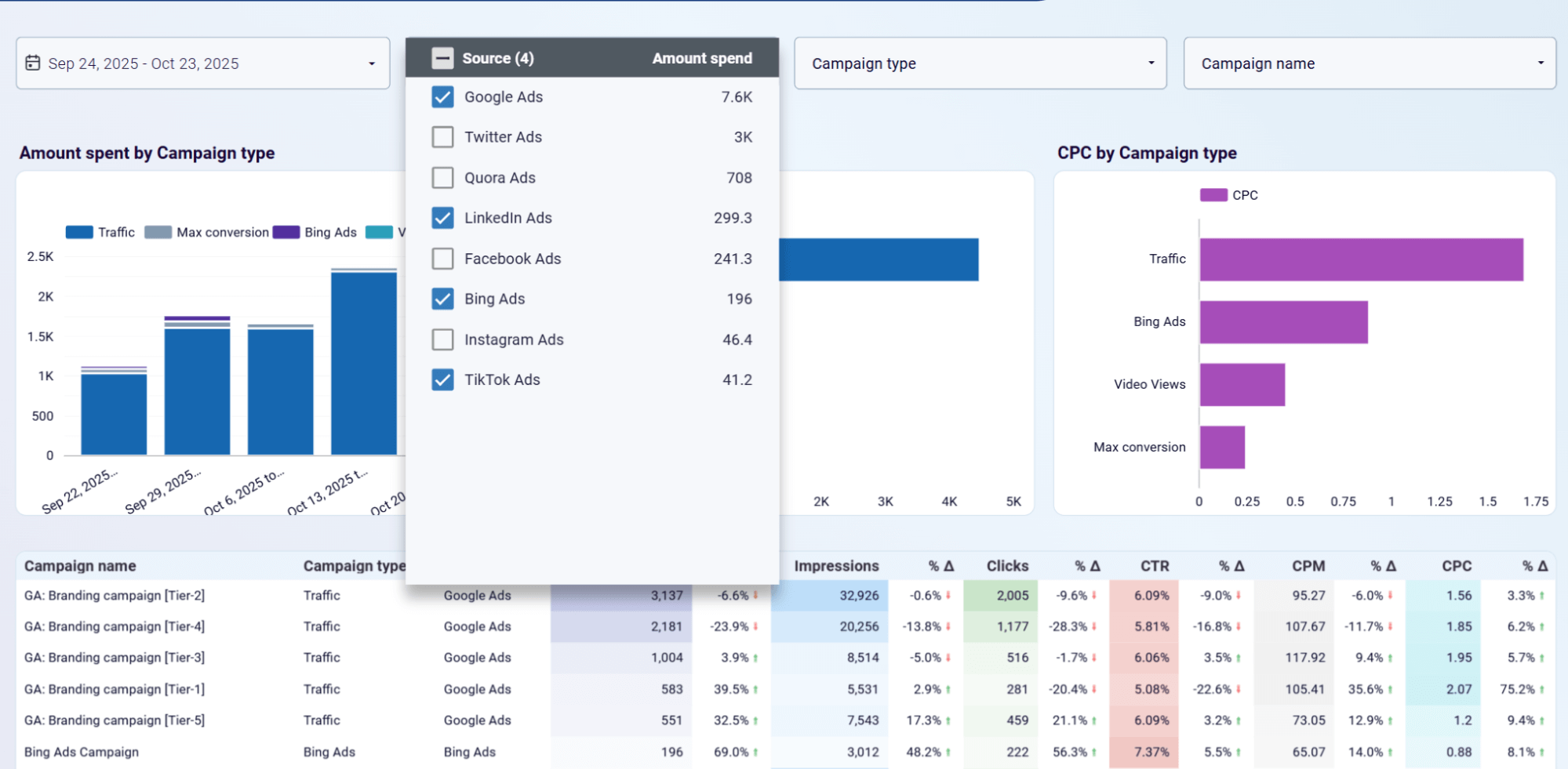
PPC multi-channel dashboard template in Looker Studio
Preview template- Schedule weekly delivery in Looker Studio:
In Looker Studio, navigate to Share → Schedule delivery. Configure the frequency (weekly), recipients (client emails), and format (PDF). The report will automatically generate and send based on your schedule, using the most up-to-date information from Coupler.io’s refresh cycle.
What to include in the one-page PDF
Keep it to four visual blocks and one tiny notes block. Every chart/number must come straight from the same data source you already refresh (Sheets/BigQuery via Coupler → Looker Studio). No screenshots, no manual edits.
The page should answer: Are we on plan? Is efficiency improving? Are leads moving? What changed? What’s next?
| Section | What to include | How to get it | Why clients care |
| Spend & Pacing | Last week’s total spend vs weekly target; tiny sparkline of last 4–6 weeks | Coupler → Google Ads + Meta Ads → Sheets/BigQuery → Looker Studio scorecard + comparison; pacing target stored in a small “targets” tab | Confirms budget control and catches underspend/overspend immediately |
| Efficiency (CPL/CAC) | Avg. CPL (or CAC) for last week; 4–6 week trend line with % change vs prior week | Leads count from CRM/Sheet; spend from Ads; compute CPL = spend/leads in Looker Studio or the normalized Sheet | Shows whether money is buying outcomes, not just clicks |
| Pipeline Movement | New leads added, stage moves (e.g., MQL→SQL), wins for last week | CRM (GHL/HubSpot) export via Coupler or a synced Sheet; simple bar/scorecards in Looker Studio | Proves activity is progressing toward revenue, not stalling |
| Wins / Insights | 1–3 bullets: best creative/keyword/audience, notable lift, resolved blocker | Text box in Looker Studio; populate manually in 60 seconds before the send (keep it to one short line per bullet) | Gives narrative context so numbers aren’t abstract |
| Next Week: 3 Actions | Three concrete actions (tests/optimizations) | Text box in Looker Studio; fixed three-line area | Aligns expectations and prevents “what now?” emails |
Notes to implement
- Set all visuals to pull from the same refreshed dataset (Coupler schedule: every 15 min to weekly).
- Keep CPL/CAC logic in one place (normalized Sheet or BQ view) so numbers match across all clients.
- Store targets (weekly spend/CPL) in a tiny “targets” tab; join it in Looker Studio for pacing comparisons.
- Lock the layout; only the data changes week to week.
Metrics to watch
- Report open rate / reply rate — Track this using email analytics if you’re sending via email integration, or monitor Looker Studio delivery logs for open/download stats
- Churn trend (before vs after you start weekly PDFs) — Compare client retention rates in your CRM or billing system over quarters
- “Time spent on reporting” (your internal KPI) — Log hours manually or use time-tracking tools to measure how much time your team saves per client per week
Nice-to-have upgrades
- Add a “watchlist” callout — Include a small section highlighting what you’re monitoring or testing next week (e.g., “Testing new ad creative,” “Watching conversion rate on landing page v2”)
- Standardize the layout across clients — Use a master Looker Studio template so your team can clone and customize reports quickly without rebuilding from scratch
- Set up multi-frequency delivery — For high-touch clients, schedule both a weekly summary PDF and a monthly deep-dive report from the same dashboard
If you want this packaged as a reusable agency reporting system (template + connectors + refresh schedules + client-specific filters), Dice Systems documents similar automation builds on its blog.
Automation 6: Nudge overdue invoices automatically (AR reminders)
Agencies don’t usually have a revenue problem. They have a timing problem. AR nudges keep cash flow stable without someone manually chasing invoices every week.
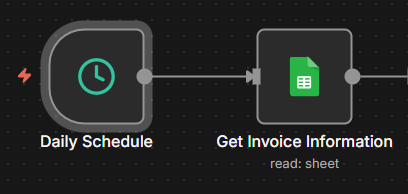
A simple accounts receivable (AR) system that checks invoices due soon or overdue, sends a friendly reminder automatically, and logs what happened.

What’s required
- Source of truth: a simple Google Sheet or your invoicing app export (QuickBooks/Xero CSV, Stripe, Paddle).
- Automation tool: Zapier (quick), Make (best for date logic + branching), or n8n (self-host/power).
- Send method: email (Gmail/Outlook module) or SMS (GoHighLevel/Twilio) if appropriate.
How to deploy (quick setup)
Option A — Zapier (fast to ship)
- Trigger (schedule): “Every day at 9am.”
- Action (find invoices): Google Sheets → Lookup Many Rows (criteria: due_date = today()+3 or status = overdue and due_date <= today()-7).
- Action (send): Gmail/Outlook → Send Email using a short, friendly template; cc your billing inbox.
- Action (log): Google Sheets → Update Row with last_reminder date and notes if there was a response.
Option B — Make (best for branching + date math)
- Trigger: Scheduler (daily).
- Search: Google Sheets → Search Rows with a formula filter (due in 3 days OR overdue 7+).
- Router: branch by “due soon” vs “overdue” to use different email copy.
- Action: Gmail/SMTP send; then Google Sheets → Update a Row (write last_reminder, increment a reminder_count).
- Optional: Slack DM to the AM if an invoice hits 14+ days overdue.
Option C — n8n (power/self-host)
- Trigger: Cron (daily).
- Nodes: Google Sheets → Read → IF nodes for date rules → Email/Twilio/GHL nodes to send → Google Sheets → Update to write back reminder metadata.
- Add a Rate Limit or Wait node if you want to stagger sends.
If your invoices live in QuickBooks/Xero/Stripe
- Use their Zapier/Make/n8n connectors to fetch “Open” invoices and filter by due_date. You can skip the CSV step and still log outcomes back to the AR sheet for visibility.
A clean AR Sheet schema
Treat this as your billing control panel. The automation reads it daily, decides who needs a nudge based on due_date and status, sends the right template, and writes back last_reminder and reminder_count so you never double-tap a client.
Keep status locked to a small list (sent/overdue/paid), and update it to paid the moment your ledger clears, either manually or by syncing from your billing system.
With clean columns, you can sort by due_date to see what’s at risk, scan reminder_count to spot repeat offenders, and drop the table straight into Looker Studio to graph DSO and overdue percentage without rework.
| Column | Example | Why it matters / what to do |
| client | Acme Co | Filter by account fast; use consistent names. |
| invoice # | INV-1041 | Unique ID for updates and replies. |
| amount | 2,500 | Numeric; enables sums/aging. |
| issue date | 2025-12-01 | Context for terms. |
| due date | 2025-12-15 | drives reminders |
| status | sent / overdue / paid | Keep controlled values only. |
| contact email | ap@acme.co | Where reminders go. |
| last reminder | 2026-02-08 | Throttles follow-ups. |
| reminder count | 1 | Avoids spam; branch copy by count. |
| notes | “Pays via ACH” | Human context for follow-ups. |
Reminder cadence that feels human (not spammy)
Due in 3 days: friendly heads-up (“Just a reminder, due on [date]. Let us know if you need the invoice resent.”)
Overdue 7+ days: firm but polite (“This one slipped past the due date. Can you share an expected payment date?”)
Overdue 14+ days: escalation with options (offer card/ACH link, partial payment, or a quick call).
Metrics to watch
- DSO (days sales outstanding) — Calculate this using Sheet formulas or track in your accounting software
- % overdue invoices — Monitor this with a simple pivot table or dashboard tile
- Promise-to-pay kept rate — Track manually in the notes column or create a “promised date” vs “paid date” comparison
Nice-to-have upgrades
- Auto-attach the invoice PDF — Configure your automation tool to pull the PDF from Google Drive or your accounting system and attach it to the email
- Route “needs follow-up” to a Slack channel — Add a conditional action to post high-priority overdue invoices to #finance-alerts
- Create a monthly AR snapshot — Schedule a summary report that shows total AR aging buckets (current, 1–30 days, 31–60 days, 60+ days)
Automation 7: Collect close-lost reasons and spot patterns fast
Most agencies “feel” why they lose deals. Few can prove it over a quarter. A lightweight, consistent capture turns opinions into patterns you can act on (pricing, proof, packaging, qualification).
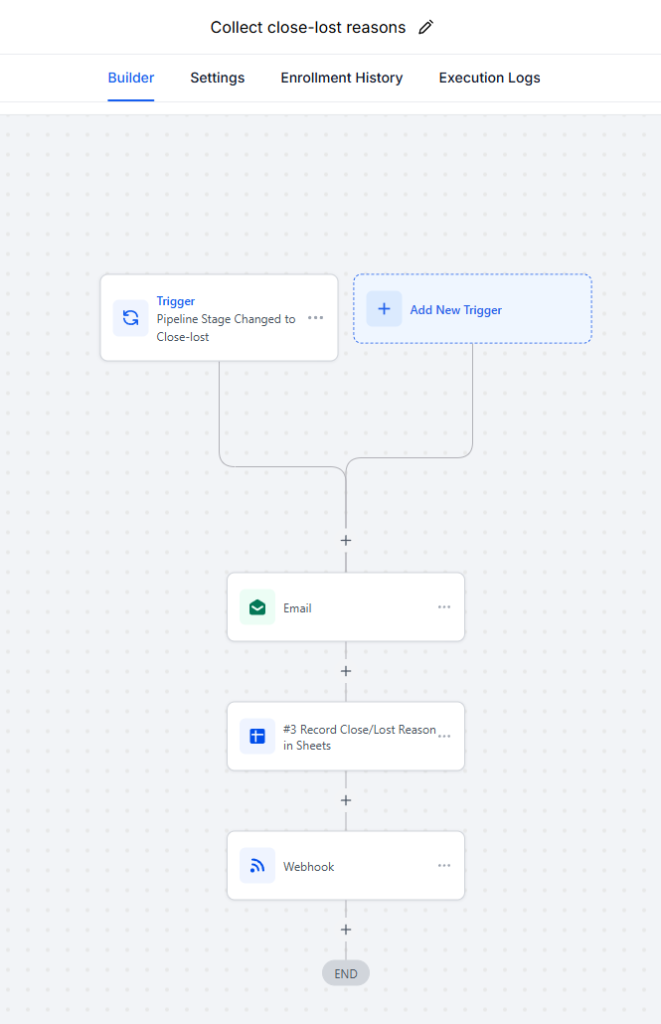
When a deal is marked Close–Lost, you trigger a 20-second feedback step that captures why (price, timing, fit, trust, competitor, no decision) and logs it to a simple sheet. The system also nudges reactivation when the reason is “timing/no decision.”

What’s required
- A CRM that can fire on stage change (GoHighLevel, HubSpot, Pipedrive).
- A short form (GHL form, Typeform, Google Form).
- An automation tool to connect the dots: Zapier (fast), Make (routing/branching), or n8n (power/self-host).
- Optional: Slack for a weekly digest. Looker Studio if you want a small trend chart later.
How to deploy (quick setup)
Option A — Inside GoHighLevel (simple and contained)
- Trigger: Workflows → Opportunity Status Changed = Lost.
- Action: Send Email/SMS with a link to the 20-second form (or embed a 1-question GHL Survey).
- Action: Update Contact/Opportunity with the chosen reason (map from form).
- Action: Webhooks step → append a row to your Google Sheet (timestamp, deal/contact, owner, reason, note).
- Branch: If reason is Timing/No decision, Add to 90-day follow-up sequence. If Competitor/Trust, Notify Slack in #sales-ops.
Option B — Zapier (fastest to ship)
- Trigger: New Deal Stage Change (HubSpot/Pipedrive/GHL via webhook).
- Action: Email by Zapier/Gmail with form link.
- Trigger (form submit): Typeform/Google Forms “New Entry.”
- Actions: Google Sheets → Create Row (write reason, note, owner, segment). Optional Slack alert on critical reasons.
- Branch: Paths—enroll “Timing/No decision” into nurture via CRM action.
Option C — Make (branching + cost control)
- Same flow: CRM module (stage changed) → Email/SMS with form link → Form module → Google Sheets (Add Row) → Router (Timing/No decision → enroll; Competitor/Trust → Slack).
Option D — n8n (power/self-host)
- Webhook (from CRM) → Email/SMS node → Webhook (form submit) → Google Sheets (Append) → IF node for reason-based routing → optional Slack.
A close-lost taxonomy that’s actually usable
Make the “Reason” field a single-select using the categories below. Mirror the same values in your Google Sheet via Data → Data validation so analysis isn’t polluted by free-text variants.
Each category maps to a specific follow-up action—use the “What to do next” column to trigger the right play immediately (enablement, pricing, nurture, or competitive response).
| Category | Examples | What to next (action) |
| price | “too expensive”, “no budget” | Repackage/phase pricing; add ROI proof; offer pilot/smaller scope; schedule revisit date |
| timing | “next quarter”, “not now” | Enter 60–90 day nurture; set reactivation_date; send light check-ins with new wins |
| fit | “not our niche”, “missing feature” | Tighten ICP; update qualification questions; route to partner/referral if misfit |
| trust | “need more proof”, “uncertain outcome” | Send 1–2 strongest case studies; add process overview; social proof; book brief Q&A |
| competitor | “went with X” | Trigger comparison assets; log competitor; refine differentiators; re-engage post-contract window |
| no decision | “stayed with current setup” | Strengthen business case; quantify cost of inaction; add “starter” offer; 60–90 day follow-up |
Security and governance checklist (so your automations don’t create new risks)
I believe most agency automations fail when teams over-engineer too early. Too many tools, too many steps, no clear owner, and zero logging. Then it breaks once, and everyone stops trusting it.
Keep v1 small, assign an owner, and add lightweight logging so the workflow earns trust over time.
Keep access tight (principle of least privilege)
- Give tools the minimum permissions needed (Sheets, Slack, ad accounts, CRM)
- Use dedicated service accounts where possible
- Store keys in your automation tool’s credential manager (not in Sheets)
Add a lightweight audit trail
Add an audit_log tab with:
- timestamp
- workflow name
- action taken (e.g., “SMS sent”, “Slack posted”)
- status (success/fail)
- error message (if any)
Add “owner fallback” and an error channel
- create #ops-alerts for failures and retries
- if a workflow fails twice, notify an ops owner and stop spamming
Use platform-native best practices
- Slack incoming webhooks use a unique URL that accepts a JSON payload for posting messages (treat that URL like a credential).
- If you’re using n8n, the Webhook node is designed specifically as a workflow trigger (test vs production URLs), which is useful when you want clean event-driven automations.
- If you enable missed-call text-back in GoHighLevel, note that it can trigger an SMS for every missed call (including repeated attempts), so set guardrails to avoid message fatigue.
Ready to start with essential automations?
If you deploy only three things this weekend, make them:
- Slack lead alerts
- Creative routing
- Coupler.io-powered spend roll-ups
Those alone tighten SLAs and reduce chaos fast. Then use the Sunday set (missed-call recovery, weekly PDFs, AR nudges, close-lost reasons) to improve retention, cash flow, and learnings.
For the weekly client update workflow specifically, Looker Studio supports scheduled delivery of PDFs to stakeholders via a delivery schedule (with the right permissions).
For more tips and guides, visit my website Humza Zubair.