Whether you’re in marketing, sales, or finance, turning raw numbers into insights takes time. You might spend hours exporting, cleaning, re-checking formulas, or digging through Google Sheets just to answer simple business questions.
With ChatGPT, this can take minutes or even seconds. Just load your data and ask questions in plain English to get summaries, charts, and follow-up analysis.
However, there are a few pitfalls to avoid when performing Google Sheets data analytics in ChatGPT. I’ll share them with you and show you how to keep your business information secure for AI data analytics.
How can ChatGPT analyze Google Sheets?
ChatGPT transforms Google Sheets analysis from a technical task into a conversation. No need to write formulas, build pivot tables, or manually create charts. Just ask questions in plain language and receive answers, visualizations, and recommendations within seconds.
This is fundamentally different from traditional spreadsheet work:
- Natural language queries: You ask “Which products drove the most revenue last quarter?” rather than building SUMIF formulas or pivot tables. ChatGPT interprets your question, scans the data, and returns structured answers.
- Conversational exploration: Analysis becomes iterative. You might ask what changed month-over-month, then follow up with why certain categories declined, then request a chart comparing segments—each question building on the last.
- Code execution without coding: When you ask a question, ChatGPT uses Python to programmatically query, filter, aggregate, and visualize your spreadsheet, then translates the results back into plain language. You get instant data analysis without writing code yourself.
Critical limitation: Accuracy depends entirely on data quality. Well-named columns, consistent formats, and complete records lead to reliable insights. Messy data, unclear business logic, or missing context will produce unreliable results by ChatGPT for Google Sheets. ChatGPT cannot fix structural data problems; it only works with what you provide.
Raw spreadsheet exports rarely meet this standard. Coupler.io, with its Analytical Engine, handles the complete data preparation layer. It runs calculations and aggregations, validates results, and delivers verified, analysis-ready datasets to ChatGPT. This shifts Google Sheets data analytics in ChatGPT from guesswork with messy inputs to reliable insights from processed, accurate data.
What ChatGPT can do for your analysis
ChatGPT is especially useful for tasks such as exploring datasets, summarizing performance, comparing segments, and explaining trends in plain language. It is not designed to replace dashboards or BI tools, but to complement them by speeding up analysis. Here’s how you can analyze Google Sheets data in ChatGPT:
- Read and understand your data: ChatGPT scans column headers and sample rows to determine data types, value ranges, and likely meanings. This basic Exploratory Data Analysis (EDA) helps you confirm assumptions before diving deeper.
- Clean and transform data: ChatGPT can suggest and perform common data preparation tasks like fixing date formats, handling missing values, standardizing category labels, creating derived columns, and aggregating rows. However, many teams handle heavier data preparation earlier in their workflow, or use a data integration tool like Coupler.io that prepares data for AI, then use ChatGPT to analyze and interpret the cleaned dataset rather than relying on AI to correct raw data.
- Summarize and interpret data in plain language: This is one of ChatGPT’s strongest capabilities. It translates tables and metrics into clear, non-technical explanations, describes trends over time, compares segments, and explains unusual patterns or changes.
- Build visualizations: ChatGPT includes a Python-powered data analysis environment that can generate charts using libraries such as pandas and matplotlib, including line charts, bar charts, histograms, and scatter plots.
- Identify patterns and outliers: ChatGPT is effective at spotting unusual values, sudden changes, seasonality, or relationships between variables—even when they are not obvious in the raw sheet.
- Help with business reasoning: Beyond describing what happened in the data, ChatGPT can suggest plausible hypotheses based on observed patterns, explain business implications of changes in key metrics, and propose practical follow-up analyses or actions.
- Simplify report generation: ChatGPT can help turn analysis results into executive summaries, stakeholder-ready explanations, and concise bullet points suitable for presentations.
Note: ChatGPT is designed to support analysis and reporting workflows, not replace final review. You should validate key numbers and conclusions before sharing and using them in decision-making.
Why ChatGPT struggles with spreadsheet data analysis (and how Coupler.io solves it)
ChatGPT for Google Sheets data analysis is good for interpreting and explaining data. However, it has clear limitations associated with the lack of computational power.
The good news? Coupler.io, a data integration platform with AI analytics, addresses each of these challenges by handling the computational work while ChatGPT focuses on interpretation. The platform bridges your data sources (over 410) and AI, providing a secure and reliable connection for conversational AI analytics.
Here’s how the workflow works:
- When you ask a question, ChatGPT translates it into an SQL query and sends it to Coupler.io for execution.
- Coupler.io executes the query with its analytical engine: Connects to your data sets, performs calculations and aggregations, standardizes formats, and then returns verified results.
- ChatGPT does the interpretation: Receives these clean results and translates them into plain language answers, insights, and recommendations.

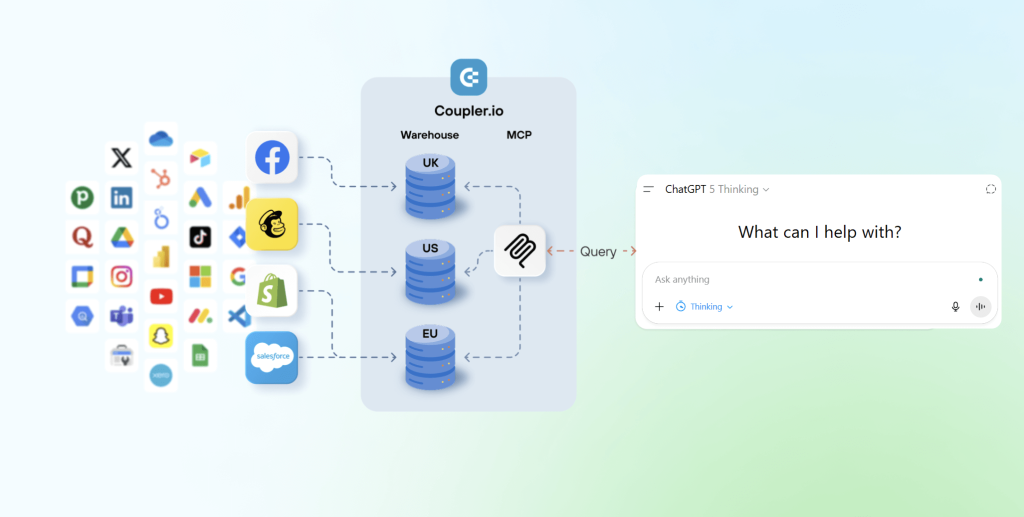
This separation means you get accurate numbers and conversational insights. Coupler.io ensures the math is right; ChatGPT explains what the numbers mean and what actions to consider.
This synergy enables you to overcome the key challenges of Google Sheets data analytics in ChatGPT:
No native Google Sheets integration
ChatGPT cannot directly connect to a live Google Sheet or query it in real time. It can only analyze data that is uploaded as a file or provided through an integration.
How Coupler.io solves this: ChatGPT integrations by Coupler.io connect to 410+ platforms, including Google Sheets, CRMs, marketing tools, databases, and financial systems. It loads data from them and refreshes it automatically on your schedule. No manual exports, no version control issues, no stale snapshots. Your analysis always works with up-to-date data.
Cannot reliably handle large or complex spreadsheets
Very large files, wide tables with many columns, or highly granular transaction-level data can exceed practical limits. In these cases, ChatGPT may summarize too aggressively, skip rows, or fail to capture important edge cases.
How Coupler.io solves this: Coupler.io aggregates and processes data upstream. Instead of sending ChatGPT 50,000 transaction rows, it gives access to sample rows, aggregated data, and pre-calculated results. ChatGPT receives exactly what it needs for interpretation without hitting processing limits.
Lacks a computational engine
While ChatGPT can run calculations using built-in data analysis tools, it is not designed to be a primary calculation system. Complex formulas, financial logic, or multi-step transformations are more reliable when executed outside the model and then passed in as results.
How Coupler.io solves this: All calculations are executed in Coupler.io before data reaches ChatGPT. Revenue totals, growth percentages, conversion rates, custom KPIs, and other metrics are computed and validated by Coupler.io’s Analytical Engine, not inferred by the language model. This guarantees mathematical accuracy every time you analyze Google Sheets data in ChatGPT.
Hallucinates when data is unclear or incomplete
If column definitions are missing, values are inconsistent, or business rules are not explicit, ChatGPT may fill in gaps with plausible but incorrect assumptions. This can lead to confident-sounding but inaccurate outputs.
How Coupler.io solves this: Coupler.io standardizes column names, validates data types, handles missing values, and enforces consistent formatting. ChatGPT receives clean, well-defined datasets with clear business context. This eliminates the ambiguity that causes hallucinations. Since Coupler.io performs all calculations and returns verified results back to ChatGPT, the language model simply translates those results into plain language rather than attempting its own computations.
Results are not always consistent
Large language models can produce slightly different answers to the same question across runs, especially when prompts are open-ended. This makes it harder to guarantee repeatable results for reporting or audits.
How Coupler.io solves this: Data preparation runs through a controlled pipeline with logged transformations. The same question produces the same answer because it queries the same verified dataset. This makes AI analysis suitable for reporting and decision-making, not just exploration.
Struggles with mixed data sources
When data comes from multiple systems with different schemas, naming conventions, or time ranges, ChatGPT has difficulty reconciling them reliably unless the data is already unified and standardized.
How Coupler.io solves this: Coupler.io merges data from different systems into unified datasets with standardized schemas, aligned time zones, and reconciled metrics. Sales from Salesforce, ad spend from Google Ads, and revenue from Stripe — ChatGPT analyzes a complete, coherent picture rather than fragmented exports.
Connect your data to ChatGPT for reliable conversations
Try Coupler.io for freeInstead of working with messy exports and one-off uploads, Coupler.io gives you clean, structured, and automatically refreshed data that ChatGPT can interpret correctly. The model is no longer guessing how your data is organized — it’s working with business-ready inputs.
How to analyze Google Sheets data in ChatGPT using Coupler.io
In this example, you’ll see how to analyze Google Sheets data in ChatGPT using Coupler.io as an integration tool. This approach lets ChatGPT work with structured and refreshed data—without manually exporting files each time.
Step 1: Create a data flow in Coupler.io
You can get started with the preset form below. Just click Proceed, sign up for Coupler.io for free, and get a freshly created data flow.

Existing Coupler.io users take another path when they create a new data flow from scratch.

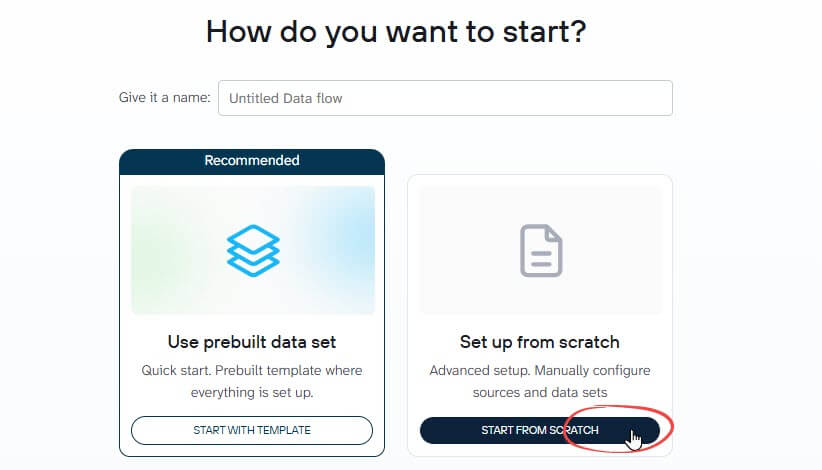
Note: Coupler.io has ready-made data set templates for apps like QuickBooks, Salesforce, and HubSpot that pull the right metrics automatically. Google Sheets doesn’t have a template (since everyone’s spreadsheet is different), so you’ll set it up from scratch.<!– wp:html –>
<iframe src=”https://app.coupler.io/widget/integrations?source=&destination=chatgpt” width=”800″ height=”300″></iframe>
<!– /wp:html –>
You’ll see a gallery of data sources—pick Google Sheets.

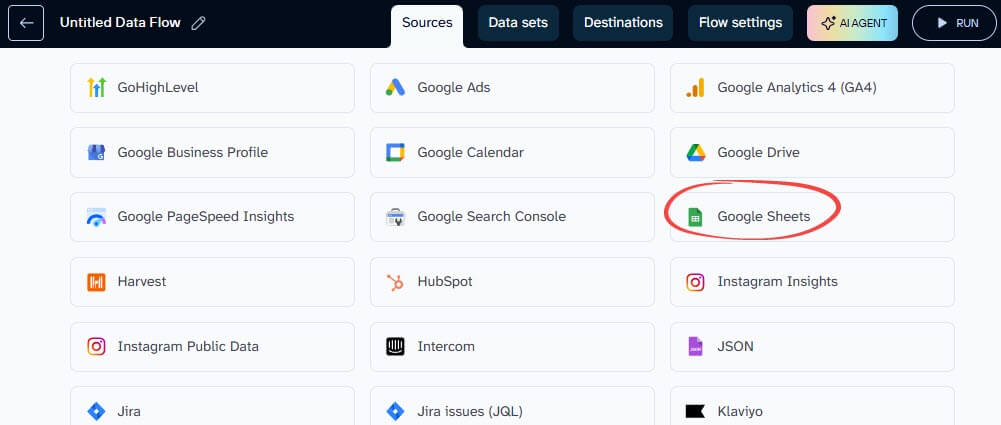
In addition to Google Sheets, Coupler.io supports many business tools across marketing, finance, sales, and advertising, making it easy to scale beyond a single spreadsheet later.
When setting up your data source, you can control what data is shared with ChatGPT. For example, you may select specific sheets or ranges.
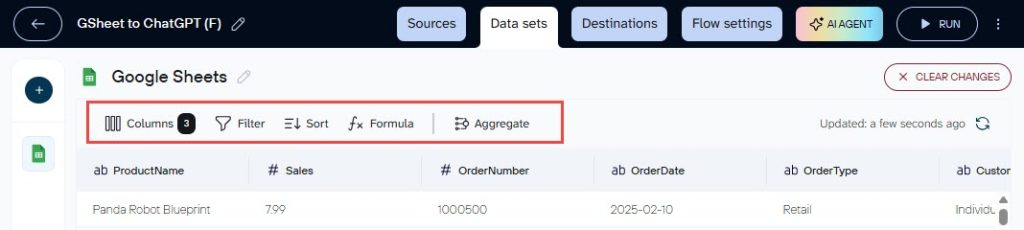
On the Data sets page, you can also apply transformations, such as excluding columns, filtering date ranges, adding custom fields using formulas, etc.

Step 2: Authorize the connection between Coupler.io and ChatGPT
After configuring your data flow, select ChatGPT as the destination. You then need to authorize ChatGPT to access your Coupler.io data. This can be done in two ways, depending on how you prefer to work inside ChatGPT.
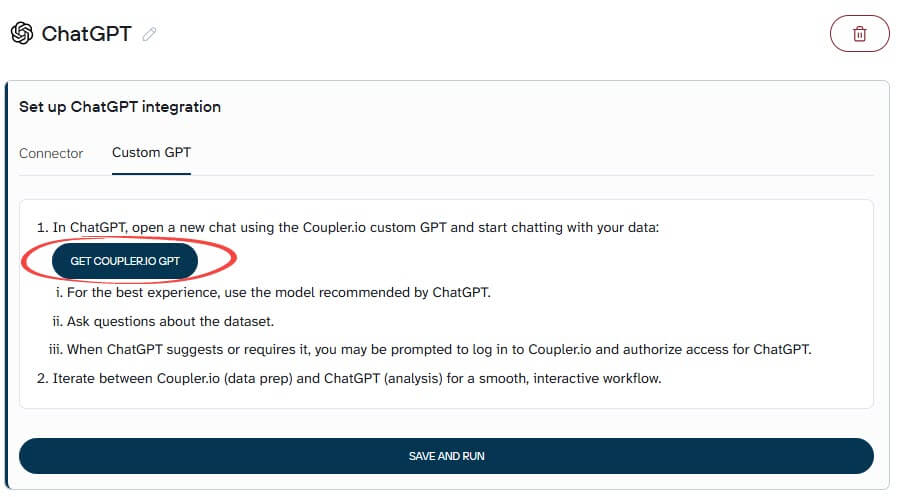
On the Destinations page, you will see two tabs: Connector and Custom GPT. Choose the option you prefer, then click Save and Run.
Option 1. Using Coupler.io as a ChatGPT connector
From the Apps menu in ChatGPT, search for Coupler.io and install the connector.

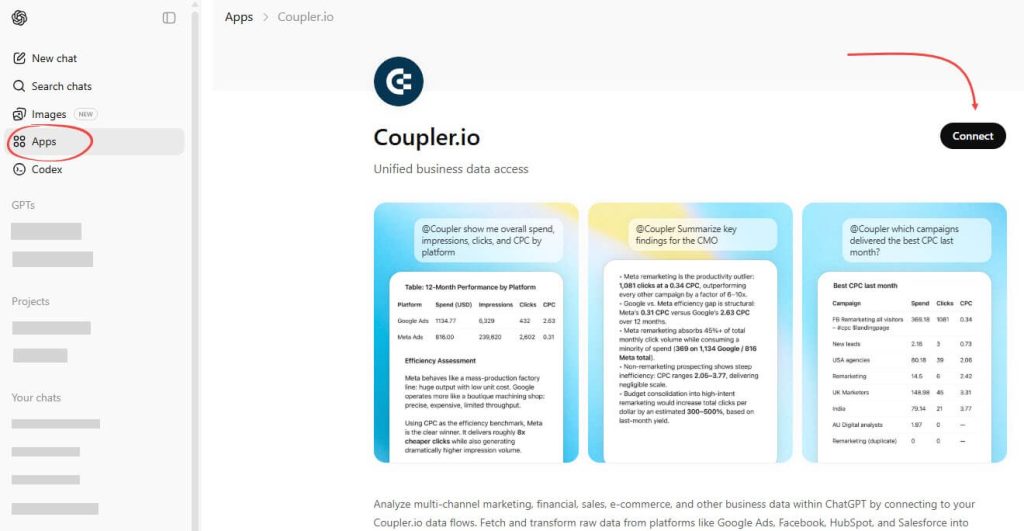
During installation, ChatGPT will prompt you to authorize access to your Coupler.io account. This authorization step allows ChatGPT to read the data flows you have already created.
Once installed and authorized, Coupler.io becomes available as an app inside ChatGPT. You can select it from the dropdown in any chat or tag it like @coupler.io in the conversation to start interacting with your data using natural language.


Option 2. Using Coupler.io as a Custom GPT
This option opens a dedicated Coupler.io GPT inside ChatGPT.
From the Custom GPT tab, click Get Coupler.io GPT to open ChatGPT. During your first interaction, you may be prompted to sign in to Coupler.io and authorize access.

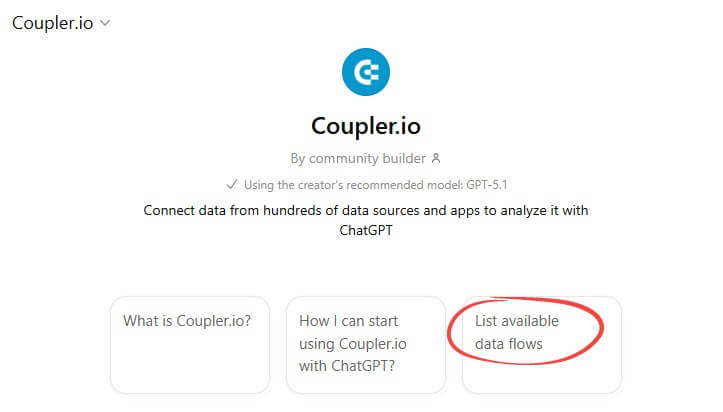
Test if the connection is successful by clicking the “List available data flows” option.

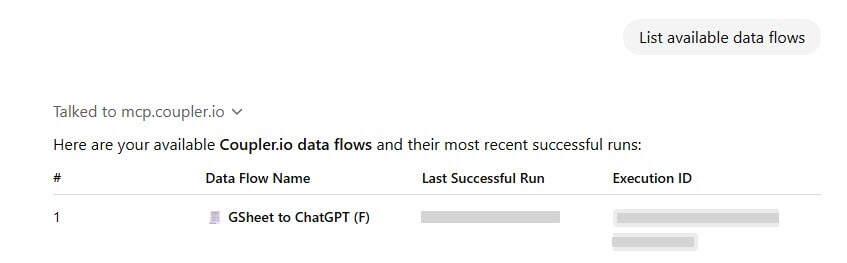
Perfect—your data flow appears in the list.

Next, let’s see what analysis you can do.
Step 3: Have conversations with ChatGPT about your data
With the data connected, you can use ChatGPT to explore, visualize, and interpret your Google Sheets data using natural language.
Example 1: Ask ChatGPT to explore or summarize
Start with high-level questions to get oriented.
Example prompts:
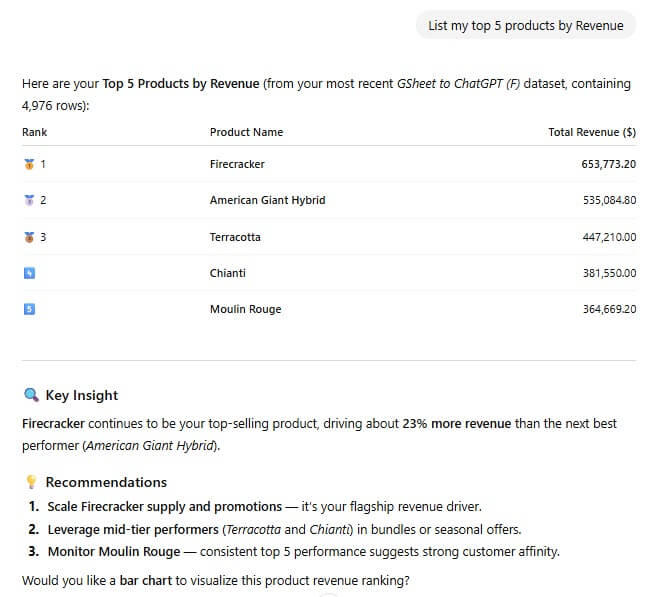
List my top 5 products by Revenue.Which customer type generates more revenue?Show me any unusual transaction anomalies you notice
ChatGPT will scan your data and respond like a colleague who just reviewed your spreadsheet:

Example 2: Ask for charts and visual summaries
Numbers are great, but sometimes you need to see the pattern. Ask for visualizations.
Example prompts:
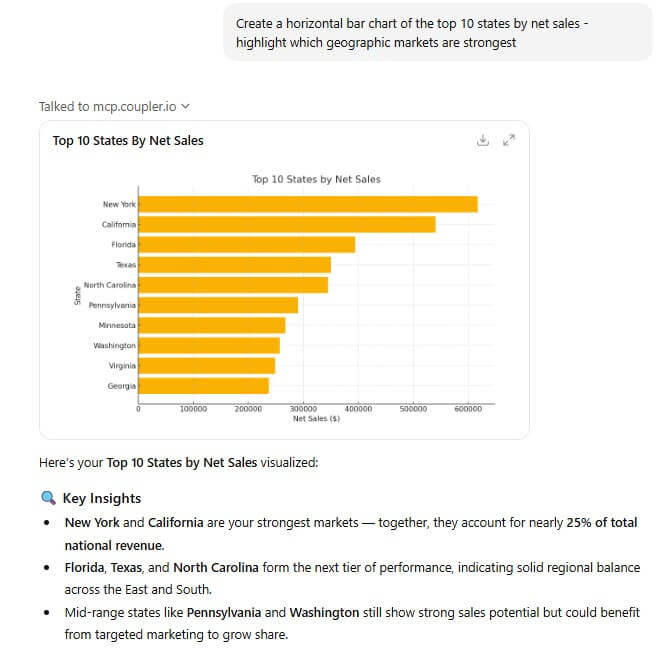
Create a sales trend in a line chart showing Net Sales by month. I want to see a comparison for different product categories.Create a horizontal bar chart of the top 10 states by net sales - highlight which geographic markets are strongestShow a scatter plot showing the relationship between Discount amount and Net Sales to see if bigger discounts are actually driving bigger deals. Include 2-3 bullet points of key takeaways I should know.
ChatGPT will generate the chart and explain what it reveals:

Example 3: Get follow-up insights and recommended action
This is where ChatGPT becomes genuinely useful. Move from “What happened?” to “What should I do?“.
Example prompts:
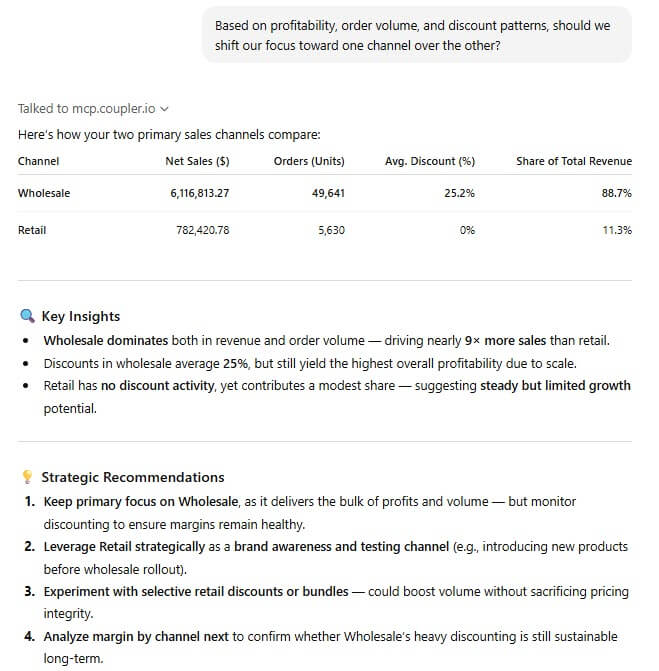
I need strategic recommendations. Identify any products with high discount rates but low sales volume - these might be problem products we should discontinue.Which months were strongest/weakest? What should we plan for in 2026 based on these patterns?Based on profitability, order volume, and discount patterns, should we shift our focus toward one channel over the other?
ChatGPT analyzes the relationships in your data and provides actionable guidance:

Integrate data with ChatGPT using Coupler.io
Get started for freeOther options to implement Google Sheets data analytics in ChatGPT
Using Coupler.io as a data integration layer provides the most reliable foundation for AI-powered spreadsheet analysis with ChatGPT.
However, not every analysis requires this infrastructure. For one-off explorations, quick content tasks, or learning how ChatGPT interprets data, simpler methods exist. You can upload files directly or use add-ons inside Google Sheets. These approaches work well for occasional use but lack the data validation, automated refresh, and computational reliability needed for recurring business analysis.
Alternative 1: Uploading exported Google Sheets files
This is the most basic approach.
How it works
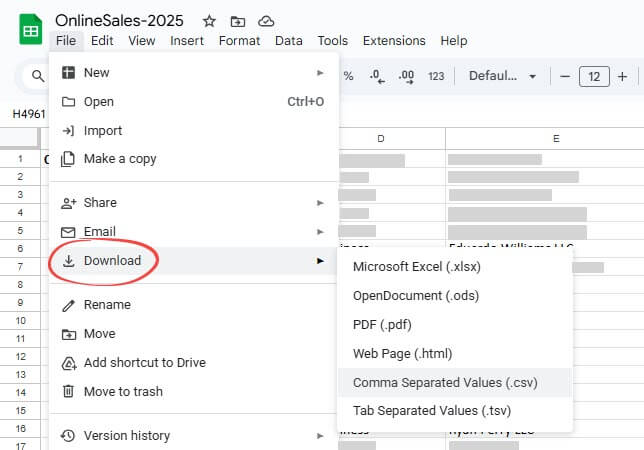
- Open your Google Sheets file and export it to a format supported by ChatGPT for data analysis, including:
- Microsoft Excel (.xlsx)
- Comma-separated values (.csv)
- PDF (.pdf)
- Click File > Download, and select a format to export your data:

- Open ChatGPT and upload the file. Use the “+” button in the message and select Add photos & files. It will let you choose what you want to upload.


Once uploaded, ChatGPT can read the file contents and perform analysis, summaries, calculations, or visualizations.
Pros
- Fastest way to run a one-off analysis
- No integrations or third-party tools required
- Works well for small to medium datasets
Limitations
- Static snapshot: You must re-export and re-upload every time the data changes.
- High risk of human error: Wrong file, outdated version, or missing the latest updates.
- Raw data quality issues: Spreadsheets often contain inconsistencies or messy data, which can increase the risk of hallucinations or incorrect calculations. ChatGPT analyzes whatever you upload without validation.
- Security and compliance risks: Uploaded files become part of ChatGPT’s conversation context. Depending on your plan and settings, this data may be retained, used for model training, or accessible to OpenAI. For regulated industries or sensitive business data, this approach creates compliance risks that Coupler.io’s controlled data pipeline eliminates.
- Not suitable for large datasets: Very large Sheets or complex, multi-tab workbooks may exceed ChatGPT’s processing limits.
Best for
One-time explorations with small datasets (under 1,000 rows) to learn how ChatGPT interprets data, or quick content analysis that doesn’t require accuracy validation. Not suitable for recurring analysis, large datasets, or business decisions requiring computational reliability.
Alternative 2: Using Google Sheets add-ons with GPT features
If you prefer to work directly inside Google Sheets rather than exporting data elsewhere, Google Sheets extensions that provide GPT based features can be a practical option.
These add-ons bring AI capabilities into the spreadsheet itself, typically through custom functions or menu actions. It looks somewhat similar to using the Google Sheets AI formula.
GPT for Sheets is a popular example. It also supports Google Docs, which can be useful for teams that want AI assisted writing across both spreadsheets and documents.
This option works best for lightweight analysis, text generation, and content enrichment within individual cells, rather than full conversational data exploration.
How to install GPT for Sheets
- Go to the Google Workspace Marketplace and search for “GPT for Sheets and Docs”.
- Click Install and grant the necessary permissions.

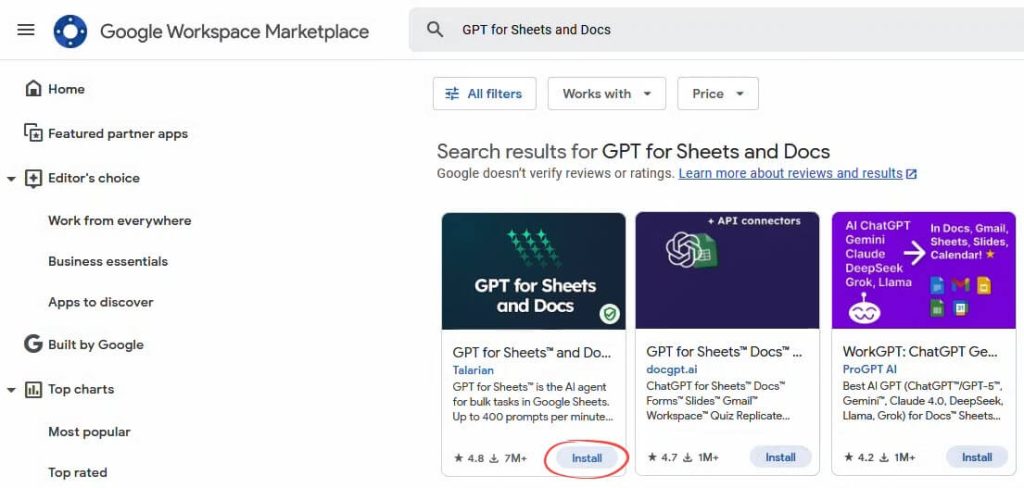
- Once installed, you’ll see it under Extensions > GPT for Sheets and Docs. Click Open to launch the add-on.
How it works
GPT for Sheets offers two main ways to use AI:
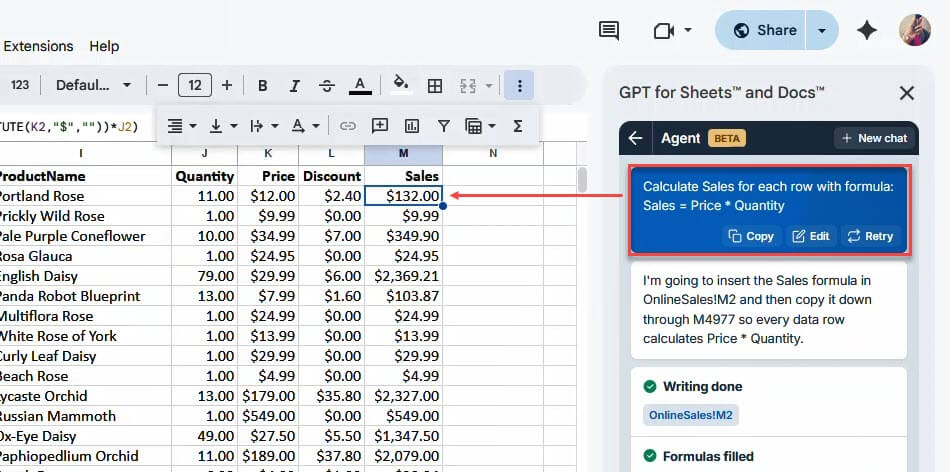
AI Agent (sidebar interface)
From the sidebar, you can prompt the AI to analyze cells, transform, generate content, and run bulk operations across multiple rows. This is useful for guided, batch-style tasks, but it’s still prompt-based, not conversational.

GPT functions (for formula lovers)
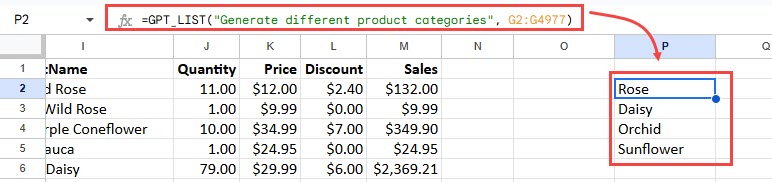
If you prefer working directly in cells, GPT for Sheets also provides custom spreadsheet functions that behave like regular Sheets formulas. You can run prompts directly from cells and apply them across rows or columns.
For example, a function like GPT_LIST() can generate multiple values and output them into a column (one result per row).

Supported models typically include OpenAI gpt-4o, gpt-4, and gpt-5.1. The list can change, but you can always verify it inside the add-on settings.
Pros
GPT for Sheets works well for:
- Content creation at scale: Generate product descriptions, social media posts, email copy, or ad variations for hundreds of rows in minutes.
- Data enrichment: Add categories, sentiment scores, summaries, or tags to existing data.
- Text transformation: Translate, reformat, simplify, or restructure text across your entire spreadsheet.
- Data extraction: Pull emails, names, keywords, or structured fields from unstructured text.
- Classification and categorization: Automatically tag or classify items based on descriptions.
Limitation
- Not conversational: You’re executing individual prompts through formulas or batch actions, rather than asking follow-up questions and iteratively exploring insights. For deeper exploratory analysis, trend investigation, or interactive back-and-forth questioning about your data, you’ll want to use a file upload or data integration tool discussed earlier.
- No computational validation: The GPT for Sheets approach lacks the computational validation layer that Coupler.io provides. When you use GPT functions to analyze data, the AI is directly interpreting your raw spreadsheet without upstream calculation, aggregation, or validation. This works for content generation and simple transformations, but for analytical accuracy—especially with complex datasets—Coupler.io’s Analytical Engine ensures reliable results before ChatGPT ever sees the data.
- Manual review required: Outputs should always be reviewed, especially for analytical or numerical use cases, as the AI does not independently validate calculations or data logic.
Best for
Bulk content generation (product descriptions, ad copy, social posts), enriching spreadsheet data with categories or tags, and text transformations at scale. Not suitable for analytical accuracy, conversational data exploration, or multi-source data analysis.
What about the Google Drive connector?
ChatGPT offers a Google Drive connector on paid plans such as Plus, Pro, Business, and Enterprise. At first glance, this may appear to be a direct way to connect ChatGPT to Google Sheets.
In practice, the Google Drive connector only provides access to files stored in Google Drive. It does not give ChatGPT native access to Google Sheets as a live data source, and it cannot query or analyze a sheet in its original format. To work with spreadsheet data, the Google Sheet must still be exported to a supported format such as XLSX or CSV.
Because analysis is performed on an exported file rather than the live sheet, the Google Drive connector does not remove the need for manual export or version control. For this reason, it is not considered a true method for connecting Google Sheets to ChatGPT for data analytics.
Practical examples: What you can analyze with ChatGPT
These examples demonstrate what ChatGPT can do when analyzing spreadsheet data. Whether you’re using uploaded files or a data integration tool like Coupler.io, these capabilities apply across different workflows.
Example 1: Read and understand your data
Before ChatGPT can answer your questions, it looks at column headers and scans through sample rows to determine:
- Data types (dates, numbers, categories, text)
- Value ranges and distributions
- Likely meanings of each column based on names and values.
This is basic Exploratory Data Analysis (EDA) but focuses on understanding and validating the data rather than performing statistical modeling.
Example:
Say you’ve connected your Sales spreadsheet and ask:
List the columns, explain what each represents, and flag anything unusual. |
ChatGPT responds by describing each column (e.g., Order Date, Customer Type, Discount, Sales, and Net Sales). It also highlights points that may need attention, including possible confusion between similarly named columns and high-level patterns like seasonality in the data.

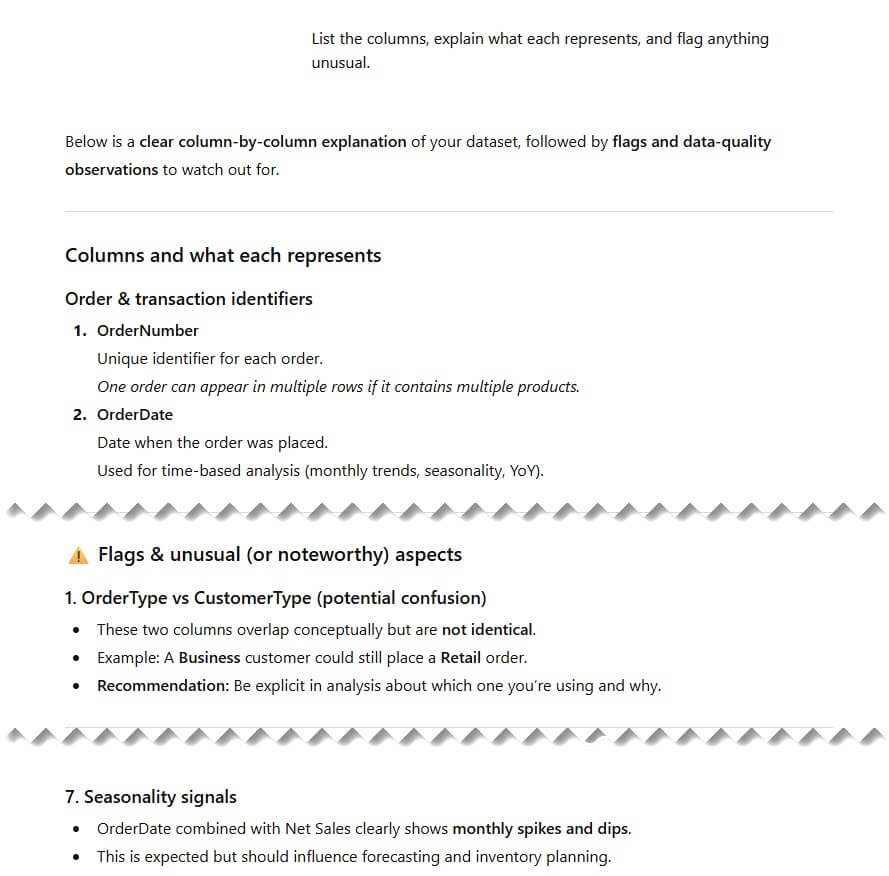
This helps you confirm your assumptions before diving deeper. You want to make sure ChatGPT is reading the data the same way you are.
Example 2: Clean and transform data
ChatGPT can suggest and perform common data preparation tasks inside its analysis environment, such as:
- Fixing date formats
- Handling missing values
- Standardizing category labels
- Creating derived columns (e.g., Net Sales = Sales – Discount)
- Aggregating rows (daily → monthly totals)
Example:
You ask:
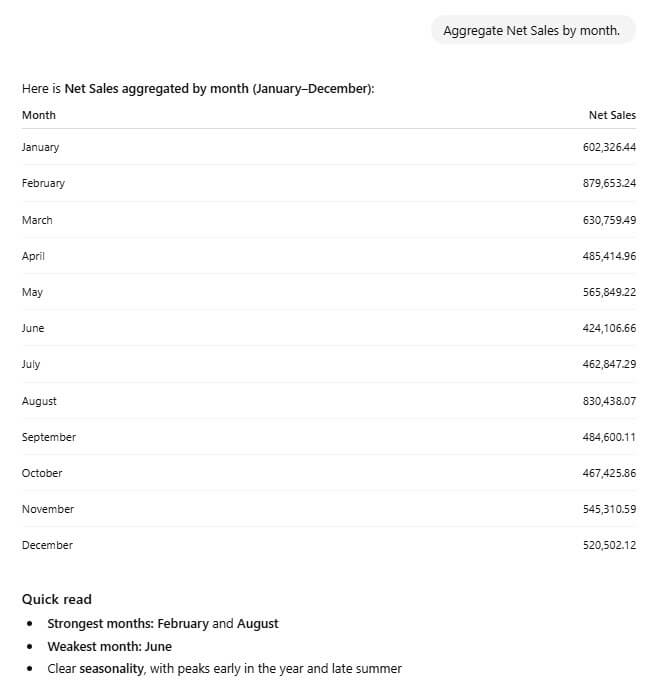
Aggregate Net Sales by month. |
ChatGPT executes the transformation in Python and returns an aggregated result ready for further exploration.

Important note for accuracy:
While ChatGPT can perform cleaning and transformations, working with already prepared or partially aggregated data reduces errors and leads to more reliable results.
For this reason, many teams handle heavier data preparation earlier in their workflow or use Coupler.io, which prepares data for AI. Then, ChatGPT analyzes and interprets the cleaned dataset rather than relying on AI to correct raw data.
Example 3: Summarize and interpret data in plain language
This is one of ChatGPT’s strongest capabilities. Once the data is available in the chat, it can translate tables and metrics into:
- Clear, non-technical explanations
- Descriptions of trends over time
- Comparisons between segments (e.g., categories, channels, customer types)
- Plain-language descriptions of unusual patterns or changes
This aligns well with the core strength of large language models: natural-language interpretation and contextualization of structured data.
Example:
You ask:
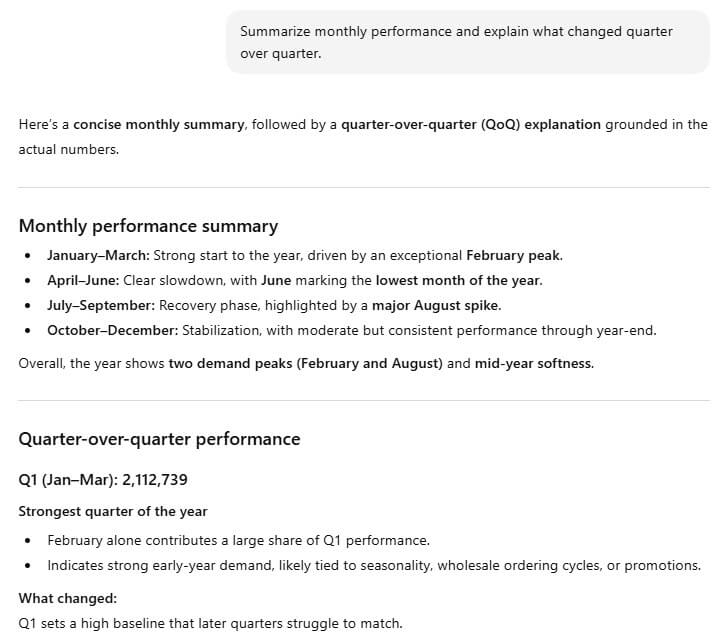
Summarize monthly performance and explain what changed quarter over quarter. |
ChatGPT aggregates net sales by month, summarizes overall monthly performance, and compares results quarter over quarter. It explains where growth accelerated or slowed, points out seasonal effects, and connects month-level changes to broader quarterly trends.

Example 4: Build visualizations
ChatGPT includes a Python-powered data analysis environment (formerly known as “Code Interpreter”). Within this environment, it can generate charts using libraries such as pandas and matplotlib, including:
- Line charts (trends over time)
- Bar charts (rankings and comparisons)
- Histograms (distributions)
- Scatter plots (relationships between variables)
Example:
You ask:
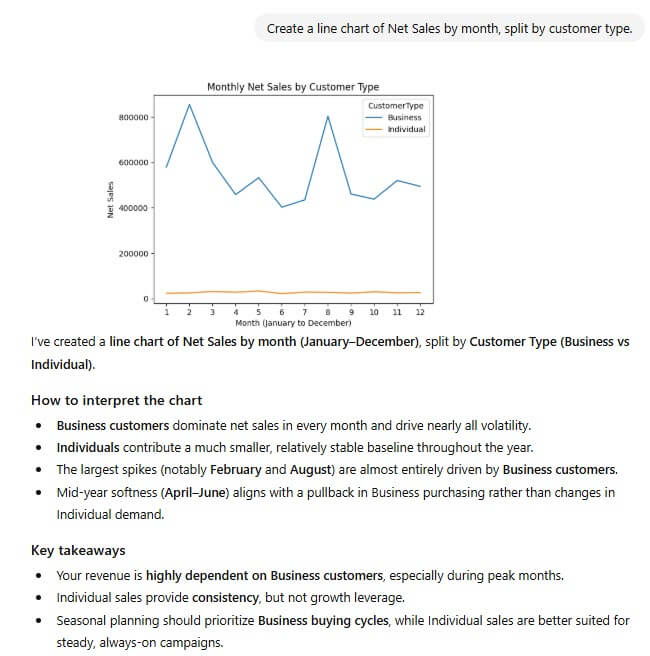
Create a line chart of Net Sales by month, split by customer type. |
ChatGPT generates the chart and explains the key visual takeaways.

Example 5: Identify patterns and outliers
ChatGPT is effective at spotting unusual values, sudden changes, seasonality, or relationships between variables—even when they are not obvious in the raw sheet.
Example:
You ask:
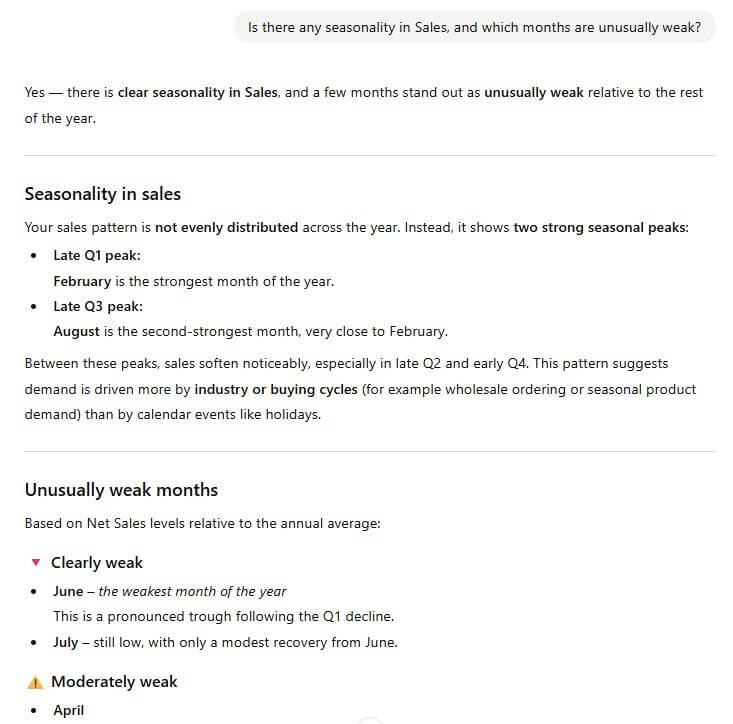
Is there any seasonality in Sales, and which months are unusually weak? |
ChatGPT analyzes sales aggregated over time and identifies recurring peaks and troughs, such as strong early-year and late-summer periods alongside a weaker mid-year stretch.
It then points to specific months (for example, June) that perform noticeably below the annual norm and explains how they differ from surrounding periods.

Example 6: Help with business reasoning
Beyond describing what happened in the data, ChatGPT can support business reasoning by helping you think through possible explanations and next steps.
It does not determine causality on its own, but it can:
- Suggest plausible hypotheses based on observed patterns
- Explain the business implications of changes in key metrics
- Outline potential drivers or contributing factors to investigate
- Propose practical follow-up analyses or actions
Example:
You ask:
Based on these trends, what should we investigate or change? |
ChatGPT may respond with suggestions such as:
- Reviewing whether discount levels increased during weaker months
- Re-evaluating underperforming products or categories
- Assessing whether revenue is overly concentrated in higher-value customer segments and what risks that creates

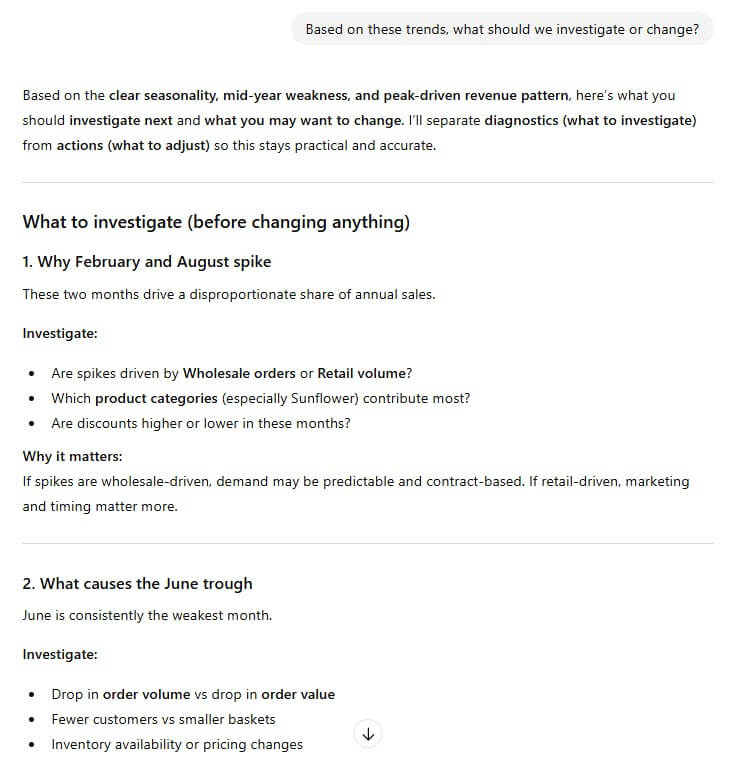
These outputs should be treated as decision support and starting points, not final conclusions.
Example 7: Simplify report generation
ChatGPT can help turn analysis results into written outputs that are easier to share and reuse. It can generate:
- Executive summaries
- Stakeholder-ready explanations
- Concise, slide-friendly bullet points
This is especially useful for reducing the manual effort involved in turning findings into written communication. You can ask ChatGPT to summarize key trends, explain what is driving changes, or draft updates tailored to different audiences.
Example:
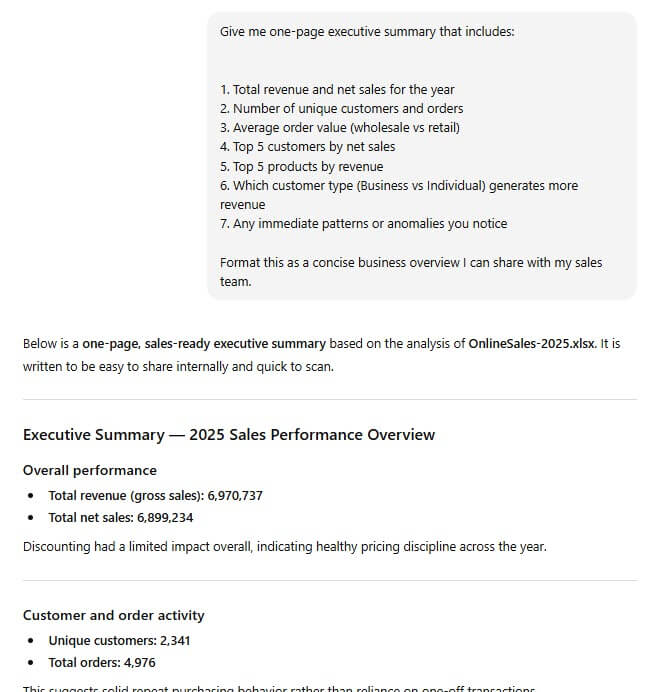
You ask:
Give me one-page executive summary that includes:2. Number of unique customers and orders3. Average order value (wholesale vs retail)4. Top 5 customers by net sales5. Top 5 products by revenue6. Which customer type (Business vs Individual) generates more revenue7. Any immediate patterns or anomalies you noticeFormat this as a concise business overview I can share with my sales team. |
ChatGPT produces a structured summary that pulls together key metrics, major trends, and notable observations, using clear and non-technical language suitable for decision-makers. The output can then be reviewed, refined, and shared with stakeholders.

Note: ChatGPT is designed to support analysis and reporting workflows, not replace final review. You should validate key numbers and conclusions before sharing and using them in decision-making.
How to keep your data safe while using ChatGPT for Google Sheets
ChatGPT is powerful, but data security should always be one of your top priorities when working with business or customer data.
Why uploading raw spreadsheets may be risky
Uploading a full spreadsheet directly to ChatGPT can expose sensitive information that is not necessary for analysis. This may include customer identifiers, email addresses, billing details, or internal IDs.
Using Coupler.io helps reduce this risk by allowing you to control what data is shared before it reaches ChatGPT.
Filter and limit data before analysis
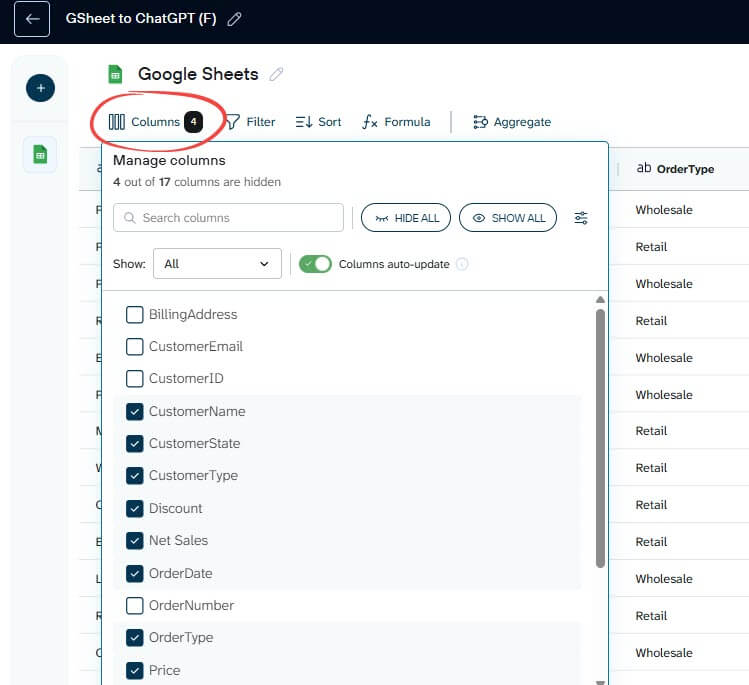
In the Data set configuration tab in Coupler.io, you can exclude specific columns by opening the Columns settings and hiding fields such as:
- OrderNumber (internal tracking)
- CustomerID (internal tracking)
- CustomerEmail (definitely sensitive)
- Billing or shipping address

You can also apply additional transformations so ChatGPT only receives what it needs for analysis, such as:
- Aggregating sales by month instead of sharing individual transactions
- Removing specific orders or records
- Limiting the date range to reduce historical exposure
By sharing only relevant and structured data, you reduce privacy risks and improve the accuracy and reliability of ChatGPT’s analysis.
Which ChatGPT plan should you choose for Google Sheets analysis?
In 2026, ChatGPT’s spreadsheet analysis runs on the same core data-analysis tools across paid plans. What differs between plans are file size limits, runtime stability, collaboration controls, and enterprise security, not the underlying analytical capabilities.
A comparison table of data analysis features across Free, Plus, Pro, Business, Enterprise plans in 2026.
| Free | Plus | Pro | Business | Enterprise | |
| Spreadsheet analysis | Basic spreadsheet analysis. | Full data analysis tools (including clean and reshape datasets, merge files, and create reliable charts and summaries from larger spreadsheets) | Same as Plus | Same as Plus | Same as Plus |
| Max file size | 20 MB | 512 MB | 512 MB | 512 MB | >1 GB (varies by org) |
| Multi-file analysis | Rarely works | Supported | Supported | Supported | Supported |
| Context Window / Runtime(not published numerically) | Small; may stop mid-analysis | Moderate; enough for most spreadsheet tasks | Larger; better for long workflows | Larger + enterprise reliability | Largest context & longest runtime |
| Data privacy | Standard consumer terms | Files not used to train models by default | Same as Plus | Same as Plus + team admin controls | Same as Plus + enterprise security, SSO, data residency |
| Best for (recommendation) | Occasional small analyses | Individuals & students doing regular data tasks | Power users, freelancers, analysts | Teams/SMBs collaborating on data | Large organizations, BI teams, regulated industries |
Recommendation for businesses and teams:
If Google Sheets analysis is part of ongoing decision-making, Business or Enterprise plans are usually the better choice. Not because the analysis is more sophisticated, but because these plans offer better reliability, collaboration features, and security controls that matter in production workflows.
Smarter Google Sheets data analytics in ChatGPT for business teams
Speed matters when you’re making decisions. Your team shouldn’t wait three days for answers about sales trends or campaign performance. ChatGPT helps streamline the path from data to insight, reducing turnaround time from days to minutes.
Learn more about how is AI changing data analytics.
Marketing teams can adjust campaigns while they are still running. Sales managers can identify pipeline issues early. Finance teams can explain budget variances without building new reports from scratch.
Manual uploads work fine for occasional analysis. But if you’re checking the same metrics weekly or sharing insights across teams, Coupler.io makes more sense. It keeps data up-to-date, filters sensitive information, and eliminates the export-upload routine.
Your spreadsheets already contain the insights that guide better decisions. ChatGPT for Google Sheets makes those insights accessible to the entire team, not just those comfortable with formulas or SQL.
Start with one recurring analysis you currently do by hand. Use ChatGPT to simplify it, then expand from there. That is how analytics becomes an advantage instead of a bottleneck.