The VLOOKUP function only returns a single match. And what if a lookup value has multiple matches within a range? Let’s see the options you have.
How to VLOOKUP for multiple matches
I imported a dataset from Google Sheets to Excel using Coupler.io, a data integration platform and AI analytics solution. It loads data from 400+ sources into Excel on a schedule, provides no-code and no-formula data transformations, and supports other destinations like Power BI, BigQuery, and more.
Ensure your reports are always up-to-date
Connect your data to Excel with Coupler.io that will keep your workbooks data fresh automatically based on the schedule you set.
Try for free

Now, I need to lookup email addresses for a user with the name “Lynn“. The VLOOKUP formula only returns one match, whereas there are a few.
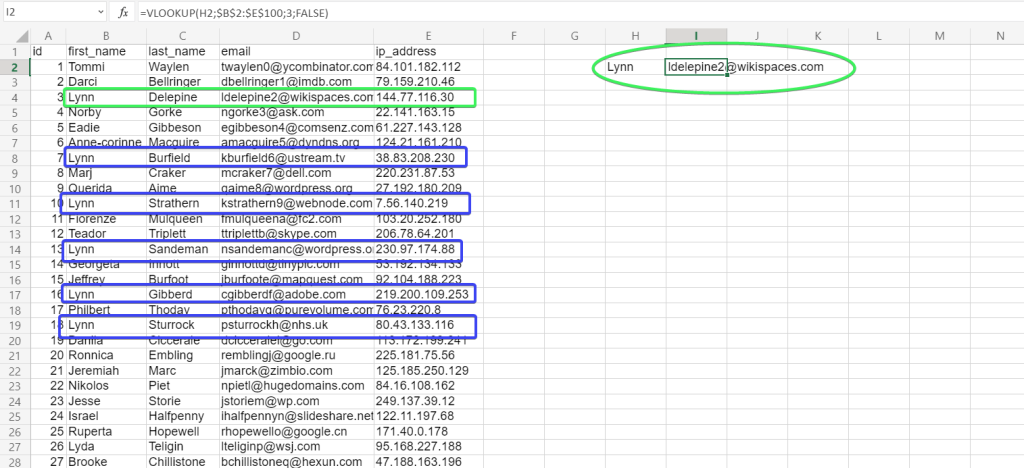
Read more about Microsoft Excel integrations for data export on a schedule.
The best way to lookup all the matches is the FILTER function, which is available for Excel Online and Excel for Microsoft 365.
Other Excel users will have to use a workaround to return all the matches, but it is still possible.
Excel FILTER function
Syntax
=FILTER(array,include,[if_empty])array– the range or array to filter.include– filter criteria.if_empty– the optional parameter to return when no results meet the criteria.
In our example, the FILTER formula to return multiple values will look as follows:
=FILTER(D2:D100,B2:B100=H5)
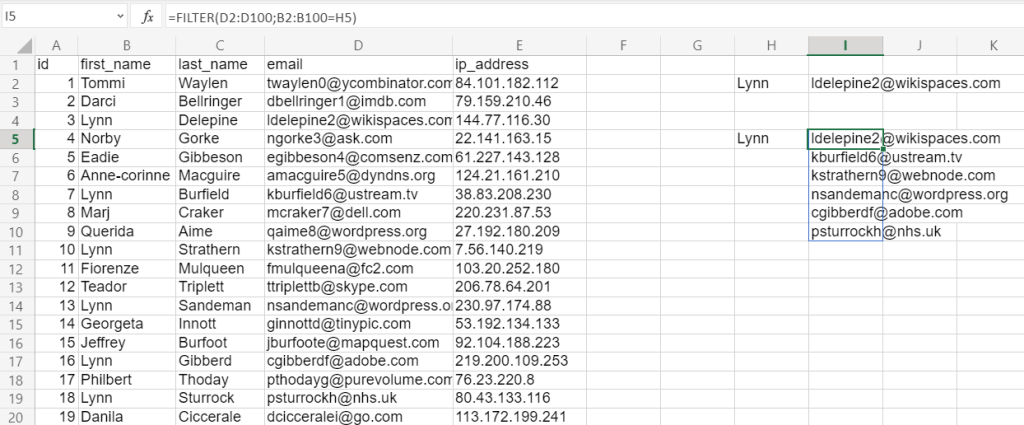
If for any reason you can’t or don’t want to go with Excel Online or Excel 365, you’ll need to tinker with the following workaround.
VLOOKUP for multiple results (workaround)
The logic of this workaround is the following:
- Step 1: Create a separate column where I create unique strings for our lookup value, such as Lynn1, Lynn2, Lynn3, etc. This will let us differentiate lookup values.
- Step 2: Look up these unique strings to return matching values.
Step 1: Create a column with unique strings for the lookup value
Insert a column to the left of your dataset like this:
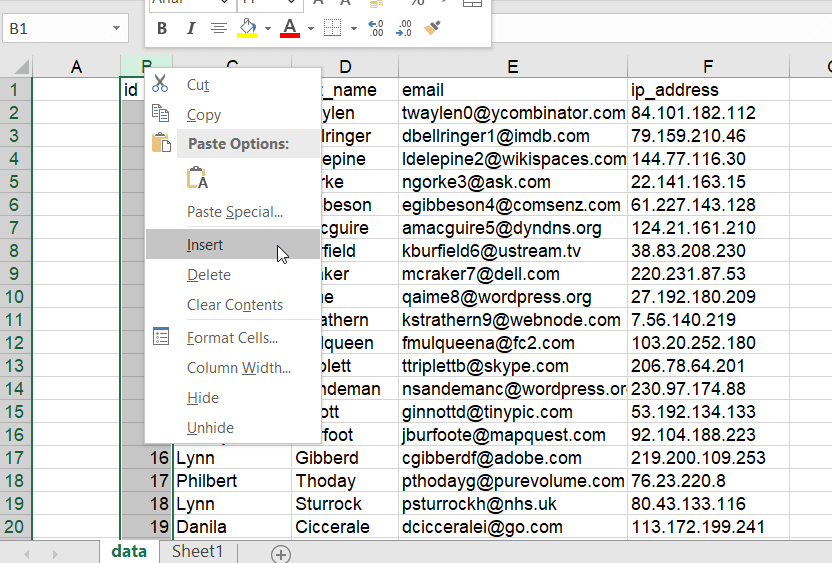
Insert the following COUNTIF formula in the A2 cell and drag it down:
=C2&COUNTIF($C$2:C2,C2)

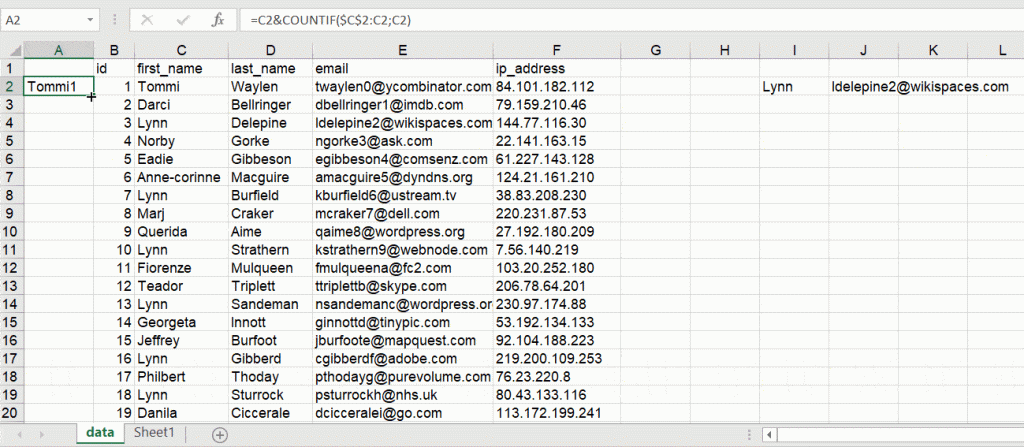
Note: Unfortunately, you can’t apply an array formula for this.
Step 2: VLOOKUP formula for multiple values
Now I can insert a VLOOKUP formula to return all the matching results for our lookup value:
=VLOOKUP("Lynn"&ROW(A1:A100),$A$2:$F$100,5,FALSE)
"Lynn"&ROW(A1:A100)– a formula, which will generate a unique string to be used as a lookup value, such as Lynn1, Lynn2, Lynn3, etc.$A$2:$F$100– the range to look up5– the column to return the matching values from
Do not forget about the method of applying array formulas in Excel desktop:
- Select an array for the VLOOKUP formula
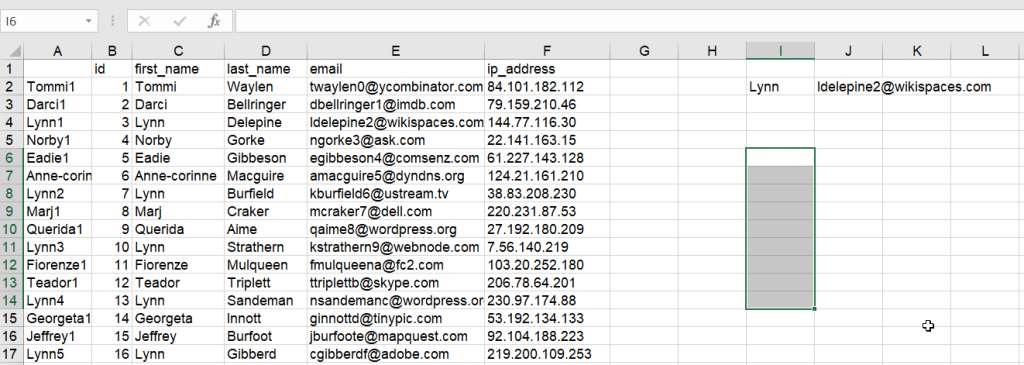
- Insert the formula to the formula bar and press Ctrl+Shift+Enter for Windows (Command+Return for Mac)
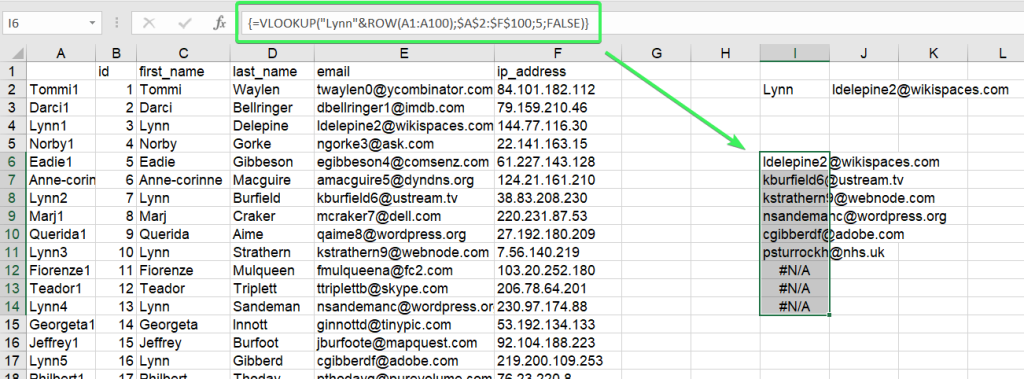
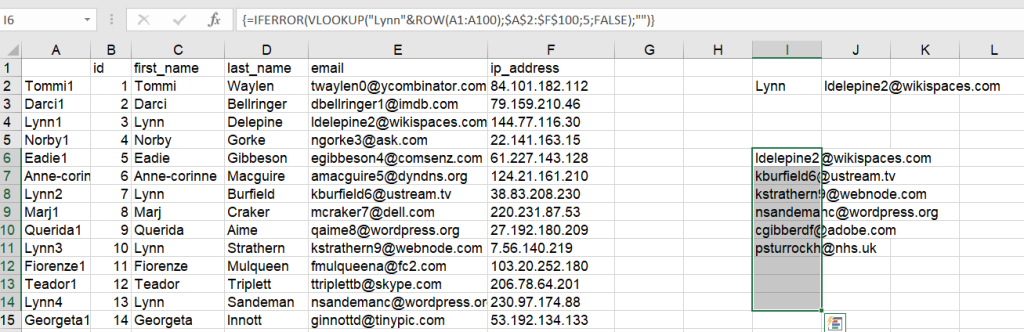
To get rid of #N/A, let’s nest our VLOOKUP formula with IFERROR as follows:
=IFERROR(VLOOKUP("Lynn"&ROW(A1:A100),$A$2:$F$100,5,FALSE),"")
Now it looks better:
Coupler.io also loads data from Facebook Ads, Google Analytics 4, HubSpot, and Shopify into Excel, so you can consolidate data from multiple sources in Excel without downloading a CSV from each platform. When a lookup value has several matches, a join in Coupler.io returns every matching row in the prepared table, with no helper column or array formula. For joins beyond the point-and-click options, SQL transformations cover all join types.


Automate data import to Excel with Coupler.io
Get started for free