The VLOOKUP function looks up only one value. And what if you want to return a result that matches two values within a range? Check out the following workaround.
How to VLOOKUP for two values
I imported a dataset from Google Sheets to Excel using Coupler.io, a data integration platform and AI analytics solution that provides over 400 Microsoft Excel integrations. You can automate data refreshes on a schedule to keep your workbooks up to date.
Ensure your reports are always up-to-date
Connect your data to Excel with Coupler.io that will keep your workbooks data fresh automatically based on the schedule you set.
Try for free

Our purpose is to look up a car value for a user with the name “Mella“, and the Excel VLOOKUP function can do the job easily. The issue is that we have multiple users with the name “Mella“.
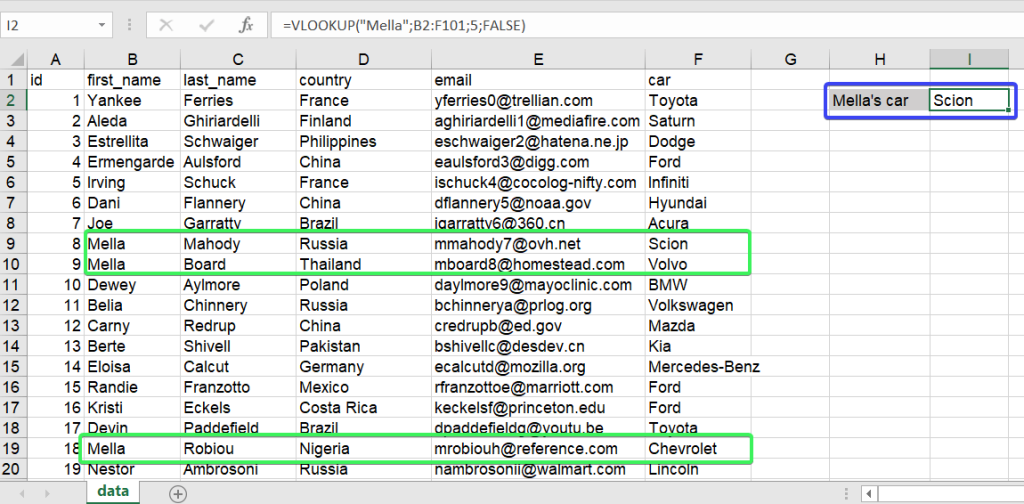
So, we need to narrow down our lookup using two criteria:
- Name – “Mella“
- Country – “Nigeria“
You can’t specify two lookup values in a VLOOKUP formula, so we’ll need to use a workaround, which consists of two steps:
- Step1: Create a separate column where we will create unique lookup_values by merging our two lookup criteria – name and country – for example “MellaThailand“, “MellaNigeria“, etc.
- Step2: Look up the range using the unique strings as the lookup_value to return a matching value.
Step1: Create a column with unique lookup_values made of two lookup criteria
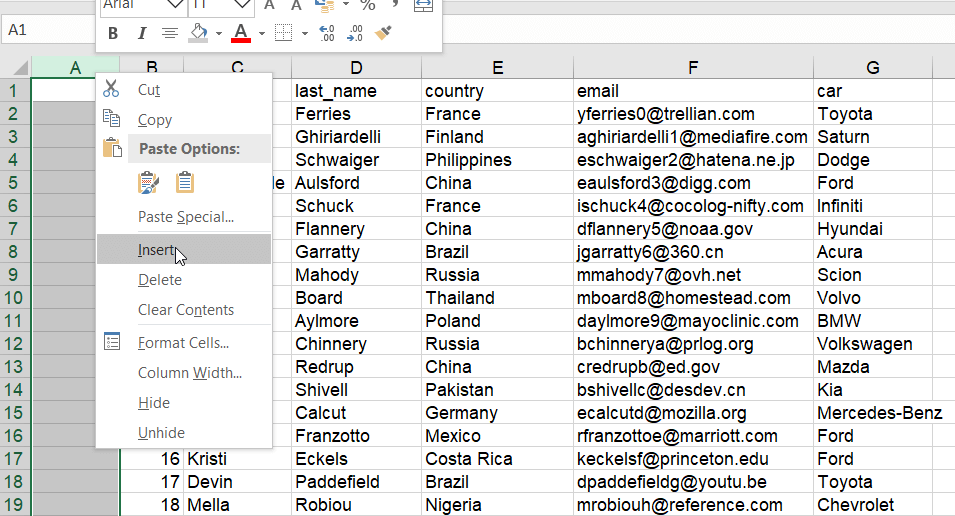
- Insert a column to the left of your dataset like this:
- Select the entire column, insert the following formula to the formula bar and press Ctrl+Shift+Enter for Windows (Command+Return for Mac) – This will apply an array formula in Excel:
=C1:C100&E1:E1000

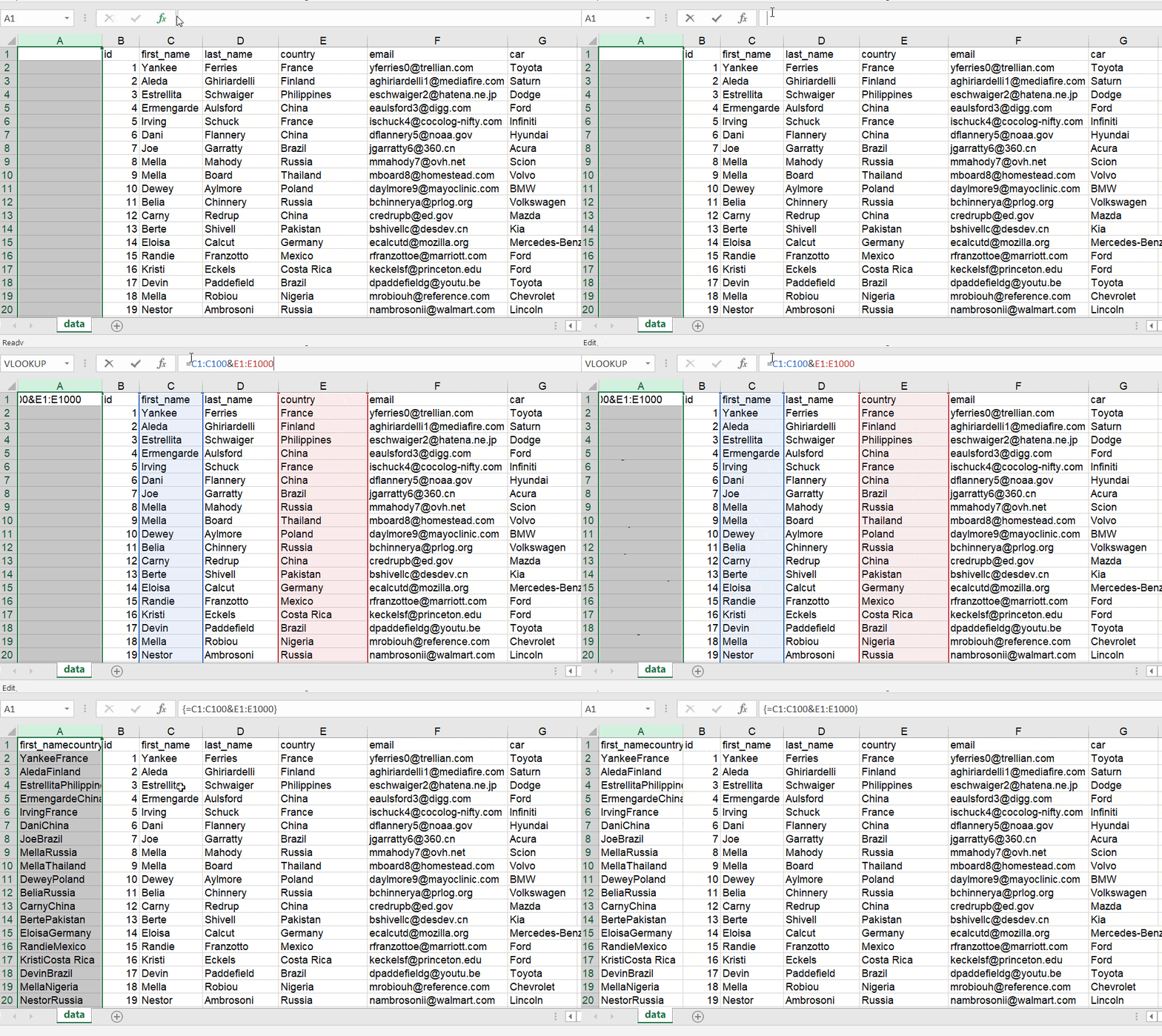
This formula will merge two values from columns C and E in the specified array.
If the data comes from a CRM or another app, Coupler.io can merge the name and country columns before the data reaches Excel, so the lookup key already exists in the table, and you skip the array formula.


Connect and organize your data in Excel
Try Coupler.io for freeStep2: VLOOKUP formula for two values
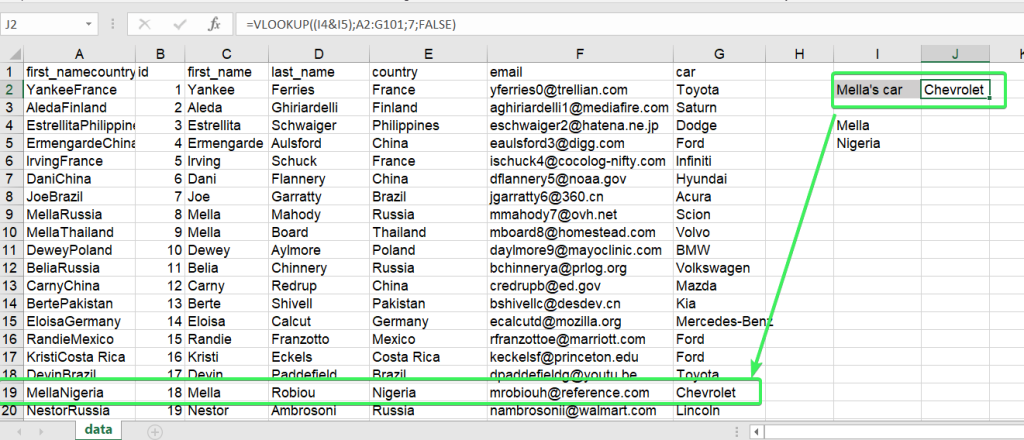
Now we can insert a VLOOKUP formula, which will contain two lookup_values merged into one:
=VLOOKUP((I4&I5),A2:G101,7,FALSE)
(I4&I5)– a lookup value based on the formula, which merges values from cells I4 (Mella) and I5 (Nigeria).A2:G101– the range to look up7– the column to return the matching values from
You can apply the same logic for using more than two criteria as a lookup value.