Google Search Console has all the data you need. Getting a straight answer out of it can take hours, and more often than not, it gets frustrating.
A default workflow includes: export your search queries report, export your pages report, open both in Sheets, cross-reference manually, repeat everything next week. For anyone managing multiple properties or a large site, that is an afternoon of work that usually produces more questions about your keyword rankings than answers.
ChatGPT can help, but it cannot reach your GSC data on its own. Coupler.io connects Google Search Console to ChatGPT, pulls your data, keeps it refreshed, and makes sure ChatGPT has calculation-ready numbers to work with. The result is a conversation like:
‘I want to analyze which of my pages are losing ranking and why. Connect my Google Search Console data to ChatGPT.‘
Follow this guide to get your GSC data in ChatGPT in minutes and a set of prompts ready to run.
Connect Google Search Console to ChatGPT with Coupler.io
Coupler.io is a no-code data integration & AI analytics platform. It connects 420+ business tools, including Google Search Console, to AI agents and tools like ChatGPT, Claude, and more. Coupler.io pulls your GSC data, transforms it, keeps it up to date, and makes sure ChatGPT has calculation-ready numbers to work with.
Set up in ChatGPT
Step 1: Install the Coupler.io plugin in ChatGPT
Get the Coupler.io plugin for ChatGPT via this direct link. Alternatively, you can find it in the ChatGPT plugin directory. Install the one labeled “Coupler.io – connect to your business data.” This is the version that connects to your business data and lets ChatGPT create data flows and take actions inside Coupler.io.

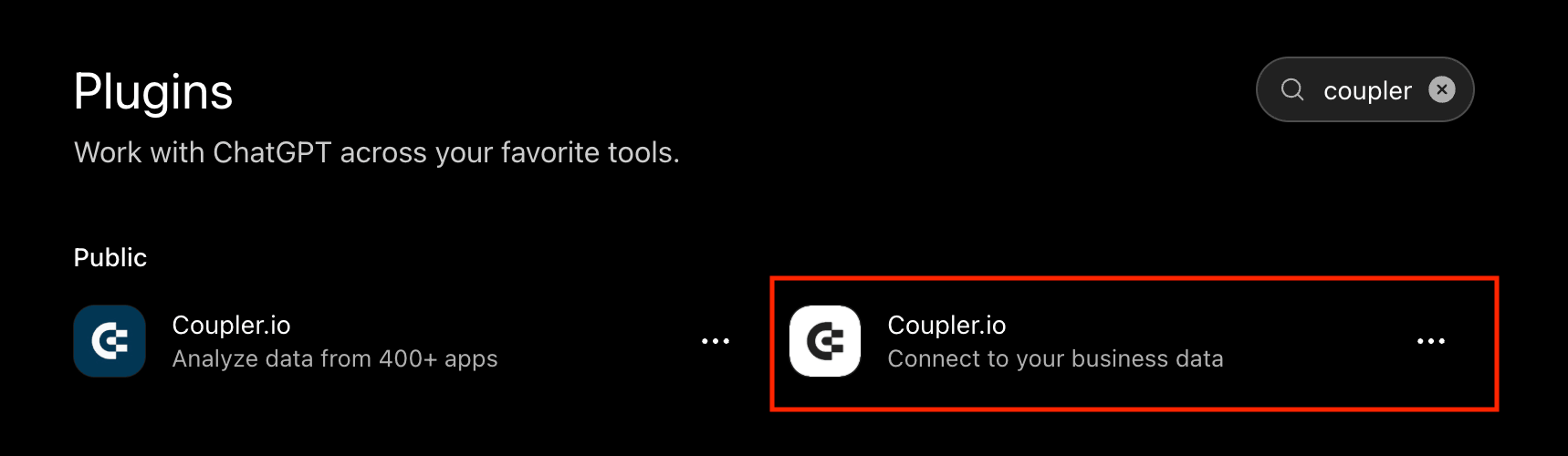
Since ChatGPT does not have access to your Coupler.io account yet, it will prompt you to authorize the connection through a secure link. Click it and follow the instructions in a separate tab.

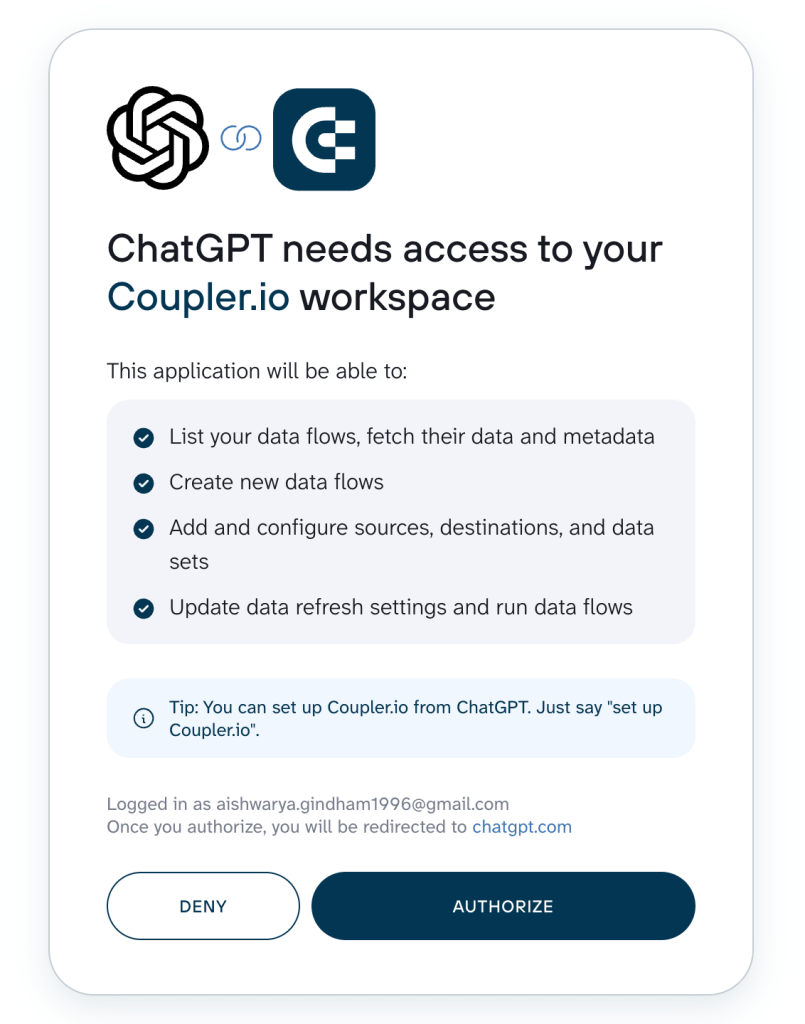
This is a one-time step that completes your ChatGPT Google Search Console setup. Once it is installed, any chat can pull data from any source you connect through Coupler.io.
Other AI integrations follow the same setup logic but may differ in specifics. For example, if you need to connect Google Search Console to Claude, install the Coupler.io connector and ask it to create the integration.
Step 2: Tell ChatGPT what you want to analyze
Open a new chat and describe what you need. Something like:
‘I want to analyze the performance of my site in Google Search Console over the last 3 months. Connect my GSC data to ChatGPT.‘

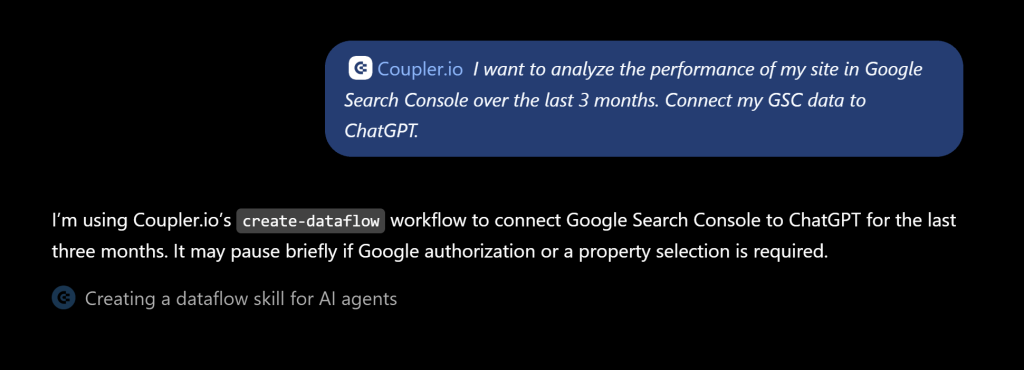
For new users, ChatGPT will open the one-time connection step to authorize Google Search Console. The data flow will be created in Coupler.io, and ChatGPT will provide the results if the data analysis.


Connect Google Search Console to ChatGPT with Coupler.io
Get started for freeSet up in Coupler.io
If you prefer to set up the Search Console data connector directly in the Coupler.io app, the flow is straightforward. Use the form below where we’ve preselected GSC as your source and ChatGPT as the destination. It will prompt you to sign up for Coupler.io for free (no credit card requried) and create a new data flow

Then configure GSC by selecting the reports you want to pull, the report period, and dimensions.

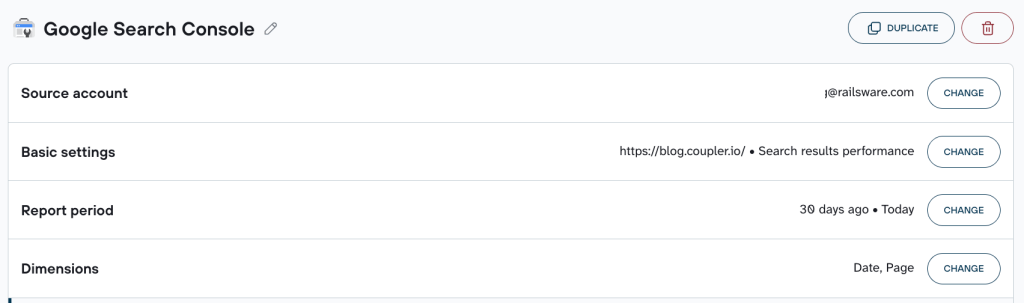
Before moving the data to ChatGPT, you can organize and transform columns, rename fields so they are easier to reference in conversation, and set business context directly to the dataset. For example, what normal click-through rates look like for your site, which traffic spikes were one-off events, or which markets you are actively targeting. ChatGPT uses this context in every analysis, so you are not re-explaining your setup every time you ask a question.

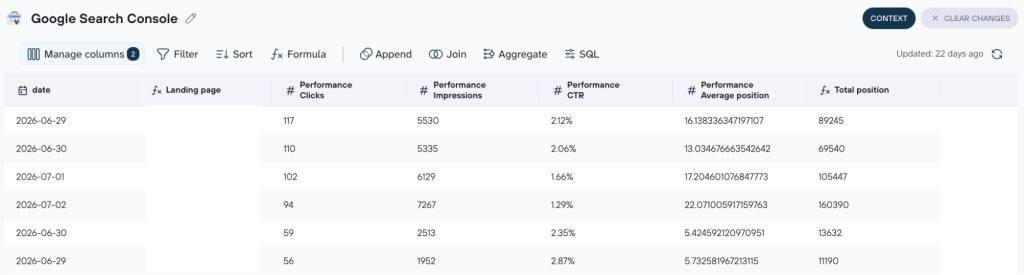
Once the dataset looks the way you want it, set your refresh schedule to export data from Search Console automatically, and you are done. This is the most hands-on way to connect GSC to ChatGPT, but it gives you the cleanest data to work with from the start.
What Coupler.io adds to your Google Search Console integration with ChatGPT
When you connect GSC to ChatGPT through Coupler.io, you get more than just a plugin. Here is what comes out-of-the-box:
Transformation features
Before the data reaches ChatGPT, you can filter rows, rename or hide columns, and add calculated fields. If your GSC export includes columns you never use or field names that are too generic to be useful in a conversation, you clean that up here. ChatGPT can work with a dataset that is already organized around how you actually think about your site.
Analytical Engine
ChatGPT is good at spotting patterns once the numbers are in front of it. It is not a reliable calculator across large and uneven datasets. When you ask a question, Coupler.io’s Analytical Engine runs the SQL query against your dataset, handles the aggregations and calculations, and returns verified results. This way, ChatGPT is interpreting accurate numbers and not just computing wrong ones on its own.
Multi-source joins
Your GSC data does not have to live in isolation. Once it is in Coupler.io, you can combine it with GA4, Google Ads, or any of the 420+ supported ChatGPT integrations in the same data flow. ChatGPT can then answer questions that span multiple platforms without you switching between tools.
Dashboard templates
The same data flow that feeds ChatGPT can also load a pre-built GSC dashboard in Looker Studio or the Coupler.io app. It is a ready-made visual report running off the same data, useful for client reporting or stakeholder reviews.
Either way, you end up in the same place: GSC data ChatGPT can actually work with.
Google Search Console ChatGPT integration: What to know before you start analyzing
The quality of your ChatGPT SEO analysis depends on the data and context you give it. Here is what that means for GSC specifically.
GSC data has no built-in context
Raw GSC data has no benchmarks attached to it. A 1.8% CTR might be strong for a broad informational query and a disaster for a branded navigational one. A position drop from 4 to 6 might be normal weekly fluctuation or the start of a longer slide. ChatGPT cannot tell the difference unless you tell it.
Before you start asking questions, give ChatGPT the context it cannot infer from the numbers alone. You can do this directly in the chat or set it permanently in Coupler.io’s context editor so it applies to every future analysis:
- Anything below 2% CTR on a page ranking in positions 1–5 is underperforming for our site
- The organic traffic spike in July came from a viral backlink. Don’t treat it as a baseline
- We’re primarily targeting the US market. Other country traffic is secondary


Accurate calculations start before ChatGPT sees the data
This matters most when you are working with GSC data at scale. A site with hundreds of pages and thousands of queries can have a lot of variance. For example, a handful of high-impression URLs can skew an account-wide average in ways that make the number meaningless. What looks like a site-wide CTR problem might just be three pages pulling the average down.
That is exactly the kind of calculation Coupler.io’s Analytical Engine is built for. When ChatGPT asks a question about your data, the Engine runs the query, handles the aggregations and weighted averages correctly, and returns an accurate result. Now, ChatGPT is working with the right number for the right slice of data.
Use built-in skills for repeatable SEO workflows
Every time you connect a new data source through Coupler.io, you can use a relevant skill from the AI agent skills library. The Marketing Analytics Skill is already active when you start your first analysis. Instead of getting a generic data summary, your questions get structured, SEO-framed answers. ChatGPT already knows what metrics matter and how to interpret them in a search context.
For Search Console specifically, there are skills that match several of the sections below:
- Content decay detector finds pages that are quietly losing clicks and checks whether a ranking slip explains it.
- GSC search opportunity finder surfaces queries just off page one and pages with high impressions but few clicks.
- Branded vs non-branded search split separates the two segments and shows which one is growing.
- New page indexation tracker measures how long a new page takes to get its first impression and start earning traffic.
- GSC country and device performance reports clicks, impressions, CTR, and position by country and device.
These skills are open source. You can explore and customize them through the Coupler.io GitHub repository.
Connect multiple platforms and destinations in one dataflow
Once your GSC data is flowing, you can bring in other sources and send data to multiple destinations from the same pipeline. For anyone managing client reporting or recurring SEO reviews, this is where the setup starts paying off:
- ChatGPT for quick conversational analysis and ad hoc questions
- Looker Studio or Power BI for a client-facing dashboard that refreshes automatically
- Google Sheets for URL-level data at scale

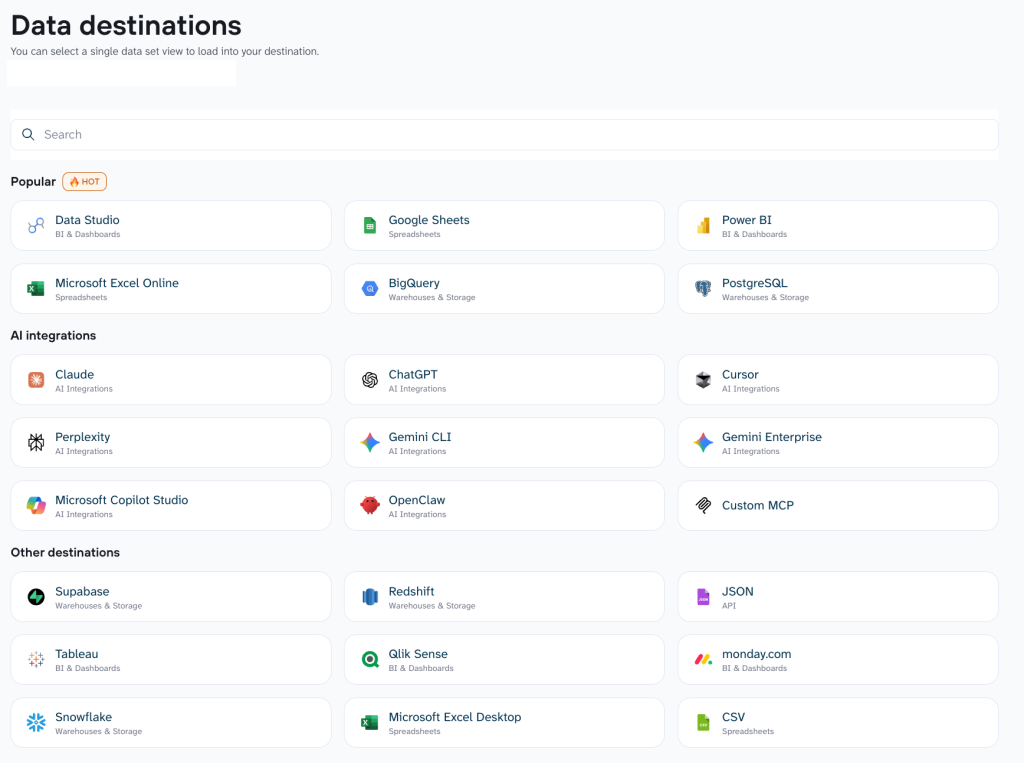
Set the refresh once, and every destination updates together. It is the simplest way to automate SEO reporting with ChatGPT without rebuilding the same report every week.
Get accurate GSC insights in ChatGPT with Coupler.io
Get started for freeExamples of how to analyze Google Search Console data in ChatGPT
Once your GSC data is connected, here is what you can ask.
Find which pages are losing ranking before traffic disappears
Most ranking drops are invisible until they have already cost you clicks. A page sliding from position 4 to position 7 loses roughly half its click share. But GSC’s default view shows current averages, not trajectories. By the time a traffic drop shows up in the chart, the decline has usually been running for weeks.
Pulling position trends across your pages gives ChatGPT enough to spot which ones are moving in the wrong direction before the traffic impact becomes obvious:
‘Pull every URL from the last 90 days where average position worsened by more than 2 positions compared to the 90 days before that. For each URL, show current position, previous position, change in clicks, and CTR. Rank by largest position drop. Flag any URL still ranking in positions 1–10 that is declining. Those are the priority recoveries.‘
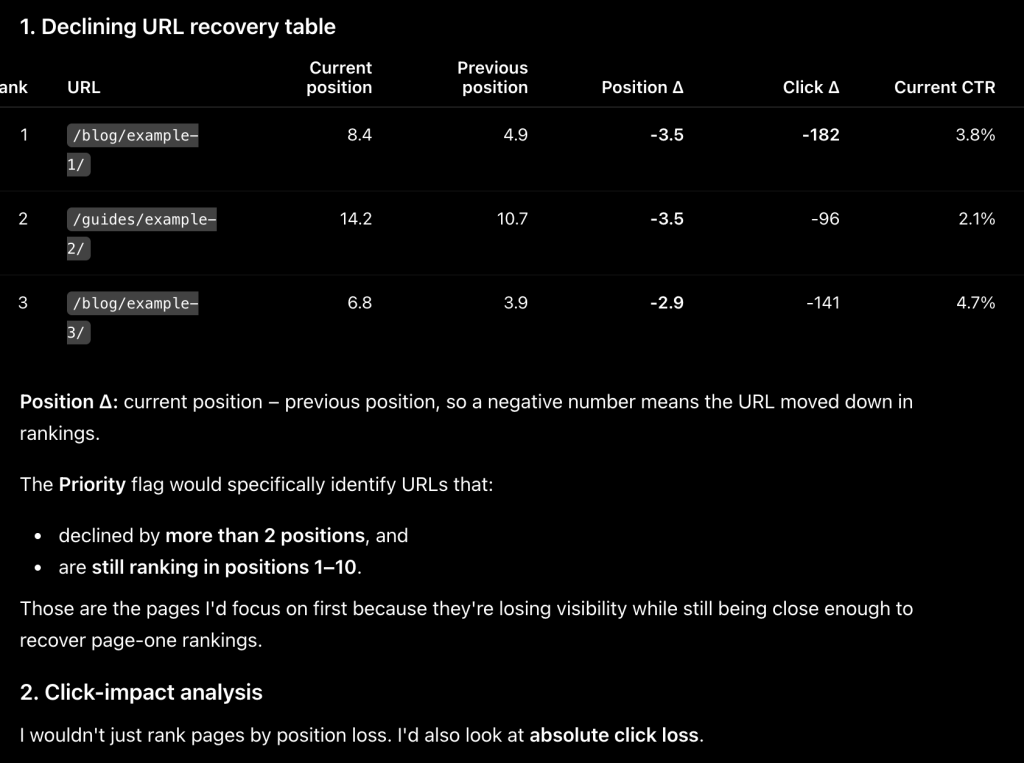
ChatGPT returns a ranked table of declining URLs with position delta, click impact, and a priority flag for any page still on page 1 but sliding. It also summarizes whether the drops are concentrated on a specific subfolder, content type, or time window.
Because Coupler.io keeps your GSC data on a refresh schedule, this is not a one-time audit. Run the same prompt every month and ChatGPT will always be working from current data.
Takeaways:
- A page dropping from position 3 to 7 with stable CTR is losing to a competitor. A content refresh beats a rewrite
- Drops concentrated in one subfolder usually point to a site structure or internal linking issue
- A page dropping in position but gaining clicks is picking up long-tail queries. It is worth expanding
Surface the high-impression, low-CTR pages that are bleeding clicks
Some of the easiest wins in SEO are invisible in the default GSC view. A page with 8,000 impressions and a 0.9% CTR is ranking, people are seeing it, but almost nobody is clicking. The metadata (title tag or description) is doing the wrong job. GSC shows both numbers. It does not surface the gap.
‘Find every URL with more than 300 impressions in the last 60 days and a CTR below 2%. Show impressions, clicks, CTR, and average position. Sort by impressions descending. Exclude pages with average position above 20. I only want pages that are visible and underperforming on clicks, not pages that simply do not rank yet.‘

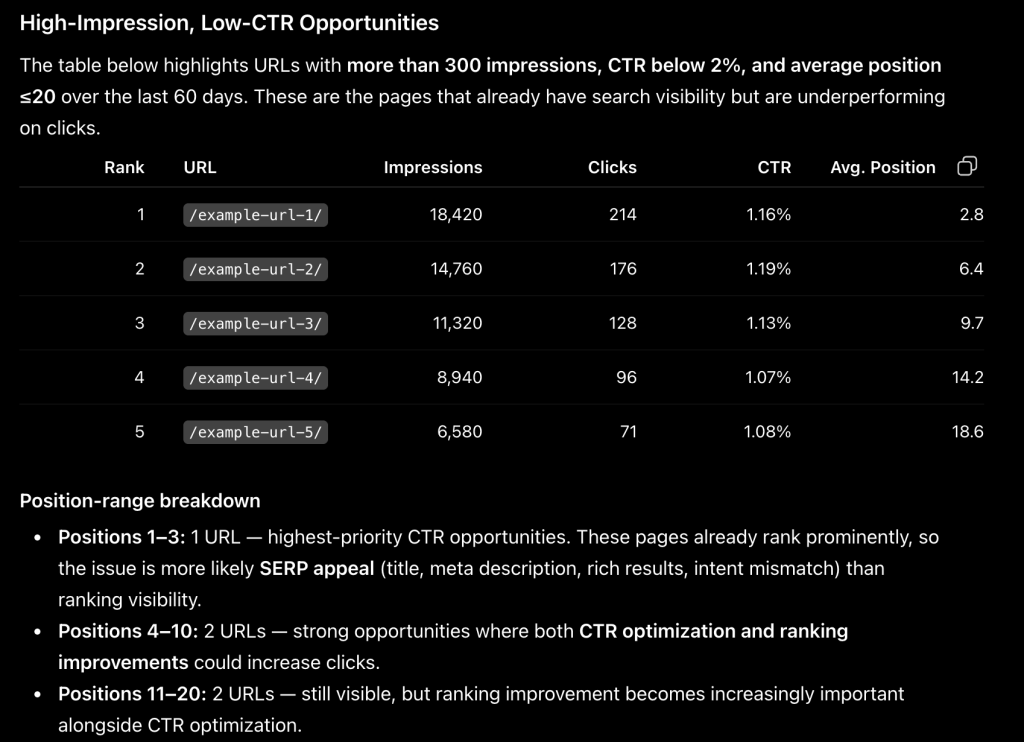
ChatGPT returns a filtered table of missed-click opportunities sorted by impressions. It will also note which position ranges are represented. Pages at positions 1–3 with low CTR have a different fix than pages at positions 4–10.
Takeaways:
- Position 1–3 with low CTR usually means a SERP feature. An AI overview or featured snippet is absorbing the click above your organic result. A title rewrite will not move this number much.
- Position 4–10 with low CTR is almost always a title problem. The page ranks well enough, but the listing does not earn the click.
- Run this list monthly. It shifts as rankings move and quick-win opportunities appear and expire.
Diagnose a traffic drop: was it rankings, CTR, or reach?
When a client asks why traffic dropped last month, the answer is never just “rankings changed.”
A traffic drop has three possible causes: fewer impressions (reach or algorithm issue), lower CTR (title or SERP appearance issue), or position decline (ranking issue). Without separating the three variables, any fix is a guess. For a client conversation, a guess is not good enough.
‘Compare my GSC data from the last 30 days against the same 30 days last year. Show total clicks, impressions, average CTR, and average position for both periods. Then break it down by the top 20 URLs. For each one, show which metric shifted most. Tell me whether the overall drop is primarily a reach issue (impressions down), a CTR issue, or a rankings issue, and which pages are responsible for most of the change.‘

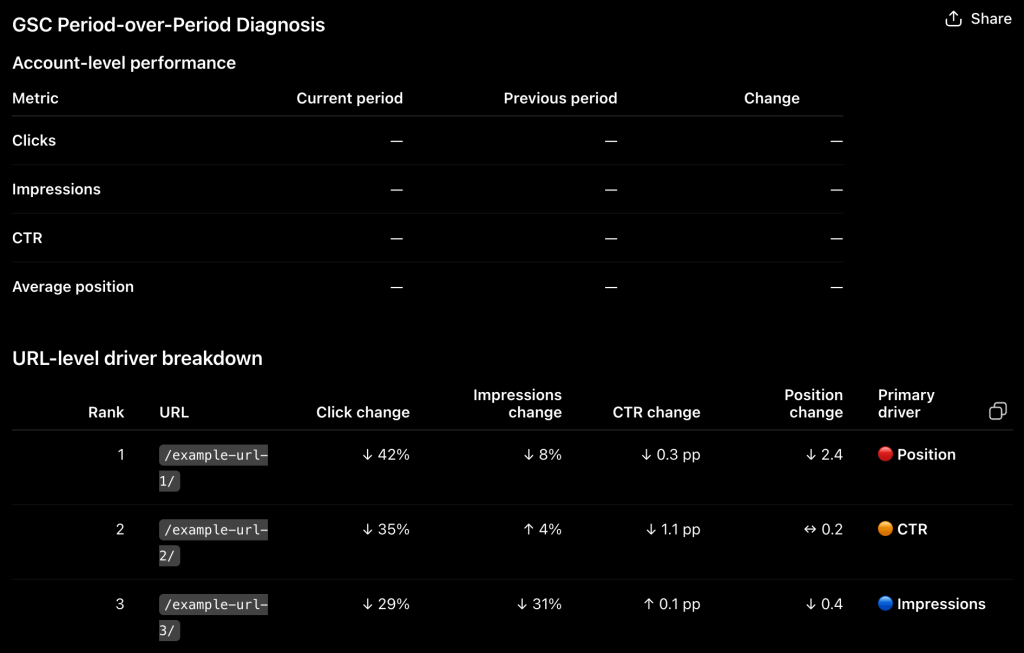
ChatGPT flags the primary driver per page: impressions, CTR, or position. Later, identifies which cause is dominant across the site, giving you the client answer in one response instead of three separate analyses.
Takeaways:
- Impressions down with CTR and position stable is almost always an algorithm change or seasonality
- CTR down with stable impressions and position points to a search appearance change pushing organic results down visually. Check which queries triggered an AI overview or featured snippet
- Position drops concentrated on 3–5 specific pages are more actionable than a site-wide slide
The period-over-period comparison works because Coupler.io builds a historical dataset over time (something a one-off CSV export cannot give you). The longer your data flow has been running, the more useful this prompt becomes.
Find the queries you are almost ranking for (and prioritize your content updates)
The highest-return content updates are rarely on pages with no ranking at all. They are on pages sitting at positions 8–20 which are already indexed, picking up impressions, and close to page 1. GSC has this data, but a default query report sorted by clicks buries these keyword opportunities behind the pages that are already performing.
‘Show my top 100 queries by impressions over the last 90 days. Group them by position band: 1–3, 4–7, 8–15, and 16+. For the 8–15 band, flag any query with more than 150 impressions. These are my best candidates for a content push to page 1. For each flagged query, show the URL that is ranking, average position, impressions, and CTR.‘

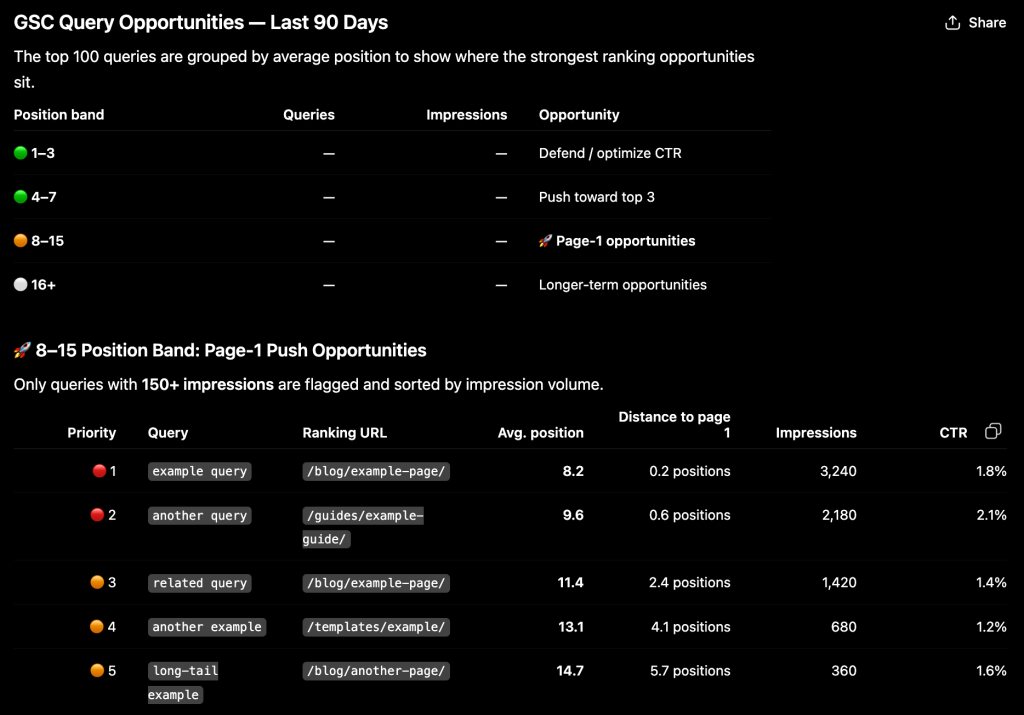
ChatGPT returns a grouped query table by position band, with the 8–15 group flagged and sorted by impressions. For each flagged query, you get the specific URL ranking, how close it is to page 1, and the impression volume that makes it worth prioritizing.
Takeaways:
- Queries at positions 8–15 with 150+ impressions already have distribution. A targeted content update like adding depth, fixing thin sections, or improving internal links often moves them faster than publishing new pages.
- A cluster of related queries all in the same position band usually means one comprehensive update can push multiple terms simultaneously. That kind of prioritization is where a data-backed SEO strategy beats guessing.
- Run this on a recurring schedule, not as a one-time audit. The list shifts monthly as rankings change.
Run recurring SEO reports in ChatGPT with Coupler.io
Get started for freeMore ChatGPT prompts to run for Google Search Console analysis
Save these prompts for when your GSC data is live, and you are ready to analyze content performance in ChatGPT.
Branded vs. non-branded split
‘Separate my last 90 days of queries into branded (containing [site or brand name]) and non-branded. Show total clicks, impressions, CTR, and average position for each group. Is non-branded traffic growing or shrinking as a share of total?‘

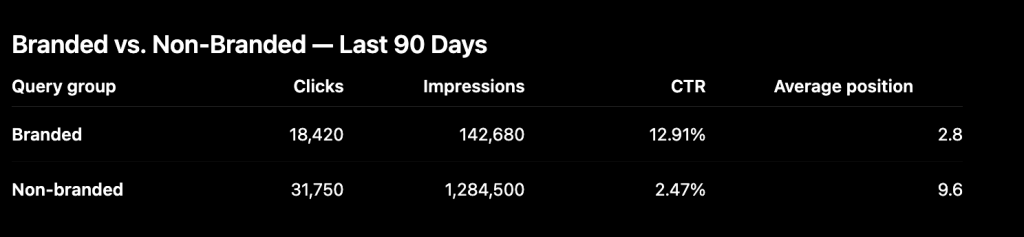
Tells you whether your search visibility comes from new audiences finding you or mostly from people who already know you.
Device performance gap
‘Break down my search performance by device (mobile, desktop, tablet) for the last 60 days. For each, show clicks, impressions, CTR, and average position. Flag any device where CTR is more than 1 percentage point below the others.‘

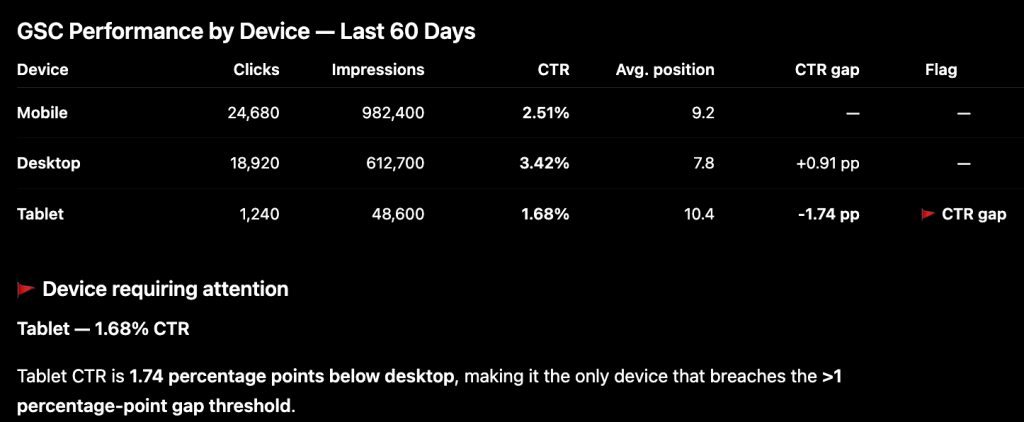
A CTR gap between devices usually points to a page experience issue, not a content one. Worth cross-referencing with Core Web Vitals for the flagged pages.
Zero-click query audit
‘Find queries with more than 200 impressions and zero clicks in the last 60 days. Show query, impressions, and average position. For any query ranking in positions 1–10 with zero clicks, tell me what SERP feature is most likely responsible.‘

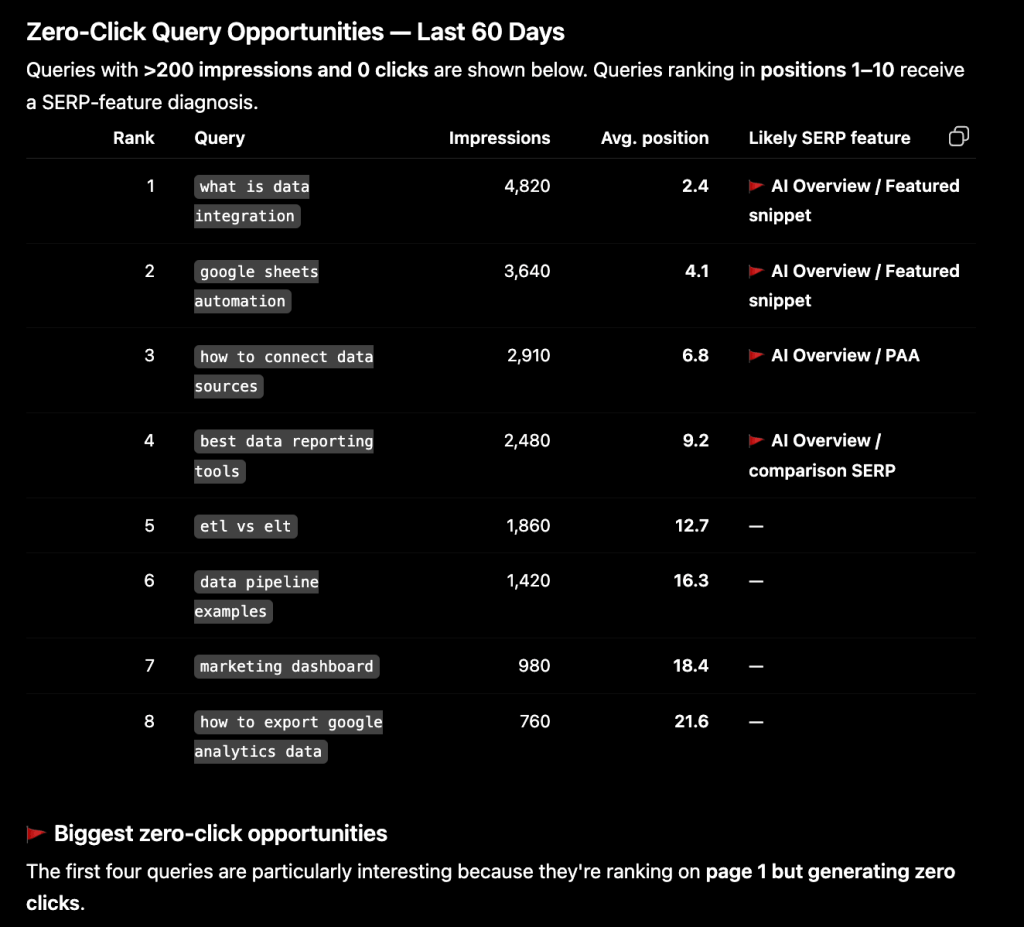
Helps you decide whether to optimize for the SERP feature or accept the zero-click dynamic and move on.
New page indexing speed check
‘For any URL that first appeared in GSC in the last 90 days, show when it was first seen, current average position, total impressions, and total clicks. Are new pages indexing and picking up impressions at a normal pace, or is there a pattern of slow pickup?‘

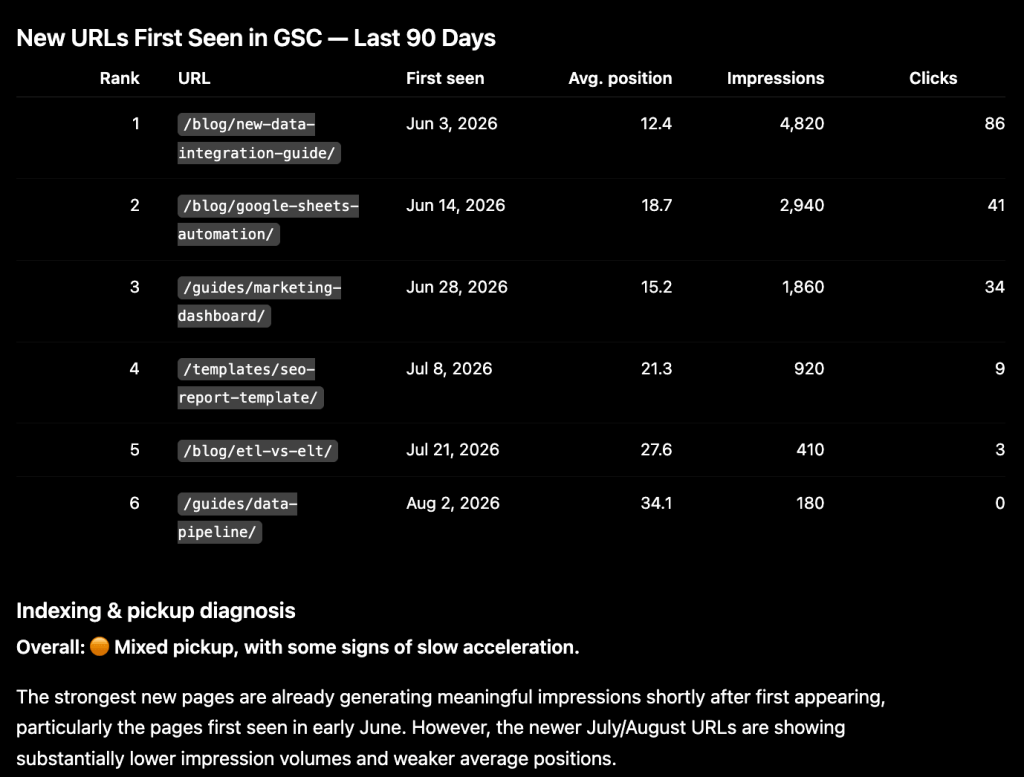
Consistent slow pickup across new pages usually points to crawl budget, weak internal linking, or a site structure issue.
Internal cannibalization check
‘Find any queries where two or more of my URLs are appearing in GSC for the same keyword in the same date range. List the query, both URLs, their respective positions and click shares. Flag cases where both pages are ranking but splitting impressions. Those may need a consolidation or redirect decision.‘

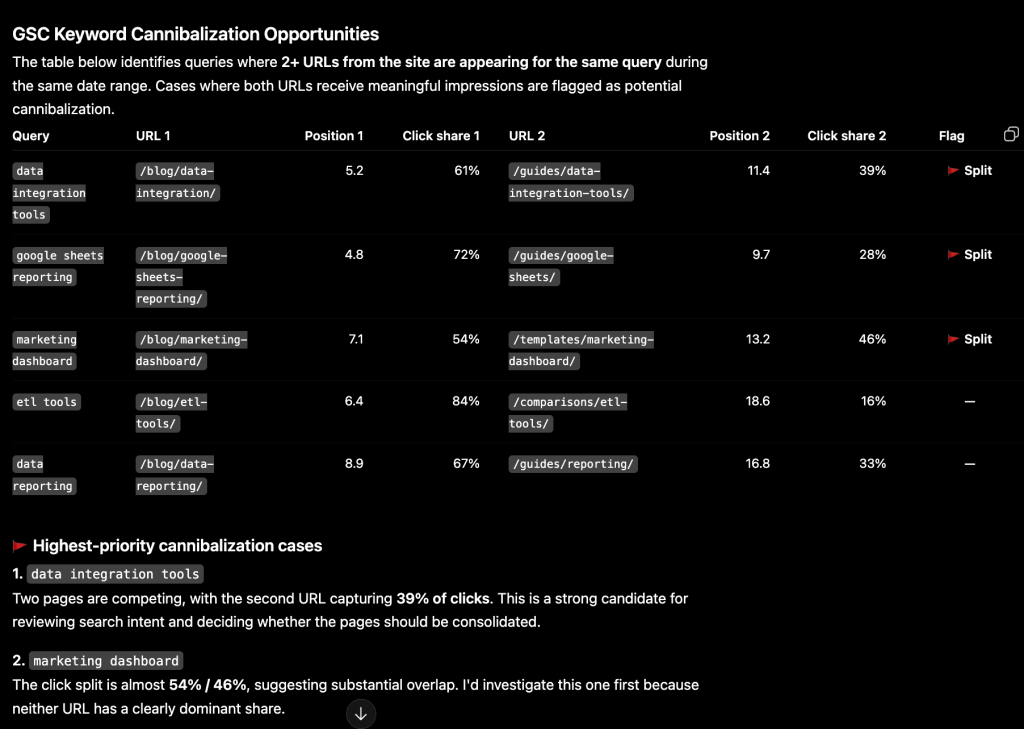
When two pages split impressions for the same keyword, neither gets the full ranking signal. Consolidating or redirecting the weaker one usually moves the surviving page faster than any content update would.
Other ways to get Google Search Console data into ChatGPT
There are several ways to connect GSC to ChatGPT, but Coupler.io works best when you need the marketing data on a regular schedule with the heavy lifting already done. But depending on your situation, a simpler or more custom path might make more sense. Here is how the options stack up.
| Method | Setup effort | Math handled by | Best for | Main limitation |
|---|---|---|---|---|
| Coupler.io (chat-first) | Low. No code, ~5 min inside ChatGPT | Coupler.io Analytical Engine | Recurring GSC analysis, multi-property, cross-source reporting | Refresh frequency depends on plan |
| Manual CSV export & ChatGPT file upload | Low per session, repetitive over time | You or ChatGPT on raw data | One-time audits, quick one-off questions | No cross-report joining, no history, no refresh |
| GSC API + Python | High. OAuth, pagination, rate limits | Your code | Teams with engineering support and custom pipelines | Sampling still applies. Endpoint changes can break pulls silently |
| Custom MCP server | Very high. Build and maintain | Depends on implementation | Teams with existing data infrastructure | No official GSC MCP server exists. Must build from scratch |
Manual CSV export & ChatGPT file upload
GSC lets you download your data directly, but the process is more fragmented than it looks. Queries, pages, countries, and devices each live in a separate tab and require a separate download. There is no way to pull everything in one go. Once you have the files, you can upload them directly into a ChatGPT conversation and start asking questions.

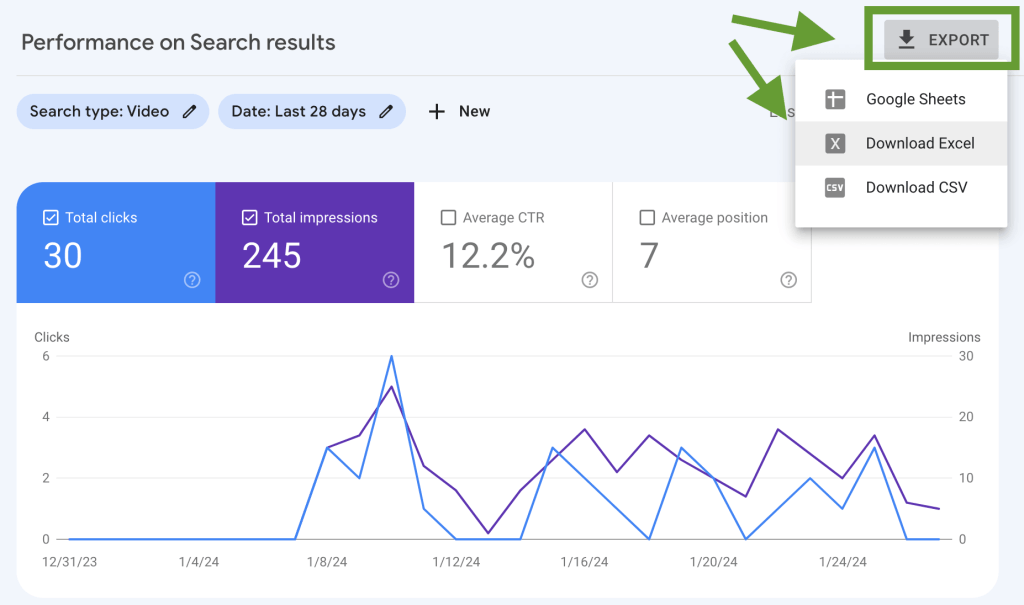
The ceiling is low, though. You are limited to whatever is in that one file. You cannot cross-reference multiple report types without manually merging them first, and there is no way to keep the data current without repeating the whole process from scratch.
If you are doing a thorough one-time audit, that is a reasonable trade-off. But if you are answering the same questions every week across multiple properties, you will spend more time gathering data than analyzing it.
GSC API + Python
Building directly against the search console API gives you precision and flexibility. You define exactly what data gets pulled, how often, and where it lands. What it does not give you is a free pass on the messy parts. Authentication needs to be set up, and large sites may hit row limits that require pagination logic. GSC’s own data sampling can be tricky. Any time Google updates an endpoint or changes a field name, something in your pipeline quietly breaks. A solid option for teams that already run and maintain data infrastructure. A significant overhead for anyone who does not.
Custom MCP server
Google has not released an official MCP server for Search Console, which means building one requires going directly against the GSC API and handling everything that comes with it (hosting, authentication, error handling, and keeping up with any changes Google makes on its end).
For teams that already have the infrastructure and the engineering capacity, it is a viable path. For everyone else using ChatGPT for SEO optimization, the build and maintenance cost is hard to justify when the same MCP protocol is what Coupler.io runs on anyway.
FAQs
Is it safe to connect Google Search Console data to ChatGPT?
Yes. When you connect Google Search Console to ChatGPT through Coupler.io, the connection is read-only. ChatGPT can query your GSC data but cannot make any changes to your account, submit URLs for indexing, or touch any Search Console settings. You also control which properties and fields are shared before ChatGPT sees anything.
Can I connect multiple GSC properties?
Yes. Each Search Console property can be set up as a separate data flow, or you can combine multiple properties into one dataset for cross-site analysis. Useful for agencies managing several client domain properties or brands running multiple regional properties under different GSC accounts.
Can I combine GSC with Google Analytics, Google Ads, or other tools?
Yes. Once Coupler.io is connected to ChatGPT, adding GA4, Google Ads, or any of the 420+ supported sources is another message in the same conversation. You can join them at the dataset level. For example, seeing GSC impressions alongside GA4 conversion data for the same URLs. It is done in the Coupler.io app before the data reaches ChatGPT.
Does this work with personal Google accounts or only Google Workspace?
It works with any Google account that has a verified GSC property. No Workspace requirement. If you are managing properties on behalf of clients, you will need to be added as a verified user or owner of those properties in Search Console. Coupler.io connects through your own Google authorization, not a shared login.