Your Google Sheets reporting file has 9 tabs, column names that drift every quarter, and a QUERY formula that broke the last time someone added a row. Hand it to Claude as-is, and the answers can look confident but be wrong, because large language models are weak at math across messy data.
When you connect Google Sheets to Claude through Coupler.io, you give Claude a cleaned, structured dataset that stays up-to-date on a schedule. You can do this two ways: ask Claude in Claude.ai about the Google Sheets data Coupler.io has prepared, or work with Claude directly in the Sheets sidebar on top of a tab Coupler.io keeps fresh. Both run on the same data layer underneath. Below, you’ll set up the first and see how the second looks in practice.
How to connect Google Sheets to Claude with Coupler.io
Coupler.io is the bridge between your Google Sheets data and Claude. It handles the connection, data preparation, and refresh cycle through a secure MCP connector. This data integration platform for AI analytics supports 420+ sources and works outside Claude, so Claude queries a cleaned dataset instead of a raw tab.
That separation matters more for Sheets than for most sources. Spreadsheets drift: columns get renamed, people add tabs, formulas break when someone sorts. If Claude reads a Sheet directly, the answers inherit the mess. With Coupler.io in between, the sheet gets standardized once, calculations run through the Analytical Engine, and Claude works from a verified result. Claude is good at explaining what the numbers mean. Coupler.io is good at computing them in the first place.
Set it up by asking Claude
Install the Coupler.io connector for Claude from the connector library. Once it’s live, describe what you want in plain English (for example, “pull in our Q3 revenue tab from Google Sheets” or “set up a data flow for the pipeline tracker”) and Claude will guide Coupler AI through building the data flow.

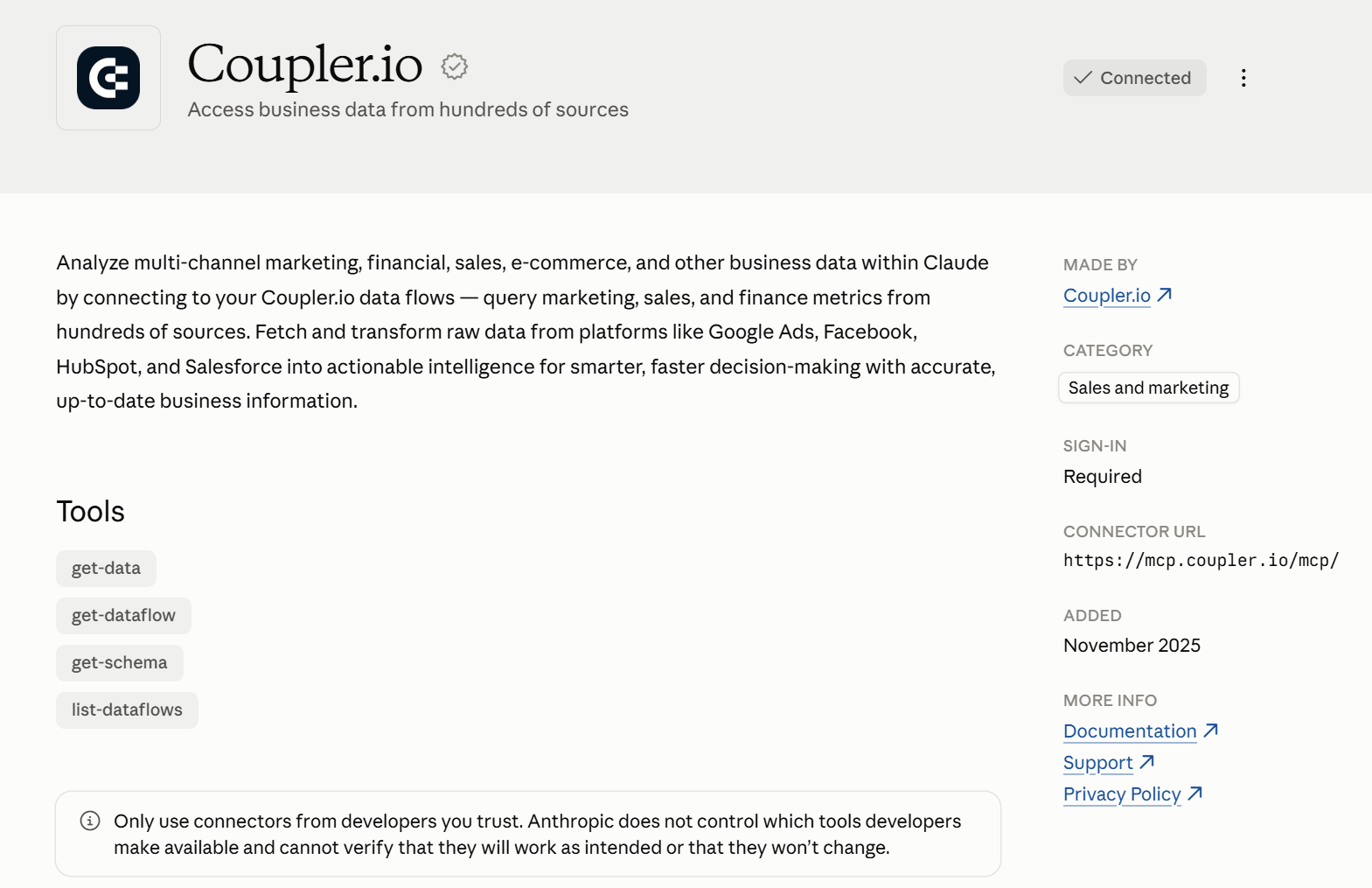
The conversation drives the setup. You’ll still sign in to Coupler.io and authorize Google Workspace when prompted, but you don’t leave the chat to decide what the data flow should contain.
From then on, Coupler.io stores and refreshes the dataset on the schedule you’ve chosen, and Claude queries it through the MCP connection whenever you ask a question.
Or build the data flow in Coupler.io’s UI
If you’d rather set up the data integration with Claude in Coupler.io, sign up (no credit card required) and create a new data flow with Google Sheets as the source and Claude as the destination. Pick the spreadsheets and tabs you want Claude to see, apply filters and column changes to shape the dataset, then run and schedule it. The result is the same as what Claude would build on your behalf.
Or use this form to get started right away:

What you’d be configuring, either way, is a Coupler.io data flow. In a single flow, Google Sheets can sit alongside CRMs, ad platforms, or warehouses, so Claude’s answers reflect the full picture instead of one tab. The data gets shaped through filters, formulas, joins, and aggregations, with a SQL step available when you need custom logic.

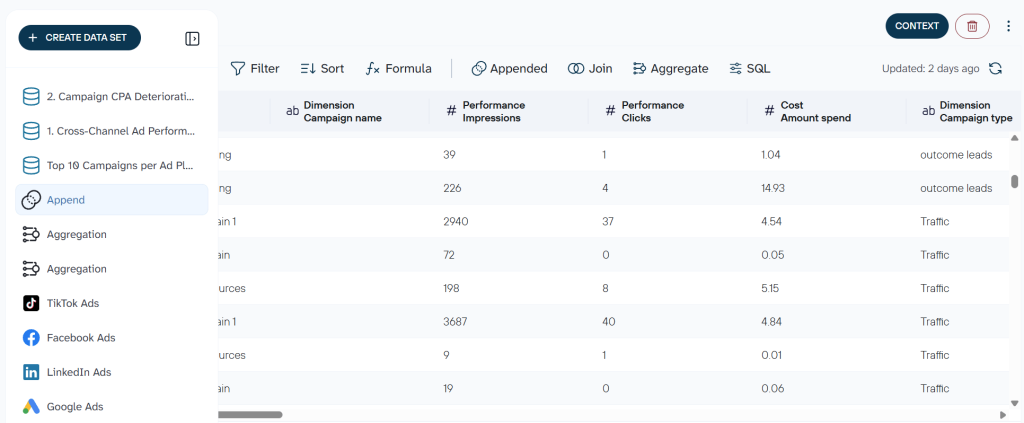
On top of that, the AI context layer carries the business meaning (what columns stand for, how your team defines key metrics, which rows to exclude), so Claude interprets the numbers the way your team does. Packaged Skills let Claude run a repeatable analysis without you rewriting the prompt. And the same flow can fan out to other destinations in parallel: Data Studio, Power BI, BigQuery, Snowflake, or a tab back in Google Sheets.


Analyze your Google Sheets data in Claude with Coupler.io
Get started for freeExamples of how you can analyze Google Sheets data with Claude
With the data flow in place, you can start asking Claude questions in plain language. A simple first question gives you a feel for how it works:
Example prompt: I need to prepare for our monthly sales performance meeting. Based on last month's data from our Sheets, give me a summary of how we did, flag anything that needs attention, and suggest two or three talking points I should be ready to address.

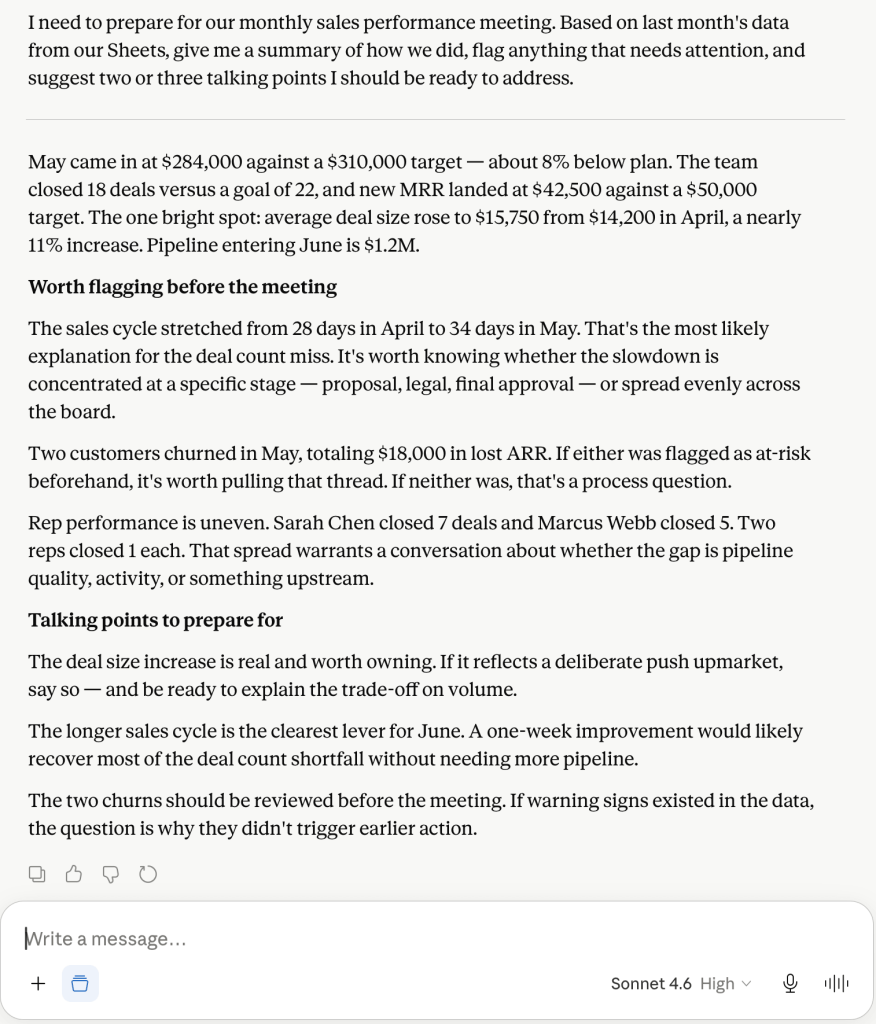
The three use cases below show what Claude can do that Google Sheets alone can’t.
Get insights on information collected through Google Forms
Google Forms can send every response into a linked Google Sheet automatically. If your team runs surveys, you probably already have that set up. When reporting time comes around, the usual move is to export the sheet or scroll through responses by hand. Coupler.io extends that Forms-to-Sheets pipeline to Claude.
Formulas handle the numeric responses fine: averages, counts, score distributions. Open-ended text is harder. There’s no clean way to run sentiment analysis in Google Sheets. Claude handles it in a single prompt.
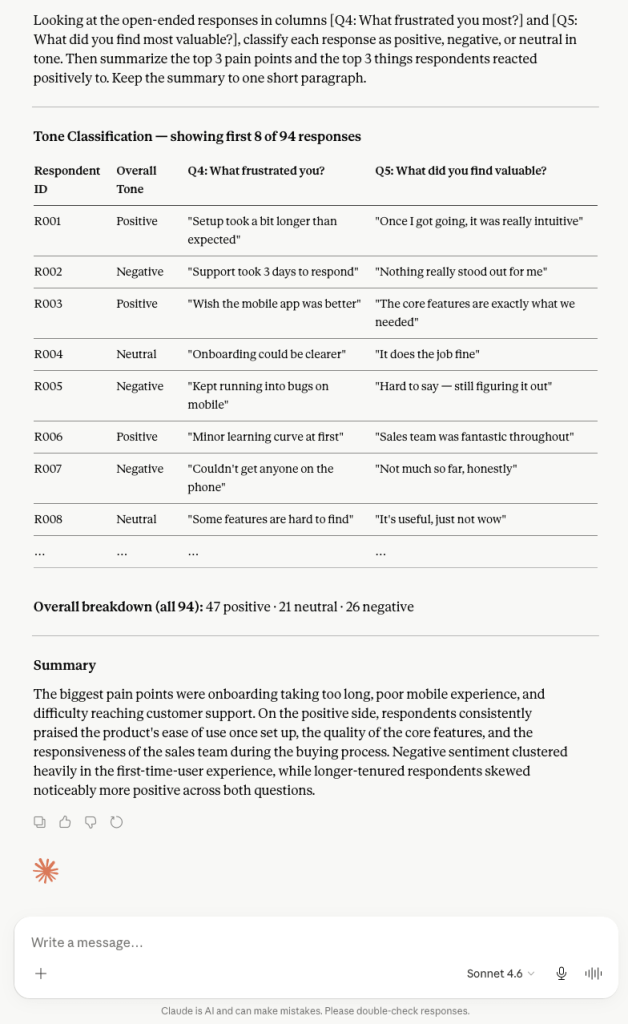
Example prompt: Looking at the open-ended responses in columns [X] and [Y], classify each response as positive, negative, or neutral in tone. Then summarize the top 3 pain points and the top 3 things respondents reacted positively to. Keep the summary to one short paragraph.
Claude returns a sentiment breakdown by response and a paragraph summary of the top themes. The value is in where the clusters fall. If negative sentiment concentrates among first-time users, that points to an onboarding problem worth addressing before the next survey cycle. If it clusters around a specific feature, that identifies where to focus product work next. Either way, you have something concrete to act on rather than a spreadsheet full of comments nobody has time to read one by one.

Takeaways:
- Claude can classify sentiment and point to a specific fix. In the example I shared, that was the onboarding experience.
- Reading hundreds of open-ended responses by hand takes hours. Claude returns the same breakdown in seconds, so you can act on what users are telling you in the same week the survey closes.
- Because Coupler.io refreshes Sheets data on a schedule, the next survey’s responses will already be available to Claude.
Decide how to allocate your marketing budget
Marketing performance data in Sheets drifts over the year. Q1 sits in one tab, Q2 in another. Channel names shift mid-year because someone updated a Sheet. A notes column gets added in the middle of the data range. By the time you need to plan Q3, data that should take minutes to analyze needs an hour of cleanup first.
Coupler.io does that cleanup before Claude sees the data, which frees Claude to focus on the actual question. You can also ask Claude to flag channels where spend and performance are out of step: ones underperforming relative to budget, ones outperforming in ways the raw numbers understate.
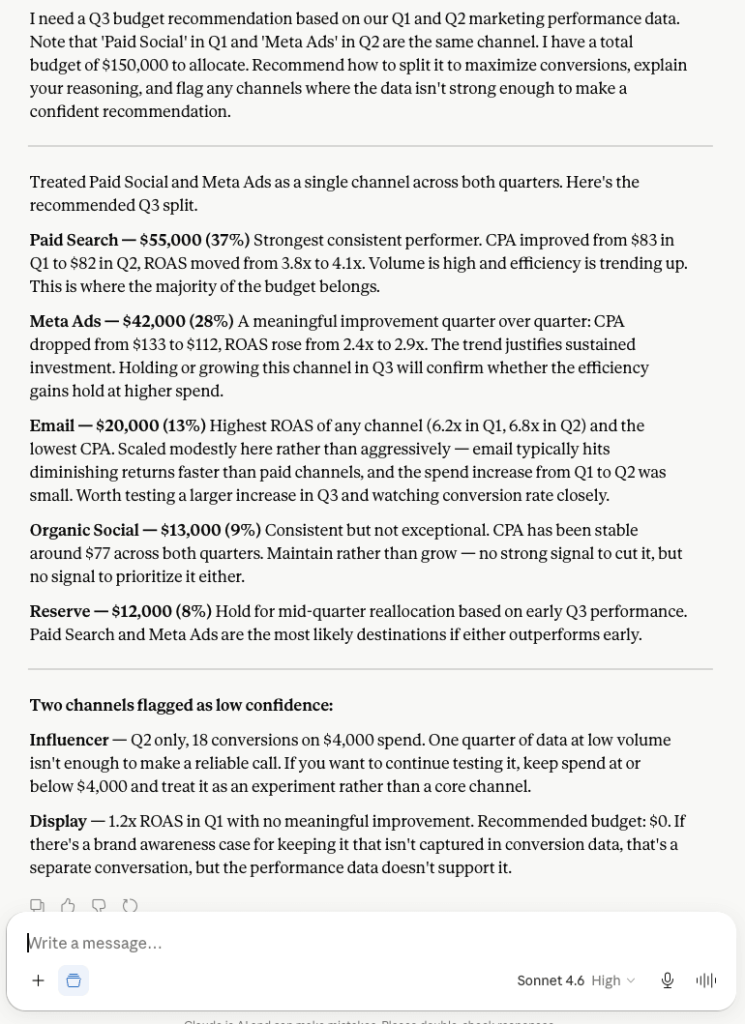
Example prompt: I need a Q3 budget recommendation based on our Q1 and Q2 marketing performance data. Note that 'Paid Social' in Q1 and 'Meta Ads' in Q2 are the same channel. I have a total budget of $[X] to allocate. Recommend how to split it to maximize conversions, explain your reasoning, and flag any channels where the data isn't strong enough to make a confident recommendation.
Claude returns a proposed budget allocation by channel with a short rationale for each: channels that earned more spend based on conversion data, channels worth testing at a higher level, and channels with too little data to support a confident call. It also flags any channels where spend and performance are misaligned.

Takeaways:
- Coupler.io does the structural work before Claude sees the data: combining tabs, applying transformations, carrying Context notes about naming conventions. Claude gets a clean dataset and focuses on the recommendation.
- If you also track CRM or sales data in another source, Coupler.io can combine it with your Sheets data in the same flow. Claude’s recommendation then reflects the full revenue picture.
- Ask Claude to flag where it isn’t confident in its own call. That cuts hallucination risk and gives you places to double-check.
Optimize business operations
Ecommerce operations teams often spread one workflow across separate Sheets: orders in one, fulfillment in another, returns in a third. Reconciling them is a weekly job someone is supposed to do, usually with a chain of VLOOKUPs that breaks whenever a column moves or a new row gets added. By the time the season gets busy, the reconciliation is a month behind.
Coupler.io merges those Sheets into one data flow before Claude sees them. Claude then runs the reconciliation and identifies the gaps.
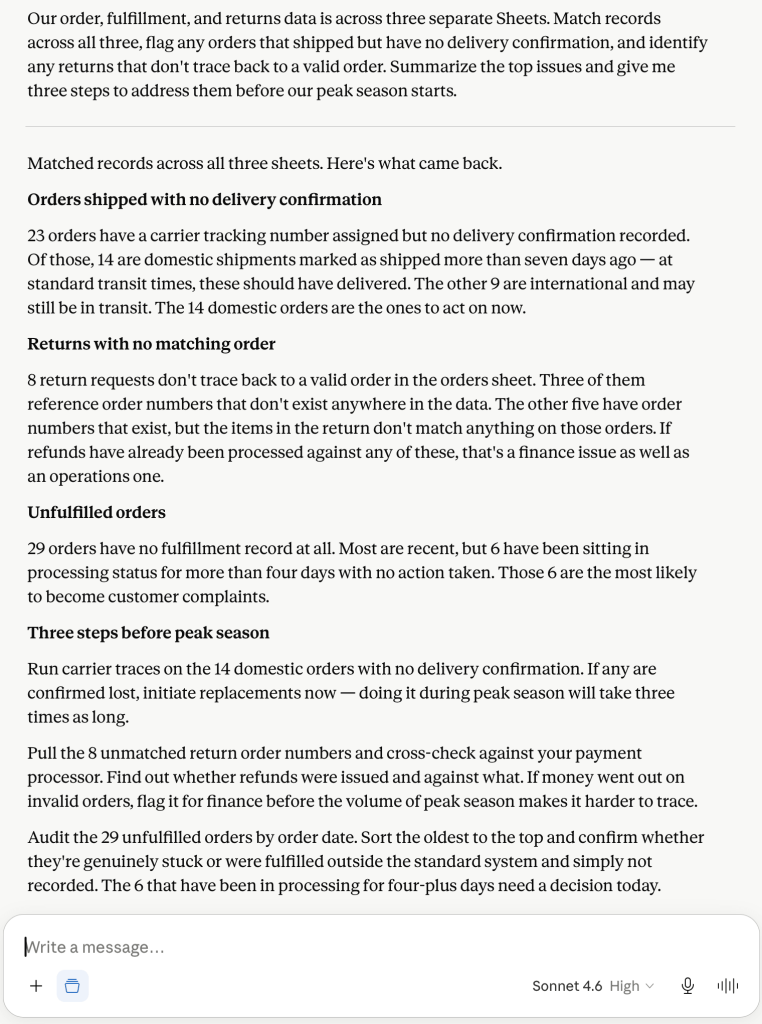
Example prompt: Our order, fulfillment, and returns data is across three separate Sheets. Match records across all three, flag any orders that shipped but have no delivery confirmation, and identify any returns that don't trace back to a valid order. Summarize the top issues and give me three steps to address them before our peak season starts.
Claude returns a breakdown of matched and unmatched records, flagged exceptions by category, and three prioritized steps for closing the highest-impact gaps before the busy period.

Takeaways:
- Cross-sheet record matching is a task operations teams do by hand using VLOOKUP chains that constantly break. Coupler.io organizes the data across sheets; Claude runs the reconciliation on top.
- Coupler.io also connects to inventory systems, order management platforms, and other operational sources, so Claude can work across your full stack.
- Running this as a scheduled Coupler.io data flow means Claude always reads from fresh data.
Claude prompts for Google Sheets data analysis
Based on our sales rep performance data, who are my top and bottom performers this quarter, and what separates them?Here's our last 90 days of support ticket data. What are the most common issues customers are contacting us about, and have any of them spiked recently?I have monthly revenue and expense data for the last 12 months. Are we trending toward or away from profitability, and which expense categories are growing the fastest?Here's our employee headcount and turnover data by department. Which departments have a retention problem and how does our overall turnover rate compare to typical industry benchmarks?I have three months of inventory data across our product lines. Flag anything that looks like it's consistently underselling or at risk of stockout.Here's our project tracker with tasks, owners, due dates, and statuses. What's overdue, who has the most on their plate, and what's most likely to slip in the next two weeks?
Talk to Claude about your Google Sheets data
Try Coupler.io for freeWork with Claude in Google Sheets
On October 6, 2026, Anthropic shipped Claude for Google Workspace in public beta for every paid Claude plan. It installs from the Google Workspace Marketplace, then opens as a sidebar inside any sheet (Extensions → Claude → Open Claude). From that panel, Claude reads the open sheet and selected cells and edits in place: writing formulas, building pivots and charts, adding tabs, and running Python when it needs to join data or clean something up. It asks before editing by default.

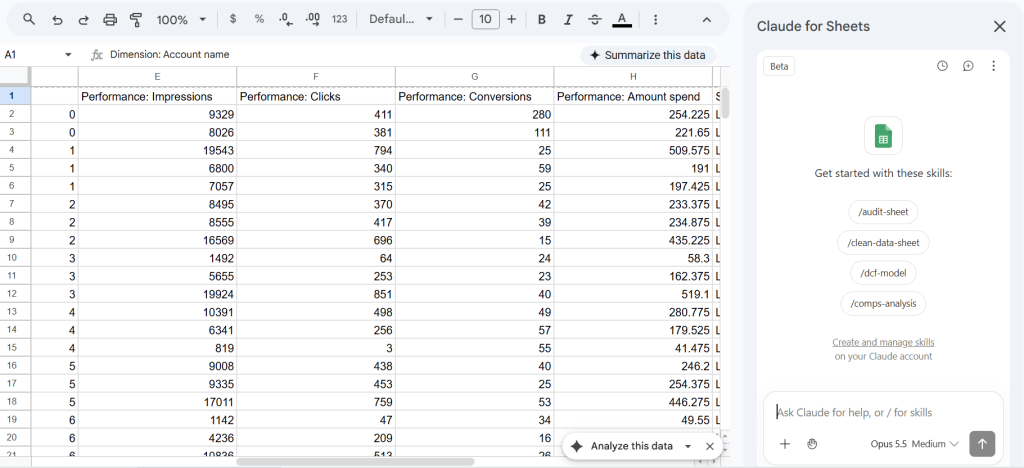
That’s the Claude in Sheets experience. Where Coupler.io fits is the data layer underneath. Claude in the sidebar is only as good as what’s in the open sheet, and Coupler.io is what puts clean, calculated data there on a refresh schedule. Either a Coupler.io data flow lands the data in a tab Claude reads, or Claude pulls it from Coupler.io on demand through the Coupler.io MCP. Both routes below.
Note: This is a different product from the older “Claude for Sheets” add-on that exposes =CLAUDE() cell functions and takes an API key. That one is still on the Marketplace. This section is about the Workspace sidebar.
A Coupler.io data flow with Google Sheets as the destination writes to a tab on whatever schedule you’ve set. Open that sheet with Claude in the sidebar, and Claude reads the tab directly. Anything it builds (dashboards, forecasts, breakdowns) gets written as live formulas pointing at the Coupler.io tab, so it updates every time the data flow refreshes. One build, repeat forever.
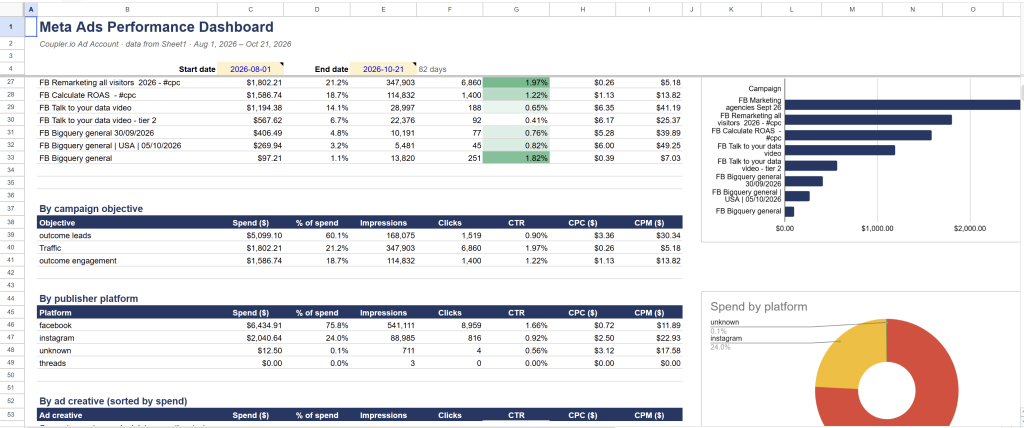
I tested this with 1,909 rows of Meta Ads creative data that Coupler.io had already exported to a tab. One prompt: “build a dashboard.” Claude parsed the data, worked out that the tab held 8 campaigns, 18 ad sets, and 12 creatives, and built a Dashboard tab with KPI cards, a weekly trend, breakdowns by campaign and creative, and three charts.
It didn’t stop at building. Reading the same data, Claude flagged that cost per click rose from about $0.48 to $1.38 between August and October while CTR fell from 2.1% to 1.3%, and remarketing clicks sat at $0.26. Build and interpretation from one prompt.

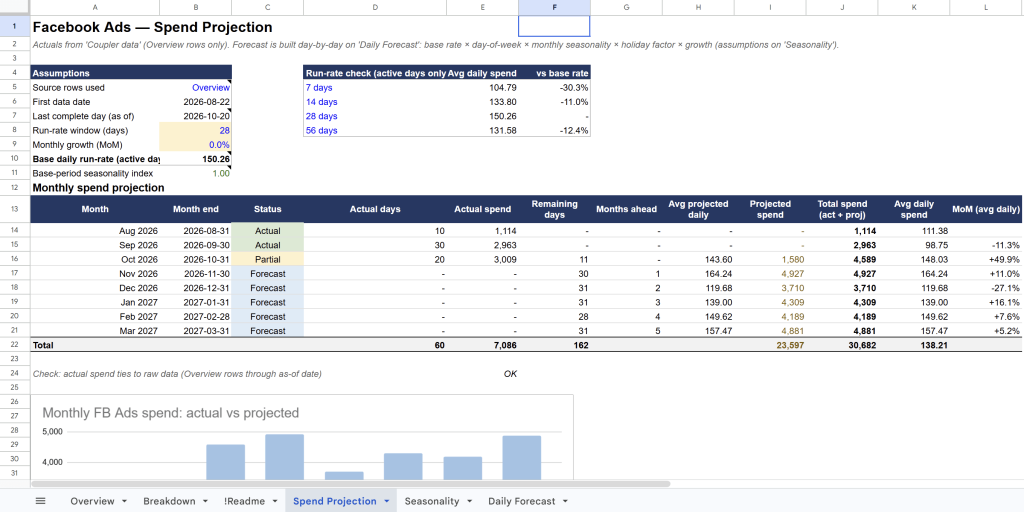
The same approach works on top of Coupler.io dashboard templates. A second test added a Spend Projection tab to our Facebook Ads template, built from “build a projection for our spend, dynamic” and then “count in holidays and seasonality.” Claude noticed the template repeated the same spend across four breakdowns (Overview, Age & Gender, Country, Device) and used only Overview, so spend didn’t get counted four times. It also pointed out that the data flow’s 60-day range was too short for real seasonality and suggested widening it to 12–24 months. That’s the kind of correction you’d normally expect from the person who built the template, not from a sidebar reading it.

Claude in the sidebar can call MCP servers you’ve connected, including Coupler.io’s. Ask in plain language (“bring in the last 90 days of Facebook campaigns”) and Claude queries the Coupler.io dataset and writes the rows into the sheet. If no data flow exists yet for what you need, the AI Agent can set one up, so you don’t have to leave the sheet to start from scratch.
One honest caveat: in this route, Claude works from a snapshot of the data flow’s last scheduled run. For most reports, that’s enough. When it isn’t, ask Claude to trigger a refresh and it will.
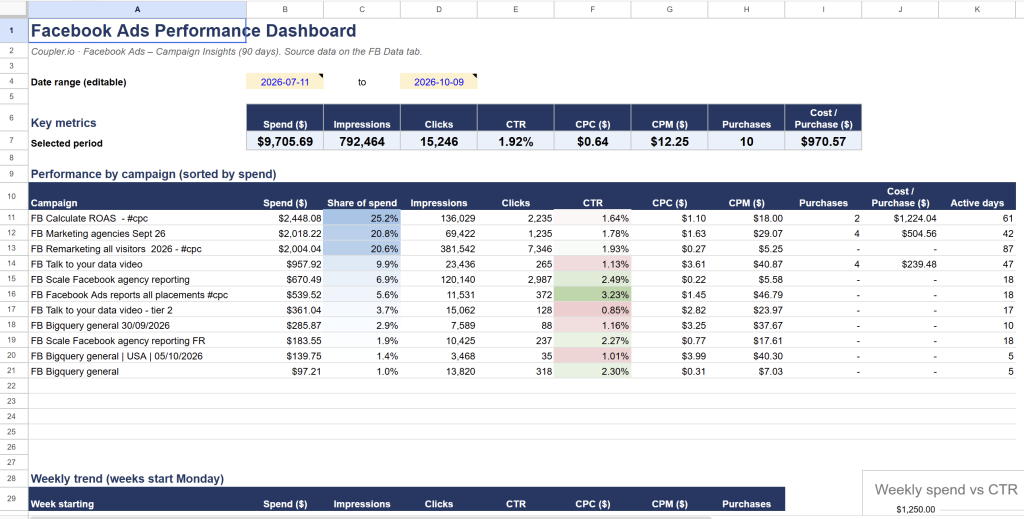
I tested this starting from an empty sheet with no data flow for the use case. Prompts: “make a call to coupler mcp” and then “create a dashboard from the facebook creatives report.” Claude listed the three Coupler.io workspaces available, searched them for a creatives-level dataset, found none at the ad or creative level, and asked which Facebook dataset to use. From there, it queried the Campaign Insights (90 days) dataset, verified the totals against the source ($9,705.69 spend, 15,246 clicks), wrote 330 rows into the sheet, built the dashboard, and fixed a one-day timezone shift in the dates on its own.
Alongside the dashboard, Claude wrote a Data Sources tab recording the dataset, the data flow, the exact query, the run time, the row count, every change it made along the way, and the totals check. That’s the audit trail you’d want if you were handing the sheet to someone else or coming back to it in two weeks.

Both routes read from Coupler.io’s data preparation underneath. Transformations shape the dataset. Context carries the business meaning. The schedule keeps everything fresh. Whether Claude works from a tab you set up ahead of time or pulls data in through the MCP, it’s reading what Coupler.io already prepared, not reaching into source systems directly.
Bring Coupler.io data into Claude in Sheets
Get started for freeWhat matters when you connect Google Sheets data to Claude with Coupler.io?
Business context
Sheets data can mean almost anything depending on how your team built the spreadsheet. Column D might be monthly recurring revenue in one file and deal stage in another. “Active” might mean something different in your sales tracker than in your customer success Sheet. An Archive tab could hold discontinued products, and rows where the customer name includes “TEST” probably shouldn’t count.
Coupler.io’s Context feature lets you spell all of this out once: what columns mean, how your team defines key metrics, which tabs contain actuals versus forecasts, which rows to exclude. That context travels into every conversation that queries Coupler.io data: the AI Agent in Coupler.io, Claude.ai through the Coupler.io Claude connector, and Claude in Sheets through the Coupler.io MCP.
Accurate calculations
Claude interprets data well. It gets wobbly when it has to compute across thousands of rows: totals that don’t tie back, averages that double-count, aggregates that drift from the source. Coupler.io’s Analytical Engine handles the math upstream, so the numbers Claude sees are already correct.

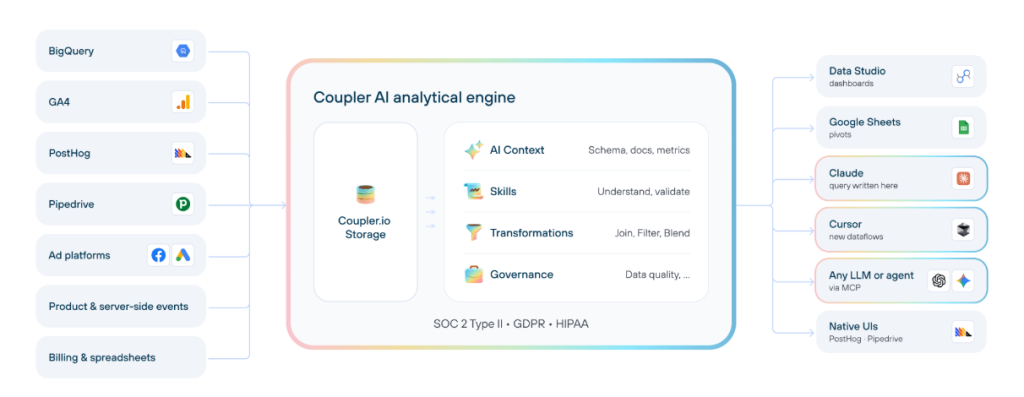
That split holds across every surface in this article. When the data flow runs, the Analytical Engine runs the calculations and lands the result in your Google Sheets tab, so Claude in the sidebar reads values that are already right. When Claude.ai or the sidebar queries Coupler.io through MCP, the Analytical Engine runs the query live and passes computed results back. Either way, Claude explains the numbers rather than producing them.
One example: Coupler.io calculates conversion rates, cost per acquisition, and month-over-month change across 10,000 rows of campaign data. Claude explains what the numbers mean and where to focus your budget for the next quarter.
Skills
Skills are packaged analyses Claude can run without you writing the prompt from scratch each time. The marketing analytics skill, for one, pulls live performance data and returns SQL-backed campaign reports with ROI, CPA, and channel-level breakdowns.
Skills run anywhere you query Coupler.io data: inside the AI Agent in Coupler.io, in Claude.ai through the Coupler.io Claude connector, and in Claude in Sheets through the Coupler.io MCP. You can also build your own for analyses that recur in your team’s work.
Multiple destinations
A Coupler.io data flow can land in more than one place at a time. The same Google Sheets data you’ve connected to Claude can also feed a dashboard in Data Studio or Power BI, a warehouse like BigQuery or Snowflake, or another AI tool like ChatGPT, Gemini, Copilot, Perplexity, Cursor, or OpenClaw. One flow, multiple destinations. Operations gets a live report in Sheets; you query the same dataset in Claude; the finance team pulls from BigQuery.
The four pillars line up to one idea. Coupler.io is the data layer: connections, calculations, Context, destinations. Claude is the analyst, in whichever surface fits your work: Claude.ai with the Coupler.io connector, Claude in the Sheets sidebar, or another AI tool through AI Integrations.
Other ways to export data from Google Sheets to Claude
Coupler.io is the practical choice when the data has to stay fresh and you’re pulling from more than one source. Other setups fit other situations: a one-off upload, a lightweight connector when Sheets is your only source, or a developer-grade pipeline. The table below compares them side by side, including the Claude in Sheets sidebar covered earlier.
| Connection method | Setup effort | Who does the math? | Best for | Watch out for |
| Coupler.io | Low | Coupler.io’s Analytical Engine | • Regular Sheets to Claude workflows • Multiple data sources • Performing calculations | • Pricing varies depending on the number of accounts, destinations, and refresh rate |
| Manual export | Low, but must be repeated | Claude | • One-time tasks • Small spreadsheets | • Time-consuming if done regularly • Need to re-export and upload every time data changes |
| Native Claude Google Drive connector | Medium | Claude | • Regular tasks • When Sheets is the only data source | • Claude can access all Drive files, which may include sensitive data |
| Official Google Drive MCP server | High | Claude | • Custom implementations • Software developers | • In Developer Preview • Setup and ongoing maintenance costs |
| Claude for Google Workspace (sidebar) | Low | Sheets formulas (built by Claude), or Coupler.io’s Analytical Engine via MCP | • Working with the sheet open • Building reports and analysis in place without leaving Sheets | • Different experience from the methods above. See Work with Claude in Google Sheets earlier in this article |
Manual export
You can manually export data from Google Sheets and add the downloaded file to your Claude chat.
In Google Sheets, go to:
- File → Download
- Choose a format from the submenu
Formats you can download:
- Microsoft Excel (.xlsx)
- OpenDocument (.ods)
- Web page (.html, zipped)
- CSV (current sheet only)
- TSV (current sheet only)
The process is entirely manual and needs to be repeated any time your data changes. Downloading files and uploading them to Claude is fine for one-off analysis, but it’s a poor choice for recurring tasks.
Official Google Drive connector
Claude provides a native Google Drive connector that can read Google Sheets files.

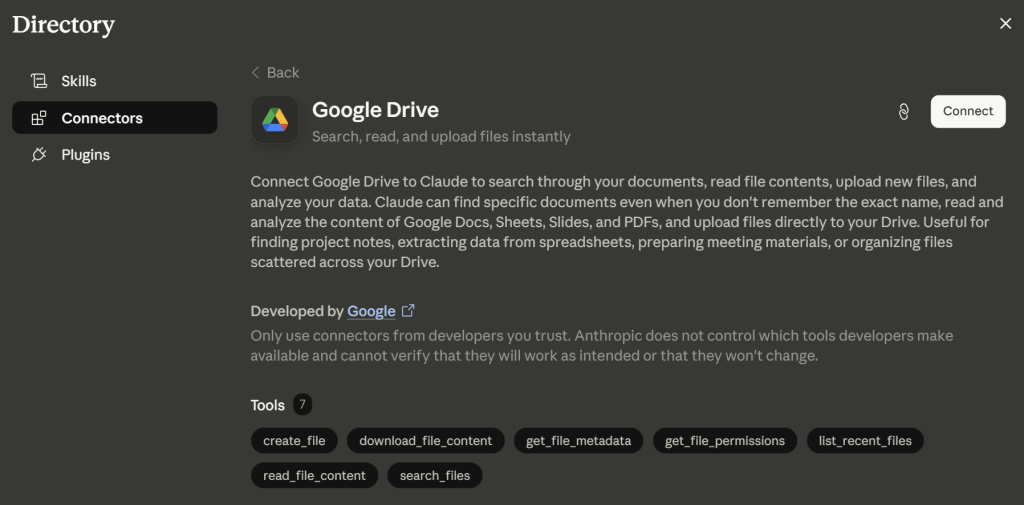
The connector doesn’t let Claude search Drive for particular Sheets by file name or contents and retrieve them on its own. If you’re working with a spreadsheet, you add it to the chat manually rather than asking Claude to “find my Q1 budget sheet.”
The connector removes the file download step but doesn’t prepare the data for Claude: no calculations, no cleaning, no scheduled refresh. You still add the spreadsheet to the conversation yourself.
Google Drive MCP server
Configuring the Google Drive MCP server requires an existing Google Cloud project and an MCP client. From there, you enable APIs, activate specific MCP services, set up OAuth, then configure and test the client.
The Drive API exposes these tools:
copy_filecreate_filedownload_file_contentget_file_metadataget_file_permissionslist_recent_filesread_file_contentsearch_files
You’ll need software developers to help with this. Even with the expertise available, there’s a catch: the Drive MCP server is in Developer Preview. Bugs are possible, and the feature set may change.
Coupler.io’s connector is also MCP-based, but it’s available as a ready-to-use Claude connector, so you don’t need developers to build or maintain your own server.
How to use Claude with Google Sheets: What’s the right choice for you?
If you want to ask questions in Claude.ai
- One-off analysis of a single spreadsheet → manual upload. Download the Sheet as CSV or Excel, upload it to Claude, and ask your question. Breaks the moment you need to repeat the analysis or combine data from more than one sheet.
- Regular questions about one Sheet, no calculations needed → the native Google Drive connector. Removes the download step, but you still add the spreadsheet to each conversation. Works when Sheets is your only source and the data is already clean.
- Custom pipeline with developer support → the official Google Drive MCP server. Full control over how Claude accesses Drive, but it’s in Developer Preview, needs a Google Cloud project and OAuth, and your team maintains the server. No data cleaning or calculation layer built in.
- Recurring analysis across multiple sources or messy data → Coupler.io. Handles the connection, the data preparation, the calculations, and the refresh schedule. Claude works from a clean, structured dataset instead of raw exports.
If you want Claude to work inside your Google Sheets
- You already have Coupler.io data in a sheet → open Claude in the Sheets sidebar and point it at the tab. The dashboards, forecasts, and breakdowns Claude builds are live Google Sheets formulas, so they update every time the Coupler.io data flow refreshes.
- You’re starting from an empty sheet or want to pull data on demand → open Claude in the sidebar and ask it to call the Coupler.io MCP. Claude queries the dataset, writes the rows into the sheet, and builds whatever you asked for in the same place.
Whichever experience fits your work, the layer underneath is what makes the answers hold up. Coupler.io cleans the data, runs the calculations, refreshes it on a schedule, and controls what reaches Claude. Whether you ask Claude in Claude.ai, work inside the Sheets sidebar, or push the same dataset into another AI tool, you’re reading from the same prepared dataset.
FAQs
Is connecting Google Sheets to Claude safe?
It depends on the method. The Google Drive connector and MCP server give Claude access to everything in your Drive, including files you didn’t intend to share. Claude in the Google Sheets sidebar is narrower: it reads only the open sheet and the cells you’ve selected inside it. Data Claude receives through any connector is stored on Anthropic’s servers, and anything you paste into the chat window may be used for training depending on your plan and privacy settings.
Coupler.io is the more controlled option across all of these. It sits between your Google Sheets and Claude, so Claude never connects directly to your Drive or to source systems. You choose exactly which data gets shared. Coupler.io is SOC 2 Type II certified and GDPR- and HIPAA-compliant.
Can I connect multiple Google Workspace accounts to Claude?
Not through the official Google Drive connector. It only supports one Workspace account per Claude account. The sidebar runs on whichever Google account owns the sheet you have open, so switching accounts means opening a sheet from the other account.
With Coupler.io, you can pull data from multiple Workspace accounts into the same data flow.
Does the Claude Google Sheets connector get full access to my Google Workspace data?
With Coupler.io, no. Coupler.io controls what data reaches Claude, and you decide what to include in the data flow. With the Google Drive connector or MCP server, Claude can see anything you can see in Drive. The Google Sheets sidebar is scoped tighter again: Claude only reads the sheet that’s open and the cells you’ve selected inside it. None of these give Claude access to Gmail, Calendar, or other Google services unless you configure those separately.
Which Claude plan do I need to use Claude in Google Sheets?
Any paid Claude plan. Claude for Google Workspace shipped in public beta on October 6, 2026 for all paid plans. For current terms, check the Claude plans page before you set it up.
How is Claude in Google Sheets different from the older “Claude for Sheets” add-on with =CLAUDE() cell functions?
Different product. The older “Claude for Sheets” add-on gives you =CLAUDE() cell functions that call the Claude API using an API key you set in the add-on. Claude for Google Workspace is a separate sidebar add-on that reads the open sheet, writes formulas and charts in place, and runs on your Claude account rather than an API key.
No. The sidebar reads whatever’s in the open sheet, whether that sheet was populated manually, by another tool, or by Coupler.io. Coupler.io matters in two situations: when you want clean, calculated data landing in the tab Claude reads on a refresh schedule, and when you want Claude to pull data into the sheet on demand through the Coupler.io MCP.
Claude queries a snapshot from the data flow’s last scheduled run. For most reports that’s recent enough. When you need fresher numbers, ask Claude to trigger a refresh. It can do that through the Coupler.io MCP, then re-run the query against the just-refreshed dataset.
What’s the difference between asking Claude in Claude.ai and asking Claude in Google Sheets about the same data?
In Claude.ai, you get a chat with structured answers you can quote or share. In the sidebar, Claude writes formulas, pivots, and charts into the sheet itself, which lives on and updates when the underlying data refreshes. Both read the same Coupler.io-prepared data when you use the Coupler.io Claude connector or the Coupler.io MCP.