HubSpot’s canned reports won’t answer why pipeline velocity dropped this quarter or which marketing campaigns actually produced closed deals. Claude AI, in turn, handles that type of analysis well, whether you’re working with sales, marketing, or service data. The problem is to access HubSpot data in Claude in a format the LLM can actually work with. There are at least six ways to do it, from a no-code Coupler.io connector to a custom API pipeline.
Find which connection method fits your team’s technical capacity and how to get the most out of Claude once the data is connected.
Choose the right method to connect HubSpot to Claude
| Connection method | Setup effort | Who does the math | Best for | Watch out for |
| Coupler.io | Low. No-code setup, under 5 minutes | Analytical Engine computes, Claude interprets | Recurring CRM analysis with scheduled data refresh | Paid plans for higher refresh frequency |
| HubSpot connector in Claude | Low. Toggle on in Claude settings | Claude handles everything, including calculations | Quick lookups and one-off questions about CRM records | No cross-dataset analysis, no scheduled refresh, limited to records you can access |
| HubSpot MCP server (official) | Medium. Requires Private App token, NPM install, config | Claude handles everything | Developers building CRM-connected tools or automations | Beta product, requires maintenance, write access needs careful scoping |
| Manual CSV/Excel export | Low. Click Export in HubSpot | Claude handles everything | One-time analysis or ad hoc reporting | No scheduling, exports only one object at a time, association data is incomplete |
| API scripts / function calling | High. Custom code against both HubSpot and Claude APIs | Your code does the math, or Claude does | Automated pipelines with specific transformation logic | You own the code: API versioning, auth, rate limits, error handling |
| ETL/RAG pipeline | High. Data warehouse + vector store setup | Warehouse does the math | Large CRM instances (100k+ contacts) with cross-source queries | Requires data engineering capacity |
For most teams, Coupler.io is the simplest path to connect HubSpot to Claude. This data integration platform with AI analytics handles the data pipeline and calculations, supports other data sources, and schedules refreshes without engineering work.


Connect HubSpot data to Claude with Coupler.io
Get started for freeAnalyze HubSpot data with Claude using the Coupler.io connector
It only takes up to 5 minutes to set up the HubSpot data connector for Claude by Coupler.io.
Step 1: Create a data flow for HubSpot data
Sign up for Coupler.io (free, no credit card required) and create a new data flow with HubSpot as the source and Claude as the destination. To test it right away for free, use the form below:

Connect your HubSpot account and select the data entity you want to integrate with AI for analysis, like deals, contacts, and any other CRM object.
Coupler.io also provides prebuilt data set templates, which are ready-to-use reports with structured and organized data. You can connect such HubSpot reports to Claude without any data preparation needed. For instance, the HubSpot Deals with Contacts and Companies template joins deal records with associated contact names, emails, companies, and buying roles in a single table.

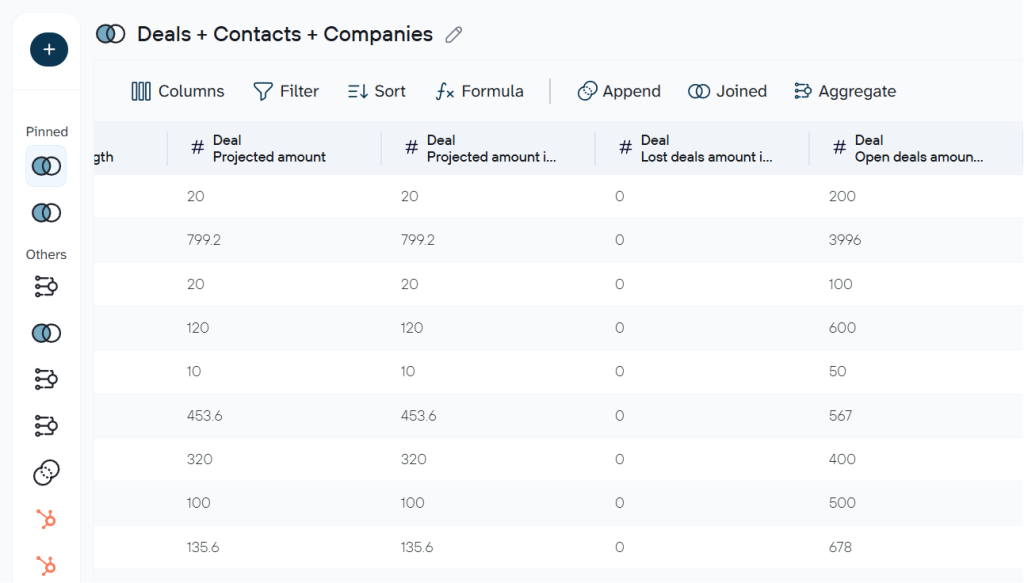
Additional data transformations are available, like hiding columns with sensitive information, aggregating data, etc.
Before saving, consider adding business context to the dataset. Without it, Claude sees column names and raw values but has no way to know that your “Stage 3” means “Legal Review,” that deal_value = 150 is a placeholder for unassessed deals, or that your fiscal year starts in April. You’d have to explain this in every conversation. Adding context once at the data flow level means Claude receives that background automatically with every query.
Coupler.io also allows you to add more sources to the same data flow. If you want to analyze deal performance alongside ad spend, add Google Ads or Facebook Ads as a second source to build a cross-platform view.

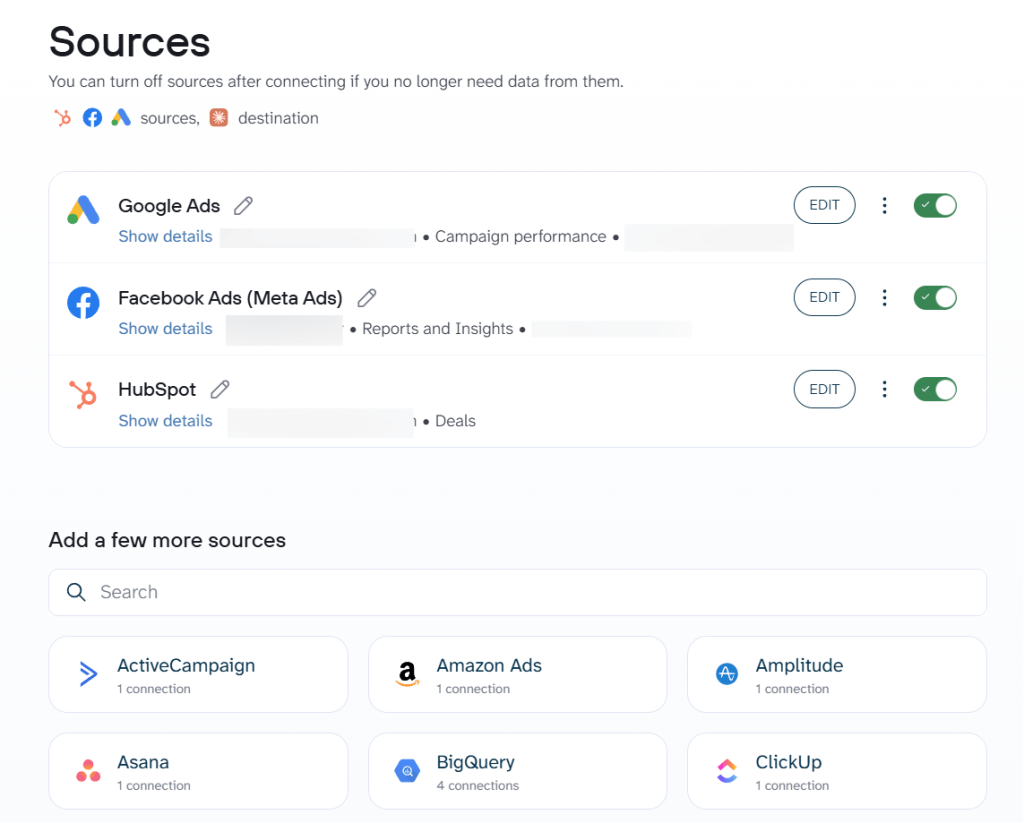
With Coupler.io, you also get access to free HubSpot dashboard templates.
Step 2: Connect Claude
Click Get connector in the Destinations step to open the Coupler.io connector page in the Claude app. Follow the authorization flow to integrate with Claude.

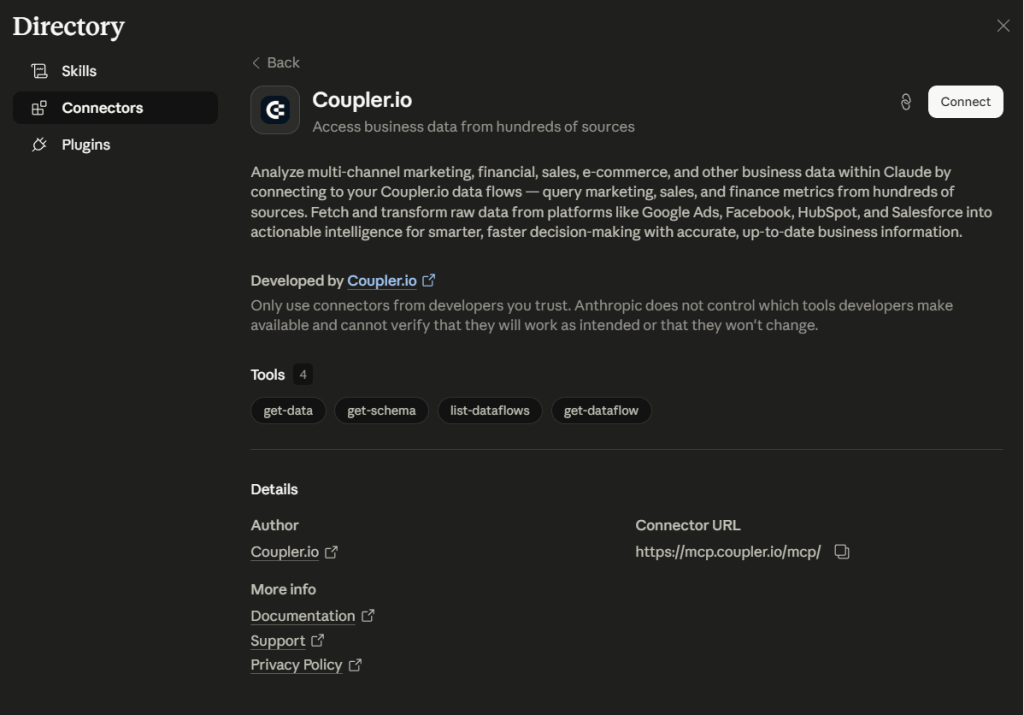
Go back to Coupler.io and set the refresh schedule for your HubSpot Claude.ai workflow. For active sales teams, updating the data daily or every few hours keeps it up-to-date. For monthly reporting, weekly is enough. Click Save and Run.
The best part: you’re not limited to one data destination. This means that the same data flow can be connected to Claude, ChatGPT, Google Sheets, you name it. It’s useful to combine conversational AI analytics with dashboards or spreadsheet reports.

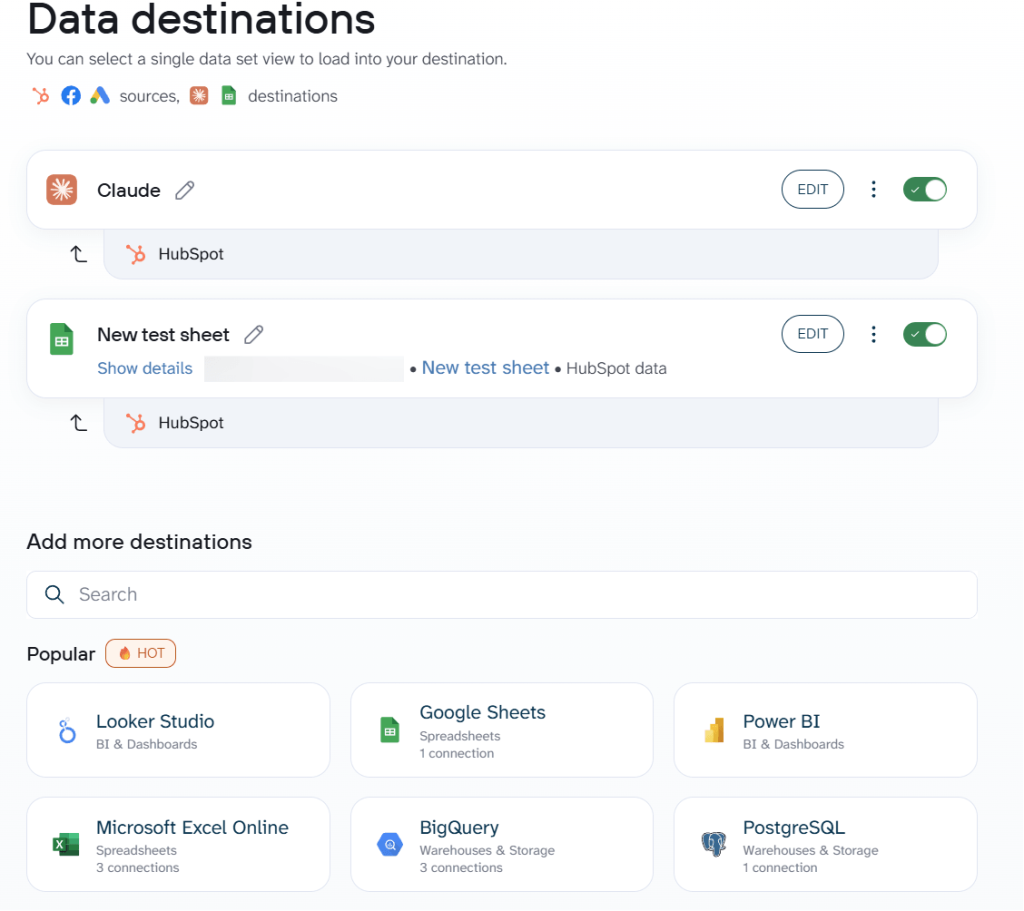
Step 3: Start a conversation with Claude about HubSpot data
After the data flow completes its first run, start a new conversation in Claude. Coupler.io will always be available for your chats.

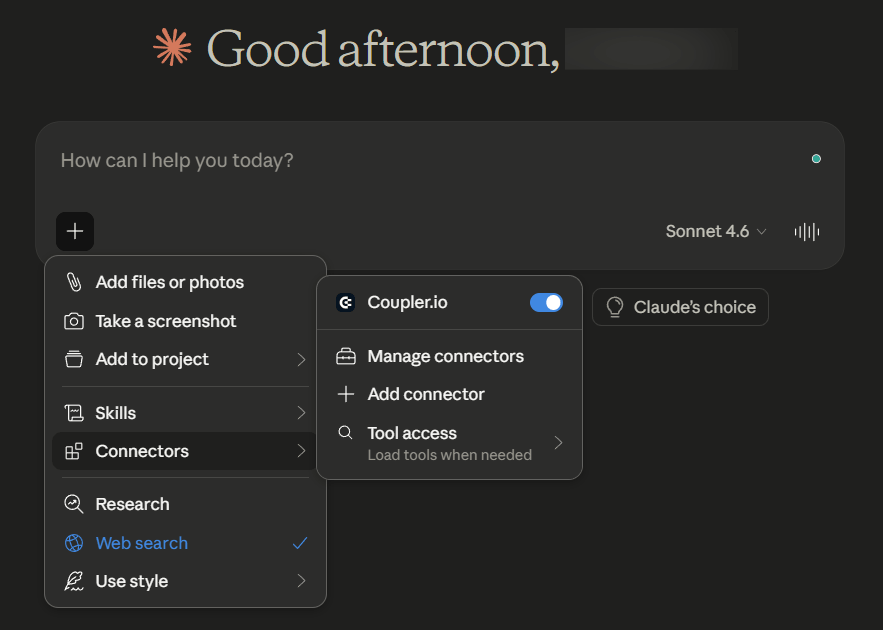
If your questions relate to the external data or if you ask Claude directly to analyze data from Coupler.io, AI will ask permission to connect to the Coupler.io MCP server.
Coupler.io stores data from HubSpot. Claude pulls the data from Coupler.io, and the Analytical Engine handles the data calculations and sorting. Claude returns a table with the stalled deals and can follow up with recommendations if you ask.
Analyze your HubSpot CRM data in Claude with Coupler.io
Get started for freeHow to use Claude with HubSpot for conversational analysis
In the examples below, I analyze HubSpot pipeline with AI. But the same HubSpot connector works if you use Claude for HubSpot marketing analytics (campaigns, workflows, email performance) and service data (tickets, customer feedback).
Pipeline health and deal velocity
Every sales leader asks the same question on different timelines: are deals moving through the pipeline faster or slower than last quarter, and where are they getting stuck?
HubSpot’s built-in reports show deals by stage, but they don’t calculate how long each deal sat in each stage. They don’t flag which stages are bottlenecks versus normal review periods.
To analyze HubSpot pipeline performance properly, you’d need to export deals, compute date differences between stage transitions, group by rep, and more. That’s a spreadsheet project that takes an afternoon.
When you connect Claude to HubSpot data through Coupler.io, ask:
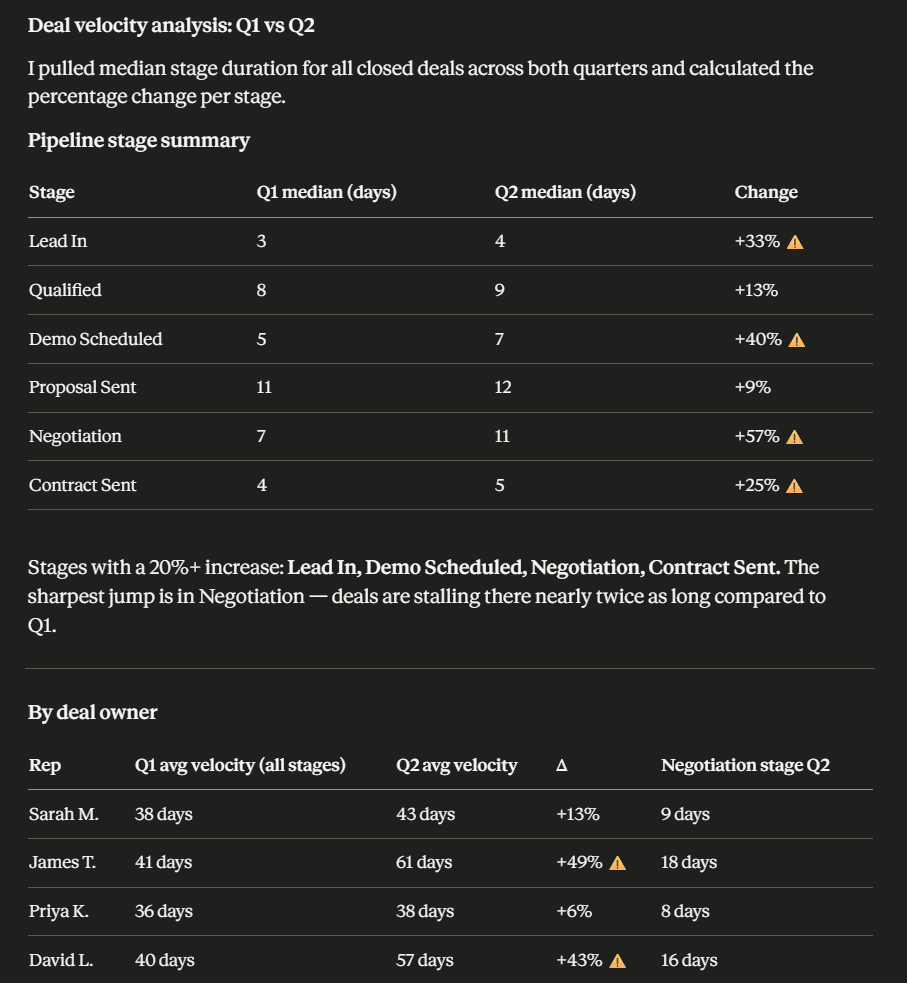
Analyze deal velocity for Q1 vs Q2 this year. For each pipeline stage, calculate the median number of days deals spent there. Flag any stage where the median increased by more than 20% quarter over quarter. Break down by deal owner so I can see if the slowdown is team-wide or specific to certain reps.
Claude returns a stage-by-stage comparison with percentage changes flagged.

What to do with this:
- If one or two reps are slowing while others hold steady, that’s a coaching conversation. James T. and David L. may need help moving deals through Negotiation.
- If every rep slows at the same stage, the bottleneck is process-related (legal review, pricing approval). Fix the process, not the people.
- Track this monthly. A 57% slowdown in one quarter compounds into a serious revenue problem in the next.
Lead source attribution by revenue
Marketing reports MQL counts. Sales reports closed revenue. The question that actually matters (which lead sources produce deals that close, and at what average deal size) usually falls into a gap between the two teams.
HubSpot tracks the original source for contacts and deal amounts separately. Joining those into a single revenue-by-source view means exporting both objects, matching them on association IDs, and aggregating in a spreadsheet.
Connect HubSpot CRM to Claude using Coupler.io and ask:
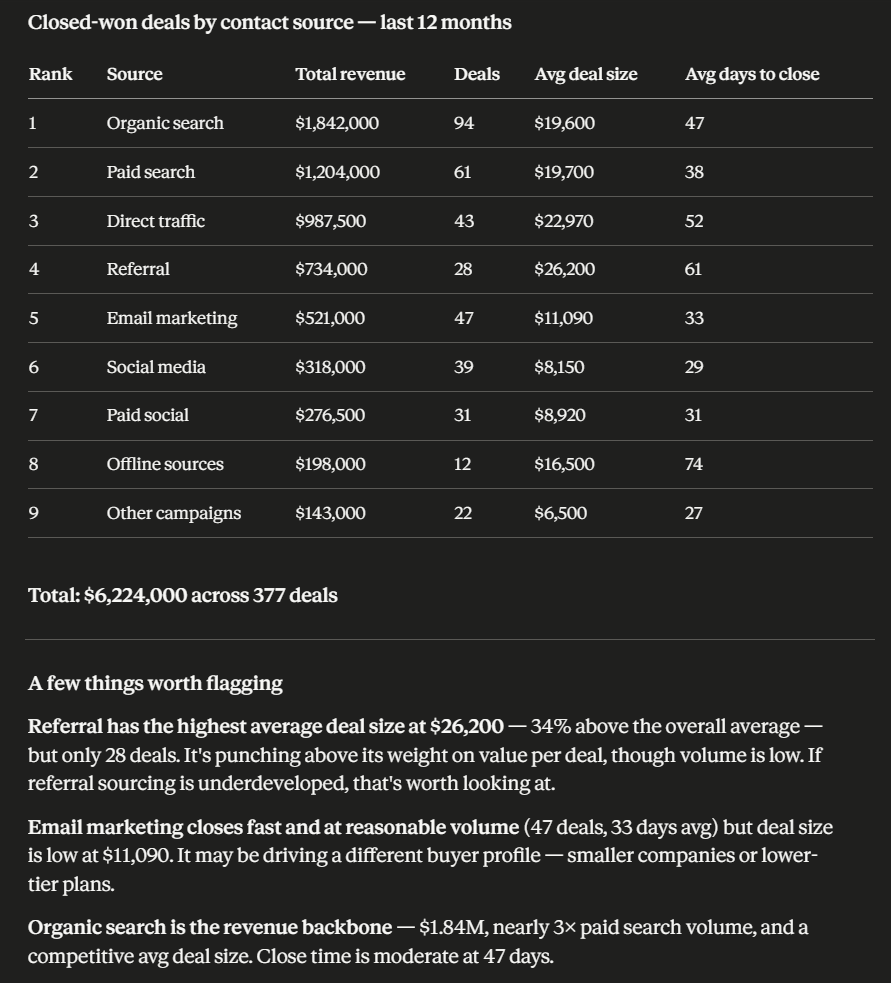
Group all closed-won deals from the last 12 months by the original source of the primary associated contact. For each source, show total revenue, deal count, average deal size, and average days to close. Rank by total revenue.
Claude returns a ranked table across all sources.

What to do with this:
- Shift budget toward sources with the highest revenue per deal, even if they produce fewer leads. Referral at $26,200 per deal is worth more development.
- If a source closes fast but at low deal values (like email marketing), check whether it’s attracting a different segment. That’s not necessarily bad, but it changes the ROI calculation.
- Share this table with marketing monthly. It changes the conversation from “we generated 200 MQLs” to “we generated $1.84M in closed pipeline from organic.”
Once you know which sources produce the highest-value deals, you can automate HubSpot lead scoring with Claude. Asking it to flag new leads from those sources for priority follow-up.
Account expansion signals
For customer success teams, the best upsell opportunities hide inside existing account activity. A customer submitting more support tickets, adding new contacts, or engaging with product emails is signaling either frustration or growth. Both warrant a conversation.
HubSpot stores all of this, but surfacing it requires cross-referencing tickets, contacts, deals, and engagement data across multiple objects. No single HubSpot report combines them.
For this analysis, you need to connect HubSpot contacts to Claude and enrich it with deals, tickets, and companies data. Then ask:
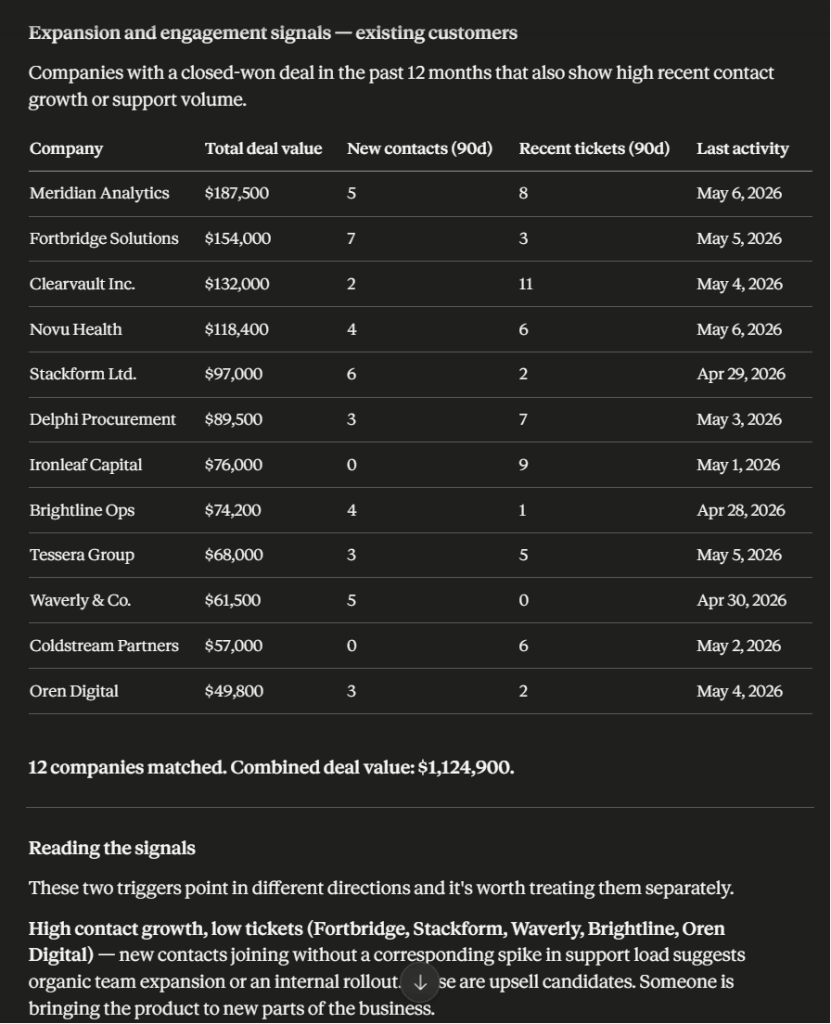
For all companies with at least one closed-won deal in the past 12 months, identify which ones have added 3 or more new contacts in the last 90 days, or submitted 5 or more tickets in the last 90 days. Show the company name, total deal value to date, number of new contacts, number of recent tickets, and the last activity date. Sort by total deal value descending.
Claude returns a list sorted by deal value.

What to do with this:
- Route the high-contact, low-ticket accounts to your expansion reps this week. Fortbridge ($154K, 7 new contacts) and Stackform ($97K, 6 new contacts) are the top two.
- For accounts with high ticket volume, check whether the tickets are feature requests (growth signal) or complaints (churn signal) before reaching out.
- Run this analysis monthly and track which accounts actually converted to upsells. Over time, you’ll calibrate the thresholds (3 contacts? 5 tickets?) to match your business.
Generate HubSpot insights with Claude AI
The three examples above are starting points. With HubSpot data connected to Claude via Coupler.io, the range of analysis is wide. You can use Claude for HubSpot deal forecasting. It will analyze historical close rates and current pipeline velocity to project quarterly revenue.
Or summarize HubSpot meetings with Claude to extract action items, objections, and follow-up tasks.
Each of these takes a single prompt once the data is properly connected.
Analyze HubSpot pipeline performance with Claude
Try Coupler.io for freeTwo connectors, different jobs: Coupler.io vs. Claude HubSpot connector
HubSpot also has its own connector in Claude, launched in July 2025. If you’re wondering how it compares to Coupler.io, here’s the short answer: they solve different problems.
When the HubSpot connector is enough
The native HubSpot connector works best for record-level tasks: checking a deal status, summarizing recent tickets, creating a contact, or adding a note. It pulls directly from HubSpot, respects user permissions, and works on web, desktop, and mobile without any third-party tool.

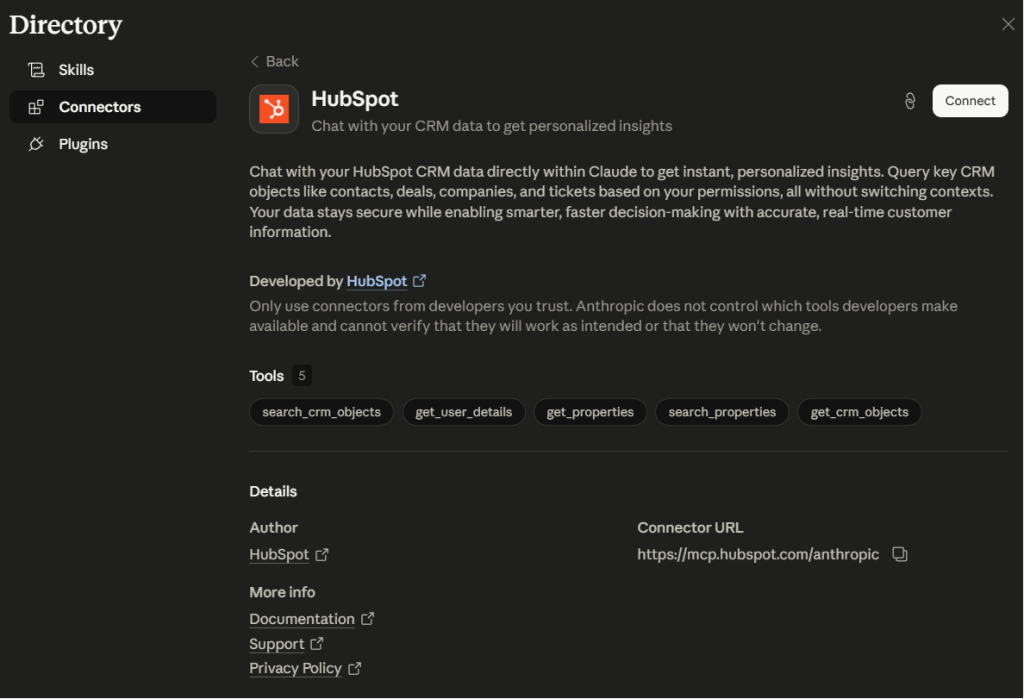
It falls short when the questions get analytical. It doesn’t pre-compute metrics, join multiple objects, or schedule refreshes. The use cases above are outside the scope of what the native connector was designed for.
| Good for | Not good for |
|---|---|
| Quick lookups (deal status, contact info, ticket history) | Cross-object analysis across hundreds of records |
| One-off questions during your workday | Calculations on large datasets (Claude computes on raw records) |
| Works on web, desktop, mobile | Joining deals + contacts + companies into one view |
| Respects HubSpot user permissions | Custom Sensitive Data properties (not accessible) |
When Coupler.io is the better fit
Coupler.io combines datasets from multiple HubSpot objects, verifies calculations from the Analytical Engine, adds business context that persists across conversations, and schedules data refresh. It runs the math before Claude sees it.
| Good for | Not good for |
|---|---|
| Recurring analysis with scheduled refresh (hourly, daily, weekly) | Quick record lookups mid-conversation |
| Combined datasets: deals + contacts + companies + tickets in one table | Writing back to HubSpot (read-only) |
| Verified calculations (Analytical Engine computes, Claude interprets) | Free usage beyond the starter limits |
| Attaching business context (stage definitions, scoring criteria, naming conventions) | |
| Pre-built CRM analysis skills for Claude | |
| Multi-destination: same data flow feeds Claude, Looker Studio, Google Sheets, Power BI, BigQuery |
Use the HubSpot connector when you want to look up, update, or summarize individual records during your workday.
Use Coupler.io when you want to analyze HubSpot data at scale: hundreds of deals, multiple objects, over time, with scheduled refreshes and verified calculations.
Other ways to load data to Claude for HubSpot users
Beyond Coupler.io and the native HubSpot connector, there are four more paths. Each suits a different team and use case.
Manual CSV export
HubSpot exports contacts, deals, companies, tickets, and other CRM objects as CSV, XLS, or XLSX files. The process is per-object: go to the relevant section (e.g., CRM > Deals), click Export, choose your format and properties, and HubSpot emails you a download link.
Two things to watch: the default export includes only the properties visible in your current view (select “All properties on records” to get everything), and association data is limited to the primary associated contact. There’s no scheduling, so every time you want fresh data in Claude, you repeat the whole process.
Pick this if you need a one-time analysis and don’t plan to repeat it. For a detailed walkthrough, see How to export data from HubSpot.
HubSpot MCP server (official)
HubSpot offers its own MCP server in public beta. It lets Claude retrieve, create, and update CRM objects, manage associations, and create tasks and notes. Setup requires a HubSpot Private App access token or OAuth. Unlike the native Claude connector, it supports write actions beyond individual records and exposes more granular tools.
The tradeoff: it’s a beta product that requires technical setup and ongoing maintenance. You manage access tokens, scope permissions, and monitor API rate limits. If the token expires, the connection breaks until someone re-authorizes.
Pick this if your team has developers and you’re building CRM-connected AI tools or automations that need read/write access to HubSpot.
API scripts and function calling
If none of the ready-made connectors fit your workflow, you can build the pipeline yourself. API scripts pull data from HubSpot’s REST API and send it to Claude’s API on a cron schedule. Function calling works the other direction: you define functions that fetch specific data, and Claude decides which to call based on the user’s question.
Both require proficiency with HubSpot’s API (authentication, rate limits, pagination, association endpoints) and Claude’s API. You own the code, which means you also own the maintenance when HubSpot deprecates an API version or changes rate limits.
Pick this if you need a specific transformation that existing connectors don’t offer, or when the output goes somewhere other than a Claude conversation (a Slack bot, an internal dashboard, a scheduled email).
ETL/RAG pipelines
Coupler.io acts as a middle layer between HubSpot and Claude, controlling which data the LLM can query. An ETL/RAG pipeline works on the same principle. However, instead of Coupler.io, you use a database or warehouse like BigQuery or Snowflake. Claude queries the warehouse, not HubSpot directly, and you load and transform the data yourself.
The advantage: you can combine HubSpot records with data from other systems (billing, product usage, support) and query across all of it.
The drawback: you need a data engineer to build and maintain the pipeline, and the data is only as fresh as your last extraction run.
RAG (retrieval-augmented generation) adds a layer on top, storing unstructured CRM content (meeting notes, email threads, ticket descriptions) in a vector database so Claude can search it by meaning rather than exact keywords.
Pick this if you have a large HubSpot instance (100K+ contacts) or need to combine CRM data with multiple other systems in a single query layer.
Frequently asked questions
Is it safe to connect HubSpot to Claude?
Coupler.io connects data from HubSpot to Claude through a secure, read-only channel. Access is token-based and encrypted. Claude can view and analyze your CRM data but cannot modify it. Data transmitted for analysis is not retained by Anthropic for training.
Coupler.io itself is SOC 2 Type II certified, GDPR compliant, and HIPAA compliant. Your HubSpot data never connects directly to the LLM. Coupler.io sits between them, and you control which data the AI can access.
If you use the native HubSpot connector, permissions follow your HubSpot account settings. Claude can only access records your HubSpot user role allows.
What can Claude do with HubSpot data?
Once your HubSpot data is connected to Claude through Coupler.io, you can ask questions in natural language and get structured answers. If you’re wondering how to use Claude with HubSpot day to day, the short answer is: just ask questions. Claude works with whatever HubSpot entities you’ve connected: deals, contacts, companies, tickets, tasks, calls, emails, meetings, marketing emails, workflows, and more.
Common use cases for sales teams include pipeline analysis, deal forecasting, rep performance comparison, conversion rate tracking across deal stages, etc.
For marketing, Claude can break down campaign performance, attribute revenue to lead sources, analyze lifecycle stage progression, and more.
Service teams can use it to spot ticket volume trends, identify churn risks, and prioritize follow-up based on account value.
The Coupler.io Analytical Engine handles the calculations (totals, averages, conversion rates, time-in-stage metrics), so Claude interprets verified results rather than computing on raw records.
How to disconnect HubSpot from Claude?
To disconnect Coupler.io from Claude, go to Settings > Connectors in Claude, find Coupler.io, and toggle it off or click Disconnect. This stops Claude from querying your data through the Coupler.io MCP server. Your data flows in Coupler.io continue to run on schedule, but Claude no longer has access.
To disconnect the native HubSpot connector, go to the same Connectors menu, find HubSpot, and disconnect it. This revokes Claude’s access to your HubSpot CRM records.
Disconnecting either connector does not delete your data in HubSpot or Coupler.io.