Pick any Monday morning before a pipeline review. Someone asks where Q2 forecast stands, and you know the answer is in Salesforce, somewhere between three reports, a stale export from Thursday, and a pivot table you have not built yet. By the time you clean the stage names and send the by-rep breakdown, it is 11:47am and the meeting started at 11.
Connecting Salesforce to Claude with Coupler.io replaces that workflow. You ask the question, Claude returns the answer from data that updates automatically, and the 45-minute report becomes a two-minute conversation. Below, I walk through the setup and show what the analysis looks like once your CRM data is live in Claude.
How to use Claude with Salesforce
There are four methods to connect Salesforce to Claude. The right method depends on whether you need a one-time CRM snapshot, recurring sales analysis, developer access, or a fully custom workflow.
| Connection method | What data it reaches | Setup effort | Best for | Watch out for |
| Coupler.io | Salesforce reports, objects, custom SOQL queries, and combined CRM datasets | Low | Recurring Salesforce analysis in Claude without manual exports | You still need to choose the right Salesforce data and attach useful business context |
| Manual export | Salesforce report CSVs, Excel files, or full org exports from the Data Export Service | Low | One-time reviews, quick audits, or small CRM data snapshots | Data goes stale quickly and object relationships are lost unless you rebuild them manually |
| Salesforce MCP servers | Salesforce org data, metadata, Apex, SOQL, permissions, and development workflows | Medium to high | Developers or technical teams using Claude with Salesforce tools | DX and Hosted MCP servers serve different use cases and both require setup |
| Salesforce API + Python | Any Salesforce data exposed through REST API, Bulk API, or SOQL | High | Custom sales analytics systems, proprietary pipelines, and internal AI agents | You own authentication, OAuth, API limits, schema changes, and maintenance |
Coupler.io is the only method that handles relational joins and data volume before Claude sees anything. The MCP paths require technical setup and serve different audiences. Manual export works once.


Analyze your Salesforce data in Claude with Coupler.io.
Get started for freeClaude Salesforce connector by Coupler.io
Salesforce data is relational. Opportunities connect to Accounts, Accounts connect to Contacts, and none of it answers a direct question without some assembly. Coupler.io is the layer that does that assembly. It connects 400+ business sources to Claude, ChatGPT, Gemini, and other AI tools through MCP servers, so you can generate Salesforce insights with Claude AI without waiting on a manual export cycle.
Where it earns its place is in the math. Weighted pipeline, deal velocity, and forecast comparisons all require calculations across hundreds of records before Claude sees the result. Coupler.io’s Analytical Engine runs the calculations before Claude sees the result. Claude interprets the output. It never touches the raw arithmetic, which is what makes the analysis reliable at scale.
It takes a couple of steps to set up a Salesforce data connector.
Step 1: Create a data flow for your Salesforce data
The fastest way to connect Salesforce to Claude is through Coupler.io. Create a new data flow with Salesforce as the source and Claude as the destination.

Connect your Salesforce account. Coupler.io works with Salesforce production and sandbox environments, so you can test the workflow before connecting live CRM data.

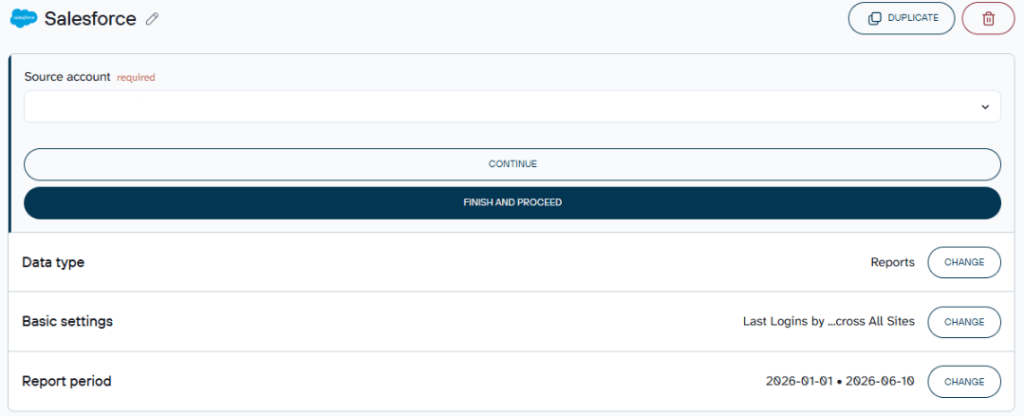
Next, choose the type of Salesforce data you want Claude to analyze:
- Reports: Pull an existing saved Salesforce tabular report into Coupler.io without rebuilding the report logic.
- Objects: Select standard or custom objects such as Account, Opportunity, Lead, Contact, Case, Campaign, Activity, or any custom object in your Salesforce org.
- Custom SOQL: Write a Salesforce Object Query Language query when you need a precise dataset or want to combine fields from related objects.
After selecting the data type, configure fields, date filters, sorting, and record settings. In the preview step you can rename fields, hide columns, and add calculated metrics. You can also aggregate data across date ranges or multiple orgs, and append records from other sources into the same dataset. It is also worth attaching business context here: pipeline stage definitions, picklist values, forecast category rules, or custom field meanings. Claude carries that context into every query.

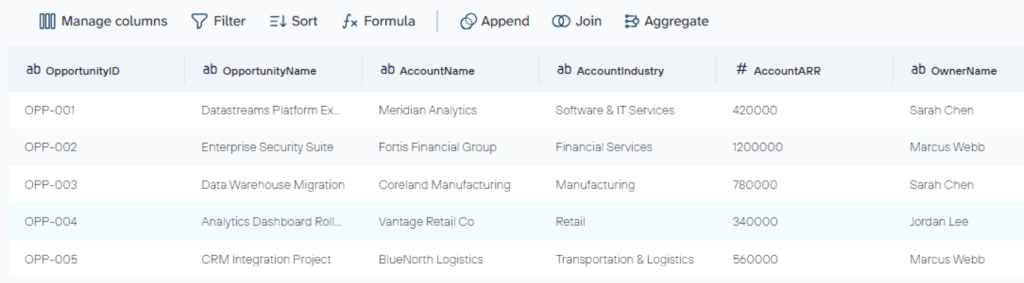
You can also connect multiple Salesforce orgs or add other sources to the same flow. For example, a RevOps team may combine Salesforce pipeline data with HubSpot marketing data, Google Ads spend, or GA4 conversion data before Claude analyzes the result.
Step 2: Connect Claude
Once the Salesforce dataset is ready, move to the destination step and connect Claude.
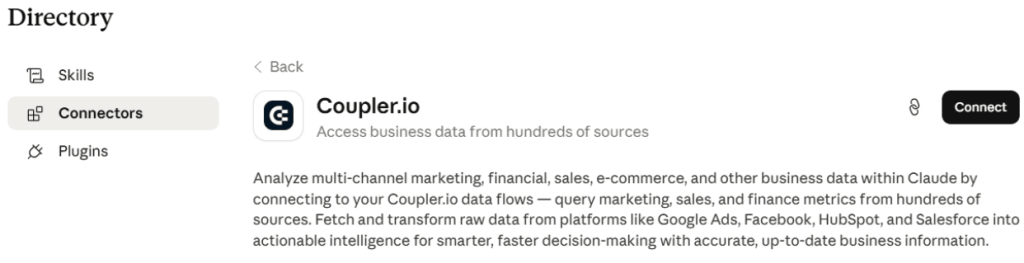
Click Get connector in Coupler.io. This opens the Coupler.io connector page in the Claude app.

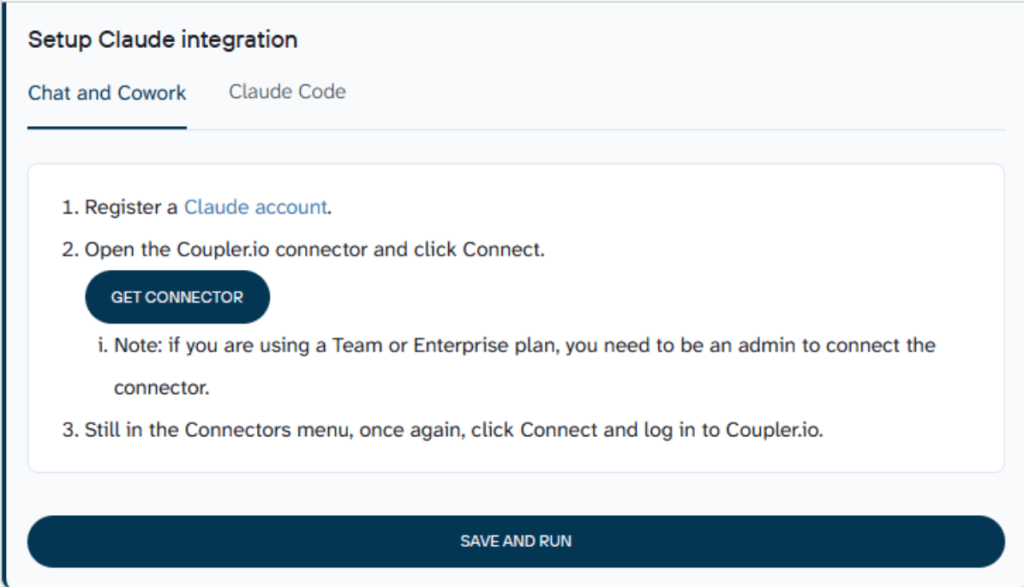
From there, click Connect and follow the authorization steps.

After authorization, return to Coupler.io and set the refresh schedule. Then click Save and Run to connect your Salesforce app data to Claude.

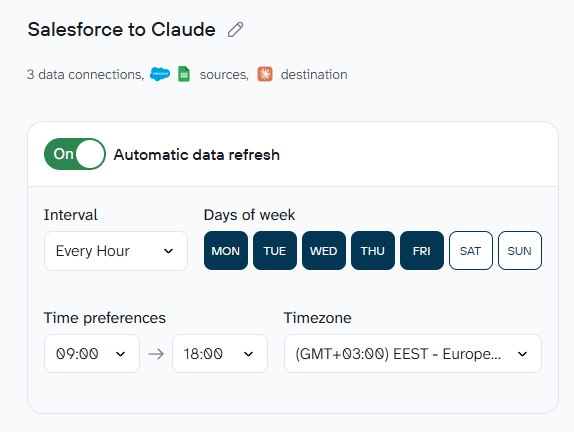
This creates the MCP connection between Coupler.io and Claude, so Claude can access the prepared Salesforce dataset during the conversation without requiring a new export each time.
Step 3: Start a conversation with Claude about your Salesforce data
After the first successful run, open Claude and start a new conversation. Claude may ask you to approve the MCP server connection before it accesses your Coupler.io dataset.
Start with a specific Salesforce question rather than a broad request. For example:
Analyze my Salesforce pipeline by stage. Show deals stuck for more than 30 days, highlight opportunities with no recent activity, and flag any close dates that look unrealistic based on current stage. |

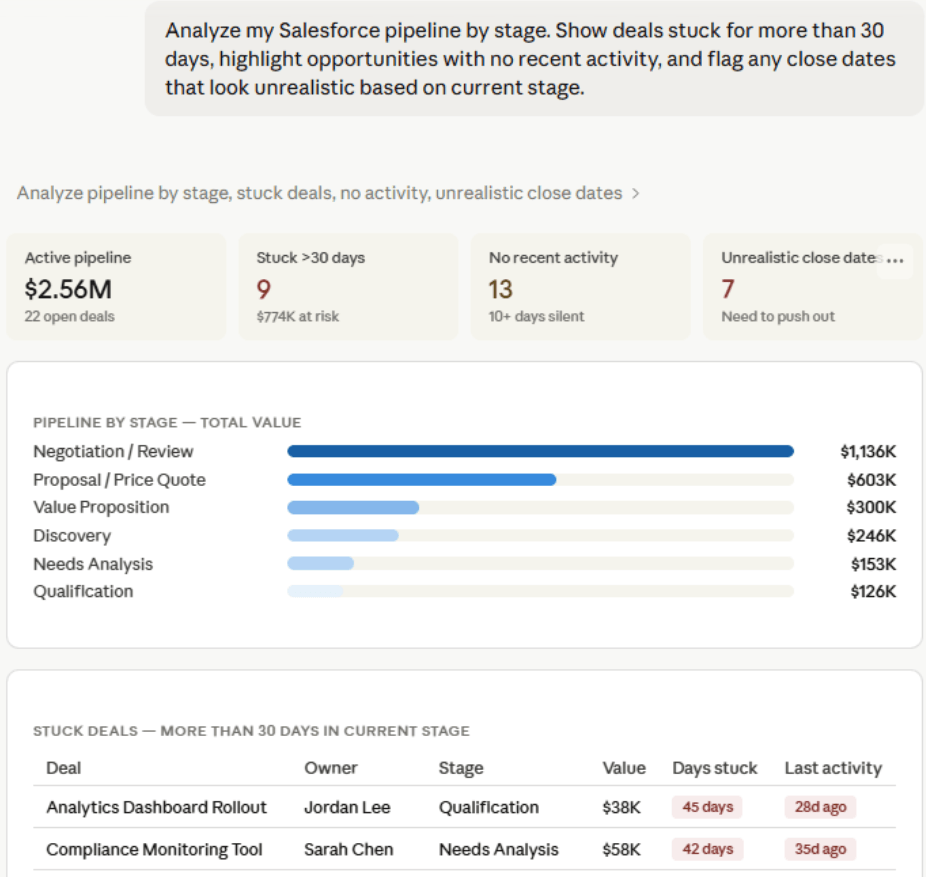
Claude can then return a pipeline risk summary, activity gap breakdown, and a list of deals that need attention before the next forecast call.
What Salesforce data you can connect to Claude
Salesforce stores different types of CRM data in different places. The right slice for a natural language conversation with Claude depends on the question you are trying to answer. For example, a saved report gives you one view. An sObject gives you the raw data model and a custom SOQL query gives you a precise dataset when neither is enough on its own.
Reports
If your team already has Salesforce reporting logic in place, reports are the fastest starting point. You can pull any saved tabular report directly into Coupler.io without recreating filters, groupings, or date ranges. If RevOps maintains a pipeline report by owner, stage, close date, and forecast category, that exact structure comes through. You’ll see that the manual export step disappears while the report logic stays intact.
Coupler.io supports tabular Salesforce reports. Summary, Matrix, and Joined report types are not currently supported through this method.
Objects (sObjects)
Standard and custom Salesforce objects give Claude access to the actual data model rather than a pre-aggregated view. Connecting:
- Accounts to Claude gives you company-level analysis: industry, size, ownership, and open pipeline.
- Opportunities to Claude brings stage, amount, probability, owner, close date, and forecast category, making them the primary layer for pipeline and forecast work.
- Leads to Claude shows top-of-funnel activity, source attribution, and conversion timelines.
- Contacts to Claude maps the relationship structure inside accounts, including stakeholder coverage and communication history.
Leads and Contacts handle top-of-funnel activity, stakeholder mapping, and relationship coverage inside accounts. Cases, Campaigns, Activities, and custom objects add context beyond pipeline when the analysis needs it: support history, call logs, onboarding workflows, or any org-specific process tracked as Salesforce data.
Custom SOQL
When a saved report or single object does not cover the question, write a custom query. SOQL, or Salesforce Object Query Language, is similar to SQL but built for the Salesforce data model. It lets you fetch a precise dataset or join fields from related objects in one query. For example, you could pull Opportunities joined with Account industry, Contact role, owner, stage, close date, and recent activity all in a single query. That is a more complete view of pipeline risk than any flat export gives you.
Regardless of which data type you use, Claude does not know your Salesforce org by default. Field names, picklist values, object relationships, and custom fields mean different things in different orgs. Attaching those definitions and metadata in Coupler.io gives Claude the context it needs to interpret your CRM data correctly from the first query, rather than guessing from column labels alone.
Analyze Salesforce data with Claude
Once your Salesforce data is connected, Claude becomes useful for the questions sales leaders usually answer too late: which deals are slipping, which forecast numbers are too optimistic, which lead sources create revenue instead of noise, and more.
The examples below are worth running before a pipeline review, forecast call, or demand generation planning session.
Salesforce pipeline analysis with Claude
Every rep’s pipeline can look fine in Salesforce until you inspect the details. A deal may still show a close date from two quarters ago. A high-value opportunity may have no activity after one cold email. A late-stage deal may sit in Procurement for six weeks with no next step.
Getting that view across reps usually means building multiple reports and comparing them manually. With Salesforce data connected through Coupler.io, Claude can review the pipeline in one conversation.
Pull all open opportunities. For each rep, show total pipeline value, number of deals, and weighted pipeline. Flag any deal that has been in the same stage for more than 21 days or has no activity in the last 14 days. Use the average days-to-close by stage as a benchmark and flag deals where the close date looks unrealistic. End with a priority list: which three deals across the team need attention before the next pipeline review. |

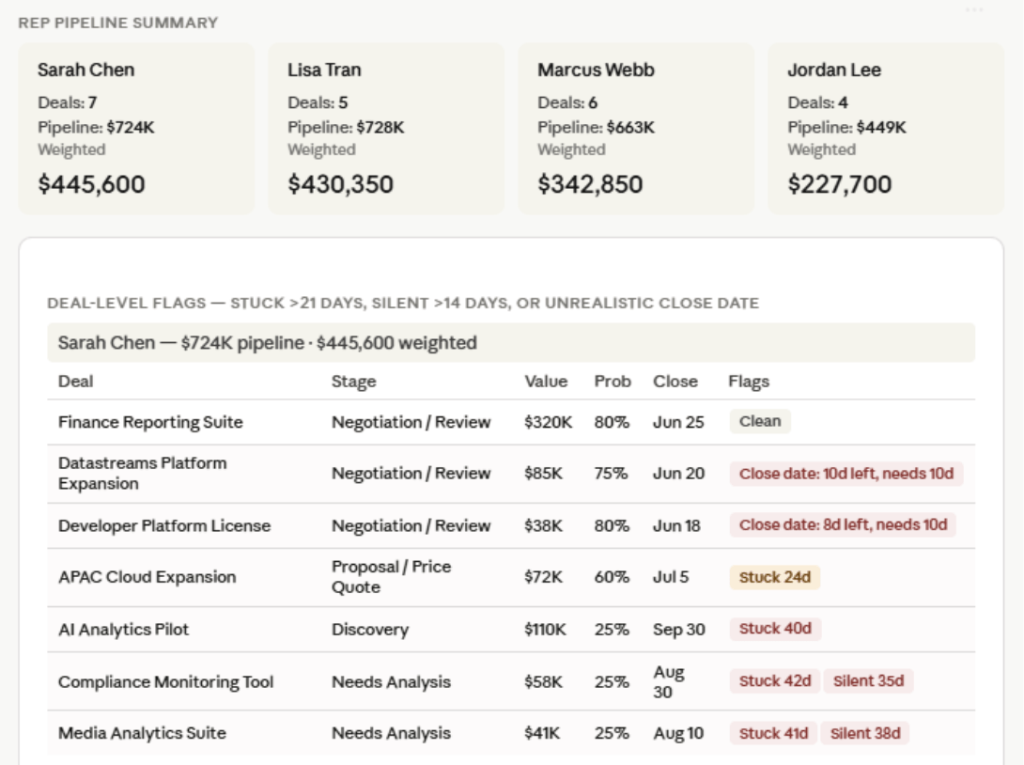
Claude will return a deal risk breakdown by rep, stage, amount, close date, and last activity. It can also flag which opportunities should stay in the forecast, which ones need manager attention, and which ones may need to be pushed out.
You can use this analysis to decide which deals to prioritize before the next forecast call and where sales managers should focus coaching.
Salesforce forecast analysis with Claude
Salesforce forecast categories show what reps think will close. They do not always show what is realistic based on stage history, deal age, activity coverage, or past conversion rates.
That is where Salesforce forecast analysis with Claude becomes useful. Claude can compare Commit, Best Case, and Pipeline against historical close patterns without you building another spreadsheet.
Compare Commit, Best Case, and Pipeline by rep. Use stage conversion history, deal age, activity coverage, and weighted pipeline to estimate likely close value. Show where the forecast looks too optimistic or too conservative. |

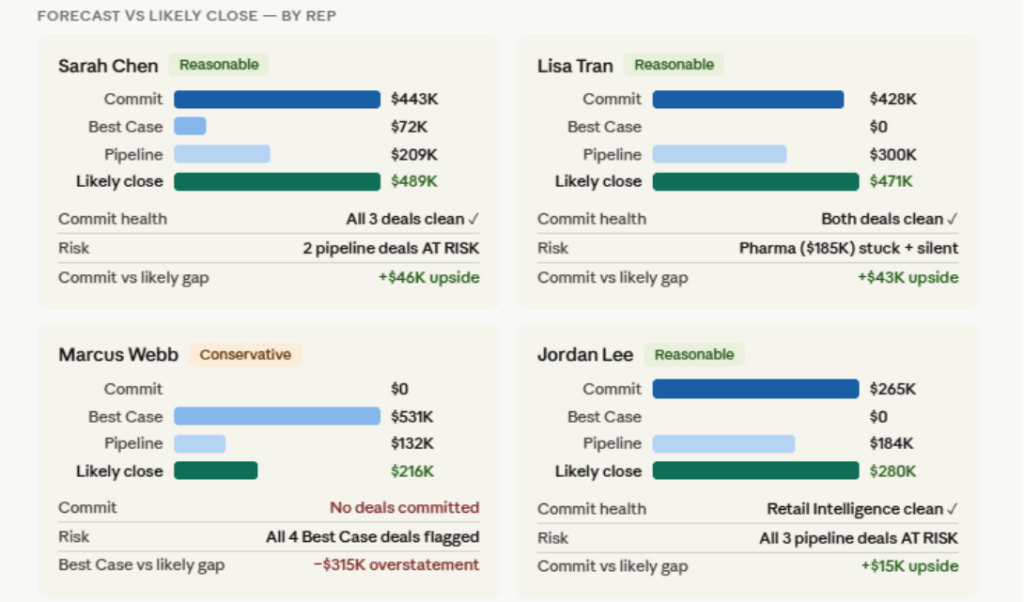
Claude can return the forecast gap by rep, identify reps who consistently overcommit, and show where the commit number needs adjustment before leadership review.
Use this analysis before presenting the forecast to leadership. It gives you a cleaner view of which numbers are backed by deal behavior and which ones need a pipeline review conversation.
Lead conversion analysis
Salesforce is useful here because the lead-to-opportunity-to-close funnel can sit in one CRM dataset. You can see where leads come from, how quickly they convert, where they stall, and which sources create closed-won revenue.
That matters because MQL volume can look healthy while actual revenue stays flat. Claude can help compare lead source quality against conversion rates and pipeline outcomes.
Analyze lead conversion by source for the last two quarters. Show conversion rate from lead to opportunity and opportunity to closed-won. Calculate average time in stage and flag the biggest drop-off points. Identify which lead sources create revenue, not just MQL volume. |

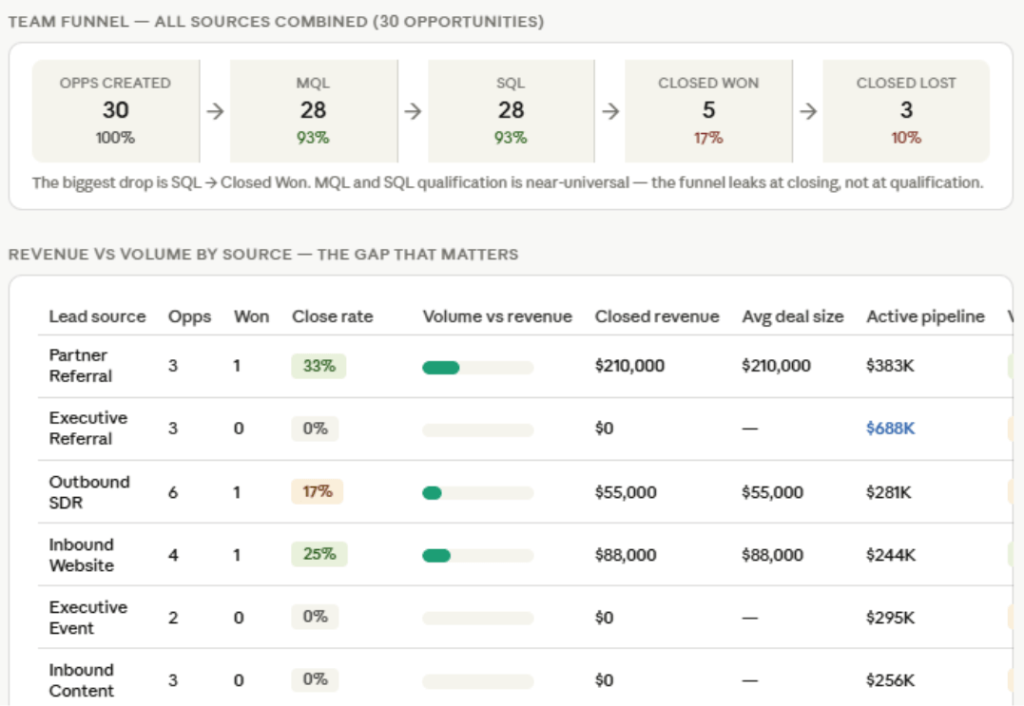
You’ll see that Claude will return a funnel breakdown by lead source, stage conversion rate, average time in stage, and revenue contribution. It can also show which sources produce many leads but weak pipeline, and which smaller sources produce better close rates.
You can use this analysis to decide where to shift lead generation budget and where sales needs to engage faster.
Start analyzing your Salesforce pipeline in Claude today!
Get started for freeClaude prompts for Salesforce analysis
Once your Salesforce data is connected, the quality of the output depends on the question you ask. Start with a specific sales decision, not a broad request like “analyze my CRM.”
Analyze my open Salesforce pipeline by rep and stage. Show deals stuck in the same stage for more than 30 days, opportunities with no recent activity, and close dates that look unrealistic based on current stage. |
Compare Commit, Best Case, and Pipeline by rep. Use stage conversion history, deal age, activity coverage, and weighted pipeline to estimate likely close value. Show where the forecast looks too optimistic or too conservative. |
Compare lead source performance across the funnel. Show conversion rates from lead to opportunity and opportunity to closed-won, average time in stage, and revenue contribution by source. |
Compare stage conversion rates by sales rep for the last two quarters. Show where each rep loses the most opportunities and identify any stages where one rep performs significantly better than the team average. |
Find active customer accounts with declining activity, open support cases, delayed renewals, or no recent stakeholder engagement. Rank the accounts by churn risk and explain the main reason for each flag. |
What matters when you connect Salesforce data to Claude
CRM analysis is only as reliable as the context Claude receives before the first question. Salesforce data has custom fields, org-specific definitions, related objects, and calculations that can change the answer if they are interpreted the wrong way.
Attach your org’s definitions before the first query
Salesforce terminology is not standardized across every org. “Stage” can mean different things depending on your sales process. “Amount” may refer to ARR, TCV, MRR, or a custom revenue field. Forecast Category labels can also be customized around how your team defines Commit, Best Case, and Pipeline.
The same applies to picklist values, custom field names, object relationships, and placeholder values. Without those definitions attached to the dataset, Claude has to interpret the fields generically. So, your Salesforce pipeline analysis may reflect a default CRM model instead of the way your team actually sells.
Coupler.io’s context feature lets you attach these definitions once. Claude receives that background with every query, so it can interpret Salesforce data with your org’s logic in mind.
Use verified calculations for weighted pipeline and deal velocity
Some Salesforce questions require more than reading rows. Weighted pipeline multiplies Amount by Probability across hundreds or thousands of opportunities. Deal velocity calculates how long opportunities spend in each stage. Forecast comparison may require stage conversion history, deal age, rep-level performance, and activity coverage.
These calculations can go wrong when Claude works from raw exports or summarized data. Coupler.io’s Analytical Engine handles the math before Claude sees the result. Claude then interprets computed outputs instead of trying to calculate everything itself.
That matters when you compare forecasts across 20 reps, review pipeline risk by stage, or calculate whether the Commit number reflects historical close rates.
Use pre-built skills for CRM performance analysis
Claude prompts work better when the analysis follows a defined structure. Coupler.io’s ready-to-use skills help guide common CRM analysis patterns, such as pipeline performance, conversion trends, attribution, and report generation.
For example, a CRM performance skill can help Claude review pipeline movement, stage conversion rates, and rep-level gaps. A report-generation skill can turn the analysis into a structured output with a TL;DR, key metrics, context, recommendations, and open questions.
For RevOps teams sharing Salesforce analysis with sales leadership or the board, this matters. The analysis and the formatted deliverable can come from the same Claude conversation instead of separate spreadsheets, notes, and slide drafts.
Send the same Salesforce data to multiple destinations
Claude is not always the only place your Salesforce data needs to go. A RevOps manager may want to ask Claude about deal velocity, while a VP of Sales needs a CRM dashboard for the weekly review.
The same Coupler.io data flow that feeds Claude can also send Salesforce data to destinations such as Google Sheets, Looker Studio, Power BI, or BigQuery. That way, your team does not need a separate export for Claude, another export for dashboards, and another one for reporting.
One data flow can support conversational analysis in Claude and structured reporting in the tools your team already uses.
Other ways to connect Salesforce to Claude
Coupler.io is the most practical option for recurring Salesforce analysis, but it is not the only way to move CRM data into Claude. These alternatives work in specific cases, especially when you only need a one-time snapshot or you have developers who can maintain the connection.
Manual export
Salesforce gives you two native export paths: report export and the Data Export Service.
For report export, open a saved report, click the dropdown arrow next to Edit, select Export, and choose the format.
- Details Only exports the underlying rows to CSV or Excel and works best when you want clean tabular data for analysis.
- Formatted Report keeps groupings and subtotals but is less useful for analysis in Claude.
Details Only exports support up to 100,000 rows. If your report exceeds that, you will need Data Loader or Salesforce CLI to pull the full dataset.
For a full org export, go to Setup, search for Data Export, and select Export Now. Salesforce creates a ZIP file with CSVs for your objects and emails a download link that expires after 48 hours. Export frequency depends on your edition: Enterprise, Performance, and Unlimited editions can export every 7 days. All other editions are limited to every 29 days.
Manual export works for one-time snapshots. It breaks down when you need fresh data every week, or when the question requires combining Opportunities, Accounts, Contacts, and Activities. At that point you are rebuilding Salesforce relationships by hand.
Salesforce MCP servers
Salesforce maintains two official MCP paths that serve different audiences.
The Salesforce DX MCP Server is currently in Beta. It is built for developers working with Salesforce orgs in VS Code, Cursor, or other MCP-compatible IDEs. It runs locally, uses TypeScript libraries to communicate with Salesforce directly, and exposes 60+ tools covering SOQL queries, metadata retrieval, deployments, Apex tests, scratch orgs, permissions, and code analysis. It is the right path when Claude needs to assist with development work rather than business analytics.
Salesforce Hosted MCP Servers became generally available in April 2026 for Enterprise Edition orgs and above. These are cloud-based and require no local install. Setup involves creating a Salesforce External Client App, configuring OAuth 2.0 with PKCE, and adding the server URL as a custom connector in Claude. Server variants include read-only and broader sObject access depending on configuration. Hosted MCP servers respect Salesforce permissions, field-level security, and sharing rules, which makes them a better fit for teams that want governed cloud-based access.
Neither path is a ready-to-use connector in Claude’s connector directory. Both require technical configuration. Coupler.io also uses an MCP-based connection but packages it as a ready-to-use connector, so there is no External Client App to configure, no CLI setup, and no OAuth flow to manage.
Salesforce API + Python
The Salesforce API gives you full programmatic access to Salesforce data through REST API, Bulk API, and SOQL queries. A Python library such as simple-salesforce can help you authenticate, query objects, pull reports, and send selected data to Claude through an API workflow.
This route makes sense when you need a custom Salesforce integration that an off-the-shelf connector cannot cover. For example, your team may have a proprietary attribution model, a custom scoring system, or an internal RevOps tool that needs Claude analysis built directly into the workflow.
The cost is maintenance. You need to create and manage a Salesforce Connected App, handle OAuth token refresh, monitor API limits, adjust queries when metadata changes, and maintain the Python scripts over time. Apex may also be involved if the logic needs to run inside Salesforce itself.
Use this method when your requirements are specific enough to justify engineering work. If the goal is recurring Salesforce analysis in Claude without maintaining a custom pipeline, Coupler.io is usually the cleaner path.
Which method should you choose?
For recurring Salesforce analysis in Claude, use Coupler.io. Pipeline reviews, forecast comparisons, lead conversion tracking, and rep performance monitoring all need fresh Salesforce data more than once. That makes them a better fit for a scheduled data flow than another manual export.
Manual export is enough for a one-time snapshot. Salesforce DX MCP Server is better for developers working with SOQL, Apex, metadata, tests, and CLI-based tasks. Salesforce Hosted MCP Servers fit technical teams that want governed cloud-based sObject access and can manage the OAuth setup. Salesforce API with Python is the right path when you need a custom workflow that no connector can cover.
For most sales and RevOps teams, the practical choice is simple: if you plan to ask Claude the same Salesforce question again, connect Salesforce to Claude through Coupler.io once and keep the data fresh on a schedule.
Get your Salesforce data analysis-ready for Claude
Try Coupler.io for free today!FAQs
Can I connect multiple Salesforce orgs with Claude?
Yes. With Coupler.io, you can connect multiple Salesforce accounts or orgs and send the prepared data to Claude in the same workflow. This is useful for teams managing separate regional orgs, sandbox and production environments, or multiple business units.
Is connecting Salesforce to Claude safe?
It depends on the method. Manual exports put CSV or Excel files directly into the chat, while API and MCP setups depend on the permissions and authentication you configure. With Coupler.io, Salesforce does not connect directly to the LLM. Coupler.io sits between Salesforce and Claude, and you control which reports, objects, fields, and datasets Claude can access.
Can I combine Salesforce with HubSpot or Google Ads in the same analysis?
Yes. Coupler.io can combine Salesforce with other data sources such as HubSpot, Google Ads, GA4, spreadsheets, or databases. For example, you can connect Stripe to Claude alongside Salesforce to compare CRM pipeline against actual payment data. That makes it possible to analyze pipeline quality, lead source performance, and closed revenue in the same Claude conversation.
Does this work on both Claude.ai and Claude Desktop?
Coupler.io connects to Claude through its MCP connector. The exact setup depends on the Claude environment and connector availability in your account. If your team is using Claude Desktop or Claude.ai, check which connectors and MCP settings are enabled before setting up the workflow.