Claude.ai works as a solid finance analyst, but only when it has fresh data from your accounting software. Every time I pull Xero data into Claude the old way (export, clean, attach), I spend more time formatting than analyzing. And the moment I download the data, the numbers become stale.
So I tested every practical way to connect Xero to Claude. Read on to see what each method costs in time and effort, so you can pick the one that fits your workflows.
Choosing the right method to load Xero data to Claude
There are different ways to load data from Xero to Claude, and each comes with different complexity, setup, and tradeoffs. Here’s the breakdown.
| Method | Setup effort | Who does the math | Best for | Watch out for |
| Coupler.io | Low: create a data flow, point to Claude | Coupler.io’s Analytical Engine returns computed results | Recurring finance analysis without engineering dependency | Free plan has data refresh limits; paid plan for regular use |
| Manual export | Minimal: download CSV, upload to Claude | Claude processes raw data | One-off audits or testing before automating | Data goes stale the moment you export; unreliable on large files |
| Xero MCP server | Medium-high: register app, configure auth | Claude processes raw data | Claude Desktop users who want full control over tools and data | You maintain the connection; breaks when Xero updates the server |
| API scripts | High: build and host scripts | Your backend runs queries, Claude interprets | Automated dashboards on a fixed schedule | Any API change on either side breaks the pipeline |
| Function calling | High: write functions and orchestration logic | Your backend fetches on demand, Claude interprets | Open-ended conversational queries across Xero data | Complex debugging; function loops are a real risk |
| ETL/RAG pipelines | High: data warehouse + vector store setup | Warehouse runs queries, Claude interprets | Millions of rows or multi-source analysis | Requires dedicated data engineering |
How to connect Xero to Claude using the Coupler.io connector?
Coupler.io is a no-code data integration and AI analytics platform that connects 400+ data sources, including Xero, to AI tools like Claude, ChatGPT, Gemini, etc.
Under the hood, it uses an MCP server, but I don’t need to touch any of that. From the UI, I add a Xero source connector, apply any transformations I need, and point the output to Claude.
Claude is a storyteller, not a mathematician. It interprets data well, but it will produce wrong numbers if you ask it to crunch large datasets on its own. That’s why Coupler.io’s Analytical Engine runs the calculations first and returns processed results. Then Claude explains what those numbers mean. Check out what the setup flow to connect Xero data to Claude looks like.
Step 1: Create Xero data flow
You can sign up for Coupler.io for free and create a new data flow, choosing either Xero or Xero Reports, depending on what data you want to analyze.
Or simply use the form below, where I’ve preselected Xero and Claude. Just click Proceed and complete the signup flow. No credit card is required.

Connect to the Xero account that has your accounting data. Under Basic Settings, pick the Xero tenant if you have access to several organizations, then choose the data entities you want to pull, like Bank Transactions, Invoices, or Contacts. Then select a report type: Simple or Detailed. Simple reports include all available fields, while Detailed reports pull beyond the available list of fields.

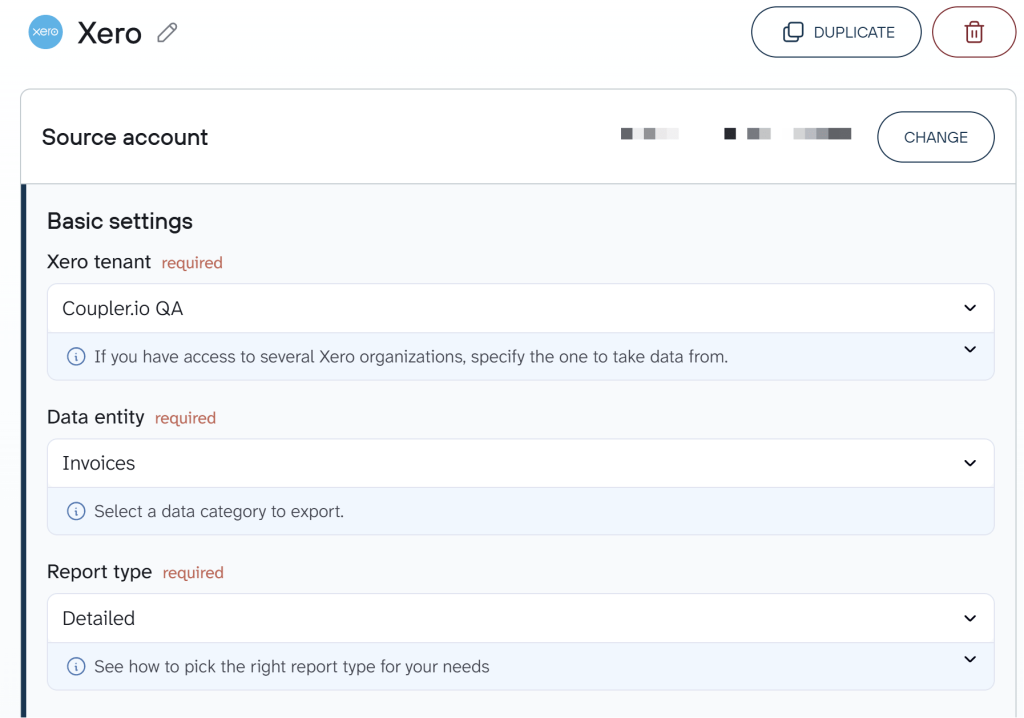
Coupler.io can also connect multiple sources to the same data flow and uses the combined data for analysis. For example, you can add QuickBooks or send Stripe data to Claude alongside Xero in one flow.
Organize your data set before
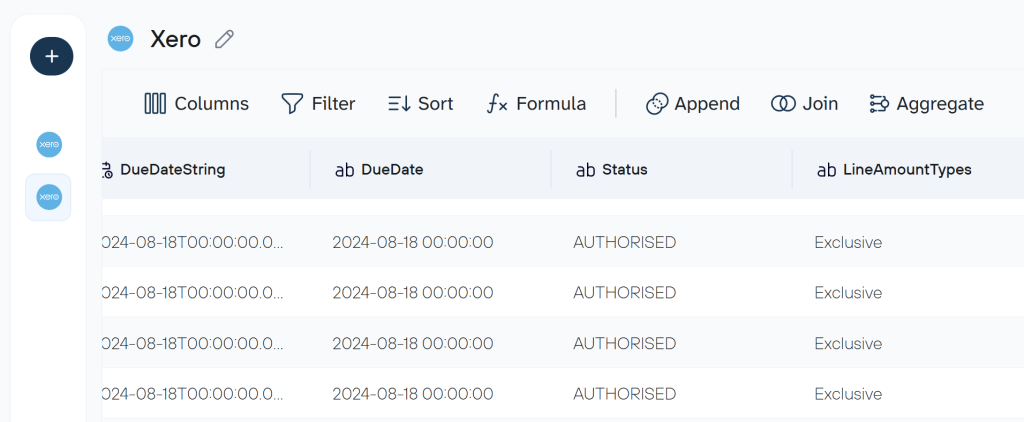
It’s not a mandatory step, but it’s pretty useful if you want to organize and prepare your data for a Xero dashboard or AI analysis. Here, you can filter and sort data, hide unnecessary columns, aggregate rows, or blend data from different sources. Every time the data flow runs, Coupler.io applies those transformations automatically and stores the result. When I ask Claude a question, Coupler.io pulls from that processed dataset and returns the answer.

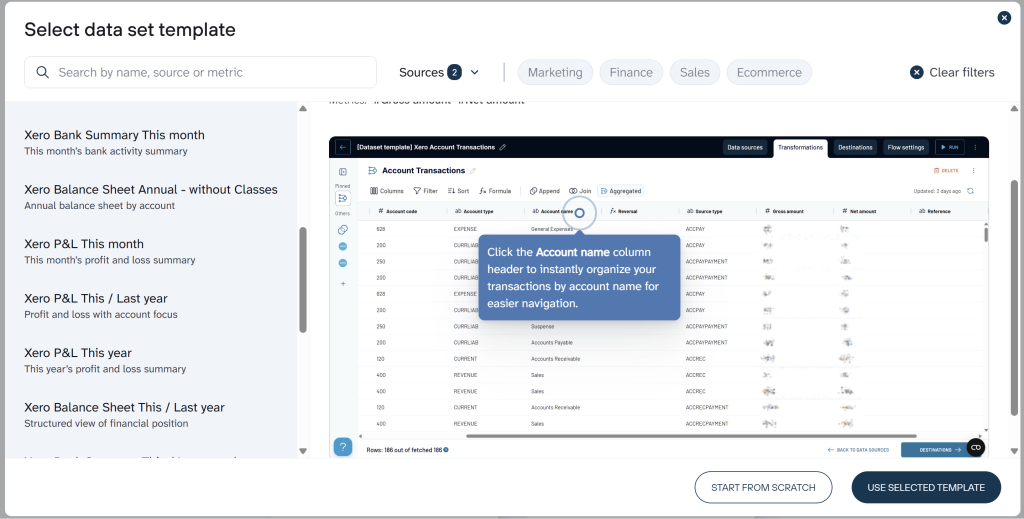
By the way, Coupler.io provides data set templates that speed up your data preparation. They already contain certain data transformations that make your Xero data set ready for reporting and analytics.

Step 2: Connect data to Claude
In Destinations, click Get Connector to open the Coupler.io connector page inside Claude. It works both for web and desktop apps.

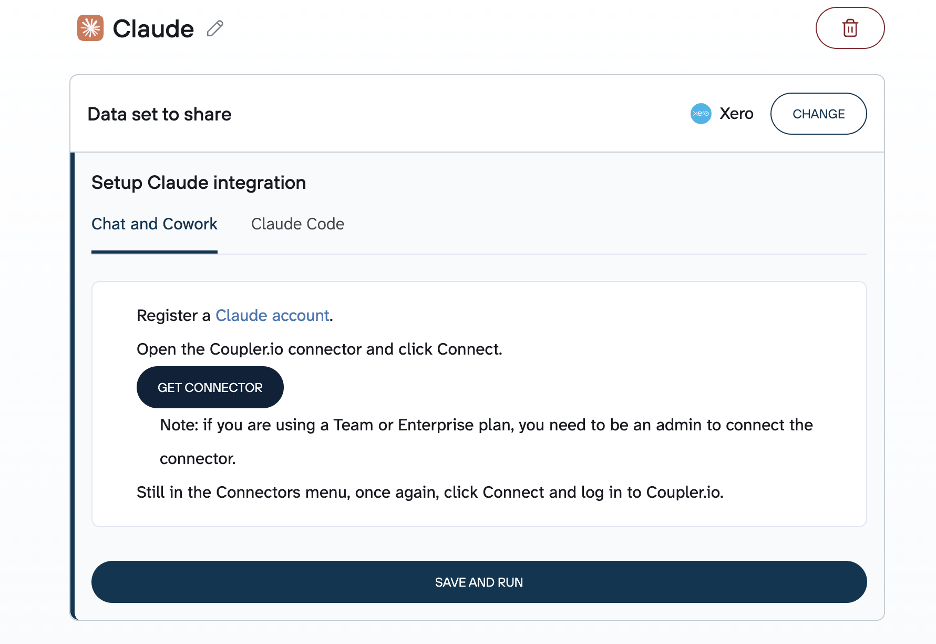
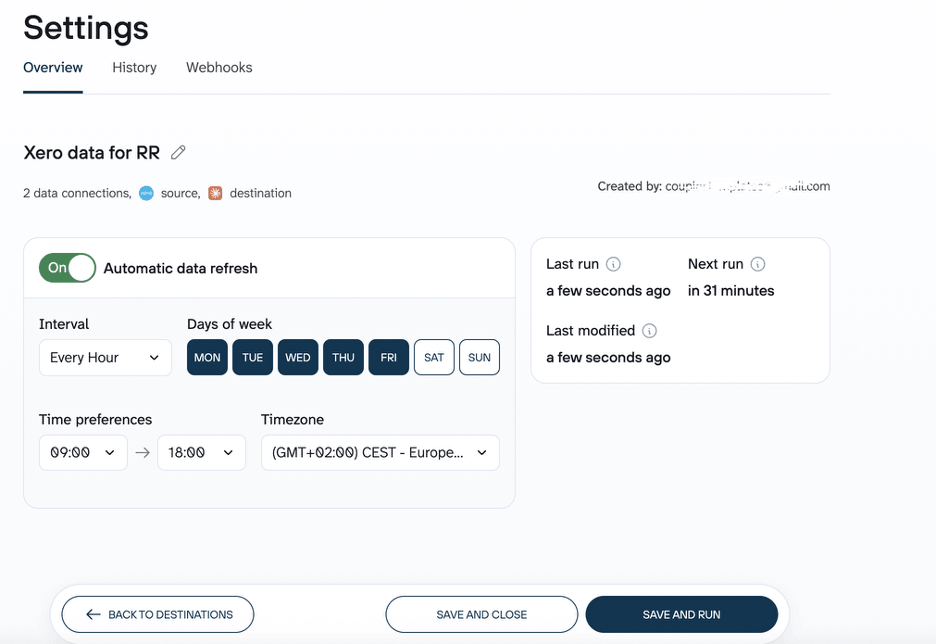
Follow the instructions to complete the Claude integration. Once done, go back to Coupler.io and click Save and Run. I also set a schedule here so the data flow runs automatically and stays fresh.
When the setup is complete, Coupler.io appears in your connectors, just like in the image below.

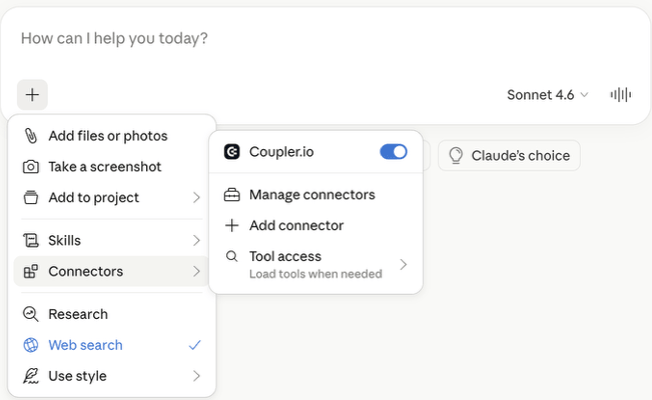
Once it appears there, you’re set up and ready to query.


Connect data from Xero to Claude in a few clicks
Try Coupler.io for freeHow you can analyze data using the Xero integration with Claude
Here are the use cases I see most often across finance teams. Each example below uses Xero data connected to Claude through Coupler.io.
Use case 1: Cash flow forecast
At each month end, you want to know your net cash position to plan budgets or chase pending invoices. With Xero bank transactions and invoice data connected to Claude, open a chat and ask any question in natural language:
What's my net cash position for the next 30 days, factoring in outstanding invoices and upcoming bills?

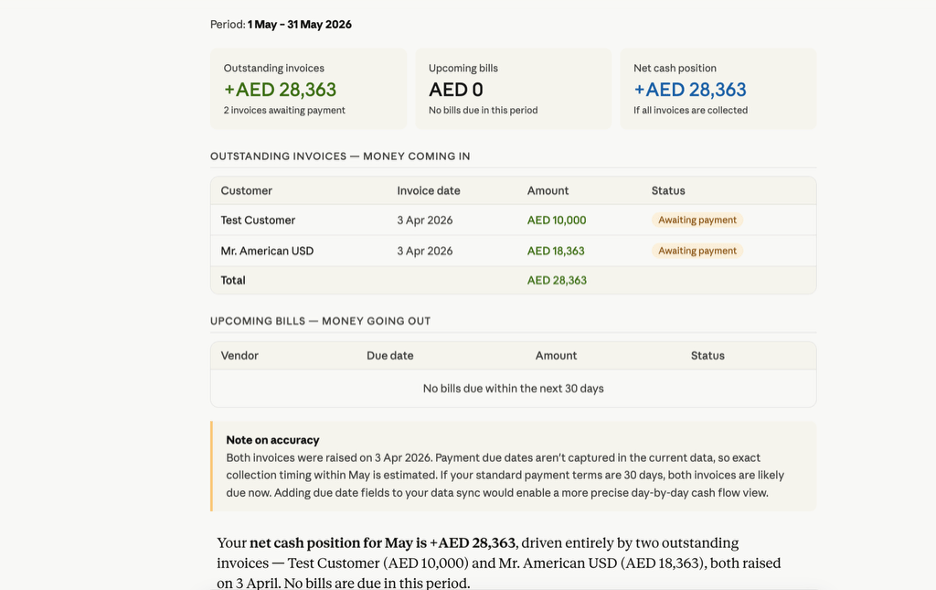
The analysis shows there are no upcoming bills and flags two invoices awaiting payment. It names the customers too, and if you ask, Claude drafts follow-up emails as well.
This is one of the highest-value prompts for finance teams. You don’t need to open Xero, filter by status, cross-reference due dates, and build a summary manually. Claude gives you a single-question answer that includes the numbers, the customer names, and the next action. Run it weekly, and you’ll catch overdue invoices before they become problems.
Use case 2: Expense trend analysis
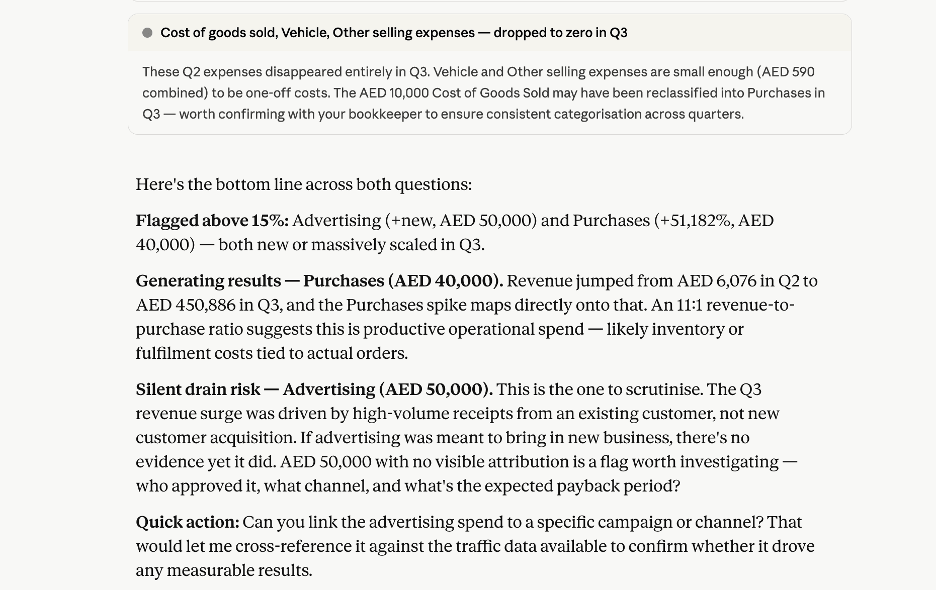
When I asked Claude to compare Q2 and Q3 expenses, it broke down spend by category and flagged what was actually driving results.
Show total expenses by category for Q2 and Q3, and identify which spending categories are driving results versus those that are underperforming or wasting budget.

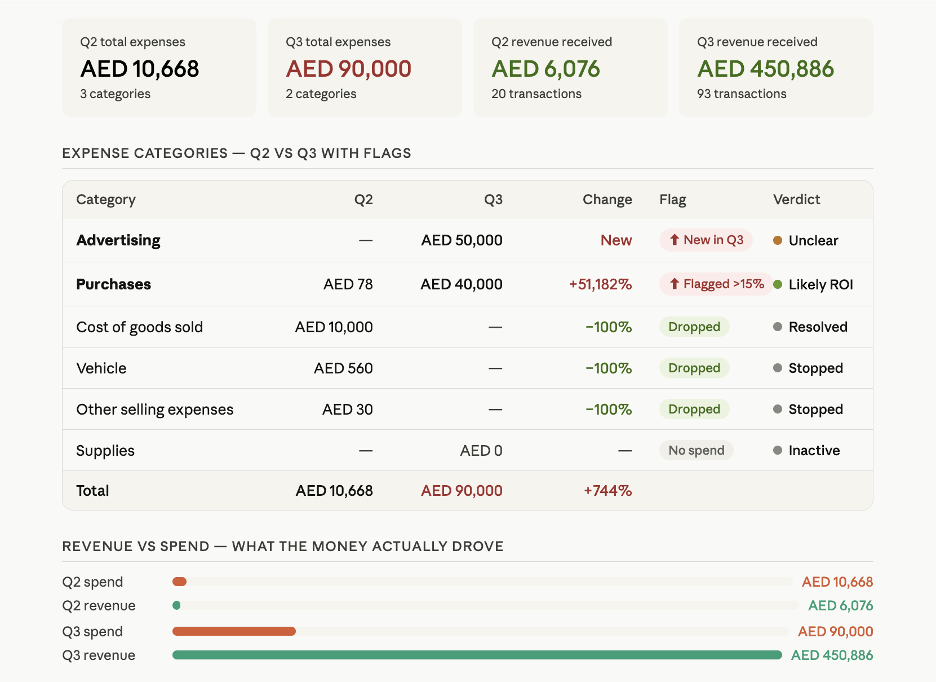
Here’s what the output shows:
- Purchases like inventory or fulfillment costs drove revenue up in Q3, so investing more in upcoming quarters likely gives better ROI.
- Advertising spend is high with low customer acquisition, which means the campaigns and channels need further investigation and optimization.
Without this breakdown, the total spend number alone would have looked fine. The category-level view is what surfaces the real story.
Use case 3: Revenue summary
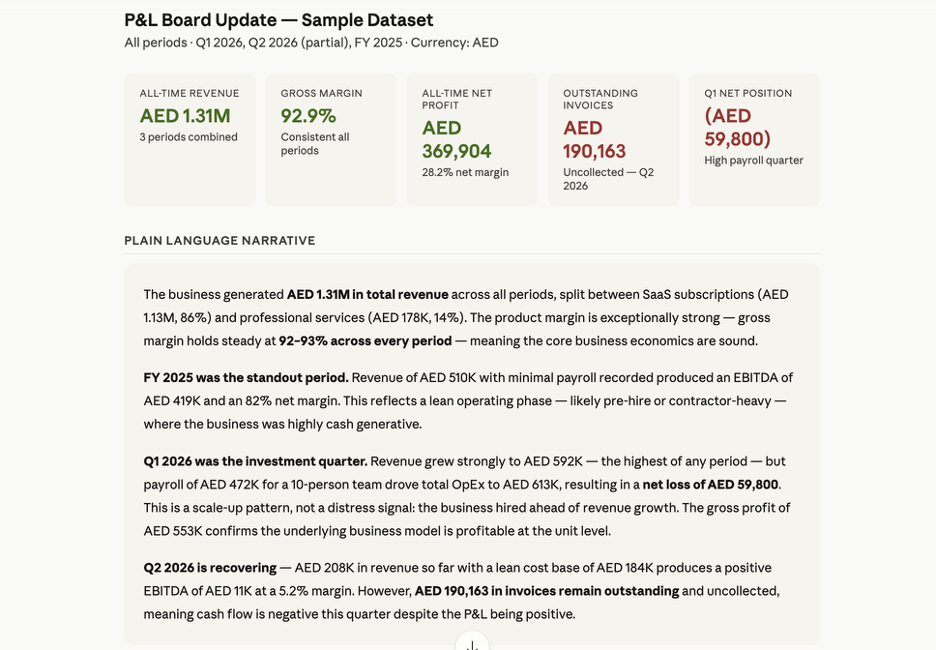
Before a quarterly update meeting, you need clean insights to present to your team or discuss with stakeholders. Ask Claude:
Summarize my P&L for the last 90 days in plain language for a board update.
Claude responds with a clear comparison of last year, and 2026 Q1 and Q2 financials. It doesn’t just list numbers. It structures the output as a narrative your board can read without a spreadsheet open.

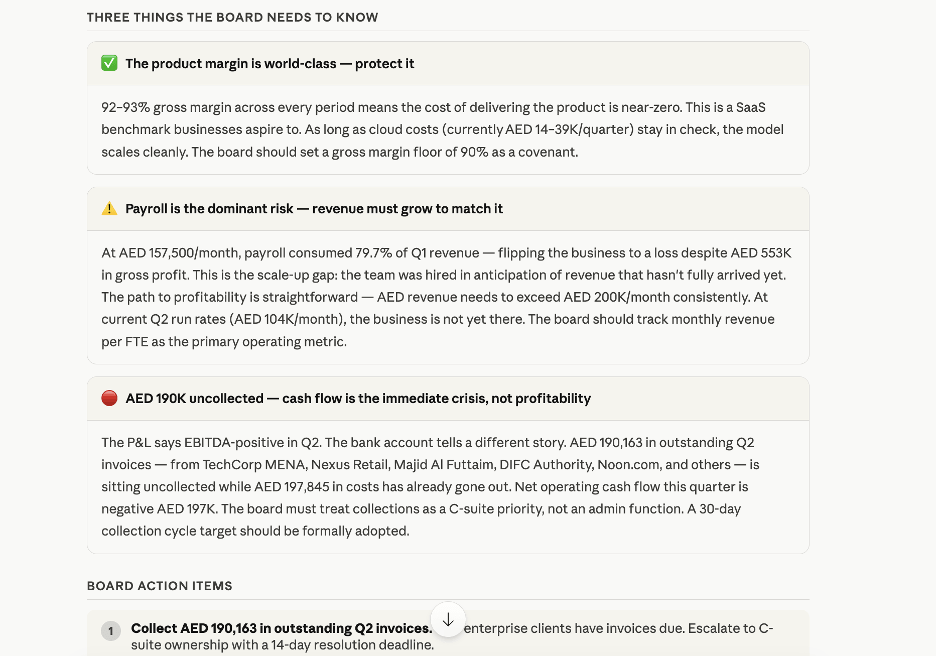
It also calls out the critical metrics the board must know:
- Shipment costs are near zero, which puts gross margin at a good 90-92%.
- Revenue growth isn’t keeping pace with team growth, so further hiring is a risk.
- A formal 30-day payment collection cycle would stabilize cash flow.

If any of these use cases match what you’re doing, check out Coupler.io for free to analyze your own Xero data in Claude.
Analyze Xero data in Claude using Coupler.io
Get started for freeOther methods to load data from Xero to Claude
There are other options to get data from Xero to Claude beyond Coupler.io, but each requires engineering effort or recurring manual work.
1. Manual export
Xero has an export option in almost every section: bills, invoices, sales, etc. Download them as PDF or Excel (CSV) files and attach them to the Claude chat.

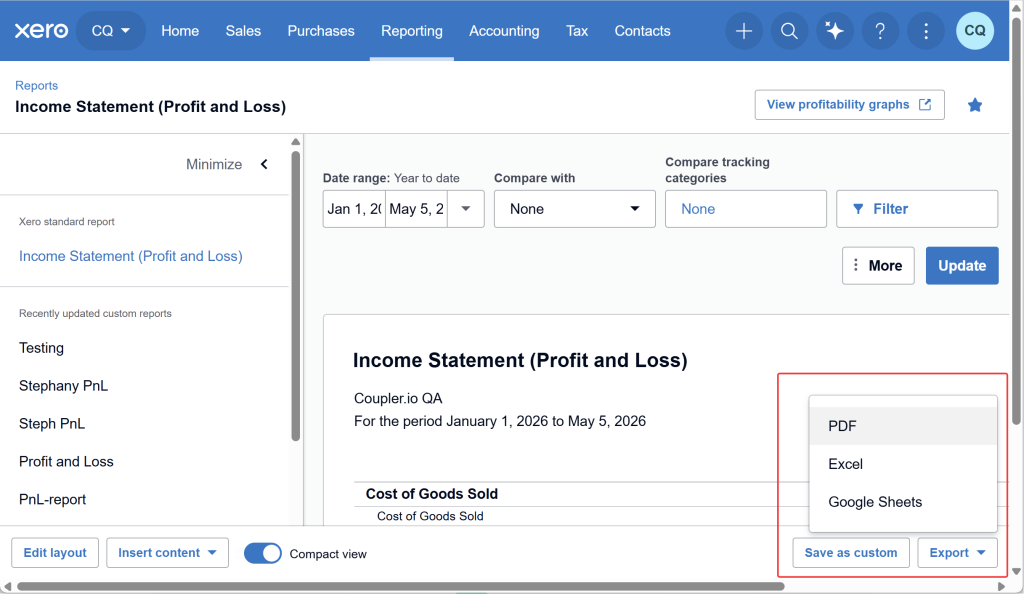
When your datasets are large, asking Claude to analyze raw CSV files isn’t reliable.
I used to start here before I had Coupler.io set up. It’s a quick way to check whether you can use Claude with your Xero data before you invest time in any connection method. Upload a sample CSV, ask a few questions, and see if the output makes sense. If it does, that’s your signal to automate the pipeline.
2. Xero MCP server
Xero has an official MCP server that exposes tools like get_invoices, get_payments, and get_balance_sheet to Claude. You control exactly which tools Claude can call and what data it accesses, with no third-party layer in between. When you ask a question, Claude picks the right tool, fetches the data from the Xero API, and runs the analysis.
To connect Xero to Claude, get your client ID and secret from the Xero Developer Center and add them to your Claude configuration. The first time Claude accesses a Xero tool, a Xero login page asks for your consent. Complete the OAuth authentication flow and you’re in.
The tradeoff is maintenance. Keeping the Xero connection healthy and updating whenever Xero releases MCP server changes falls on your team. Coupler.io connects to Claude through its own MCP server, but the technical setup is handled for you. Create a data flow in the UI, and it connects data from Xero to Claude, not your Xero account.
3. Custom API scripts and function calling
Both approaches require engineering effort and direct work with the Xero API. The difference is who decides what data to fetch.
With API scripts, your code drives everything. Say you have a weekly email that goes to your accounting manager covering pending invoices, bills, and order values. A custom script (typically Python or Node.js) makes API calls to Xero, pulls that data, passes it to Claude, and populates the template with fresh numbers every week. The questions are fixed, the schedule is fixed, and Claude just interprets whatever it receives.
With function calling, you write functions that fetch data from the Xero API and expose them to Claude as available tools. When a user asks a question, Claude decides which function to call, fetches only the data it needs, and uses it in the analysis. This handles open-ended queries that fixed scripts can’t. If the questions change week to week, function calling adapts where a static pipeline won’t.
Pick API scripts when your reports are predictable and run on a schedule. Pick function calling when the questions are conversational and unpredictable. Both require REST API experience, and both break when Xero or Claude changes their APIs. Maintenance is ongoing either way.
4. ETL/RAG pipelines
This method adds a database or vector store layer between Xero and Claude. You connect the Xero API to a database and sync data on a schedule or via a webhook trigger, so updated data is always available for querying. Claude queries this database instead of calling the Xero API. Because queries run against the warehouse, anyone can ask any question at any time without hitting Xero’s API rate limits.
The second reason to choose this architecture is semantic search. RAG retrieves results based on query meaning rather than exact field values, which matters when your dataset is large and questions are unpredictable.
It makes sense if you’re querying millions of rows or combining Xero with multiple other sources. Building it requires expertise in data warehousing and vector search. For most finance teams without a dedicated data engineering function, the effort outweighs the benefit.
Which method to get data from Xero to Claude is worth it?
The right method depends on:
- How often do you analyze?
- Do you need conversational analytics or automated dashboard refreshes?
- Do you have an engineering team to build and maintain custom pipelines?
If you run analysis quarterly or half-yearly, manual export works fine. Once you’re doing this weekly, you need automation to work with live data.
If you need to power custom applications with Claude’s analysis, build API scripts or function calling. For fixed user queries where you always know which data you’re fetching from Xero, API pipelines are the best fit. For real-time conversational use cases, MCP servers and RAG pipelines are the better choice.
One thing I’ve learned from testing all these methods: the gap between “works in a demo” and “works on Monday morning” is where most setups fail. API scripts break when Xero changes a field name. MCP servers need someone to monitor uptime. Manual exports get skipped when the person who runs them goes on leave.
For small business teams and bookkeepers who want live, conversational analytics without touching any code, Coupler.io is what I’d reach for first. Its UI-based setup handles the full data pipeline, transformations, and scheduled runs through an MCP connection. It shares only filtered and sampled data with Claude, so your full dataset stays under your control.
Connect Xero data to Claude for conversational analysis
Try Coupler.io for freeFAQs
What are the limitations of connecting Xero to Claude?
Xero has no native Claude connector, so the connection requires setup. There’s also a data exposure risk: if the API permissions or application logic is poorly designed, Claude may see more financial data than you intend. Coupler.io solves both. It handles the connection without custom code and limits what Claude sees to only what each query requires.
Does Claude get full access to my Xero data?
It depends on the method. With manual export, Claude sees exactly what you upload.
With the Xero MCP server, Claude can call any tool you’ve authorized, so the scope depends on how you configure the permissions in the Xero Developer Center. API scripts and function calling expose only what your code passes to Claude, so you control the boundary in your backend logic.
With Coupler.io, Claude never sees your full dataset. Coupler.io sends only filtered and sampled rows or Analytical Engine results, scoped to what each query requires.
Can I connect multiple Xero organizations to Claude?
Yes. Add each account as a separate data source in the same Coupler.io flow. Analysis runs across all of them, and you can toggle any source on or off at any time.
Does Coupler.io work with Claude Desktop and Claude Web?
Yes, Coupler.io works with both Claude Desktop and Claude Web. Claude is built by Anthropic and supports connectors across both interfaces. Coupler.io connects to 400+ data sources across both.
What Xero data can Claude analyze?
Any data you can pull from Xero: bank transactions, invoices, contacts, purchase orders, balance sheets, profit and loss reports, and more. The depth depends on which data entities you select when setting up the source connector and which report type (Simple or Detailed) you choose. If you connect Xero through Coupler.io, you can also combine Xero data with other sources like Stripe or QuickBooks in the same data flow before querying Claude.