

Asana generates a lot of operational data: tasks, projects, timelines, stories, tags, custom fields, and more. Exporting this data to spreadsheets, BI tools, or data warehouses lets you build cross-project reports, track workloads over time, and combine Asana data with other sources in one place. Connecting it to AI tools opens up conversational analysis of your project data too.
With Coupler.io, Asana data export takes one setup. Fresh data flows into your reports, dashboards, DWHs, and AI tools on a schedule. No coding or repeated manual downloads are required anymore.
How do you export Asana data to your chosen destination with Coupler.io
Coupler.io is a data integration platform and AI analytics tool. It connects Asana to spreadsheets, BI tools, data warehouses, and AI tools, and keeps the data up to date on a schedule you choose. You can filter, transform, and combine Asana data with records from 400+ other sources before loading it into the destination. The setup takes three steps.
Step 1: Collect Asana data
In the form below, the source is pre-selected as Asana. Choose the destination from the drop-down menu and click on Proceed.

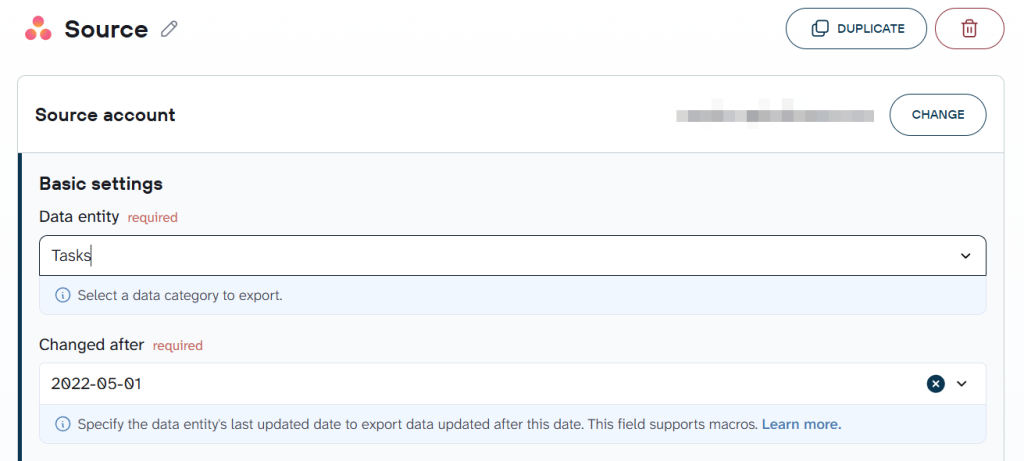
In the source settings, connect your Asana account. Select the data entity you want to export, for example, Projects, and specify the last updated date. We’ll discuss the different data entities later in the text.

Coupler.io connects to 400+ sources, so you can combine Asana data with records from tools like Jira, Google Sheets, Slack, and more.
Step 2: Organize and transform data
Before the data reaches your destination, you can organize it to match your reporting or analysis needs. The available transformations include:
- Rename, rearrange, hide, and unhide columns.
- Filter and sort the data as needed.
- Create new columns using custom formulas.
- Aggregate data using operations like sum, count, average, min, and max.
- Combine data from other data entities, accounts, and data sources.

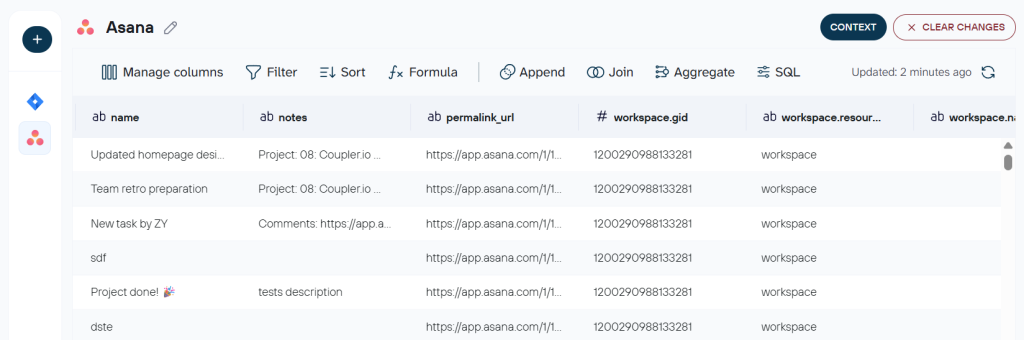
These transformations also shape what AI sees if you analyze the data later. Hiding irrelevant columns and filtering out completed or archived tasks keeps the dataset focused, so AI answers stay relevant. You can also add business context, like field descriptions and metric definitions, so the AI understands what each column means rather than guessing from raw headers. The AI layer never connects to your Asana account directly. It only works with the structured dataset you build here.
Step 3: Load data and schedule refresh
Configure the destination settings following the in-app instructions. For instance, if you export data from Asana to Google Sheets, you need to specify the spreadsheet and the sheet to load data.
Coupler.io supports multiple destinations within a single data flow. You can send the same Asana data to a Google Sheets report, a Data Studio dashboard, and an AI tool at the same time.
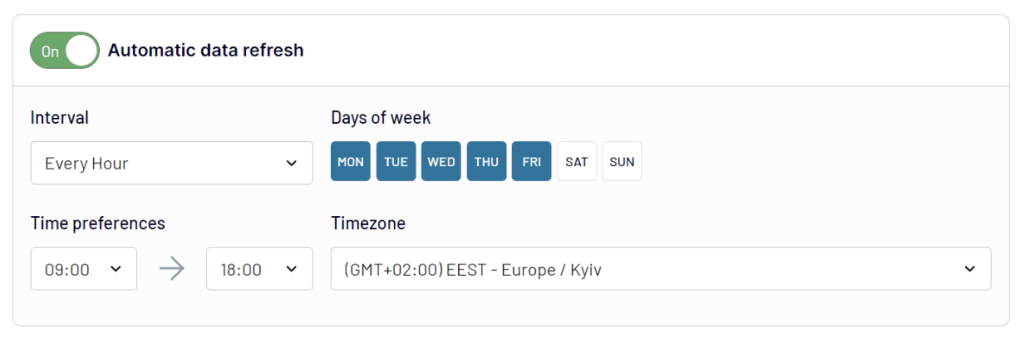
Now, specify the frequency of data updates by toggling the Automatic Data Refresh. Choose the data refresh settings like days of the week, interval, time preference, and timezone.

Bonus step. Analyze Asana data with AI
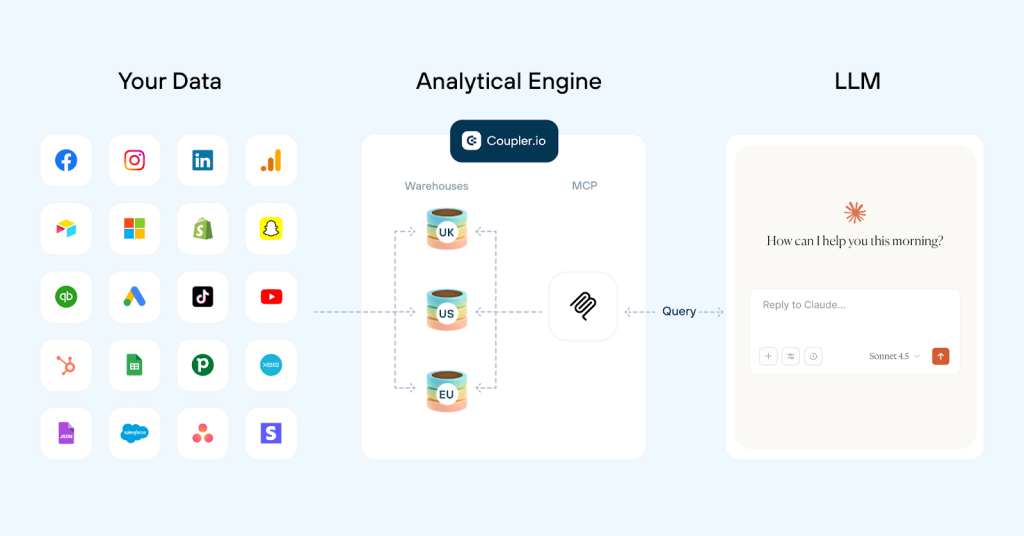
Once your Asana data is flowing into a destination, you can start asking questions about it in plain English. Coupler.io’s AI Agent works directly with your data flow. The Analytical Engine runs calculations and aggregations first, then passes confirmed numbers to the AI. You get computed answers, not guesses based on raw data.

A few examples of what you can ask about your Asana data:
- Which projects have the most overdue tasks right now, and by how many days?
- Show me the workload distribution across assignees for the last 30 days.
- Summarize the status of all active projects with their completion percentage.
- Which tasks have been sitting in progress for more than two weeks?
- Generate a standup recap based on tasks completed and updated yesterday.
If you prefer working in Claude, ChatGPT, Gemini, or another AI tool, Coupler.io connects your data flow to external AI tools via MCP and AI Integrations. The same structured dataset powers the conversation, whether it happens inside Coupler.io or in an external tool.
The filtering and column management you set up in Step 2 controls what any AI tool sees. AI never connects to your Asana account directly. It works only with the dataset you approved.
What data you can export from Asana with Coupler.io
The Asana connector by Coupler.io allows you to export the following data entities:
- Portfolios: Collections of projects that help you monitor progress and manage multiple initiatives in one place.
- Projects: Individual units where tasks are organized, tracked, and managed from start to finish.
- Sections: Subdivisions within projects that allow you to categorize and structure tasks effectively.
- Stories: Logs or updates related to tasks that provide context and track changes over time.
- Tasks: Individual work items that need to be completed, each with its own details, due dates, and assignees.
- Tags: Labels that help you categorize and find tasks quickly across different projects.
- Teams: Groups of people collaborating on projects, allowing for organized teamwork and communication.
- Users: Individual members within your Asana workspace, each with their own role and permissions.
- Workspaces: The overarching environment where all your projects, tasks, and teams are housed and managed.
That’s not all. You can organize and export team information, contact data, and historical data you need to maximize your decision-making and analytics process.
Where can you export Asana data with Coupler.io?
Coupler.io supports multiple destinations within a single data flow, so you can send the same Asana data to several places at once. Here’s the full list of where your Asana data can go:
Spreadsheets: Google Sheets, Microsoft Excel. Good for teams that already track projects in spreadsheets or need a familiar format for filtering and sharing.
BI and dashboard tools: Data Studio, Power BI, Tableau, Qlik. Build visual project dashboards with auto-refreshing data from Asana.
AI tools: Coupler.io connects Asana data to Claude, ChatGPT, Gemini, Perplexity, CursorAI, and OpenClaw. Use AI Integrations to ask questions about your project data in the AI tool you already use.
Data warehouses: BigQuery, Snowflake, PostgreSQL, Redshift. For teams that centralize data from multiple tools in a warehouse for cross-source analysis.
Other: JSON, CSV, monday.com. Useful for data migration, backup, or feeding Asana data into custom workflows.


Automate Asana data export with Coupler.io
Get started for freeAlternative options to export data from Asana
Coupler.io covers most Asana data export needs: scheduled refreshes, multiple destinations, data transformations, and AI analysis on top. For recurring reporting or any workflow where you need up-to-date data without manual effort, it’s the most practical option.
That said, not every situation calls for an automated connection. If you need a quick snapshot of a single project for a meeting, or a one-time data dump to hand off to a developer, Asana’s built-in export and API can handle the job.
Native integration: Asana lets you export data in three formats: PDF, CSV, and JSON. CSV works for loading data into spreadsheets or BI tools, and JSON is useful for transferring data to other software. The limitation is that you can only export one project at a time, and you need to repeat the download manually every time you want fresh data.
Asana API: The REST API lets you build a custom integration that pulls exactly the data you need in JSON format. This gives you full control over the output, but requires coding skills and ongoing maintenance as Asana’s API evolves.
How does manual Asana export work?
To get started with Asana export data, the first thing you need to do is head over to your account. Let’s demonstrate how to manually export data from a single project.
- Go to your projects in your menu on the left.

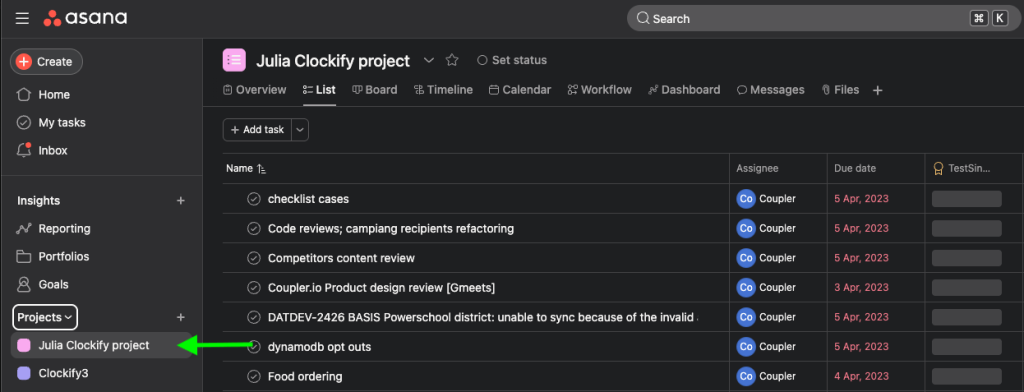
- Click on a project of your preference. When the project is open, click on Project Actions (the drop-down arrow next to your project name).

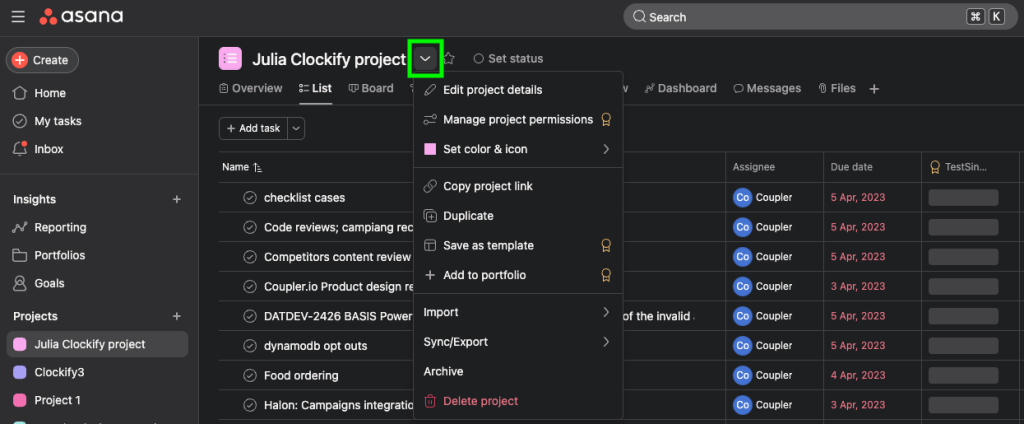
- Go to Export/Print. Choose the format in which you would like to export your file.

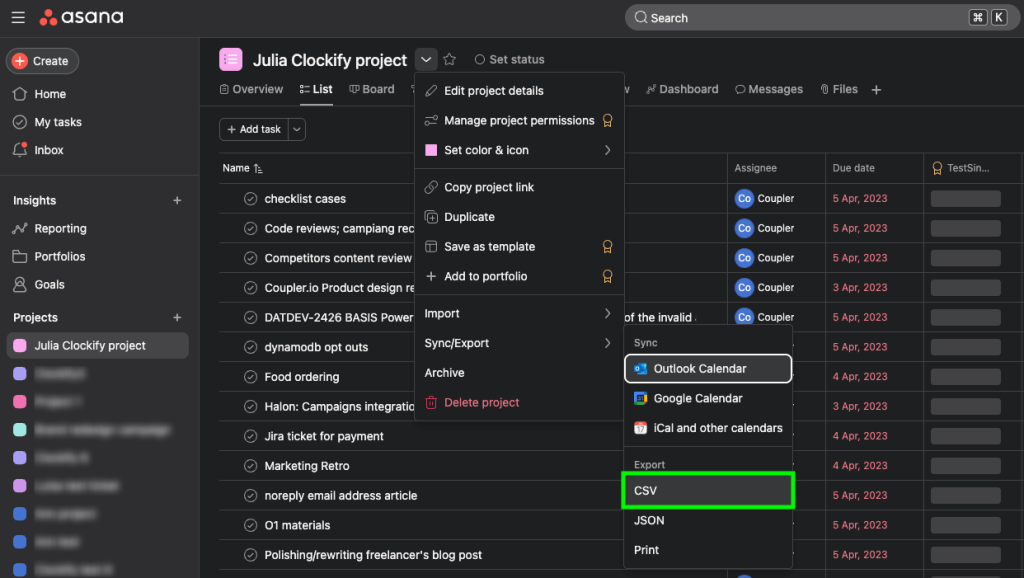
In this example, I have chosen to export my file in CSV format:

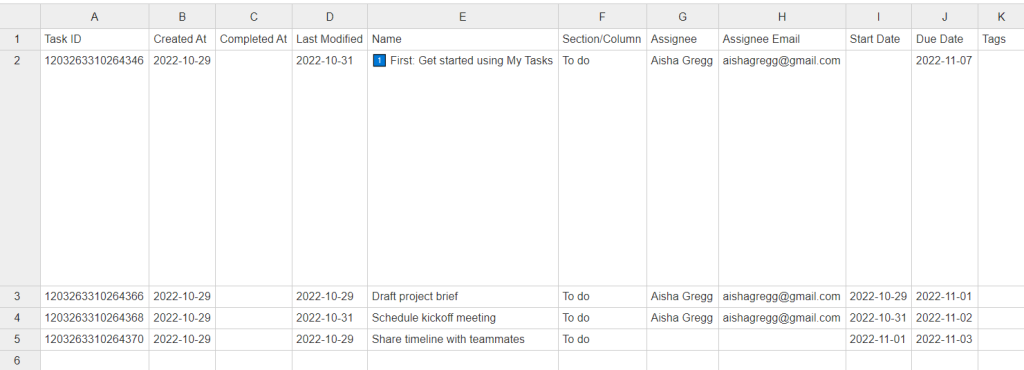
Types of Asana data export
Asana holds more than just tasks. Projects, timelines, boards, stories, tags, milestones, custom fields, portfolios, and user activity all sit inside the platform. Some of these data types export natively through CSV or JSON, others require workarounds with custom fields, and a few are only available through Coupler.io. Below I cover each type individually, with the export method that works best for it.
Export Asana projects list
Above, I showed you how to manually export a single project from Asana. But what if you want to export all of your projects from the platform? Asana only allows you to export one at a time, making the process extremely lengthy.
With Coupler.io, however, you can export all of your projects at once. What’s more, the projects will update automatically on the schedule you choose, for example, daily, so you don’t need to worry about the freshness of your data. Let’s go through the steps:
- In your Coupler.io data flow, select Projects as the Data Entity. Then, configure the date period to export project data from (e.g., start of last year, start of last quarter, this month, etc.)
- Preview the list of your projects and organize the data how you wish. Then load it to your preferred destination, such as a BI tool or spreadsheet.
Later, I’ll explain how to export tasks from projects to view team progress across different contexts.
Export Asana timeline and calendar visually
Asana timeline is a condensed organizational view of your tasks between their start and end dates. It gives you a visual way of managing your projects so that you can control the order in which you handle your work activities. It also gives you click-and-drag abilities to quickly create and edit your project.
Your Asana calendar, on the other hand, gives you a broader view of what is on deck for your day, week, or month. You can drag tasks around, create new tasks, and even mark your tasks as complete on your calendar view. You can even visualize your team’s calendar, comment, and attach files.
Visually exporting your timeline and calendar can be done by syncing your tasks to your chosen calendar or by printing them. To sync these manually:
- Choose your desired project under the Projects menu on the left.

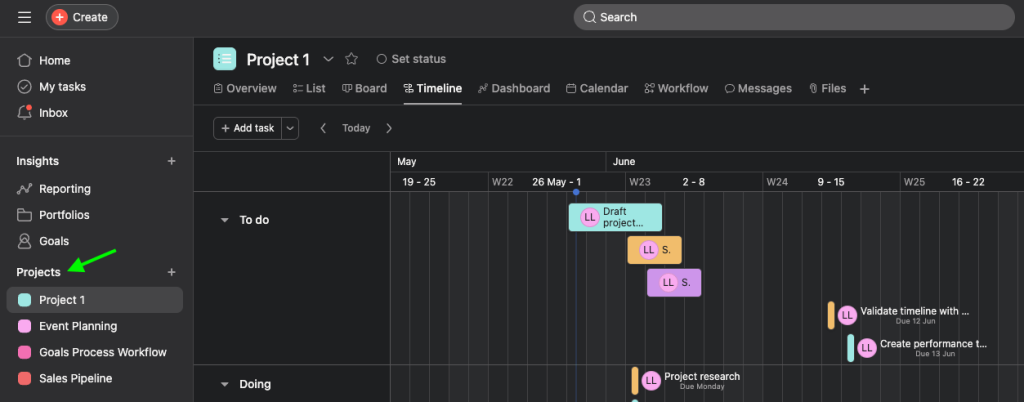
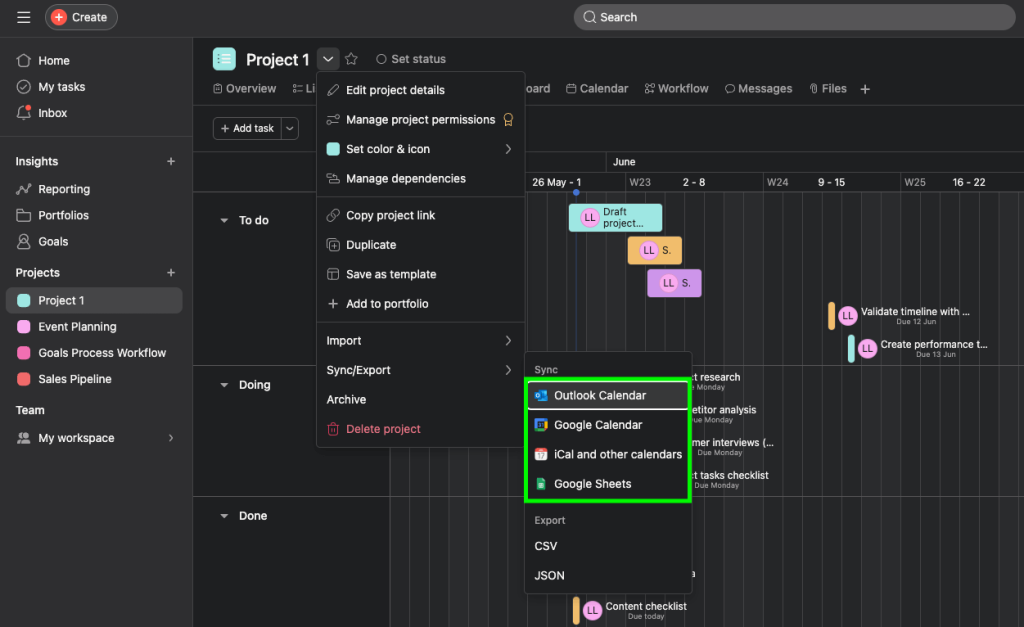
- Click on the Timeline or Calendar view => Project Actions => go to Sync/Export. Choose whether you would like to sync your timeline tasks to your Google calendar or alternative calendars like Outlook or iCal.

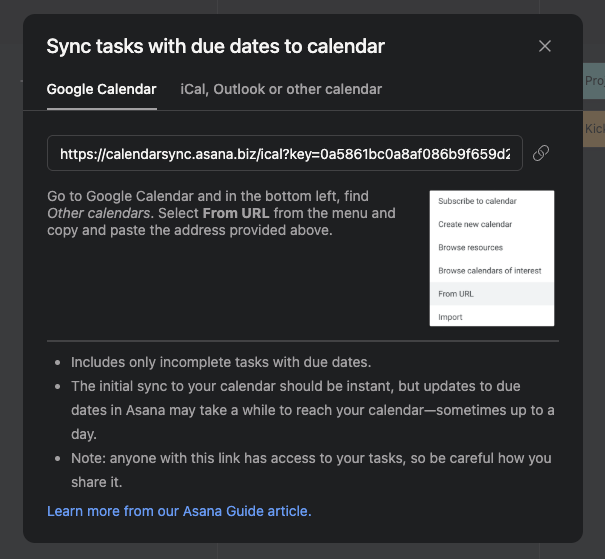
- Copy the URL so you can use it during the next steps.

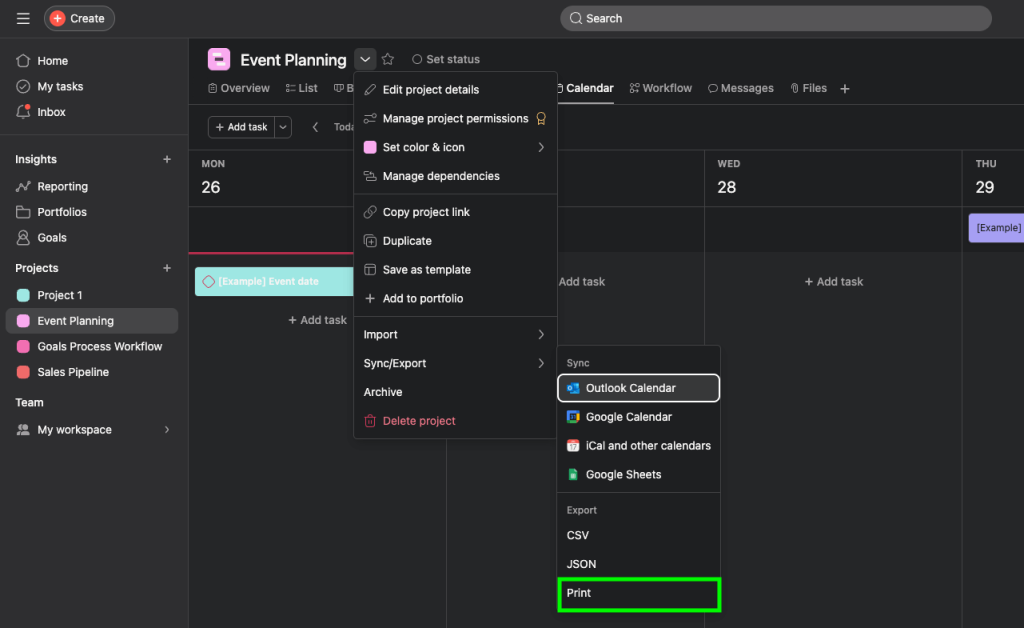
Alternatively, Asana gives you the opportunity to print your calendar in PDF format:

Let’s sync our Asana calendar to Google Calendar as follows:
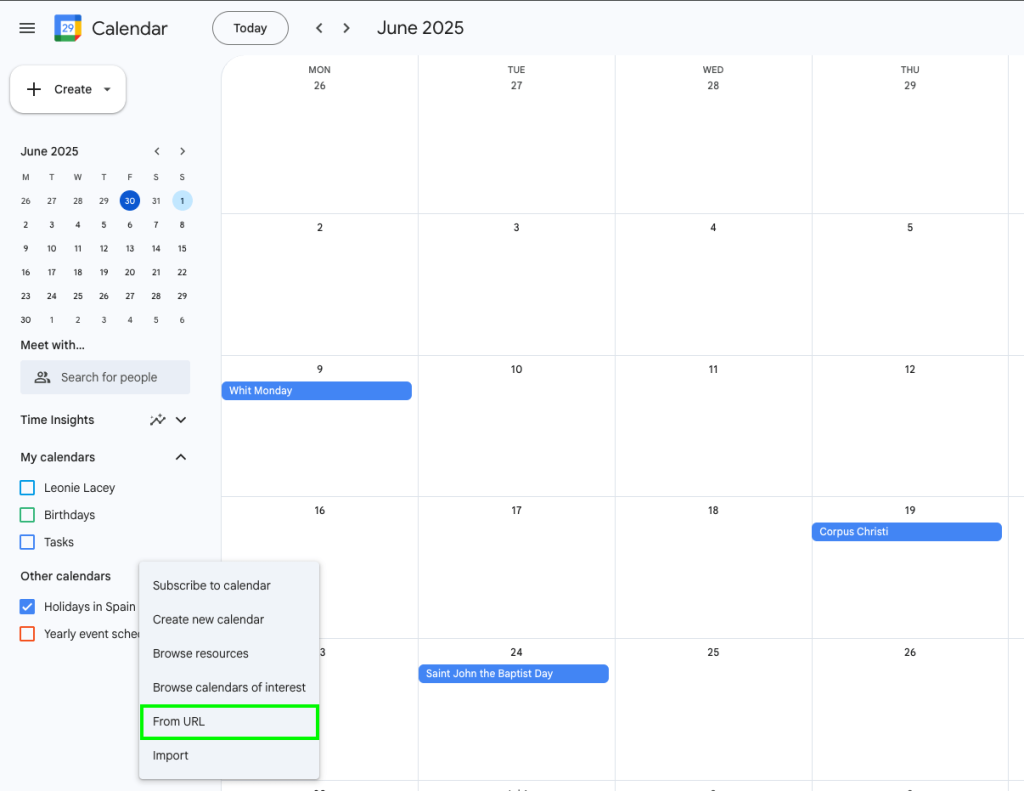
- Go over to your Google Calendar and select Other calendars. In the drop-down list select From URL.

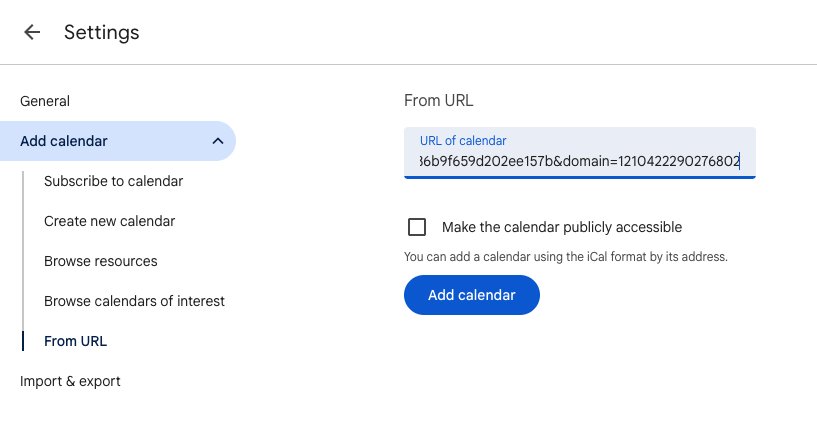
- In the Settings section, paste the URL you copied in Asana, then click Add calendar.

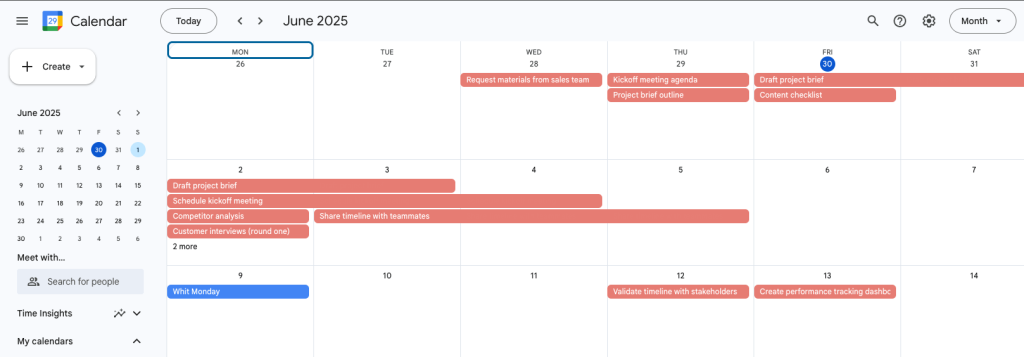
Now your Asana calendar is synced accordingly to your Google calendar.

Export Asana timeline and calendar to file
You can also export your timeline or calendar information to CSV or JSON file. To do so, select Sync/Export => CSV or JSON.

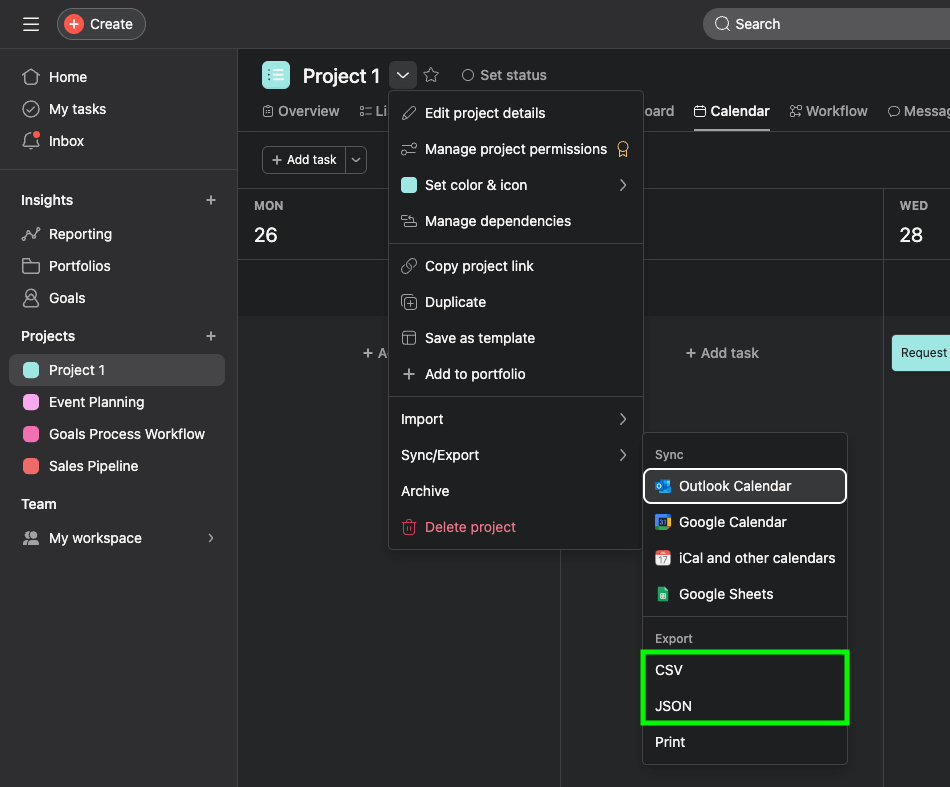
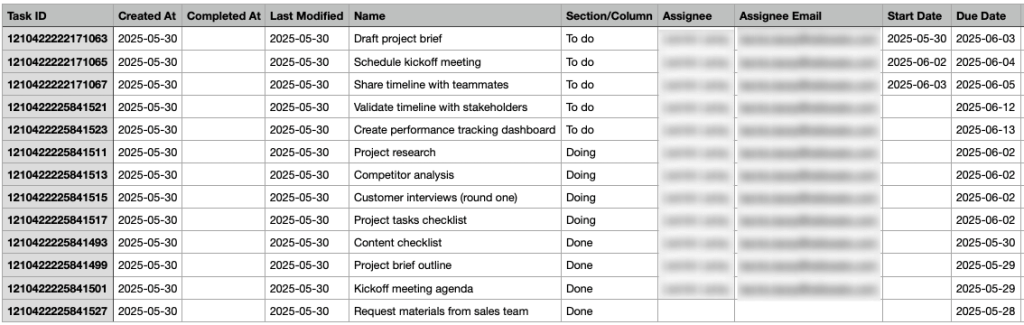
If you selected CSV, your timeline data is now available in a CSV file that you can edit and load to an external warehouse.

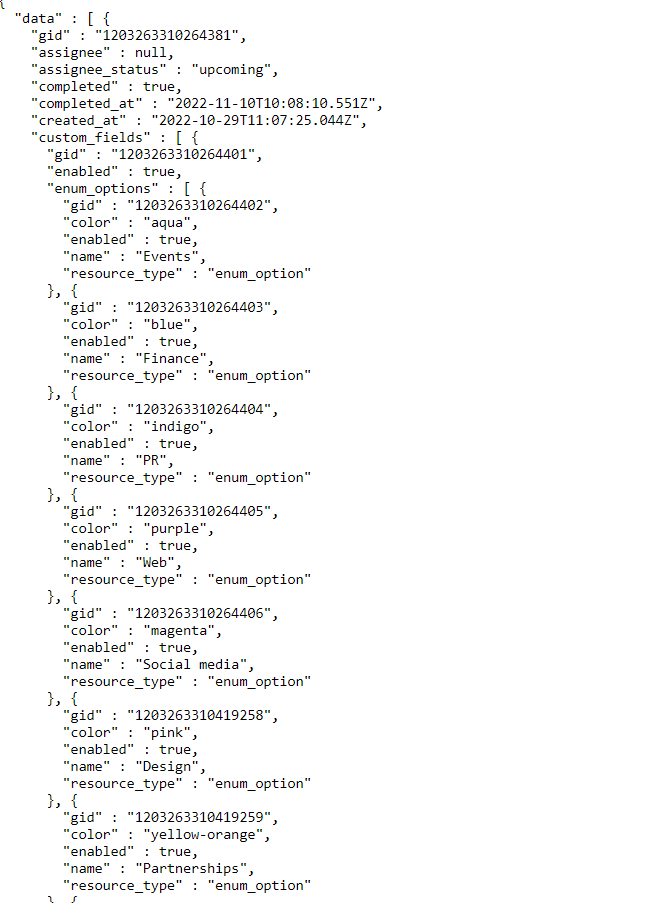
If you selected JSON, your timeline data is now available in JSON format:

Export tasks from Asana
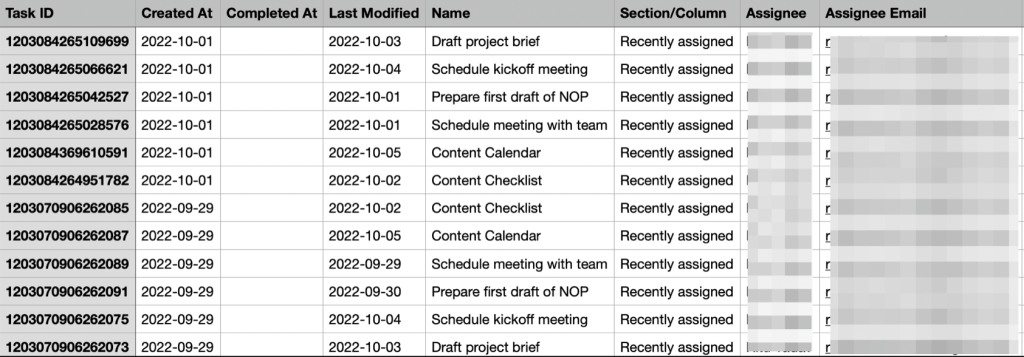
If you are looking to export tasks from Asana to a spreadsheet or other visualization tool, you can download them in a CSV file. Follow these steps:
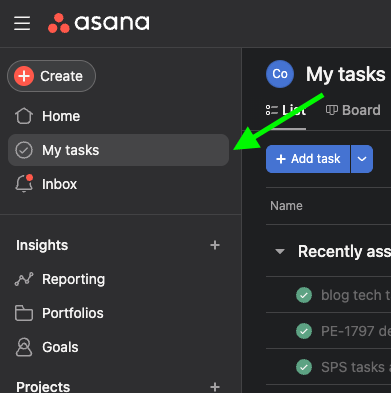
- Go to an Asana project and select My Tasks from the menu on the left side.

- What you now see is the list of all tasks assigned under that project. On the top, click on the arrow next to My Tasks, click on Sync/Export, and choose CSV from the drop down.

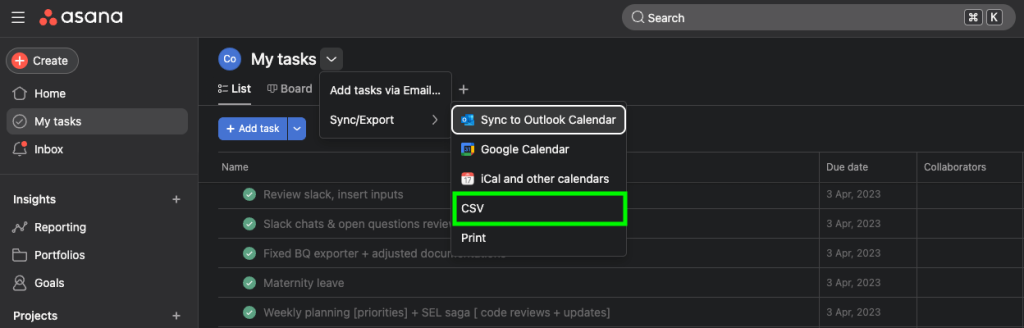
- A CSV file with all tasks will be sent to the email address associated with your account.
How to export completed tasks from Asana
When you export a list of tasks from Asana, it will include completed and incomplete tasks. To ensure your team has an overview of what they’ve achieved each week/month/quarter and exactly when these tasks were finished, you will need a list of completed tasks handy.
When you automate the export of your tasks list using Coupler.io, all you have to do is use the filter Completed in the export sheet to filter out only completed tasks.

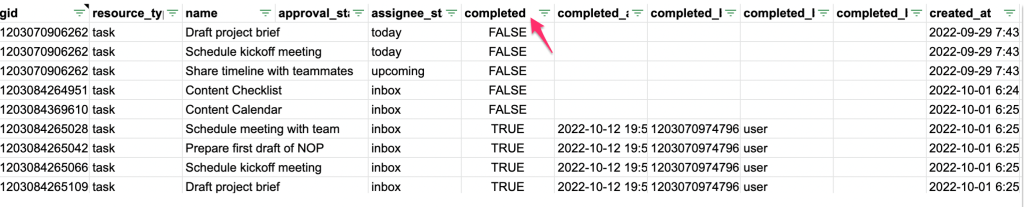
Unselect FALSE from the Completed filter, now what you have is a list of only completed tasks.


How to export incomplete tasks from Asana
Much like how we get completed tasks from the automated export list of tasks using Coupler.io – this time, we’ll unselect True from the Completed filter in the sheet. After applying the filter, you’ll have a list of incomplete tasks.


Export history data from Asana
To export historical data from Asana, use the following workaround. Set new fields in Asana for this information and get the results you need. To export your user or task history from Asana:
- Set up custom fields to filter data by last modified, completed by, created by, and assigned by.
This shows you the history of who was working on which task, the times the tasks were being worked on, and the persons responsible for the creation of the tasks. You can even retrieve insights into how many tasks are created and the peak times for task creation and development.

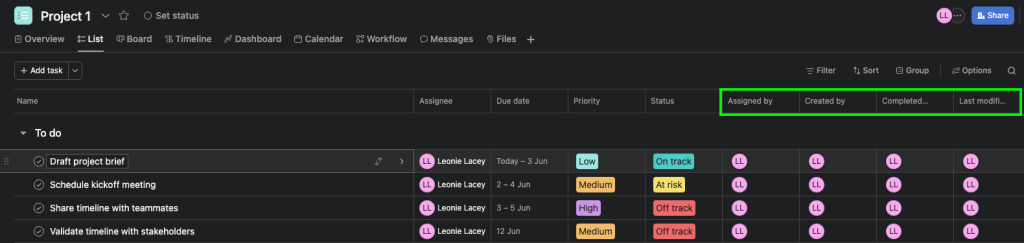
Instead of manually exporting this data, you can create a Coupler.io data flow as I described in the section above. Now, configure the source settings by selecting Tasks as the data entity and specify the start date you want to begin exporting your data.

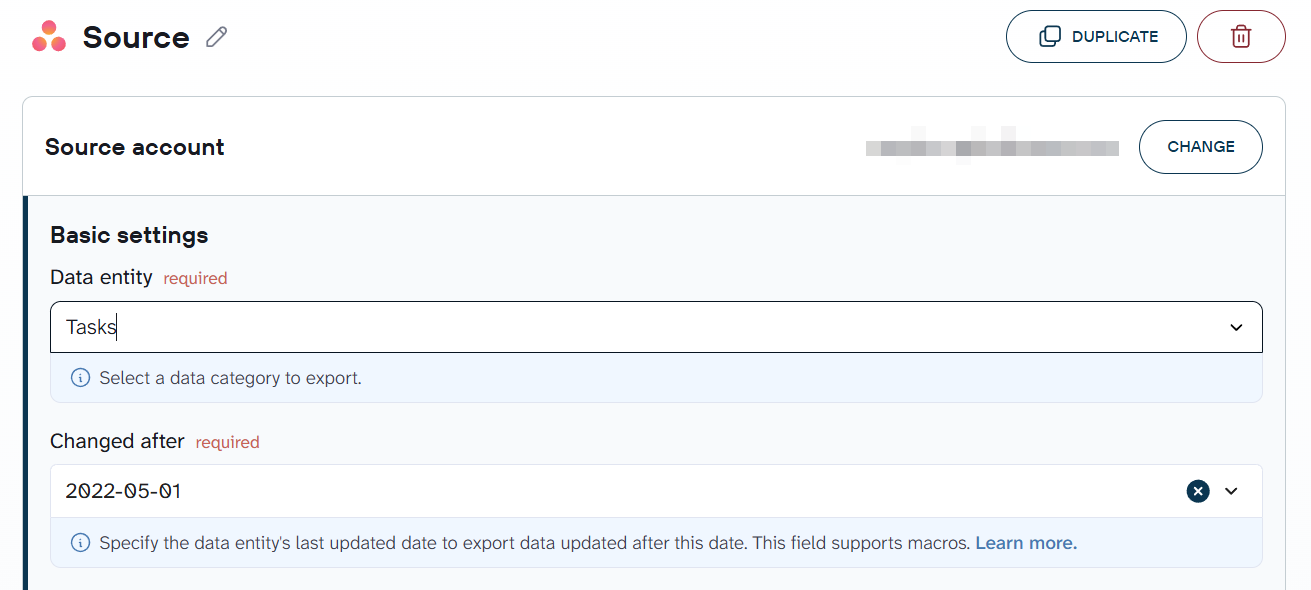
Organize the data, set up the destination for your data, and select the data refresh schedule. You can now see your exported customized tasks and history under custom_fields.
Build a cross-team reporting system from Asana data
Book a demoExport activities in Asana
There is no straightforward way to get all the activities done by a user from Asana. However, there is a workaround that you can implement.
In Asana, you can create customized fields to record a teammate’s activities, descriptions, and tasks. Use Coupler.io to extract the data about your teams, tasks, and users.
In your Coupler.io data flow, select Users as the Data entity and specify the start date.
The following is a preview of our user activity data. It includes the names of the users, whether or not they completed a task, the time the task was completed, and relevant IDs.
Export Asana board
There may be cases where you want to export Asana boards for an overview of how you manage your projects. You will have to export your board manually as there is currently no automatic way of doing this with Coupler.io. However, if you need this data entity available, please let us know by filling out this form.
In the example below, see how I can manually export Asana to Excel, namely board data:
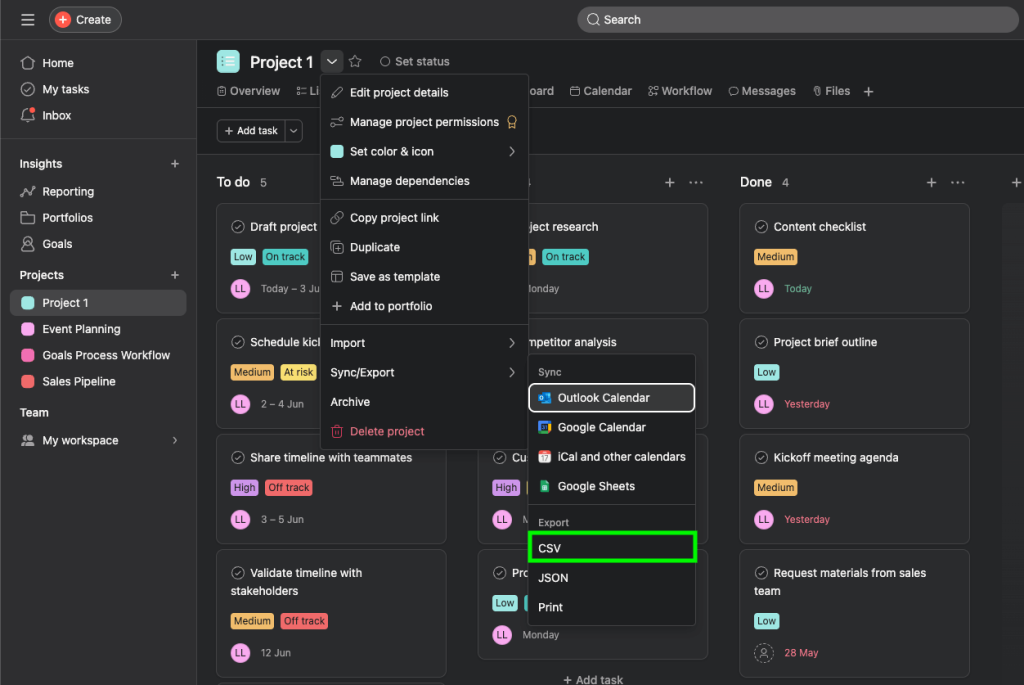
- Click on your project under My Workspace on the left => Board view => Actions.
- Go to Export/Print and then select CSV if you would like to export your data in a format suitable for Excel or Google Sheets.

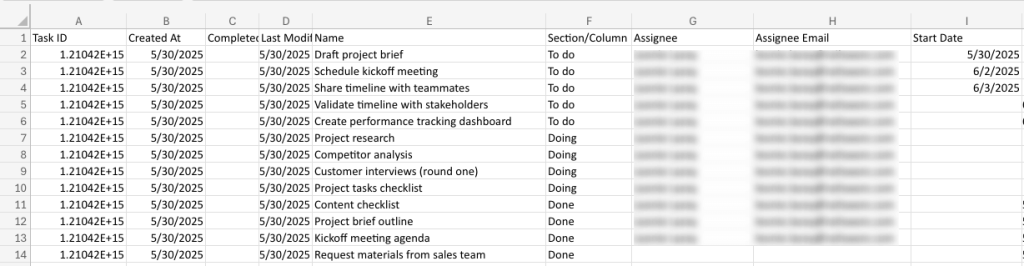
- Open your CSV file in Excel to view your data.

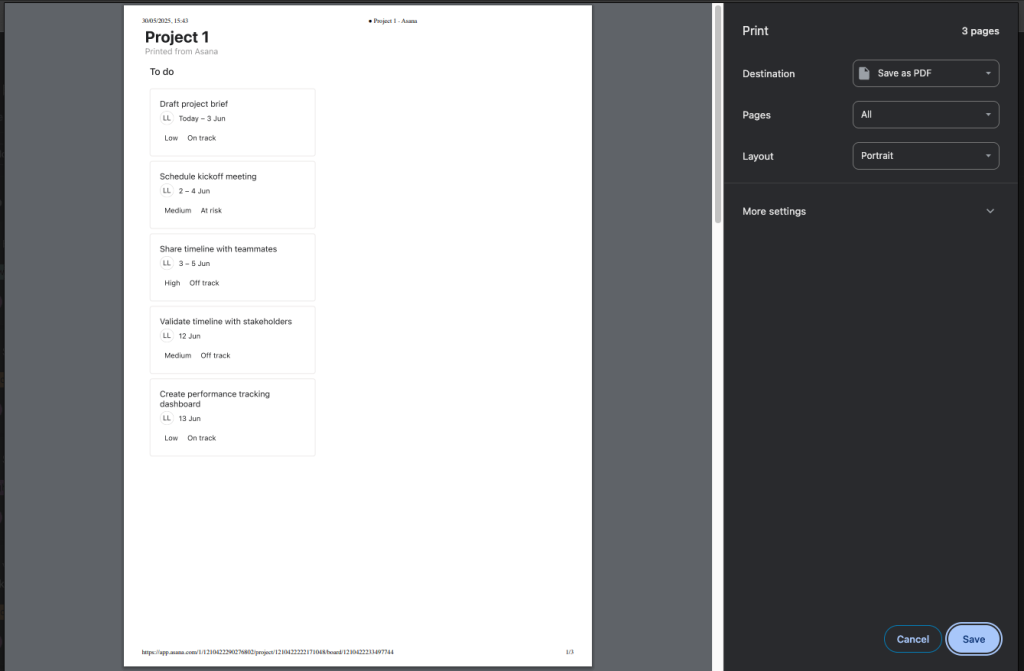
If you prefer, you can also choose to print your Asana board to a PDF for a visual representation of your data. Below shows an example of our Event planning board to be printed in PDF format:

If you would like to export your schema, select JSON. This option may work best if you have developers who would like to integrate with Asana through code, and create a custom solution for managing and presenting information.
Export Asana stories
An Asana story is an overall work activity that gives you the entire picture. However, for your project to be successful, you may have to break up your story into individual actionable tasks that are easier to manage and track. You can create user stories by adding tasks to your project and use them to make informed decisions at each point of the development process.
You can use Coupler.io to automatically pull stories from your platform. Select Stories as the data entity in your data flow. Select the Start date that you would like Coupler.io to initiate the data extraction and export.
Set up the destination you would like to send your data to. For instance, you can connect Asana to BigQuery.
Export comments from Asana
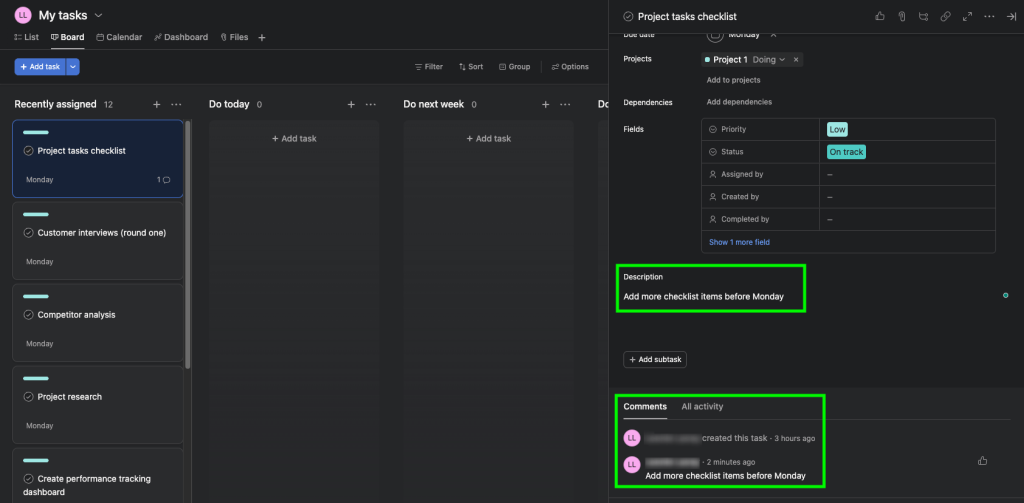
Comments are important because they can keep your team in the know. However, there is no way to export your Asana comments directly. So, let’s see if I can create a workaround. Coupler.io does a pretty good job of exporting tasks and with your tasks, you have access to the description of each one. What you can do is copy the text from your comments and add them to your task description like so:

Next, use Coupler.io to extract and export your tasks:
Set up your source account. From the drop-down menu under Data entity, select Tasks. You will need to set a start date for Coupler.io to begin working on your tasks.
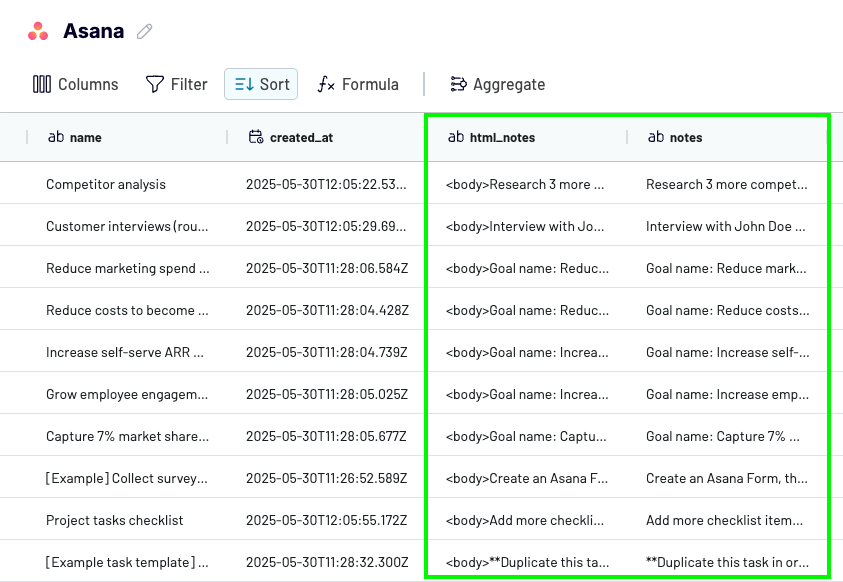
Now, you will be able to see the comments you pasted in your task description in the html_notes and notes header column.

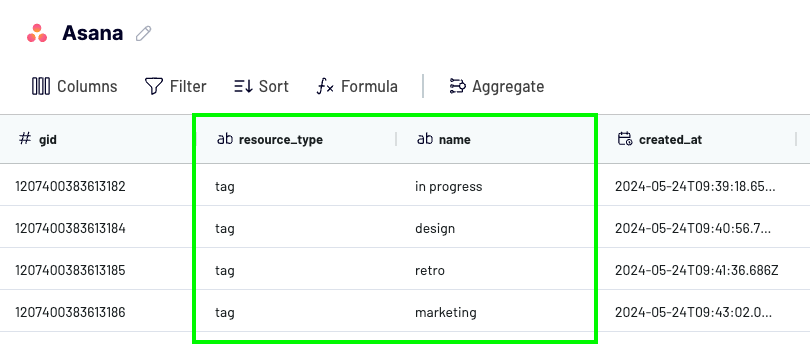
An Asana tag can be a useful tool for adding context and information on how a task should first be considered and then tackled. It helps group together tasks by categories and not only increases task traceability but also its discoverability. To export Asana tags, select Tags when setting up your Asana integration in Coupler.io.
Configure the destination and schedule according to your preferences, and run the integration to get your Asana tags exported.

Asana export milestones
Asana milestones come in handy because they help you to gauge where you are with your project. It marks an important event or decision-making point during the project life cycle. For this reason, being able to export your milestones is important for your team and other business stakeholders you report to on a daily basis.
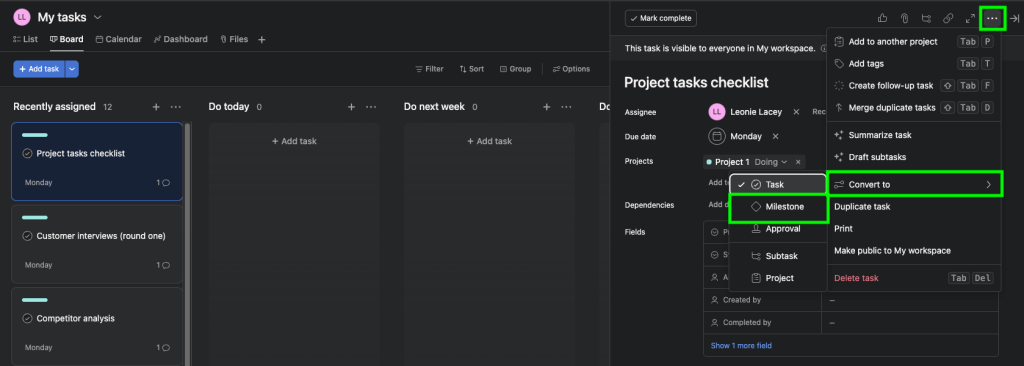
Your milestones are not exported separately; they are included when you export additional Asana data like tasks. This makes sense since tasks can be converted into milestones like so:

To export milestones manually:
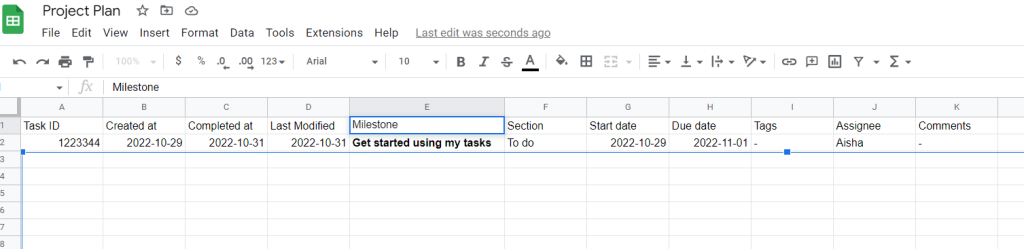
- Export your Asana board, timeline, or list in your chosen format, for example CSV, JSON or print. In our case, we will export our milestones in CSV format.

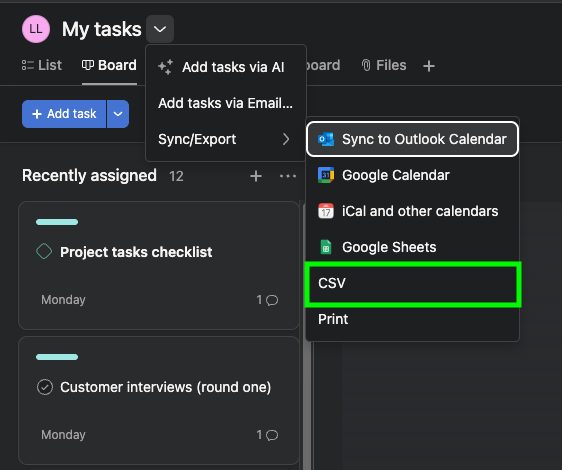
- In your downloaded CSV file you can see the name of your milestones as you named them on your Asana platform.

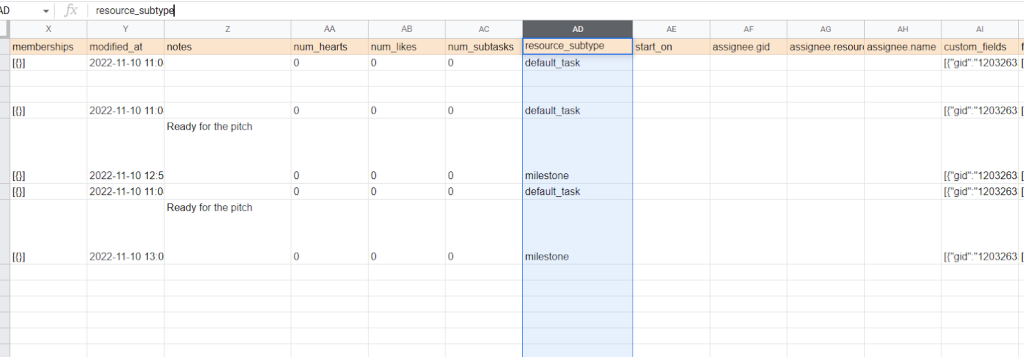
To export milestones using Coupler.io, you need to select Tasks as a Data Entity. You can find your milestones in the resource_subtype column.
Export custom fields in Asana
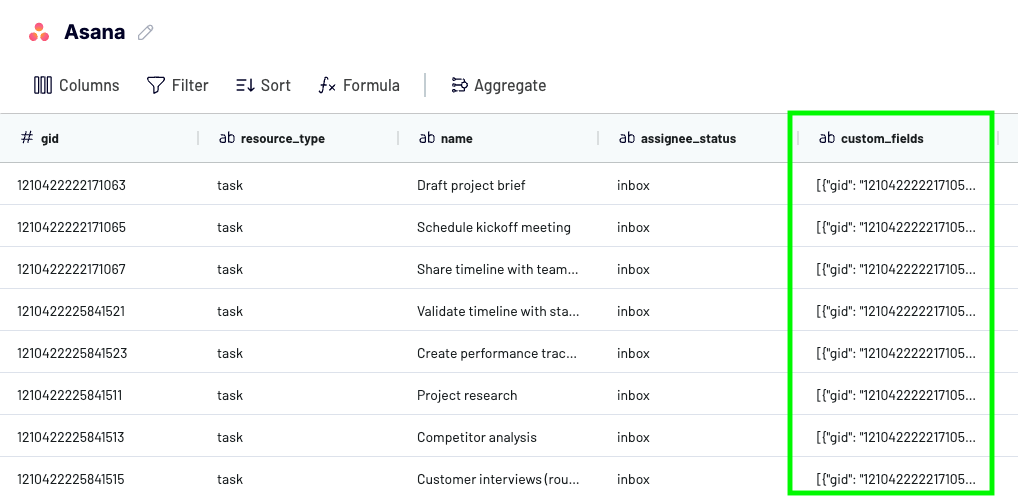
Customized fields are a great way to add that personal touch to your business. You can export this data using Coupler.io using Tasks as a data entity and configure the destination and schedule according to your preferences.
When your data reaches the selected destination, you will be able to view the identifiers of any custom fields added in Asana. You can locate this information in the custom_fields column.

Export Asana portfolio
If you need to manage different client types or client projects, you can create a portfolio that displays data about all these at once. Exporting this high-level view can be important for project owners. With Coupler.io, you can pull data about Asana’s portfolio. You need to select Portfolios as a data entity and configure the destination and schedule for your importer.
Export your Asana contacts
You may be wondering how you can export your contact information in Asana. Well, you can retrieve this information by exporting Portfolios using Coupler.io as described above.
Is there any way to export team information from Asana?
There is currently no specific way to export data on teams directly, but you can export information relating to your Asana users, as well as your organization name. Use Coupler.io by selecting Users as a data entity when setting up your data flow and completing the setup.
Why export Asana data with Coupler.io
Asana’s native export covers the basics, but it tops out at one project at a time and requires a manual download every time you need fresh data. The API gives you more control, but it means writing and maintaining code as Asana’s endpoints change.
Coupler.io fills the gap between the two. You set up the data flow once, and from that point your Asana data stays up to date in whichever destination you choose. Here’s what that looks like in practice:
- All nine Asana data entities available from a single connector, not one project export at a time.
- Scheduled refreshes that keep your reports and dashboards up to date without manual re-downloads.
- Transformations built in: filter, aggregate, rename columns, add formulas, and blend Asana data with records from 400+ other sources.
- Multiple destinations from one data flow. Spreadsheets, BI tools, data warehouses, and AI tools all receive the same structured dataset.
- AI analysis on top. Ask questions about your Asana data in plain English through AI Agent, or connect to Claude, ChatGPT, and other AI tools through AI Integrations.
- Data stays under your control. The AI layer works only with the dataset you built and approved in Coupler.io. It never connects to your Asana account directly.
Set up multi-source dashboards and AI analytics with Coupler.io
Get started for free