Imagine opening your spreadsheet or dashboard and seeing your latest Brevo contacts, email campaign metrics, and CRM deals already waiting. No manual CSV downloads, no weekly copy-paste routine. Maybe you just want a weekly contact export or a consolidated view of all email campaign performance that actually happens on its own. Teams are already doing this with Coupler.io. This tutorial walks you through how to set it up.
How to automate export data from Brevo with Coupler.io
Coupler.io is a no-code data integration platform that connects Brevo to spreadsheets, BI tools, data warehouses, and AI tools. Set up an automated Brevo data export in about 5 minutes right away. Choose your destination in the form below and click Proceed.

You’ll be offered to get started with Coupler.io for free with no credit card required. Then complete three simple steps:
Step 1: Collect data from Brevo
Connect your Brevo account and select a data entity to export. For example, choose Contacts to pull your full contact list with all attributes, or Emailcampaigns to get campaign-level data including delivery and engagement metrics.
You’ll also need to specify the start date for data export.

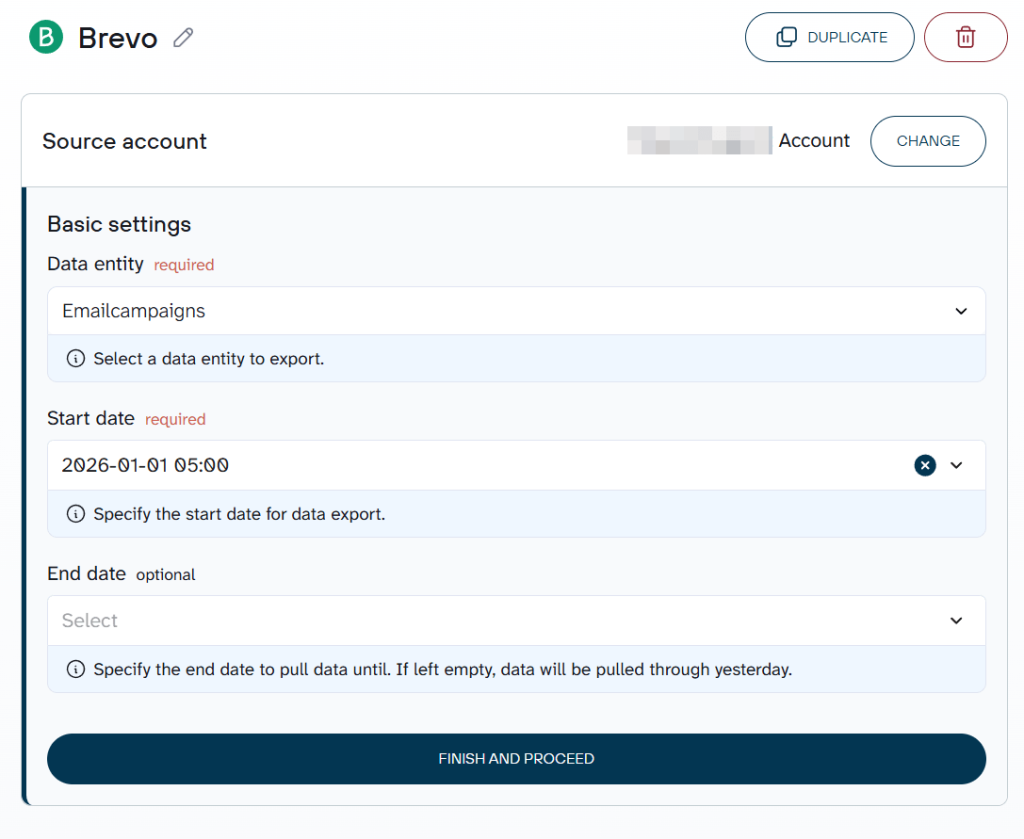
Coupler.io allows you to add multiple data sources to a single data flow if you need to combine multiple Brevo data entities or Brevo records with data from other apps.
Step 2: Organize your Brevo data
Raw Brevo data often includes columns you don’t need: internal contact IDs, system timestamps, or irrelevant attribute fields. With Coupler.io, you can clean and reshape the dataset before it reaches your destination:
- Hide or remove unwanted columns – drop internal fields like CONTACT_ID or MODIFIED_TIME if you only care about engagement data.
- Rename or rearrange columns – rename “address.city” to “City” and move “CREATION DATE” to the front for better readability.
- Filter rows or sort data – filter to show only contacts who have not hit unsubscribe status, or sort by last engagement date descending.
- Aggregate data – count contacts per list to track list growth, or sum campaign sends by month.
- Add calculated columns – create a “Days since last open” field using a date formula.
- Combine Brevo data with other apps – blend contact records with data from Google Ads, Shopify, or your CRM in a single data flow.

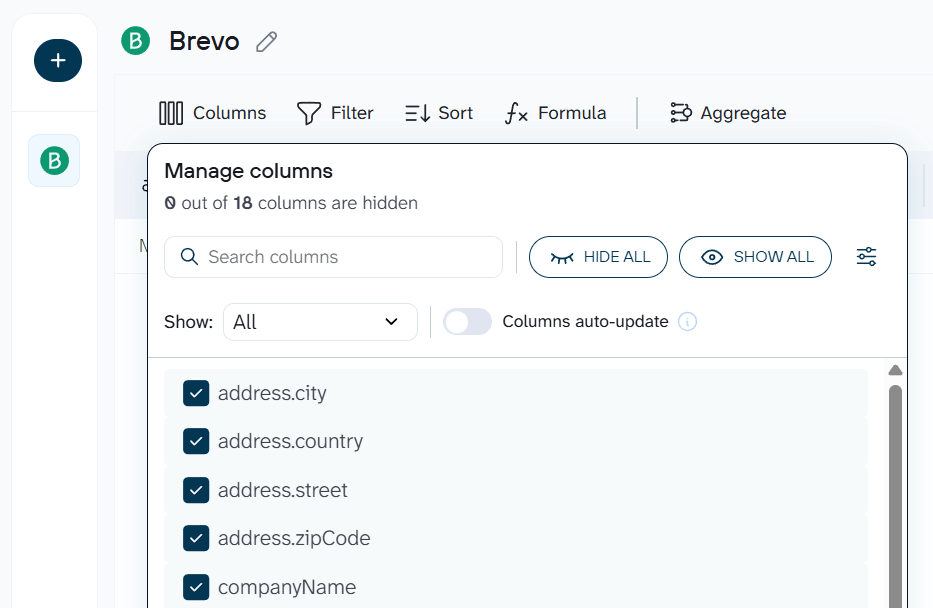
Step 3: Load data to your destination and schedule refresh
Follow the in-app instructions to connect your destination. Depending on what you chose (Google Sheets, Power BI, BigQuery, or another option), Coupler.io walks you through the connection steps. Once linked, run the importer to load the first batch of data.
Turn on Automatic data refresh and pick your schedule. Coupler.io supports monthly, daily, hourly, and 15-minute update intervals. This is the step that eliminates manual work: once automation is live, your Brevo data flows into the destination on autopilot.

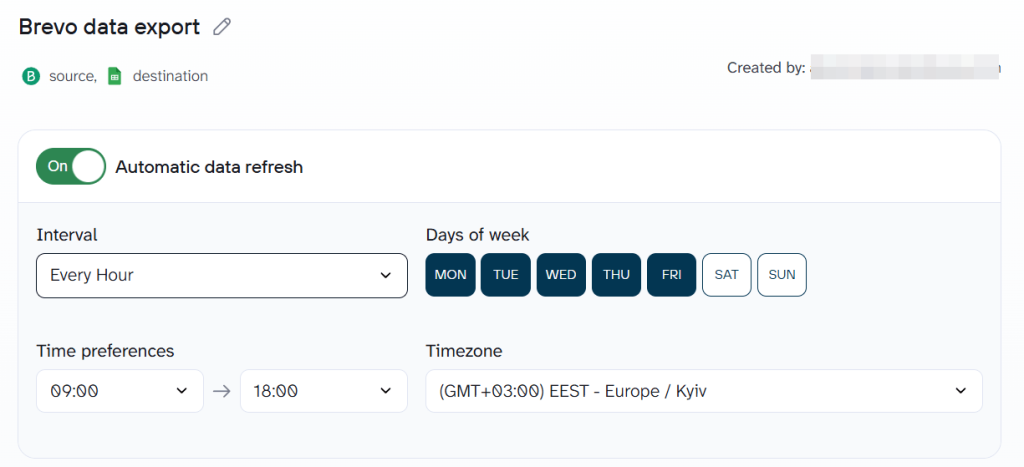
Make sure you click Save and Run. Only then will your automated data export from Brevo be enabled.
Bonus step: Ask questions about your Brevo data with AI Agent
Once your data flow is running, click ASK AI next to it on the main Coupler.io page (or open AI Agent from the sidebar). This opens a chat where you ask questions about your Brevo data in plain language.

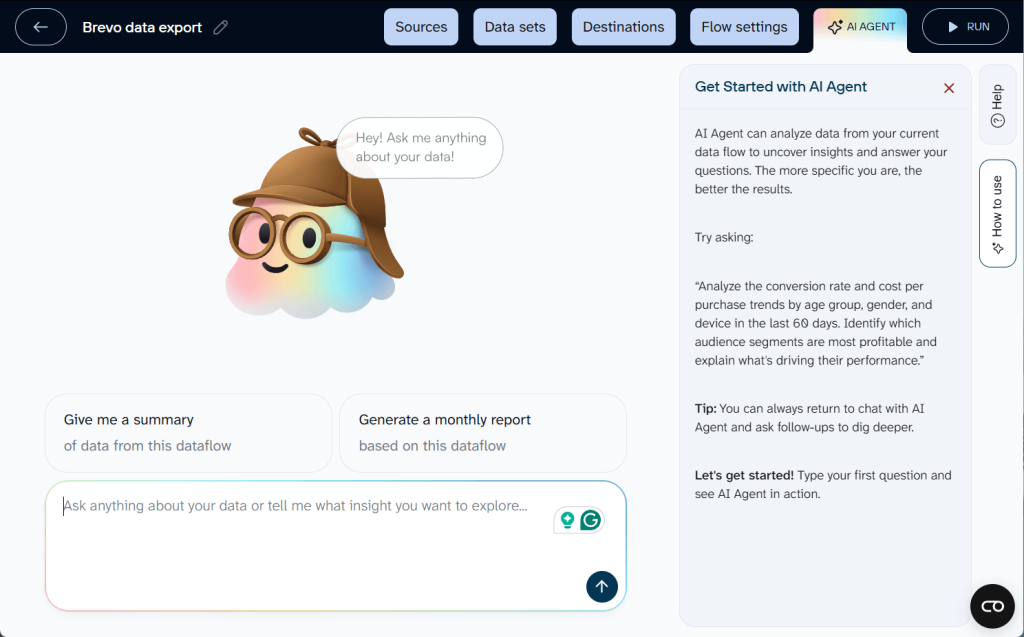
For example, you may ask “What is the unsubscribe rate trend across my last 20 campaigns?“
AI Agent does not guess. Coupler.io’s Analytical Engine runs the actual query on your dataset, validates the results, and returns verified numbers. The AI then formats those results into a readable answer with context. No dashboard building, no SQL, no external tools required.

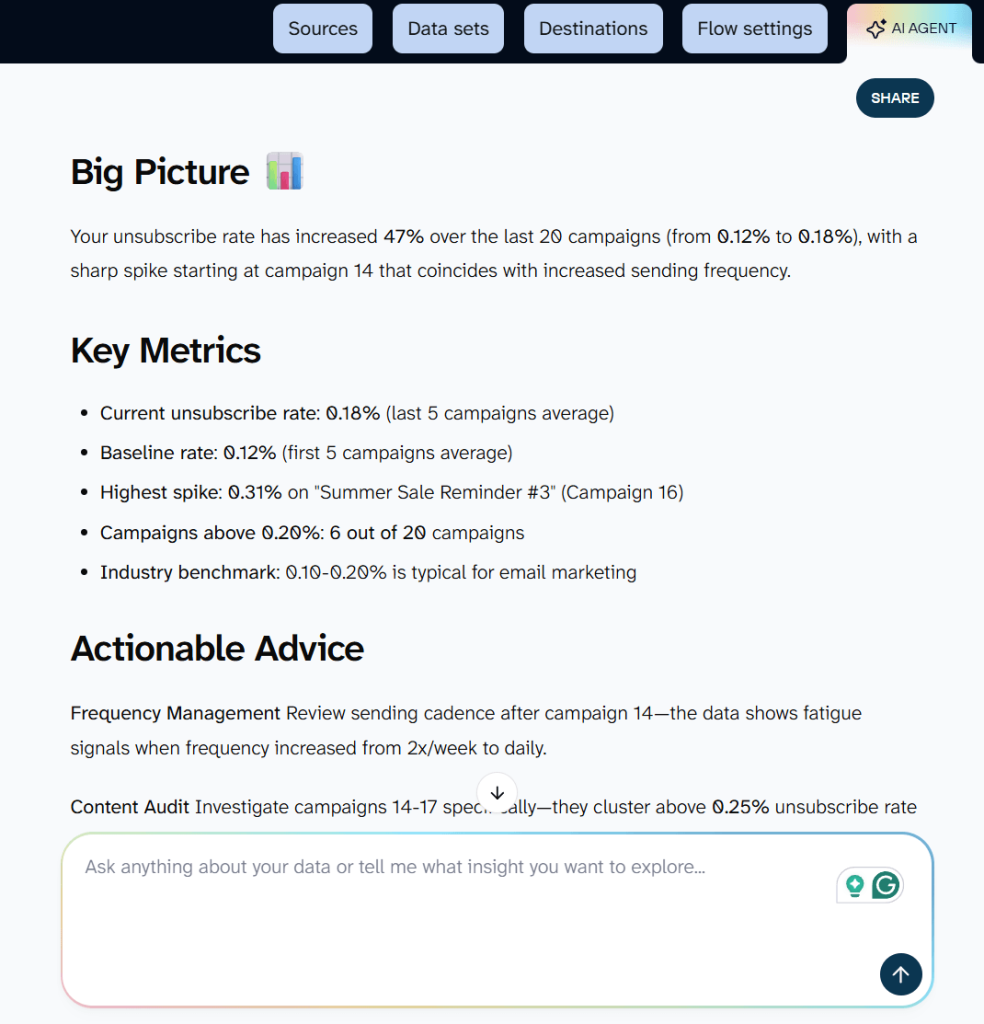
This works with any data flow, regardless of destination. Even if your Brevo data goes to Google Sheets or BigQuery, AI Agent still accesses it directly inside Coupler.io.
What data can you export from Brevo?
The Brevo data connector by Coupler.io supports the following data entities:
- Contacts – full contact list with email, custom attributes, and subscription status
- Contacts attributes – standard and custom attribute definitions for your account
- Contacts lists – all contact lists and their metadata
- Contacts lists contacts – contacts belonging to a specific list
- Contacts folders – folder structure for organizing lists
- Contacts segments – segment definitions and membership criteria
- Senders – configured sender email addresses
- Companies – CRM company records with custom attributes
- Companies attributes – attribute definitions for company records
- CRM deals – deal records with pipeline stage, value, and associated contacts
- CRM pipeline stages – stage definitions across your sales pipelines
- CRM pipeline details – full pipeline configuration and structure
- CRM tasks – tasks linked to deals or contacts
- CRM tasktypes – task type definitions
- CRM notes – notes attached to CRM records
- CRM attributes deals – custom attribute definitions for deals
- Email campaigns – campaign-level data including configuration and engagement metrics
- SMS campaigns – SMS campaign records and delivery data
- Webhooks – configured webhook endpoints
- Accounts – account-level settings and information
- Organization invited users – users invited to your Brevo organization
- Domains – verified sending domains
Export each entity using a separate data flow or combine multiple entities into one.
Where you can load Brevo data
Coupler.io supports a range of destinations for your Brevo data.
- Spreadsheets – Google Sheets, Microsoft Excel, and CSV files for quick analysis and ad hoc reporting.
- BI tools – Looker Studio, Power BI, Tableau, Qlik, and Monday.com for visual dashboards and team-wide reporting.
- Data warehouses – BigQuery, Snowflake, PostgreSQL, and Redshift for large-scale storage and SQL-based analysis.
- AI tools – ChatGPT, Claude, Gemini, Cursor, Perplexity, and OpenClaw. Feed your Brevo contact lists or email campaign data to an AI tool and ask questions about engagement patterns or segment health without writing a single query.
Blend Brevo data with other information
Brevo covers email marketing, SMS, and CRM, but your reporting probably pulls from more tools than that. Coupler.io connects to over 400 data sources, so combining Brevo records with data from other platforms in a single destination is straightforward. A few examples:
- Brevo contacts + Google Ads campaigns – calculate cost per lead by matching ad spend against new contact acquisition from email signups.
- Brevo email campaigns + GA4 website data – measure post-click engagement by connecting email click rates to on-site behavior like page views and conversions.
- Brevo CRM deals + Shopify orders – track the full customer journey from first email to purchase by joining deal records with order data.
- Brevo contacts + HubSpot CRM – merge contact lists across 2 platforms to find overlap, deduplicate, and build a unified view of your audience.
Key challenges for Brevo users and how Coupler.io solves them
❗ Pain point 1: No scheduled exports in Brevo
Brevo removed its daily export feature in May 2025. There is no built-in way to schedule recurring data pulls from the platform.
✅ Solution: Coupler.io runs automated refreshes on a schedule you set, from monthly to every 15 minutes. No manual intervention required.
❗ Pain point 2: Historical data disappears
Brevo’s data retention policy deletes email events older than 24 months for accounts with over 10 million events. Once deleted, the data is gone permanently unless you are on an Enterprise plan.
✅ Solution: Automated exports to a data warehouse like BigQuery or a spreadsheet create a persistent archive. Your historical email reports and contact data stay intact regardless of Brevo’s retention rules.
❗ Pain point 3: Campaign reports are siloed
You can only export 1 campaign report at a time from the Brevo UI. Building a consolidated view of performance across all email campaigns requires downloading each report individually and merging them.
✅ Solution: Coupler.io pulls the Emailcampaigns dataset with metrics across all campaigns in a single export. Sort, filter, and visualize everything in one destination.
❗ Pain point 4: API is powerful but requires developers
The Brevo API gives you access to contacts, campaigns, and transactional data. But building a custom integration takes engineering time. You also need to handle pagination, rate limits, and data storage yourself.
✅ Solution: Coupler.io handles the API connection for you without code or ongoing maintenance. Connect your Brevo account and start exporting in minutes.
❗ Pain point 5: Reporting stays static
Dashboards built from manual exports go stale the moment you close Brevo. You make decisions based on last week’s data.
✅ Solution: With near real-time data refresh, your dashboards always reflect the latest numbers. And with AI Agent, ask questions about your Brevo data in plain language and get verified answers instantly.


Automate Brevo data export with Coupler.io
Get started for freeOther ways to export data from Brevo
Coupler.io was built to handle Brevo data exports with minimal setup. If you prefer a different approach, the options below cover manual exports and API integration.
Manual export from the Brevo UI
Brevo data export manual is the option when:
- You need a one-time contact export or a single campaign report
- You only need a small dataset for a specific analysis
- You are testing a BI tool with sample Brevo data before committing to automation
For example, if you need to export contacts from Brevo, go to CRM > Contacts in the Brevo dashboard. Select the contact list or use filters, and use More actions > Export.

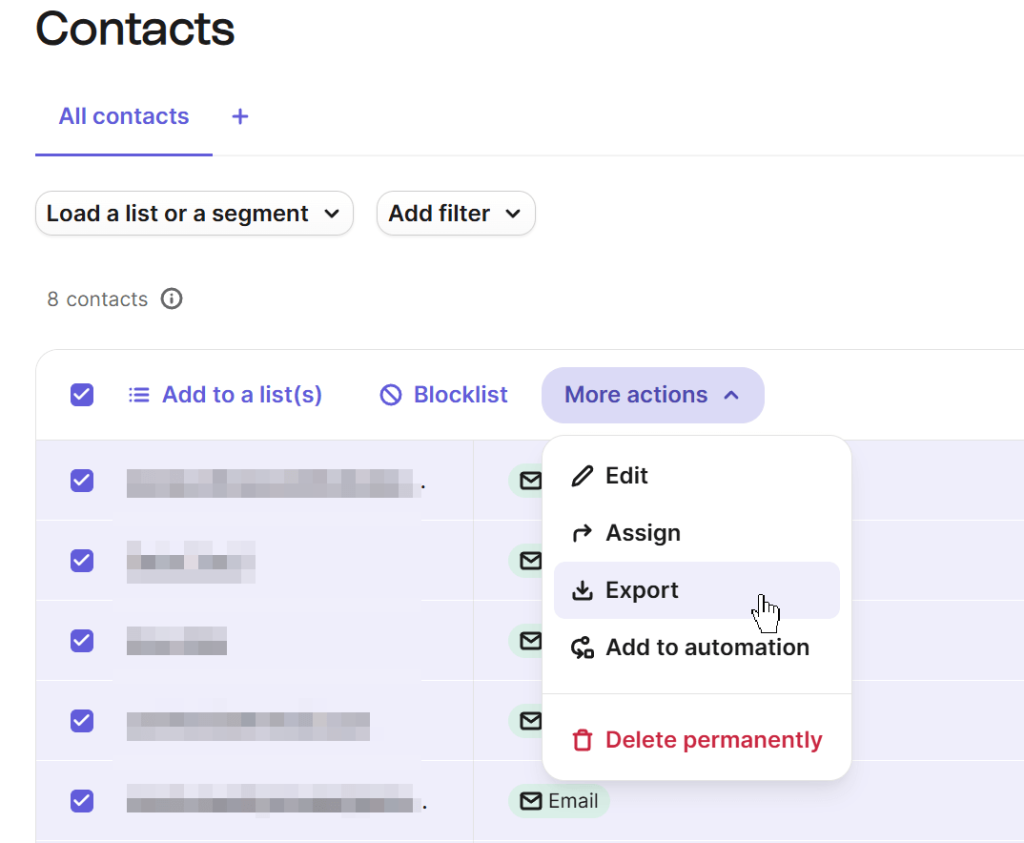
In the export dialog, select which contact attributes to include. EMAIL, LAST CHANGED, and CREATION DATE are selected by default. You also can:
- Expand the System data section to include List ID, and the Subscriptions section to include subscription status.
- Choose your CSV field separator: semicolon (;) or comma (,).
- (Optional) Turn on Send export by email to receive a download link at your account email.
Pretty much the same flow, you’d need to cover to export reports and other data entities from Brevo. However, reports can be exported in PDF as well.
Limitations: Manual Brevo data export does not support scheduling, so you repeat these steps every time. The deprecated daily export feature means any automation workflows that relied on scheduled contact exports no longer work.
Brevo API integration
Consider this option if you need a custom data pipeline with specific filtering or transformation logic and have development resources availabl.
The Brevo API provides endpoints for exporting contacts (/v3/contacts/export), email campaign statistics (/v3/emailCampaigns), and more.
Honest assessment: You need developer time to build, test, and maintain the integration. Brevo enforces API rate limits, so large exports require careful handling of pagination and throttling. There is no built-in visualization, so you still need a separate tool for dashboards. For pricing on Brevo’s API access, check the relevant tier on the Brevo pricing page. Teams without engineering support will find Coupler.io faster to set up and easier to maintain.
Best way to handle Brevo data export
You have 3 paths: manual CSV downloads for one-off needs, the API for developer-built pipelines, and Coupler.io for automated no-code exports. If you need recurring email reports on contacts, campaign performance, or CRM activity, Coupler.io is the most practical option. No custom integration to build or maintain. Start for free and set up your first Brevo data export in minutes.