FreshBooks lets you export data like clients, expense receipts, invoices, and estimates. But exporting this data on a schedule feels tough because FreshBooks has no automated export feature.
So you must extract data manually each time you want fresh numbers. On top of that, manual export takes time because you click through many menus for each data type.
With Coupler.io, you can easily overcome these hurdles of manual FreshBooks data extraction by automating FreshBooks data exports on a schedule.
How to automate FreshBooks data export using Coupler.io
Coupler.io is a data integration platform that comes with a FreshBooks connector to automatically export data on a schedule.
You can send your FreshBooks data to 10+ destinations, including Google Sheets, Looker Studio, Power BI, Microsoft Excel, and more.
Plus, you can connect your data to AI tools such as ChatGPT, Claude, and Perplexity using Coupler.io MCP to interact with it in natural language.
The interface is user-friendly, so even your team members with no technical background can set up and run these exports easily.
Here is a step-by-step process for automating FreshBooks data exports on a schedule.
Step 1: Collect your FreshBooks data
To help you get started quickly, we’ve embedded a form below that already preselects FreshBooks as the data source.
Select a Destination to export FreshBooks data, and click Proceed. The action will prompt you to create a free Coupler.io account. A good thing is that you don’t have to share your credit card or bank account details to create this free account.

Once you have signed up for the free Coupler.io account, log in and authorize your FreshBooks account. You also need to pick what type of FreshBooks data you want to export (data entry type) when configuring your source settings.
After selecting the data entry type, follow the on-screen instructions to proceed with the setup process.

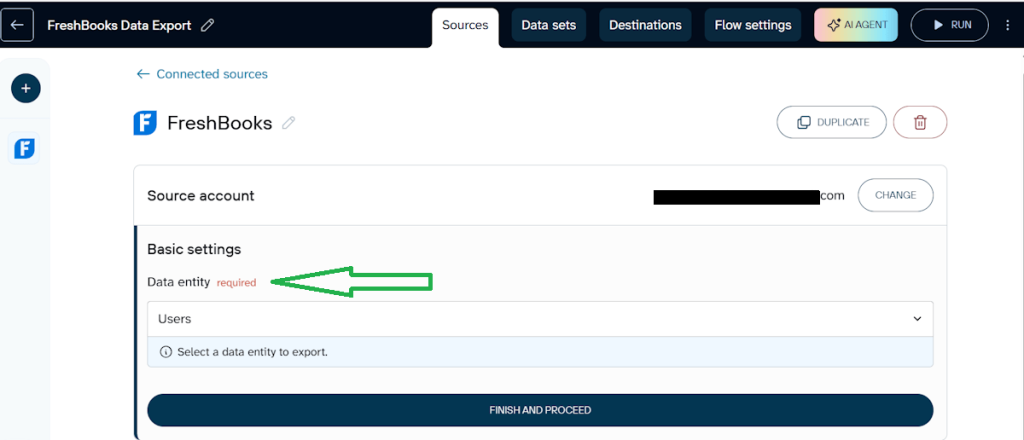
We’ve selected Users as the data entry type, but you can choose from 9 other categories as well.
If you want to fetch more than one data entry type, you will need to add FreshBooks as a source again and follow the same process as mentioned above.
Additionally, you can add multiple data sources to the same FreshBooks data flow. So you can plug in your CRM tool, marketing tool, or any other app you want and blend data to gather advanced insights.

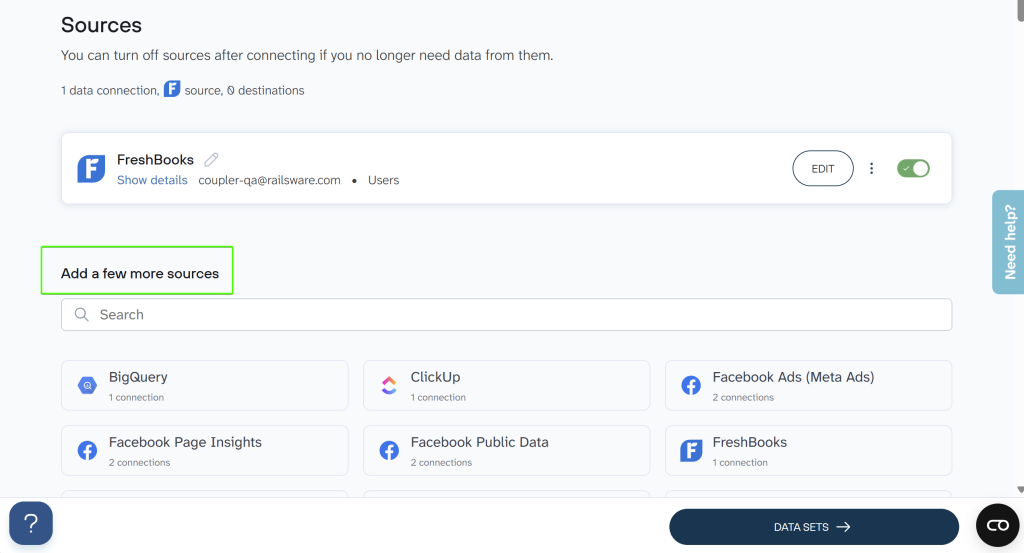
After completing the FreshBooks data source setup, follow the on-screen instructions in the app to proceed to the next step.
Step 2: Organize and transform your data set
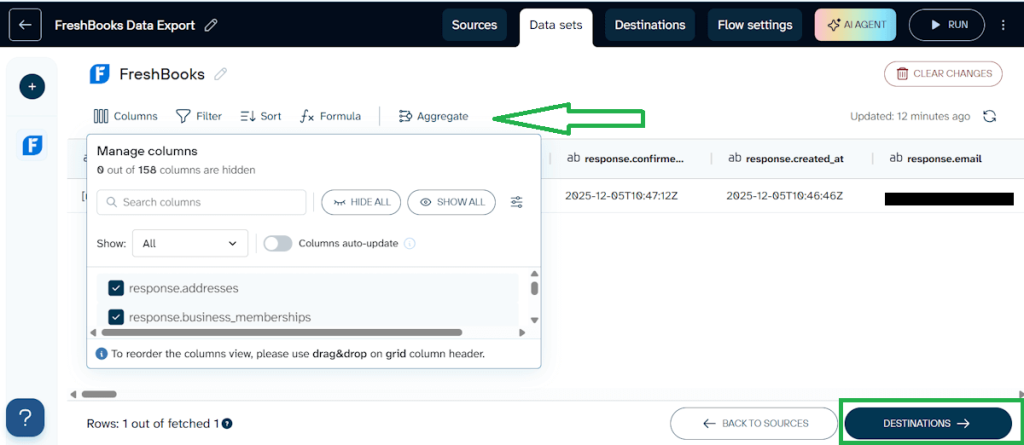
Here, you can review your FreshBooks data and format it in a way that works better for your analysis.
The following are the key things you can do to organize and transform your data:
- Show and hide columns based on your requirements
- Filter and sort your data for a customized view
- Add columns with custom formulas
- Aggregate data to show you key insights by performing actions, such as the sum, average, count, min, and max on chosen columns

Step 3: Load data and set an update schedule
Once you have FreshBooks data in the format you want for your analysis, click Destinations and follow the on-screen app instructions to connect your destination for uploading the data.


The next step is to configure the flow settings. The platform lets you refresh your data every month, daily, every hour, every 30 minutes, or even every 15 minutes.
Since refresh intervals vary by pricing tier, check the pricing page to see which tier best fits your workflow.
You can also set time preferences, pick a time zone, and choose the days of the week for data refresh.

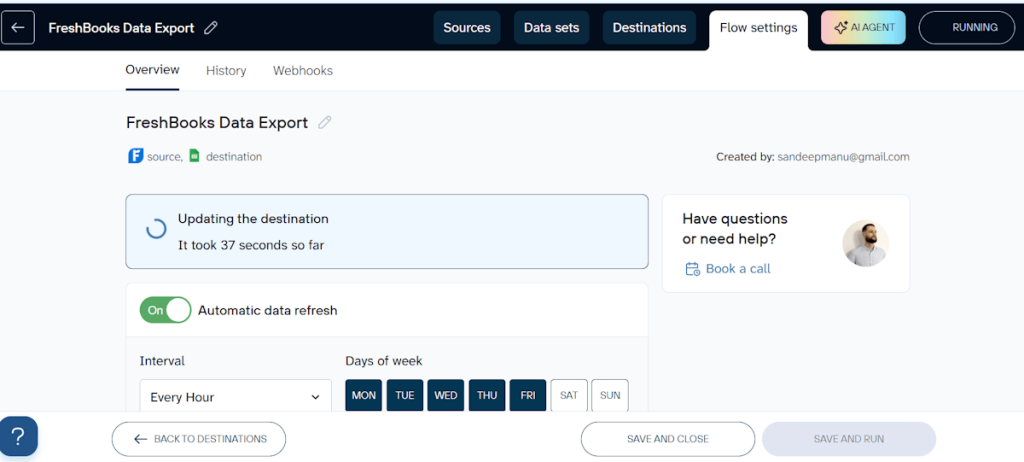
Once you’ve configured the flow settings, follow the on-screen app instructions to proceed to export your FreshBooks data to your selected destination.
What data can you export from FreshBooks with Coupler.io?
Coupler.io lets you export 10 types of FreshBooks data entities.

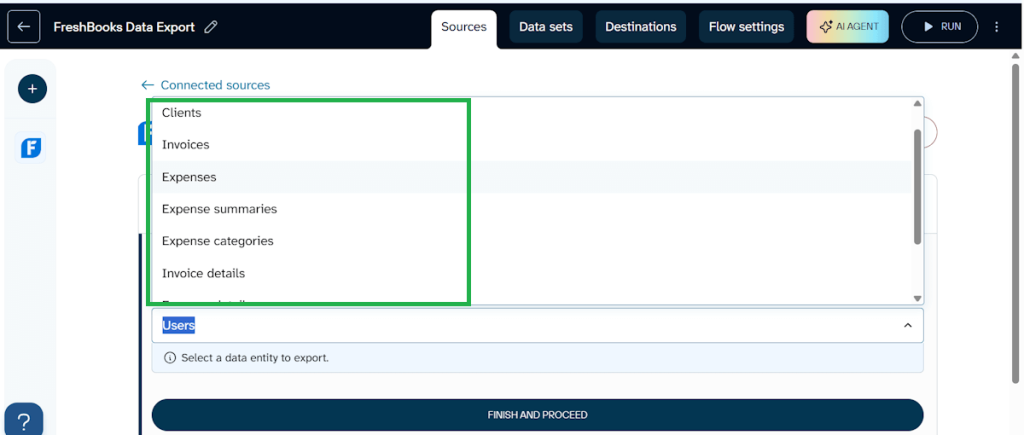
| Data Entity | Description | Use Cases |
| Users | Complete client profiles, including company names, contact information, billing addresses, and payment terms. | Managing team access, understanding who handles different accounting functions |
| Clients | Business spending records, including amounts, categories, dates, and payment methods. | CRM integration, customer analysis, sales pipeline reporting |
| Invoices | Billing documents with invoice numbers, amounts, payment status, and due dates. | Revenue tracking, cash flow forecasting, accounts receivable analysis |
| Expenses | Business spending records including amounts, categories, dates, and payment methods. | Expense tracking, budget management, profit margin analysis |
| Expense Summaries | Aggregated expense data grouped by category, time period, or project. | High-level spending insights without granular transaction details |
| Expense Categories | Classification system for organizing business expenses (travel, office supplies, utilities, etc.). | Maintaining consistent expense tracking across your organization |
| Invoice Details | Line-item breakdowns of each invoice, including product descriptions, quantities, rates, and taxes. | Detailed revenue analysis, product performance tracking |
| Expense Details | Granular transaction-level data for each expense, including vendor information, receipt details, and project assignments. | Detailed financial audits, project profitability analysis |
| Accounts | Chart of accounts showing asset, liability, equity, income, and expense accounts. | Financial statement preparation, general ledger reconciliation |
| Taxes | Tax rates, tax types, and tax calculations applied to your transactions. | Tax compliance reporting, understanding tax obligations |
After exploring which FreshBooks data entries you can export, let’s look at where you can send that data.
Where you can load your data from FreshBooks (supported destinations)
Coupler.io lets you upload data to various types of destinations, including business intelligence (BI) tools, spreadsheet applications, data warehouses, and AI tools.
Here is a list of destinations the platform supports.
- Business intelligence tools: You can export your FreshBooks data to Looker Studio, Power BI, Tableau, and Qlik Sense. These destinations are well-suited if you want to create interactive dashboards and visualize reports to gain deeper insights into your financial management and present your FreshBooks data to shareholders.
- Spreadsheet applications: With Coupler.io, you can automate data import into Google Sheets and Microsoft Excel. They’re suitable for basic data analysis and reporting.
- Data warehouses and databases: If you want to store and query large datasets, Coupler.io supports data warehouses such as BigQuery and Redshift, as well as databases like PostgreSQL.
- AI tools: It lets you integrate your FreshBooks data with AI tools, such as ChatGPT, Perplexity, Gemini CLI, Claude, and Cursor. With an AI integration, you can query your FreshBooks data in natural language to get insights.
In addition, you can automate FreshBooks data export in JSON format for API integration and in CSV format to export data from FreshBooks to another accounting tool, such as QuickBooks Online.
If you want to integrate your financial data with team collaboration and task tracking, Coupler.io supports uploading data to Monday.com.
Automate FreshBooks data export with Coupler.io
Get started for freeIt’s worth mentioning that these categories offer a general overview. Every business has its own tools, goals, and workflows. So you should choose the data destination that best fits your team’s needs and how you plan to use your FreshBooks data.
What are other FreshBooks data export options?
Now that you know what FreshBooks data you can export and where it goes on a schedule with Coupler.io, let’s look at other FreshBooks data export methods.
Data export using API
The FreshBooks API is another option to export your data. Though it’s a flexible and customizable way to export your data to 3rd-party services, you need coding skills to use this method effectively. So data export using API is well-suited for developers.
The API method can work well if you need advanced data extraction beyond what FreshBooks offers natively.
Additionally, the FreshBooks API returns a maximum of 100 results for list methods, regardless of the value specified in the per_page parameter.
This limit slows down data export because it requires many calls to pull large datasets.
Manual data export
Yes, you can manually export certain types of FreshBooks data. But there is no option to schedule a manual data export. Whenever you need recent data, you will have to export it manually.
As most accounting data sits in different menus, you need to jump between different menus to export each data type.
For example, you export clients from the Manage Clients section. But for expense reports, you must go to the Reports section instead.
All this menu hopping makes the process slow and tiring when you want to export multiple data types.
Besides, the manual process also creates room for human error. You might pick the wrong data range or forget to export all data before a critical deadline.
So manual exports help only when you have to migrate data to another financial tool.
Now, let’s jump into how you can export FreshBooks data manually.
How to export data from FreshBooks manually
You can manually extract the following FreshBooks data entry types.
- Clients
- Expense Receipts
- FreshBooks Payroll
- Invoices, Estimates, and Proposals
- Reports
- Vendors
Because these data types appear in different menus, you must export them individually.
FreshBooks clients
Go to the Clients menu and select the Export Clients option to export FreshBooks clients in a CSV file.

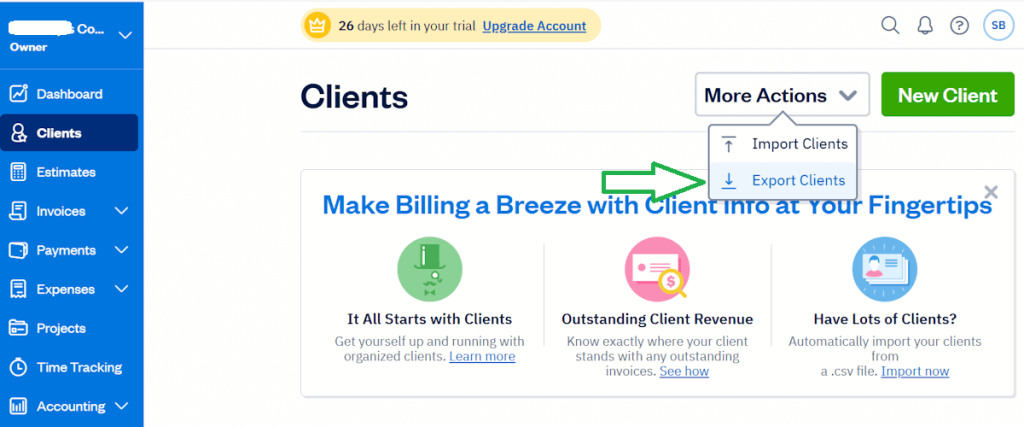
This CSV file includes complete client information, which you can use for analysis or migration.
FreshBooks expense receipts
To export FreshBooks expenses, you have to move to the Expenses menu and select Export Expense Receipts from the More Actions drop-down to export expense receipts.

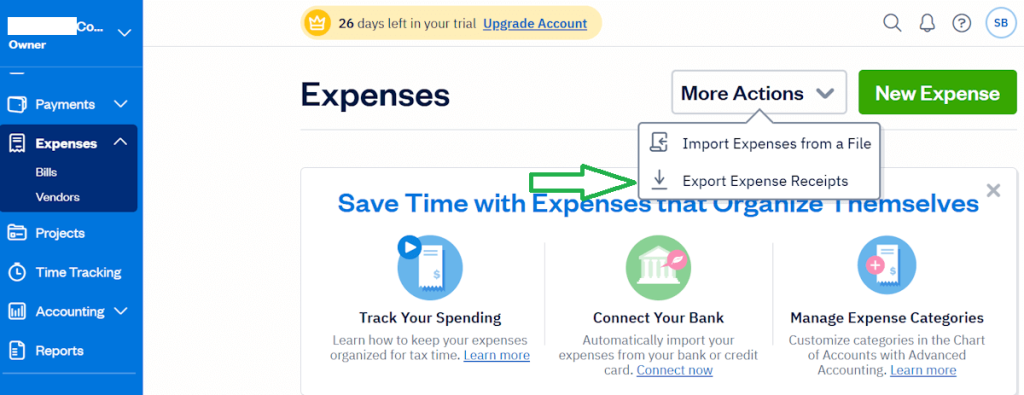
FreshBooks lets you select various date ranges for receipts, including This Month, This Quarter, This Year, Last Quarter, and Custom.
FreshBooks payroll
Those who use the FreshBooks payroll add-on can export the following data manually:
- Payroll Journal report: You can run the Payroll Journal report by opening Reports, choosing Payroll Journal, setting your date range, and downloading the CSV file.
- Contractor payment report: Go to Reports, select Contractor Payment under Payroll Reports, and pick the date range (time period). And then, click the Download CSV button to download the report.
- Payroll tax documents: Open Payroll, select View Tax Documents, and pick the document you want to download.
Invoices, Estimates, and Proposals
FreshBooks supports both CSV and PDF as the standard file formats for exporting invoice data.
To export FreshBooks invoices as PDFs, open Invoices, select the ones you want, and choose Download PDF from Bulk Actions.
If you want to export a CSV file, you need to:
- Open Reports
- Select Invoice Details under Invoice and Expense Reports
- Apply filters if needed
- Select Export to Excel from the More Actions drop-down

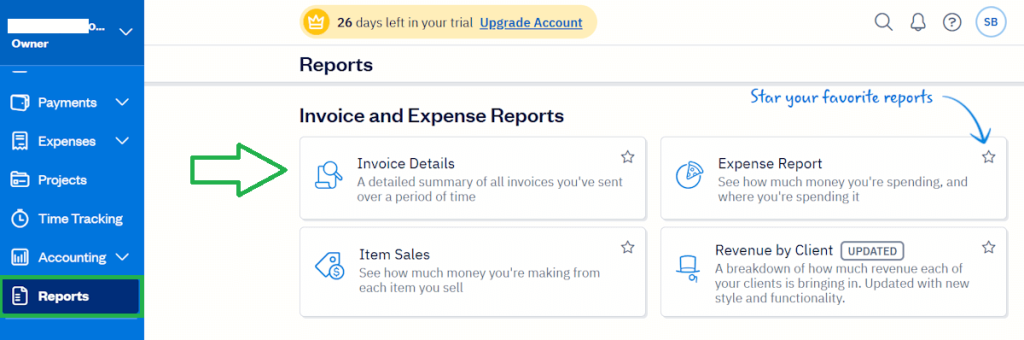
For estimates and proposals, you need to contact the FreshBooks support team with the date range and any other filters. They’ll email you the requested data.
FreshBooks reports
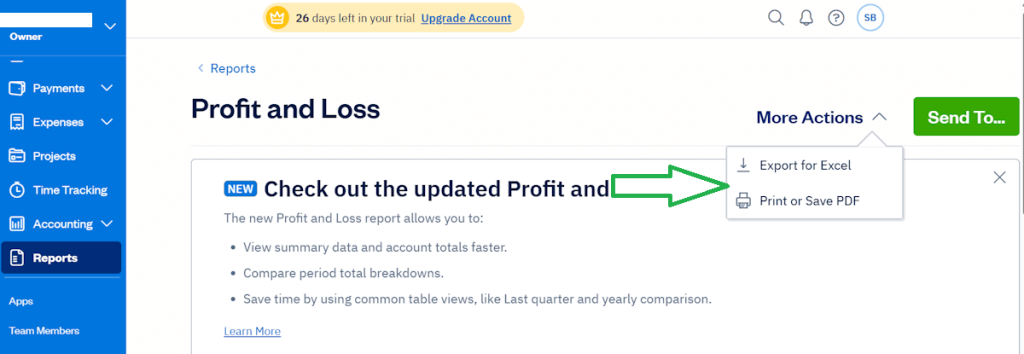
FreshBooks lets you export files for key reports, such as Profit and Loss and the Balance Sheet, in CSV or PDF.
To export any report, you need to:
- Go to Reports
- Select the report type you want to export
- Select Export for Excel to download the report in a CSV file
- Select Print or Save PDF to print the report or download it as a PDF

FreshBooks vendors
To manually export FreshBooks vendors, go to the Expenses section and select the Vendor subsection. Then, pick the Export Vendors option from the More Actions drop-down.

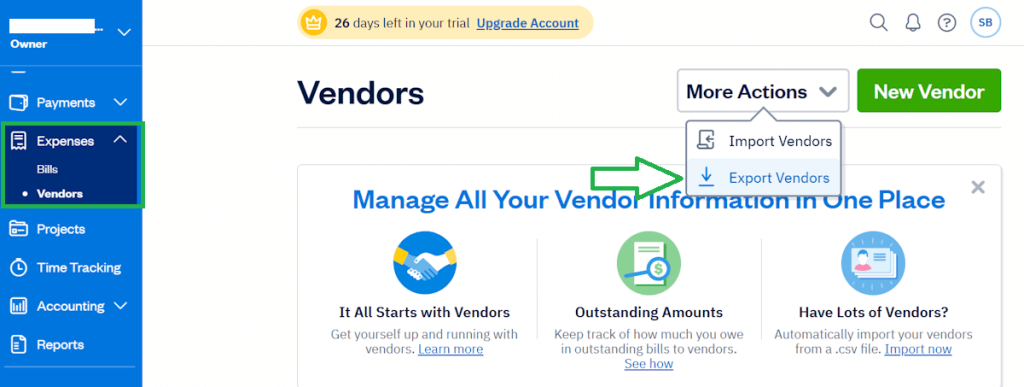
You will get a CSV file of your vendor list.
FAQs:
Why do you need to export your FreshBooks data?
Businesses export FreshBooks data for several critical workflows:
- Advanced reporting and analytics – Finance teams export FreshBooks data to Power BI, Tableau, or Looker Studio to build executive dashboards that combine accounting metrics with sales performance, marketing spend, and operational KPIs. This unified view reveals insights impossible to see within FreshBooks alone.
- Cross-platform data analysis – Growing businesses need to connect FreshBooks invoicing data with CRM records (Salesforce, HubSpot), marketing platforms (Google Ads, Facebook Ads), and project management tools (Asana, Monday.com) to calculate true customer acquisition costs, project profitability, and campaign ROI.
- Platform migration – When switching to QuickBooks, Xero, or another accounting system, you need complete historical data exports to maintain continuity for tax records, audit trails, and year-over-year comparisons.
- Backup and compliance – Regulated industries and security-conscious businesses maintain independent backups of financial records in cloud storage or data warehouses, separate from their primary accounting software.
- AI-powered financial insights – Modern finance teams connect FreshBooks data to AI tools like ChatGPT or Claude to query their financial data conversationally: “Which clients have the highest late payment rates?” or “Show me expense trends by category over the last six months.”
Manual exports fail these workflows (probably, except for the migration). With Coupler.io automates the entire export process on your chosen schedule. It eliminates repetitive manual work while ensuring your analysis always reflects current business performance.
What is a scheduled export?
A scheduled export is an automated process that exports FreshBooks data at predefined intervals, hourly, daily, weekly, and monthly, without manual intervention.
This automated, hands-free data export functionality eliminates the need to manually export data repeatedly.
Can you combine FreshBooks data with information from other sources?
An easy way to combine FreshBooks data with other sources on an automated schedule is using Coupler.io. It’s a no-code platform that supports over 400 data connectors for business owners, marketers, and finance experts.
The platform lets you load blended data from multiple sources, such as Zoho CRM and other platforms, into BI tools, spreadsheets, data warehouses, and more.
Plus, you can integrate this uploaded data with AI tools, allowing you to interact with it using natural language.
When should you create a custom FreshBooks data integration using the API?
Building a custom FreshBooks API integration makes sense in specific scenarios where off-the-shelf solutions can’t meet your requirements:
- Proprietary internal systems – If you’re integrating FreshBooks with custom-built enterprise software, legacy systems, or internal tools that no data platform supports, API development becomes necessary.
- Complex data transformations – When you need to perform intricate calculations, apply custom business logic, or transform data in ways that require programming before it reaches your destination, direct API access provides that flexibility.
- High-frequency, high-volume operations – Applications that need to sync thousands of records per hour or require sub-15-minute refresh intervals may need API-level control to optimize performance and manage rate limits efficiently.
- Unique workflow automation – If your process involves triggering actions based on FreshBooks events (auto-generating reports when invoices are paid, sending alerts when expenses exceed thresholds), custom API integration can orchestrate these workflows.
However, API development carries significant overhead. You’ll need developers fluent in REST APIs, experience handling OAuth authentication, knowledge of FreshBooks’ data structure, and ongoing maintenance as the API evolves. A typical custom integration takes 40-80 hours to build initially, plus ongoing maintenance time for bug fixes, API updates, and feature additions. You’ll also need to handle error logging, retry logic, and monitoring infrastructure.
For scheduled exports of FreshBooks data to spreadsheets, BI tools, databases, or combining it with other business data sources, Coupler.io is the solution that does not require any development resources. The no-code approach means your finance team can set up and modify integrations independently, typically in under 15 minutes, without waiting on IT or external developers.
Export data from FreshBooks to over 15 destinations
Try Coupler.io for free