How many steps does it take to export Freshsales data, like contact lists? The native data export feature caps you at roughly 10 default columns, delivers a ZIP export file by email, and has no built-in scheduling. Teams that report on Freshsales data weekly already automate this with Coupler.io.
How to automate export data from Freshsales with Coupler.io
Coupler.io is a data integration platform and AI analytics with 400+ connectors. It pulls your Freshsales CRM data into spreadsheets, dashboards, warehouses, and AI tools without code. Try it yourself right away for free. Choose your destination in the form below and click Proceed.

You’ll be offered to get started with Coupler.io with no credit card required. Then complete 3 simple steps:
Step 1: Collect data from Freshsales
Connect your Freshsales account. You’ll need to provide an API key and domain name for this. Instructions on how to get those are provided.
Then pick a data entity to export, like Contacts, Open deals, and others.

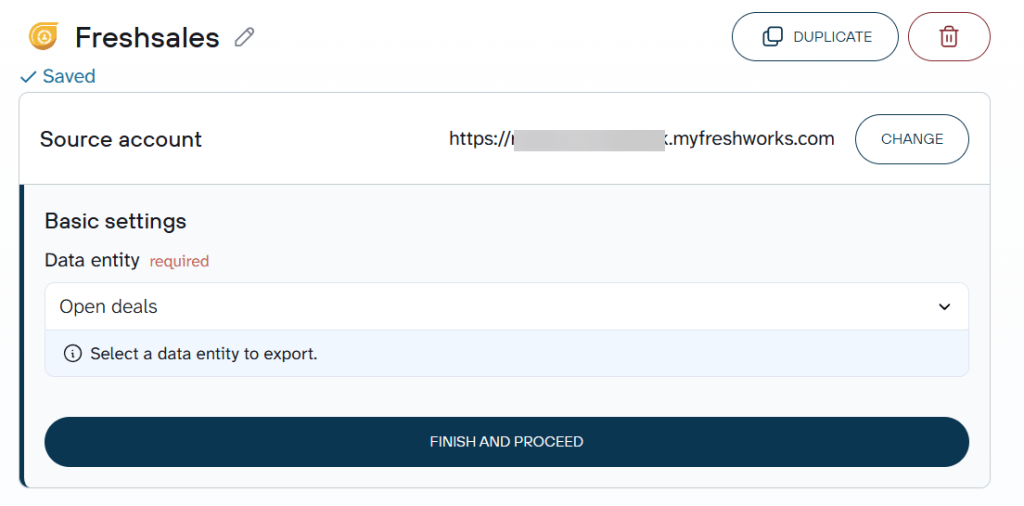
Most Freshsales entities support filters, so you can narrow the export to a specific sales rep, deal stage, or date range before any data leaves the CRM.
Coupler.io also allows you to add multiple data sources to a single data flow. This is useful if you want to combine Contacts and Deals in one Freshsales data export, or pull records from another app alongside Freshsales.

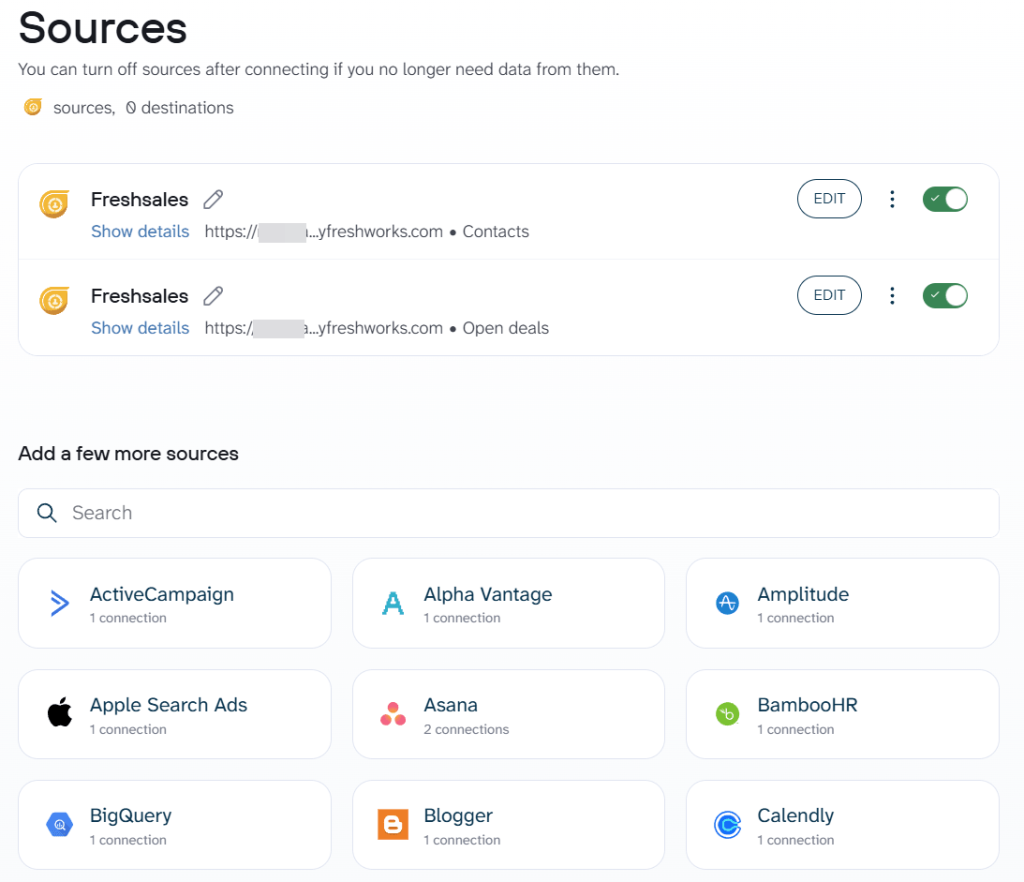
Step 2: Organize your Freshsales data
A raw Freshsales export might have 50+ columns, many of which are system fields your report doesn’t need. The data set step in Coupler.io is to shape the data before it reaches your destination.
- Hide columns like internal record IDs or system timestamps that clutter your spreadsheet
- Rename fields so “deal_value” becomes “Revenue” and “contact_owner_id” becomes “Sales Rep”
- Filter rows to keep only deals at a specific stage or contacts assigned to a particular rep
- Sort by close date, deal value, or last activity to prioritize what matters
- Aggregate records to calculate total pipeline value per stage or average deal size per rep
- Add calculated columns to compute metrics like days since last contact or deal aging
Step 3: Load data to your destination and schedule refresh
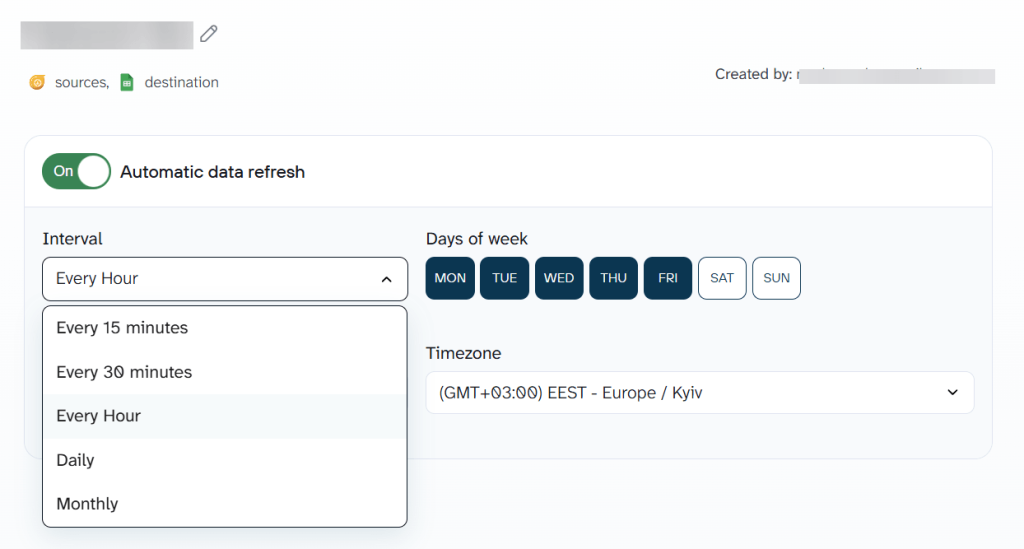
Connect your destination by following the in-app prompts. It takes a few clicks whether you need to export data from Freshsales to Google Sheets, BigQuery, or Power BI. Run the data flow once to load the first batch and turn on Automatic data refresh to automate Freshsales export data. From here, your Freshsales data arrives on schedule without anyone touching a button.

Bonus step: Ask questions about your Freshsales data with AI Agent
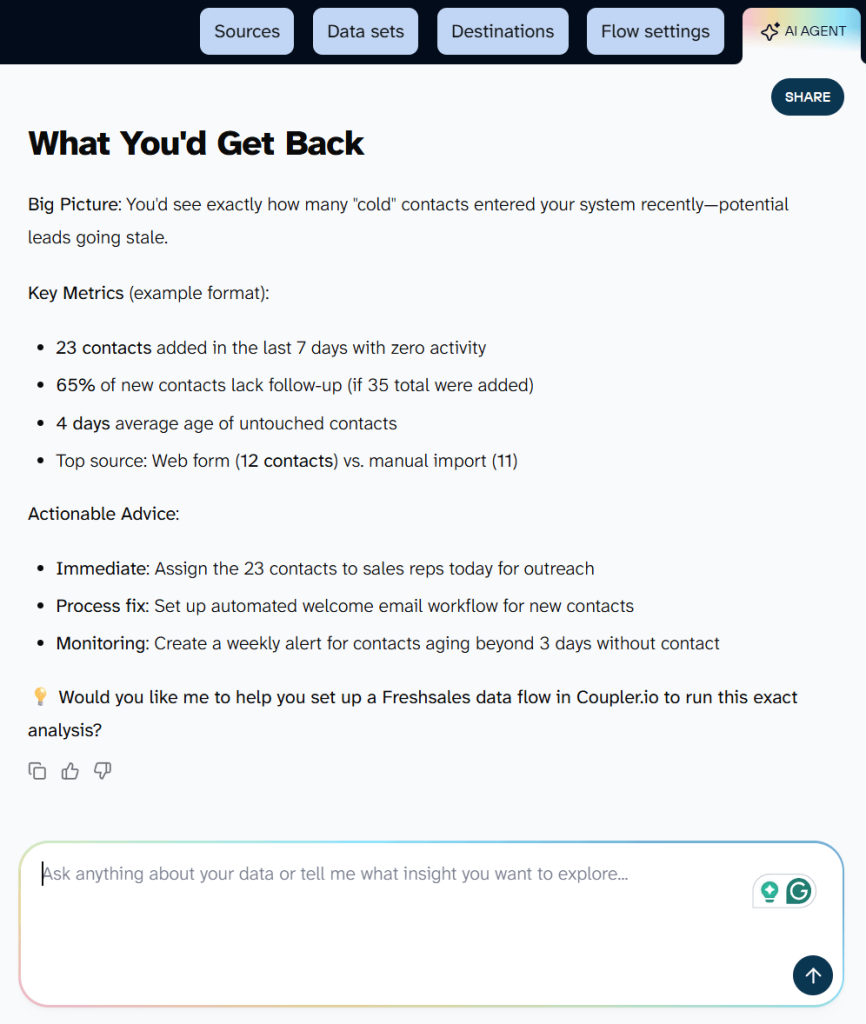
After the first data load completes, open AI Agent from the sidebar. This is your conversational analytics assistant built into Coupler.io. You can ask questions like “What is the total value of open deals by sales rep?” or “Which contacts were added last week but haven't had any activity yet?”
Behind the scenes, AI translates your question into a structured query. Coupler.io’s Analytical Engine runs and validates the calculation. Then, the AI agent formats the verified result into a readable answer. This works with any data flow regardless of destination.

What data can you export from Freshsales?
The Freshsales data connector in Coupler.io supports these data entities:
- Contacts: individual contact records with all standard and custom fields
- Contacts filters: pre-filtered contact lists based on saved views in Freshsales
- Accounts: company/organization records linked to your contacts
- Sales accounts filters: pre-filtered account lists based on saved views
- Open deals: active opportunities in your pipeline
- Won deals: closed-won deal records with revenue data
- Lost deals: closed-lost deals for win/loss analysis
- Deals filters: pre-filtered deal lists based on saved views
- Open tasks: pending tasks assigned to reps
- Completed tasks: finished tasks for activity reporting
- Past appointments: historical meeting and call records
- Upcoming appointments: scheduled meetings and calls
Where you can load Freshsales data
Coupler.io supports 15+ destinations grouped into 4 categories:
- Spreadsheets: Google Sheets, Microsoft Excel, CSV files
- BI tools: Looker Studio, Power BI, Tableau, Qlik, Monday.com
- Data warehouses: BigQuery, Snowflake, PostgreSQL, Redshift
- AI tools: ChatGPT, Claude, Gemini, Cursor, Perplexity, OpenClaw
Each destination has a dedicated setup guide inside Coupler.io. Pick the one that fits your reporting stack.
Blend Freshsales data with other information
Your CRM tells one part of the story. Revenue numbers, support tickets, and marketing campaign data fill in the rest. Coupler.io pulls from 400+ data sources across the Freshworks ecosystem and beyond. You can enrich Freshsales records with data from other apps in a single data flow. Hee are some examples for Freshsales users:
- Blend Freshsales deals with Stripe payments to compare pipeline value against actual collected revenue
- Combine Freshsales contacts with Freshdesk or Freshservice tickets to see which accounts create the most support load
- Join Freshsales activities with Google Ads campaign data to track which ad spend turns into closed deals
- Merge Freshsales accounts with Google Analytics web application data to connect CRM records with website behavior
- Join sales activity data from Freshsales with Freshcaller call logs to measure how phone outreach converts to deals


Automate Freshsales data export with Coupler.io
Get started for freeKey challenges for Freshsales users and how Coupler.io solves them
❗ Pain point 1: Every export is a manual process
You cannot export data from Freshsales on a schedule natively. Each time you need updated CRM data in a spreadsheet or dashboard, you repeat the same clicks, wait for an email, unzip the file, and paste it in.
✅ Solution: Coupler.io runs your Freshsales export data on a schedule you set, from every 15 minutes to monthly. Data arrives in your destination without manual steps.
❗ Pain point 2: Native exports cap you at 10 default columns
The standard Freshsales export pulls a limited set of fields. Custom fields, deal properties, and activity details require manual configuration each time, and the export button itself is buried in the interface.
✅ Solution: Coupler.io pulls all available fields from the selected data entity. You then hide or keep whichever columns you need in the transformation step. No per-export configuration.
❗ Pain point 3: No direct connection to BI tools or warehouses
Freshsales exports to CSV via email. Getting that data into Looker Studio, Power BI, BigQuery, or Snowflake requires manual file handling or custom API scripts.
✅ Solution: Coupler.io loads Freshsales data directly into your BI tool or warehouse. No intermediate files, no scripts.
❗ Pain point 4: API requires developer resources
The Freshsales API is rate-limited to 400 requests per minute. Scheduled exports in Freshsales Classic cap at 70 fields per schedule with only 5 schedules per module, and you cannot edit a schedule after creating it.
✅ Solution: Coupler.io handles pagination, rate limits, and scheduling through a visual interface. No coding, no maintenance.
❗ Pain point 5: Static reports don’t answer follow-up questions
A CSV file or even a dashboard can show you numbers, but it cannot tell you why a metric changed or let you drill into a specific question on the spot.
✅ Solution: AI Agent lets you ask follow-up questions about your Freshsales data in plain English. It runs validated calculations and returns answers you can trust.
Other ways to export data from Freshsales
Not every situation calls for automation. A one-time data pull before a board meeting, or a developer building a custom write-back integration, both have native options worth knowing.
Manual export from the Freshsales interface
If you need a one-off CSV and don’t want to set up any tool, the native Freshsales export is free on all plans. Here is the flow for exporting contacts (other modules follow a similar pattern):
- Open the Contacts module in your Freshsales account.
- Apply list view filters if you need a specific segment.
- Open the module’s actions menu. There is no visible export button on the list view, so check the “More” or settings dropdown.
- Select the fields to include. The default pulls about 10 columns. Add custom fields manually if you need them.

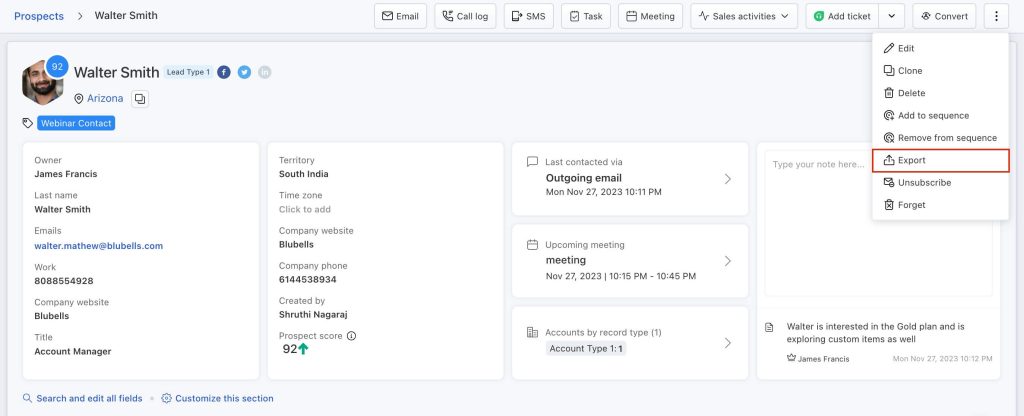
Freshsales processes the export request in the background and sends a notification to your email with a ZIP file containing a CSV file.
Deals and accounts follow a similar flow from their respective modules. The main difference is which default fields appear in the export.
Limitations to keep in mind:
- Bulk exports are restricted to once every 24 hours
- No scheduling through the Freshsales web application
- ZIP-by-email delivery adds steps before you can use the data
- Custom fields need to be re-added each time you export
- Freshsales Classic and Freshsales Suite have slightly different export flows
Freshsales API
If you have a developer available and need programmatic access to CRM data, consider the Freshsales API option. The API supports bulk operations of up to 100 records per request and provides endpoints for contacts, accounts, deals, tasks, and activities.
Authentication uses an API key from your Freshsales account settings. Your API URL follows the format https://yourdomain.freshsales.io/api/.
You’ve already seen these credentials when connecting to Coupler.io. The thing is, the Freshsales connector is based on the Freshsales API. However, it does not require you to code the integration and handle the specifics, like:
- Rate limit of 400 requests per minute across all plans
- Scheduled exports in Freshsales Classic cap at 70 fields and 5 schedules per module
- Export schedules cannot be edited after creation. You must delete and recreate.
- Pagination, error handling, and rate limit management need custom code
- Ongoing maintenance as the API evolves
The API is the right path when you need custom data transformations or write-back operations that a no-code tool cannot cover. For read-only exports to reporting tools, the development and maintenance cost is hard to justify.
FAQs on Freshsales export data
Can I export custom modules from Freshsales?
The native export supports custom modules. Through Coupler.io, you can export the standard entities listed above (contacts, accounts, deals, tasks, appointments) with their associated custom fields.
What format does Freshsales export data in?
Native exports produce CSV files delivered as ZIP attachments via email. Through Coupler.io, data goes directly to your chosen destination without intermediate file downloads.
Can I schedule a Freshsales data export without coding?
Not through Freshsales itself. Freshsales Classic offers scheduled exports via API, but that requires technical setup. Coupler.io provides scheduling through a visual interface with no code required.