Square stores everything from transaction history and item sales to customer profiles and team member schedules. Getting that data out for reporting is a different story. The Square Dashboard only exports CSV files, splits wide date ranges into ZIP archives, and offers no way to schedule recurring pulls. If you run multiple locations, consolidating data means repeating the same manual export for each one. Here is how to solve that.
How to automate export data from Square with Coupler.io
Coupler.io is a data integration platform that provides connectors, dashboard templates and AI analytics solutions. It connects your Square account to Google Sheets, Excel, Power BI, Looker Studio, BigQuery, and other destinations without writing code. You can try it right away by choosing the destination app in the form below.

You’ll be asked to sign up for free with no credit card required. From there, the setup has 3 steps:
Step 1: Collect data from Square
Link your Square account and choose a data entity. If you need payment records with amounts, fees, and payment methods, select Payments. For line-item detail including SKU, discounts, and taxes, go with Orders. You’ll also need to set a start date.

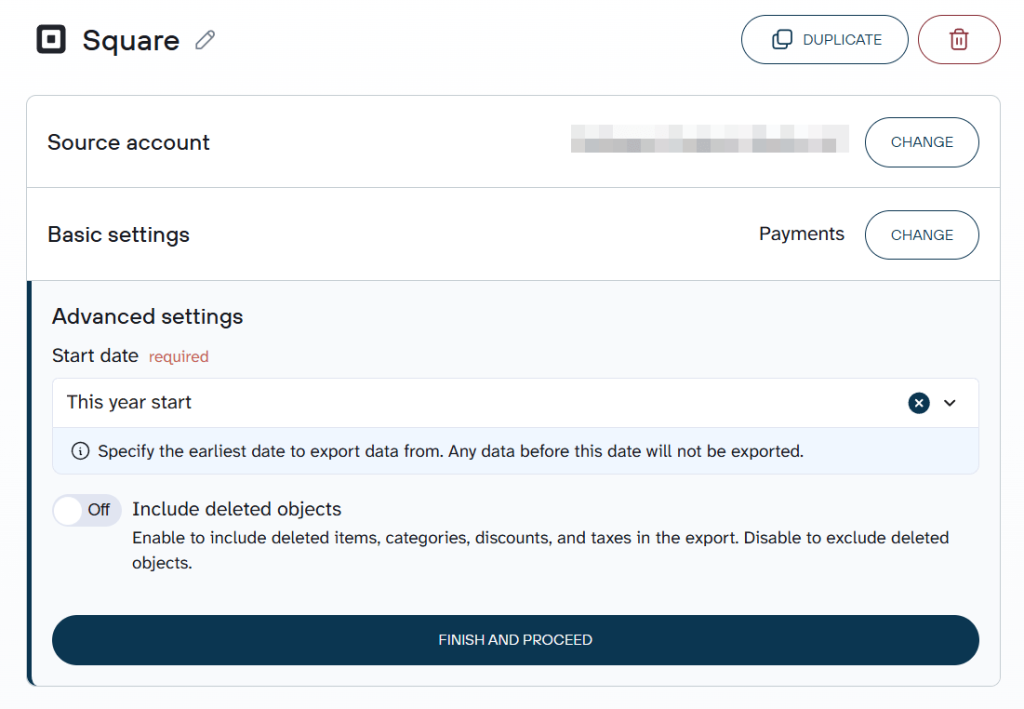
Need data from multiple entities or apps? Add them to the same data flow. For example, pull Payments and Customers together, or combine Square records with QuickBooks data in 1 export.

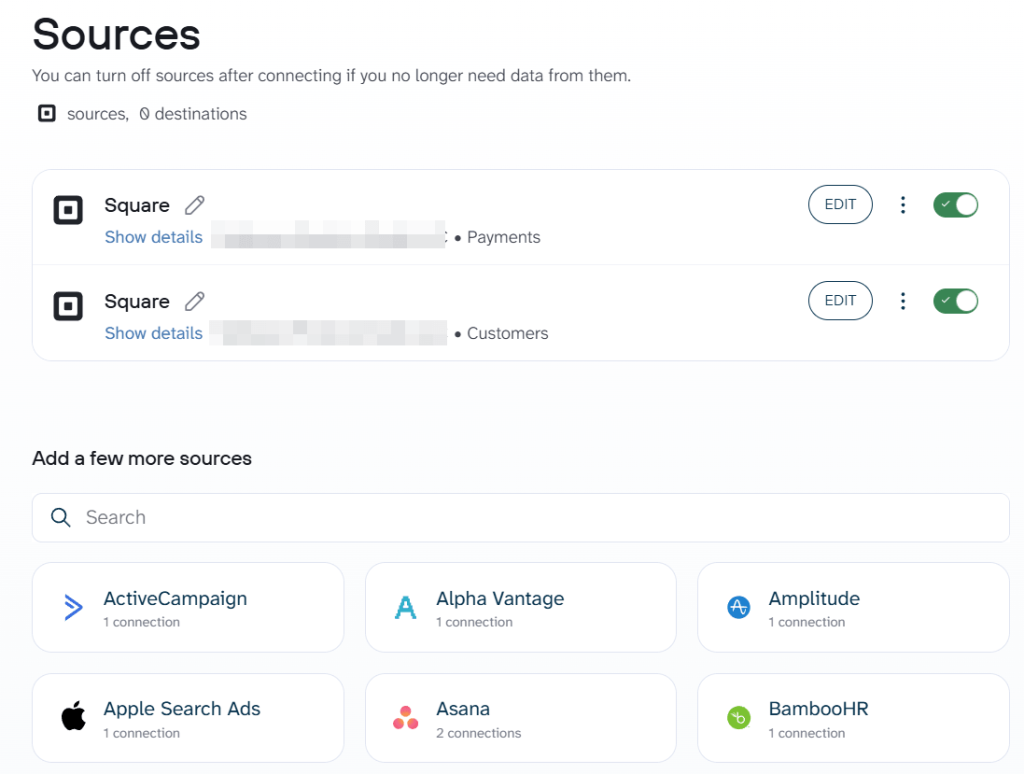
Step 2: Organize your Square data
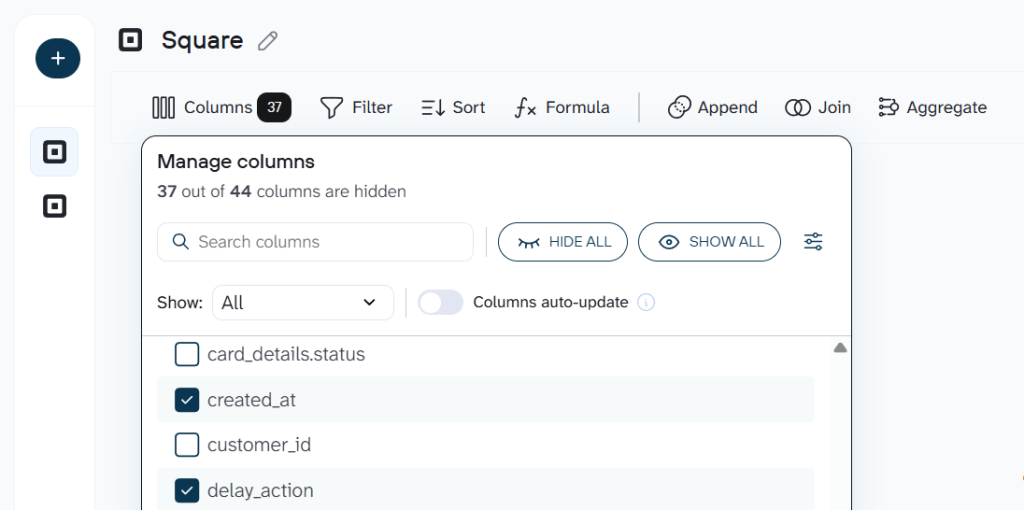
Before the data reaches your destination, you shape it. This matters with Square because raw exports often carry internal IDs, API reference fields, and modifier details that clutter a sales report. This step is optional but it’s useful for organizing your data and turning it into an analysis-ready data set.
What you can do here:
- Drop columns — remove payment IDs or source type fields if you only care about daily totals.
- Rename fields — turn “total_money.amount” into “Total ($)” so it reads clearly in a dashboard.
- Filter or sort — keep only completed payments, exclude refunded transactions, or rank by amount.
- Aggregate — sum totals by day to build a sales summary, or count orders per location.
- Calculate — add a “Net after fees” column by subtracting Square processing fees from the gross total.
- Blend sources — join Square payment data with Google Ads spend to see true cost per acquisition.

Step 3: Load data and schedule refresh
Connect the destination (Coupler.io guides you through it for each tool), then run the data flow once to confirm everything looks right. After that, enable Automatic data refresh and choose your interval: monthly, daily, hourly, or every 15 minutes.

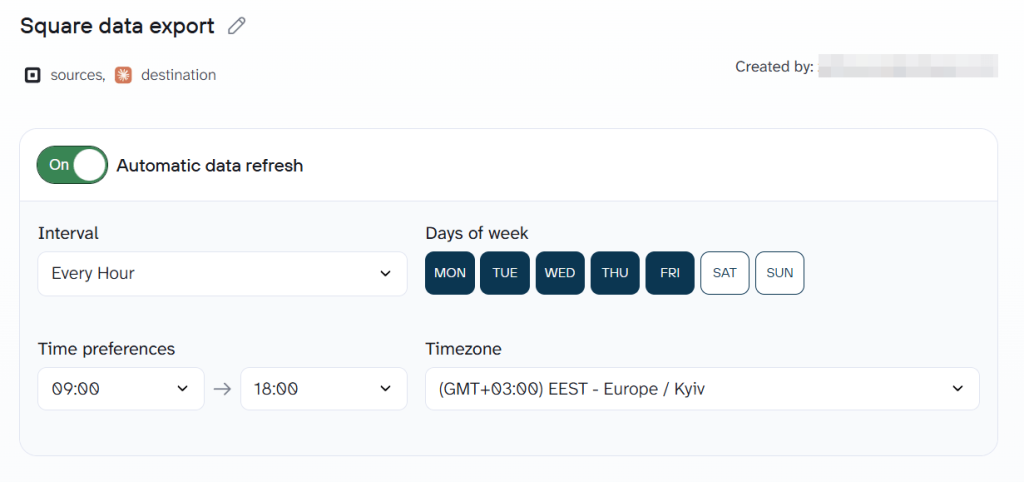
Click Save and Run to activate the schedule. From this point, your Square data updates in the destination without any manual steps.
Bonus step: Ask questions about your Square data with AI Agent
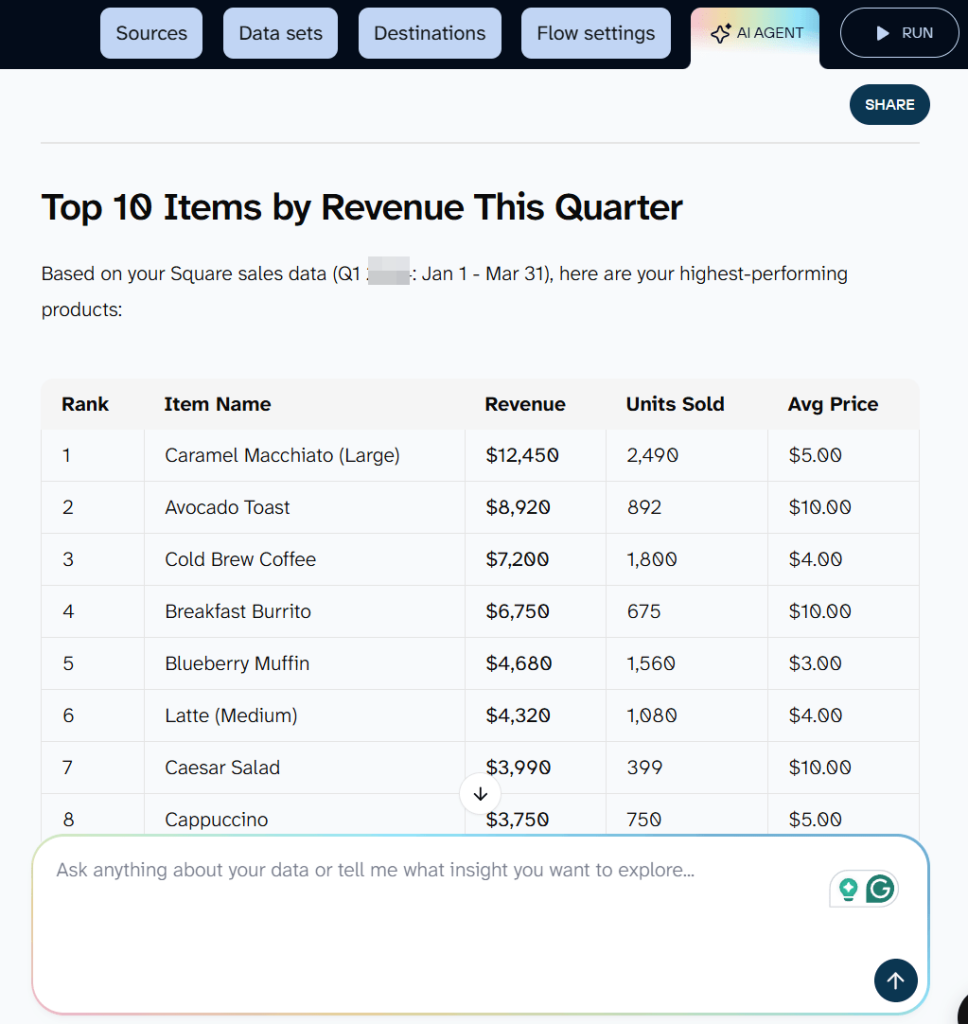
With your data flow active, use the AI Agent tab or open it by clicking ASK AI next to the flow. Ask something like “Which location had the highest average order value last month?” or “Top 10 items by revenue this quarter.“
Behind the scenes, Coupler.io’s Analytical Engine executes the query, validates the math, and hands the AI-verified numbers to explain. You won’t need SQL to do this. This works regardless of which destination you choose.

What data can you export from Square?
The Square data connector by Coupler.io pulls these data entities:
- Customers — your full customer directory with email, phone number, and contact details
- Locations — every business location linked to your Square account
- Shifts — clock-in/clock-out records for scheduled employees
- Team members — staff profiles and role assignments
- Team member wages — hourly rates and compensation data
- Items — your item library: product names, descriptions, SKU, and pricing
- Categories — how your items are organized in the catalog
- Discounts — discount rules and fixed or percentage amounts
- Taxes — tax definitions applied at checkout
- Modifier lists — modifier groups (size, extras) attached to menu or catalog items
- Refunds — refund records tied to original payments
- Inventories — stock levels per item per location
- Payments — completed transactions with totals, payment methods, and processing fees
- Orders — order-level detail with line items, fulfillment status, and applied discounts
- Bank accounts — linked accounts where Square sends payouts
- Cash drawers — session records with opening and closing balances
- Loyalties — loyalty program enrollment and reward balances
Each entity runs as its own data flow, or you can combine several into a single one.
Where you can load Square data
Destinations available through Coupler.io:
- Spreadsheets — Google Sheets, Microsoft Excel, CSV
- BI tools — Looker Studio, Power BI, Tableau, Qlik, Monday.com
- Data warehouses — BigQuery, Snowflake, PostgreSQL, Redshift
- AI tools — ChatGPT, Claude, Gemini, Cursor, Perplexity, OpenClaw
Blend Square data with other information
Most businesses that use Square also rely on separate tools for accounting, marketing, and ecommerce. Coupler.io connects to 400+ data sources, so you can merge Square records with other platforms in a single report.
- Square payments + QuickBooks — reconcile deposits against your books without manual matching.
- Square orders + Google Ads — connect ad spend to actual order revenue and measure return on ad spend.
- Square customers + Mailchimp — match your customer directory with email lists to track which campaigns drive repeat purchases.
- Square inventory + Shopify — monitor stock across in-store and online channels in 1 view.
Key challenges for Square users and how Coupler.io solves them
❗ Pain point 1: Every export is manual
The Square Dashboard has no function to schedule recurring data pulls. You click, filter, and download every time.
✅ Solution: Coupler.io refreshes your data on a fixed schedule, from monthly down to every 15 minutes. Set it once and forget about manual data refresh routine.
❗ Pain point 2: ZIP archives for long date ranges
Requesting several months of transaction history from Square produces a ZIP with separate CSV files for each month. Merging them is tedious.
✅ Solution: Coupler.io delivers the full range in 1 dataset. No ZIP files, no monthly splits.
❗ Pain point 3: Separate reports for different data
Square splits information across Transactions, Item Sales, Sales Summary, and Custom Reports. A complete picture requires exporting and joining multiple files in an external tool like Excel workbook.
✅ Solution: Export multiple data entities through Coupler.io and blend them before loading to your reporting app. Payments, orders, and customer records land in the same place in an analysis-ready data set.
❗ Pain point 4: Team permissions restrict history
Team members with limited access see only 90 days of sales report data. Only the account owner gets the full history.
✅ Solution: Automated exports to a warehouse or spreadsheet create a persistent archive accessible to the whole team, independent of Square permissions.
❗ Pain point 5: Static charts, no ad hoc questions
Square’s built-in reporting shows pre-defined charts. You cannot ask “what was my busiest hour last week?” without building a custom report.
✅ Solution: AI Agent lets you ask that question in plain language and get a verified answer in seconds.


Automate Square data export with Coupler.io
Get started for freeOther ways to export data from Square
If automation is not what you need right now, here are the manual and developer-oriented alternatives.
Manual export from the Square Dashboard
This makes sense for a 1-time download or a quick spot-check before you commit to automation.
Sign in to your Square Dashboard and navigate to Reports. Choose the report type (Transactions, Item Sales, or Sales Summary), set your date range, and apply filters. Click the export button in the top right corner. Some reports get downloaded right away, for others you can select between two CSV file options.

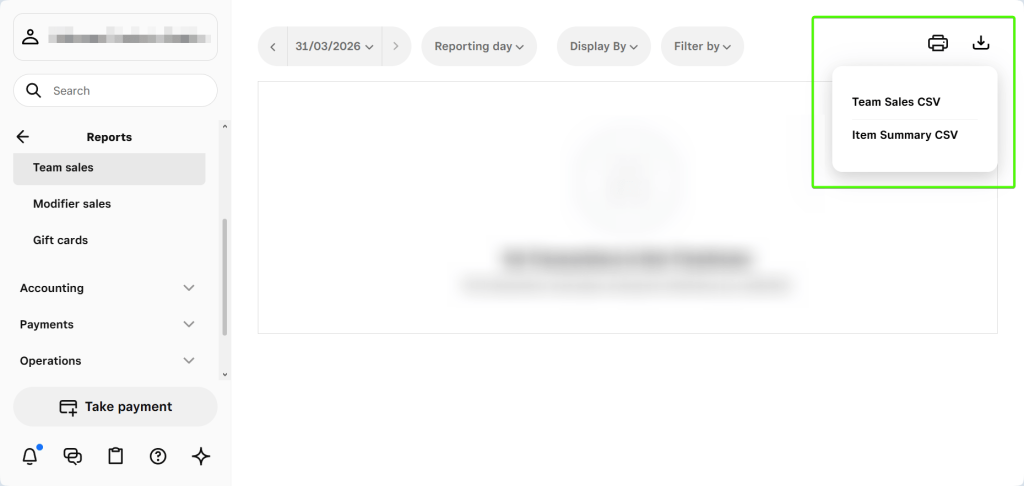
Limitations: All reports can only be exported as CSV files.
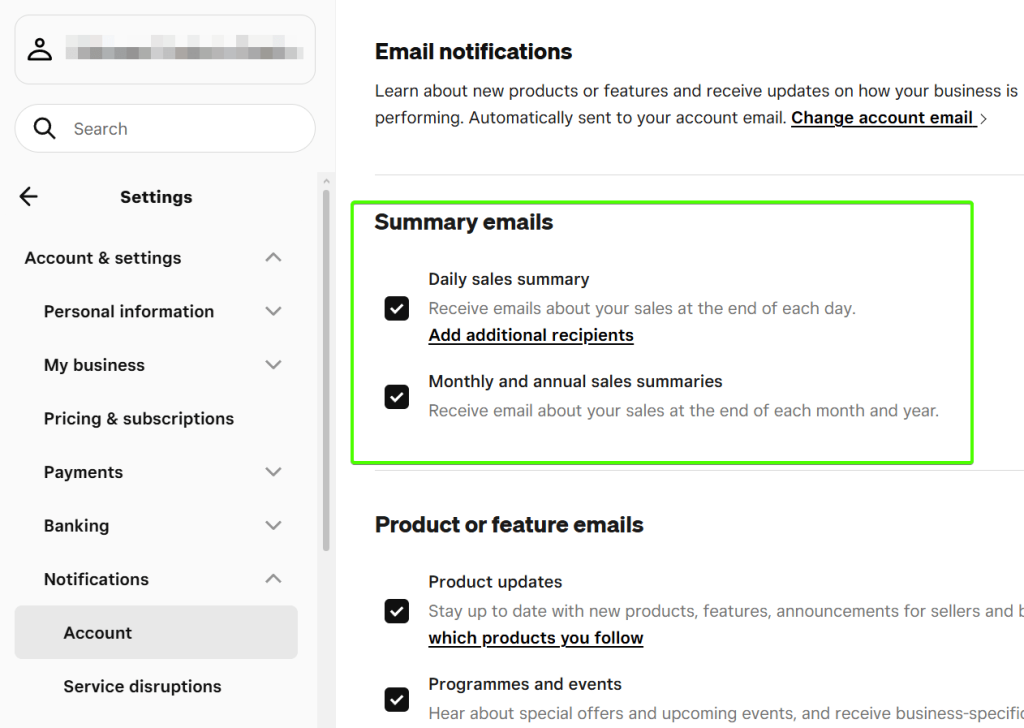
Square does not offer scheduled exports. However, you can enables a daily sales summary email (Settings > Account & Settings > Notifications > Account) to get a high-level summary, not raw transaction data.

Square API
This option is worth considering if your team has developers and you need a tailored data pipeline.
The Square API covers payments, orders, customers, catalog, inventory, team members, and more. It uses OAuth 2.0 for authentication and returns JSON responses.
Trade-offs: Building and maintaining the integration takes engineering time. Rate limits apply, paginated responses add complexity, and you still need a visualization layer on top. For teams without dedicated engineering resources, the Coupler.io Square integration gets you to the same result faster and with no hassle whatsoever.
What’s the best way to handle Square data export
Manual CSV downloads work for 1-off needs. The API fits teams with developers who want full control. For everyone else, Coupler.io automates the entire process: connect to Square, pick a destination, set a schedule, and your reports stay up-to-date. Start for free and run your first Square data export in minutes.