Exporting data from Zendesk is straightforward until you need it on a schedule. Native ticket export options are manual, CSV files often miss key fields like ticket comments, and the API requires scripting and ongoing maintenance.
Zendesk is also not a single app but a suite of products (Support, Chat, Talk, Explore, and others). Each has its own data structure and export options. Coupler.io solves this with no-code connectors for Zendesk Support, Chat, and Talk that automate exports to the destination you need. Check out the automated method and compare it with alternatives to choose the best way to export Zendesk data on a schedule.
Automate Zendesk data export with Coupler.io
Coupler.io is a no-code data integration and AI analytics platform that connects over 400 sources to spreadsheets, BI tools, data warehouses, and AI platforms like ChatGPT. It allows you to export data from Zendesk on a schedule to your preferred tool without writing a single line of code.
To get started, create a new data flow in Coupler.io with Zendesk as the source. You can choose from three separate connectors for each Zendesk product:
- Zendesk Support — for tickets, users, organizations, and groups
- Zendesk Chat — for agents, bans, chats, departments, visitors, shortcuts, skills, triggers, routing settings, and agent activity
- Zendesk Talk — for call logs, addresses, agent activities, agent overviews, greetings, IVRs, account overviews, phone numbers, voicemails, and voice support data
You can try it out right away for free using the preset form below. Just select the needed Zendesk product and destination from the drop-down and click Proceed.

No credit card required to sign up for Coupler.io for free. Then complete three simple steps.
Step 1. Connect your Zendesk account and configure the data to export
Sign in to your Zendesk account and grant the required permissions. Depending on your setup, you may need your Zendesk subdomain and admin access.
Once connected, choose the data entity you want to export (e.g., tickets, chats, calls) and preview the dataset to confirm accuracy.

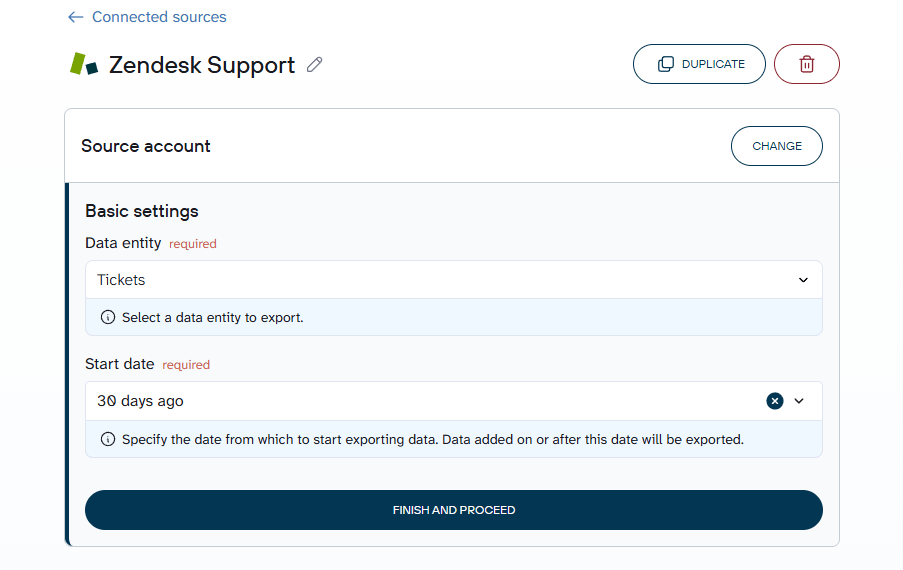
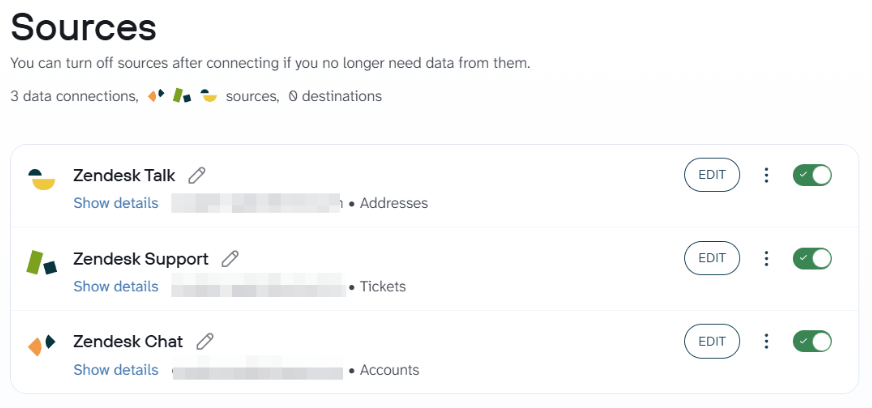
A single data flow in Coupler.io can include multiple data sources. You can add several Zendesk data entities (e.g., tickets and users), combine connectors from different Zendesk products (Support, Chat, and Talk), or even pull in data from entirely different apps like HubSpot, Salesforce, or Shopify. This means you can build a unified dataset that spans multiple systems and then transform, join, or append the data before sending it to your destination.

Step 2. Organize your dataset for analysis (Optional)
Raw Zendesk data often contains noisy or overly detailed fields. Coupler.io lets you clean and shape the dataset before export. Use built-in transformations to:
- Rename or reorder columns (e.g., replace IDs with clear labels)
- Filter by status (e.g., show only open tickets or resolved chats)
- Add calculated fields (e.g., resolution time or response delays using timestamp fields)
- Aggregate records (e.g., tickets per agent or calls per day)
- Join or append datasets from Support, Chat, and Talk into one unified view

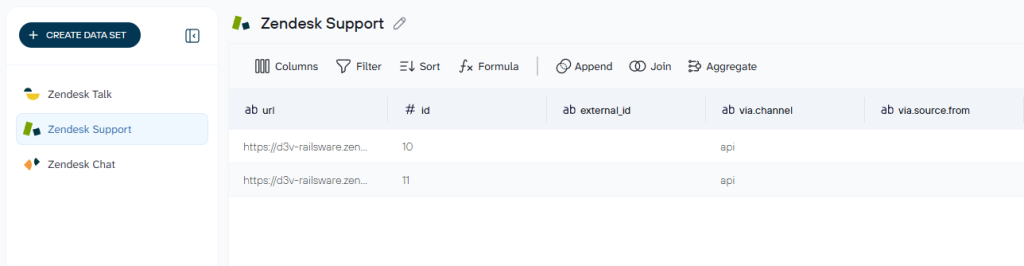
This step is where raw Zendesk exports turn into structured, analysis-ready data that stays consistent with every refresh.
Step 3. Export and schedule automated refresh
Choose your destination where to export data from Zendesk, such as Google Sheets, Excel, Looker Studio, Power BI, BigQuery, Claude, and more. Follow the in-app instructions to complete the connection. Then set your preferred refresh schedule to keep the exported Zendesk data automatically up to date.

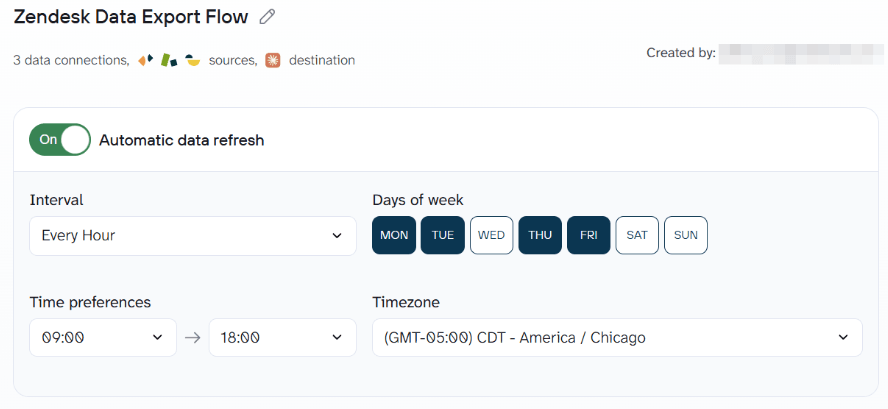
Once you click Save and Run, your data flow becomes active. Coupler.io will automatically pull updated data from Zendesk and deliver it to your destination without manual exports or API maintenance. This turns Zendesk exports into a continuous data pipeline rather than a one-time task.
Bonus Step 4. Talk to your Zendesk data with Coupler.io AI Agent
Once your Zendesk exports are flowing, you can analyze the data using Coupler.io’s built-in AI Agent.

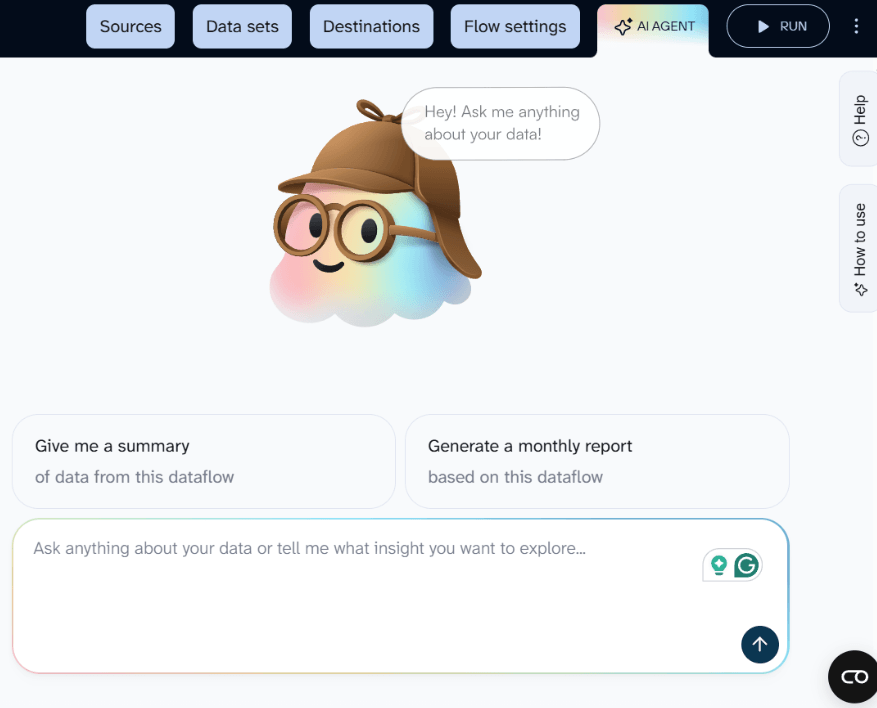
Instead of building dashboards or writing queries, ask questions: “Which tickets have the longest resolution time this week?” or “How many chats were handled per agent yesterday?“
The AI Agent works with your latest synced Zendesk data, so the answers will stay accurate as your scheduled exports update. The only limitation is that the AI agent does not allow you to build dashboards or visualizations. If this is the case, use Coupler.io’s AI integrations to query your Zendesk data in external AI tools like ChatGPT or Claude.
Analyze Zendesk data with AI using Coupler.io
Get started for freeWhat data you can export from Zendesk
Coupler.io supports data export from three Zendesk products. Each connector provides access to specific data entities based on how Zendesk structures its products:
- From Zendesk Support: It’s relevant for teams using Zendesk customer support to manage large volumes of tickets, chats, and calls. This is the backbone of most Zendesk reporting to track ticket volume, resolution times, SLA performance, and customer interactions. It’s also the primary dataset for help desk migrations and operational reporting.
- From Zendesk Chat: Agents, chats, departments, visitors, as well as configuration data like bans, shortcuts, skills, triggers, and routing settings. This dataset helps you understand real-time support activity, visitor behavior before conversion, and how chats are assigned and handled across teams.
- From Zendesk Talk: Call logs, voicemails, phone numbers, greetings, IVRs, and detailed agent activity (including overviews and performance data). This data is used to evaluate voice support operations, monitor call handling efficiency, and analyze how your support team performs across phone interactions.
Other Zendesk products, such as Guide, Sell, or WFM, store different types of data and require alternative export methods — typically through native export tools or the Zendesk API.
Where you can export Zendesk data
Coupler.io supports multiple destination types, so you can route your Zendesk data based on how you plan to use it, whether for reporting, dashboards, storage, or AI-driven analysis.
Spreadsheets: Google Sheets, Microsoft Excel Online, Microsoft Excel Desktop, CSV file exports.
Best for quick analysis, sharing reports, and lightweight workflows. You can easily filter, sort, and review Zendesk data without additional tools.
BI tools: Looker Studio, Power BI, Tableau, Qlik Sense.
Ideal for building dashboards and visualizing ticket data, chat activity, or call performance. With scheduled refresh, your dashboards stay updated automatically.
Data warehouses: BigQuery, Snowflake, PostgreSQL, Redshift.
Designed for large datasets and long-term storage. You can combine Zendesk data with other sources, run complex queries, and support advanced data analysis.
AI tools: ChatGPT, Claude, Perplexity, Cursor, Gemini CLI, OpenClaw, Custom MCP.
Useful for conversational analytics and automated insights. You can send data via JSON endpoints or connect directly to AI workflows for deeper analysis.
With Coupler.io, you can also send the same dataset to multiple destinations. For example, load Zendesk ticket data into BigQuery for storage and into Looker Studio for dashboards without changing your export setup.
Blend Zendesk data with other tools
Zendesk data becomes more valuable when combined with other systems. Coupler.io lets you connect Zendesk with 400+ sources and build unified datasets for deeper analysis. You can use Append or Join modes to merge Zendesk data with ecommerce platforms (to analyze support impact on revenue), CRM systems (to evaluate how calls influence deal progression), or financial tools (to track how support interactions relate to payments and churn).
Automate Zendesk data export with Coupler.io
Get started for freeKey challenges with Zendesk data exports, and how Coupler.io solves them
Zendesk offers multiple data export options, but they aren’t built for ongoing reporting or automation. Here are the most common pain points:
Manual exports and stale dashboards. Zendesk exports live inside the Admin Center and require manual setup, often by the account owner. Each export produces a CSV file that needs to be downloaded, cleaned, and repeated. Without scheduling, dashboards go stale the moment the data lands.
Coupler.io automates the entire process: set a schedule once, and your Zendesk data refreshes automatically across all connected destinations.
CSV exports are incomplete. Native CSV export options can exclude important data such as ticket comments, descriptions, deleted tickets, or certain custom fields. This creates gaps in reporting.
Coupler.io pulls structured Zendesk data through its connectors and lets you transform it before export, so your dataset is more complete and consistent.
API exports require engineering effort. Using the Zendesk API means handling authentication, managing API tokens, working with REST endpoints, and dealing with pagination and rate limits.
Coupler.io handles this complexity under the hood. Authentication, pagination, retries, and rate limit handling are all managed automatically with no coding required.
Data is scattered across Zendesk products.
Zendesk Support, Chat, and Talk store data separately. Exporting from each source individually makes it difficult to build a unified dataset.
Coupler.io provides separate connectors for each product, then lets you combine datasets using Append or Join modes to create a single, unified view.
Insights require extra work after export. Even after the data is out of Zendesk, you still need to build dashboards, write queries, or manually analyze spreadsheets.
Coupler.io’s AI Agent lets you ask questions in plain language and get instant answers without SQL or additional tools needed.
With these challenges addressed, Coupler.io turns the way you export Zendesk data into a reliable, automated workflow rather than a recurring manual task.
Other ways to export data from Zendesk
Coupler.io is built for automated, scheduled data exports. That said, there are valid cases where other export methods make sense, especially for one-off exports, backups, or specific admin tasks.
Zendesk Explore
Previously, Zendesk’s native export tools were available in the Admin Center under Account > Tools > Reports. But now, reports are a part of Zendesk Explore. It is a reporting layer built into the Zendesk suite to create dashboards, generate reports, and export them in CSV, Excel, PDF, XML export format, or image formats. Zendesk Explore also supports scheduled dataset exports on a daily, weekly, or monthly basis.

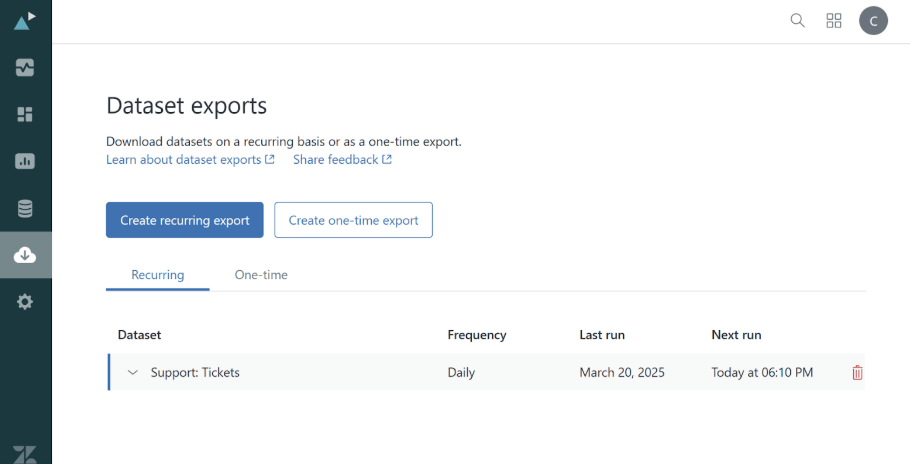
That said, Explore is not an ETL tool. Its exports are limited to predefined datasets. You don’t get full access to raw records like ticket-level data with all fields. It also requires Explore admin access and comes with constraints around file retention.
Coupler.io does not integrate with Zendesk Explore directly. Instead, it pulls data from the source (tickets, chats, calls), giving you full control to build custom dashboards in tools like Looker Studio or Power BI.
Zendesk APIs
The Zendesk API is the most flexible option, especially for developers. It lets you extract data through REST endpoints in JSON format and build custom export pipelines. A Zendesk data export API approach is typically how teams handle large-scale data extraction or advanced reporting workflows.
However, this flexibility comes at a cost. You’ll need to write and maintain scripts, manage authentication and API tokens, handle pagination and large datasets, and deal with rate limits and retries. Zendesk provides dedicated documentation on rate limits because hitting them is a common issue in production use.
Other platforms
Tools like Zapier or Make handle event-based automation — triggering actions when a ticket is created or updated. ETL platforms like Stitch, Fivetran, or Airbyte focus on moving data into warehouses for analytics. These tools can be useful in specific scenarios, but they come with trade-offs: some rely on task-based pricing, others require additional setup for transformations, and many are not designed for scheduled exports to spreadsheets or BI tools as a core workflow.
Each of these methods has its place. But if your goal is to automate Zendesk data exports, keep datasets clean, and maintain consistent reporting across tools, a no-code pipeline like Coupler.io provides a more streamlined and reliable approach.