BigQuery can ingest data from almost anywhere—CSVs, databases, SaaS tools, real-time streams. However, the importing method you choose determines how much manual work, technical complexity, and ongoing maintenance you’ll deal with.
For recurring business data (think Google Sheets, CRM systems, marketing platforms), no-code BigQuery ETL tools like Coupler.io automate the process with scheduled imports and pre-built connectors. For large batch jobs, loading from Google Cloud Storage makes sense, and real-time use cases rely on streaming through Pub/Sub.
Explore all the methods in one guide and pick the one that fits your needs.
Method 1: Import data into BigQuery with Coupler.io
For ongoing data imports, the goal is not just to load data once, but to keep it updated reliably without manual work or custom pipelines. Coupler.io is a no-code data integration platform that connects over 400 data sources to BigQuery and automates data loads on a schedule.
The entire setup of BigQuery integrations takes only a few minutes and requires no SQL or scripting. You can try it right away for free by selecting the needed data source in the form below. Click Proceed to sign up for Coupler.io for free and create your data flow to BigQuery.

Step 1. Collect data
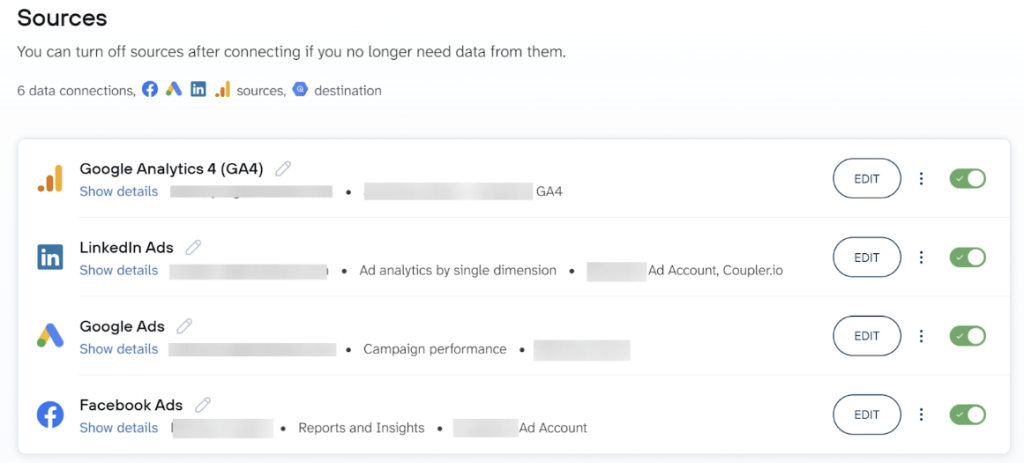
Start by connecting your data sources in Coupler.io. You define what data to pull by selecting the relevant entities for each source. This could be choosing specific spreadsheets or tables, selecting reports from SaaS tools, or connecting API-based sources.
Coupler.io supports multiple data sources in a single flow so you can collect data from different systems at once. Each connected source is automatically read and previewed so you can verify the structure and fields before moving ahead.

Step 2. Organize your data set
This step helps you make your data analysis-ready before it reaches BigQuery, so you spend less time fixing issues later.
You can use Coupler.io’s built-in transformations to shape the dataset based on how you plan to analyze it:
- Rename or reorder columns to match naming conventions in your BigQuery tables or dashboards.
- Filter rows to load only relevant data, such as a specific date range, region, or campaign type.
- Add calculated columns to derive metrics like cost per lead or conversion rate directly at import time.
- Aggregate data to summarize raw records, for example, converting daily GA4 traffic into weekly or monthly totals.
- Append or join datasets when working with multiple sources, such as combining Facebook Ads and Google Ads data into a single view.

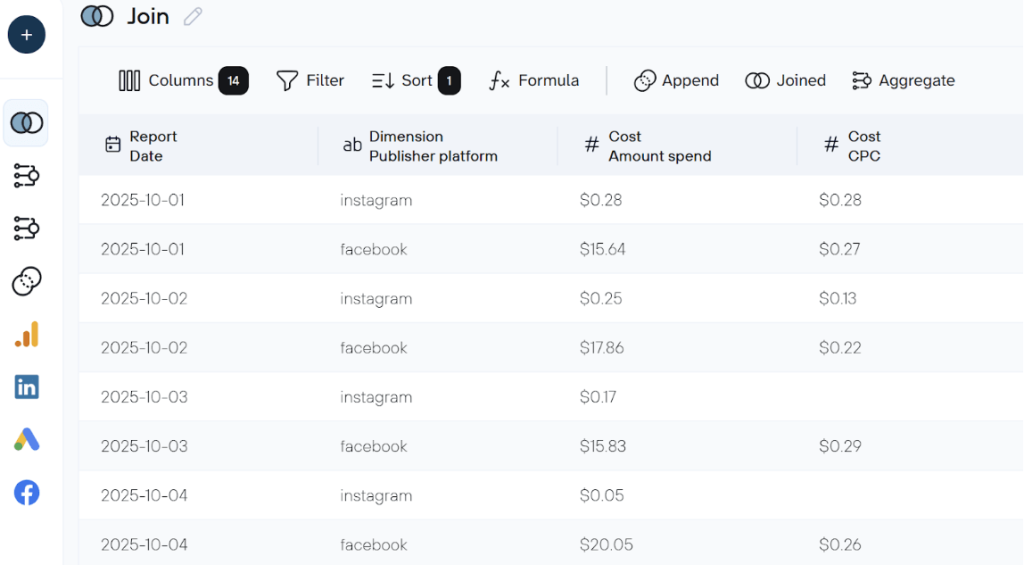
If the sheet is already clean, you can skip transformations and proceed without changes.
Step 3. Load data to BigQuery
If you’ve used the form above, BigQuery as your destination is already set. However, if you’ve created a data flow from scratch or a data set template, choose BigQuery as the destination and configure the connection.
Generate a Google Cloud JSON key for a service account with access to BigQuery and upload it in the connection form.
The Project ID and Connection name are filled in automatically; click Save.
Next, specify the destination dataset and table. You can use existing names or create new ones.

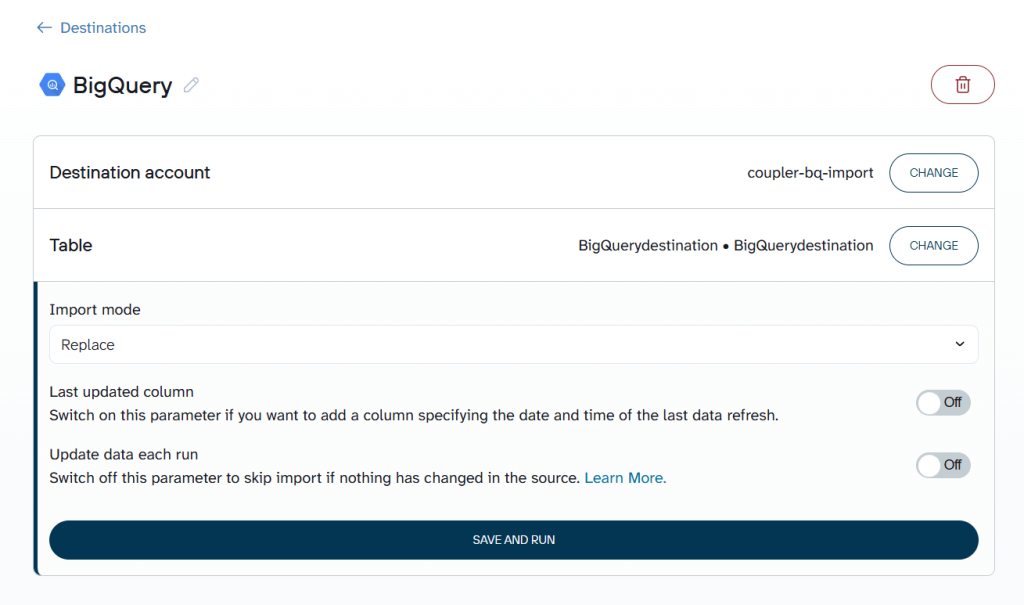
By default, Autodetect table schema is enabled, so BigQuery automatically infers column types during import. If you prefer full control over column types and modes, you can turn off autodetection and define the schema manually using a JSON file.
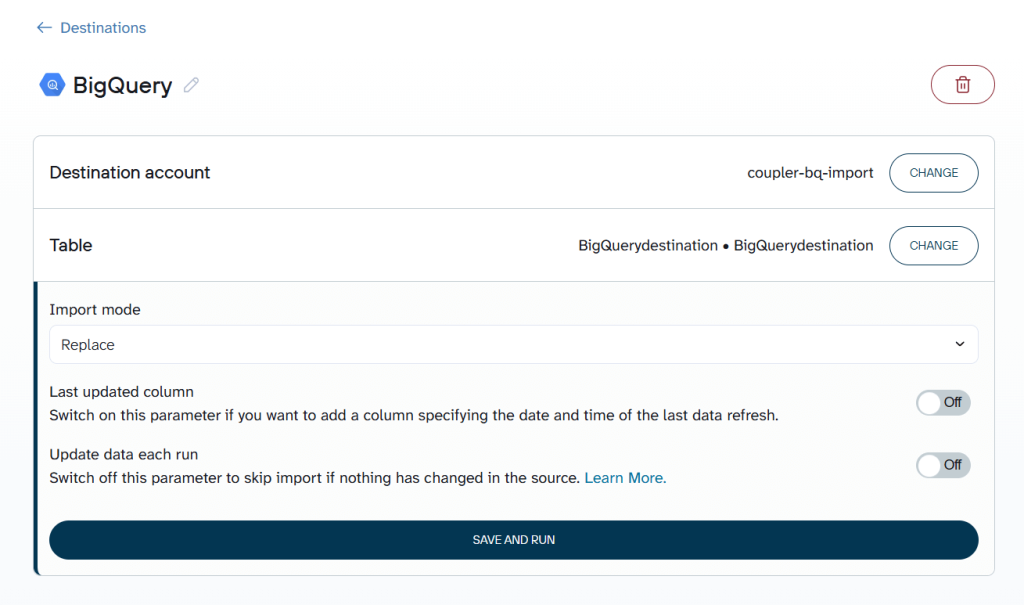
Choose whether to Replace or Append data on each run.
Step 4. Automate data refresh in BigQuery on a schedule
Enable Automatic data refresh and configure how often the data should sync, such as hourly or daily. Once saved, Coupler.io runs the import on schedule and keeps the BigQuery table up to date automatically.

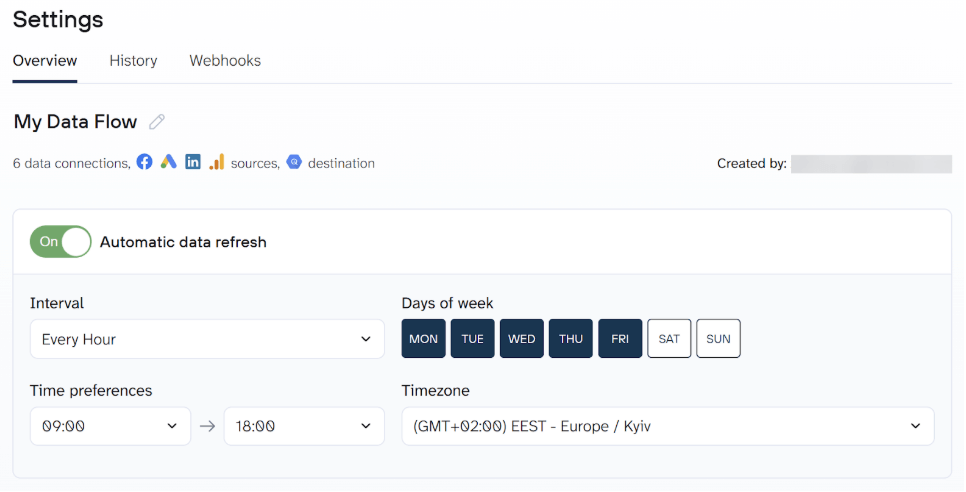
Once configured, Coupler.io runs the import in the background and keeps your BigQuery tables updated on a defined schedule. New or changed data is loaded into BigQuery automatically, without manual uploads or fragile custom scripts.
This makes BigQuery a reliable, always-updated data source for dashboards and reports built using Coupler.io and other analytics or BI tools.
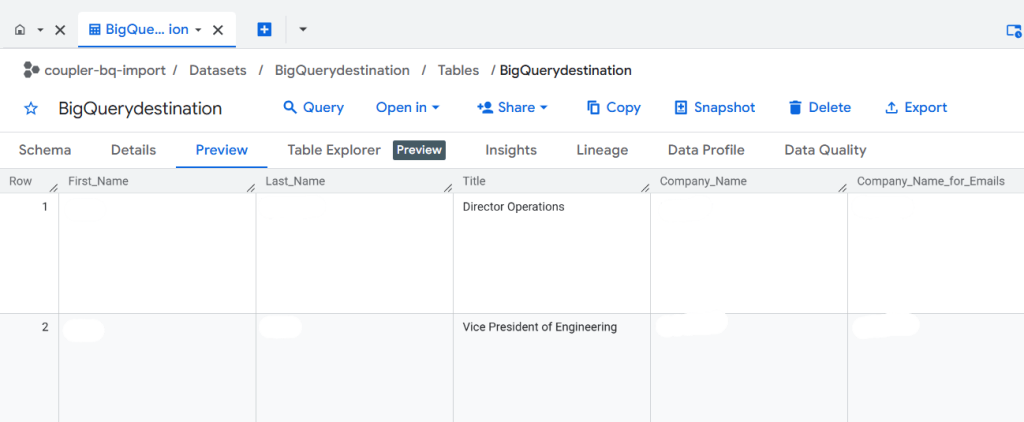
This method avoids manual uploads, custom scripts, and fragile pipelines, which is why it’s often the preferred option when you need reliable, repeatable BigQuery data ingestion with minimal effort. Here’s what the BigQuery data preview window looks like when I’ve connected my Google Sheets to BQ with Coupler.io:

What data can you import to BigQuery with Coupler.io?
Coupler.io supports 400+ data sources, making it easy to load data into BigQuery from most tools teams already use. Instead of building custom pipelines for each system, you can connect different sources in one place and keep BigQuery continuously updated.
Here’s a high-level view of the main source categories Coupler.io supports, with a few common examples from each:
- Spreadsheets & files
- Google Sheets, Excel, CSV files. These are ideal for operational data, planning sheets, exports, and lightweight reporting inputs.
- Marketing & advertising platforms
- Google Ads, Facebook Ads, LinkedIn Ads, TikTok Ads. These are commonly used to centralize campaign performance data in BigQuery for unified analysis.
- CRM & sales tools
- HubSpot, Salesforce, Pipedrive. These are useful for syncing leads, deals, pipelines, and revenue data into BigQuery.
- Finance & accounting systems
- QuickBooks, Xero, Stripe. These are often used to load transactions, invoices, payouts, and financial metrics for reporting.
- Product, analytics & support tools
- Google Analytics 4, Intercom, Zendesk. These help bring user behavior, events, and support data into BigQuery for deeper analysis.
- Databases & warehouses
- PostgreSQL, MySQL, Amazon Redshift. You’ll find these most suitable for syncing structured data from operational databases into BigQuery.
- APIs & custom sources
- REST APIs, JSON endpoints. These sources allow importing data from internal systems or tools that don’t have native connectors.
All these sources can be combined in a single flow, transformed if needed, and loaded into BigQuery on a schedule. This flexibility is what makes Coupler.io especially effective for teams that want BigQuery to serve as a central analytics layer across multiple systems.
Automate data import to BigQuery with Coupler.io
Get started for freeBigQuery as both source and destination
With Coupler.io, BigQuery isn’t limited to being just a destination. You can also use BigQuery as a data source and extract data from it just as easily.
This means Coupler.io works in both directions:
- Load data into BigQuery from spreadsheets, SaaS tools, databases, or APIs.
- Extract data from BigQuery and send it to other destinations such as Google Sheets, Excel files, dashboards, or reporting tools.
Try it yourself right away! Choose the destination app for your data in BigQuery in the form below and click Proceed.
Note: You can automate data flows between BigQuery tables, data sets, and projects.
The key value here is simplicity. Instead of using one connector to load data into BigQuery and a different tool to pull data out for reporting, you can handle both workflows in a single platform.
For example, a team might import marketing, sales, and finance data into BigQuery for centralized analysis, then use Coupler.io again to export curated BigQuery tables into Google Sheets for stakeholders, or into downstream reporting systems. The same scheduling, automation, and transformation logic applies in both directions.
By supporting BigQuery as both a source and a destination, Coupler.io helps teams keep their data pipelines consistent, easier to maintain, and more cost-effective, without having to juggle multiple connectors or services.
Method 2: Import CSV or JSON files into Google BigQuery manually (web UI)
The Google Cloud Console web UI offers a straightforward way to import data into BigQuery when you need a manual, one-time load. This approach works best for small to medium CSV or JSON files and does not require any code. However, it is not designed for large datasets or recurring data loads.
Here’s a step-by-step walkthrough to upload a CSV or JSON file:
1. Open BigQuery in the Cloud Console
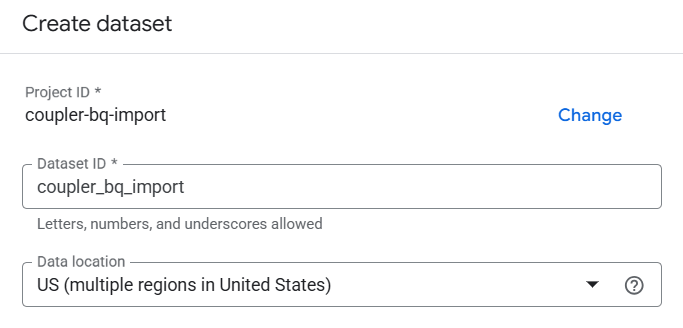
Navigate to BigQuery in the Google Cloud Console and select the correct project and dataset. If the dataset does not exist, create it before continuing.

2. Start table creation
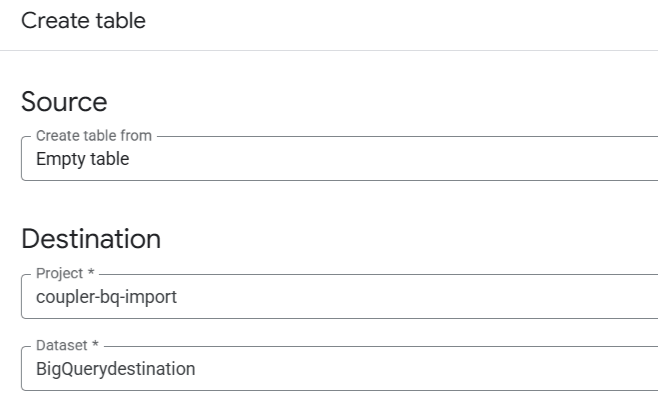
In the BigQuery Explorer panel, click your dataset and select Create table to open the table creation form.

3. Choose the data source
Under Source, select Upload to load a local file from your computer. This option is used specifically for local CSV or JSON files.
4. Select the file and file format
Click Browse and choose your file. In the format dropdown, select:
- CSV for comma-separated values
- JSON for newline-delimited JSON (each object must be on its own line)
BigQuery may auto-detect the format, but it should always be confirmed manually

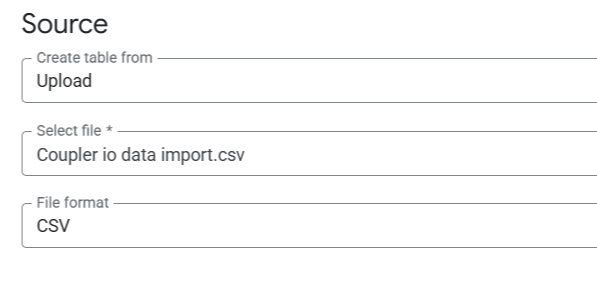
5. Configure destination settings
In the Destination section, confirm the target dataset and enter a BigQuery table name. If the table does not exist, BigQuery will create it during the load job.
6. Define the schema
Choose how the schema is handled:
- Enable Auto-detect to let BigQuery infer column names and data types
- Or manually define the schema for stricter control
For CSV data, BigQuery can use the header row as column names. For JSON files, schema fields are inferred from object keys.
7. Review advanced options (optional)
Advanced settings allow you to configure:
- Field delimiter and quote handling
skip_leading_rowsfor CSV headers- Null value handling
- Optional partitioning or clustering
Defaults are usually sufficient for standard files.
8. Create the table and load data
Click Create table to start the load job. BigQuery uploads the file, applies the schema, and inserts the data into the table.
Once the job completes, the table appears in your dataset. You can preview the data or run SQL queries to confirm that the import was successful.
This method has clear limitations. Browser uploads are capped at 100 MB per file, files must be loaded one at a time, and there is no automation or scheduling. It is best suited for one-off imports and quick validation, not repeatable data ingestion.
Method 3: How to load data into BigQuery from Google Cloud Storage (Batch Load Jobs)
For larger datasets or repeatable batch workflows, a common approach is to stage files in Google Cloud Storage (GCS) and then load them into BigQuery using a batch load job. GCS acts as an intermediate data source and allows BigQuery to read files directly from cloud storage. This method is widely used for large files, multi-file loads, and enterprise-scale ingestion, but it introduces additional setup compared to direct uploads.
1. Upload source files to Google Cloud Storage
If your data is not already in GCS, upload it to a bucket using the Cloud Console, gsutil, or another upload method. Organize files logically and note their full paths.
Example paths might look like:gs://my-bucket/datasets/sales_2025_01.csvgs://my-bucket/datasets/sales_2025_02.csv
2. Start a BigQuery table load
Open BigQuery in the Cloud Console, select the target dataset, and click Create table. This opens the same table creation form used for local uploads.
3. Select Google Cloud Storage as the source
Under Source, choose Google Cloud Storage. This enables loading files stored in GCS rather than from your local machine.

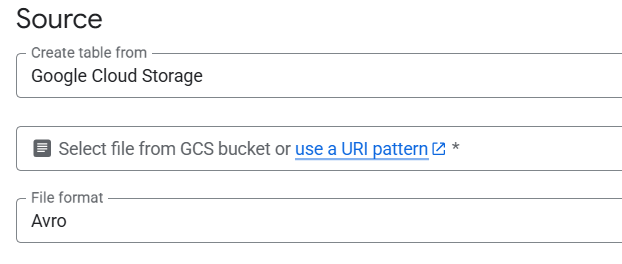
4. Provide one or more GCS URIs
Enter the full GCS URI for the file or files you want to load. BigQuery supports wildcards when loading from GCS and allows multiple files with the same schema to be loaded in one job.
Example: gs://my-bucket/datasets/2025*.json
5. Choose the file format
Select the correct format, such as CSV, JSON, Avro, Parquet, or ORC. Columnar formats like Avro and Parquet are commonly used for large datasets because they store the schema internally and allow more efficient parallel loading. CSV and JSON are also supported, but require explicit schema handling.
6. Configure destination and schema
Select the destination dataset and enter a table name. You can create a new table or load into an existing one. Define the schema by enabling Auto-detect or by providing a manual schema. For CSV files with headers, configure skip_leading_rows = 1 if needed.
7. Review advanced options
Advanced settings allow you to control write behavior (append vs overwrite), configure partitioning or clustering, and adjust parsing options. These settings become more important for recurring batch loads.
8. Run the load job
Click Create table to start the load job. BigQuery pulls the files from GCS and loads them atomically. If the job fails, no partial data is written.
Using GCS removes browser upload limits and enables multi-file loads, but it requires managing storage and file movement separately. This method is reliable for scheduled or large batch ingestion, though it remains batch-based and not real-time.
Method 4: Import data into BigQuery using SQL commands (and the bq CLI)
BigQuery also allows data to be loaded using SQL commands, which can be useful if ingestion needs to be triggered from SQL scripts rather than the UI or a dedicated load command. This method relies on the LOAD DATA statement and works with files stored in Google Cloud Storage (GCS). It is more technical than UI-based loading and assumes familiarity with BigQuery SQL and GCP permissions.
1. Create the destination table explicitly
Before loading data with SQL, the destination table must already exist with a defined schema. Schema auto-detection is not performed during table creation in this workflow.
CREATE OR REPLACE TABLE `coupler-demo.sales_data.sales_orders` (

  order_id STRING,

  order_date DATE,

  customer_id STRING,

  total_amount NUMERIC,

  created_at TIMESTAMP

);
2. Confirm access to the GCS source
The BigQuery service account for the project must have Storage Object Viewer permission on the bucket containing the source files (gs://coupler-bq-demo). Without this, the load job will fail due to insufficient permissions.
3. Load data using the LOAD DATA statement
Use the LOAD DATA INTO statement to import data from GCS into the table. This example loads a CSV file and skips the header row.
LOAD DATA INTO `coupler-demo.sales_data.sales_orders`

FROM FILES (

  format = 'CSV',

  uris = ['gs://coupler-bq-demo/sales/sales_2025_01.csv']

)

OPTIONS (

  skip_leading_rows = 1

);
Multiple files can be loaded by listing additional URIs or using wildcards, as long as all files share the same schema.
4. Run the SQL in BigQuery or via the CLI
This statement can be executed directly in the BigQuery query editor. To run it from the command line, use the bq CLI.
bq query --use_legacy_sql=false "

LOAD DATA INTO \`coupler-demo.sales_data.sales_orders\`

FROM FILES (

  format = 'CSV',

  uris = ['gs://coupler-bq-demo/sales/sales_2025_01.csv']

)

OPTIONS (skip_leading_rows = 1);

"
Although executed as a query job, BigQuery treats this as a load operation internally.
5. Optional legacy approach: external tables
Before LOAD DATA was introduced, a common pattern involved creating an external table pointing to GCS files and then running INSERT INTO … SELECT. This method is still supported but generally unnecessary for standard batch loads.
SELECT COUNT(*) FROM `coupler-demo.sales_data.sales_orders`;
6. Validate the load result
After execution, the job appears in BigQuery’s job history as a load job. Load operations are atomic, meaning partial data is not written if the job fails. You can verify the result with:
This SQL-based approach allows ingestion to be scripted alongside other SQL operations, such as merges or transformations. However, it does not add new capabilities beyond standard load jobs and still depends on GCS staging and external orchestration. It is best suited for teams already managing pipelines through SQL or CLI-driven workflows rather than manual or no-code ingestion.
Method 5: Import data into BigQuery using APIs and client libraries (programmatic ingestion)
For maximum flexibility, BigQuery allows you to load data programmatically using the BigQuery API or official client libraries (Python, Java, Node.js, Go, C#, etc.). This method is typically used when data ingestion needs to be embedded inside an application, automated pipeline, or custom workflow. It offers fine-grained control but requires managing authentication, error handling, and execution logic in code.
1. Set up authentication and permission
Your application must authenticate using Application Default Credentials or a service account. The service account should have:
- BigQuery Data Editor
- BigQuery Job User
- If loading from Google Cloud Storage, it also needs Storage Object Viewer access.
2. Install and initialize the client library
For Python, install the official client library:
pip install google-cloud-bigquery
Initialize the client in code:
from google.cloud import bigquery
client = bigquery.Client(project="coupler-demo")
3. Define the destination table reference
Reference the dataset and table where data will be loaded:
table_id = "coupler-demo.sales_data.sales_orders"
The table must already exist unless you create it separately using SQL or the API.
4. Configure a load job for batch ingestion
Use a LoadJobConfig to define how BigQuery should parse the data:
job_config = bigquery.LoadJobConfig(

    source_format=bigquery.SourceFormat.CSV,

    skip_leading_rows=1,

    schema=[

        bigquery.SchemaField("order_id", "STRING"),

        bigquery.SchemaField("order_date", "DATE"),

        bigquery.SchemaField("customer_id", "STRING"),

        bigquery.SchemaField("total_amount", "NUMERIC"),

        bigquery.SchemaField("created_at", "TIMESTAMP"),

    ],

)
Schema auto-detection can be used by setting job_config.autodetect = True, but explicit schemas are safer for production pipelines.
5. Load data from a local file or Cloud Storage
To load a local file:
with open("sales_2025_01.csv", "rb") as source_file:

    job = client.load_table_from_file(

        source_file, table_id, job_config=job_config

    )

job.result()
To load from Cloud Storage instead:
uri = "gs://coupler-bq-demo/sales/sales_2025_01.csv"

job = client.load_table_from_uri(uri, table_id, job_config=job_config)

job.result()
6. Optional: stream rows directly via API
Client libraries also support streaming inserts, which send individual rows or small batches directly to BigQuery:
errors = client.insert_rows_json(

    table_id,

    [

        {

            "order_id": "A123",

            "order_date": "2025-01-10",

            "customer_id": "C001",

            "total_amount": 199.99,

            "created_at": "2025-01-10T10:15:00Z",

        }

    ],

)
Streaming inserts require additional error handling and are subject to quotas and per-row costs.
This method offers full control and can support complex ETL or ELT pipelines, but it shifts responsibility to the developer. Authentication, retries, schema management, and monitoring must all be handled in code. For teams building custom systems, this is often necessary. For simpler or repeatable ingestion, it can quickly become more work than expected.
Method 6: Stream real-time data into BigQuery (pub/sub and dataflow)
When data needs to be available in BigQuery within seconds, batch loading is no longer sufficient. For real-time ingestion at scale, the most common Google Cloud architecture uses Pub/Sub to ingest events and Cloud Dataflow to process and stream those events into BigQuery. This approach is designed for continuous, event-driven data such as application logs, user interactions, telemetry, or IoT data.
At a high level, data producers publish messages to a Pub/Sub topic. A Dataflow streaming job reads from a Pub/Sub subscription, optionally transforms the messages, and writes them to BigQuery using BigQuery’s streaming APIs.
1. Create a Pub/Sub topic and subscription
In the Cloud Console, create a Pub/Sub topic (for example, events-stream). Create a subscription attached to that topic (Dataflow reads from subscriptions, not directly from topics). Your applications should publish JSON messages to this topic.
2. Create the destination BigQuery table
Create a dataset and table in advance (for example, coupler_demo.streaming.events_raw). Define the schema to match the expected JSON structure. While Dataflow templates can auto-create tables, pre-creating them gives you control over data types, partitioning, and clustering. Many teams use ingestion-time partitioning for streaming tables.
3. Launch a Dataflow streaming job
In Cloud Dataflow, choose Create job from template and select the built-in template “Pub/Sub Subscription to BigQuery.” Provide:
- Pub/Sub subscription name
- BigQuery destination table (
project:dataset.table) - A temporary Cloud Storage bucket for Dataflow
- Optional dead-letter topic or table for failed messages
This template assumes messages are JSON and maps fields to the BigQuery schema.
4. Run and monitor the pipeline
Start the Dataflow job. It runs continuously and scales automatically based on message volume. You can monitor throughput, latency, and errors from the Dataflow UI. Failed records should be routed to the configured dead-letter destination for inspection.
5. Publish test events
Publish a test message to Pub/Sub, for example:
gcloud pubsub topics publish events-stream \

--message='{"user_id":"u1","event":"click","event_time":"2025-01-15T10:30:00Z"}'
The record should appear in BigQuery within seconds.
This architecture is reliable and scalable. Pub/Sub buffers traffic spikes, and Dataflow handles retries and parallelism. With the newer BigQuery Storage Write API, Dataflow can achieve high throughput with stronger delivery guarantees, but quotas and limits still apply.
The tradeoffs are cost and operational overhead. Streaming inserts incur BigQuery streaming charges, and Dataflow jobs run continuously. You must also monitor pipeline health and handle schema evolution carefully to avoid failures or duplicates. For use cases that do not require real-time visibility, frequent batch loads are often simpler and cheaper.
Streaming should be used when freshness truly matters. Otherwise, it adds complexity that many teams do not need.
Method 7: Use BigQuery Data Transfer Service (built-in connectors for Google sources)
BigQuery Data Transfer Service (DTS) is Google’s managed, no-code solution for loading data into BigQuery on a recurring schedule. Instead of uploading files or writing scripts, you configure a transfer once and BigQuery automatically runs scheduled load jobs behind the scenes. This method is designed primarily for Google-owned platforms and a limited set of supported external systems.
DTS works best when your data already lives inside Google’s ecosystem and your primary requirement is scheduled, hands-off data ingestion.
1. Select a supported data source
DTS only works with predefined connectors. Common sources include Google Analytics 4, Google Ads, Campaign Manager, Display & Video 360, Search Ads 360, YouTube Analytics, and Google Cloud Storage. It also supports a small number of external systems such as Amazon S3, Amazon Redshift, Teradata, and Salesforce. If a data source is not explicitly listed, DTS cannot be used to import it.

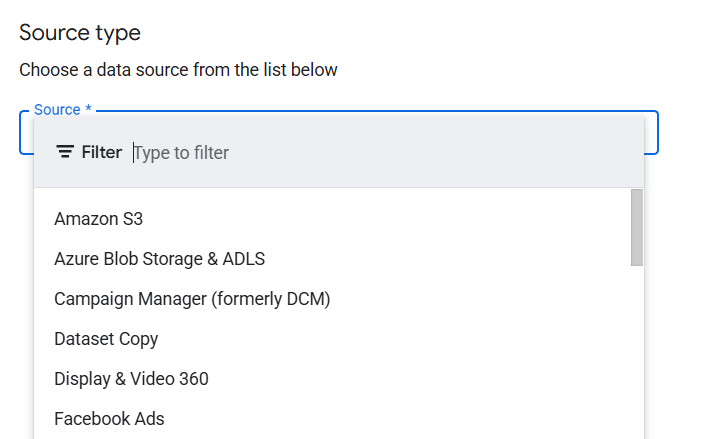
2. Create a transfer configuration in BigQuery
In the BigQuery Cloud Console, open the Transfers section and click Create transfer. Choose the data source, assign a transfer name, and select the destination BigQuery dataset. Each connector presents its own configuration fields, such as account IDs, report types, file paths, or table naming options.

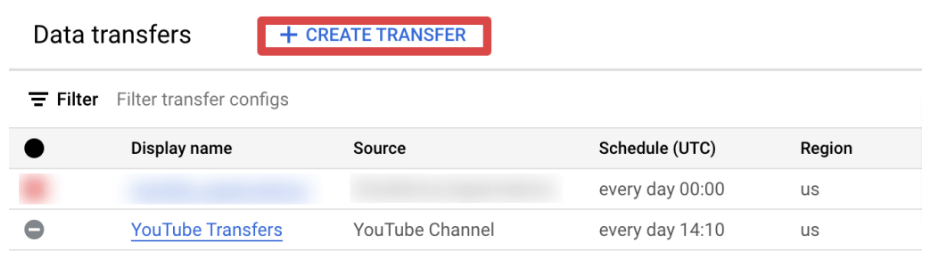
3. Authorize access and credentials
For Google-owned services, authorization is typically handled through your Google account or organization-level permissions. For external sources such as Amazon S3, you must provide credentials (for example, an AWS access key and secret) that allow BigQuery to read from the source. These credentials are encrypted and can be rotated or revoked if required.
4. Configure scheduling and load behavior
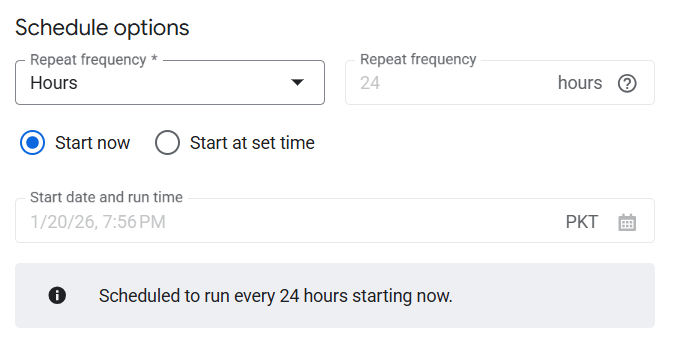
Set how often the transfer should run. Most connectors support daily schedules, and some support hourly or weekly runs. You also choose how data is written to BigQuery, such as appending new rows or overwriting existing tables. Many connectors create partitioned tables automatically or generate date-suffixed tables for each run, depending on the source.

5. Run, monitor, and troubleshoot transfers
Once the transfer is created, BigQuery schedules the first execution. Each run appears in the Transfers UI with status, logs, and error details. You can enable email notifications for failures and manually rerun transfers if needed.
Behind the scenes, DTS executes standard BigQuery load jobs. It tracks which files or data ranges have already been imported, handles retries, and manages incremental loads without user intervention. For supported sources, this significantly reduces operational overhead compared to maintaining custom scripts or pipelines.
However, DTS has clear limitations. It does not support arbitrary APIs, custom transformation logic during ingestion, or real-time data. Scheduling flexibility is limited, and most connectors land raw data that requires downstream SQL modeling. Schema changes in the source can also introduce new columns automatically, which should be monitored to avoid breaking downstream queries.
In summary, BigQuery Data Transfer Service is a convenient option when your data source is supported and you want a fully managed, scheduled import with minimal setup. When sources fall outside Google’s ecosystem or require custom logic, other ingestion methods become necessary.
Common ingestion challenges and how to choose the right BigQuery import method
Importing data into BigQuery is easy to start, but harder to scale cleanly if the wrong method is used. Most ingestion issues don’t come from BigQuery itself; they come from mismatched expectations around volume, frequency, and automation.
Here are the most common factors that influence which import method actually works long term:
- Data volume and refresh frequency
Manual uploads work for small, one-time datasets. They break down quickly for recurring imports or growing data volumes. Batch load jobs are free and optimized for scale, while streaming ingestion supports real-time use cases but adds cost and operational overhead. - Schema consistency and data quality
BigQuery is schema-based. Autodetection helps early on, but schema drift, mixed data types, or unexpected columns can cause failures over time. Some ingestion methods handle schema evolution more reliably than others, which directly impacts pipeline stability. - Source type and data origin
Files in cloud storage, SaaS tools, APIs, and event streams all require different ingestion patterns. A solution that works for static files may not suit external applications or continuously generated data. - Automation and maintenance
Manual imports and ad-hoc scripts don’t scale. Without scheduling, monitoring, and retry logic, pipelines become fragile and time-consuming to manage. As ingestion becomes business-critical, automation becomes essential.
The right BigQuery import method depends on your data volume, update frequency, source type, and how much ongoing maintenance your team can handle. Choosing the right approach upfront saves you from rebuilding pipelines later.
Best practices for reliable BigQuery data ingestion
No matter which method you use to import data into BigQuery, a few core practices help keep data ingestion reliable, scalable, and cost-efficient. These apply whether you load data manually, use batch load jobs, automate with APIs, or rely on managed services.
- Design and manage schemas carefully
BigQuery is schema-based, so choosing correct data types upfront matters. Use appropriate types such as INTEGER for IDs and DATE or TIMESTAMP for time-based fields instead of defaulting to STRING. This improves query performance and reduces cost.
If you load JSON data, consider nested and repeated fields when they reflect the source structure. Plan for schema evolution by allowing nullable fields and adding new columns incrementally. When possible, store schema definitions as JSON files in version control to track changes over time. - Use partitioning and clustering for large tables
For growing datasets, especially time-series data, partition tables by ingestion time or a date column. Partitioning limits how much data BigQuery scans during queries, which directly lowers query cost.
Clustering on commonly filtered columns further improves performance. Many batch pipelines and the BigQuery Data Transfer Service support partitioned tables out of the box, so configure this early. - Automate loads, but always monitor them
Automated data loads reduce manual effort, but they still need oversight. Enable failure notifications, monitor job statuses, and review logs regularly.
Add basic data validation checks, such as verifying expected row counts after each load. This helps catch missing or partial loads early, before downstream reports break. - Prefer incremental and idempotent loading
Avoid full reloads when possible. Incremental loads are faster, cheaper, and less error-prone. Use timestamps or unique keys to load only new or changed records.
Design pipelines to be idempotent so rerunning a job does not create duplicates. For batch loads, this may mean partition-based overwrites. For streaming data, use deduplication keys or periodic MERGE statements. - Secure access with least-privilege permissions
Grant only the permissions required for ingestion. Service accounts typically need BigQuery Data Editor on the dataset and read access to Cloud Storage buckets.
Avoid using personal credentials in scripts. When using third-party tools, follow best practices for scoped access and credential rotation. - Control costs and stay within quotas
Batch load jobs are free, while streaming inserts incur additional charges. Use streaming only when real-time access is truly required.
Monitor BigQuery quotas such as load jobs per table and streaming insert limits. Combine files where possible and avoid running thousands of small load jobs.
Clean up staging tables and temporary Cloud Storage files to prevent unnecessary storage costs. - Test changes in non-production datasets
When modifying schemas or ingestion logic, validate changes in a development or staging dataset first. This reduces the risk of breaking production pipelines and makes troubleshooting easier. - Document ownership and data flow
Document where data comes from, how often it loads, and who owns the pipeline. Clear documentation speeds up debugging and avoids confusion when issues arise.
In short, reliable BigQuery ingestion comes from thoughtful schema design, automation with monitoring, controlled costs, and clear ownership. BigQuery scales extremely well, but applying these practices helps ensure that what you load is data you can trust and use confidently.