

Yahoo Finance is a go-to source for stock prices, historical charts, market summaries, and financial statement data. If you import Yahoo Finance data into Google Sheets, you can build portfolio trackers, run custom analyses, compare tickers over time, and feed the data into AI tools for deeper questions. Learn how you can automate the data import with Coupler.io to keep your spreadsheet data fresh on a schedule and ask AI questions about your portfolio.
How to import Yahoo Finance data into Google Sheets using Coupler.io
Coupler.io is a no-code data integration and AI analytics platform with 400+ connectors to spreadsheets, dashboards, data warehouses, and AI tools. It offers two ways to get Yahoo Finance data into Google Sheets:
- Yahoo Finance Price connector — a ready-made connector that pulls price data for any ticker you specify. No API configuration needed.
- JSON API connector — connects to Yahoo Finance’s unofficial API to get access to a wider range of financial data.
Both options support scheduled auto-refresh, so your spreadsheet with Yahoo Finance data stays up-to-date without manual effort. You can use Coupler.io as a web app or install the Coupler.io Google Sheets add-on to manage imports directly from your spreadsheet. Let’s walk through them
Import Yahoo Finance prices into Google Sheets
This is the quickest way to get stock prices into your spreadsheet. Here’s how to set it up using Apple stock (AAPL) as an example.
1. Collect data
Sign up for Coupler.io for free and create a new data flow by choosing Yahoo Finance Price as a data source. Or click Proceed in the form below to get started with preselected settings.

In the source configuration, enter the ticker symbol. In our example, it is AAPL. You can also enter multiple tickers separated by commas to pull prices for several stocks at once.

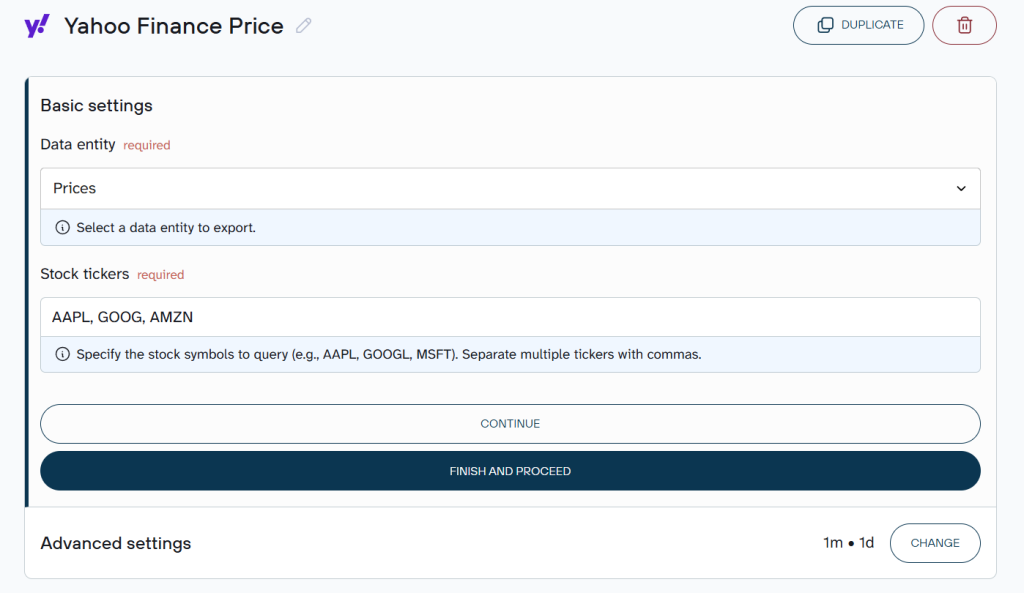
Under Advanced settings, you can adjust the price interval (from 1 minute to 3 months) and specify a custom date range.
2. Organize data
Coupler.io loads a preview of the data before sending it to Google Sheets. At this optional stage, you can filter rows, hide or reorder columns, apply aggregations, and add calculated fields to shape the data set to your needs.

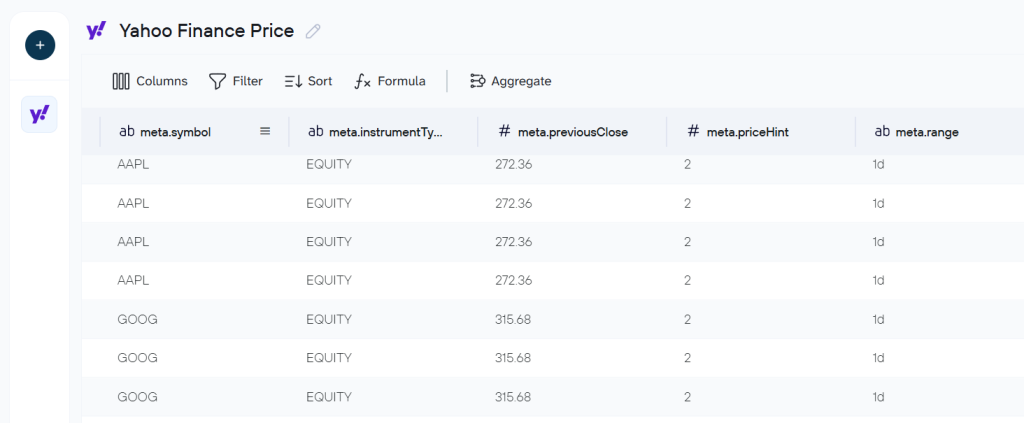
If you plan to analyze this data with AI later, trimming the dataset to the fields you actually need (ticker, close price, volume, date) makes AI analysis cleaner and more accurate. You can also add business context to your data flow, which improves the quality of AI-generated answers about your financial data.
3. Load data to Google Sheets and set up auto refresh
Connect your Google account and pick the target spreadsheet and sheet. You can also type a new sheet name to create one on the fly, specify a cell range, or adjust the import mode (replace, append, etc.).

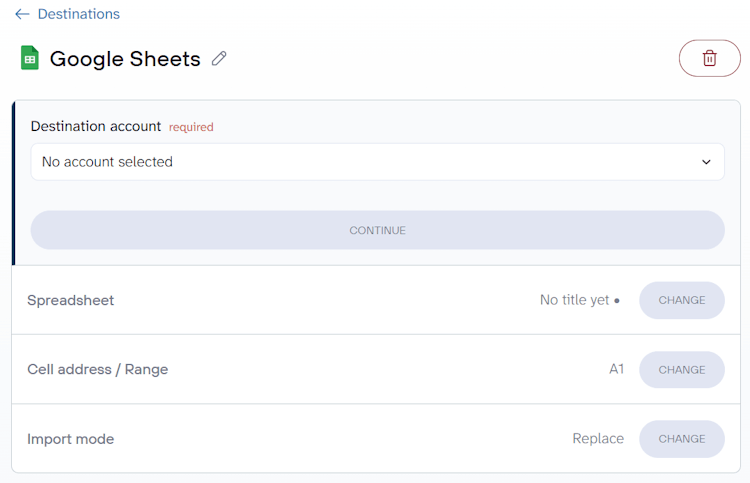
Coupler.io supports multiple destinations in addition to Google Sheets. So, you can send the same Yahoo Finance data into Google Sheets for a tracker, BigQuery for historical analysis, or connect to Claude or ChatGPT for conversational queries within a single data flow.
To keep your import of Yahoo Finance data to Google Sheets live, toggle on Automatic data refresh and set the schedule: hourly, daily, or at whatever interval works for your workflow.

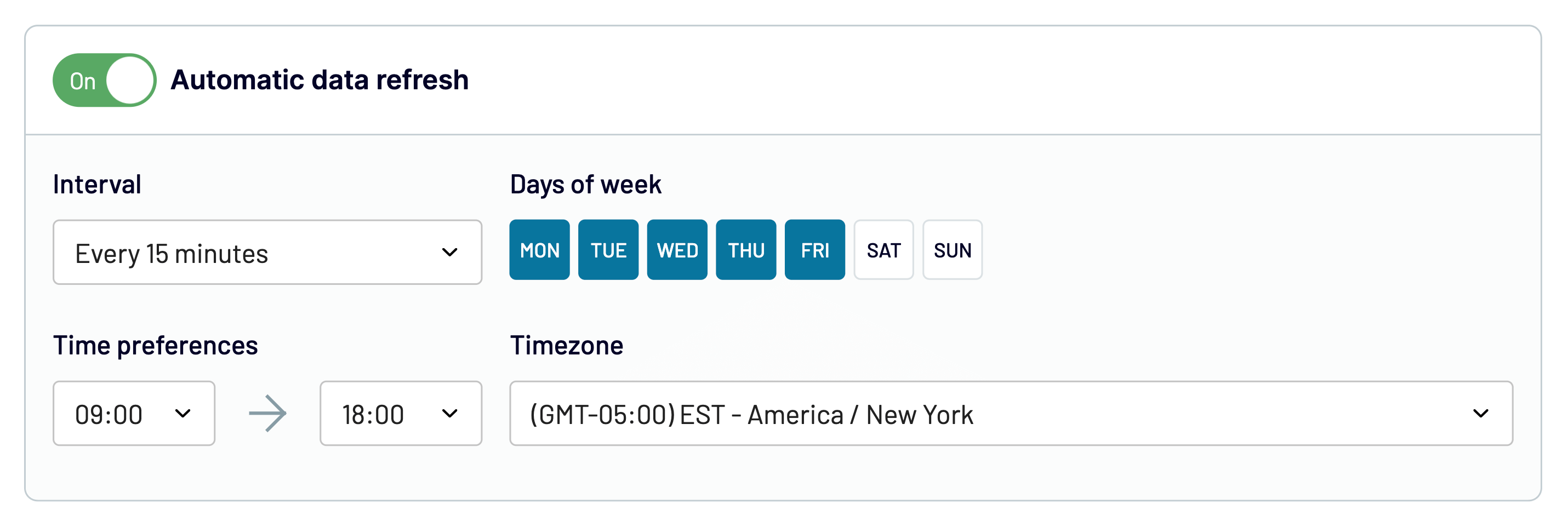
Click Save and Run to launch the connector for Google Sheets. From this point on, Coupler.io will refresh the data on your schedule automatically.


Export Yahoo Finance data to Google Sheets with Coupler.io
Get started for freeUse Yahoo Finance API to load data to Google Sheets
The Yahoo Finance API helps you access financial data such as stock prices, market summaries, and other financial information. Use the JSON API connector to import Yahoo Finance data into Google Sheets via Yahoo Finance’s unofficial API.
The official Yahoo Finance API was shut down in 2017, but an unofficial version appeared in 2019 and remains widely used. The instructions below work with this unofficial API. We’re not responsible for the outcome if the API changes or if settings are configured incorrectly. If you need help, book a demo call with our team.
1. Configure the API connection
Create a new data flow in Coupler.io with JSON as the source . Or click Proceed in the form below to start with these preselected.
Fill in the source settings:
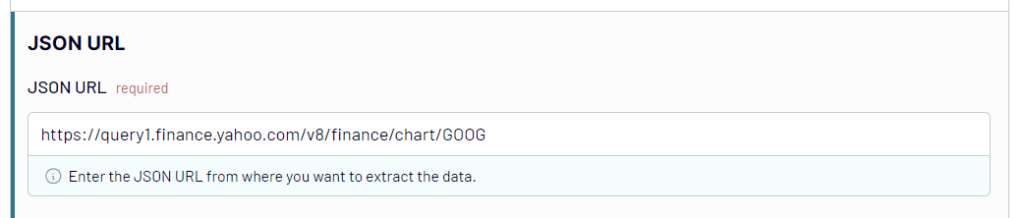
- JSON URL — the Yahoo Finance API endpoint with the ticker symbol you need.
AMZNis the stock symbol for Amazon, but you can easily replace it with the symbol for any other company to pull their data. For example, if you want to change the company from Amazon to Tesla or Google, replaceAMZNwithTSLAor GOOG in the above link, which will look like this:
https://query1.finance.yahoo.com/v8/finance/chart/GOOG

- HTTP method — select GET.
- Request headers — leave blank.
- URL query parameters — specify which data module to retrieve. For example, to get price data of Google stock so that the query string will be:
modules: price

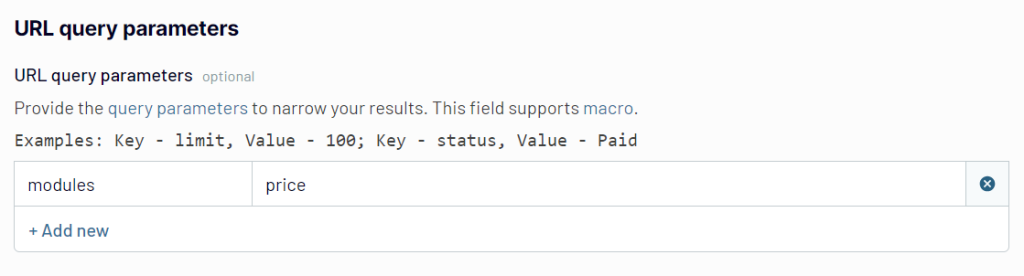
Query parameters help you narrow down the imported information by filtering and modifying the data on the company stock page. If you leave it empty, it will give the default data of the stock summary, like current stock price, volume, and other data points.
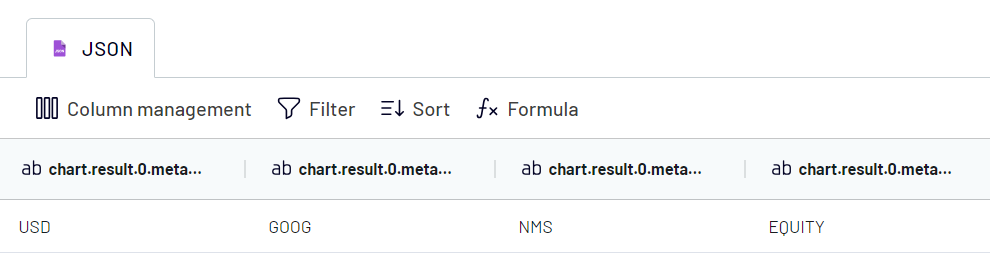
2. Preview and transform data from Yahoo Finance
Before the data reaches your spreadsheet, you can clean it up: filter rows, hide columns you don’t need, add new calculated columns, and more.

3. Load to Google Sheets and schedule refresh
Connect your Google account, then select the spreadsheet and sheet in Google Sheets. Enter a new sheet name to create one. Optionally, you can select the cell address/ range, change the import mode, and use other features.
The same multi-destination and AI capabilities apply here: you can load financial statement data into BigQuery for SQL analysis, into Google Sheets for a report, and into an AI tool to ask questions about earnings trends or balance sheet changes over time.
To keep your data fresh, it makes sense to toggle on the Automatic data refresh and configure the schedule.

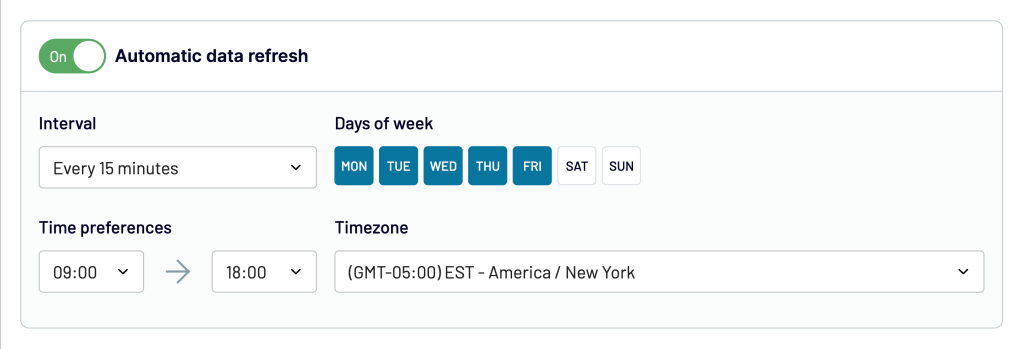
Save and run the data flow to load Yahoo Finance data into Google Sheets.
If you prefer working entirely within your spreadsheet, install the Coupler.io add-on for Google Sheets. Once connected to your Coupler.io account, it displays all active data flows for the current spreadsheet in a side panel. This way, you can manage and monitor your Yahoo Finance imports without leaving Google Sheets.

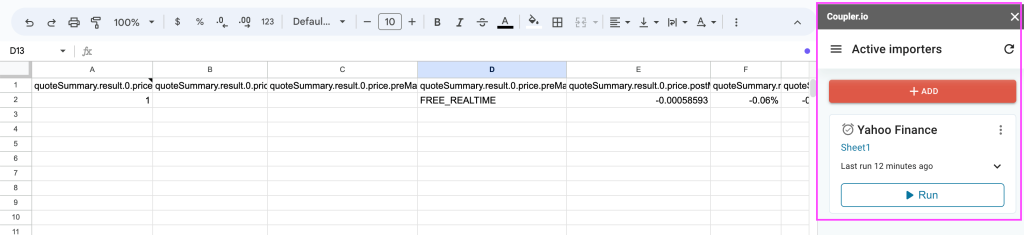
Data parameters to use to import Yahoo Finance data into Google Sheets
When using the JSON API connector, you can retrieve different types of Yahoo Finance data by specifying the right module in the URL query parameters. Here’s the full list of available modules:
| Data parameter | URL query string |
| Price | Key statistical data, including (YTD Daily Total Return, profit margins, float shares, etc.) |
| Key statistical data including (YTD Daily Total Return, profit margins, float shares, etc.) | modules: defaultKeyStatistics |
| Expense Ratio | modules: fundProfile |
| Profile Data | modules: assetProfile |
| Income statements history | modules: incomeStatementHistory |
| Quarterly income statements history | modules: incomeStatementHistoryQuarterly |
| Balance Sheet history | modules: balanceSheetHistory |
| Quarterly balance Sheet history | modules: balanceSheetHistoryQuarterly |
| Cash flow statement history | modules: cashflowStatementHistory |
| Quarterly cash flow statement history | modules: cashflowStatementHistoryQuarterly |
| Financial data | modules: financialData |
| Calendar events | modules: calendarEvents |
| Securities filings | modules: secFilings |
| Recommendation trend | modules: recommendationTrend |
| Upgrade & downgrade history | modules: upgradeDowngradeHistory |
| Institution ownership | modules: institutionOwnership |
| Fund ownership | modules: fundOwnership |
| Major direct holders | modules: majorDirectHolders |
| Major holders breakdown | modules: majorHoldersBreakdown |
| Insider transactions | modules: insiderTransactions |
| Insider holders | modules: insiderHolders |
| Net share purchase activity | modules: netSharePurchaseActivity |
| Earnings | modules: earnings |
| Earnings history | modules: earningsHistory |
| Earnings trend | modules: earningsTrend |
| Industry trend | modules: industryTrend |
| Index trend | modules: indexTrend |
| Sector trend | modules: sectorTrend |
Monitor your portfolio in Google Sheets with Coupler.io
Get started for freeAnalyze your Yahoo Finance data with AI
Once your Yahoo Finance data is flowing into Google Sheets on a schedule, you can go beyond formulas and pivot tables. Coupler.io’s AI Agent lets you ask questions about your financial data in plain English, directly inside the platform. The Analytical Engine handles all calculations and passes only confirmed numbers to AI, so the answers are grounded in your actual dataset rather than general knowledge.
If you already use Claude, ChatGPT, or another AI tool for analysis, Coupler.io’s AI Integrations connect your Yahoo Finance data flow to external AI tools through MCP. You get the same structured, refreshed data inside the AI tool you prefer, without exporting CSV files or copying data manually.

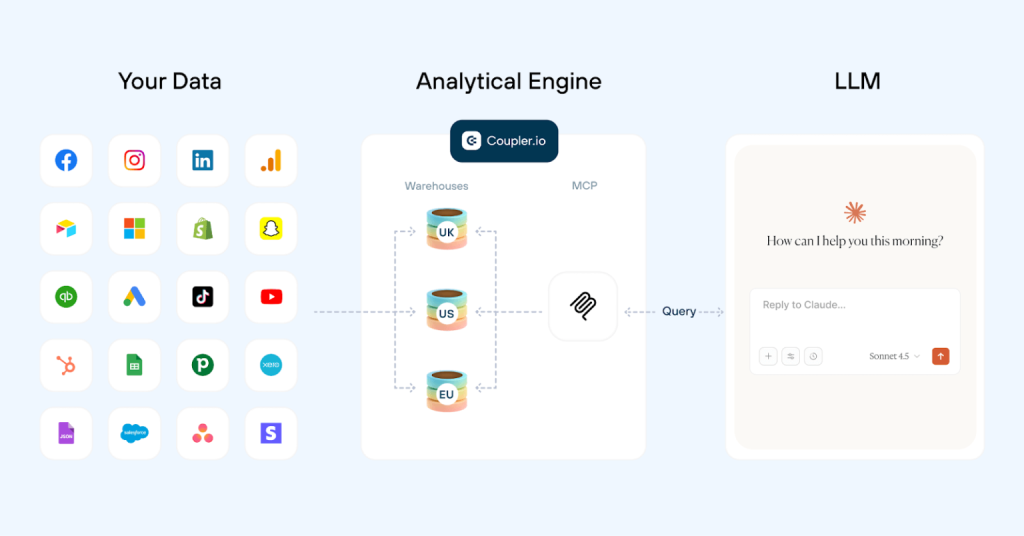
A few examples of what you can ask:
- “Which of my tracked tickers had the largest drawdown in the last 90 days?”
- “Compare the weekly closing prices of AAPL and MSFT over the past six months.”
- “Summarize the average daily volume for each ticker this quarter and flag any unusual spikes.”
- “What was the best-performing ticker in my watchlist last month, measured by percentage gain?”
The filtering and column management you set up when organizing the dataset controls exactly what reaches the AI layer. AI never connects to Yahoo Finance or any source account directly. Claude, ChatGPT, and other tools work only with the structured dataset you approved in Coupler.io
Analyze Yahoo Finance data with AI in Coupler.io
Get started for freeOther methods to import Yahoo Finance data into Google Sheets
Coupler.io handles the automation, but there are simpler (if more limited) ways to get Yahoo Finance data into your spreadsheet.
Import data with a CSV file
The simplest way to import data from Yahoo Finance to Google Sheets is with a CSV file. All you need to do is just export the Yahoo Finance data in the CSV format and then upload it into Google Sheets.
Even though the process is quite straightforward and requires zero technical skills, the data is not updated automatically, so you won’t be able to monitor it in real-time. If you want to use this way to import Yahoo Finance data into Google Sheets, be ready to do the manual export and import at regular intervals.
Extract data with formulas
You can use various Google Sheets formulas to import the data you need. Some of the most common formulas are IMPORTHTML, IMPORTXML, and IMPORTFEED. They allow you to easily pull data from Yahoo Finance into Google Sheets.
The advantage of the formulas is that they can update the imported information automatically. You’ll just need to go to the cell with the formula and press Enter every time you want to refresh the financial data in the spreadsheet. The downside is that sometimes formulas might work incorrectly or return errors depending on the structure of the web page they fetch data from.
Use alternative third-party connectors
Apart from Coupler.io, there are other third-party tools that can connect Yahoo Finance to Google Sheets, such as Wisesheets, SheetsFinance, and API Connector by Apipheny. They vary in terms of features, pricing, and ease of use.
How to import data from Yahoo Finance to Google Sheets with a CSV file?
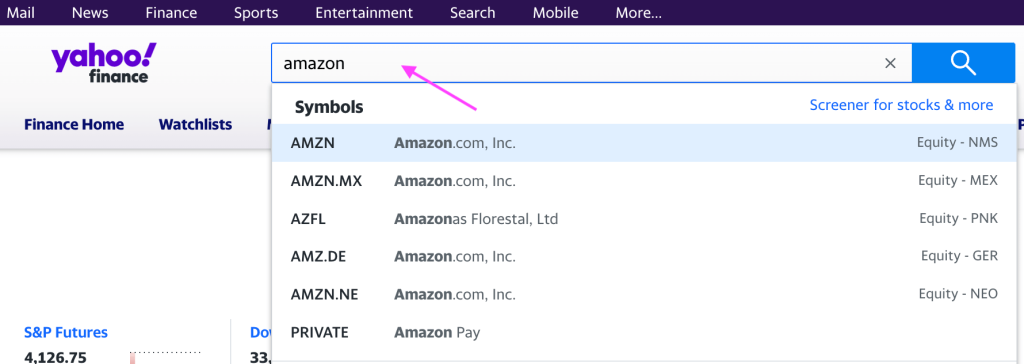
- Step 1: Go to Yahoo Finance and search for the company and the stock of your choice.

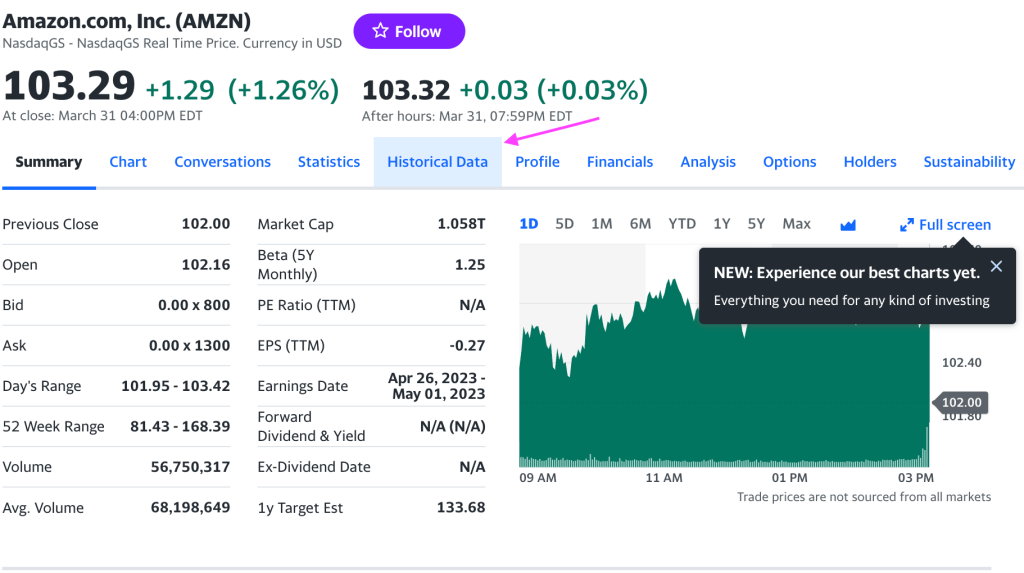
- Step 2: You can now see important financial parameters of the company stock like Previous close, Market cap, PE ratio, EPS, etc. Now, click on the Historical data tab.

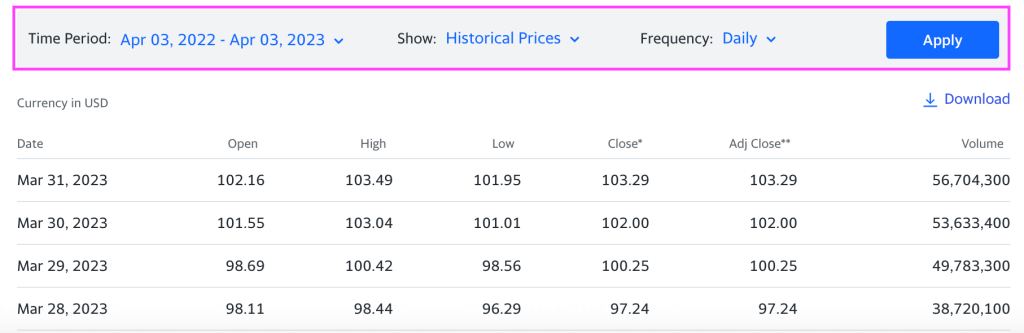
- Step 3: To conduct the financial analysis using Yahoo Finance data, you must select both the time period and frequency of the required data. By selecting a frequency, you will receive financial data that includes daily, weekly, or monthly variations, based on your preference. Click Apply.

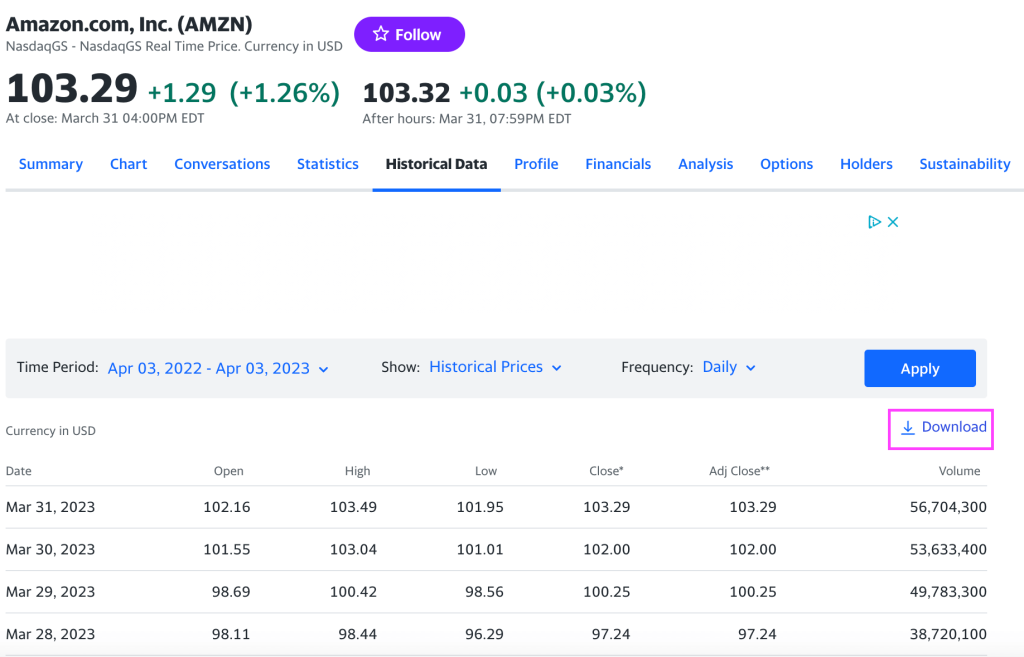
- Step 4: Now your Yahoo Finance data is ready to be exported. Click Download to start exporting.

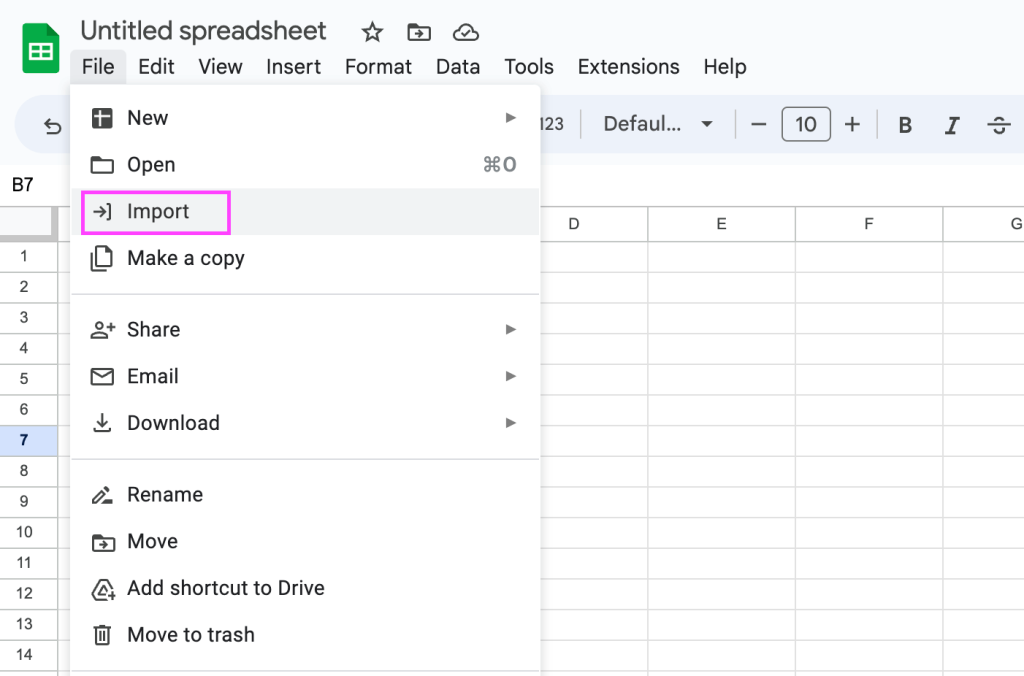
- Step 5: Now go to Google Sheets and create a blank spreadsheet. Click on File => Import.

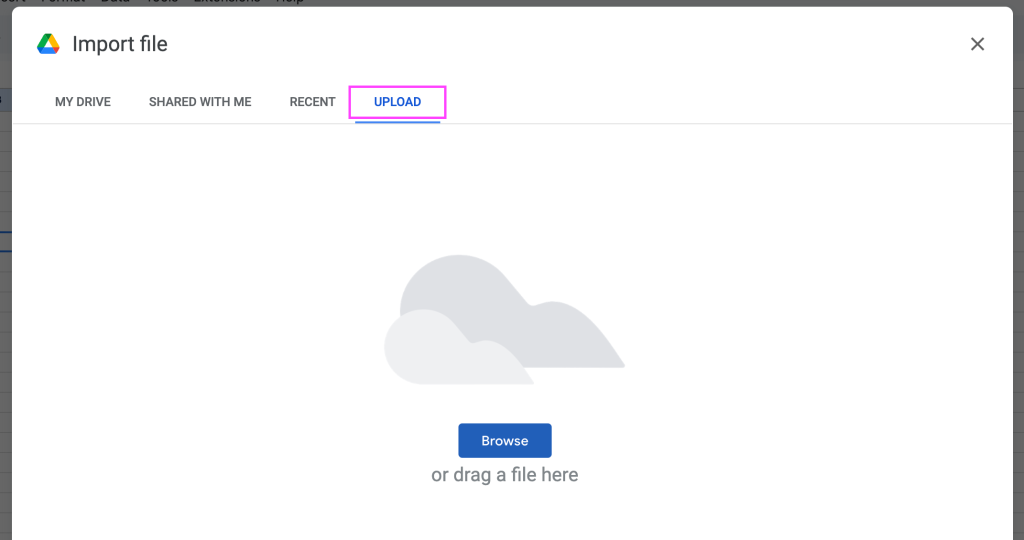
- Step 7: On the import dialog box, click Upload to browse or drag the exported Yahoo Finance CSV file from your computer.

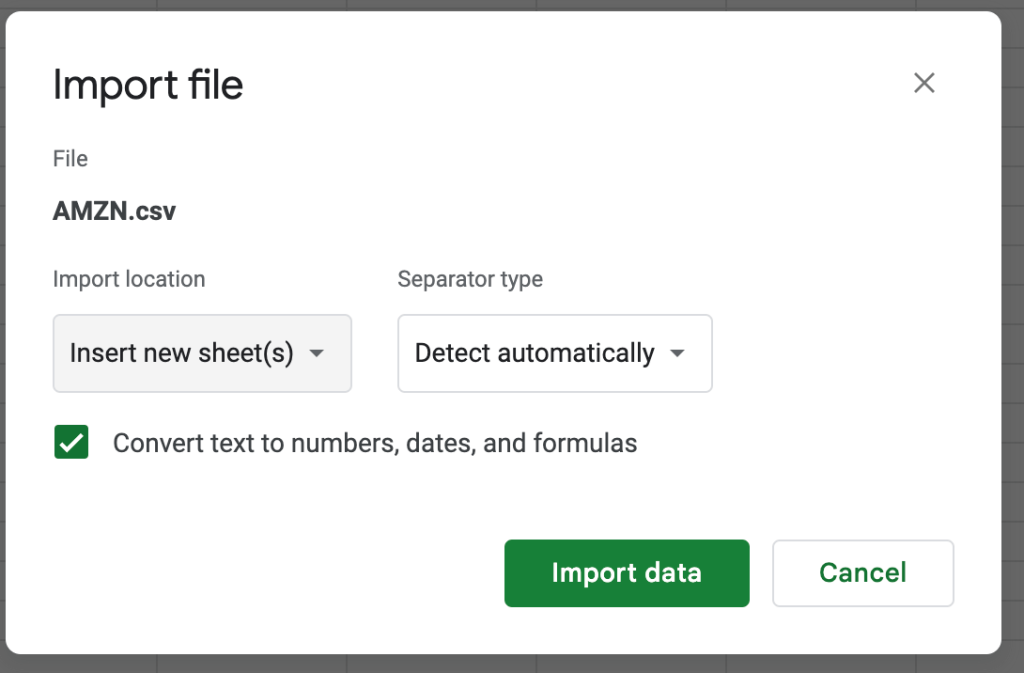
- Step 8: Select the import location as Insert new sheet and Separator type as Detect automatically. To avoid incorrect calculations during data analysis, make sure to check the box for ‘convert text to numbers, dates, and formulas.’ Now click Import data.

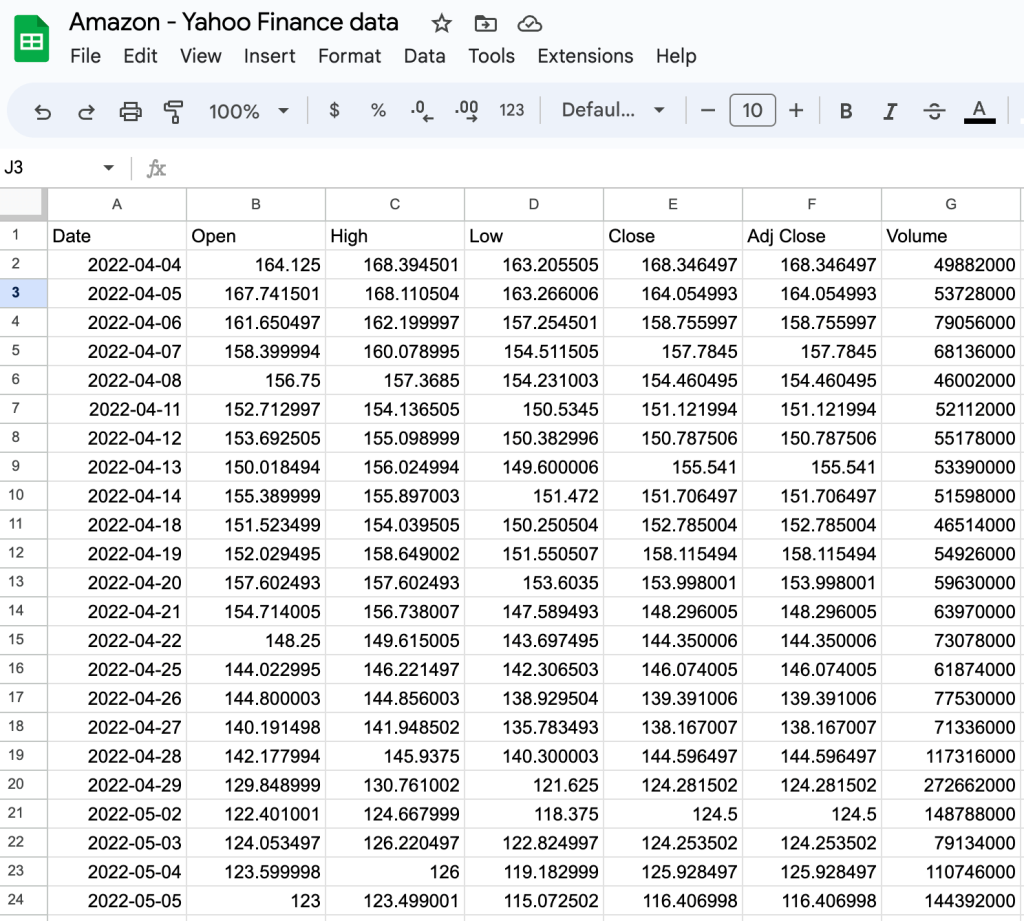
The Yahoo Finance data is imported into Google Sheets with all the historical financial details.

How to import Yahoo Finance data using Google Sheets formulas?
We have looked at different formulas that can be used to import Yahoo Finance data into Google Sheets at the beginning of the article.
In this section, we will go through a step-by-step guide using each of these formulas.
How to use the IMPORTHTML formula to import Yahoo Finance data into Google Sheets?
IMPORTHTML is used to extract data from HTML tables on the Yahoo Finance webpage.
Step 1: Open a new or existing Google spreadsheet and select a cell where the imported Yahoo Finance data will be displayed.
Step 2: Now use the IMPORTHTML formula.
Here’s the basic syntax: IMPORTHTML(url, query, index, locale) where
- Url – the link to the Yahoo Finance web page. In our example, it’s https://finance.yahoo.com/quote/AMZN (AMZN is the stock symbol for Amazon). You can change the symbol for the company of your choice.
- Query – table (as we are importing tables).
- Index – the table number on the webpage.
- Locale – the stock region used to specify the language and format for numbers, dates, and times in the imported data.
The final formula is
=IMPORTHTML("https://finance.yahoo.com/quote/AMZN","table",1,"en_US")
Step 3: Click Enter to import the table from Yahoo Finance into Google Sheets.
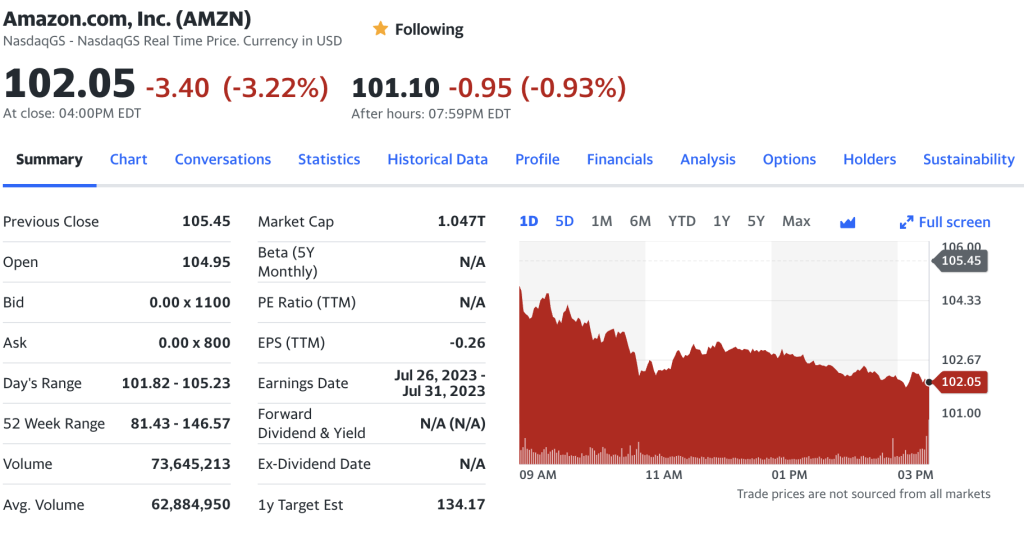
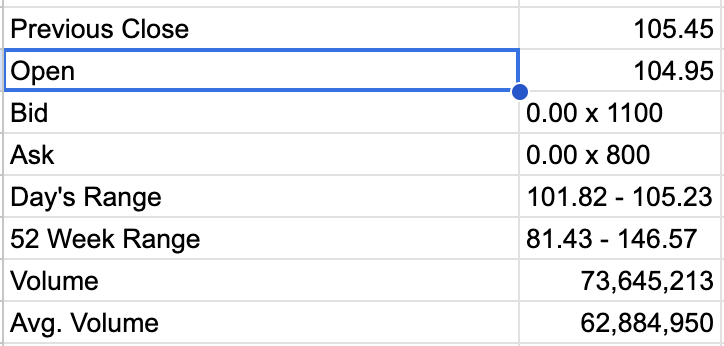
As you can see in the below images, the first table on the Amazon Yahoo Finance page is imported into Google Sheets.
Here is the data on Yahoo Finance.

And here is the imported data in Google Sheets transferred with the help of the IMPORTHTML formula.

The IMPORTHTML formula is handy for importing Yahoo Finance data, but it does not update the data automatically when the spreadsheet is reopened. To refresh the data, you must navigate to the formula cell and click ‘Enter.’
How to use the IMPORTFEED formula to import Yahoo Finance feed into Google Sheets?
IMPORTFEED is used to import finance news from Yahoo Finance into Google Sheets to keep track of stock market fluctuations and trends.
Step 1: Open a new or existing Google spreadsheet and select a cell where the imported Yahoo Finance feed will be displayed.
Step 2: Now use the IMPORTFEED formula.
The syntax is: IMPORTFEED(url, query, headers, num_items) where
- Url – This is the URL of the RSS feed you want to import. Here it is – https://finance.yahoo.com/rss.
- Query – It can take 3 values (entry, feed, all). If omitted, it selects ‘entry’ by default resulting in individual news items.
- Headers – It takes 2 values (True or False) to understand if your headers are to be included or not in the import.
- Num_items – The number of news items to be displayed.
The final formula is
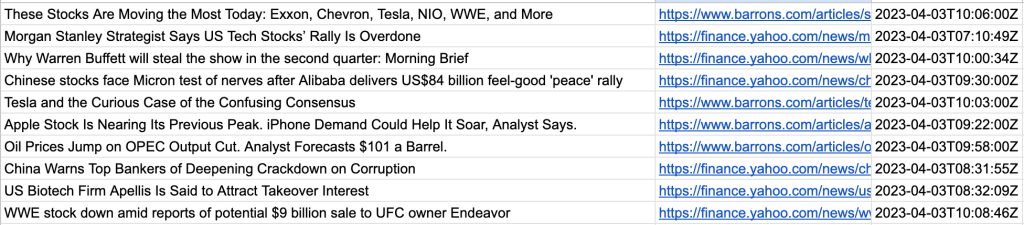
=IMPORTFEED("https://finance.yahoo.com/rss/", "items", FALSE, 10)
Step 3: Click ‘Enter’ to import the Yahoo Finance newsfeed into Google Sheets.

How to use Google Sheets IMPORTXML formula for Yahoo Finance?
IMPORTXML is used to import specific values of financial data from Yahoo Finance, such as the closing stock price of a company. Let’s go through the step-by-step guide about using the IMPORTXML formula for Yahoo Finance.
Step 1: First, open a Google spreadsheet, either new or existing, and then select the particular cell where you would like to display the Yahoo Finance feed that you’re importing.
Step 2: Enter the IMPORTXML formula in the selected cell.
The syntax is: IMPORTXML(url, xpath_query, locale), where;
- Url – indicates the URL of the website page that you need to import data from. Here it is – https://finance.yahoo.com/quote/AMZN
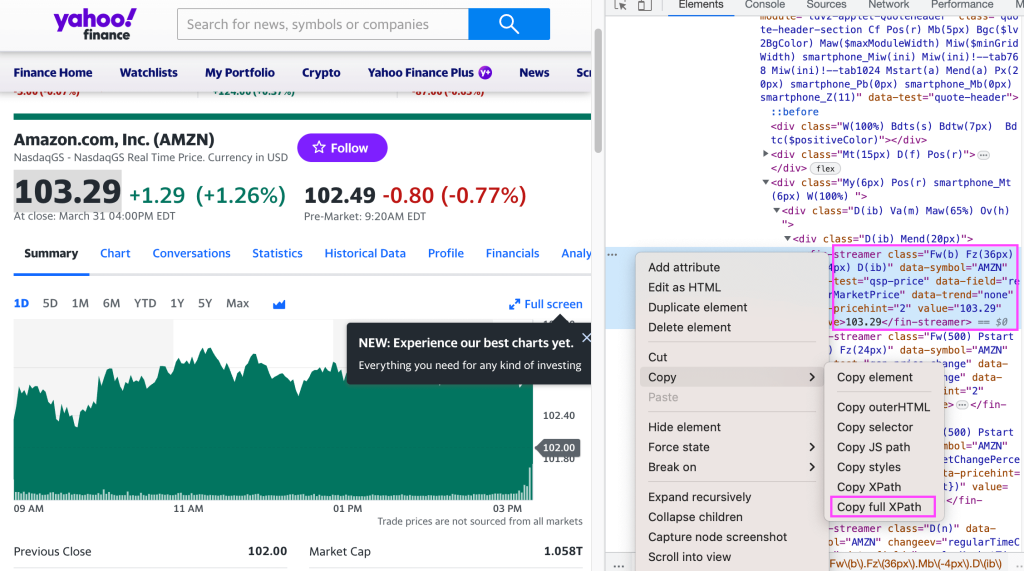
- Xpath_query – It is a string of text that describes the location of an element in an HTML or XML document. To identify the Xpath, go to Yahoo Finance and select the parameter you want and click on ‘Inspect’.

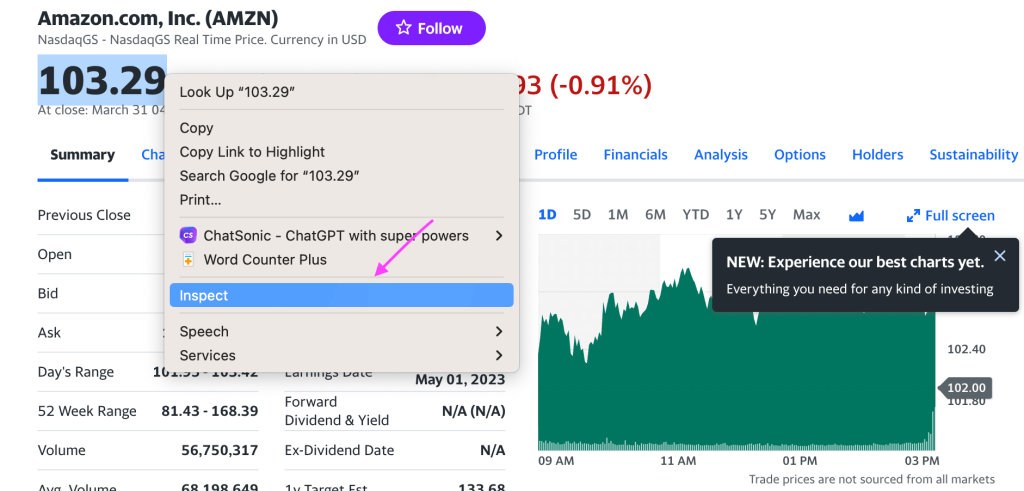
The HTML code will be selected. Click on Copy -> Copy full X-path. Now that is your X-path query.

- Locale – the region of the stock, used to specify the language and format for numbers, dates, and times in the imported data.
The final formula is
=IMPORTXML("https://finance.yahoo.com/quote/AMZN","/html/body/div[1]/div/div/div[1]/div/div[2]/div/div/div[6]/div/div/div/div[3]/div[1]/div[1]/fin-streamer[1]”,”en_US")
Step 3: Click ‘Enter’ to import the Yahoo Finance data into Google Sheets.

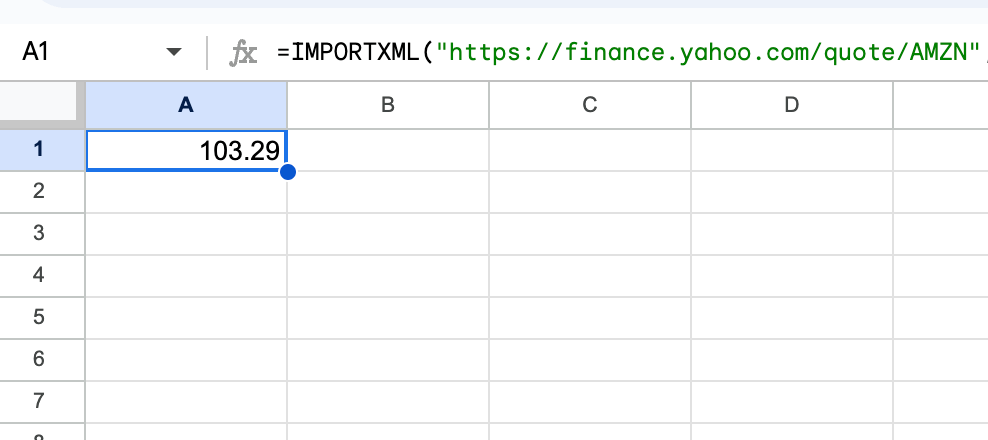
The stock price data of AMZN is successfully imported into Google Sheets. Similarly, you can use IMPORTXML multiple times to import different types of Yahoo Finance data into Google Sheets.
Note that IMPORTXML might not work on all Yahoo Finance pages because of different page structures. Moreover, the imported Yahoo Finance data should be manually refreshed every time by clicking on the formula cell and pressing ‘Enter.’
What is the best way to pull Yahoo Finance data into Google Sheets?
There are several ways to import Yahoo Finance data into Google Sheets, and each fits a different use case. A CSV download from Yahoo Finance is the simplest for a one-time snapshot, but the data goes stale the moment you close the tab. Google Sheets formulas like IMPORTHTML and IMPORTXML can pull live values, but they break when Yahoo Finance changes its page structure and need manual refreshing.
For recurring analysis such as portfolio tracking, multi-ticker comparisons, financial statement reviews and others, Coupler.io is the most reliable option. You set up an automated data flow once, schedule the refresh, and your Google Sheets integrations stay up to date without repeated downloads. Once the data is syncing, you can also ask AI questions about it through Coupler.io’s AI Agent or connect the data flow to Claude, ChatGPT, or other AI tools through AI Integrations.
Build a multi-source financial reporting setup with Coupler.io
Book a demo