
Pipedrive provides an extensive list of features for managing your sales pipeline, but has a limited reporting functionality. In contrast, Google Sheets is a perfect tool for reporting and gives you lots of opportunities to visualize and manipulate your data. You can take advantage of both tools if you set up Pipedrive – Google Sheets integration. It’s fully automatic, and you won’t need to manually export Pipedrive data and then import it into Google Sheets. Check out how you can do this.
How to set up a Pipedrive to Google Sheets integration
No coding or magic skills are required. All you need is Coupler.io, a solution to import data into Google Sheets from different sources including Pipedrive. Visit the Coupler.io homepage to check out other available integrations.
Coupler.io is available as a web-based tool and a Google Sheets add-on. In the article, we’ll focus on the add-on flow. However, if you want to connect Pipedrive to Google Sheets from your browser, check out this video with the description of the setup flow.

Pipedrive to Google Sheets integration using the add-on
Below we’re explaining how you can use the Coupler.io add-on to export Pipedrive data to Google Sheets. To do this, first install Coupler.io from the Google Workspace Marketplace.
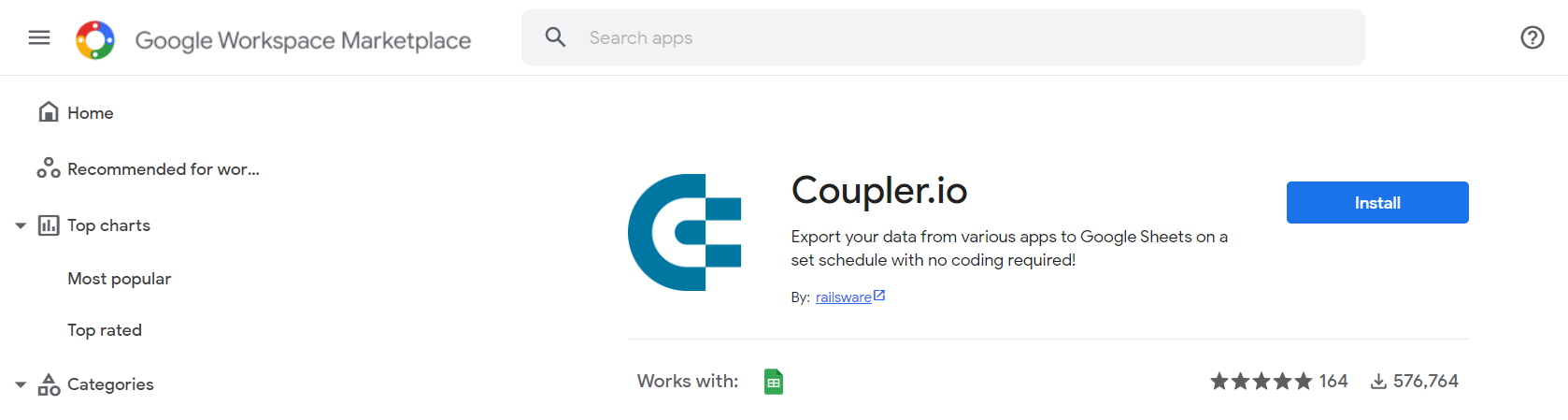
Open Coupler.io in the Add-ons tab and click on the +Add Importer button. An importer is an integration that connects Google Sheets to a specific app. In our case, this is Pipedrive, so you will need to select Pipedrive.
After that enter the name of your importer in the “Title” field.


Now you need to complete the following steps:
Step 1. Set up Source
Connect your Pipedrive Account

Click Connect => Pick the Pipedrive account => Sign in => Click Allow to grant access.
Select Data Entity to import
You can choose from the following entities:
- Deals
- Persons
- Organizations
- Activities
- Files
- Leads
- Call logs
- Products


Step 2. Set up Destination
Connect your Google Account


Click Connect => Pick the Google account => Sign in => Click Allow to grant access.
Enter the name of the sheet that will be receiving data in the “Sheet name” field


Step 3. Configure Settings
Enable the “Automatic data refresh”
In this section you can:
- Enable the Automatic data refresh
- Choose the Import mode (append or replace)
- Add “Last Update” column
For more on the Settings, as well as advanced parameters, refer to the Coupler.io knowledge base.
Once you’ve completed these steps, click Save & Run to save your Pipedrive to Google Sheets integration and export Pipedrive data to your spreadsheet.
Use cases of Pipedrive data export to Google Sheets
Export the filtered Pipedrive data
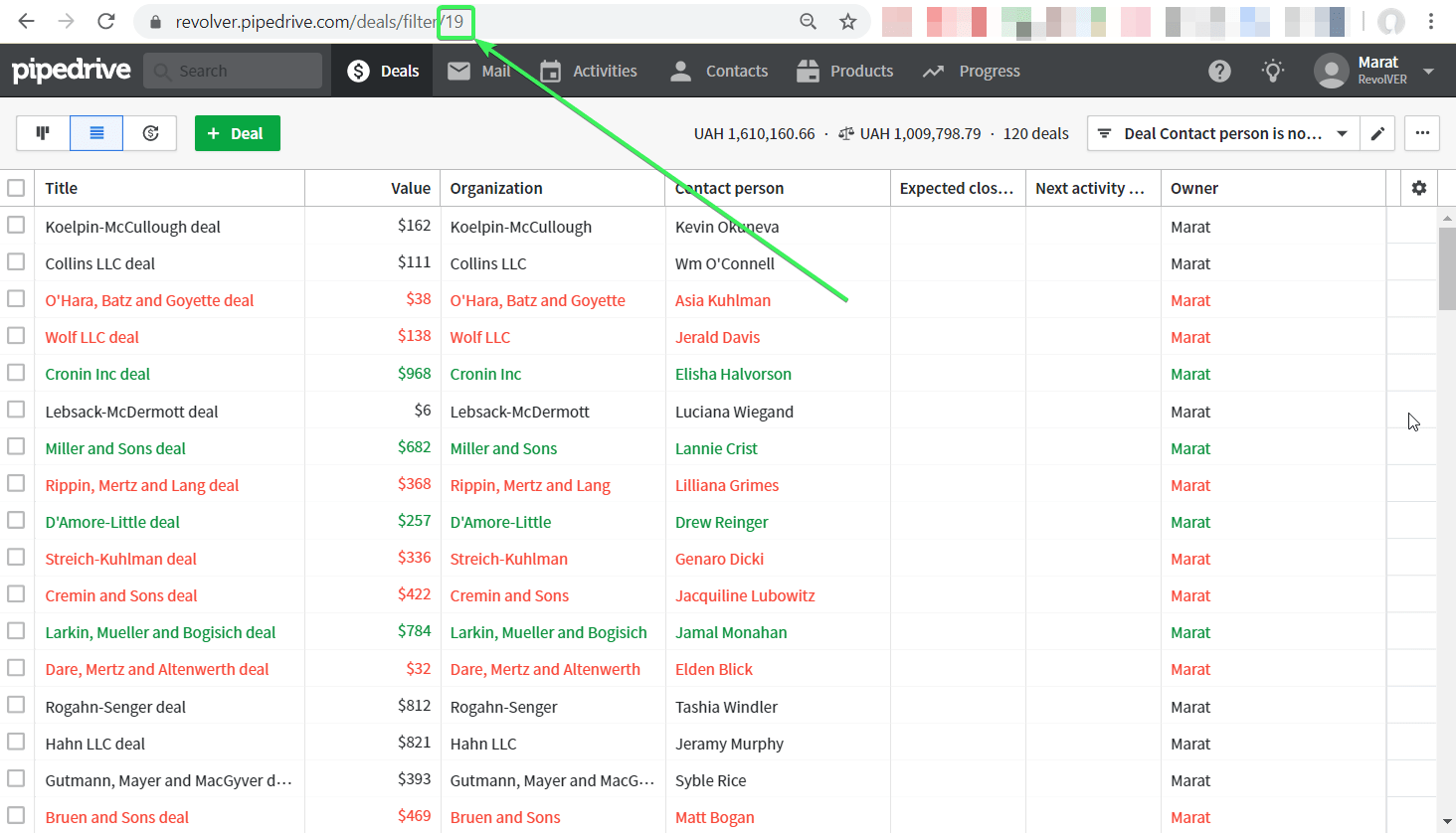
Pipedrive importer lets you export data filtered by a preset or custom filter in Pipedrive. For this, click Show advanced in the Source section and insert the ID of your Pipedrive filter in the “Filter ID” field.
How to get the filter ID
- Navigate to the Pipedrive interface and choose the data entity you need to filter.
- Click on the Filter button in the top right corner (under your User account icon).
- In the drop-down menu pick a predefined filter or create a custom one by clicking Add new filter.
- Configure your filter: set up conditions and click Save.

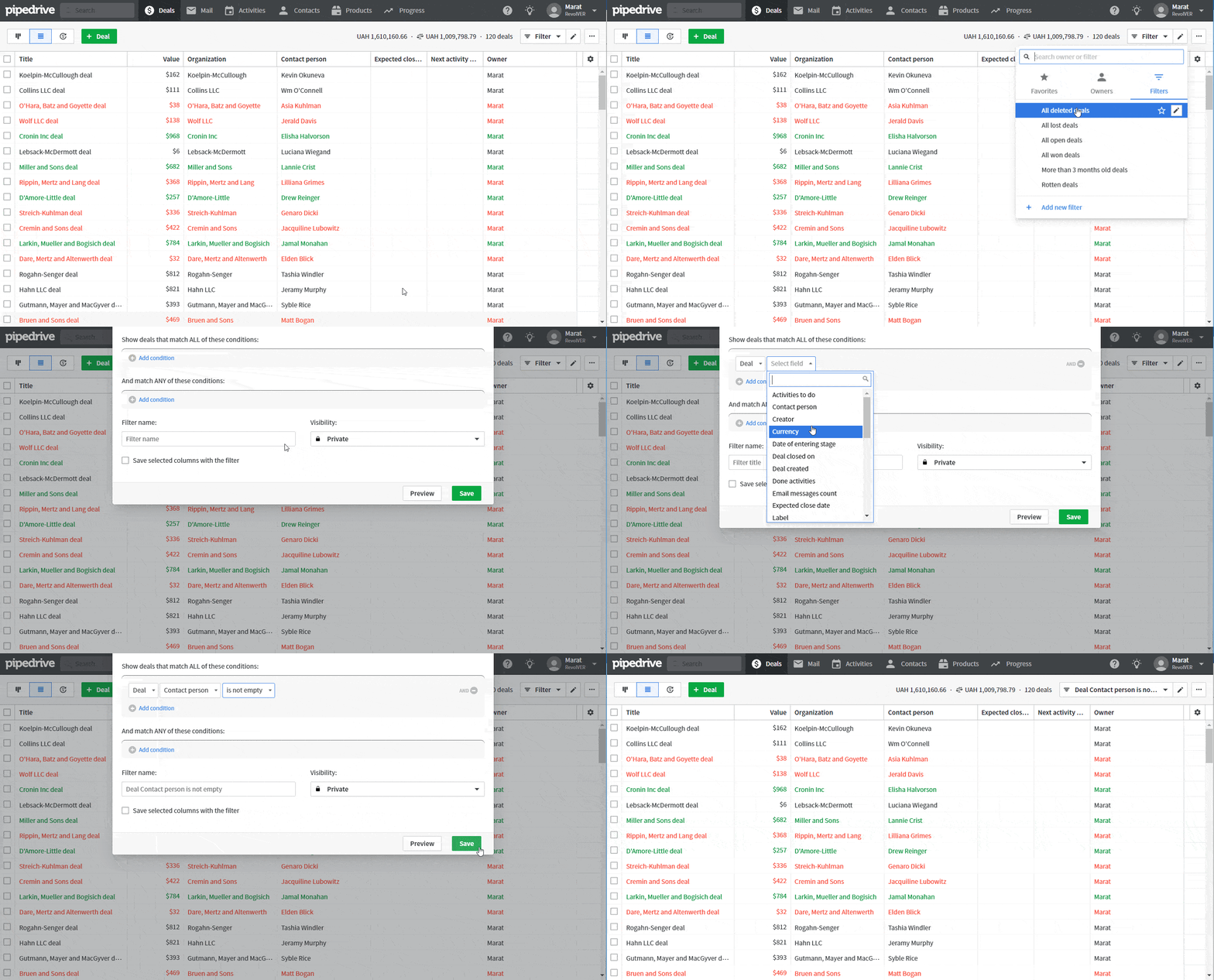
- Once your filter is ready, get the Filter ID from the URL – it is a numeral that stands after the slash “/” symbol in a resulting filter URL.
Export specific columns from Pipedrive
Having run the first import of Pipedrive data, you’ll get the names of all columns. After that you can specify which columns you need for recurrent data imports. For this, click Show advanced in the Source section and enter the names of the columns (each on a new line) in the order you want to see them in your spreadsheet. Leave this field empty if you need to pull all columns.
Note: The name of the column should correspond to the name Pipedrive gave it during the import, for example, creator_user_id, customer_id, creator_user_id.name, etc. If Coupler.io is not able to find any data in Pipedrive that corresponds to the column’s name you input into this field, it will create a column with the name but have no data in it.
Forget about the manual export of Pipedrive contacts and deals
It takes you literally a few minutes to integrate Pipedrive and Google Sheets. During the setup, you can schedule the Automatic data refresh and forget about manual data export. With Coupler.io, you can connect your spreadsheet to another CRM, for example HubSpot to Google Sheets, as well as Airtable, Xero, and other data sources your company uses. And it’s definitely great to have all data in one place. Good luck!