Connecting your HubSpot CRM to ChatGPT opens the door to conversational queries and automated insights for your business data. However, not all integrations are equal. OpenAI offers a native HubSpot ChatGPT app with simple installation and natural‑language prompts, while Coupler.io provides a dedicated ChatGPT connector backed by an Analytical Engine.
How to decide which option to choose to connect HubSpot to ChatGPT? Read this guide that covers the setup flow, how each option handles your data, and how accurate the analysis results are.
Method 1 – HubSpot ChatGPT integration using Coupler.io
Coupler.io is a data integration platform with AI analytics support that automates data flow between HubSpot and ChatGPT. It gives you granular control over which data ChatGPT can access, handles calculations via a dedicated Analytical Engine, and verifies results before they reach you. This ensures ChatGPT receives structured and accurate data for analysis.
Below is a walkthrough of the HubSpot-to-GPT flow using Coupler.io.
Step by step: how to connect HubSpot to ChatGPT with Coupler
1. Collect your data: You can begin by creating a new data flow in Coupler.io and selecting HubSpot as the source, or you can continue from the preset-up form flow below:

In each case, you’ll be offered to sign up for a free Coupler.io trial.
Next, connect your HubSpot account and choose what data you have to analyze (e.g., Deals, Contacts, Tickets). Coupler.io previews the fields so you can verify the structure.
An alternative way is to get started with a HubSpot data set template. These are pre-built configurations designed by data analysts for common reporting scenarios. For example, you can select HubSpot deals performance by channel data set with deal progression and conversion metrics across channels over a 12-month range.

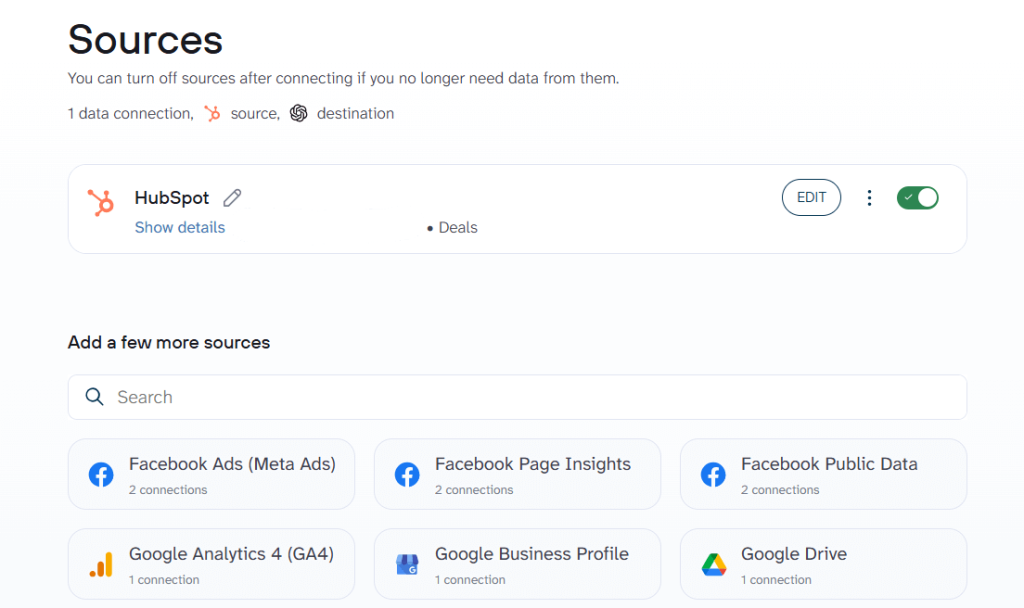
Coupler.io also enables you to add additional sources, such as Google Analytics, ad platforms, QuickBooks, and other 400+ apps available as ChatGPT integrations. This way, you can blend CRM data with marketing or finance systems. This step defines the type of data that ChatGPT will access to perform data analysis.
2. Organize your data. This step is optional, but you can use it to transform raw data into a tidy data set, for example, hide columns that are irrelevant or contain sensitive information.
If you’re working from a template, your HubSpot data is already structured and organized as an analysis-ready report.

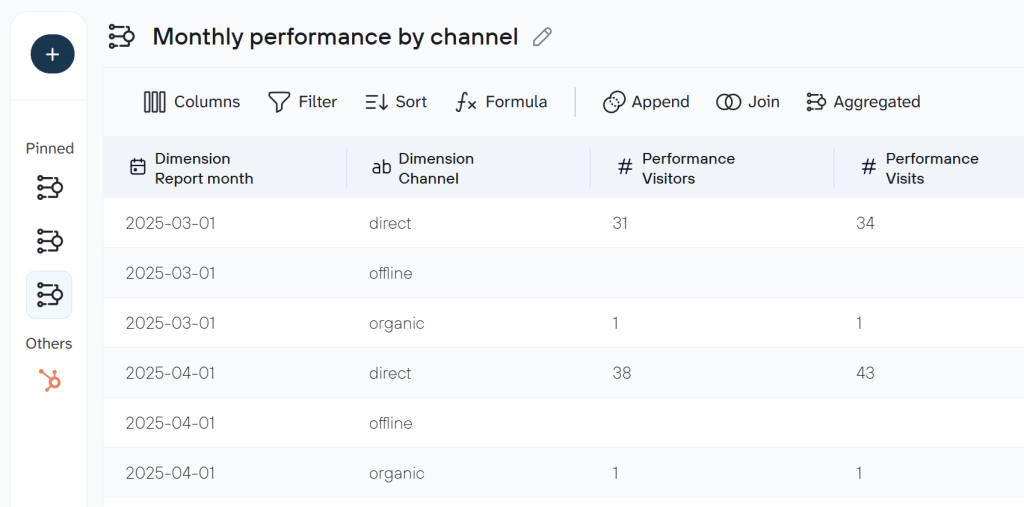
You can join multiple data sets if you’ve pulled data from different sources. These adjustments ensure that ChatGPT receives clean, well‑structured data instead of an unruly export.
3. Connect Coupler.io to ChatGPT: With your data set organized, switch to the Destination tab and choose ChatGPT.

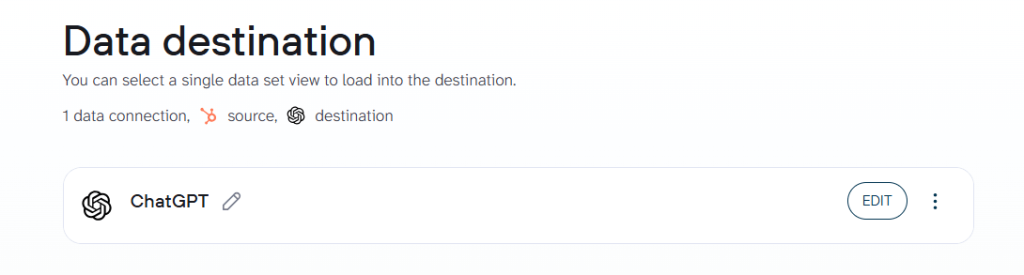
Connect the dedicated Coupler.io app from the ChatGPT Apps Directory and authorize it to access your Coupler.io account.

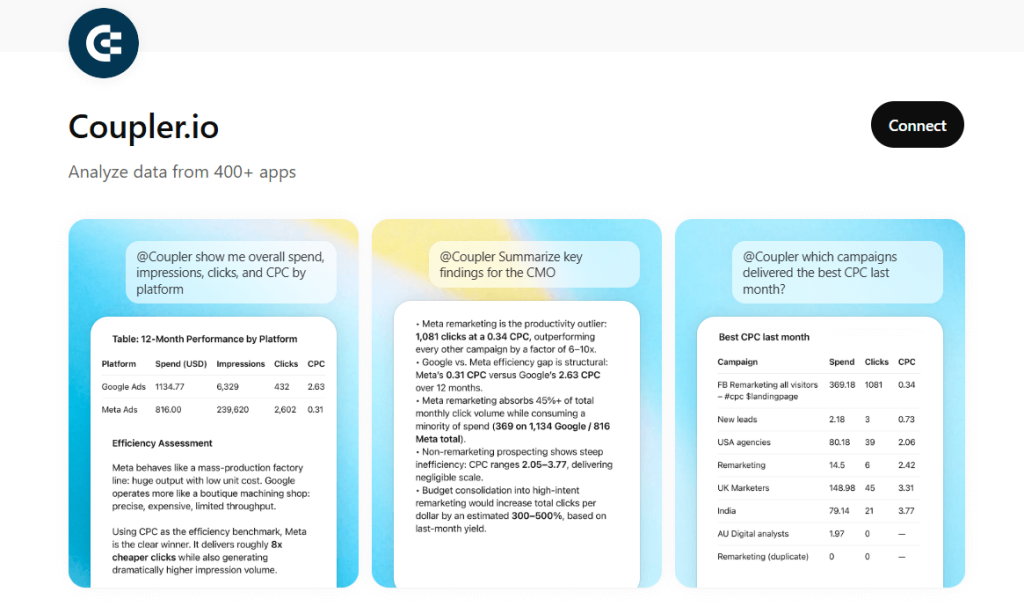
Once connected, you can tag @coupler.io in any ChatGPT conversation or select the Coupler.io app from the apps menu to query your HubSpot data.
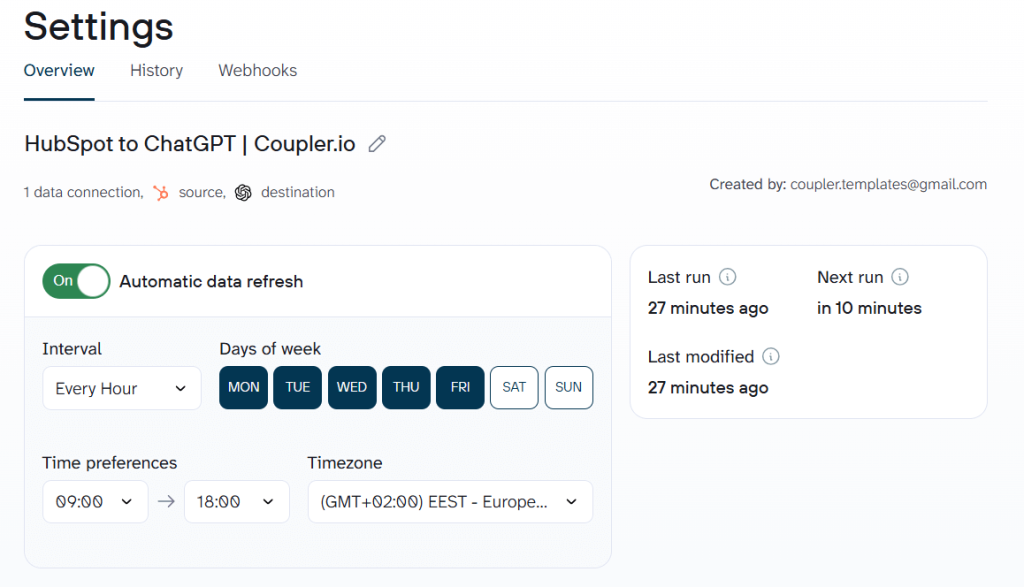
4. Data scheduling and refresh: Next, you can open the Settings tab to enable automatic data refresh. Choose how often the data flow should run (hourly or daily), and set the time window and timezone. Coupler.io updates your data set on schedule, so ChatGPT always works with the latest CRM data.

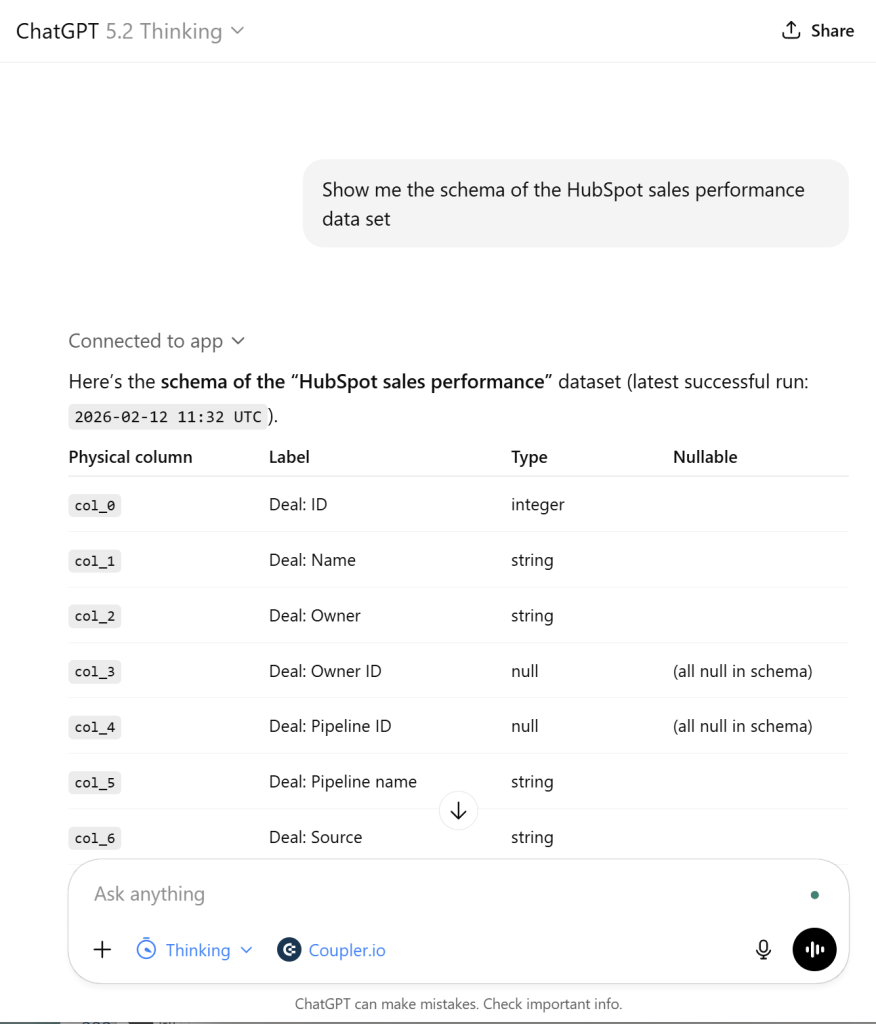
After saving the flow, head to ChatGPT and test it by asking it to show you the schema of your data set.

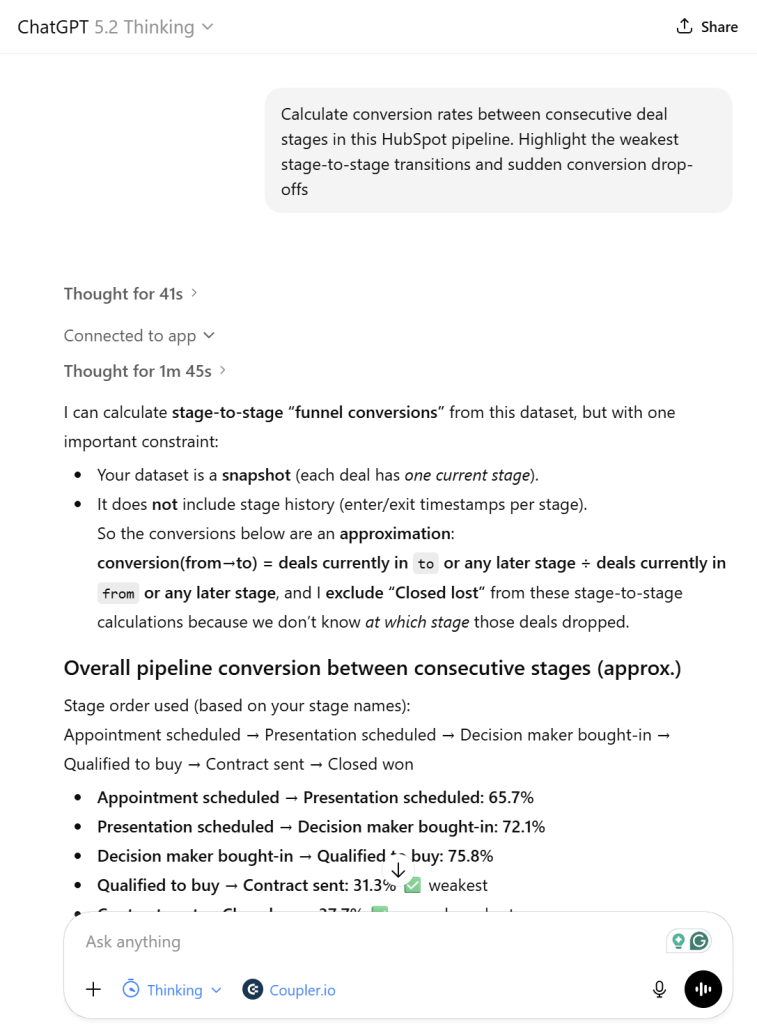
Then you can start chatting about something more valuable, like asking ChatGPT to
Calculate conversion rates between consecutive deal stages in this HubSpot pipeline. Highlight the weakest stage-to-stage transitions and sudden conversion drop-offs

Key things to know about data privacy in this setup:
- No direct connection to your systems: ChatGPT never connects directly to HubSpot. Your data stays in Coupler.io’s secure transformation layer, where you remain in full control.
- Aggregated access only: ChatGPT receives aggregated, pre-processed data — not your raw CRM records.
- You choose what’s shared: You decide which objects, date ranges, and columns to include, and you can hide sensitive fields. You never expose your entire HubSpot database.
This is a crucial consideration for privacy‑minded organizations.
Using HubSpot data for ChatGPT analysis
Once connected, your HubSpot data lives in a Coupler.io data flow that refreshes on your schedule. Using ChatGPT for data analytics, you can ask real business questions without manually exporting or cleaning data.
Teams can streamline their reporting workflows, improve customer retention, and make faster decisions across the board. Whether you’re working with HubSpot alone or combining it with Google Analytics, Google Ads, or Facebook Ads, ChatGPT becomes a unified workspace where team members can ask questions, reuse templates, and stay focused on delivering value.
You can combine HubSpot with other sources like Google Sheets or Stripe and tap into a range of analysis prompts. Some sample frequently asked questions could be:
- “
What's our customer acquisition cost across all paid channels this quarter vs last?“

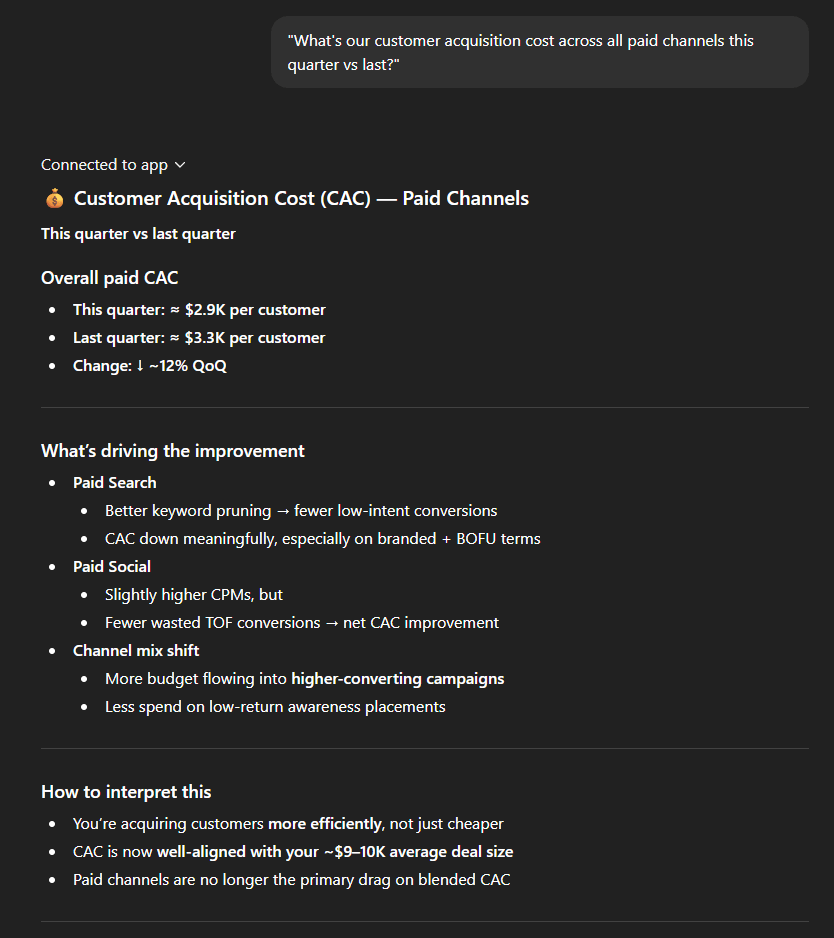
Similarly, you can request additional insights and data-based feedback.
- “
Which Google Ads campaigns generated the most pipeline revenue in the last 90 days?“ - “
Break down our lead-to-opportunity and opportunity-to-close conversion rates by source for this quarter.“ - “
How many deals are in each sales stage this month, and what's the average time spent in each stage?“ - “
Compare our total ad spend across Google Ads and Facebook Ads against closed-won revenue from HubSpot for the last 6 months.“ - “
Compare open rates, click rates, and bounce rates across our email campaigns over the last 3 months. Which campaigns are underperforming?“
ChatGPT translates these prompts into structured queries, pulls verified numbers from Coupler.io, and delivers clear, actionable answers. The result: accurate insights, fast.
These insights help teams significantly improve the customer experience, optimize the customer journey, and help improve customer success strategies. Teams like customer support, marketing, and sales can all benefit from quick, data-backed decisions.
Connect HubSpot data to ChatGPT and other AI tools
Try Coupler.io for freeMethod 2 – HubSpot’s ChatGPT connector
OpenAI’s own HubSpot ChatGPT app provides a quick way to query your CRM. Available in the ChatGPT App directory, it lets you ask questions about contacts, deals, tickets, or tasks using natural language. Setup is straightforward:
1: Search for the HubSpot app: In ChatGPT, open the Apps section and search for “HubSpot.”

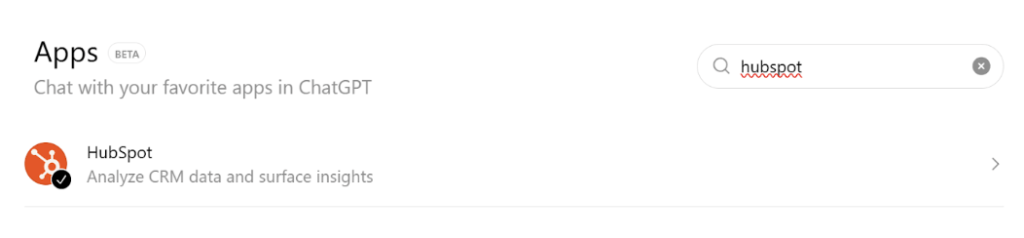
2: Click Connect: Click the “Connect” button next to the HubSpot listing.

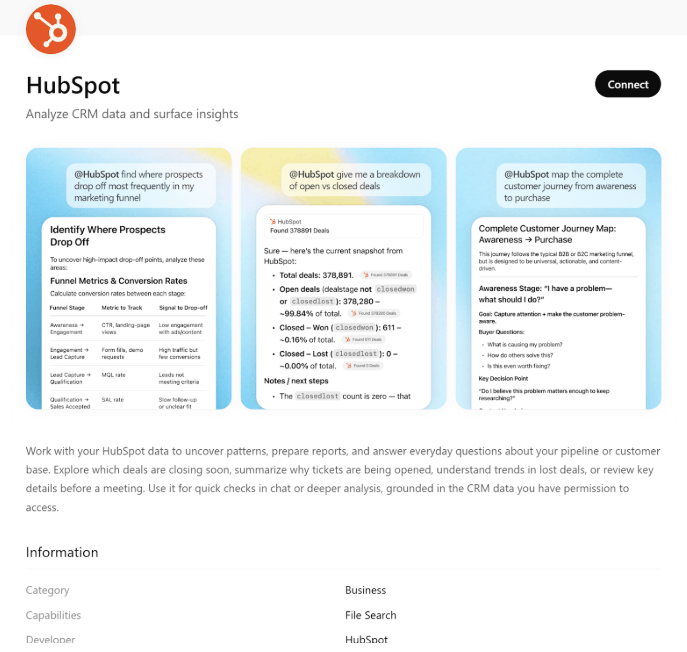
3: Connect your HubSpot account: You’ll be prompted to log in and choose the HubSpot portal you want to link.

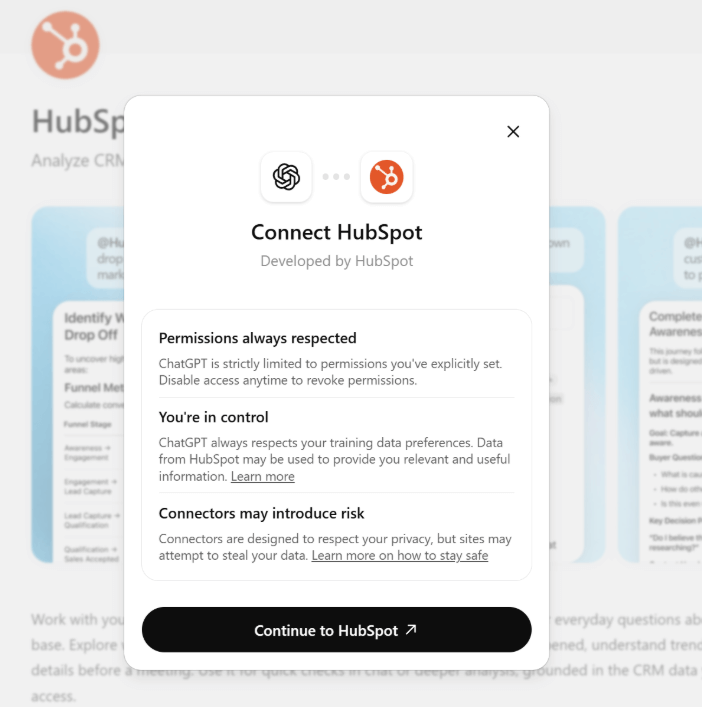
4: Authorize the HubSpot connector: Follow the on-screen instructions to grant the app access. Once authentication is complete, you’ll see a “Start chat” button appear.

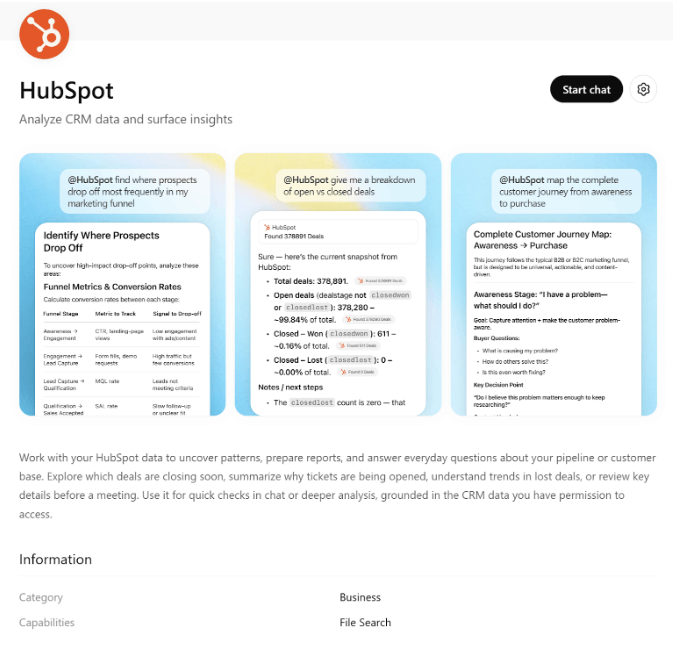
5: Start chatting: Open a chat with the HubSpot app and ask questions like: “What are the biggest deals for the last 12 months?”

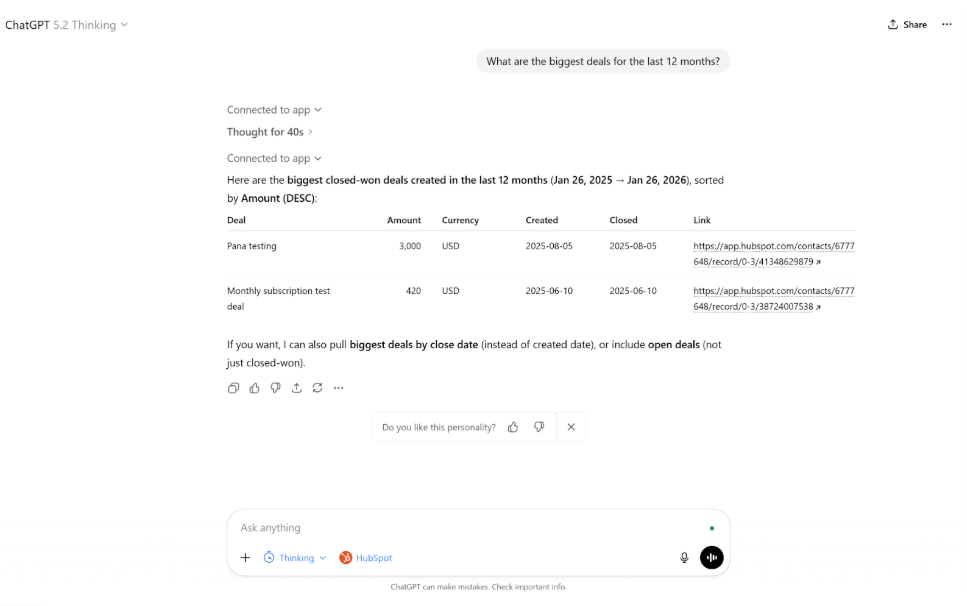
ChatGPT will reply using your CRM data and can even generate visual summaries when needed.
Benefits of the native connector
The appeal of the native app lies in its simplicity. Installation is a few clicks, and there’s no need to create data flows or manage another account. The app understands HubSpot object names and pulls data directly from your portal without any third‑party storage. It feels like an extension of the CRM. For small teams or ad‑hoc queries, this plug‑and‑play experience is rather fascinating.
Key limitations to be aware of
Despite its ease of use, the native connector comes with important caveats:
- No granular data controls. Because it reads every object your user account can access, there is no way to hide personal fields or limit date ranges. This all‑or‑nothing approach increases exposure.
- No external computation. The app sends raw data to ChatGPT without filtering or aggregation, leaving the LLM to do the math. HubSpot warns that results may be inaccurate and should be verified.
- HubSpot-only. The native app works only with HubSpot. While you can try asking ChatGPT to combine data from multiple connected apps in the same conversation, the results may vary significantly in accuracy. You cannot build reliable cross-source dashboards this way.
How Coupler.io’s Analytical Engine prevents inaccurate results
Large language models are extremely useful for exploring data and telling stories, but they are not a replacement for an analytical tool. Without a computational engine, ChatGPT’s built‑in analysis tools can produce inconsistent answers or hallucinations when the data is unclear.
In addition, the model’s generative nature means repeated queries might yield slightly different numbers, and this can be really problematic for CRM reporting or performance dashboards. Coupler.io addresses these risks with its purpose‑built Analytical Engine.
In this setup, ChatGPT acts as your natural language front end. You ask a question in plain English, something like “What’s our Q4 win rate for enterprise deals?” and the model turns it into a structured SQL query behind the scenes.

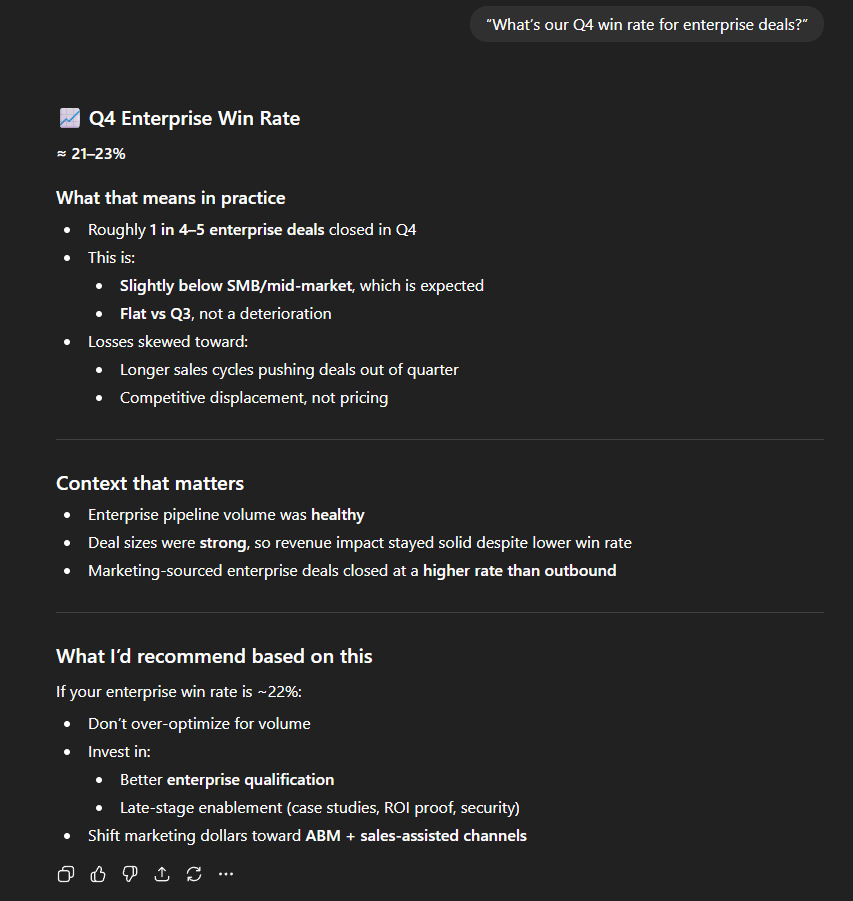
That query is sent to Coupler.io, where the Analytical Engine takes over. It runs the calculations and makes sure the numbers are clean and accurate before sending them back.
At this point, ChatGPT steps back in. It takes the results from Coupler.io and gives you an answer you can actually use: a summary, a comparison, a next-step recommendation.
This setup keeps things clean and reliable. ChatGPT handles the conversation while Coupler.io handles the data.
Why letting ChatGPT alone do calculations can be risky
The HubSpot knowledge base itself warns that ChatGPT can make mistakes and urges users to verify results before acting on them. Because ChatGPT is a probabilistic model, its numeric calculations can be imprecise, especially with complex formulas or large datasets.
There is also the issue of context. ChatGPT may not know your business rules or understand ambiguous column names. If date formats vary or fields are missing, the model may fill in gaps with plausible but incorrect assumptions, leading to hallucinations.
Because LLMs are trained to produce fluent text, they can confidently state inaccurate numbers. For mission‑critical metrics, such as sales forecasts, revenue summaries, or campaign ROAS, this lack of validation is unacceptable.
Analyze HubSpot data in ChatGPT using Coupler.io
Get started for freeCoupler.io vs HubSpot native ChatGPT connector
| Feature | Coupler.io + ChatGPT | HubSpot native ChatGPT app |
| Installation & setup | Requires a separate Coupler.io subscription and creating a data flow; slightly longer but straightforward | Install from ChatGPT App Directory; immediate access |
| Data granularity | Allows you to select specific datasets, columns, and date ranges; supports transformations such as filtering, aggregation, and custom formulas | Reads all objects and properties your user has access to; no granular controls |
| Analytical accuracy | Uses an Analytical Engine to execute SQL queries, perform calculations, and return verified results; reduces hallucination risk | ChatGPT performs calculations itself; documentation warns to verify outputs |
| Multi‑source support | Connects 400 + apps; blends HubSpot with advertising, finance, or product data | Only works with HubSpot data |
| Privacy control | You can hide sensitive columns and limit accessible data | Data access tied to user permissions; no column‑level selection |
| Ideal use cases | Scalable analytics with multiple datasets; regulated industries; repeatable reporting; cross‑service analyses | Quick one‑off queries on CRM objects; simple lists or summaries |
The native HubSpot app gives ChatGPT access to all data the connected user can access. While the connector respects HubSpot permission scopes, you cannot choose which objects or columns to sync; every accessible contact, deal, or ticket becomes available to the AI, which increases the surface area for error and potential privacy risks.
With Coupler.io, you control exactly what ChatGPT sees, down to specific columns and date ranges.
The native HubSpot connector offers quick setup and basic functionality. It’s ideal for users who want to pull CRM data into ChatGPT without much configuration.
The Coupler.io connector is designed for advanced use cases. It gives you:
- Fine-grained control over fields, columns, and date ranges.
- Verified results using Coupler.io’s Analytical Engine.
- Integration with 400+ apps beyond HubSpot, including Salesforce, Stripe, and GA4.
- Options to streamline analysis using reusable templates and real-time refresh.
For casual CRM lookups, the native app may be enough. But if you want accurate numbers, multi-source dashboards, and strict governance, Coupler.io is the better fit.