The instructions provided in this article are sufficient for creating an automated integration. But please note that we are not responsible for the outcome if you use the instructions incorrectly, specify incorrect settings, or if there are changes in the app’s API.
With the abundance of content produced every minute, it’s hard to keep track of the news that matters to you. Perigon simplifies the task with its powerful Rest API capable of fetching precisely the information you seek, with little effort on your side. Setting it up is easy but building a reliable Perigon to Google Sheets integration may not be that straightforward.
Luckily, there are tools capable of fetching the relevant JSON files and parsing them into a Google-friendly format. What’s more, this approach doesn’t require any coding and is suitable for virtually anyone with just a bit of tech-savviness in their resume.
Bear with us as we demonstrate the setup process, including automating the news imports on a chosen schedule. We’ll also share various examples of the data you can get out of Perigon.
Note: This article was originally published as a Datanews to Google Sheets guide. Datanews has since been acquired by Perigon and its API has been incorporated into Perigon API. We updated the article to reflect all changes to the APIs.
How to connect Perigon to Google Sheets?
Coupler.io is a reporting automation platform for business teams. It automatically collects and blends data from 400+ apps and keeps it up to date for your reports and AI. It works with Pipedrive, Airtable, HubSpot, QuickBooks, and many other apps. It also features integration in Google Sheets capable of parsing JSON files. Through this, one can fetch data from any service with a JSON API, including Perigon.
Coupler.io supports 20+ destinations, including Google Sheets, Excel, BigQuery, Snowflake, Supabase, Redshift, and PostgreSQL.
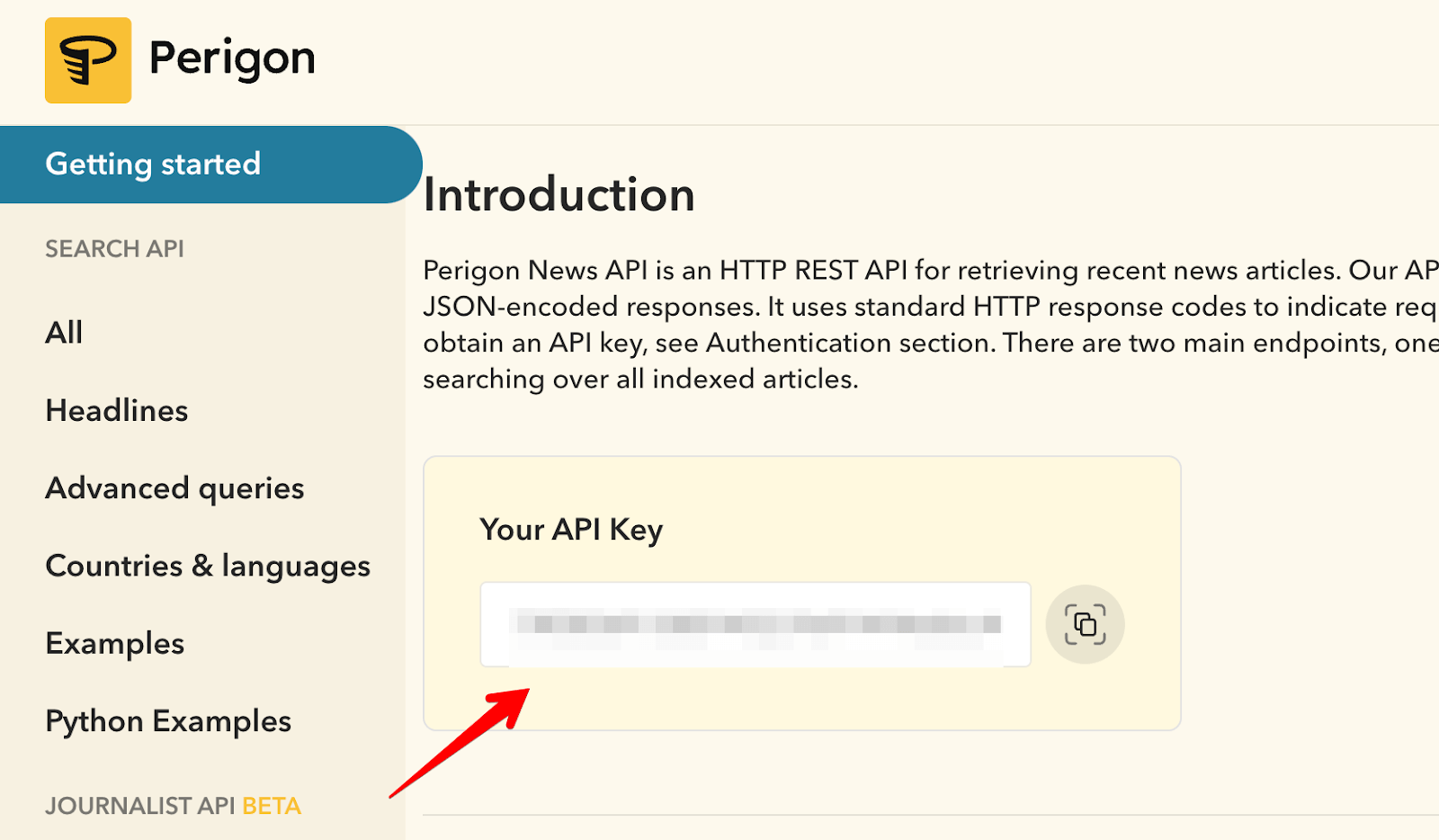
If you haven’t yet, sign up for a Perigon account and find your API key at https://www.goperigon.com/documentation.
To simplify the data export, we’ve prepared a Perigon template file in Google Sheets. First of all, make a copy for yourself. To do so, go to File -> Make a copy.
In the newly created file, insert your Perigon API key in the designated space on top of the file. Make sure that the name of the first tab (Datasource Index) doesn’t change – otherwise, the data flow won’t be created.
We will now fetch the latest news from TechCrunch right into our Google Sheets file. If you would prefer another source, feel free to update the C3 cell of the Datasource Index tab in the template. Strip the https/http part of a URL as well as a forward slash in the end. In other words, turn a URL such as https://techcrunch.com/ into techcrunch.com.
Don’t change any other details just yet – we’ll cover customization in the following chapter.
Coupler.io will automatically create a data flow based on the configuration in your file. Coupler.io is available as a web app as well as a Google Sheets add-on. You can use either but when importing a JSON file, an add-on is a faster option. You’ll see why very shortly.
Install the Coupler.io add-on. Then, go back to your configuration file. From the menu at the top, select Extensions -> Coupler.io -> Open dashboard. If it’s not visible, you may need to refresh the page.
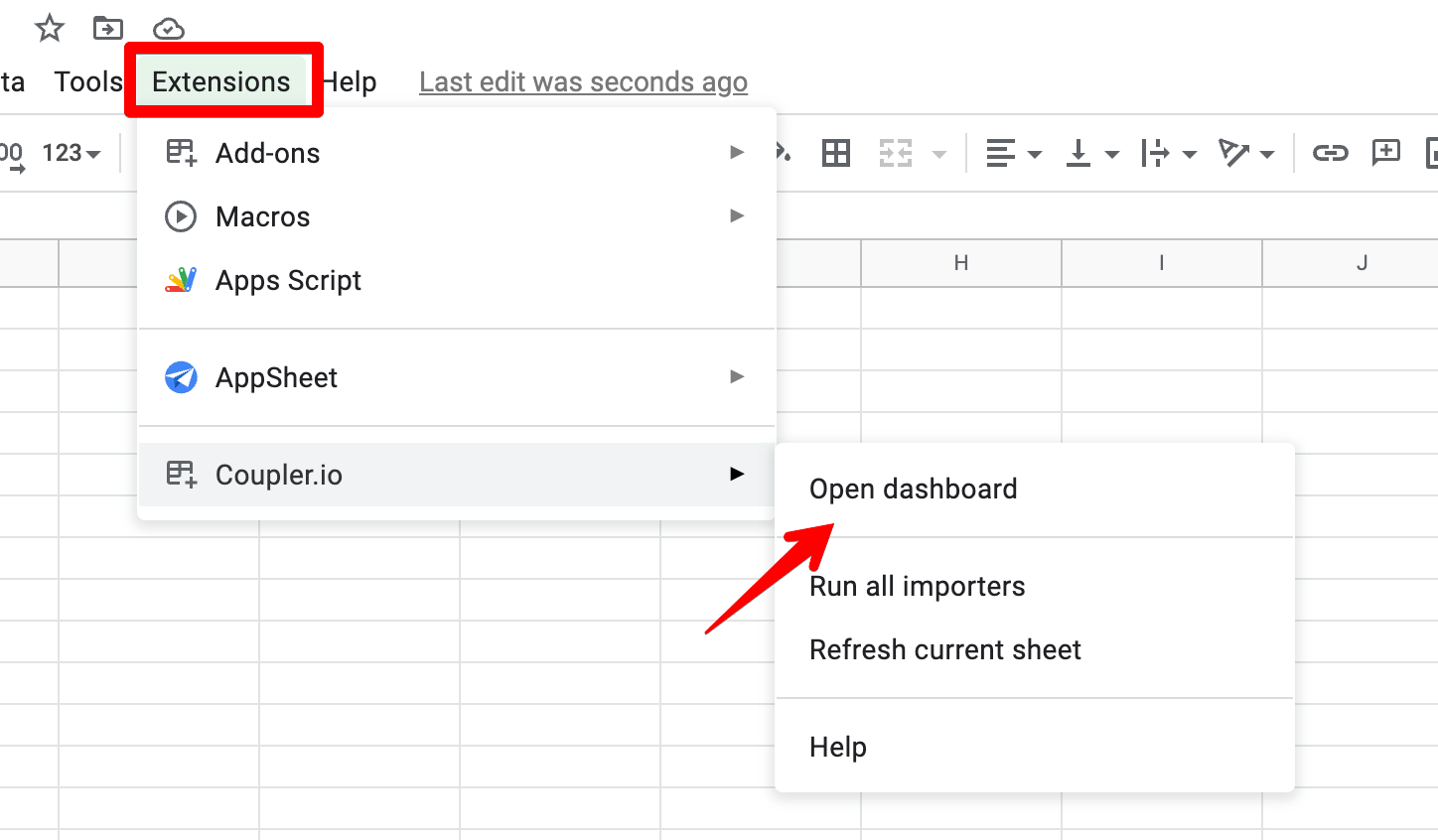
To the right of the screen, a menu will appear. It will feature one data flow, configured with the information provided to the left. The data flow will fetch the news articles published yesterday into the daily news sheet it will create when launched.
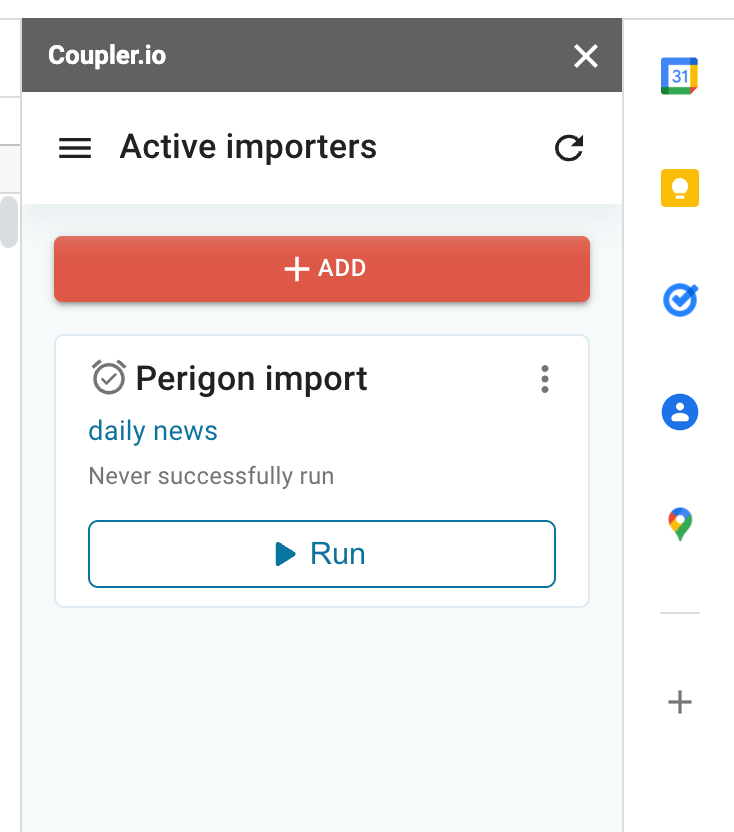
Now, press Run to launch the data flow. It will load for a bit. When finished, you’ll see the results in a newly-created tab. Here’s an example:
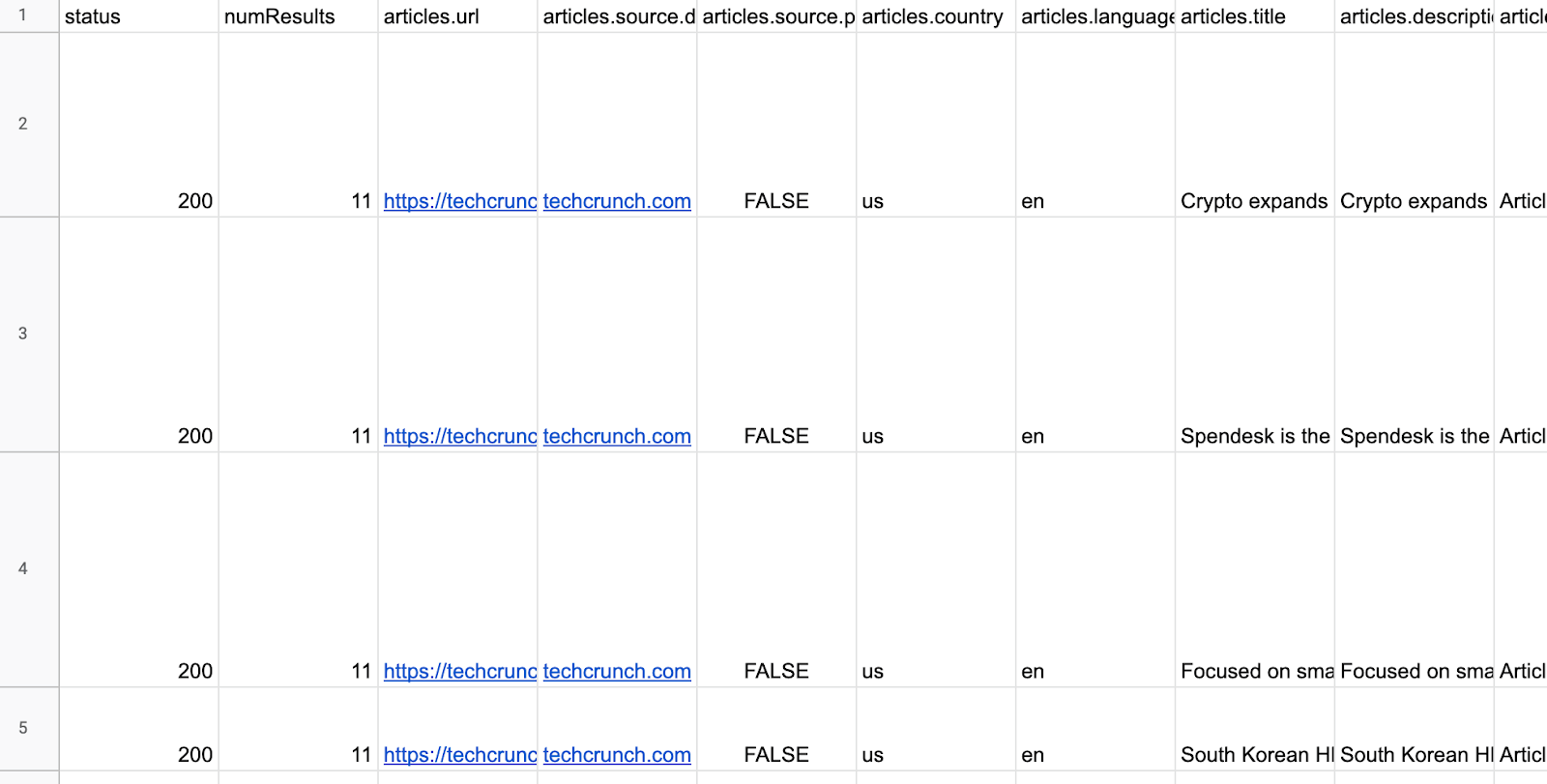
If you’d like to keep this data flow, you’ll need to finish its setup in the Coupler.io dashboard. Click on the three-dots menu to the right of your data flow and select Edit. In the Destination settings connect your Google account and authorize Coupler.io to import the data on your behalf.
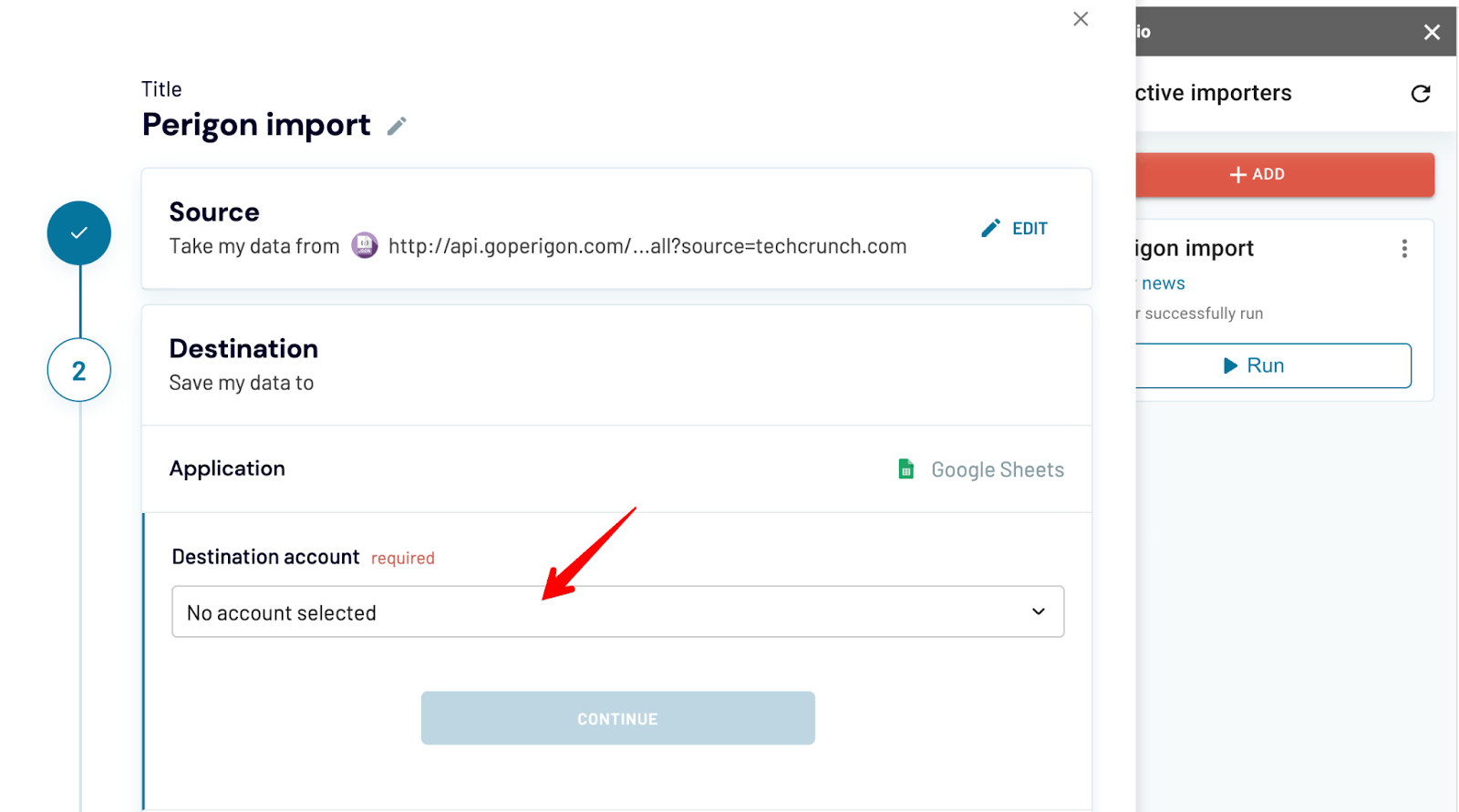
Optionally, you may also create a schedule for the following imports. We’ll touch on that a bit later.
Finally, save and run the data flow. It will run again and Coupler.io will save all the settings in your account.
Notice that upon pressing the Edit button earlier on, the configuration disappeared from the Datasource index tab. We do it on purpose so that no duplicate data flows are created. If you’d like to customize further the initial configuration, press the Back button. We also included several sample configurations in the Additional importers tab.
Export Perigon to Google Sheets – digging deeper
Let’s explain the meaning of each field from the earlier configuration. We are reposting it here for your convenience.
| json | ||
| title | Perigon import | |
| sheetName | daily news | |
| param | url | http://api.goperigon.com/v1/all?source=techcrunch.com |
| optional | ||
| param | headers | x-api-key: [API-KEY] |
| param | queryParams | size: 100 addDateFrom: {{yesterday}} addDateTo: {{yesterday}} |
| addon | ||
| mode | append | |
| schedule | 0 * * * * |
- Title and sheetName represent, respectively, the names of a data flow and a sheet you import to (within the same file).
- Param – url is the JSON URL you can further customize to get precisely the data you need.
- Param – headers is where you insert your API key for authentication purposes.
- Param – queryParams is the space to determine the import parameters for this Perigon to Google Sheets integration. See all available parameters in the API documentation. When selecting the period for your import, you can choose specific dates. You can also use macros and they will be the most suitable for recurring imports (e.g. fetching the news every morning from the previous day – as in the example above). Here’s the list of supported macros.
- Mode – append instructs Coupler.io to append the new results at the bottom of the previous import. An alternative option is replace, which will wipe out the contents of a given sheet and import the fresh data each time a data flow runs.
- Schedule determines if, when, and how frequently the data flow should run again. We’ll explain this in the following chapter. Note: if you don’t save the data flow (three-dots menu -> Edit -> Save and run), it won’t run again.
It’s straightforward to create new data flows from your configuration file. For example, you could fancy getting news from different sources into separate sheets. To do that, copy the configuration, skip one line below and paste it again. Make any changes you’d like and refresh the data flows.
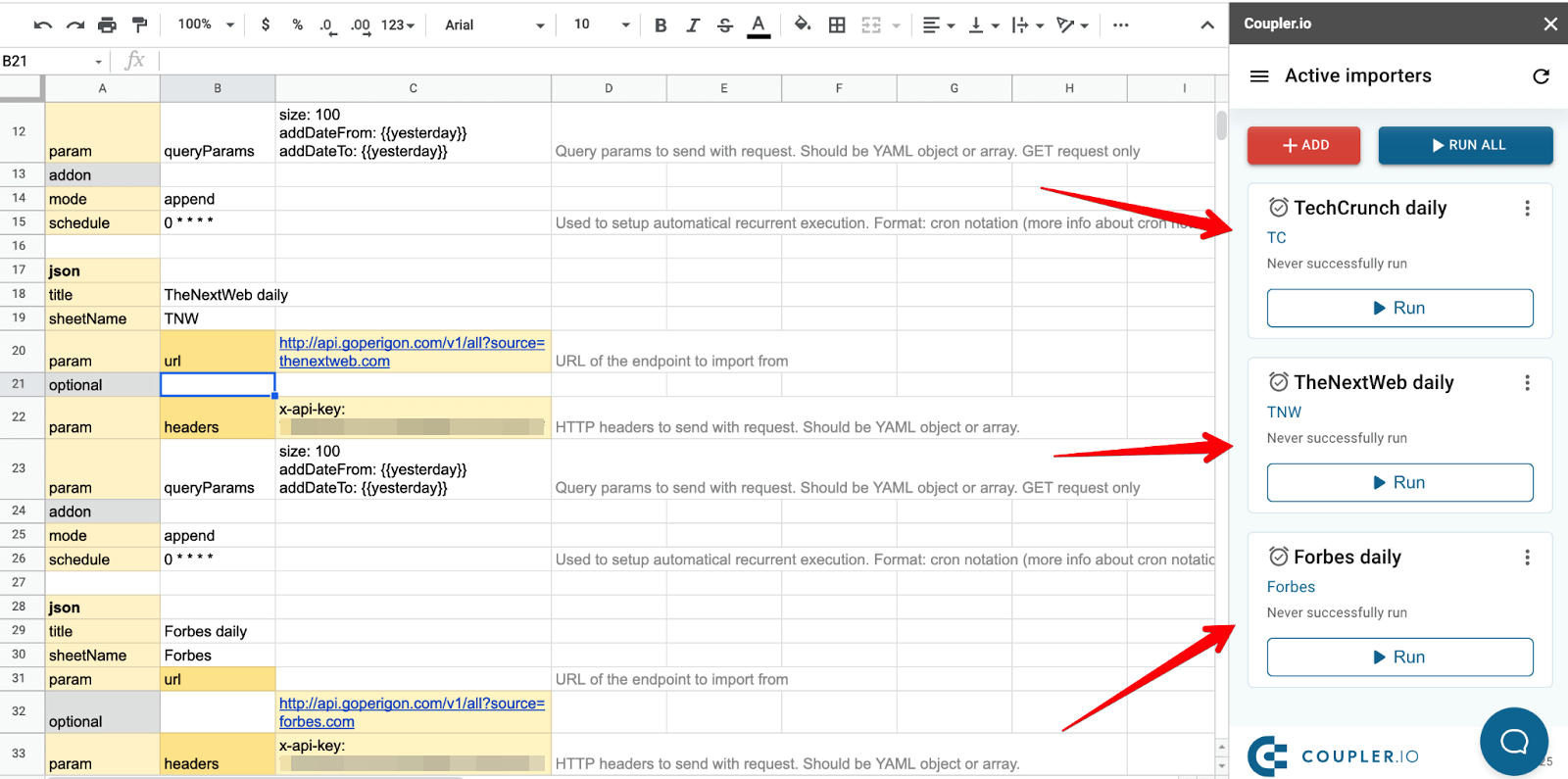
Remember to keep all the configurations in the Datasource Index sheet. Same as before, to save the data flows for future use, choose Edit in the respective three-dots menus and complete the setup for each.
Alternatively, you may want to manage the data flows from within the Coupler.io web app. There, you could, for example, change the destination file or even choose to import the data from Perigon into a different application (for example, MS Excel).
How to transfer Perigon data to Google Sheets automatically
The beauty of exporting Perigon to Google Sheets with Coupler.io is that you can get the data fetched for you automatically, on a chosen schedule. This way, for example, you can have a fresh set of news imported daily into your spreadsheet.
To configure a schedule, you can use the aforementioned schedule field present in each sample. You need to populate it with the relevant cron expressions.
We used the following expression earlier:
0 * * * *
It tells a data flow to refresh the data every hour.
Another example could be:
0 8 * * MON-FRI
This expression tells a data flow to run daily, at 8 am Monday to Friday.
https://crontab.guru/ can be very helpful for creating such expressions.
Note that for data flows created from within a spreadsheet, the time zone of the spreadsheet is used. If you’re unsure which time zone you have set, go to File -> Spreadsheet Settings to look it up.
Alternatively, if you don’t want to play with cron schedules, you can use a handy Coupler.io interface to configure the refresh rate for your news.
Go to the data flow settings and scroll down to Schedule. If it’s off, enable Automatic data refresh and select how frequently Coupler.io should refresh the data, on which days, and at what time.
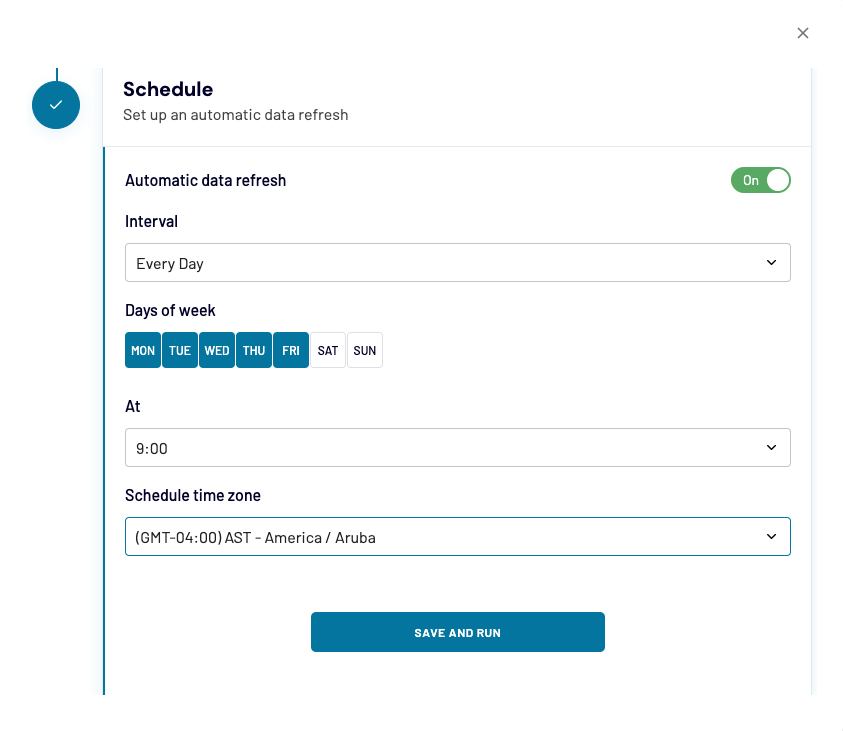
Afterwards, save and run the data flow, and it will continue fetching fresh news on the chosen schedule.
Perigon to Google Sheets – sample queries
There’s plenty of ways you can customize the query.
Perigon can be an excellent tool for PR managers to track any coverage a company gets online. A Tesla employee responsible for the Spanish-speaking world could set up the data flow with the following configuration:
| json | ||
| title | Tesla monthly | |
| sheetName | tesla | |
| param | url | https://api.goperigon.com/v1/all?q=tesla |
| optional | ||
| param | headers | x-api-key: [API-KEY] |
| param | queryParams | size: 100 addDateFrom: {{30daysago}} addDateTo: {{today}} language: es |
| addon | ||
| mode | append | |
| schedule | 0 * * * * |
The maximum value for the size parameter is 100, meaning that you won’t be able to import more than 100 pieces of news with a single data flow. Queries such as Tesla may return a lot more results.
To fetch more than 100 of them, you’ll want to take advantage of a bit of a workaround. Using the page parameter you can set up different data flows that will fetch different pages of results into the same sheet. For example, the first data flow will use the parameter “page: 1”, the second will use “page: 2”, and so on.
You’ll want to make sure that:
- The URL and all other parameters (except for the page number) are identical
- Each data flow uses the append mode
- Each data flow runs at a different time – data flows with the same destination sheet running simultaneously could rewrite each other.
Continuing with examples, queries that contain more than a single word need to be urlencoded, for example:
| json | ||
| title | GSheets | |
| sheetName | import data to Google Sheets | |
| param | url | https://api.goperigon.com/v1/all?q=import%20data%20to%20google%20sheets |
| optional | ||
| param | headers | x-api-key: [API-KEY] |
| param | queryParams | size: 100 addDateFrom: {{30daysago}} addDateTo: {{today}} |
| addon | ||
| mode | append | |
| schedule | 0 * * * * |
If your query fetches too many results, you may want to drill down combining different query parameters. For example:
| json | ||
| title | iPhone Germany | |
| sheetName | apple video | |
| param | url | https://api.goperigon.com/v1/all?q=apple |
| optional | ||
| param | headers | x-api-key: [API-KEY] |
| param | queryParams | size: 100 addDateFrom: {{yesterday}} addDateTo: {{today}} medium: video country: de topic: iPhone |
| addon | ||
| mode | append | |
| schedule | 0 * * * * |
You’ll find all these examples in the templates file. Before running any of them, copy/paste them into the Datasource Index tab. If you don’t do that, Coupler.io won’t be able to find them.
Perigon to Google Sheets – recap
Running Coupler.io data flows is a simple and efficient way of bringing the Perigon data to a Google Sheets file. You have complete control over the fetched data and how often that happens. You can quickly build new data flows and implement all sorts of criteria for each new import.
What’s more, you can pull data from different apps into the same or a separate spreadsheet. Any service that provides a public API can be plugged into Coupler.io’s JSON integration and put to work in no time. Also, don’t forget about the 400+ sources already available for you.
Many thanks for reading!