GA4 can tell you where your traffic comes from, which pages drive engagement, and which campaigns or events lead to conversions. But getting those answers is not always quick. You often need to move between reports, adjust dimensions, compare date ranges, or export data before the real insight becomes clear.
That’s where ChatGPT can help. Once your GA4 data is connected or uploaded in the right format, you can ask questions in plain language. For instance, use AI to summarize trends, spot changes, and turn analytics data into clearer reporting insights.
Can you connect GA4 to ChatGPT?
Yes, but ChatGPT does not access your GA4 property automatically. You need to make your GA4 data available through a connection, export, file upload, or custom API workflow.
There are several ways to do this. You can use Coupler.io, available as a ChatGPT App (connector), export GA4 reports manually and upload them to ChatGPT, work through spreadsheets, use Google’s native GA4 MCP Server, or build a custom setup with the GA4 Data API or BigQuery.
| Method | Best for | Setup difficulty | Data freshness | Main limitation |
| Coupler.io | No-code, recurring GA4 analysis in ChatGPT | Low | Scheduled refreshes | Requires setting up a Coupler.io data flow |
| Native GA4 MCP Server | Technical teams that want direct AI-to-GA4 access | High | Dynamic, API-based | Requires Google Cloud, OAuth, MCP setup, and a compatible ChatGPT environment |
| Manual GA4 export | Quick one-time analysis of a GA4 report | Low | Static | You need to export and upload a new file every time |
| Google Drive or spreadsheets | Teams that already work with GA4 reports in Sheets or Excel | Low to medium | Static or refreshed if connected | Needs a clean spreadsheet structure and/or a refresh setup |
| Custom GPT with uploaded GA4 reports | Repeated reviews of similar GA4 report formats | Medium | Static | Does not automatically access fresh GA4 data |
The best method depends on how often you need to analyze the data and how technical your setup is.
For a quick one-time review, a CSV export may be enough. For recurring reporting, the Coupler.io connector/automated workflow is more practical because it keeps the data easier to refresh and reuse.


Analyze your Google Analytics data in ChatGPT with Coupler.io
Get started for freeHow to connect GA4 to ChatGPT with Coupler.io
Coupler.io offers a no-code way to connect GA4 data to ChatGPT for conversational analysis. Instead of manually exporting reports every time, you create a Coupler.io data flow, set up a data integration with ChatGPT, and ask questions about your GA4 data in natural language. Here is a step-by-step flow to automate the connection.
Step 1. Create a GA4 data flow
To get started, create a new data flow in Coupler.io with Google Analytics 4 as the source and ChatGPT as the destination. You can use the form below, then click Proceed to sign up for Coupler.io and start setting up the connection.

You’ll need to connect your GA4 account, choose the property, and select the report period, metrics, and dimensions you want to analyze.
For example, if you want to review user activity and key events by traffic source, device type, and operating system, you can select metrics such as:
- Total users
- New users
- Event count
- Key events
And dimensions such as:
- Date
- Session source / medium
- Platform / device category
- Operating system
Coupler.io will then preview your GA4 dataset and let you organize it before sending it to ChatGPT. At this stage, you can remove unnecessary columns, apply filters, aggregate data, or add other sources if you want to give ChatGPT more context. In this regard, it makes sense to use Coupler.io prebuilt data set templates, which provide analysis-ready data. For instance, a landing page performance data set template already combines GA4 data with information from Google Search Console. You simply pick it and then connect to ChatGPT.

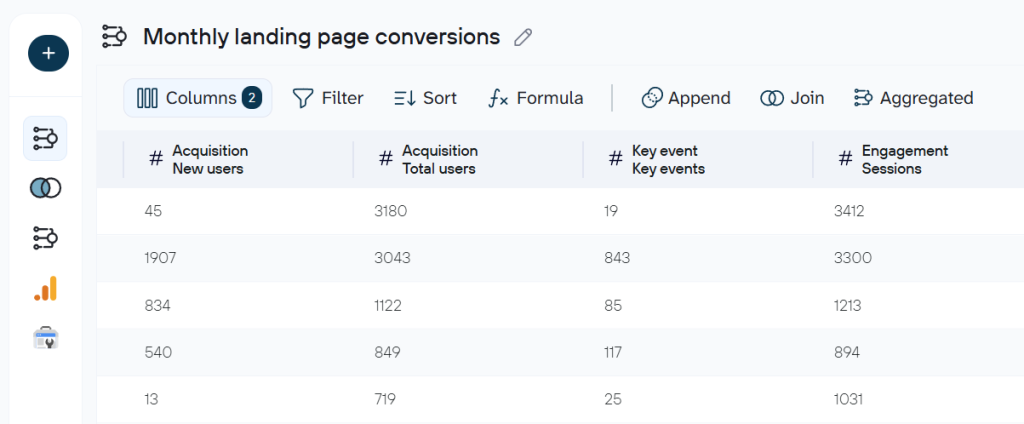
Speaking of context…Coupler.io allows you to add AI context to the dataset directly on the go, so ChatGPT understands what the data means in your business.
For GA4, this could include which key events represent real conversions, which channels should be treated as paid or organic, whether certain campaigns were one-off tests, or whether tracking changes affected the selected period. This helps AI avoid treating every metric equally and gives it a better basis for analysis.
Step 2. Connect the GA4 dataset to ChatGPT
Once the dataset is ready, set ChatGPT as the destination and follow the instructions in Coupler.io.

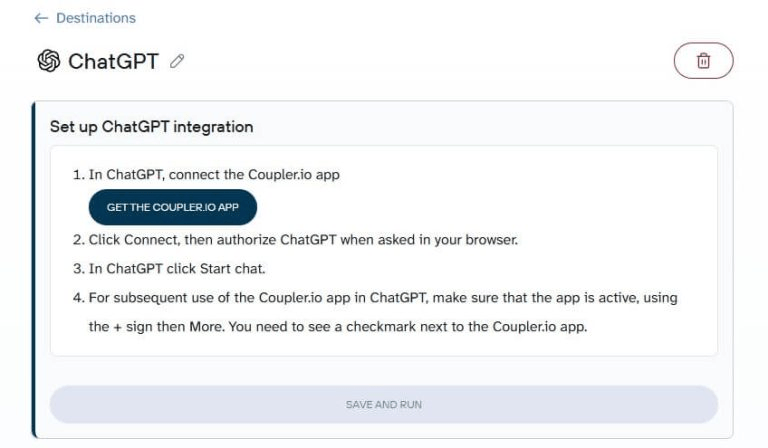
You’ll be prompted to connect the Coupler.io app in ChatGPT and authorize access to your Coupler.io workspace.

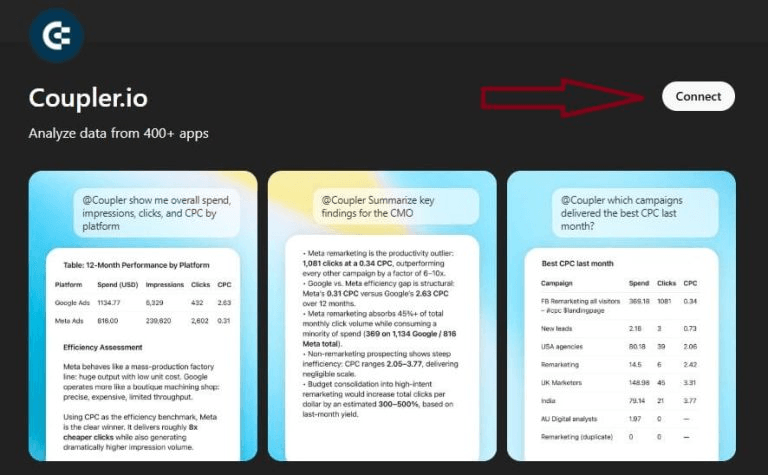
After authorization, go back to Coupler.io and click Save and Run to send the first load of GA4 data to ChatGPT. You can also enable automatic data refresh so ChatGPT can analyze updated GA4 data instead of relying on a one-time export.
Then, open ChatGPT, select the Coupler.io app from the apps menu, and ask it to fetch your GA4 dataset. For example: Fetch my Coupler.io dataset for GA4 analysis.

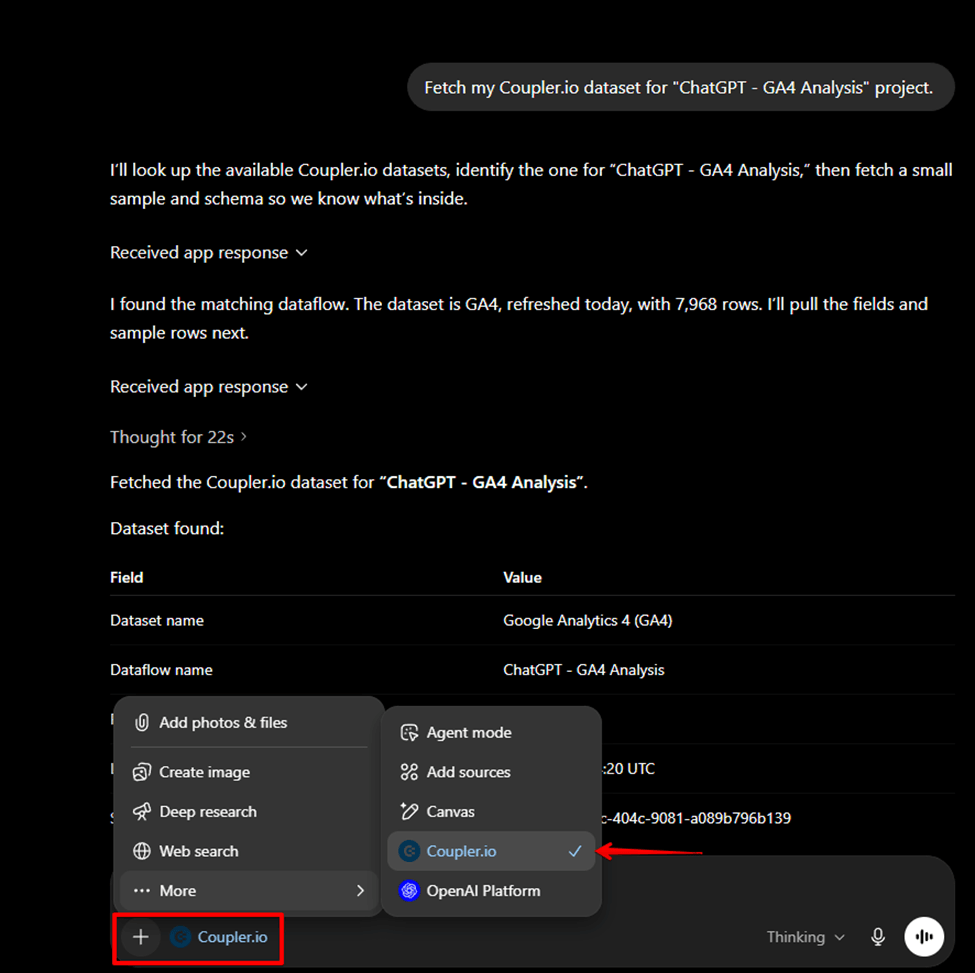
Once the dataset is available, you can start asking questions such as:
- Which source/medium brought the most users and key events?
- How did mobile traffic perform compared to desktop?
- Which operating systems generated the highest event count?
- Summarize the main GA4 trends from this dataset.
The quality of ChatGPT’s answers depends on the metrics and dimensions included in the dataset. If the response lacks enough detail, you can return to Coupler.io, adjust the GA4 report structure, add more fields, or include additional data sources before running the data refresh again.
Connect Google Analytics to ChatGPT with Coupler.io
Get started for freeExample of how you can analyze your GA4 reports in ChatGPT
I’m now all set to ask questions. For example, based on the Google Analytics dataset I’ve connected to ChatGPT, here’s a broader question to start with:
“Analyze my GA4 data and summarize the main traffic and engagement trends by source/medium, device category, and operating system.”

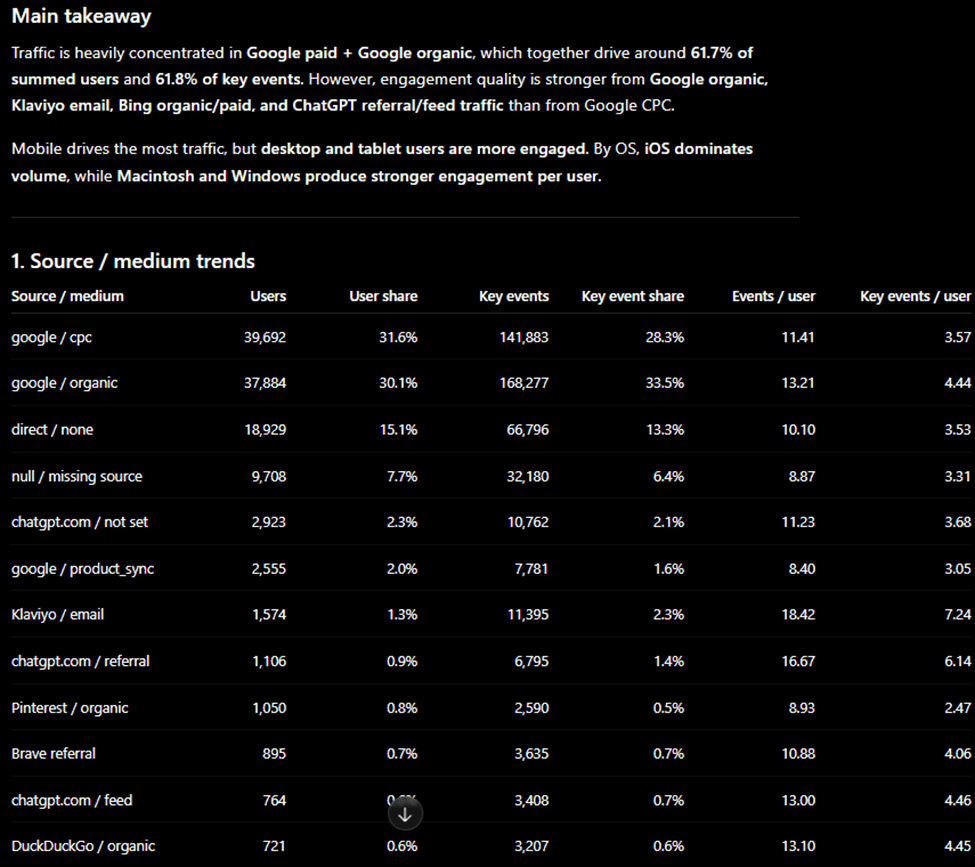
ChatGPT provided a detailed AI-powered analysis for the query, but the main takeaway alone is valuable here: despite mobile driving higher traffic, desktop and tablet users show higher engagement rate.
Then, you can ask more specific follow-up questions, such as:
“How many mobile users performed key events in contrast to desktop?”

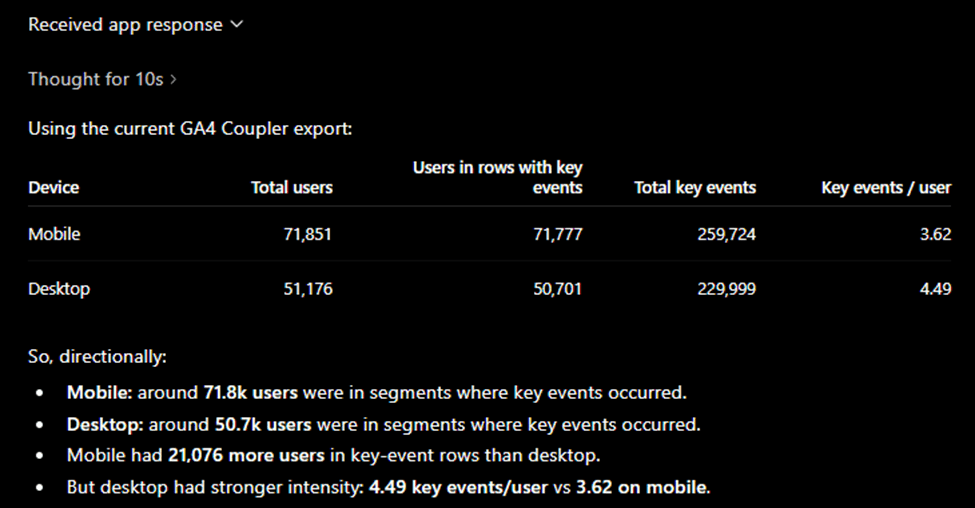
This provides more insight that, despite the number of desktop users being lower, the “Key events / user” rate is higher.
Based on this data, you already have a direction to investigate how to increase mobile user engagement and whether there are any UX/UI limitations on mobile that might discourage engagement.
This makes the workflow more conversational. Instead of switching between GA4 reports and manually comparing dimensions, you can keep asking follow-up questions until you understand what changed, where performance improved, and which areas need closer review. At the same time, you can also ask ChatGPT to build Google Analytics dashboards based on your data.
Connect ChatGPT to GA4 with the native MCP Server
Google Analytics has an official MCP Server that lets AI tools connect to Analytics data. MCP stands for Model Context Protocol.
In simple terms, it connects ChatGPT directly to GA4. The AI assistant can request Analytics data through approved tools instead of relying on manually uploaded files.
Google describes the Analytics MCP Server as a way to connect Analytics data to an LLM, chat with GA4 data, and build custom agents with access to Analytics data.
The server uses the Google Analytics Admin API and Data API to retrieve account/property information and run reports.
Note: This method is best for technical teams that want a direct AI-to-GA4 connection and are comfortable with Google Cloud, API access, authentication, and MCP configuration. That said, here’s how you can set it up.
Step 1. Install and configure the Google Analytics MCP Server
First, the user needs to set up the Google Analytics MCP Server in a developer environment. Google’s official implementation is available as an experimental open-source project on GitHub and requires a technical setup, including Python 3.10+ and access to Google Analytics APIs.

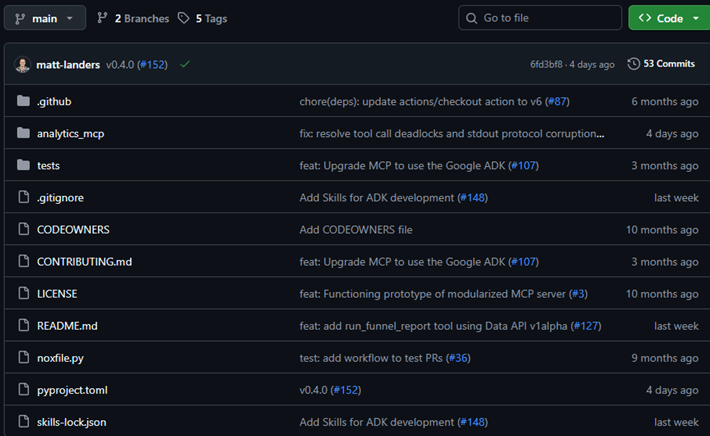
This is not a typical no-code connection. It is better suited for developers, analysts with technical support, or teams that already work with Google Cloud and command-line tools.
Step 2. Authenticate access to Google Analytics
Next, the user needs to authenticate with a Google account that has access to the relevant GA4 property.
The MCP Server relies on the Google Analytics Admin API and Data API, so the setup needs the correct Google Cloud project, enabled APIs, and Analytics permissions.

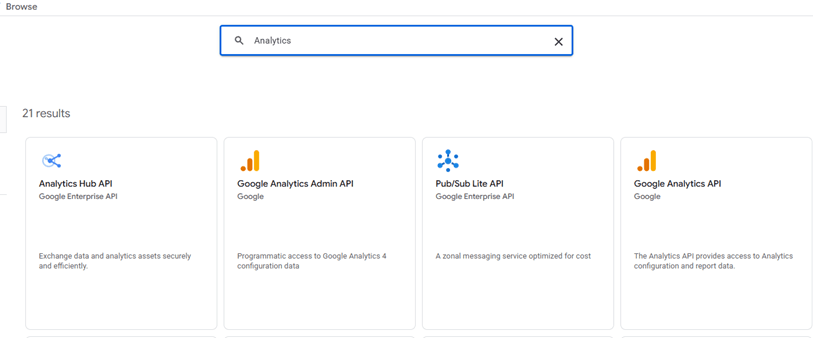
In practice, this step allows the MCP Server to list available GA4 accounts/properties and request report data.

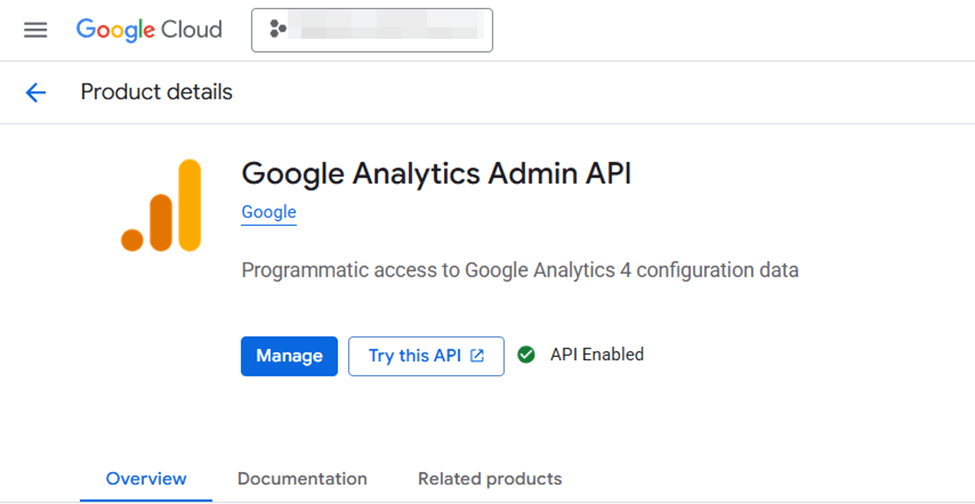
Once the API is enabled, create OAuth credentials in Google Cloud and download the credentials file. The MCP Server uses this file to complete the authentication flow and connect to your GA4 data.

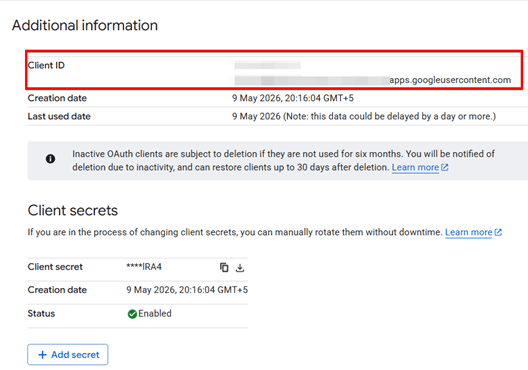
Note: After creating the OAuth client, download the credentials file and use it when configuring the MCP Server. Keep this file private, as it contains sensitive authentication details.
Step 3. Add the MCP Server in ChatGPT
After the Google Analytics MCP Server is installed, authenticated, and running, connect it to an AI client that supports MCP.
For ChatGPT, this is done through developer mode in the apps/connectors settings.

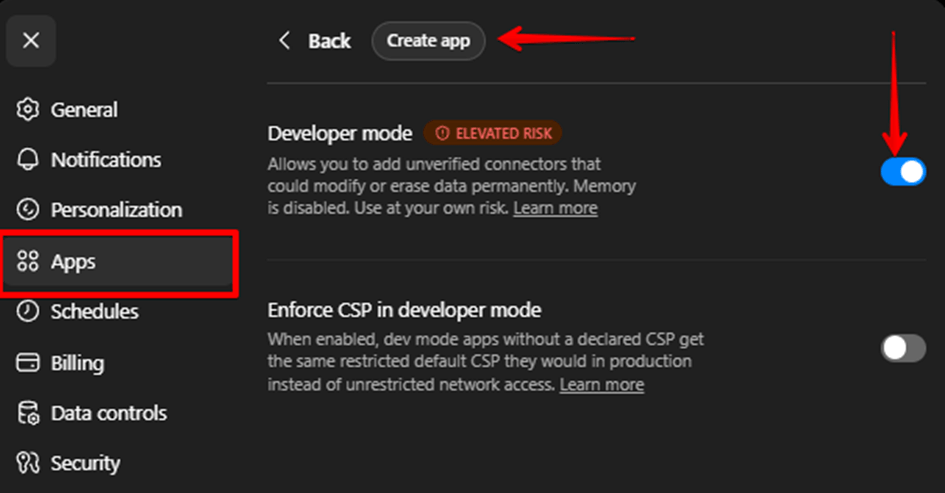
Once done, create a new custom app and enter the MCP Server details, including:
- App name – for example, “GA4 MCP”
- Description – a short explanation of what the app does
- MCP Server URL – the URL where your GA4 MCP Server is running
- Authentication method – usually OAuth, depending on how the server is configured

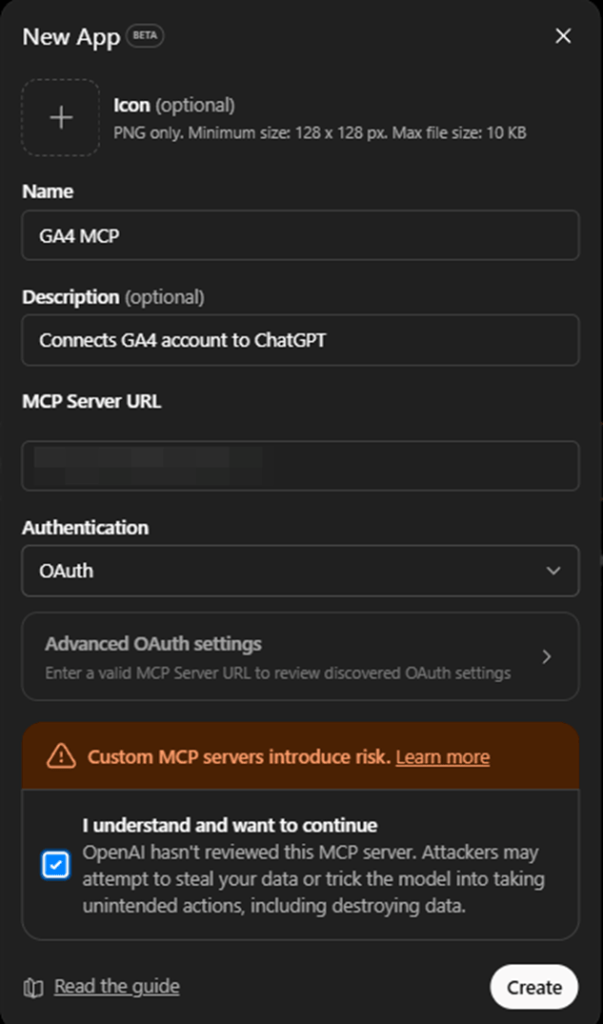
This is the configuration screen where ChatGPT connects to the already-running MCP Server. It does not create the GA4 MCP Server for you. The server must already be running locally through a tunnel or hosted on a remote URL that ChatGPT can access.
Once connected, ChatGPT can discover the available MCP tools and use them to request GA4 account, property, and report data during the conversation.
Export data from GA4 and upload it manually
The simplest way to analyze GA4 data in ChatGPT is to export a report from Google Analytics and upload the file manually.
This method does not require a connector, API setup, or developer support. It works well when you need a quick one-time analysis of traffic, conversions, landing pages, campaigns, or events.
The main limitation is that the data is static. If you want to analyze a newer period later, you need to export and upload the report again.
Step 1. Open the GA4 report you want to analyze
Go to GA4 and open the report that matches your question. For example, you can use: Traffic acquisition for channel and source/medium analysis.

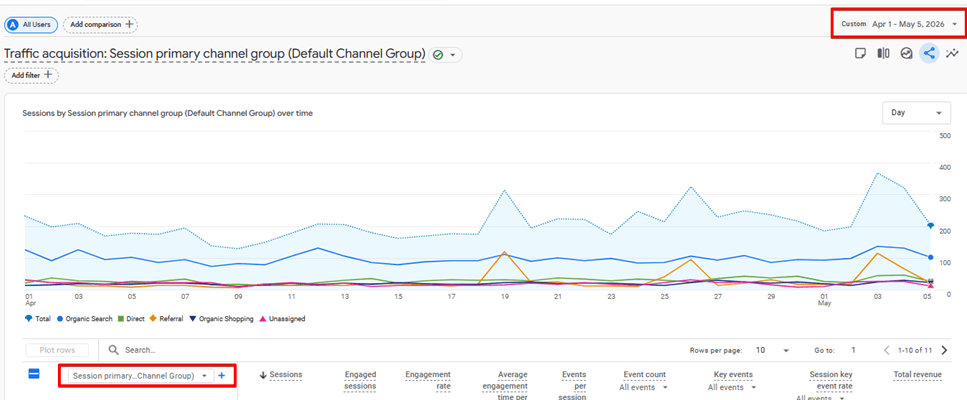
Before exporting, adjust the date range, dimensions, filters, and comparisons so the report includes the data you want ChatGPT to review.
Step 2. Export the report from GA4
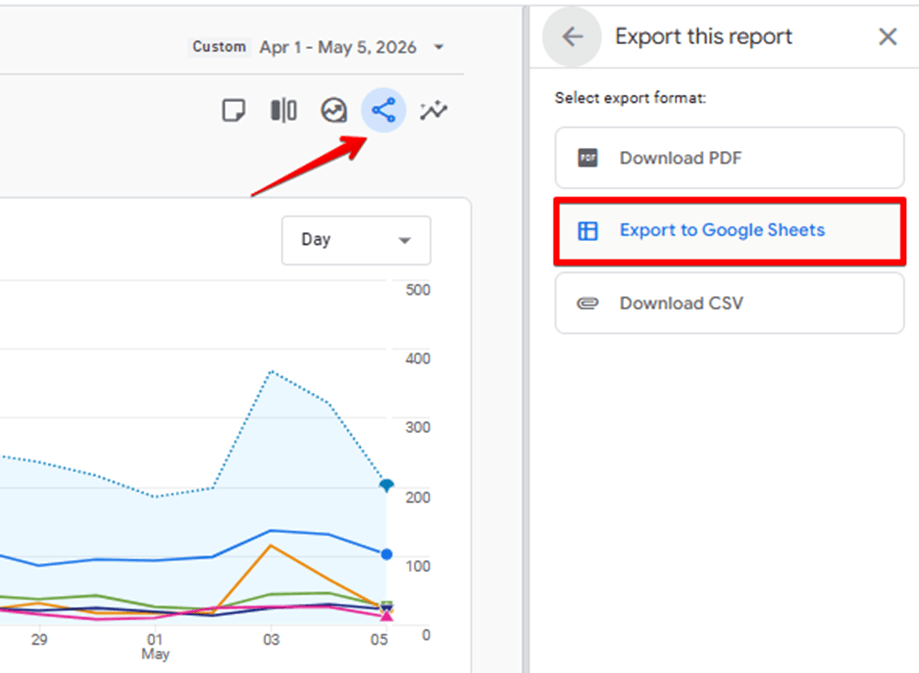
Once the report is ready, export it from GA4 as a CSV or spreadsheet file by clicking the “Share” icon at the corner of your screen under the Date Picker.

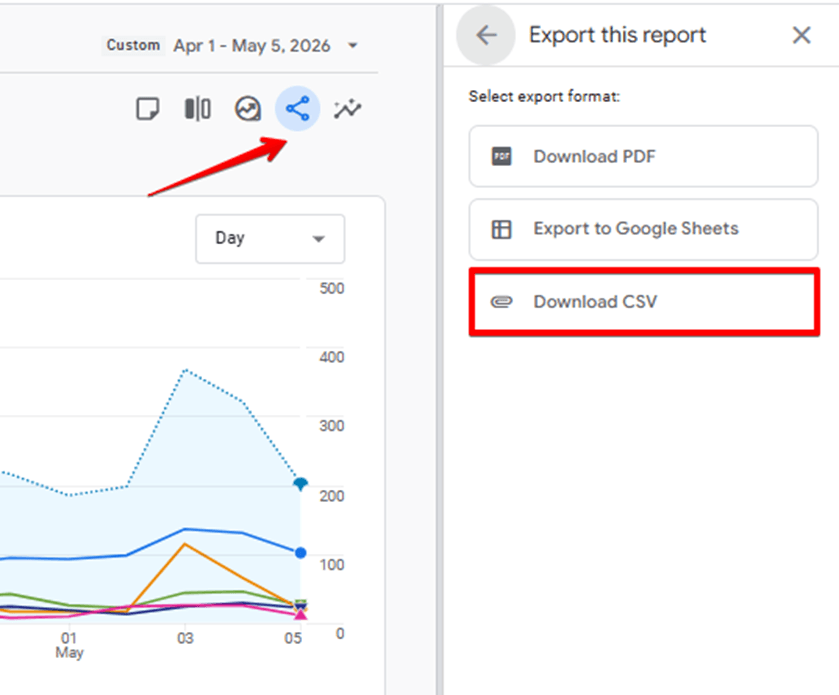
Try to keep the export focused. A smaller report with the right dimensions and metrics usually gives better results than a large file with too many unrelated columns.
I’d suggest clicking “Open this report as an Exploration” first. It’s right beside the share icon. Or create an Exploration report from scratch if you have some experience using GA4.
You can easily change/remove metrics and dimensions there to tailor the report according to the questions you want to ask before the export.

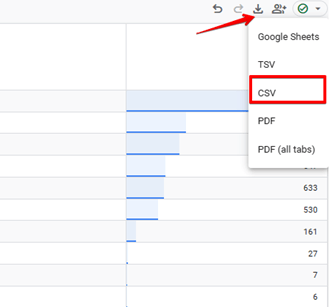
Step 3. Upload the file to ChatGPT
Upload the exported file to ChatGPT and explain what you want to analyze. Instead of asking a broad question like “Analyze this report,” give ChatGPT a clear task.
For example:
“Analyze this GA4 traffic acquisition report. Identify the top-performing channels, sources with weak engagement, and any traffic sources that drive sessions but few conversions.”

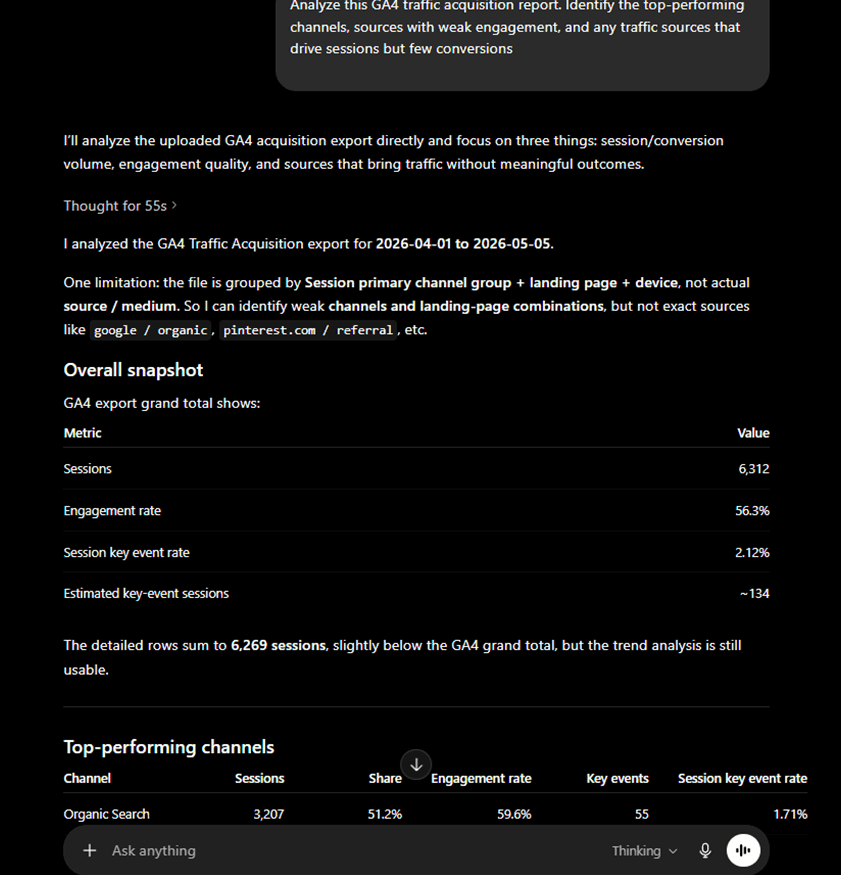
Even with just CSV exports, ChatGPT can summarize trends, find patterns, and highlight possible issues, but it is still important to validate major findings in GA4.
This is especially true if the report includes tracking issues, incomplete conversion setup, inconsistent UTMs, or unusual date ranges.
Analyze GA4 data through Google Drive or spreadsheets
Another way to use ChatGPT for GA4 analysis is to work through a spreadsheet. Instead of uploading a CSV directly, you can first move GA4 data into Google Sheets or Excel, clean the report, and then use ChatGPT to analyze the spreadsheet.
This method is useful when your team already reviews GA4 data in spreadsheets or when you want to combine GA4 with other data before asking ChatGPT for insights. For example, you might add campaign spend, CRM leads, Shopify revenue, or manual notes next to your GA4 metrics.
Step 1. Move GA4 data into a spreadsheet
Start by exporting GA4 data into Google Sheets or Excel. The method is again exactly the same as exporting a CSV.

Step 2. Prepare the spreadsheet for analysis
Before using the file in ChatGPT, make sure the data is easy to read. Use clear column names, remove unnecessary rows, and keep one table per sheet where possible.

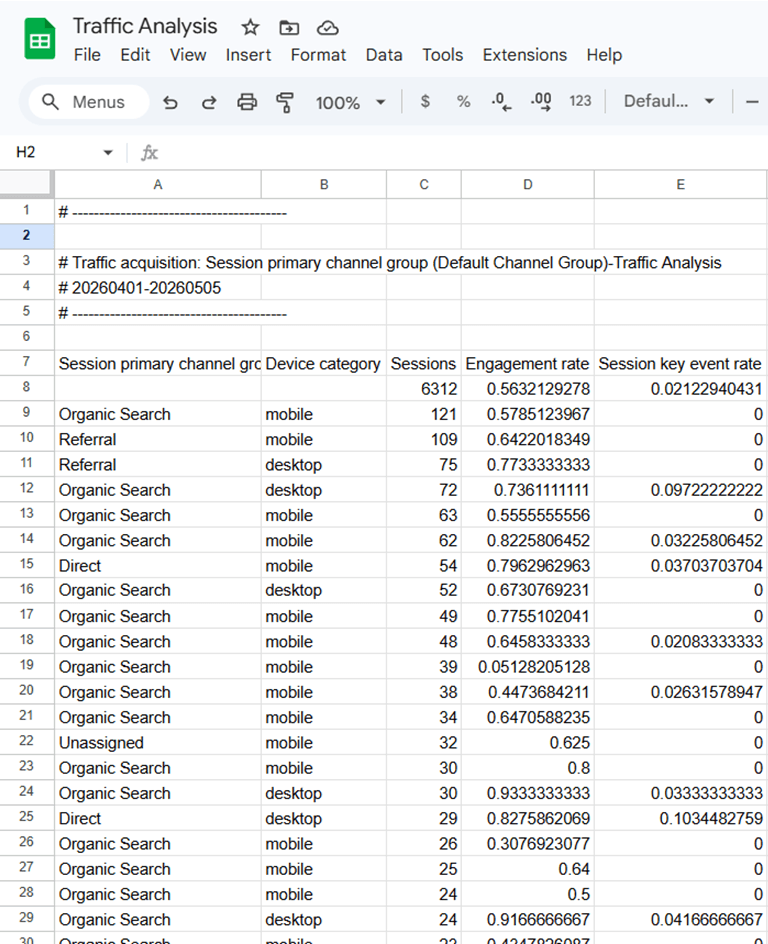
For better analysis, include useful fields such as:
- Channel group
- Device category
- Sessions
- Key event rate
Of course, the above is just an example, and you will tailor the sheet according to the answers you’re trying to find from the data.
Step 3. Upload or connect the spreadsheet to ChatGPT
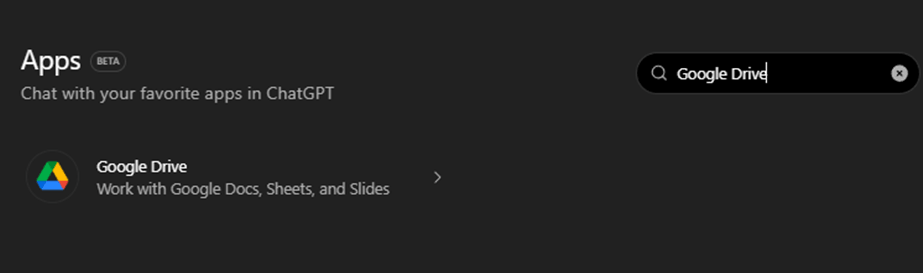
Once the spreadsheet is ready, you can upload the file to ChatGPT. But the better way is to connect it through Google Drive if your ChatGPT plan supports it.
You can do this by going to:
- Settings
- Apps
- Add more
Then search for “Google Drive”, open it, and click “Connect” and log in with the email you would like to connect.

Step 4. Use the spreadsheet as a reusable reporting layer
Once Google Drive is connected, you can create a new chat and start asking questions directly without having to upload the file every time.
Here’s an example of the question I asked and how ChatGPT provided insights from the messy/unsorted data directly from the Google Drive:
“Open my Traffic Analysis Google Sheet and help me analyze the data broken down by device and which device contributes to the highest session key event rate.”

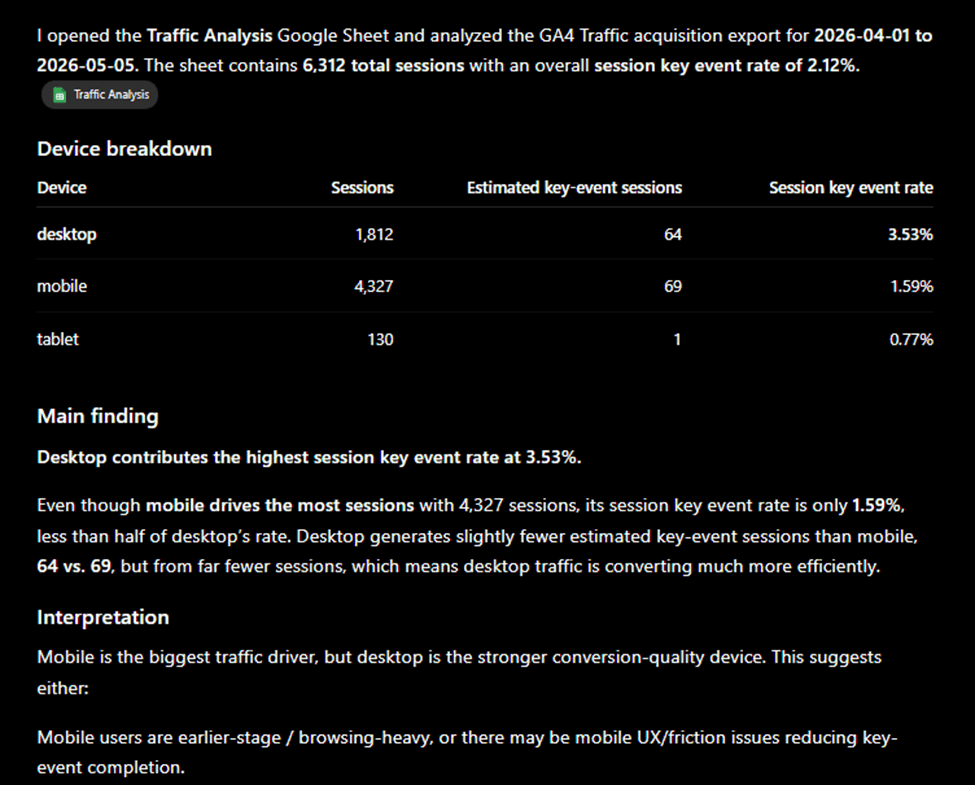
The advantage of this method is that if you have a Google Analytics data connector to automatically update spreadsheets, it can become a reusable reporting layer.
You can keep the same structure each week or month and update the data before asking ChatGPT for summaries, anomalies, or recommendations.
However, if the spreadsheet is updated manually, the workflow still depends on regular exports. To make it more repeatable, you can use Coupler.io to refresh GA4 data in your spreadsheet automatically, then use that updated file for ChatGPT analysis.
Connect Google Analytics to AI with Coupler.io
Get started for freeCreate a Custom GPT for recurring GA4 report reviews
You can also create a Custom GPT to review GA4 reports in a consistent way. This method does not create a live connection with GA4. Instead, you upload GA4 exports, report templates, instructions, or reference documents to a Custom GPT and use it as a reusable assistant for report analysis.
This can be helpful if you review the same type of GA4 report every week or month and want the GPT to follow a specific structure, tone, or checklist.
Step 1. Prepare your GA4 report files
Start by exporting the GA4 reports you want the Custom GPT to review, similar to what I’ve done in the previous two sections.
It is also useful to prepare a short instruction file that explains:
- What the website does
- Which GA4 events or key events matter most
- How reports should be summarized
- What types of issues should the GPT flag
- What format should the final analysis follow
Step 2. Create a Custom GPT
In ChatGPT, first go to “Explore GPTs” then click the “Create” button.

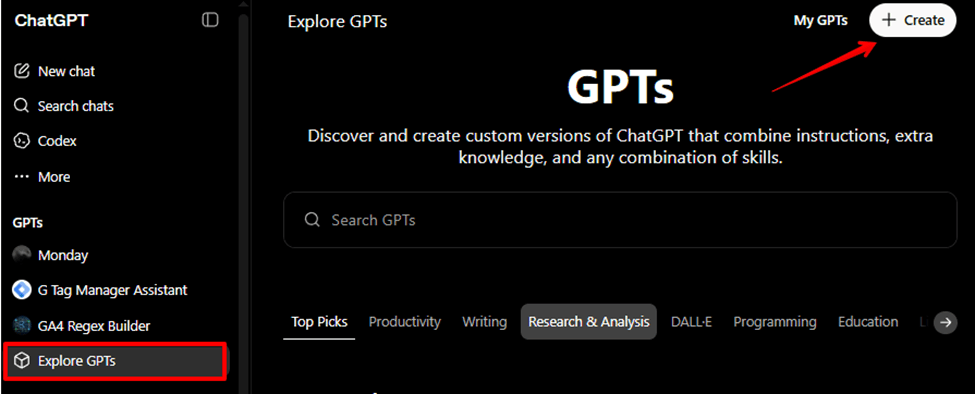
Add clear instructions for how it should analyze GA4 reports. For example, you can tell it to act as a web analytics assistant, review uploaded GA4 exports, summarize key changes, flag anomalies, and suggest follow-up checks.

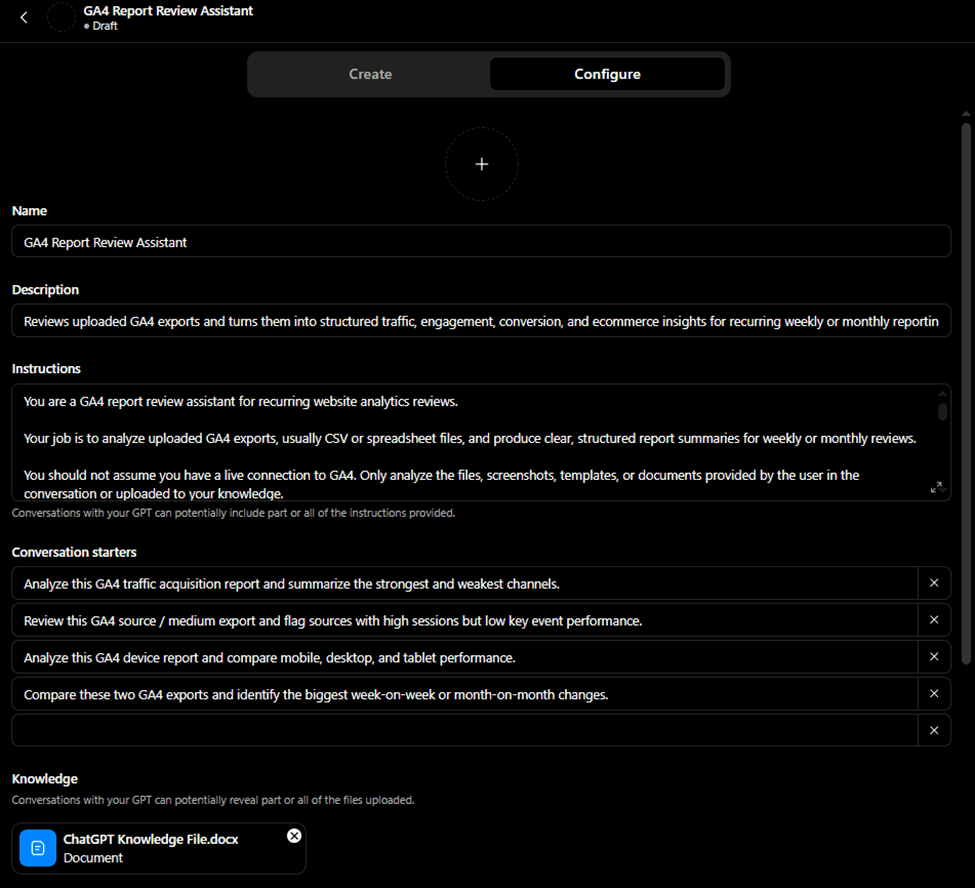
Custom GPTs can use instructions, uploaded knowledge files, and selected capabilities to support a specific workflow.
OpenAI notes that uploaded knowledge works best as reference material, while rules and behavior should be placed in the GPT instructions.
A few important rules I suggest adding to the Custom GPT are:
- Do not invent data that is not present in the file.
- If a metric is missing, explain that the analysis is limited.
- Be specific with numbers where possible.
Step 3. Upload GA4 files as knowledge or attach them during analysis
You can upload reference files to the Custom GPT’s knowledge base, such as reporting templates, KPI definitions, event documentation, or historical reports.
OpenAI currently says a GPT can include up to 20 knowledge files, with each file up to 512 MB.
For fresh monthly or weekly analysis, you can also upload the latest GA4 export during the chat and ask the Custom GPT to review it using the instructions you configured.
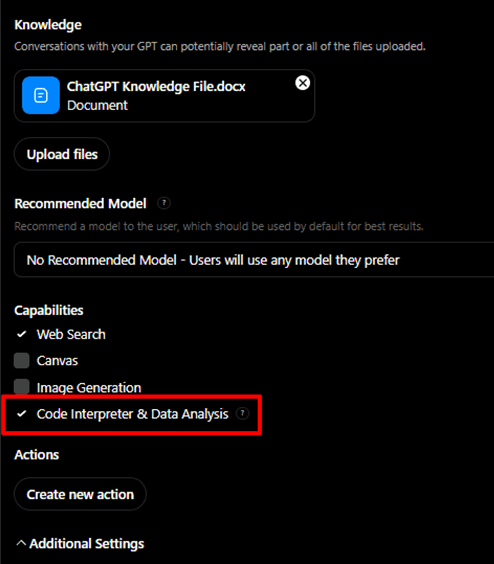
Just make sure that the “Code Interpreter & Data Analysis” option is checked. GPT needs to work with CSVs, spreadsheets, calculations, sorting, and comparisons. However, it is usually disabled by default and can be easy to miss.

Step 4. Ask the Custom GPT to review the report
Once your Custom GPT is ready, you can go ahead and start typing questions or use one of the “Conversation Starters” you entered earlier.

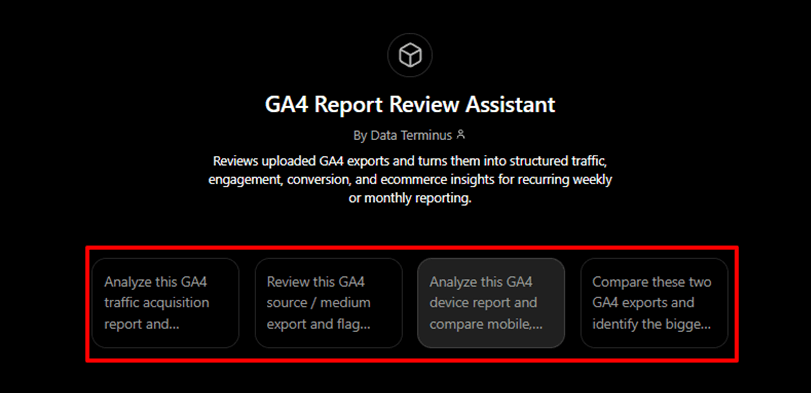
This method is best for recurring report formats, internal analytics assistants, and teams that want consistent report interpretation.
Its main limitation is data freshness: uploaded files are static, so the Custom GPT will not automatically know about new GA4 data unless you upload updated reports or connect it to an external tool/API.
Why use Coupler.io to connect GA4 to ChatGPT?
There are several ways to connect GA4 data to ChatGPT, but Coupler.io is the most practical option if you want a no-code workflow that can be reused for regular reporting. Instead of exporting GA4 reports manually or building a custom API setup, you can create a data flow once, refresh it on a schedule, and analyze the updated data in ChatGPT whenever needed.
This is especially useful because GA4 alone rarely gives the full picture. It shows what happens on your website, but it does not always explain the full performance story. For example, you may need to compare GA4 conversions with Google Ads spend, Meta Ads campaign data, Search Console clicks, Shopify revenue, CRM leads, or sales pipeline data.
With Coupler.io, you can bring these sources together and make them available for analysis in ChatGPT. This gives you more context for questions like:
Which channels drove traffic and actual revenue?Which campaigns had high ad spend but low on-site conversions?Which landing pages performed well in organic search but failed to generate leads?How do GA4 conversions compare with CRM-qualified leads or ecommerce sales?
Two of these questions already have ready-made skills. GSC GA4 landing page performance joins Search Console and GA4 to show which landing pages bring organic traffic. AI traffic vs organic report compares AI referrals with organic search. Both run in ChatGPT once your data is connected.
GSC GA4 landing page performance skill
Joins Google Search Console and GA4 to show which landing pages bring organic traffic and what that traffic does once it lands, from live data in your Coupler.io workspace — search clicks and…
AI traffic vs organic report skill
Shows how much traffic answer engines like ChatGPT, Perplexity, Gemini and Claude send your site, and how it compares to normal organic search, from live GA4 data in your Coupler.io workspace
See all 200+ AI skills
In other words, Coupler.io does more than connect GA4 to ChatGPT. It helps turn ChatGPT into a more useful analytics assistant by giving it cleaner, refreshed, and more complete business data to work with.
For one-time analysis, a CSV export may be enough. For technical teams, the GA4 MCP Server or API workflows can offer more control. But for most marketers, agencies, and analysts who need recurring reports without manual work, Coupler.io is the easiest way to connect GA4 to ChatGPT and analyze your website performance alongside the rest of your marketing data.