QuickBooks keeps your financial data organized. Anthropic Claude helps you make sense of it. But out of the box, the two don’t talk to each other. Claude can’t log into QuickBooks, pull your reports, or access your transactions on its own.
Explore Coupler.io as the way to connect QuickBooks to Claude for your needs, along with other options covered in the article. I’ll walk you through each one and help you pick the right method for how you actually analyze your financial data in AI.

Comparison table of methods to load your QuickBooks to Claude
To get QuickBooks data into Claude, you need a connection method. Some take seconds, others need technical setup. They differ in how fresh the data is, how much manual work is involved, and how accurate the analysis will be.
| Connection method | Ease of use | Who does the math | Best for | Main limitation |
|---|---|---|---|---|
| Coupler.io | Simple: connect once, query anytime | Coupler.io’s analytical engine. The validated results are sent to Claude | Recurring multi-source financial data analysis with access to up-to-date information. | The free plan does not allow to schedule data refresh. |
| Claude Intuit native connector | Simple: connect through Claude’s settings | Claude | First-party official connection for Claude.ai users | Still rolling out. Availability may vary by plan |
| Custom API | Technical: requires dev setup | Claude | Teams building custom internal tools or dashboards | Requires dev resources and ongoing maintenance |
| File uploads | Easy: export and drag into chat | Claude | One-off analysis on a single export | Data is stale the moment you upload it |
| Copy paste | Zero: copy & paste directly | Claude | Quick lookups with a few rows of accounting data | Context window limits, fully manual, no security controls |
How to connect QuickBooks to Claude using Coupler.io
Coupler.io is a no-code data integration and AI analytics platform that connects 400+ data sources, including QuickBooks, to AI tools like Claude, ChatGPT, Gemini, and others. It works as an automated data pipeline. Once set up, Coupler.io pulls data on a schedule, processes it, and keeps it ready for Claude to query without manual exports or stale spreadsheets.
One thing worth understanding before the setup: Claude is built to interpret data, not crunch it. Ask it to calculate across a large QuickBooks dataset, and the numbers may be off. Coupler.io solves this with its Analytical Engine, which runs the calculations first and returns verified results. Claude then explains what those numbers mean in plain language.
Here’s how to set up AI integrations in Coupler.io.
Step 1: Create a QuickBooks dataflow
Sign up for Coupler.io for free and create a new dataflow with QuickBooks as your source, or use the form below to get started instantly.

Connect your QuickBooks account and choose the data entities you want to pull: invoices, transactions, expenses, bank accounts, or reports.
Coupler.io also supports the export of QuickBooks reports as a separate data source. If this is your case, change QuickBooks to QuickBooks Reports in the form above.
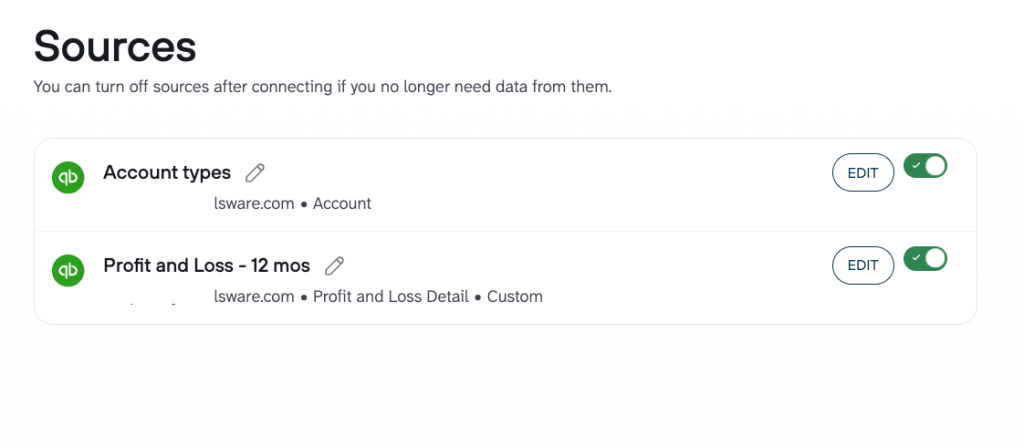
You can add multiple QuickBooks data sources to the same dataflow. For example, Account Types and Profit and Loss, and query them together in Claude.

From there, you can organize your dataset before it reaches Claude, like filter columns, sort rows, aggregate data, or hide fields you don’t need. Coupler.io applies these transformations automatically every time the dataflow runs, so your data arrives clean and structured.

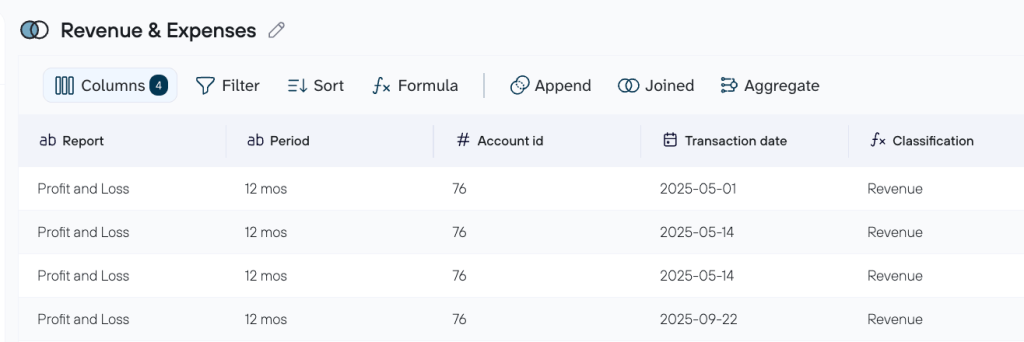
If you want a faster start, Coupler.io offers dataset templates with pre-built transformations that make your QuickBooks data ready for analysis straight away.
Coupler.io also lets you attach context to each dataset before Claude starts the analysis. This improves the quality of answers from Claude. It sees column names and rows, but it doesn’t know that a certain invoice status is used internally as a placeholder, or that revenue spiked in Q4 because of a one-time contract. With the AI context feature, you describe it once, and it works across every session.
Step 2: Connect the dataflow to Claude
In Destinations, select Claude and click Get Connector to open the Coupler.io connector page inside Claude (works for both web and desktop). Follow the instructions to complete your Claude integrations, then go back to Coupler.io and click Save and Run.

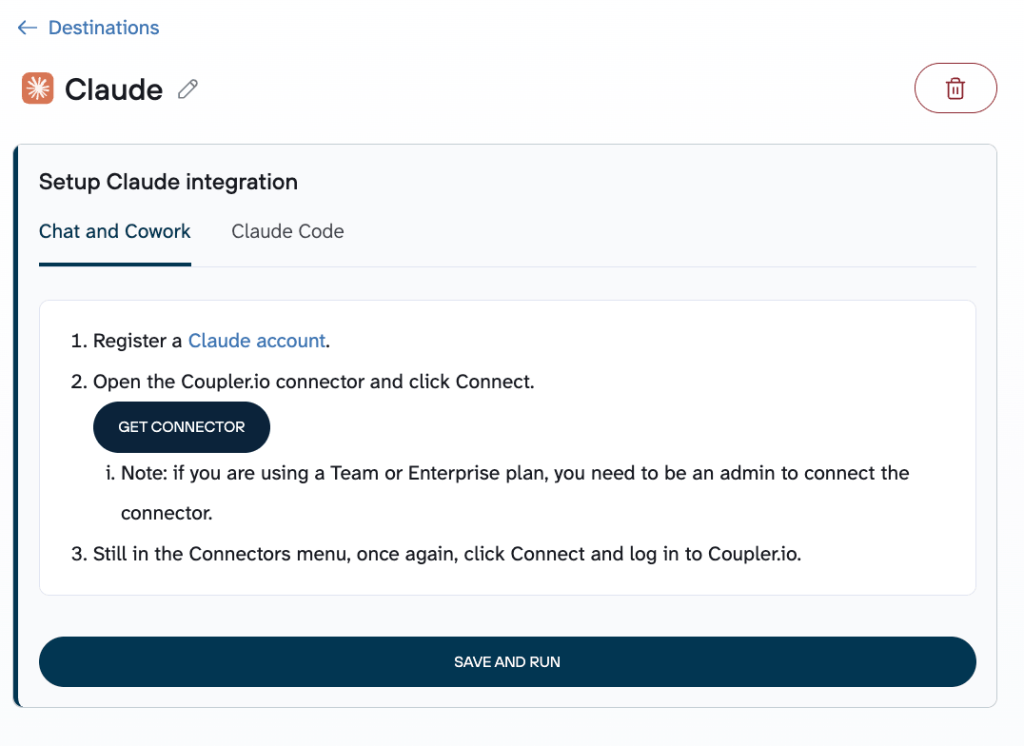
The same setup lets you connect QuickBooks to ChatGPT if your team uses both AI tools.
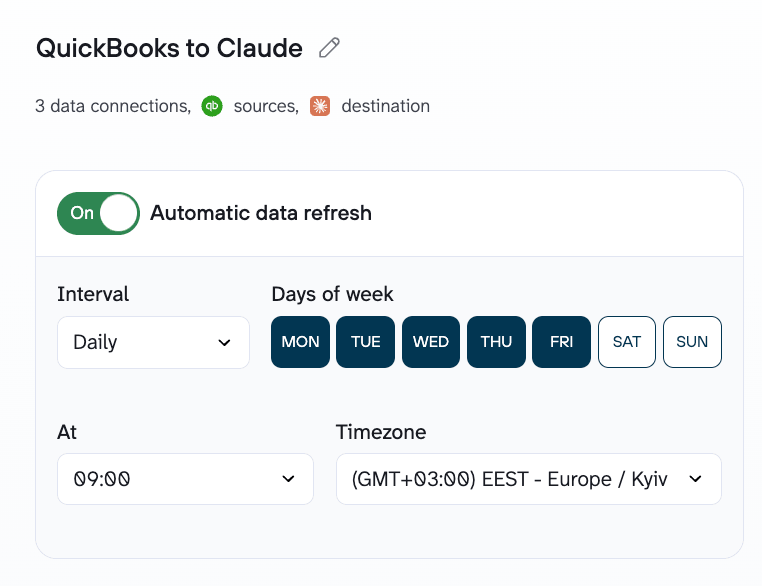
Set a refresh schedule in Coupler.io, anywhere from every 15 minutes to monthly, so your QuickBooks data stays up-to-date automatically.

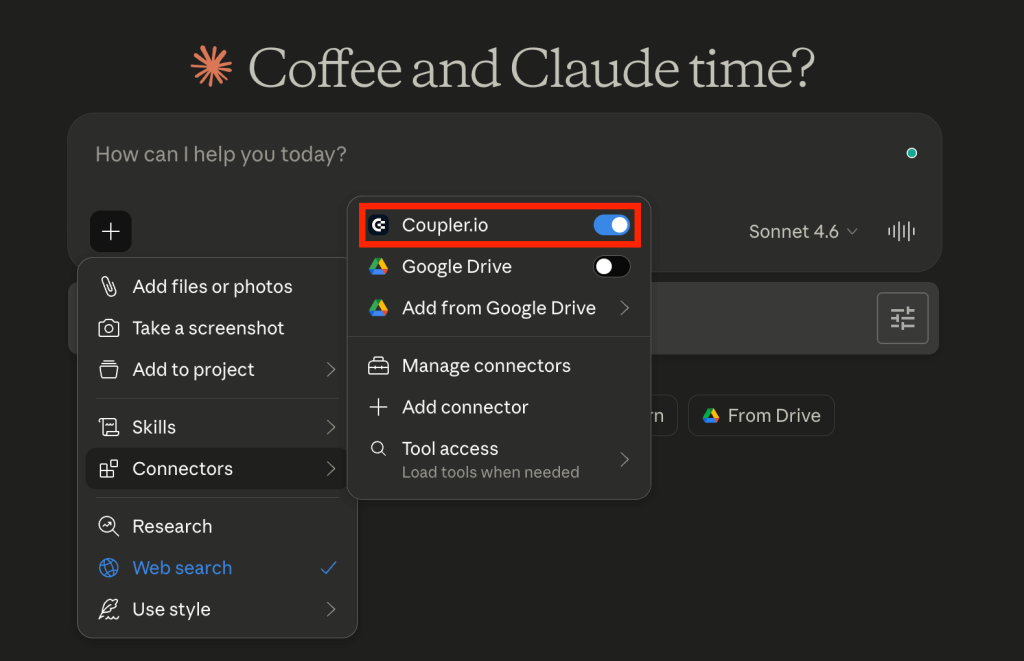
Now you’ll see Coupler.io in the list of connectors in Claude chat. You can toggle it on when you are working on interpreting data from Coupler.io. It serves as a true pipeline rather than a one-time export: the data refreshes in the background, and Claude always works with the latest numbers.

Best for:
- Finance teams that need recurring analysis on real-time financial data
- Teams that want accurate calculations, not Claude approximations
- Multi-source setups: combining QuickBooks with Google Ads, HubSpot, Stripe, or other sources in one pipeline
- Anyone who wants dashboards and AI-powered analysis running from the same workflow


Connect QuickBooks data to Claude with Coupler.io connector
Get started for freeHow to analyze QuickBooks data in Claude
Once your QuickBooks data connector for Claude is running, you can ask questions in natural language by tagging Coupler.io and get answers that go beyond what a standard QuickBooks report would show you. Here are four use cases that finance teams get the most value from.
Invoice aging analysis
Chasing overdue invoices manually means opening QuickBooks, filtering by status, sorting by due date, and building a summary every single time. With QuickBooks connected to Claude, you skip all of that.
Ask Claude:
Which invoices are overdue, by how many days, and what is the total outstanding amount per customer?

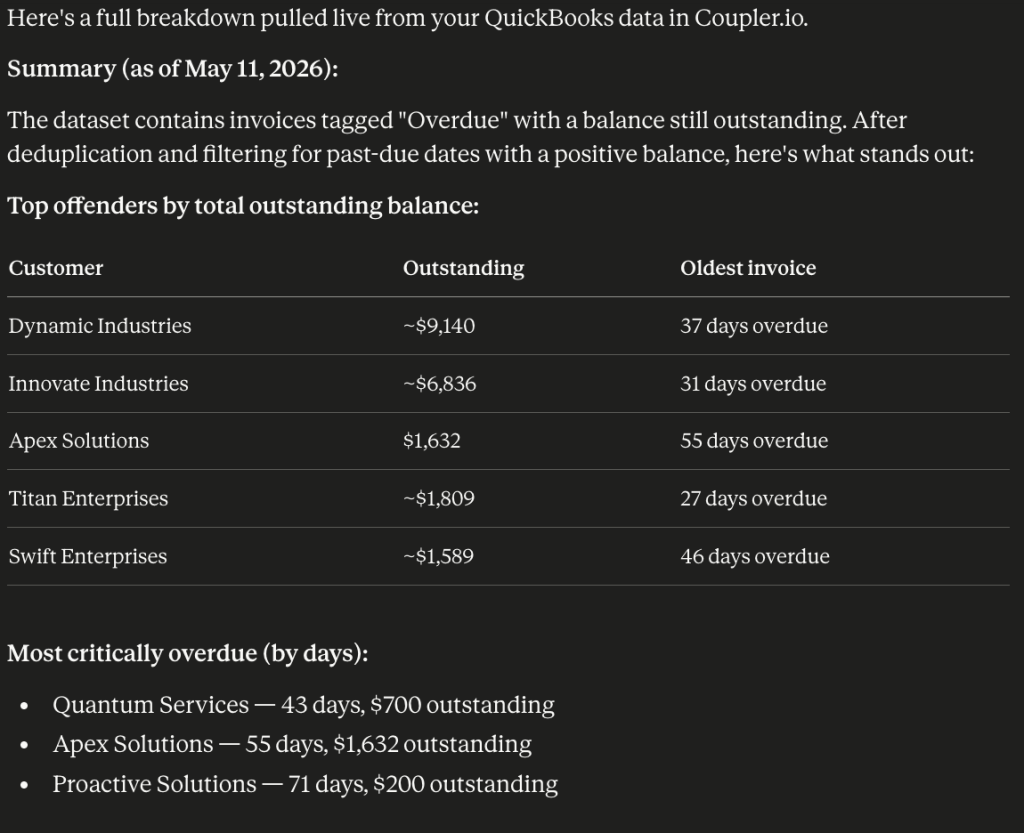
Claude pulls the data, groups it by customer, and ranks it by days overdue. It flags the highest-risk accounts and tells you exactly where to focus your follow-up. If you ask, it will also draft the reminder emails.
Run this weekly, and you will catch payment delays before they become cash flow problems.
Vendor spend analysis
When total expenses look fine on the surface, the real story is usually hiding at the category level. This prompt surfaces it:
Show me my top 10 vendors by total spend over the last six months. Which ones have grown as a cost, and which are candidates for renegotiation?

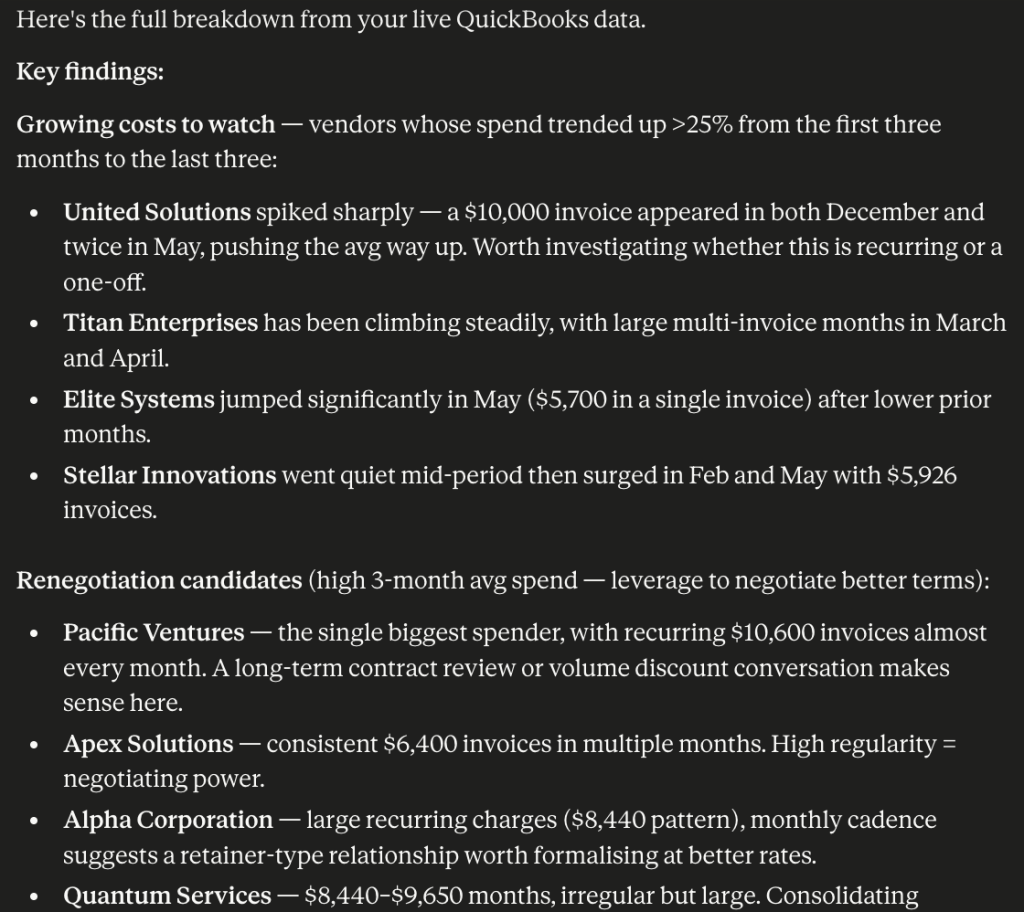
Claude breaks down spending by vendor, highlights which costs are trending up, and flags outliers. Instead of scrolling through transaction lists, you get a ranked view with context to act on. You can understand if you should renegotiate a contract or question a recurring charge that has been quietly growing.
Profit margin by product or service
Not every revenue line is equally profitable. This use case helps you find which offerings are worth doubling down on and which ones are quietly draining margin.
Ask Claude:
What is my profit margin by product or service line for the last quarter? Which are the highest and lowest margin items?

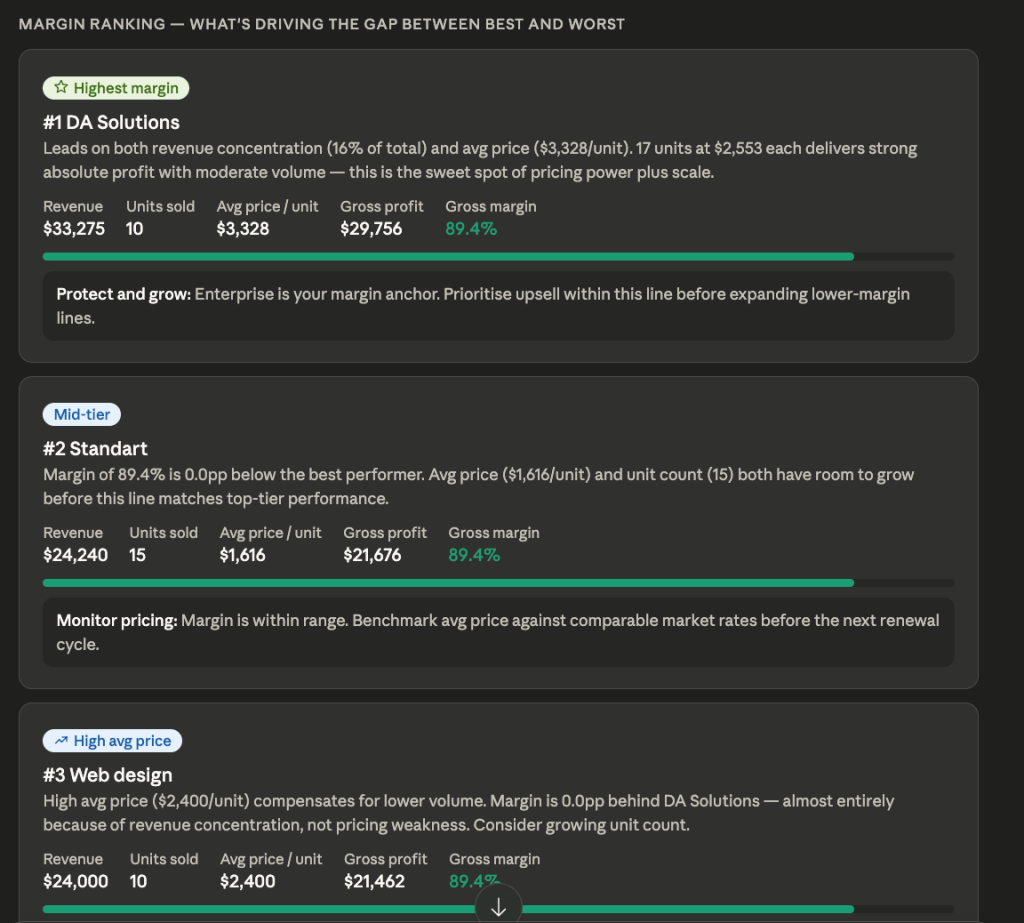
Claude aggregates revenue and associated costs per line, calculates margins, and ranks them. It highlights what is driving the gap between your best and worst performers, giving you a clear starting point for pricing or product decisions.
Google Ads integration with Claude for revenue vs. spend analysis
QuickBooks tells you what came in and what went out. But it does not tell you whether your ad spend actually moved the revenue needle. To get these AI financial insights, you need both sources in the same conversation.
In Coupler.io, add Google Ads as a second source alongside QuickBooks in the same dataflow. Both datasets feed into Claude together, so you can ask cross-source questions without switching tools.
Ask Claude:
What was my actual revenue versus Google Ads spend last month? Which campaigns delivered the best return relative to the QuickBooks income they influenced?

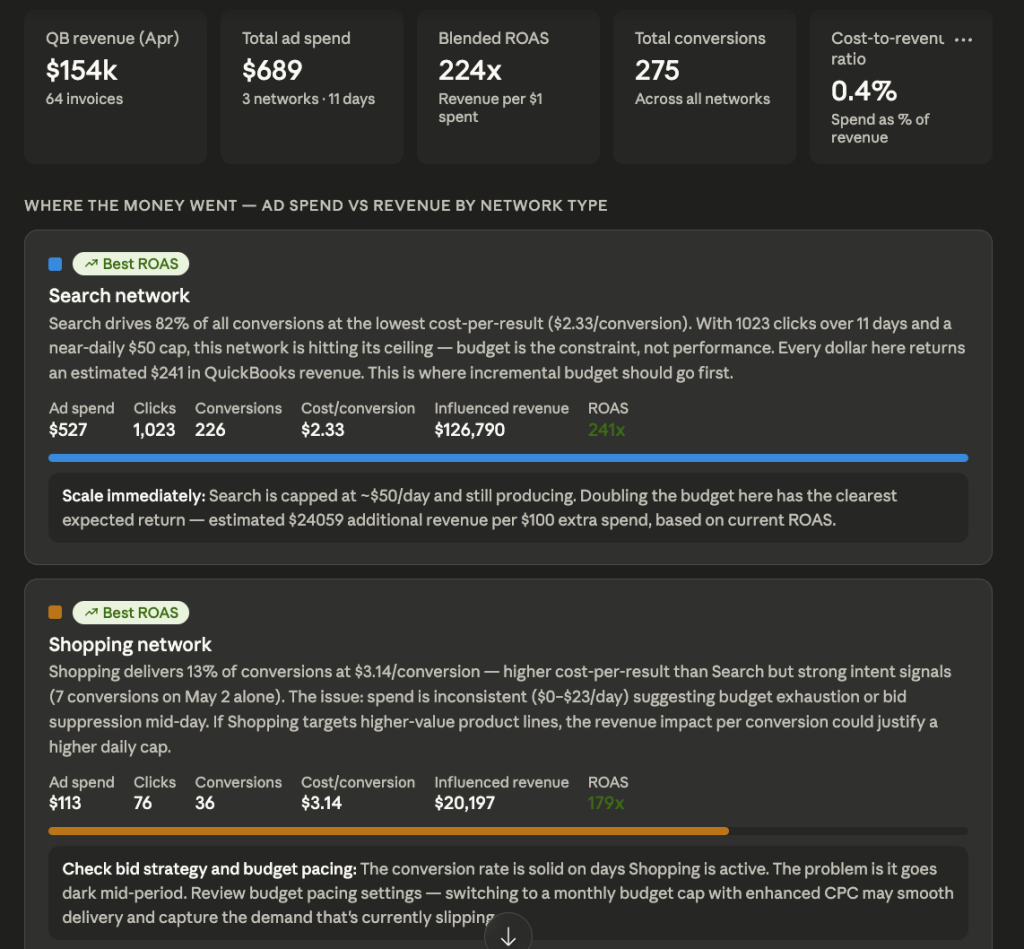
Claude compares ad spend against revenue by period, flags campaigns where the cost-to-revenue ratio is off, and surfaces where your budget is working hardest. It is the kind of analysis that usually takes hours of manual matching across two platforms, which is done in a single prompt.
Analyze data from QuickBooks and 400+ sources in Claude
Try Coupler.io for freeOther methods to send QuickBooks data to Claude
If you need recurring analysis on live data with accurate calculations, Coupler.io is the right fit. But if you’re doing a one-off review, building a custom pipeline, or just getting started, there are simpler paths. Here are the other ways to get QuickBooks data into Claude.
Claude Intuit native connector
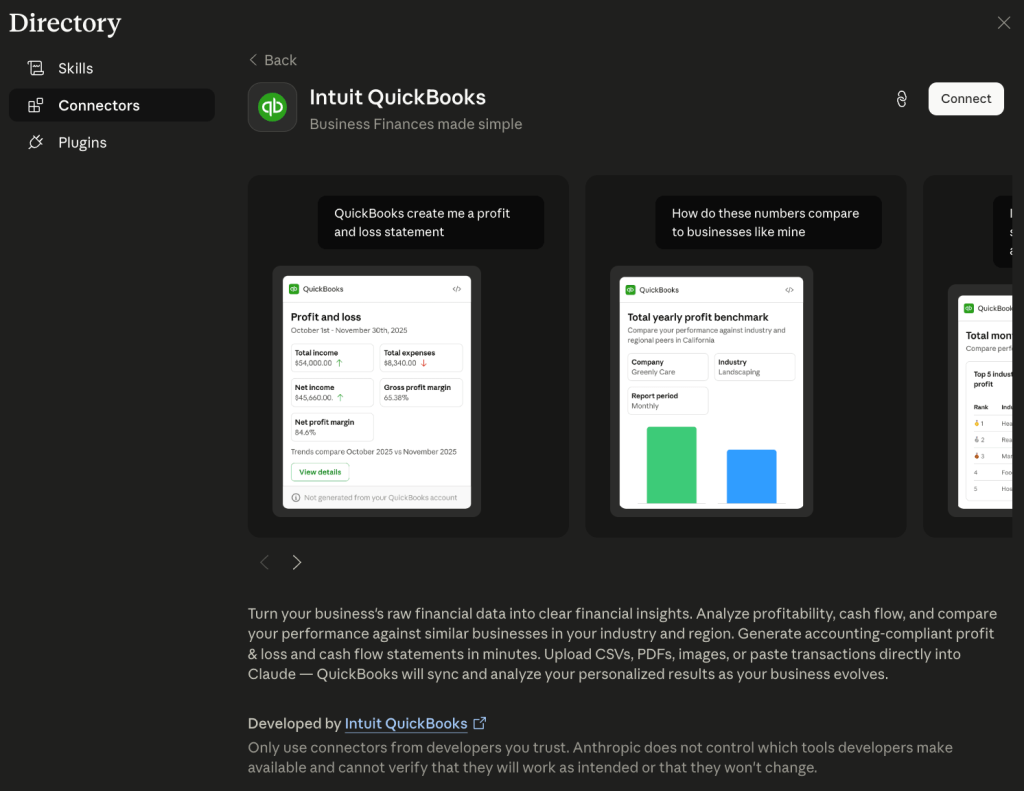
Intuit and Anthropic announced an official partnership in February 2026, bringing QuickBooks Online directly into Claude via a native MCP integration. To connect, open Claude’s connector settings, search for QuickBooks, and authorize access through Intuit’s OAuth flow. Once connected, your QuickBooks data is available in every Claude conversation without any exports or third-party tools.

Best for
Claude.ai and Claude for Enterprise users who want a first-party, officially supported connection with no additional accounts or tools required.
Limitations
The integration is still rolling out as of spring 2026, so availability may vary depending on your Claude plan and region. It also relies on Claude to handle all calculations, which works for straightforward questions but can produce approximations on large or complex datasets.
Custom API integration
This method connects the QuickBooks API directly to the Claude API through custom code. Your development team builds a pipeline that pulls data from QuickBooks, formats it, and sends it to Claude for analysis. You control exactly what data is pulled, how it is structured, and how often it refreshes.
Best for
Development teams who need full control over what data is pulled, how it’s structured, and how often it refreshes, typically for internal tools or custom dashboards.
Limitations
This is developer-level work. It requires understanding OAuth 2.0, QuickBooks API endpoints, and Claude’s API structure. It also needs ongoing maintenance. API changes on either side can break the integration, and there is no external validation layer for calculations.
Export and upload a QuickBooks file to Claude
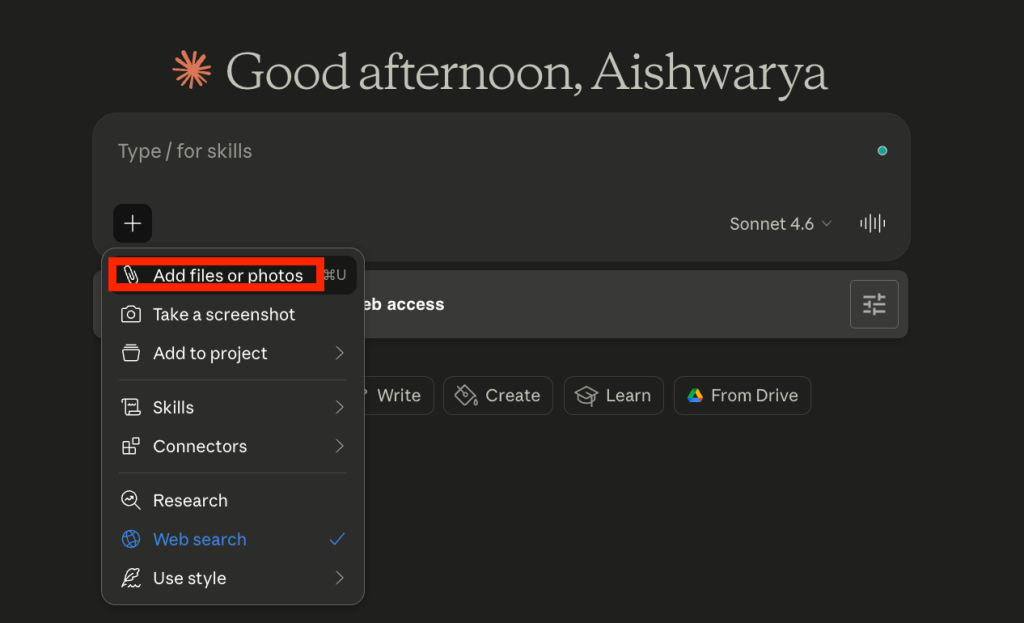
Export any QuickBooks report as a CSV or Excel file and upload it directly into a Claude conversation. Claude reads the file, recognizes the structure, and lets you ask questions about it straight away: no setup, no accounts, no configuration.

Best for
One-off analysis that requires a quick answer from a specific export. A monthly P&L you want summarized before a meeting, or a transaction list a colleague sent over that needs a quick review.
Limitations
The moment you upload the file, it is already out of date. There is no live connection to QuickBooks, so any changes after the export are not reflected. File size limits also apply. Large datasets with thousands of rows can cause Claude to slow down or silently truncate data. And since Claude handles all calculations itself, complex aggregations across large files carry a higher risk of errors.
Copy-Paste QuickBooks data into Claude
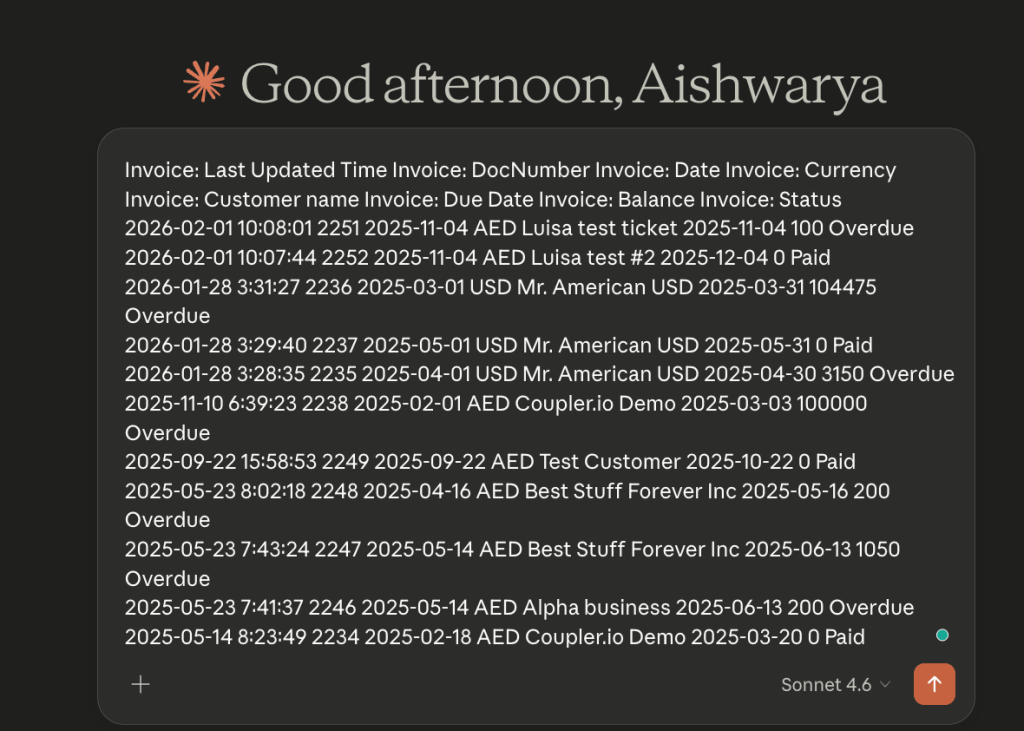
Copy a table, custom report snippet, or a few rows of bookkeeping data directly from QuickBooks and paste it into a Claude conversation. Claude reads whatever you paste and responds based on what it can parse.

Best for
Quick, simple lookups where the data fits in a few rows. You want to know which of five invoices has the highest outstanding balance, or you need a fast sanity check on a small set of numbers before a call.
Limitations
Formatting often breaks during the paste, leaving Claude to guess at the structure. The context window limits how much data you can paste. Anything beyond a few dozen rows risks getting cut off. There are no security controls either: whatever you paste goes directly into the conversation. And nothing carries over to the next session, so tomorrow you will be copying, pasting, and asking the same questions all over again.
What is the best method to connect QuickBooks to Claude?
When you connect QuickBooks to Claude, it removes the gap between your financial data and the analysis you actually need. No more manual exports, filtered reports, or cross-referencing numbers across tabs, just a question and an answer.
The right method for sending QuickBooks to Claude depends on how you work. Copy-paste and file uploads require no setup but need manual effort every time. The Claude Intuit native connector is the simplest live option for Claude.ai users. A custom API gives developers full control. And Coupler.io handles the math, keeps data fresh automatically, and scales to multiple sources when you need a fuller picture.
Querying your QuickBooks data in Claude with Coupler.io
Get started for free