Every new client starts the same way: connecting their accounts (e.g., Meta Ads, Google Ads, and GA4), one at a time. You get each update on schedule and send its data somewhere you can actually use it. Then the next client comes on, and you do it again. Multiply that across dozens of accounts, and a real part of the week goes to configuring things that look identical every time.
That’s the work Coupler.io takes off your plate. The numbers you need are scattered across a dozen tools, and Coupler.io brings them into one place you can report on and ask questions of. Whatever tools you use, they’re on the list: Meta, Google, Shopify, Salesforce, and over 400 data sources feed into wherever you already look at data (Google Sheets, Google Data Studio, Power BI, AI tools, and more). Now you set that up just by describing it: say what report you want and where it should go, and the connections behind it are built for you with Coupler.io’s AI agent or the AI tool you use.
A week of setup, done in one conversation
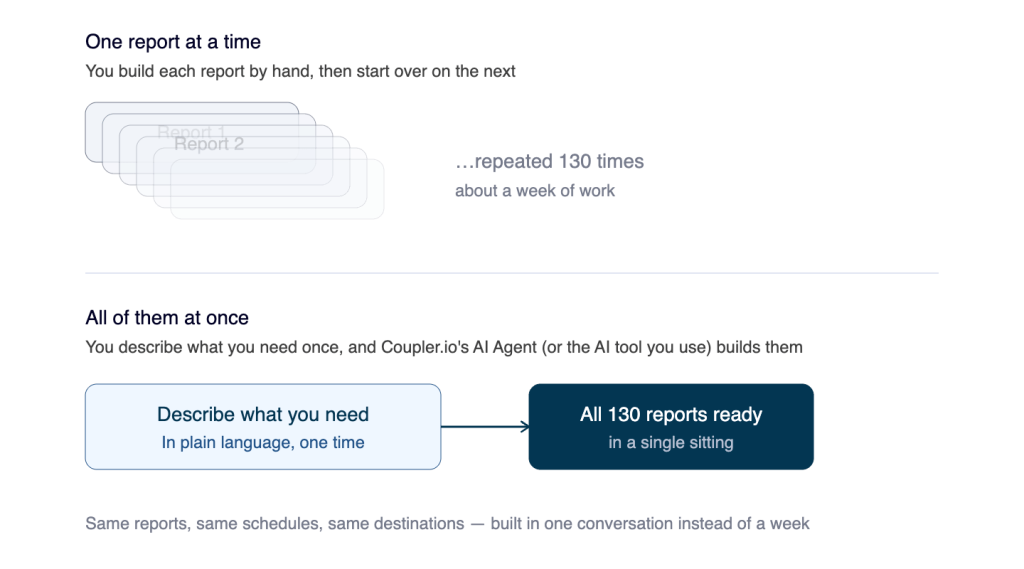
One of Coupler.io’s users had to pull the same set of reports for over a hundred separate clients, each with its own accounts to connect and its own place for the data to land. Normally, that means building each connection by hand, one client at a time. Instead, they described what they needed in plain language and let the AI Agent handle it.
It built all 130 reports in a single conversation, naming each one, connecting the right accounts, and sending the data where it belonged (spreadsheets, dashboards, or AI destinations). Work that would have taken most of the week was finished in one sitting.
Put the two approaches next to each other, and the gap is obvious:

What you can build from a single description
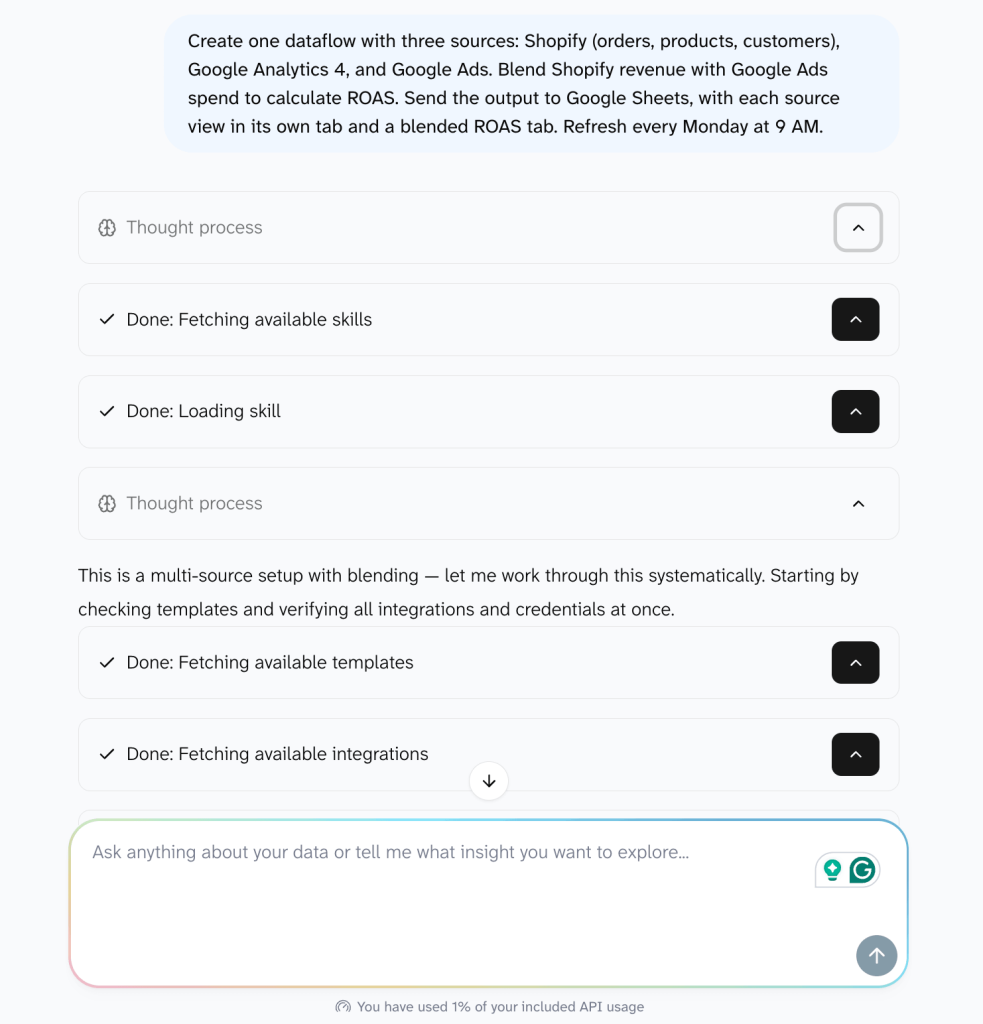
Say you’re putting together a PPC report for a new client: Meta Ads, Google Ads, and LinkedIn, combined into one dataset. You describe what you need (to the AI Agent or the AI tool you’ve connected to Coupler.io), including the sources, the metrics, where the data should land, and how often it should refresh. It’s also advisable to add AI context to ensure the analysis will be relevant and accurate.
Based on that description, the AI checks the accounts you’ve already linked to Coupler.io and configures the settings. When a choice isn’t obvious, like which of three Google Ads accounts you mean, it asks, and you see the full setup before anything runs. If an account hasn’t been connected yet, it tells you and asks you to authorize it.

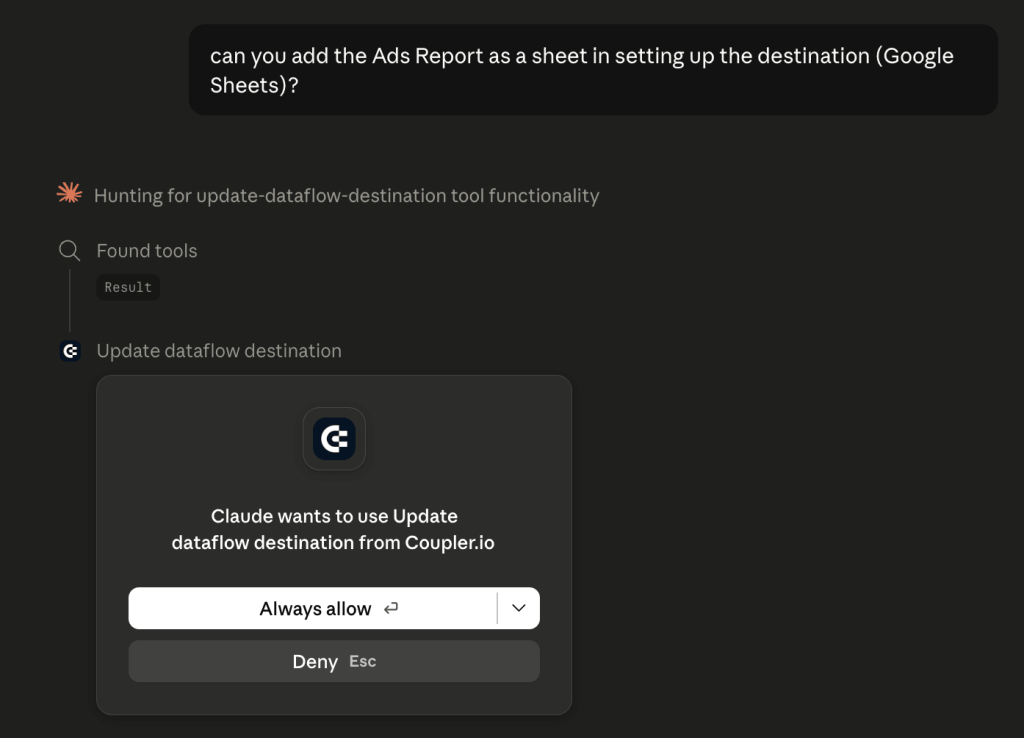
For a detailed walkthrough of how the connection setup works, this article covers it step by step.
Scheduling works the same way. Say when you want fresh data, like daily at 7 a.m. in your client’s timezone, or Friday afternoons, and it’s set. If you need to change it later, you describe the new schedule. The same approach handles changes across many flows at once.

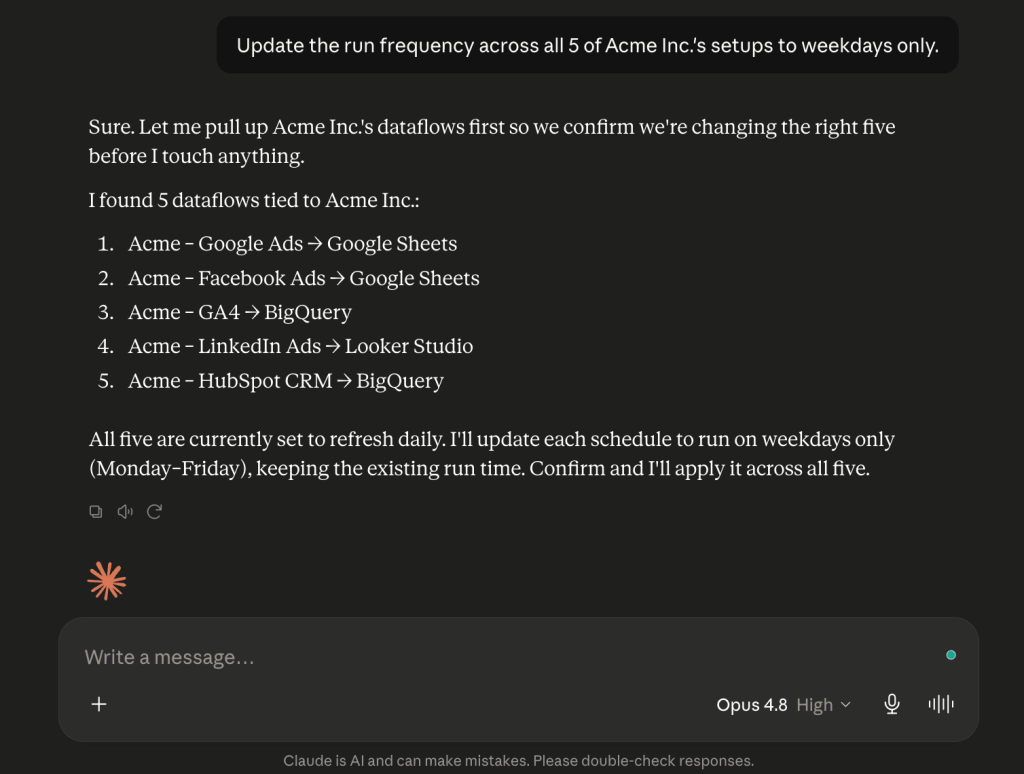
When a refresh schedule needs adjusting across 30 reports, or a source needs to change across every setup for one client, you describe the change once, and it applies everywhere it should.


Manage hundreds of setups in one chat with Coupler.io
Try it for freeTwo ways to set up your data with AI
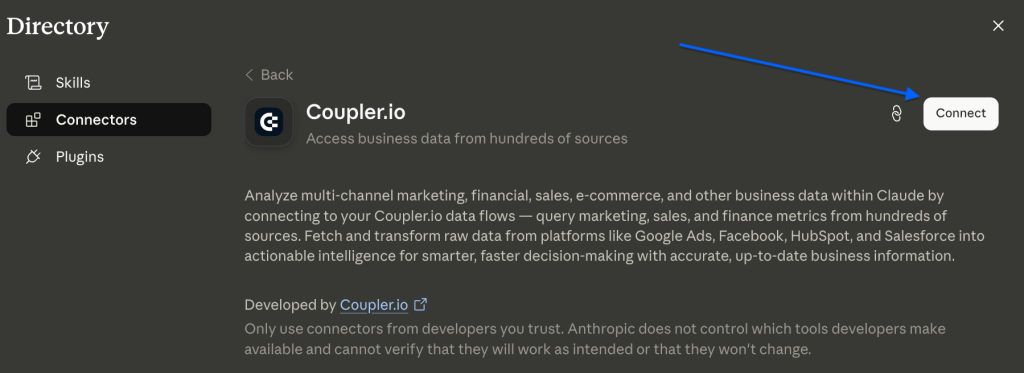
If your day already runs through Claude or ChatGPT, you can stay there. Connect Coupler.io once, and that same chat handles data setup, scheduling, and conversational analytics without you switching windows. For anyone who spends the day in a single AI tool, the whole data workflow now lives there too.

If you’d rather keep everything inside Coupler.io, the AI Agent does the same job in the product. Your data stays in Coupler.io’s environment, which matters for teams with strict data governance, and it’s a good fit for people who’d rather not pay for a separate AI tool. Either way, the connection is protected: it’s read-only, token-based, and encrypted, and data sent for analysis isn’t retained by the AI provider for training.

Try it on your next setup
New to Coupler.io? Start a free account and open the Coupler.io AI Agent. Say what you want in plain language: the source, the metrics, where the data should go, and how often. Two minutes later, your first setup is built, and the tenth one works exactly like the first.
Already using Coupler.io? Point this at the work you repeat most. Use the AI Agent, or connect Coupler.io to Claude or ChatGPT and set things up from there. The next client you onboard is just a couple of sentences, and the schedule you adjust every quarter is a single message. Start with whatever you set up by hand most often.
Build and manage your data setup with AI in Coupler.io
Get started for free