
How to Get Your Data to Any AI Tool and Analyze It Without Heavy Setup

The more sources you pull data from, the more connectors you’d normally have to install into your AI tool, one for each. Coupler.io replaces all of that with a single connection: link it to your LLM once, then just tell it what you want, and it builds the whole thing for you: pulls in Google Ads, Meta Ads, and 400+ other data sources through the same conversation, no matter how many reports you’re running. You’ll still need to authorize each source the first time, but there’s no separate connector to install for it.
Step 1: Connect Coupler.io to your AI tool once
| To install the Coupler.io connector in Claude, ChatGPT, or other AI tools, register for a free Coupler.io account |
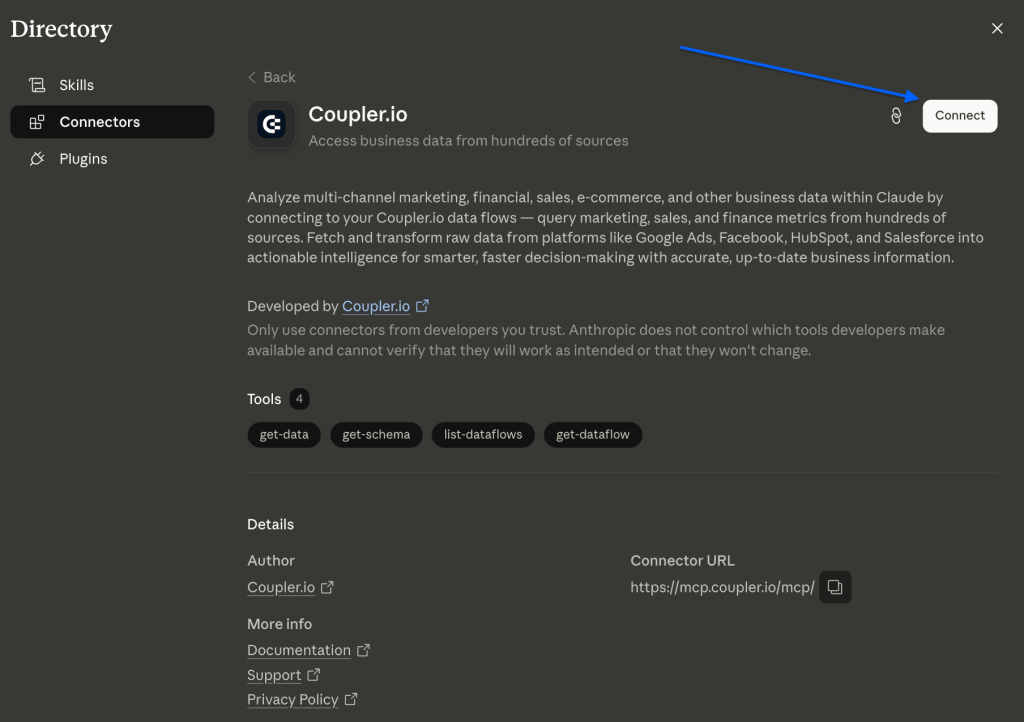
If you use Claude, go to Settings → Connectors, add the Coupler.io connector, and authorize your account. In ChatGPT, do the same in its connector settings. This is a one-time step, after which any chat in your LLM can build and manage data flows.
Step 2: Describe the data flow, and let AI build it from scratch
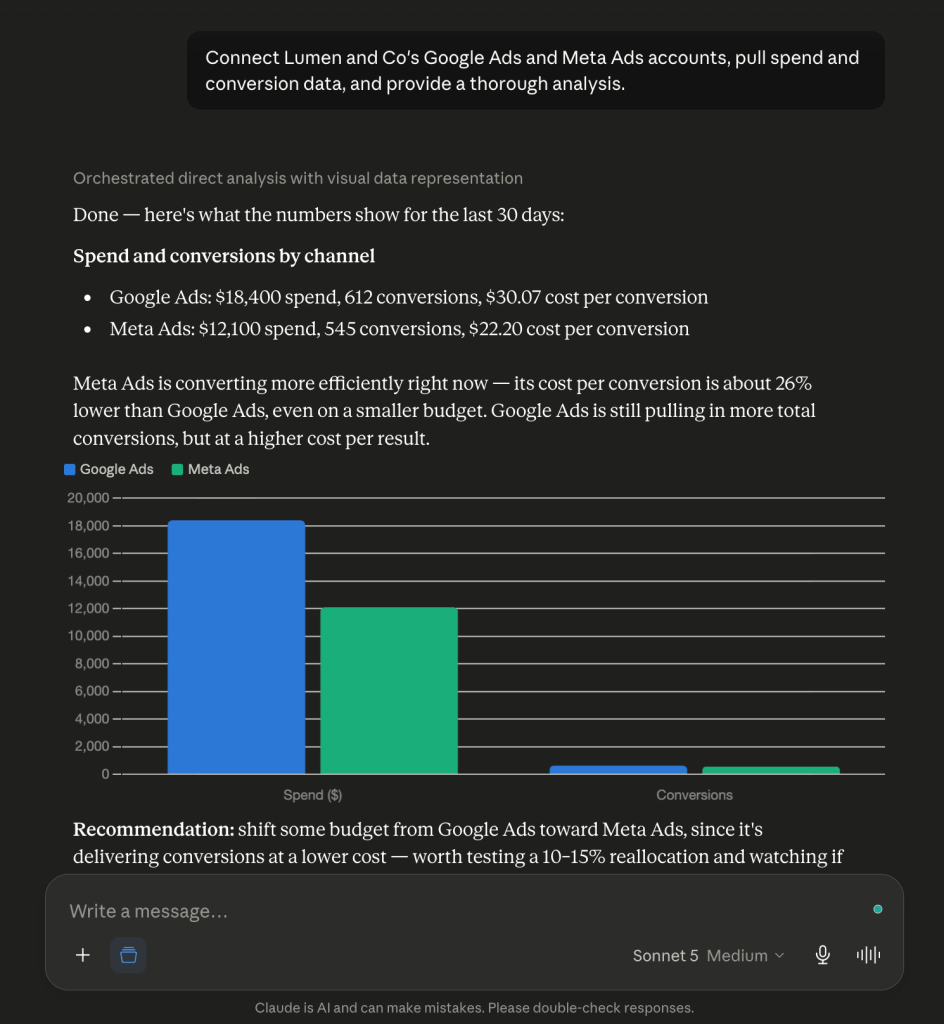
Open a new chat and explain the process you want AI to create. For example, you type: “Connect [Client]’s Google Ads and Meta Ads accounts, pull spend and conversion data, and provide a thorough analysis”. The AI checks whether you already have credentials for the indicated accounts.
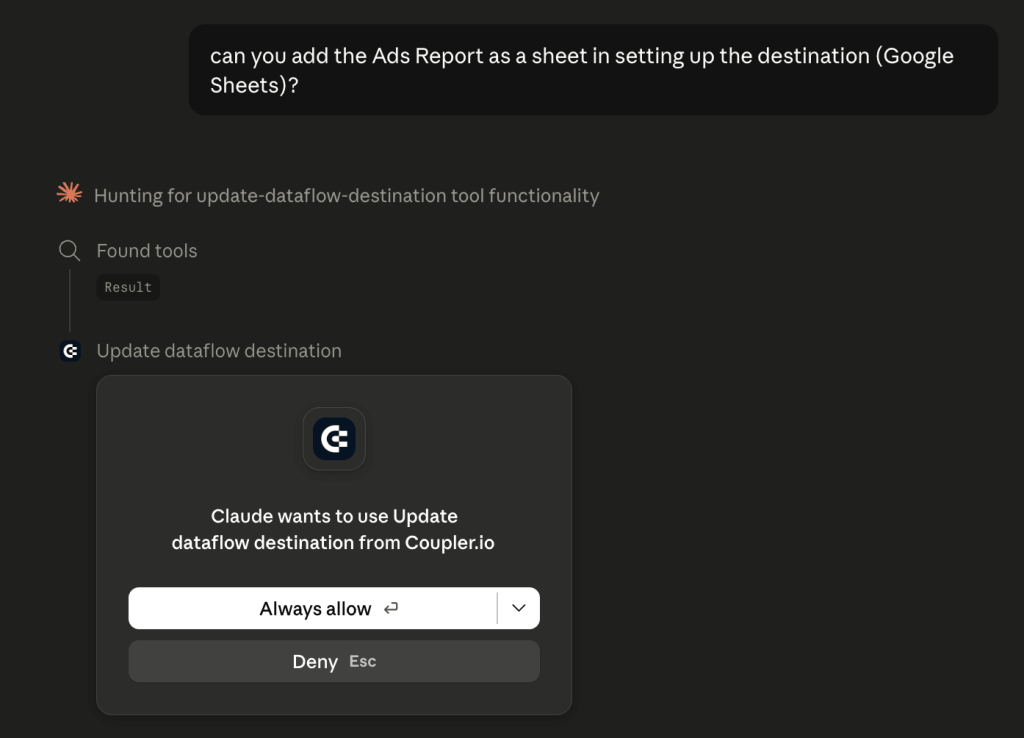
❌If a connection is missing, it’ll ask you to authorize that account first. Coupler.io still requires each source to be connected directly. For data security reasons, AI can’t do that step for you. You’ll also see this kind of check-in whenever the AI is about to make a change on your behalf, like adding a source or setting up a flow. It confirms with you before acting, so you’re always in control of what gets connected and configured.
✅If you have credentials for the needed accounts, it adds each platform as a source, analyzes the data you indicated, and provides the output.
Step 3: Get your self-updating report in every tool
Say you want to use the same data to create a sharable report with other stakeholders. There’s no need to set up anything from scratch. Tell AI “Connect my Google Sheet as the destination and send this data on a daily refresh schedule”. The LLM builds the process, sets one or multiple data destinations, and applies the schedule.
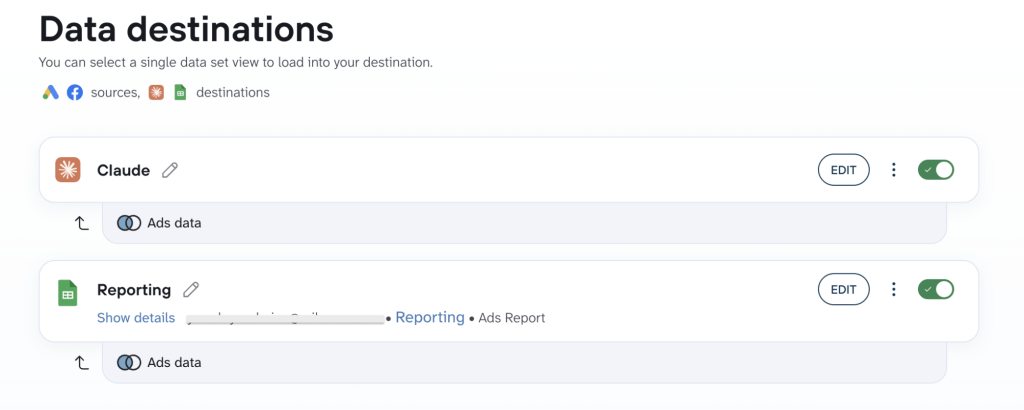
This is what “just ask for it” looks like in practice. One connection, and next time you need a new report or a new client’s data, it’s just a message away.

Link Coupler.io to AI once, analyze any data
Sign up for free