

Leads in Pipedrive are potential deals that are not ready to be added to the sales pipeline and move through it. They are sort of the younger siblings waiting for the right time to join the game.
The information about your leads is stored in the Leads Inbox, and you can retrieve it in different ways and formats. Below, we’re going to explain the most actionable options to export Pipedrive leads, so you can choose the best one for your needs.
How to export leads from Pipedrive
Pipedrive allows you to manually export information about all your leads or a filtered set of leads as a CSV or Excel file. This may be enough for you to build custom Pipedrive reports or share the data with a stakeholder.
But when your stakeholders need continuous visibility rather than one-time reports, manual exports create a reporting bottleneck. AXIS Consulting encountered this exact challenge with a client whose 50,000+ partners were constantly requesting updated performance data. They’ve used Coupler.io to automate data flows from Pipedrive to Google Sheets. The result was almost immediate – hundreds of hours each month and reduced manual errors to zero.
The Pipedrive integration by Coupler.io enables you to automate exports of lead data to spreadsheets, BI tools, or data warehouses. It allows you to configure a schedule for data refresh, for example, every hour or every 15 minutes. Interesting? Then let’s check it out first.
Export Pipedrive leads automatically with Coupler.io
Here is what it looks like to automate the export of Pipedrive leads with Coupler.io.
Select the desired destination in the form below and click Proceed. You’ll be offered to get started with Coupler.io for free with no credit card required. Then configure their connection. We’ve selected Google Sheets for this demonstration, but you can also export Pipedrive to Excel and other apps.

Step 1. Extract data from Pipedrive
- Connect to your Pipedrive account. Then select Leads as the data entity for export.


Note: Optionally, you can export the already filtered data set of leads from a Pipedrive filter.
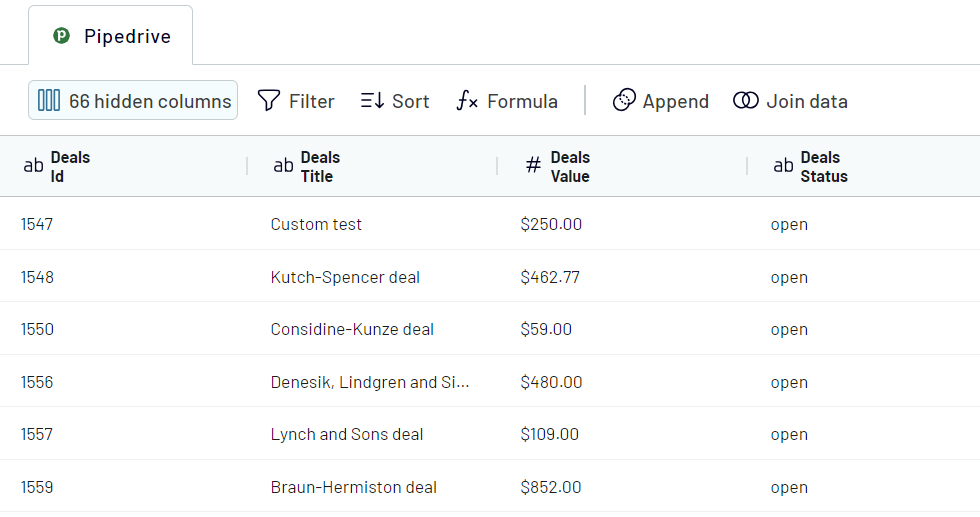
Step 2. Transform data from Pipedrive
With Coupler.io, you can make your Pipedrive data analysis ready right before it’s loaded to the chosen destination. You can:
- Hide unnecessary columns.
- Rename the needed columns.
- Reorder columns and change their data type.
- Create new columns using supported calculation formulas.
- Sort and filter data based on the selected criteria and specified values.

Step 3. Load data and schedule refresh
- The next step is to connect Coupler.io to the chosen destination app. Follow the in-app instructions to complete the setup. In the case of Google Sheets, as the destination, you need to connect your Google account and select a spreadsheet and a sheet to load data. You can create a new sheet by typing a new name.
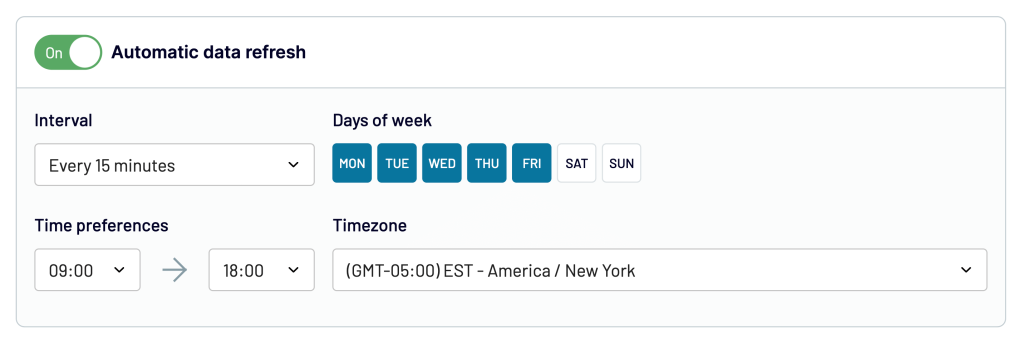
The last thing to do is to enable the Automatic data refresh and set up the schedule for your data exports from every month to every 15 minutes. You can switch on/off this functionality at any moment after the integration setup.

Eventually, click Save and Run to load information about your Pipedrive leads data to the destination app. Compared to the native exporting option, you’ll get more information about leads.
Bonus: visualize your Pipedrive reports with prebuilt templates
Once your leads data flows into a destination automatically, the next logical step is reporting. Coupler.io provides free, white-label dashboard templates for Pipedrive that require minimal setup. Just connect your account, load data, and the reports populate themselves. Each template below solves a different reporting problem.
Pipedrive CRM dashboard
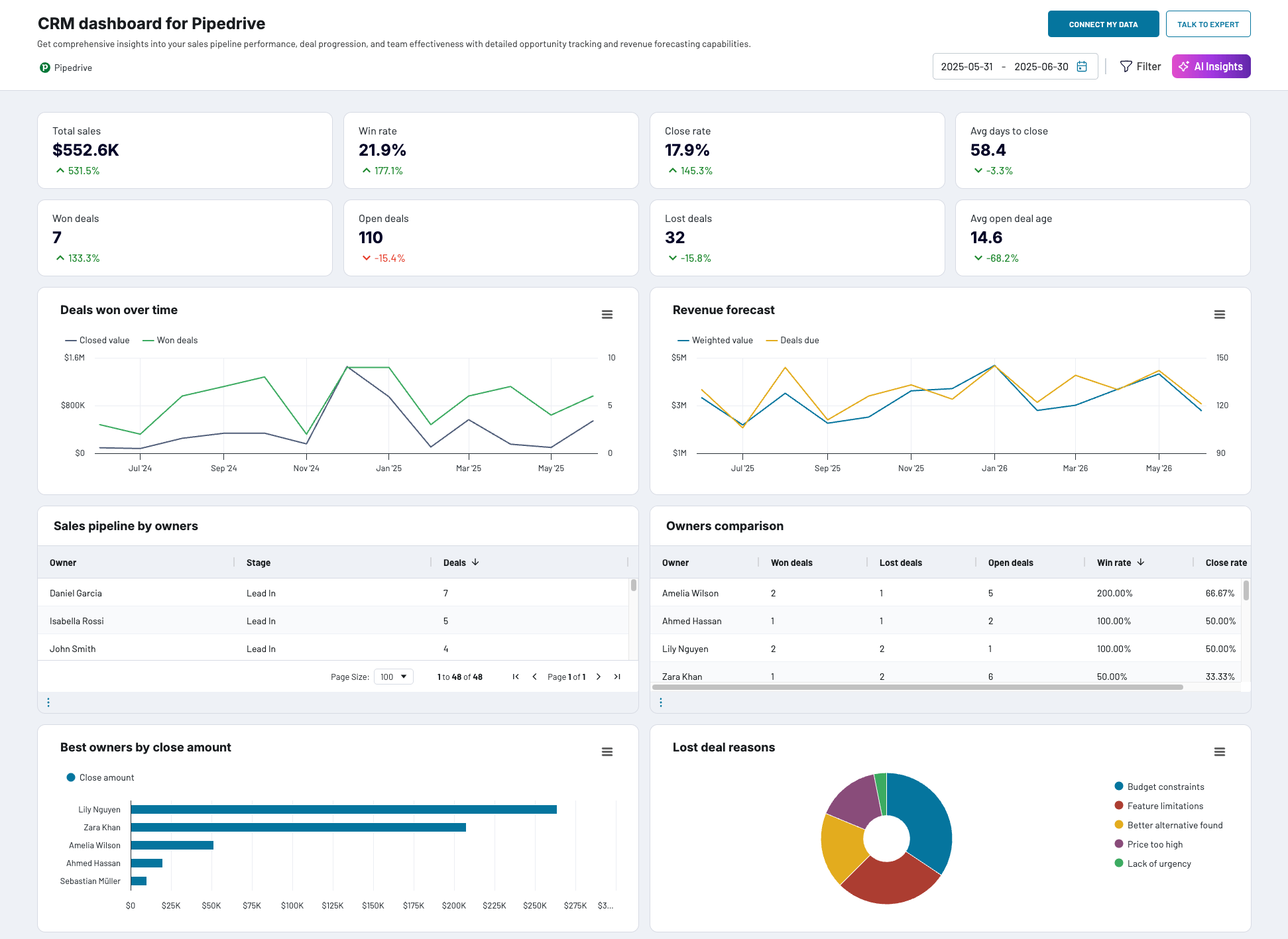
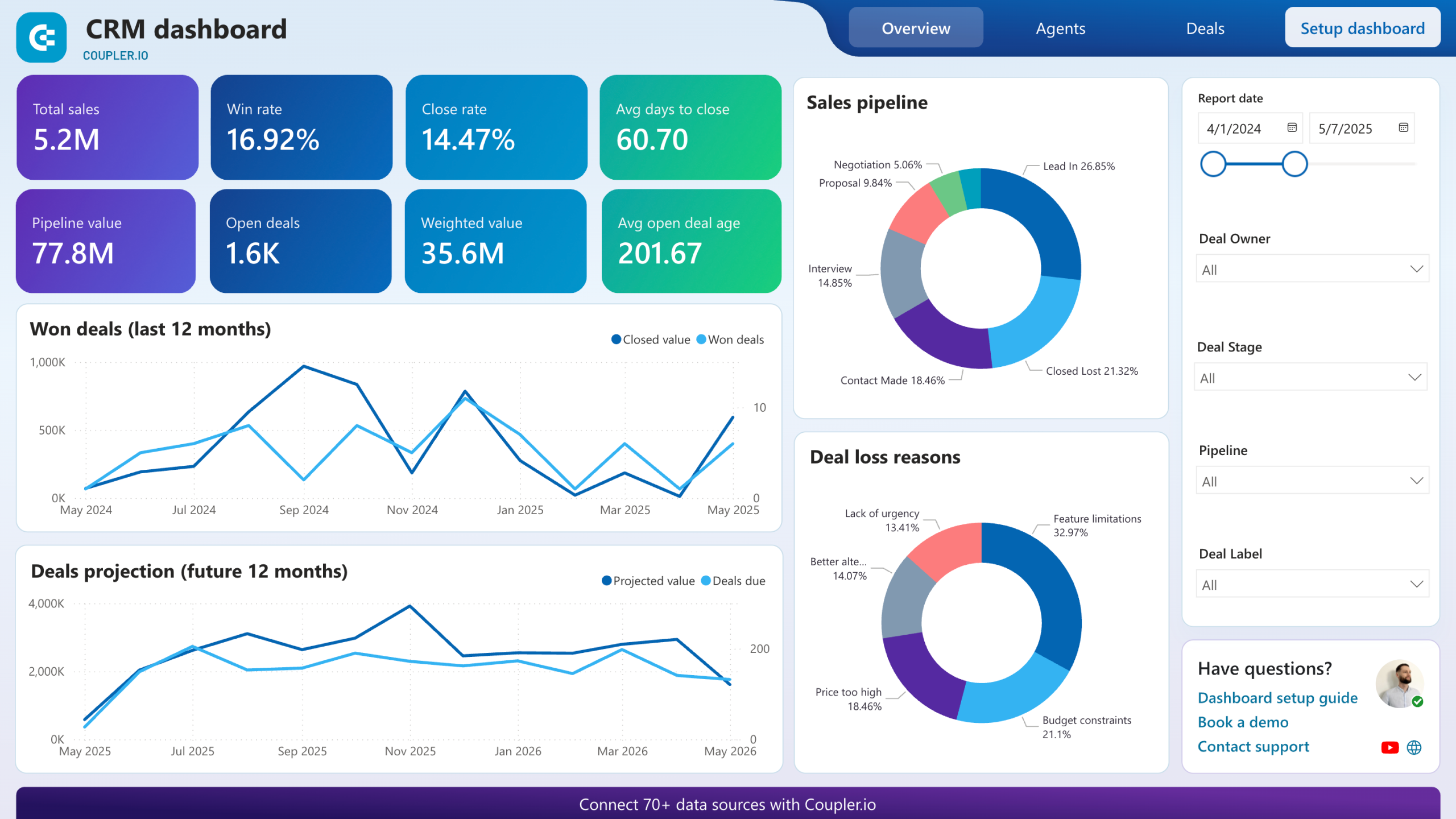
Leads eventually convert into deals, and this dashboard lets you track what happens after that conversion. It surfaces patterns in your pipeline — which deals close fastest, where opportunities stall, and what your highest-revenue wins have in common.

Reporting capabilities
The CRM dashboard is built around three core analyses. First, it breaks down unclosed deals by owner, stage, revenue, and win probability, helping you pinpoint exactly where your pipeline loses momentum. Second, it highlights your best-won deals — showing which company types and industries generate the most revenue, so you can qualify future leads against proven patterns. Third, it calculates how many days deals typically remain inactive before being lost, giving your team a concrete follow-up deadline rather than a guess.
The Pipedrive CRM dashboard is available in Coupler.io, Looker Studio, and Power BI.

CRM dashboard for Pipedrive in Coupler.io
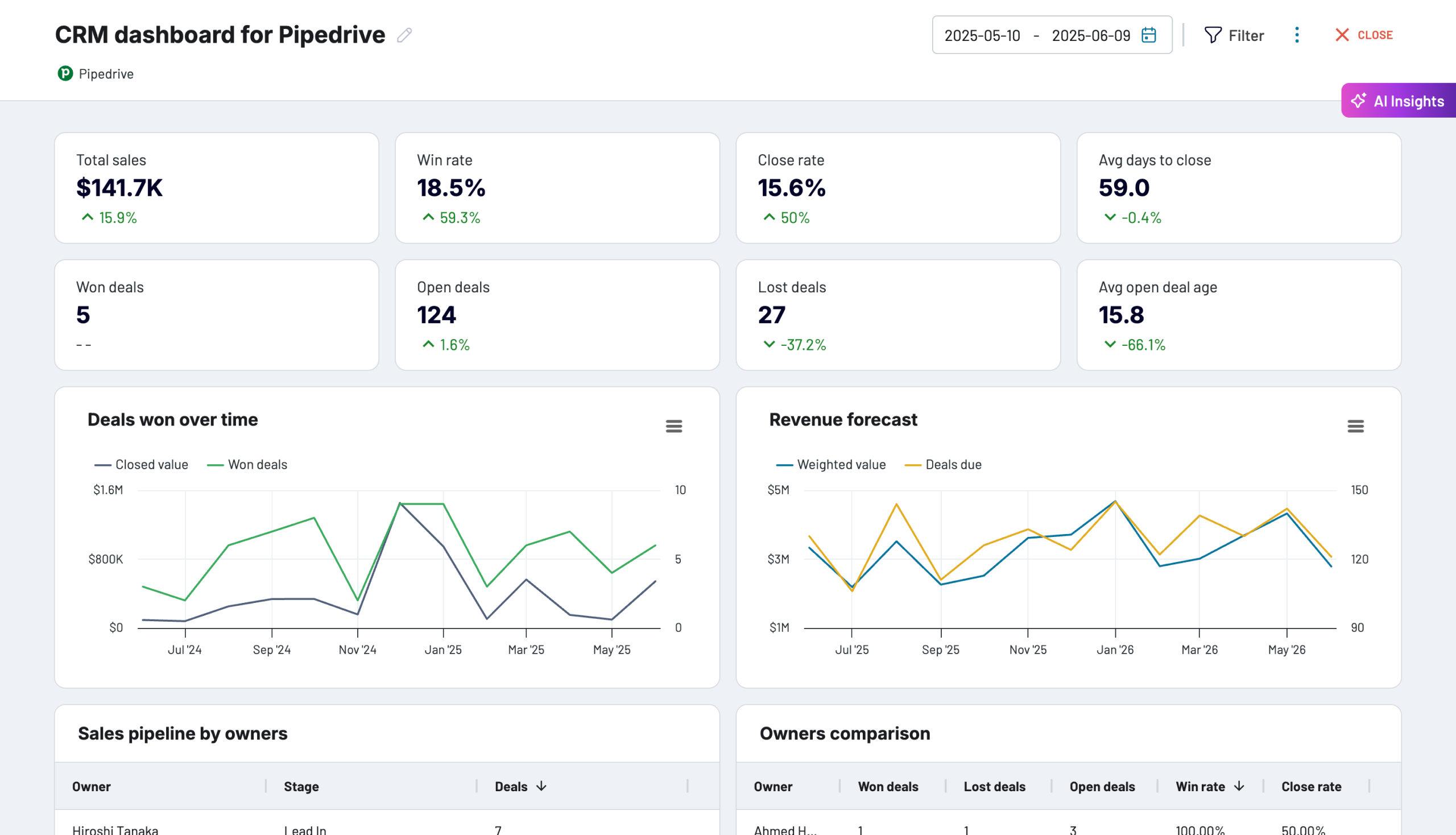
Keep track of your Pipedrive sales pipeline progress with this CRM dashboard. Get insights into team performance, lost deal reasons, and key sales metrics.


CRM dashboard for Pipedrive in Looker Studio
Stay on top of your Pipedrive sales using our CRM dashboard which allows you to analyze your sales department’s performance.


CRM dashboard for Pipedrive in Power BI
Track sales opportunities, monitor deal stages, and evaluate team performance with interactive visualizations that help identify bottlenecks and optimize your sales process.

Sales KPI dashboard for Pipedrive
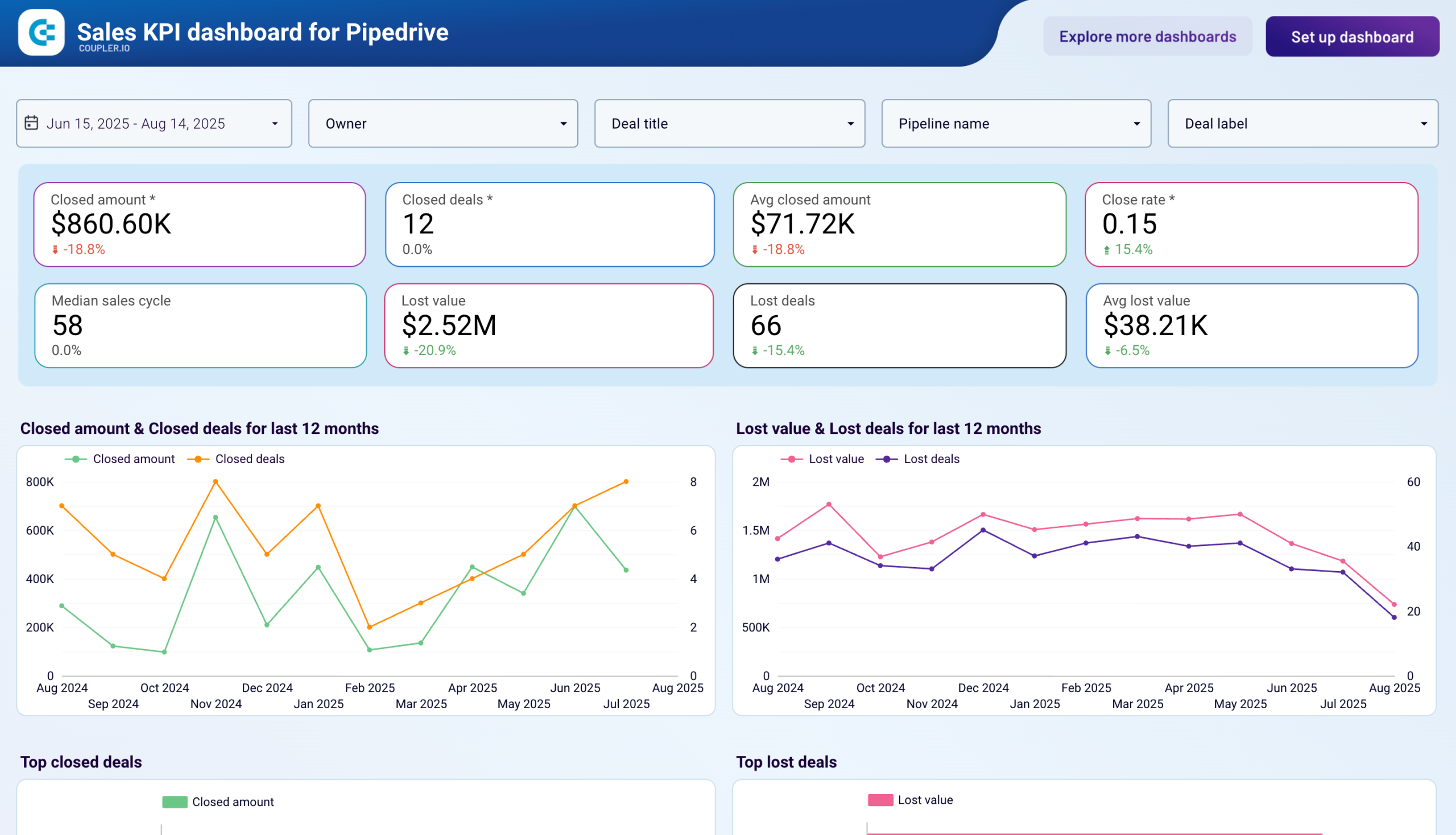
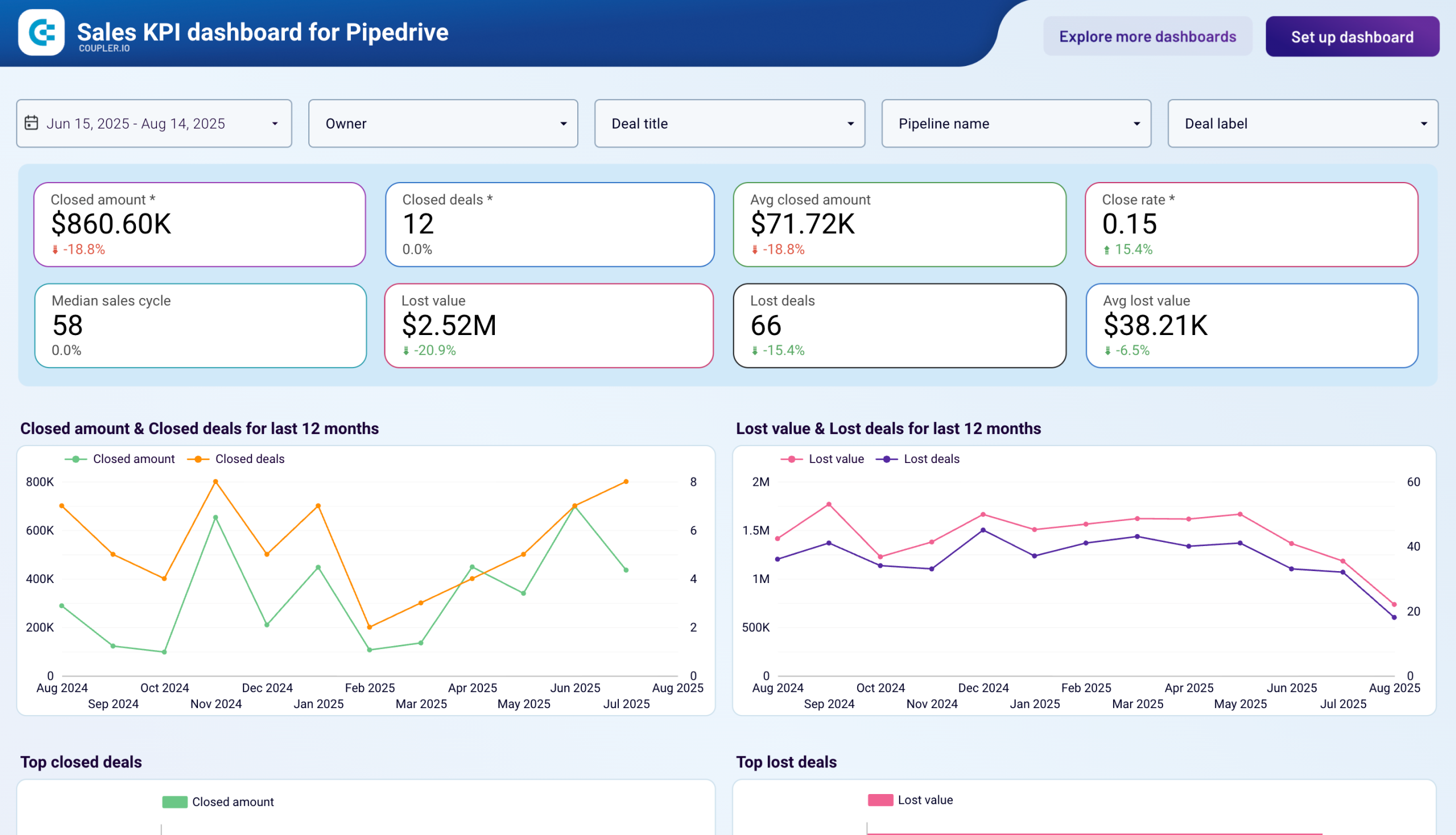
While the CRM dashboard focuses on individual deal analysis, this template takes a broader view. It tracks revenue trends, deal volume over time, and team-level performance — the metrics sales managers review weekly to understand whether the organization is on track.
Sales KPI dashboard for Pipedrive in Looker Studio
Sales KPI dashboard for Pipedrive in Looker Studio
Preview dashboardReporting capabilities
The sales KPI dashboard lets you monitor deal and revenue dynamics over time, making it possible to link performance shifts to specific events like campaign launches or team changes. It includes a lost deals view filtered by owner, region, and deal type, which helps isolate whether losses stem from market conditions or process gaps. A customizable pipeline funnel (up to 5 stages) shows where conversion drops off, and the team comparison view highlights differences in achievement levels across sales reps.
This dashboard is available as a Looker Studio template.
Sales KPI dashboard for Pipedrive
Analyze the critical sales metrics and key performance indicators from Pipedrive to make smart strategic decisions.
Customer acquisition dashboard for Pipedrive
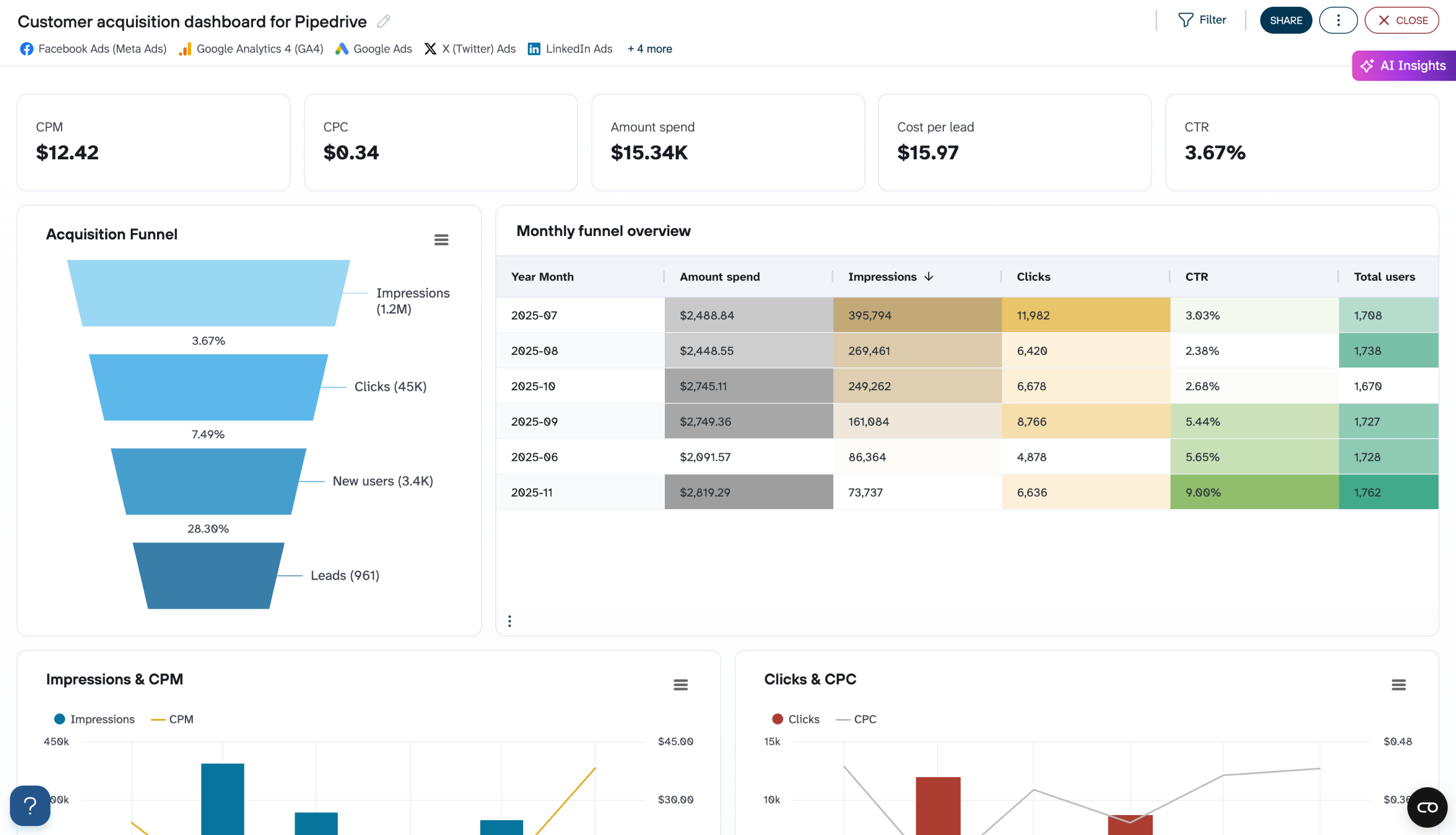
Leads don’t appear out of nowhere — they come from marketing channels. This dashboard ties your Pipedrive data to upstream marketing performance from GA4, Facebook Ads, Google Ads, LinkedIn Ads, and other platforms. It answers a question the other two dashboards can’t: which campaigns and channels are actually filling your Leads Inbox?
Customer acquisition dashboard for Pipedrive
Customer acquisition dashboard for Pipedrive
Preview dashboardReporting capabilities
The template maps the full acquisition path from ad impression to CRM lead, with conversion rates at each stage benchmarked against industry averages. A month-over-month view reveals which periods produce the strongest lead flow and what marketing activities drive those peaks. The ad spend analysis compares platform costs against conversion output — if one channel burns budget without proportional lead volume, the data makes it visible. This is especially useful for teams that want to connect lead quality in Pipedrive back to the marketing source that generated them.
The template is available in Coupler.io, Looker Studio, and Power BI.
Customer acquisition dashboard for Pipedrive
Track your complete lead generation funnel from advertising platforms to Pipedrive conversions. Monitor ad spend across multiple channels, analyze funnel progression from impressions to leads, and evaluate cost per lead metrics to optimize acquisition efficiency and improve conversion rates throughout your marketing pipeline.


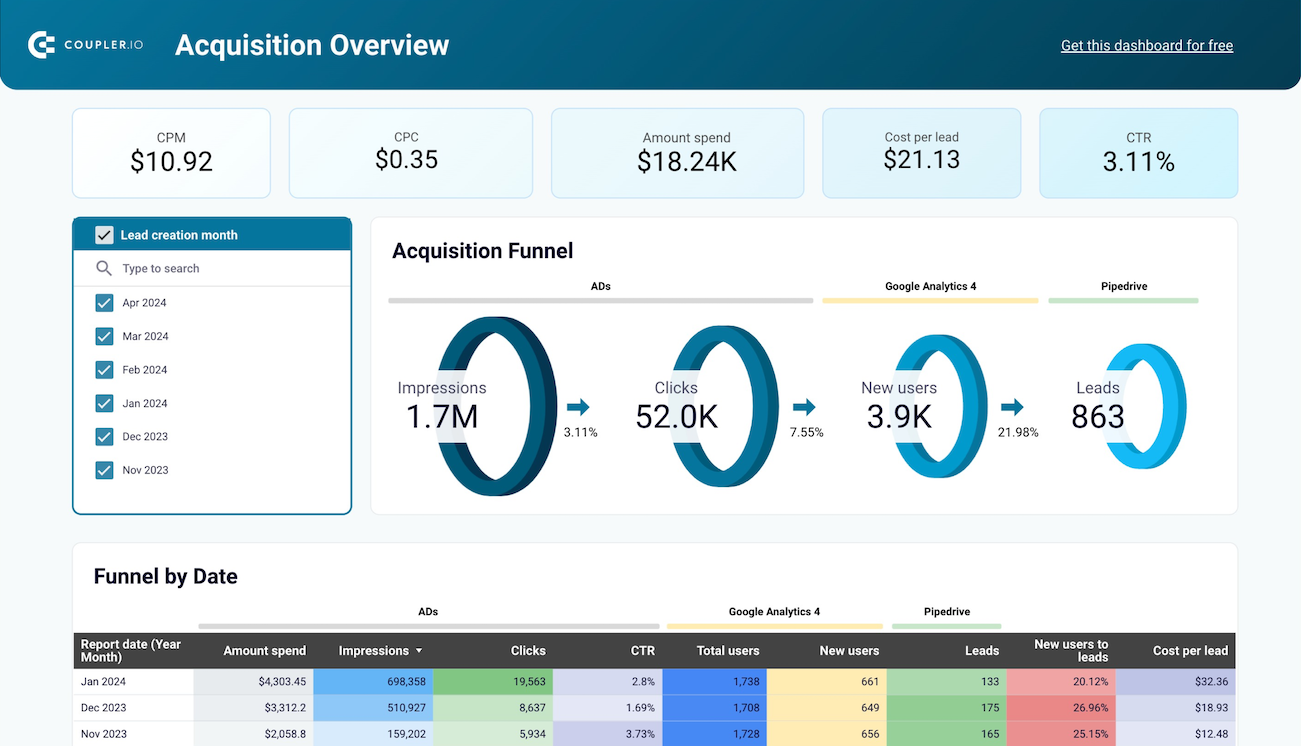
Customer acquisition dashboard for Pipedrive in Looker Studio
Use one dashboard to analyze the effectiveness of your Pipedrive acquisition funnel. Gain insights from data sourced from ad platforms and Google Analytics 4.
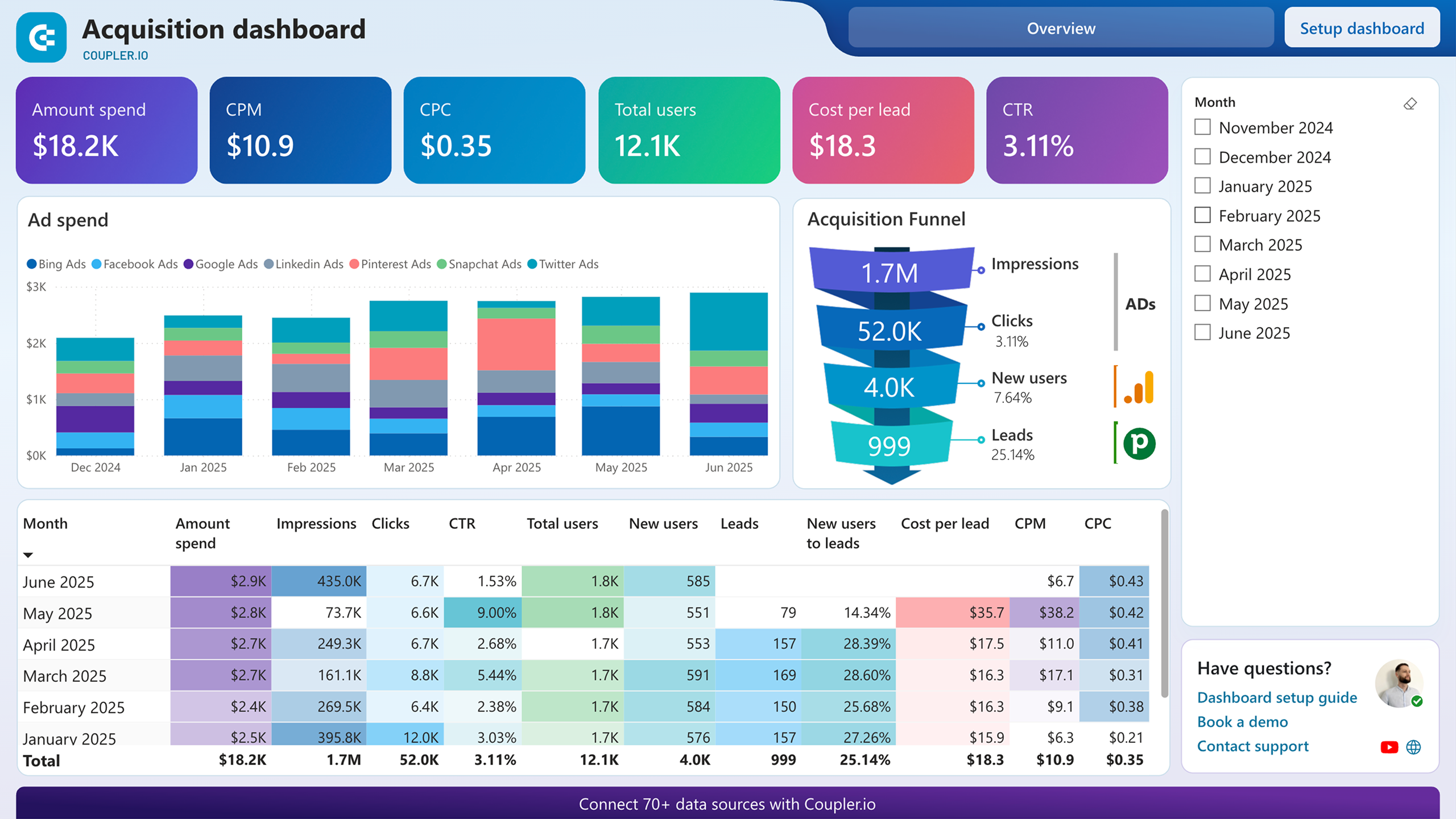
Customer acquisition dashboard for Pipedrive in Power BI
Visualize your complete lead generation funnel from initial ad impressions through CRM conversions, enabling data-driven decisions to improve acquisition costs and conversion rates.
Pipedrive export leads manually in CSV or Excel format
Export all leads from Pipedrive
This option is only available to Pipedrive users with admin access.
- On the Pipedrive navigation panel, click More (three dots) => Export data.

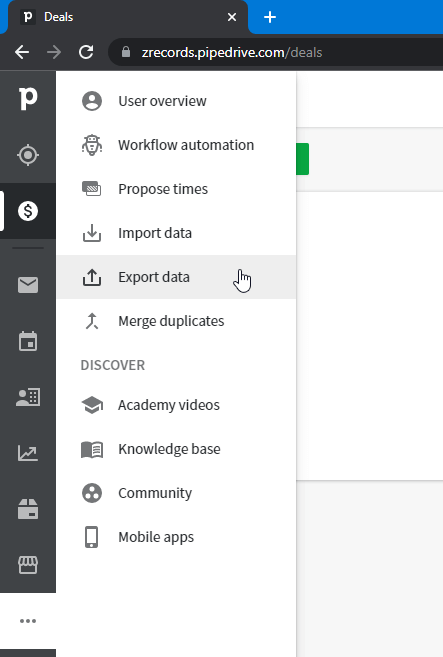
- Select Leads, then click the desired format for the export file: CSV or Excel. This will start the creation of the file with your leads data.


- Once the export file is ready, you’ll need to click the green Download button to get it to your device.


The file with the leads data will be available for download for a month.
Export filtered Pipedrive leads
This exporting option allows all Pipedrive users to export information about a filtered set of leads.
- Go to the Leads Inbox and apply the filter you want. You can use the preset filters, like Leads with overdue activity, or create custom ones.


- Click the three dots in the top right corner and select Export filter results.


- Choose the format for the export file – CSV or Excel, then click Export. The creation of the file will start. When it’s done, click Download to finish the data export.
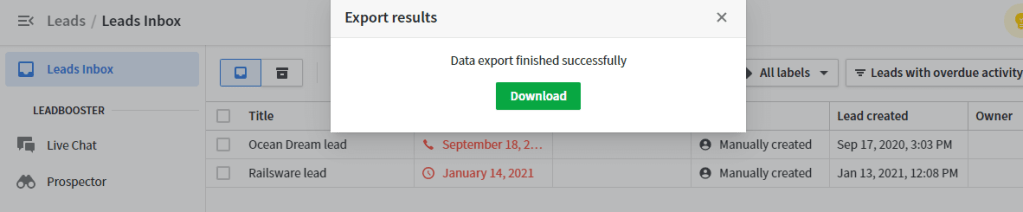
Here is what the exported table looks like in Excel:


Which is the best way to export Pipedrive leads?
The manual option to export Pipedrive leads seems to be good for a one-time action. For the case when you need to refresh your leads data frequently, for example, in your report or Pipedrive dashboard, you’ll have to repeat this exporting manipulation. So, it’s better to automate the flow. With Coupler.io, you can do this with just a few clicks…no coding is needed!
Below, we summarize the differences between the native way of exporting leads from Pipedrive and the integration by Coupler.io.
| Native | Coupler.io | |
|---|---|---|
| Formats | CSV, Excel | Spreadsheets (Google Sheets, Microsoft Excel) Data warehouses (BigQuery, PostgreSQL, etc.) BI tools (Looker Studio, Power BI, etc.) |
| Export of filtered data | Yes | Available for other data entities |
| Detailed information | No | Yes |
| Automatic data refresh | No | Yes |
Obviously, the automated export provides more benefits that are quite useful for reporting, making a backup copy, sharing data, and other purposes. You can set up a data flow that will automatically pull leads from Pipedrive to the desired destination.
Automate Pipedrive data export with Coupler.io
Get started for free