QuickBooks Online reports cover everything from a quick Profit and Loss check to payroll, budgets, and inventory valuation. How you use them depends on the job. Sometimes you only need to check a figure inside QuickBooks. Other times you need to refresh and share the same report every month, analyze the numbers in a spreadsheet, combine them with data from other apps, or present the results in a dashboard.
That leaves you with three practical options. You can use and customize native reports in QuickBooks Online, automate recurring reports and build custom reporting workflows with Coupler.io, or connect your QuickBooks data to a ready-made dashboard template. If your month-end pack starts with the same QuickBooks exports every time, Coupler.io saves you the most time.
Key takeaways
- QuickBooks Online reports are perfect for a quick check and painful for anything recurring. You get 150+ standard reports, but every export is a one-off file someone has to redo next month.
- Your plan decides what you can see. The Balance Sheet starts on Simple Start, AR and AP aging on Essentials, and budget, inventory, and class reports on Plus. Custom Report Builder is Advanced-only.
- Classic view is gone. Since 2026, every report opens in the Modern view, and saving a customization means clicking Save As.
- A scheduled email isn’t automation. Auto Send Reports (Essentials and up) mails a static snapshot. Coupler.io refreshes the data itself in Google Sheets, Excel, Data Studio, Power BI, or BigQuery, as often as every 15 minutes.
- Your saved QuickBooks customizations stay in QuickBooks. Coupler.io exports 28 preset reports plus raw data. Rebuild your custom logic once with filters and formulas, and it reruns on every refresh.
- Need visuals by this afternoon? Connect QuickBooks to a ready-made revenue, expenses, financial, AR, or AP dashboard and skip the build entirely.
- Don’t calculate MRR from QuickBooks alone. Accounting data can’t tell a renewal from a new deal or spot churn, so blend it with Stripe or Chargebee data.
Quick comparison: three ways to create QuickBooks Online reports
The table sorts the three approaches by how much setup they need and how much control they give you over the data.
| Reporting approach | Best for | Setup required | Automatic refresh | Customization level | Recommended option |
|---|---|---|---|---|---|
| Native QuickBooks Online reports | Occasional accounting checks and standard statements | None | No. Scheduled emails only, on Essentials and higher | Filters, columns, and comparisons inside each report | Open your first report |
| Automated reports created with Coupler.io | Recurring exports, extra calculations, combined sources, and shared live reports | A few minutes to configure a data flow | Yes, on a schedule | Full control over columns, filters, calculations, and data blending | Automate a QuickBooks report |
| Ready-made QuickBooks dashboard templates | Fast visual reporting without building a dashboard | Connect your QuickBooks account | Yes | Predefined metrics and charts | Pick a template |
How to automate QuickBooks Online reports with Coupler.io
This option is for you if you already know which report you need but don’t want to download and update it by hand every week or month.
If you analyze QuickBooks numbers outside QuickBooks, Coupler.io takes the export routine off your hands. It’s a data integration platform and reporting automation tool that connects QuickBooks to spreadsheets, BI tools, data warehouses, and AI tools. You set up the report once, and the data refreshes on your schedule. Stakeholders always want the latest numbers.
With Coupler.io, you can:
- Export supported preset reports and raw data from QuickBooks Online.
- Clean, transform, and calculate the data before it reaches the destination.
- Combine QuickBooks information with data from other sources, such as Shopify or HubSpot.
- Refresh the data automatically on a schedule and reuse the same flow for every reporting cycle.
- Give stakeholders, dashboards, and AI tools fresh numbers without manual exports.
With Coupler.io, you can export raw data and reports from QuickBooks to Google Sheets, Microsoft Excel, Data Studio, Power BI, and more. It also supports data warehouses as the destination, so you can connect QuickBooks to BigQuery easily. Popular flows include QuickBooks to Google Sheets and QuickBooks to BigQuery.
The fastest way to get a QuickBooks report into Coupler.io is to ask for it. Coupler.io’s AI Agent connects your QuickBooks account and builds the report from a plain-language request, for example “Show my profit and loss by month for this year, compared to last year.” You get calculated results from your own data in minutes, with no setup on your side.
Let Coupler AI do the data work for you
Tell Coupler AI what you need to know, from which source, and how often. It connects your account, sets up the data flow, keeps it refreshed, and lets you analyze the results inside Coupler.io or another AI tool.
Try for free

If you want to configure every detail yourself, use the simple step-by-step setup below.
Step 1. Collect QuickBooks data or reports
Select the destination where you want to create your QuickBooks report and click Proceed. You’ll be offered to get started with Coupler.io for free without any payment information required.
Coupler.io offers two QuickBooks sources, and the choice depends on the report you want to build:
- QuickBooks exports raw entities, such as invoices, customers, bills, payments, vendors, employees, budgets, time activities, and journal entries. Pick it when you want to build your own report logic from transaction-level data.
- QuickBooks Reports exports preset accounting reports, such as the Balance Sheet, Profit and Loss, or AR Aging Summary. Pick it when a standard report already has the structure you need. The list of supported reports is below.
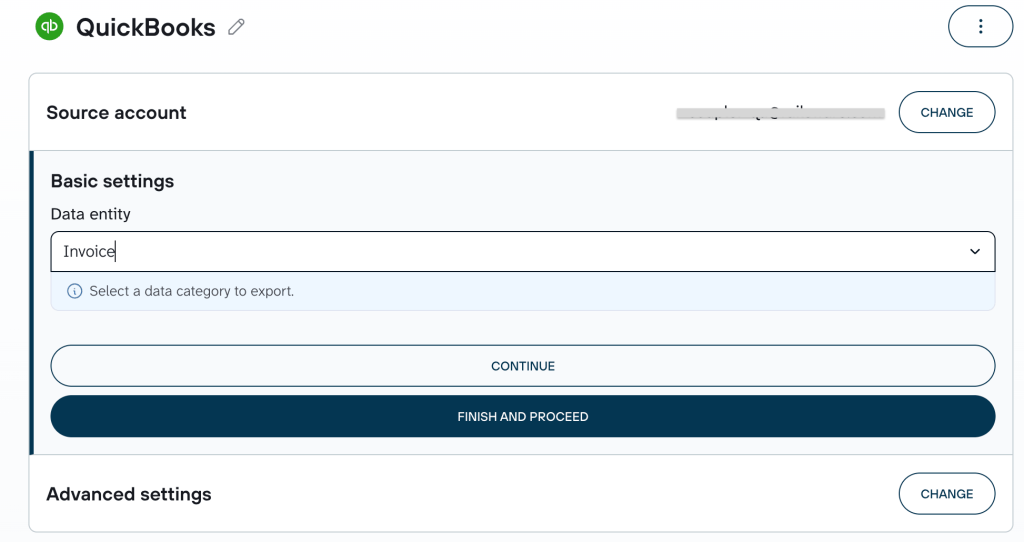
Then connect your QuickBooks account and specify what data you’d like to export to your report, e.g. invoices, customers, employees, tax rates, etc. Finally, set up optional settings if you wish, and click Finish and proceed.

It’s worth noting that Coupler.io lets you do much more than that. With the tool supporting 400+ integrations, you can easily combine multiple sources and turn the gathered data into an insightful cross-channel report.
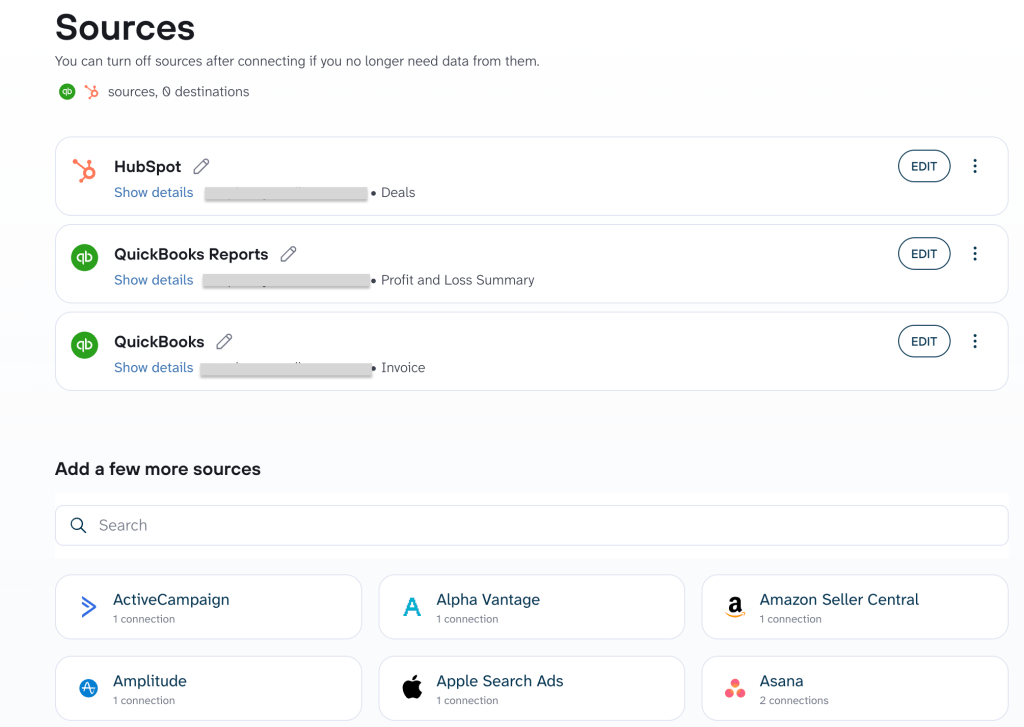
So, to blend your QuickBooks Online data with another source, add that source to the same data flow and configure it as needed. Repeat the steps for more data sources. The example below shows an already-configured combination of the following sources: QBO raw data, QBO reports, and HubSpot.

Step 2. Prepare and combine the data
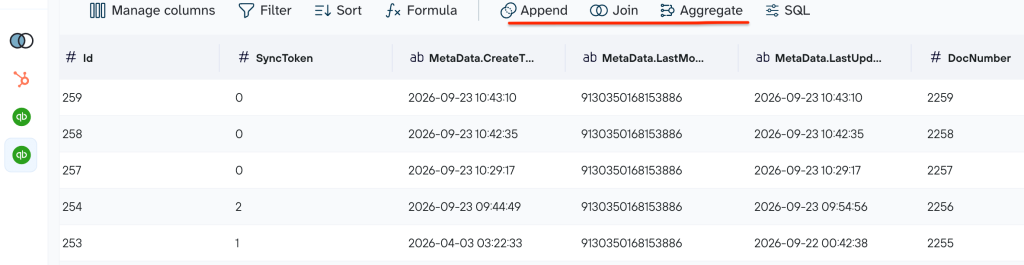
Raw exports rarely match the report your stakeholders expect. The transformation step lets you shape the data once, and every refresh repeats the same logic:
- Filter transactions by period, category, customer, or account to keep only what the report covers.
- Sort rows to make them display the way you like in your report table.
- Hide columns to skip metrics and dimensions the report doesn’t need.
- Rename columns and change their types to make field names readable for non-accountants.
- Add calculated columns with formulas, for example gross margin or days overdue.
- Aggregate data to summarize totals by month, customer, or vendor.
- Blend data with other QuickBooks data categories and accounts, or other applications (e.g. HubSpot, Shopify), to get one report or dashboard that serves as a centralized hub for your analytics. Appending data from several QuickBooks companies gives you one dataset for multi-entity reporting.

Step 3. Load the data and schedule refreshes
Once your data is ready, connect your destination following the in-app instructions. With Coupler.io, you always have a rich choice of where to import your data to:
- Spreadsheet software (Google Sheets, Microsoft Excel) for centralized reporting;
- Business intelligence (BI) tools (Data Studio, Power BI, Tableau, etc.) for centralized & visual reporting;
- Data warehouses (BigQuery, Snowflake, RedShift, etc.) for data backup and larger analytical models;
- AI tools (Claude, ChatGPT, Gemini, and others) for asking questions about your financial data in plain language;
- And more.
Then toggle Automatic data refresh on and set the schedule.

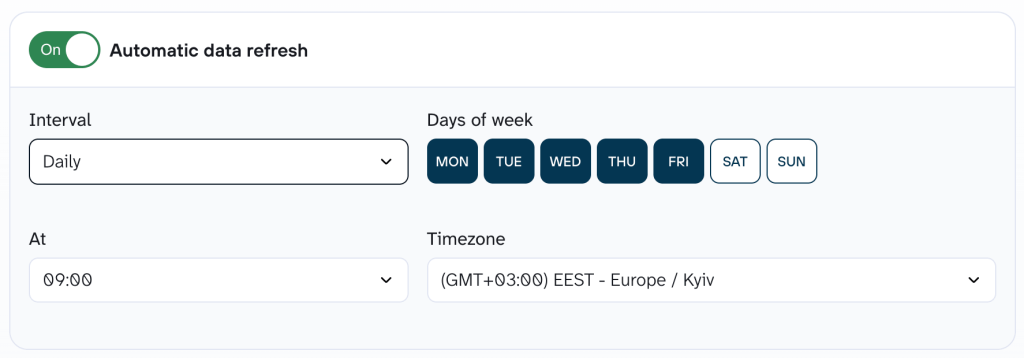
Depending on your plan, Coupler.io refreshes data daily, hourly, or as often as every 15 minutes. Your monthly P&L sheet or weekly AR report stays updated without anyone exporting it again.


Automate QuickBooks reports in minutes
Get started for freeWhat QuickBooks reports can you export with Coupler.io?
Coupler.io lets you load your data from QuickBooks Online, including reports. Here are the reports available in the QuickBooks Reports source, grouped by reporting need:
Core financial statements
- Profit and Loss Summary
- Profit and Loss Detail
- Balance Sheet
- Cash Flow
- Trial Balance
Accounts receivable
- Accounts Receivable Aging Detail
- Accounts Receivable Aging Summary
- Customer Balance
- Customer Balance Detail
Accounts payable
- Accounts Payable Aging Detail
- Accounts Payable Aging Summary
- Vendor Balance
- Vendor Balance Detail
Sales and revenue
- Customer Income
- Sales by Customer
- Sales by Product
- Sales by Class Summary
- Sales by Department
Expenses and vendors
- Expenses by Vendor
- Transaction List by Vendor
Inventory
- Inventory Valuation Summary
Accounting and reconciliation
- Account List Detail
- General Ledger Detail
- Journal Report
- Tax Summary
- Transaction List
- Transaction List by Customer
- Transaction List with Splits
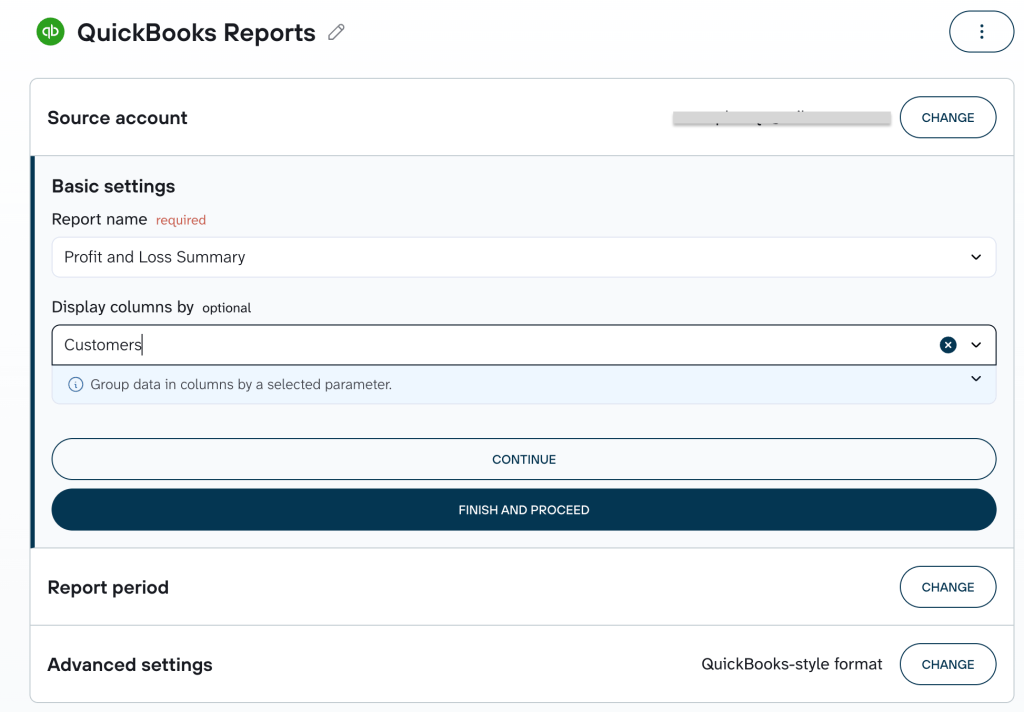
The export flow is pretty much the same as above. The only difference is that you need to select QuickBooks Reports as a source.
Then choose the report you want to export and the desired report structure. For summary reports, you can also split columns by a period or dimension, for example by month or by class.
Then choose the report you want to export and the desired report structure. For summary reports, you can also split columns by a period or dimension, for example by month or by class.

Read our blog post to learn how to export check register from QuickBooks Online. You can also read about the automation of financial reporting using free QuickBooks Online templates. The rest of the flow you already know.
Set your QuickBooks reporting on autopilot
Get started for freeCan you export custom QuickBooks reports with Coupler.io?
No. Coupler.io pulls the predefined report types available through the QuickBooks API. Reports you customized and saved inside QuickBooks Online don’t carry over. Your saved filters, column choices, and groupings stay in QuickBooks.
You have two ways to get the same result:
- Export the closest standard report when a supported report already has the right structure. Adjust the period, accounting method, and column split in the source settings.
- Export raw data and rebuild the logic when you need something QuickBooks doesn’t offer as a report. Filters, calculated columns, aggregation, and joins in Step 2 recreate the customization, and the result refreshes automatically.
At the same time, Coupler.io offers predesigned QuickBooks report templates that you can start using right away.
Ready-made templates for QuickBooks reporting
Templates are the fastest option when you need a visual report but don’t want to build one from scratch. QuickBooks offers many accounting reports out of the box, but they show values in rows and columns without visualization. Check out the dashboard templates for QuickBooks created by Coupler.io. Each template:
- Is available in Coupler.io and/or Google Sheets, Data Studio, or Power BI, depending on the template.
- Connects to your QuickBooks Online data through the built-in Coupler.io connector.
- Comes with predefined metrics and charts.
- Updates automatically on the refresh schedule you set.
- Takes a few minutes to set up.
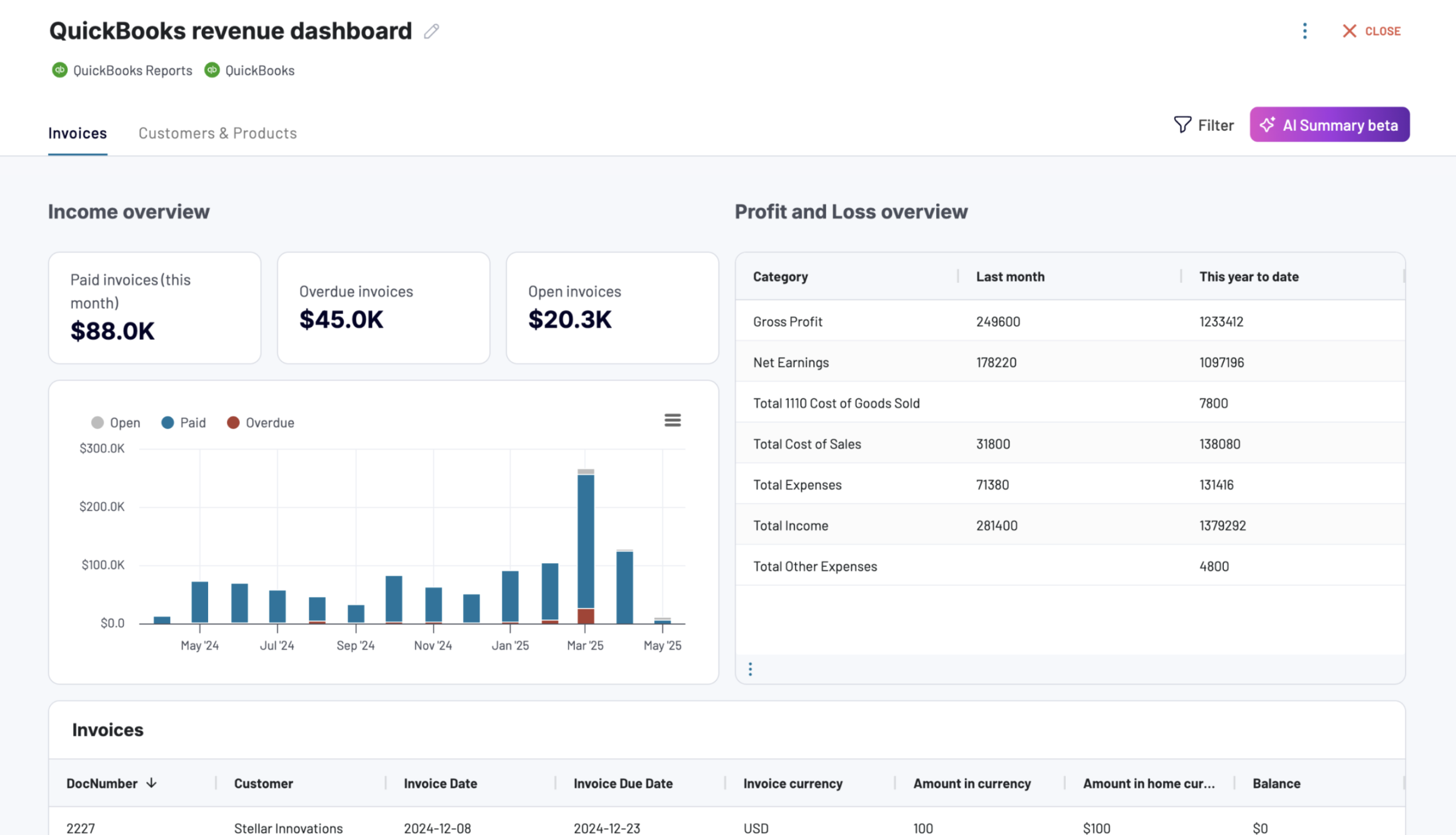
QuickBooks revenue dashboard
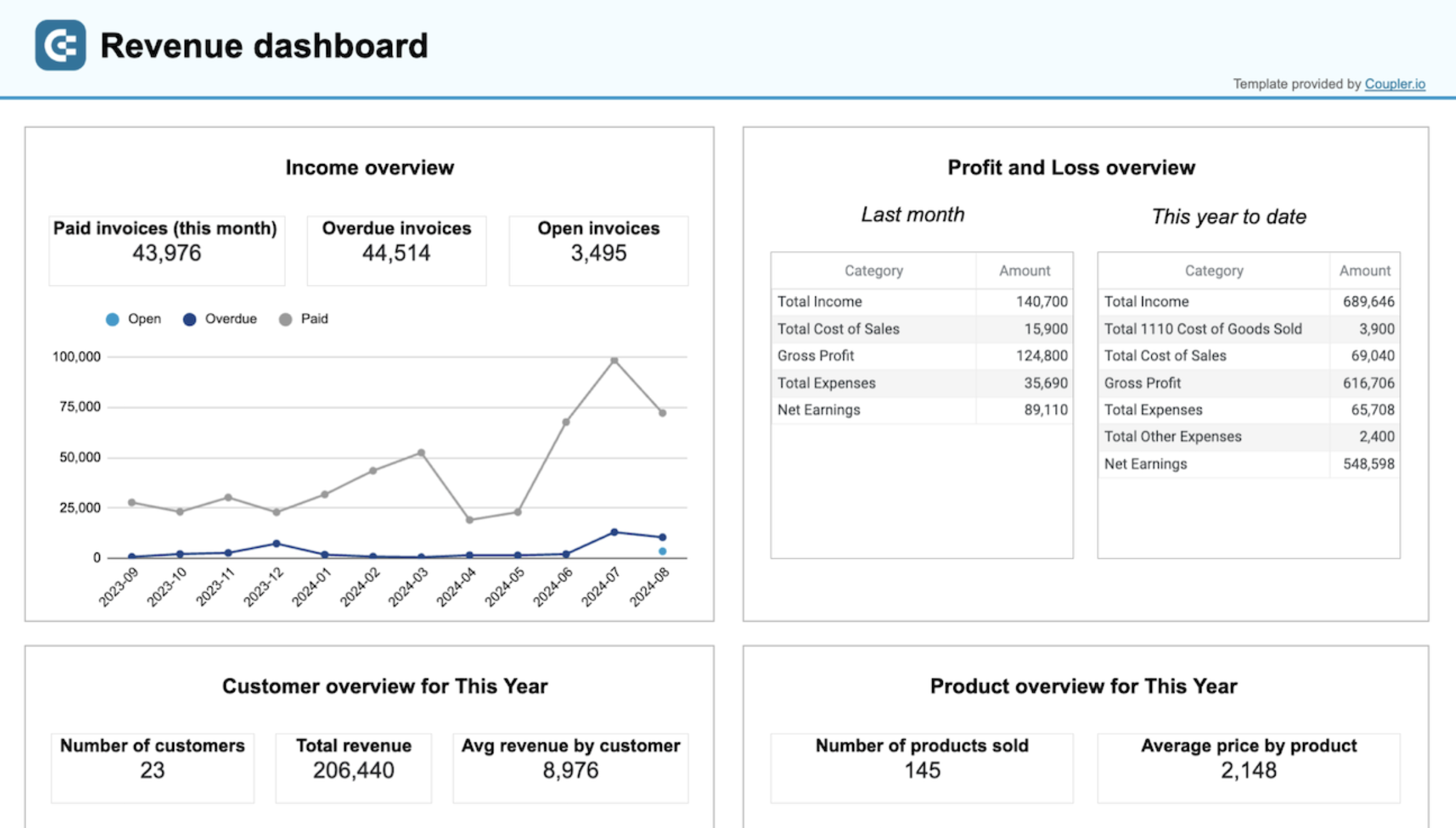
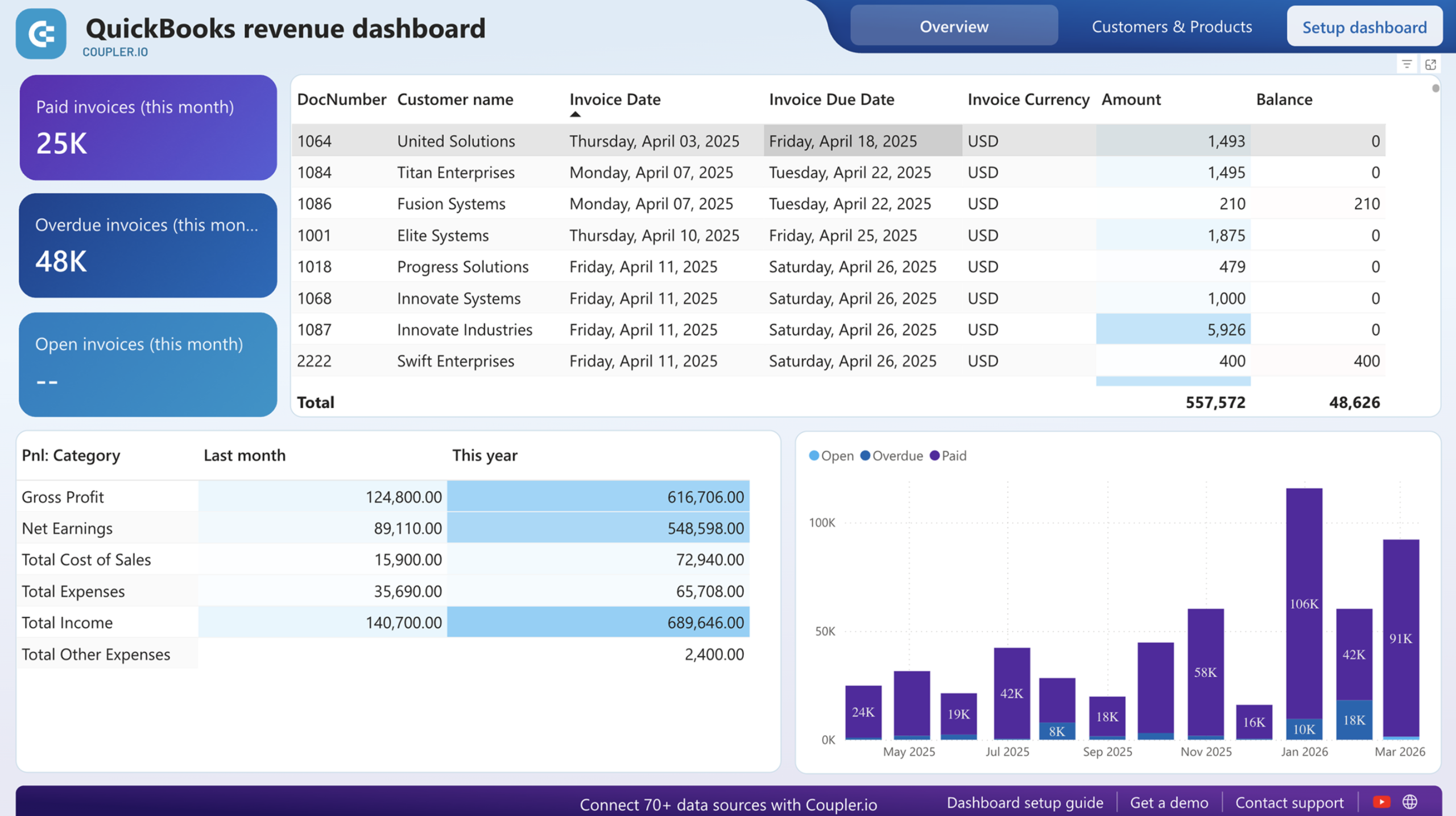
The revenue dashboard for QuickBooks allows you to track your income and expenses. It consists of multiple reports that provide you with a clear picture of your income streams.

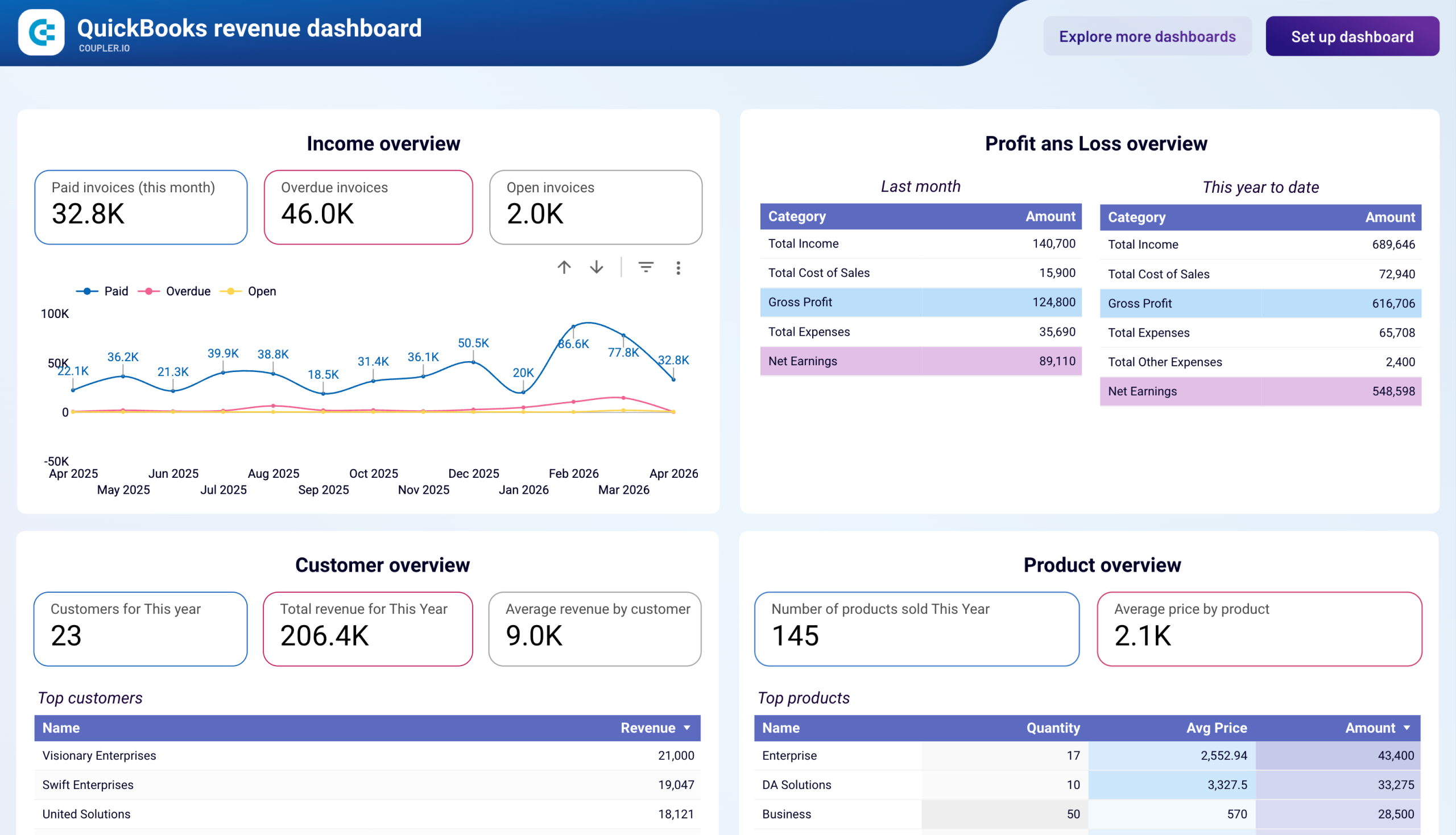
Use this dashboard to:
- Track revenue trends for the last 12 months to notice peak periods, unexpected falls, and fluctuations.
- Compare revenue and expenses to see how well you’re doing, plus plan your budget and finances.
- Discover which customers contribute to your revenue the most to target your marketing efforts at them or draw up adequate customer retention strategies.
- See which products/services bring you the most revenue to understand demand, effectively manage your inventory, and smartly tweak your sales strategies.
There are four versions of this dashboard. The one designed in Coupler.io offers faster performance and a built-in AI insights feature. At the same time, you can also have the revenue dashboard as a template in Google Sheets, Data Studio, and Power BI, each equipped with the QuickBooks data connector by Coupler.io to automate the flow of data from QBO.







QuickBooks expenses dashboard
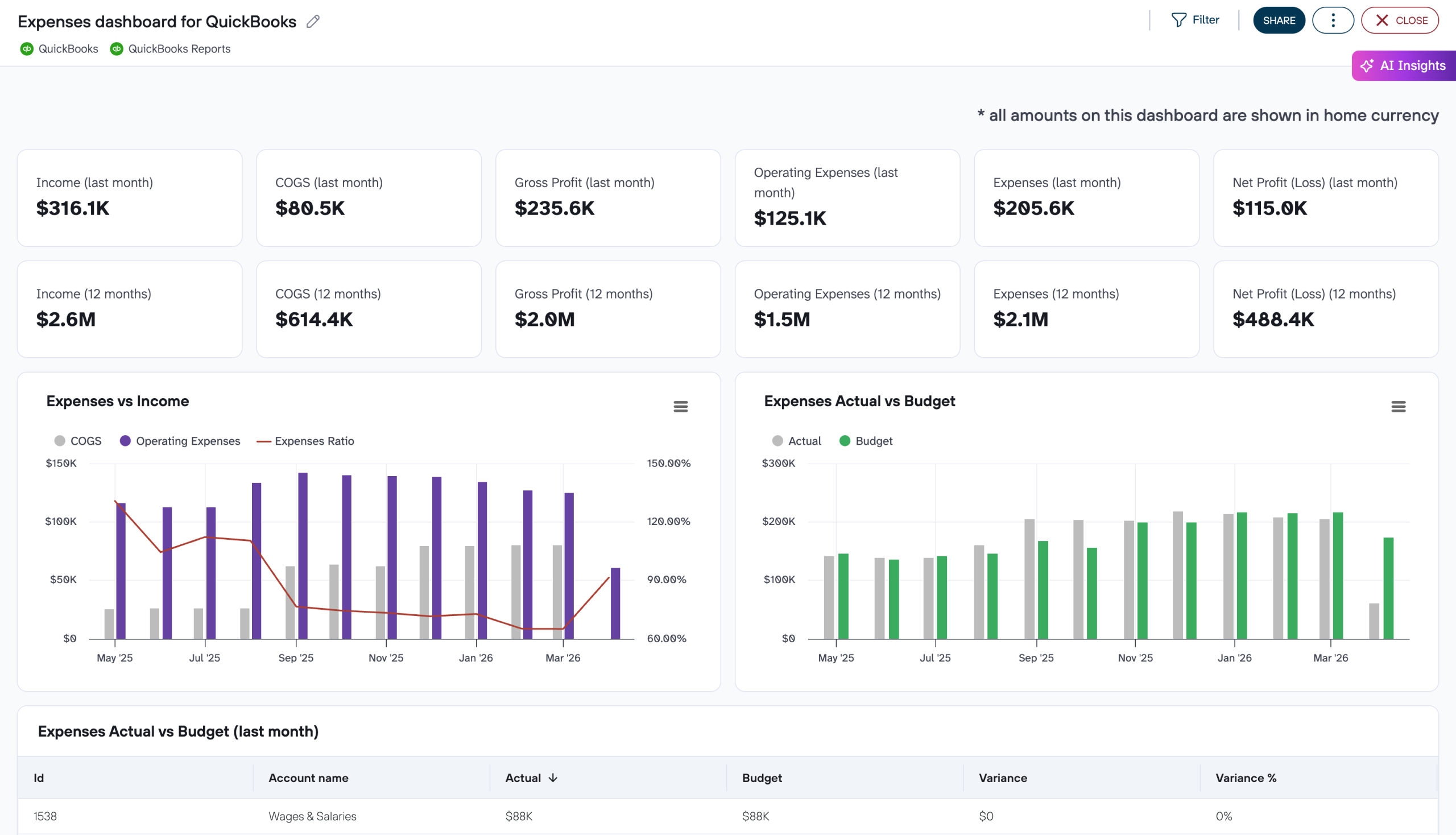
Native QuickBooks reports tell you what was spent. This dashboard shows how that spending compares to the budget by month, cost category, account, and vendor. Variances become visible before they turn into problems.

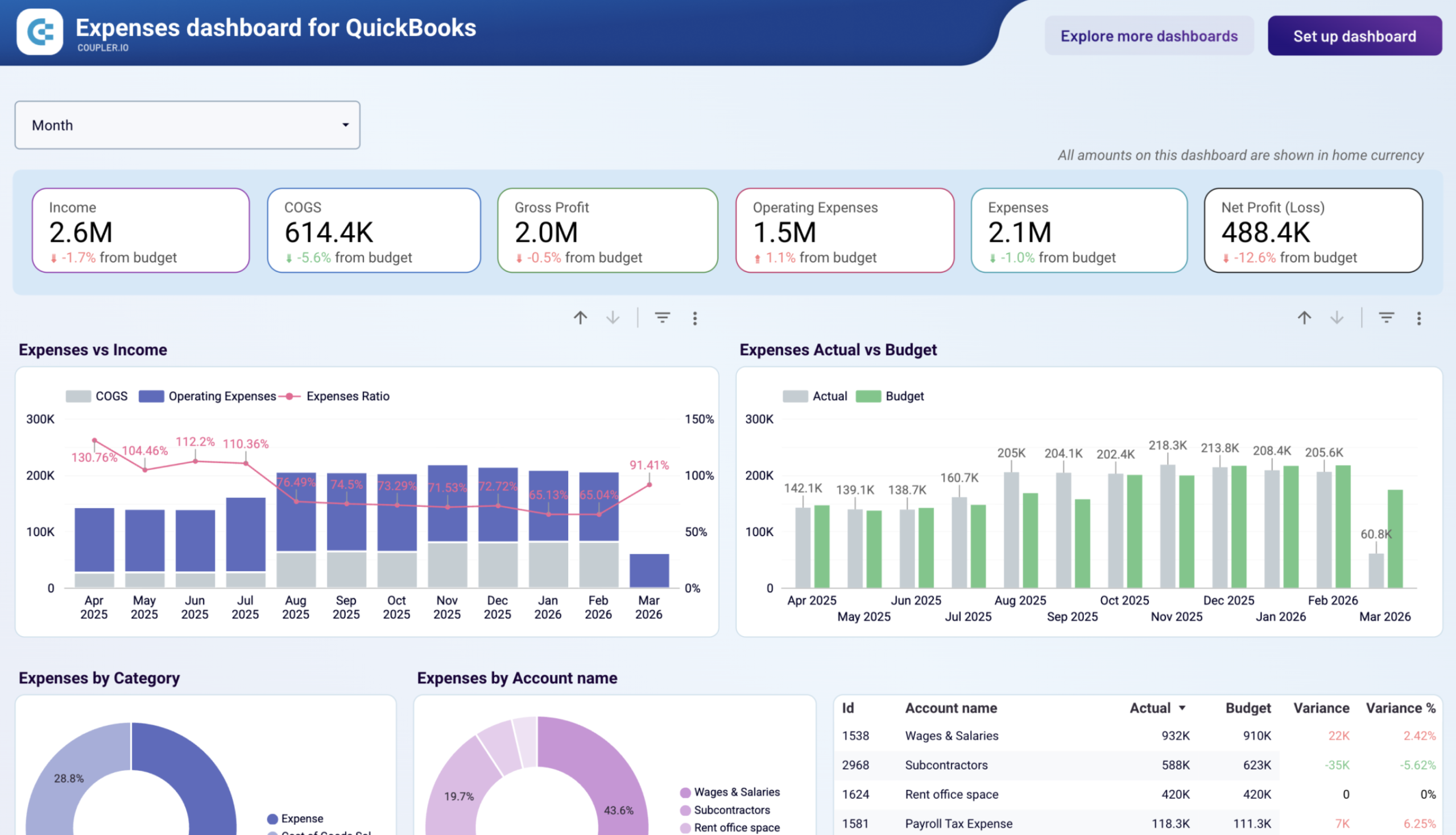
With this dashboard, you can:
- Compare actual expenses with budget month by month, with absolute and percentage variance per account.
- Check top vendors by paid bills for the current month, last month, and the trailing 12 months.
- Monitor cash balance, burn rate, and runway next to cost data to judge whether relevant spending is sustainable.
Expenses dashboard templates for QuickBooks are available in Data Studio and as a Coupler.io native dashbaord.
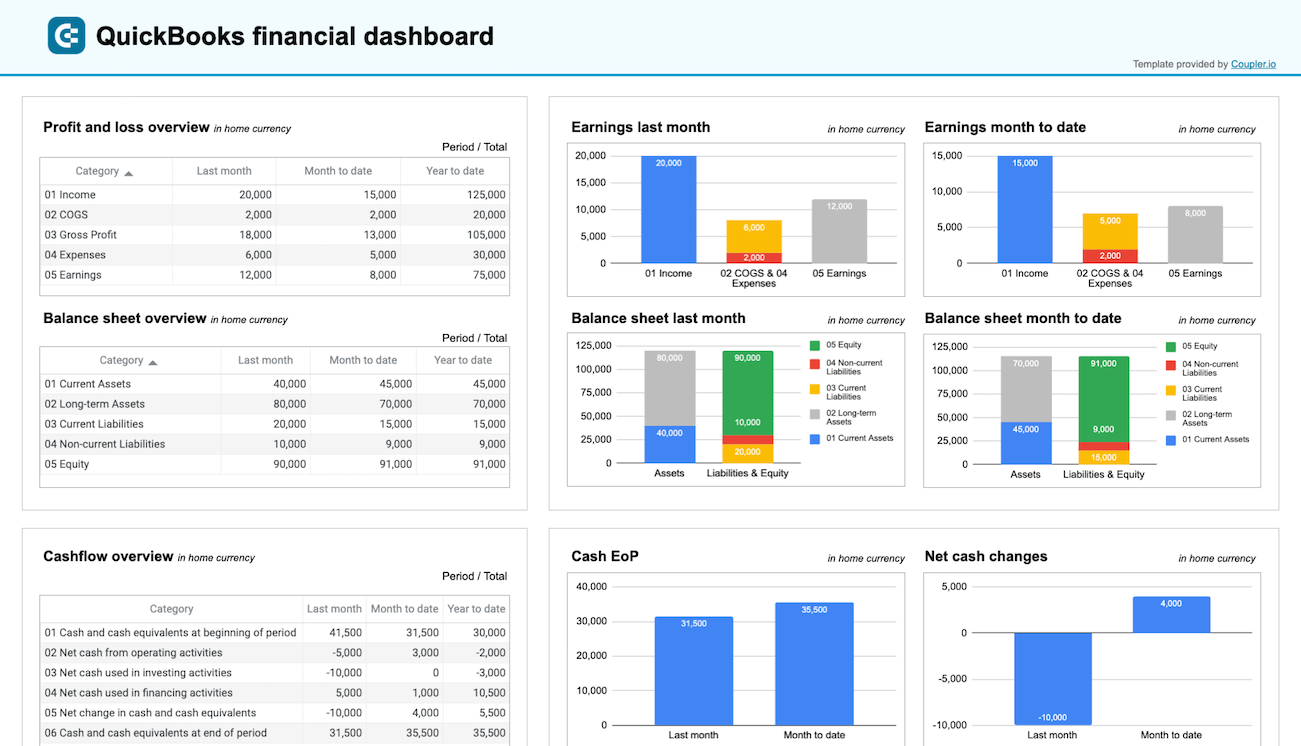
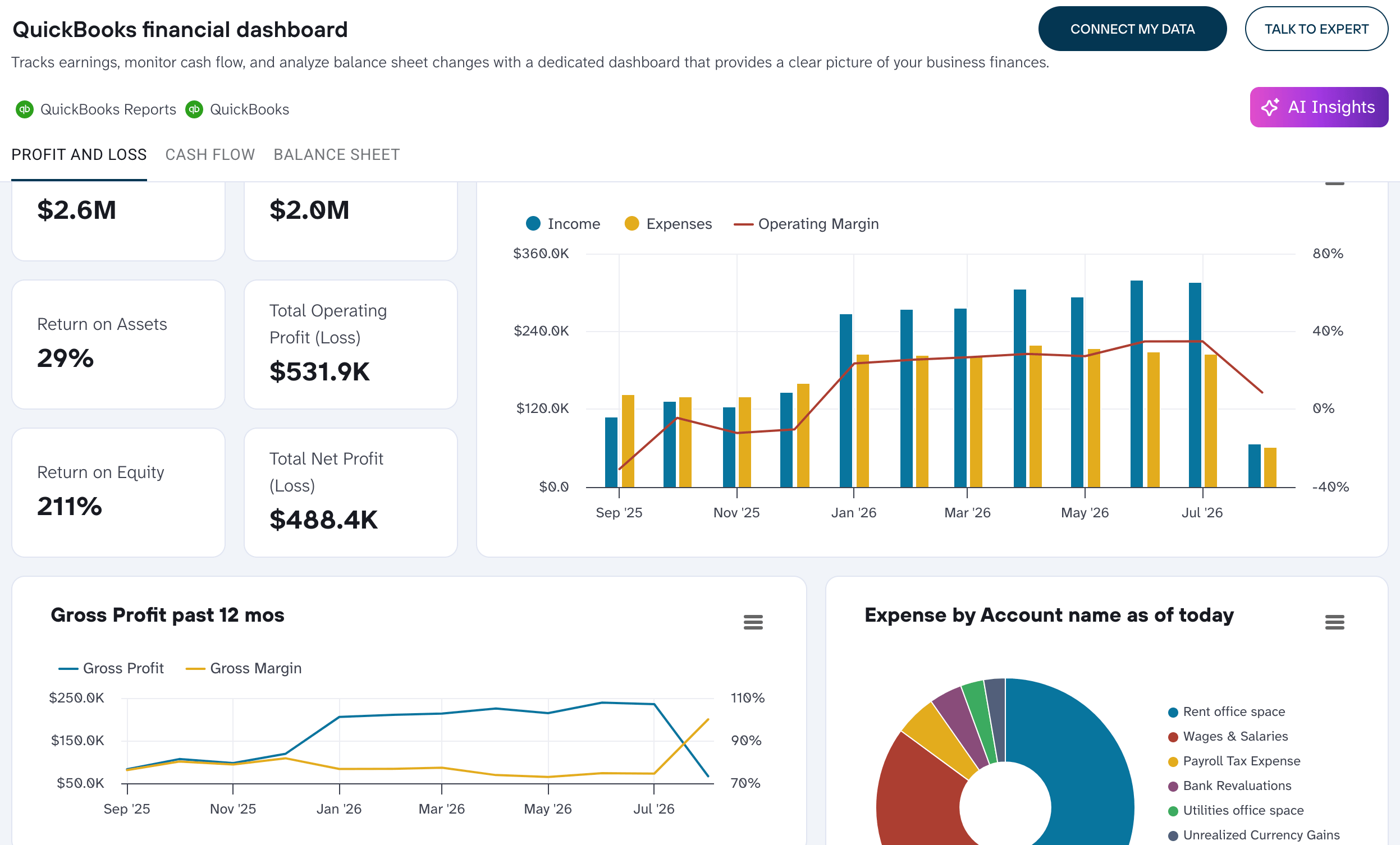
QuickBooks financial dashboard
If you’re a business owner, a financial manager, or an accountant, this smart dashboard will let you quickly gain insights into your business’s profitability and control costs. It also provides a great basis for reliable and data-backed decision-making.

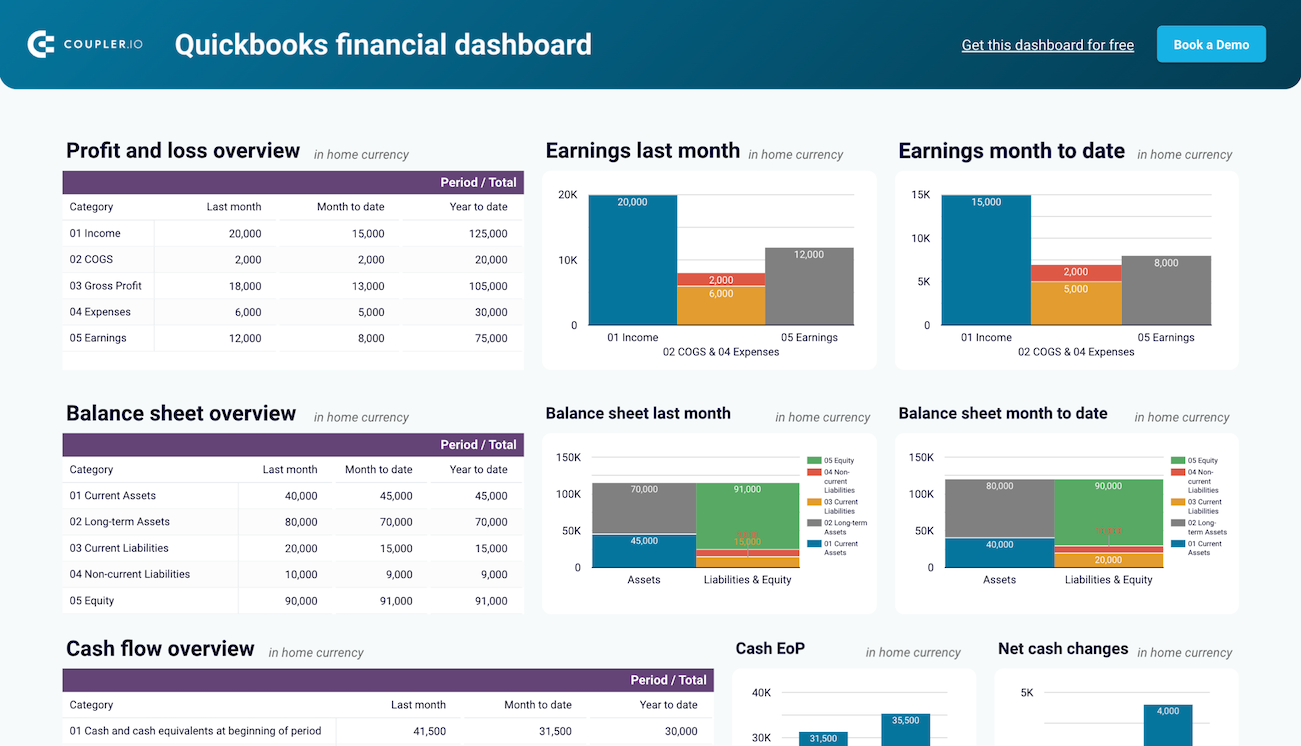
With this dashboard, you’re sure to quickly:
- Discover how much you earned last month and from the beginning of the fiscal year to spot growth trends and to-improves, e.g., too high expenses.
- Analyze your balance sheet breakdown to evaluate your business’s financial standing and liquidity.
- Observe net cash changes for your business to manage the liquidity in an effective way.
- Track the balances for all of your bank accounts to make sure they are reconciled properly on a daily basis.
The financial dashboard is designed in Coupler.io with AI insights available. It also comes in two template versions, for Google Sheets and Data Studio, and features a Coupler.io connector to set up your data flow in no time. Click the version that interests you and go to the Readme tab for easy configuration steps.

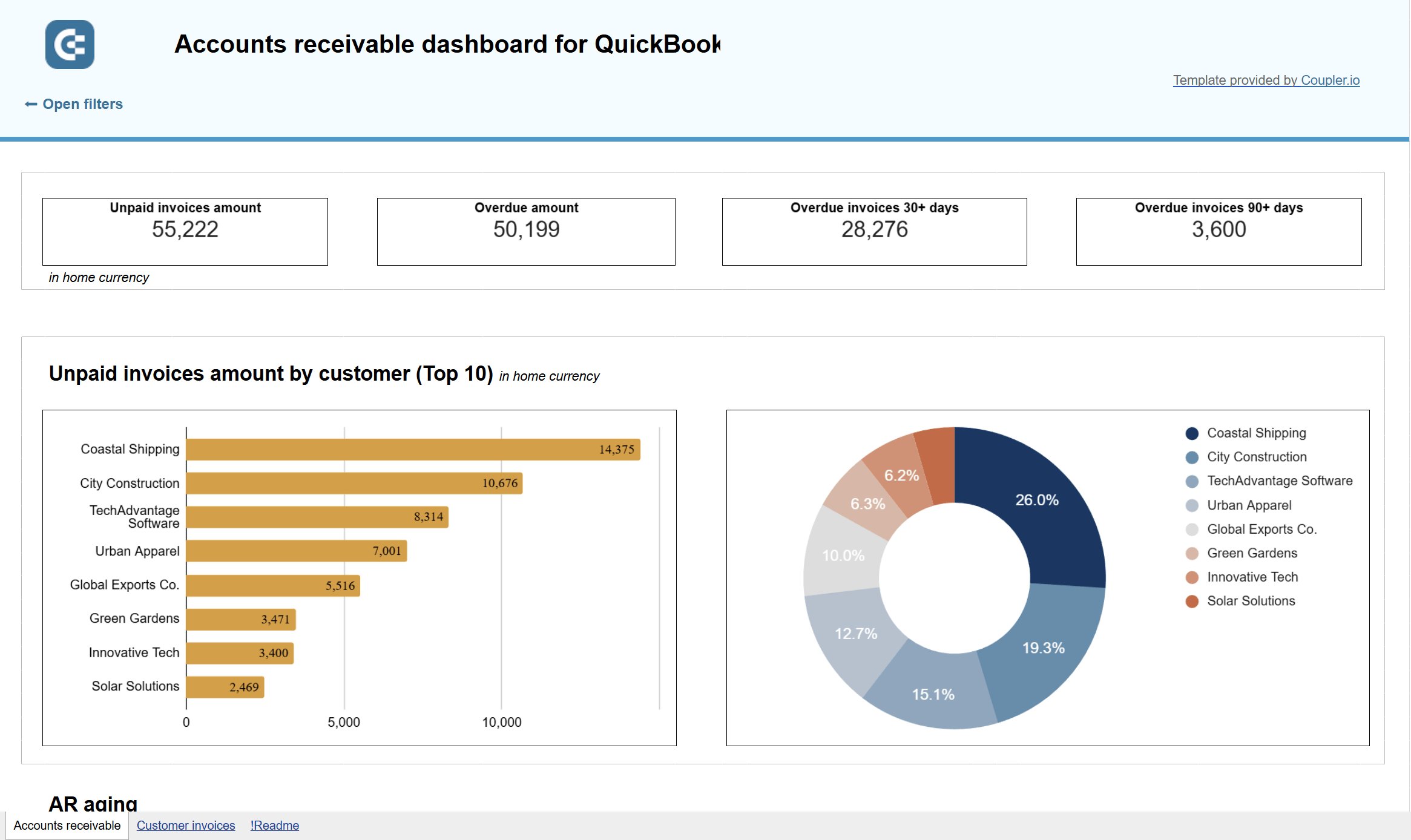
Accounts receivable dashboard for QuickBooks
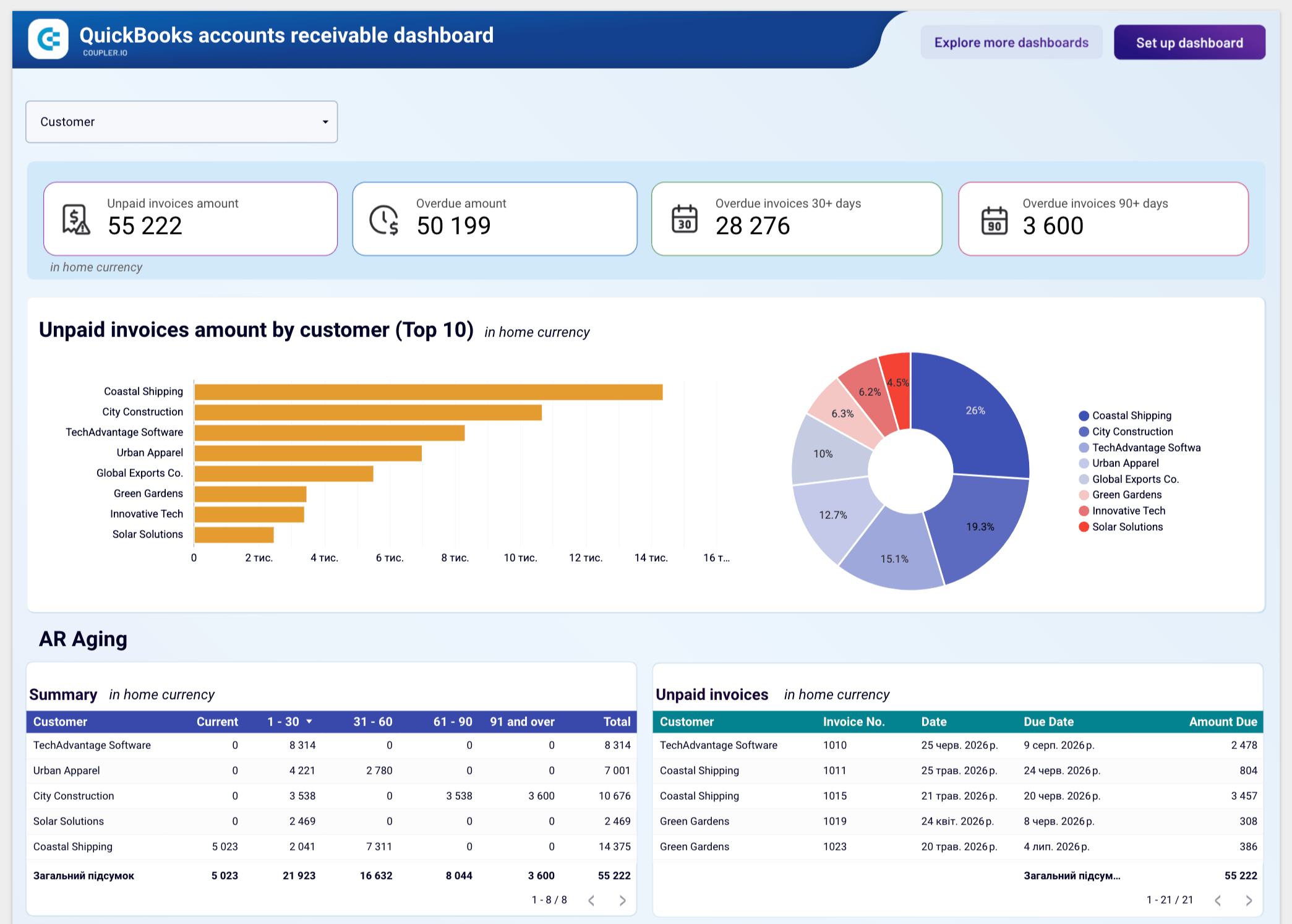
Use this dashboard to track unpaid invoices and plan collections. It goes further than the built-in QuickBooks Online report by showing aging, customer balances, and payment behavior together.
QuickBooks accounts receivable dashboard

QuickBooks accounts receivable dashboard
Preview dashboardWith this dashboard, you can:
- See which customers owe you the most and how old each balance is.
- Compare paid and unpaid invoices for each of the last 12 months to spot periods when customers pay late.
- Decide which overdue balances to chase first.
The accounts receivable dashboard template is also designed for Google Sheets and Data Studio. It includes a Coupler.io connector that automates the data flow from QBO too.

Accounts payable dashboard for QuickBooks
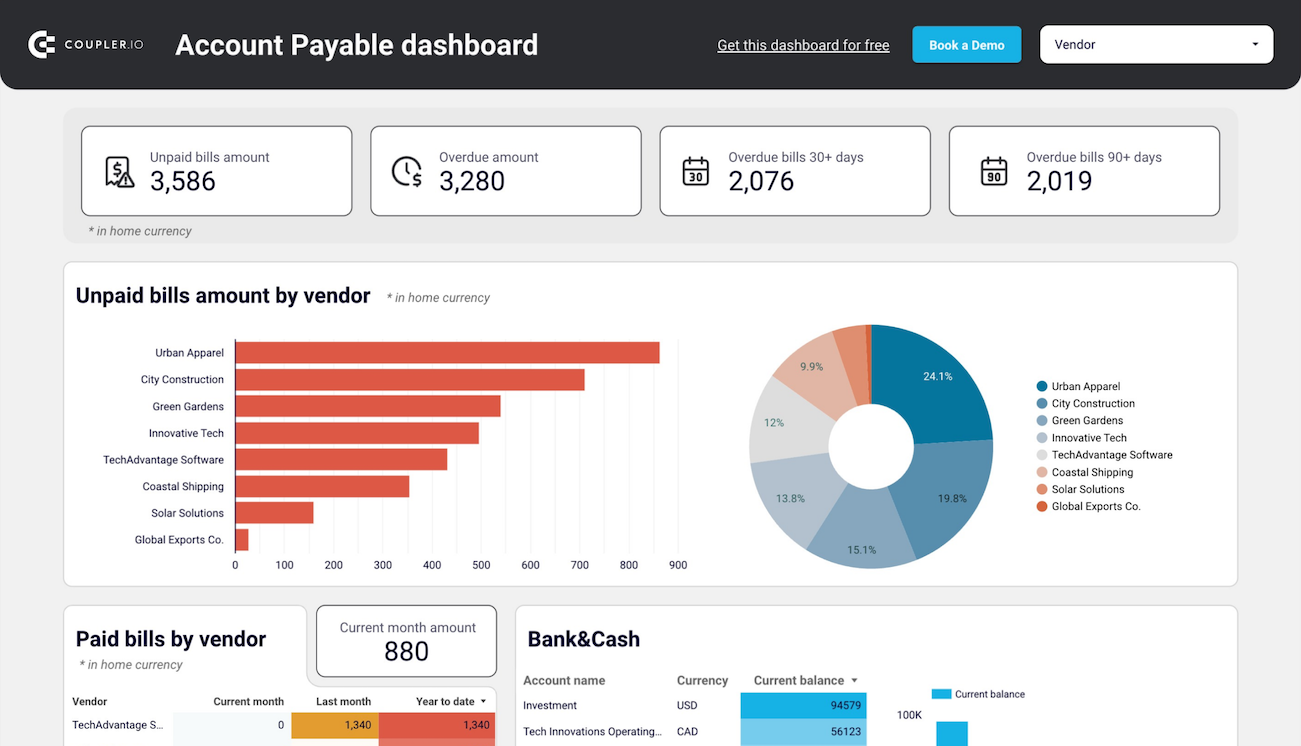
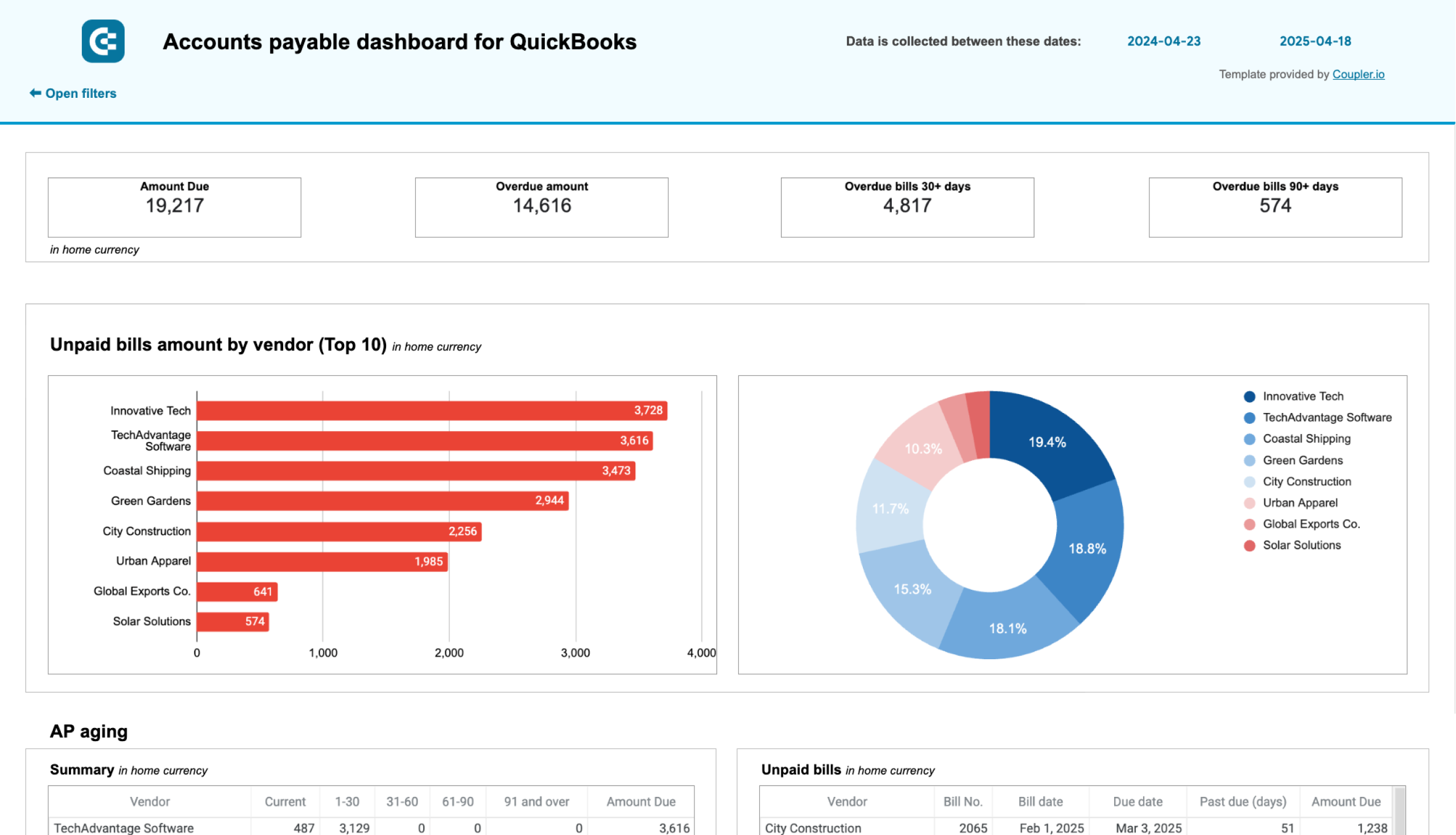
Use this dashboard to manage outgoing payments. It tracks outstanding bills, aging, vendor obligations, payment history, and the cash you’ll need for upcoming payments.
QuickBooks Accounts payable dashboard

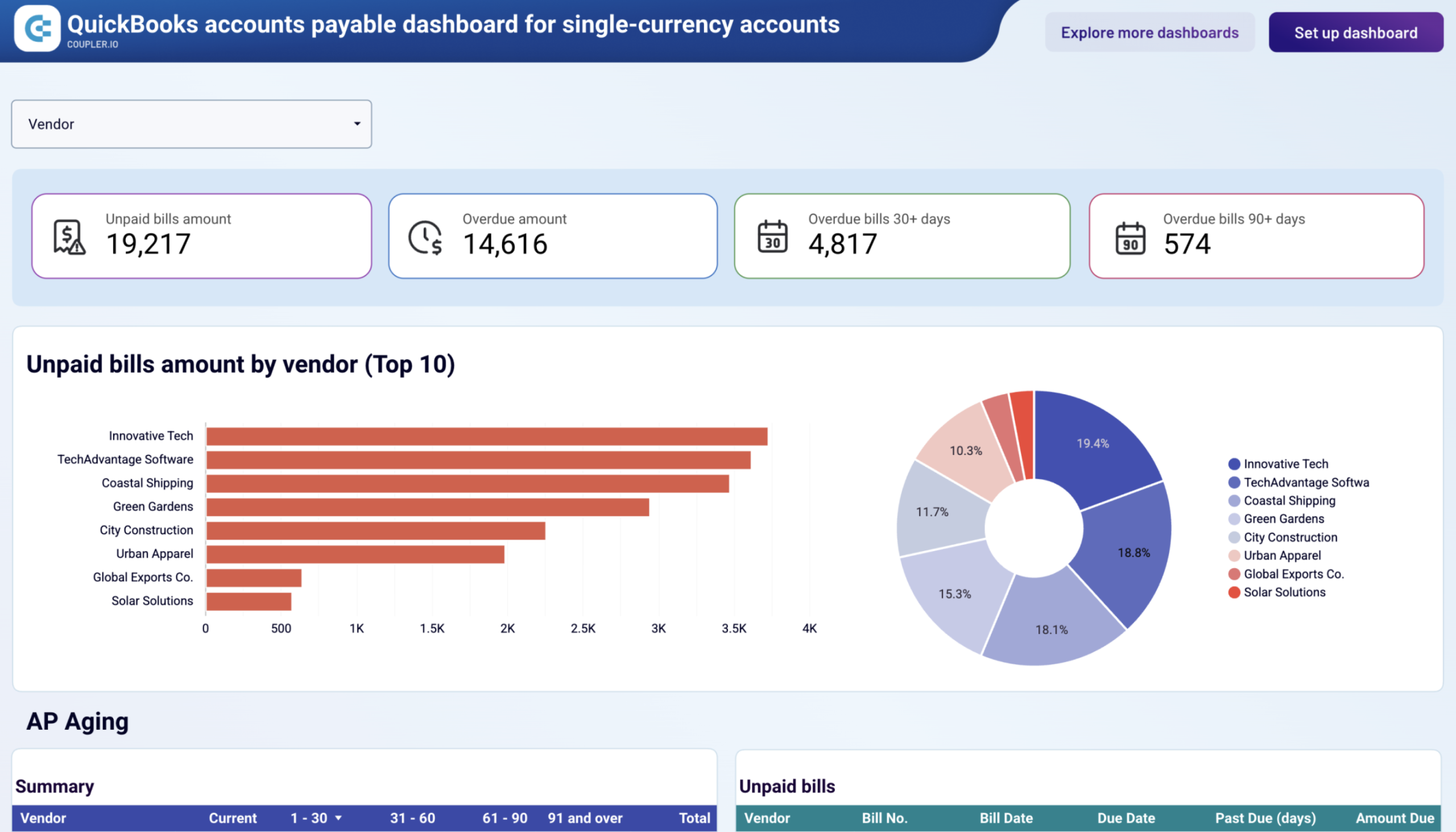
QuickBooks Accounts payable dashboard
Preview dashboardWith this dashboard, you can:
- See which vendors you owe the most and which payments are overdue by 30, 60, or 90+ days.
- Review how much you paid each vendor last month and since the start of the year.
- Track bank balances in different currencies to make sure cash covers upcoming bills.
The accounts payable dashboard template is available for Google Sheets and Data Studio, plus it features a Coupler.io connector for seamless and automated integration.
Specialized QuickBooks dashboards
- Billing dashboard for QuickBooks. It combines accounts receivable and accounts payable in one view. It shows how incoming customer payments and outgoing vendor payments affect working capital. Available as a Data Studio template:
Billing dashboard for QuickBooks
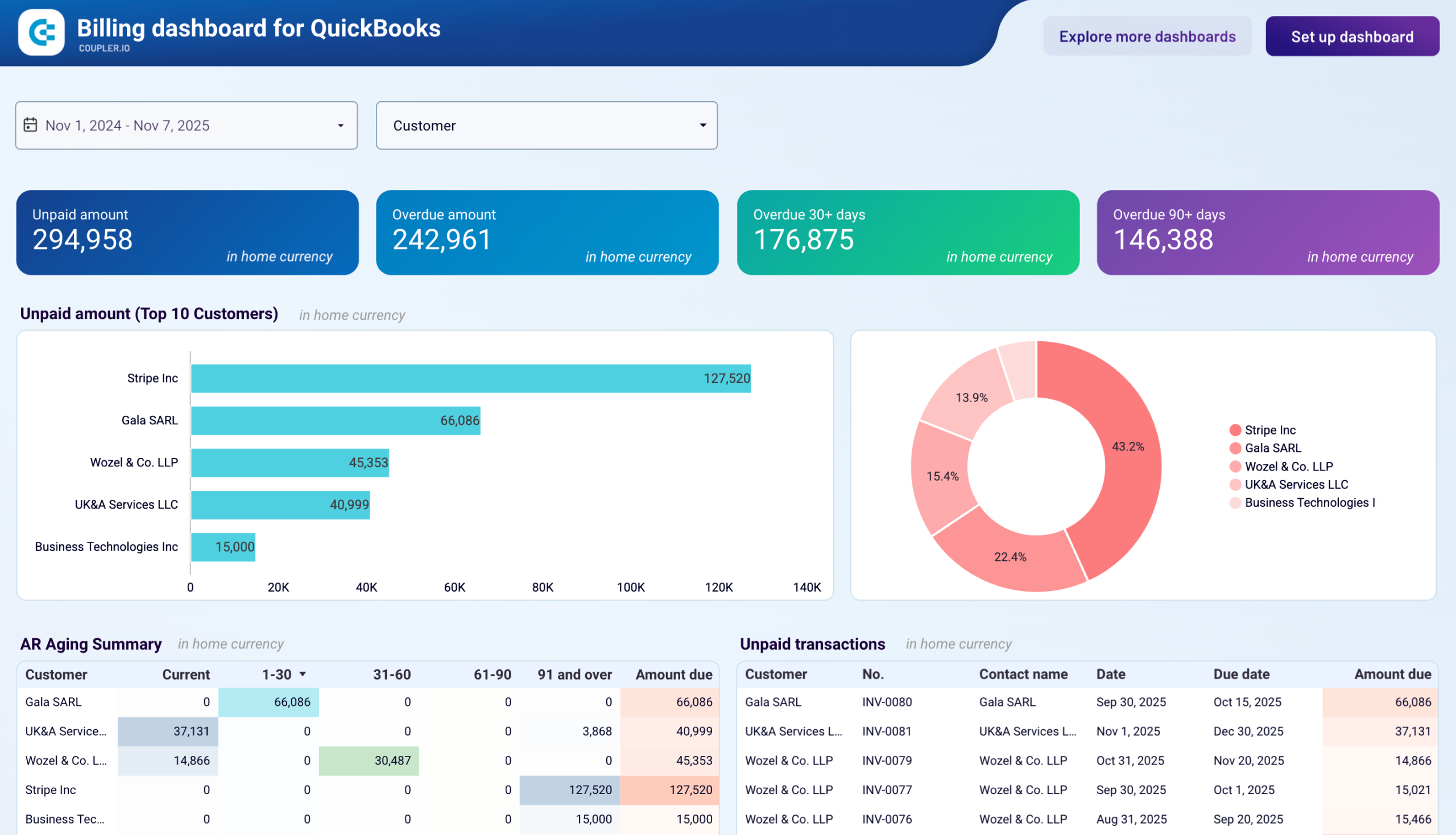
Billing dashboard for QuickBooks
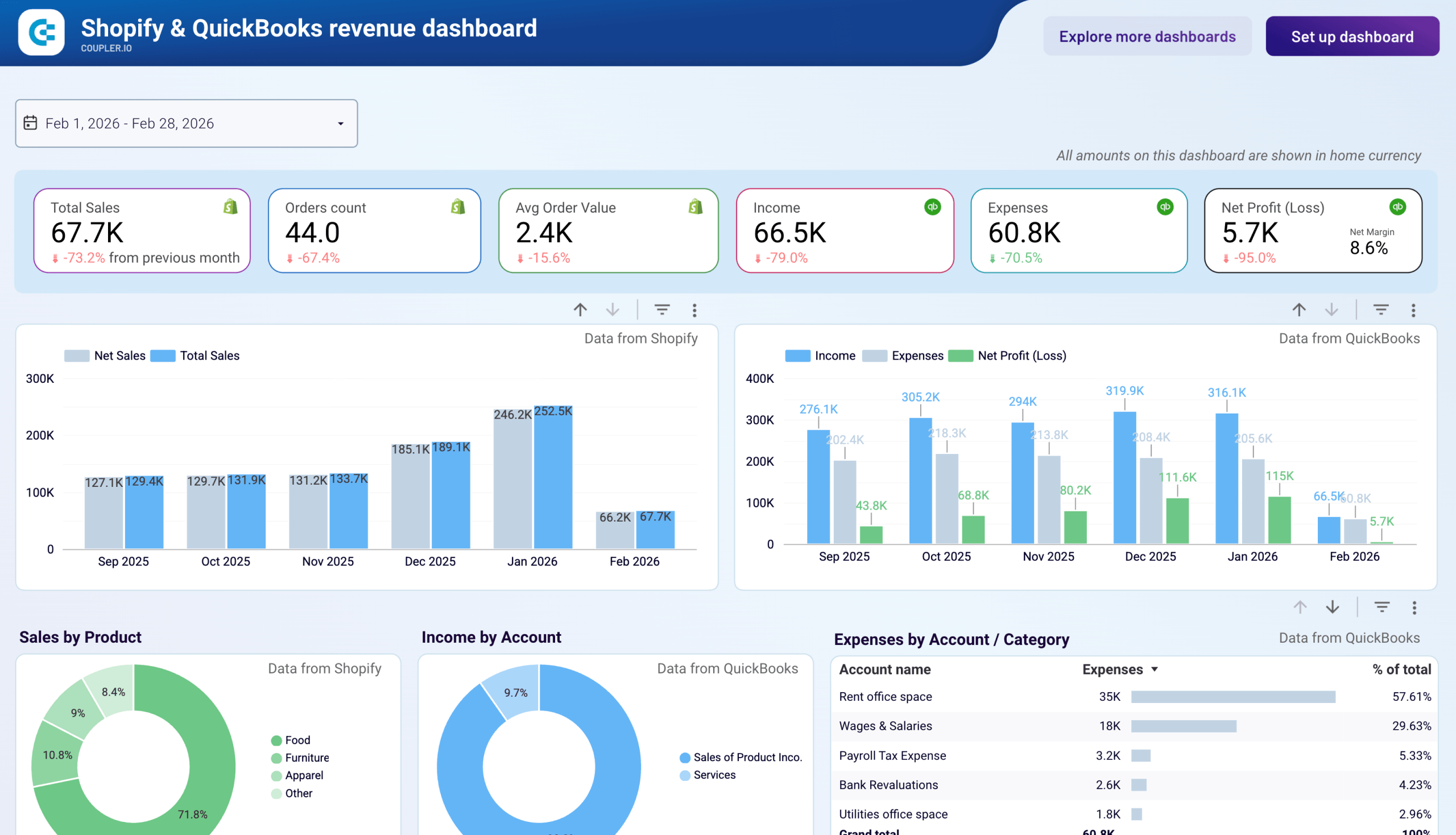
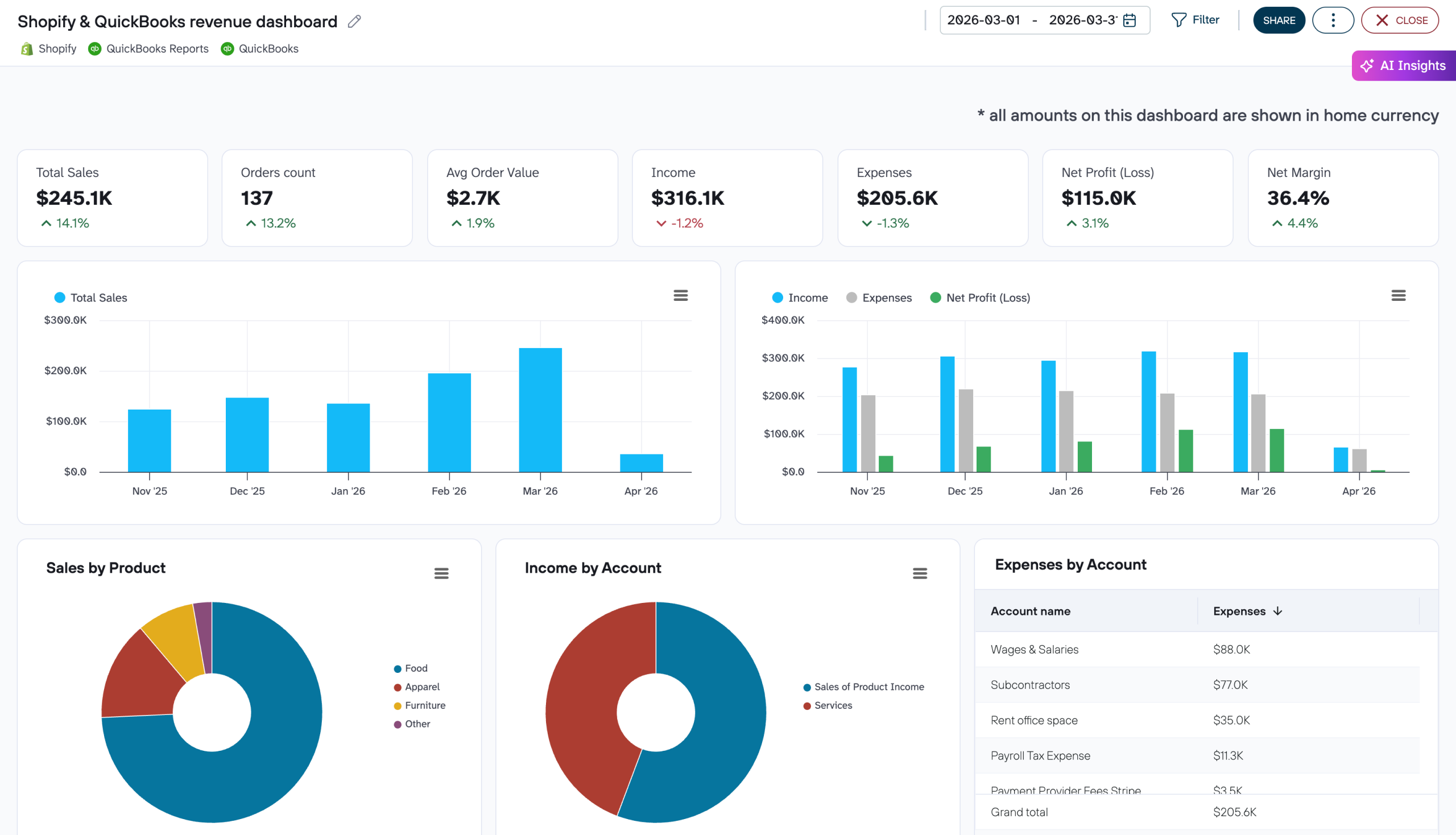
Preview dashboard- Shopify & QuickBooks revenue dashboard. If you sell through Shopify, it puts Shopify orders, sales, discounts, and returns next to QuickBooks income, expenses, and margins. You see how storefront activity turns into profit. Available in Coupler.io and Data Studio:

QuickBooks Online reports comparison by subscription plan
QuickBooks Online comes with four standard pricing plans: Simple Start, Essentials, Plus, and Advanced. Intuit also sells Solopreneur, a separate, more basic product for sole proprietors that is promoted separately.
As usual, each plan offers a varying set of features. The differences can also apply to the reports offered. Here’s what meaningfully changes as you move up:
| Plan | What it adds to reporting | Notable reports and features |
|---|---|---|
| Solopreneur | Basic profit and tax reporting | Profit and Loss, sales tax reports, two sales summaries. No Balance Sheet |
| Simple Start | Full financial statements and the accountant set | Balance Sheet, Statement of Cash Flows, General Ledger, Trial Balance, AR summaries, report customization, management reports |
| Essentials | Aging, payables, and automation | AR and AP aging, Unpaid Bills, vendor balances, Business Snapshot, Auto Send Reports, Group Reports |
| Plus | Budgets, inventory, classes, locations, and projects | Budget vs. Actuals, Inventory Valuation, reports by class and location, purchase reports, project reports |
| Advanced | Deeper custom reporting | No new standard reports. Adds Custom Report Builder and extra management report features |
Payroll reports are a separate case. They appear on Simple Start and higher, but only if you have an Intuit QuickBooks payroll (Workforce) subscription.
The complete lists below follow Intuit’s current plan comparison. Each plan includes everything from the plans above it.
Reports available on the Solopreneur QuickBooks Online plan
The reports included in the Solopreneur plan are meant to cater for the basic needs of individuals who run their own businesses. Consequently, these are not as detailed as reports available in higher plans, offer less customization, and focus rather on taxation, which is crucial to sole proprietors. Note also that the lowest plan does not include a Balance Sheet report.
Reports available on the Simple Start QuickBooks Online plan
In addition, users on the Simple Start plan can customize reports plus take advantage of Management Reports/Compilations. These are predesigned sets of standard and/or custom reports packed into a single presentation-ready document.
Reports available on the Essentials QuickBooks Online plan
The Essentials plan users can also take advantage of the Auto Send Reports feature as well as Group reports. The first one lets them schedule automated creation and sending of selected reports via email on/at specified dates/intervals. The second one lets QBO users bundle custom reports to run and manage them as a group, all at once.
Reports available on the Plus QuickBooks Online plan
Finally, being on the Plus plan means you can access quite a few more valuable reports.
Reports available on the Advanced QuickBooks Online plan
The highest plan, Advanced, features all reports on lower plans without adding any new ones. However, it lets you create enhanced custom reports using Custom Report Builder that features more advanced filters and layout options, as well as more data types to choose from. Advanced also unlocks extra management report templates, chart widgets, and automated recurring delivery of management reports.
More than 150 standard reports may sound like enough for one lifetime. Often, though, you may feel that they don’t describe things the way you’d like them to be presented.
For example, the Balance Sheet reports show by default the data for this year-to-date. You may be more interested in, for example, this quarter only and you’d like to compare it every time with the respective quarter last year.
How to access reports in QuickBooks Online
Open Reports from the left navigation menu. Depending on your navigation layout, it sits on its own or under Business overview.

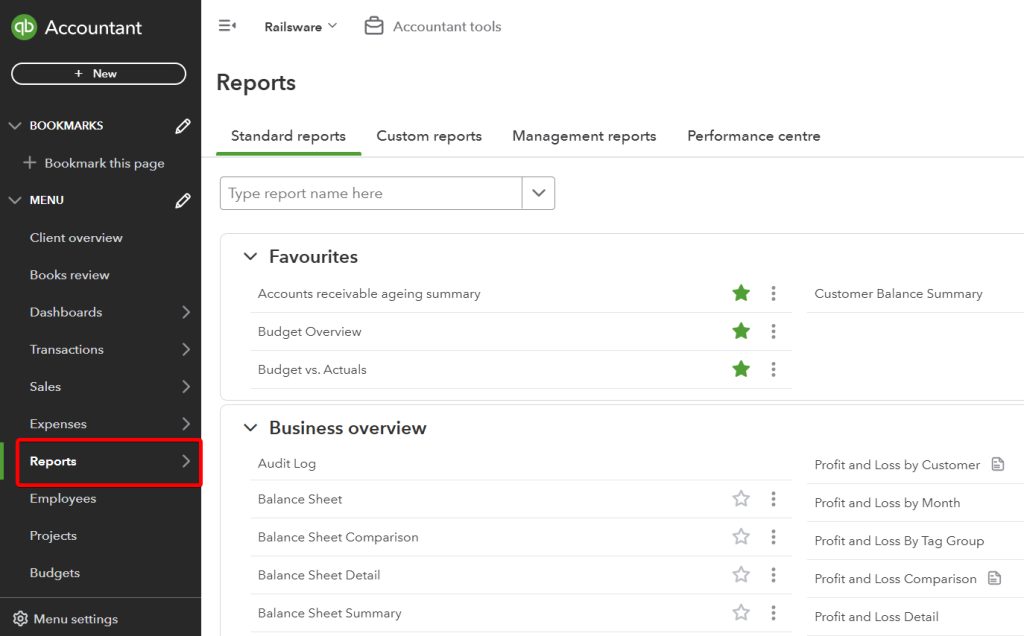
The Reports page is split into tabs:
- Standard reports – where all the available standard reports are stored.
- Custom reports (available from the Simple Start plan) – where you can find the standard reports that you’ve customized and saved for later use.
- Management reports (available from the Simple Start plan) – where you can create a presentation out of single or multiple reports for presentation purposes.
- Performance center (Advanced) – where you can view and create charts demonstrating the performance of your company.
To find a report, type its name in the search field at the top of the Reports page. You can also browse the report groups or open a report you marked as a favorite. Standard reports are grouped by their essence:
- Favorites: the reports you marked as favorites
- Business overview: Audit Log, Balance Sheet, and others
- Who owes you: Invoice List, Customer Balance Summary, and others
- Projects (the Plus plan or higher): Project Profitability Summary
- Sales and customers: Customer Contact List, Sales by Customer Summary, and others
- What you owe: Unpaid Bills, Accounts payable aging detail, and others
- Expenses and vendors: Check Detail, Vendor Contact List, and others
- Sales tax: Sales Tax Liability Report, Taxable Sales Summary, and others
- Employees: Employee Contact List, Recent/Edited Time Activities, and others
- For my accountant: General Ledger, Profit and Loss Comparison, and others
- Payroll: Time Activities by Employee Detail, Recent/Edited Time Activities, and others
Please note that the availability of standard reports depends on the subscription plan you have.
One more thing: Intuit retired the Classic report view in 2026. Every standard and saved custom report now opens in the Modern view, and the option to switch back is gone. Saved custom reports moved over automatically, but it’s worth reopening the ones you rely on to check that filters and date ranges carried over correctly.
How to customize reports in QuickBooks Online?
To open a report for customization, go to the desired report group and click the report on the list.


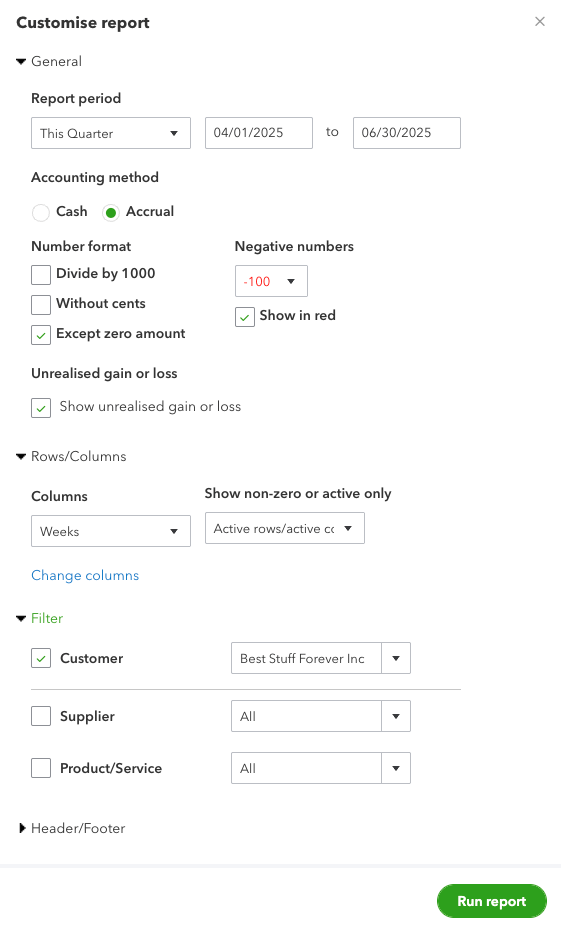
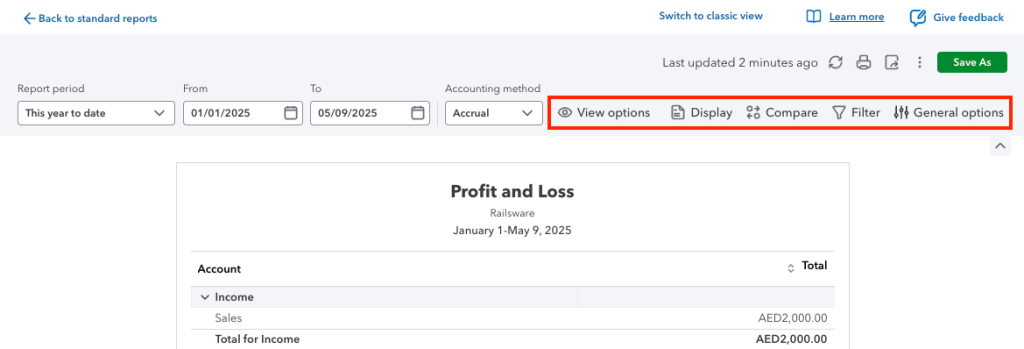
The most common settings sit in the report header and refresh the report automatically:
- Report period, for example This quarter or a custom date range
- Display columns by, to split totals by month, quarter, customer, class, and other dimensions
- Compare to, to add a previous period or previous year
- Accounting method, cash or accrual
Select Customize to open the side panel with deeper options: filters (by customer, vendor, product, account, class, or location), rows and columns, number format, and header and footer settings. Select Apply changes to preview the result.

The Modern view also lets you add attribute columns, group and pivot data, and switch some reports to a chart view.

How to create custom reports in QuickBooks Online?
“Custom report” means different things in QuickBooks, and not every option is available on every plan:
- Customizing a standard report changes how it looks right now. It’s available from Simple Start up.
- Saving the customization turns it into a custom report you can reopen, share, and schedule. Also available from Simple Start up.
- Custom Report Builder creates a report from scratch with your own data fields, filters, groupings, pivots, and charts. It’s only available on QuickBooks Online Advanced (and Intuit Enterprise Suite).
- An external custom report built with Coupler.io uses QuickBooks data in a spreadsheet, BI tool, or warehouse, combined with other sources and refreshed automatically. It works with any QuickBooks Online plan. See how to set it up.
If you regularly access a certain report and always need to make the same customizations, it would make more sense to save those changes for future use. You can do so by creating custom reports in QuickBooks Online.
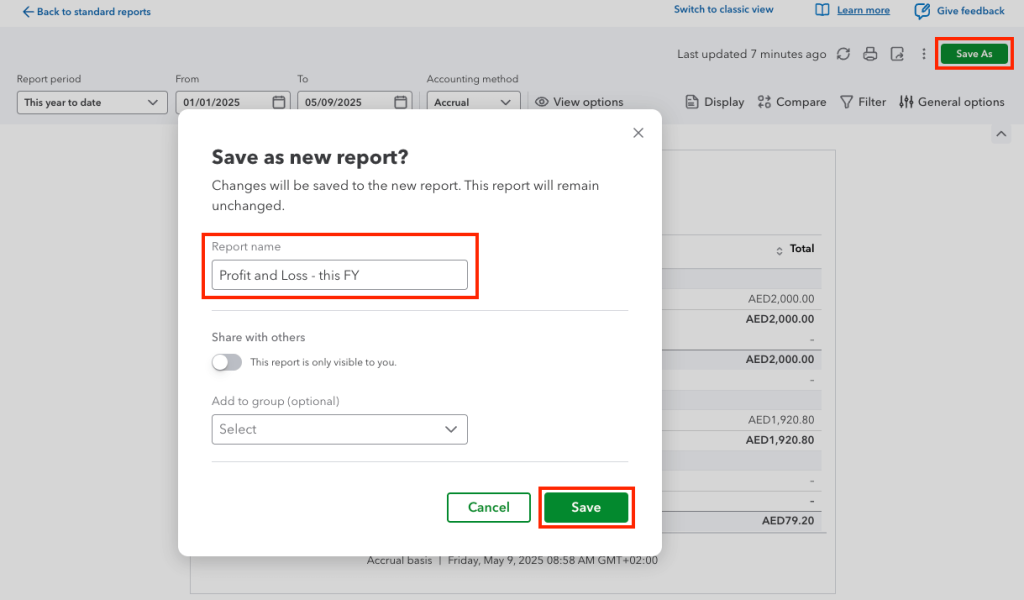
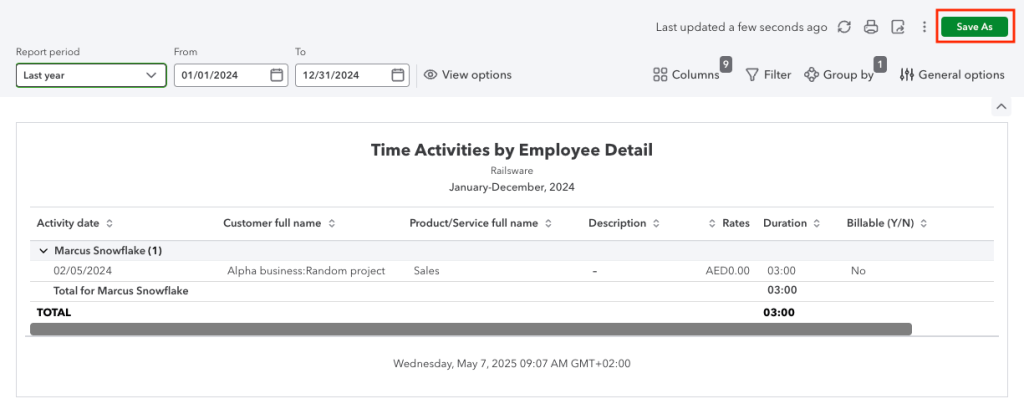
Once you’ve customized your report, click Save As. Enter the report name. Optionally, if you’re on at least the Essentials plan, you can add it to a group with other custom reports. Afterward, click Save.

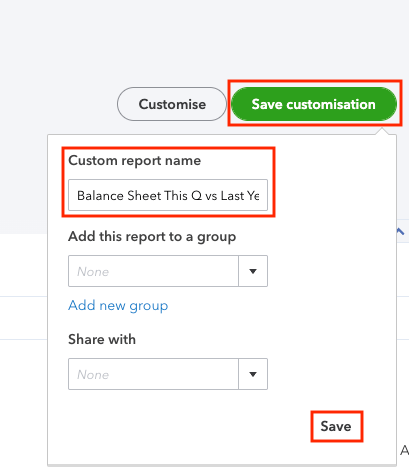
Nearly the same steps apply to a report customized in the Modern view. However, instead of the Save customisation button, you need to click Save As.

To create custom reports in QuickBooks Online Advanced with the Custom Report Builder, go to Reports > Custom reports, select Create new report, choose a report type, and add the data columns, filters, and groupings you need.
Where can you view custom reports in QuickBooks Online?
Go to the Reports menu and select the Custom reports tab. Here you will see all the custom reports in QuickBooks Online saved by users of your account.

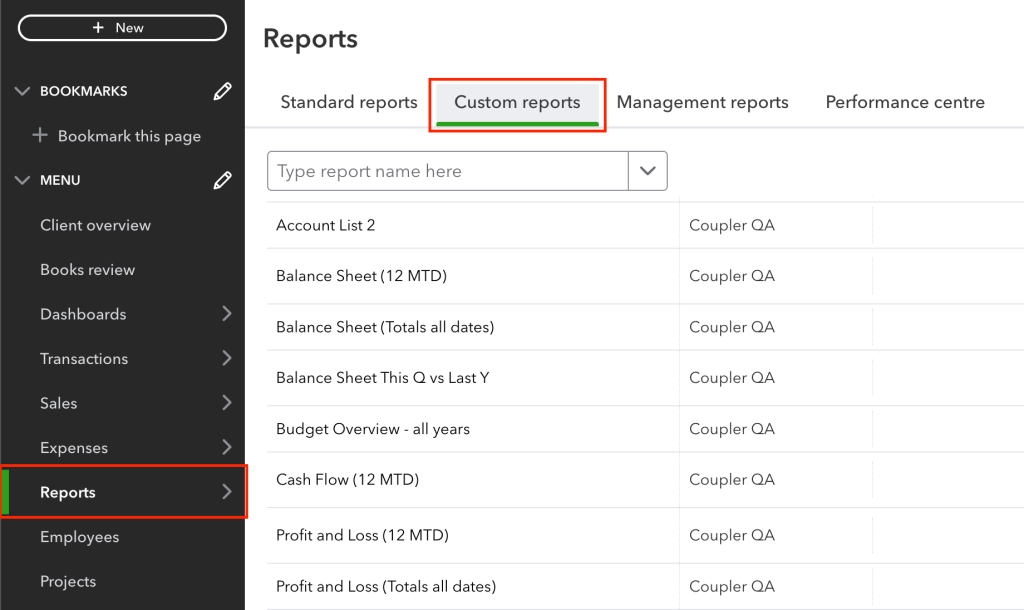
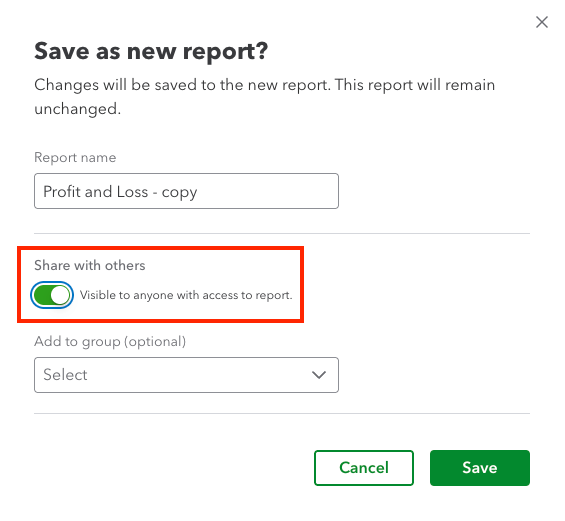
When you create custom QuickBooks reports, you can choose to share them with your teammates. When you click Save As, turn on the Share with others toggle. Users who already have access to your company will see the report in their Custom reports tab. People you invite later won’t see it automatically.

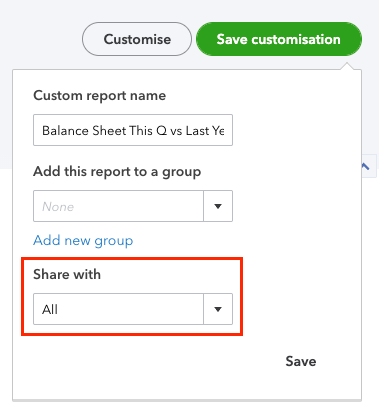
In the Modern view, once you click Save As, enable the Share with others toggle to share the report.

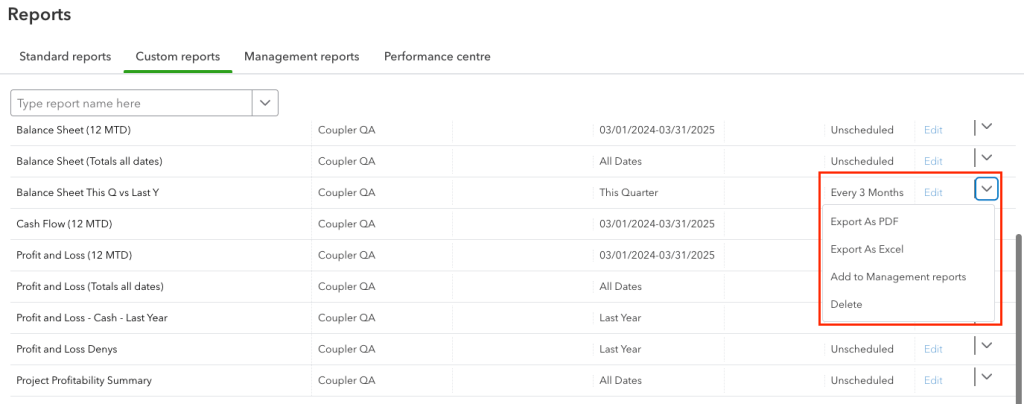
However, if you need to share QuickBooks custom reports externally, the easiest way to do this is to export them. QuickBooks Online lets you manually export reports as Excel, PDF, or CSV files. Open the report and select the export icon, or use the Action menu next to the report on the Custom reports tab.

At the same time, you can optimize sharing of your reports if you automate their exports on a schedule using Coupler.io. This way, you won’t have to manually export data every time you need to refresh it.
You can schedule exports, say every day or every hour, to Google Sheets or Microsoft Excel and share the resulting spreadsheet or dashboard with stakeholders. We’ve explained the details in the section about QuickBooks automated reports.
Scheduled reports in QuickBooks Online
You can save each report in QuickBooks Online manually from its individual page. It’s a bit limited, as only Excel (.xlsx), PDF, and CSV formats are available. Worst of all, you need to do it manually, which can be pretty inconvenient if you need to fetch a number of reports regularly.
Users on the Essentials, Plus, and Advanced plans can take advantage of the Auto Send Reports feature. In a nutshell, it allows you to send an email with a chosen report to a specific email address, at a chosen interval.
You can use this feature only with custom reports, but if you want to automatically send any of the standard reports, you can just save them as custom reports, the same as we did in the previous chapter. You don’t even need to make any adjustments.
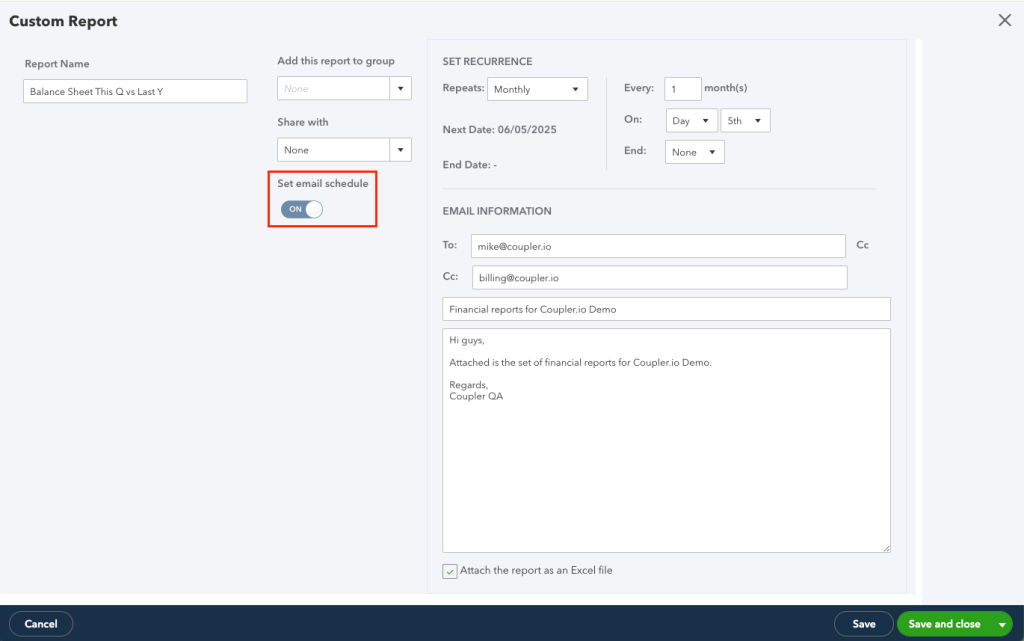
Once you’ve created the desired custom reports, go to their list and click Edit to the right of the reports.
Toggle Set email schedule on. Then, choose when the emails should be sent and to whom. Use the default template or configure your own. You may also choose to attach the report as an Excel file, kind of QuickBooks export to Excel. Otherwise, the report will be sent in the body of the email.
Once finished, click Save and close in the bottom-right corner.

How to schedule quarterly reports in QuickBooks Online?
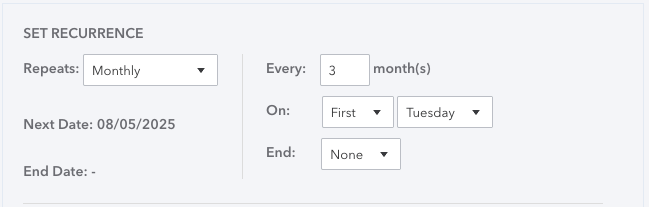
It’s perhaps a bit counterintuitive, but you can also send quarterly QuickBooks Online reports from the very same menu. In the Set recurrence section, select:
- Repeats > Monthly
- Every > 3 months
Intuit recommends setting the next date to the first day of the following period. Monthly schedules can’t start on the 29th, 30th, or 31st.

Native scheduled reports have clear limits:
- They require the Essentials plan or higher.
- Delivery is by email only, as an Excel attachment or in the email body.
- Only saved custom reports can be scheduled.
- Every email is a static snapshot. Each recipient gets a new file, and nobody works from one current version.
- You can’t transform the data, combine it with other sources, or send it straight to a BI tool.
Indeed, many accountants prefer to work with financial data from the comfort of a spreadsheet. This way, they can format it to their liking, run advanced formulas or even export the numbers into external services, for example, data visualization tools. A file attached to an email doesn’t give them that, and importing .xlsx files into Google Sheets every month is clunky.
Coupler.io takes a different approach to scheduling. It refreshes the data itself in a spreadsheet, BI tool, or warehouse, on a daily, hourly, or 15-minute schedule depending on your plan. Everyone opens the same fresh report. To export QuickBooks data this way, follow the steps in the automation section.
Get self-updating reports with Coupler.io
Get started for freeTypes of QuickBooks Online Reports
There are many different types of reports available in your QuickBooks account. We’ll now explain where to find the ones you’re interested in the most. For each category, you’ll see what it covers, where to find it, which plans include it, and whether Coupler.io can export the data. The export setup is the same for every category and is described in the automation section.
Standard payroll reports in QuickBooks Online
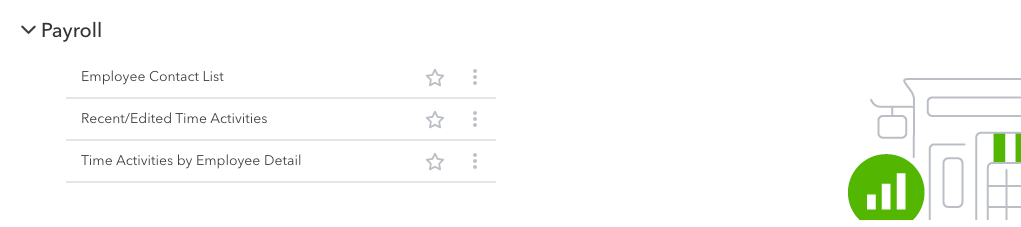
There are 19 reports available in the Payroll category, right at the bottom of the Reports page. Those of you on at least the Simple Start plan can access nearly all of them without any restrictions, as long as you have a QuickBooks payroll subscription.
The exceptions are Payroll Summary by Employee, Recent/Edited Time Activities, and Time Activities by Employee Detail, which are available only to Plus and Advanced users.

Coupler.io doesn’t export payroll reports, but you can export the Employee and TimeActivity entities, which cover employee lists and time tracking.
Quarterly payroll reports in QuickBooks Online
To view a quarterly payroll report, open any of the reports in the category. Once there, adjust the time period to, for example, Last quarter. The report contents will update automatically.

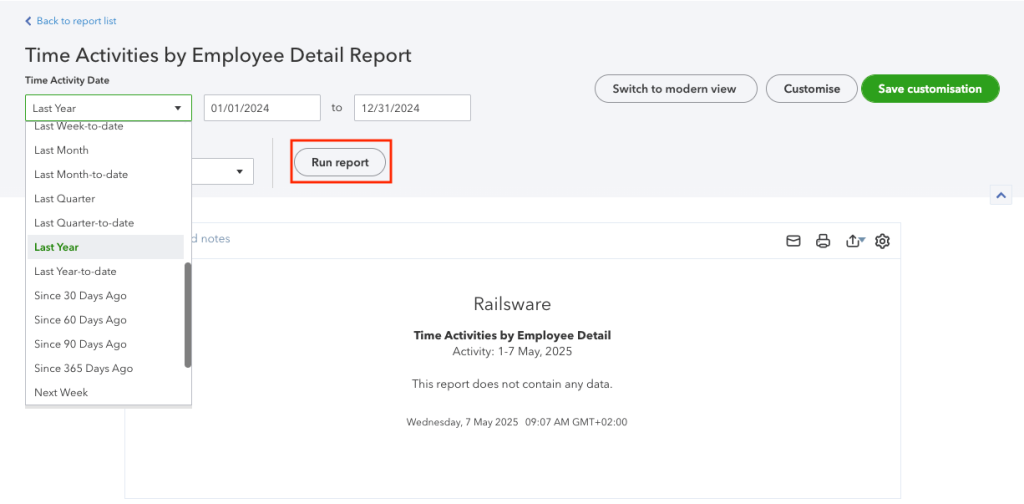
If you’d like to save it for future use, click Save As and name the report. From now on, it will appear on the Custom reports tab and will always include the data for the chosen period.

If you’d like to email it to yourself or someone else, follow the steps to schedule a quarterly report that we described earlier.
How to export employee reports in QuickBooks Online?
Employee Details and Employee Directory reports are available on every plan, except for Solopreneur, and require a payroll subscription. You can fetch them in the standard way as Excel or PDF files and then save them on your device.
Depending on your needs, a direct export into a spreadsheet may prove to be more useful, especially if you plan to work with this data further. This can be automated with Coupler.io, and the list of employees can be refreshed frequently, reflecting any changes you make on QuickBooks Online.
Here’s how to export employee data from QuickBooks Online.
How to export productivity reports in QuickBooks Online?
Although there’s no productivity report available in QuickBooks Online per se, the Time Activities by Employee Detail report is probably the closest thing you’ll find. You’ll find it in the Payroll section of the Reports page.
Note: The report is available only to users on Plus and Advanced plans.
You can adjust the report to some extent, save it as a custom report, or schedule recurring reports to be sent to any email address.

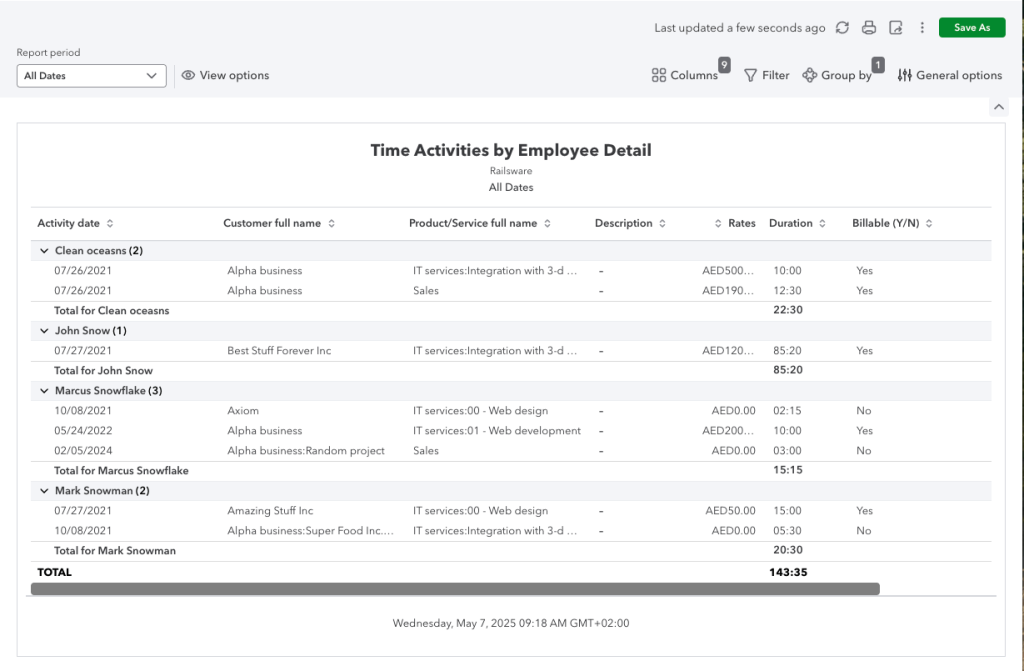
An interesting thing to do would be pulling all time entries available with Coupler.io and building a productivity report in your spreadsheet. With a bit of time at your disposal, you could also export the data into a tool like Data Studio and build a visual, self-updating productivity report there.
Here’s how to get QuickBooks Online time data.
Budget reports in QuickBooks Online
There are two budget reports available in QuickBooks Online, both nested under the Business Overview category. These are Budget Overview and Budget vs Actuals. They’re only available on the Plus and Advanced plans.

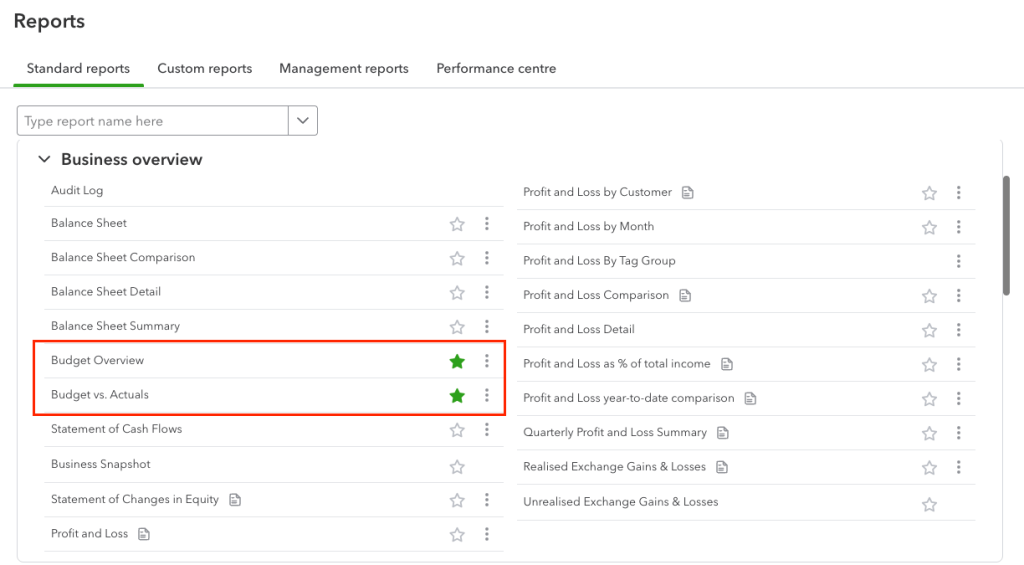
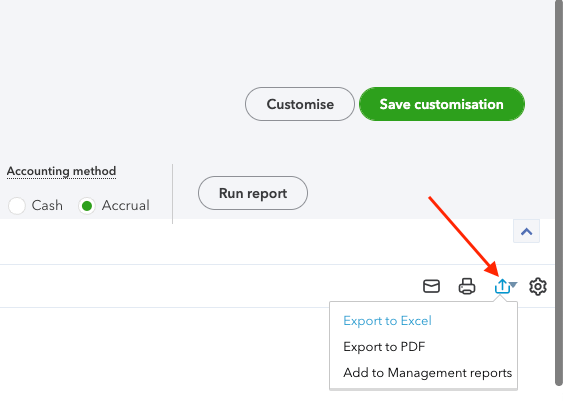
To export either report, use the export icon at the top of the report. Budget reports contain many columns. Check the file layout before sharing it.

Budget from QuickBooks Online can also be fetched into a spreadsheet with Coupler.io. Export the Budget entity and the actuals together to build a budget vs. actual report that updates itself.
Export QuickBooks budget in minutes with Coupler.io
Get started for freeAccountant reports in QuickBooks Online
There’s a long list of reports available in the For my accountant section, the exact set depends on your plan.

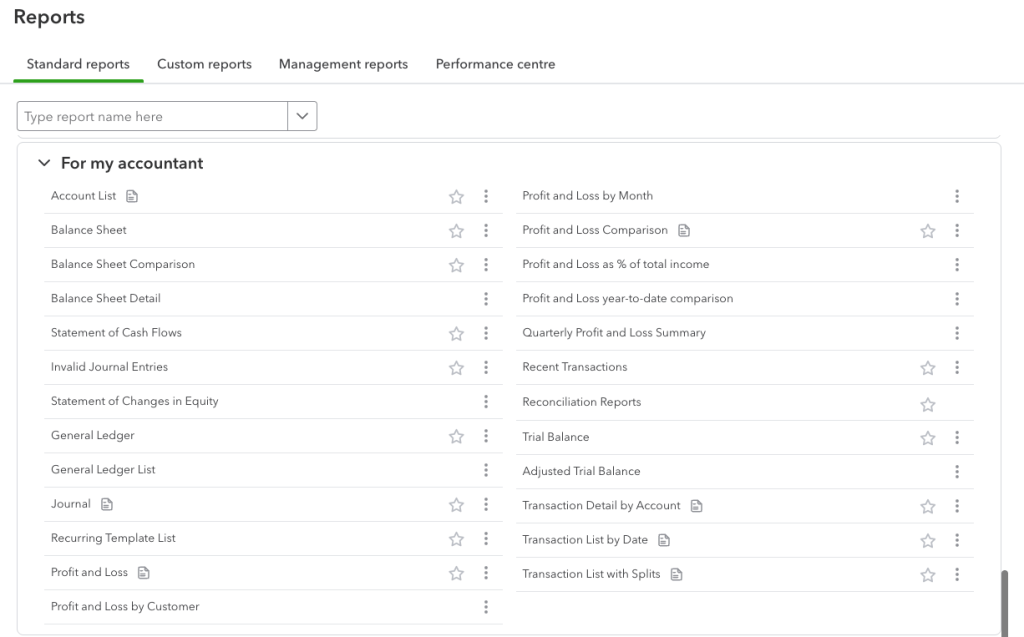
The majority of reports are available for all plans. The following are only accessible on Essentials and higher plans:
- Recent Automatic Transactions
- Recurring Template List
- Transaction Detail by Account
- Transaction List with Splits
What’s more, Plus and Advanced members can also access:
- Balance Sheet comparison
- Class List
- Location List
- Profit and Loss Comparison
The comparison reports appear in this group only on Plus and Advanced. On Simple Start and Essentials, you can open Balance Sheet Comparison and Profit and Loss Comparison from the Business overview group.
All QuickBooks Online users have access to the free PnL dashboard and balance sheet dashboard template by Coupler.io.
Each report can be saved in the standard way, as an Excel, PDF, or CSV file.
Accountant automatic reports in QuickBooks Online
Accountant reports are something you may often want to export out of the platform, for further processing or to keep in your records.
This dull process can be automated with QuickBooks Online. Each report can be sent to a specific email address at a certain scheduled interval. Refer to the Schedule reports in the QuickBooks Online section for details on how to set it up.
If you plan to work further with any of these reports, exporting them directly into Excel or, for example, Google Sheets is probably a better idea. The advantage is that the data will be fetched into a typical spreadsheet format that allows for it to be formatted, put into formulas, or processed in any other way.
Most standard accounting reports are also available for the Coupler.io export. These include Balance Sheet, Cash Flow, Journal Report, General Ledger Detail, Trial Balance, or Transaction List.
Check out the free cash flow dashboard examples by Coupler.io
Vendor reports in QuickBooks Online
Vendor reports are nested in two separate sections in the Reports menu: What you owe as well as Expenses and vendors.
There’s a very limited number of vendor reports available on the Simple Start plan. Check Detail, Transaction List by Vendor, and Vendor Contact List are the only ones you can access.
Users on the Essentials plan get quite a few other reports, including Vendor Balance Detail and Summary, Unpaid Bills, and AP aging reports. The Plus and Advanced plans come with about a dozen additional reports.

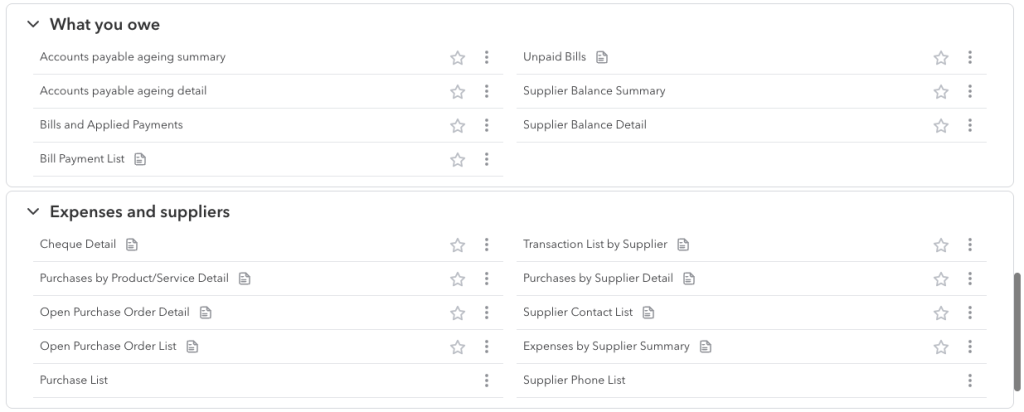
Plenty of information about vendors can be fetched with Coupler.io. You can pull either raw vendor data (vendors, bills, bill payments, vendor credits) or different vendor reports, such as Vendor Balance, Expenses by Vendor, and AP aging, right into your spreadsheet.
Expense reports in QuickBooks Online
Expense reports are grouped with vendor reports as we discussed in the earlier chapter. There’s a very limited set of reports on Simple Start and Essentials plans, while the Plus and Advanced users can enjoy all expense reports. This includes:
- 1099 Transactions detail report
- Open Purchase Order Detail
- Purchases by Class Detail
- Purchases by Location Detail
- Purchases by Product/Service Detail
- Purchases by Vendor Detail

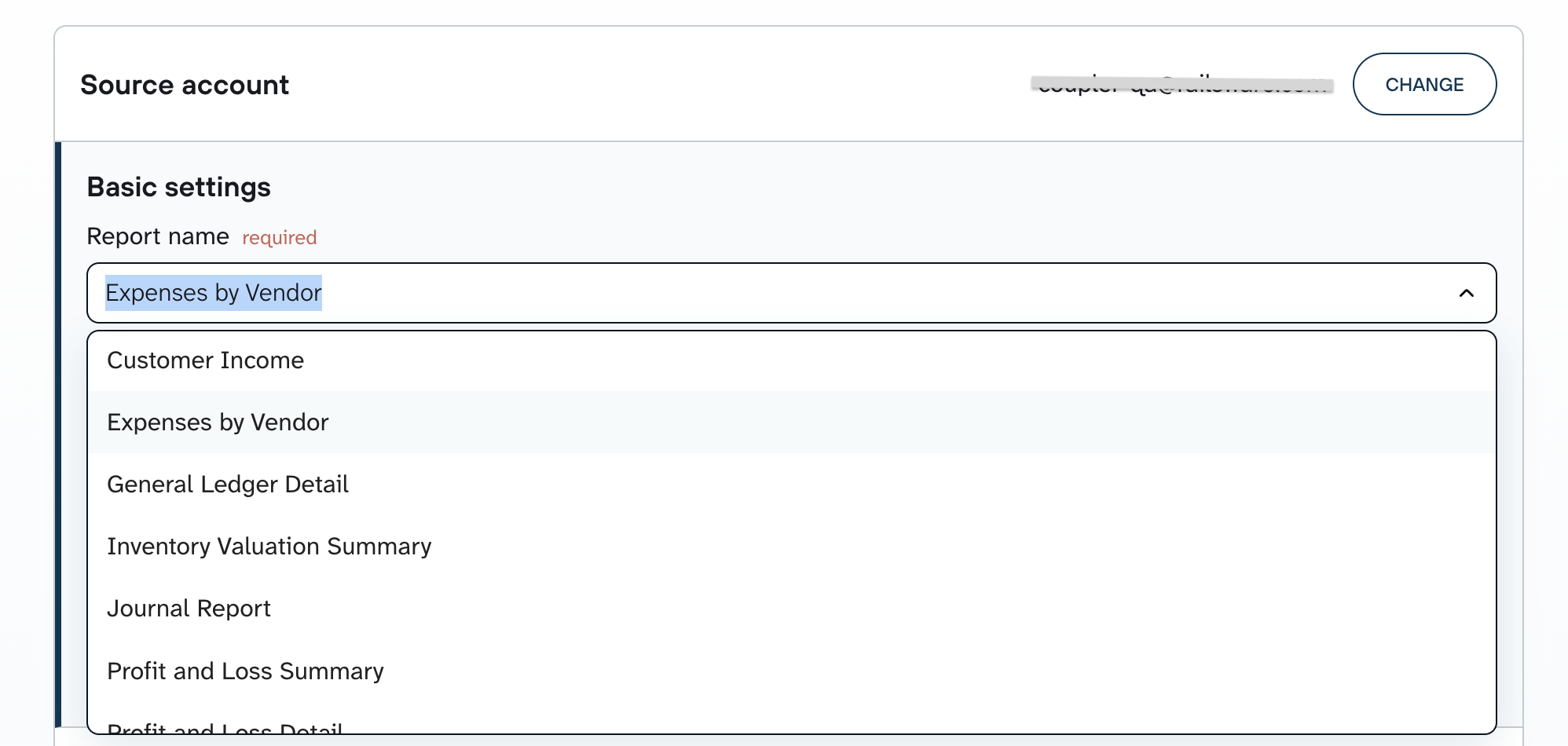
With Coupler.io, you can import the Expenses by Vendor report, or export raw Purchase and Bill data to build your own expense breakdown.
Automate your expense report with Coupler.io
Get started for freeHow to view reconciliation reports in QuickBooks Online?
You’ll find reconciliation reports in the For my accountant section of Reports. You can also open past reconciliation reports from the Reconcile page, under Transactions or Accounting depending on your navigation layout, by selecting History by account.
Reconciliation reports are available on all QuickBooks plans, except for Solopreneur.

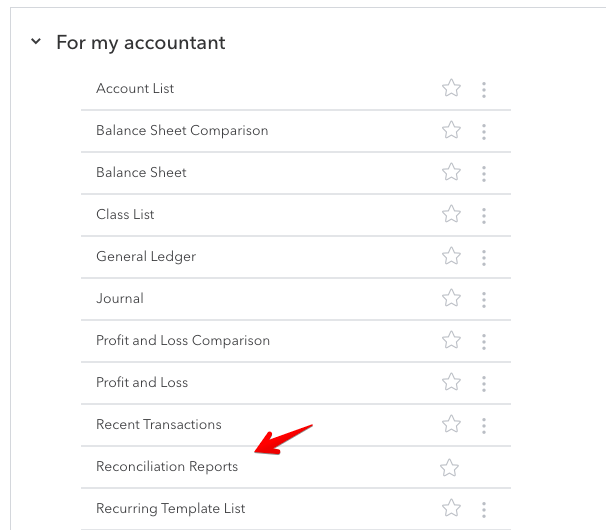
Coupler.io doesn’t export reconciliation reports. For reconciliation checks outside QuickBooks, export the Transaction List or General Ledger Detail report.
Sales reports in QuickBooks Online
There are nine “Sales by” reports available in QuickBooks Online.
- Solopreneur and Simple Start users only have 2 available: Sales by Customer Summary and Sales by Product/Service Summary.
- Essentials users have additional access to Sales by Customer Detail and by Customer Type Detail. What’s more, they can also view Sales by Product/Service Detail.
- Plus and Advanced members get all the reports, including some QuickBooks Online Class reports – Sales by Class Detail, by Class Summary, as well as by Location Detail and by Location Summary.
You can find the available reports under the Sales and customers category.

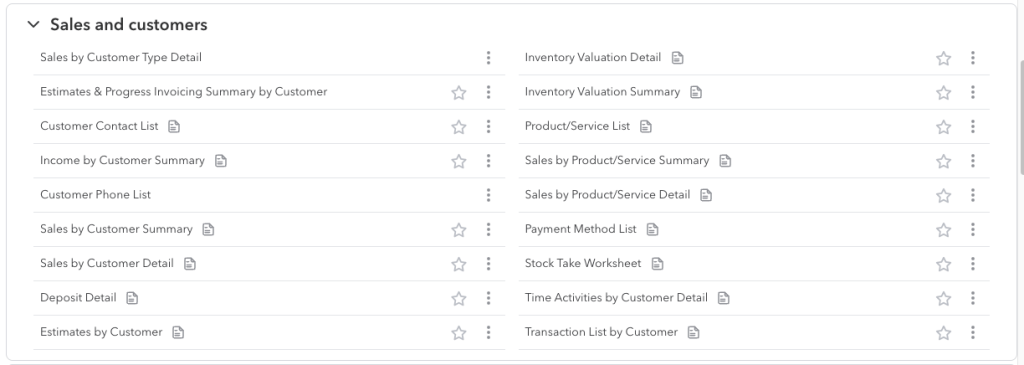
Coupler.io exports Sales by Customer, Sales by Product, Sales by Class Summary, Sales by Department, and Customer Income, plus raw invoices and sales receipts.
Inventory reports in QuickBooks Online
There are three inventory reports: Inventory Valuation Detail, Inventory Valuation Summary, and Physical Inventory Worksheet. All sit under the Sales and customers category and are available only to Plus and Advanced members.

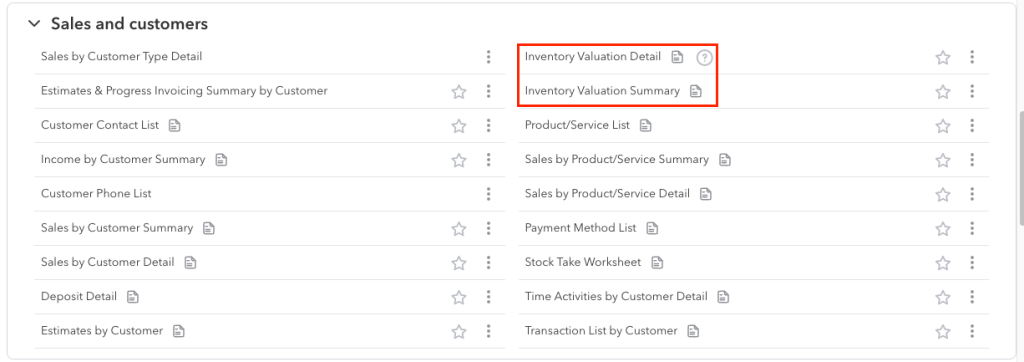
Coupler.io also features an option of pulling the Inventory Valuation Summary report into a spreadsheet.
Job cost reports in QuickBooks Online
The job cost report in QuickBooks Online is referred to as Time cost by employee or supplier. Also, it’s a bit hidden for some reason.
Rather than going to the usual Reports tab, head to Projects instead. You’ll need to have projects enabled on your QuickBooks account for this tab to show up. Projects are available on Plus and Advanced.
While in there, click on the project you’re interested in and then Project Reports.
Then, select the Time cost by employee or supplier report for this project, and you’ll see the desired report.

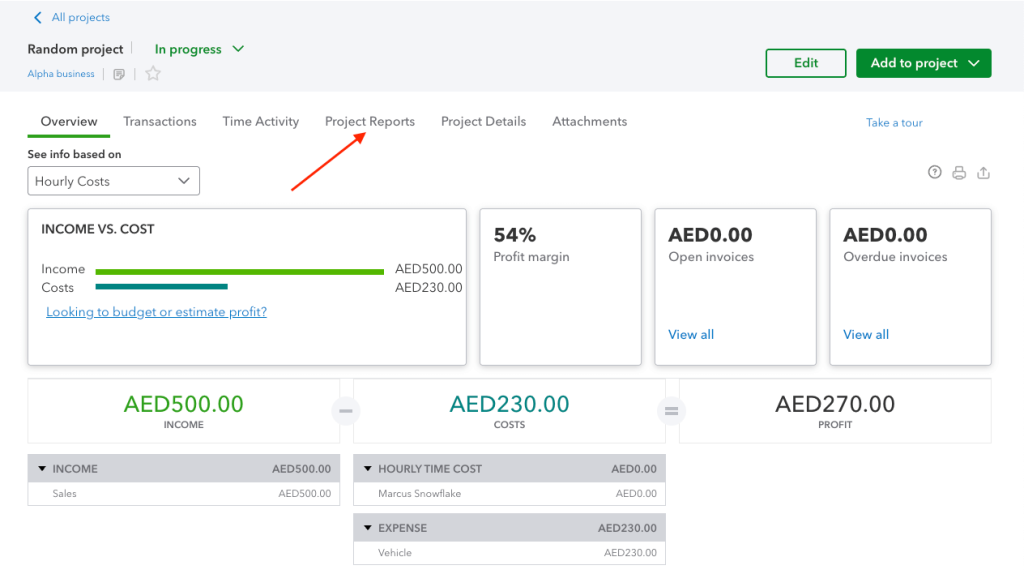
While in there, you can also access other project reports in QuickBooks Online – Project profitability and Unbilled time and expenses.
Reports by class in QuickBooks Online
There are a number of reports where the data can be differentiated by class. These are:
- Profit and Loss by Class
- Sales by Class Detail
- Sales by Class Summary
- Purchases by Class Detail
The reports are only available for Plus and Advanced users. What’s more, they can also access a separate Class List report. With Coupler.io, you can export the Sales by Class Summary report or split other summary reports, such as Profit and Loss, by class.
How to see graph reports in QuickBooks Online?
If you’d like to see a more visual report, you certainly need to check out the Business Snapshot report. You’ll find it in the usual Reports menu, under Business Overview. It’s available on Essentials and higher. In the Modern view, some reports can also be switched to a chart view.

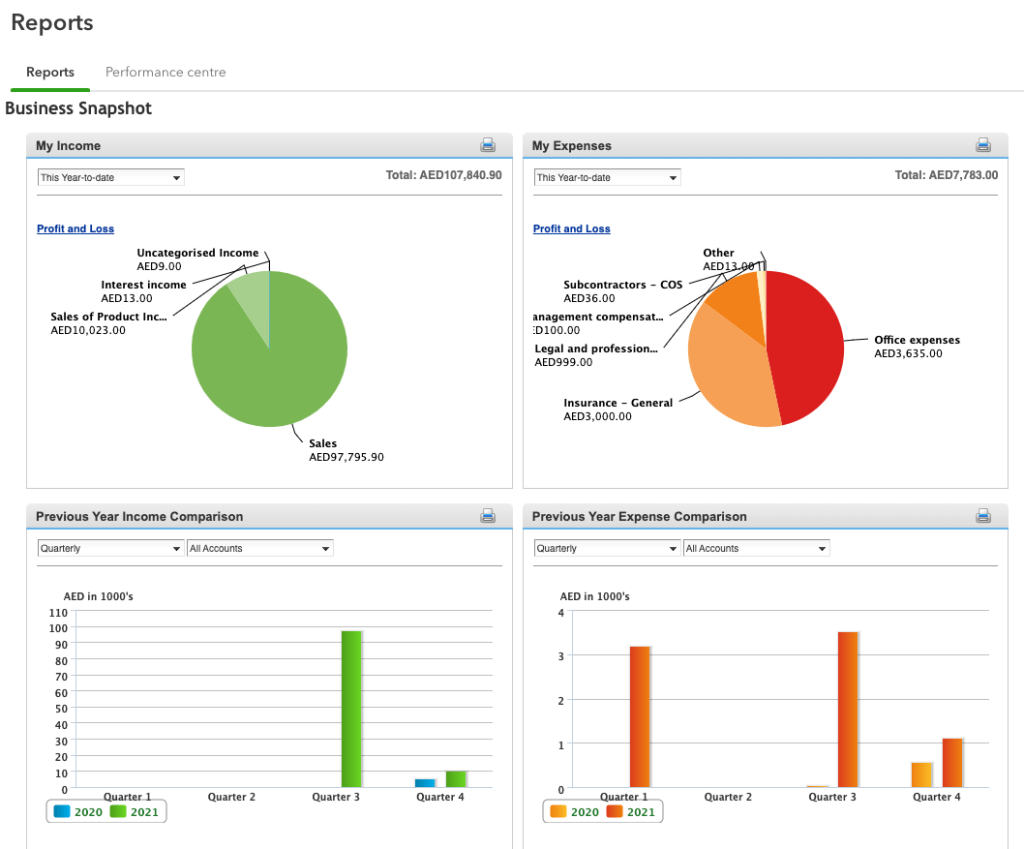
For more than a few standard charts, connect your data to one of the dashboard templates.
Management reports in QuickBooks Online
Management reports are more of a feature than a new type of report. Basically, it allows you to format any of the existing reports into a good-looking PDF template, with a cover page, table of contents, and other components. You can also add notes to the file.
When you first open the Management reports tab, you’ll see a few default compilations. They are available from Simple Start up. Advanced adds more templates, chart widgets, and automated recurring delivery.
How to create a new management report in QuickBooks Online?
Management reports are more of a feature than a new type of report. Basically, it allows you to format any of the existing reports into a good-looking PDF template, with a cover page, table of contents, and other components. You can also add notes to the file.
When you first open the Management reports tab, you’ll see a few default compilations. They are available from Simple Start up. Advanced adds more templates, chart widgets, and automated recurring delivery.
How to create a new management report in QuickBooks Online?
First of all, decide on the report you’d like to use as a management report. You can use any of the existing reports but if you plan to make any adjustments to it, you will first need to save it as a custom report.
- First of all, decide on the report you’d like to use as a management report. You can use any of the existing reports but if you plan to make any adjustments to it, you will first need to save it as a custom report.
- Open the report and make the necessary changes. Click Save As, give the report a unique name and hit Save. From now on, it will appear on the Custom reports tab.
- Go to the Management reports tab and click +Management report. In the management report creator, give the report a name, select its period, and specify basic settings for the cover page (e.g. cover title, report creation date, etc.).

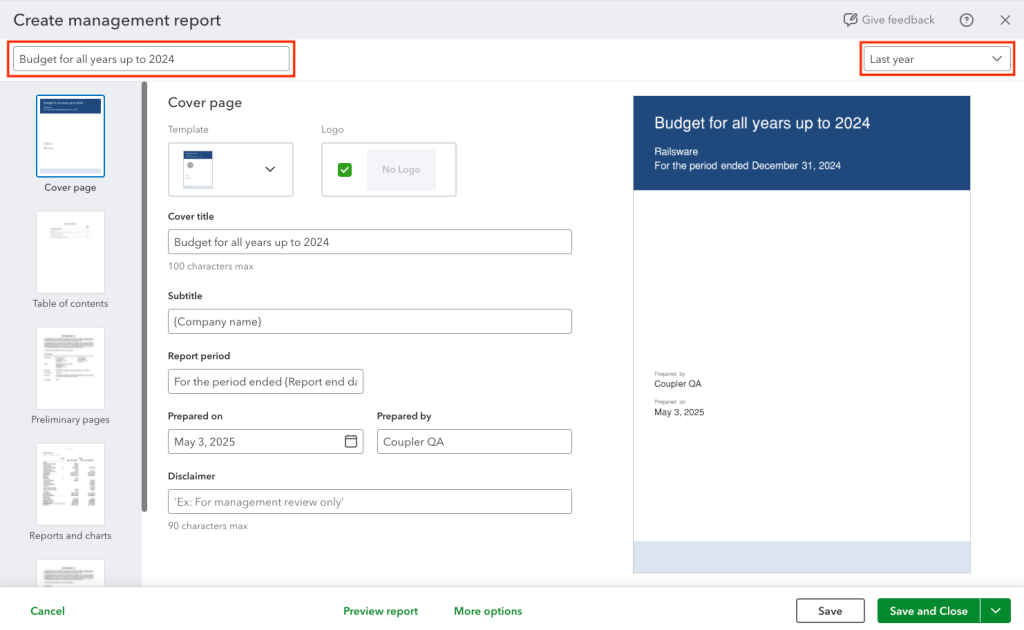
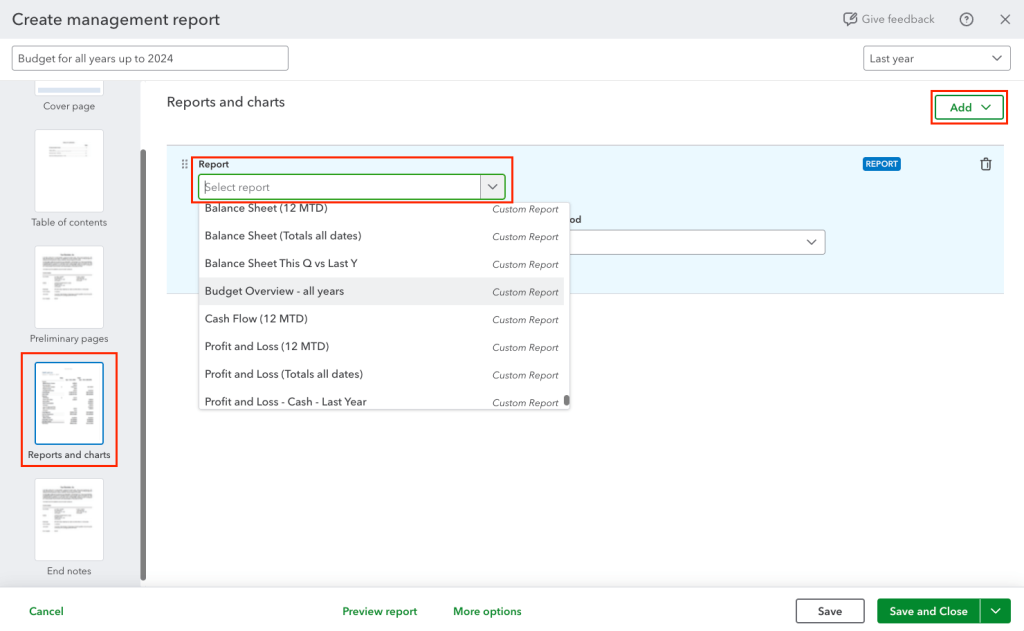
- Next, proceed with other pages and add data to your report. To include the data, go to Reports and charts page, using the report outline on the left-hand side of the screen. Then, click the Add button and select your report from the list (or search for it).

- When your report is ready, click the Save and Close button in the bottom-right corner.
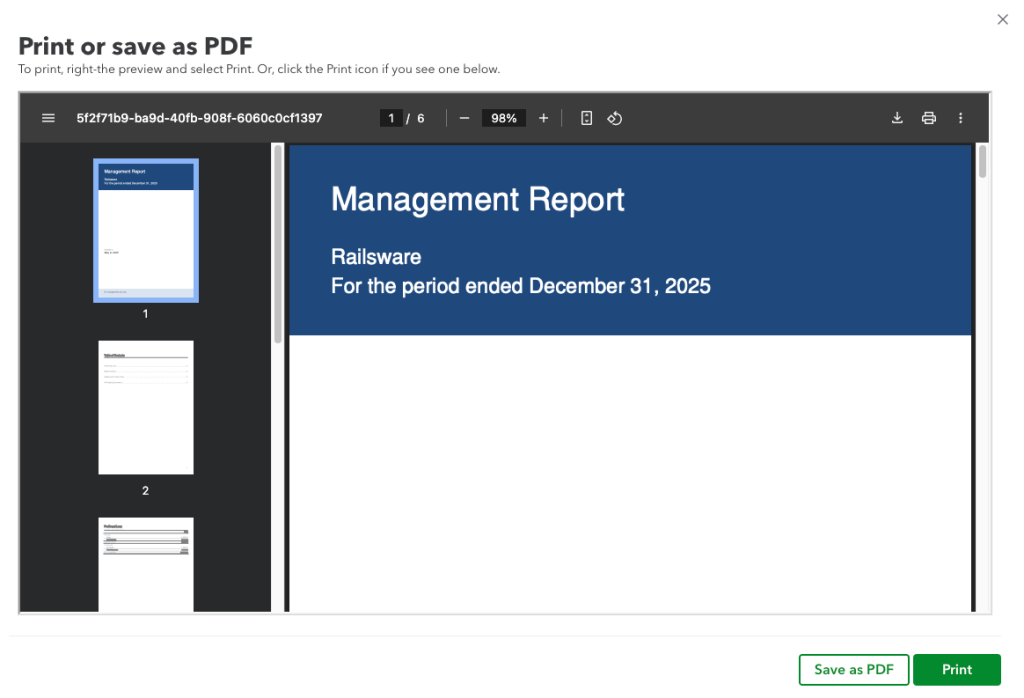
- The report will now appear on the list on the Management reports tab. Click Preview to the right. A preview will appear which you can save as a PDF or print right away. The Action menu also lets you export the report as a PDF or DOCX file.

Can I create an MRR report in QuickBooks Online?
QuickBooks Online doesn’t feature any MRR or ARR reports. Its data also isn’t enough to calculate either metric reliably.
You could technically pull your revenue numbers and split them into months in a spreadsheet. Based on that, it would seem that you can calculate the recurring revenue. BUT… it’s not that simple.
QuickBooks Online (or any accounting software for that matter) doesn’t differentiate between new revenues and those coming from renewals. They also fail to notice deals that were not renewed for another period, skewing the MRR stats in the process. Upgrades, downgrades, and annual prepayments make the picture even less reliable.
As such, calculating MRR based on QBO revenues is more like calculating an average monthly revenue over a certain period, rather than an actual MRR metric.
To calculate true MRR, you need subscription data: start and end dates, plan changes, and churn events. That data lives in your billing tool (for example, Stripe or Chargebee) and sometimes in your CRM. With Coupler.io, you can combine that subscription data with QuickBooks revenue in one data flow and reconcile both views of revenue.
Automate QuickBooks reporting with Coupler.io
Get started for freeNative QuickBooks reports vs. automated custom reports vs. dashboard templates
Each option fits a different reporting need. The table matches common requirements to the approach that handles them best.
| Requirement | Native QuickBooks report | Automated custom report | Dashboard template |
|---|---|---|---|
| Occasional accounting check | Best option | Usually unnecessary | Usually unnecessary |
| Automatic refresh | Limited | Yes | Yes |
| Advanced transformation | Limited | Yes | Preconfigured |
| Combining multiple sources | No or limited | Yes | Depends on the template |
| Visual reporting | Limited | Can be created | Included |
| Fastest setup | Yes | Requires configuration | Yes |
| Flexible custom analysis | Limited | Best option | Limited to template scope |
Here’s how I’d decide:
- Use native reports for occasional accounting checks. From Simple Start up, you can customize and save them in a few clicks.
- Automate reports when the same data must be refreshed, transformed, combined, or shared regularly. That’s where Coupler.io saves the most time.
- Use a template when a predefined visual dashboard already matches your reporting need.
If you rebuild the same QuickBooks report every month, start with that one. Set it up once in Coupler.io and let the schedule keep it updated.