
GA4 collects a lot of data about how people use your website or app, but the built-in interface limits what you can do with it. When you connect GA4 to BigQuery, you get SQL access to millions of raw event records, the ability to join GA4 data with other marketing and sales sources, and a foundation for AI-driven analysis that goes beyond pre-built reports.
The fastest way to set up a GA4 export to BigQuery is with Coupler.io, which handles the connection, scheduling, data transformations, and more. In addition to the automated pipeline, you also get ready-to-use dashboard templates for web analytics and built-in AI capabilities for conversational data analysis.
How to connect Google Analytics 4 to BigQuery with Coupler.io
Coupler.io is a data integration platform and AI analytics solution that connects GA4 (and 400+ other sources) to BigQuery, Google Sheets, Excel, Data Studio, Power BI, and AI tools like Claude and ChatGPT. You set up the connection once, choose which dimensions and metrics to pull, apply any filters or transformations, and schedule automatic refreshes as often as every 15 minutes. The same data flow can feed multiple destinations at once, so the dataset you send to BigQuery can also go to a dashboard or an AI tool without a separate setup.
To export data from GA4 to BigQuery with Coupler.io and schedule it, click Proceed in the form below. You’ll be prompted to sign up for Coupler.io for free with no credit card required.

This will create a new data flow which you will need to configure as follows:
It’s not necessary to set up the data flow yourself. You can simply ask Coupler.io’s AI agent to do this for you, tailored to your reporting needs.
Step 1. Collect data from Google Analytics
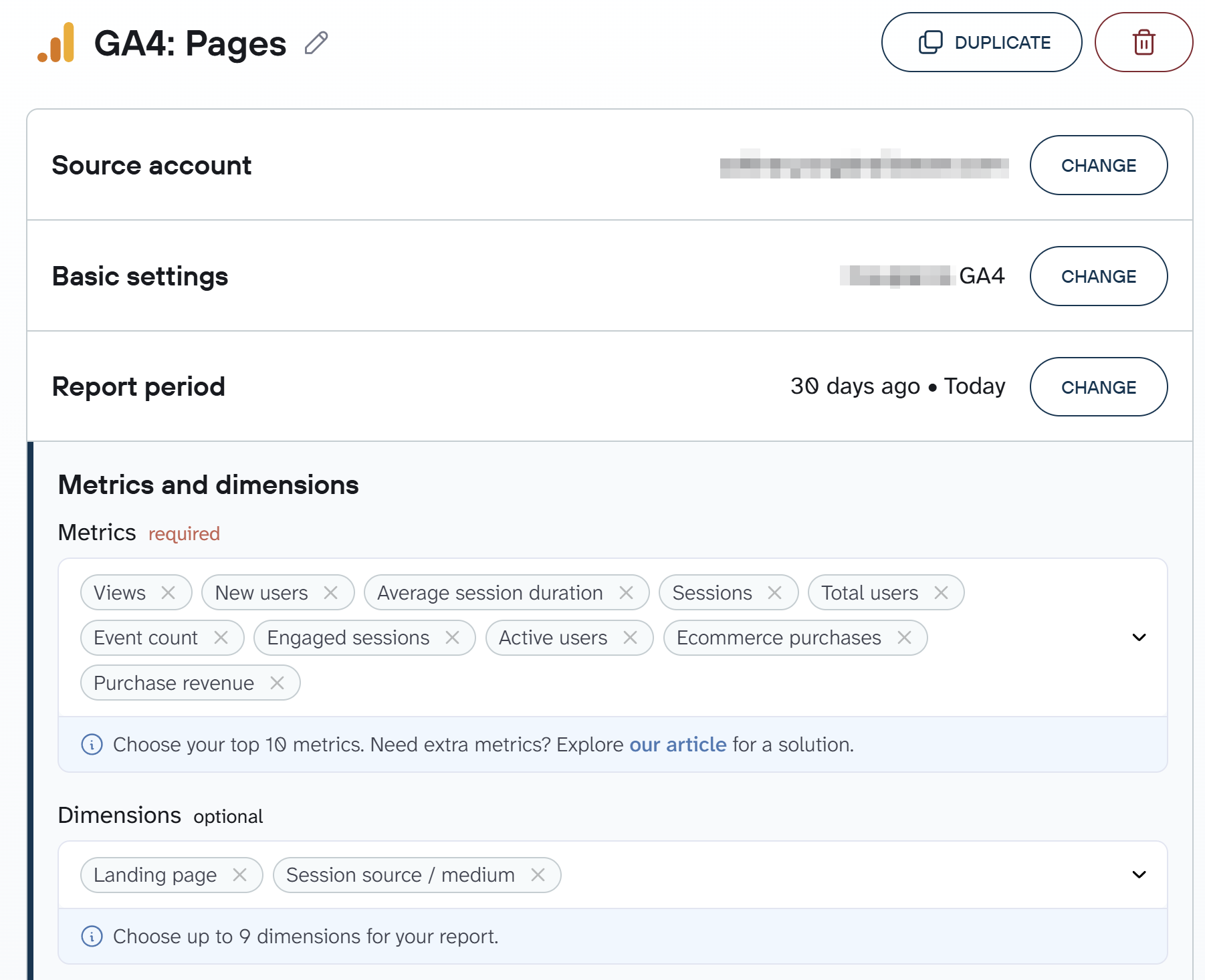
- Connect your Google Analytics account. Select one of the analytics accounts available in your GA4 source account. Then, specify the properties for exporting data.
- Specify the report period and select up to 9 dimensions and up to 10 metrics that should be included into your report.

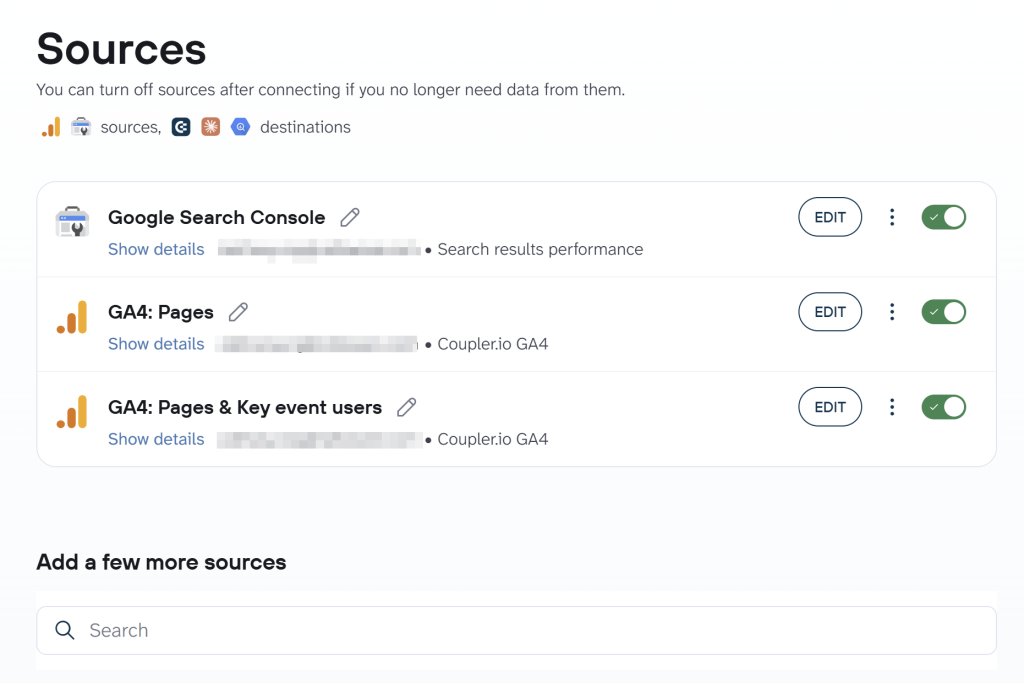
Coupler.io allows you to add multiple data sources to your data flow. These could be additional metrics, dimensions, or data from other GA4 accounts and external apps. Google Analytics 4 is one of the 400+ data sources available in Coupler.io, along with Google Ads, Facebook Ads, LinkedIn Ads, Mailchimp, Pipedrive, Shopify, and many more. You can also load data from Google Search Console to BigQuery and merge all datasets into a single one to import into BigQuery and other destinations.

You don’t have to build every report configuration from scratch. Coupler.io includes dataset templates — pre-configured combinations of dimensions and metrics for common GA4 use cases like traffic source performance, landing page analysis, AI traffic tracking, and key event reporting. To use those, create a new data flow and choose a template to start with, or ask the Coupler.io AI agent to use a data set template for your GA4 to BigQuery data export.
Coupler.io pulls data through the GA4 Data API, which uses the same modeled and thresholded pipeline as the GA4 interface. Numbers will be close to what you see in the GA4 UI — good for trend analysis and cross-source dashboards. If you need exact observed event counts with no modeling or sampling, use the native BigQuery export described later in this article.
Step 2. Organize data set
In this step, you can preview your data and make the following transformations:
- Rename, rearrange, hide, or add columns.
- Sort data in ascending or descending order.
- Filter data to extract it based on specific criteria.
- Create new columns with custom formulas.
- Aggregate data using operations like sum, avg., count, min., or max.
- If you’ve previously connected several sources, blend data in the chosen manner:
- Append – merge datasets with similar structures and columns matched by name.
- Join – combine datasets with different structures and at least one matched column.

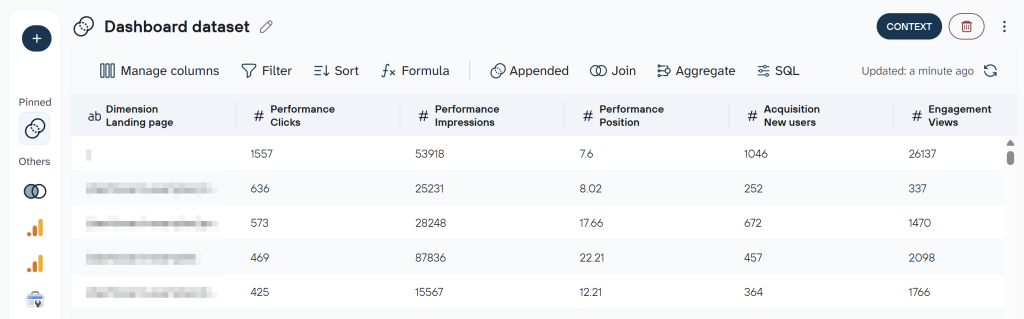
This is also where you shape the dataset before it leaves Coupler.io heading to a BigQuery query, a dashboard, or an AI conversation. Hiding columns you don’t need keeps the output focused, and filtering out internal traffic or test events avoids skewing the numbers before they reach any destination.
If you plan to analyze this data set with AI, you can add business context to it. For example, explain what your custom event names mean, how you define engagement for your site, which properties are production vs. staging, and so on. This context travels with the data and improves the quality of AI analysis, whether you’re using Coupler.io’s AI Agent or an external tool like Claude.
Step 3. Load data and schedule refresh
Now, you’re ready to connect your BigQuery account. To do this, you’ll first need to generate a Google Cloud JSON key. See these instructions on how to get it. Once done, upload it in the connection form. The Project ID and Connection name will be filled in automatically. Press Save.
Once the BigQuery account is connected, specify the dataset and table where Coupler.io should export your data. You can create a new dataset and table by typing new names.

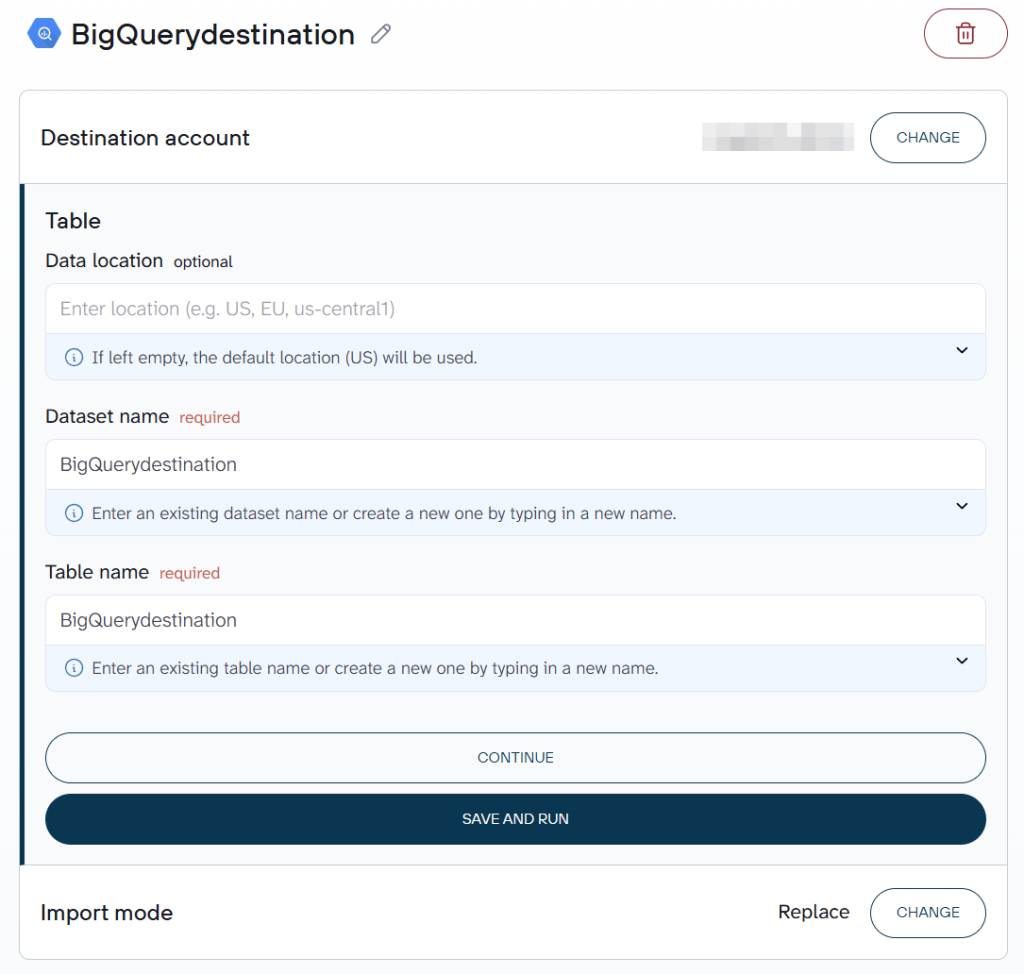
The import mode is set to replace by default. It means that every data refresh will replace the GA4 dataset in BigQuery with its updated version. If you change the mode to Append, the updated version will be added below the previous one. The latter can be helpful if you need to track changes chronologically.
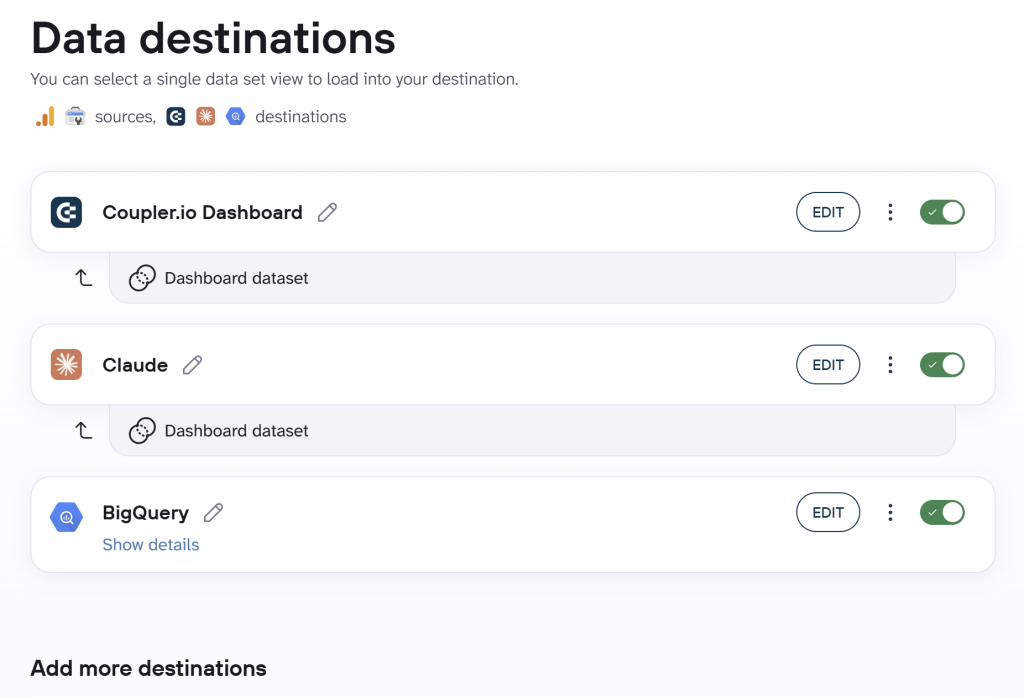
BigQuery doesn’t have to be the only destination. Within the same data flow, you can send GA4 data to Google Sheets for quick sharing, Data Studio or Power BI for dashboards, or AI tools like Claude and ChatGPT for conversational analysis. You configure each destination separately, but the source connection and transformations stay the same.

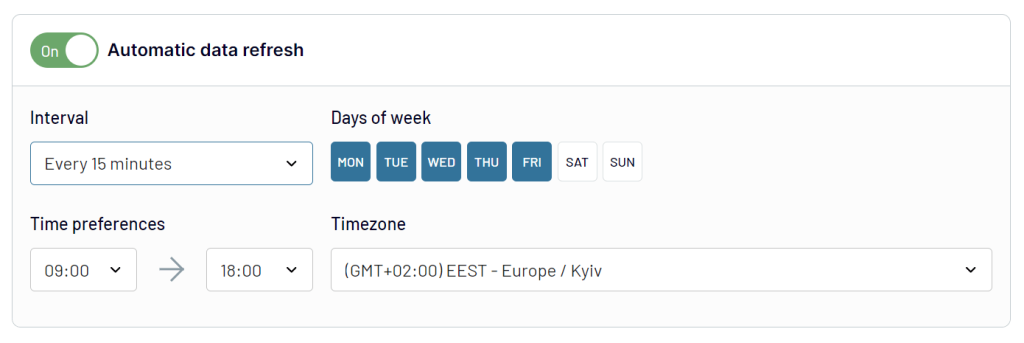
Proceed to toggle on Automatic data refresh and configure the desired schedule to automate data load from Google Analytics 4 to BigQuery. Coupler.io can refresh data as frequently as every 15 minutes!

After that, run the data flow to export data from GA4 to BigQuery. Coupler.io will keep it up to date automatically, refreshing on the schedule you’ve set.


Connect Google Analytics to BigQuery with Coupler.io
Get started for freeBonus step. Analyze GA4 data with AI
Your GA4 data is now refreshing in BigQuery automatically. BigQuery handles SQL queries well, but not every question needs a query. Coupler.io’s AI Agent lets you ask questions about the same dataset in plain English. The Analytical Engine processes the calculations first and passes only confirmed numbers to the AI, so the answers are grounded in actual data, not approximations.
Here are some GA4 questions that work well:
- Which landing pages had the highest bounce rate last month, and how did their traffic sources differ from pages with low bounce rates?
- Compare session counts and conversion rates by channel for the last 30 days vs. the previous 30 days. Flag any channels where traffic grew but conversions dropped.
- What percentage of total sessions came from AI sources (ChatGPT, Perplexity, Gemini) last week, and which pages did they land on most?
- Show me the top 10 pages by engaged sessions where average engagement time is below 30 seconds. What traffic sources are sending users to those pages?
- Break down key event completions by device category for the last 90 days. Are mobile conversion rates improving or declining?
- Which referral sources brought the most new users last quarter, and what was their average session duration compared to organic search?
The AI Skills library includes a marketing-analytics skill built for web analytics data. It carries metric definitions, common breakdowns, and the kinds of questions marketing teams run regularly. Rather than writing every prompt from scratch, the skill handles the structure. Skills work inside Coupler.io’s AI Agent and in external AI tools via MCP.

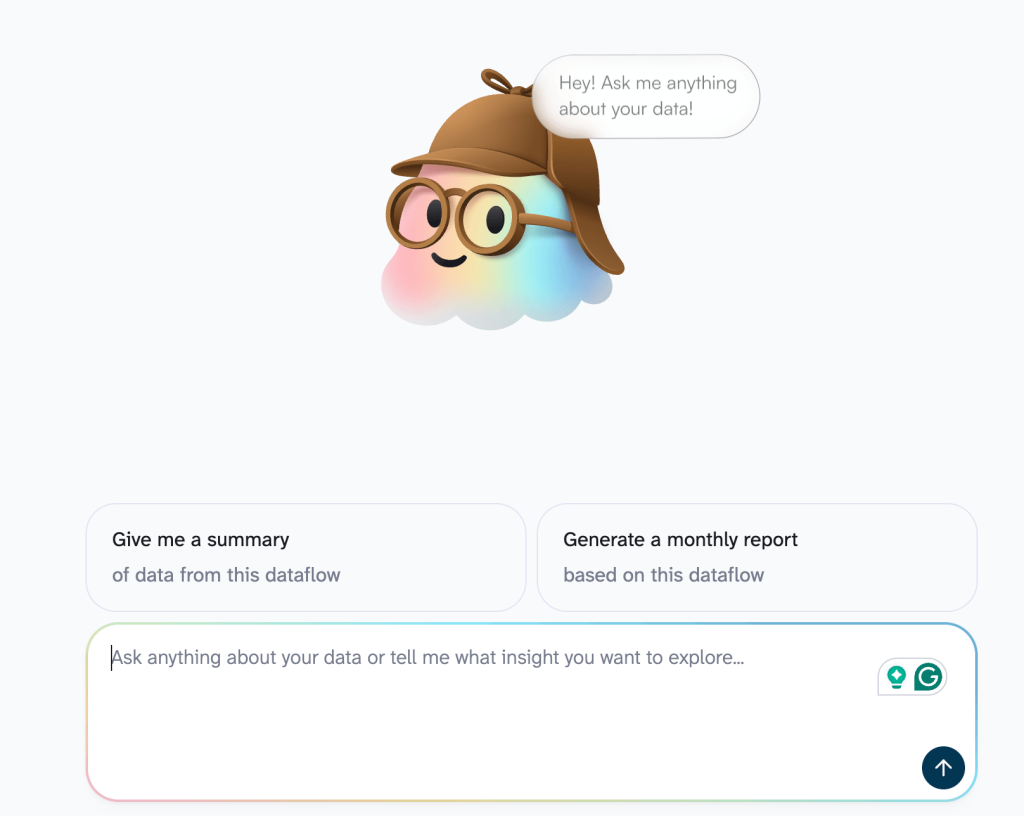
For teams that already work in Claude, ChatGPT, or Gemini, AI Integrations connect your data flow to those tools directly. Same structured data, same refresh schedule, just a different interface. A full walkthrough of this setup is in how to analyze GA4 with AI.
Other methods to connect Google Analytics 4 to BigQuery
The Coupler.io path above covers automated export with scheduling, transformations, and AI analysis built in. For readers who need native BigQuery links, a programmatic API connection, or a one-time manual download, the sections below walk through each option.
BigQuery export for Google Analytics
BigQuery links are a native data export method that works well for backups. You can use them to export Google Analytics data to BigQuery daily or in near real-time. However, this option isn’t ideal for reporting, as you would pull all the data from your GA property. To create a report with specific data, you’ll need to query it using SQL, which requires specialized skills.
Before you get started, make sure that:
- You sign in to the GA account with an email address that has Owner access to your BigQuery project.
- The GA account has Editor or above access to the property from which you’ll export data.
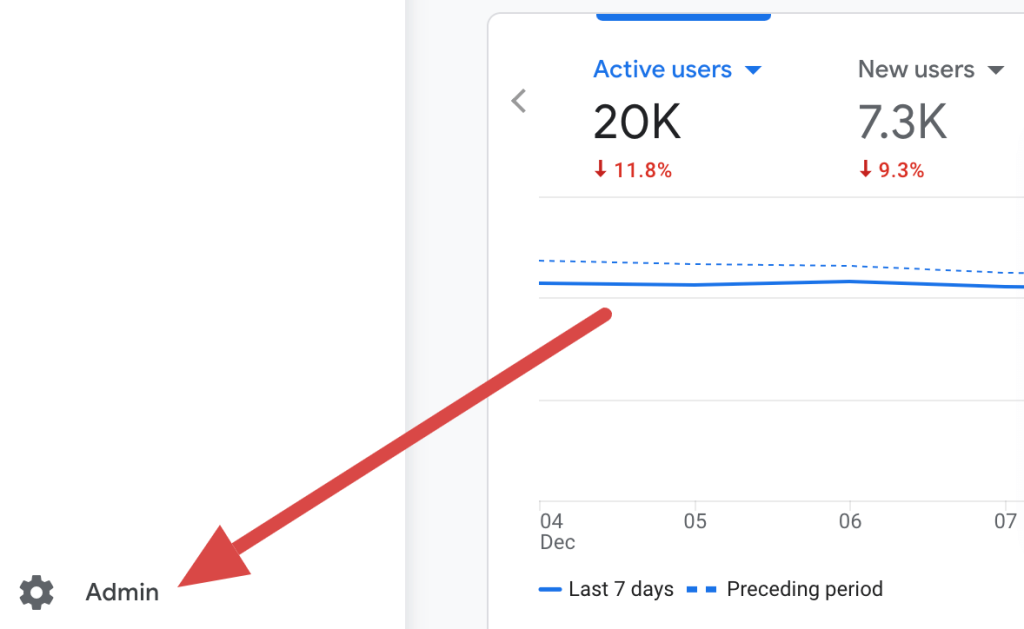
- Once you’re in an account that meets the mentioned criteria, click the Admin button with the gear icon in the bottom-left corner.

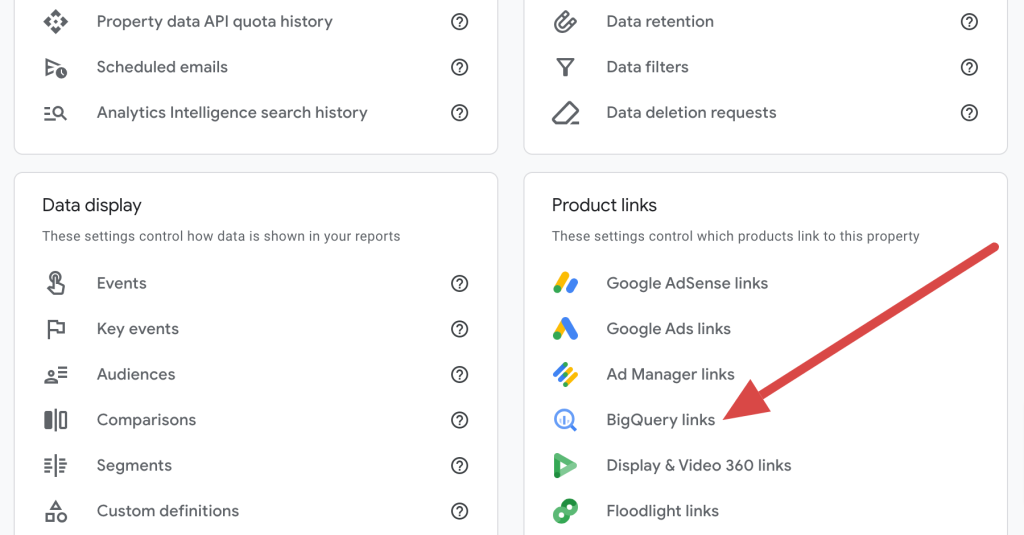
- Scroll down to the Product links section and select BigQuery links.

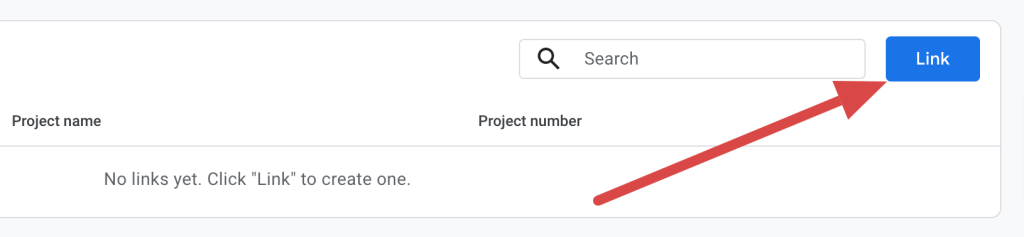
- Click the Link button on the right side.

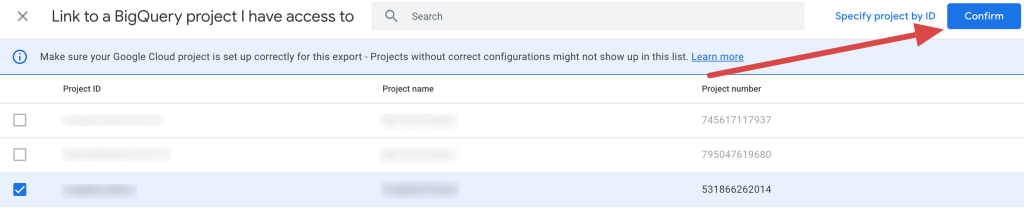
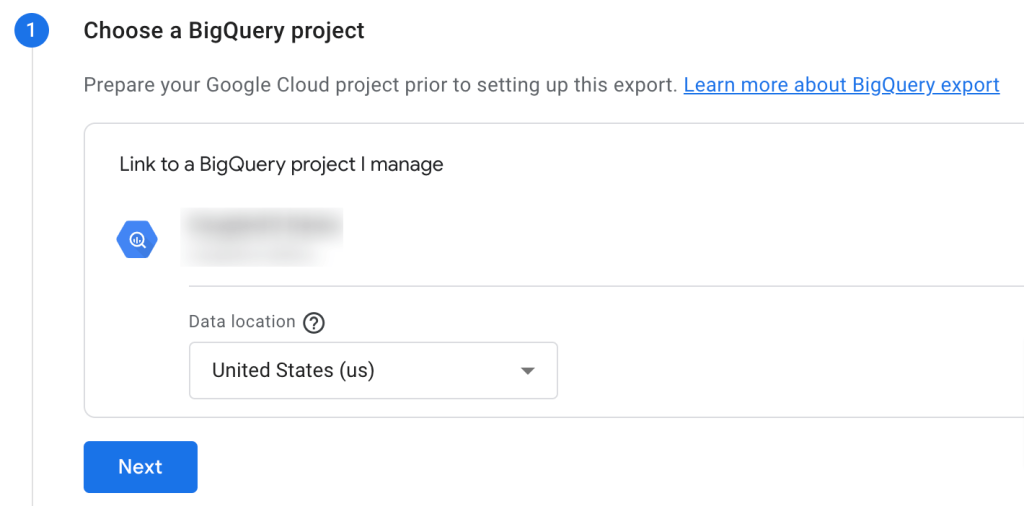
- Next, press Choose a BigQuery project, put a tick against the project to which you’ll import data, and click Confirm.

- Specify the Data location and press Next.

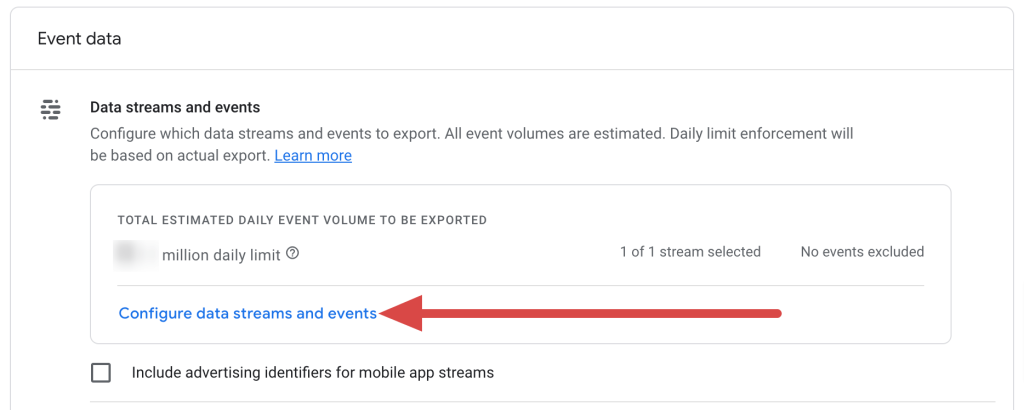
- Click Configure data streams and events to choose which data streams to include with the export and specific events to exclude.

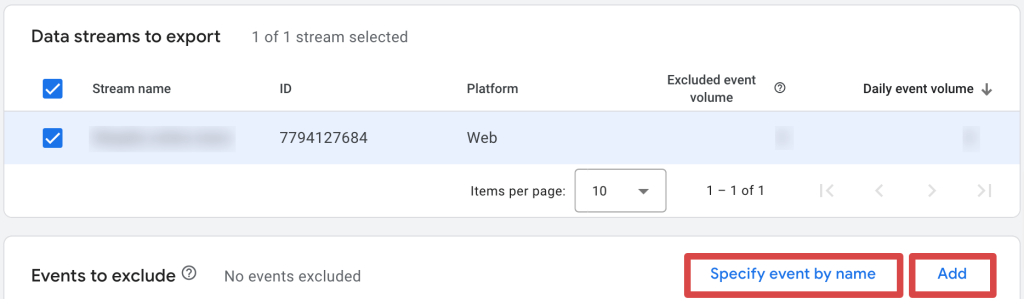
- You can exclude events by clicking Add to select from a list of existing events. Another approach is to click Specify event by name to choose existing events by name or specify event names that have yet to be collected on the property.

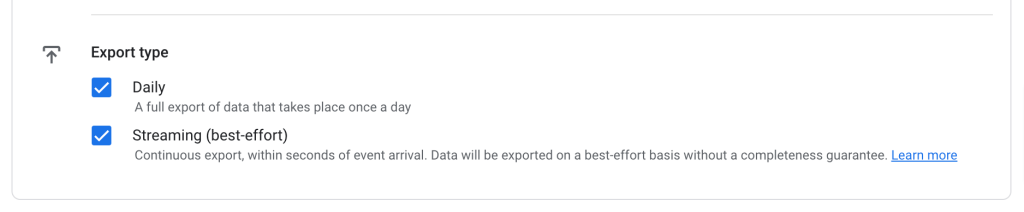
Once you’re ready, click Apply in the top right corner and proceed to choose the Export type for event data. You can select either or both of the options:
- Daily: Exports all the data once per day from the previous day. The export typically occurs in the mid-afternoon of your property’s timezone but may be delayed until later or the following day. The following table is created each day: events_YYYYMMDD. This export type is recommended for querying data that require extended processing times, such as user attribution data.
- Streaming: Delivers near real-time data (within minutes). New user and new session traffic source data is excluded from export. For each day, one new table is created: events_intraday_YYYYMMDD. This table is deleted when events_YYYYMMDD is complete to avoid unnecessarily duplicating the data. Streaming isn’t recommended if you, for example, need to query for events recorded on a particular date.

For Analytics 360 properties, there’s an additional Fresh daily option. It’s faster than Daily, with data typically arriving by 5 a.m. and batched updates throughout the day, usually within 60 minutes.
After selecting the export type, click Next to review the details and then press Submit. Your link will now be created.


This is the result of our data export:

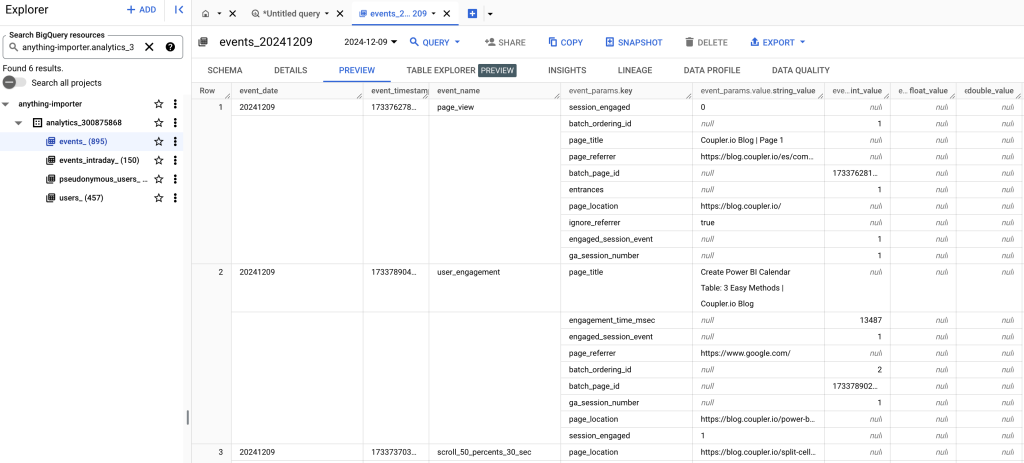
One thing to keep in mind: BigQuery’s native export writes observed event data only. There’s no modeling, sampling, or thresholding, which means it excludes the audience the GA4 UI estimates in (consent-declined users, ad-blocked visits, and other unobservable sessions). For a privacy-conscious or ad-blocker-heavy audience, BigQuery numbers will be lower than the GA4 interface, and that’s expected behavior, not a data error. This is the most accurate source if exact event counts matter. For trend analysis and cross-source reporting, the GA4 Data API (which Coupler.io uses) will be closer to what the UI shows.
Can I load data from Google Analytics to BigQuery using API?
Another method to export real-time Google Analytics data to BigQuery is by building a custom API integration. This requires coding skills in languages like Python or JavaScript to write a script that pulls data from the Google API into BigQuery. However, this method involves the export of all your GA records. To tailor the process for specific reporting needs, you’ll need to transform the data within the script – which makes it unnecessarily complex.
Instead, you can just export data using the BigQuery links as described above and then query that data. For an even simpler solution, extract your data with Coupler.io, create a custom report on the go, import it into BigQuery, and have it auto-refreshed as often as every 15 minutes.
How to export GA4 to BigQuery manually
It’s not a typical situation, but it may happen that you’ll want to export only the specific data to BigQuery and do so on an individual basis. For example, you’ve just finished a campaign driving traffic to a particular landing page and want to back up the related analytics in a data warehouse.
You won’t need to connect GA4 to BigQuery to do that. Instead, you can export a report into a .csv file and import it into BigQuery.
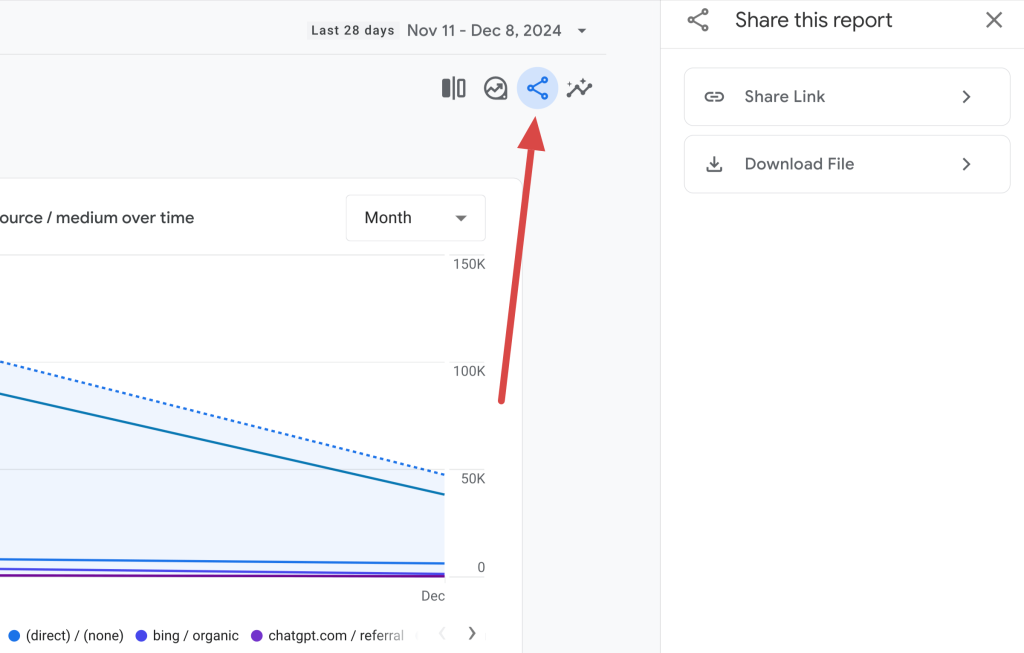
To export a report from Google Analytics, load it and click the Share button at the top-right corner. Choose Download File and pick Download CSV.

Once you’ve downloaded the file, import it into BigQuery using one of the available methods.
Which of these methods allows you to load GA4 historical data to BigQuery?
You can load GA4 historical data to BigQuery using both Coupler.io and Google Analytics API. However, with Coupler.io, you won’t be able to get deep into the user level that you could do with native GA4-BigQuery import.
You can backfill historical data with the GA4 API, but this method would require involving new work to extract the data and load it into BigQuery.
There are talks about a backfill feature. However, the release date is still unknown.
Set up cross-channel analytics in BigQuery and AI
Book a demo with Coupler.ioWhich Google Analytics properties data can you export to BigQuery?
A property in Google Analytics is a website, blog, or application associated with a unique tracking ID. In your GA account, you can have multiple properties.
You can generally export analytics information about all of these properties using the methods we’ve described above.
In Coupler.io, you’ll only need to select a Google Analytics property to export data from.

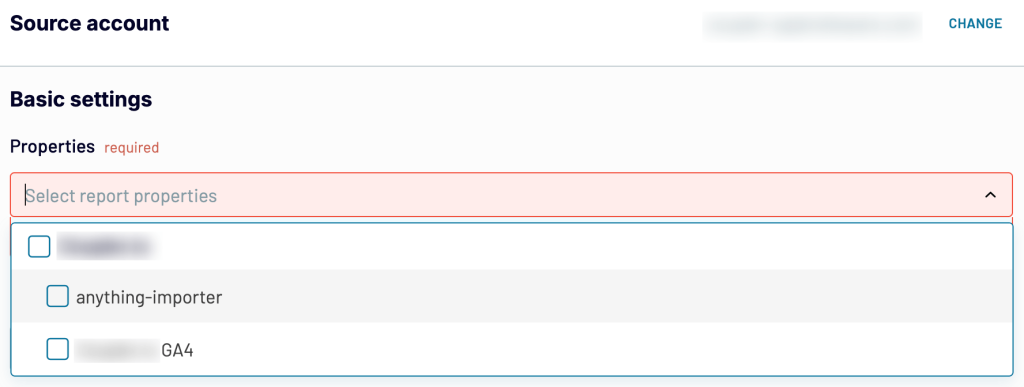
For other methods, you can specify the property on your GA account that you need.
How to turn GA4 data into insights with ready-to-use dashboard templates
Exporting data from Google Analytics 4 to BigQuery opens up many opportunities. You can drill down into the raw data behind your website or app and extract the necessary insights. Such data can then be loaded into other databases like AWS or Azure and showcased as dashboards or Google Analytics reports for clients.
However, if you prefer ready-made reports with predefined criteria, consider using white-label templates to get your data directly from GA4 into BI tools. Coupler.io offers free GA4 dashboard templates for Google Sheets, Looker Studio, Power BI, and Tableau. Each template is equipped with a Google Analytics connector by Coupler.io, so you can load your data into the dashboard automatically. Let’s review some of these dashboard templates below.
Using Coupler.io, you can set up an automated connection quickly and easily. We’ve demonstrated how to connect Google Analytics 4 to BigQuery. However, this platform also allows you to create Google Analytics reports for clients by combining data from other sources.
Web analytics dashboard
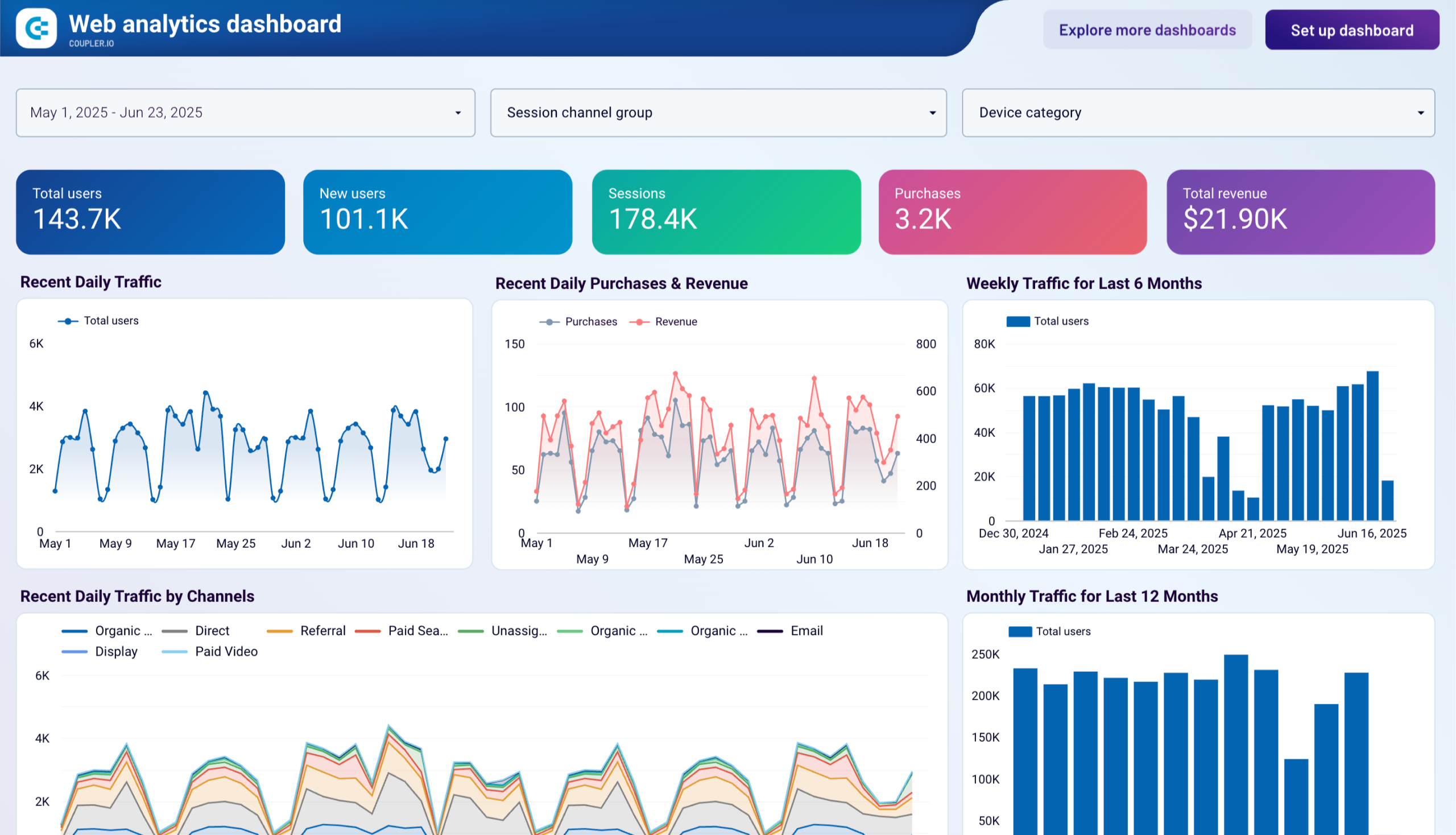
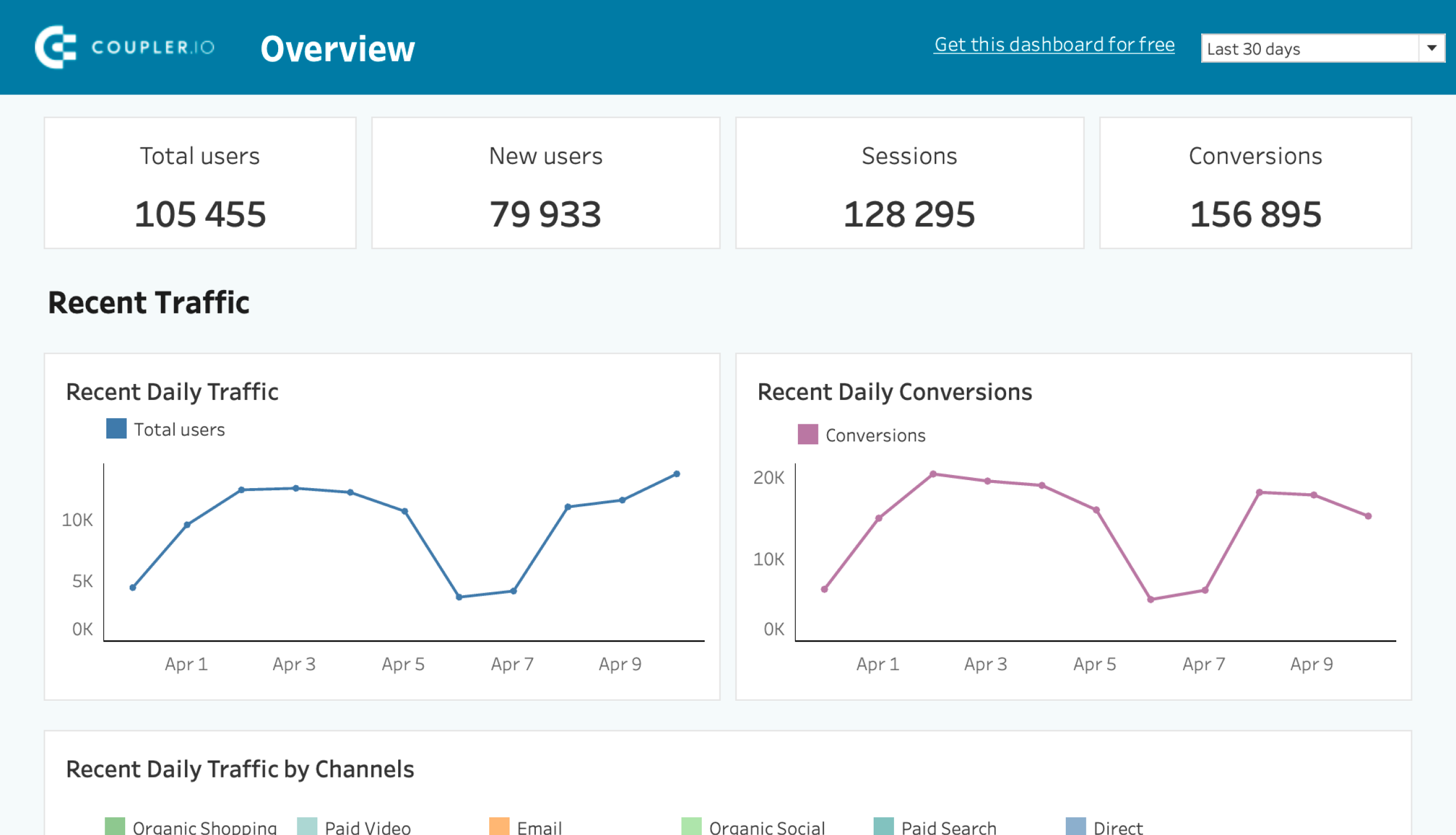
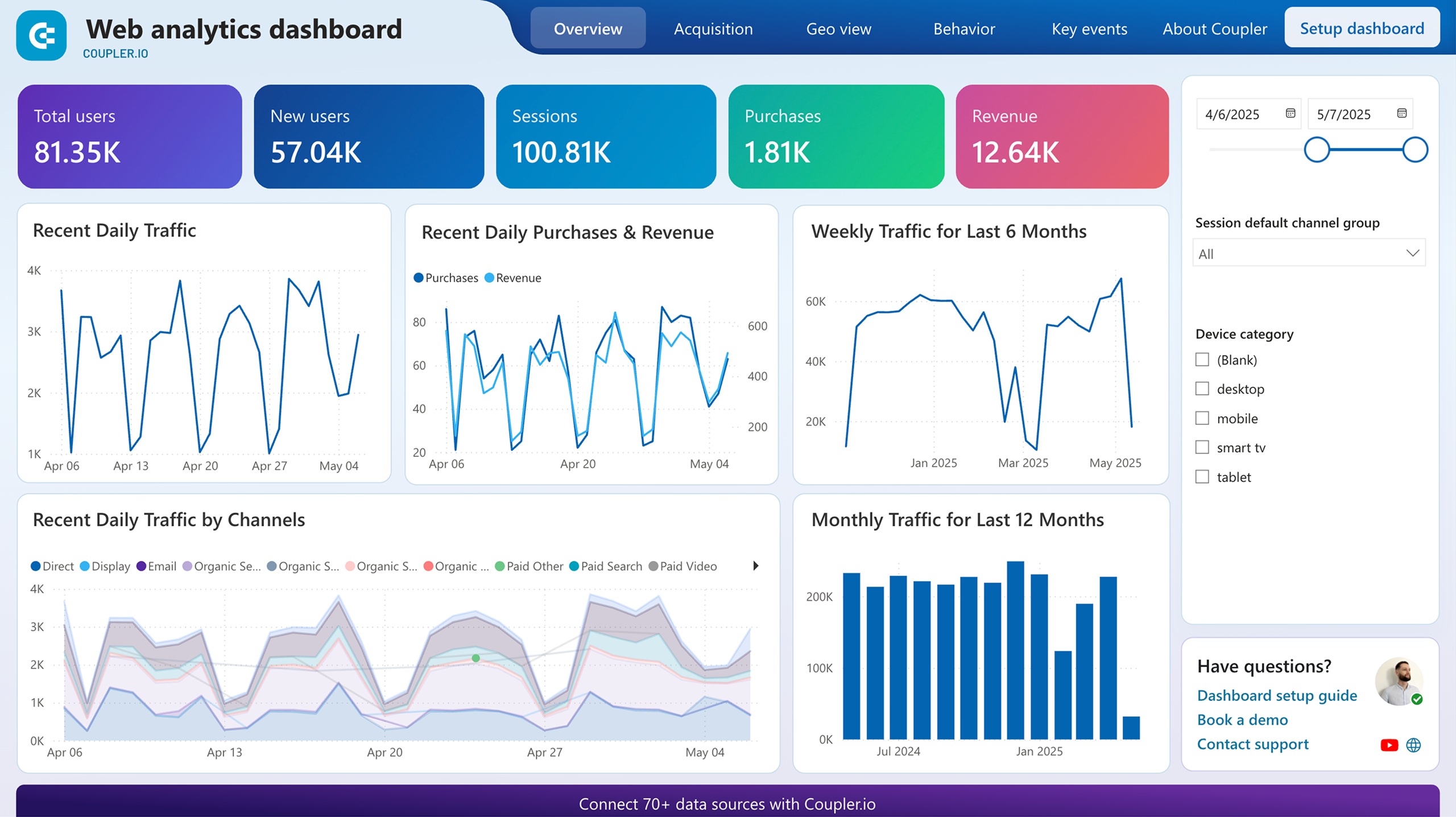
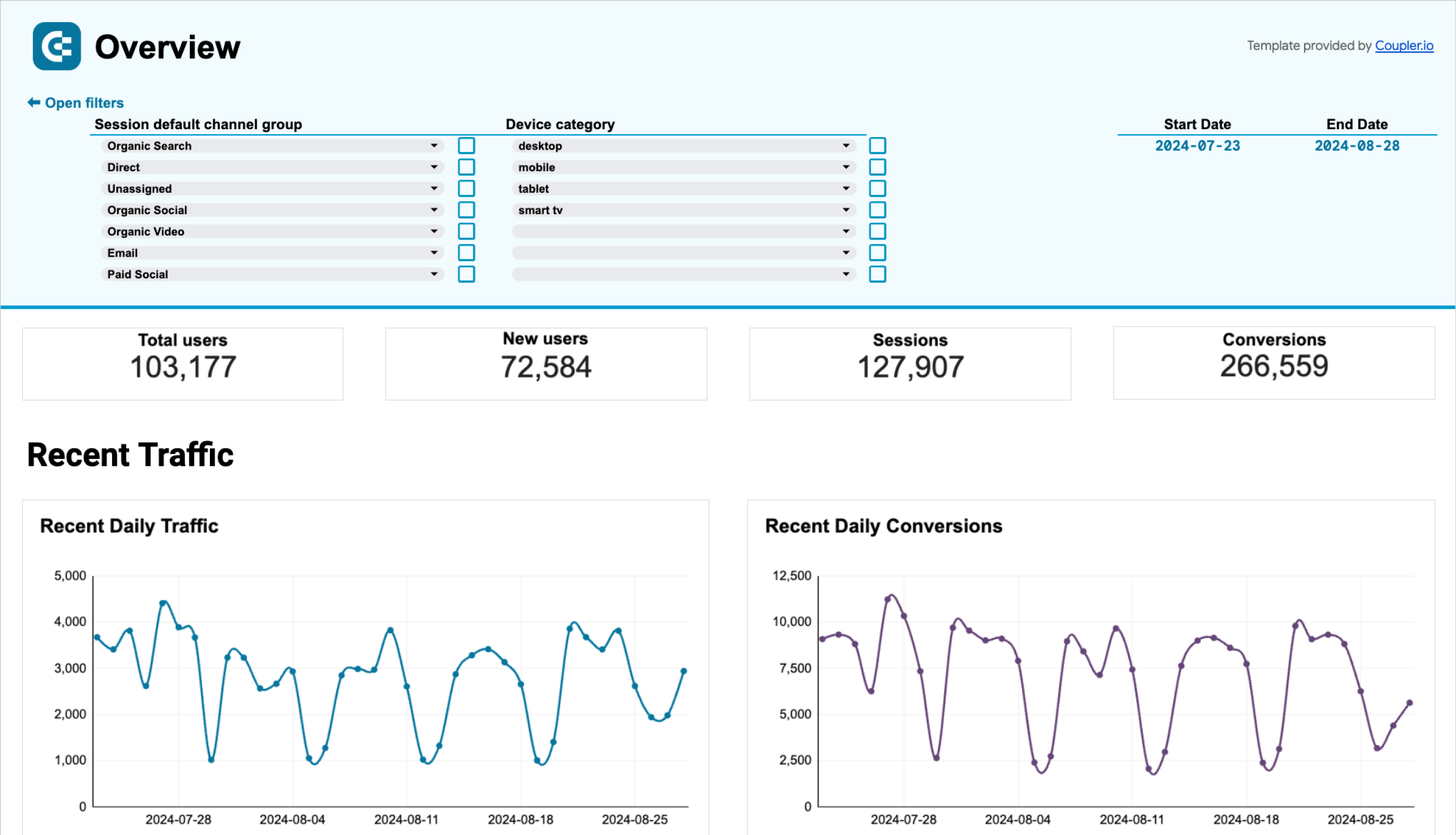
The web analytics dashboard template provides an overview of daily updates on key product and marketing metrics. You can open it every morning to see the growth of daily traffic and conversions.

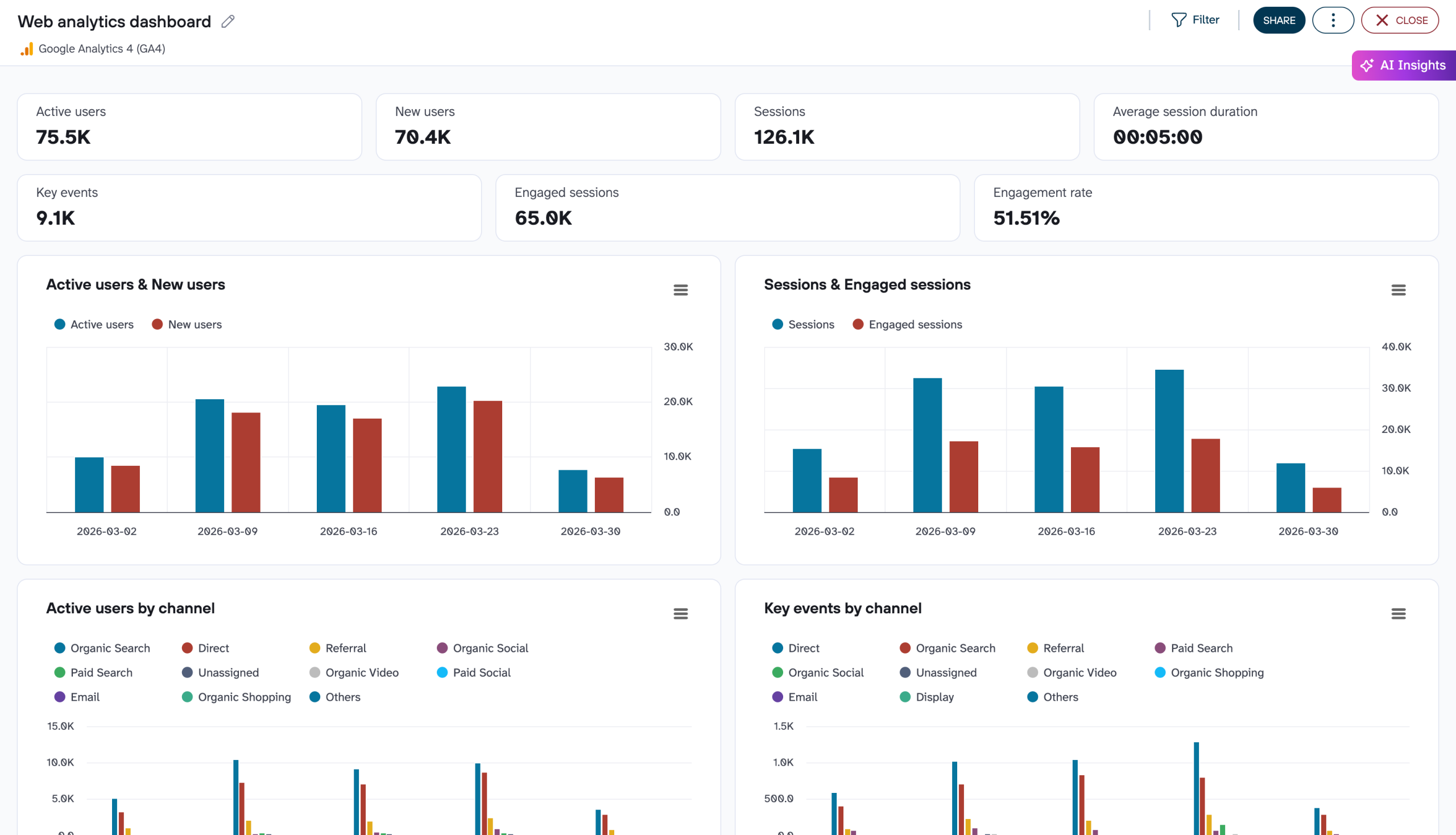
Using this dashboard, you can analyze your marketing performance in the following ways:
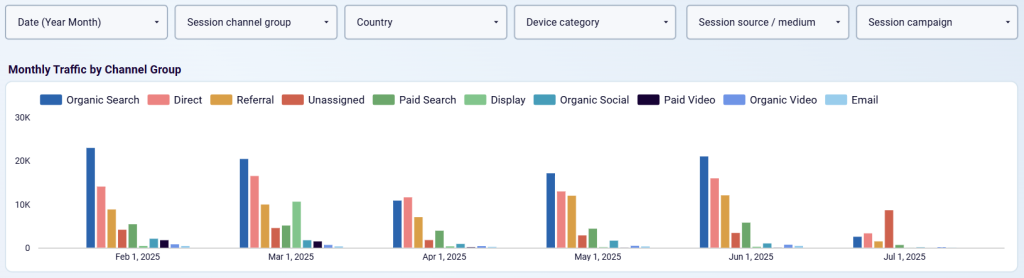
- Check out acquisition: Discover where your audience comes from, including marketing channels, countries, devices, and more.

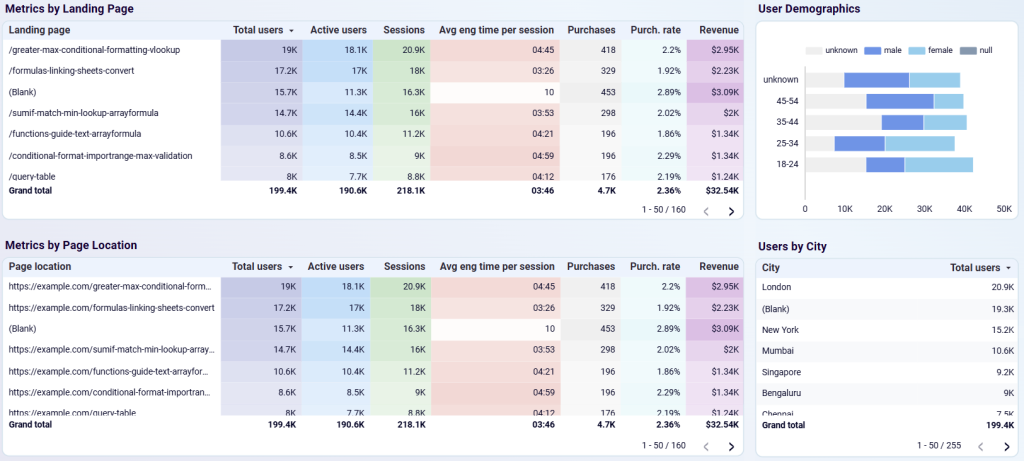
- Gain insights into behavioral analytics: Dive into your users’ behavior and engagement. Track metrics like average engagement time, views, or number of engaged sessions per user.

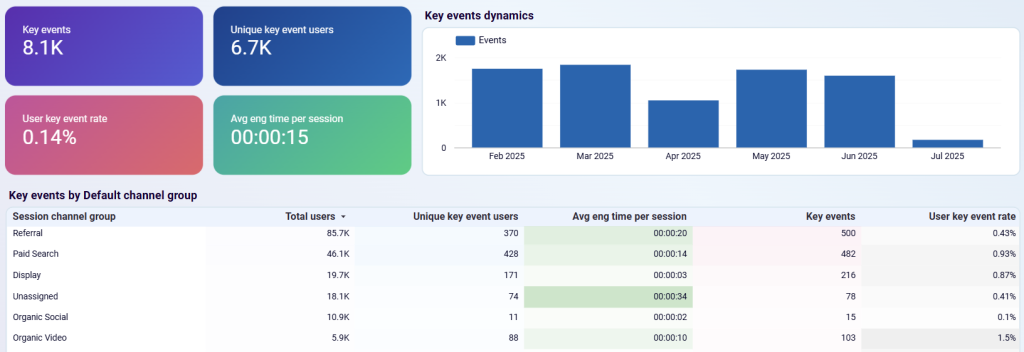
- Analyze key events (conversions): Learn how your users convert, including metrics like total users, conversion rates, total revenue, etc., and track conversions over time.

The dashboard is available for Looker Studio, Google Sheets, Power BI, and Tableau. To use it, click the readme/setup guide for step-by-step instructions.







GA4 dashboard for multiple properties
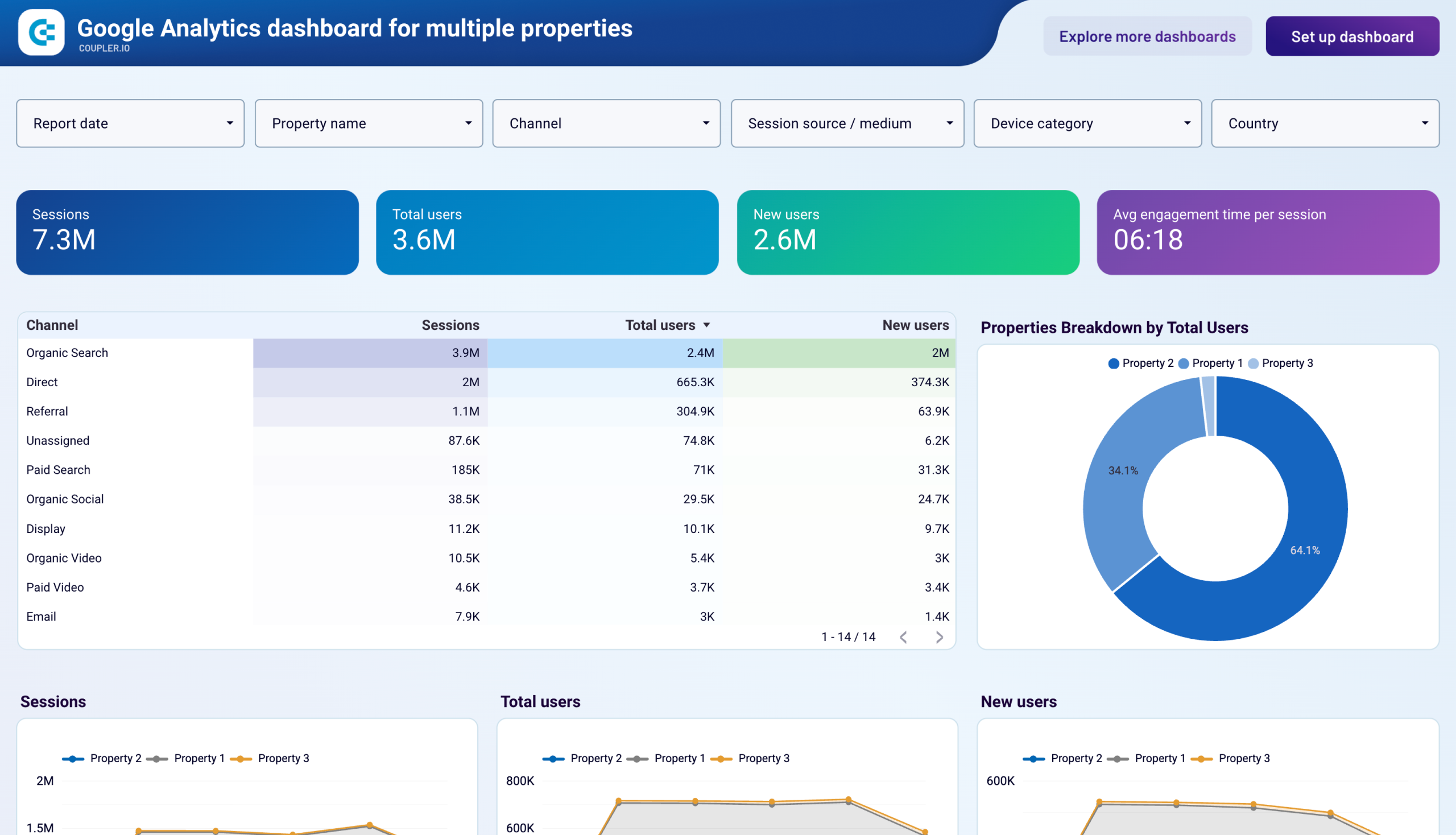
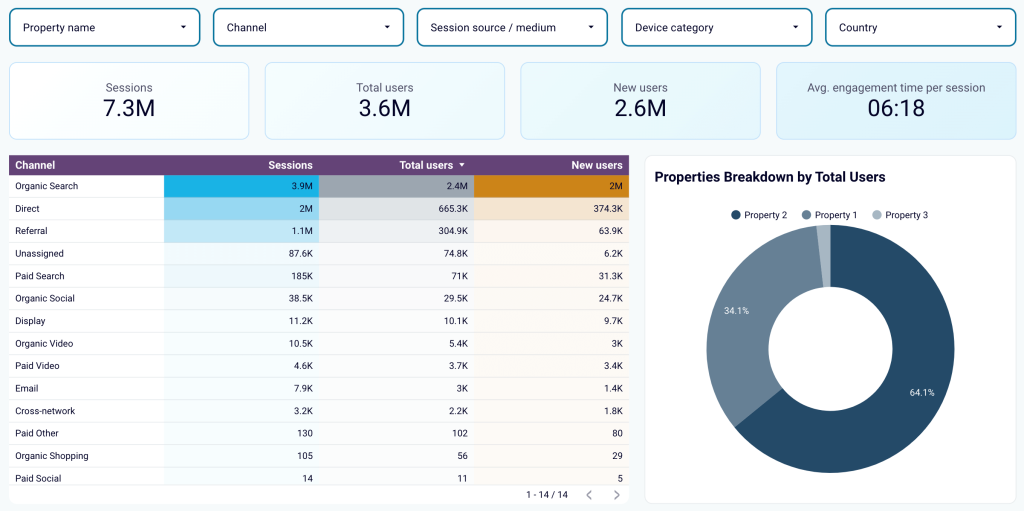
This Looker Studio dashboard aggregates GA4 data from multiple websites onto a single page. It shows traffic and engagement for all your websites in one place, so you don’t need to switch between browser tabs.
Google Analytics dashboard for multiple properties
Google Analytics dashboard for multiple properties
Preview dashboardHere’s what insights you can gain from this dashboard:
- Look at your total performance with filters: Access key performance metrics and apply filters by properties (websites), channels, and other criteria.

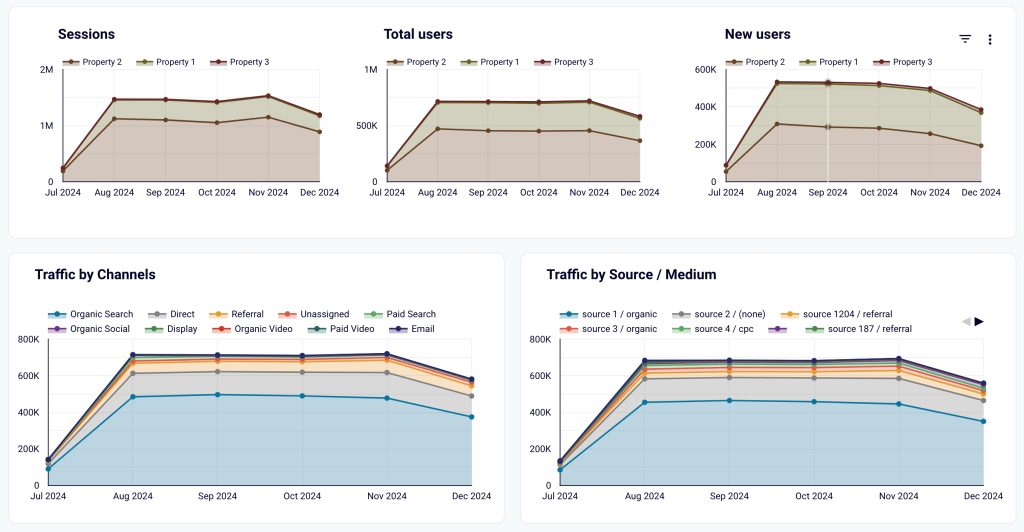
- View monthly performance dynamics: Track the monthly traffic trends for all your websites.

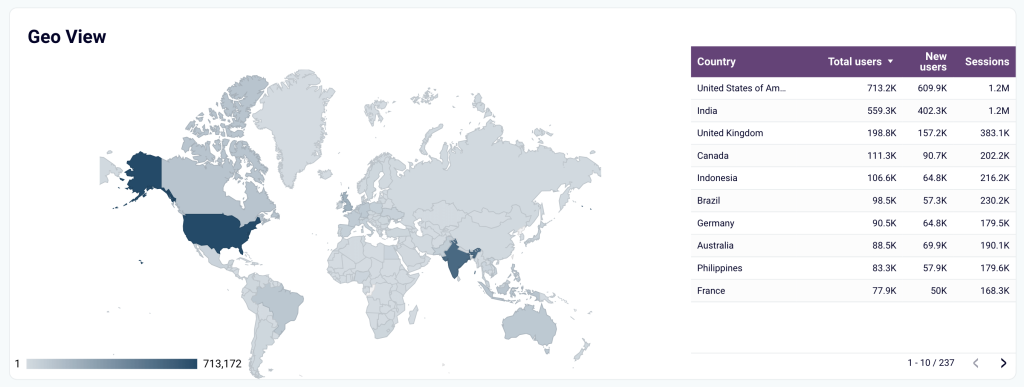
- Analyze performance by countries: Learn where most of your traffic comes from for informed decision-making on localization efforts.
To get started, navigate to the readme tab and follow the setup instructions.
Referral traffic performance dashboard
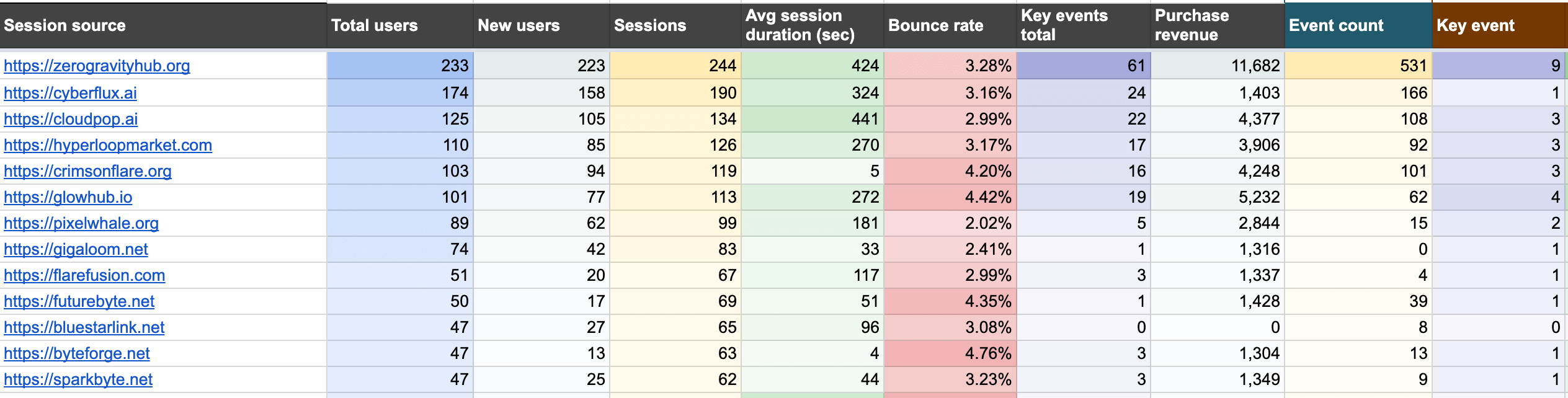
This one-page dashboard shows the performance of referral traffic to your website through multiple metrics such as new users, average session duration, bounce rate, and purchase revenue.
Referral traffic performance dashboard

Referral traffic performance dashboard
Preview dashboardWhat you can do with this dashboard:
- Evaluate source effectiveness for user acquisition: Identify the referral sources that attract the most first-time visitors. Use these insights to optimize marketing strategies and focus efforts on the best-performing sources.
- Analyze user engagement: Compare average session duration and bounce rates across referral sources. Detect sources that require attention to reduce bounce rates or enhance session quality.
- Track conversions and revenue impact: Analyze purchase revenue to discover which referrals contribute the most to sales. Based on this data, strategically allocate marketing budgets to high-converting referral sources.
- Monitor user behavior with key events: Figure out how users interact with your website based on the performance of individual sources.
Set up the dashboard by following the instructions in the template’s readme tab.
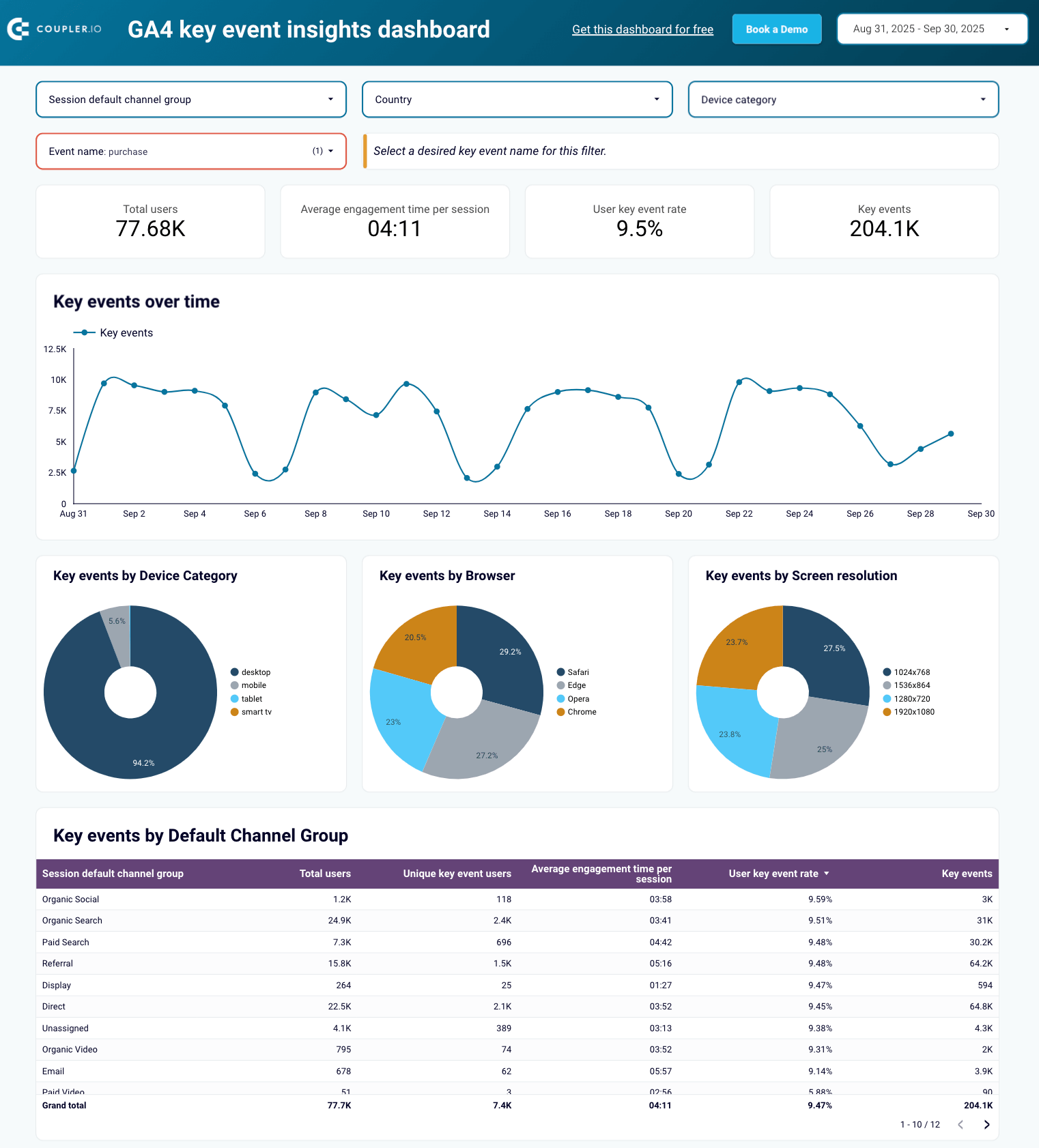
GA4 key event insights dashboard
The GA4 key event insights dashboard provides a structured view of users’ key actions on your website. It tracks event completions like purchases, form submissions, video plays, and button clicks to understand engagement and conversion trends.
GA4 key event insights dashboard

GA4 key event insights dashboard
Preview dashboardWith this dashboard, you can:
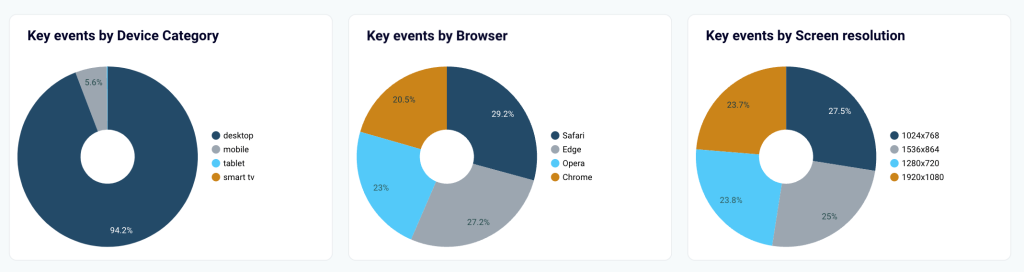
- Track engagement by device, browser, and screen resolution: Understand which devices, browsers, and resolutions your users commonly use. Use this information to improve their experience.

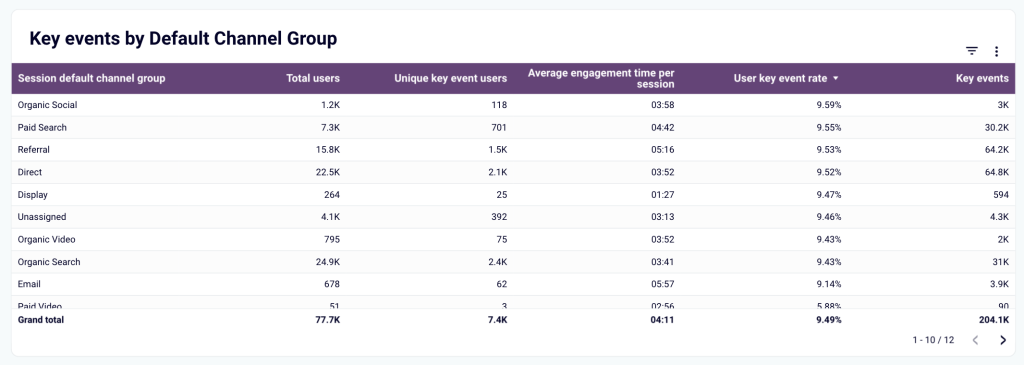
- Analyze key events by traffic channels: Find out which channels drive the most interactions—organic search or paid campaigns. Key metrics include total users, unique event users, and average engagement time.

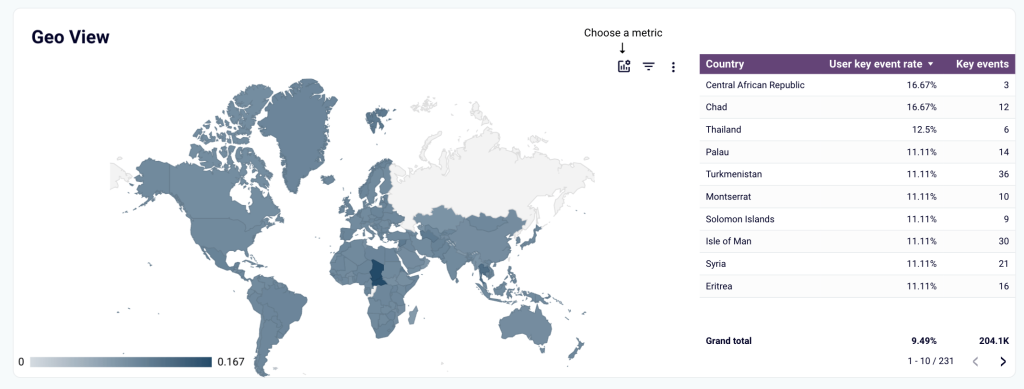
- Explore regional performance: Use the geo view chart to pinpoint countries with the highest key event completion rates. Adjust your strategies to focus on these regions effectively.

The dashboard template is built in Looker Studio. Follow the instructions in the Readme tab, connect your GA4 account, and you’ll have an automated dashboard with your own data.
Why you should export Google Analytics data to BigQuery with Coupler.io
BigQuery’s native export and the GA4 API both work for getting analytics data into a warehouse. Manual CSV downloads cover one-off needs. Coupler.io adds a few things those methods don’t cover on their own:
- All GA4 dimensions and metrics available through one connector. Along with over 400 other apps and sources
- Scheduled refreshes up to every 15 minutes without maintaining a script
- Transformations applied before the data leaves (filtering, aggregation, custom columns, blending with other sources)
- Multiple destinations from a single data flow — the same GA4 dataset can go to BigQuery, a Data Studio dashboard, and an AI tool at the same time.
The AI layer is where the gap is widest. With Coupler.io, the data that lands in BigQuery is the same data you can query in AI Agent or send to Claude, ChatGPT, or Gemini through AI Integrations. The Analytical Engine handles the math, and the transformations you set up control what any tool sees. There’s no separate export step and no stale spreadsheet sitting between the source and the analysis.
Learn more about setting up GA4 connection with other destinations in our blog posts:
Connect GA4 to BigQuery with Coupler.io
Get started for free