GA4 holds the data most teams actually want (acquisition, engagement, conversion, revenue), but getting a straight answer to a question means jumping between Explorations, Acquisition reports, and attribution views, with the right dimensions and filters applied each time. AI tools promise to collapse that into a question-and-answer loop. The question is which setup actually gets you to a reliable answer.
Three paths are available today. Coupler AI covers two of them, both through the same prepared GA4 dataset: AI Integrations connects that dataset to an external AI client like Claude or ChatGPT, and AI Agent lets you ask the same questions inside Coupler.io without a separate AI client. Google’s Analytics MCP server covers the third, giving AI clients direct access to GA4 through the Admin API and Data API; it reached v1.0.0 on PyPI on November 3, 2026, with a shared HTTP deployment mode a team can self-host.
I first ran these three paths side by side in a December 2025 test, when Google’s MCP was a v0.1.1 preview. Coupler AI has matured considerably since then: the Analytical Engine now handles cross-source calculations with SQL transformations, Context stores business definitions for reuse across questions, and the Skills library ships pre-built workflows for marketing performance, finance, sales pipeline, and recurring report generation. Google’s MCP has moved too — v1.0.0 adds funnel reports, a Claude Code setup path, write mode for annotations, and the multi-tenant HTTP deployment mode. This refresh is a structural comparison (what each path actually does, where the calculation happens, when each one fits), with the December 2025 results kept as historical illustration rather than a live benchmark.
Key takeaways
- Three paths today. Google Analytics MCP for direct GA4 queries in an external AI client; Coupler AI Integrations for cross-source recurring analysis in Claude, ChatGPT, or another supported AI client; Coupler AI Agent for asking questions inside Coupler.io without a separate AI client.
- Pick by scope and workflow, not by accuracy benchmark. The structural differences (where the calculation happens, what data is in play, whether business context persists across questions) are stable and decide most choices. Current accuracy and quota behavior change version to version.
- The December 2025 test referenced throughout this article is historical. Google’s MCP has moved from v0.1.1 to v1.0.0 with a shared multi-tenant HTTP deployment mode; Coupler AI matured the Analytical Engine, shipped the Skills library, and added chat-first flow setup. Specific observations from the test (the v0.1.1 wrong-year example, Claude Desktop compaction behavior in a long MCP-backed conversation) are illustrations of what happened in that one session, not current benchmark claims.
- If the decision depends on current accuracy or quota behavior for your GA4 property, run a fresh test with the same model across all three paths.


Explore your Google Analytics data in AI with Coupler.io
Start for freeWhich approach should you use to analyze GA4 with AI?
Coupler AI Integrations fits recurring reporting work you want to ask about in Claude, ChatGPT, or another supported AI tool, especially when the question goes past GA4 and needs ad spend, keyword visibility, revenue, or CRM data in the same dataset. One prepared dataset, refreshed on a schedule.
Coupler AI Agent fits teams that want to ask the question inside Coupler.io without adding a separate AI client. Also the entry point for building and adjusting GA4 data flows through conversation.
Google Analytics MCP fits direct GA4 queries in an external AI client. Funnel exploration, per-property custom dimensions, realtime checks. v1.0.0 adds a shared multi-tenant HTTP mode a team can self-host, so the server is viable beyond a single analyst’s local install.
The sections below walk through each in detail. The December 2025 test (Claude Sonnet 4.5 across all three, Google MCP at v0.1.1) appears in its own subsection, labelled as historical illustration rather than a current benchmark.
Comparison table
Same descriptive register across every column — three approaches on their own terms.
| Coupler AI Integrations | Coupler AI Agent | Google Analytics MCP | |
|---|---|---|---|
| Where you work | External AI client (Claude, ChatGPT, Gemini, Perplexity, Cursor, Microsoft Copilot, OpenClaw, or Custom MCP) | Inside Coupler.io | External AI client (Gemini CLI or Code Assist, Claude Code; Claude Desktop, Cursor, and MCP Inspector via native OAuth) |
| Setup and hosting | Managed by Coupler.io. OAuth to Google Analytics, one data flow feeds the AI client through MCP | Managed by Coupler.io. OAuth to Google Analytics, the AI Agent reads the same flow directly | Local, launched as a subprocess (pipx run analytics-mcp), or shared multi-tenant HTTP you self-host (Cloud Run, GKE, your own server) with per-user Google OAuth. Auth via ADC with a Google user; service account via impersonation supported. Read-only by default; --allow-write plus analytics.edit scope enables annotation writes |
| Data available | Prepared GA4 dataset. Can combine GA4 with Google Ads, Search Console, Meta Ads, Shopify, HubSpot, and 400+ other sources in the same flow | Same prepared dataset as AI Integrations | GA4 only, through the Admin API and Data API. Nine tools: account and property discovery, Google Ads links, custom dimensions and metrics, annotations (read, and create with write mode), core reports, funnel reports, realtime reports |
| Freshness | Refreshed on a schedule | Refreshed on a schedule | On-demand queries against GA4, subject to Data API quotas |
| Where calculation happens | SQL runs in Coupler.io’s Analytical Engine against the prepared dataset; the AI interprets the returned numbers | Same as AI Integrations | The AI client aggregates and interprets responses from the GA4 API |
| Business context | Metric formulas, business terminology, and field descriptions stored once in Context and applied to every question | Same as AI Integrations | Property-level metadata and custom dimensions discovered at query time; business definitions explained in each prompt |
| Best fit | Marketing managers, agency leads, and growth analysts running recurring cross-channel analysis in their existing AI tool | In-house marketers, finance leads, and operators who want to ask questions in the same tool they set up the data flow in | A single analyst or technical team doing GA4-only exploration, funnel work, realtime checks, or evaluating MCP for a shared internal deployment |
Approach 1: Coupler AI
Coupler.io is a reporting automation platform for business teams. It automatically collects and blends data from 400+ apps and keeps it up to date for your reports and AI, recommended by business and analytics teams across Finance, Marketing, Sales, and Leadership.
For GA4 analysis, Coupler AI gives you two ways to ask questions of your data: AI Integrations, which connects a prepared GA4 dataset to an external AI client like Claude or ChatGPT, and AI Agent, which lets you ask the same questions inside Coupler.io. Both surfaces read from the same prepared data flow. Which one you use is a question of where you want to do the work, not what kind of data you can get at.
How Coupler AI works for GA4
The mechanics are the same for both surfaces. A data flow in Coupler.io pulls your chosen fields from GA4 on a schedule you set, holds them in a prepared dataset, and makes that dataset available to AI through the Analytical Engine. When you ask a question, the model reads the schema and the business context you’ve added, writes a SQL query, and sends it to the Analytical Engine. Coupler.io runs the query against your dataset, performs the calculation, and returns the numbers to the model, which writes the explanation.

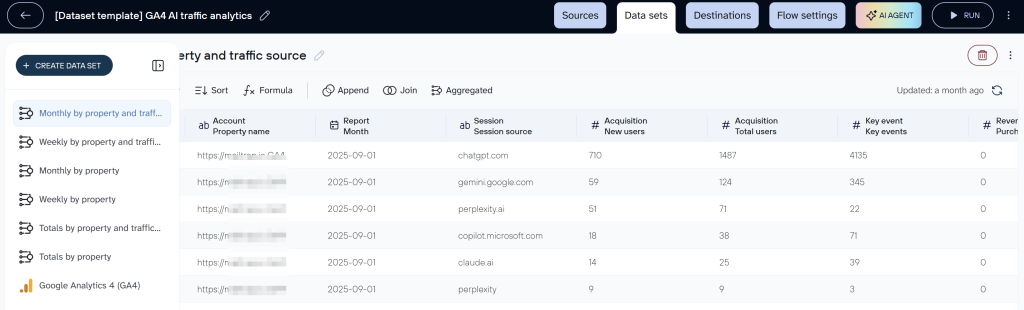
Two things to pull out of that loop.
The model interprets; the Analytical Engine calculates. LLMs translate a plain-English question into a structured query and summarise results well; they’re weaker at arithmetic across large datasets. Routing the SQL through the Analytical Engine keeps the model’s weak spot out of the loop. The GA4 Data API’s quotas, sampling thresholds, and row caps still apply upstream to how your dataset is built, so the engine runs on the data you’ve prepared, not on a guarantee that every underlying GA4 constraint has been bypassed.
Business context travels with the data. Metric formulas, your team’s definition of “branded” vs. “non-branded” campaigns, what counts as a key event, which filters are standard for client reporting. All of that lives in the flow’s Context and applies to every question, every surface. The AI doesn’t re-learn it in each prompt.
Coupler AI covers three capabilities: AI Agent, AI Integrations, and Skills. The same Analytical Engine does the calculation behind all three. The sections below cover each in turn.
Setting up your GA4 flow in Coupler.io
Two paths, same destination: a prepared GA4 dataset either surface can read.
The chat-first path uses Coupler AI Agent to walk through the setup. Describe what you need in plain language (“I need a weekly acquisition report covering GA4 sessions and key events alongside Google Ads spend and Search Console clicks”), and Coupler AI builds the flow, configures the refresh, and surfaces the first view of the data. You review and adjust the fields from there.
Let Coupler AI do the data work for you
Tell Coupler AI what you need to know, from which source, and how often. It connects your account, sets up the data flow, keeps it refreshed, and lets you analyze the results inside Coupler.io or another AI tool.
Try for free

The manual path is the traditional setup: create a data flow, pick GA4 as the source, select the dimensions (Date, Session source, Landing page, Device category) and the metrics (Users, Sessions, Engaged sessions, Key events, Conversions). Add Context (short descriptions of what each metric represents in your business), pick the destination (your AI client via Coupler AI Integrations, a dashboard destination like Google Data Studio, or a spreadsheet), set the refresh schedule, and save.
One thing worth doing at this stage: add business context to your data flows. Coupler.io lets you describe what your columns and metrics actually mean in your specific setup, for example, which events you count as key events, how your UTM tagging conventions work, or what a session source like “coupler” or “partner_newsletter” represents. This context travels with the data to the AI tool, so instead of guessing at column meanings, Claude or ChatGPT interprets your data the way your team already thinks about it.
A concrete example: the weekly acquisition report. A marketing team pulls GA4 engagement and key events, Google Ads spend and click volume, and Search Console impressions and clicks into one Coupler.io flow refreshed every Monday morning. The Context tells Coupler.io how the team defines paid vs. organic sessions, which campaigns count as branded, and how to treat UTM edge cases. From there, the same dataset powers a Monday team review in a dashboard and answers follow-up questions in Claude (“which landing pages drove the biggest week-over-week change in conversions, and was it paid or organic?”) without rebuilding the report.
The scope of what you can combine comes from Coupler.io’s catalog (420+ integrations: ad platforms, CRMs, ecommerce, finance, HR, SEO, product analytics). If a GA4 question can only be fully answered by looking at spend, revenue, or CRM activity alongside it, the prepared dataset is how you get there.
Skills for GA4 analysis
Skills are pre-built analytical workflows for recurring questions. The AI picks one automatically for a given question, or you select one manually when you want a specific method. Both Coupler AI Integrations and Coupler AI Agent use them against the same prepared dataset.
Several Skills in the library target GA4 questions marketing and SEO teams ask month after month. Two examples:
- AI traffic vs. organic search report compares the traffic ChatGPT, Perplexity, and Gemini send your site against Google organic search.
- AI search citations to revenue follows the pages AI assistants cite through to traffic, signups, and sales, combining GA4 with Google Search Console, Shopify, and other sources to show where the chain breaks.
Other GA4 Skills in the library cover organic traffic drop diagnosis, monthly SEO client reporting, and landing-page performance. Browse the full GA4-filtered list at coupler.io/ai-agent-skills. Your team can also build and share custom Skills for the reporting patterns you repeat most.
Coupler AI Integrations
When Coupler AI Integrations fits:
- You already work in Claude, ChatGPT, Gemini, or another supported AI client and want to query GA4 (and whatever else is in the prepared dataset) in that interface.
- Your reporting question routinely goes past GA4, into ad spend, SEO performance, ecommerce revenue, or CRM activity.
- The analysis is recurring: a weekly client review, a monthly QBR prep, a quarterly channel contribution report.
How it works. The Coupler.io data flow you’ve prepared exposes the dataset to your AI client through MCP. Coupler.io is listed as a ChatGPT App (approved by OpenAI), ships a connector for Claude, and provides MCP endpoints for Gemini, Perplexity, Cursor, Microsoft Copilot, and OpenClaw. For any AI tool without a named integration, the Custom MCP endpoint works with any MCP-compatible client.
Once connected, you ask questions in your AI client the way you would any other prompt. The AI reads the dataset’s schema and Context, writes a SQL query against the prepared data, routes it through the Analytical Engine, gets back the numbers, and writes the explanation. Follow-up questions in the same session reuse the same connected dataset, so you can keep refining without rebuilding anything.
Artifacts and visualizations come from the AI client itself. Claude can generate interactive dashboards and chart artifacts from the analysis it runs; ChatGPT handles similar visual outputs through its own canvas. The data behind those visuals comes from Coupler.io; the visual is Claude’s or ChatGPT’s work.

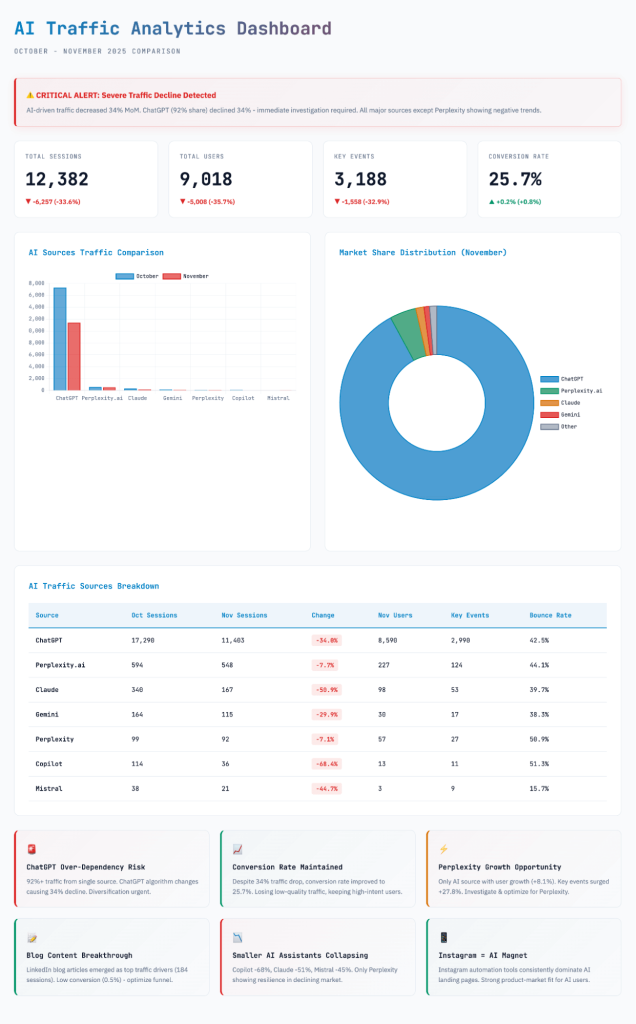
The December 2025 test’s referral-traffic prompt and how AI Integrations with Claude handled it live in the dedicated test results subsection further down.
Try Coupler AI Integrations with Claude or ChatGPT
Start for freeCoupler AI Agent
When Coupler AI Agent fits:
- You don’t want to maintain a separate AI client subscription or workspace.
- You want the data flow setup and the question-asking in the same place.
- You’re a non-technical operator (an in-house marketer, a finance lead, a small-business owner) who prefers one tool to two.
How it works. AI Agent lives inside Coupler.io and reads your data flows directly. Two entry points: the Ask AI button on the data flows page, and the AI Agent tab inside any individual data flow. If you don’t have a flow yet, you can describe what you need and AI Agent builds it for you.

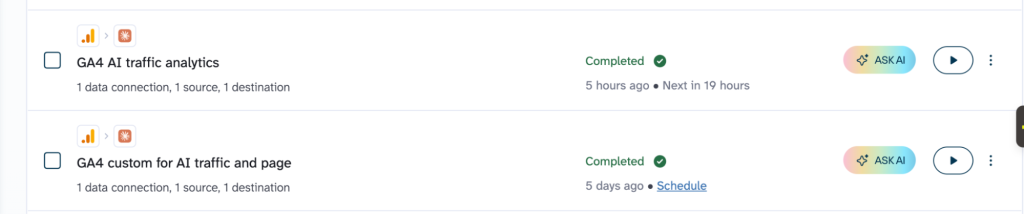

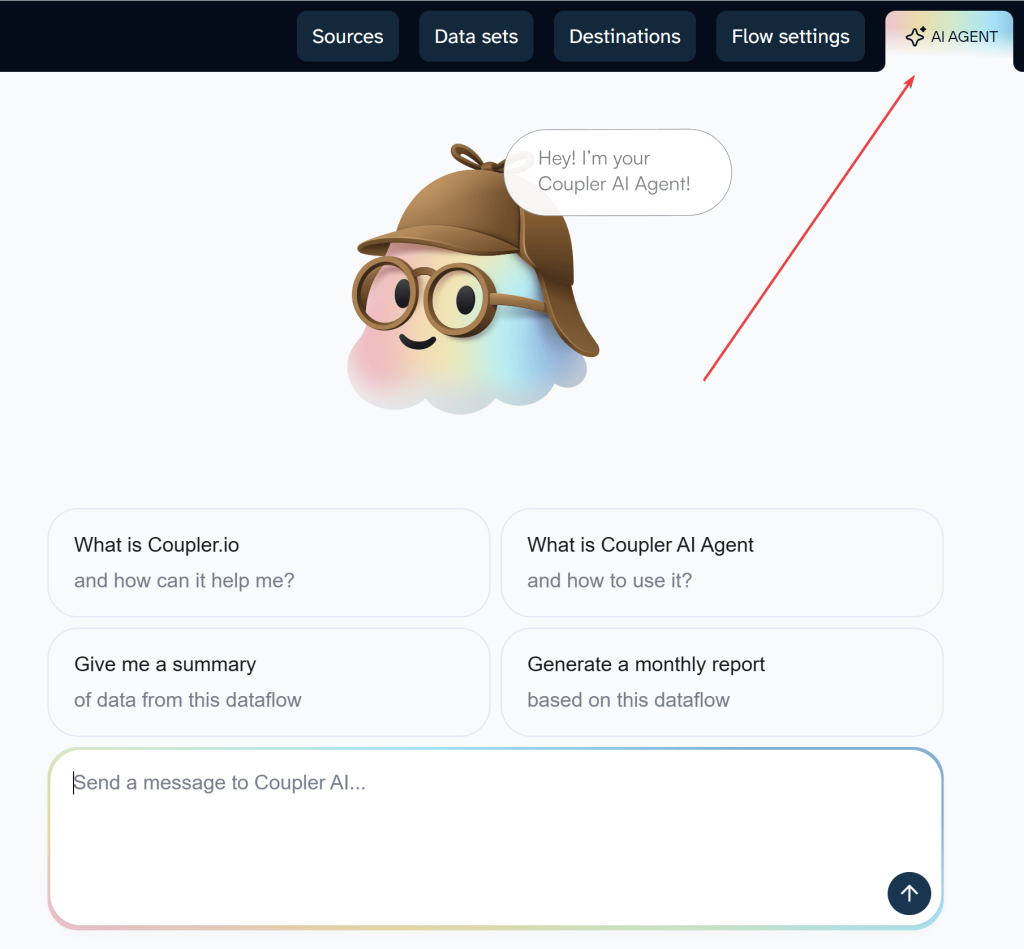
If you don’t have data flows yet, you don’t need to build them manually. Just describe what GA4 data you need in the AI conversation and the Coupler.io AI agent creates the flow for you.
AI Agent does three things:
- Ask questions about your data. A marketing manager opens a GA4 flow and asks why last week’s conversions dropped; AI Agent translates the question into a query, the Analytical Engine runs it, and AI Agent writes the explanation.
- Build and adjust data flows through conversation. “Add Search Console performance to this flow” extends the flow’s sources without a manual reconfiguration.
- Prepare data for reports and destinations. The output doesn’t have to be a chat answer; AI Agent can set up a flow that lands the prepared data in a dashboard or spreadsheet.
Honest about what’s in the dataset. If you ask about a field the flow doesn’t include, AI Agent tells you so and offers to add it, rather than returning a made-up number. Add the missing dimension (or let AI Agent add it for you through the chat-first setup), the dataset rebuilds, and the same question returns the answer with the Analytical Engine handling the SQL against the updated data. The dedicated test results subsection below walks through how this played out with the December 2025 landing-page prompt.
What AI Agent doesn’t do today. AI Agent doesn’t write code or generate visualizations itself. If you want an interactive dashboard or a chart artifact from a single question, Coupler AI Integrations with Claude or ChatGPT is the better fit, since those clients handle artifacts natively.
Try Coupler AI Agent inside Coupler.io
Start for freeApproach 2: Google Analytics MCP
The Google Analytics MCP server gives any MCP-compatible AI client access to GA4 through the Google Analytics Admin API and Google Analytics Data API. It reached v1.0.0 on PyPI on November 3, 2026, and now carries the “Production/Stable” classifier. Apache-2.0 licensed, maintained by Google.
v1.0.0 exposes nine tools: account and property discovery (get_account_summaries, get_property_details), Google Ads account links (list_google_ads_links), custom dimensions and metrics (get_custom_dimensions_and_metrics), annotations (list_property_annotations for read, create_property_annotation for write), and three reporting tools: run_report, run_funnel_report, and run_realtime_report. Funnel reports use the Data API v1alpha, added in v0.3.0 (April 2026). Write mode for annotations is off by default and requires the --allow-write flag plus the analytics.edit scope on the credentials.
A practical example: a checkout funnel question
Picture asking your AI client: “Of the users who viewed a product in October, how many added to cart, started checkout, and completed a purchase? Where does the drop-off happen?”
The MCP translates this into a run_funnel_report call against the GA4 property, specifying the funnel steps (view_item, add_to_cart, begin_checkout, purchase), the date range, and any filters. GA4 returns the funnel data; the AI client reads the step-by-step conversion rates and writes the narrative. For a question that stays inside GA4’s event model, this is the shortest path to an answer.
What the exchange looks like. Behind the scenes, the AI client calls run_funnel_report with four steps, a date range of October 1–31, and your property ID. GA4 returns the funnel data as a structured response: users at each step, step-to-step conversion rates, and any filters applied. The AI client then writes something like:
The biggest drop is between viewing a product and adding it to cart, where most visitors fall off. The checkout-to-purchase step holds up better. If you want to compare against September, or slice by device or source, I can run the funnel again with those filters.
Two things to notice. First, the numbers come from run_funnel_report, not from the AI client guessing — the model summarises what GA4 counted. Second, follow-up questions in the same session reuse the same tool, so you can refine without rebuilding the funnel from scratch each time.
The same leverage applies to realtime checks (“how many active users right now, and where are they coming from?”), ad-hoc exploration of custom dimensions (“what were the top values for user_type in the last 30 days?”), and core reports that would otherwise mean clicking through GA4’s Explorations.
Setting it up: two paths
v1.0.0 supports two deployment modes. Which one fits depends on whether you’re running the MCP for yourself or hosting it for a team.
Local setup (one user, one machine)
The default path for a single analyst or a developer evaluating the server.
- Enable the Google Analytics Admin API and Google Analytics Data API in a Google Cloud project.
- Install
pipx. v1.0.0 requires Python 3.10+. - Configure Application Default Credentials. The primary path uses a Google user account that has access to the GA4 property.
- Add the MCP server to your AI client’s config.
ADC login:
gcloud auth application-default login \
  --scopes https://www.googleapis.com/auth/analytics.readonly,https://www.googleapis.com/auth/cloud-platform \
  --client-id-file=YOUR_CLIENT_JSON_FILE
For Claude Code:
claude mcp add analytics-mcp \
  --scope user \
  -e "GOOGLE_APPLICATION_CREDENTIALS=PATH_TO_CREDENTIALS_JSON" \
  -e "GOOGLE_CLOUD_PROJECT=YOUR_PROJECT_ID" \
  -- pipx run analytics-mcp
For Gemini CLI or Gemini Code Assist, the same server launches via ~/.gemini/settings.json with "command": "pipx" and "args": ["run", "analytics-mcp"]. To enable annotation writes, append "--allow-write" to the args.

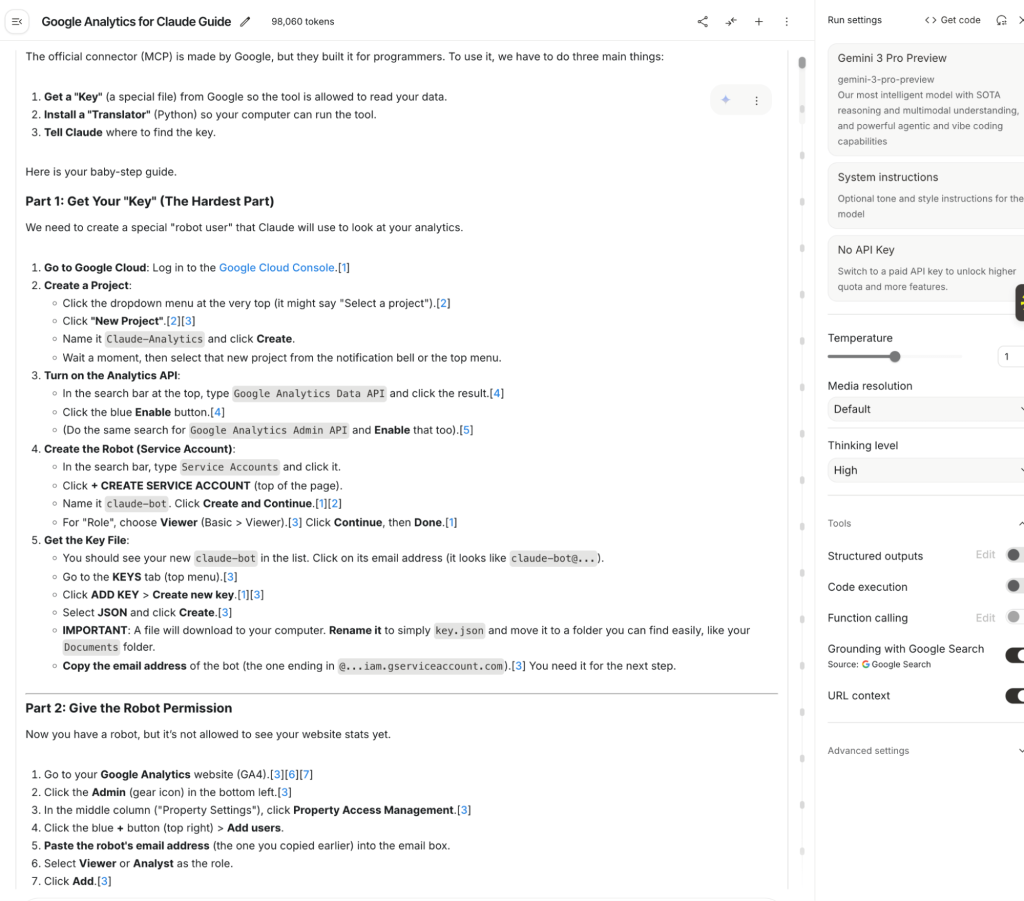
The README documents Gemini (CLI and Code Assist) and Claude Code as local clients. Claude Desktop isn’t covered for local stdio setup, but it can connect to the MCP in native-OAuth mode when the server runs the HTTP transport described below.
Service accounts are supported in v1.0.0 via gcloud impersonation (--impersonate-service-account=SERVICE_ACCOUNT_EMAIL), not raw JSON key files. Adding a service account to a GA4 property still needs someone with the permissions to grant it access, so this path assumes coordination with your GA4 admin. The December 2025 test used the older raw-JSON route, which is no longer the documented default.
Shared remote setup (a team self-hosts the MCP)
New in v1.0.0: the server can run as a shared HTTP service that multiple MCP clients connect to, with each end user authenticating through their own Google account rather than a server-side credential. This is what turns the MCP from a single-user local install into something a team can share without handing anyone a service-account key.
Start the server with the HTTP transport:
pipx run analytics-mcp \
  --transport http --stateless-http --host 0.0.0.0 --port 8080
From there, two OAuth options:
- Agent framework OAuth, for example with Google’s Agent Development Kit (ADK). Configure per-user Google OAuth on
McpToolset; end users see a Sign in button in the agent’s chat UI. Paired with--stateless-http, this mode is stateless and scales horizontally across replicas. - Native MCP OAuth 2.1 (
--oauthflag). The server runs its own OAuth 2.1 Authorization Server with Google as the backing provider. This is the path for MCP clients that handle OAuth themselves, such as Claude Desktop, Cursor, and MCP Inspector. One caveat from Google’s docs: the built-in--oauthprovider stores dynamic client registrations and refresh tokens in process memory, so deploy as a single instance or with sticky sessions. Server restarts require clients to re-authenticate.
The repo includes a Dockerfile in examples/multi_tenant_adk_agent/ ready for Cloud Run, GKE, Fly.io, or any container host. The deployment split is clean: a developer or devops engineer deploys the server once; end users just sign in from their AI client.
What stays outside the MCP’s scope
The MCP does one thing well: query GA4. A few things it doesn’t do, which matter when choosing between approaches:
- The MCP talks to GA4 only. A question like “how did acquisition compare against our Google Ads spend?” needs a second data path, whether that’s another MCP, a spreadsheet upload, or a prepared dataset that holds both sources.
- Custom dimensions and metrics are discoverable through the API, but the meaning behind them (what counts as a “branded” campaign, how your team defines a “new customer”) has to be re-explained in each prompt. No stored business context carries across sessions.
- Each question hits the Data API fresh, bounded by the property’s tokens-per-day and tokens-per-hour quotas. For a team running dozens of analyses per day across one property, quota management becomes a real factor.
- Write access is limited to annotations through
create_property_annotation, gated by--allow-writeplus theanalytics.editscope. No tools for audiences, custom events, or other GA4 configuration today.
For a GA4-only analyst or a team evaluating MCP architecture for internal shared deployment, these aren’t limits that matter. For cross-channel reporting that already pulls in ad spend, SEO, revenue, or CRM data, this is where the Coupler AI path covered above fits instead.
What happened in the December 2025 test
The observations in this subsection come from one test on a specific GA4 property in December 2025. Google’s MCP was at v0.1.1; Coupler AI’s Analytical Engine, Context, and Skills were shipped and in use; Claude Sonnet 4.5 ran across all three approaches to hold the model constant. Both products have shifted since then — Google’s MCP reached v1.0.0 with a shared HTTP mode, Coupler AI matured its Skills library and chat-first setup. The notes below describe what happened in that session, not what you would see today.
Prompt 1: AI referral traffic
Analyze my GA4 data and identify all AI-related traffic sources (e.g., Perplexity, ChatGPT, Claude, Gemini, AI browsers, AI assistants). Compare October 2025 vs. November 2025 and report:
AI-driven traffic volumetop AI referrerspages receiving the most AI trafficany notable changes in behavior
Keep the answer concise.
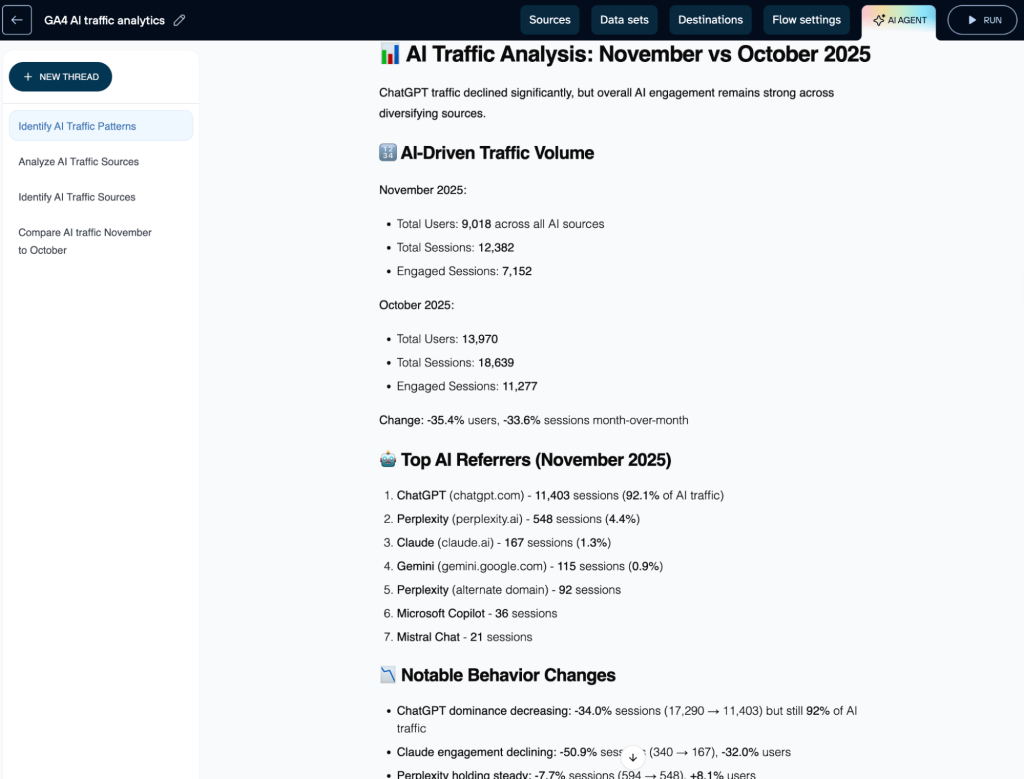
Coupler AI Integrations with Claude. The prepared data flow (dimensions: Date and Session source; metrics: Users, Sessions, Engaged sessions, Key events) returned a month-over-month comparison for the property and period in the prompt. The figures lined up with my GA4 reference report for that property and period. Claude summarised what shifted. Follow-up questions in the same conversation continued to work without resetting.
Coupler AI Agent. The same prepared flow produced the same month-over-month shape when asked inside Coupler.io.

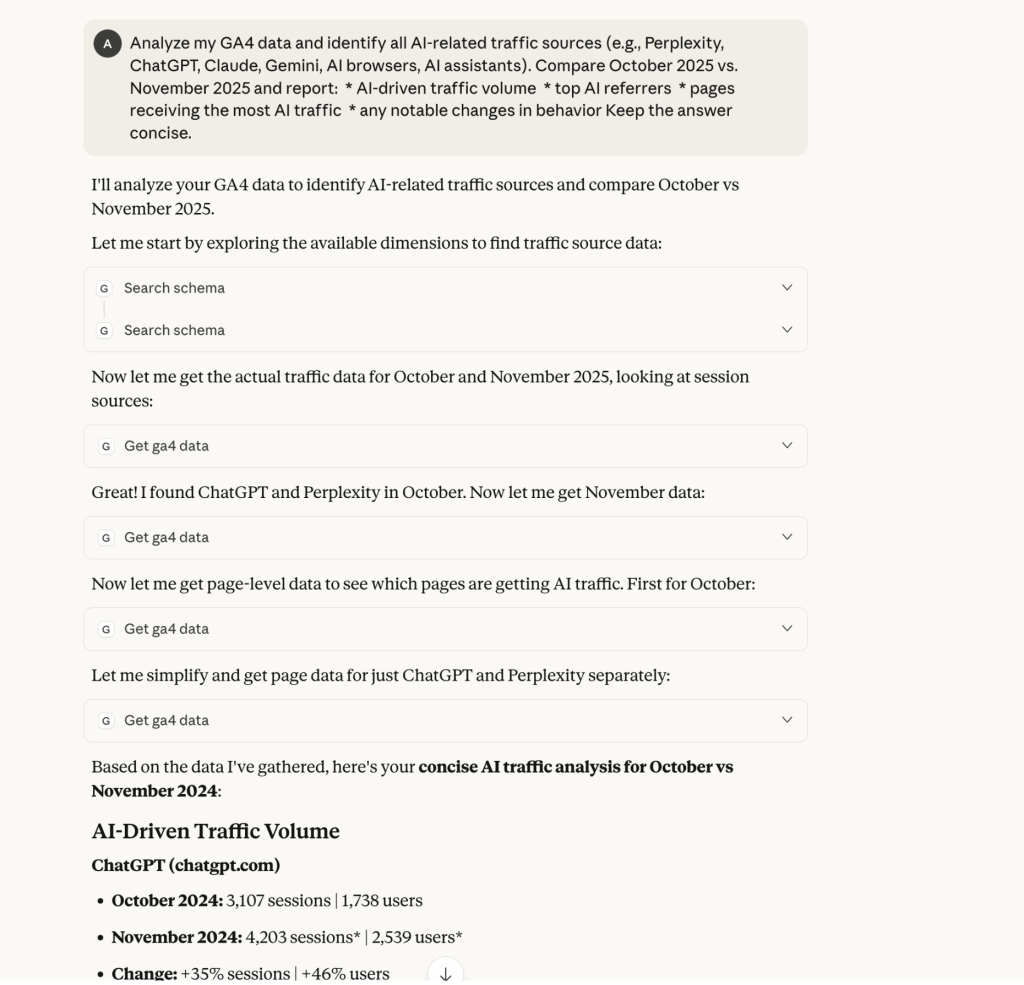
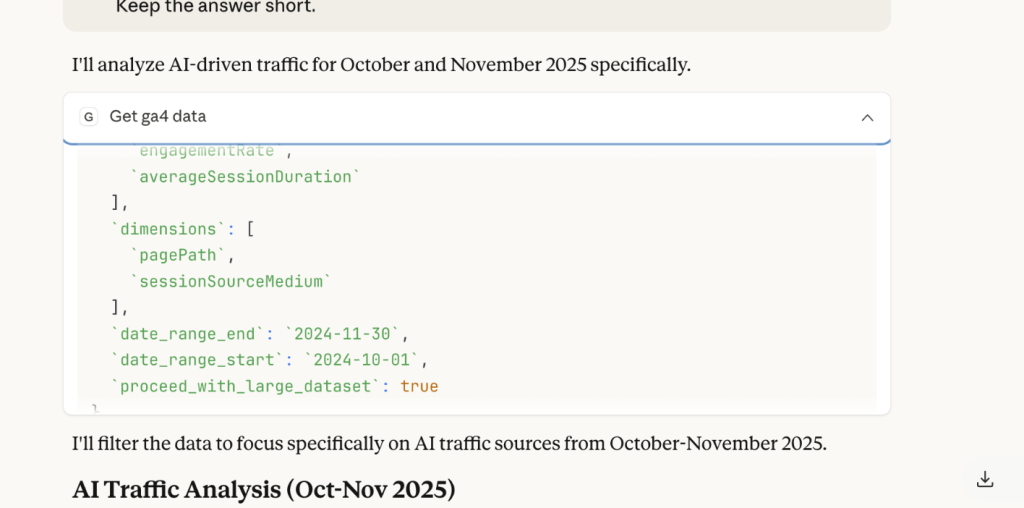
Google Analytics MCP (v0.1.1, Claude Desktop, service-account credentials). The MCP server’s tool call used a start date of 2024-10-01 for a question about 2025. The log shows the date sent; the cause of the year substitution isn’t verified from the log alone. Separately, the API call specified a 1,000-row limit. A row cap and GA4 event sampling are different mechanisms, so I don’t call the result “truncated” without evidence that more rows matched, and don’t claim sampling without response-metadata confirmation. The numeric comparison the MCP produced for this prompt didn’t match the GA4 reference report, which is traceable to the wrong year in the request.

Prompt 2: landing pages receiving AI traffic
From my GA4 data, identify which pages received the most traffic from AI sources (ChatGPT, Perplexity, Claude, Gemini, Copilot, AI browsers) in October vs November 2025.
Report:
top AI-driven landing pagesbreakdown by AI sourcenotable behavior patterns
Keep the answer short.
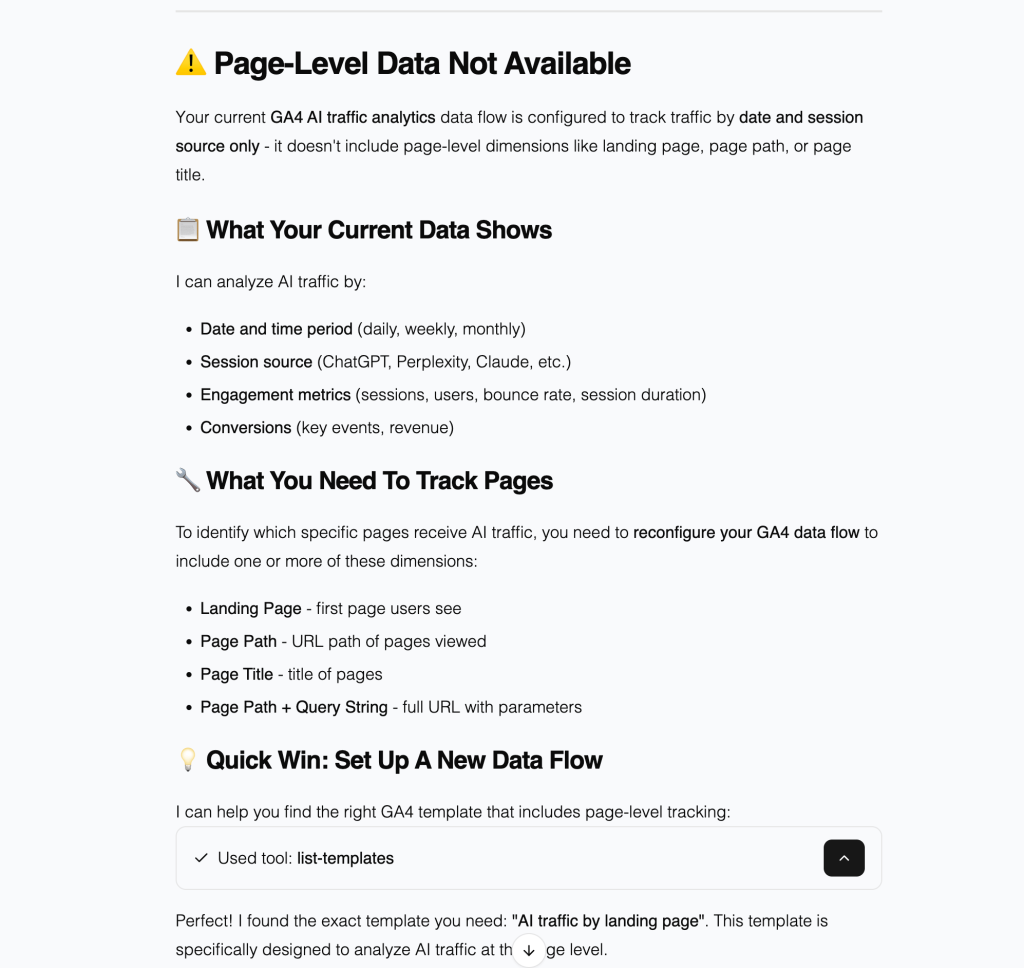
I asked this question in Coupler AI Agent against a flow whose dimensions were Date and Session source — no Landing page. AI Agent returned “Page-Level Data Not Available,” explained that the flow didn’t include the landing-page dimension, and offered to add it. Adding Landing page to the flow and re-asking returned the breakdown of top landing pages by AI source.

Google MCP in the same test session was already in a Claude Desktop state where the client’s compaction flow had triggered and failed on earlier follow-ups, which reset the conversation and dropped the MCP context. The Claude Desktop compaction behavior is a client observation from that specific version of Claude Desktop running a long MCP-backed conversation, not a property of the GA4 MCP itself and not a GA4 API quota issue. The two are separate.

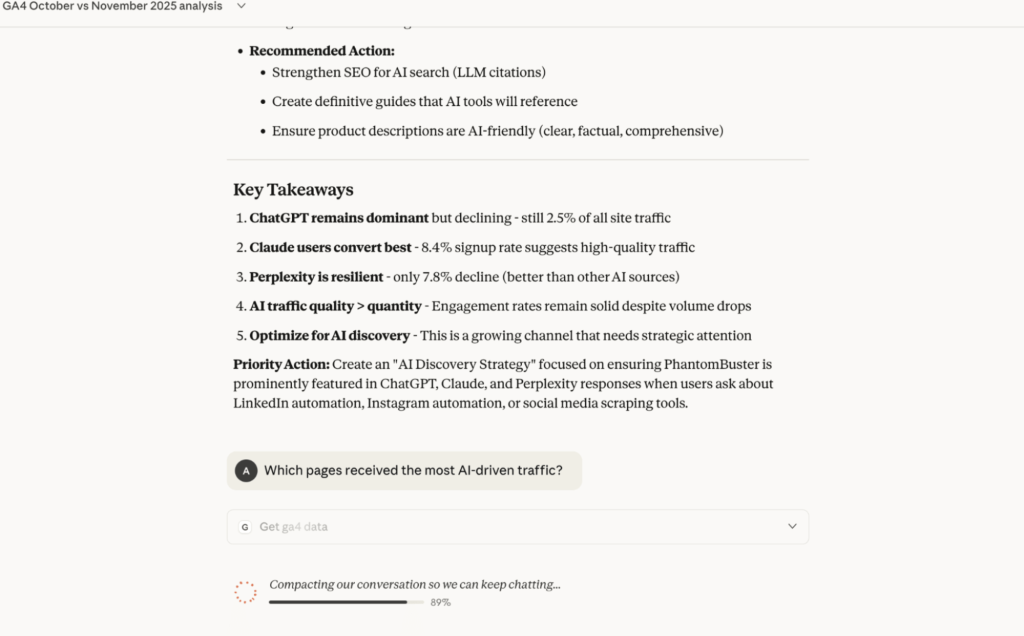
The two log screenshots below are the evidence behind the wrong-date and row-cap observations — specific, log-traceable behaviors of v0.1.1 in this one session.


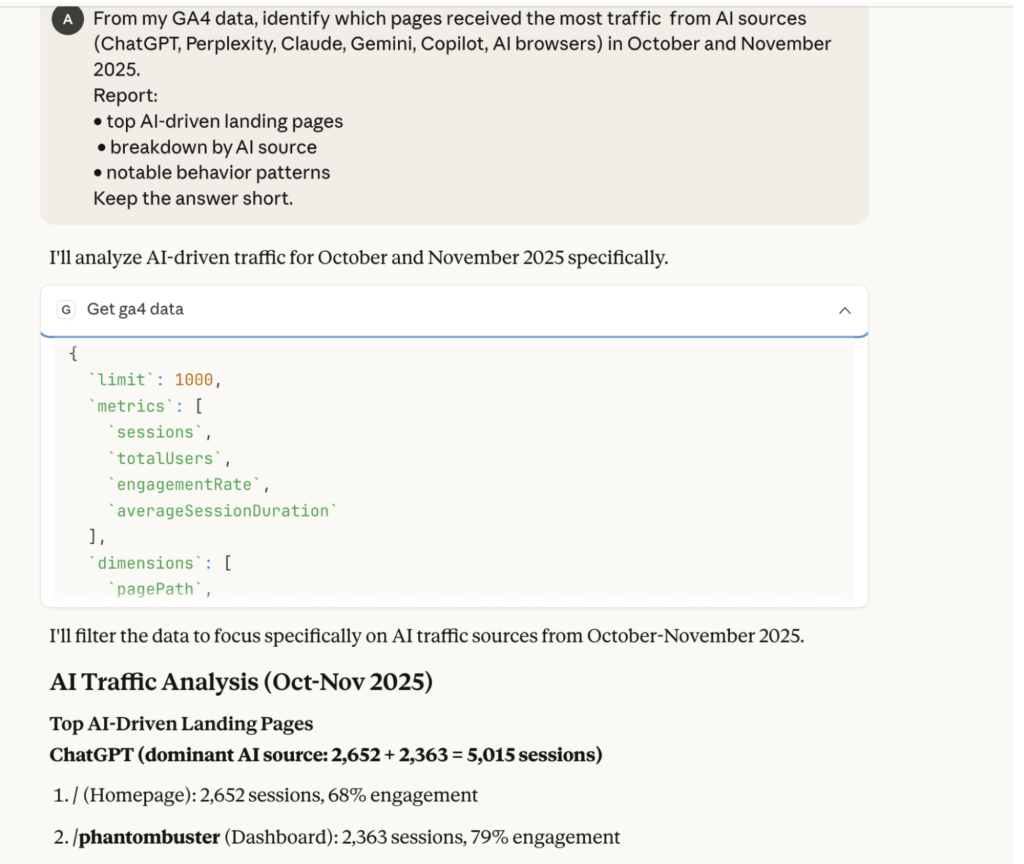
The Key takeaways block at the top of the article frames how to read these observations — as specific log-traceable behaviors from that one session, not current benchmark claims. If your decision depends on current accuracy or quota behavior, run a fresh test on your own property.
Agency or recurring client reporting? Discuss shared-workspace setup and plan options
Book a demo with Coupler.ioFAQs on how to use AI for Google Analytics
Do you need a developer to analyze GA4 data with AI?
For Coupler AI Integrations and Coupler AI Agent, no. OAuth to Google Analytics in the browser, build the flow in the Coupler.io UI, ask questions from your preferred AI client or inside Coupler.io itself. No terminal, no Python environment, no Google Cloud Console.
For the Google Analytics MCP, it depends on whether you’re setting it up or using it. Initial deployment needs someone comfortable with a terminal, a Google Cloud project, API enablement, and Application Default Credentials. For the shared multi-tenant HTTP mode, add a container host (Cloud Run, GKE, or your own server) and an OAuth 2.0 client registration. Once that deployment is in place, end users connect from their AI client and sign in with their Google account; no developer skills required to use it after setup.
Which AI model works best for analyzing GA4 data?
Use the same model across the approaches you’re comparing. In the December 2025 test, I used Claude Sonnet 4.5 across all three paths so the comparison would be about the data pipelines rather than the model. You can verify what a model actually queried by checking the tool calls it made (in Claude, the client surfaces the raw tool-call payload; in ChatGPT, the connector logs are inspectable). If a result looks off, the tool call is where to start before blaming the model.
Across models, mid-tier reasoning models tend to balance reasoning quality against cost for tabular analysis. Larger reasoning models produce more thorough explanations at proportionally higher cost, which matters mostly for exploratory or long-context sessions. Whichever model you use, keep it constant when you’re comparing data paths.
Can AI replace Google Data Studio dashboards?
For ad-hoc investigation, AI is often faster: you ask the question, get an answer, follow up. For monitoring key metrics, visualizing trends over time, sharing a standardized report with a client or stakeholder, or acting as a persistent reference, Google Data Studio is still the right surface. They’re complementary. In a typical Coupler.io setup, the same prepared data flow powers both a Data Studio dashboard the team references on Monday morning and the AI tool they use for follow-up questions during the week.
Why use AI for Google Analytics?
GA4 is flexible but fragmented. Answering a single business question often means moving between Explorations, Acquisition reports, segments, attribution views, and key events, applying the right dimensions and filters each time. AI collapses that into a question-and-answer loop: you ask, the tool queries GA4 (directly through the Analytics API, or indirectly through a prepared dataset), and you get the answer with the context you’d otherwise assemble by hand. Useful question shapes:
- What caused the drop in homepage performance last week?
- Which landing pages convert best from organic search?
- What drives AI-tool traffic to our site, and how is it changing month to month?
- Did attribution shift between Google Ads and organic in the past 30 days?
- Which referrers correlate with the engagement spikes we care about?
- What anomalies in the last 7 days should I look at before the weekly review?
GA4 is still the dataset. AI is the interface, not a replacement for the data.
Final thoughts
Three recommendations, one per workflow, based on the sections above.
If your reporting work spans more than GA4 (acquisition compared against paid spend, SEO performance tied to key events, ecommerce revenue mapped to source), Coupler AI Integrations gives you a prepared dataset, refreshed on a schedule, that you query from Claude, ChatGPT, or any supported AI client. The Analytical Engine handles the calculations; the AI explains the result. Business context stays in Context, so you don’t re-explain your metric definitions in every prompt.
If you want the setup and the questions in the same place and don’t want a separate AI client subscription, Coupler AI Agent keeps the loop inside Coupler.io. In-house marketers, finance leads, and small-business operators get the most value from this path, and AI Agent can also build and adjust the data flow through conversation.
If your work stays inside GA4 and you want direct access (funnel exploration, realtime, per-property custom dimensions), the Google Analytics MCP is the direct route. v1.0.0 and its shared multi-tenant HTTP mode make it viable for a team deployment, not only a solo analyst’s local setup. The trade-off is scope: the moment the question reaches ad spend, keyword visibility, revenue from another system, or CRM activity, the MCP can’t follow.