What is GA4 to PostgreSQL integration?
GA4 shows you whether traffic is up, users are clicking, and conversions are happening. But when you want to know which visitors became paying customers or how ad interactions translate into actual revenue, you need to connect it with your sales, CRM, and other business data. That’s why many organizations centralize their data in a data warehouse like PostgreSQL.
Coupler.io provides a no-code approach to set up a GA4 to PostgreSQL integration. You connect them in its UI, choose the data you want to import, and set a refresh schedule. Coupler.io then automatically syncs the latest data to PostgreSQL based on that schedule.
Once in PostgreSQL, you get more control over how you use your GA4 data. You can perform any advanced analysis you need, even build machine learning models and BI reports on top of it.
How to connect GA4 to PostgreSQL with Coupler.io
Coupler.io is a no-code data integration platform and AI analytics solution that moves data from over 400 sources to different destinations, including PostgreSQL. The easiest way to get started with Coupler.io is its AI agent. Just tell it what you need to do, like create a report, connect GA4 to PostgreSQL, build a dashboard, and so on. The AI agent will do the job for you and only ask you to authorize in Google or enter credential if required.
Let Coupler AI do the data work for you
Tell Coupler AI what you need to know, from which source, and how often. It connects your account, sets up the data flow, keeps it refreshed, and lets you analyze the results inside Coupler.io or another AI tool.
Try for free
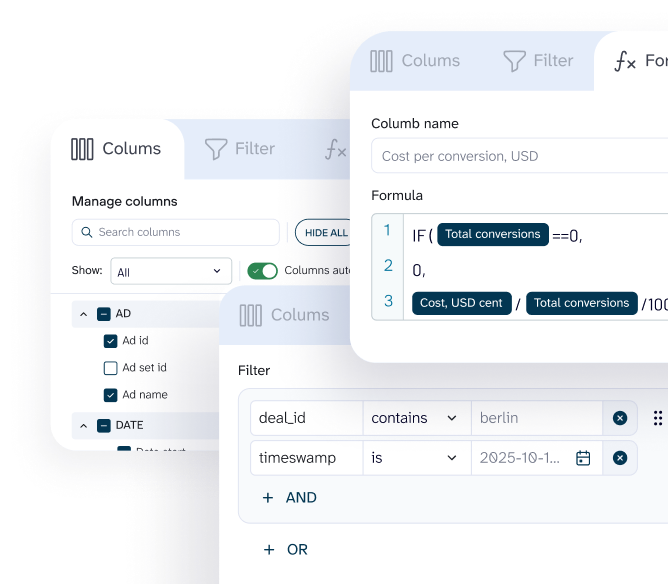
At the same time, you can also connect GA4 to PostgreSQL yourself by following three simple steps.
Step 1: Create a data flow
Click Proceed in the form below, where GA4 is already set as the source and PostgreSQL as the destination. You just need to sign up (no credit card required), and you’ll have everything ready to create the actual data flow.

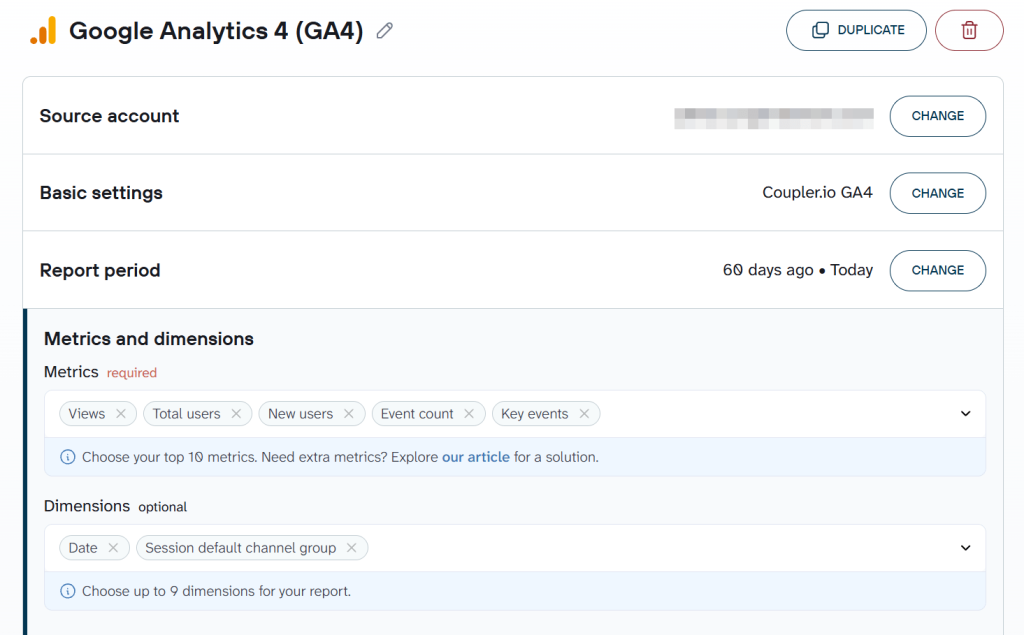
Coupler.io will ask you to create an account. Sign up for free and grant permission to access your GA4 account. Then, select the GA4 property and the date range or time period for the data.
For each report, you can select up to 10 metrics and 9 dimensions. This is a GA4 API limit, not a Coupler.io restriction.

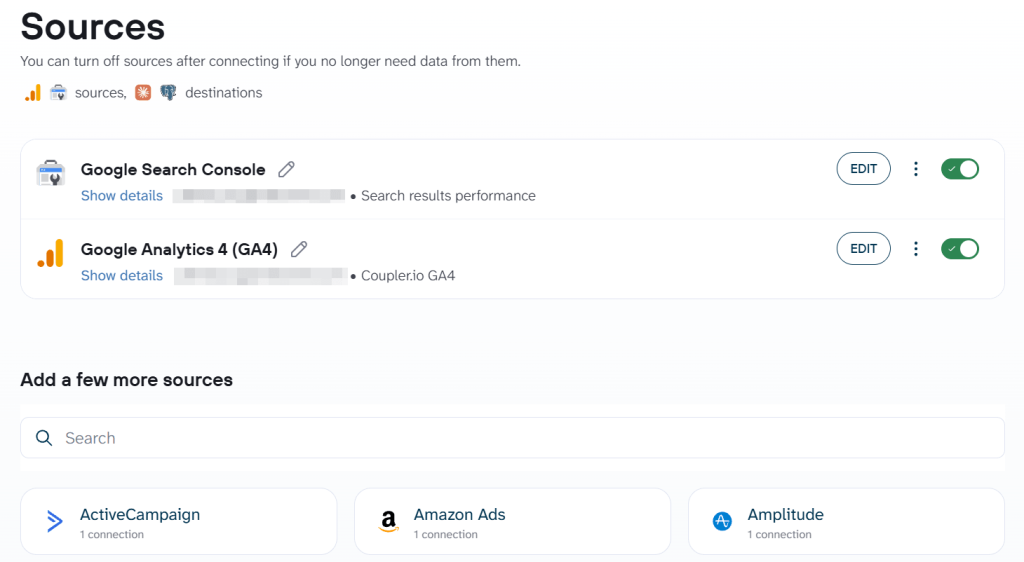
Coupler.io also lets you sync your GA4 data from multiple accounts within the same data flow. Or, if you need a broader view of the business, combine GA4 data with Google Search Console, CRM, or ecommerce apps, and other information to move the combined data to PostgreSQL.

Step 2: Organize dataset
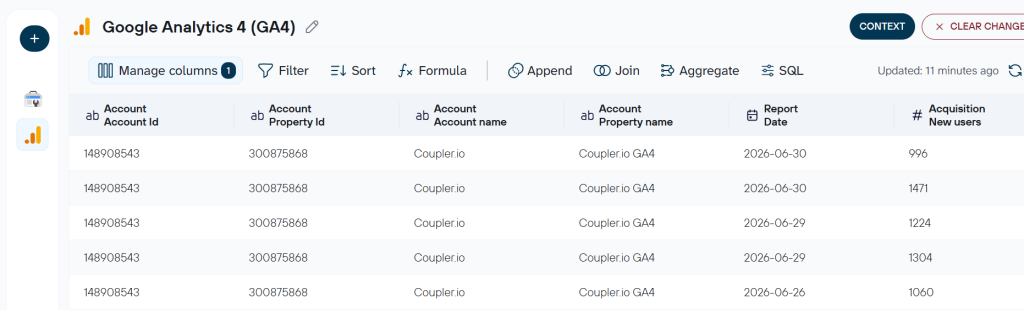
Before loading the data, you can clean and transform the data set directly in Coupler.io. Filter or sort the records, rename or create new columns for business-specific metrics using your own formulas, aggregate records for weekly and monthly views, and more.
If you connected multiple sources in the previous step, their data appears here as well. Append or join the datasets as needed, then load the combined data into PostgreSQL.

Alternatively, use Coupler.io’s data set templates to skip much of this manual setup. These come with preconfigured data sources, transformations, calculations, and key metrics for common analytics use cases, so you get a clean, analysis-ready table without building the transformation logic from scratch.
Step 3: Load data to PostgreSQL
Connect your PostgreSQL account in the destination step and provide the required connection details.
Then, select the PostgreSQL table where you want to load the data. The “Import mode” setting lets you choose whether to append new data to the existing table or overwrite it with the latest import.
Alongside PostgreSQL, this same step lets you add multiple destinations, including AI platforms, BI tools, CRM, or sales systems, to send your GA4 data to. For instance, here is what it looks like to sync data from Google Analytics with BigQuery.
Once the destinations are set, choose an automatic refresh schedule. Set it to run daily, weekly, or at any cadence and time you need, and Coupler.io will automatically trigger the data flow and update each destination with the latest data.
Bonus: Analyze GA4 data with Coupler AI
The steps above explain how to integrate data with PostgreSQL. At the same time, data integration is just one side of the product, while AI analytics is the other. Coupler AI lets you analyze the connected data sets in AI without leaving the platform. Just open the AI AGENT tab in your data flow and ask anything related to the data you added, and the Coupler AI answers your questions. For example, I asked “Which traffic sources had the highest conversion rate last month?”.
And I got a table with key findings:

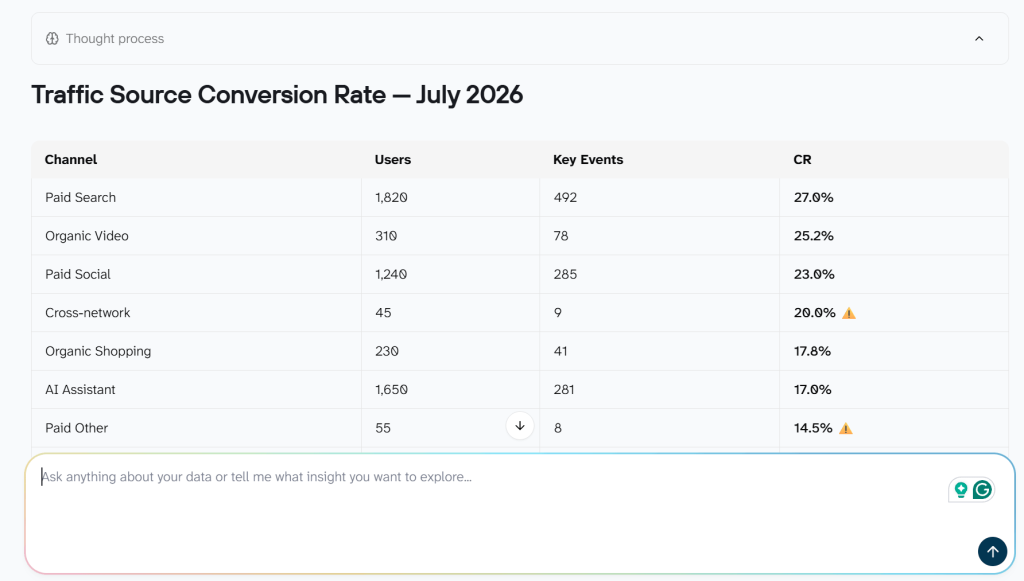
If you want to use broader AI tools like Claude or ChatGPT, add them in the destinations step of the same data flow. Once connected, go to the AI tool and chat with it about your data. This works because Coupler.io runs an MCP data layer under the hood, piping structured, continuously updated data into tools like Claude and ChatGPT.


Move Google Analytics data to PostgreSQL with Coupler.io
Get started for freeWhat you get when you automate GA4 to PostgreSQL with Coupler.io
Getting GA4 data into PostgreSQL is only the first step. The real value comes from how you use it. Here’s what you get once the data starts flowing through Coupler.io.
Combined data analytics
Once you have the GA4 data in PostgreSQL alongside your CRM or billing data, combining the tables helps answer questions that GA4 data alone can’t.
For example, it shows the actual cost per acquisition for each channel or identifies which user behavior in GA4 eventually leads to a sale in your CRM. Paid social might look great when you only look at conversions in GA4. But if acquiring each customer costs several times more than organic or referral, suddenly “great” needs an asterisk.
That’s the advantage of having your data in one centralized warehouse. Instead of analyzing marketing, sales, and revenue separately, you get the complete picture in one place.
Coupler.io ready-made dashboards
Since you’re already connecting GA4 through Coupler.io, its ready-made dashboards and reporting templates let you skip building every report from scratch. These dashboards can consolidate data from multiple GA4 properties, giving you one view of your website performance.
Research shows AI search traffic converts at rates 4.4x to 23x higher than traditional organic search traffic. So, monitoring how your site performs across AI search engines is becoming important. This Coupler.io AI-traffic analytics dashboard shows users and conversions from each AI search engine.

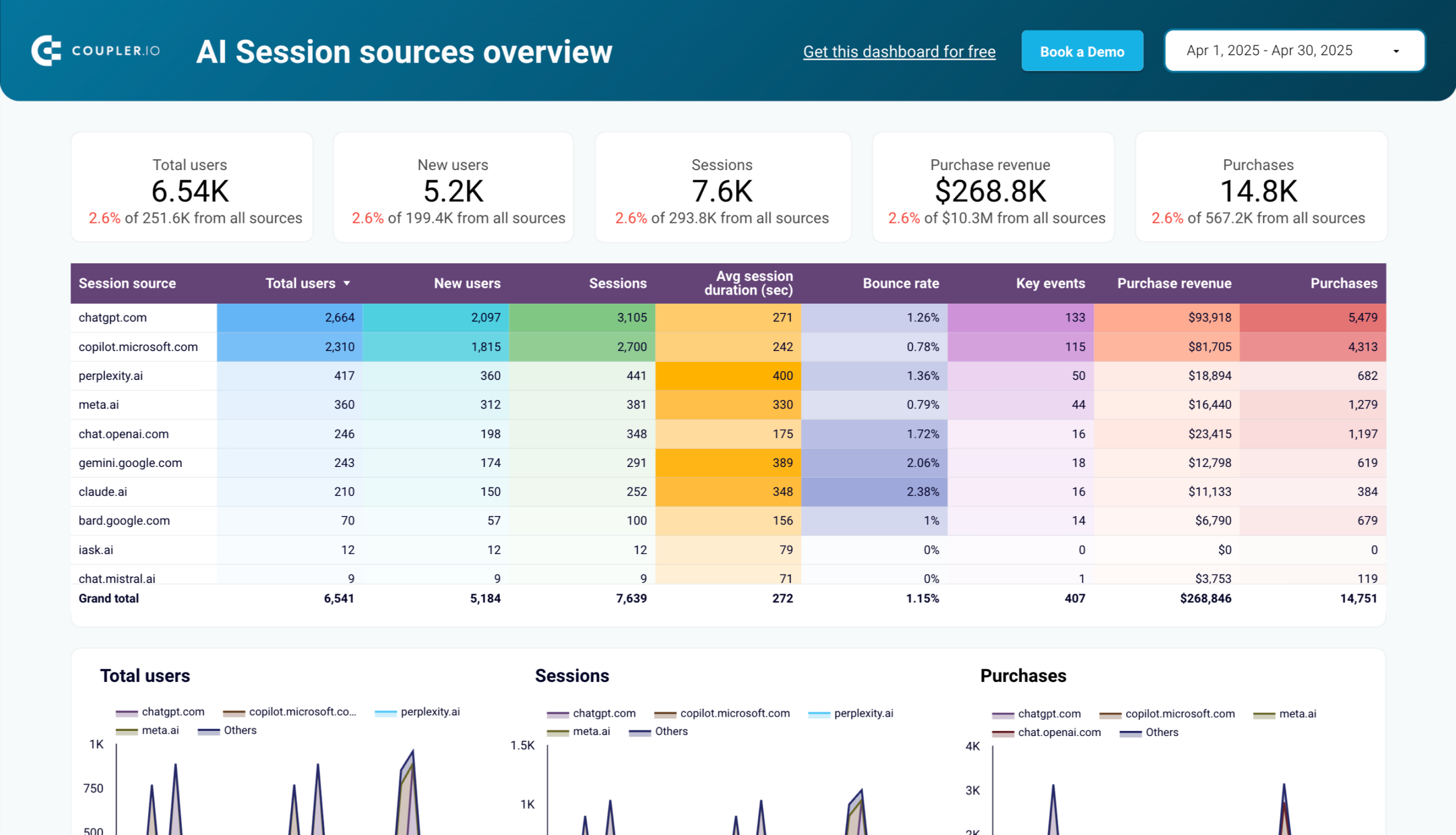
The “Landing pages” tab shows which pages receive traffic from AI platforms and lets you decide which ones to optimize for AI. You also get date and filter controls at the top of the dashboard. Use the date selector to analyze a specific period and filters to narrow the dashboard to the properties or event data you want to see.

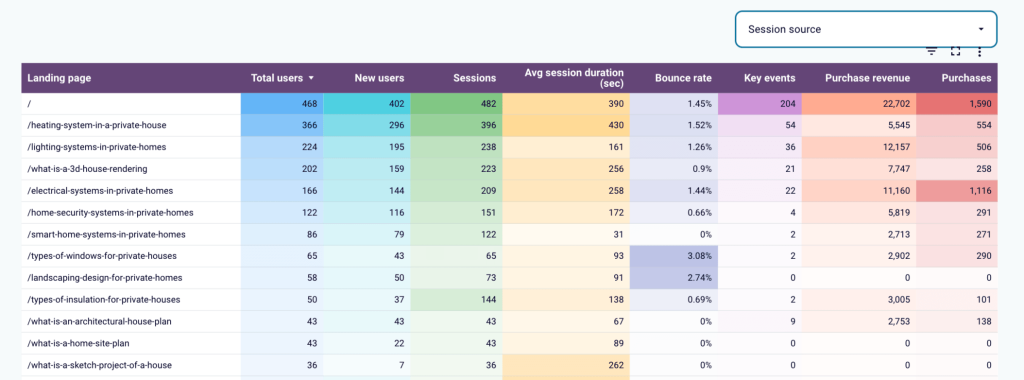
Coupler.io also provides pre-made dashboards for web analytics, landing page performance, Shopify store traffic, customer acquisition, and other use cases. Select the dashboard you need, connect it to your data flow, and it updates with the latest data on every run.
AI analytics
With your GA4 data connected, you can start asking questions like which landing pages are losing conversions, which acquisition channels are improving month over month, or where traffic is growing without a lift in revenue. Coupler AI handles this through two paths: the AI Agent built into Coupler.io, or AI Integrations that make your data available in external tools like Claude and ChatGPT.
Either way, AI analytics comes with two concerns: you don’t want the AI doing raw calculations itself, where hallucinations can affect the results, and you don’t want to send your entire raw dataset to an AI model.
The Analytical Engine solves for both. It runs the calculations against your full dataset and returns the results for the AI to interpret. So if you ask why conversions dropped last month, the AI translates your question into a query, the Analytical Engine executes it, and the AI explains what the result means. The number comes from a calculation, not a prediction.
For security, the Analytical Engine only shares the schema, sampled data records, and final results needed for the analysis, not your full raw dataset.

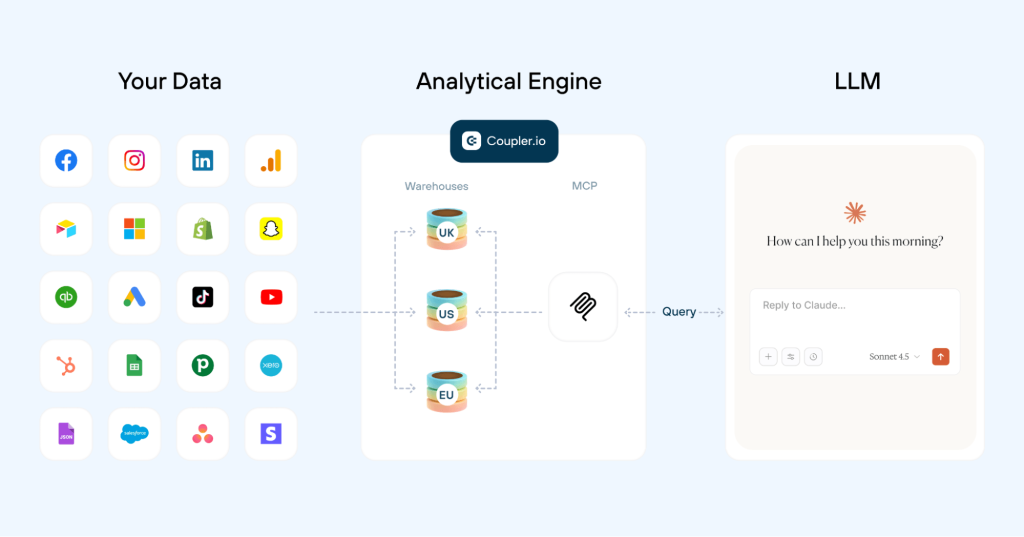
You can also add business context to the data flow, such as metric definitions and descriptions of what specific columns represent, so the AI interprets your data according to your business logic.
And some questions aren’t one-offs. Maybe every Monday you want the same acquisition analysis across channels, or every month you want to identify landing pages where traffic increased, but conversions fell. AI skills let you turn those instructions into repeatable analysis workflows, so you don’t have to explain the task from scratch every time. You can use Coupler.io’s AI agent skills, built into the MCP, or create your own for analyses specific to your business.
Two skills fit this setup well: GSC GA4 landing page performance for the traffic-up, conversions-down check, and AI traffic vs organic report for tracking AI referrals against organic search.
GSC GA4 landing page performance skill
Joins Google Search Console and GA4 to show which landing pages bring organic traffic and what that traffic does once it lands, from live data in your Coupler.io workspace — search clicks and…
AI traffic vs organic report skill
Shows how much traffic answer engines like ChatGPT, Perplexity, Gemini and Claude send your site, and how it compares to normal organic search, from live GA4 data in your Coupler.io workspace
See all 200+ AI skills
Multiple destinations
Coupler.io supports multiple destinations in the same data flow. That means you can send GA4 data to PostgreSQL for centralized storage, to BI tools such as Power BI for reporting, and to AI tools such as Claude or ChatGPT for analysis. The same data can serve different jobs without you rebuilding the pipeline for each one.
Coupler.io also supports other destinations like Snowflake, Qlik, and monday.com. So you can build the data flow around where your teams actually work rather than forcing every use case into PostgreSQL.
Connect GA4 data to PostgreSQL and ask questions about it with Coupler AI
Get started for freeWhen to use another method to import GA4 data into PostgreSQL
Coupler.io works well when you want an automated GA4 data sync to PostgreSQL without having to code the pipeline. But there are specific cases where another method may fit better, such as when you need aggregated data for a one-off analysis or fully customizable extraction logic.
Native GA4 to BigQuery export
GA4’s native BigQuery integration is a good fit when you need raw, unsampled event data rather than selected dimensions and metrics from the GA4 API. It supports scheduled exports as well as continuous streaming for near real-time GA4 PostgreSQL sync.
However, BigQuery isn’t your final destination. You still need to build another pipeline to replicate GA4 data to PostgreSQL from BigQuery. That means two stages of data movement and more infrastructure to maintain.
So, this approach makes sense when you need raw GA4 event data and have a backend/data engineering team that can manage custom data pipelines.
Manual export
Manual export only works when you need aggregated GA4 data for a one-off analysis. Every time you want fresh data, you need to use the export option in GA4, download the report as a CSV or Google Sheets file, and manually upload it to PostgreSQL. If you need to run the analysis regularly, this becomes impractical.
There’s also a limit to what data you get. Manual exports contain aggregated reports data such as users, sessions, event counts, and revenue alongside dimensions such as traffic sources, page paths, campaigns, devices, and locations. It doesn’t give you the same raw event-level export available through BigQuery.
So, if you only need aggregated GA4 data occasionally, manual export does the job without engineering work. If you need PostgreSQL updated every day, though, downloading and uploading files manually gets old pretty quickly.
Custom script using the GA4 API
A custom script is worth considering when you need more control over your GA4 to PostgreSQL connector. For example, you might have highly specific extraction or transformation logic, need GA4 data to fit into an existing internal data pipeline, or have security and governance requirements that require your team to control how the data moves.
But you’re also choosing to own the pipeline. Your team needs to handle authentication, API requests, pagination, loading into PostgreSQL, failures, and ongoing maintenance. So, this method works best when you need customization that a no-code integration doesn’t support and have the engineering resources to manage it.
If you’ve read this far, here’s the shortcut: BigQuery means another pipeline to maintain, manual export only works for a one-off analysis, and a custom script needs an engineer to build and maintain it. Sign up for Coupler.io for free and set it up once, and you’ll have the GA4 to PostgreSQL data flow running automatically.
Run GA4 analysis across 400+ sources with Coupler.io
Get started for freeFAQs
What GA4 data can I export to PostgreSQL?
You can export both raw event-level data, such as individual clicks, pageviews, and aggregated reporting data, such as sessions, users, and event counts, to PostgreSQL. Coupler.io data flows automate the transfer for any kind of GA4 data. Also, GA4’s native BigQuery linking method is another option for raw event-level data, and for one-off aggregated reporting data, you can manually export GA4 reports.
Is there a direct GA4 PostgreSQL connector?
There is no native GA4 PostgreSQL connector or direct GA4 PostgreSQL integration. GA4 only exports event or user level data to BigQuery. However, Coupler.io provides a no-code GA4 connector that automatically moves the data to PostgreSQL on your chosen schedule.
Can I pull historical GA4 data, or only data going forward?
GA4 only collects data from the moment the property and data stream are created. So, if you create a GA4 property today, you can’t backfill last year’s traffic into it.
For data GA4 has already collected, there’s a separate retention setting that caps how long data stays queryable via Explorations and the Data API. The default data retention period is two months, and you need to manually bump it up to the maximum allowed for your GA4 tier if you want to retain data longer.
What is the difference between syncing raw event data vs. reporting data?
Reporting data pulled through the GA4 Data API contains aggregated, pre-processed information, such as total views per page, sessions, users, and event counts. It’s lightweight and easier to store, but subject to data sampling limits.
Raw event data, on the other hand, is exported through BigQuery. It captures every single individual click, scroll, and user action, but it also creates much larger datasets that can quickly eat into your PostgreSQL storage.