To load QuickBooks data into PostgreSQL, you typically need CSV exports that go stale within a day or custom scripts against the QBO API that require maintenance. Either way, you end up spending time on data plumbing instead of actual analysis. This is especially true in the long term when you need the numbers regularly rather than once. In that case, you need an approach where data in PostgreSQL updates itself every morning, with yesterday’s invoices, payments, and bills flowing straight from QuickBooks.
Coupler.io lets you connect QuickBooks to PostgreSQL and keeps the sync running on its own, so you spend your business hours on analysis instead of file reuploads or coding.
Connect QuickBooks to PostgreSQL with Coupler.io on a schedule
Coupler.io is a no-code data integration platform and AI analytics solution that connects QuickBooks to PostgreSQL without manual overhead. You pick the QuickBooks data type, set a destination table in PostgreSQL, choose the schedule, and Coupler.io runs the flow. Nobody on the team needs to write a script, manage an API key for the connection to work, or remember to run it again next week.
You don’t necessarily have to click through the setup screens yourself, either. Coupler.io’s AI Agent, or an external AI tool connected through MCP, can handle conversational setup for you. Just describe the data flow you need in a chat message instead of configuring every field yourself.
Let Coupler AI do the data work for you
Tell Coupler AI what you need to know, from which source, and how often. It connects your account, sets up the data flow, keeps it refreshed, and lets you analyze the results inside Coupler.io or another AI tool.
Try for free

However, if you want more control over what’s happening across the data flow, below is a walkthrough of the regular QuickBooks data connector setup in three simple steps.
Step 1: Collect data from QuickBooks
To get started, sign up for Coupler.io (no credit card required) and click Proceed in the form below:

Note: Coupler.io separates raw QuickBooks entities from QuickBooks reports. If you need report-style data, select the source labeled QuickBooks Reports instead of plain QuickBooks.
Next, connect your QuickBooks account and select the data entity, i.e., the specific data you want to extract. More information on types of QuickBooks data for export is available in the section below.

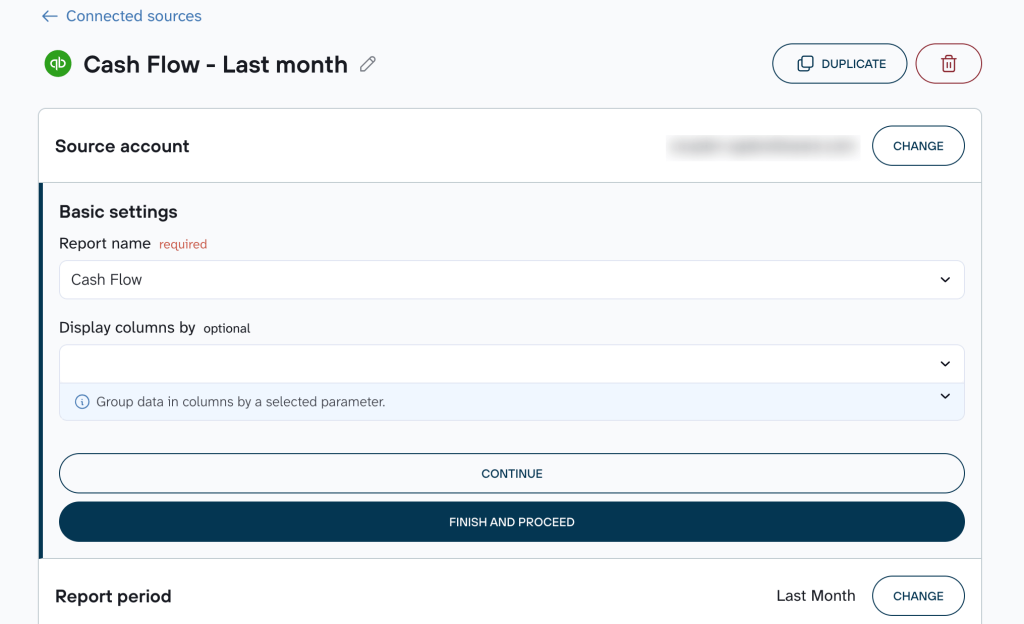
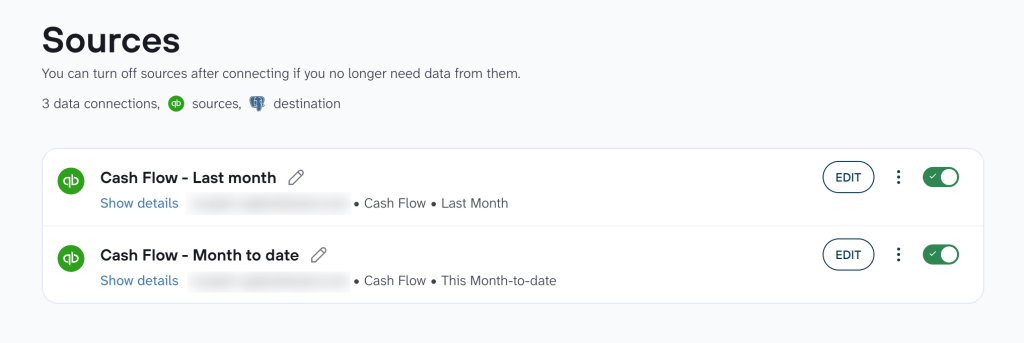
If you want to connect more data entities, another QuickBooks account, or a completely different app from over 400 PostgreSQL integrations, add a source and complete similar steps as above. Once your source settings are done, move forward.

Step 2: Organize your QuickBooks data set (optional)
QuickBooks exports come with internal IDs, transaction-level noise, and columns that don’t match how your finance team reports in real life. In this step, Coupler.io lets you clean that up once, before the data reaches PostgreSQL.
You can:
- Hide or remove unwanted columns. Drop internal IDs, sync tokens, or fields like
PrivateNoteif you’re focused on core financials. - Rename or rearrange columns to match your field mappings. For example, change
TotalAmttoInvoice Totaland moveTxnDateto the front to make the table clearer. - Filter rows and sort data. Filter to invoices from the current quarter, exclude voided transactions, or sort by
Balancedescending to see what’s still outstanding. - Aggregate data. Count invoices per
CustomerRefto track order frequency, or sumAmountby vendor to check total spend. - Add calculated columns. Create a
Days Overduefield fromDueDateand today’s date, or calculateNet AmountfromAmountminusTaxAmount. - Blend QuickBooks data with records from other apps. Join invoice data with Stripe payout records, or add Salesforce deals alongside revenue by customer.

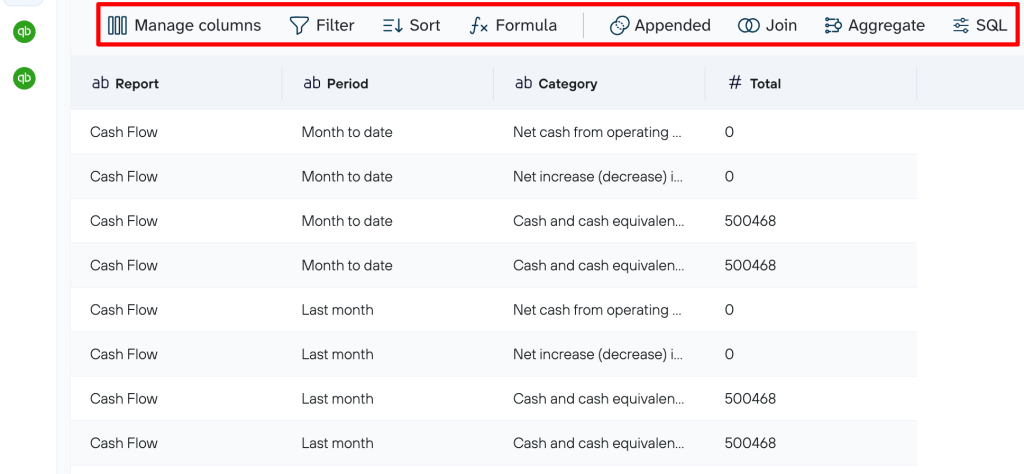
Once the data looks the way you want, proceed to send it to the destination.
Step 3: Load data to PostgreSQL
To import data into PostgreSQL, fill in the connection details first: host, port (5432 by default), database name, user, and password.

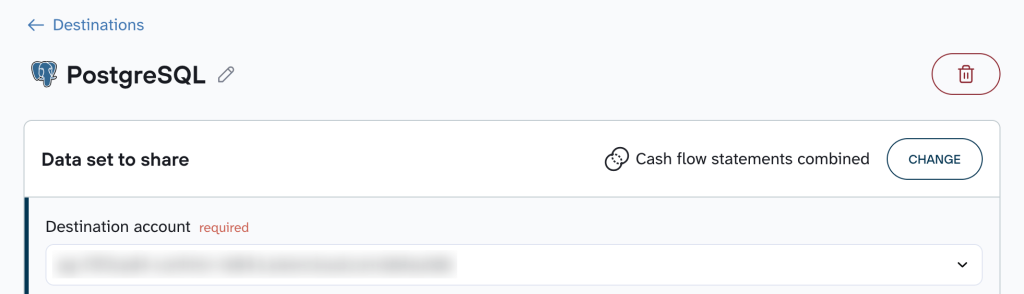
Set the target table and database schema, then pick your import mode. Replace overwrites the table on every run. Append adds new rows to what’s already there.
Click Save and run to put the data flow into action.
Once the data is flowing into PostgreSQL, feel free to check what you can do with the numbers:
If PostgreSQL isn’t the only place you want to bring your QuickBooks records, you don’t need a second data flow. Add destinations, like Google Sheets, Google Data Studio, or an AI tool, to the same flow, configure each one, and Coupler.io delivers the data to all of them.
Next, turn on automatic refresh to sync QuickBooks data with PostgreSQL without touching the flow again. Set a schedule from as frequent as every 15 minutes to monthly if that’s all your reporting needs.

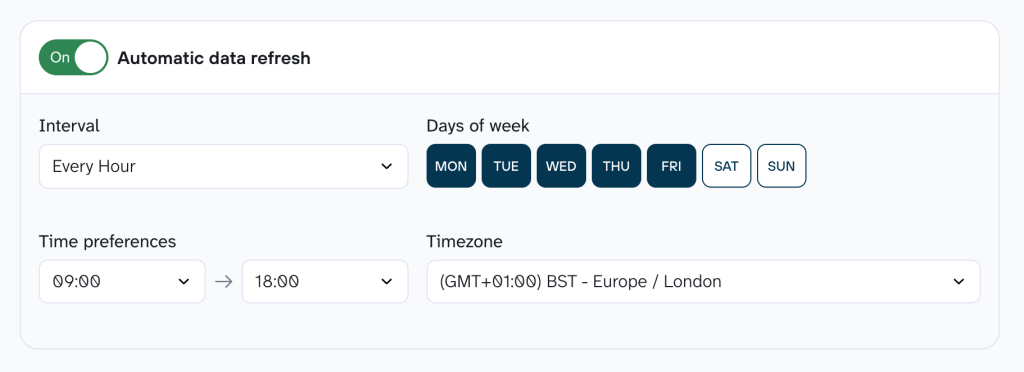
Click Save and run again: only then does Coupler.io connect QuickBooks to PostgreSQL on the schedule you picked.


Automate QuickBooks-PostgreSQL data flow
Get started with Coupler.io for freeBonus: Coupler.io’s AI Agent
If you just want to ask questions about your QuickBooks numbers instead of waiting for the PostgreSQL load, Coupler.io’s AI Agent does that inside the same data flow you just built. It’s a conversational assistant that works with one click on data you’ve already connected, so you can gain AI insights into your QuickBooks figures without leaving Coupler.io.
AI Agent is backed by Coupler.io’s Analytical Engine. Ask it to calculate a metric, and Coupler.io queries your QuickBooks data. Then, it runs the calculation with verified logic and hands the AI model a computed result to explain in plain language, avoiding guesswork.
What data can you load from QuickBooks?
- Account: the full chart of accounts, covering assets, liabilities, equity, income, and expenses
- Attachable: files and documents attached to QuickBooks transactions
- Bill: vendor bills recorded as payable
- BillPayment: payments made against vendor bills
- Budget: budget records set up in QuickBooks
- Class: the class labels used to segment transactions by department, location, or business line
- CompanyInfo: company-level settings and identifying details
- CreditMemo: credit memos issued to customers
- Customer: customer records such as contact and billing details
- Department: department or location records used for transaction tracking
- Deposit: bank deposit records
- Employee: employee records stored in QuickBooks
- Estimate: quotes and estimates sent to customers before invoicing
- ExchangeRate: currency exchange rates for multi-currency accounts
- Invoice: all invoices issued to customers
- Item: products and services sold or purchased
- JournalEntry: manual journal entries
- JournalCode: journal code reference data
- Payment: customer payments received against invoices
- PaymentMethod: the payment methods configured in QuickBooks
- Preferences: company-wide QuickBooks settings
- Purchase: general purchase transactions, including expenses and checks
- PurchaseOrder: purchase orders issued to vendors
- RefundReceipt: refunds issued to customers
- SalesReceipt: point-of-sale style sales receipts
- TaxAgency: tax agencies configured for the company
- TaxCode: tax codes applied to transactions
- TaxRate: tax rates linked to tax codes
- Term: payment terms used on invoices and bills
- TimeActivity: logged time entries
- Transfer: fund transfers between accounts
- Vendor: vendor records and contact details
- VendorCredit: credit memos issued by vendors
For most PostgreSQL reporting setups, you won’t need all 33 entities in one flow. Invoice, Payment, Bill, and Account cover the core of accounts receivable and payable reporting. Customer, Vendor, and Class add the dimensions most reports segment by. The rest, Estimate, TimeActivity, Budget, and so on, are worth adding only once you have a specific report that requires them.
Where else can you pull QuickBooks data besides PostgreSQL?
PostgreSQL is one of many destinations Coupler.io supports, grouped roughly like this (examples included):
- Spreadsheets: Google Sheets and Microsoft Excel, if your team still reviews numbers in a spreadsheet before anything else.
- BI tools: Power BI, Google Data Studio, Tableau, and Qlik, for teams that already build dashboards in one of these and just need the QuickBooks data flowing in.
- Data warehouses: BigQuery, Snowflake, Redshift, and Supabase, alongside PostgreSQL, if your stack runs on a different warehouse or you’re comparing options.
- AI tools: Claude, ChatGPT, Gemini, Perplexity, and Copilot, for teams that want to query QuickBooks data conversationally instead of, or in addition to, a database – and more destinations.
When QuickBooks data lands in an AI tool, Coupler.io’s Analytical Engine runs the math and returns computed numbers to the model, the same as described in the AI agent section above.
You can also pull from Coupler.io’s library of AI Agent skills, including one built for QuickBooks and data from other sources. So recurring questions like margin trends or cash runway don’t need a new prompt every time.
Read more on analyzing QuickBooks data with AI.
What you get using Coupler.io for the QuickBooks to PostgreSQL integration
Once you export QuickBooks reports to PostgreSQL database, the next move is to get real reporting value out of your financial data rather than wrestling with SQL. Coupler.io lets you work with that data before and after it reaches Postgres.
Consolidate multiple QuickBooks entities into one table
If you run more than one QuickBooks company file, maybe separate entities, subsidiaries, or regional books, you don’t need a PostgreSQL table for each. Coupler.io’s Append and Join operations merge multiple QuickBooks accounts into a single consolidated dataset before it ever lands in PostgreSQL. Append stacks matching entities (e.g., invoices from three company files) into one table. Join lines up related entities, like invoices with customer records, based on a shared column. Either way, you query one table instead of writing UNION statements across several.

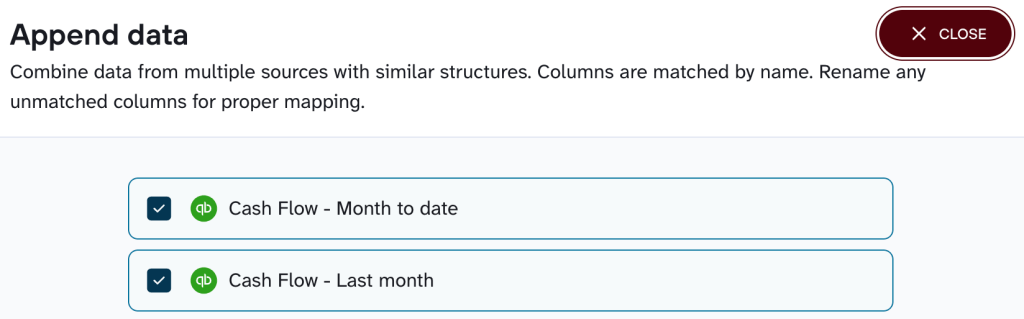
Say you run three regional QuickBooks company files for the same parent business. With Append, you can select multiple datasets such as Cash Flow – Month to date and Cash Flow – Last month and stack them into a single table before sending it to PostgreSQL. Instead of querying each source separately and reconciling the results, you work with one combined data.
Blend QuickBooks data with other information
Financial data means more once it sits next to the activity that drove it. A revenue number on its own tells you what happened, but next to marketing spend or sales activity, it starts to tell you why. Coupler.io connects to 400+ apps, so you can combine data from different sources in the same flow that pulls from QuickBooks, instead of running a separate integration for every app. A few ways you can use it:
- Blend QuickBooks revenue with Google Ads and Facebook Ads spend to calculate real customer acquisition cost rather than relying on ad platform-reported CPA.
- Merge customer and invoice data with Salesforce or HubSpot deal records to see which closed deals turned into paid invoices.
- Combine expenses with Stripe payout data to reconcile what came in against what went out, without switching tools.
- Join project or class data with time-tracking records from Harvest or Toggl to find out labor cost against revenue per project.
Filter QuickBooks transactions before they load
You rarely need every transaction QuickBooks has ever recorded sitting in your database. With Coupler.io, you can filter by date range, transaction status, class, or any other field before the load runs. A common setup: filter categories to include those containing net and cash, exclude categories containing adjustments, or include categories containing beginning.

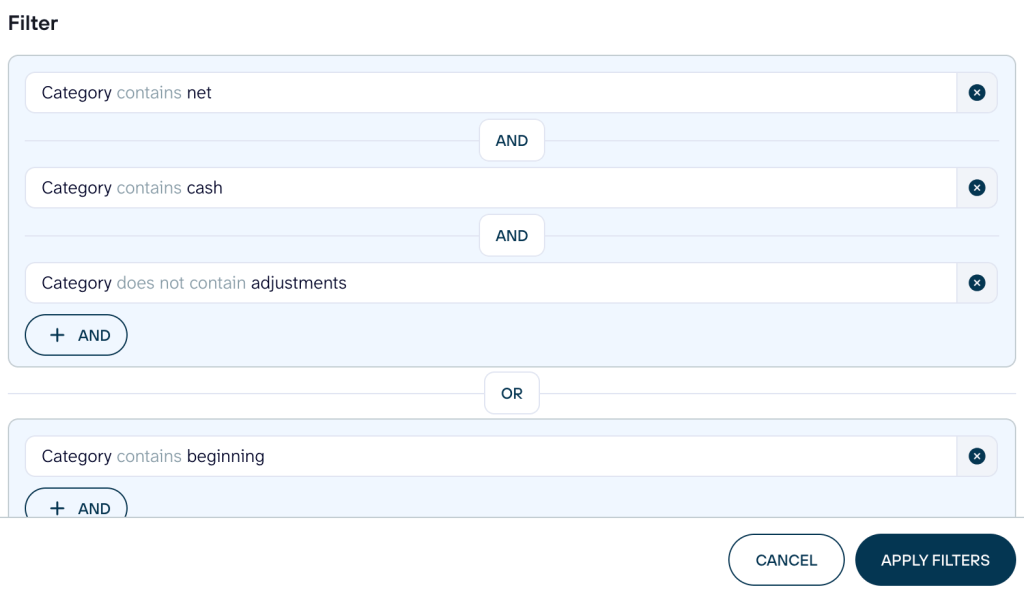
This lets you load only the categories relevant to the forecast instead of carrying the entire QuickBooks dataset into PostgreSQL.
Aggregate QuickBooks data into ready-made metrics
Coupler.io lets you run sum, average, count, min, and max operations on QuickBooks data before it’s at the destination. So Postgres receives metrics instead of raw rows you’d otherwise aggregate with SQL.
For instance, roll up total revenue, invoice count, and average invoice value per customer. This is a starting point for spotting your most valuable customers without writing the SQL queries yourself.
A second example: sum Bill amounts by Vendor and month to get a rolling view of vendor spend, or average TimeActivity hours by Employee to see who’s over- or under-booked. Because the aggregation happens before the load, the PostgreSQL table stays small, and the numbers are already the ones your report requires.
Get an analysis-ready QuickBooks report in a few clicks with Coupler.io data set templates
It still takes time to build the data transformation logic, even with a no-code tool, since someone still has to decide which fields to keep, how to join them, and what to name the result. Coupler.io’s data set templates skip that step for QuickBooks and QuickBooks Reports sources. Each template comes with the data already structured, joined where it matters, and organized for immediate analysis in PostgreSQL or wherever else you send it.

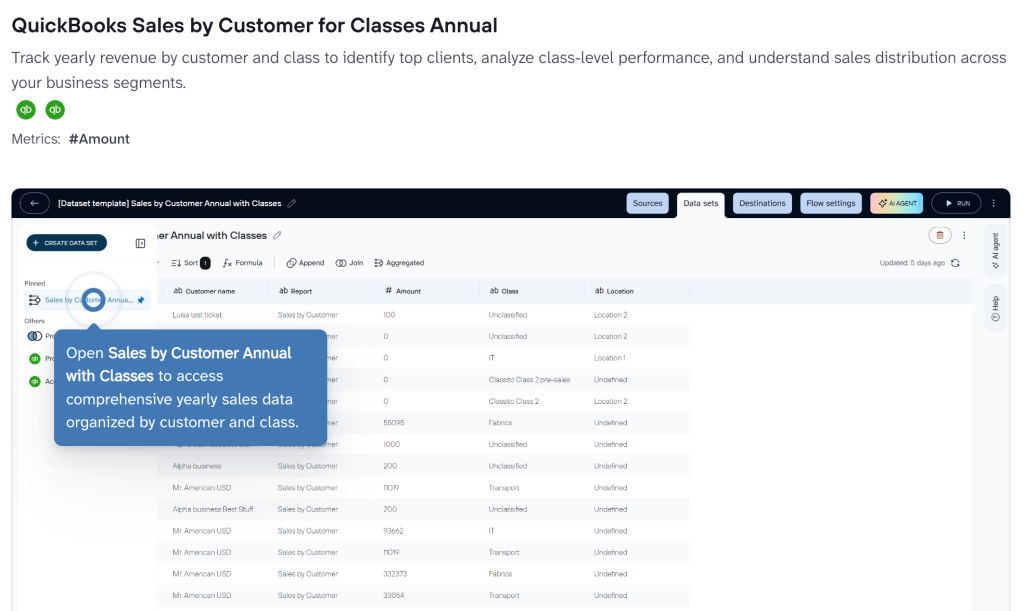
Examples from the available templates include:
- QuickBooks Sales by Customer for Classes Annual: yearly revenue by customer and class, to spot top clients and compare performance across business segments.
- QuickBooks P&L This/Last Month: profit and loss totals for the current month-to-date and the full previous month, organized by section and category, to track income, costs, and earnings within each period.
- QuickBooks Balance Sheet Annual: a 12-month balance sheet report covering assets, liabilities, and equity.
- QuickBooks Invoices & Items: invoices joined with item-level data, to monitor billing status, amounts due, and product-specific performance (invoices with multiple line items appear as duplicate rows, one per SKU).
- QuickBooks Bills: outstanding and paid bills by vendor, due date, amount, and balance, to manage payables and cash flow.
- QuickBooks Cash Flow This Month: the current month’s cash inflows and outflows by activity type, to assess operational liquidity and spending patterns.
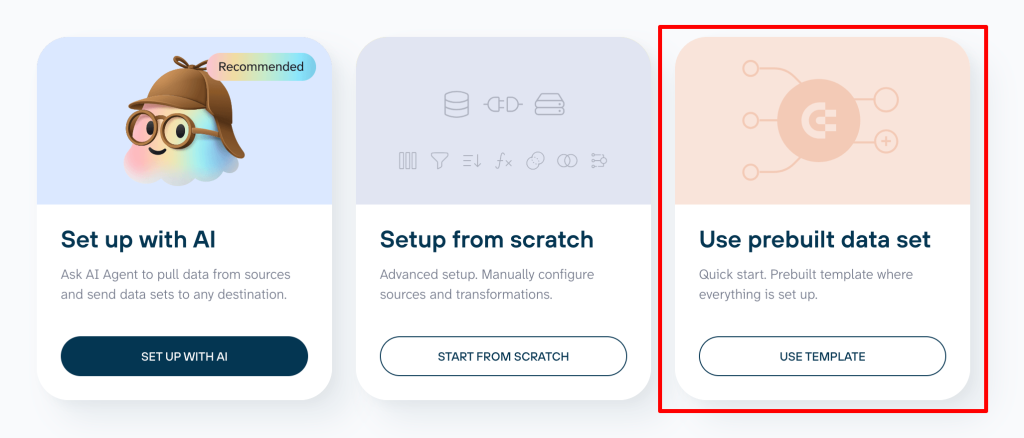
To use one, choose to create a new data flow and select Use prebuilt data set instead of setting up from scratch.

Ready-to-use QuickBooks data in dashboards
Once QuickBooks data arrives in PostgreSQL, you can build your charts and reports on top of it. To skip that work entirely and get ready-made insights, proceed straight to QuickBooks report templates for Google Data Studio, Google Sheets, Power BI, and inside Coupler.io. Here are a few examples:
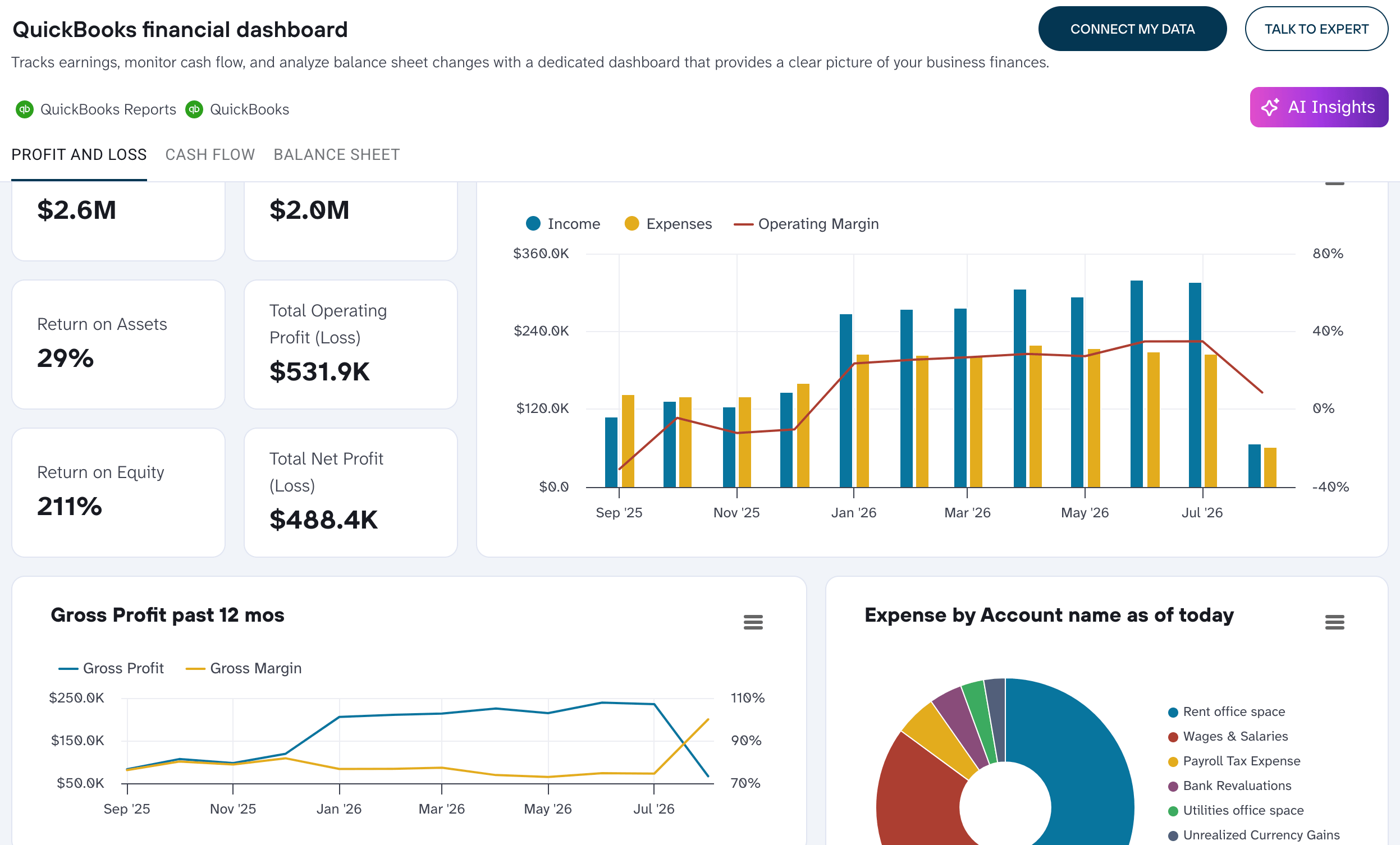
- To track earnings, monitor cash flow, and show balance sheet changes in one view, use the QuickBooks financial dashboard, helpful when a business owner wants the full financial picture without opening three separate reports.

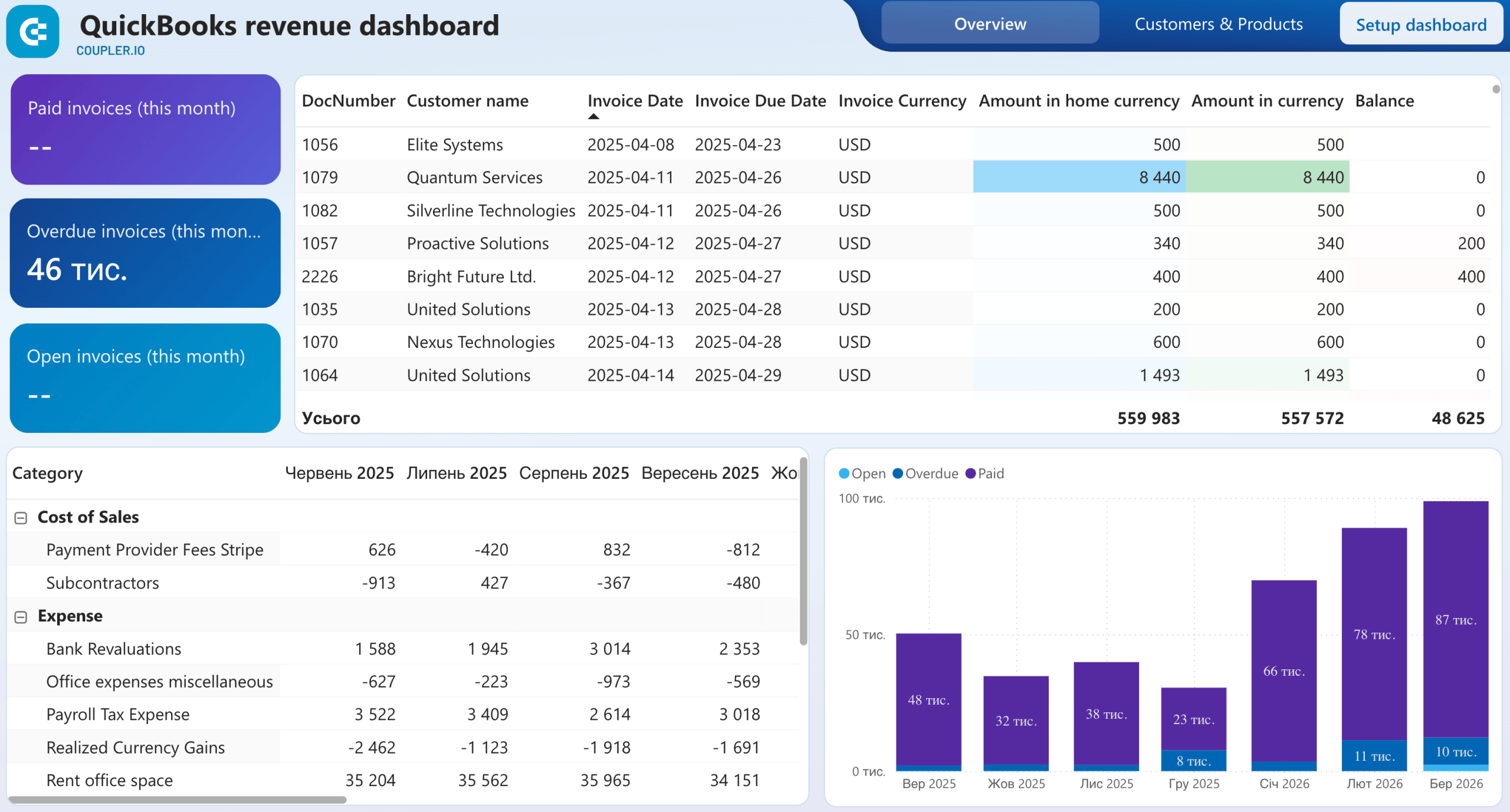
- If you invoice customers in more than one currency and need to see real, not converted-on-the-fly, figures, consider the Revenue dashboard for multi-currency QuickBooks accounts to explore income and cost trends by currency.

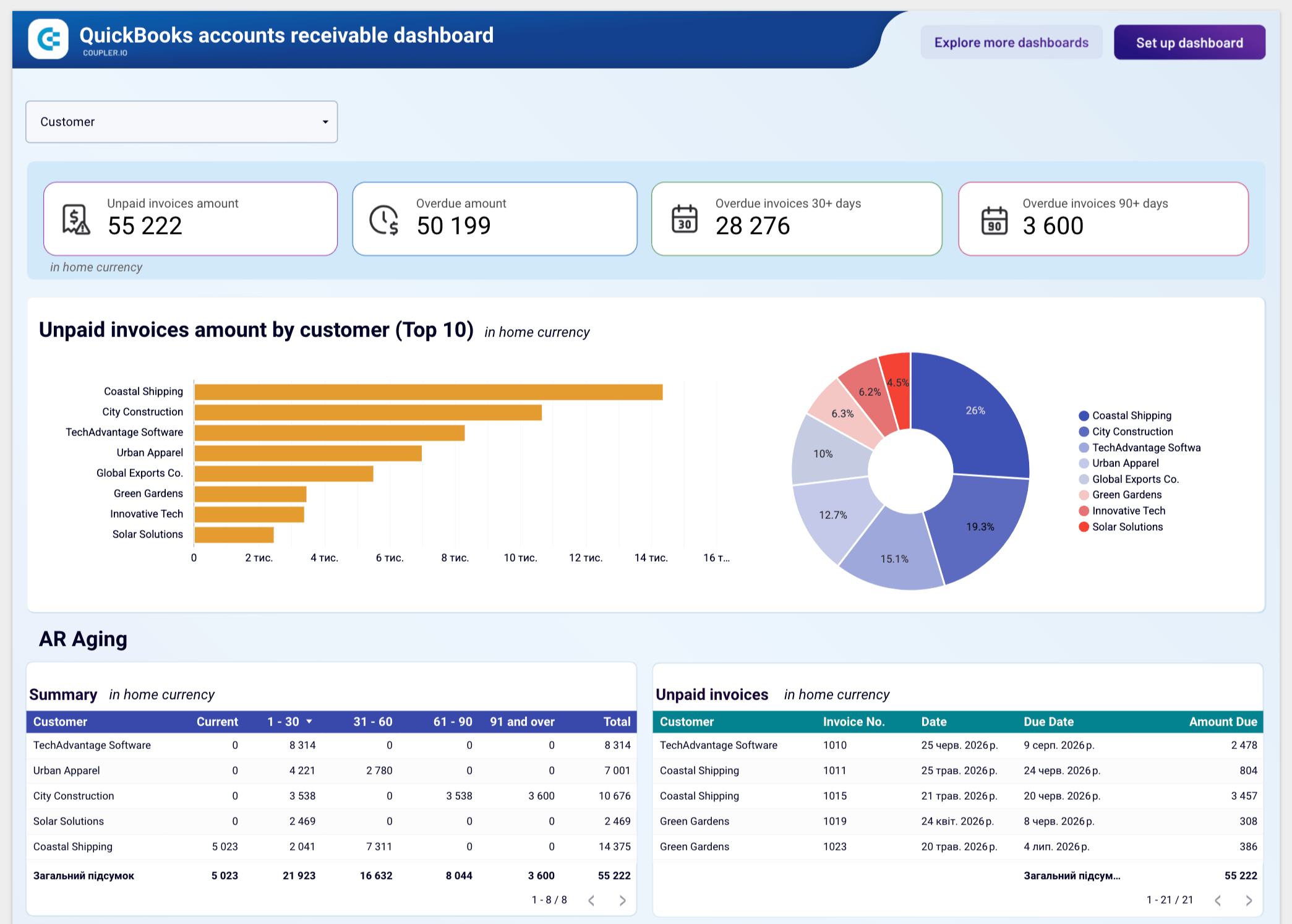
- Use the Accounts receivable dashboard to track overdue invoices by customer and age, and prioritize who to chase first.
QuickBooks accounts receivable dashboard

QuickBooks accounts receivable dashboard
Preview dashboardTo browse more templates available with Coupler.io, visit the full gallery of QuickBooks dashboard examples.
There are report templates for Xero if it’s the accounting software you’re using instead of QuickBooks.
AI integrations
To query QuickBooks data conversationally even on days you’re not touching the database, use Coupler.io’s AI integrations. They connect QuickBooks data to AI tools like Claude, ChatGPT, Gemini, Perplexity, and Copilot through MCP running independently of the PostgreSQL flow. These capabilities, together with the built-in AI Agent and the Analytical Engine covered earlier in the article, are part of Coupler AI – the AI layer inside Coupler.io.
One detail worth knowing: you can attach business context to a QuickBooks data set, things like how your team defines “net revenue,” so you don’t have to re-explain that context to the AI in every conversation.
None of this replaces PostgreSQL as your system of record. The AI integrations sit alongside it, working for ad-hoc inquiries and the questions that don’t need a formal report. PostgreSQL, at the same time, stays the place your analysts, and anyone auditing the numbers, go for the structured version.
What are other export methods or ways to integrate QuickBooks with PostgreSQL?
Coupler.io connects QuickBooks to PostgreSQL without engineering involvement or a custom ETL tool. But suppose you’re weighing whether to build something yourself, or you already have a developer who could own a pipeline. In that case, there are manual and custom-code methods below.
Manual/batch export-and-load
I’d only reach for this if I needed a one-off historical dump rather than a recurring feed. Manual/batch export-and-load is the lowest-effort option for a task you’ll do once or twice because it requires nothing beyond QuickBooks’ built-in export and basic SQL knowledge. But someone has to remember to re-export, re-clean, and re-run the load. Plus, QuickBooks’ export format shifts often enough that last month’s script doesn’t work on this month’s file.
Coupler.io replaces that cycle with a scheduled flow: the export, the cleanup, and the load all happen at the frequency you set.
Custom ETL via QuickBooks Online API
It works if your team already writes and maintains integration code, and someone is willing to own the pipeline long-term. With custom ETL via QuickBooks Online API, you get full control over your QuickBooks Online integration: which fields you pull and how you shape them before they reach PostgreSQL. Nevertheless, you deal with OAuth tokens that expire and need refreshing, and the API has rate limits that are easy to hit. QuickBooks also occasionally deprecates or changes fields on its entities, sometimes with only a few months’ notice in the developer changelog.
In comparison, when you automate QuickBooks data sync with Postgres using Coupler.io, nobody on your team has to track Intuit’s API changelog as part of their job.
Custom sync via QuickBooks Online webhooks
This way to integrate QuickBooks with PostgreSQL is practical for near-instant updates if your team has the infrastructure to run a persistent listener. Custom sync via QuickBooks Online webhooks suits operational use cases like triggering a fulfillment action shortly after a payment clears. However, you need a reliable listener, retry handling for missed or duplicate webhook deliveries, and monitoring to know when the listener itself goes down. A silently failed listener means silently stale data until someone notices a number looks wrong.
Coupler.io’s fastest refresh, every 15 minutes, doesn’t match true webhook-speed updates but removes the need to run and monitor a listener service at all.
Custom integration via QuickBooks Desktop SDK
You can choose this option if you’re still on QuickBooks Desktop and haven’t migrated to QuickBooks Online, since it’s the only programmatic path available for this case. Note that custom integration via QuickBooks Desktop SDK needs the Desktop app running on a specific machine at sync time. This rules out most cloud-hosted automation and means the sync stops the moment that machine is off or asleep. qbXML is also harder to debug than a REST API, with error messages that don’t always point to the actual problem.
Key challenges when connecting QuickBooks to PostgreSQL
QuickBooks data stays stuck in manual, one-off exports
Without automated workflows, someone has to re-export and re-upload QuickBooks data every time it needs updating. That task quietly falls off someone’s list the first busy week, usually right before the numbers are required for a decision.
When using Coupler.io’s scheduled data flow, you automatically get QuickBooks records into Postgres without a recurring manual task on anyone’s calendar. Set the schedule once, and data in PostgreSQL stays updated whether or not anyone remembers to check it.
Raw QuickBooks entities and reports arrive unstructured and hard to query
Exported QuickBooks data usually needs manual aggregation, joining, and cleanup before it’s usable for analysis. This turns a five-minute export into an hour of spreadsheet-like work and repeats every time the load runs.
With Coupler.io’s QuickBooks data set templates, your financial figures are pre-aggregated, joined, and formatted, ready to load as structured PostgreSQL tables.
Custom integration requires engineering resources most finance teams don’t have
A custom QuickBooks to PostgreSQL integration typically requires a developer to build it, and another developer’s time every time it breaks. This means finance ends up waiting in an engineering queue for a report.
On the contrary, Coupler.io is a no-code data integration tool. So finance and ops teams set up the data flow themselves without needing to further maintain it. They don’t ever need to open a ticket with engineering and wait for someone else’s sprint to have room for it.
Each new reporting destination means setting up a separate export process
Most teams need QuickBooks data in more than one place, for example, a database and at the same time a spreadsheet, a BI tool, or both. To build separate data pipelines for each destination, you need to handle more maintenance work every time the numbers change.
However, Coupler.io loads the same QuickBooks dataset to multiple destination types from one configured flow. To get data into Google Sheets or Power BI alongside PostgreSQL, you don’t have to start over, but only add a destination to the flow you already created.
Automate QuickBooks to PostgreSQL reporting
Get started for free