
How to Connect QuickBooks to ChatGPT for AI-Powered Analysis of Your Business Finances

QuickBooks Online tracks your business finances well, but deeper analysis and uncovering patterns is not straightforward. A profit and loss statement shows that profit fell; it doesn’t show the five subcontractor bills behind the drop. The aging report lists who owes you; it doesn’t tell you your biggest customer has been paying slower every quarter. Closing that gap normally means exports and an afternoon spent in spreadsheets.
The alternative: connect QuickBooks to ChatGPT through a prepared data layer and you ask in plain language, against the transactions behind the reports, with the math checked before the answer reaches you. In other words, you use ChatGPT to talk to your QuickBooks data, not just its summary reports.
I’ll walk through my setup, the prompts I tested on a live dataset, and the honest map of alternatives, including Intuit’s own ChatGPT plugin and the jobs it’s better at.
Choose the right method to get QuickBooks data into ChatGPT
There’s more than one way to get QuickBooks data into ChatGPT, and they’re built for different jobs.
Intuit’s native plugin manages your books from chat and answers report-level questions. Manual exports and copy-paste cover a one-off look at a single report. Zapier-style tools automate bookkeeping events rather than analyze anything, and the QuickBooks API is there if you’re building something custom.
Coupler.io is the one built for recurring analysis: it keeps a transaction-level dataset fresh on a schedule, with the math verified before ChatGPT sees it.
Here’s how the options compare:
| Connection method | Setup effort | Who does the math | Best for | Limitations |
|---|---|---|---|---|
| Coupler.io | Low, no code, about 5 minutes | Analytical Engine runs verified calculations; ChatGPT interprets them | Recurring financial analysis, transaction-level detail, blending QuickBooks with other sources | Analysis only: it reads your books but can’t act on them (no creating invoices or running workflows); refresh frequency depends on your plan |
| Intuit QuickBooks plugin in ChatGPT | Low, connect and authorize | QuickBooks generates the reports and benchmarks; ChatGPT does the analysis on them | Managing your books from chat: creating and sending invoices, payroll lookups, loan benchmarks, plus quick P&L questions | Analysis stays report-level and single-source (no blending, no custom context); US QuickBooks Online only |
| Manual export / file upload | Low per export, high over time | ChatGPT, on a static file | One-off analysis of a single report | Snapshot goes stale immediately; no refresh, no schedule |
| Copy-paste | None | ChatGPT, on pasted rows | A quick look at a few rows | Context limits, formatting errors, no sensitive-data control |
| Zapier and other automation tools | Medium, per-workflow setup | Neither: these move records, they don’t analyze | Automated workflows like drafting an email when a new invoice posts | Built for triggers and actions, not analysis; per-task pricing adds up |
| QuickBooks API scripts / custom GPT actions | High, engineering required | Your code, then ChatGPT | Custom pipelines and product features | Build-and-maintain cost; you own OAuth, rate limits, and every QuickBooks API change |
If you want a one-off answer, upload a report and ask. If you want your books available to ChatGPT every day, with the numbers checked before the AI sees them, you need a prepared data layer in between. That’s what Coupler.io does, and the setup is below.

Run QuickBooks analysis in ChatGPT with Coupler.io
Get started for freeConnect QuickBooks to ChatGPT with Coupler.io
Coupler.io is a no-code data integration platform and AI analytics solution. It pulls data from 400+ sources, prepares it, and delivers it to spreadsheets, dashboards, warehouses, and AI tools like ChatGPT, Claude, and Gemini through its MCP server.
Why lead with this method when Intuit has its own plugin? Compared to the Coupler.io app, the Intuit QuickBooks plugin can’t
- blend QuickBooks with your other data (Stripe, ad platforms, spreadsheets)
- attach business context to the data so the AI works with your definitions
- run calculations that are verified outside the language model
Coupler.io is built around exactly those three, plus a ready-made finance skill on top.
For business finances, the value also sits in what happens before ChatGPT sees anything. QuickBooks data is sensitive by definition, so Coupler.io lets you filter out what the analysis doesn’t need: hide account IDs, strip memo fields, drop payroll details.
ChatGPT never connects to your QuickBooks account directly; it works with the prepared dataset only, through a read-only connection.
You can connect QuickBooks Online to ChatGPT in two ways:
- Using a conversation with ChatGPT – you tell what you need and AI implements it
- Manually in Coupler.io – you control the entire data flow setup yourself and can add context to your dataset.
AI chat-first QuickBooks to ChatGPT connection
Step 1: Sign up for Coupler.io and install the plugin in ChatGPT
Create a free Coupler.io account; it doesn’t need a credit card.
Then, in ChatGPT, open Plugins in the sidebar, search for Coupler.io, select the “ Connect to your business data” one, and click Connect. Or use this direct link.
Note: in July 2026, OpenAI folded its app directory into a plugin directory, and apps themselves were called connectors until late 2025. Look for “Plugins” in the ChatGPT sidebar; that’s where you’ll find all connectors and where you can install skills.
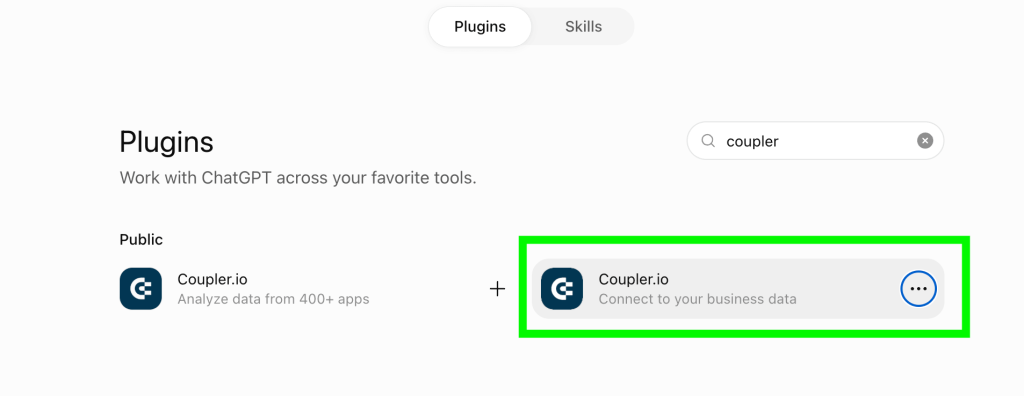
You will be prompted to sign in with Coupler.io and authorize the connector. This is a one-time step that lets ChatGPT use Coupler.io’s tools for any data source you connect later, not just QuickBooks.
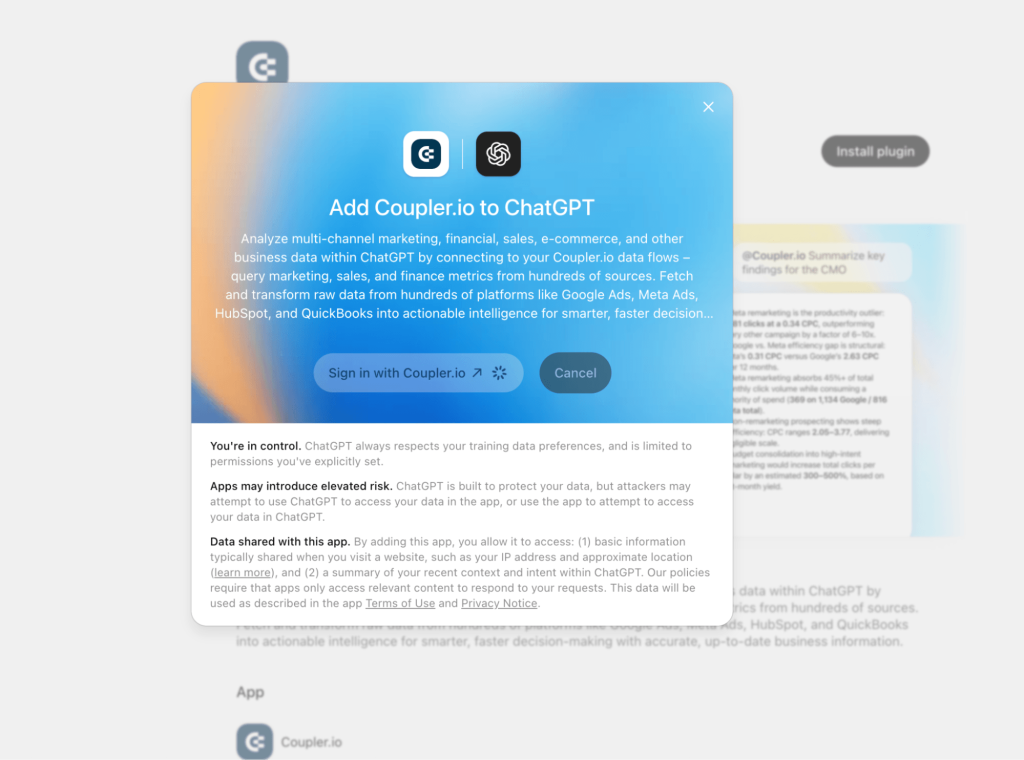
Note: if you connected Coupler.io before, you may have an older version installed. Remove it and install the current listing; you can check you have the right one by asking ChatGPT what the Coupler.io plugin can do.
Once the connector is installed, test the connection by asking ChatGPT to tell you what it can do.
This is a good test to understand the areas the connector can help. Note that on top of analyzing data from existing data flows, it can also set new ones or trigger existing ones.
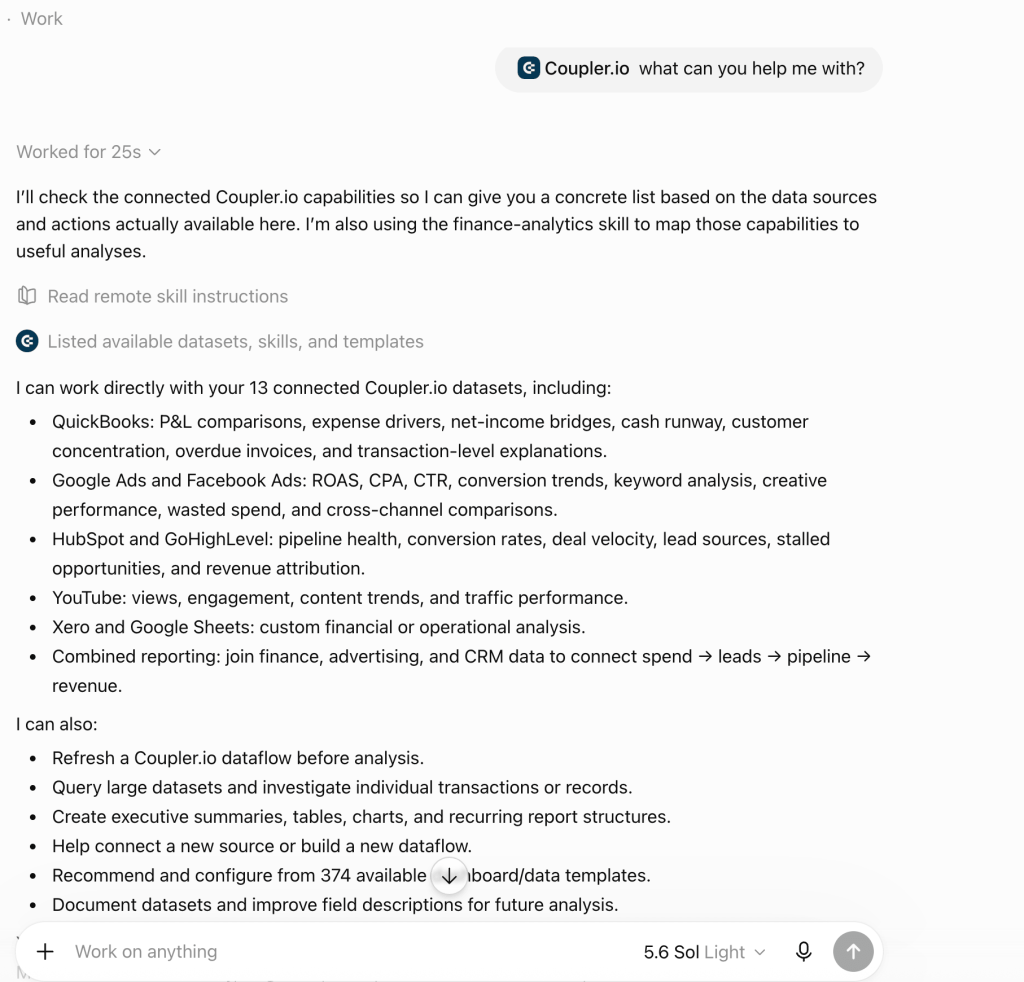
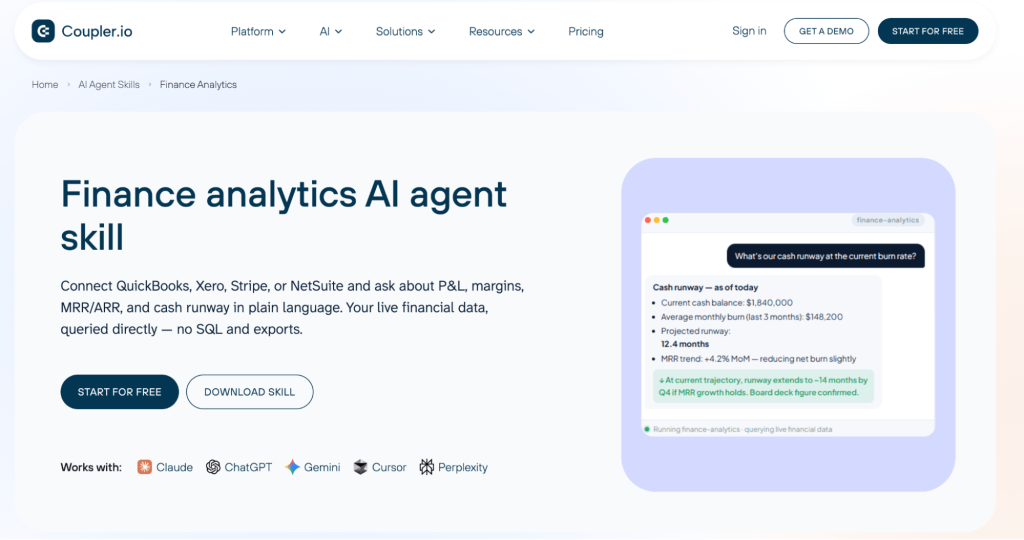
You’ll also notice that a finance-analytics skill is loaded when the connector is installed. This is Coupler.io’s preset skill that you can edit and customize if you want.
If you want to connect QuickBooks to Claude, the flow is mostly the same. But instead of a plugin, you’ll need to use the Coupler.io connector for Claude.
Step 2: Ask ChatGPT to connect your QuickBooks data
Open a new chat, attach the Coupler.io plugin through the + menu, and describe what you want:
Prompt: I want to analyze my business finances. Connect my QuickBooks Online data.
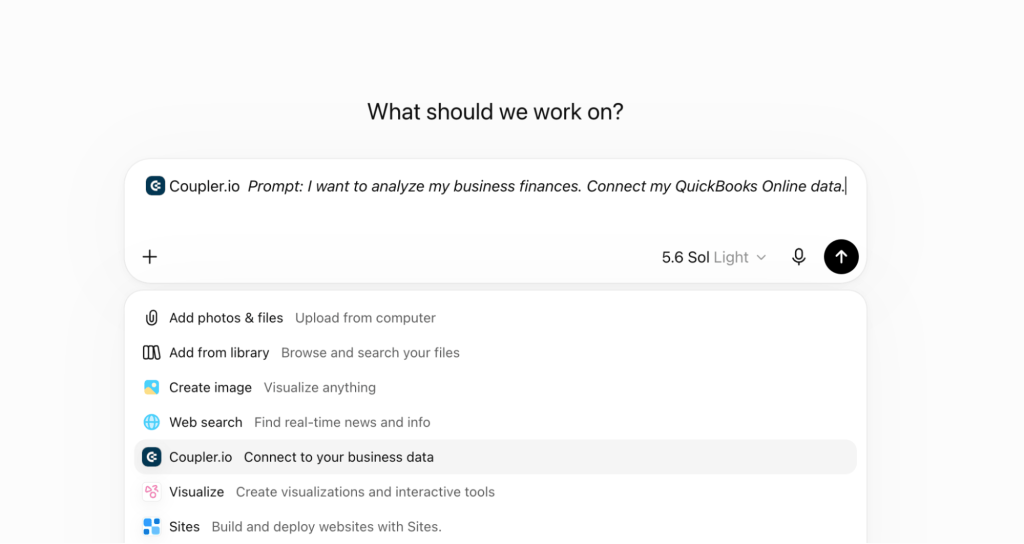
ChatGPT doesn’t have access to your QuickBooks account yet, so it prompts you to authorize the connection through a secure Coupler.io link. Coupler.io requires each source to be authorized by you directly; for security reasons, the AI can’t do that step on your behalf.
Click the link, sign in to QuickBooks in the separate tab, and come back to the chat.
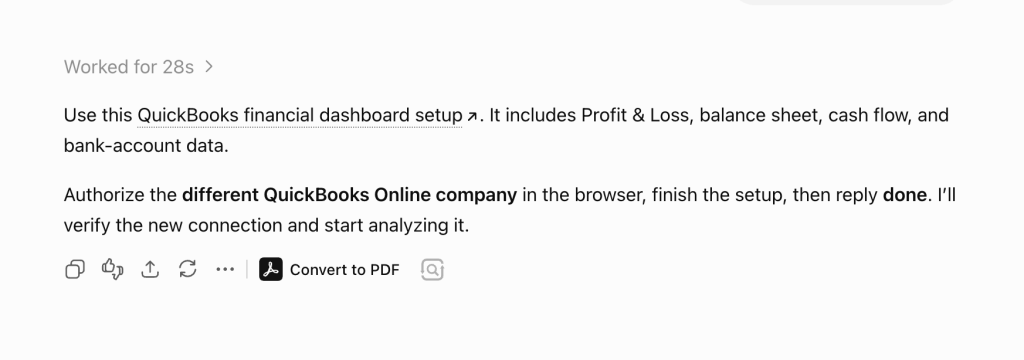
From there, ChatGPT walks you through the rest in the conversation: which data to pull (invoices, transactions, expenses, bank accounts, or reports, including the profit and loss statement and the balance sheet) and how often to refresh it, so your numbers stay up to-date for future analyses. You’ll see a confirmation before it makes any change on your behalf, like adding a source or setting up the flow.
You can also skip the setup language entirely and just ask ChatGPT to analyze your QuickBooks profit and loss, and it creates the data flow it needs along the way, asking you to authorize when required.
Note: In addition to ChatGPT, you may add other destinations for your QuickBooks data, such as spreadsheets, dashboards, and other AI tools like Claude, Cursor, Gemini, etc.
Ask ChatGPT about your books with Coupler.io
Get started for freeSet up the QuickBooks to ChatGPT integration in the Coupler.io app (optional, but worth it for financial data)
Starting in the chat is the fastest route for a first try. Opening the data flow in the Coupler.io app gives you control the chat doesn’t:
- Hide sensitive columns before the AI sees anything: account IDs, payroll details, or any field the analysis doesn’t need. ChatGPT works with the prepared dataset only, through a read-only connection, and never touches your QuickBooks account directly.
- Blend QuickBooks with other sources in the same flow, like Stripe for billing data or Google Sheets with your budget, so you can ask questions that span all of them.
- Add business context: whether your books run on a cash or accrual basis, your fiscal calendar, how your chart of accounts maps to how you talk about the business. The context travels with every query, so ChatGPT works with your definitions instead of guessing at them.
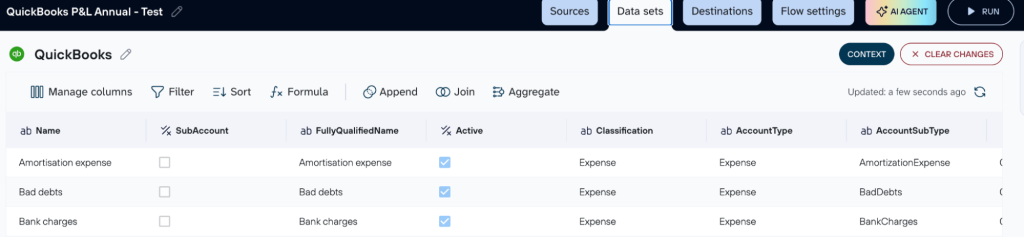
Either path ends in the same place: a scheduled data flow feeding ChatGPT analysis-ready QuickBooks data. Start in the chat if you’re testing the waters; open the app when you know exactly what the AI should and shouldn’t see. Here is what the setup flow looks like:
Step 1: Create a data flow for QuickBooks data
Sign up for Coupler.io. It’s free and doesn’t need a credit card. Create a new data flow with QuickBooks as the source and ChatGPT as the destination. Try it right away with our preset form below:
Authorize your QuickBooks Online account, then choose the data: invoices, transactions, expenses, bank accounts, or reports, including the profit and loss statement and the balance sheet.
You can also add more sources from over 400 supported ChatGPT integrations to the same flow, like Stripe for billing data or Google Sheets for your budget, and blend them into one dataset.
Step 2: Organize your data and add context
Coupler.io shows a preview of the raw financial data before anything reaches the AI. This is where you filter rows, hide sensitive columns, and blend sources.
This is also where you add business context, and for accounting data it matters more than for most sources.
Step 3: Connect ChatGPT and start the conversation
In the Destinations tab, select ChatGPT and click Get the Coupler.io App.
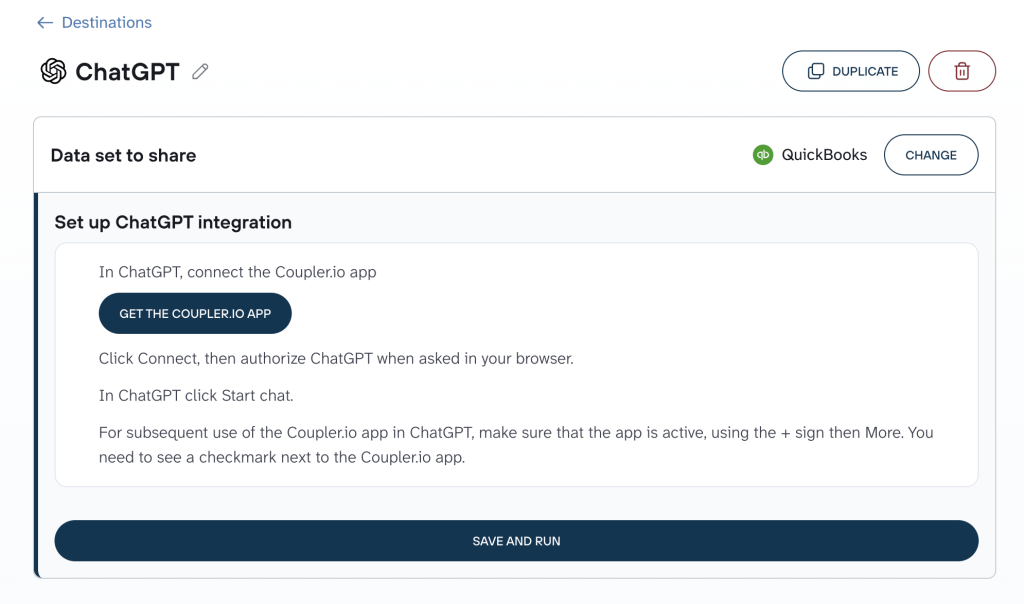
You’ll be redirected to install the Coupler.io app in ChatGPT: click Connect, and authorize your Coupler.io account. It’s a one-time step.
Step 4: Set the refresh schedule and start asking questions
Back in Coupler.io, set how often the data should refresh, either when ChatGPT asks during setup or in the Coupler.io app under the data flow’s schedule settings. This is what separates the connection from a one-off export: ask about last week’s cash position next month, and ChatGPT reads the latest sync instead of a stale snapshot.
Once you save and run the data flow, ask your first real question:
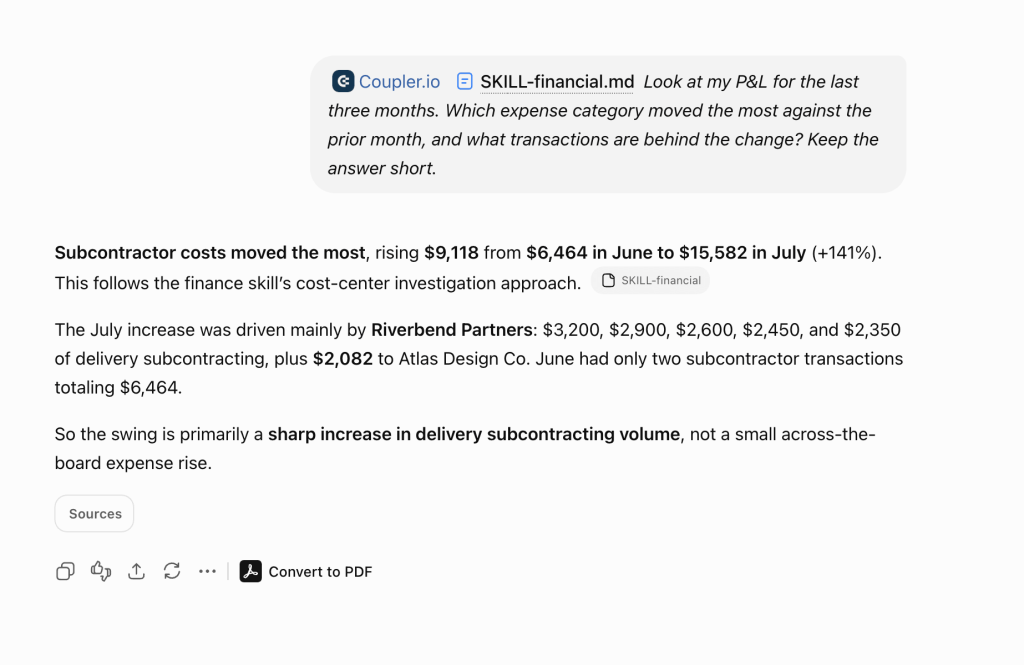
Prompt: Look at my P&L for the last three months. Which expense category moved the most against the prior month, and what transactions are behind the change? Keep the answer short.
What ChatGPT returns:
With the skill attached, ChatGPT marks its answers with a small skill chip wherever it’s following the instructions, so you can tell the difference between the skill’s discipline and the model’s improvisation.
What matters when ChatGPT analyzes your QuickBooks data
Connecting your QuickBooks takes under two minutes, but trusting the answers depends on four things, all of which Coupler.io covers:
Business context so the AI doesn’t guess
The same QuickBooks account can describe two different businesses depending on convention. Cash or accrual basis. Calendar or fiscal year. Whether “consulting income” includes retainers or only project work.
Attach that context once in Coupler.io and it travels with every query. Without it, ChatGPT answers questions about your books using someone else’s assumptions.

Accurate calculations, not confident guesses
Language models are natural language processing systems, not calculators. Ask one to compute margins across a year of transactions from raw rows and it can return a confident number that’s simply wrong.
Coupler.io’s Analytical Engine runs the math first: it translates the question into SQL, executes it against your dataset, validates the result, and hands ChatGPT verified numbers to interpret.
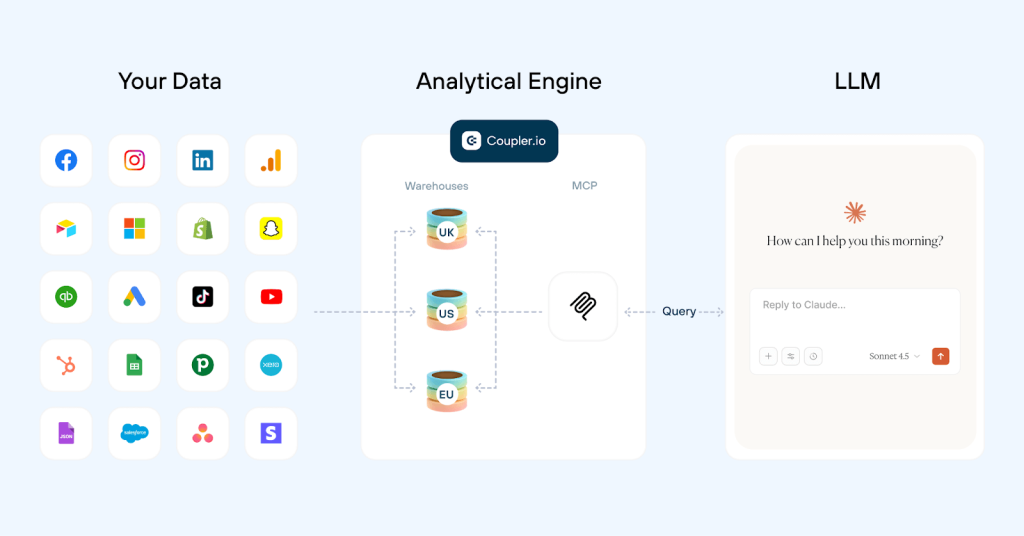
A finance skill instead of a blank prompt
AI agents work better with instructions written by someone who knows the domain. Coupler.io’s free finance-analytics skill is exactly that: a pre-built instruction set that teaches your AI tool how to generate financial insights from QuickBooks using ChatGPT, Claude, or Gemini.
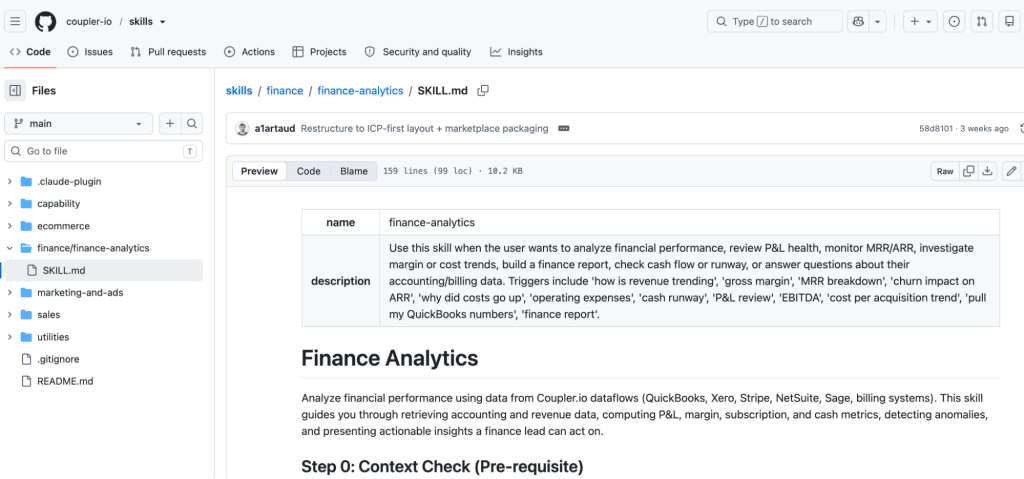
Before computing anything, the skill instructs AI to check whether your books run cash or accrual and never silently switches. It excludes voided and reversed journal entries so refunds don’t count as revenue. It refuses to extrapolate cash runway from P&L data alone, because runway needs actual cash balances. And it treats a 10% gross margin drop as critical, not a footnote, which is the sensitivity a finance review actually needs.
The skills are open source, so you can read exactly what yours does in the Coupler.io skills repository and adapt it to your business.
One dataset, several destinations
The same data flow that feeds ChatGPT can feed Google Sheets and a dashboard at the same time.
A practical setup: ChatGPT for ad-hoc questions, the prebuilt QuickBooks financial dashboard for the standing view with operating margin, cash runway, and burn rate tracked continuously.
You prepare the data once and every destination shows the same numbers, refreshed on the same schedule.
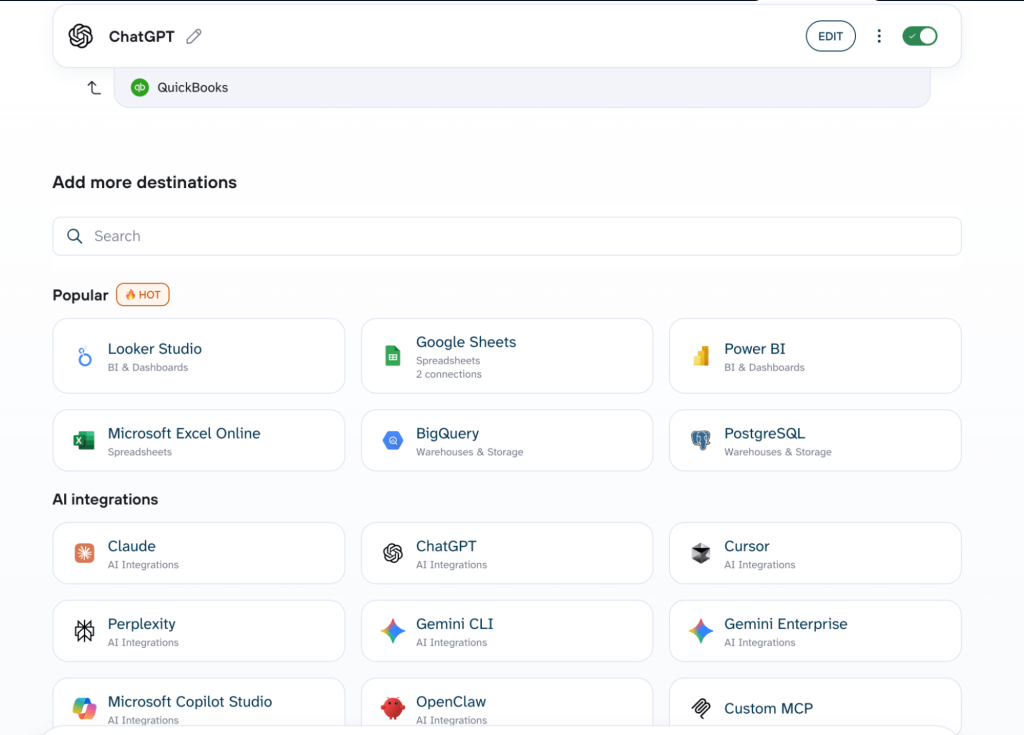
Learn how to export data from QuickBooks to spreadsheets, dashboards, and data warehouses with Coupler.io.
Track your QuickBooks numbers in ChatGPT with Coupler.io
Get started for freeExamples of QuickBooks analysis you can run in ChatGPT
Let’s see the QuickBooks data connector in action. The following three examples show how I analyze QuickBooks data in ChatGPT with questions that are slow or impossible to answer inside QuickBooks itself. I ran all three with the finance-analytics skill attached, which is why you’ll see the skill citations in the responses.
Check your cash runway without building a model
QuickBooks shows your bank balance and your P&L, but runway is a calculation it doesn’t surface: how many months you can operate at the current burn rate. Normally that means a spreadsheet someone has to maintain.
With bank accounts and expenses in your data flow, it’s one question:
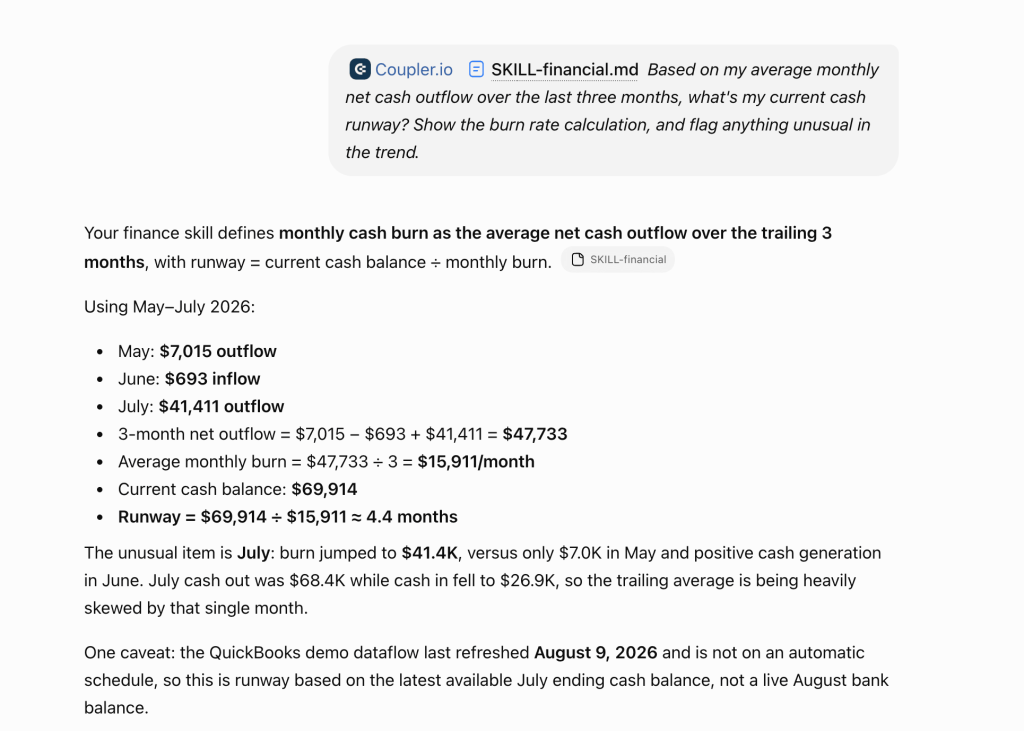
Based on my average monthly net cash outflow over the last three months, what's my current cash runway? Show the burn rate calculation, and flag anything unusual in the trend.
In my test, ChatGPT showed the burn calculation month by month, landed on about 4.4 months of runway, then flagged that the answer depends on whether July’s $41.4K burn was an anomaly. If it’s the new pattern, runway is closer to 1.7 months.
Takeaways:
- Ask for the months separately, not just the average. One unusual month, like an annual payment, can double your apparent burn rate, and you only catch it when the months are listed out.
- If the normal-case and worst-case runway are far apart, don’t act on either number yet. Find out which costs from the spike month will repeat. That answer is your real runway.
- Runway needs cash balances, not a P&L. Include bank accounts or cash flow data in your data flow before asking, otherwise the number is a guess.
Find out where your profit and loss moved, and why
A monthly P&L tells you profitability went down. It doesn’t tell you which categories drove it, or whether the driver was one invoice or a structural shift. Digging that out means opening transaction reports category by category.
Since Coupler.io delivers the transactions behind the reports, ChatGPT can decompose the change:
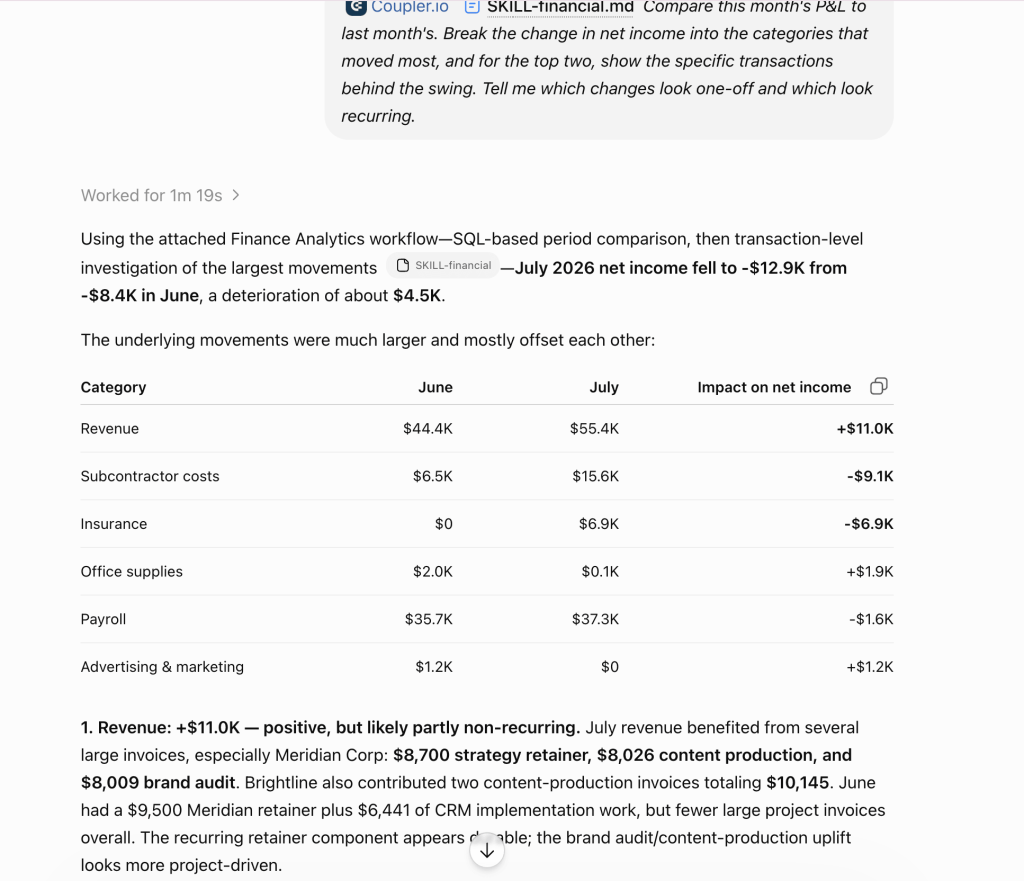
Compare this month's P&L to last month's. Break the change in net income into the categories that moved most, and for the top two, show the specific transactions behind the swing. Tell me which changes look one-off and which look recurring.
ChatGPT returned the P&L bridge (revenue +$11.0K, expenses +$15.5K, net income -$4.5K), then broke the expense swing into the five subcontractor bills behind it and sorted every mover into one-off versus recurring, down to suggesting the $6.9K annual insurance policy normalizes to about $575/month.
Takeaways:
- Don’t stop at the category totals: whenever a line moves, ask for the transactions behind it in your next message. The same cost increase reads completely differently once you see the bills underneath.
- Ask ChatGPT to label each change as one-off or recurring. It can read the memos and the vendor’s history for you, which is exactly the sorting you’d otherwise do by hand in a transaction report.
- Cross-reference costs with revenue in the same conversation: ask whether the vendors behind an increase show up in the same month’s client work. Details like memo fields make that link visible, so keep them in your dataset instead of filtering them out.
Spot customer concentration and late-payment risk in one view
Revenue concentration and accounts receivable live in different corners of QuickBooks. Seeing them together is what actually tells you the risk: your biggest customer is also the one paying slower every quarter.
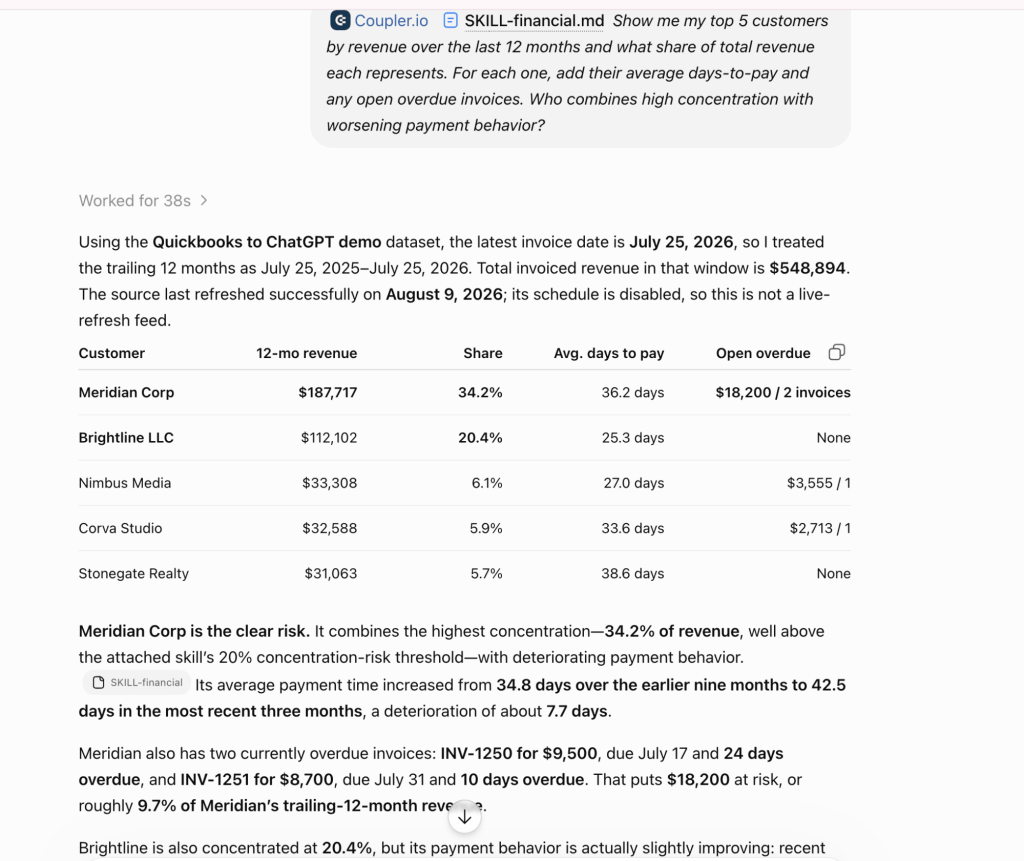
Show me my top 5 customers by revenue over the last 12 months and what share of total revenue each represents. For each one, add their average days-to-pay and any open overdue invoices. Who combines high concentration with worsening payment behavior?
ChatGPT ranked the top five (71.9% of trailing-12-month revenue between them) and singled out Meridian Corp: 33.4% of revenue, payment time slipping from 35.7 to 42.3 days over the last three months, and $18,200 across two overdue invoices.
Takeaways:
- Ask for revenue share, payment speed, and overdue balances in one view. Each of those looks fine on its own, and the risk only becomes visible when they’re combined for the same customer, which is exactly the join QuickBooks won’t do for you.
- Ask for the trend, not just the average. An average days-to-pay hides direction, so have it compare the recent months against the earlier period and tell you who’s moving the wrong way.
- Keep pulling the thread in the same chat: which invoices are overdue and by how many days, whether this customer has slipped before, what their payments looked like last quarter. Each follow-up is one sentence, and that’s the point of having the data conversational.
Prompts to use ChatGPT for QuickBooks analysis
The use cases above are walkthroughs. These are copy-paste prompts covering different angles. Point them at your data and adjust the specifics.
Bookkeeping hygiene check
Find transactions from the last 90 days that look miscategorized or sit in uncategorized accounts. Group them by likely correct category and estimate how much they distort my P&L.
Expense creep by vendor
Compare my recurring vendor charges this quarter against the previous two. Which subscriptions or services have quietly increased, and by how much?
Margin by month
Show my gross margin percentage by month for the last 12 months. Flag any month where it moved more than 2 points and give me your best explanation from the underlying data.
Payment timing
What's my average time from invoice sent to payment received, by quarter, over the last year? Is it improving or getting worse, and which customers move the average most?
Revenue seasonality
Based on two years of revenue data, which months are reliably strong or weak for my business? How should that shape my spending in the next quarter?
Voided and adjusted transactions
List voided invoices and credit memos from this fiscal year with their amounts. Is there a pattern in who or what they're connected to?
What about Intuit’s native QuickBooks plugin in ChatGPT?
If you searched for a QuickBooks AI integration, this is probably the first result you met. The official QuickBooks plugin launched in ChatGPT in February 2026, part of Intuit’s multi-year partnership with OpenAI. The launch version was read-only and mostly redundant: it answered summary-report questions you could pull up in QuickBooks with fewer clicks.
The July 28, 2026 update made it a better plugin:
- The full invoicing loop in chat: create, update, send, and duplicate invoices and estimates, set up recurring billing, send overdue reminders, and generate payment links
- Payroll answers without opening a report: who’s on payroll, payslip history, benefits, time-off policies
- QuickBooks Capital lending benchmarks: what businesses like yours borrow, and at what rates
- On the announced roadmap: running payroll from chat and personalized loan offers
Connecting takes a minute: find Intuit QuickBooks in ChatGPT’s plugin directory, click Connect, sign in with your Intuit account. For a small business owner who lives in QuickBooks, it’s a genuinely useful assistant now.
Before you settle on it as your analysis route, know its limits:
- US-only: The plugin doesn’t appear for ChatGPT accounts registered outside the US, on any plan. QuickBooks Online itself runs in some 130 countries through its UK, Canada, Australia, and global editions, and all of those users are outside the plugin’s reach.
- QuickBooks data only: There’s no way to blend in Stripe, ad platforms, or a budget spreadsheet, so any question that crosses systems is out of scope.
- No context layer: You can’t attach your business definitions, so the model works with generic assumptions about your books.
- No stated calculation engine for analysis: The plugin hands ChatGPT reports from QuickBooks and Intuit-computed benchmarks, and the model does the interpreting and any cross-report math from there. The contrast is Intuit’s own TurboTax app in ChatGPT, where tax estimates explicitly run on “the same core framework TurboTax uses.” Intuit makes no such claim for QuickBooks analysis.
Note: There’s also Intuit Assist, the AI built into QuickBooks itself. It’s useful for in-app tasks, but it works only inside QuickBooks, only on QuickBooks data, on paid plans in supported regions. It won’t run in ChatGPT.
Other ways to set up a ChatGPT QuickBooks integration
A few more routes exist for connecting QuickBooks to chatGPT, each fine for a narrower job.
Manual export and file upload
Every QuickBooks report exports to Excel or PDF. Upload the file to ChatGPT and ask away. For a one-off deep dive into a single report, this works, and it’s free.
The problems compound with repetition: the file is stale the moment you download it, big exports get silently truncated, and every week means re-exporting, re-uploading, and re-explaining the columns.
Copy-paste
For a handful of rows, pasting straight into the chat is the fastest option there is. Ask about a dozen invoices, get an answer, move on.
Past a screenful of data it breaks down: context limits, mangled columns, and no control over which sensitive fields you just pasted into a chat window.
Zapier and automation platforms
Search for QuickBooks and ChatGPT tools and you’ll find Zapier templates everywhere. Useful, but for a different job: they integrate ChatGPT to QuickBooks as workflow glue, not as an analyst. A trigger fires when a new invoice, new payment, or new customer appears, then an action runs: find customer records, draft a thank-you email, categorize an expense, flag a void invoice for review.
If you want automated workflows around bookkeeping events, this is the right shelf, though check the native Intuit plugin first: since its July 2026 update it handles invoice creation and reminders in chat without a per-task automation fee. If you want to ask what your margin did last quarter, neither is the answer; there’s no dataset behind them to analyze.
QuickBooks API scripts and custom GPT actions
With engineering support, you can build against the QuickBooks API directly: scripts that pull data on a schedule, or custom GPT actions that let ChatGPT call the API per question. Full control, any entity, any logic.
If you’ve run into Intuit’s open-source QuickBooks Online MCP server while searching, know what it is before planning around it: a local developer preview built for Claude Desktop and similar clients. ChatGPT only connects to remote MCP servers through developer mode, so using it here means hosting it yourself on top of the preview. It’s a Claude-side tool for now, not a ChatGPT route.
Either way you go, you own the whole stack: OAuth token refresh, rate limits, and every deprecation Intuit ships. Reasonable for a product feature; heavy for analyzing your own books.
Coupler.io’s connection is built on the same idea (its MCP server implements the Model Context Protocol, the open standard for feeding structured data to AI tools), but it’s maintained for you.
Which method should you choose?
- For doing work in chat, the native Intuit plugin is the pick: send an invoice, check who’s on payroll, benchmark a loan offer. It handles basic P&L questions too, if you’re in the US and can live with report-level data.
- For one report, once, upload the export and don’t automate anything.
- For bookkeeping automation, Zapier-style workflows handle the busywork; just don’t expect analysis.
- For a custom product or internal tool, the QuickBooks API route earns its maintenance cost
- For recurring analysis of your actual books, with transaction-level detail, verified math, scheduled refresh, and control over what the AI sees, connect QuickBooks to ChatGPT through Coupler.io. It’s the one option on this list built for the question you’ll ask every week, not just today’s.
Connect 420+ data sources to ChatGPT with Coupler.io
Get started for freeFAQs
Is it safe to connect QuickBooks to ChatGPT?
With Coupler.io, ChatGPT never touches your QuickBooks account. It sees only the dataset you prepared, with sensitive fields hidden, over a token-based, read-only connection. Coupler.io is SOC 2 Type II certified and GDPR and HIPAA compliant. Nothing can write back to your books, which is exactly what you want from an analysis layer. (The native Intuit plugin is different by design: it can create and send invoices, so review its actions before they go out.)
Do I need to write any code to set up the QuickBooks and ChatGPT integration?
No. The QuickBooks and ChatGPT integration through Coupler.io is clicks and OAuth authorizations: connect QuickBooks, pick your data entities, install the ChatGPT app. Adding the finance-analytics skill is a file upload. Code only enters the picture if you choose the QuickBooks API route.
Does this work with QuickBooks Desktop?
The Coupler.io connector works with QuickBooks Online. For Desktop, export your reports to Excel and use the file upload route, or migrate to QuickBooks Online for the live connection.
What QuickBooks data can ChatGPT access?
Coupler.io data flows pull the entities you select (invoices, expenses, transactions, bank accounts, or reports like the profit and loss statement and balance sheet), minus any columns you hide. That’s the full transaction detail behind your reports, not just report summaries, with sensitive fields filtered out before the AI sees anything.
How fresh is the data?
As fresh as your refresh schedule, up to every 15 minutes depending on your Coupler.io plan. Ask about last week’s cash position and ChatGPT reads the latest sync, not a stale export.
Can I combine QuickBooks with other data sources in the same analysis?
Yes, and it’s one of the strongest reasons to use Coupler.io for this. Blend QuickBooks with Stripe billing, ad platform spend, or a budget in Google Sheets inside one data flow, then ask questions that span all of them, like which marketing spend actually turned into collected revenue.