
Meta only stores Facebook lead ad data for 90 days. After that window closes, the leads are gone, and so is any chance of historical reporting, cross-campaign comparison, or long-term attribution analysis.
Exporting your leads removes that constraint. Once the data lives outside Meta, you can build a historical lead database that grows over time, enrich it with campaign spend or CRM data for cost-per-lead and lead-quality analysis, and send it to spreadsheets, dashboards, data warehouses, or AI tools for the kind of reporting Meta’s native interface does not support. If you only need a one-off CSV download, the manual methods covered later in this article handle that. For anything recurring, read on.
Export Facebook leads automatically with Coupler.io
If you want to automate lead collection, retain historical data beyond Facebook’s 90-day window, and blend it with other sources, Coupler.io is your best bet.
It enables you to export leads from Facebook Ads Manager to tools like Excel, Google Sheets, Power BI, Data Studio, and more. You can apply filters or transformations along the way, and merge the acquired lead data with over 400 sources. From there, the prepared dataset can land in a spreadsheet, a dashboard, a data warehouse, or an AI tool, depending on where your team does its analysis.
Facebook only keeps lead data available for 90 days, after which older entries can’t be retrieved through the platform. Coupler.io solves this with the help of incremental fetching. It automatically captures new leads data every time a scheduled data flow runs. Instead of re-downloading the full dataset each time, it only fetches what’s new since the last update. As a result, you get a continuously growing database of leads that you own, without manual backups, gaps, or losing data to Facebook’s expiration window.
Coupler.io is a data integration platform and AI analytics tool that connects Facebook Ads (and 400+ other sources) to spreadsheets, BI tools, data warehouses, and AI tools like Claude, ChatGPT, Gemini, and others.
Let Coupler AI do the data work for you
Tell Coupler AI what you need to know, from which source, and how often. It connects your account, sets up the data flow, keeps it refreshed, and lets you analyze the results inside Coupler.io or another AI tool.
Try for free
The walkthrough below covers the manual steps, which are worth understanding even if you use the AI path. Knowing what each setting controls makes troubleshooting and customization easier later.
You can use the form below to get started instantly. Facebook Ads is already preselected as the source, so you only need to choose the desired destination and click Get started for free:
You’ll be offered to get started with Coupler.io for free with no credit card required. Here’s how to configure the data flow for exporting Facebook leads step by step:
Step 1. Collect lead data from Facebook Ads
The report type and date range you choose here determine which leads come through and how many custom form fields are captured. Getting this right means the dataset you build in the next steps starts clean.
Authenticate your Facebook Ads account in Coupler.io, then select List of Sponsored Leads as your data entity and specify the pages.
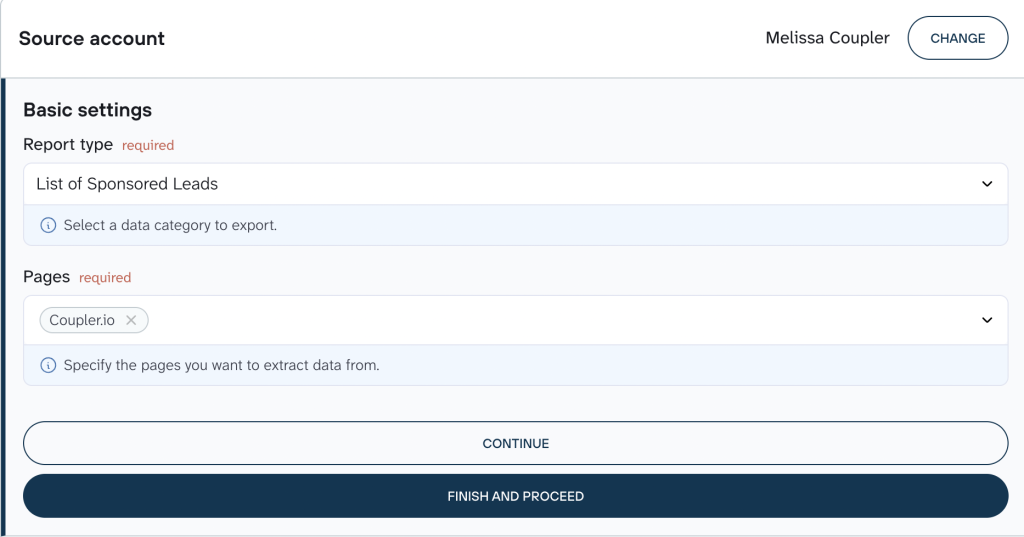
This pulls lead form responses directly from your campaigns. You’ll need to specify the date range, since Facebook only keeps leads from the past 90 days, so start with that window.
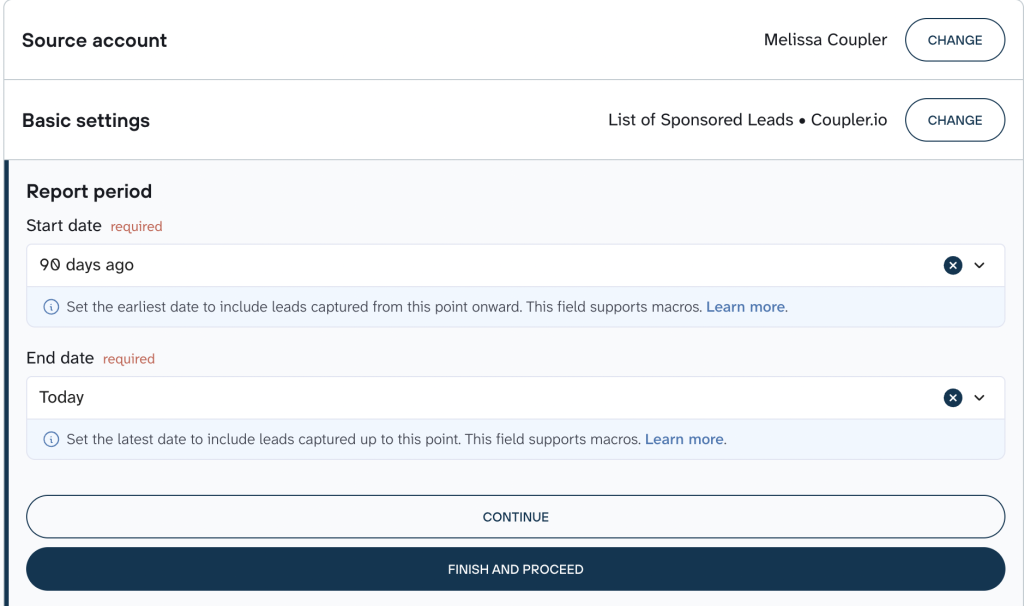
Coupler.io will capture both standard fields (like campaign names, ad IDs, timestamps) and custom form responses.
Coupler.io connects to 400+ sources, so you can also pull complementary data in the same data flow. For lead attribution work, pair Sponsored Leads with Facebook Ads Insights (spend, impressions, CTR) or a CRM source like HubSpot, Salesforce, or Pipedrive.
Once the initial sync is complete, Coupler.io continues collecting new leads on autopilot with each scheduled refresh. Combined with incremental fetching, this means your lead history grows beyond Meta’s 90-day cap without any manual intervention.
Step 2. Organize and prepare your data set
This is where you shape the raw Facebook leads export into a dataset that’s ready for reporting or AI analysis. Everything in this step happens inside Coupler.io’s Transformation stage, before the data reaches any destination.
- Preview. After the initial collection, you’ll see a table view of the leads pulled from Facebook Ads. Each row is one lead. Columns include lead ID, ad ID, campaign ID, form ID, created_time, and one column per custom form field (each prefixed with field_data_). This is the moment to spot missing fields, empty rows, or fields captured under an unexpected name.
- Rename columns. The default field_data_1, field_data_2 names are unusable in a dashboard or an AI prompt. Rename them to what they actually represent: email, phone, company_size, job_title. This single step makes the biggest difference in how readable the dataset is downstream.
- Hide or remove columns. Not every column belongs in the final destination. Personally identifiable fields (email, phone, address) can be hidden before the dataset reaches a dashboard viewed by wider teams or an external AI tool. Think of this as data control: you decide what leaves Coupler.io.
- Filter. Narrow the dataset to what matters. For example, only leads from a specific campaign, only leads created in the last 30 days, or only leads where a qualifying field like industry or budget matches a certain value.
- Add calculated columns. Add columns that don’t exist in the raw Facebook Ads data. Cost per lead (requires joining with Facebook Ads Insights spend data), lead-to-sale ratio (requires CRM data), lead age in days, or a full-name column concatenated from first and last name fields are all useful additions for reporting and qualification.
- Blend with other sources. Coupler.io lets you add another source (Facebook Ads Insights for spend, HubSpot for CRM enrichment, Google Sheets for internal scoring lists) in the same data flow and join it with the leads dataset on a shared column like ad_id or email.
- Aggregate. Group leads by campaign, ad set, form, or day to produce summary rows for a reporting layer. For example, “leads per campaign per day” gives you a trend view without needing to build it in the destination tool.
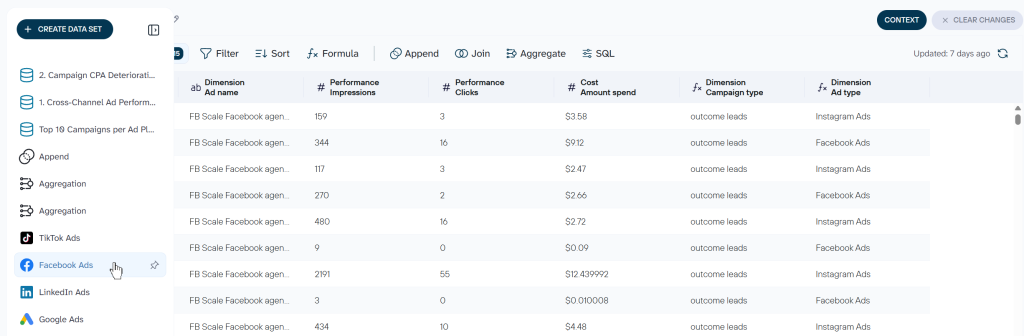
Once these operations are set, three things are in place for everything that follows.
First, the data control layer. Everything you chose to keep, hide, or rename is what the destination will see. Downstream tools (a spreadsheet, a dashboard, an AI assistant) only ever get the shape you defined here.
Second, business context. Coupler.io’s AI Context feature lets you define what the data means before AI reads it: what qualifies as a lead, how cost per lead is calculated, what each renamed column represents. Without Context, an AI assistant sees column names. With Context, it understands the business meaning behind them. Here’s more on why context matters for AI data analysis.
Third, safety for AI use. If the destination will include an AI tool, confirm that personally identifiable fields (email, phone, address) are either hidden or intentionally included. AI never connects to the Facebook Ads account directly. It works only with the dataset you built here.
Step 3. Load data and schedule refresh
Once the dataset is ready, choose where it lands and how often it updates.
Select a destination: a workspace like Excel or Google Sheets, a database like BigQuery or PostgreSQL, or a reporting tool like Power BI or Data Studio.
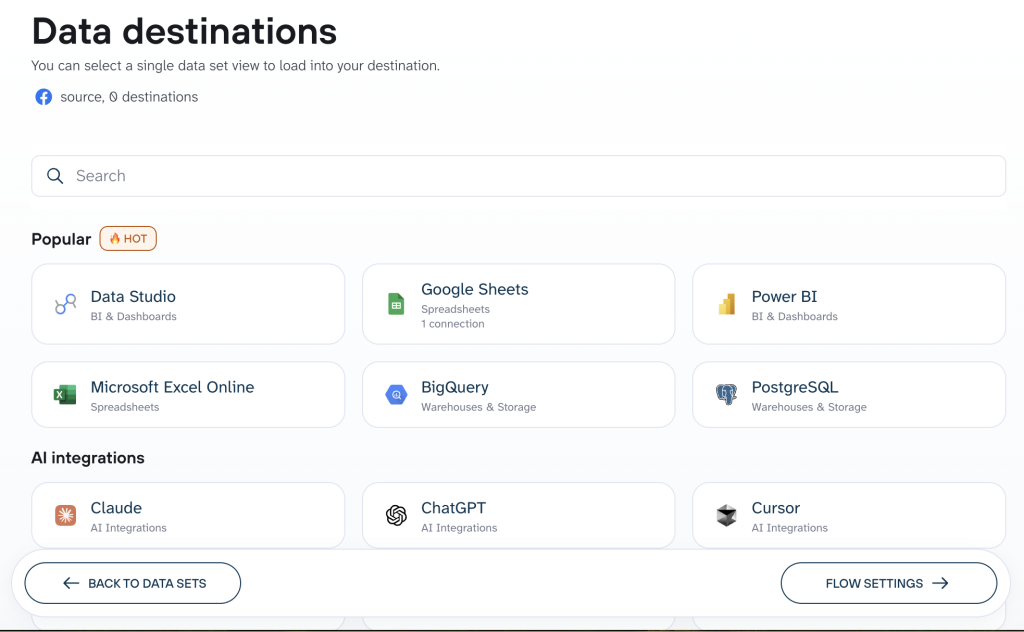
Coupler.io supports multiple destinations in a single data flow, so the same lead dataset can land in a spreadsheet, a dashboard, and an AI tool at the same time.
One of those destinations can be an AI tool (Claude, ChatGPT, or another) for conversational analysis of your leads. The next section covers this in detail. You can also read more about the Coupler.io MCP server for connecting to AI tools that support MCP.
From there, schedule how often you want the data to update. You can set Coupler.io to refresh the data hourly, daily, or weekly, depending on how often new leads are collected.
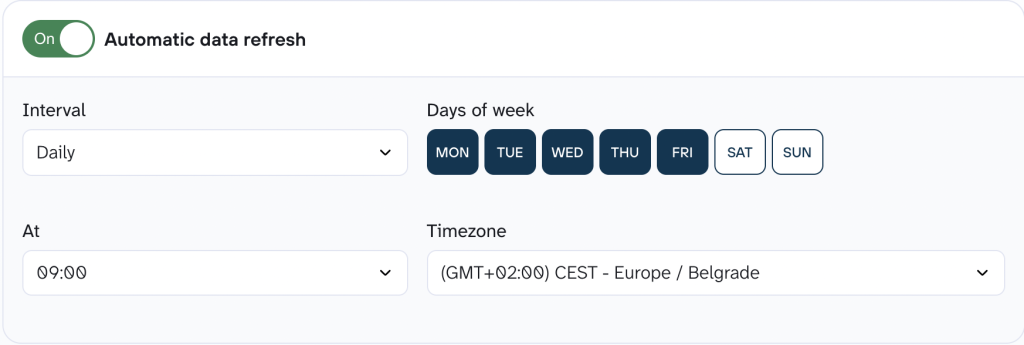
Once it’s live, Coupler.io will keep adding new leads automatically, giving you a constantly updating dataset that stays in sync with your Facebook campaigns.

Automate Facebook Ads leads export and analysis with Coupler.io
Get started for freeBonus step: Analyze Facebook Ads leads with AI
Once leads are syncing on a schedule, you have a growing database that gets more valuable over time. AI analysis is the natural next step. Instead of exporting to a spreadsheet and manually filtering by form response or campaign, ask questions in plain language.
- Ask questions about your leads in Coupler.io. Coupler.io’s AI Agent lets you query the lead dataset directly inside the app. Ask “What’s the cost per lead by campaign over the last 30 days?” and get a computed answer instead of a plausible-sounding guess. The Analytical Engine runs the calculation against your data; the AI interprets and explains the result. You can also use the AI Agent to build or adjust data flows through chat and prepare data for reports.
Here’s the deeper story on how it works: Coupler AI Agent: Conversational Data Analysis Inside Coupler.io
- Send your leads dataset to Claude, ChatGPT, or another AI tool. AI Integrations make the same prepared dataset (with your transformations, context, and schedule) available in the external AI tool you already work in. Supported tools include Claude, ChatGPT, Gemini, Perplexity, Cursor, and OpenClaw. For a deeper walkthrough on the Claude connection specifically, see how to connect Facebook Ads to Claude.
- Use a Skill for recurring lead analysis. Skills are pre-built analysis workflows you can apply to your data. The marketing analytics Skill, for example, handles common campaign performance questions out of the box. For lead-specific workflows (a weekly qualified-lead review, for instance), you can also create your own.
Here are a few prompts that work well with a Facebook Ads leads dataset:
- “Cost per lead by campaign over the last 30 days. Which campaigns should I scale?”
- “Compare form completion by ad set. Which ad sets attract the most leads with complete phone numbers?”
- “Flag leads from the last 7 days that match our qualified-lead profile (industry, company size, role).”
- “Which lead forms have the highest drop-off between impression and submission?”
After the first answer, follow up. Ask “break that down by week” or “how does that compare to the previous month.” The value of a connected dataset is that each follow-up question builds on the last.
💡 A note on lead data and privacy. Lead datasets contain contact information: email, phone, sometimes address and custom form fields. Before connecting leads to an external AI tool, use the Transformation step (Step 2) to hide or drop personally identifiable fields you don’t want the AI tool to see. Coupler.io only exposes the columns you chose. AI never sees the raw Facebook Ads account.
Turn Facebook Ads leads into AI-ready analysis with Coupler.io
Start for freeReady-to-use dashboard templates for Facebook Ads leads analysis
Once leads are syncing on a schedule, plug them into a ready-made dashboard instead of building one from scratch. Coupler.io has several Facebook Ads templates that suit different reporting needs.
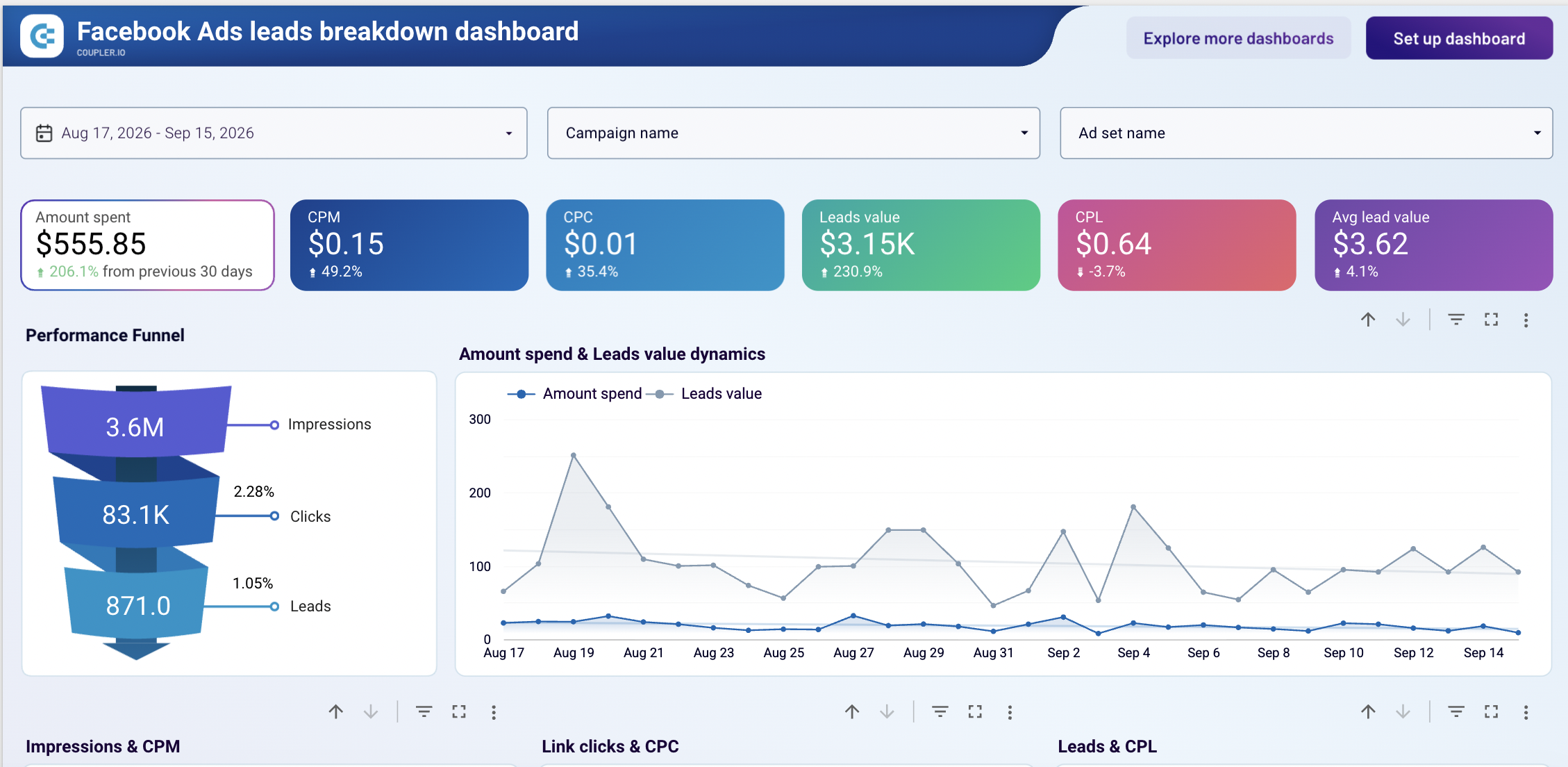
Facebook Ads leads breakdown dashboard
This is the primary template for a leads-only reporting layer. It covers total leads over the selected period, cost-per-lead trends, lead volume by campaign and ad set, and monthly lead dynamics. It also includes demographic breakdowns (age, gender) and geographic distribution. Use the cost-per-lead trend charts for budget decisions, the demographic breakdown for audience refinement, and the geo distribution for regional campaign scoping.
Facebook Ads leads breakdown dashboard
 Preview dashboard
Facebook Ads leads breakdown dashboard
Preview dashboardFacebook Ads dashboard (general performance)
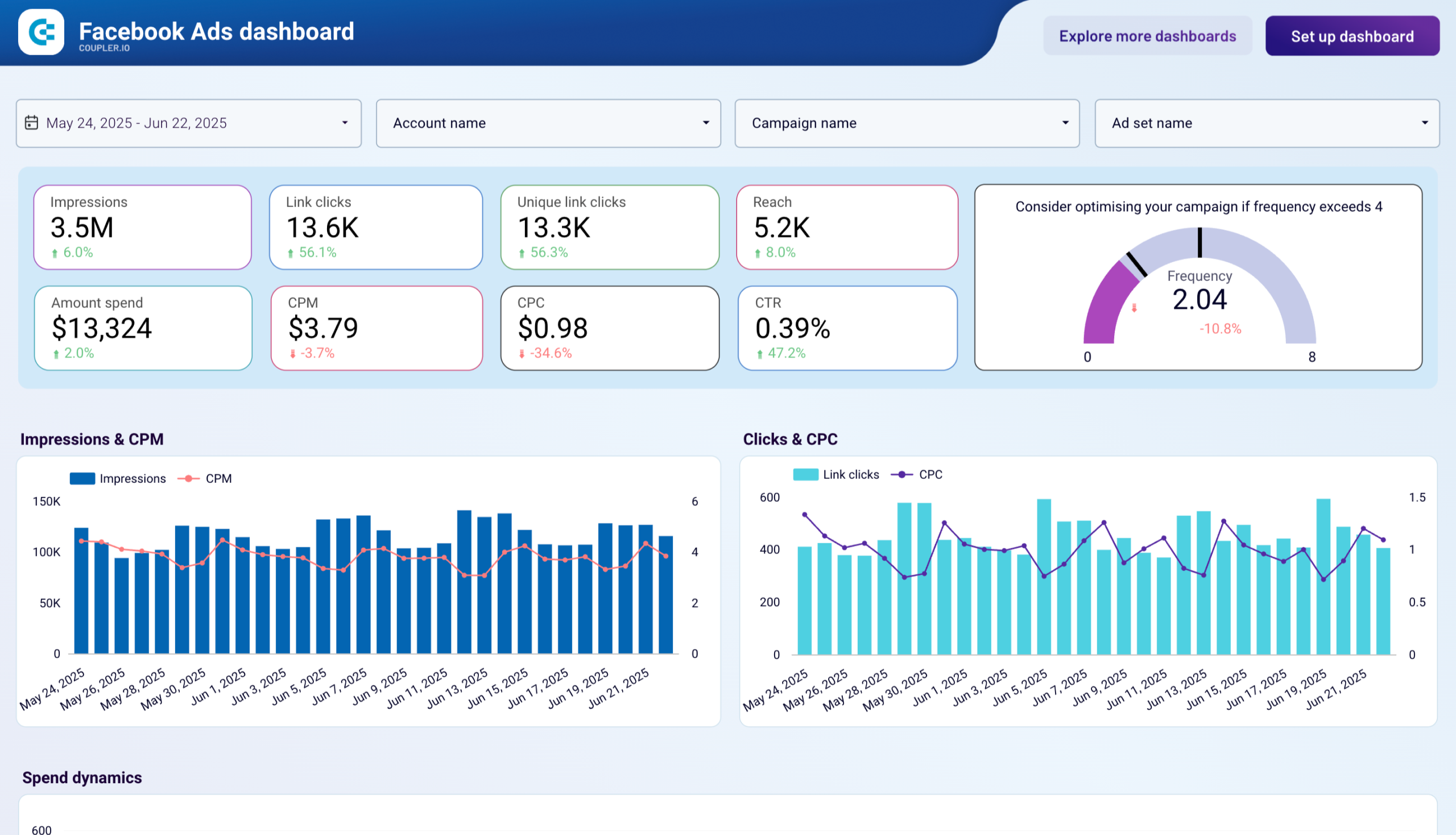
This template covers the full campaign performance layer: spend, impressions, reach, clicks, CTR, CPC, conversions, and ROAS, plus campaign and ad set breakdowns. Reach for this instead of the leads-specific template when leads sit alongside other conversion types (purchases, sign-ups, video views), when you need to attribute lead cost to the broader spend picture, or when reporting to stakeholders who care about the full Facebook Ads investment, not just lead volume.
Facebook Ads dashboard (general performance)
 Preview dashboard
Facebook Ads dashboard (general performance)
Preview dashboardMeta Ads creatives dashboard
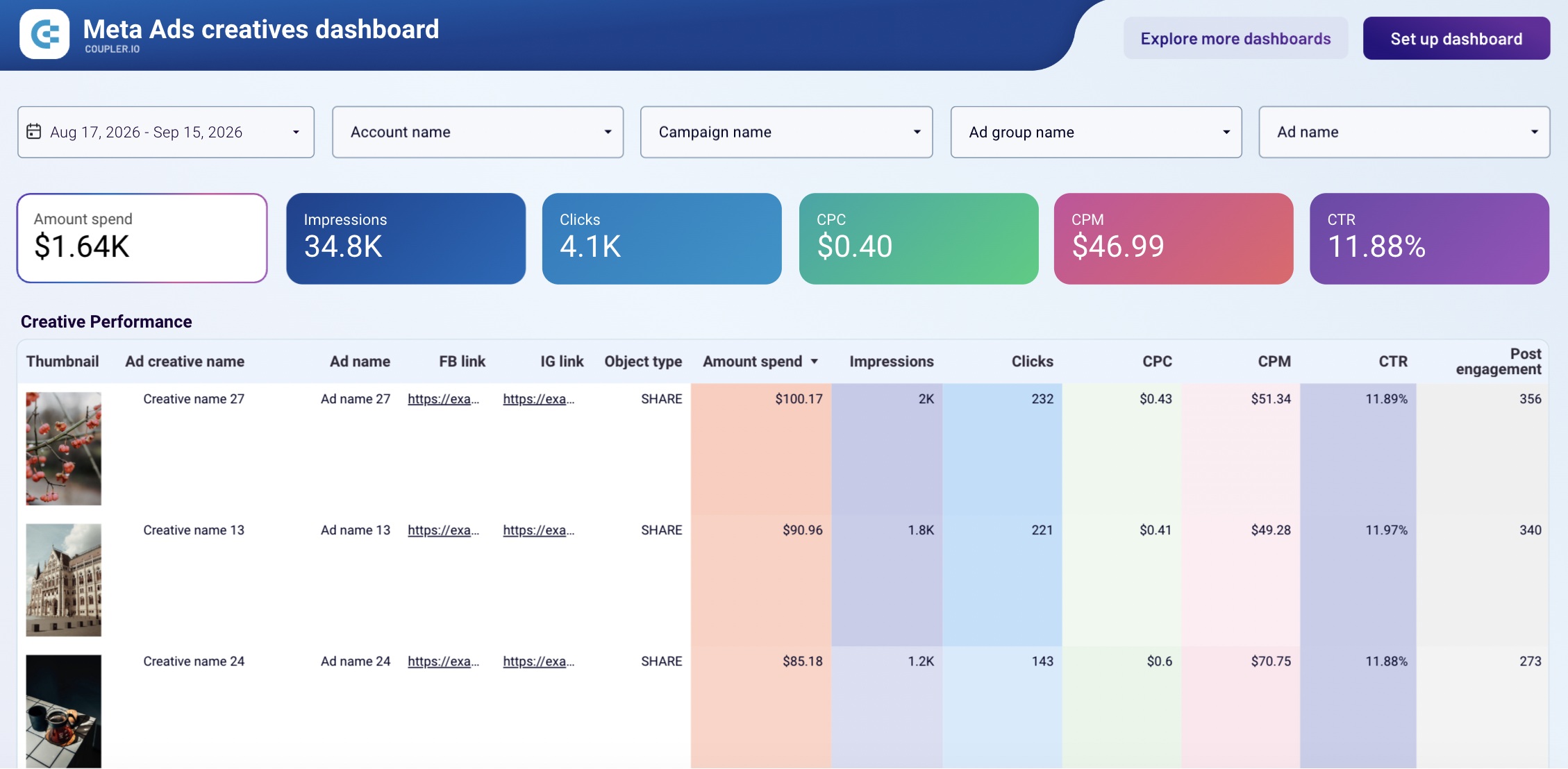
This template breaks performance down to the creative level: which images, videos, and copy variants generated the most leads at the lowest cost. It’s useful for creative fatigue detection (declining lead volume from a specific creative), creative ranking adjusted for lead quality (not just form fills, but leads that convert downstream), and creative comparison across ad sets for scaling decisions. Teams running regular creative-refresh cycles will get the most out of this one.
Meta Ads placement performance dashboard
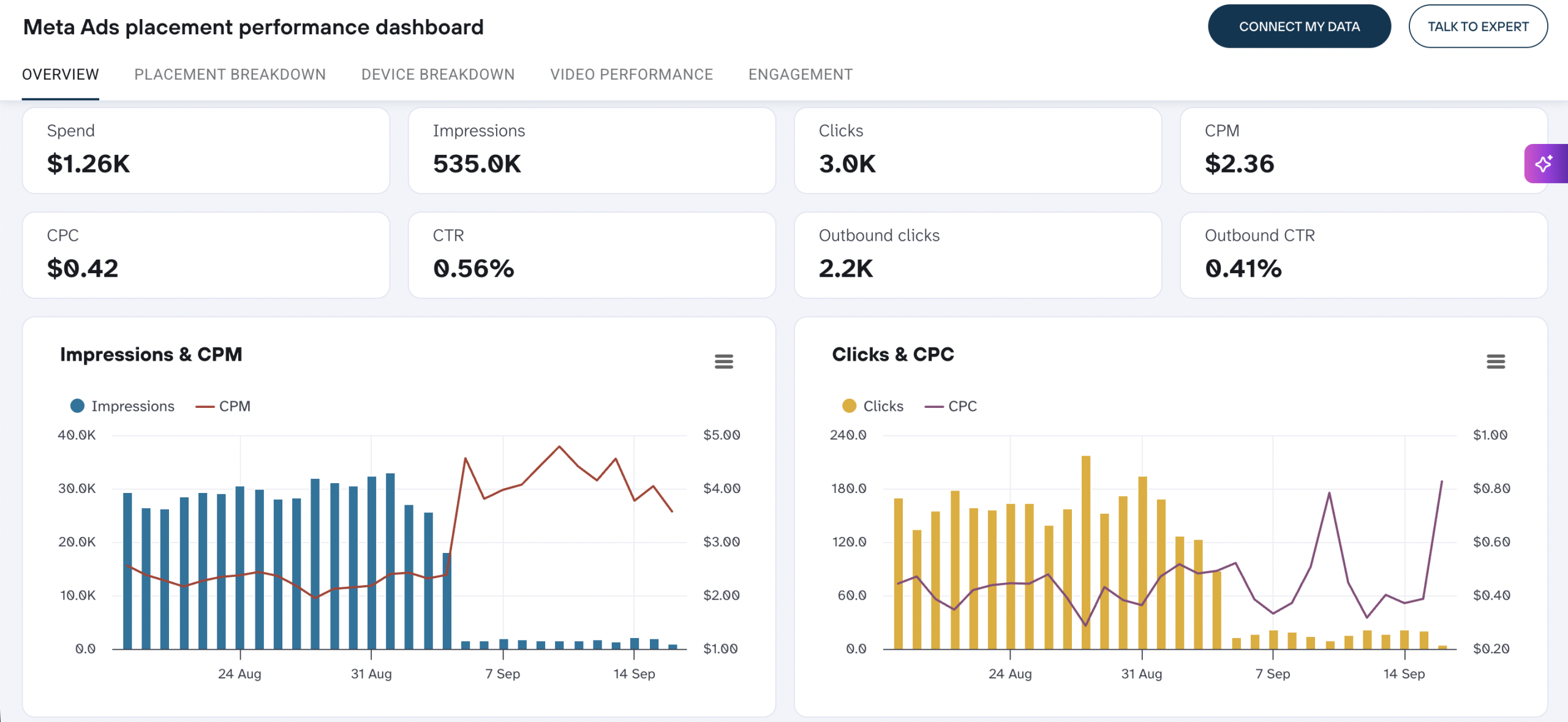
This template shows placement-level breakdown across Feed, Stories, Reels, Right Column, Marketplace, and Audience Network. The lead-analysis angle: which placements produce leads most cost-effectively, which placements bring lower-quality leads that don’t convert downstream, and where to shift budget when a placement’s cost per lead starts drifting. These are the optimization decisions that get missed when reporting rolls up to campaign level only.
Meta Ads placement performance dashboard
 Preview dashboard
Meta Ads placement performance dashboard
Preview dashboardFor the complete set of Facebook Ads dashboard templates, see the full dashboard gallery.
What other Facebook Ads data can you export
This article covers Sponsored Leads, but the same Coupler.io Facebook Ads connector supports several other data entities that pair naturally with leads for attribution and reporting. Leads become more useful when combined with the campaigns that generated them, the creatives that drove clicks, and the audiences targeted. All of these are available through the same connector, so you can add them as additional sources in the same data flow.
| Data entity | What it’s useful for |
| Reports and Insights | Spend, impressions, clicks, CTR, CPC, conversions, with breakdowns by age, gender, country, region, device, placement |
| List of Campaigns | Campaign status, objective, budget, stop time |
| List of Ad sets | Status, optimization goals, remaining budget |
| List of Ads | Status, bid amount, issues |
| List of Ad creatives | Creative type, text, links, media details |
| List of Ads with ad creatives | Creatives linked to actual ads (useful for creative-vs-lead-quality analysis) |
| List of Activities | Audit log of account changes |
| List of Business invoices | Monthly billing detail |
For the full walkthrough on all Facebook Ads exports, see how to export Facebook Ads data.
Where to export Facebook Ads leads data
Where you send the lead data depends on what you plan to do with it.
- Spreadsheets (Google Sheets, Microsoft Excel) are the fastest path for sharing with sales teams, ad-hoc filtering, and manual triage of new leads.
- BI and dashboard tools (Data Studio, Power BI, Tableau, Qlik) are for visual lead-quality tracking, cost-per-lead trends, and campaign-level breakdowns shared with stakeholders.
- Data warehouses (BigQuery, Snowflake, PostgreSQL, Redshift, Supabase) are for long-term lead storage beyond Meta’s 90-day window, joins with CRM and product data, and custom SQL analysis.
- AI tools (Claude, ChatGPT, Gemini, Perplexity, Cursor, OpenClaw, Copilot) connect via AI Integrations for conversational lead qualification and campaign attribution questions.
- Other destinations (JSON, CSV, monday.com) suit custom pipelines or handoff to project management tools.
Coupler.io supports multiple destinations in a single data flow, so you don’t have to choose just one.
Other ways to export leads from Facebook Ads Manager
The Coupler.io flow above covers automated, scheduled lead export with historical retention. For readers who need a one-off manual export, a fully custom API pipeline, or a native CRM integration, the sections below cover those options.
| Method | Ease of Use | Automation | Customization | Best For |
| Coupler.io | Very Easy | Scheduled and triggered | High: • Data transformation • Merge from multiple ad accounts • 400+ sources and all major destinations plus AI tools • Prebuilt dashboards and AI analysis | Teams that want long-term lead retention, cross-source reporting, and AI-driven qualification without dev work |
| Manual Export (Meta) | Easy | No automation | Low: • One form at a time • No merging • No scheduling | Small teams with basic one-off export needs |
| CRM Integrations | Moderate | Conditional | Moderate: • Platform-dependent • Limited customization • May not support full historical data | Businesses using HubSpot, Zoho, Salesforce, etc. |
| Facebook Graph API | Complex (Developer) | Custom scripts | High: • Full control over filters, structure, and scheduling • Raw data access | Developers needing full flexibility and automation |
Export leads manually from Meta
Facebook gives you a few ways to export your leads manually. But the data is only available for 90 days, and you have to download each form separately. There’s no way to schedule automatic exports or combine the lead data with campaign stats from other platforms.
Here’s how to export leads from Facebook Ads Manager using Meta’s built-in tools.
Facebook Ads Manager
Go to your Ads Manager, open the campaign using a lead form, and find the specific ad set or ad.
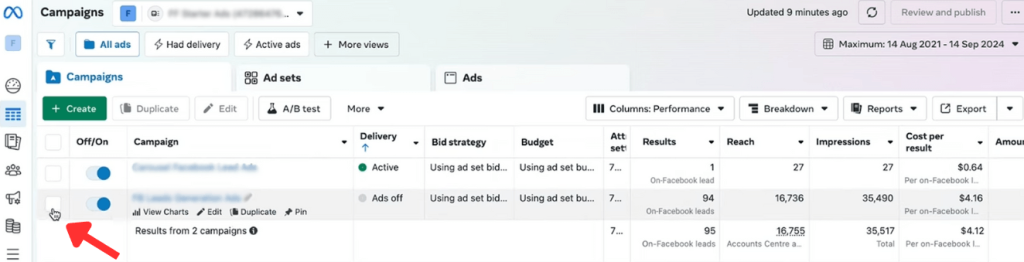
Click on any one of the Ad campaigns, and you’ll see the ads tab named “Ads for 1 Campaign.”
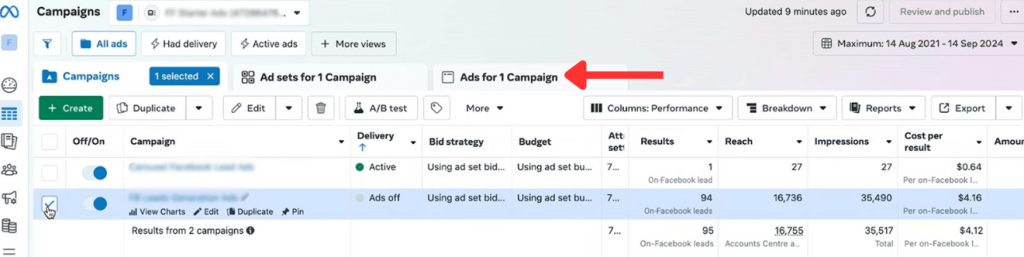
Click on this “Ads for 1 Campaign” tab, and it’ll take you to your current ad campaigns and their respective metrics, including impressions, reach, CPR, and so on.
Under the results column, click on the hyperlinked “On-facebook leads.”
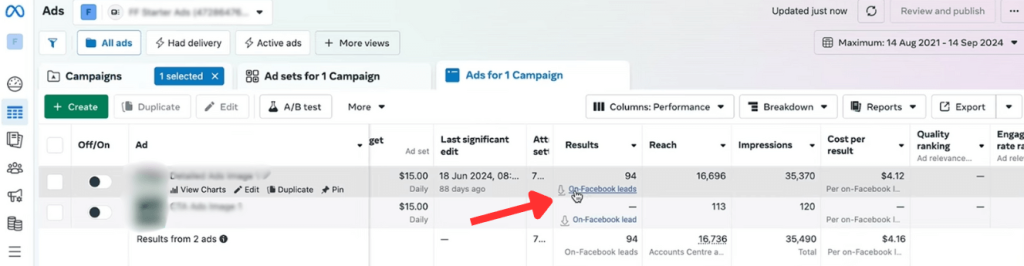
You’ll see a Download button.
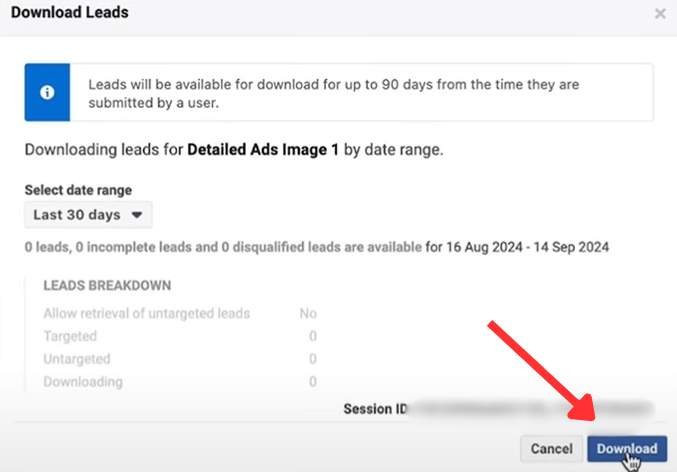
Click it to download your data as a CSV or XLS file. For most users, this is the simplest way to get lead information out of Facebook Ads Manager.
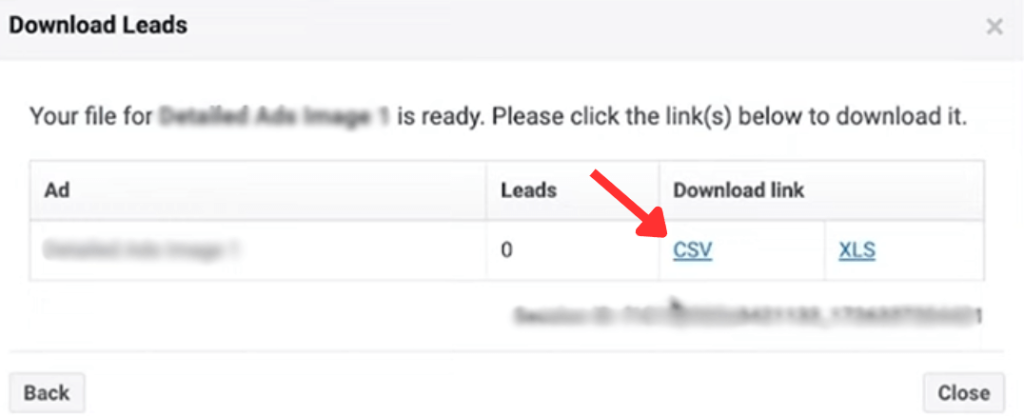
This will allow you to open and analyze your data in Excel.
Meta Business Suite
If you use Business Suite, head to the Facebook page and then to Page tools. Now, open “Leads Center.”
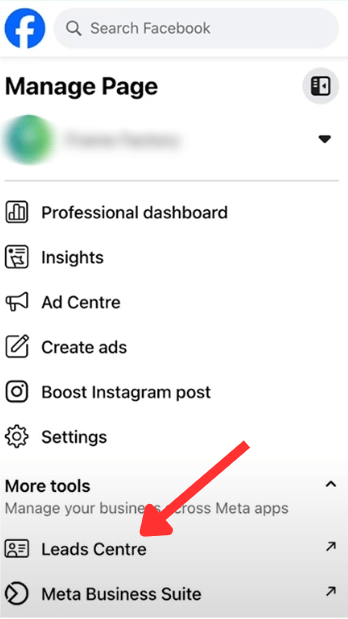
This gives you a basic view of incoming leads, including their email and phone number.
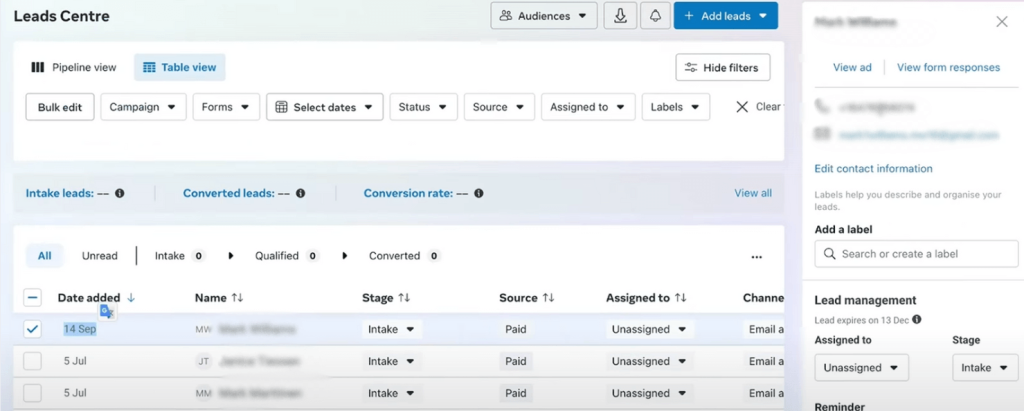
You can click the download symbol towards the top right, and it will give you the option to “Download leads as CSV based on the current filters.“
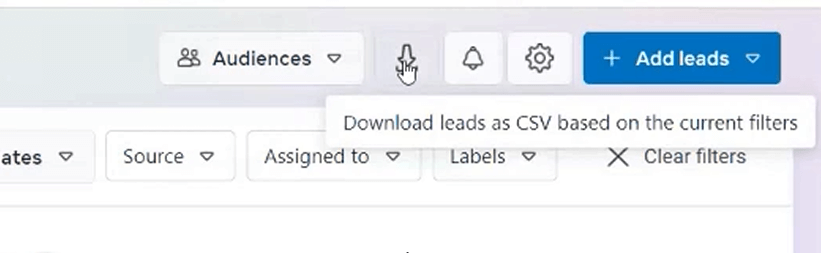
That’s it. You will have all the respective leads from the Leads Centre downloaded to your system in CSV format. But here’s the catch:
- You’ll have to do this separately for each form.
- Data older than 90 days won’t be available.
- There’s no way to schedule automatic exports or merge the lead data with campaign stats from other platforms.
Facebook Marketing API
If you have an in-house dev team and want complete control over your lead exports, the Facebook Marketing API might sound appealing. It lets you programmatically pull lead data from campaigns or lead ads forms, schedule updates, and send everything straight to your database or dashboard.
But here’s the catch: you’ll need a registered app with proper permissions, someone who understands Facebook’s Graph API, and a way to manage access tokens and maintenance tasks. This method is powerful, but not practical unless you’re building an internal system or syncing data across multiple properties.
CRM integrations (native or via Zapier)
Facebook offers native integrations with CRMs like HubSpot, Salesforce, Zoho, and Mailchimp. You can also use automation platforms like Zapier or Make to connect your Facebook lead forms to your CRM or email platform.
These options are far easier to set up than APIs, but they have limits. Native integrations only support certain CRMs and form types. With Zapier, you need to create and manage the workflows (known as “Zaps”), and there are potential syncing issues if permissions change. Updating form structures can also introduce unexpected sync failures.
These integrations are suitable for teams who prefer automation but may not have the resources for full custom development.
Why export Facebook Ads leads with Coupler.io
Manual export, the Marketing API, and CRM integrations each work for specific use cases: one-off downloads, custom pipelines, or direct CRM handoff. Coupler.io adds several things for lead workflows specifically:
All Facebook Ads data types (Sponsored Leads, Insights, Campaigns, Creatives) come from one connector, so leads sit alongside the campaigns that generated them. Scheduled refresh with incremental fetching means historical leads persist past Meta’s 90-day window without manual effort.
Transformation happens before the data leaves: you can hide personal fields, add calculated columns like cost per lead, and rename form fields into readable labels. Multiple destinations work from a single data flow, so the same dataset can feed a dashboard, a spreadsheet, a warehouse, and an AI tool at once.
AI analysis through the AI Agent or AI Integrations lets you ask lead qualification and attribution questions conversationally, with the Analytical Engine handling the calculations. And through it all, AI never touches the Facebook Ads account directly. It only works with the dataset you built.
If your leads are worth more than 90 days of history, book a demo and see how it works with your data.
Automate Facebook Ads leads export and analysis with Coupler.io
Get started for free