
A Google Ads campaign can look profitable overall, while a handful of keywords still burn through budget without converting. With Coupler.io, you can spot where your budget is going using a free, pre-built dashboard.
Step 1: Set up your keyword performance dashboard
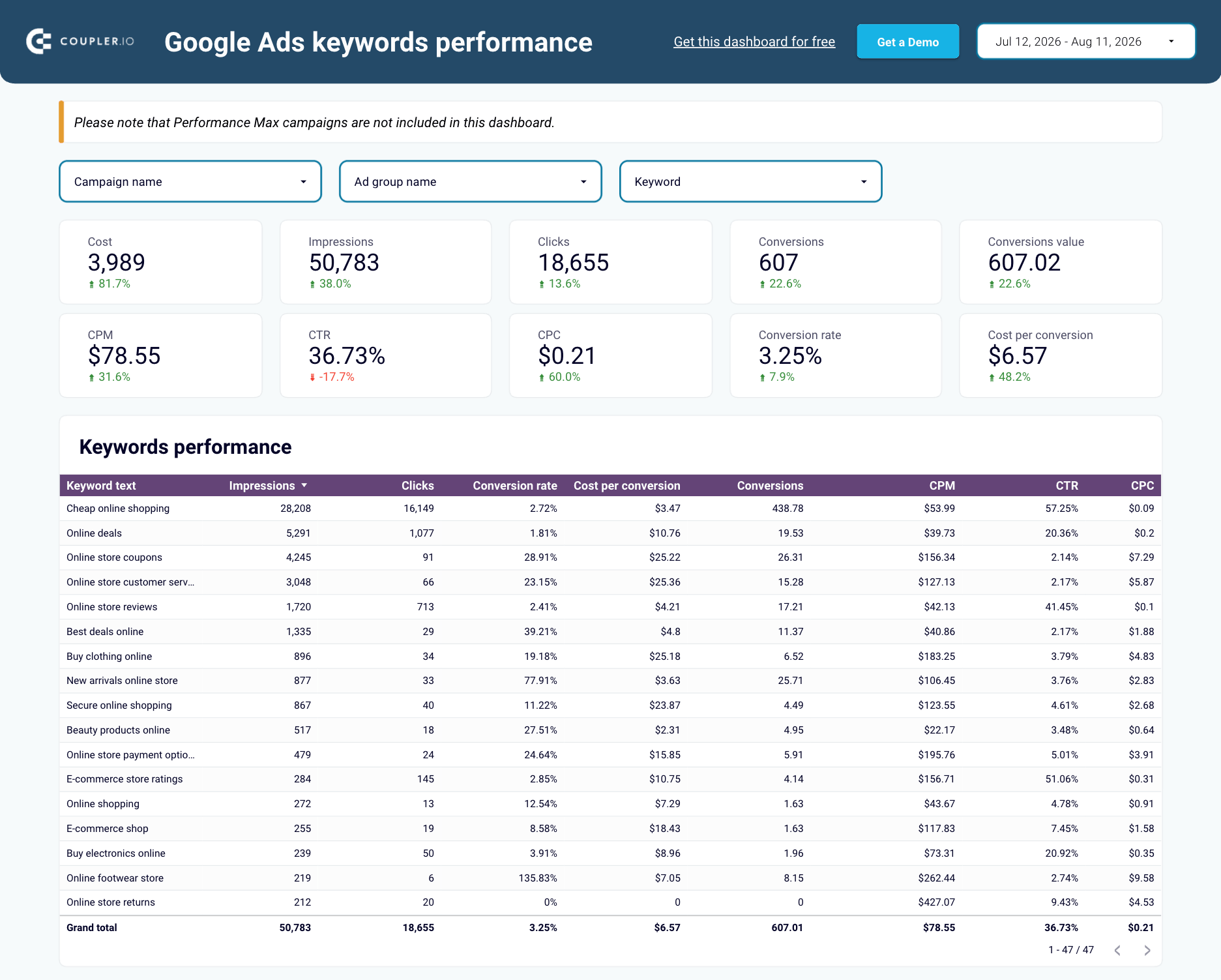
Start with Coupler.io’s Keyword performance dashboard for Google Ads template, available in Data Studio.
Keyword performance dashboard for Google Ads
 Get the free dashboard
Keyword performance dashboard for Google Ads
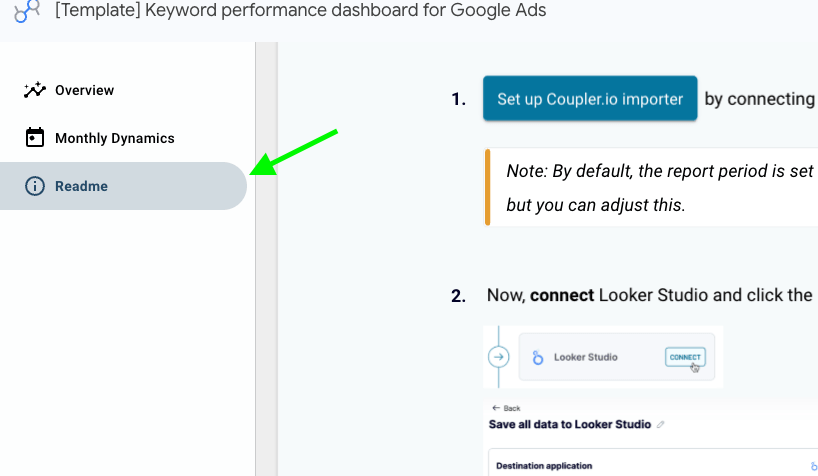
Get the free dashboardYou’ll be prompted to sign up to Coupler.io for free, then connect your Google Ads account. Follow instructions in the Readme tab to finalize your Data (formerly Looker) Studio connection and create the report with your data.
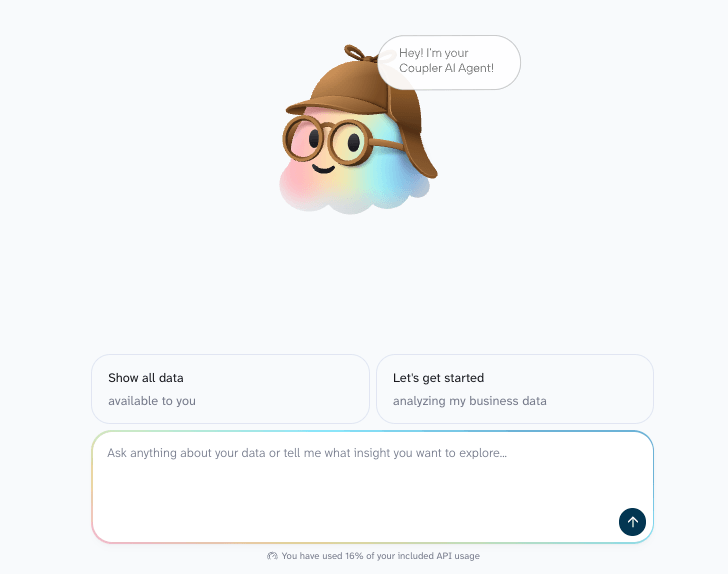
A custom dashboard setup makes sense if you already report in a specific tool or need to combine keyword data with other Google Ads reports. You can use Coupler.io’s AI Agent to quickly connect your keyword data and where to send it, like Google Sheets or Power BI. You’ll need to build the dashboard yourself in that tool, but it gives you full control over layout and metrics.
Step 2: Find the keywords that need attention
The pre-built template breaks keyword performance into a few views, each answering a different question:
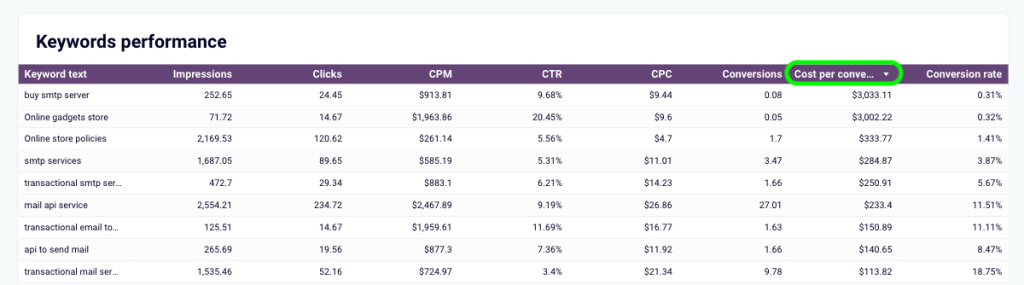
- Which keywords cost too much per result? Sort the keyword performance table by cost per conversion.
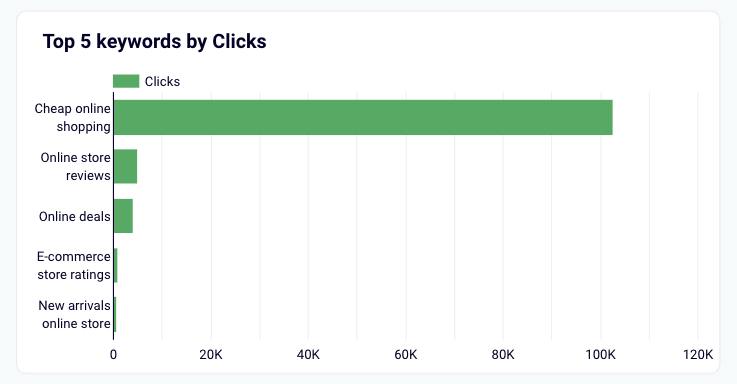
- Where is most of my click budget going? The Top 5 keywords by clicks chart shows this. If any of them have a low conversion rate, they’re eating budget without paying back.
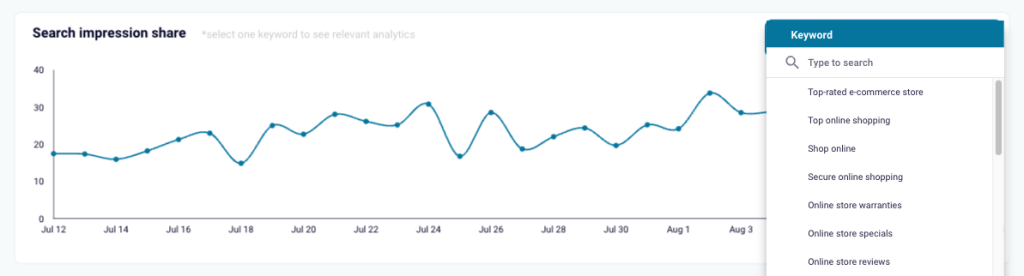
- Am I missing out on good keywords? The search impression share view shows keywords that convert well but aren’t appearing in search results often enough. A higher bid can fix that.
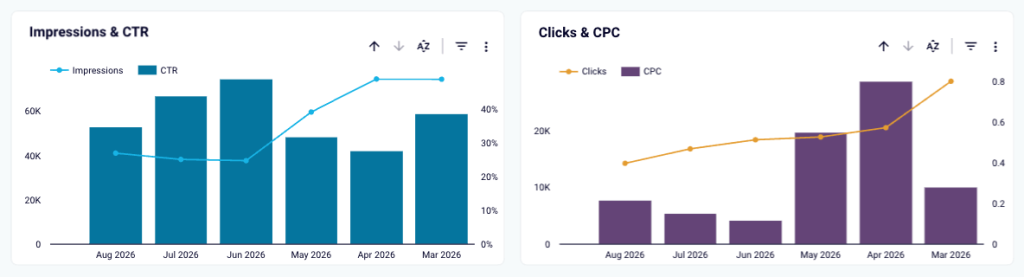
- Is this keyword getting better or worse? The time-based charts show trends for impressions, CTR, clicks, CPC, and conversions. Check these before acting on any single number.
Use the campaign, ad group, or keyword filters to narrow your view instead of scanning everything at once.
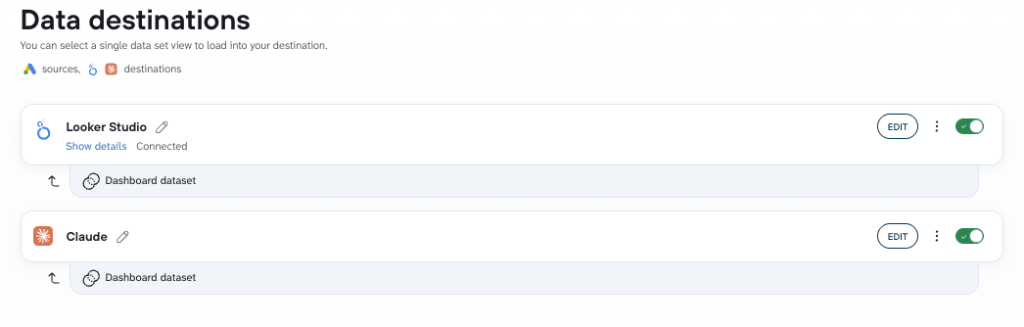
Once you’ve spotted a pattern, AI can help you dig into what’s behind it. With Coupler.io, you can send this same keyword data to an AI tool as an additional destination, or analyze it with the built-in AI Agent.
Ask questions like:
"Which ad groups have keywords competing against each other, and what should I consolidate?""Based on this keyword data, where should I reallocate budget to lower my overall CPA?"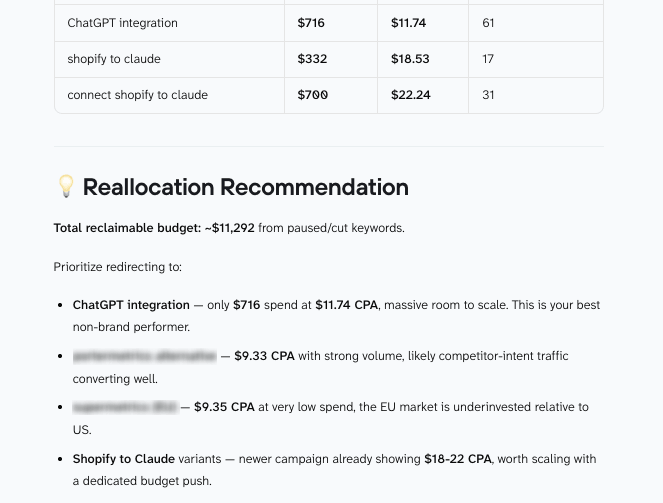
Step 3: Take action and keep the data fresh
Use what you’ve found to make targeted changes. Pause or lower bids on keywords that consistently spend without converting. Increase budget for keywords that convert efficiently. If a keyword gets clicks but no conversions, check the landing page and search intent before deciding what to change.
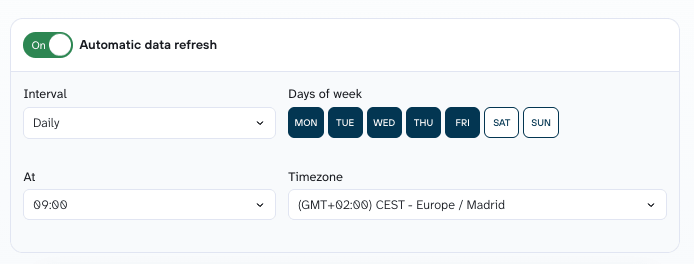
Keep the dashboard updated by switching on data refresh in Coupler.io. Choose a daily schedule to pull in new Google Ads data automatically, which helps you catch performance shifts early.
From there, you have a clearer basis for deciding where to cut spend and where to put more budget.

Find your best and worst Google Ads keywords
Get started for free