
ActiveCampaign doesn’t have a native feature for scheduling data exports. Each data entity type, like contacts, lists, or reports, sits in a different menu. So you need to navigate through multiple menus to export data manually. This also means that you must repeat the same steps every time you need the latest data.
To remove manual work and save time, automate the export of ActiveCampaign data with Coupler.io. It requires no developer skills or technical background to connect ActiveCampaign to spreadsheets, dashboards, data warehouses, and even AI tools.
ActiveCampaign Export Automation Made Easy with Coupler.io
Coupler.io is a data integration platform that enables you to manage complex data tasks, including custom reporting, visualization, and data integration from multiple sources to gain deeper insights.
It comes with a prebuilt ActiveCampaign connector to help you quickly automate data exports. You can upload your data to 15+ destinations, including business intelligence platforms, spreadsheet applications, and data warehouses.
Here’s how to automate the ActiveCampaign data export process.
1. Collect ActiveCampaign data
We’ve pre-selected ActiveCampaign as a data source in the form below to help you get started quickly.
You just need to select your preferred destination from the dropdown. Once you’ve done that, click Proceed.
You’ll be prompted to create a free Coupler.io account, without sharing your credit card details.
Note: You can change the destination later, so feel free to choose any option if you’re not sure about it right away.
After you’ve created your account, authorize your ActiveCampaign account and select a data entity type, such as Campaigns, Contacts, Lists, or Deals.
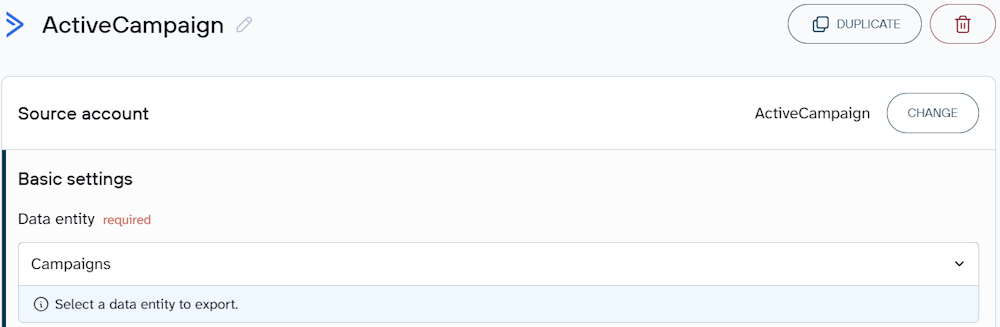
If you want to select multiple data entity types for your ActiveCampaign data flow, add ActiveCampaign as a data source again for each entity type and repeat the process.
Furthermore, Coupler.io allows you to export data from ActiveCampaign and combine it with information from other sources.
For example, you can connect Salesforce to your ActiveCampaign data flow to identify which email campaigns generate the most revenue. Such a multi-channel report also lets you track leads from the first click to close and identify the highest-converting campaigns.
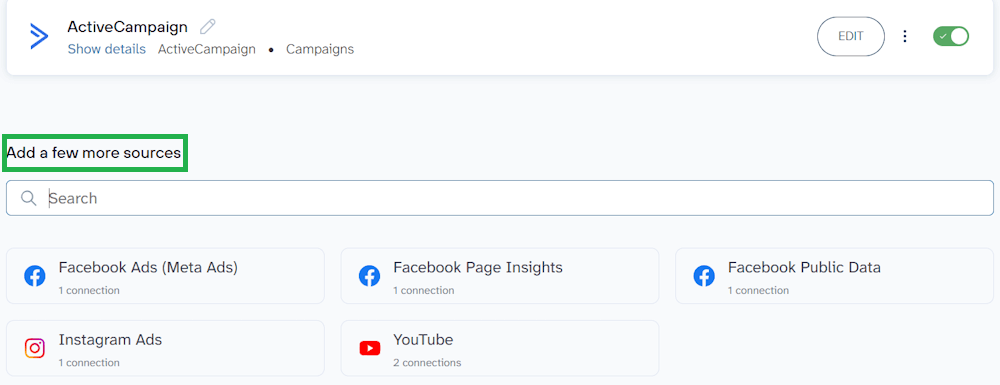
Once you’ve finished configuring the source, follow the on-screen instructions to move forward in the setup process.
2. Organize and transform ActiveCampaign data
In this step, you can view and transform the ActiveCampaign data you’re extracting.
- Rearrange, rename, or hide columns
- Apply various filters to extract the information you want
- Sort data by ascending or descending order
- Create new columns using formulas
- Aggregate data to find key insights by performing operations like sum, average, or count
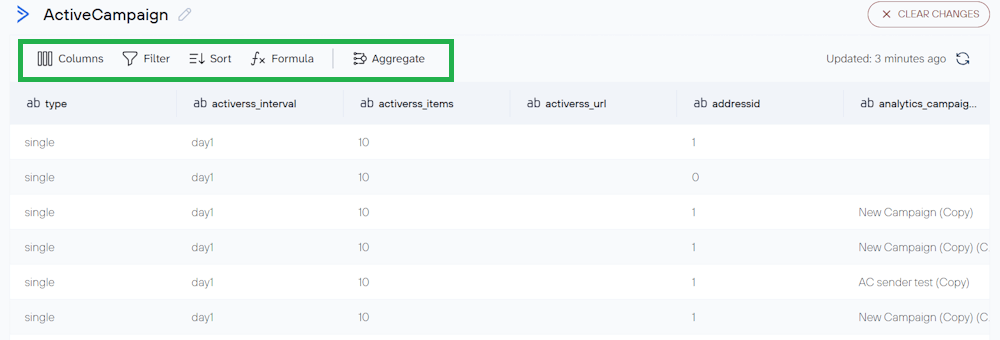
If you’ve added other sources to your ActiveCampaign data flow, you can blend that data to create a unified dataset in this step.
3. Load ActiveCampaign data and set up an update schedule
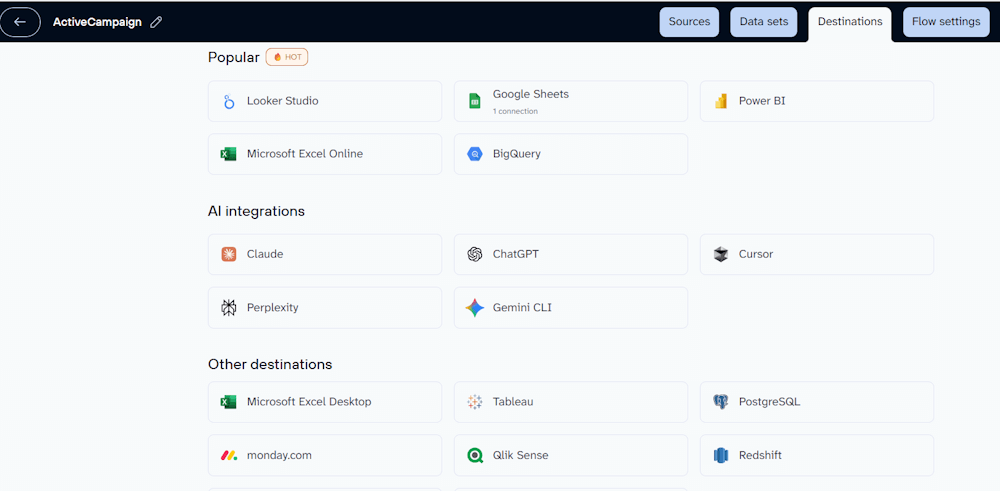
Once your data is ready to meet your analysis requirements, follow the on-screen instructions to set up your destination.
The next step is setting up a schedule for automatic data refresh. Coupler.io lets you set the update interval monthly, daily, hourly, every 30 minutes, and every 15 minutes, depending on your pricing plan.
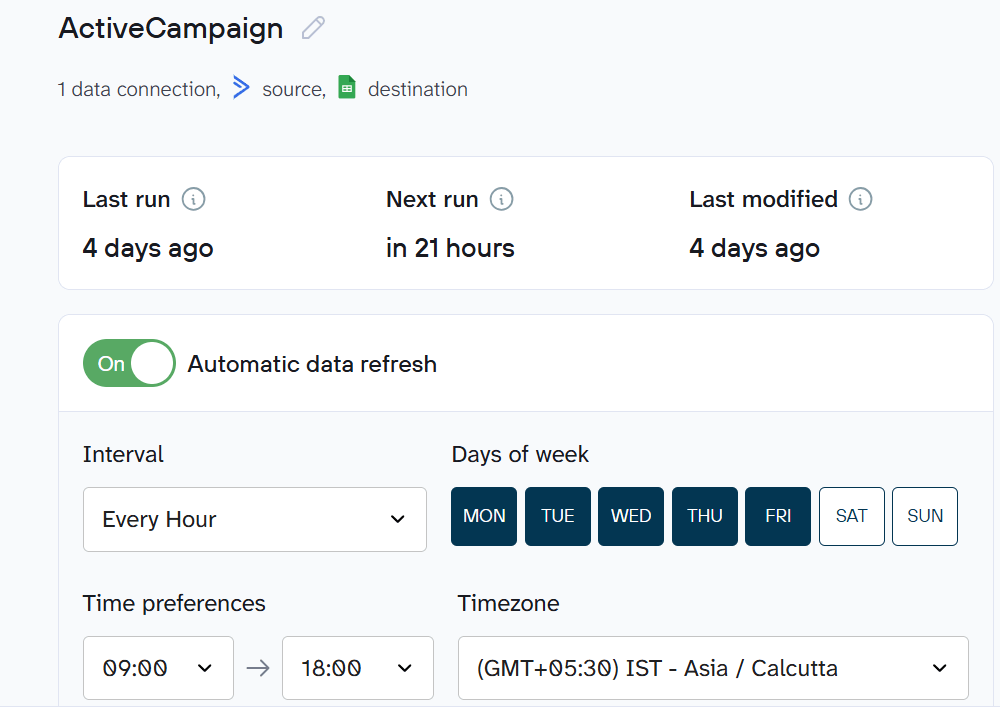
You can also choose the days of the week, time zone, and time preferences for automated updates.
Once you’ve configured the automatic refresh schedule, follow the on-screen instructions to save the settings. Your data will now update automatically according to your schedule.

Automate ActiveCampaign data export with Coupler.io
Get started for freeWhat types of data can you pull in Coupler.io’s ActiveCampaign data export?
With Coupler.io, you can export data from ActiveCampaign in six data entities.
| Data Entity | Description | Use Cases |
| Campaigns | Information about email performance across your account, including metrics like sends, opens, clicks, bounces, and revenue. | For tracking campaign success, analyzing trends over time, and measuring revenue impact. |
| Contacts | Individuals in your ActiveCampaign database with unique email addresses, phone numbers, or both. | Managing subscriber lists, segmenting audiences, or syncing contact data with a CRM or analytics tool. |
| Lists | Lists represent the communication type your contacts opted in to. They’re a primary way to group contacts for sending campaigns. | Tracking opt-in status, syncing data with a CRM tool, and getting insights into which communication type performs better. |
| Deals | These records represent potential sales or opportunities. | Reviewing pipeline health/sales progress and syncing deals with a CRM tool. |
| Segments | They’re contact groups based on rules, such as website visits, actions, or tags. | Reviewing data for personalized targeting. |
| Forms | Customizable tools used to collect the name, address, phone number, or email address of your audience. | Tracking form fills, spotting top sources, and comparing campaigns. |
Where can you export data from ActiveCampaign using Coupler.io?
Using Coupler.io, you can send ActiveCampaign data to 15+ destinations, including business intelligence (BI) tools, spreadsheets, data warehouses, and AI tools.
- Business intelligence and visualization tools: You can export your ActiveCampaign data to BI and visualization tools, such as Looker Studio, Power BI, Qlik Sense, and Tableau. These destinations are ideal for creating interactive dashboards to monitor campaign performance.
- Spreadsheet applications: You can upload your data to Google Sheets, Microsoft Excel (Online and Desktop) for team collaboration and basic, manual analysis.
- Databases and data warehouses: The platform supports data warehouses like BigQuery and Redshift for centralized analytics and long-term data storage. You can also send data to PostgreSQL, an open-source database, to power custom applications and internal tools.
- Project management tools: If you want to automatically create tasks when a new lead or support ticket is generated, Coupler.io supports exporting data to Monday.com.
- AI tools: With AI integrations by Coupler.io, you can connect your ActiveCampaign data with AI tools, such as ChatGPT, Perplexity, Claude, Gemini CLI, and Cursor to interact with your data in natural language.
Additionally, you can also download your ActiveCampaign data in CSV and JSON format.
CSV is your go-to format when you need something spreadsheet-friendly. It’s perfect for archiving data, sharing with external partners, or pulling information into other systems.
If you’re working with APIs and webhooks, JSON is the way to go. It’s designed for applications that consume data programmatically, making it the natural choice when feeding ActiveCampaign data into an API.
It’s worth noting that the destination categories above provide a general overview of what’s possible with Coupler.io.
Every business has unique tools, workflows, and data needs. So the right destination depends on how your team plans to use ActiveCampaign data and which platforms are already part of your tech stack.
Once your data flows into the right destination, the real work begins. You need a straightforward way to read results. That’s where dashboard templates help, and Coupler.io provides them for free.
Bonus: ActiveCampaign performance dashboard template
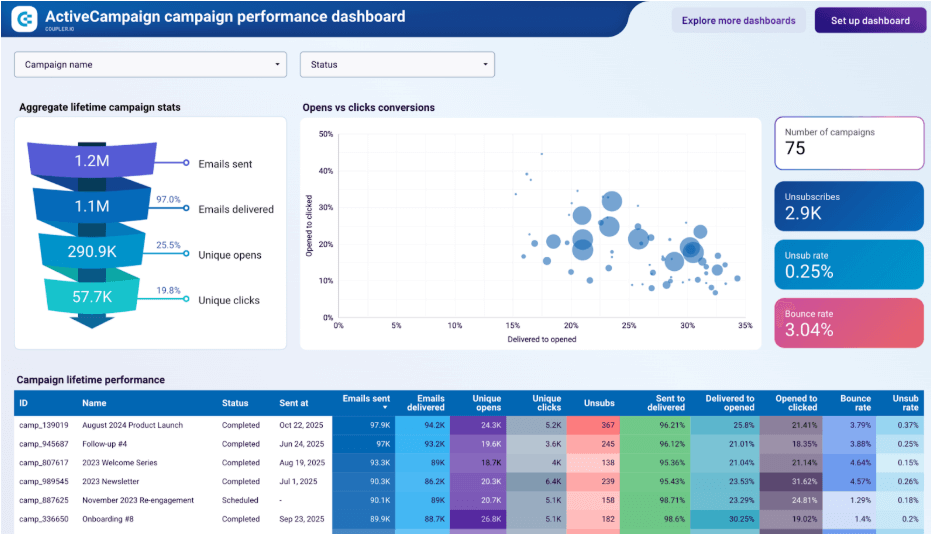
Coupler.io offers a ready-to-use ActiveCampaign performance dashboard template for Looker Studio. It lets you understand how your email campaigns performed over time.
ActiveCampaign campaign performance dashboard
 preview dashboard
ActiveCampaign campaign performance dashboard
preview dashboardThe dashboard shows emails sent, delivered, opened, and clicked. You can also view unsubscribers, unsubscribe rates, bounce rates, and the total number of campaigns.
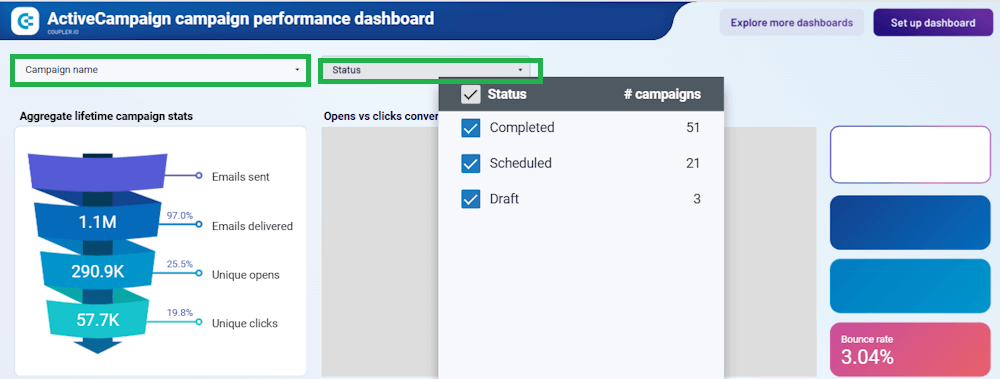
The template enables you to review the performance of all your campaigns, or dive into a specific campaign by name to check its status.
Furthermore, you can view the lifetime performance of all campaigns and individual campaigns, with metrics displayed in a table for easier comparison and analysis.
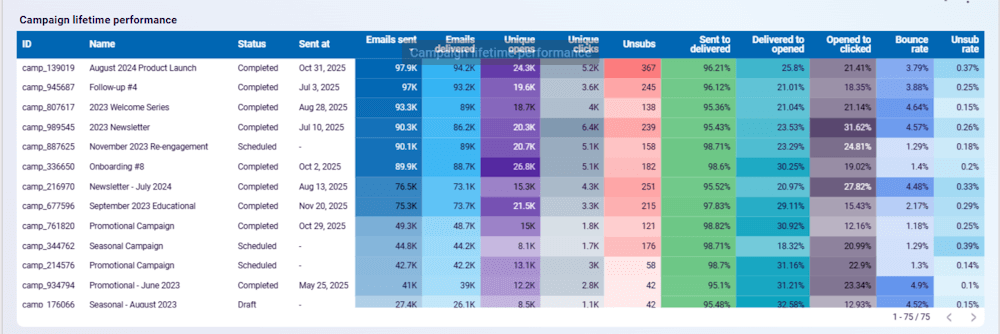
This dashboard is available as a Looker Studio template equipped with the connector by Coupler.io. Simply connect your ActiveCampaign account to populate the dashboard with your data in about 2 minutes.


Alternative options to export ActiveCampaign data
Coupler.io makes it easy to automate ActiveCampaign data exports on a schedule. If you want to compare available data export options before deciding, we’ll explore other export options next.
Here are two other ways to export data from ActiveCampaign.
Data export using API calls
ActiveCampaign data export using API offers flexibility to extract data that would otherwise be impossible. For example, exporting deal notes is only possible using the API.
However, you need developer skills to use the ActiveCampaign API to export data. Plus, ActiveCampaign enforces a five requests/second limit. This limit makes exporting large datasets via API slow.
So the API method is suitable only for situations requiring complex data extraction.
For small businesses and marketers who want to export ActiveCampaign data on schedule, using the API is not a practical approach.
What sets Coupler.io apart is that its ActiveCampaign connector is built on top of the ActiveCampaign API, eliminating the technical complexity of working with the API directly. There’s no need to build or maintain custom API integrations to export ActiveCampaign campaign data, contacts, lists, etc. The platform handles everything automatically.
You can extract your data without writing any code and connect it with any of 400+ other sources for richer insights. The system runs on autopilot without requiring any monitoring or troubleshooting.
Manual ActiveCampaign Data Export
ActiveCampaign lets you export certain data types, such as Contacts, Lists, and Deals, through manual exports.
The caveat is that you must navigate different menus to download each data type, which makes the native export process time-consuming. You also need to repeat the same steps each time you want fresh data.
Additionally, the native method does not support exporting all data types. For instance, you cannot export Forms and Segments this way.
If you’d still like to see how manual exports work in ActiveCampaign, we’ll walk through the process in the next section.
How to export ActiveCampaign data manually
Here’s how you can extract ActiveCampaign data manually.
Contacts
It’s straightforward to export contacts in ActiveCampaign. Go to Contacts in the left menu, click three ellipses (…) on the top right of the Contact Review page, and then click Export from the dropdown.
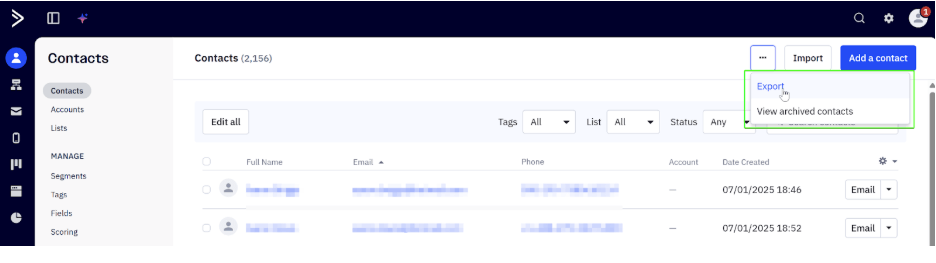
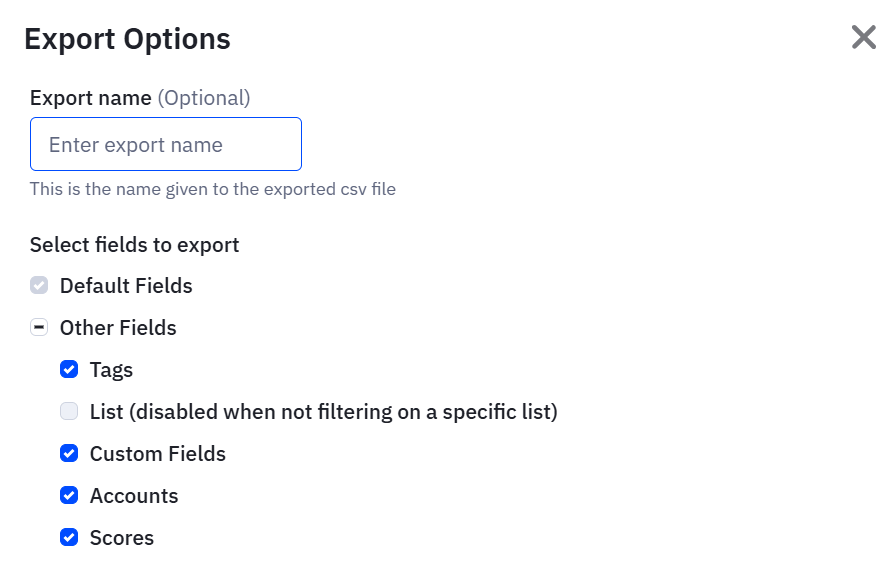
The Export Options window opens, allowing you to select fields to export. Here, you can also specify a name for the exported CSV file.
Click Export after selecting your preferred fields to export ActiveCampaign contacts.
The export process will run in the background. Once it’s complete, click the link in the confirmation message or go to Contacts ➝ Export to download the list of contacts in the CSV file.
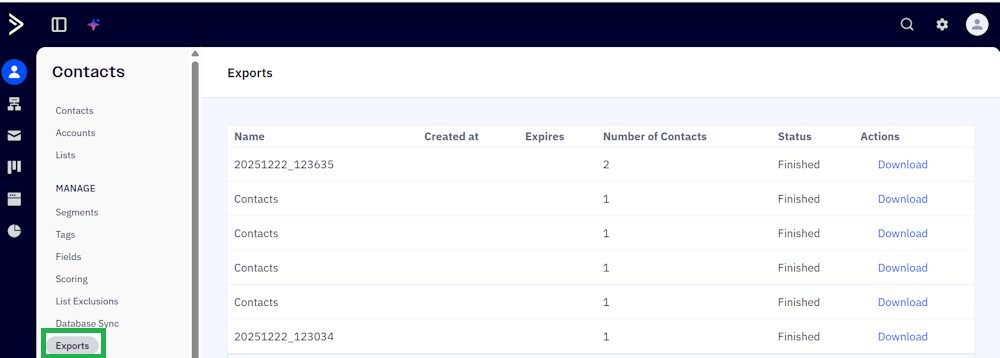
Note that the download link is valid for 7 days only.
Lists
You can export ActiveCampaign lists easily. Go to Contacts, click Lists, and open the List you want to export.
Choose which contacts you want to download from the Status dropdown. Then, click three ellipses (…) on the top right, then select Export from the dropdown.
The Export Options window pops up, allowing you to select the fields to export. Click Export to start exporting your list.
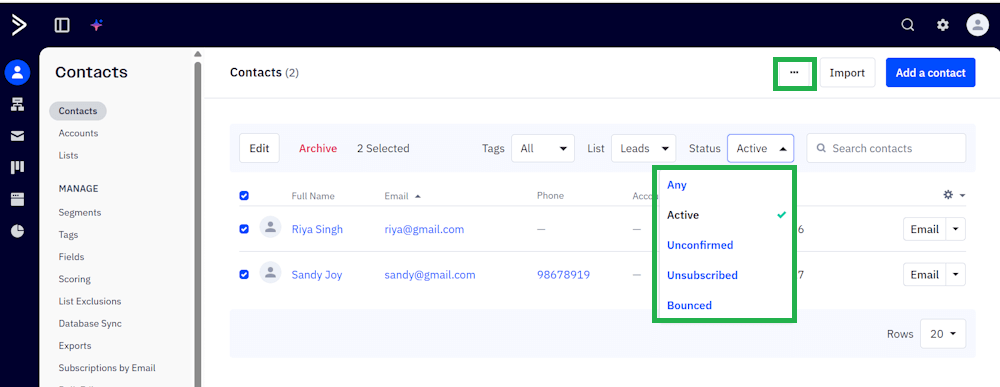
When the export is complete, you’ll get a confirmation message. Click the link in the confirmation message or go to Contacts ➝ Export to download the CSV file to extract your preferred list.
Deals
To export deals from ActiveCampaign, go to the Deals section from the left menu, then click the hamburger icon located on the right side of your screen.
Before exporting, you can customize which deals to include by adjusting the filters at the top of the page. If you want to export all deals regardless of their pipeline or status, select All from the Status dropdown and All Pipelines from the Pipeline dropdown.
Once you’ve configured your filters, click the gear icon in the top-left corner of the page, then click the Export button to export your deals data.
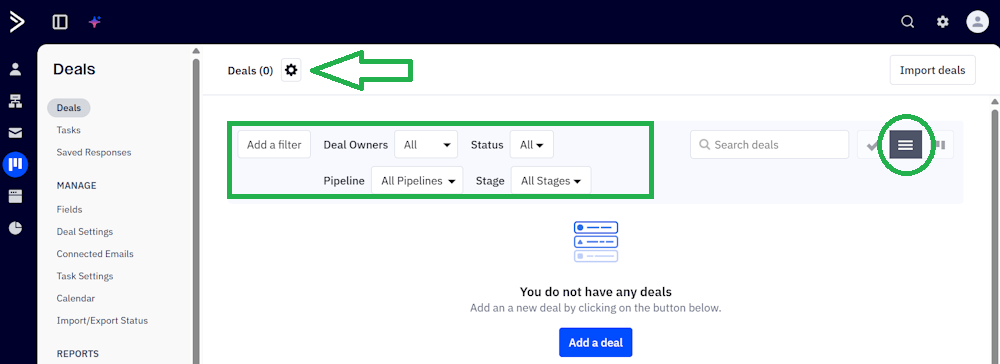
Your deals export will be downloaded as a CSV file. To access it, navigate to Deals ➝ Import/Export Status, where you can download the CSV file.
Please note that the download link expires after 30 days, so be sure to save your export file within this timeframe.
Campaign report data
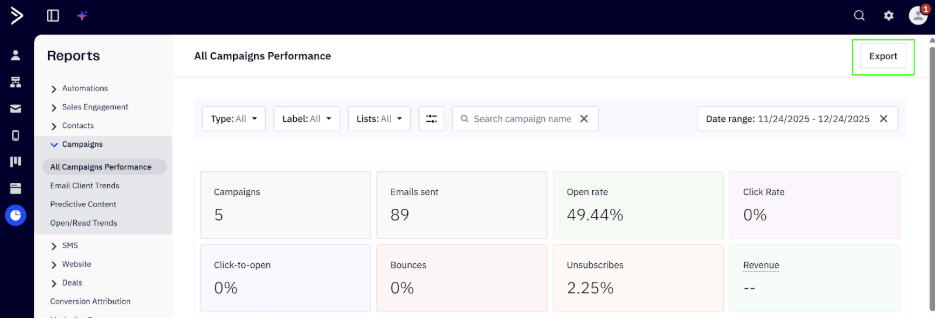
Go to Reports in the left menu, and navigate to Campaigns ➝ All Campaigns Performance.
Use the filter panel to specify the campaign type, label, and list of campaigns to export, or enter the name of a specific campaign.
To export ActiveCampaign reports data, click Export in the top-right corner of the screen.
Which option is best to export ActiveCampaign data?
ActiveCampaign data exports via its native extraction functionality work best when you need a specific data type, such as Contacts or Deals, on a one-time basis. It doesn’t support scheduled exports or data entities like Forms and Segments through the native manual method.
The API method may seem like a good option for complex data export needs, but it requires technical expertise and ongoing maintenance, which makes it impractical for most marketers and small teams.
Automated data export using Coupler.io strikes the right balance. It delivers regularly updated data without the complexity of APIs or the manual effort required by native exports. For small business owners and marketers who need daily reporting or analysis, this automated data export approach saves time and eliminates manual errors.
Plus, you can route your data to 10+ destinations for reporting, analysis, and cross-team collaboration.