
Exporting data from Zoho Books manually is time-consuming. You need to click through multiple menus to download data in CSV file format and repeat the steps whenever you need fresh data. This manual process not only drains time but can also invite errors. Coupler.io fixes this by automating Zoho Books data export on a schedule. And the best part is that the setup process takes only a couple of minutes.
Automate Zoho Books export data with Coupler.io
Coupler.io is a data integration platform that lets you automate data export from 400+ apps, such as accounting software, project management tools, marketing apps, and more.
And you can send the extracted data to 15+ destinations, including data warehouses, databases, spreadsheets, business intelligence tools, and AI tools.
It only takes 3 simple steps to export data from Zoho Books. Try it yourself right away using the form below by selecting the destination for your Zoho Books data. Click Proceed to start your free Coupler.io trial with no credit card required.
1. Collect your Zoho Books data
After connecting your Zoho Books account with Coupler.io, go to Basic settings and select the data entity type you want to export from the dropdown.
You can choose from 15+ data entity types, such as Users, Contacts, Bills, and more.
You also need to select your Organization ID and Start date to complete the source settings.
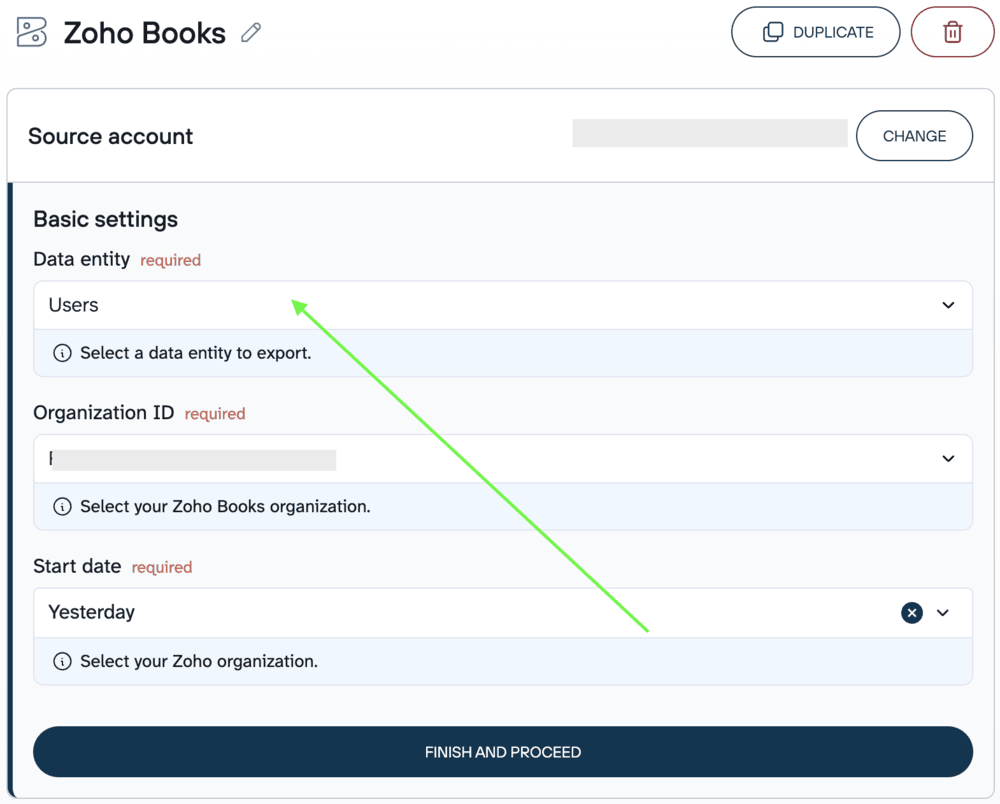
If you want to add multiple data entity types, you have to add Zoho Books as a source again and repeat the above process.
You can also add more sources to your Zoho Books data flow for better insights. For example, connect Zoho CRM to Zoho Books to measure how your sales pipeline translates into revenue.
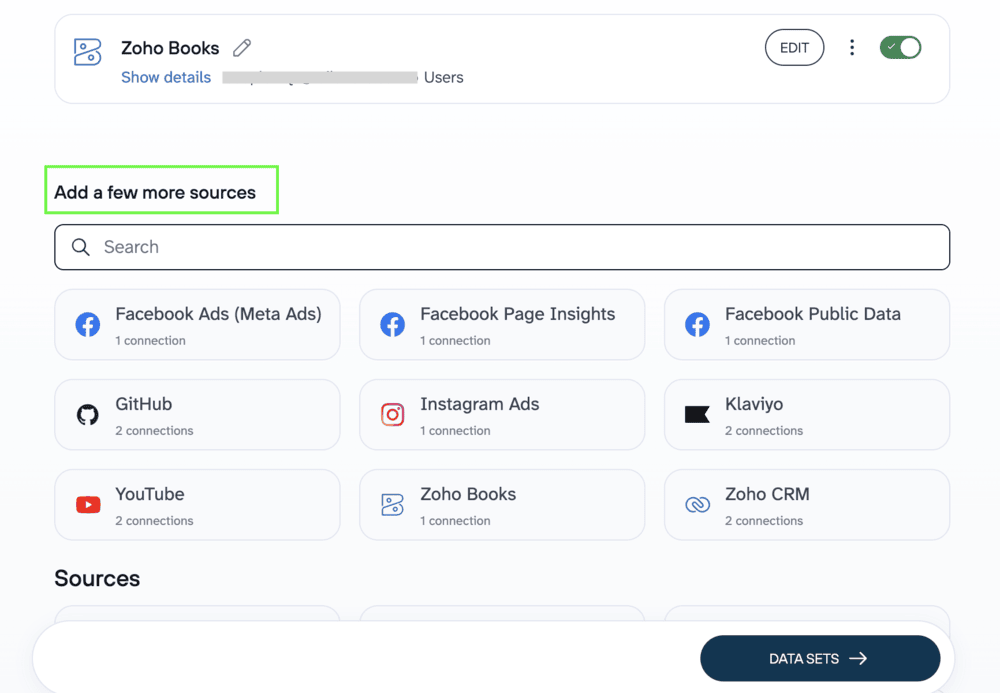
2. Organize your Zoho Books data set
This step is optional since it allows you to transform your Zoho Books raw data to make it analysis-ready according to your reporting requirements.
You can:
- Manage existing columns, like hide, edit, and rename them
- Add new columns using custom formulas
- Apply filters and sort data for a customized view
- Aggregate data using actions like sum, average, and count on specific columns
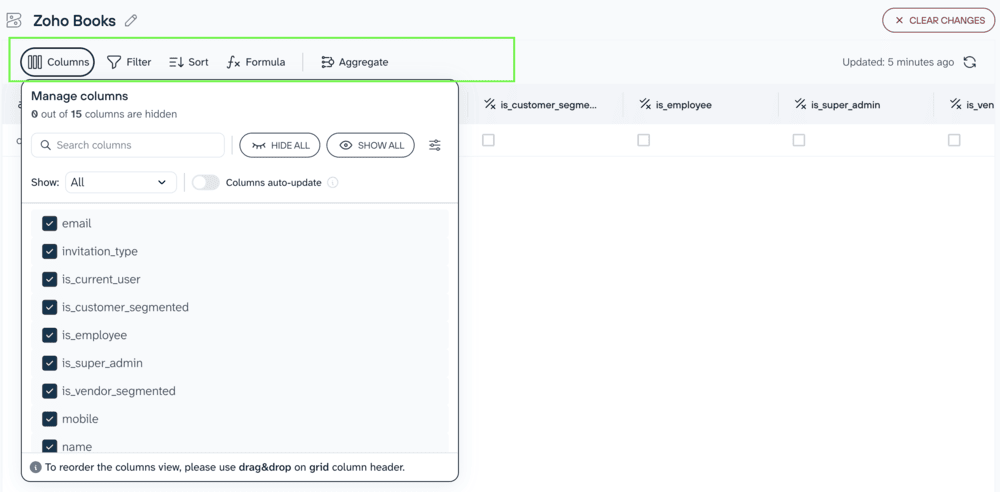
If you’ve connected multiple data entities or want to enrich Zoho Books data with information from other sources, Coupler.io provides data blending capabilities to accomplish this.
3. Load your data and set up an update schedule
Once you have transformed your data, follow the on-screen instructions to set up your destination. These instructions may vary depending on the destination you choose.
For example, if you’ve chosen Google Sheets as the destination, you need to connect your Google account and specify the spreadsheet and sheet to load your data.
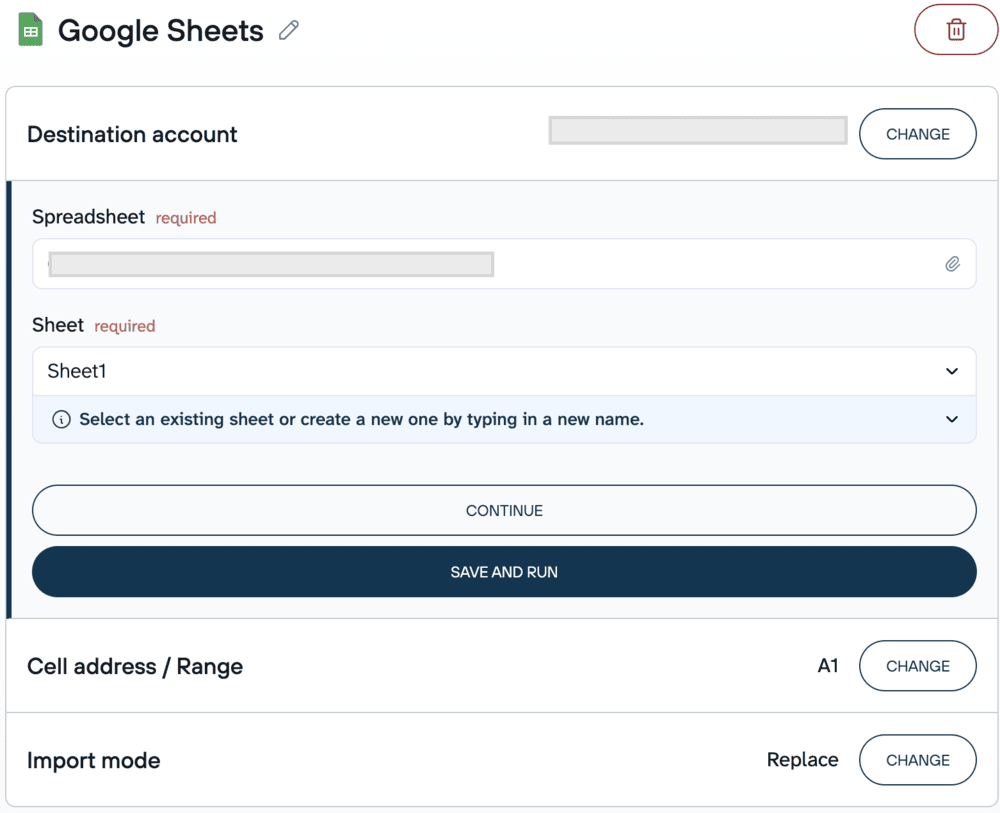
Now, you have to configure flow settings. Coupler.io allows you to refresh your Zoho Books data every month, daily, every hour, every 30 minutes, or even every 15 minutes, depending on your plan.
Furthermore, you can choose your preferred time, time zone, and specific weekdays for the automated data updates.
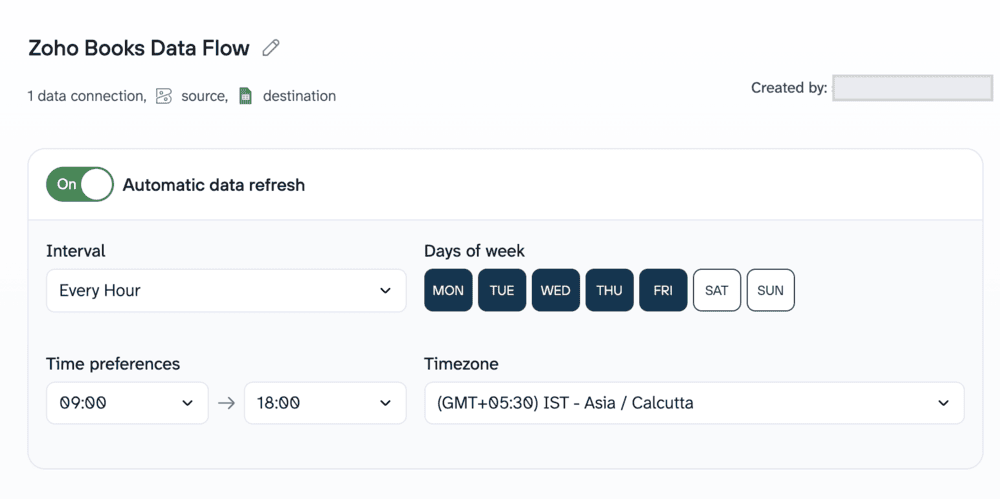
That’s it! Your Zoho Books data will now automatically export to your dashboard, spreadsheet, data warehouse, or AI tool on the schedule you’ve set.
Bonus: Use an AI agent to analyze data
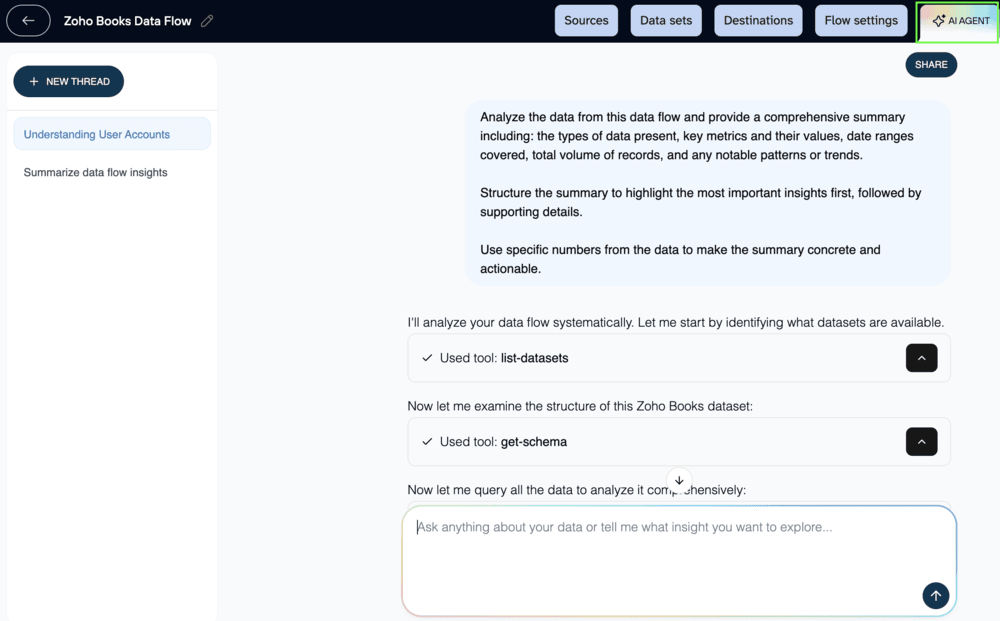
Coupler.io supports AI integrations with AI tools like ChatGPT, Claude, and Gemini. At the same time, the AI agent enables you to query your Zoho Books data within the platform in your existing data flows. No separate integration is required to use the AI agent.
For example, you may have data from Zoho Books running to your Google Sheets report and yet dig deeper by asking the AI agent questions like:
- Which customers have overdue invoices this month?
- What were my top five expenses last quarter?
- How does this month’s revenue compare to the same period last year?
This AI agent feature eliminates the need to manually sift through data or build complex queries in your destination tool.
What data you can export from Zoho Books using Coupler.io
With the Zoho Books connector by Coupler.io, you can export 15+ data entity types. Here are the most common ones.
| Data entity | Use case |
| Organizations | Manage organization details and settings |
| Contacts | Maintain customer and vendor contact records |
| Banking | Monitor bank accounts and banking activity |
| Bills | Track bills received from vendors |
| Estimates | Review price quotes sent to customers |
| Users | Monitor who has access to your Zoho Books organization |
| Customer payments | Track payments received from customers |
| Transactions | Analyze all financial transactions |
| Invoices | Check sales invoices sent to customers |
| Sales orders | Track sales orders from customers |
| Purchase orders | Monitor purchase orders sent to vendors |
Where you can send your Zoho Books data with Coupler.io
With Coupler.io, you can export Zoho Books data to the following 15+ destinations.
- BI & Dashboards: Connect your Zoho Books data to leading BI and dashboard platforms like Looker Studio, Power BI, Tableau, Qlik, and monday.com. These tools can help you build interactive dashboards that visualize financial trends and KPIs.
- Data warehouses: Load your data into major data warehouses such as BigQuery, Snowflake, PostgreSQL, and Redshift. This allows you to centralize Zoho Books data alongside other sources for large-scale analytics.
- Spreadsheets: You can send your data to popular spreadsheet applications such as Google Sheets, Microsoft Excel, and CSV. This helps you analyze, filter, and share Zoho Books data using familiar spreadsheet tools.
- AI tools: Feed your Zoho Books data directly into AI tools like Claude, ChatGPT, Gemini, Perplexity, Cursor, and OpenClaw to get AI-powered insights and summaries.
- Developer formats: Export your data in JSON format for programmatic access, making it easy to plug Zoho Books data into custom integrations and workflows.
Now that you know which data entities you can export with Coupler.io and where to send them, let’s explore other ways to export your Zoho Books data.

Automate Zoho Books data export with Coupler.io
Get started for freeOther ways to export data from Zoho Books
Coupler.io automates Zoho Books data export in just a few clicks. You don’t need any coding skills to use this no-code platform.
At the same time, use cases for exporting data can be different, hence the methods to do this. Here are the alternative options.
Zoho Books API
Zoho Books API lets you extract data programmatically. While doing so, you can apply advanced filters, such as retrieving only invoices from a specific date range or for a particular customer.
It also supports rules, such as sorting results, fetching only unpaid bills, or combining multiple conditions. This gives you precisely the data you need rather than downloading everything at once.
The API supports various endpoints for invoices, contacts, bills, expenses, bank transactions, and other modules, giving you granular control over what you pull.
But going this route means taking on a fair amount of technical overhead. You’ll be responsible for the full lifecycle of custom integration code, including authentication, error handling, and rate limit compliance.
That burden doesn’t end at launch either, since API updates and evolving data requirements will pull you back into maintenance mode.
Notably, Coupler.io’s Zoho Books connector is built on the same API, giving you the power of direct integration without the manual overhead.
There’s no code to write or maintain. You just have to configure your data source, set a schedule, and let the data flow automatically to your preferred destination.
Manual method for exporting Zoho Books data
You can also export certain types of Zoho Books data using native data export functionality. But it doesn’t offer any option to schedule data export, meaning you have to manually export data from Zoho Books every time you need fresh numbers.
As most Zoho Books data sits in different modules, you need to go to different menus to export various data types. This menu hopping makes the manual data export option tiring and time-consuming. Additionally, manual download is prone to human errors.
The manual export method is best suited for one-time needs, like migrating to another accounting tool or preparing data for industry audits.
Step-by-step process to export Zoho Books data manually
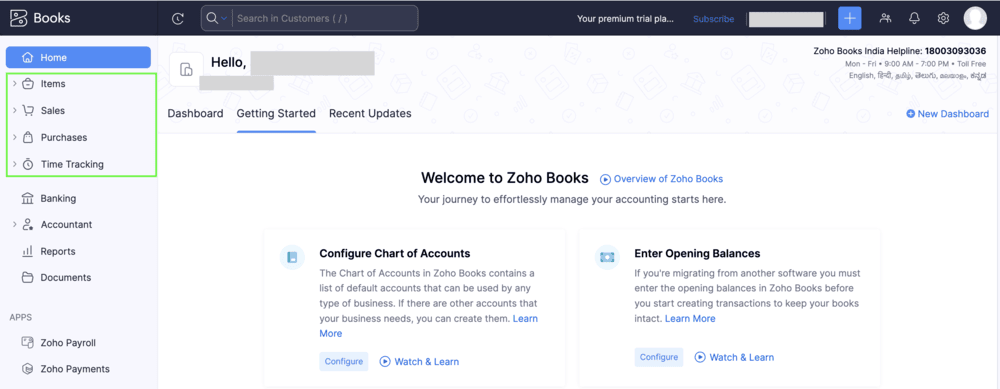
You can manually export Zoho Books data from any module, such as Items, Sales, Purchases, and Time Tracking.
Here’s a step-by-step tutorial to do it.
- From your Zoho Books dashboard, use the left pane to select the module you want to export data from.
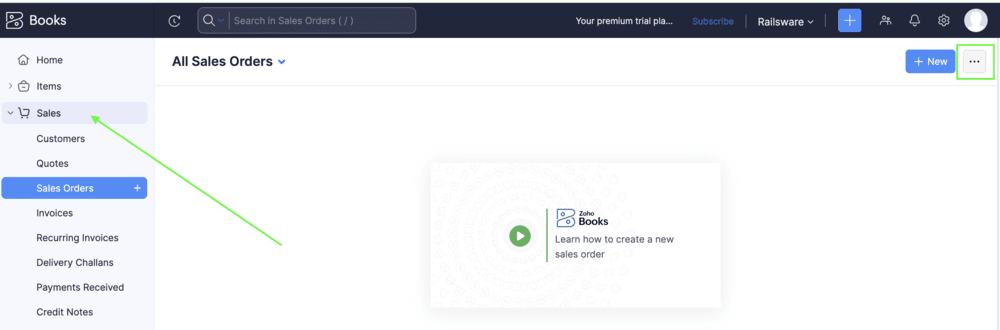
- Once you click a module, you’ll land on its list view showing all the records in that module. Pick the data type you want to export, and click the three-dot menu in the top right corner. Then, click Export to download the data.
For this demo, we’ve chosen the Sales module to export Sales Orders from the list view.
- In the export panel, you can set various export settings depending on the data type. Then, choose your preferred format to export your data and click Export to download your data in the CSV format, XLS, or XLSX.
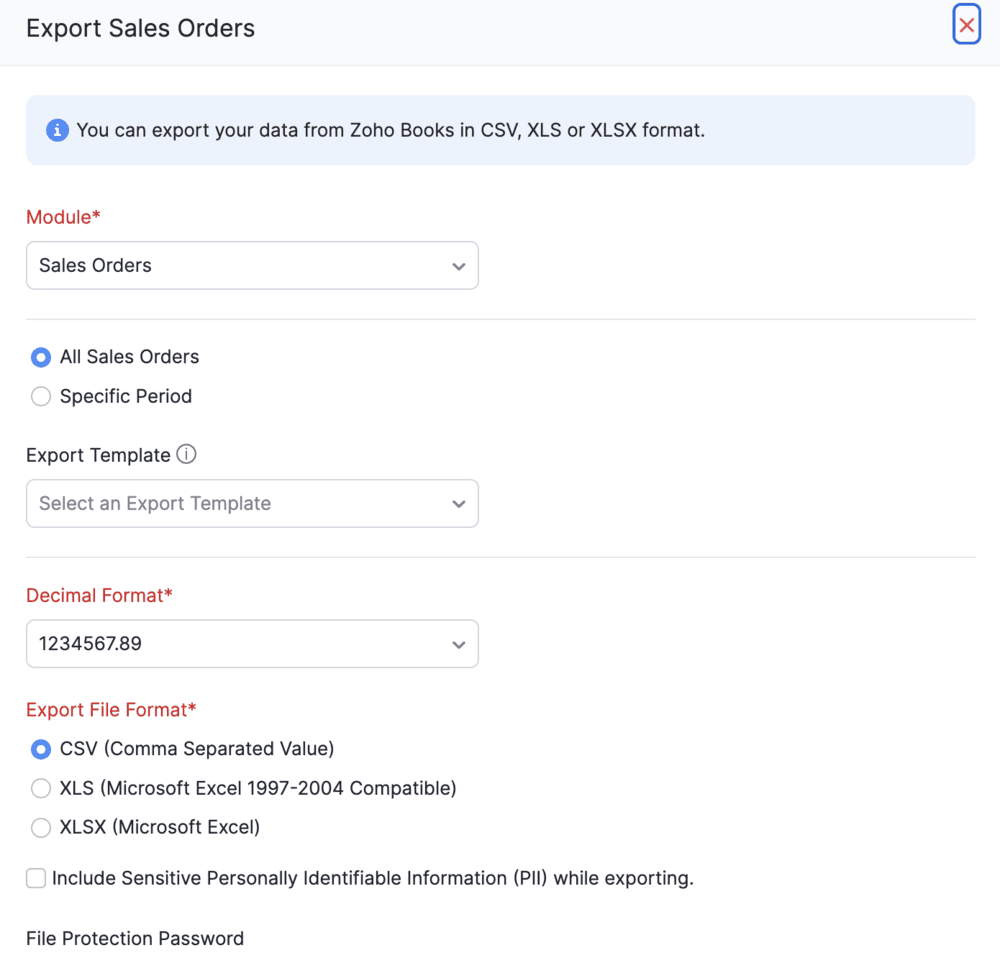
To export data from any other module, repeat the same process by selecting the desired module from the left pane.
Note: An admin can create data backups for all of their organization’s data twice per month.
Key challenges with exporting Zoho Books data and how Coupler.io resolves them
Zoho Books is a popular alternative to QuickBooks. But even though it’s built for small businesses, exporting your data isn’t always straightforward.
Whether you’re doing it manually or through the API, you’re likely to run into a few roadblocks.
Spreadsheet chaos
Raw Zoho Books export data can have messy formatting, such as inconsistent naming, extra fields, and varied status labels (PAID, Paid, or paid). This means you have to clean up the data before using it.
Coupler.io solves this by letting you transform your data before it reaches your destination. You can rename columns, hide unnecessary fields, and apply filters so your data arrives clean and analysis-ready.
No built-in scheduling
Zoho Books doesn’t offer any way to automate recurring exports. You have to repeat the entire process manually every time you need updated data.
Coupler.io offers flexibility to set automated refresh schedules, from monthly to as frequently as every 15 minutes.
Data spread across multiple modules
Financial data in Zoho Books is organized into separate modules, including Sales, Purchases, Banking, and Contacts. Getting a complete picture means navigating to each module and exporting individually.
With Coupler.io, you can add multiple data records from different modules within the same flow and manage them all from a single dashboard.
API rate limits and throttling
If you’re using the Zoho Books API, you’re subject to rate limits that can slow down or block your data extraction, especially when pulling large volumes. Coupler.io handles API calls efficiently behind the scenes, so you don’t have to worry about hitting limits or writing retry logic.
Ongoing maintenance overhead
The API approach requires constant upkeep, such as updating code when endpoints change, refreshing expired tokens, and fixing broken scripts.
Coupler.io doesn’t need all that. Your data flows keep running without any intervention.
Difficulty in combining multiple data sources
Financial reporting often requires merging Zoho Books export data with data from other platforms, such as CRMs, ad tools, or payment gateways. Doing this manually means exporting from each tool and stitching everything together in a spreadsheet.
With Coupler.io, you can easily combine data from Zoho Books with other data sources to create cross-platform reporting. Let it handle all these pain points, so you can stop worrying about Zoho Books data export logistics and focus on what actually matters: analyzing your financial data and making informed decisions.