
If you’re still exporting CSVs and dragging them into Claude every time your data updates, there are better ways. Claude supports several connection methods, from one-click connectors to custom API pipelines. The right option to load data to Claude depends on your technical resources, how often your data changes, and what you need Claude to do with it.
Here’s a quick reference before we get into the details.
| Connection method | Setup effort | Who does the math | Best for | Watch out for |
| Built-in connectors | Low: browse and enable from the menu, no coding | Claude — contextual access only, no heavy calculations | Quick lookups and actions in supported apps | Only tools in Anthropic’s directory; can’t run analytics on large datasets |
| → Coupler.io (recommended) | Low: create a data flow from your source to Claude | Coupler.io’s Analytical Engine returns validated results | Accurate, scheduled analysis across 400+ sources | Free plan has data refresh limits; paid plan needed for regular use |
| Custom MCP connection | Medium-high: provide MCP server URL and authentication | The tool must support MCP, or you need a developer to build a server | Internal databases, proprietary APIs, and tools not in the connector directory | Tool must support MCP, or you need a developer to build a server |
| Claude API | High: build tool use or RAG pipelines from scratch | Your backend. Claude only reasons and responds | Teams embedding AI into their own products or workflows | Most developer-heavy option; accuracy depends on your backend logic |
| Direct file upload / Projects | Minimal: drag and drop into chat or add to a Project | One-off analysis or a persistent knowledge base from fixed documents | The connected external system, which has no validation layer | Data goes stale the moment you upload it; no automated sync |
Built-in Claude connectors to load data to Claude
Claude offers built-in connectors for popular services across categories like communication, project management, design, engineering, and finance.
These connectors let Claude access apps, search data, and take actions inside the connected services. You can browse and add them on Claude.ai and the desktop app.
To connect data to Claude with a built-in connector, go to Customize in the left sidebar and select Connectors from the Customize sidebar menu. Browse connectors and pick the one you want to connect with Claude.
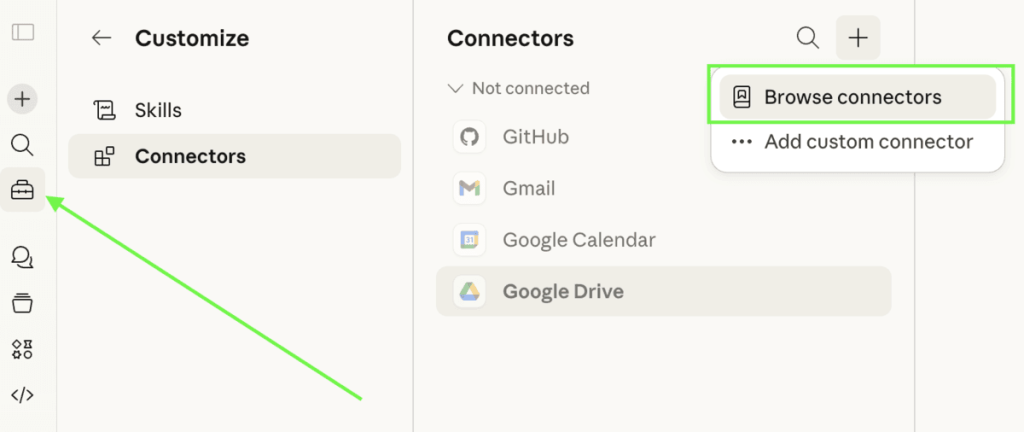
Teams and Enterprise users can use connectors only after the Owner or primary Owner has enabled this feature in the Claude settings.
One thing to keep in mind: built-in connectors are mainly useful for contextual access. You can pull in relevant information during a conversation, summarize recent activity, or reference data in a connected tool.
Say you import data to Claude from Google Calendar using the connector. You can ask Claude to check upcoming events, find availability, set up recurring meetings, and more. But you can’t ask it to analyze your meeting patterns over the past six months or calculate how many hours you spent in meetings last quarter. That kind of analytical work requires a different approach.
The built-in connector list is also limited to what Anthropic and its partners have built. If your tool isn’t in the directory, you’ll need one of the other methods covered below.
Coupler.io fills both gaps. It connects data to Claude from over 400 data sources and handles calculations through its own Analytical Engine rather than leaving them to the AI. (You can use a similar approach to connect data to Copilot, although the setup works differently because Microsoft handles external connections through Copilot Studio.)

Fable Food connected 6 business systems to Claude with Coupler.io
A global mushroom-ingredient manufacturer used Coupler.io to unify inventory, finance, CRM, Xero, HubSpot, and internal spreadsheets into a single BigQuery warehouse, then connected that warehouse to Claude. An operations lead uses Claude for supply-and-demand analysis; employees ask questions in Slack and get answers in about a minute instead of waiting up to 24 hours for the person who owns each system.
Read the case studyConnect business data to Claude using Coupler.io
Coupler.io is a data integration and AI analytics platform with a Claude connector. You connect it once, ask for the data you need in plain language, and analyze your data without leaving the chat. Here’s how it works.
Step 1. Connect Coupler.io to Claude
Sign up for Coupler.io for free. Then add the Coupler.io connector in Claude and follow the instructions to authorize your account. The connector works in Claude Chat, Cowork, and Claude Code.
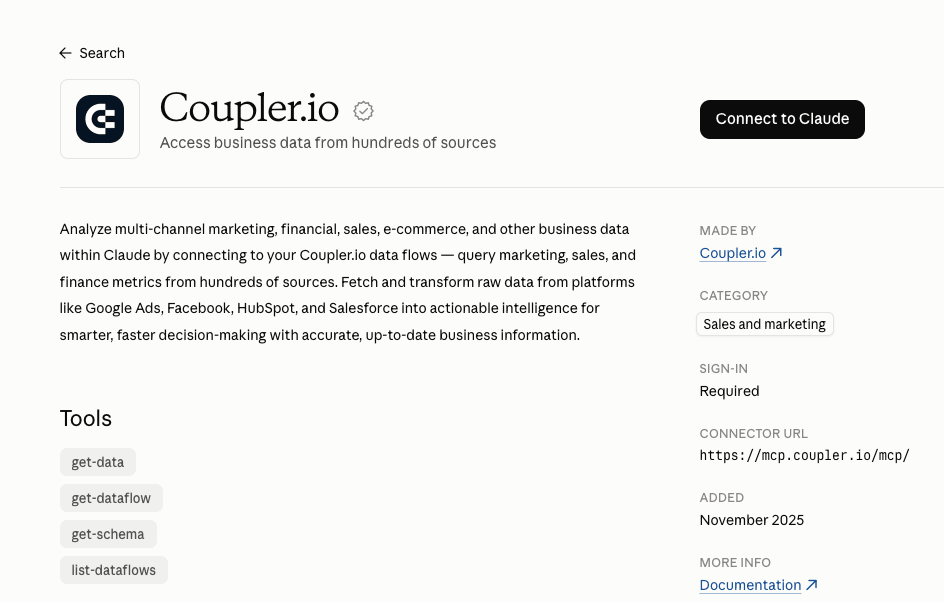
You only do this once. From then on, you can bring business data into any Claude chat.
Step 2. Tell Claude what data you need
Describe what data you want to analyze in your own words. I tried it with the Google Ads to Claude integration:
Create a Google Ads report with campaign, keyword, and ad performance for the last 90 days,
refreshed daily.
The first time, Claude asks for permission to use Coupler.io. Then it gets to work. Claude found my Google Ads account, pulled campaign, keyword, and ad performance, and set it to refresh every morning. If an account isn’t connected yet, Claude asks you to sign in to it first, and it checks the setup with you before anything runs.
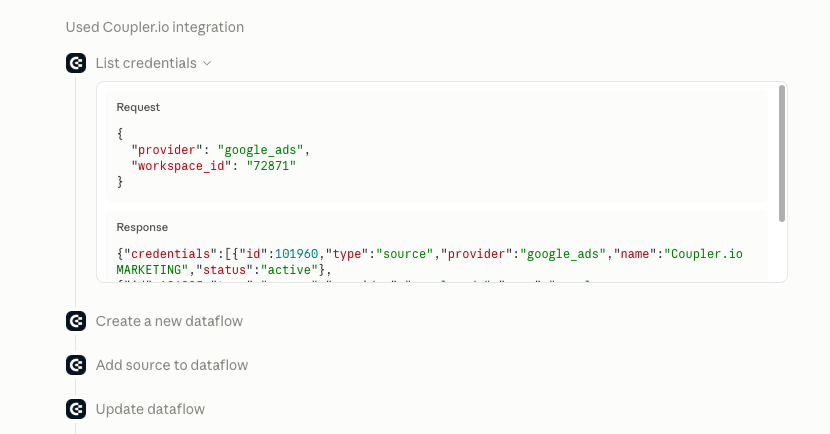
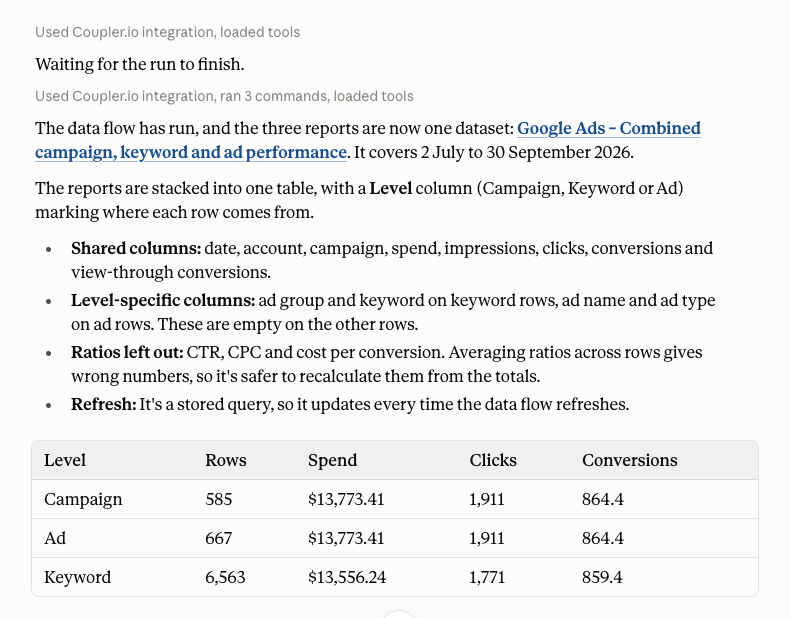
You can keep shaping the report in the same chat. I asked Claude to combine everything into a single table. You can also ask it to add Google Analytics or Shopify data to the report, filter columns and fields you’d rather Claude didn’t see, and so on.
Explore how to connect Facebook Ads to Claude and Google Ads to Claude for recurring PPC analysis.
Step 3. Chat with Claude about your data
Unlike the Coupler.io ChatGPT App, where you can tag @Coupler.io in the chat, nothing like that is needed in Claude. Just ask your question, and Claude will identify the data relevant to your request. You can also point Claude to a specific report by naming it.
For instance, I got inspired by how to write a prompt that works by Nika, and asked the following:
Context: I'm analyzing Google Ads performance across our campaigns and need your input to interpret the data correctly.
Please answer the following:
Which campaigns are you actively running right now, and what's the primary goal of each — leads, sales, brand awareness, or something else?
Have there been any major changes in the past 30–60 days — budget shifts, new ad groups, audience changes, bid strategy switches?
Which metrics matter most to you: CPA, ROAS, CTR, conversion volume, or a combination?
Are there any campaigns you'd consider underperforming right now? What's your gut feeling about why?
Any external factors I should know about — seasonal demand, competitor activity, product launches, landing page changes?
What I'll do with this: Cross-reference your answers against the campaign data to identify patterns, flag anomalies, and surface actionable recommendations.
In a few moments, I got a detailed Google Ads analysis:
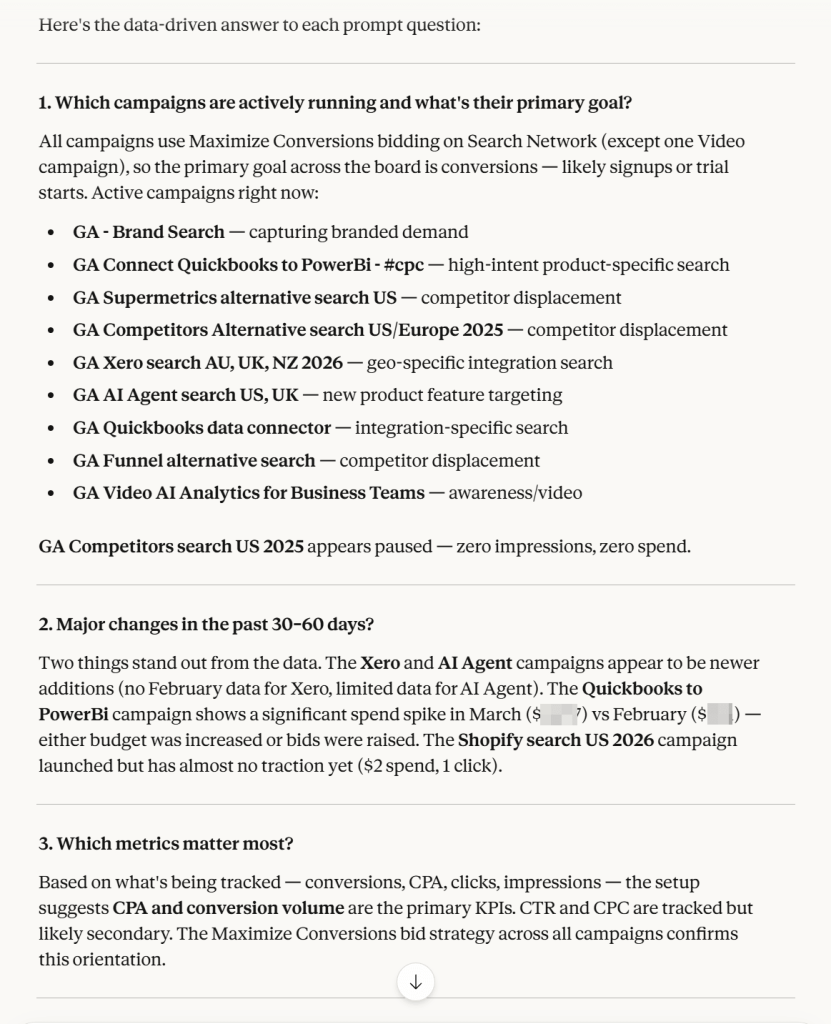
Teams of all sizes can use this approach because Claude data analysis for small business works in the same way it does for an enterprise. For a closer look at how this works, see how to connect any data source to AI in one step.
How Coupler.io handles calculations behind the scenes
AI integrations with Claude, ChatGPT, Gemini, and other tools are good at interpreting data, but large raw datasets can still trip them up. That’s why Coupler AI splits the work: Claude handles the conversation, and Coupler.io’s Analytical Engine handles the math.
Here’s how. Coupler AI shares only the structure of your data and a small sample with Claude, never the full dataset. When you ask a question, Claude turns it into a query, and the Analytical Engine runs it against all your data. Claude gets back verified numbers and explains them in plain language.
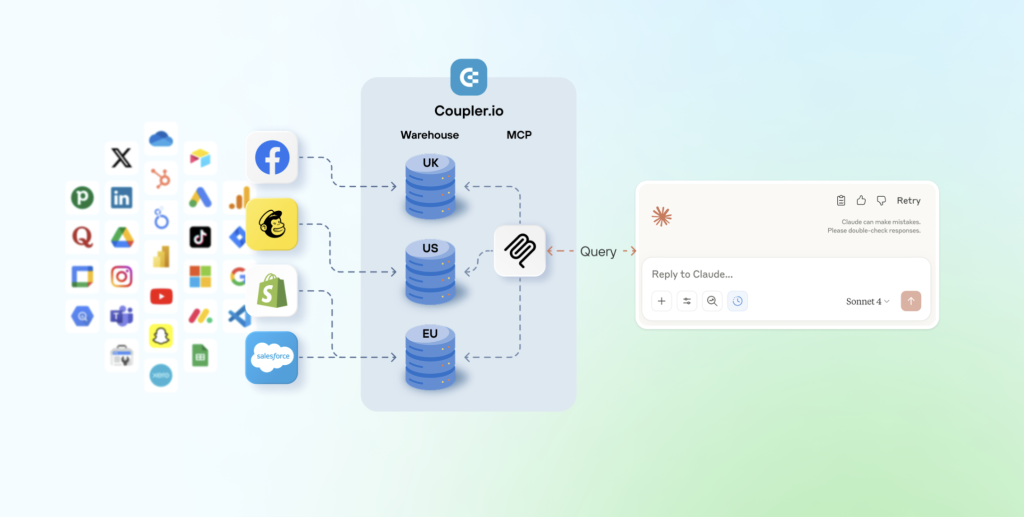
On the security side, Coupler.io is SOC 2 certified, GDPR- and HIPAA-compliant. It sits between your business apps and Claude, so with AI integrations, your apps never connect to Claude directly. You decide which data Claude can see, and all processing is encrypted. More on AI data security.
Coupler.io’s Claude integrations give you access to 400+ data sources, and Coupler AI keeps each report refreshed on the schedule you set. That means you can automate marketing reporting and analytics in Claude across several sources at once, just by asking questions.
Let Coupler AI do the data work for you
Tell Coupler AI what you need to know, from which source, and how often. It connects your account, sets up the data flow, keeps it refreshed, and lets you analyze the results inside Coupler.io or another AI tool.
Try for free
Connect your data via MCP (Model Context Protocol)
Model Context Protocol (MCP) is the open-source protocol Anthropic developed to connect LLMs like Claude to external tools and resources. An MCP server acts as a middleman: it takes Claude’s requests, queries your tools or databases, and returns the results.
Claude’s built-in connectors, including Coupler.io, are MCP connections that Anthropic and its partners have pre-built for you. But if you need to load data to Claude from a tool or source that isn’t in Anthropic’s directory, you can set up a custom MCP connection.
This is best suited for teams that need to connect AI to PostgreSQL, other internal databases, proprietary APIs, or tools with no built-in connector available. For example, an internal inventory management system, a custom CRM, or a private data warehouse.
Here’s a practical scenario. Your operations team tracks inventory in an internal database. Without an MCP connection, someone has to manually export the data and upload it to Claude every time they need to ask a question. If the data changes, they upload again.
With a custom MCP connection, Claude connects directly to that database. A warehouse manager can ask, “How many units of SKU-4821 are currently in the Dallas warehouse?” Claude sends that request to the MCP server, which queries the inventory database and returns the live count. No spreadsheets involved.
How to set up a custom MCP connection
Well, you’ve already covered this path above: Customize > Connectors. However, this time, instead of Browse connectors, choose Add custom connector from the dropdown.
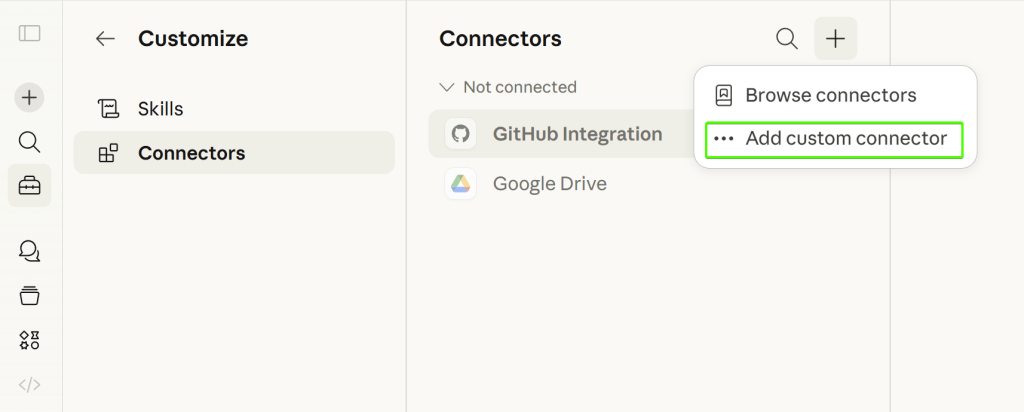
You will need to provide a name and a remote MCP server URL. Advanced settings require OAuth Client ID and Client Secret.
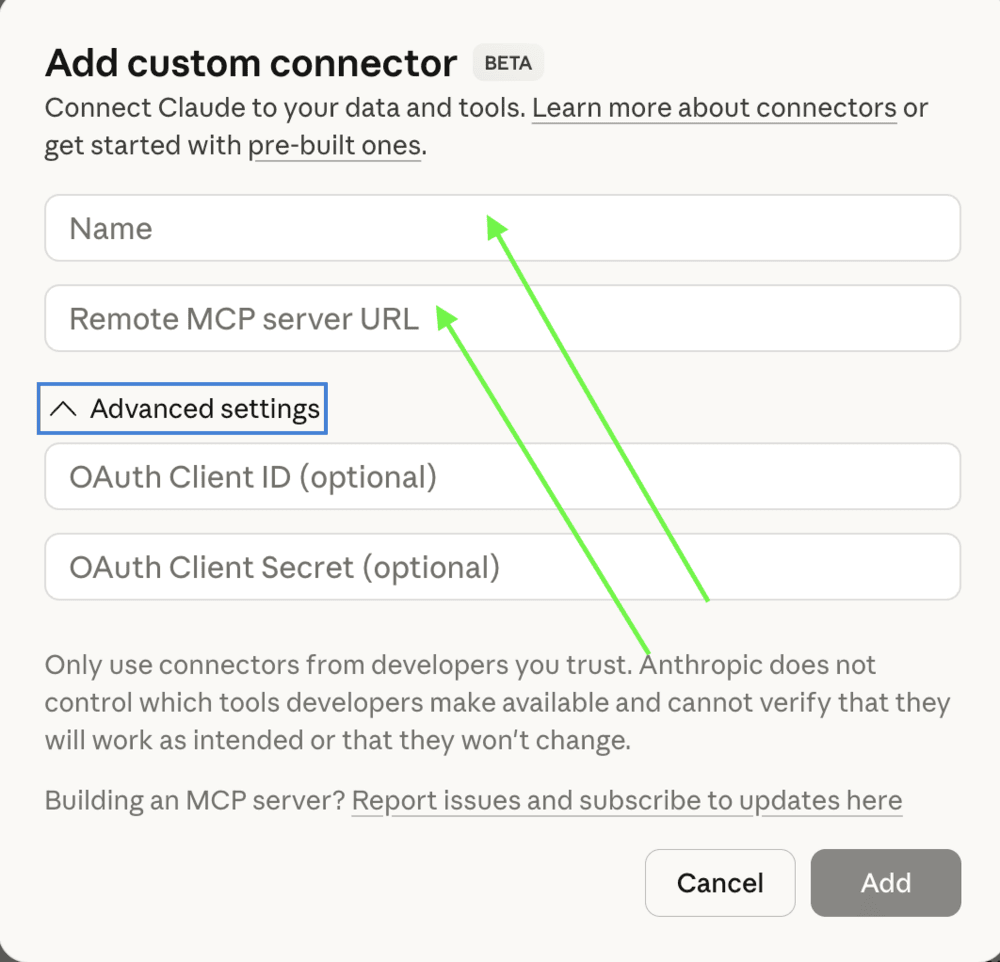
Once authenticated, you can start querying your data in natural language.
Developers who prefer working in a terminal can also use Claude Code to configure MCP servers and manage custom connections.
There’s no intermediary layer handling calculations with a custom MCP. Claude queries the connected tool or database through the MCP server, and the external system processes the request and returns results. Accuracy depends on the data source itself and how the MCP server is configured.
Keep in mind that the tool you’re connecting must already support MCP, or you’ll need to find or build a compatible MCP server. For legacy tools or internal databases without readily available MCP servers, the developer overhead can be significant.
Use the Claude API for programmatic integration
With the Claude API, you can build a direct pipeline between your business data and Claude inside your own application or backend. Your data reaches Claude through two paths, depending on where it lives.
Live systems via tool use (function calling)
If your data lives in a database, a CRM, or an internal API, tool use lets Claude pull from it in real time.
You map each data source to a function that Claude can call. One function might pull customer records from your CRM, another might query order history from your database. When a user asks a question, Claude determines which function to call, your backend runs the query against live data, and Claude interprets the result.
For example, a sales manager asks: “What's our current churn rate for enterprise accounts this year?” Claude calls the CRM function you’ve defined, your backend runs the query, and Claude responds with the number and available context.
All data fetching and calculations happen on your backend. Claude reasons and responds. So the accuracy depends entirely on how your backend logic is built.
Tool use works best when your data is structured, changes frequently, or when Claude needs to take actions in external systems.
Document libraries via retrieval-augmented generation (RAG)
If your data is spread across documents, such as product guides, policies, contracts, or other text-heavy documents, RAG makes that knowledge accessible through Claude.
Your backend splits those documents into chunks and stores them in a vector database. When someone asks a question, the system retrieves the most relevant chunks and passes them to Claude as context. Claude then generates an answer based on what it receives.
A support team, for example, could use RAG to connect Claude to their internal knowledgebase: product documentation, troubleshooting guides, and policy updates. Agents ask questions in natural language instead of digging through folders.
The difference from tool use: Claude never queries a system directly in RAG. Everything flows through your retrieval pipeline, so the answer quality depends on how well your documents are chunked and indexed.
When to use which?
- Implement the tool use when data is structured, changes frequently, or Claude needs to take actions.
- Use RAG when you have large volumes of unstructured text and the primary goal is question-answering over documents.
Many production systems combine both: RAG for knowledge retrieval and tool use for live data and actions.
Using the Claude API requires developer skills across API integration, backend architecture, and either vector databases or function orchestration, depending on the pattern.
Import data to Claude directly
If you don’t need an ongoing connection, the fastest way to get data into Claude is by uploading files directly. You can upload docs, PDFs, JPEGs, CSV files, and more.
Click the + button in the bottom-left corner of the chat input box and select Add files or photos to browse and upload from your device. You can also drag and drop files directly into the chat window.
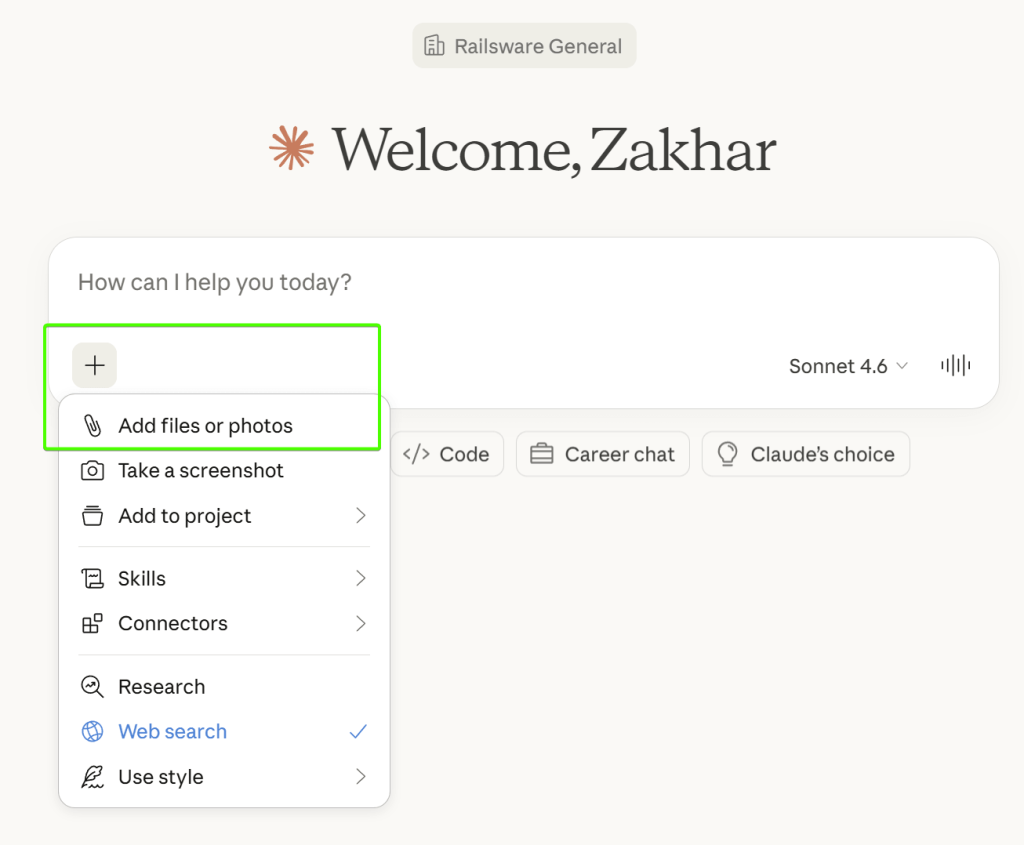
Once uploaded, type your question, and Claude will analyze the data immediately.
Claude supports various file types, including PDF, DOCX, CSV, HTML, JSON, EPUB, JPEG, GIF, and more.
Each file can be up to 30 MB, you can attach up to 20 files per conversation, and images can’t exceed 8,000 x 8,000 pixels.
If your business data lives in local spreadsheets, CSVs, or documents, Claude Cowork (a desktop tool for non-technical users) can read, analyze, and work with those files directly without any integration setup.
Claude Projects
If you reference the same documents regularly, you can upload them to a Project. Claude treats them as a persistent knowledge base across all chats in that project, so you don’t re-upload for each conversation.
Go to the Claude sidebar, click Projects, then New project. Name it and describe the objective.
Add custom instructions and upload your reference files into the project’s knowledge base.
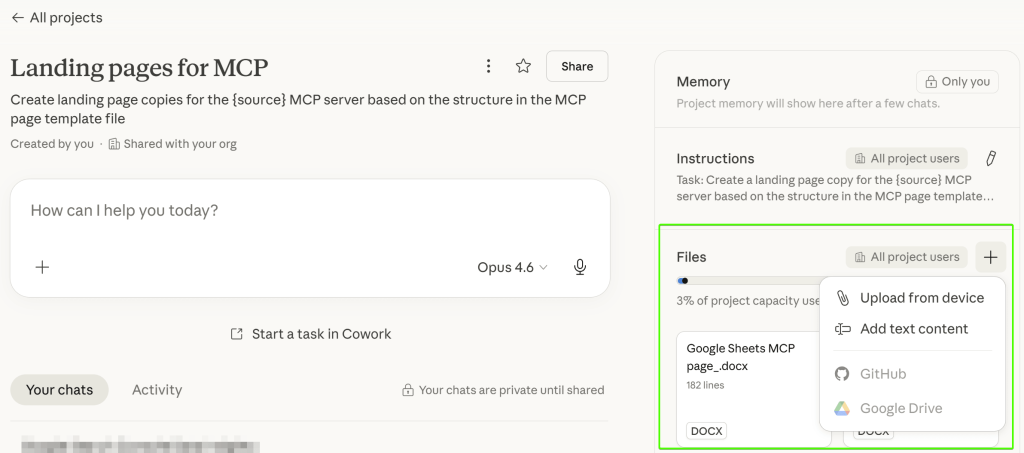
From there, you can chat inside the project, and Claude will automatically reference your uploaded documents.
Projects support the same 30 MB per-file limit but allow an unlimited number of files. When the knowledge base grows too large for Claude to read at once, RAG mode kicks in automatically. Claude then uses a search tool to retrieve only the relevant content for each question instead of loading everything at once.
The limitation of file uploads and Projects is the same: if your underlying data changes, you have to re-upload manually. For one-time analysis, that’s fine. But if you need always up-to-date data, use the Coupler.io connector for Claude.

Ensure Claude always works with fresh data
Try Coupler.io for freeChoosing the right method to connect your business apps with Claude
To find the right fit, answer these questions:
Is your tool already in the Anthropic directory? Enable the built-in connector for quick contextual access.
Do you need analytics across multiple sources without coding? Coupler.io connects over 400 business data sources to Claude, and its Analytical Engine handles the calculations.
Do you need to connect internal databases or proprietary tools? A custom MCP connection gives you direct access without building a full application.
Are you embedding AI into your own product? The Claude API gives you complete architectural control through tool use and RAG.
Do you just need to analyze a specific document? Upload it directly or add it to a Project for ongoing reference.
You don’t have to pick just one. Many teams combine methods depending on the use case.