
Introducing Multiple Destinations: Pull Data Once, Deliver It Everywhere

Modern data teams use 5–10 tools for reporting and analysis. Marketing lives in Data Studio, the analyst queries BigQuery, and the sales team wants Google Sheets. And now the Head of Product is asking to connect data to Claude for conversational analysis.
Until now, each destination meant a separate flow in Coupler.io. Starting today, one flow covers all of them because Coupler.io supports multiple destinations.

Connect data once, send it everywhere
Try Coupler.io for freeDeliver data to every tool your team uses from one flow
Your data team lives in BigQuery. Finance won’t leave Google Sheets. Execs want everything in Data Studio. We heard this from users over and over, so we built multiple destinations to fix it. Now you set up one flow, add as many destinations as you need, and set one refresh schedule. That’s it.
Think about what that means day to day. You connect Google Ads once and set a morning refresh. By 8am, the client dashboard in Data Studio updates on its own, the account manager’s Google Sheets report is up-to-date, and the data team has the latest data in BigQuery. No one asked you for an export, and the entire team is working with fresh numbers.
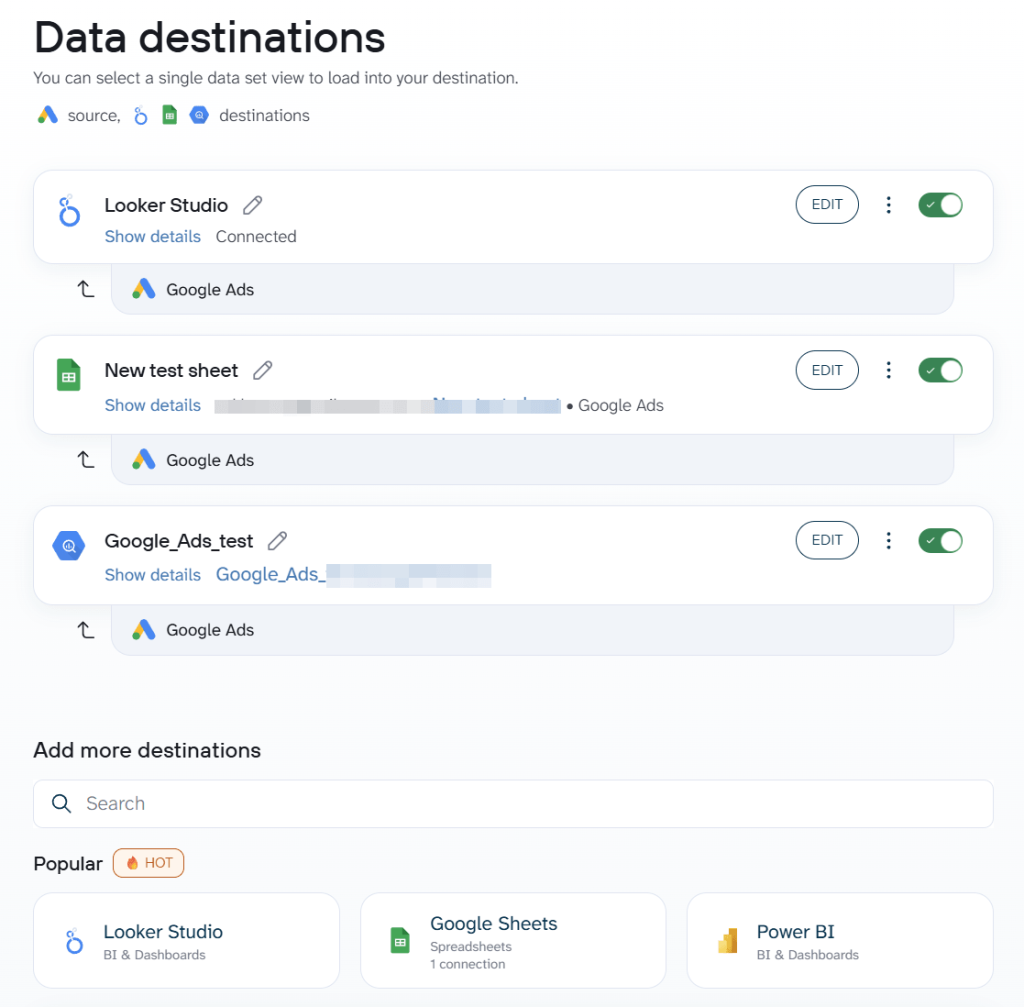
This gives you:
- One place to manage
- Consistent data across tools
- Less maintenance overhead
How to time your refresh schedule
Each destination runs independently. So if destination 1 finishes first, that data is already available, even if destination 2 is still running.
How teams use multiple destinations
Multiple destinations save various business workflows depending on the tools you use. Here are three common setups to give you a concrete idea of what’s possible.
Facebook Ads: warehouse and weekly review
Ad performance data often needs to serve two different purposes at once: detailed analysis for the data team and a readable report for everyone else. When you copy the same flow twice, it means there are two schedules to manage and two places where things can break.
With multiple destinations, one Facebook Ads data flow covers both:
- BigQuery → stores raw ad performance data for deeper analysis and historical tracking
- Google Sheets → a ready-to-read report the marketing team can open and filter without touching SQL
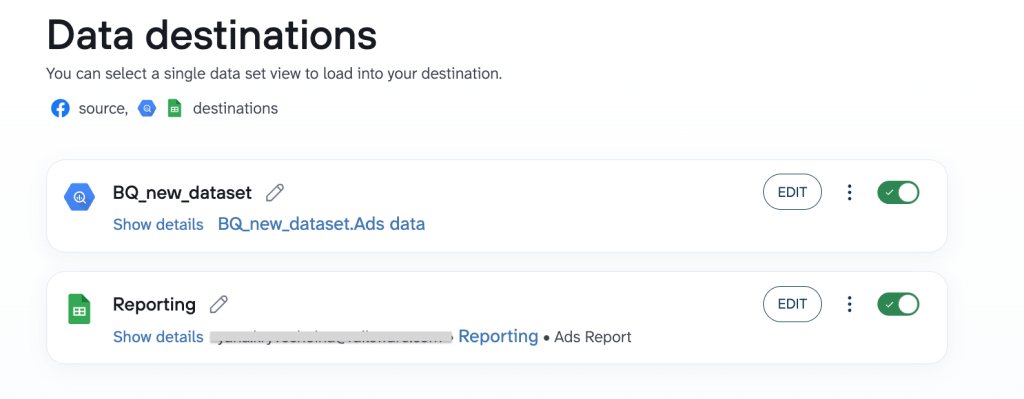
One flow, one schedule. The data team gets what they need in the warehouse, and the marketing team gets a report they can actually use.
GA4 traffic: weekly SEO report + executive dashboard
Every Monday, the SEO team reviews organic traffic trends, the head of marketing checks top-line numbers before the standup, and the team needs a quick way to query the data without digging through spreadsheets. They need the same Google Analytics data, just presented differently.
With multiple destinations, one Google Analytics data flow feeds all three:
- Google Sheets → channel breakdown, landing page performance, and organic traffic trends for the SEO team’s weekly review
- Looker Studio (Data Studio) → sessions, conversions, and traffic sources for the executive dashboard, refreshed automatically before the meeting
- Claude → instant answers about the data, so the SEO team can ask questions like “which landing pages lost the most traffic this week?” without writing formulas
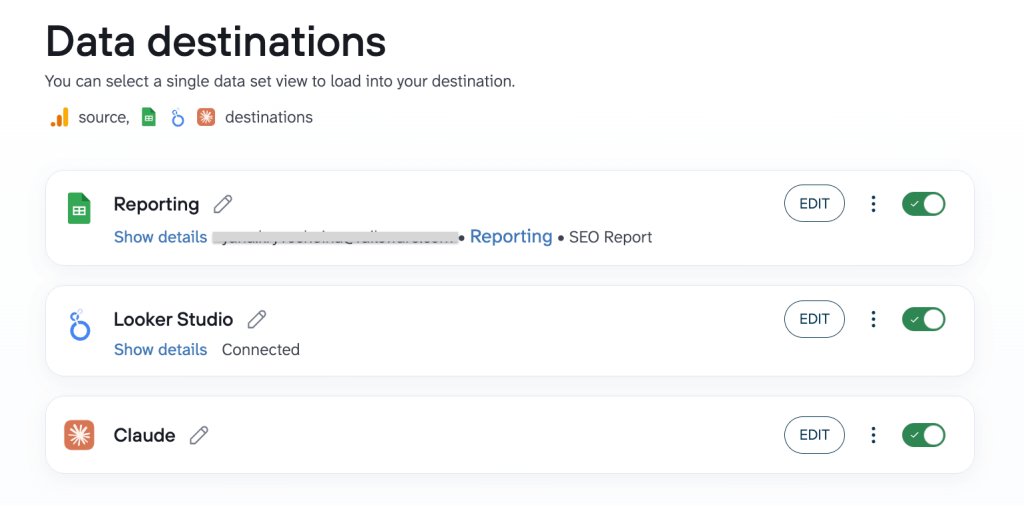
The SEO team works in Google Sheets, leadership opens the dashboard, and anyone can ask Claude a question and get a straight answer. Same data, no manual exports.
Depending on the data you need to visualize, select a suitable dashboard from the list of free pre-built templates.
HubSpot CRM: weekly pipeline report & sales dashboard
As deals move through the pipeline, three different teams need the same HubSpot data for three different purposes: the sales team tracks activity, the VP of Sales monitors revenue, and the BI team builds forecasts they can actually trust.
With multiple destinations, one HubSpot data flow feeds all three:
- Google Sheets → deal stage breakdown, rep performance, and pipeline velocity trends for the sales team’s weekly review
- Looker Studio (Data Studio) → open pipeline value, win rates, and lead sources for the executive dashboard, refreshed automatically before the meeting
- Power BI → historical pipeline trends, forecasting models, and revenue attribution across channels for the BI team’s monthly reporting
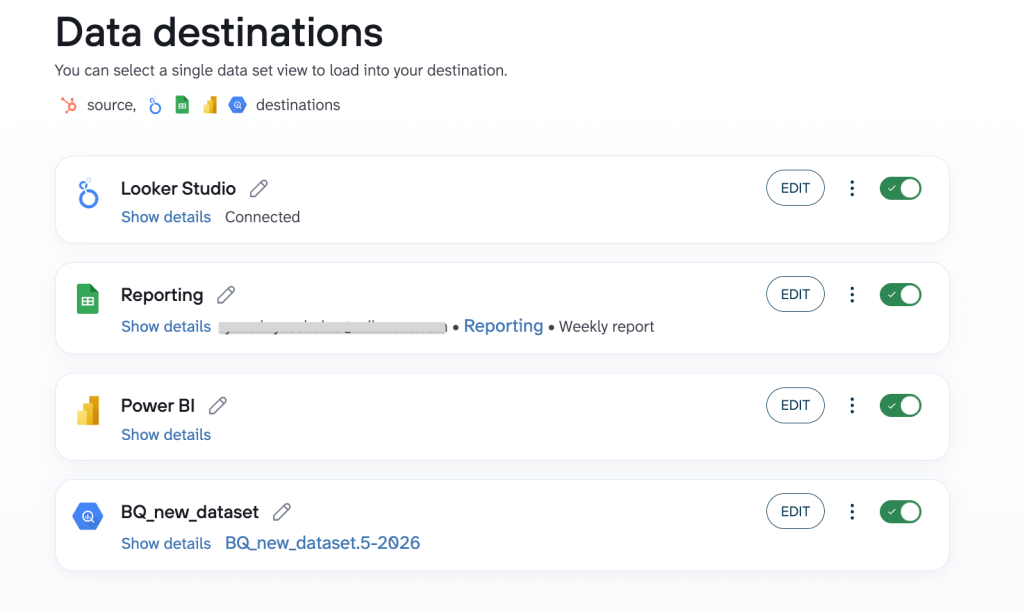
The sales team gets their Google Sheets updated, leadership gets a live dashboard, and the BI team gets clean, consistent data in Power BI.
Get fresh data to every tool instantly
Try Coupler.io for freeGetting started with multiple destinations
If you’ve used Coupler.io before, this will feel familiar. Multiple destinations don’t change how you build a flow; they just give you more places to send the data once it’s ready. The setup takes a few minutes, and here’s how to do it step by step.
Create a data flow
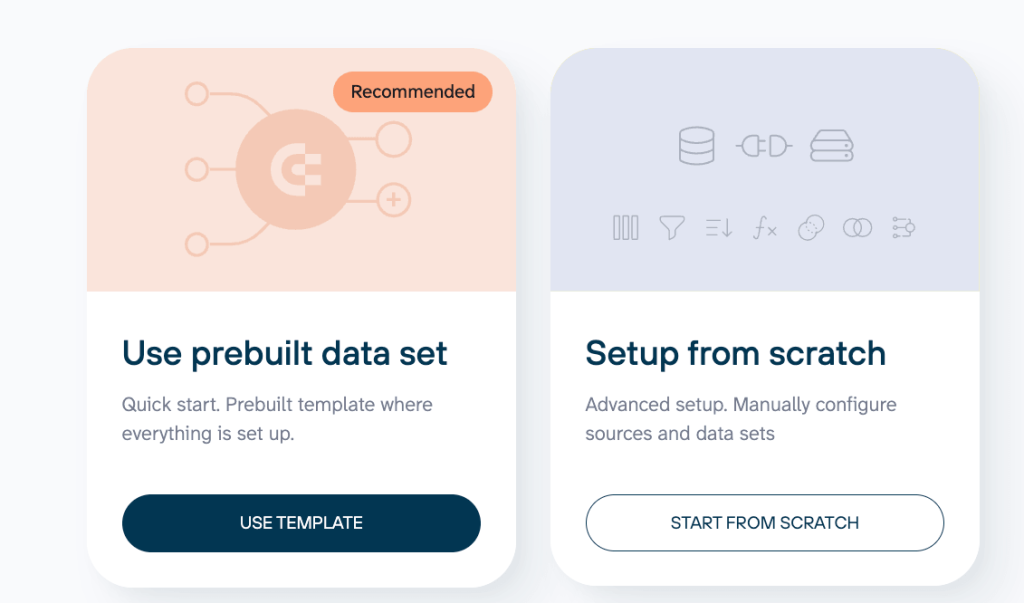
Open your Coupler.io account (or sign up for free) and create a new data flow. You can create one from scratch or select a pre-built data set. Think of it as a container: your sources, destinations, and refresh schedule all sit in one place.
Add data sources
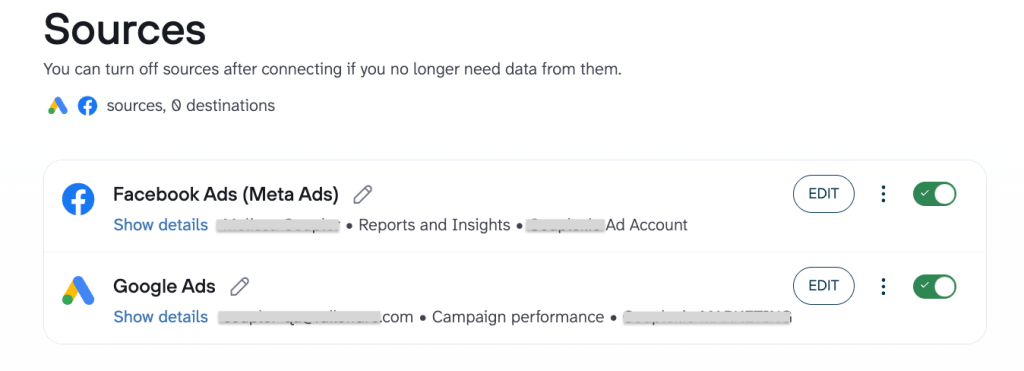
Connect the tools you want to pull data from, such as Google Ads, Salesforce, QuickBooks, or other data sources that Coupler.io supports. If you need to combine data from several tools before sending it out, add all the sources to the same flow.
Manage data sets
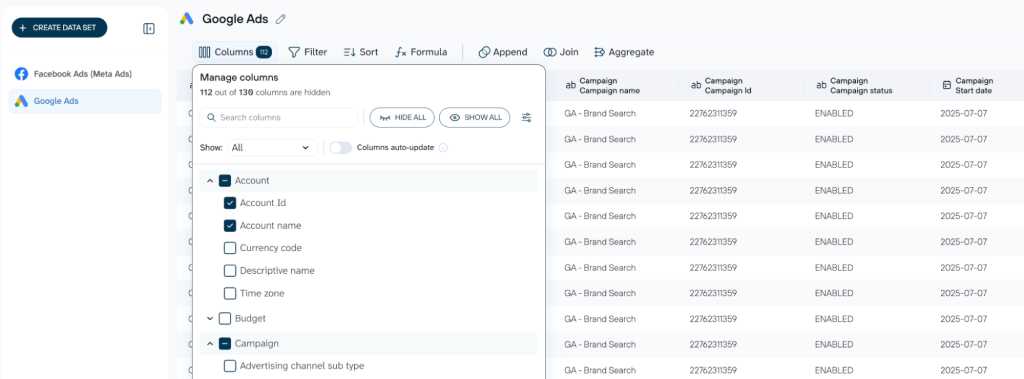
Preview the data before it goes anywhere. Filter columns, rename fields, blend & transform data from different sources, etc. Here, you ensure each destination receives the right data in the right format.
Connect destinations
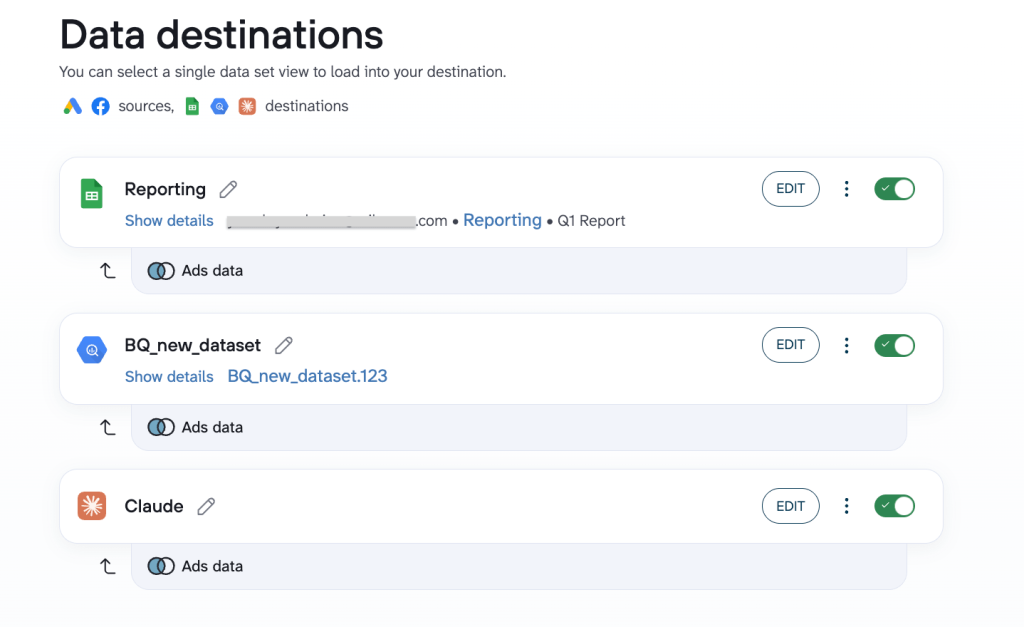
Add your destinations one by one (Google Sheets, BigQuery, Data Studio, Claude, etc.), whatever your team uses. Each one is configured separately, so you decide what data it gets and how it looks on the other end.
Schedule autorefresh
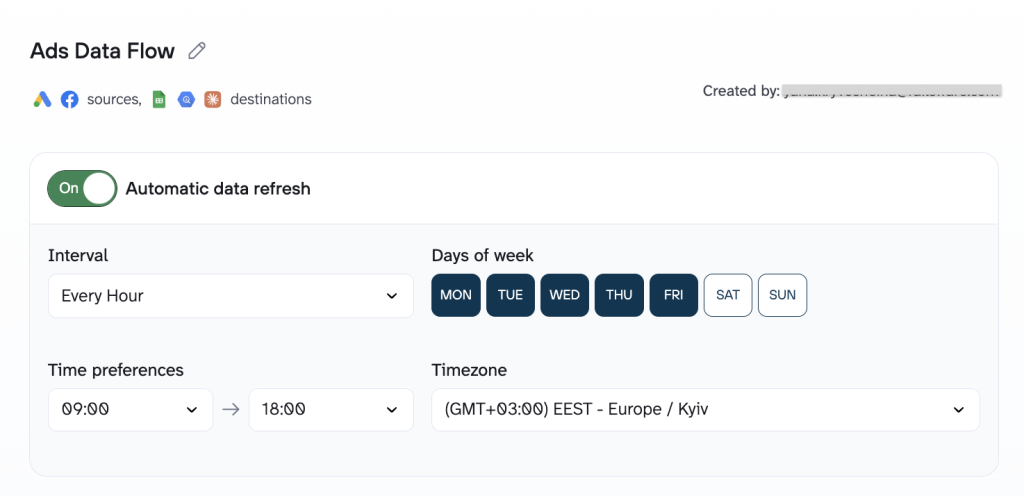
Pick a refresh interval (hourly, daily, weekly) and set it once. Every destination updates on the same schedule from that point on.
That’s all there is to it. The next time someone asks for their data in a new tool, you won’t need to build anything from scratch. Just add a destination to an existing flow and you’re done.
Automate reporting across every tool at once
Try Coupler.io for free