
How to Connect Xero to ChatGPT for Analyzing Your Invoices, Cash Flow, and Financial Data

ChatGPT provides a quick financial analysis of Xero data, but connecting Xero to ChatGPT can be frustrating. You have to download Xero data in CSVs and upload them to ChatGPT every time you need fresh numbers. Worse, API connections require developer-level skills to set up.
Coupler.io solves these data connection challenges by offering a no-code solution that auto-refreshes your data at set intervals and delivers verified numbers. I’ll also cover other Xero to ChatGPT data connection methods in this guide.
Choose the right method to load Xero data to ChatGPT
You can connect your Xero data to ChatGPT in five ways, each with its own complexity, setup, and trade-offs.
| Connection method | Setup effort | Who does the math | Best for | Watch out for |
| Coupler.io | Low: create a data flow and point it to ChatGPT | Coupler.io’s Analytical Engine | Recurring financial analysis with scheduled data without engineering dependencies | Paid plan required for frequent data refresh |
| Manual export | Minimal: download CSV files and upload to ChatGPT | ChatGPT | One-off analysis | Stale data and 10-file (up to 512MB per file) upload limit |
| Custom GPT Actions | Medium: requires OAuth and API schema setup | ChatGPT | On-demand queries without leaving ChatGPT | Needs someone comfortable with APIs; breaks if Xero changes endpoints |
| Xero MCP server | High: requires Python and environment setup | ChatGPT | Reading, creating, and updating Xero records from a prompt | Developer needed to set up and maintain; breaks on SDK or MCP updates |
| Responses API and function calling | High: full developer involvement | ChatGPT | Open-ended queries and fixed reports | Developer dependency from day one; breaks on any Xero or OpenAI API update |
Each method to connect Xero data with ChatGPT works, but the right one depends on your technical setup and how often you need fresh data. Let’s start with the easiest option first: Coupler.io.

Analyze your Xero data in ChatGPT with Coupler.io
Get started for freeConnect Xero to ChatGPT with the Coupler.io connector
Coupler.io is a no-code data integration platform for AI analytics that lets you connect 400+ data sources, such as Xero, to AI tools like ChatGPT, Claude, Gemini, and others.
Coupler.io is available as a ChatGPT App and acts as a middle layer between your source data and AI. So ChatGPT does not have direct access to your Xero account. The AI tool can only query the dataset from Xero that you’ve prepared.
You can filter out sensitive data before you send it to ChatGPT for a query.
Coupler.io’s Analytical Engine handles all calculations and returns only validated results to ChatGPT.
So you’re not relying on ChatGPT, which is prone to making arithmetic mistakes on large datasets, to get the math right.
Here’s a step-by-step process to connect Xero to ChatGPT.
Step 1: Create a data flow for Xero data
Sign up for a free Coupler.io account (no credit card required) and select Xero as the source.
You have two options for Xero connection: Xero and Xero Reports.
- Pick Xero if you want to connect your entire Xero account.
- Select Xero Reports for financial reporting analysis.
I have preselected Xero as a source and ChatGPT as a destination in the form below to help you get started quickly.
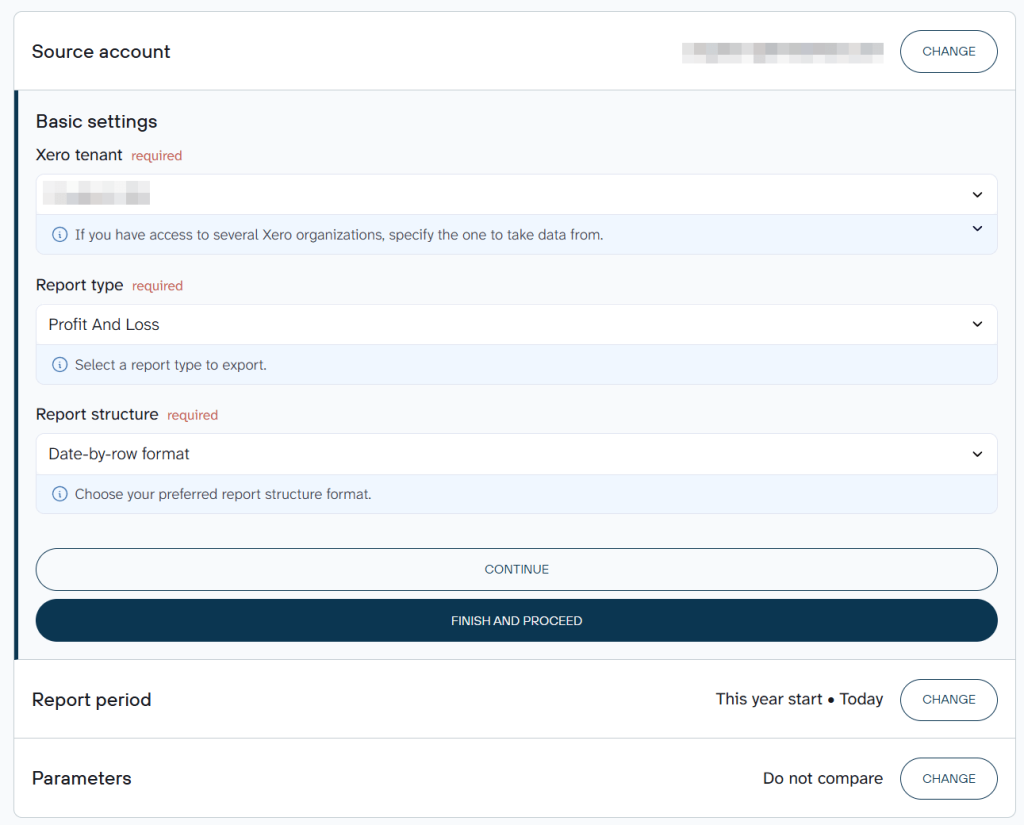
If you have access to multiple Xero organizations, pick the Xero tenant you want to take data from.
Select a data entity such as Invoices, Payments, and others. If you connect Xero reports, then choose a report type like Profit and Loss, Balance Sheet, etc. Specify additional parameters if needed.
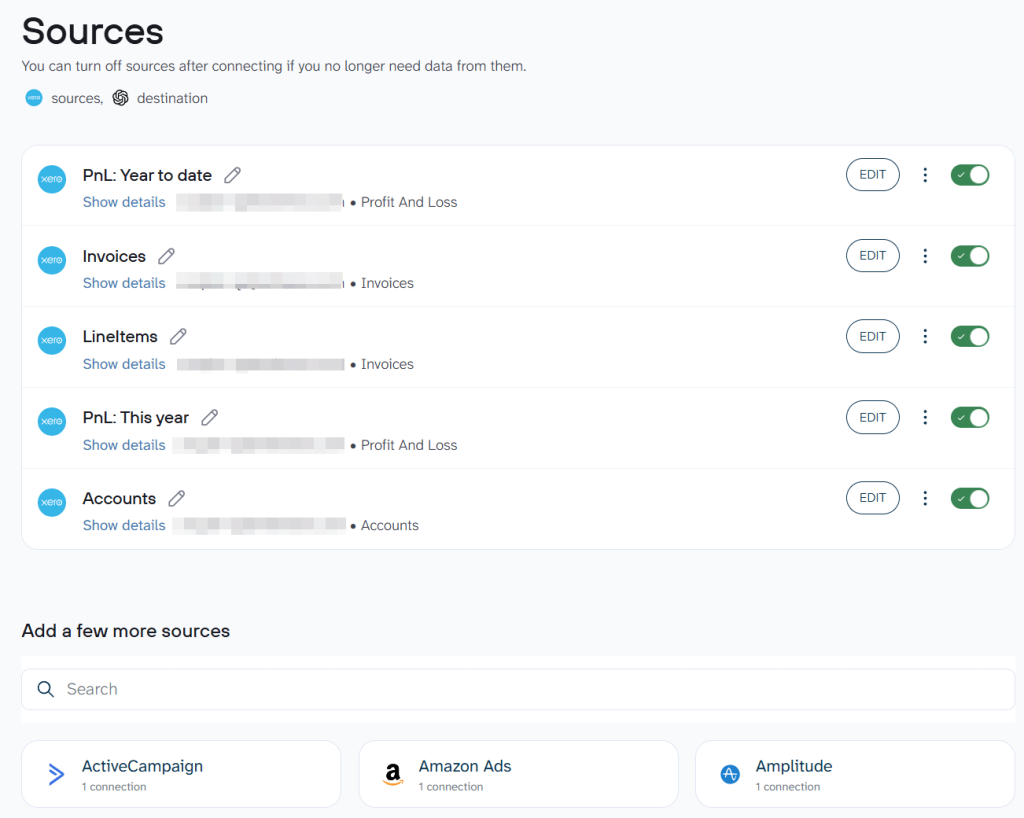
Do you need to combine data from Xero and Xero reports, or enrich Xero dataset with information from other sources? Coupler.io lets you connect multiple sources to the same data flow. It supports over 400 ChatGPT integrations, including QuickBooks, HubSpot, Google Analytics, and more in one connector.
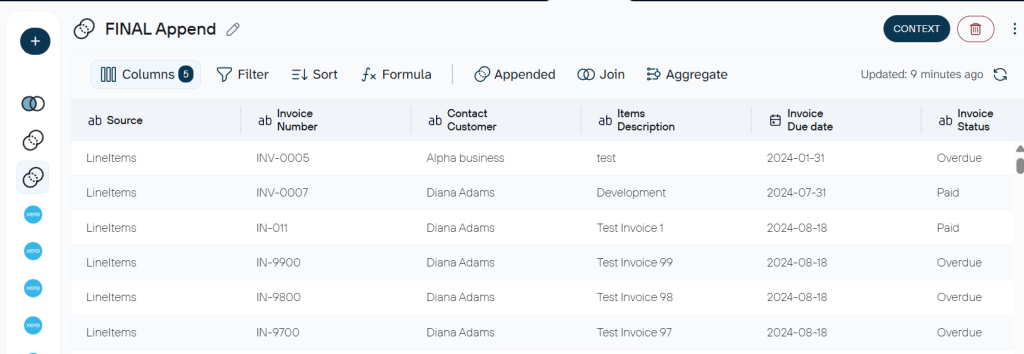
To make your Xero data ready for analysis in AI, you can optionally filter rows, rename columns, aggregate totals, and blend data sets.
For example, you can filter out voided invoices so they never distort your receivables analysis. Or rename Xero’s default column labels to match the terms your team uses, for instance changing “AccountsReceivable” to “Money Owed to Us.”
Coupler.io also allows you to attach business context to Xero data sets to improve the accuracy of your financial data analysis. Learn more about the value of data context for AI analytics.
You have to configure data transformation once. Every time your data flow runs, it gives you processed data automatically.
Step 2: Connect ChatGPT
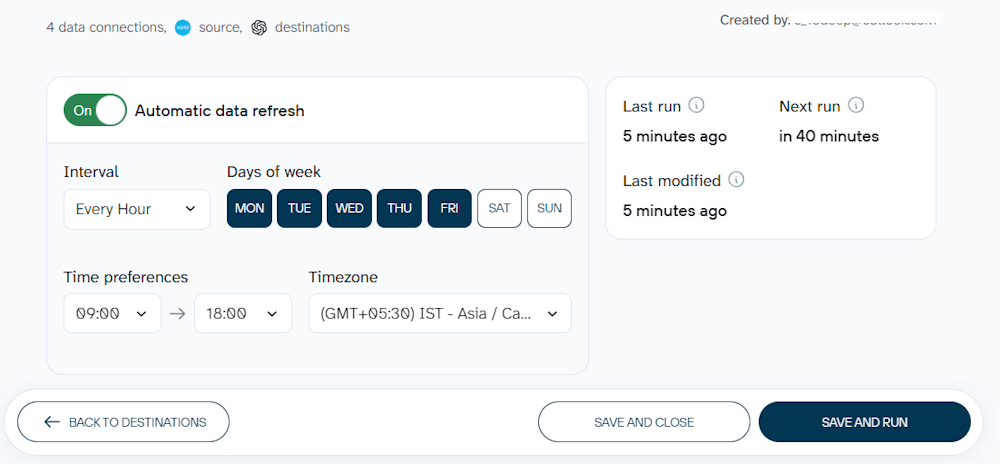
In Destination, click GET THE COUPLER.IO APP to open the connector page inside ChatGPT.
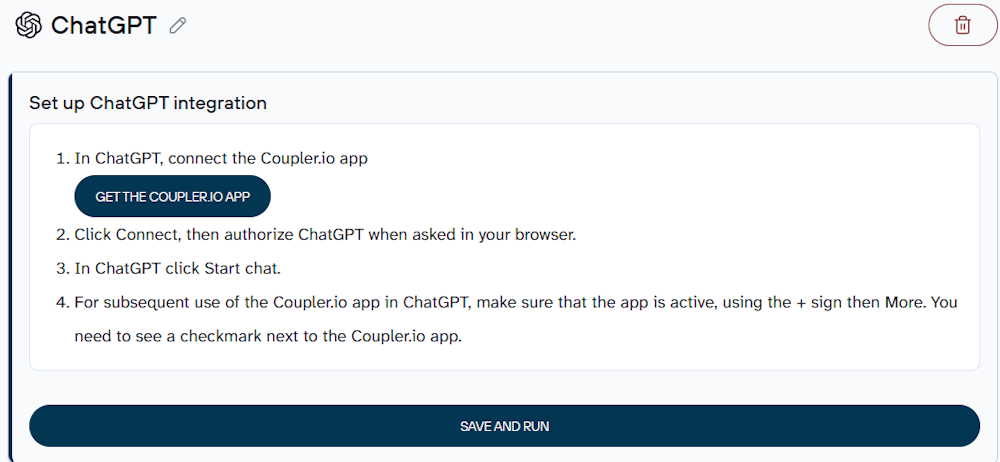
Follow on-screen instructions to complete the setup. Then, go back to the Coupler.io dashboard and click SAVE AND RUN.
I have also scheduled an automated data refresh, so I’ll have recent data to query in ChatGPT.
Note that refresh intervals vary according to your pricing plan.
Once the setup is complete, you see Coupler.io in your ChatGPT as shown below.
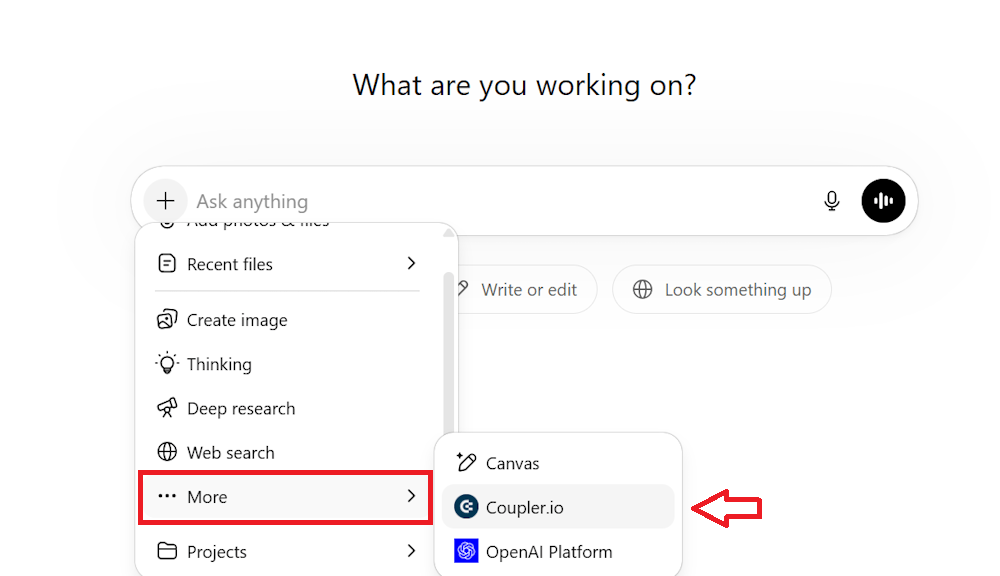
Step 3: Start your Xero data analysis with ChatGPT
After your data flow runs successfully, you’re ready to query ChatGPT with recent Xero data.
Open ChatGPT and make sure Coupler.io is selected before you start conducting financial analysis.
Copy the following prompt and paste it directly into ChatGPT to run a chart of accounts analysis.
Act as my Xero Chart of Accounts auditor and CFO advisor. Analyze my full Chart of Accounts structure using the connected Xero data.
First, summarize:
Total number of accountsActive vs inactive accountsAccounts grouped by type:
Revenue, Expense, Direct Costs, Assets, Liabilities, Equity, Bank Accounts, Current Assets, Current Liabilities, and Fixed Assets.
Then generate a detailed table containing:
Account CodeAccount NameAccount TypeStatusTax TypeReporting Code
After that, audit the quality of my chart of accounts and identify:
Duplicate or overlapping accountsSimilar expense categories that should be mergedConfusing or vague account namesInactive or unused accountsAccounts that appear miscategorizedRevenue categories that are too broadInconsistent naming conventionsMissing standard accounting categories
Then evaluate whether my chart of accounts is:
ScalableReporting-friendlyTax-friendlyEasy to manage
Finally, provide:
Top accounting structure problemsRecommendations for simplificationSuggested account merges/renamesBest-practice improvementsA final score out of 10 for organization and reporting readiness
Use clean tables and explain findings in plain English like a CFO reviewing a company's accounting setup.
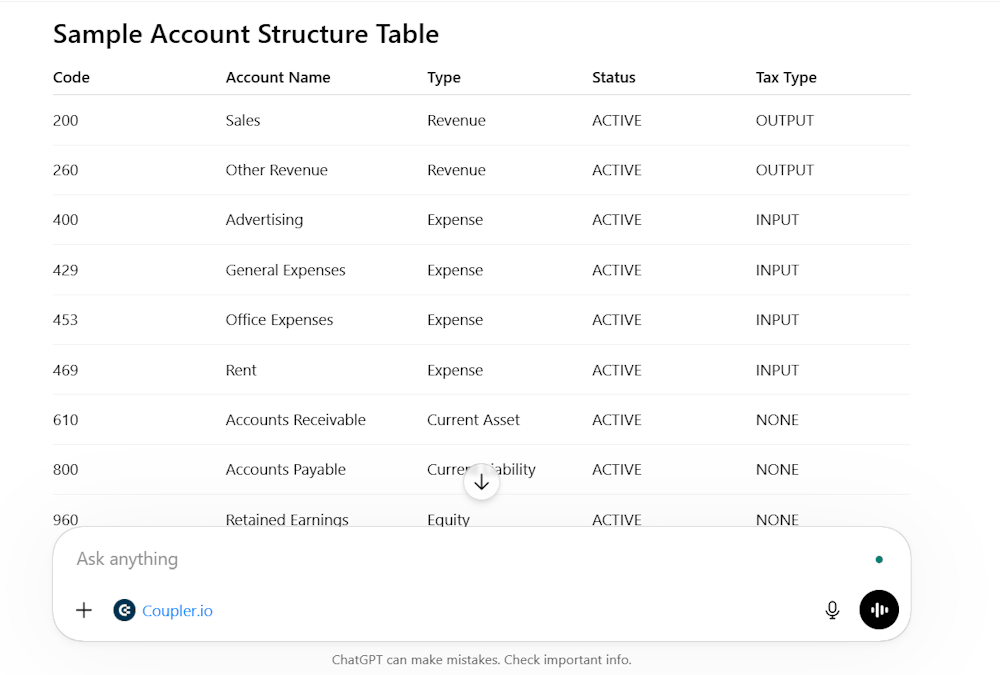
ChatGPT gave me a detailed analysis, including Executive Summary, Account Structure Summary, Account Structure Table, Key Findings, and Missing/Recommended Accounts.
Load your Xero data into ChatGPT with Coupler.io
Get started for freeExamples of how you can analyze your Xero reports in ChatGPT
The following cases show how finance teams can use ChatGPT for Xero data analysis to cut hours of manual reporting down to minutes.
1. Monthly revenue review for leadership
Normally, your finance person would spend 2-3 hours pulling numbers and preparing a revenue review. But you can analyze your Xero reports in ChatGPT in a few minutes.
You need to have a profit and loss data entity connected in your Xero data flow to prepare a revenue report.
Copy and paste the following prompt directly into ChatGPT.
You are my finance analyst. Produce a Monthly Revenue Review in 5 short sections:
1. Headline: total revenue, MoM %, YoY % (if available), one-line verdict.
2. Breakdown: each revenue line with current, prior, MoM %, sorted largest to smallest.
3. Movers: top 2 growth drivers and top 2 declines, with numbers.
4. Anomalies: flag unusual spikes, drops, or zeros. Else say "none."
5. Leadership update: 2-line Slack-ready summary.
Use only the data provided. Don't invent numbers.
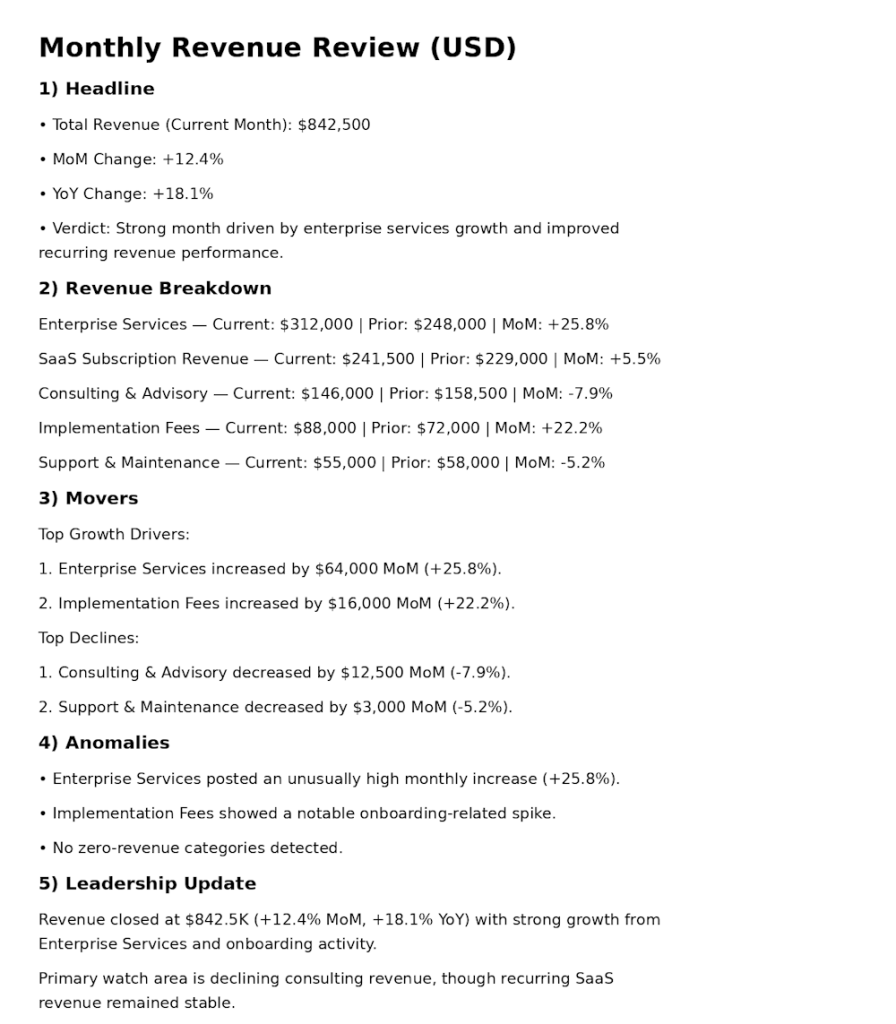
ChatGPT generated a structured Monthly Revenue Review for leadership reporting for me.
It summarized overall revenue performance, compared monthly growth trends, and broke down revenue by business line.
It also showed major growth drivers and declines, identified unusual changes or anomalies, and produced a short executive-ready update for Slack.
The report is organized into concise sections with clear formatting, so the leadership team can quickly understand business performance and key revenue movements.
2. Cash position and collection triage
Every Monday, you want to know who owes you, what you owe, and whether you have enough cash on hand to pay the bills that are coming due.
ChatGPT integration with Xero removes manual aging cross-checking, building a “who to chase” list, and checking whether incoming receipts cover outgoing bills.
Add the following data entity types to your flow:
- Aged Receivables By Contact
- Aged Payables By Contact
- Bank Summary
- Contacts (to attach names/contact details to the overdue list)
- Invoices, if you want line-item or invoice-number detail on each overdue amount
After that, copy and paste this prompt directly into ChatGPT.
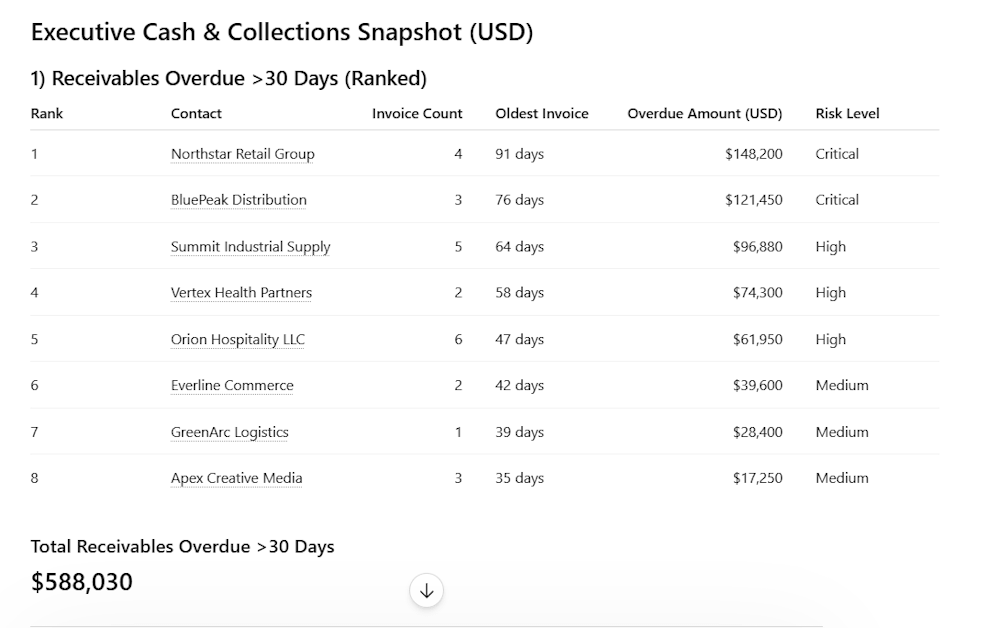
List all receivables overdue past 30 days, ranked by amount with contact names, identify the worst offenders, and calculate my net cash position after upcoming payables. Give me a prioritized chase list and runway estimate.
ChatGPT gave me a detailed breakdown, such as:
- Receivables Overdue >30 Days (Ranked) in table form
- Worst offenders (critical accounts requiring immediate action)
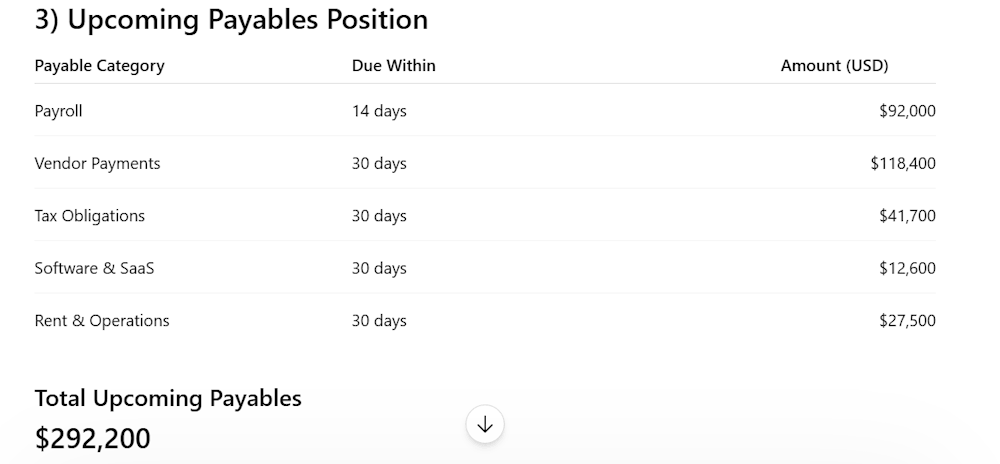
- Upcoming payable positions
- Prioritized chase list
- Net cash position
- Key takeaways
It returned a detailed overview of the upcoming payable position, broken down by category and as a total.
You can also see the net cash position to understand your financial health.
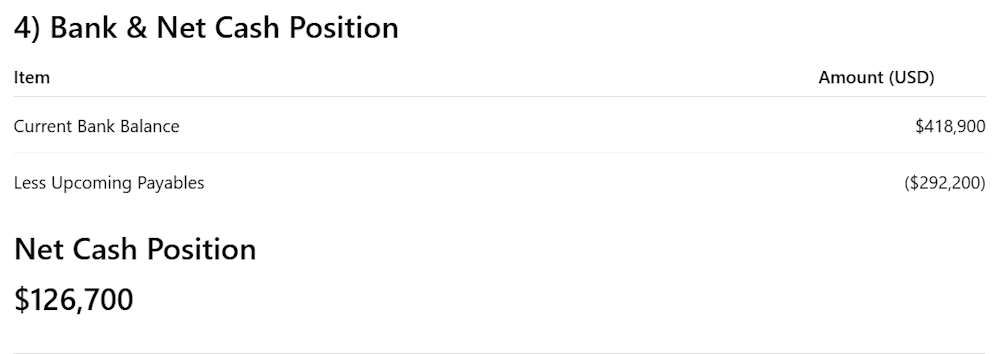
A single prompt gives the full cash position and collection picture. You don’t have to manually go through several reports in Xero for that.
Talk to ChatGPT about your Xero performance
Get started for freePrompts to analyze Xero data in ChatGPT
Here are useful ChatGPT prompts to start analyzing your Xero data fast.
1. Prepare a chase list
Look at all my Xero contacts with outstanding invoices. Sort them by total amount owed and how many days they are overdue. Flag anyone who has not paid in over 60 days. Give me a clean list I can use to prioritize who to chase first this week.
2. Cash vs obligations
Pull all receipts received this month from Xero and compare them against every bill and payment that is due within the same period. Tell me whether the total incoming cash is enough to cover all outgoing obligations. If there is a shortfall, show me the exact gap amount, list which bills are at risk of not being paid, and suggest which ones are most urgent to settle first.
3. Expense breakdown
Pull all expense claims submitted in Xero for this month and group them by category. Rank the categories from highest to lowest total spend so I can see where most of the money is going. For each category, compare the current month's amount against last month and flag any category that has increased significantly. If any single expense claim looks unusually large within its category, highlight it separately. I want to finish with a clear summary that tells me which areas are over budget, which are under control, and where I should focus my review this month.
4. Repeating invoice health check
Look at all my repeating invoices set up in Xero and tell me which ones are active, how frequently they run, and what the total committed recurring revenue looks like per month. Then cross-check whether each repeating invoice has actually been paid on time over the last three months. If any recurring invoice has a pattern of late payment or has been missed entirely, flag the contact name and the invoice details so I can follow up or reassess the arrangement before it becomes a cash flow problem.
5. Budget vs actual variance
Pull my actual income and expenses for this month from Xero and compare them against the budget set for the same period. Break the comparison down by account category so I can see exactly where I am overspending or underspending. For any category where the variance is more than 10%, flag it clearly and tell me whether it is a positive or negative variance. I want to be able to walk into a management meeting with a clear picture of where the business stands against the plan without having to build a spreadsheet manually.
What matters when you connect Xero data to ChatGPT
Here are three things that affect the quality of Xero data analysis in ChatGPT, and how to fix them.
Business context
As ChatGPT or any other chatbot only sees rows and column names, it has no way of knowing that only Authorized invoices represent real receivables in Xero.
Draft, Submitted, and Voided should never enter your aging report or cash flow calculation.
Coupler.io lets you define these rules once in a Markdown editor by adding context, and ChatGPT receives them automatically with every query. So it always works from your Xero conventions, not its own assumptions.
Accurate calculations
Calculation accuracy is another weak point when working directly with raw Xero data.
Ask ChatGPT to total your aged receivables across hundreds of invoices with partial payments, credit notes, and multiple currencies. It will return a gross figure that ignores the netting.
However, Coupler.io’s Analytical Engine runs the aggregation correctly and hands ChatGPT a verified number to explain rather than recalculate.
Multi-team access
Not everyone in the business needs Xero data in the same place. The accountant reconciles in Google Sheets, and the CFO may review a Profit and Loss dashboard in Looker Studio. Coupler.io feeds both from a single data flow.
So every team works from the same figures rather than two separate pulls that never match.
Other ways to export data from Xero to ChatGPT
The Xero data connector by Coupler.io handles the data pipeline, calculations, and context automatically, which makes it the easiest option for most finance teams.
But if your team has developer resources or only needs Xero data in ChatGPT occasionally, one of these alternative methods may suit your workflow better.
1. Manual export
For a one-time audit of your Xero data or an annual financial review, the simplest way is to upload a CSV from Xero to ChatGPT.
| Pros | Cons |
| • No setup required: download a CSV from Xero and upload it directly to ChatGPT. • Works for anyone regardless of technical skill. • ChatGPT Projects lets you save instructions so you do not have to re-explain your business context every time. | • You have to manually export and re-upload data every time you need fresh numbers. • ChatGPT has a 10-file upload limit with a hard limit of 512MB per file. • Large datasets can cause ChatGPT to compress or truncate data, which affects accuracy. • Even with ChatGPT Projects saving your instructions, the data still needs to be manually re-uploaded whenever you want fresh numbers. |
How it works
You can export certain Xero reports manually in CSV/Microsoft Excel.
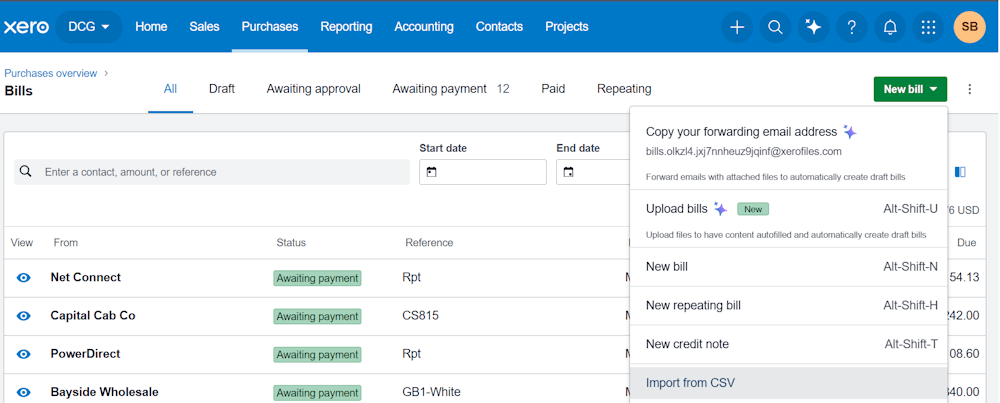
Once you have downloaded an Xero data file, attach it to ChatGPT to query it in natural language.

2. Custom GPT Actions
GPT Actions are a ChatGPT feature that lets a custom GPT connect with external APIs and fetch real-time data based on your questions.
This method works well if your team wants to query Xero data on demand without switching tools or uploading files before every analysis.
Coupler.io offers the same MCP actions but without the technical overhead. You create a Xero data flow in the UI, connect it to ChatGPT, and start querying your data. All in three steps.
| Pros | Cons |
| • Instead of uploading files manually, the GPT calls an external service directly and returns the results in plain English. • Your financial data is always one question away, without any manual exporting or file uploads. • Building the GPT itself is no-code. | • The technical part is configuring the Action, which requires setting up OAuth 2.0 authentication, writing an API schema, and handling token refresh. • Requires someone comfortable with APIs and OAuth. • If Xero changes its API endpoints or authentication flow, the Action will need to be updated manually. |
How it works
You connect a Custom GPT to the Xero API by configuring an Action that defines which Xero endpoints the GPT can call.
Once configured, you can ask questions like “show me all unpaid invoices” or “list my bank transactions for this month,” and it queries Xero directly.
3. Xero MCP server
Xero has its own MCP server that you can connect directly with ChatGPT. Teams with developer resources can find this method useful as it allows them to create and update records directly from a prompt.
| Pros | Cons |
| • Once the connection is live, you can type plain-English requests and the agent acts on them directly inside your Xero organization. • No file uploads or manual exports needed at any point once the connection is live. | • Requires developer involvement and ongoing maintenance. • If Xero updates its MCP server or there is a change in OpenAI’s Agent SDK, the setup will break. |
How it works
The connection works through OpenAI’s Agent SDK using a Python script available in Xero’s GitHub repository. You set up your Xero client ID, client secret, and OpenAI API key as environment variables. The script handles the rest. Xero has created an official video on how to connect MCP with ChatGPT.
On the reading side, you can retrieve contacts, invoices, bank transactions, profit and loss reports, balance sheets, and aged receivables.
For creating, you can raise invoices, generate quotes, log bank transactions, and add payroll timesheets directly from a prompt.
You can also update existing records, such as draft invoices, quotes, and credit notes, without ever opening Xero manually.
4. Responses API and function calling
Responses API and function calling are two ways to connect your Xero API with the OpenAI API.
The Responses API method suits fixed, repeating reports where the questions stay the same.
On the other hand, function calling is for unpredictable, ad hoc questions where ChatGPT decides what data to fetch on its own.
However, both methods require developer involvement to build and maintain.
| Pros | Cons |
| • You control what data goes into ChatGPT and how it is processed. • Responses API returns a ready-to-read plain-English summary in seconds. • Function calling handles open-ended, ad hoc questions without you defining what data to fetch each time. | • Both setups require a developer from day one to build and maintain API connections. • Whenever Xero or OpenAI updates their APIs, you need to fix the connection. |
How it works
In the Responses API method, you write a script in Python or Node.js that fetches data from the Xero API. Then, the script sends it to the Responses API, which returns a plain-English summary.
You control what data goes in, and the model only interprets what it receives.
Say your bookkeeper needs a monthly expense breakdown. Your script calls the Xero API and pulls all expense claims and bank transactions for the month.
After that, it sends them to the Responses API with an instruction like “group expenses by category, rank highest to lowest, and flag anything unusual.” The API returns a ready-to-read summary in seconds.
However, the function calling setup requires you to define Xero API functions as tools that ChatGPT can use. You do not decide what data to fetch. The model figures that out on its own based on the question.
For example, your CFO wants to know which suppliers are owed more than $10,000 this month. The model decides it needs the aged payables function, calls it, filters the results, and returns the answer.
Which method should you choose?
Ask yourself three questions before you pick the Xero-to-ChatGPT method for AI integration:
- How often do you need fresh Xero data in ChatGPT?
- Does your team have the engineering capacity to build and maintain a pipeline?
- Do you need conversational analytics or automated reporting?
The manual export method works for one-off analysis but becomes a bottleneck the moment your team needs updated numbers every week.
Custom GPT Actions and the Xero MCP server give you on-demand querying and direct Xero access, though you will need someone comfortable with APIs to set up and maintain both setups.
For teams with a dedicated developer, Responses API and function calling works well.
Coupler.io is the practical path for teams that need recurring analysis without engineering overhead.
It refreshes your Xero data on a schedule, runs calculations through its Analytical Engine, and attaches your business context to every query automatically.
In three steps, your Xero to ChatGPT connection is up and running.
Connect 400+ data sources to ChatGPT with Coupler.io
Get started for freeFAQs
Can I connect multiple Xero accounts?
Yes, you can connect multiple Xero accounts in Coupler.io. You just add each account as a separate source in your data flow.
Does ChatGPT get full access to my Xero data?
Access to data when you connect Xero to ChatGPT depends on the integration method you use.
In the manual method, ChatGPT sees what you upload. With Custom GPT Actions, ChatGPT can access whatever Xero API endpoints you define in your Action schema.
The scope is limited to the permissions granted during OAuth setup, so you control what data the GPT can request.
When you integrate the Xero MCP server with ChatGPT, the data exposure depends on how you configured permissions in the Xero Developer Center.
Responses API and function calling expose what your code and function pass to ChatGPT.
Coupler.io only sends the specific data each query needs, such as filtered or precalculated results from the Analytical Engine. ChatGPT never sees your full dataset.
Can I combine Xero with other data sources in the same analysis?
Yes, you can combine Xero with other data sources using Coupler.io. For example, you can add Salesforce to your Xero data flow. This setup lets you compare CRM pipeline data against recorded revenue and verify that every closed deal has a matching invoice in Xero.