
How to Connect and Analyze PPC Data in Microsoft Copilot for Cross-Channel Reporting

If your company runs on Microsoft 365, Copilot might already be a part of your daily workflow. That makes it a convenient place to check on your paid campaigns, especially when you need a quick answer and don’t want to dig through several ad platforms.
So you open Copilot and ask, “How did our Google Ads/Meta Ads/LinkedIn Ads campaigns perform last week?“ Instead of an answer, you get a message saying Copilot can’t access that data.
That’s because Microsoft 365 Copilot doesn’t include native connectors for Google Ads, Meta Ads, LinkedIn Ads, or most other ad platforms. To use PPC data in Copilot, you first need a middle layer that pulls your campaign data into an environment Copilot can query.
Below, I’ll walk you through the Coupler.io setup. Once it’s in place, Copilot can work with your PPC data in the right context. So you can ask questions, you’ll get useful, actionable insights for your campaigns.
Key takeaways: What this setup gives you
- PPC data Copilot couldn’t reach before. Google Ads, Meta Ads, LinkedIn Ads, Microsoft Ads, TikTok, and 400+ other sources become queryable from inside Microsoft 365.
- Numbers that match how your account actually runs. Coupler.io does the math outside the model. Your dataset carries the metric rules and business context Copilot would otherwise guess at.
- Cross-channel reporting in one query. One prepared dataset covers every PPC platform
- Less rework on recurring reports. Preset PPC dashboards and AI Agent Skills handle the pacing checks, monthly reviews, and client write-ups.
- One dataset, every destination. The same prepared data lands in Power BI, Google Data Studio, Google Sheets, and other AI tools, so numbers match wherever your team looks.
Connect PPC data to Copilot using Coupler.io
Coupler.io connects your PPC accounts to Microsoft Copilot and takes care of the data in between. It pulls data from Google Ads, Meta Ads, Microsoft Ads, LinkedIn Ads, and other platforms (400+), then calculates the metrics before sending the results to Copilot.
This is important because Copilot is much better at interpreting numbers than working them out from a raw table. With the calculations already done, it can focus on explaining what happened and help you understand your campaign performance.
You don’t need to figure out the setup on your own. Log in to Coupler.io, tell it what you need, and Coupler AI will create the data flow for you. You’ll see what it’s setting up along the way and approve the key connections and steps before they’re added.
Let Coupler AI do the data work for you
Tell Coupler AI what you need to know, from which source, and how often. It connects your account, sets up the data flow, keeps it refreshed, and lets you analyze the results inside Coupler.io or another AI tool.
Try for free
⚠️ One thing to know about the initial setup: connecting Coupler.io to Copilot requires a few manual steps in Microsoft Copilot Studio. These steps include adding an agent, registering the Coupler.io flow as an MCP tool, and authorizing the connection. You’ll need maker or admin access in your Microsoft tenant to complete them.
You only need to do this when setting up the connection for the first time. Check out how to connect data to Copilot with step-by-step instructions and screenshots
Want more control over how your data is prepared? Build the flow manually. This route makes sense for more complex flows that require joins, filters, column changes, or SQL transformations.
How to build a data flow in Coupler.io manually
I’ll keep it short because you can find the detailed step-by-step guide with instructions and screenshots a few lines above.
- Step 1: Select your desired data source(s) and click “Get started for free”:
- Step 2: Choose the metrics and dimensions you want to pull. For a PPC report, that usually covers campaign name, cost, clicks, impressions, conversions, CTR, CPC, ROAS, and date.
- Step 3: Shape the data. Rename columns, add short definitions, merge and join streams, append tables, and set the schema.

- Step 4: Select Microsoft Copilot as the destination.
- Step 5: Set automatic data refresh to the period most convenient for you.
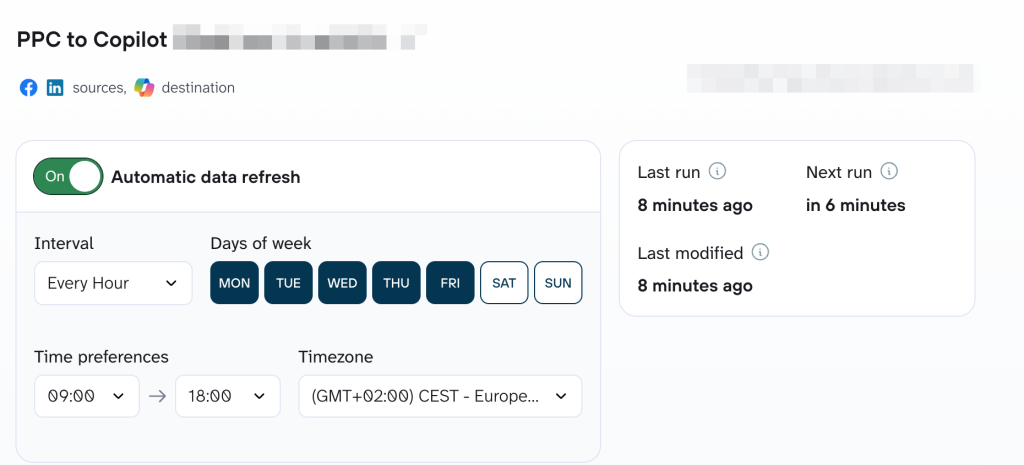
You successfully connected your PPC data to Copilot! Before you start analyzing the data, let’s see what keeps calculations accurate and tailored to your business.

Set up your PPC-to-Copilot flow
Try Coupler.io for freeHow Coupler.io supports deep PPC data analysis with Copilot
Calculations inside Copilot, done by Copilot = high risk of AI hallucinations.
To avoid this, Coupler.io keeps calculations outside Copilot and provides a few layers that make answers accurate and specific to your account.
Data and business context
At the column level, you can set definitions, data types, and naming conventions on the dataset itself. Just click on “Manage Columns” in the Data Sets screen:
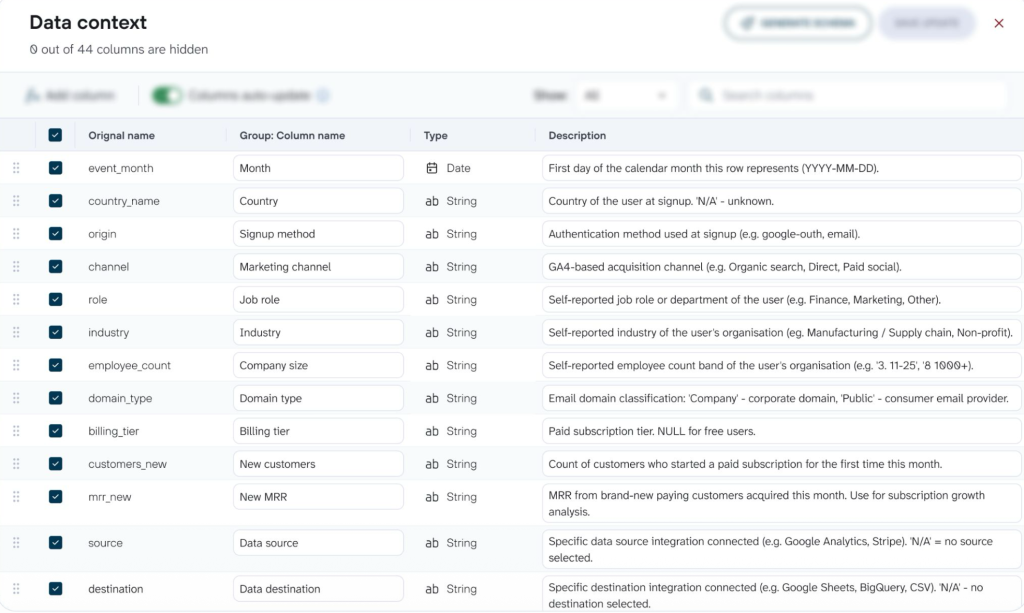
A few PPC-specific examples of what this catches:
- Reach can’t be summed across campaigns because the same user may appear in multiple ones.
- Impression Share shouldn’t be averaged across dates because the denominator changes daily.
Without those notes, an LLM will happily add and average them and hand back numbers that look confident and are wrong. With them in place, Copilot knows which metrics it can safely aggregate and which ones need special handling.
Business Context sits one layer up. It’s a company-wide record of how your business operates. Common things to capture there:
- Business calendar entries: launches, pricing changes, outages, seasonality
- Business logic and conventions your team follows
- Key business terms and segments (what “enterprise” means to you, what counts as a paid customer)
- Strategic priorities and the KPIs tied to them
- Instrumentation quirks and known data gaps
For PPC, this is what stops Copilot from missing the story behind the numbers. A spend spike in October means one thing if you had a Black Friday push planned and something completely different if you didn’t. A conversion dip in April looks like a targeting problem until Copilot factors in that the pricing page was down for three days that week.
If you want to know more, here’s why context layer matters more than most teams realize: AI context matters for data analysis.
Skills
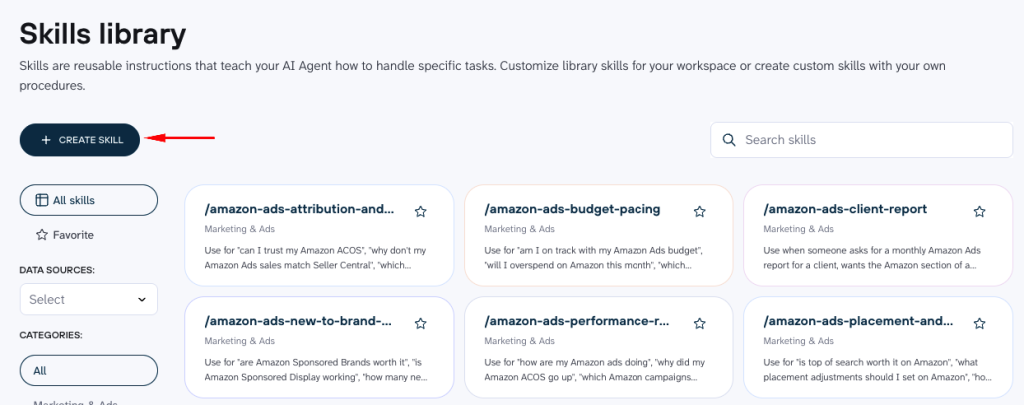
AI Agent Skills are reusable workflows for analyses you run more than once. They sit at the dataset level and only run once the business context is in place, which stops the same misinterpretation problem from repeating on every run.
For PPC, start with PPC analytics. It’s a cross-platform skill that runs spend, CTR, CPC, CPA, and ROAS breakdowns across every ad account connected to Coupler.io. It also handles per-platform funnel traces, so you can see where each channel drops off.
For a single platform, dedicated skills cover the recurring jobs:
- Performance reviews
- Paste-and-scale audits
- Creative analysis
- Budget pacing
- End-of-month client reports.
Google Ads, Meta, and TikTok each get their own set.
Agencies will find the Google Ads client report and Facebook Ads client report skills super useful. Both produce a scannable end-of-month write-up ready to drop into a client deck.
Browse the full AI Agent Skills library for what’s available. If nothing there matches a repeatable PPC analysis your team runs, you can build your own.
Analytical Engine
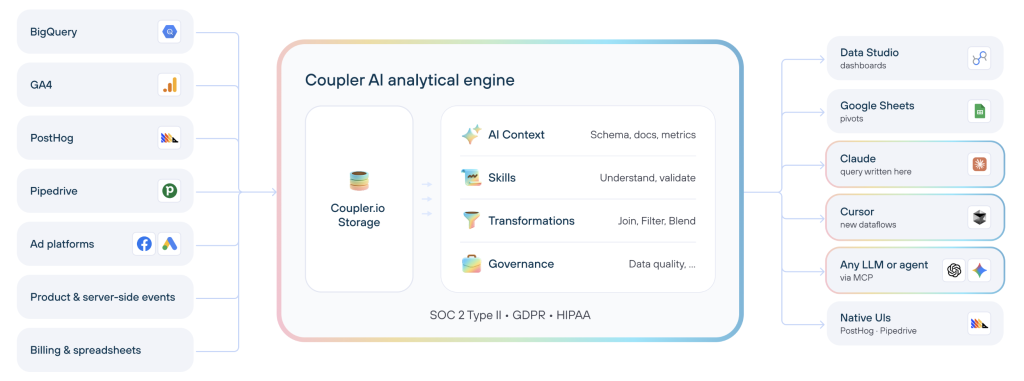
The Analytical Engine is the calculation layer. It runs the actual SQL query against your full dataset and returns a processed answer for Copilot to interpret.
Coupler.io performs the calculation against your data. The model explains the result.
That’s why numbers from this setup are more reliable than pasting a CSV into a chat and hoping the arithmetic works out.
Support for multiple PPC platforms
Multi-channel PPC reporting used to mean four or five exports and a manual reconciliation in a spreadsheet. Now you can add Google Ads, Meta Ads, Microsoft Ads, LinkedIn Ads, TikTok Ads, and other ad platforms to the same flow.
Coupler.io normalizes the schemas so Copilot answers cross-channel questions without you rebuilding joins by hand.
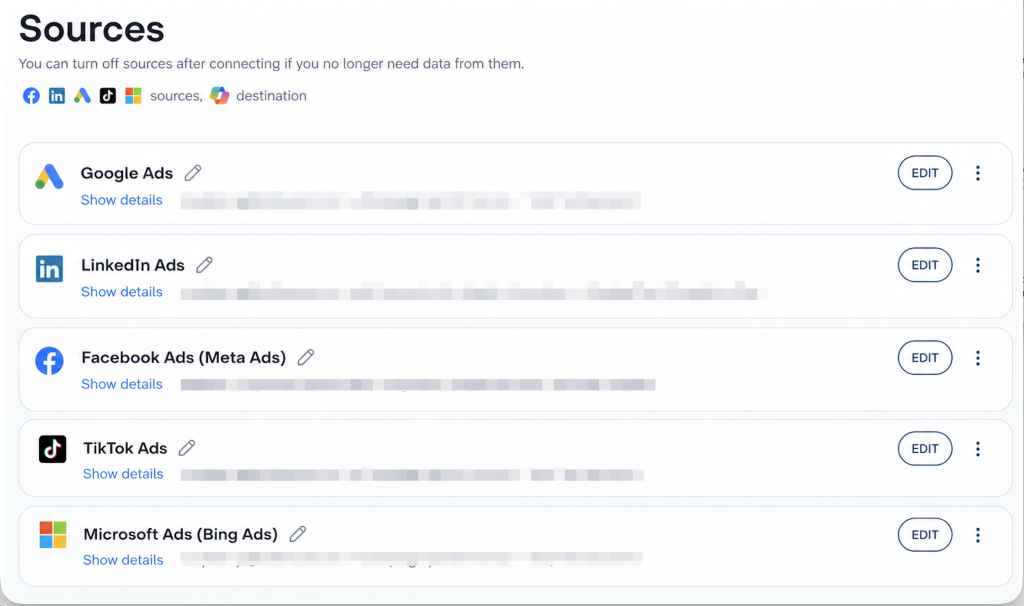
The same prepared data can feed a Power BI dashboard, a Google Data Studio report, or Copilot (and other LLMs) from the same flow.
Preset PPC dataset templates
If you’d rather start from a working template than a blank flow, Coupler.io ships preset PPC datasets and dashboards you can adapt. A few worth pulling up:
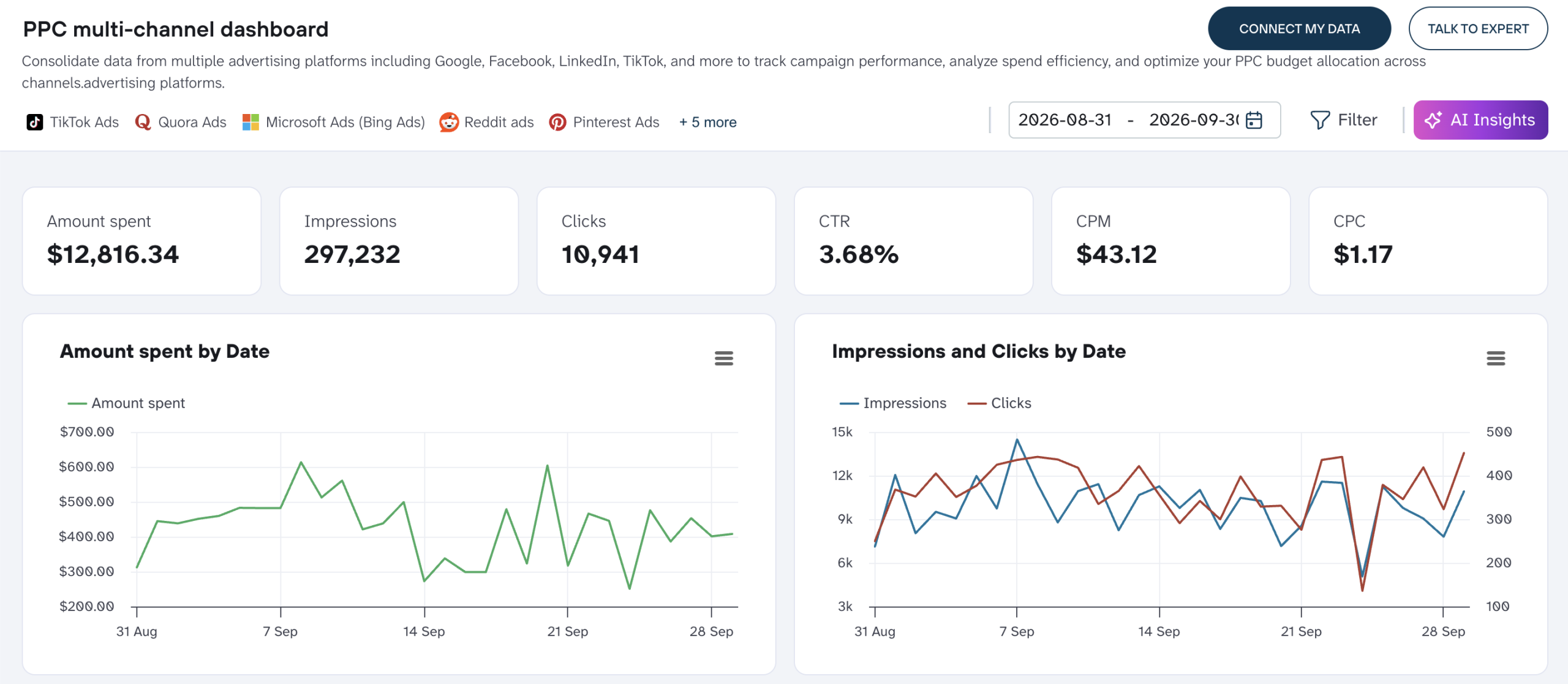
- PPC multi-channel dashboard. Combines Google Ads, Meta Ads, and other ad platforms into one campaign performance view.
PPC multi-channel dashboard
 Check out the dashboard
PPC multi-channel dashboard
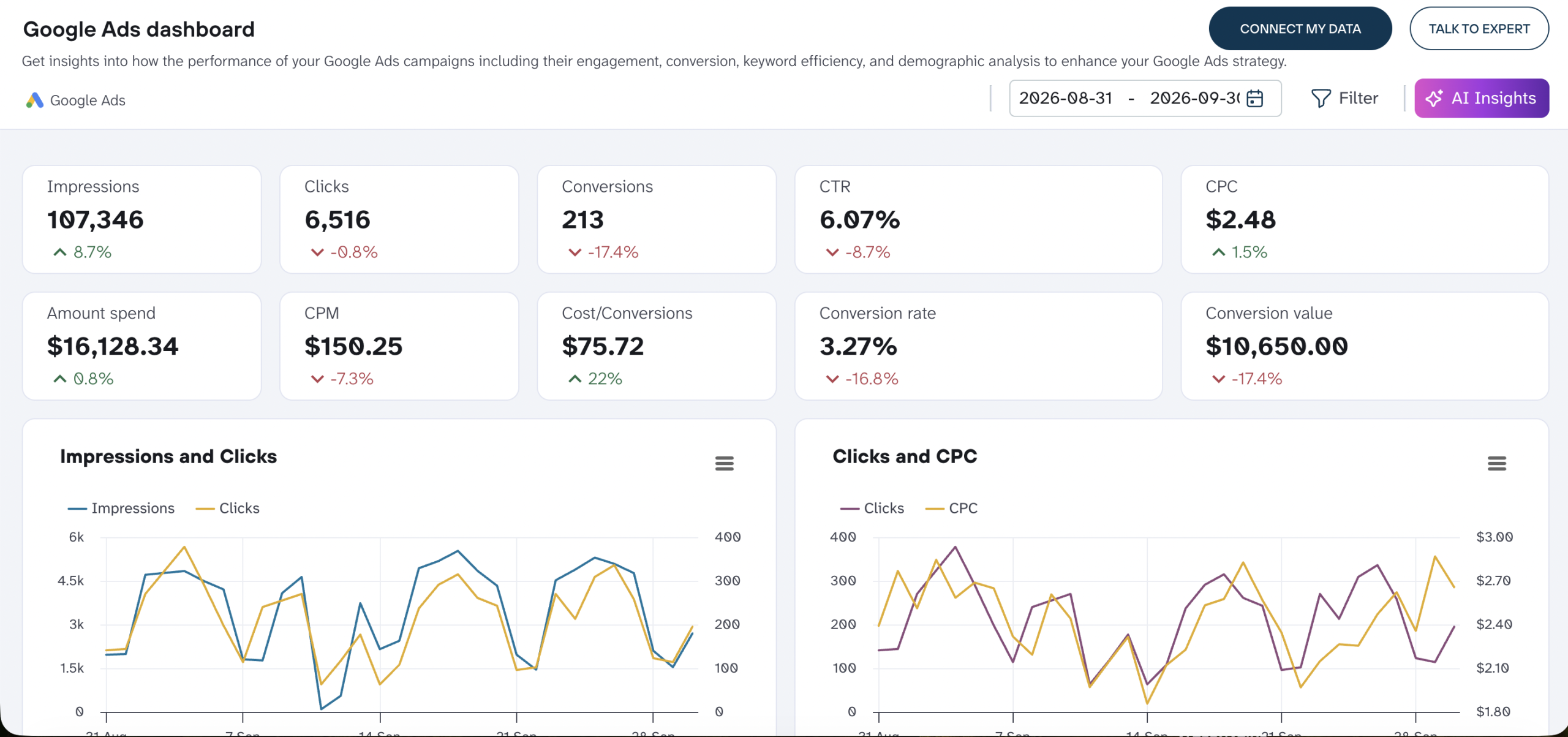
Check out the dashboard- Google Ads dashboard. Covers spend, CPC, CTR, conversions, and ROAS out of the box, with visualizations for each metric.
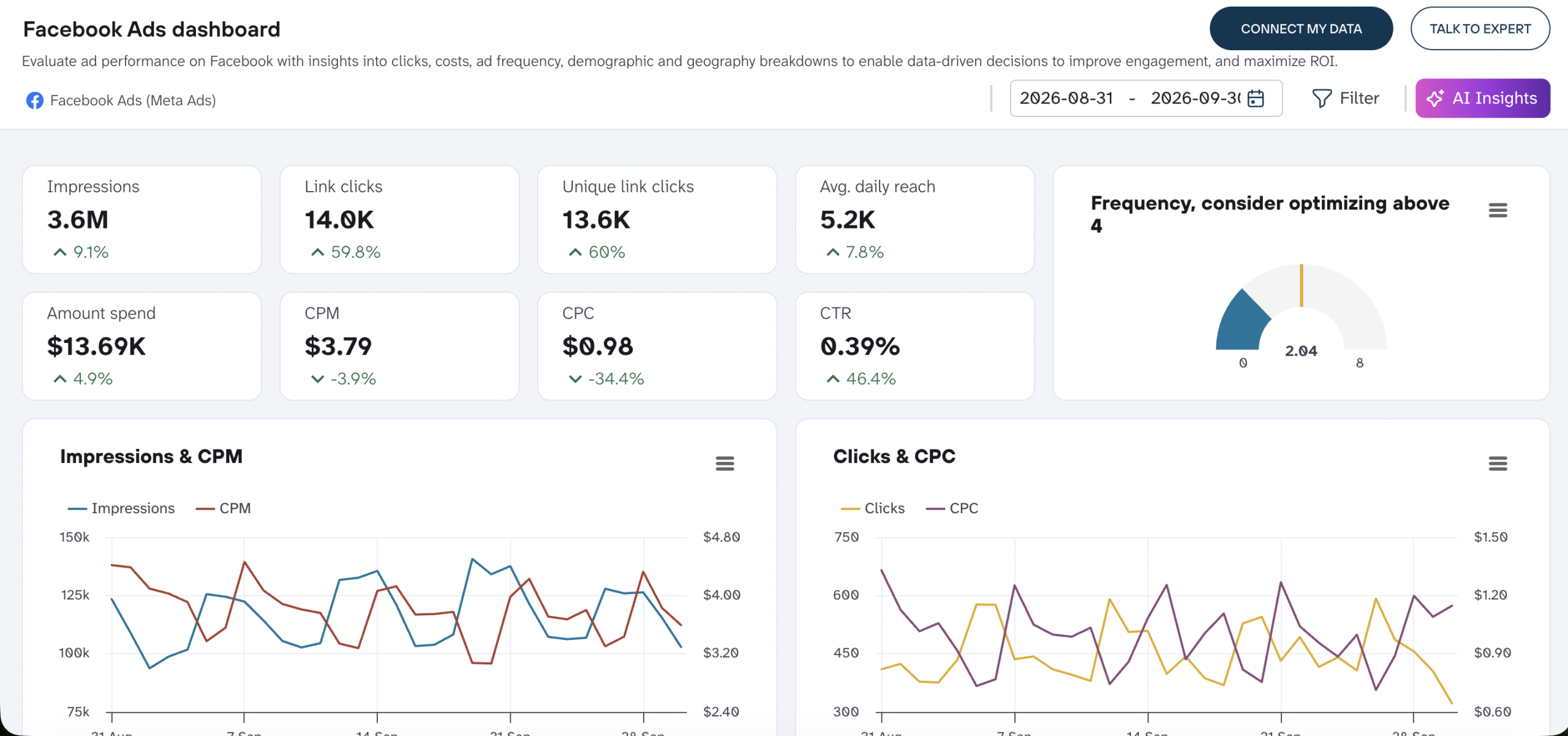
- Facebook Ads (Meta Ads) dashboard. Handles the view-through conversions and audience-level metrics that Meta reports differently from other ad platforms.
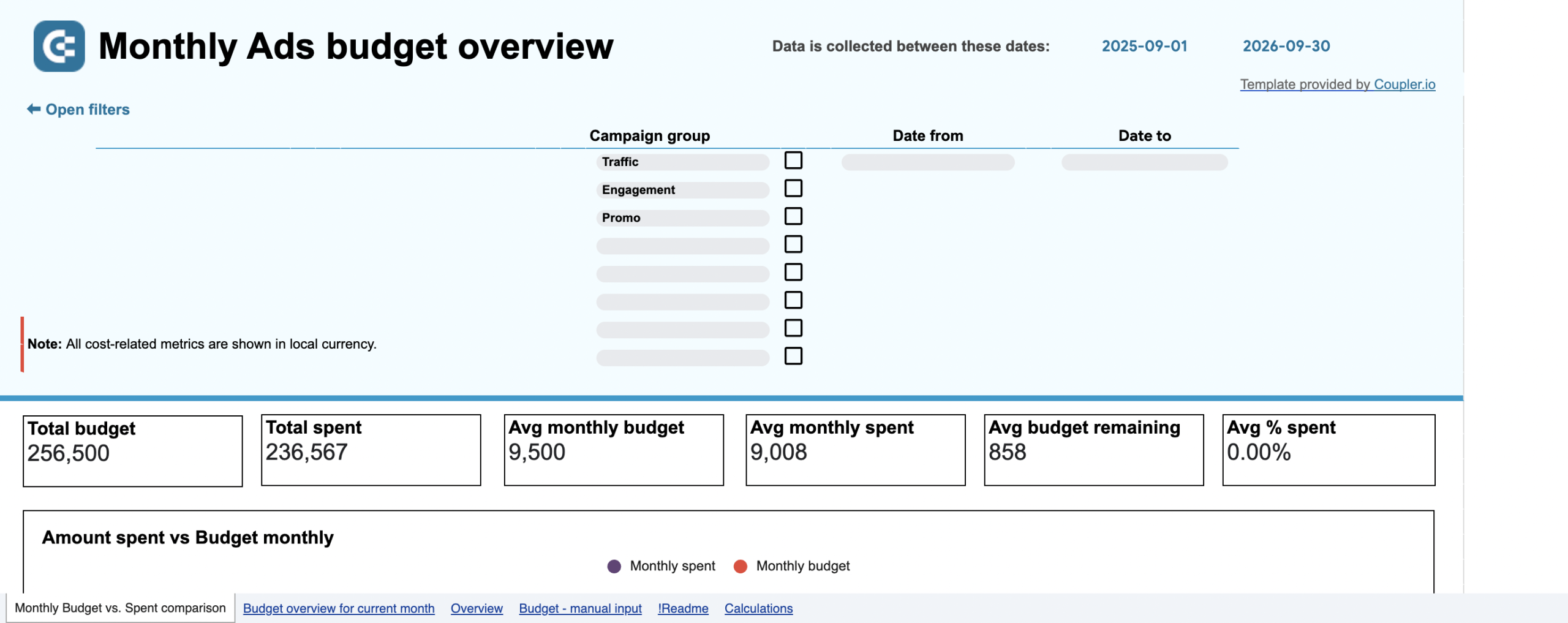
- PPC Multi-budget by campaign group dashboard. Tracks spend against separate budgets per campaign group, so one group going over doesn’t hide inside a healthy account total.
PPC Multi-budget by campaign group dashboard
 Check out the dashboard
PPC Multi-budget by campaign group dashboard
Check out the dashboardBrowse the full set on the PPC dashboard examples page. Each template has a preview and a click-to-copy setup, so you can adapt one to your accounts in a few minutes.
Analyze PPC data in Copilot with Coupler.io
Get started for freeExamples of how you can analyze PPC data with Copilot
Once the flow is connected, ask a question in the Copilot agent and use each answer to decide what to check next.
Below are four different PPC use cases where the ability to analyze data across accounts in one place pays off. Each one starts with a first prompt, then a natural follow-up, because a single answer rarely resolves a question. Feel free to modify your approach and treat this as your working PPC data analytics loop, not a demo.
Find campaigns burning budget without conversions
Opening prompt: “Which campaigns spent over $500 in the last 7 days with zero conversions?“
Copilot returns a list with campaign name, spend, impressions, and clicks pulled through the Analytical Engine.
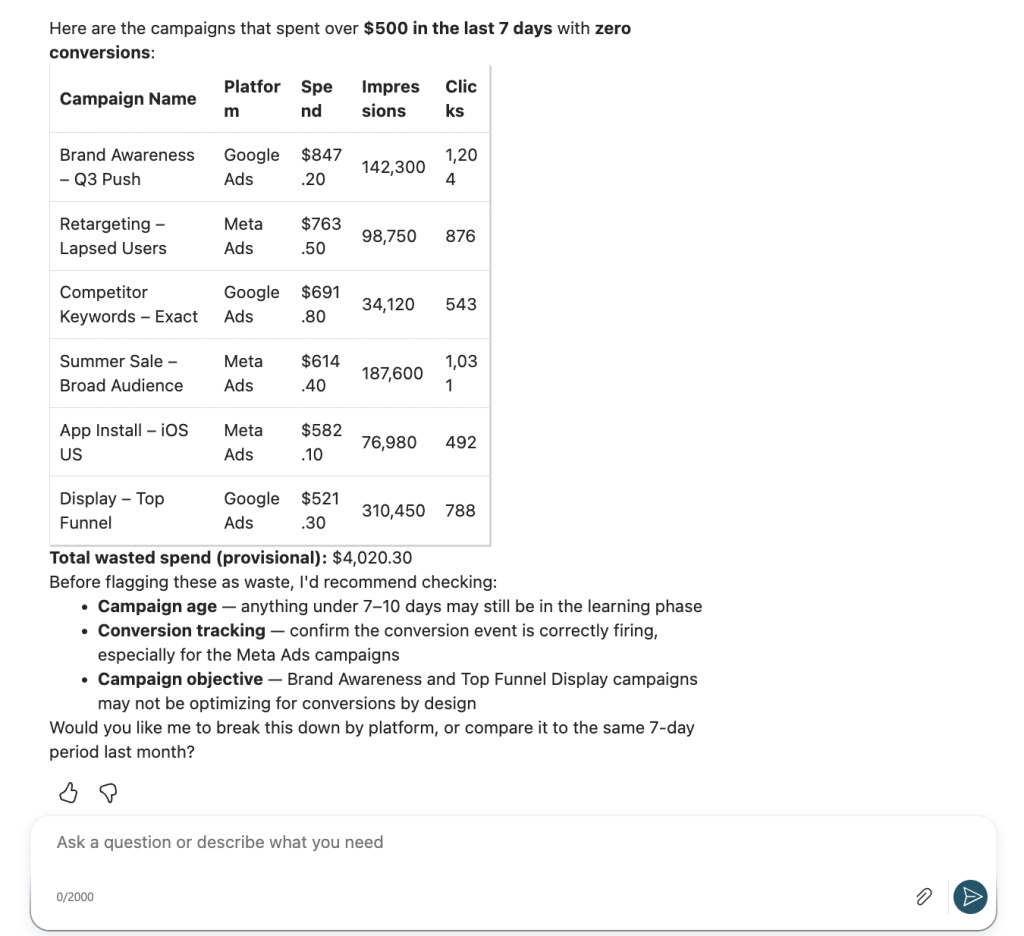
Before you flag any of them as waste, check the campaign age and objective. A brand-new lead-gen campaign in learning mode may not have a conversion signal yet. That doesn’t mean it’s failing. Use this prompt as a starting point for campaign diagnostics, not as a kill switch.
Natural follow-up: “Break that down by platform" or "How does that compare to the same period last month?“
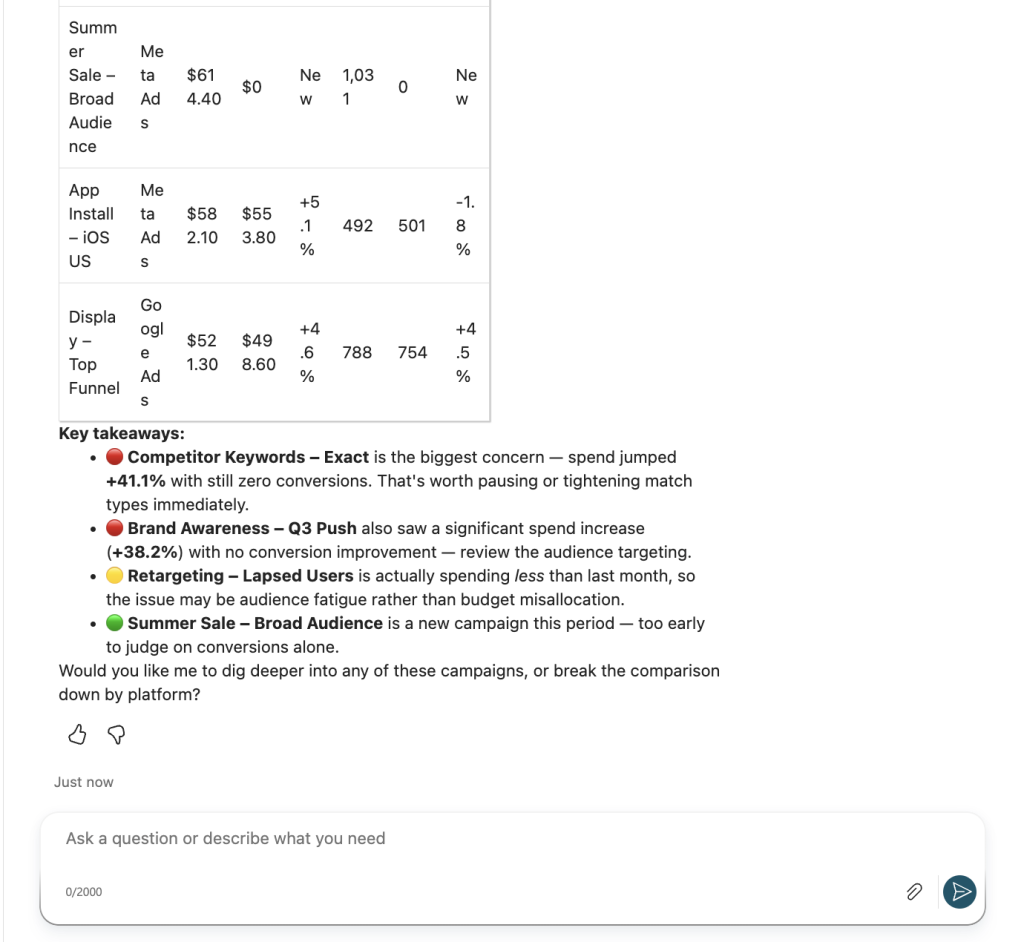
Investigate why cost per acquisition changed
Opening prompt: “What's our blended CPA this month vs last month, broken down by channel?“
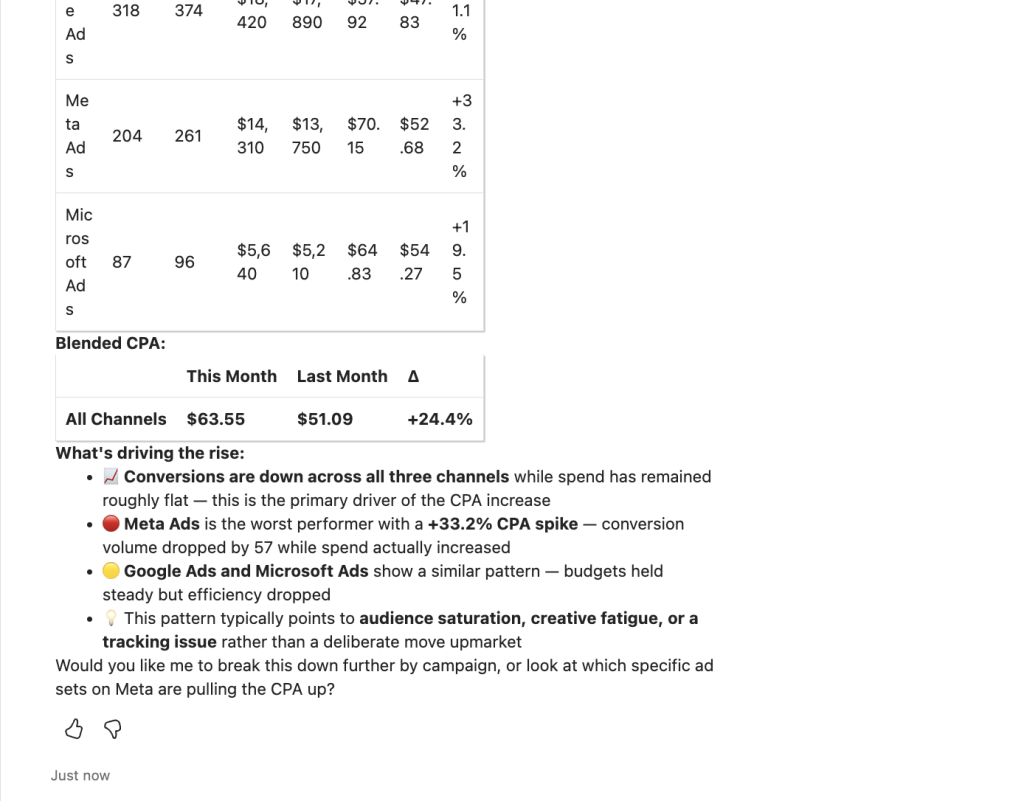
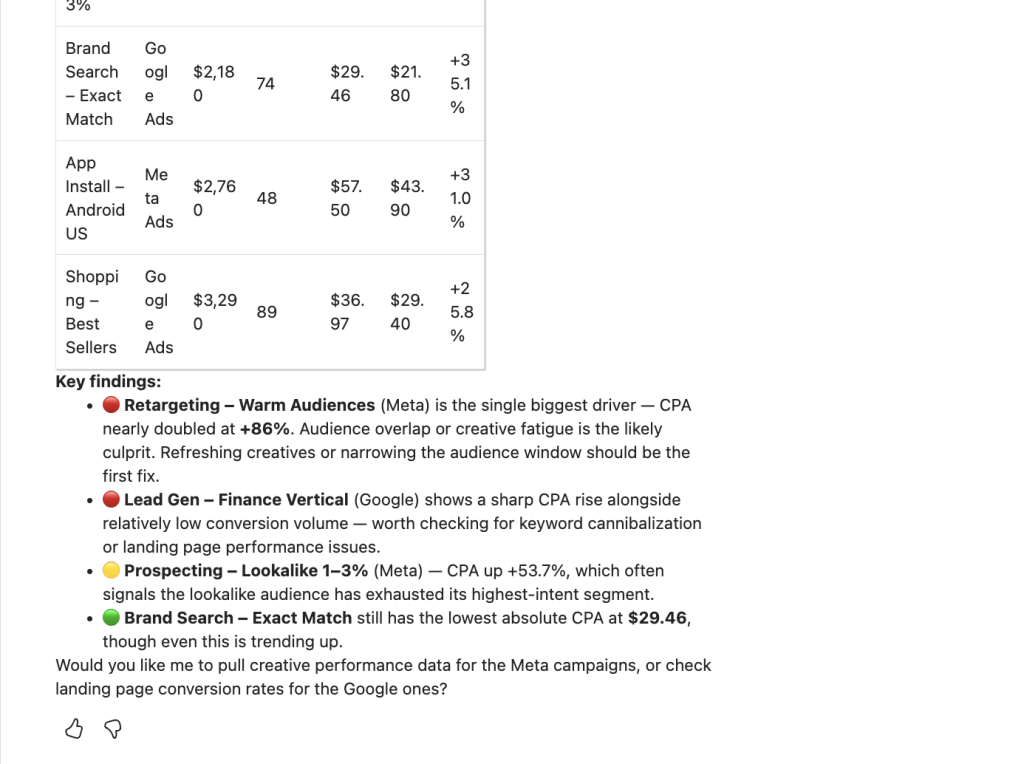
A rising CPA is one of those numbers that means different things in different situations. It can point to worse targeting, or to a deliberate move upmarket toward higher-intent audiences. It can also reflect a Google Ads or Meta Ads tracking change that shifted what counts as a conversion. The data alone doesn’t say which. This is where the business context you set at the dataset level comes in handy, so Copilot’s diagnostics land closer to the real cause.
Natural follow-up: “Which campaigns drove most of that increase?“
Compare cross-channel efficiency
Opening prompt: “Compare CPC, CPA, and ROAS across Google Ads, Meta Ads, and LinkedIn Ads for this quarter.“
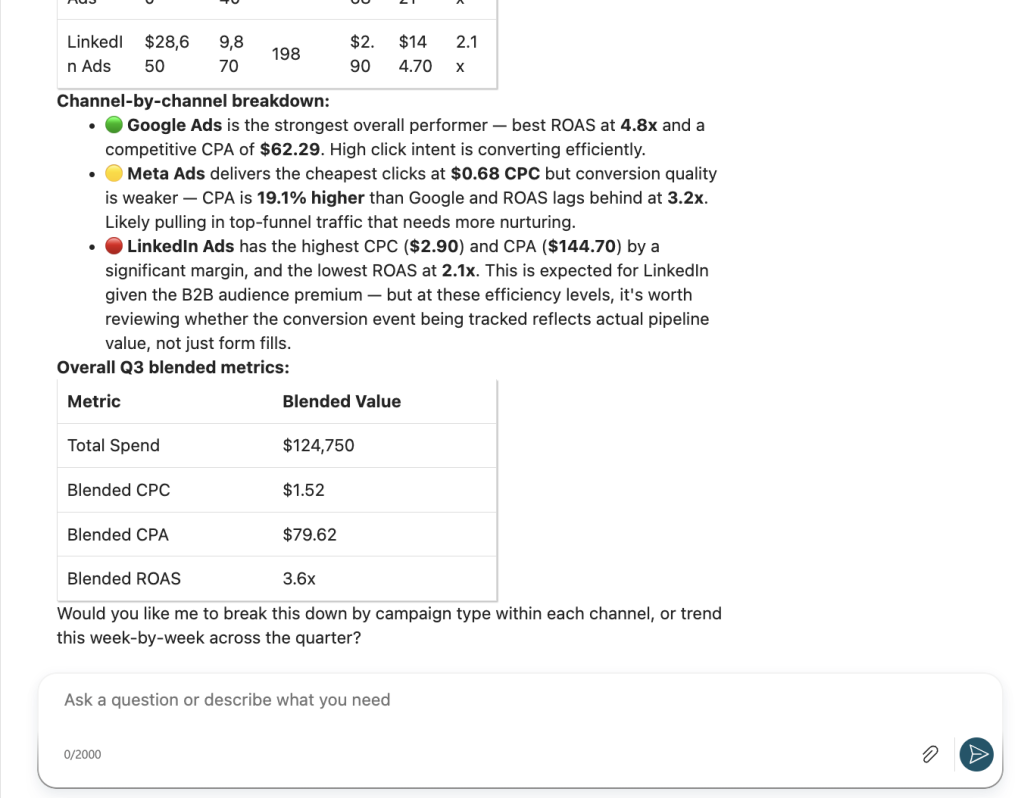
The channel with the lowest CPA isn’t automatically the best. If Meta Ads converts leads at half the CPA of LinkedIn Ads, but those leads close at a fifth of the rate, LinkedIn wins on real economics. Copilot can only tell you what the data shows. Use this kind of prompt to open the door to a deeper look, not to make the budget call.
Follow-up ideas:
- “
Which channel should get more budget next month if I want to hold CPA flat?“ - “
Within the top-performing channel, which campaigns drove most of the result?“ - “
If we weight each channel by the close rate on its leads, which one comes out ahead?“
Check whether campaigns are pacing to budget
Opening prompt: “Which active campaigns are on track to overspend their monthly budget at the current daily rate?“
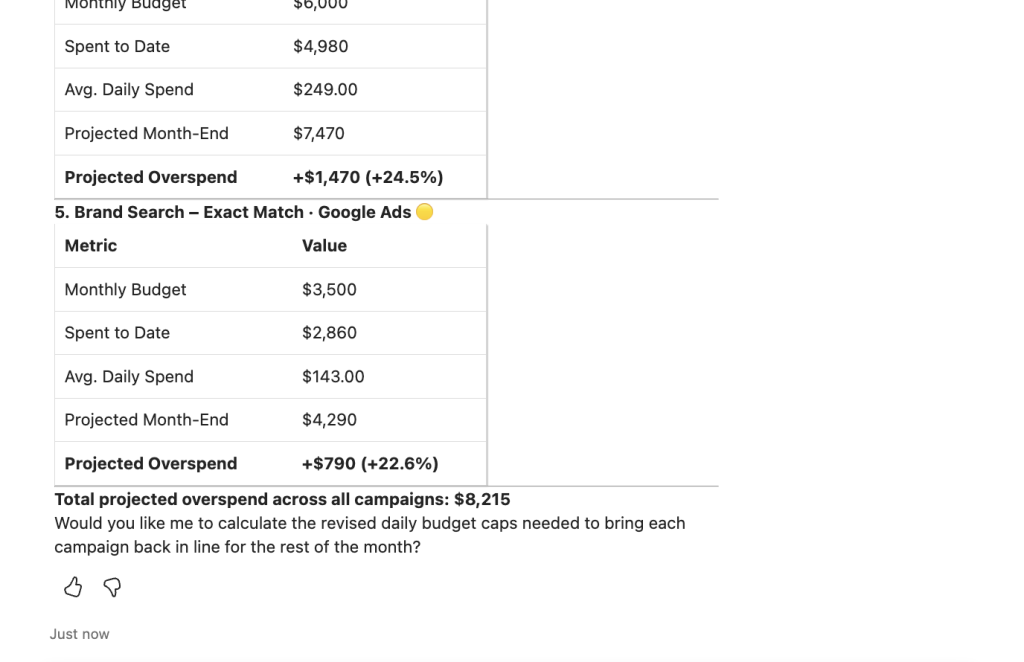
Pacing is the exact kind of calculation that goes sideways when an LLM does the math itself. Day-of-month weighting, weekday-versus-weekend patterns, and mid-month bidding strategy changes all affect the projection.
This is a good example of why calculations belong outside the model. The Analytical Engine runs the pacing query against the full dataset and returns a projection Copilot then interprets in plain language.
Follow-up ideas:
- “
Which of those should I pause first based on performance so far?“ - “
Which active campaigns are on track to underspend their monthly budget?“ - “
By how much should I lower each overspending campaign's daily budget to land exactly at its monthly cap?“
Get accurate PPC insights in Copilot with Coupler.io
Get started for freeAre there other ways to connect PPC data to Copilot?
Microsoft’s native connectors work well for sources Microsoft already supports directly, especially if you’re inside Microsoft 365 Copilot and asking about Microsoft-native data. Direct file uploads and Copilot Notebooks are fine for a one-off spot check where the export is already sitting in front of you.
Here’s how the options compare:
| Connection method | Setup effort | Who does the math | Best for | Watch out for |
| Coupler.io | Low (chat-first setup plus a Copilot Studio step) | Coupler.io’s Analytical Engine | Recurring cross-channel PPC reporting with refreshed data | The Copilot Studio step needs maker or admin access |
| Microsoft’s native connectors (synced and federated) | Low for supported sources | Copilot (LLM math) | Sources Microsoft supports natively inside Microsoft 365 Copilot | No native connectors for the main PPC platforms; limited to Microsoft’s own library |
| Direct file upload or Copilot Notebooks | Low (drag and drop) | Copilot (LLM math) | One-off spot checks against a fresh export | Data goes stale immediately; no schedule; no calculation layer |
The file-upload path is useful for a five-minute question against a report you already have open. But it stops being useful the moment you want the same answer next week.
One more nuance on freshness. PPC data isn’t real-time data from the source anyway. Google Ads, Meta Ads, and Microsoft Ads all have their own API refresh delays. A scheduled Coupler.io flow gets you as close to the most recent data as the ad platforms themselves allow.
Copilot prompts for PPC analysis
Below are six starting prompts for common PPC questions. Each one gets a short note on when it earns its place and what to watch for in the answer. The AI-powered insights you get back are only as good as the setup that feeds them, so treat these as first prompts, not finished analyses.
Budget pacing check
Prompt: “Which active campaigns are on track to overspend their monthly budget at the current daily rate?“
Use this at the two-week mark of a month. That’s when there’s enough data to project and enough runway to correct. Watch for campaigns that spent heavily in the first few days after a launch. The daily rate skews high early and normalizes later. Coupler.io has Google Ads budget pacing and Facebook Ads budget pacing skills. These run the same check on a schedule, so you’re not retyping the prompt every Monday.
Wasted spend flag
Prompt: “Which campaigns spent over $500 in the last 7 days with zero conversions?“
A weekly sanity check that catches broken tracking as often as it catches wasted spend. If a campaign that usually converts suddenly returns zero, the first suspect is tracking. Check that before you pause anything. If waste is a recurring theme, use the Google Ads waste and scale skill (and the Meta equivalent). They turn this into a scheduled account clean-up with pause candidates and negative-keyword suggestions in one output.
Cross-channel efficiency
Prompt: “Compare CPC, CPA, and ROAS across Google Ads, Meta Ads, and LinkedIn Ads for this month.“
A quick read on where the marginal dollar should go. Attribution windows differ across ad platforms, so treat the exact numbers as directional rather than final. For a deeper cross-platform view, the PPC analytics skill runs the CPC, CPA, ROAS, and per-platform funnel breakdown. It’s done across every ad account connected to Coupler.io, without you writing the join by hand.
CPA change investigation
Prompt: “What's our blended CPA this month vs last month, broken down by channel?“
Good for a monthly review. If CPA moved more than 20% in either direction on any channel, the follow-up is which campaigns or bidding strategy changes drove the move. Pair this with the business context notes on your dataset so Copilot can factor in known events like a paused campaign or a creative refresh.
Creative or ad-level performance
Prompt: “Which ads have the highest CTR but the lowest conversion rate this month?“
Points to a creative-audience mismatch. The click is easy. The conversion isn’t. This is where a fresh creative or a landing-page swap tends to move the conversion rate the most. The Facebook Ads creative analysis skill goes further. It benchmarks each ad against your own account baseline instead of a generic CTR target. Good creative doesn’t get killed on a shaky comparison.
Quarter-over-quarter trend
Prompt: “What changed in our average CPA from Q1 to Q2? Break it down by channel.“
Longer windows smooth out weekly noise. They show whether a rising CPA is a trend or a blip. Ask Copilot to add visualizations to the answer so the shape of the change is easier to read than a wall of numbers.
Coupler.io’s place in a PPC reporting setup with Copilot
For teams running PPC reporting on a recurring basis, Coupler.io sits between your ad accounts and Copilot as a safe middle layer. It carries the column definitions, business context, and calculations into every answer. Copilot works from numbers that match how your account actually runs, not what a model guessed.
The multi-source option covers in one flow what used to take several separate reports. Google Ads, Meta Ads, LinkedIn Ads, Microsoft Ads, and TikTok Ads all land in one flow and one dataset. One question to Copilot returns an answer across every channel.
The flow doesn’t have to end at Copilot either. The same prepared data can go to Power BI, Looker Studio, Google Sheets, or another AI tool at the same time. Context and calculations travel with it, so the numbers match everywhere they land.
Copilot stops being a dead end for PPC questions and starts answering them with accurate numbers and insights grounded in your business context.
Automate PPC reporting in Copilot with Coupler.io
Get started for free