
How to Set Up an Efficient Google Ads Report for Clients

Some agencies spend 2–3 days a week on client reports. Others spend 15 minutes. The difference is simple: in the second case, agencies let their Google Ads reports set up and refresh automatically.
With Coupler.io, you build it in a chat with the AI. Just describe the report you need, and Coupler AI connects your Google Ads accounts and keeps the data fresh on a schedule. Set it up once, and each client gets a clear report without another export from you.
Key takeaways
- Every client looks for answers to the same questions. Answer them on page one and the “what does this mean?” emails stop.
- One chat message can build a Google Ads report for clients. Coupler AI connects Google Ads and refreshes the data on its own, so the Monday export is gone.
- Your tenth client can take as long as your second. One manager account and one reusable prompt make that work.
- AI can find the search terms behind a CPA spike in seconds. It drafts the monthly write-up, and you still make the call.
- Clients give your report about 90 seconds. Essential parts, in the right order, make sure they find what they need, when they need it.
What clients need from Google Ads reporting
Social Unit used to give up 2–3 days every week to reporting. Someone had to log in to Google Ads, Facebook, Instagram, and TikTok, copy the numbers, and build the report by hand. After trying tools with confusing setups, the team switched to Coupler.io, and the weekly data pull dropped to under 30 minutes. But the bigger surprise came from clients. With fresh numbers always in front of them, they sent 60% fewer questions about results.
Most clients don’t read a Google Ads report line by line. They scan it for answers to three questions:
Did the money work?
What changed and why?
What are you doing next?
If the first page answers them, the client moves on happy. If it doesn’t, you get the email asking what it all means.
Getting the answers right is half the job. The other half is sending them in a form the client will actually open. I pick the format based on what the client does with the report. A short weekly email with spend against budget and CPA against target suits clients who only want to know nothing is on fire. A monthly Google Ads report with KPIs and campaign performance is the one or two pages you walk through on the call. A shared dashboard shows the same numbers, updated every day, for clients who like to check in on their own.
Most agencies end up using all three. With Coupler.io, that’s still one data flow: it keeps the dashboard and the monthly report filled with the same fresh numbers, and Coupler AI drafts the weekly email from that data.

Get every client report format from one Coupler.io flow
Book a demoHow to set up and automate Google Ads reporting for clients
Lance Johnson runs Clear Performance Ads, a PPC agency in Michigan, solo. His clients advertise on Google Ads, Meta Ads, and Amazon Ads. For every report, he had to pull the numbers from each platform and stitch them together by hand. Once he moved that work to Coupler.io, all three platforms landed in one client dashboard that updates itself. Weekly reporting now takes him 15 minutes.
“I found Coupler.io through research and tried it out. Really liked how simple and easy it was,” Lance says. “It’s been great ever since.”
You can set up the same kind of Google Ads report for clients in one sitting. Here’s what you receive when you automate Google Ads reporting with Coupler AI.
Get a client dashboard from one request
Tell Coupler AI what the client needs to see, in plain words. For example: “Build a monthly Google Ads report for a lead gen client. Show spend, conversions, CPA, and CTR by campaign for the last 30 days, compared with the 30 days before.” Coupler AI sets up the data flow and turns it into a dashboard or an AI artifact the client can open any time.
The report itself stays fixed, so the client always knows where to look. The conversation is extra value on top of it: the client can look at the dashboard or artifact and ask follow-up questions about the same data in chat.
Enrich Google Ads with data from other sources
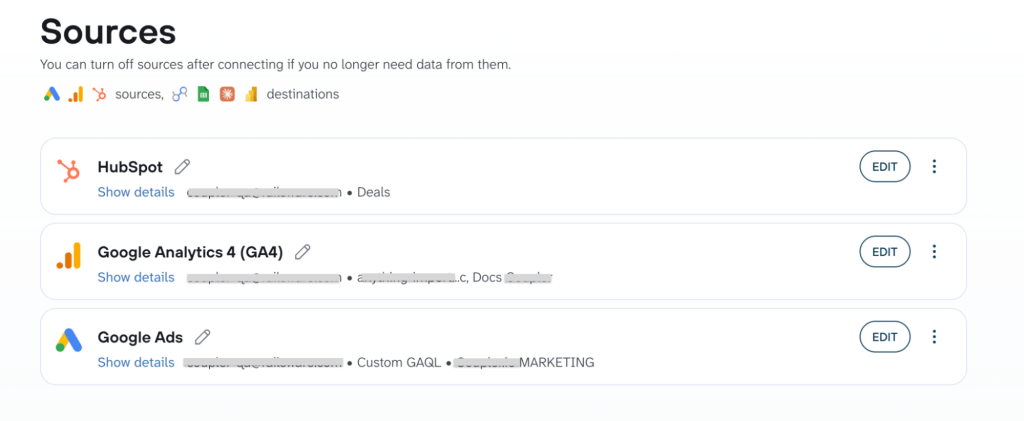
Connect Google Ads once, from one account or from your manager account if you want all your clients at once. Then add the sources that complete the picture, like Google Analytics for what visitors do after the click, or your CRM for which leads turned into deals. Coupler.io connects 400+ sources, so one client report can show the whole funnel.
Receive the numbers you can trust
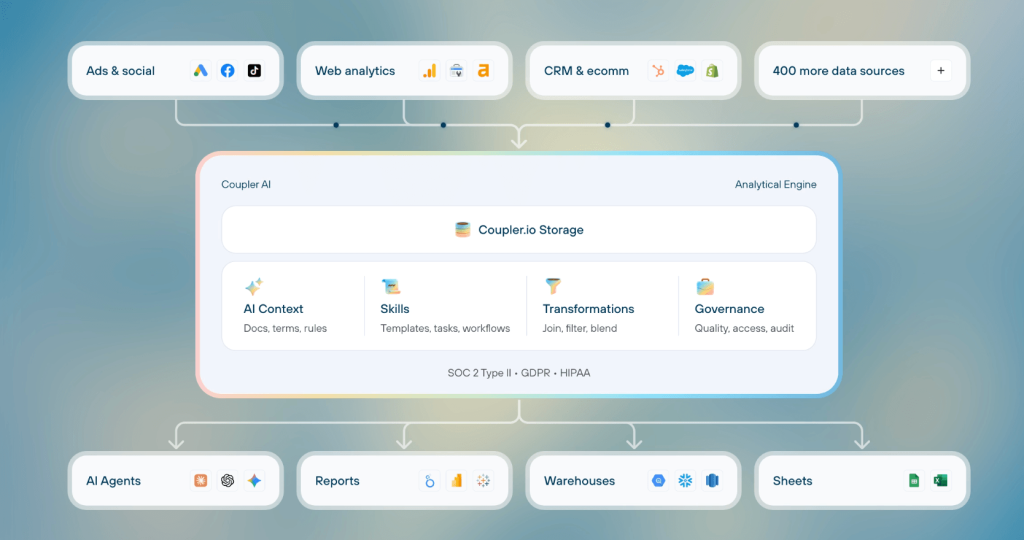
When you ask Coupler AI a question or have it write a report, it hands the math to the Analytical Engine. The engine calculates the answer from your full Google Ads data, and the AI then explains the result. So the spend, conversions, and cost per conversion in an AI-written summary come from real calculations. You can send them to a client without rechecking them in a spreadsheet. Before the first report goes out, Coupler.io’s Conversion Tracking Audit skill checks whether the conversion numbers hold up. The skill flags conversions counted twice and spend with no tracking at all.
Choose a format each client likes
Pick the output that fits how the client works:
- a Google Ads dashboard, for clients who like to check in on their own
- a Google Ads report in Google Sheets, for teams that live in spreadsheets
- Power BI, for clients who already use it
- an AI-written report from Claude, ChatGPT, or Gemini, or a Claude artifact, for the monthly summary with comments on what changed
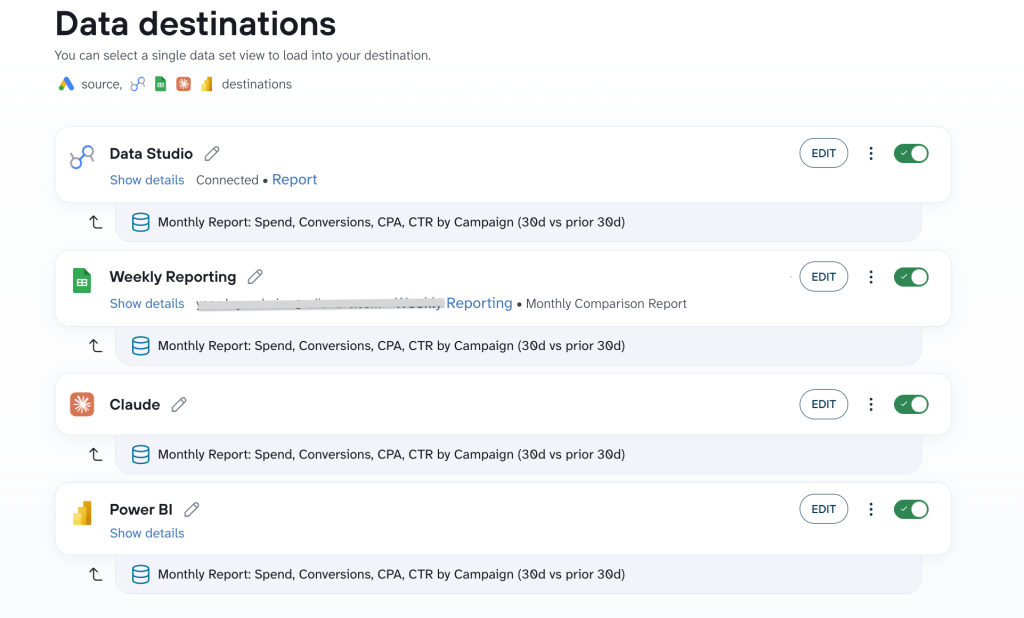
With white-label reporting, dashboards can carry your agency’s logo and colors, or the client’s if the account calls for it.
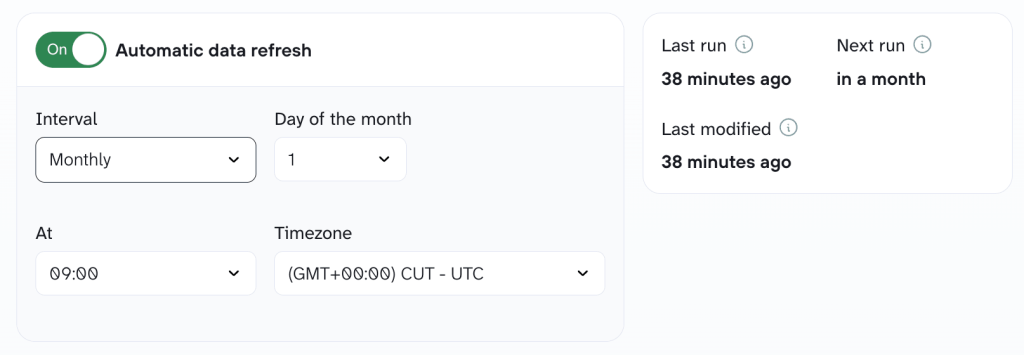
Automate report updating
Set how often the data refreshes and share the link. Every time the client opens it, they see the latest numbers, and you never do a Monday export again.
If you already know the layout you want, you can skip the chat and start from a Google Ads report template. Select one from Coupler.io’s library of pre-built dashboard templates for Google Ads.
The native route: Google Ads report editor and Data Studio
Google gives you two free Google Ads reporting tools, which might be enough only if you have one or two clients.
The report editor lives inside Google Ads. You build custom reports with tables and charts, then schedule them to land in your inbox as CSV files. If you work from a manager account, you also get columns like Account and Customer ID, so one report can cover several clients.
Data Studio (formerly Looker Studio) is Google’s free dashboard tool. Its Google Ads connector pulls in live data, and you can share the dashboard link with a client.
The trouble starts as your client list grows:
- Both tools stick to Google data. To add Facebook Ads or other non-Google platforms, you need a paid partner connector or manual uploads.
- A scheduled CSV is a table of numbers. It doesn’t tell the client what changed or why.
- Every client dashboard is its own project. Change a metric, and you change it ten times.
- Google deletes saved reports that no one has used in 18 months.
The table below compares the Google Ads reporting tools with Coupler.io on what matters once you report for many clients.
| Google Ads report editor | Data Studio | Coupler.io | |
|---|---|---|---|
| Best for | Quick checks inside one account | A free dashboard for a few clients | Recurring reports for many clients |
| Data sources | Google Ads | Google products; others through partner connectors | Google Ads plus 400+ sources, including Facebook Ads and GA4 |
| What the client gets | CSV email | Dashboard link | Dashboard, Google Sheets, Power BI, or an AI-written report |
| Setup | Manual, per report | Manual, per dashboard | A chat message or a template |
| Upkeep | Rebuild reports by hand | Edit each dashboard | Data refreshes on a schedule |
| Cost | Free | Free (Pro is paid) | Free plan; paid plans from $24/month, billed annually, with AI included on every plan |
Coupler.io also supports Data Studio dashboards, but they come ready-made, with the charts already laid out. You connect the client’s account, change the KPIs to fit their goals, and add Facebook Ads or any other source to the same dashboard.
Run reports for every client from one manager account
Book a demo with Coupler.ioScale your Google Ads reports across multiple clients
SellThru, a digital marketing agency in the Gulf region, works with more than 250 clients. Its old reporting tools made nice charts but couldn’t combine data from different ad channels, so the team mapped it by hand. Getting a new client’s reports ready took two weeks.
With Coupler.io blending Google Ads, Facebook Ads, TikTok, GA4, and more into one place, SellThru now runs 35+ automated client dashboards. New clients are ready in 2–3 days, and the team saves over 20 hours a month.
“Coupler.io changed the way we handle data,” says Akshay Kapoor, Account Director.
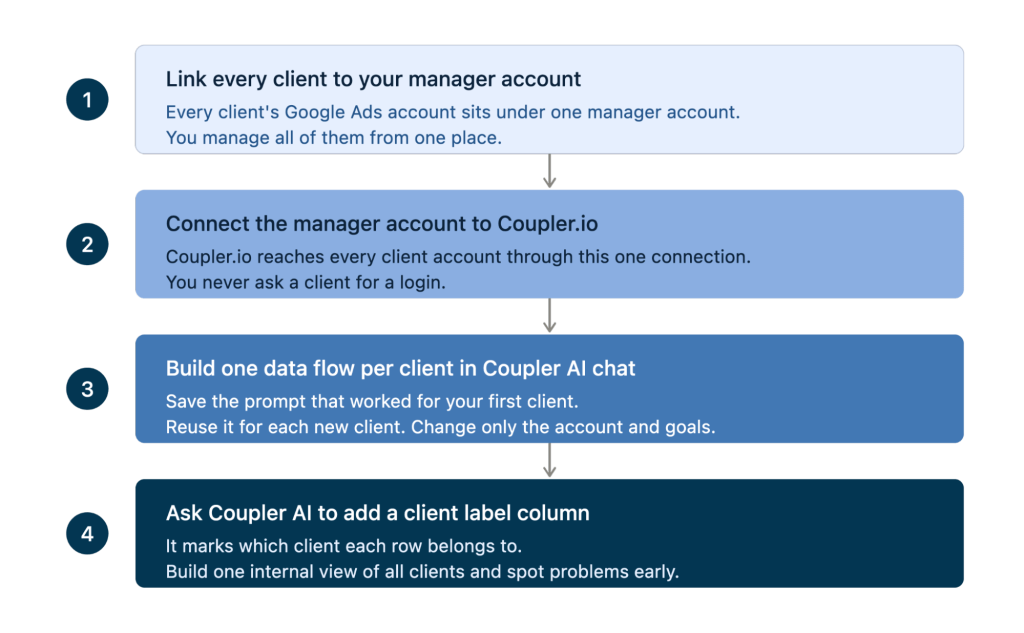
Adding your tenth client should take about as long as adding your second. Here’s how to keep it that way. Link every client account to your Google Ads manager account, and Coupler.io reaches all of them through one connection. For each new client, reuse your first prompt and ask Coupler AI to add a client label column, so you can also see every client in one internal view.
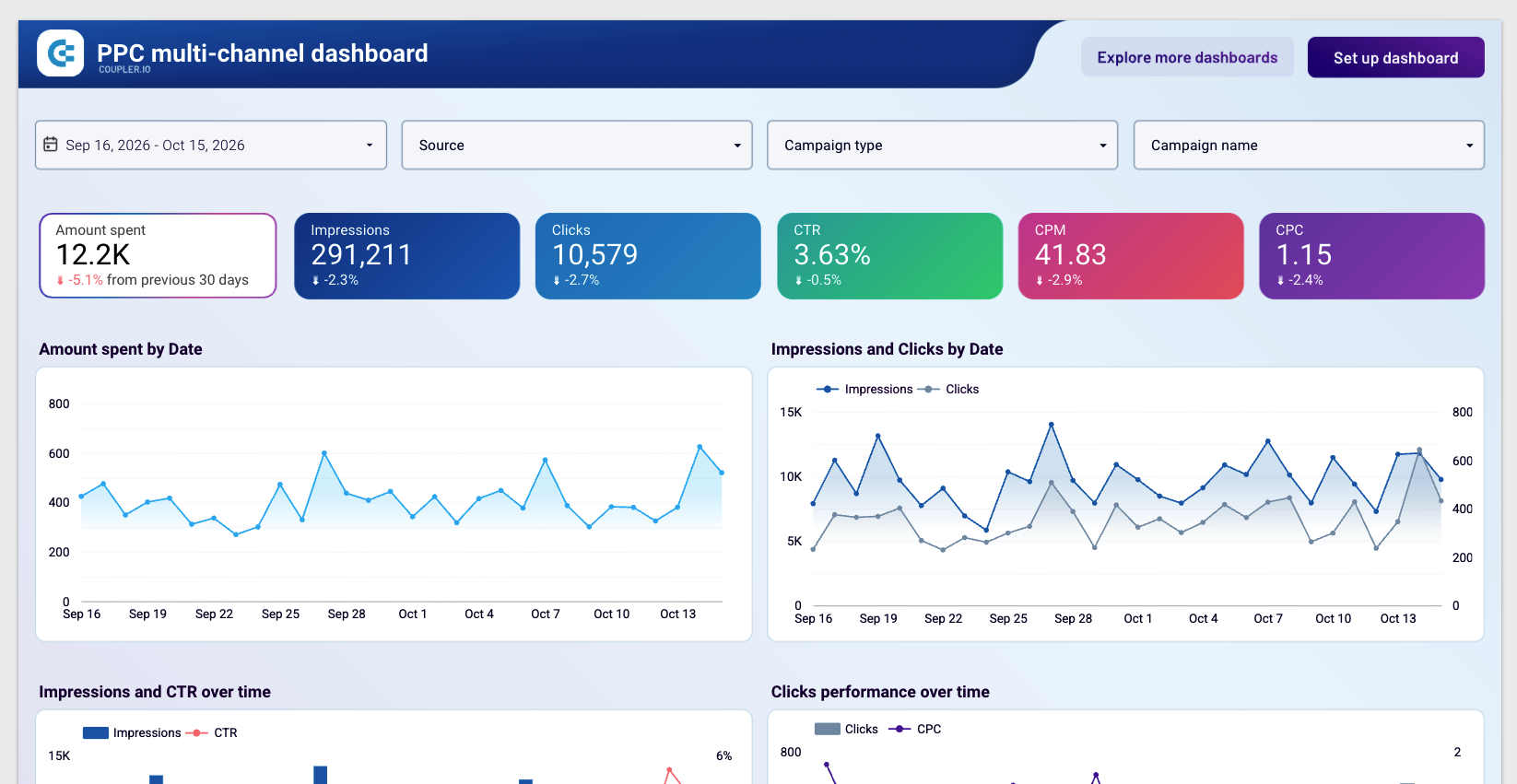
For clients who advertise beyond Google, start from one of the PPC dashboard templates, which put every ad platform in one view.
Costs stay predictable as you grow. Coupler.io bills by connected account, not by data flow or dashboard. Each client’s Google Ads account counts once, no matter how many reports you build from it, and adding teammates doesn’t add seats.
Google Ads advanced reporting: Skills and AI commentary for every client
Your data now flows on its own. The slow part is reading the numbers and explaining them to each client, and it’s the same set of questions every month. That’s the work to hand off first.
Run the same analysis for every client with Skills
With Coupler.io AI Skills, ready-made procedures for your LLM, every client gets the same careful analysis each month. You stop redoing the repetitive checks and summaries from scratch for each account. The hours you save go back into improving campaigns.
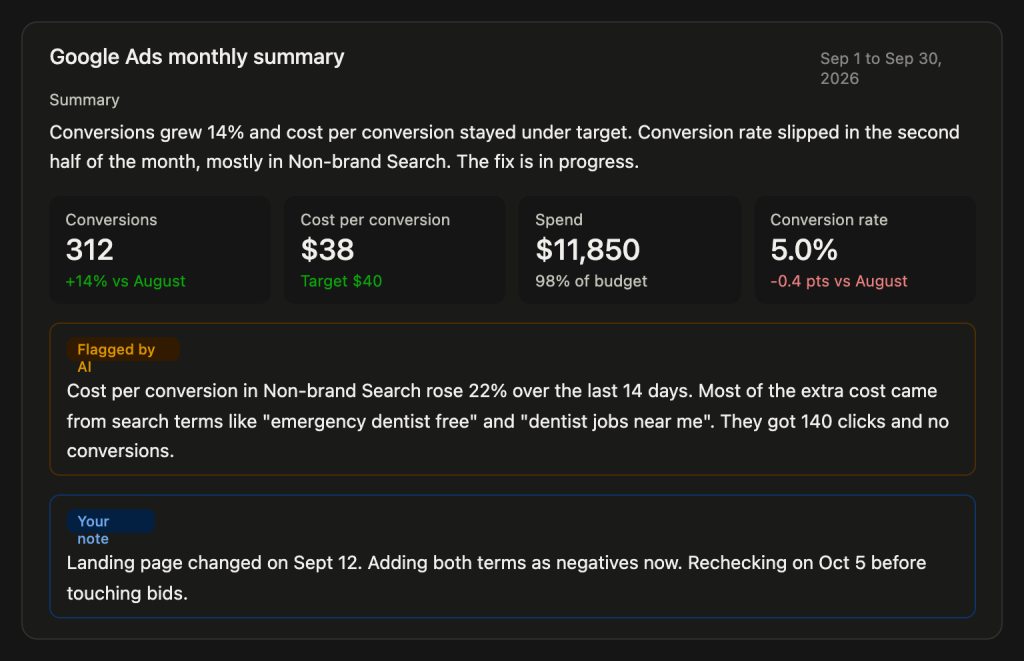
The Google Ads Client Report skill turns last month’s data into a client-ready write-up that answers the three questions every client asks. When a target was missed, the skill suggests how to present it, so the hard part of the call starts from facts. Between reports, the Performance Review skill explains what moved in the account and why. Run them for Client A, then for Client B, and each one starts from a ready draft. You just fix what’s off and send it.
Ask follow-up questions in plain language
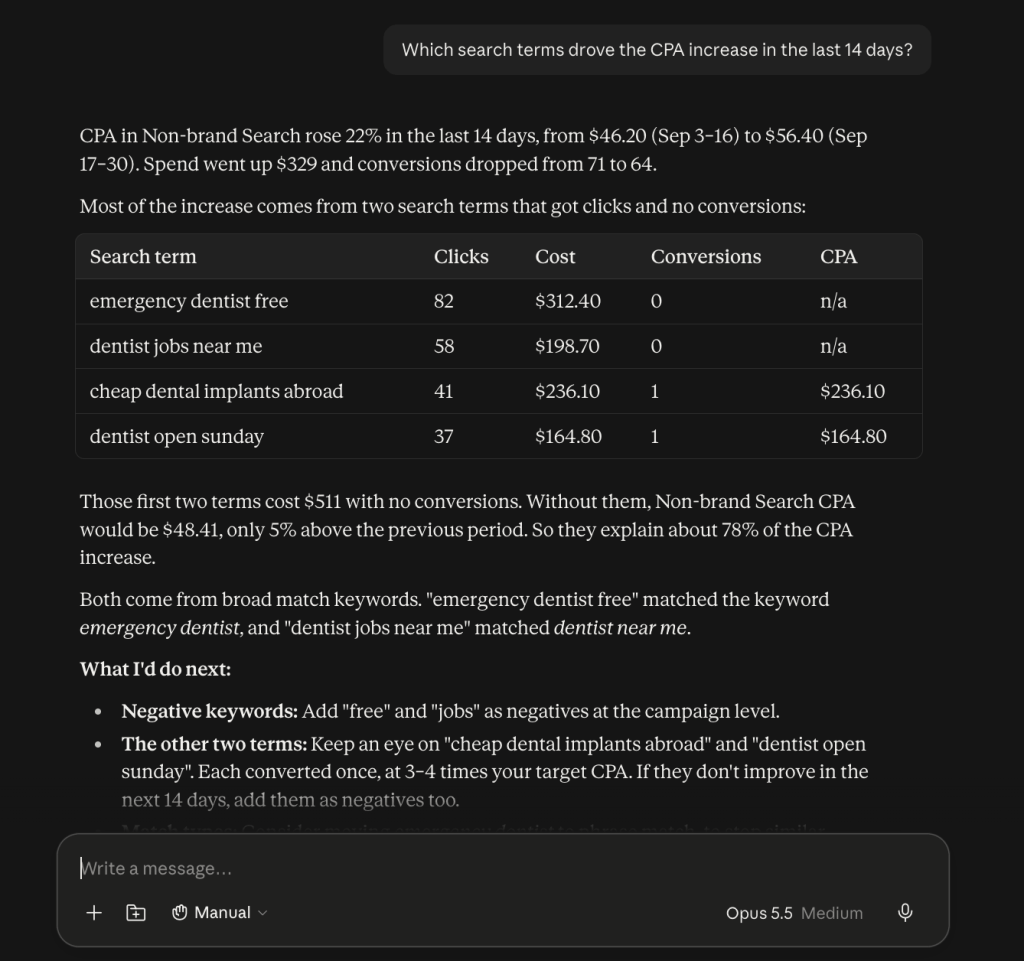
Clients don’t only read the report; they email you on a Tuesday asking why costs went up. With Google Ads data connected to Coupler AI, Claude, ChatGPT, or Gemini, one report can answer every question a client sends. For example:
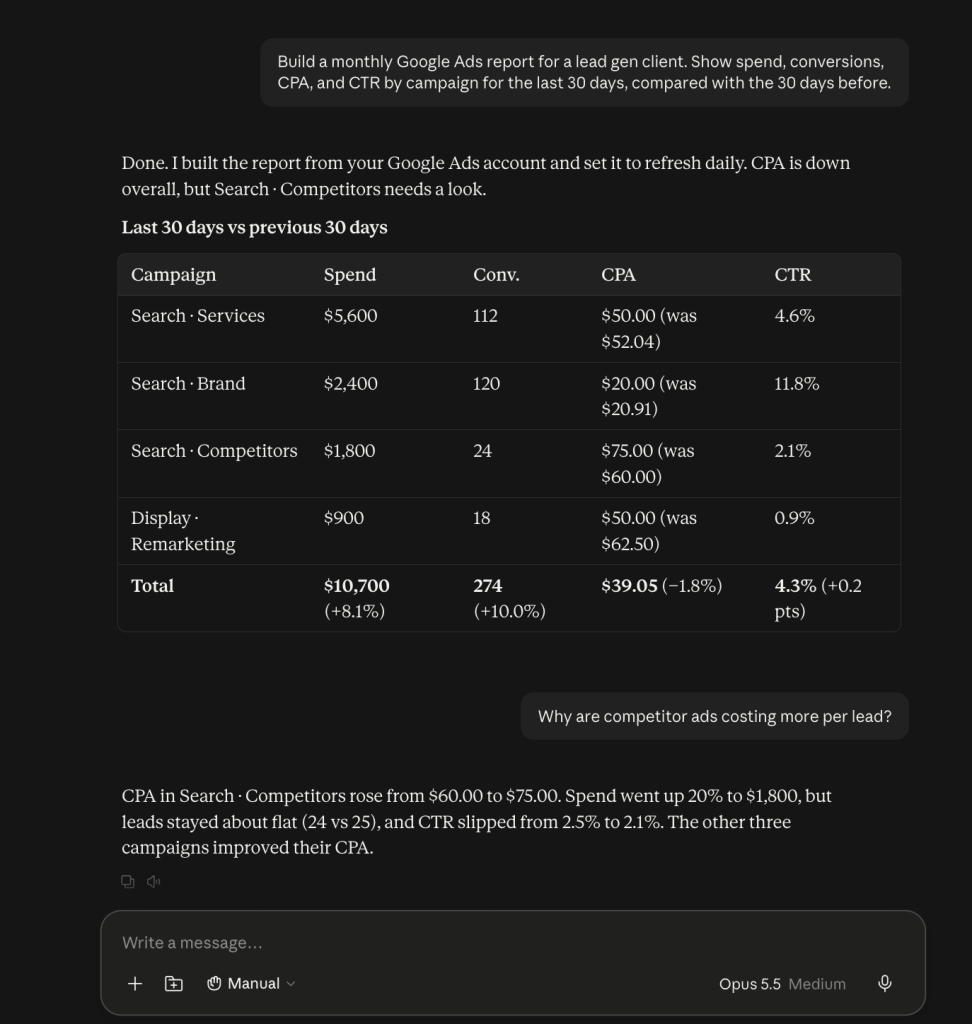
You get the answer in seconds, with the numbers behind it. You don’t need to export two periods and compare them by hand. Those numbers come from the Analytical Engine too. Gabriel Solberg, who manages over $1M in monthly ad spend at Right Percent, put it simply: “I’m not getting AI’s best guess. Coupler.io does the actual math. Claude just helps me ask questions.” His setup cut his analysis and reporting time by 60%.
Let AI flag the change. You decide if it matters.
AI is good at spotting a spike in ad performance you might miss across 30 accounts. On its own, it can’t know why the spike happened. Say the AI flags a 22% jump in cost per conversion. You know the client changed the landing page two weeks ago. That’s a reason to wait before cutting bids. The AI finds the change, and you make the call. That’s also why a human note belongs in every report. The AI writes the first draft, and your note carries the context only you have. With Coupler.io, you give the AI each client’s business context once, such as their goals, targets, what counts as a conversion, and more.
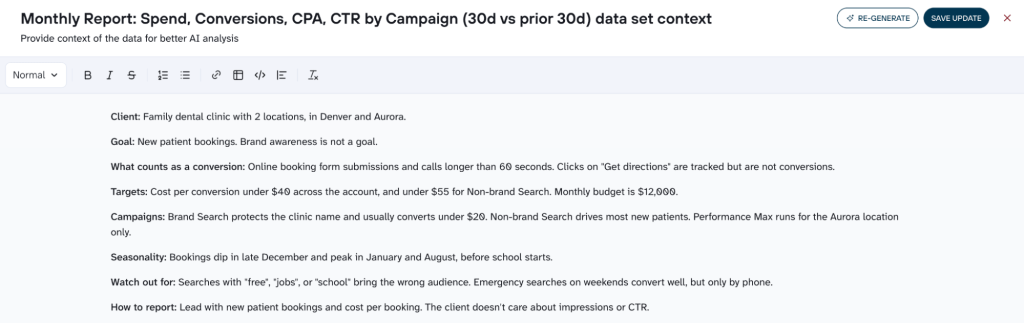
Once that context is saved, AI reads the numbers the way that client would, and your note only needs to cover what changed this month.
Get a monthly AI summary per client with Coupler.io
Try for freeGoogle Ads performance reporting: the metrics that belong in a client report
Open a Google Ads account, and you’ll find hundreds of metrics. Your client doesn’t need most of them. They need to know if the money is working. Sort your metrics into three piles. The first pile goes on page one, and it holds the numbers the client checks first. The second pile explains why those numbers moved, and you pull it out when something changes. The third pile is the fine detail. Put it in an appendix for the client who likes to dig.
| Metric | What it tells the client | Lead gen or ecommerce |
|---|---|---|
| Headline KPIs | ||
| Conversions | How many leads or sales the ads brought in | Both |
| Conversion rate | How many clicks turned into a lead or sale | Both |
| CPA (cost per conversion) | What each lead or sale cost | Lead gen |
| ROAS (return on ad spend) | How much revenue each dollar of ad spend brought back | Ecommerce |
| Spend vs budget | Whether you’re on track to spend what they planned | Both |
| Diagnostic metrics | ||
| Impressions | How often the ads showed | Both |
| CTR (click-through rate) | How many people who saw the ad clicked | Both |
| CPC (cost per click) | What each click cost | Both |
| Quality score | How relevant Google thinks the ad and landing page are (1–10) | Both |
| Context | ||
| Search terms | The exact words people typed before they clicked | Both |
| Keyword performance | Which keywords drive results and which waste money | Both |
| Ad copy | Which headlines and descriptions work best | Both |
| Landing page (with bounce rate from Google Analytics) | Whether the page keeps visitors or loses them | Both |
Here’s how it plays out. Say CPA jumps 30% in a month. The client sees it on page one and gets nervous. You open the second pile and see that CPC went up while CTR and conversion rate stayed flat, so clicks just got pricier. The third pile shows two broad keywords pulling in costly search terms. Now you can tell the client what happened and what you’ll fix. That’s a much better email than “CPA is up.”
Bounce rate lives in Google Analytics, not Google Ads. Pull both into one Coupler.io data flow, and you see ad clicks and what visitors did next, side by side. The GA4 dashboard templates give you a ready layout for that.
Best practices for structuring Google Ads reports
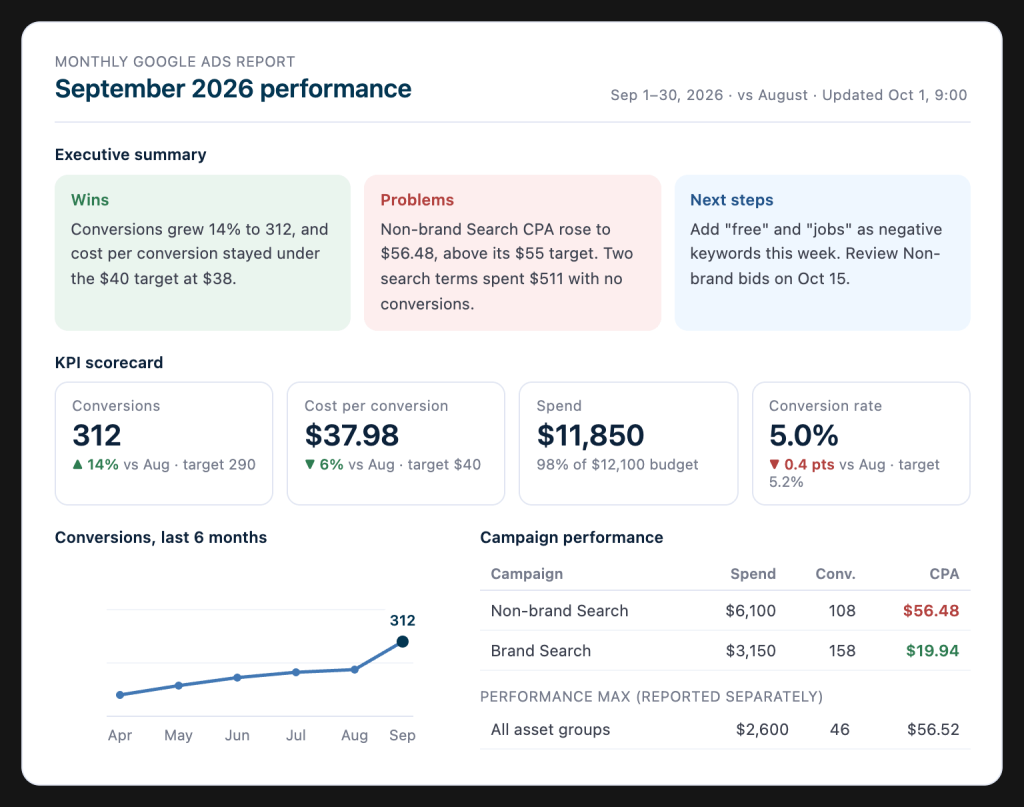
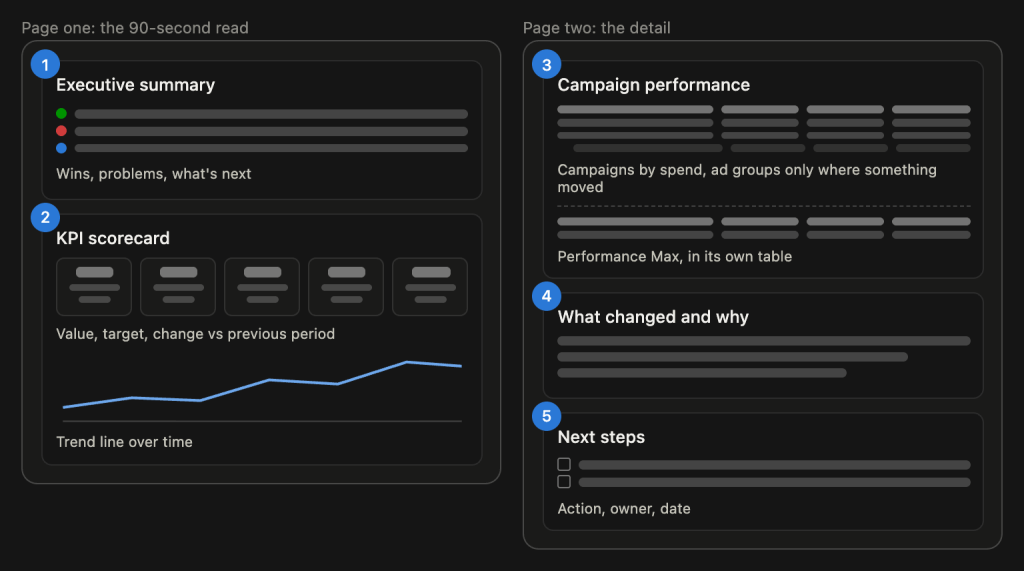
A client opens your Google Ads report and gives it about 90 seconds. If the answer isn’t on the first page, they close it and email you. So the order of a Google Ads report for clients matters more than the design. Most good Google Ads reports follow the same five parts, in this order.
Start with an executive summary
Put it at the very top and keep it to five lines. Lead with one or two wins, like “Leads rose 18% and cost per lead fell to $42.” Then name the problems. Then say what you’ll do about them. A client who reads nothing else still knows where they stand.
Write the problems in plain words. “Mobile conversions dropped for two weeks after the landing page change” is clearer than “CVR decreased.” Don’t hide bad news. Clients can see it in the account anyway, and they trust you more when they hear it from you first.
Add a KPI scorecard
Right under the summary, show five or six numbers in a row. Each number sits next to its target and its change from the previous period. Add a green or red marker so the client sees on target or off target at a glance. Pick the headline KPIs from the previous section, such as conversions, cost per conversion or ROAS, and spend.
Use trend lines to show how a number moved over time. Use bars to compare ad performance across campaigns. Skip pie charts. They hide small differences, and clients can’t read exact values from them. The one exception is a simple split of spend between two or three campaign types, such as Search, Shopping, and Performance Max.
If you want a head start, the Google Ads monthly dashboard template from Coupler.io gives you a layout to start from. You connect the client’s account and change the KPIs to match their goals.
Break down campaign performance
The next page shows campaign performance, one row per campaign. Sort the table by spend, so the biggest budget lines come first. Here is an example:
| Campaign | Spend | Conversions | Cost per conversion |
|---|---|---|---|
| Brand search | $4,200 | 210 | $20 |
| Non-brand | $6,800 | 140 | $48.60 |
| Shopping | $3,500 | 95 | $36.80 |
Under a campaign, add ad group rows only where something moved. A client doesn’t need to see 40 ad groups. They need the two that explain the result.
Keep Performance Max in its own table. It blends several channels and reports by asset group, not by ad group. Mixed into the Search rows, it makes both look wrong. Add the top search terms in the appendix for clients who want to dig deeper. When a client asks what’s happening inside it, Coupler.io’s PMax transparency skill shows what each asset group does and whether it’s buying your own brand traffic.
Explain what changed and why
Numbers don’t explain themselves, so write a short note under each big move. Say what changed, why, and what you did. For example: “Cost per conversion in Brand Search rose 30%. A competitor started bidding on the client’s name. We raised exact match bids, and the cost fell back by week three.”
Use the diagnostic metrics to find the cause. Keep a simple change log during the month, with bidding strategy changes, new ads, and budget shifts, so you don’t rely on memory. Limit the notes to the three biggest moves.
Finish with next steps
Close with three to five actions. Give each an owner and a date. “We’ll test two new ad variations in Brand Search by the 10th.” Add what you need from the client too, like “Approve the $2,000 budget increase.” That turns a report into a decision, and the client knows what happens next.
Report on every ad platform your clients use
Book a demo with Coupler.ioSet it up for one client this week
Start with the client who takes the most of your time. That’s usually the one with the most campaigns or the most questions by email. Tell Coupler AI which Google Ads account to connect and build their Google Ads report with automatic data refresh. Check it after one full month. If the client’s questions drop and your hours do too, copy the setup to the next account.