
Manage Teams, Clients, and Data Separately in Coupler.io with Organizations & Workspaces

When all your data flows, connections, and users live in one flat Coupler.io account, things get messy fast. Team members see data they shouldn’t. New hires get access to everything on day one. And when a client leaves, you risk breaking someone else’s reporting while cleaning up. With Organizations and Workspaces, Coupler.io now offers a better way to structure your work.
What are organizations and workspaces?
It’s a two-level structure that gives you isolated spaces per client, team, or project with one login and one bill:
- Organization is the top-level entity. Think of it as your company account. It controls billing and contains one or more workspaces.
- Workspace is a separate environment within an organization. Each workspace has its own data flows, connections, dashboards, and users. Think of it as a “project” or “client space”, which is fully isolated from other workspaces in the same organization.
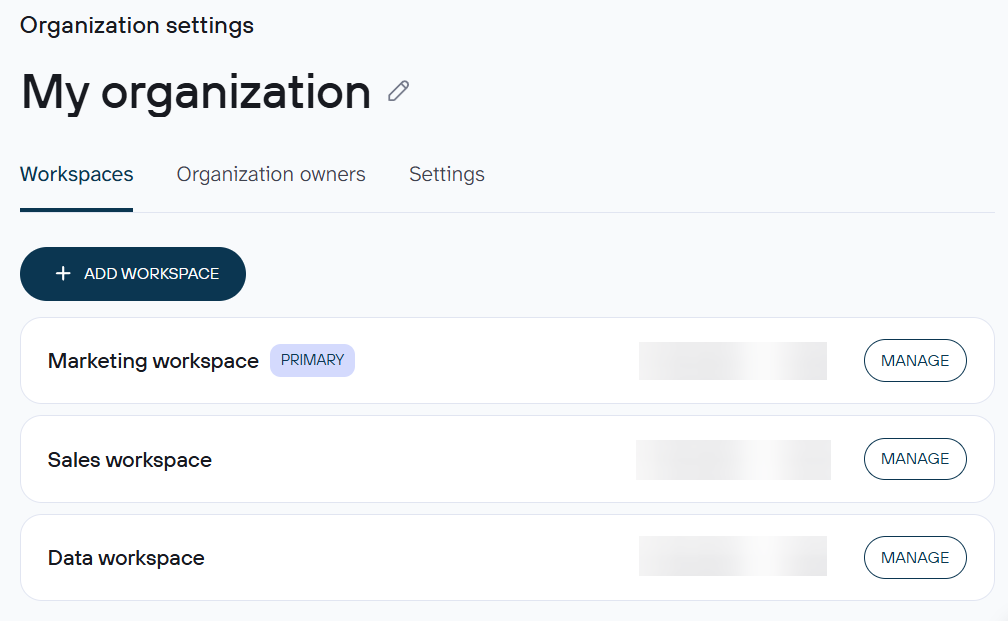
Every Coupler.io account now operates within this structure. When you sign up, the system automatically creates an organization and a primary workspace called “My workspace.” From there, you can add more workspaces depending on your plan.
Example: An agency with 12 clients can give each client their own workspace with isolated data flows, connections, and users. Analysts only see the clients they’re assigned to. When a client leaves, the agency deletes that workspace without touching anything else. And everything is managed with a single login and a single bill. The same logic applies to company departments, freelance projects, or any other setup where clear boundaries between different sets of data are needed.
Who benefits from this structure?
We designed it for anyone who needs clear boundaries between different sets of data, users, or clients inside Coupler.io.
For agencies, it solves the problem of keeping client data completely separate. You can create a workspace per client, each with its own connections, data flows, and team members. When a client churns, you delete that workspace, and everything else stays untouched. At the same time, you manage everything under a single bill.
For mid-market and enterprise companies, it means different departments can each have their own workspace under one organization. Each team, such as marketing, sales, and finance, operates independently with its own data flows and users. New hires can even auto-join the right workspace when they sign up with a company email. A CTO or Head of Data keeps visibility across all departments from one billing page.
For freelancers and consultants, it offers flexibility in how you structure ownership. You can create a separate organization per client, set up their data flows, and then hand over control. The client pays their own bill, and if they decide to go solo, their data stays intact. You just leave the organization.
For consulting firms with a hybrid model, both approaches work side by side. You can add some clients you manage end-to-end as a workspace in your organization. For others who want to control everything in their account (including billing), create a separate organization in their name, set things up, and invite yourself as an Admin. You switch between all of them from one login.
Discover the organizations & workspaces structure for your analytics
Try Coupler.io for freeHow organizations and workspaces work in Coupler.io
Each organization has independent billing, usage limits, and a subscription lifecycle. A user can belong to multiple organizations simultaneously and switch between them instantly. This is useful when you’re a consultant working across several client organizations, or when your company has separate Coupler.io setups for different business units.
Each workspace within an organization is fully isolated. Data flows, connections, credentials, and dashboards in one workspace are invisible to users in another workspace. This isolation is strict:
For example, if you connect the same Facebook Ads account in two different workspaces, it counts as two separate accounts at the organization billing level.
Roles and permissions in Coupler.io
The role system has four levels, each scoped to either the organization or workspace level.
| Role | Level | Key permissions |
| 👑Owner | Organization | Full control over billing, workspaces, and users. Can create and delete workspaces, and manage all users across the organization. Has access to every workspace by default. |
| 🔧Admin | Workspace | Full access to data flows within the workspace. Can manage users (invite, change roles, remove). Can use shared connections, but cannot delete or reconnect them. Cannot manage billing or create/delete workspaces. |
| 👤User | Workspace | Full access to own data flows. Can view, run, and edit other users’ data flows, but cannot delete them. Can use shared connections. Cannot manage other users. |
| 👁️Guest | Workspace | Access only to own data flows and connections. Access only to own data flows and connections. Cannot view other users’ data flows or shared resources. Cannot manage users. |
How layered roles work
A user can hold an organization-level role and a workspace-level role at the same time, and they operate independently. If someone is both an Org Owner and a Workspace Admin, removing their Owner role doesn’t affect their workspace access. They keep working as Admin with all their data flows intact.
A practical example: Your Head of Data goes on vacation. You temporarily grant a team lead Org Owner access to handle billing or workspace management.
When the Head of Data returns, you revoke the team lead’s Owner role. They continue working as a Workspace Admin (or User) exactly as before.
How to create a new workspace
Creating a workspace takes just a few clicks. Here’s how:
Prerequisites: Your organization must be on at least a Pro plan. Only the Organization Owner can create additional workspaces.
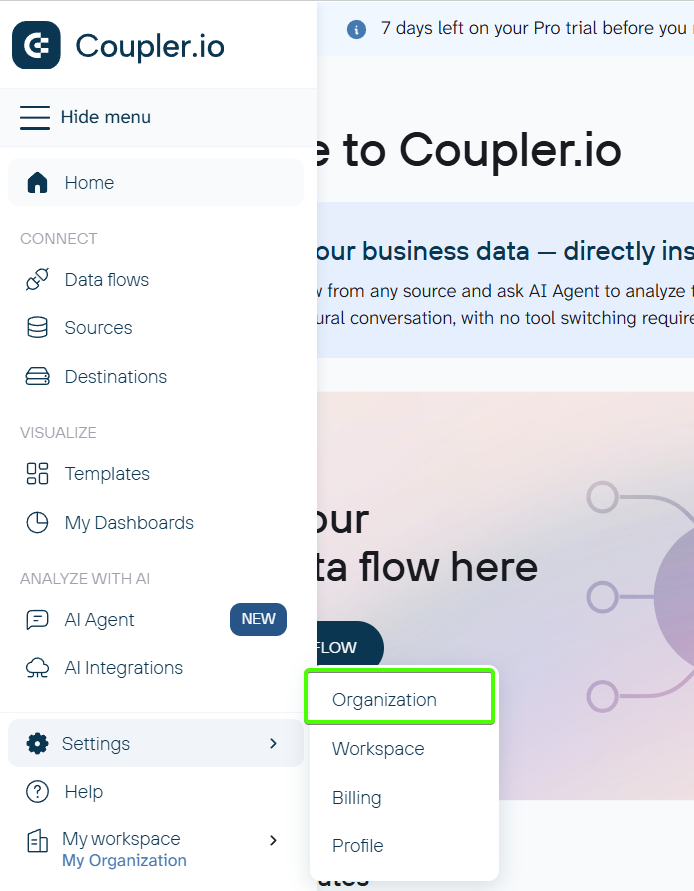
Step 1. Open Coupler.io and navigate to your organization settings.
Step 2. Go to the Workspaces section and click Add workspace.

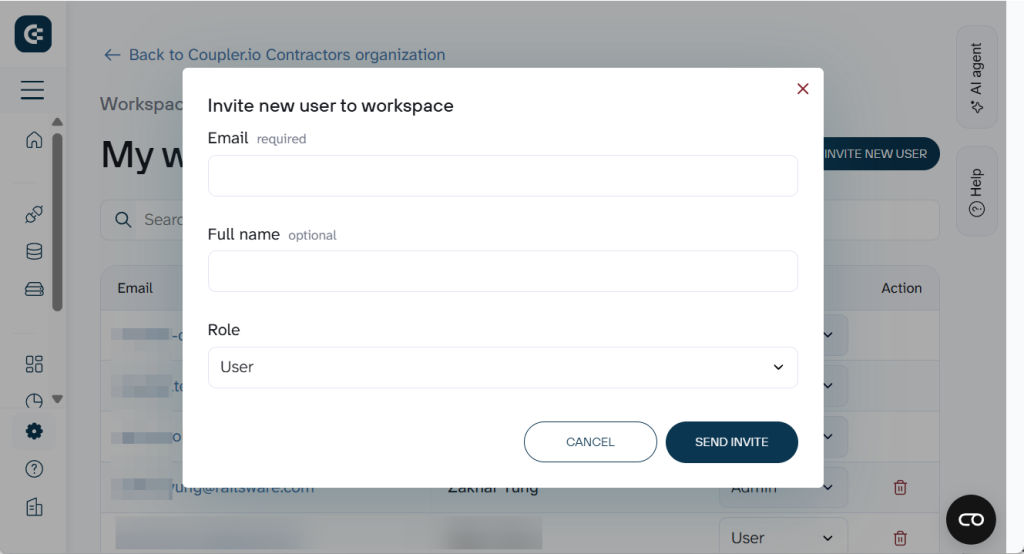
Name the workspace, for example, by client name, department, or project. To add users to the workspace, go to workspace settings and invite them by email. You can assign each person a role (Admin, User, or Guest) when inviting.
For enterprise setups, you can also enable auto-join by email domain. This means that anyone who signs up with your company email (e.g., @company.com) is automatically added to a selected workspace in the User role. This is available on the Business plan with non-public email domains.
Create workspaces for your organization in Coupler.io
Get started for freeWhat happens when you remove a user
Removing a user from your organization doesn’t mean their work disappears. Before the removal goes through, Coupler.io asks you to select another org owner or admin to take over that user’s data flows, connections, and dashboards. They all will be reassigned to the person you choose.
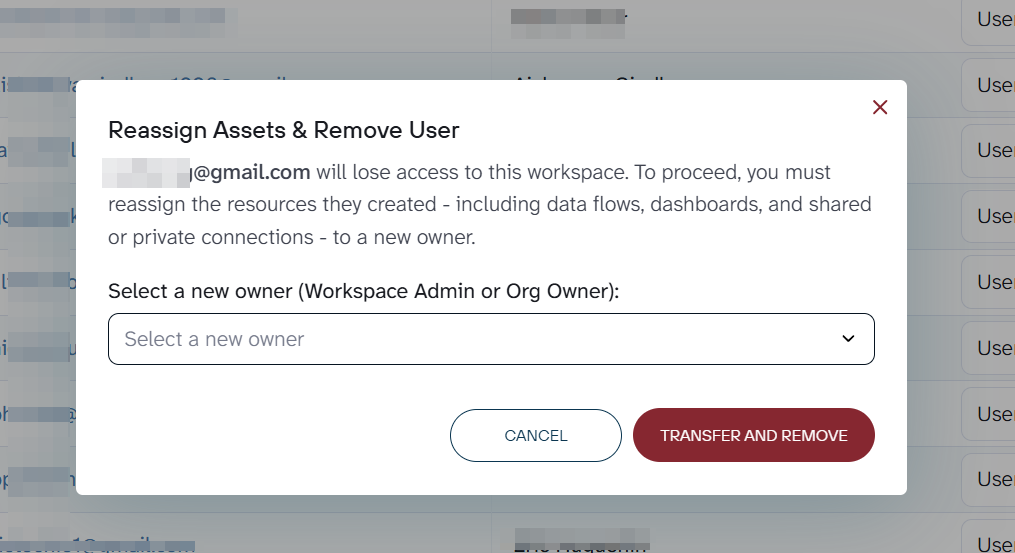
This applies regardless of the role being removed, whether it’s a Guest or an Admin. The removed user simply loses access.
How to switch between workspaces and organizations
Use the switcher in the left sidebar to navigate between your organizations and workspaces. If an organization has only one workspace, selecting it switches you there directly.
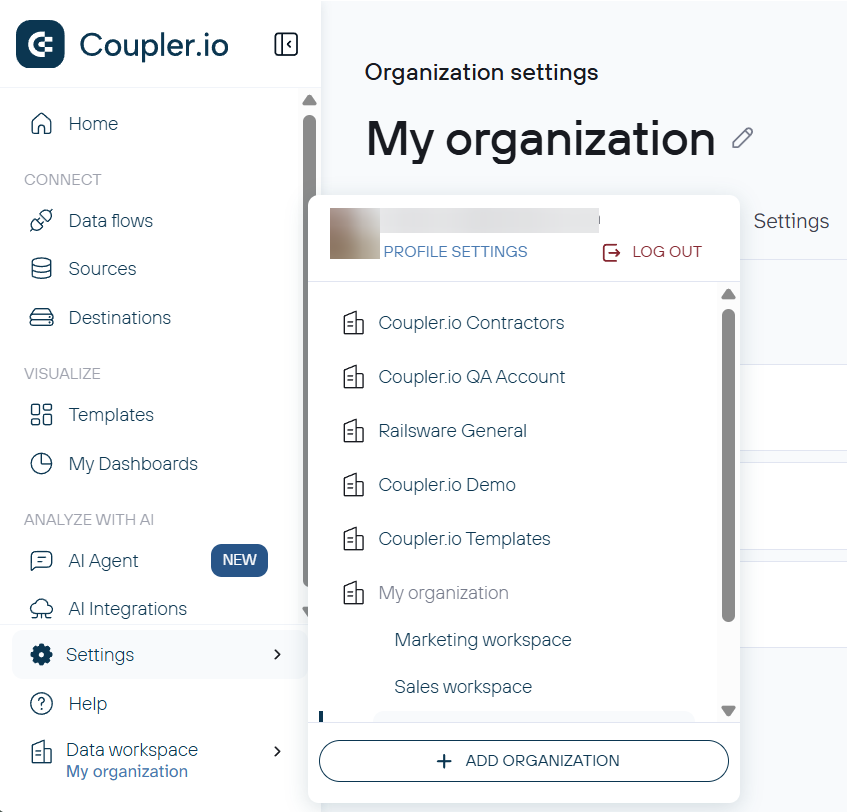
Switching is available everywhere you use Coupler.io: the web app, the Google Sheets add-on, and the Looker Studio add-on. Here is what it looks like in the Coupler.io add-on for Google Sheets:

The last-used organization is remembered on login, so you’ll always land where you left off. Once you switch, all your data flows, connections, and dashboards update to reflect the selected workspace. Changing the workspace in one browser tab affects other Coupler.io tabs as well.
Currently, only one workspace per organization can be connected to AI integrations (Claude, ChatGPT, etc.) at a time. If you need to connect to a different workspace, disconnect the current one first and reconnect with the new workspace.
Billing and plan requirements
Organizations and workspaces integrate directly with Coupler.io’s account-based billing model. Here’s how it works.
Billing lives at the organization level. One organization = one subscription that covers all workspaces within it. There’s no separate billing per workspace.
Multiple workspaces are available starting from the Pro plan. There’s no hard limit on the number of workspaces you can create. The practical limit is driven by your account usage (number of connected accounts, users, etc.).
Here’s how key billing limits are calculated at each level:
| Limit | Workspace level | Organization level |
| Accounts | Counted per source type (see table below) | Sum of accounts from all workspaces |
| Users | Unique emails in workspace + all org owners | Unique emails across all workspaces + all org owners |
| AI Insights generations | Count of generations in this workspace | Sum across all workspaces |
| LLM cost (AI Agent) | Credits spent in this workspace | Sum across all workspaces |
| Destination types | Unique destination types used | Unique destination types across all workspaces |
| Source import rows | Max imported rows per source across all data flows | Same as workspace level |
Users are counted as unique emails across the entire organization. If the same person is a member of three workspaces, they count as one user for billing purposes. Organization owners are automatically counted as users in every workspace.
For example, your organization with the owner (owner@example.com) has two workspaces.
- Workspace A has two users (
user1@example.comanduser2@example.com) - Workspace B has one user (
user1@example.com— the same person).
The total for billing is three unique users: owner, user1, and user2.
Accounts (connected data sources) are counted at two levels. First, within a single workspace, what counts as one account depends on the source type:
| Source type | What counts as 1 account | Examples |
| Tenant-based | Each selected ad account, property, page, or site | Google Ads, Facebook Ads, GA4, LinkedIn Ads, Xero |
| Connection-based | 1 credential added in Coupler.io (reusing the same credential across data flows doesn’t add accounts) | Asana, Google Sheets, HubSpot, Jira, Shopify, Salesforce |
| URL/API-based | Each data source, even if the same URL or key is reused | Airtable, CSV, JSON, Clockify |
At the organization level, account counts are simply summed across all workspaces. Since workspaces are fully isolated, connecting the same source in two different workspaces counts as two accounts on your bill.
Here’s a practical example:
- Your Marketing workspace has two Asana credentials added (two different Asana accounts) — that’s 2 accounts.
- Your Engineering workspace has one Asana credential — that’s 1 account.
Your organization total: 3 accounts, even if one of the Engineering credentials is identical to one in Marketing.
Keep this in mind when planning how you distribute data flows across workspaces.
Other usage limits, such as AI Insights generations, LLM costs, destination types, and source import rows, also aggregate at the organization level across all workspaces.
Note: If your organization is downgraded to a plan that doesn’t support multiple workspaces, existing workspaces remain accessible. However, you won’t be able to create new ones. As long as your total usage stays within plan limits, everything continues to work normally.
Start organizing your data work
Existing Coupler.io users are already on the new structure. Your account became an Organization, and all your data flows, connections, and dashboards moved into “My workspace” with no disruption to your work.
To start using multiple workspaces, make sure you’re on a Pro or Business plan and create your first additional workspace from organization settings. Invite your team or clients and organize your data the way it makes sense for your business.
New to Coupler.io? Sign up, and your organization and primary workspace are created automatically. You can start building data flows right away and add more workspaces when you’re ready.
Organize your data work with workspaces by Coupler.io
Get started for free