
Xero holds some of the most important data in your business: invoices, payments, P&L, balance sheet, bank transactions, and accounts receivable and payable records. Exporting that data on a recurring schedule lets you build cross-source financial dashboards, run reports in spreadsheets and BI tools, and analyze trends with AI.
Learn how to set up automated Xero data exports with Coupler.io and send your financial data to any destination from spreadsheets and BI tools to LLMs, including Claude and ChatGPT.
How to set up an automated export of Xero data on a schedule
Coupler.io is a data integration and AI analytics platform that connects Xero to spreadsheets, BI tools, data warehouses, and AI tools. You set up a data flow once, apply transformations to shape the output, and schedule automatic refreshes at intervals from monthly to every 15 minutes. The same data flow can load records into multiple destinations, so you can feed a Google Sheets report and a BigQuery warehouse from one configuration. There’s no coding involved, and the platform comes with 20+ dataset templates and ready-made dashboard templates for Xero.
It only takes a couple of steps to set up the Xero data connector.
Step 1: Collect Xero data
Get started with the form below with Xero preselected as a data source. Pick the preferred destination from the dropdown list, then click Proceed. For instance, you can connect Xero to Google Sheets. You’ll be offered to get started for free with no credit card required.
In addition to raw data, you can also export specific Xero reports by selecting the source labeled Xero Reports instead of just Xero.
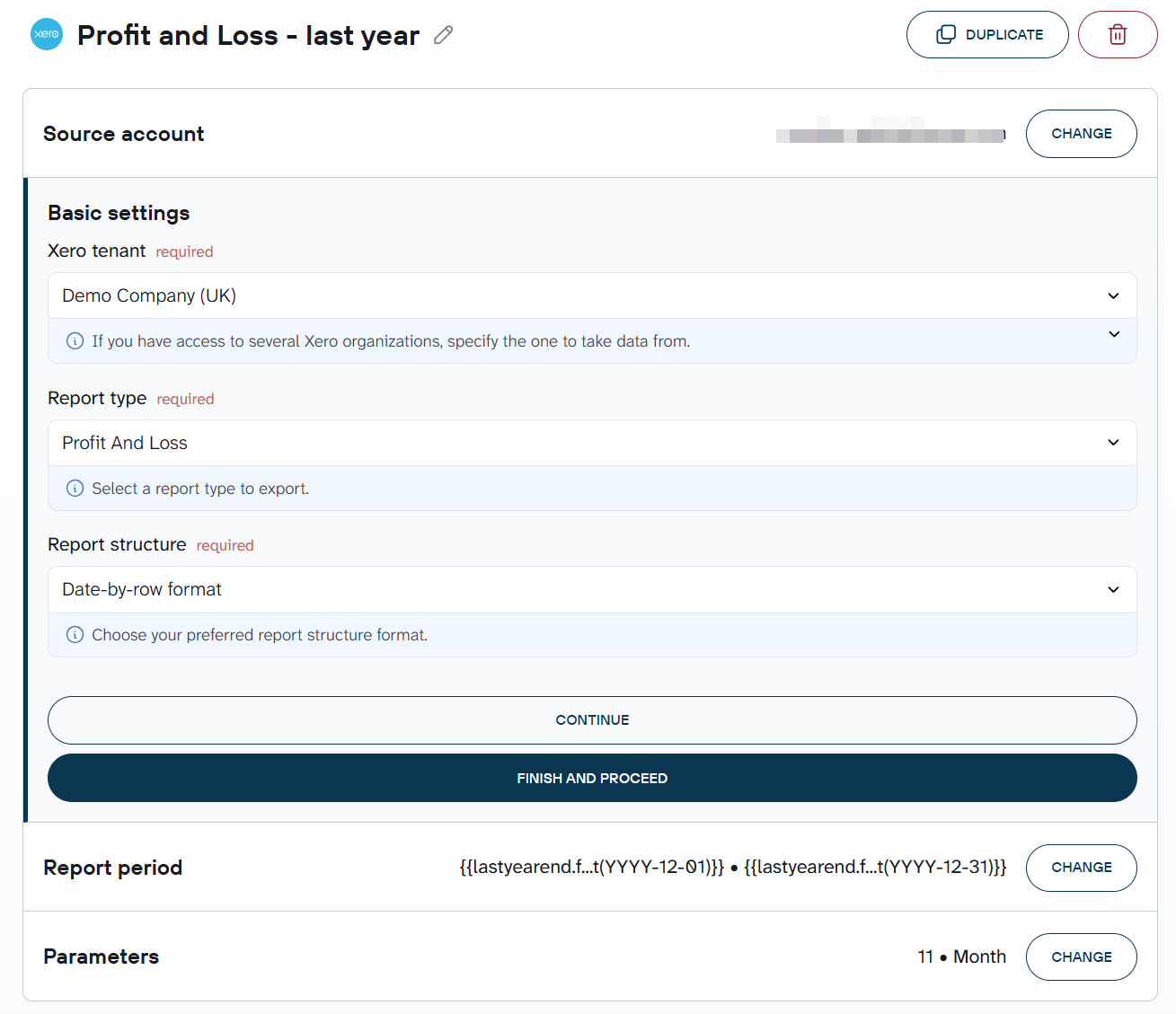
Specify the Xero tenant from where you’d like to extract data. Pick the data entity, the particular data type you will export, or the Xero report if you’ve selected Xero Reports as a data source. Here is an example of the Profit and Loss report in Xero connected to Coupler.io.
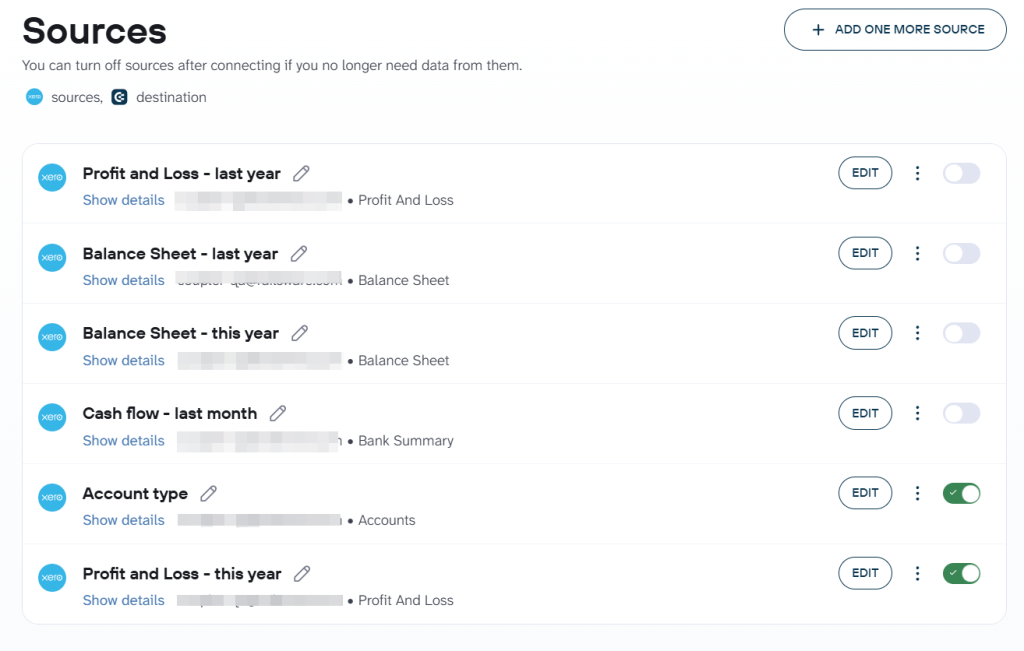
If you need to pull data from more than one source, add it within the same data flow. Finance teams often combine multiple Xero reports or entities for dashboards or enrich data with information from Stripe, Shopify, and so on to get a complete picture of revenue and expenses across platforms.
Step 2: Organize your Xero data set
Before your data reaches the destination, you get a chance to organize it. Coupler.io shows a preview of the dataset and lets you adjust the structure:
- Rename columns to match your reporting labels, rearrange their order, or hide the ones you don’t need.
- Filter rows to narrow the export to a specific date range, status, or account.
- Add calculated columns, for example to compute outstanding balances or flag overdue invoices.
- Pull in data from other Xero tenants or apps like Stripe or Shopify and combine everything into one dataset.
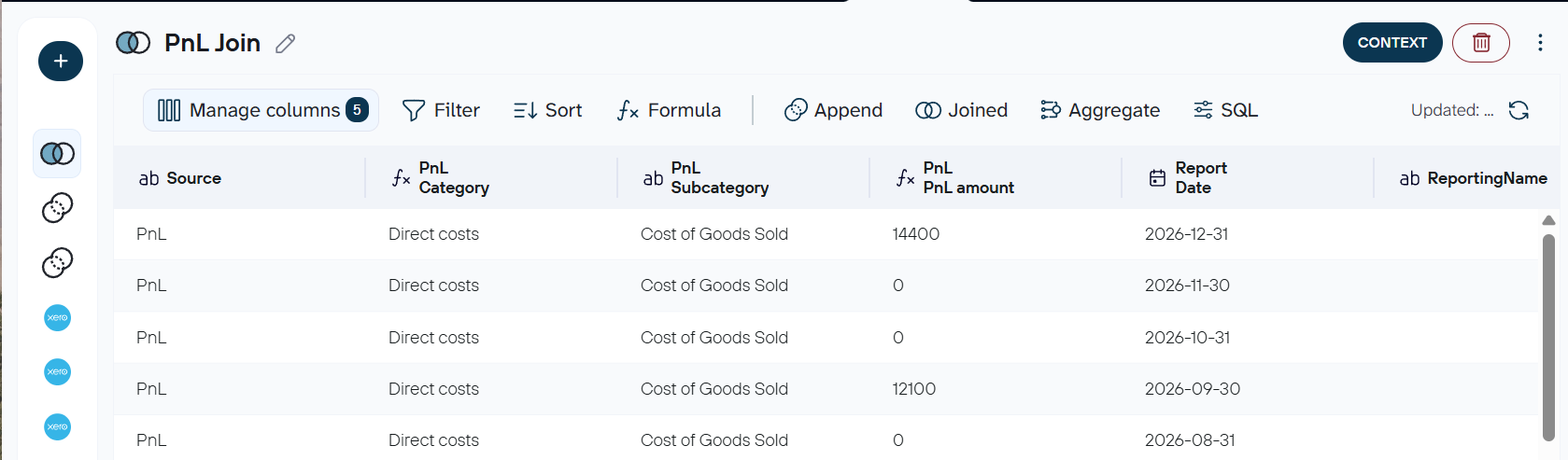
Coupler.io offers 20+ dataset templates for Xero that give you a tested starting point for common financial reports. Each template comes with a prebuilt column structure tailored to a specific reporting need, so you skip manual configuration and get a clean, analysis-ready dataset. For example, the P&L This / Last year template pulls grouped and account-level income and expense details with profitability summaries.
If you’re sending Xero data to an AI tool or a shared dashboard, use filters and column visibility to exclude sensitive records or fields that aren’t relevant to the analysis. Keeping the dataset focused improves the quality of AI-generated answers and reduces noise in reports.
Step 3. Load data to the destination and schedule refresh
Once the data meets your needs, follow the in-app instructions to connect your destination and set up a refresh schedule. If you need the same data in multiple places, add destinations within the same data flow. A common setup for finance teams is to load Xero records into both a spreadsheet for ad hoc work and a BI tool or data warehouse for structured reporting.
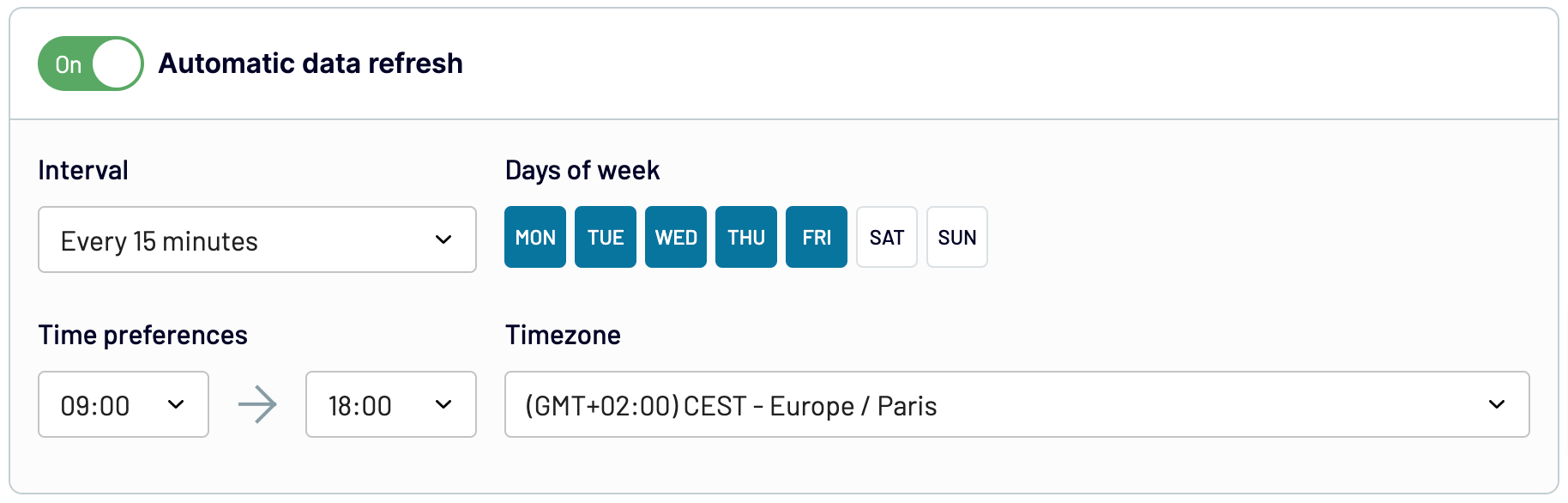
Turn on Automatic data refresh. Specify the preferred interval, days of the week, hours, and time zone for auto-updates. Your Xero data will stay in sync with the latest changes in the source, which also makes this a practical approach for Xero backup since Xero doesn’t offer a native backup feature.
Finally, click Save and Run to load your Xero data to the destination app.
Bonus step. Analyze Xero data with AI
Once your Xero data is flowing into a destination on a schedule, you can go a step further and use it for AI-powered financial analysis.
Coupler.io’s AI Agent lets you ask plain-language questions about your live Xero data and get verified answers. The platform’s Analytical Engine runs the calculations before returning results, so you’re not relying on an AI model to do the math on large financial datasets.
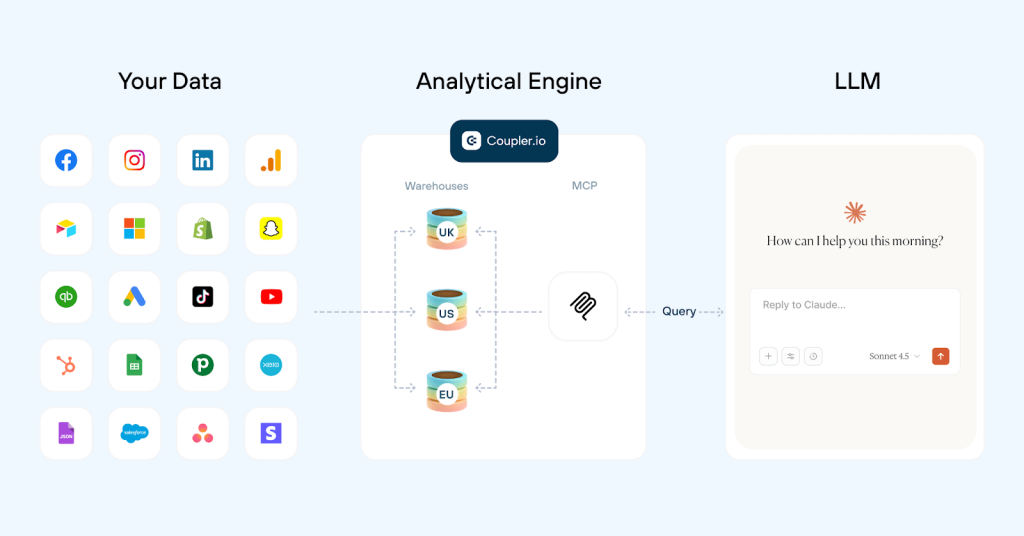
Here are a few examples of what you can ask:
- “What’s my net cash position across all bank accounts for the past 3 months, and which months had the largest outflows?”
- “Which customers have the highest overdue invoice balances right now, and how long have those invoices been outstanding?”
- “Compare my operating expenses this quarter to last quarter — where did spending increase the most?”
- “Show me revenue concentration by customer. Are any single clients accounting for more than 20% of total income?”
- “What does my accounts payable aging look like? Which vendor bills should I prioritize this week?”
For teams that prefer working inside their own AI tools, Coupler.io AI Integrations and Xero MCP let you connect your Xero dataset to Claude, ChatGPT, Gemini, and other AI assistants. The data stays structured and refreshed on your schedule, so every conversation starts with current numbers rather than a stale CSV upload.

Automate data export with Coupler.io
Get started for freeWhat data you can export from Xero with Coupler.io
The Xero connector in Coupler.io supports over 20 data entities. Here are the most commonly used ones:
| Data type | Description |
| Accounts | This data entity allows you to overview financial accounts within the system. It includes information such as account status, type, tax type, class, bank account number, bank account type, and related details. |
| Bank transactions | Here, you can learn about bank transaction status, type, currency, transaction ID, bank account ID, and contact details. It’s best for tracking and reconciling transactions conducted through bank accounts. |
| Bank transfers | Transfers between your Xero bank accounts |
| Contacts | Use this data category if you need the contact ID, status, name, address, phone number, default currency, bank account details, and more. It helps in communication with individuals or entities associated with transactions. |
| Credit notes | Available details on credit notes comprise IDs and numbers, currency rates, remaining credit, contact information, dates, and others. This data entity is useful in managing credit transactions, e.g., issuing, tracking, and reconciling credit notes. |
| Invoices | Explore billing and payment activities through details like payment count, ID, date, and amount, as well as the amount paid, due, and credited. You can leverage this information to improve your financial tracking and analysis. |
| Items | For informed decision-making regarding product offerings and pricing, look at this data category dedicated to inventory management and sales performance. It offers item IDs, purchase descriptions, unit prices, tax types, sales details, etc. |
| Manual journals | Manually created journal entries for adjustments and accruals |
| Payments | Delve into financial transactions by checking out payment IDs, dates, bank amounts, currency rates, payment types and statuses, account IDs, and others. It’s what you need to optimize reconciliation and cash flow management. |
| Projects | Time and cost tracking data at the project level |
| Purchase orders | If you seek to enhance procurement and inventory management processes, this data entity may be helpful. It contains purchase order IDs and numbers, dates, delivery addresses and instructions, currency details, and contacts. |
| Tax rates | To ensure compliance with tax obligations, review the information included in this data category. That’s where you can access tax types, report tax types, display tax rates, effective rates, and tax component details. |
| Users | Using this data entity, you can simplify user management within the system. It is achievable thanks to details like global user IDs, user IDs, email addresses, names, and other applicable information. |
On top of raw data entities, Coupler.io also supports Xero Reports as a separate source type. I’ll cover those next.
Xero reports you can export to any destination with Coupler.io
As mentioned before, you can also use Coupler.io to load Xero reports by specifying Xero Reports as the source. Here’s a ready-to-use form for you:
The further setup process is basically the same as described above for the Xero source. So now we can go over the reports available for export:
| Report type | Description |
| Aged payables by contact | Illustrates amounts owed to suppliers or for expense claims and highlights whether payments are overdue. |
| Aged receivables by contact | Outlines amounts owed by customers and indicates the duration of overdue payments. |
| Balance sheet | Provides a snapshot of the organization’s financial position, detailing what you own and owe at a specific moment. Check out a free balance sheet reporting dashboard by Coupler.io. |
| Bank statement | Presents individual transactions imported from the bank so you can see the big picture of your financial activity. |
| Bank summary | Summarizes the inflow and outflow of funds across bank accounts over a designated period. |
| Budgets summary | Offers an overview of budgets you’ve created in the Budget manager report within Xero. |
| Executive summary | Contains information on cash, profitability, balance sheet, income, performance, and position items. |
| Profit and loss | Displays income, expenses, and profit over a specified period, reflecting the organization’s financial performance. |
| Trial balance | Includes details regarding the balances of your general ledger accounts on a selected date. |
Where can you export Xero data?
Coupler.io supports a wide range of destinations, so you can connect Xero data wherever your reporting and analysis workflows live.
- Spreadsheets. Google Sheets and Microsoft Excel, both online and desktop versions. A good fit for ad-hoc analysis, shared financial models, and lightweight reporting.
- Data warehouses. Export Xero to BigQuery, PostgreSQL, Amazon Redshift, or Snowflake. The right choice when you need to store large volumes of historical Xero data or run cross-source queries at scale.
- BI tools. Looker Studio, Power BI, Tableau, and Qlik. Use these for structured dashboards and visual reporting across teams or for client-facing deliverables.
- AI tools. Connect Xero to Claude, ChatGPT, Gemini, Perplexity, and others for conversational data analysis. I covered the setup and use cases in the Bonus step above.
- JSON. Export your Xero data as a .json file for use in applications that support this format.
- Project management. Load data into monday.com for reporting in the context of workflow optimization.
You can add multiple destinations to the same data flow, so a single Xero export can be a source for a Google Sheets report, a BigQuery warehouse, and an AI tool at the same time.
Act on your Xero data with ready-to-use dashboard templates
Visualizing Xero data helps you identify trends and patterns in it, as well as simplifying your understanding of information and leading to meaningful conclusions. Here, Coupler.io comes as a handy addition on your way to data visualization. It allows you to import data from Xero to Looker Studio, connect Xero to PowerBI, Tableau, and Qlik.
You can easily load Xero data to the chosen app by taking the steps described earlier in the article. Once you’ve imported your data, you’ll be ready to build a dashboard from scratch. At the same time, Coupler.io provides a collection of dashboard templates in BI tools and spreadsheet apps.
Financial dashboard for Xero
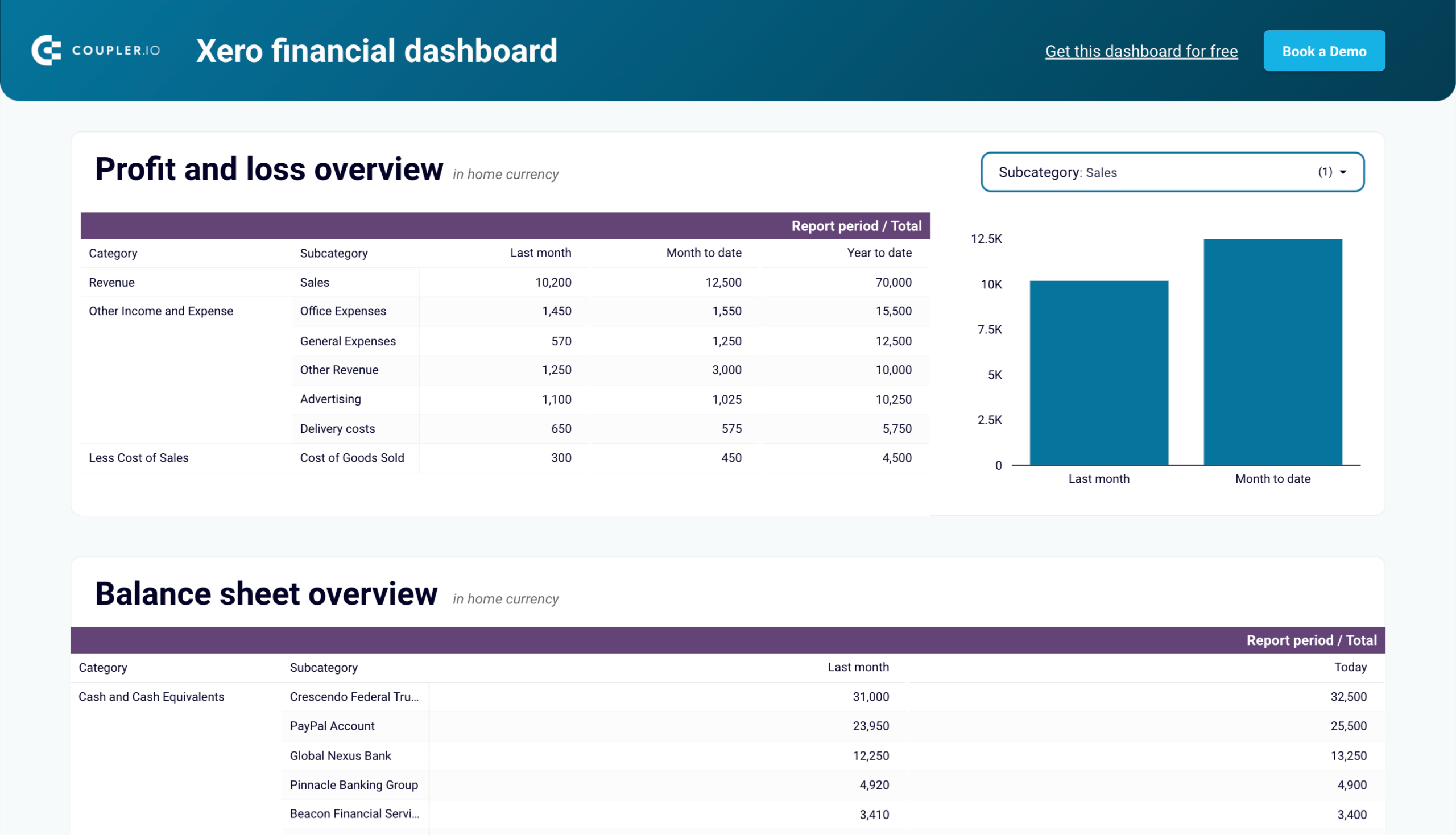
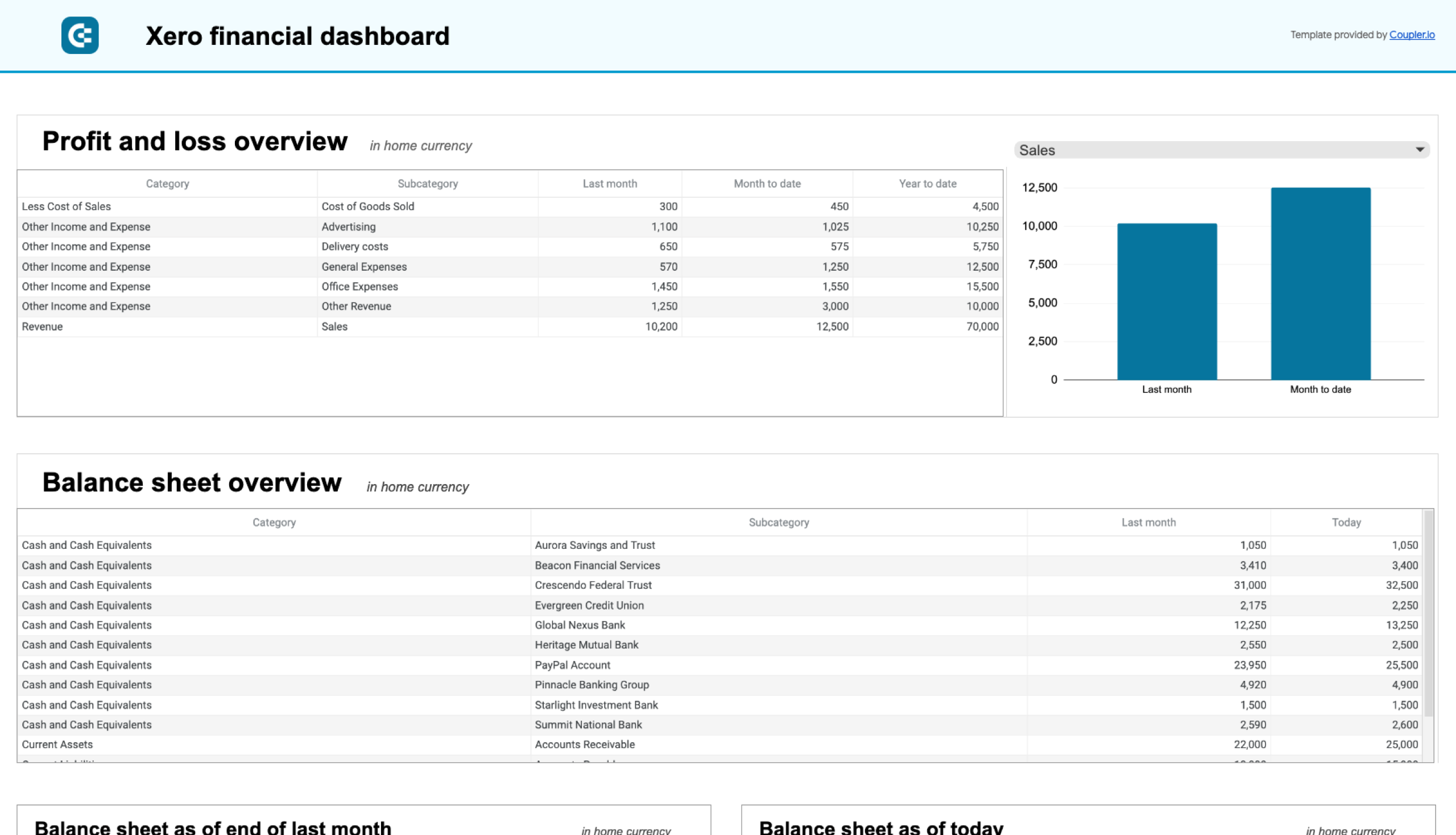
This Xero financial dashboard gives you a complete view of your company’s financial performance. It helps you track revenue, expenses, cash flow, and balance sheet changes easily. It also simplifies financial monitoring with visual insights, so you don’t have to dig through complex reports. With all key metrics in one place, you can use this dashboard to analyze profitability, manage cash flow, and assess financial stability.
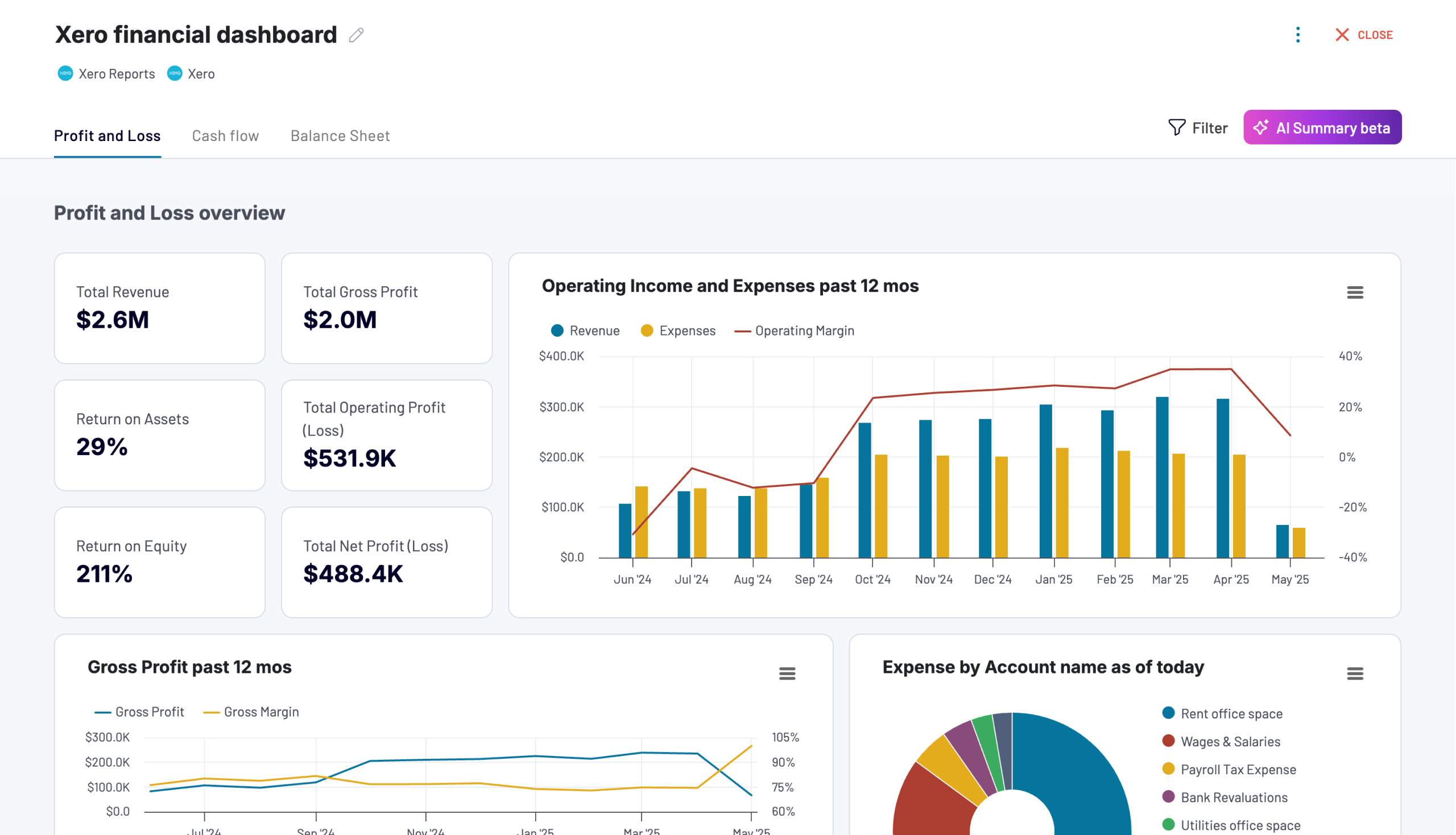
To use this dashboard with your data, connect your Xero account by following the instructions in Coupler.io. Just like the rest of the introduced Xero report templates, this one is available in Looker Studio and Google Sheets and equipped with the Coupler.io connector for automatic data refresh. If you use this version, check the Readme tab for instructions.




Revenue dashboard for Xero
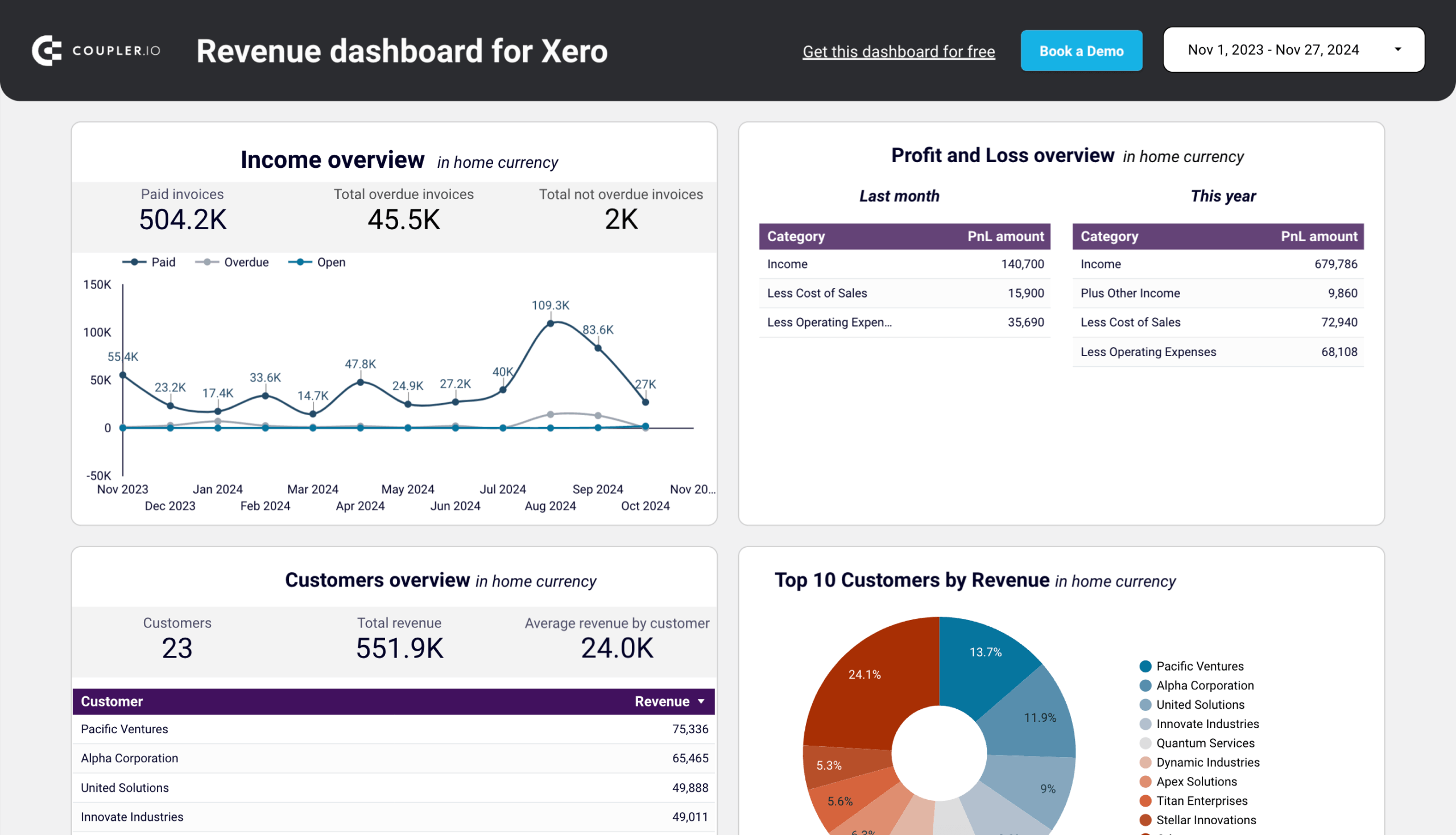
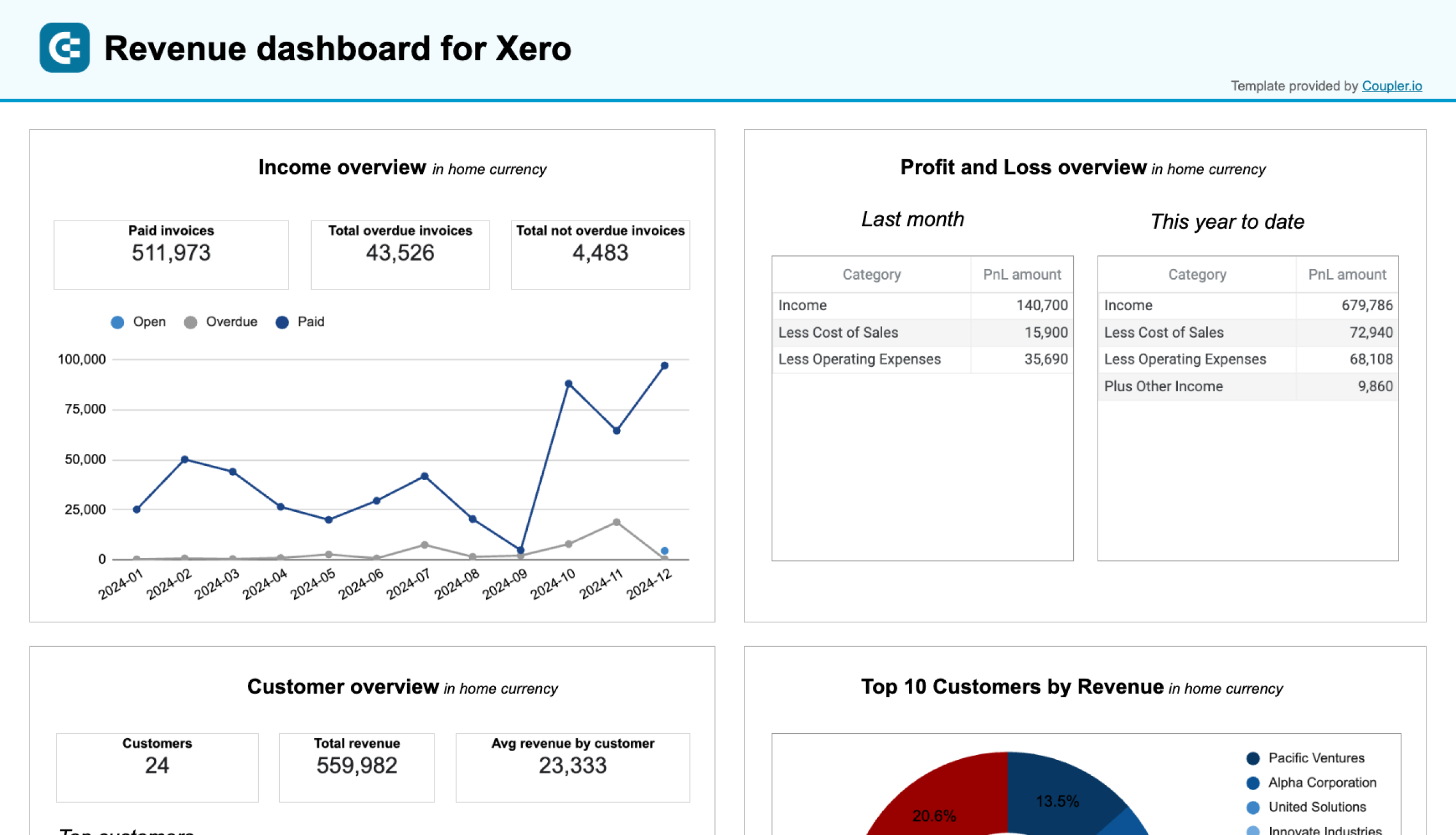
The revenue dashboard for Xero provides a detailed view of your business’s financial performance. It highlights revenue trends over the past 12 months to identify peak periods and fluctuations. It also shows your top customers and products by revenue so that you understand which clients and offerings drive the most income.
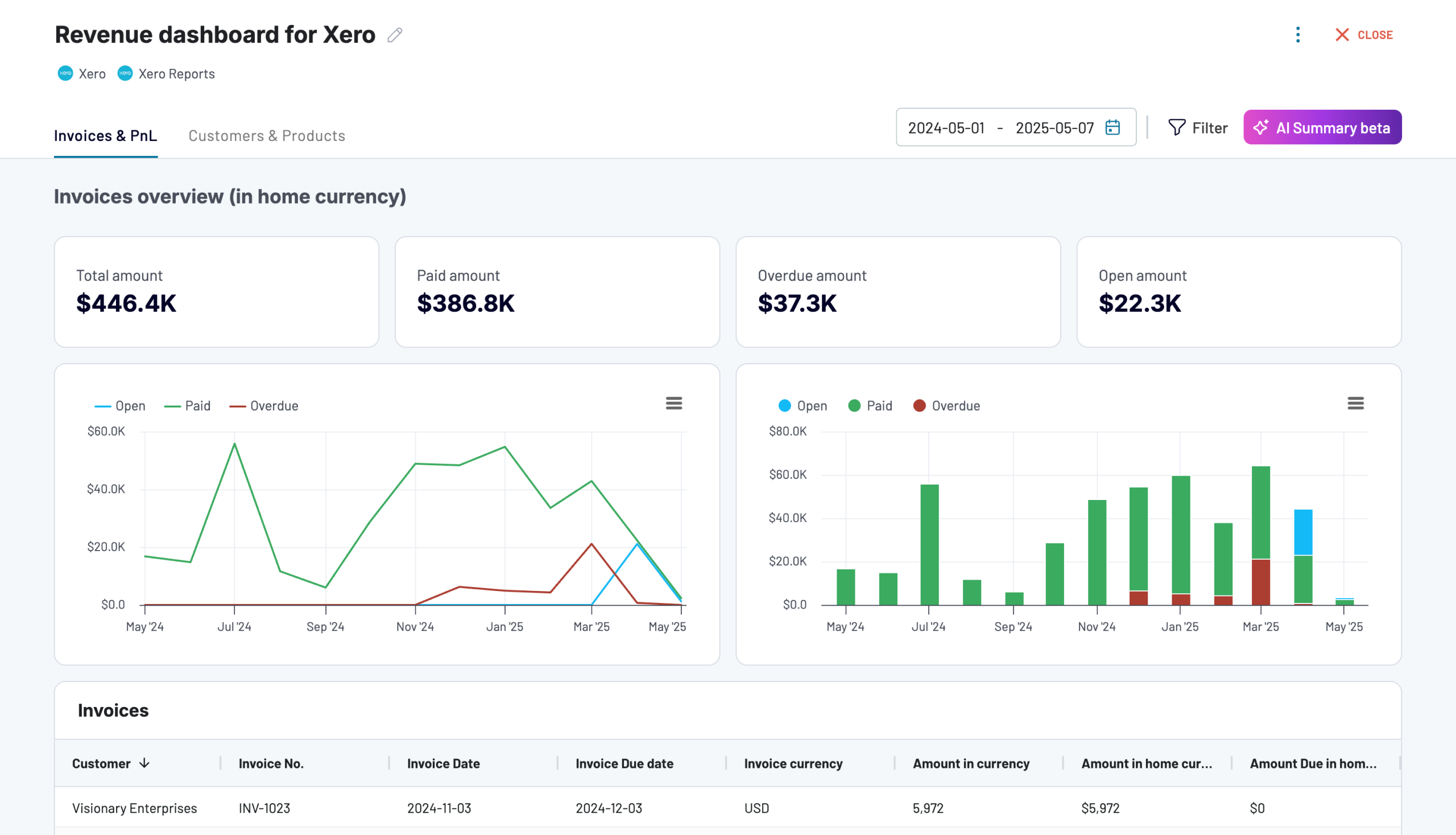
It’s one of the P&L dashboards by Coupler.io, and is also available as a template in Looker Studio and Google Sheets. Pick the version you need and follow the instructions in the Readme tab to populate the dashboard with the data from your Xero account easily.
Accounts receivable dashboard
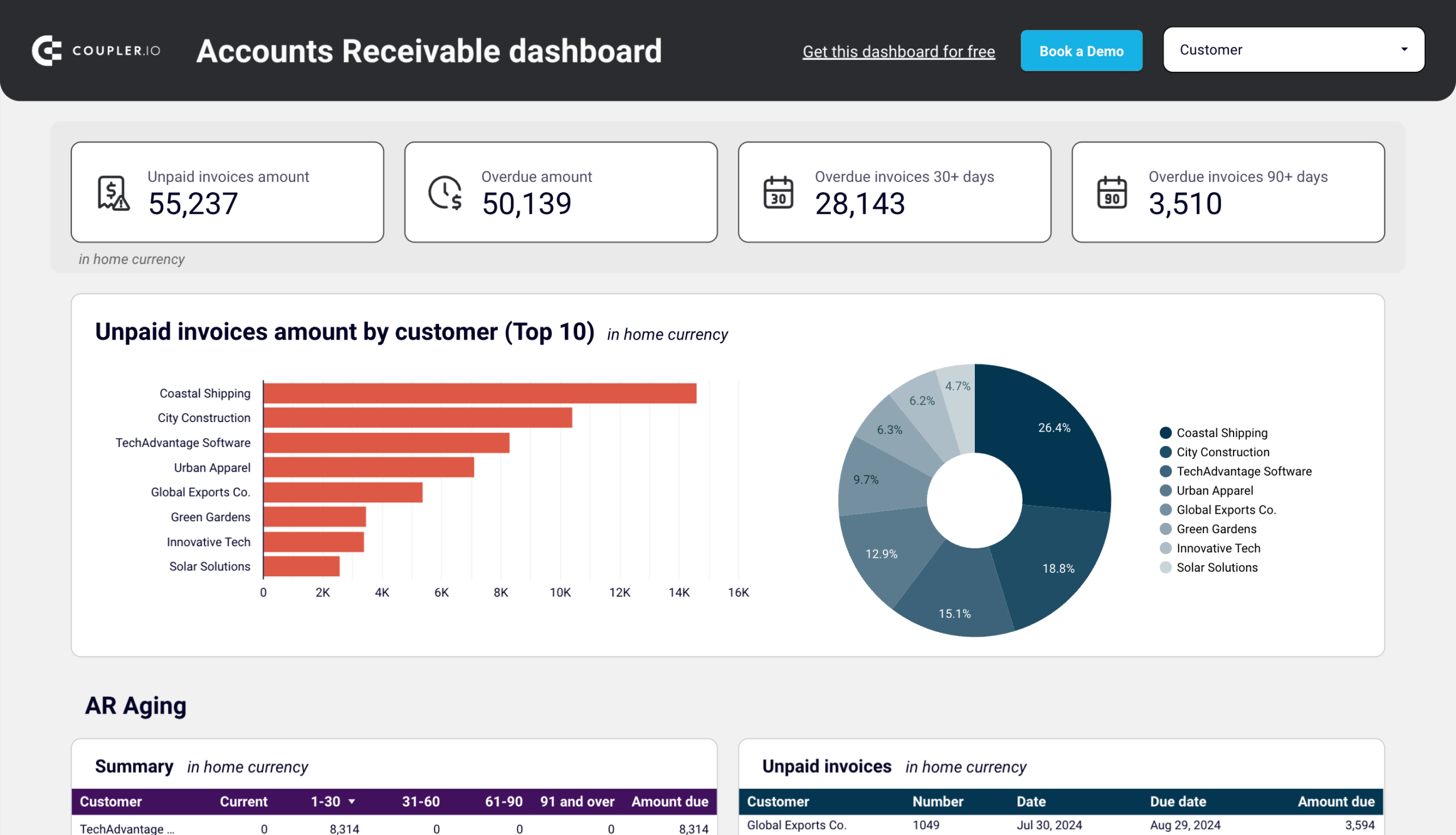
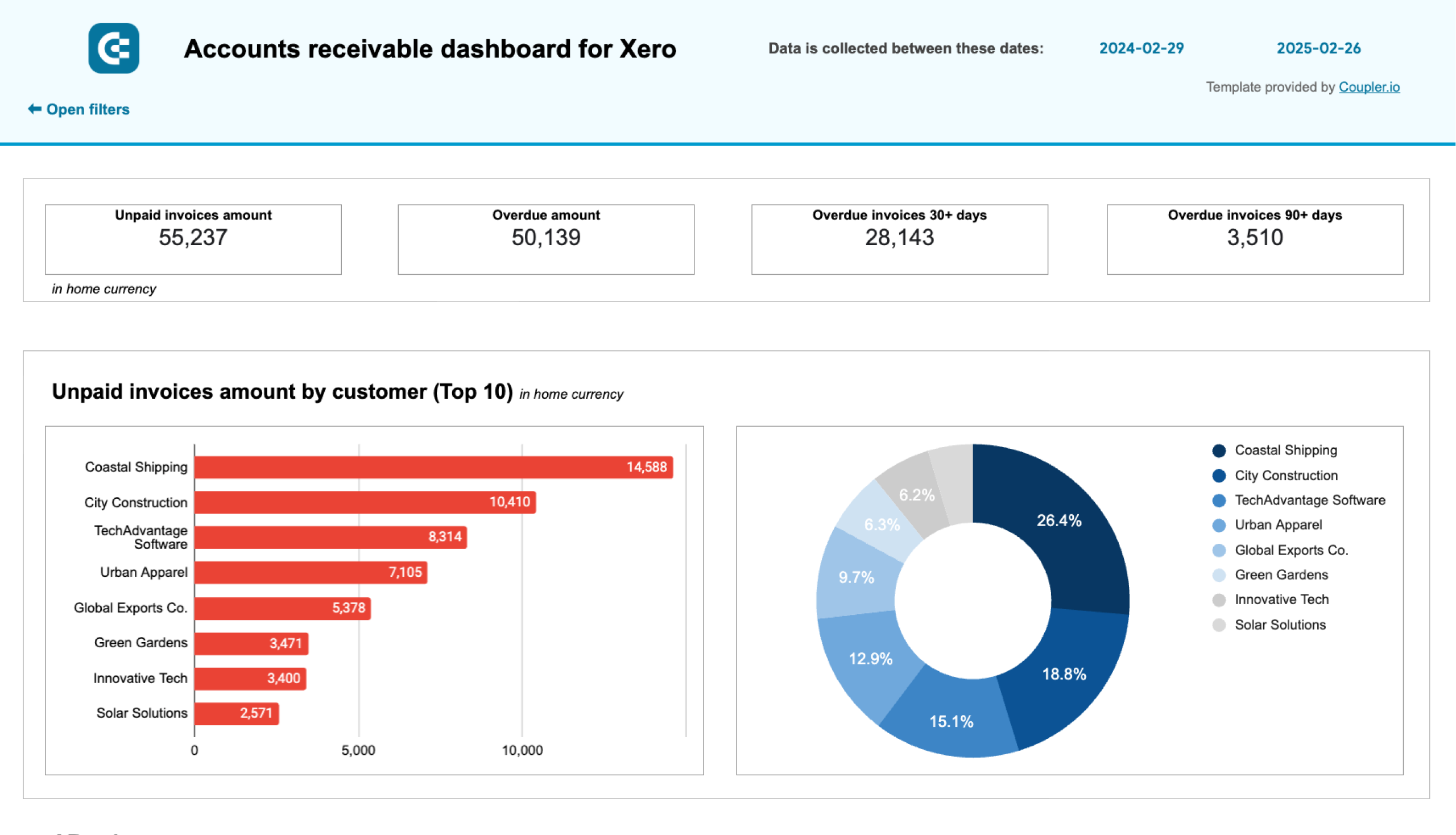
This dashboard provides a clear picture of invoices and outstanding client balances. The accounts receivable overview displays a breakdown of paid, unpaid, and overdue invoices. With these insights, you can make decisions such as payment follow-ups and cash flow management.
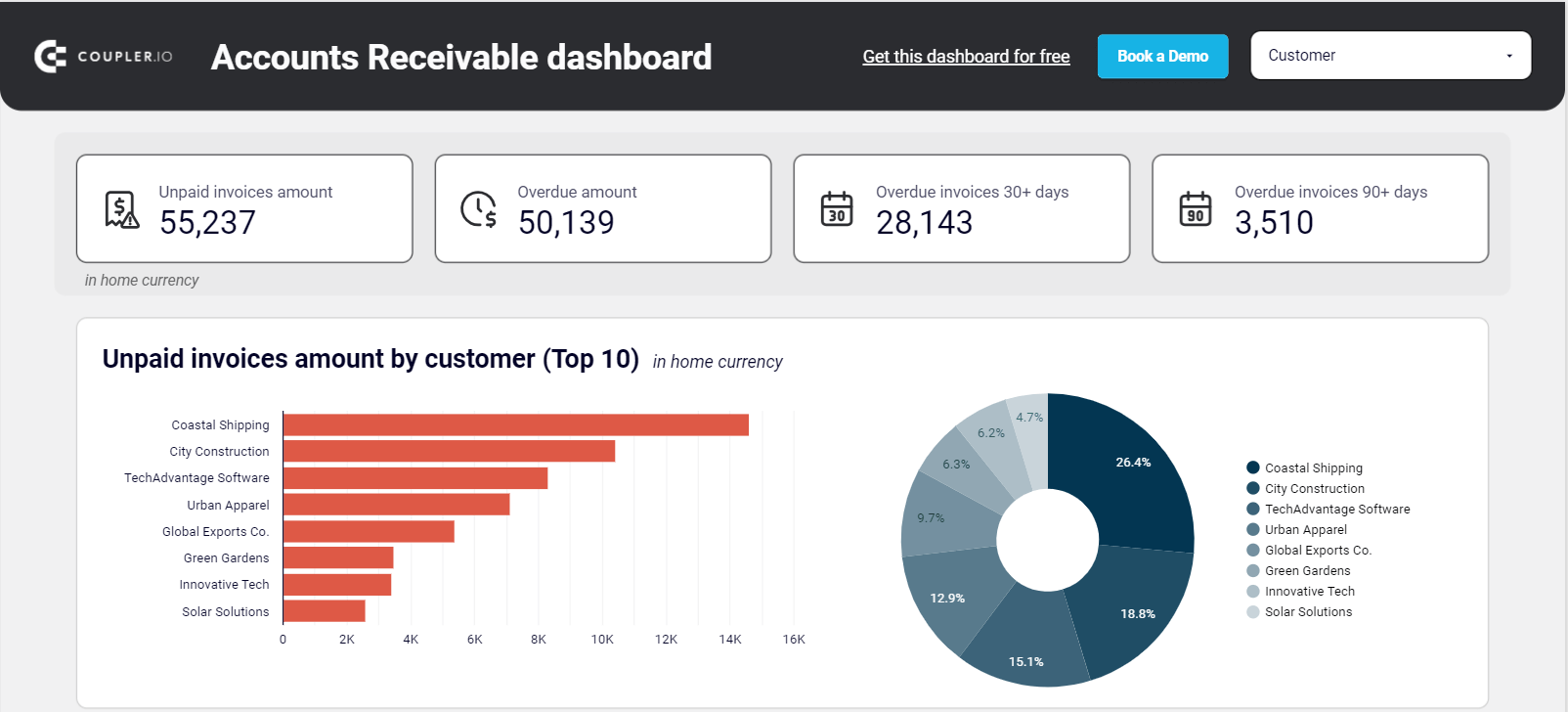
To use the accounts receivable dashboard template, go to the Readme and follow the instructions to connect your Xero account. The connector by Coupler.io will load data from Xero to Looker Studio or Google Sheets and will refresh the dashboard automatically.
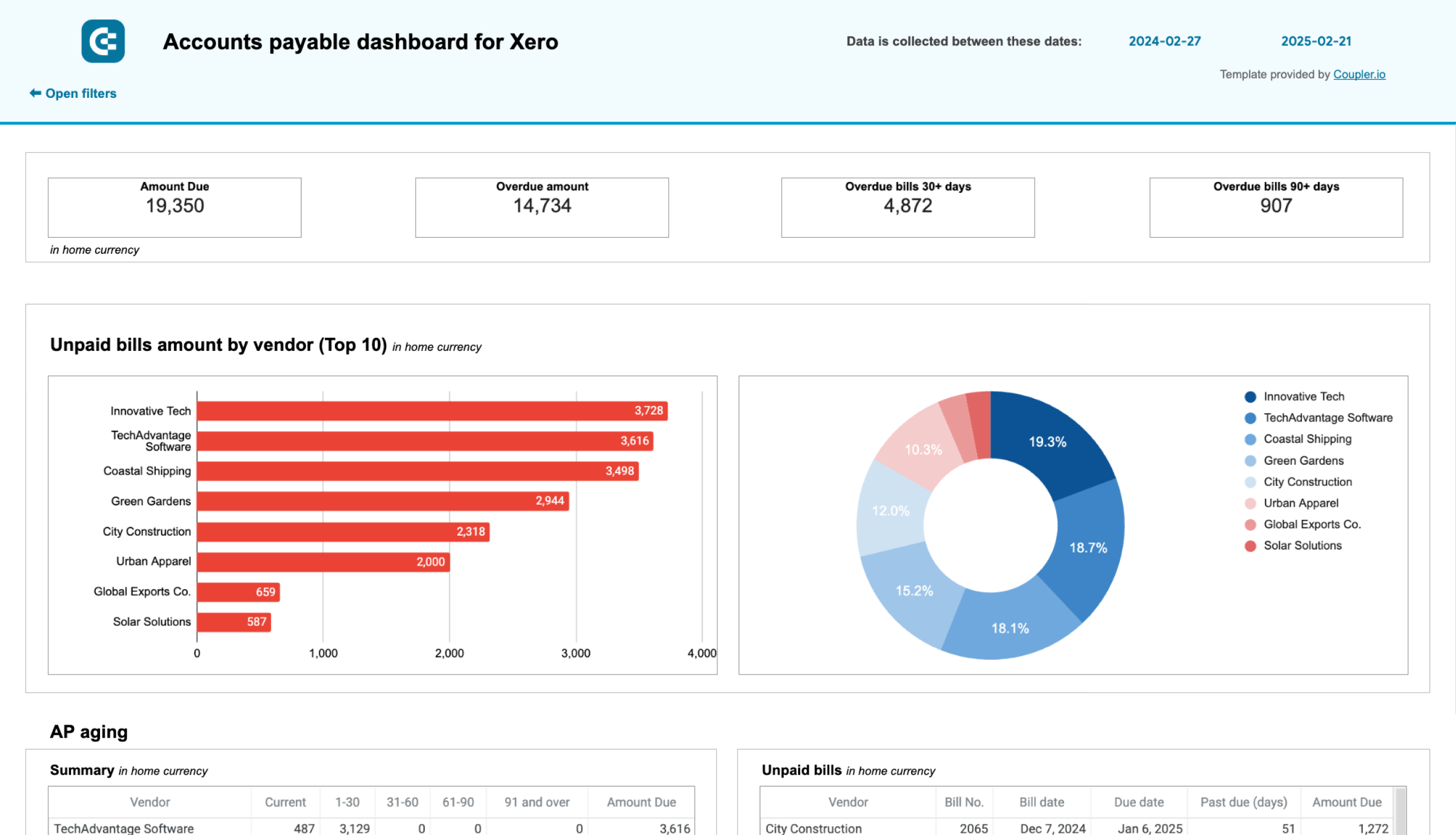
Accounts payable dashboard
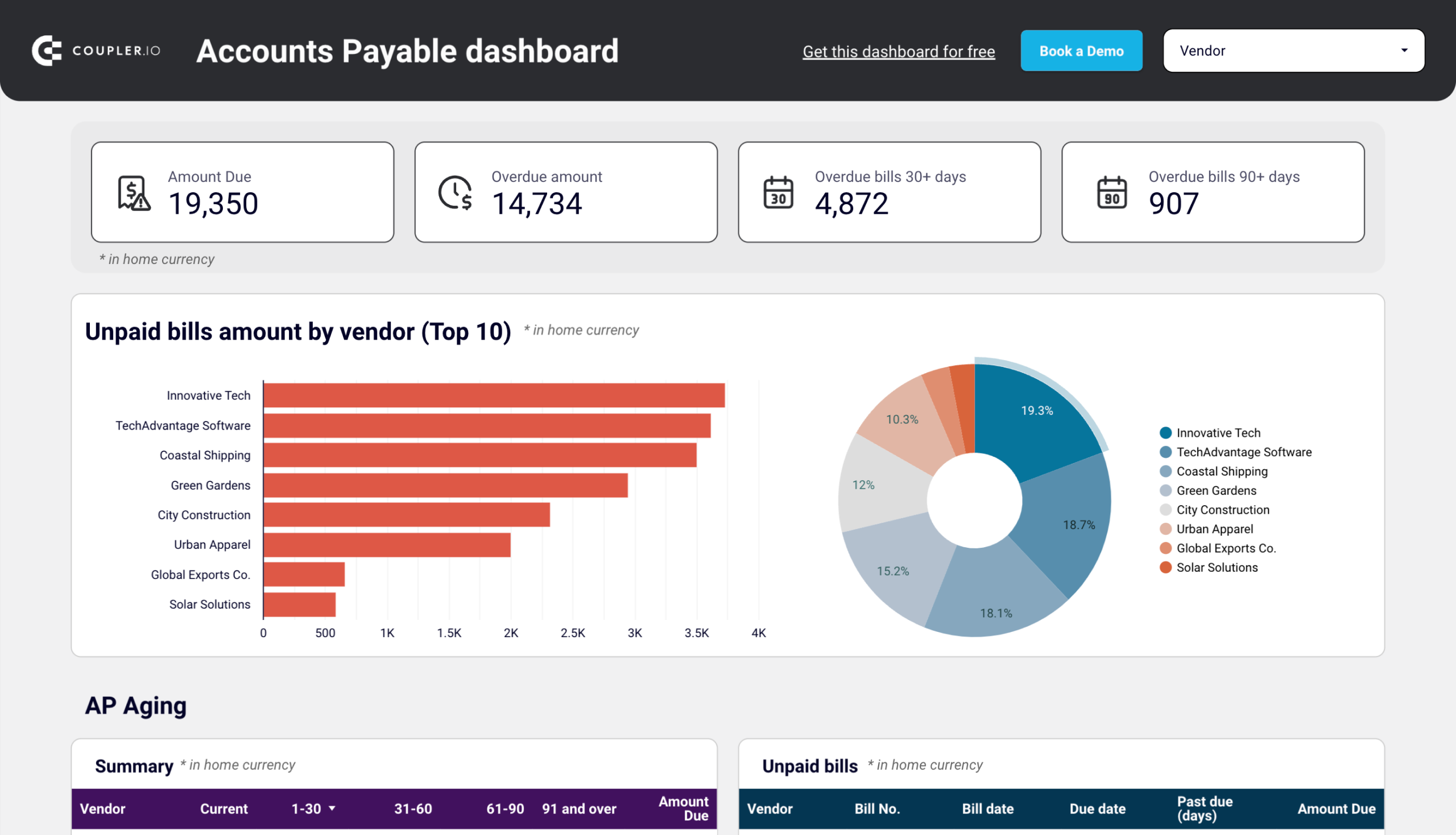
A similar dashboard but for the bills received from vendors and suppliers. It allows you to monitor the total amount due, view specific details on unpaid bills, and more. You can categorize bills and choose the order in which you’d like to settle them.
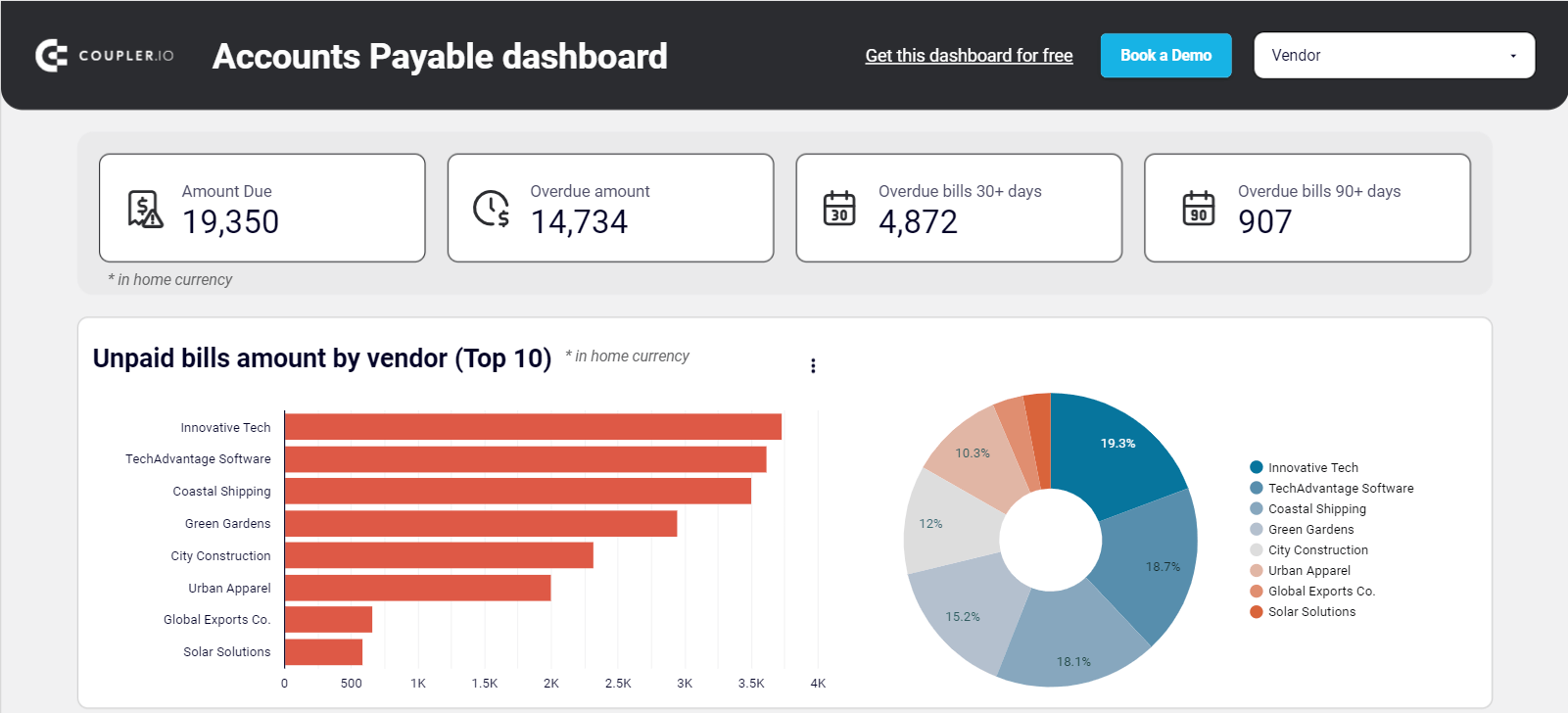
Follow the instructions on the Readme tab to connect Xero to the Google Sheets or Looker Studio template and start using the accounts payable dashboard.
Billing dashboard for Xero
This dashboard combines accounts receivable and accounts payable in one view, helping you manage both customer payments and vendor bills simultaneously. It shows side-by-side comparisons of receivables and payables aging, tracks overdue amounts over time, and displays bank balances against payment obligations. This unified perspective helps you spot timing mismatches between cash inflows and outflows for better cash flow planning.
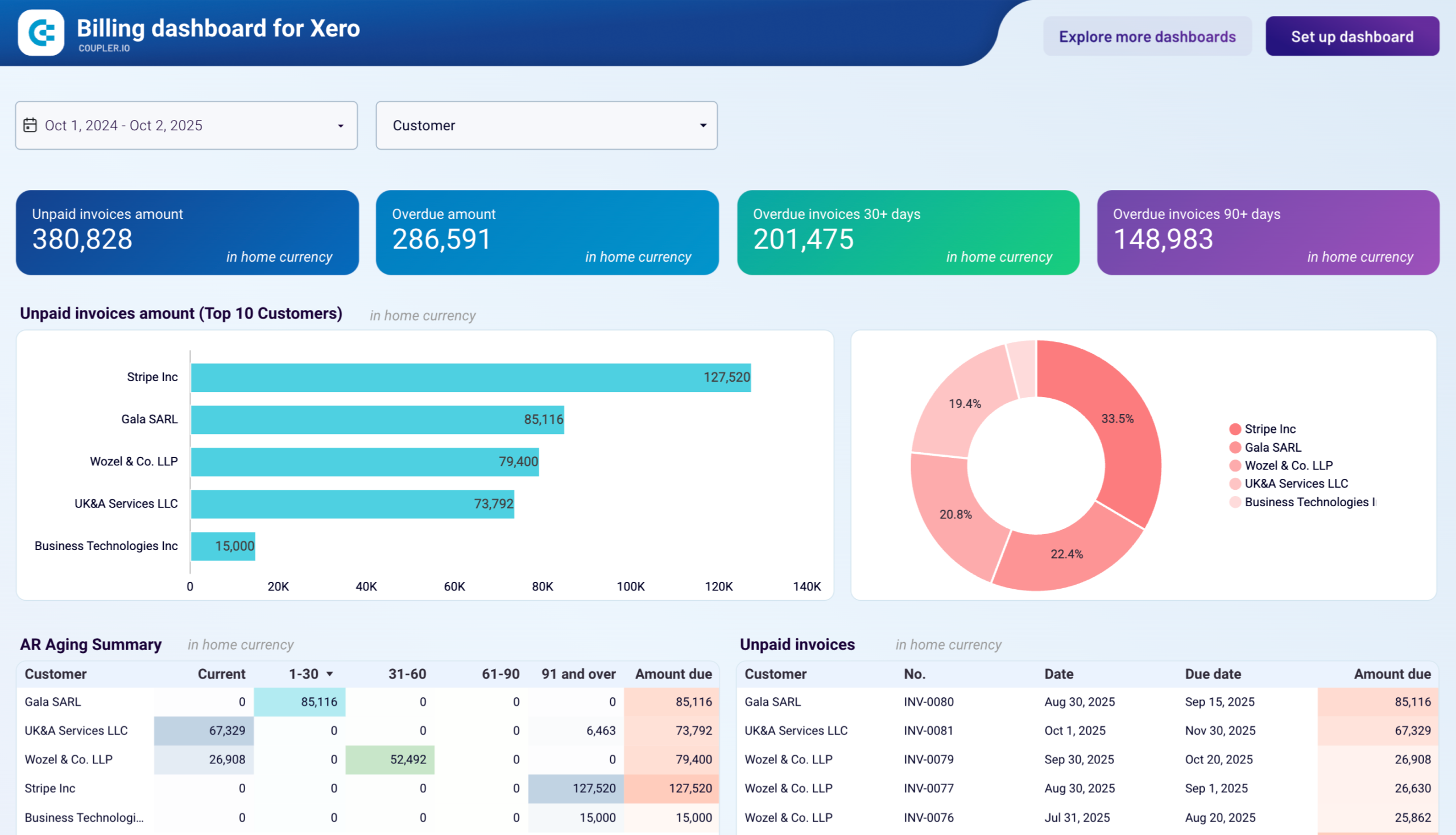
The dashboard is available as a template in Looker Studio. Follow the instructions to connect your Xero account through Coupler.io and populate the dashboard with your data.
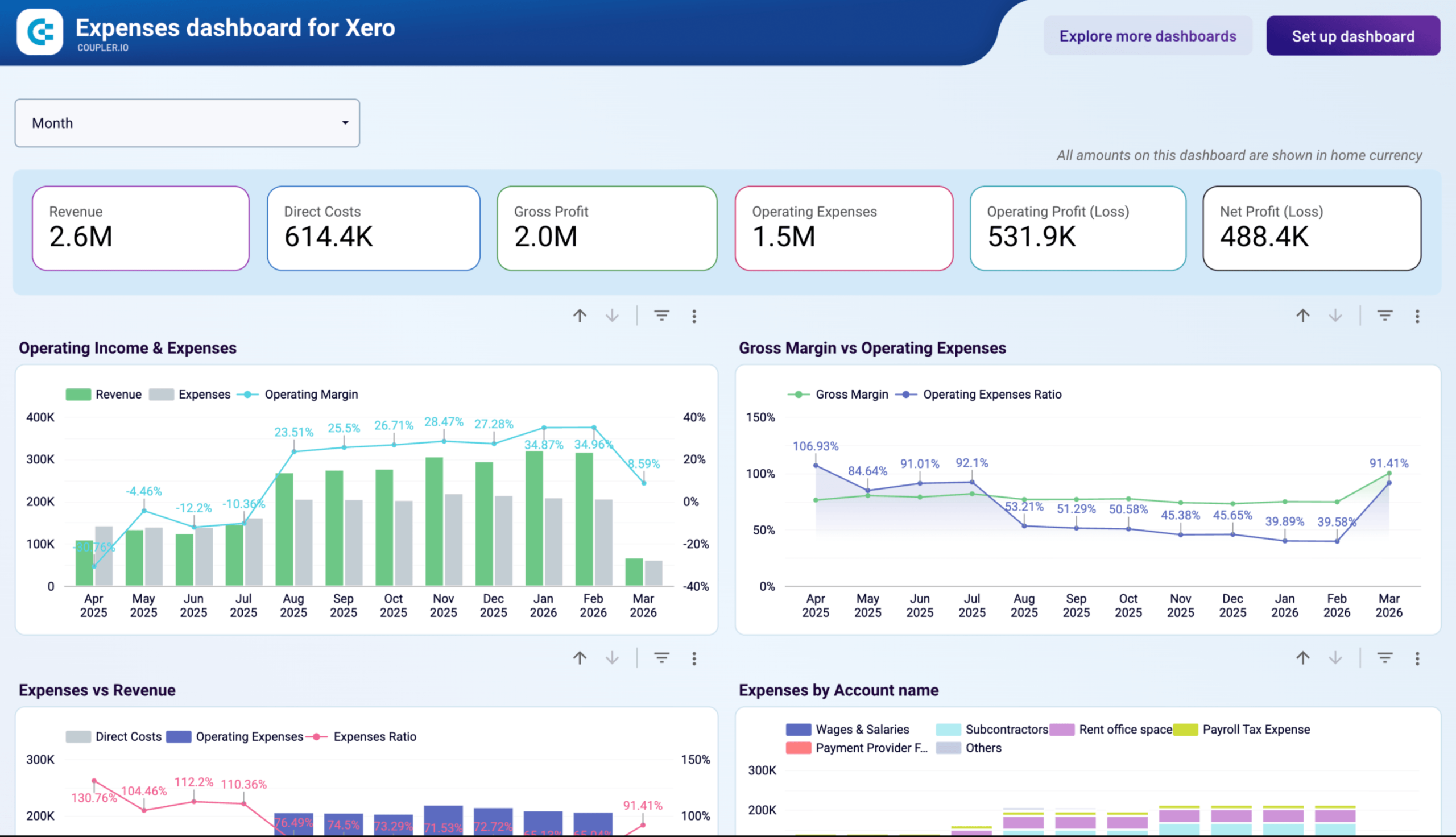
Expenses dashboard for Xero
The dashboard gives finance managers a clear view of where money is going across account categories, vendors, and time. It tracks how operating costs evolve relative to revenue and gross profit, so you can identify whether expense growth is outpacing sales or tied to structural overhead. The Paid Bills table ranks vendors by spend over three rolling periods, which helps you spot suppliers whose billing has accelerated without a clear business reason.
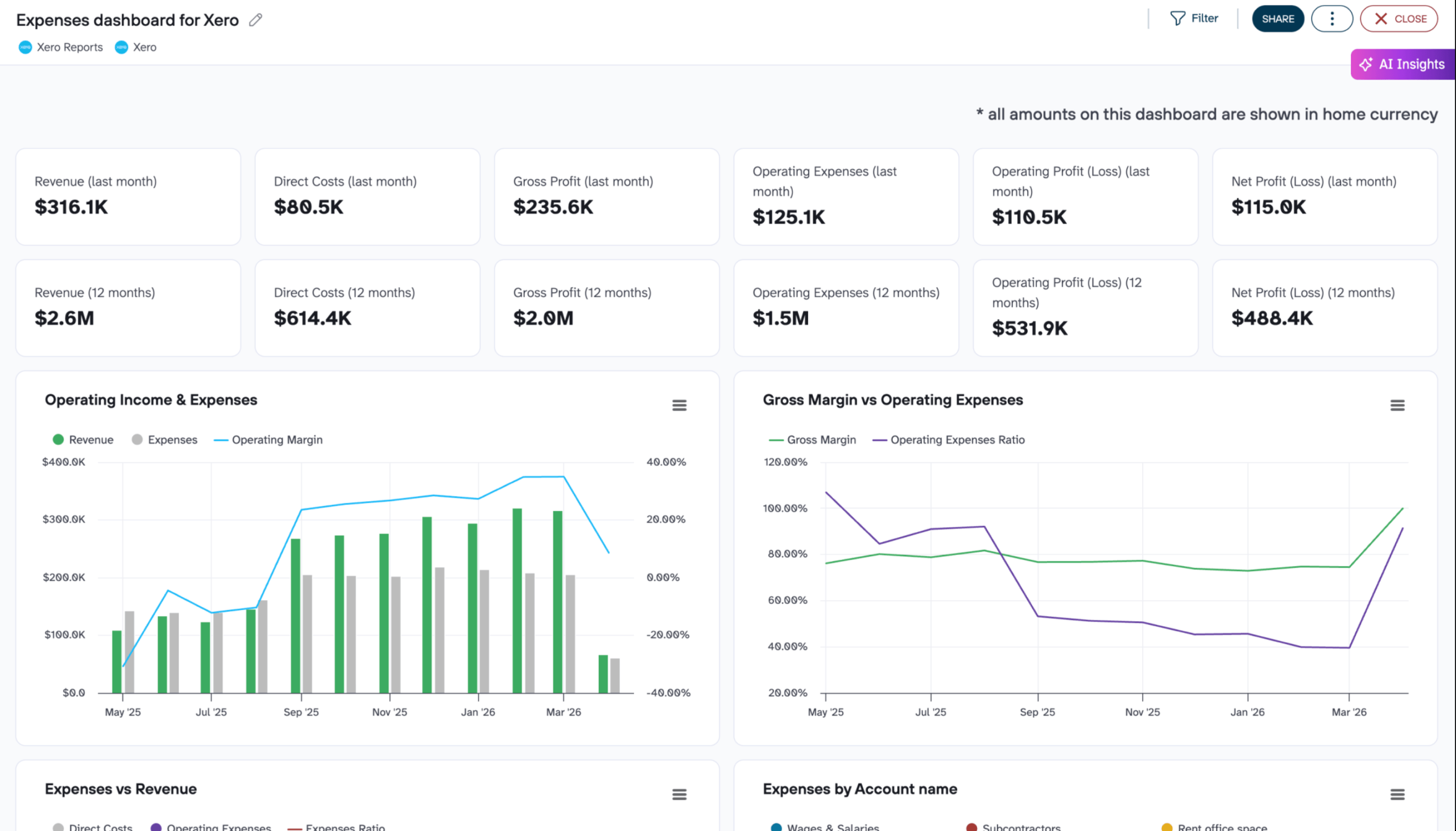
The dashboard is available as a Coupler.io in-house template and in Looker Studio. Follow the instructions in the Setup guide to connect your Xero account through Coupler.io and populate it with your data right away.
Shopify & Xero revenue dashboard
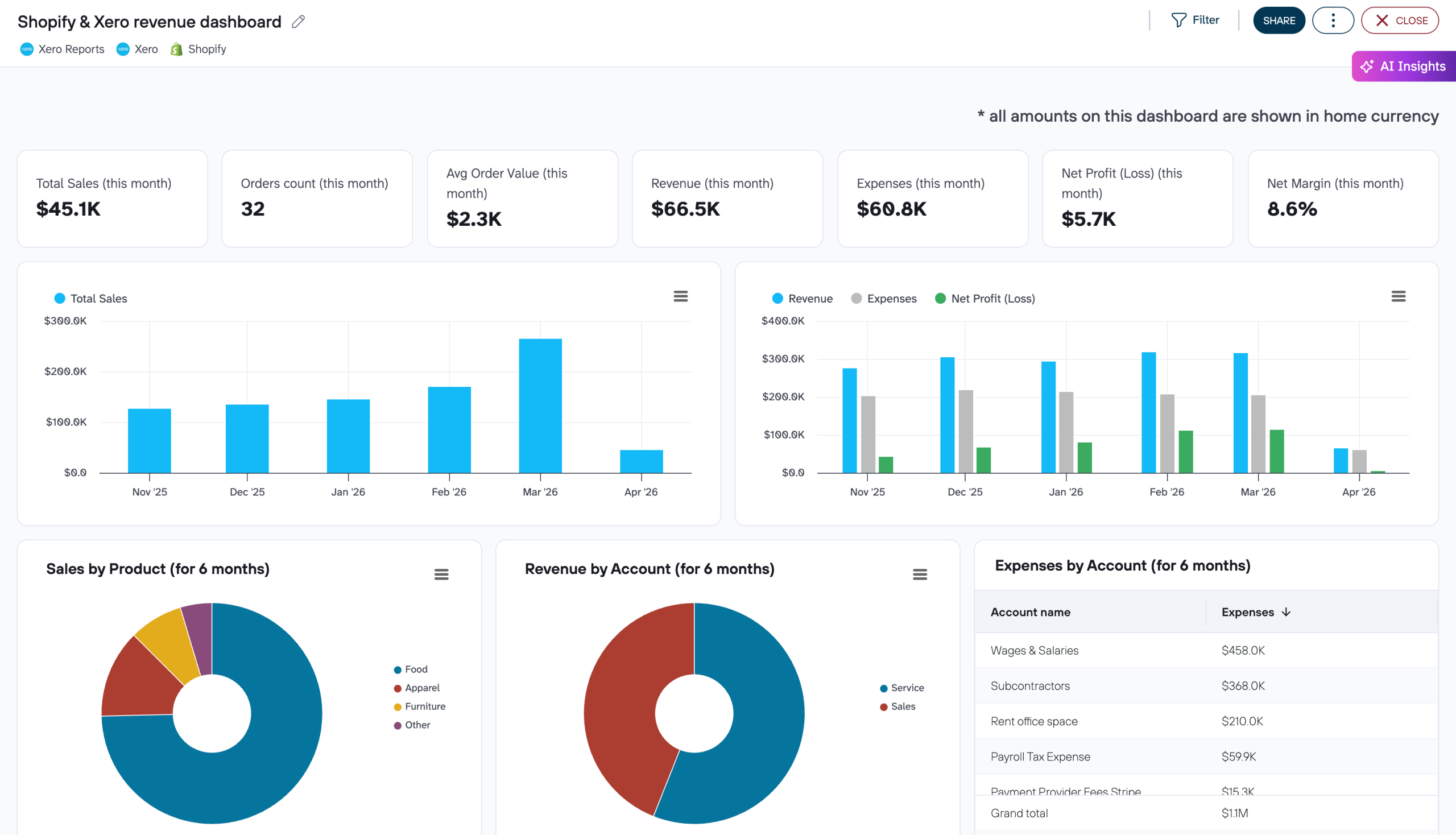
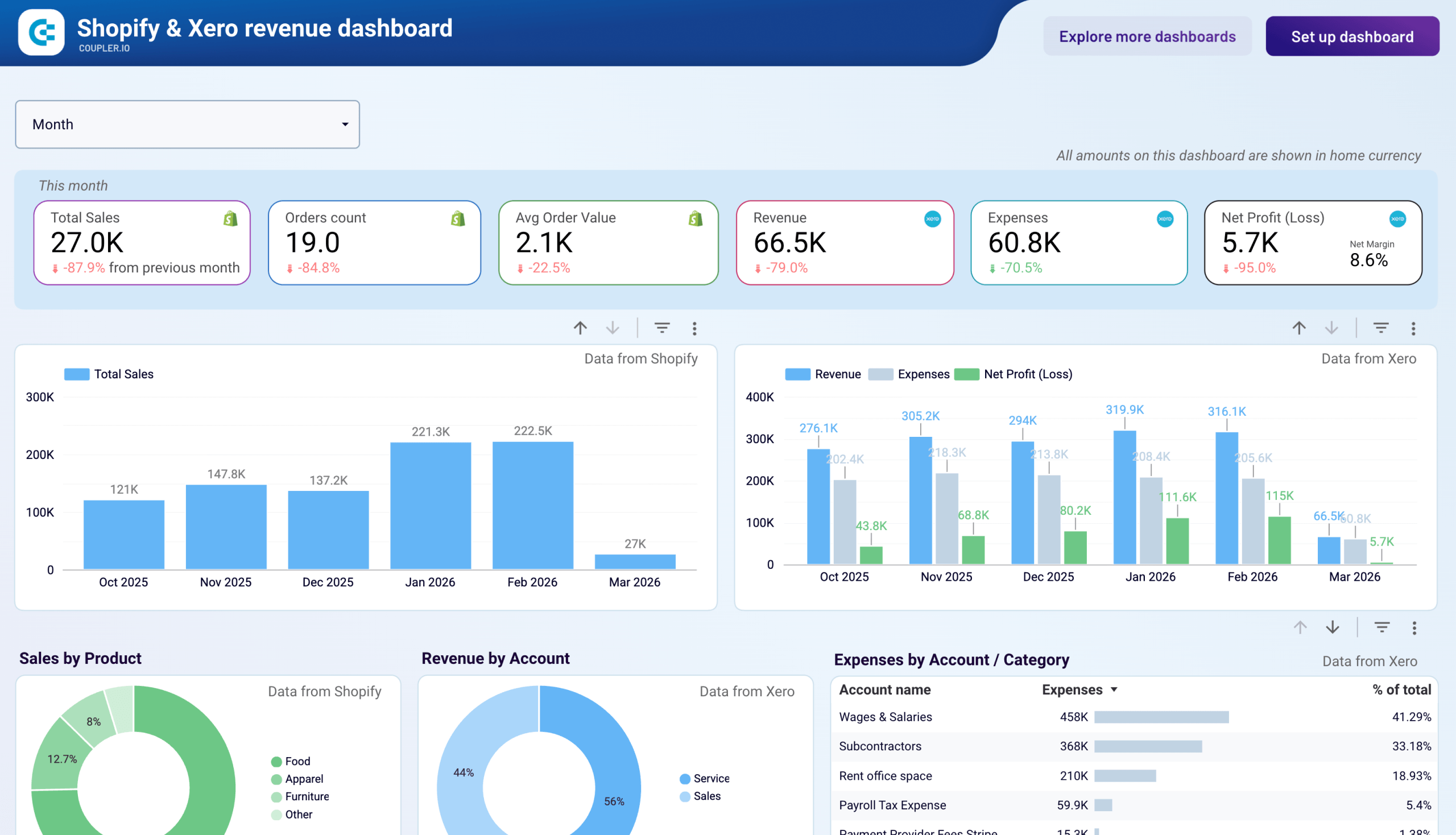
Beyond exporting Xero data for standalone reports, you can also combine it with other sources for richer analysis. The Shopify & Xero revenue dashboard by Coupler.io tracks Shopify sales metrics alongside Xero revenue, expenses, and net profit on a single timeline.
Shopify & Xero revenue dashboard
 Preview dashboard
Shopify & Xero revenue dashboard
Preview dashboardProduct and account-level breakdowns reveal where your money comes from and where it goes. The cash balance chart helps you keep an eye on liquidity. Coupler.io handles the data export and refresh from both Shopify and Xero, so the dashboard stays up to date without manual effort.
The dashboard is available in Coupler.io and as a Data Studio template. To start using it, follow the instructions in the Setup guide.

When to use alternative export methods to export Xero data
Coupler.io covers most Xero export needs, but two other approaches exist for situations where they’re a better fit.
Xero API
The API route makes sense for development teams that need custom integrations beyond what a no-code platform offers. Typical cases include bidirectional sync between Xero and an internal system, custom webhook-driven workflows, or building Xero data into a proprietary application.
The Xero API gives you full programmatic access to accounting data, but it comes with rate limits to be aware of: 5 concurrent calls, 60 calls per minute, and 5,000 calls per day. For most reporting and analytics use cases, Coupler.io handles the connection without running into these constraints. The API becomes worth the engineering investment when you need write access or real-time event-driven integrations that go beyond scheduled data exports.
Export Xero data manually as CSV
If you need a one-off snapshot of a specific Xero report and don’t plan to repeat the export, manual download is the quickest path. There’s no setup involved and no external tools required.
Here’s a step-by-step breakdown of this process:
- Sign in to your Xero account.
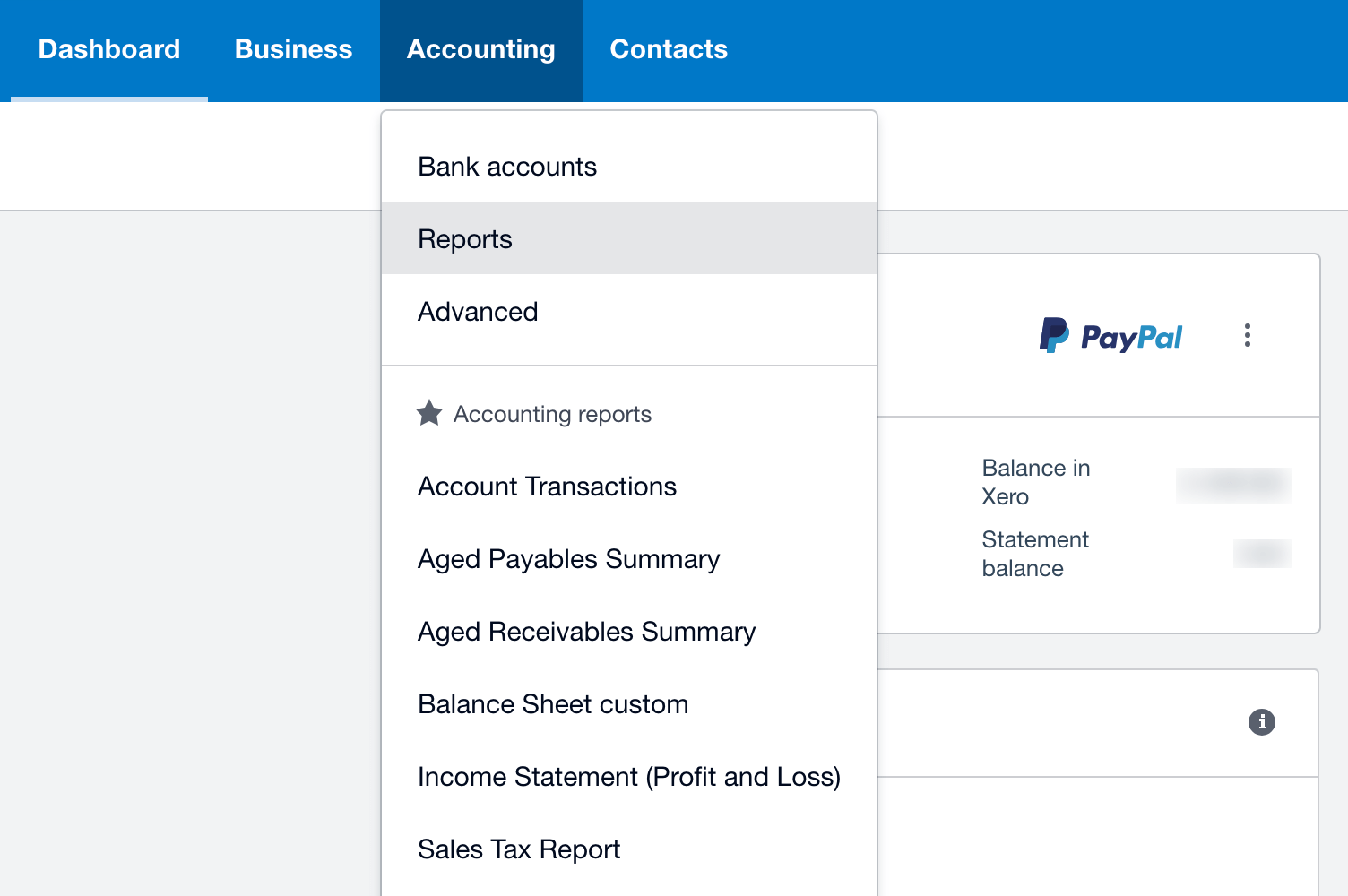
- Click on the Accounting tab and choose Reports from the dropdown list.
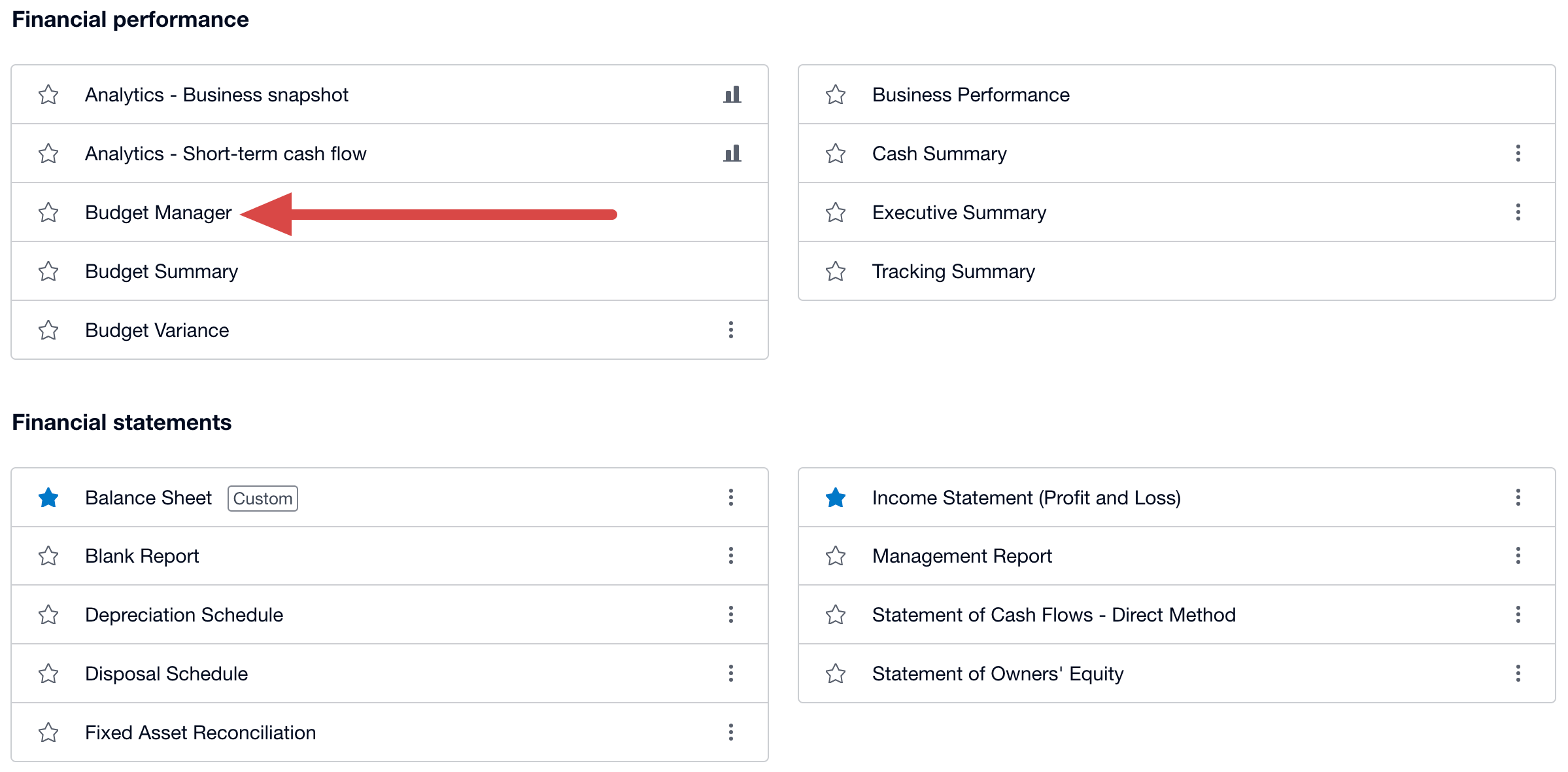
- You’ll get lists of reports grouped into Financial performance, Financial statements, Payables and receivables, Reconciliations, Taxes and balances, and Transactions. For example, let’s choose the Budget manager from the Financial performance list.
- At the top of the page, set up the period to track. Then scroll down to the bottom to click Export, choose CSV, and save the file on your device.
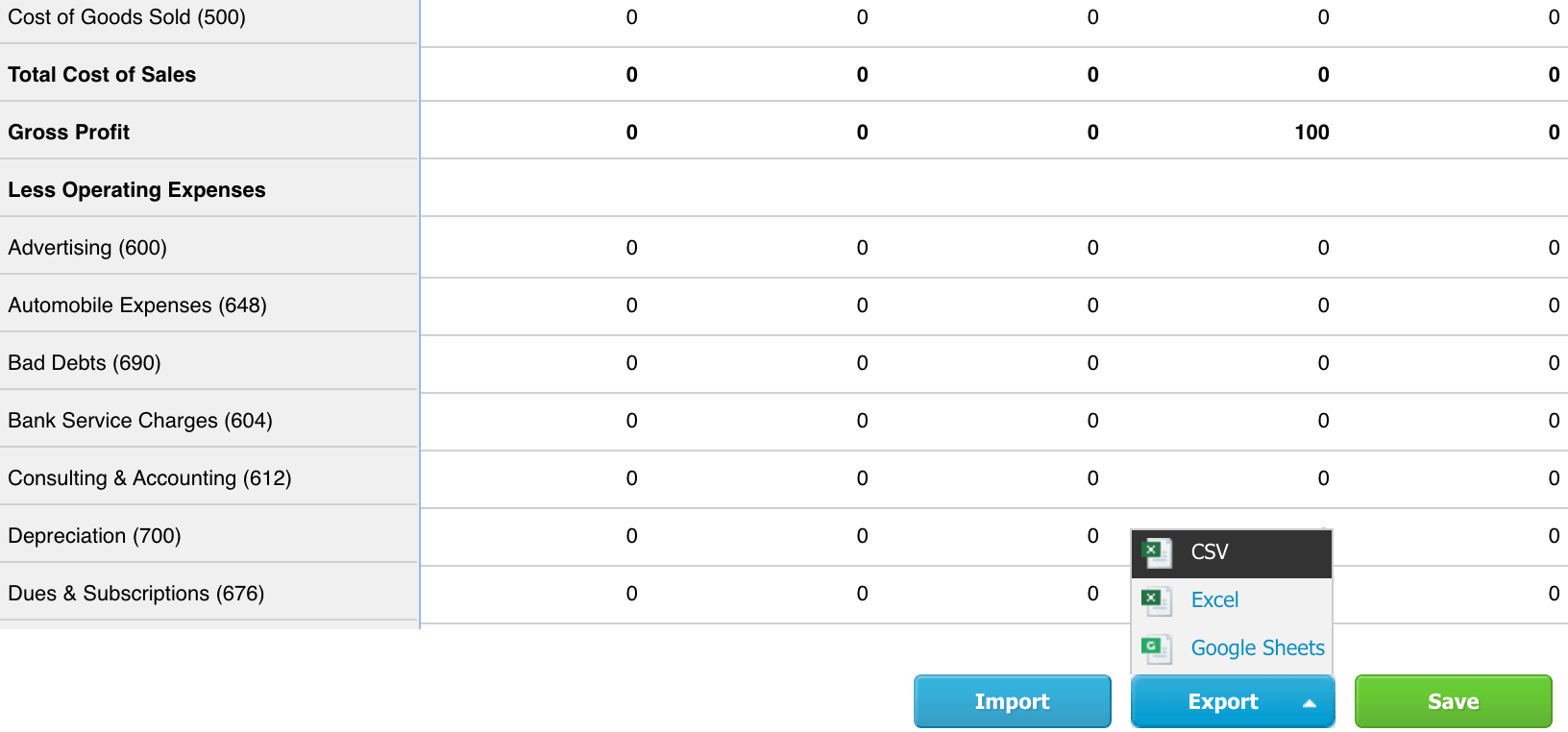
The downloaded CSV is ready to import into any spreadsheet or app. This works well for ad-hoc checks or a quick data pull, but it becomes impractical when you need recurring exports or when you’re working with multiple data entities at once. For ongoing reporting, setting up an automated data flow with Coupler.io or a finance automation tool saves significantly more time.
Xero data becomes more useful once it’s outside Xero. Whether you’re building financial dashboards, feeding a data warehouse, or running AI-powered analysis on your invoices and cash flow, the first step is getting the data out on a reliable schedule. Coupler.io handles that with no coding, 20+ dataset templates, and destinations ranging from Google Sheets to BigQuery to AI tools like Claude and ChatGPT.
Automate Xero data export with Coupler.io
Get started for free