
Exporting data from Zoho CRM becomes a problem the moment it’s recurring. Native exports top out at 3,000 records per module, offer no scheduling, and deliver raw CSVs that still need cleanup. Scripts and custom API integrations solve the automation part but add maintenance overhead most teams can’t justify.
Coupler.io solves this with a no-code Zoho CRM connector that automates data load to Google Sheets, Microsoft Excel, Looker Studio, BigQuery, and even AI platforms such as ChatGPT. You define the schedule for data refresh, organize data as you need, and analyze it with AI – all within one platform.
Automate Zoho CRM export data with Coupler.io
To get started, create a new data flow in Coupler.io with Zoho CRM as the source. You can explore it for free using the preset form below. Just choose your preferred destination from the drop-down and click Proceed.
Step 1 – Collect your Zoho CRM data
You’ll be prompted to sign in with your Zoho account and grant Coupler.io permission to access your CRM data. During setup, you’ll also need to enter your Zoho site domain (e.g., crm.zoho.com, crm.zoho.eu, etc.). Coupler.io provides clear, step-by-step instructions to help you complete the authorization flow.
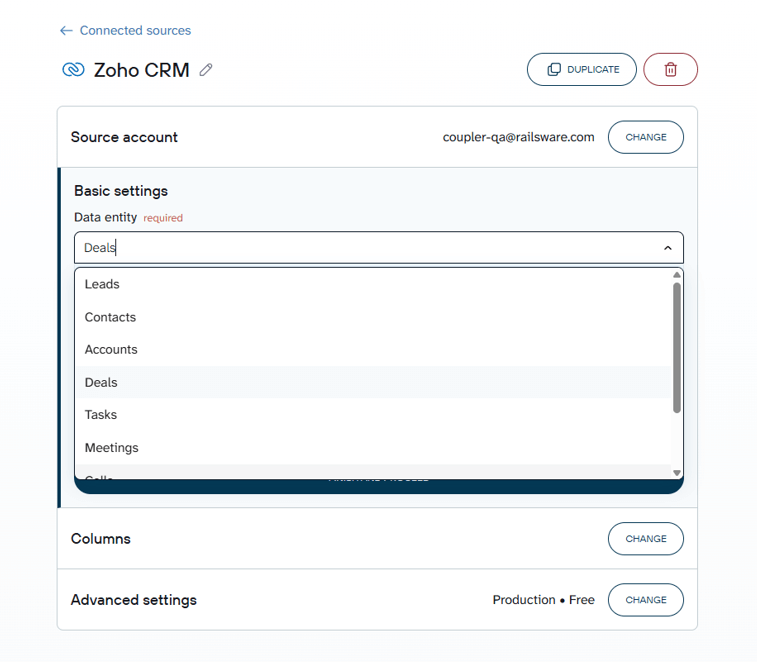
Once connected, select the CRM data entities you want to export, like Leads, Contacts, Deals, Accounts, etc.
Step 2 – Transform and organize your CRM data
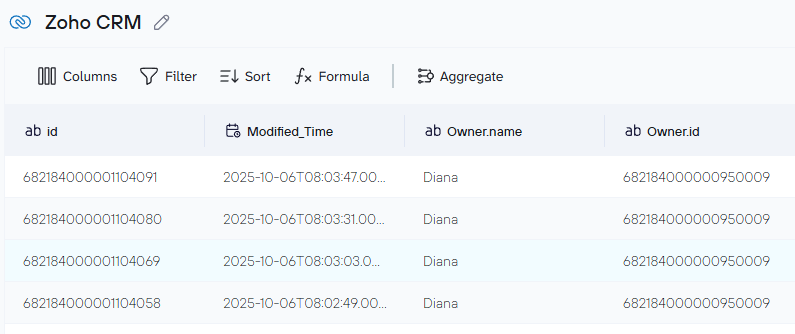
Coupler.io allows you to refine your dataset by renaming columns, filtering rows, sorting by date, or applying formulas like average deal size. You can also aggregate records to create summaries and combine Zoho CRM data with supported sources such as Google Ads or Zendesk for deeper analysis.
Step 3 – Export Zoho CRM data to your destination
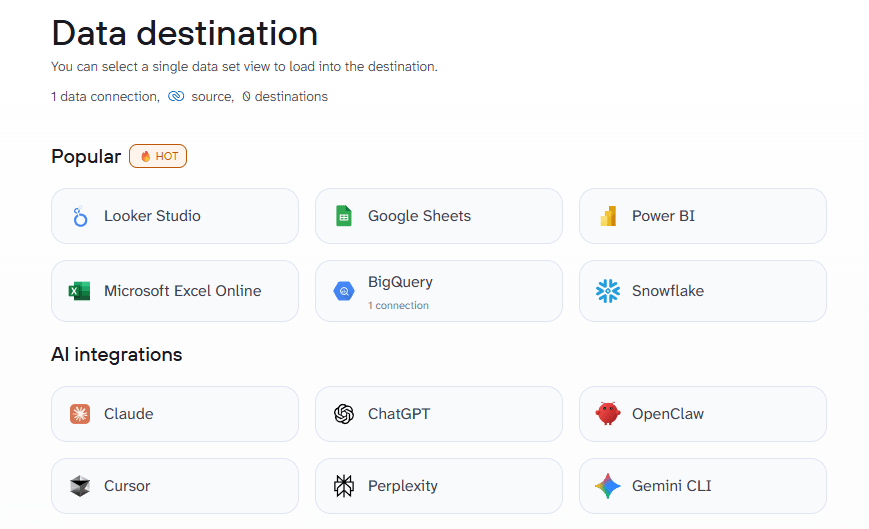
Send your refined dataset to Google Sheets, Excel, BigQuery, Looker Studio, or AI platforms like ChatGPT, Claude, and Perplexity. Follow in-app steps to set up your preferred destination.
Step 4 – Schedule automated Zoho CRM exports
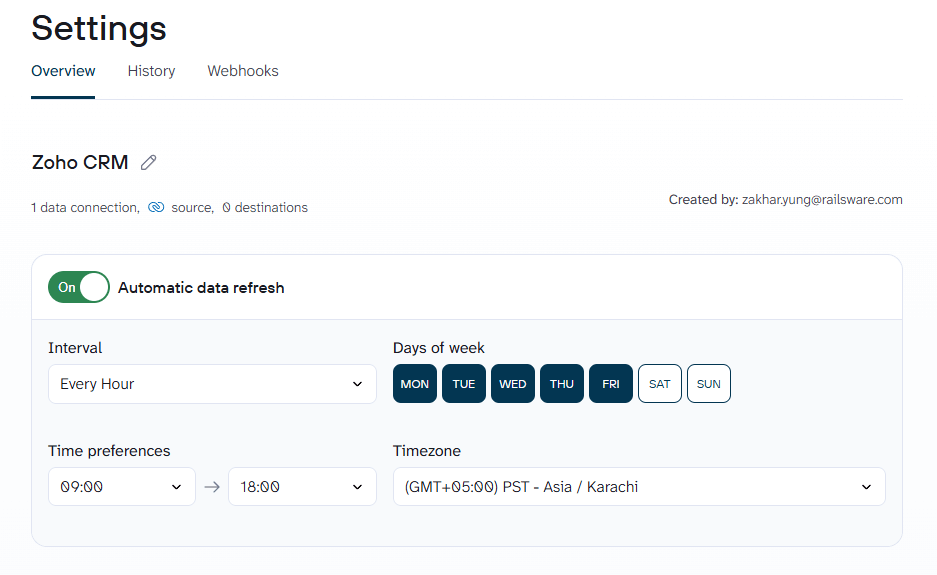
Enable automatic refresh for your Zoho CRM data export on an hourly, daily, or custom frequency, so your dashboards, workflows, and reports always use fresh CRM data.
Talk to your Zoho CRM data in AI Agent
Coupler.io supports AI integrations with external tools like ChatGPT and Claude, and allows you to connect your Zoho CRM data to natural-language interfaces. But with Coupler.io’s built-in AI Agent, you don’t even have to leave the platform.
You can ask questions like “Which contacts didn’t respond to last month’s campaign?” or “Show me deals over $10,000 closing this quarter,” and get instant answers based on your live CRM data.
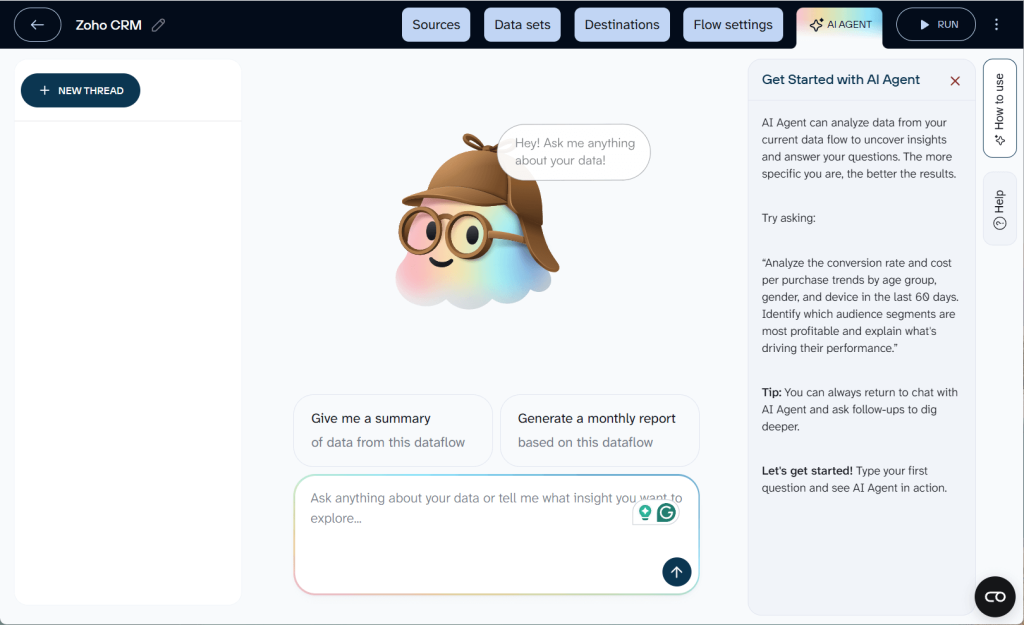
The AI Agent uses a built-in analytical engine that queries your dataset, runs calculations, and returns verified results. No hallucinations, no SQL. It works directly inside Coupler.io with your already-connected Zoho CRM data. So, you don’t need to send data to external tools for conversational analytics.

Automate Zoho data export and AI analytics with Coupler.io
Get started for freeWhat data you can export from Zoho CRM
Coupler.io lets you export data from Zoho CRM and supports the following data entities:
- Leads — people who have shown interest in your product but haven’t been qualified yet. Exporting leads helps you track acquisition sources, measure conversion rates, and feed lead data into marketing tools.
- Contacts — qualified individuals you’re actively engaging with. Use this data to analyze communication history, segment audiences, or sync with email platforms.
- Accounts — companies or organizations associated with your contacts and deals. Export accounts to track company-level relationships and revenue potential.
- Lists — segmented groups of leads or contacts used for targeted outreach. Export lists to align CRM segments with campaign tools or reporting.
- Deals — active and closed sales opportunities. This is typically the most critical export for pipeline analysis, forecasting, and revenue reporting.
- Tasks — assigned action items tied to records. Export tasks to monitor team activity and follow-up coverage.
- Meetings — scheduled interactions with leads or contacts. Useful for tracking engagement frequency and sales cycle length.
- Calls — logged call activity across your CRM records. Export to measure outreach volume and rep performance.
- Campaigns — marketing initiatives tracked within Zoho CRM. Export campaign data to correlate marketing spend with pipeline contribution.
- Functions — custom automation logic built in Zoho CRM. Export function logs to audit automation activity and troubleshoot workflows.
In addition to CRM modules, Coupler.io supports other Zoho applications (e.g. Zoho Books, Zoho Inventory, Zoho Desk). Combining data across these apps helps you track the customer journey from initial contact to invoice payment and support tickets.
Where you can export Zoho CRM data
Coupler.io offers a wide range of destinations to automate Zoho CRM export data for different use cases:
- Spreadsheets – Google Sheets, Excel, and CSV file formats for ad‑hoc analysis, offline work, or quick sharing. Exported files can be downloaded directly or accessed through a shared folder.
- Business intelligence platforms – Looker Studio, Power BI, Tableau, Qlik, and other dashboards for visualising trends, sales funnels, or campaign performance. These tools support scheduled refreshes so your dashboards stay current.
- Data warehouses – BigQuery, Snowflake, Redshift, PostgreSQL, and others for scalable storage and advanced analytics. Warehouses are ideal for large datasets, joining CRM data with marketing or financial tables, and powering scheduled reports.
- AI platforms – ChatGPT, Claude, Gemini, Perplexity, or custom LLMs. By exporting data to an AI endpoint, you enable automated insights and conversational analytics.
With Coupler.io, you can configure multiple destinations for the same flow. For example, send your dataset to BigQuery for historical storage and to Looker Studio for visualisations.
Other ways to export data from Zoho CRM
Coupler.io is built to automate Zoho CRM export data for reporting and analytics. At the same time, you can try out alternative export methods that might suit specific needs.
Manual exports from Zoho CRM
You can export individual modules like Leads or Deals via Zoho’s native export tool. Data is downloaded in CSV or XLS format, which is ideal for one-off exports or backups, though limited in scale and lacking automation.
Data backups
For larger exports or complete CRM backups, Zoho provides full data backups (twice per month by default). These include all modules and attachments in a downloadable ZIP file.
Zoho CRM API
Developers can use the Zoho CRM API to extract data programmatically, applying filters, pagination, and custom views. However, this approach requires writing and maintaining code, managing authentication tokens, and working within rate limits. Notably, Coupler.io’s Zoho CRM connector is built on the same API, so you get the power of direct integration without the manual overhead.
Other ETL and integration tools
Third-party platforms like Zapier, Make, or Fivetran also support Zoho CRM exports. These tools offer various connectors and workflows, but may involve row-based pricing, technical setup, or module limitations.
While each option has its use cases, Coupler.io stands out for combining flexibility, automation, and no-code setup, all within one intuitive interface.
How to export data from Zoho CRM manually
Although Coupler.io automates the process, you may occasionally need a quick manual export. Here’s a concise guide for performing one‑off exports via the Zoho CRM interface:
1. Navigate to the export menu: In Zoho CRM, click the Settings icon.

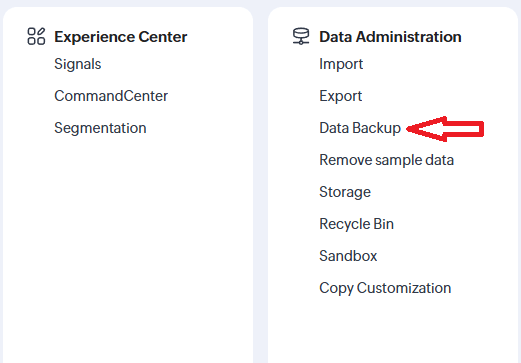
Navigate to Data Administration and choose Export. A page appears showing all modules and the number of records available for export.
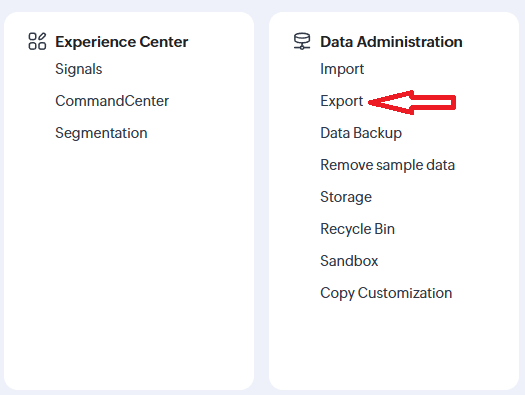
2. Select a module: Choose the module you want to export (e.g. Leads, Contacts, Deals) from the drop‑down list. If you need only a subset of records, create a custom view beforehand to apply filters. The drop‑down will display the export limit and indicate how many records match your criteria.
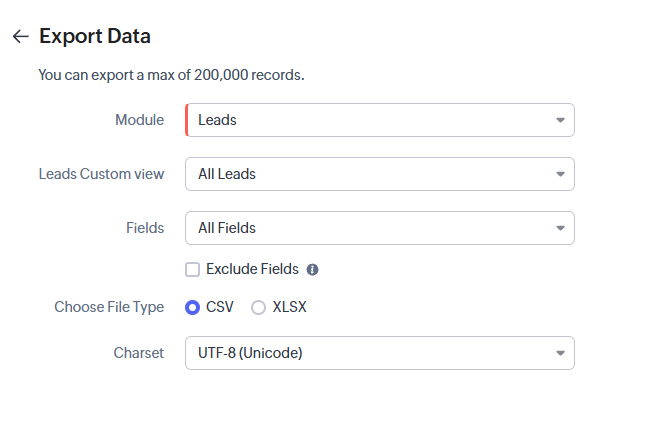
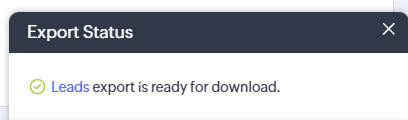
3. Start the export: Click Export. Zoho CRM processes the request and generates a download link for a CSV file; you’ll receive a notification when it’s ready. Download the file and open it in Excel or another program. Use the export history page to view previous exports or cancel pending ones.
4. Backup for complete datasets: If you need a complete backup of all modules or large datasets, use Data Administration > Data Backup. As noted above, you can generate two backups per month. The backup file is compressed and contains data for all modules; extract the archive to access the individual CSV files.
This method is useful to export data from Zoho CRM occasionally or for compliance needs. At the same time, it lacks automation and requires manual cleanup of column names and file formats. For regular reporting or complex workflows, Coupler.io provides a smoother experience.
Key challenges with exporting Zoho CRM data (and how Coupler.io helps)
Exporting large CRM datasets can introduce a variety of obstacles, especially when multiple teams rely on the data. Below are some common pain points and how a Coupler.io pipeline addresses them:
- Manual downloads and limited export history – Zoho’s built‑in export is manual and restricts exports to 3,000 records per module. Keeping data up to date requires repeated exports, merging CSV files and remembering to run a complete backup each month. Coupler.io eliminates manual work by refreshing data automatically on your chosen schedule and storing export history within the platform.
- Data quality and transformation – Raw CRM exports include extra fields and inconsistent naming, forcing you to perform cleanup in Excel or a database. Coupler.io lets you rename, filter and aggregate data during the export process, saving you time and ensuring your workflows run on clean data.
- Multiple sources and integrations – Analysing customer journeys often requires blending CRM data with marketing, support and finance systems. Coupler.io supports over 400 connectors and makes it easy to join Zoho CRM data with other platforms like Brex, Zendesk, Intercom or Salesforce to build unified datasets. The platform keeps column structures consistent so you can update dashboards without breaking them.
- API complexity and rate limits – Writing your own integration via the Zoho CRM API means handling authentication tokens, pagination, error responses and rate limits. Coupler.io manages all this for you and even retries failed runs, providing a more reliable export pipeline.
- Scheduling and notifications – Manual exports don’t support scheduling or alerts when data fails. Coupler.io’s scheduler allows you to automate refreshes down to regular intervals and sends notifications if a run fails, giving you confidence that your reports are current.
By addressing these challenges, Coupler.io provides a robust solution for organisations that need consistent, up‑to‑date CRM data across teams and applications.