
What is a QuickBooks Online dashboard?
QuickBooks Online features a built-in dashboard designed to give you a quick and informative overview of your business finances. With the key metrics at your fingertips, you can make informed decisions about your finances, inventory, and overall business strategy.
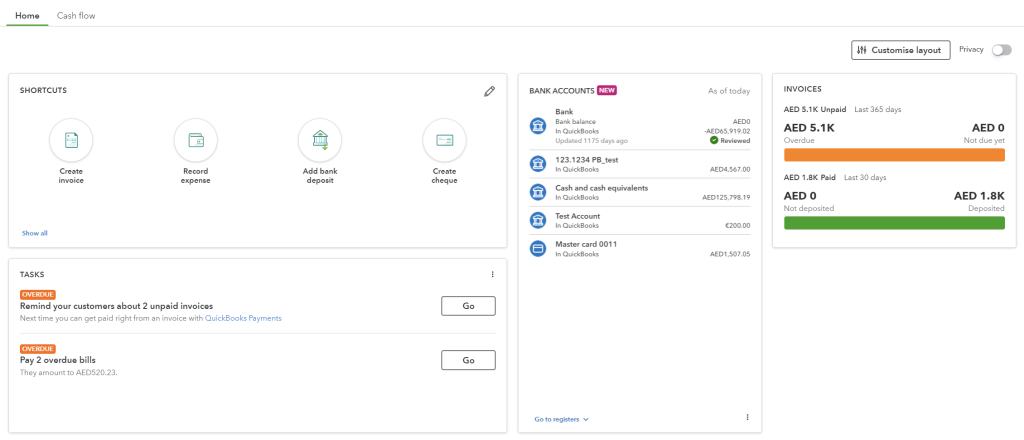
The dashboard presents indicators that affect your business and displays this information in different ways. This might include metrics like last month’s profit and loss, your accounts receivable and payable balances, and upcoming bills. The QuickBooks native dashboard goes beyond just displaying numbers. It can highlight areas that need your attention, such as overdue invoices or unmatched bank transactions. The customizable layout allows you to personalize the dashboard.
While QuickBooks enables you to visualize, track, and report on key financial performance indicators, all representations are read-only. This means that you cannot modify filters or time ranges.
Does QuickBooks desktop have a dashboard feature?
Unfortunately, the QuickBooks desktop version does not offer a built-in dashboard feature like QuickBooks Online. However, you can still get a quick grasp of your financial health using the following options:
- The QuickBooks desktop Home Page displays some basic information like upcoming due dates and recent transactions. You can also use the home page Insights to see how your business is doing.
- The Reports Center can become your go-to spot for generating various accounting reports like Profit and Loss, Balance Sheet, and Accounts Receivable/Payable aging reports. By running these reports and customizing date ranges, you can get a snapshot of your financial standing.
Can you create a custom dashboard for your QuickBooks Online data?
A custom QuickBooks dashboard can be created in spreadsheets or BI tools based on the data exported from QuickBooks Online. You only need to choose a respective solution, for instance, Looker Studio, and design a dashboard there. And, of course, you’ll need to load your QuickBooks data. For this, you can use Coupler.io which lets you connect QuickBooks Online to spreadsheets, BI tools, and even data warehouses.
Another option is to get a predesigned dashboard template. This way, you get a working analytics dashboard that needs to be populated with your data. The latter can be done either manually or automatically if the template is equipped with a QuickBooks connector.
QuickBooks dashboard examples for reporting and analytics
Check out these QuickBooks dashboard templates that are free to use and have a built-in connector by Coupler.io. This means that you only need to connect your QuickBooks Online account to populate the dashboard with your data.
QuickBooks financial dashboard
The QuickBooks financial dashboard delivers insights into your company’s financial performance by consolidating profit and loss, balance sheet, cash flow, and bank account data into one unified view. This overview helps you track earnings, monitor liquidity, and identify financial trends without navigating through multiple separate reports or detailed spreadsheets.
With this dashboard, you can:
- Monitor your profitability by reviewing revenue, expenses, and net income for the last month, month to date, and year to date to quickly spot growth patterns or areas where costs are increasing faster than income.
- Assess your company’s financial position and liquidity through assets, liabilities, and equity snapshots that show changes from the last month to the current period to understand your business health at a glance.
- Track net cash changes over the reporting period to see how your cash position evolves and ensure you’re managing liquidity effectively to avoid shortfalls that could disrupt operations.
- Monitor balances across all linked bank and cash accounts, including multi-currency tracking for foreign accounts, to ensure proper reconciliation and maintain visibility into available funds for daily operations.
The dashboard is available in Coupler.io and as a template in Looker Studio and Google Sheets. You can load your data from QuickBooks in a few minutes due to the built-in connector by Coupler.io.
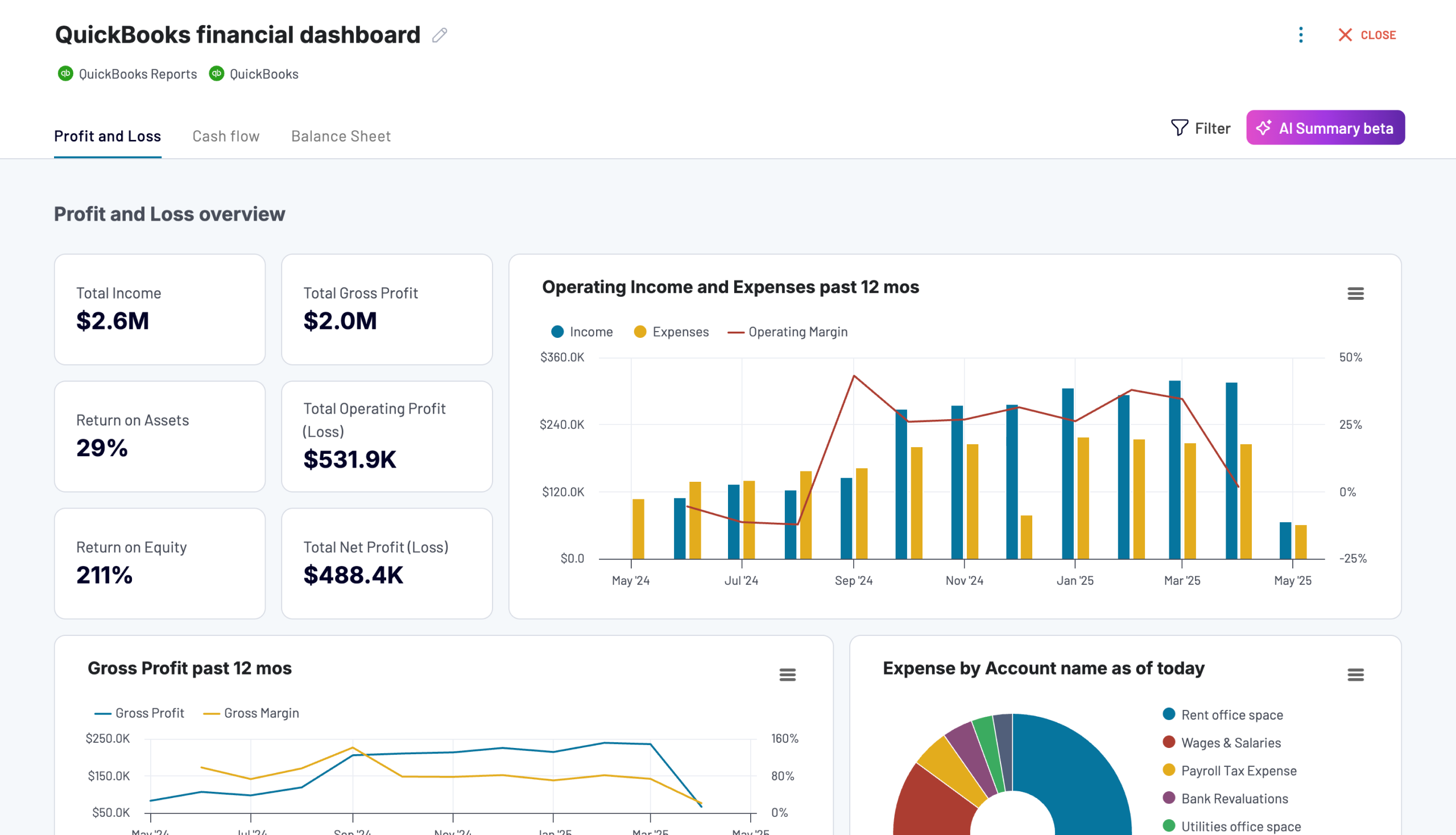
QuickBooks financial dashboard
Tracks earnings, monitor cash flow, and analyze balance sheet changes with a dedicated dashboard that provides a clear picture of your business finances.


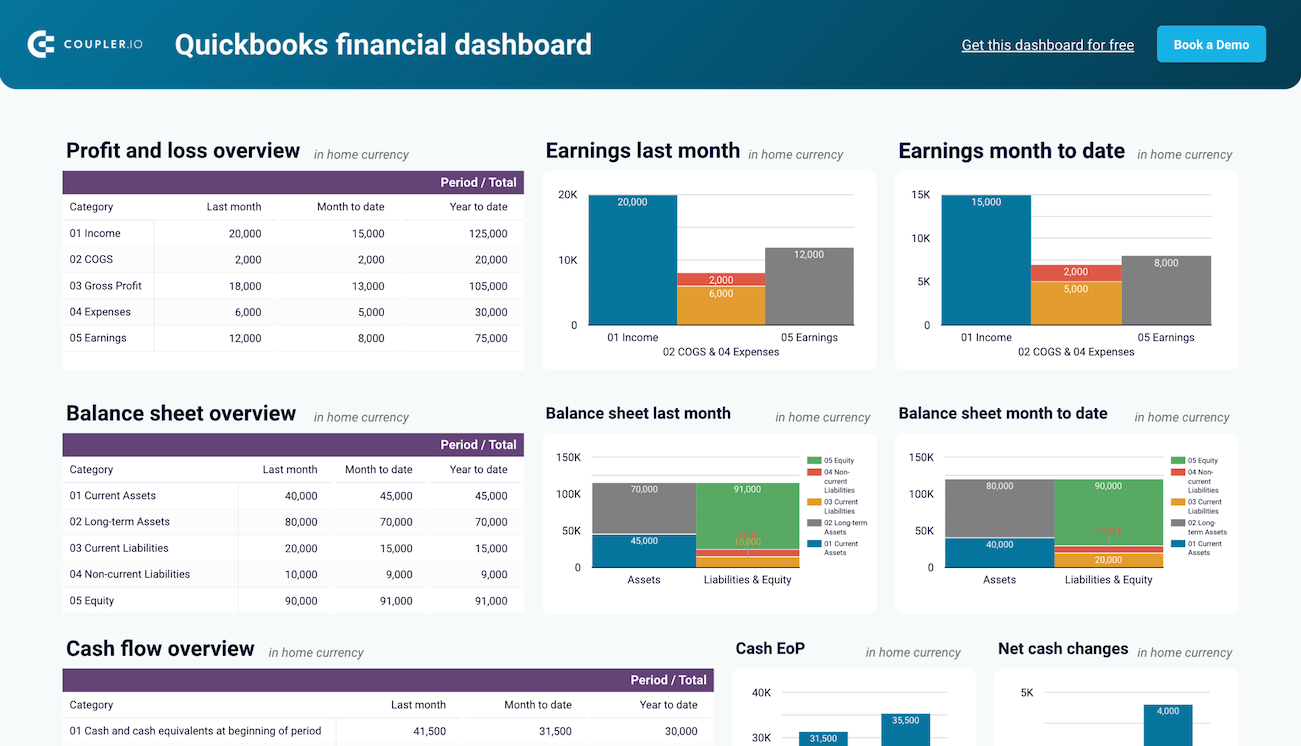
QuickBooks financial dashboard in Looker Studio
Monitor and analyze your business’s financial health with real-time insights into profit and loss, balance sheet, cash flow, and bank & cash accounts.

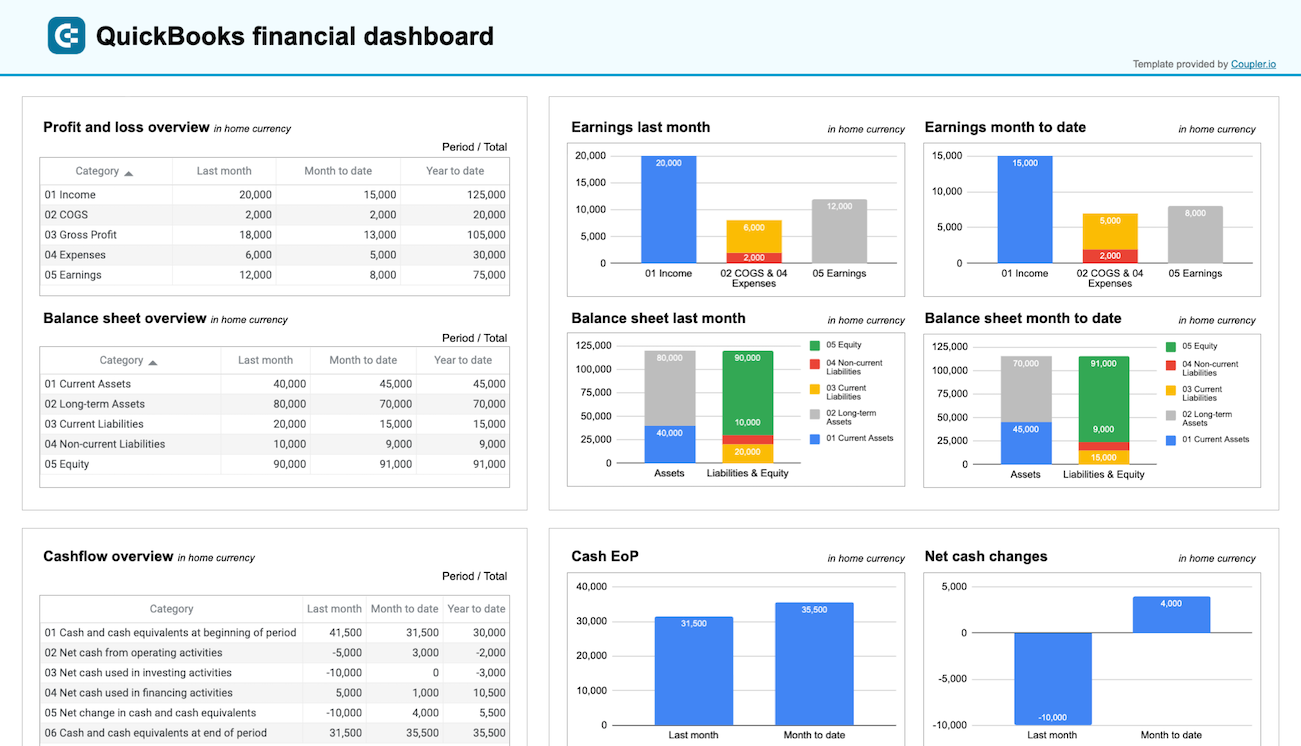
QuickBooks financial dashboard in Google Sheets
Get a clear snapshot of your business finances, including cash flow, P&L, balance sheets, and bank accounts, powered by data from QuickBooks Online.

Check out all free cash flow reporting templates and balance sheet dashboards by Coupler.io
QuickBooks revenue dashboard
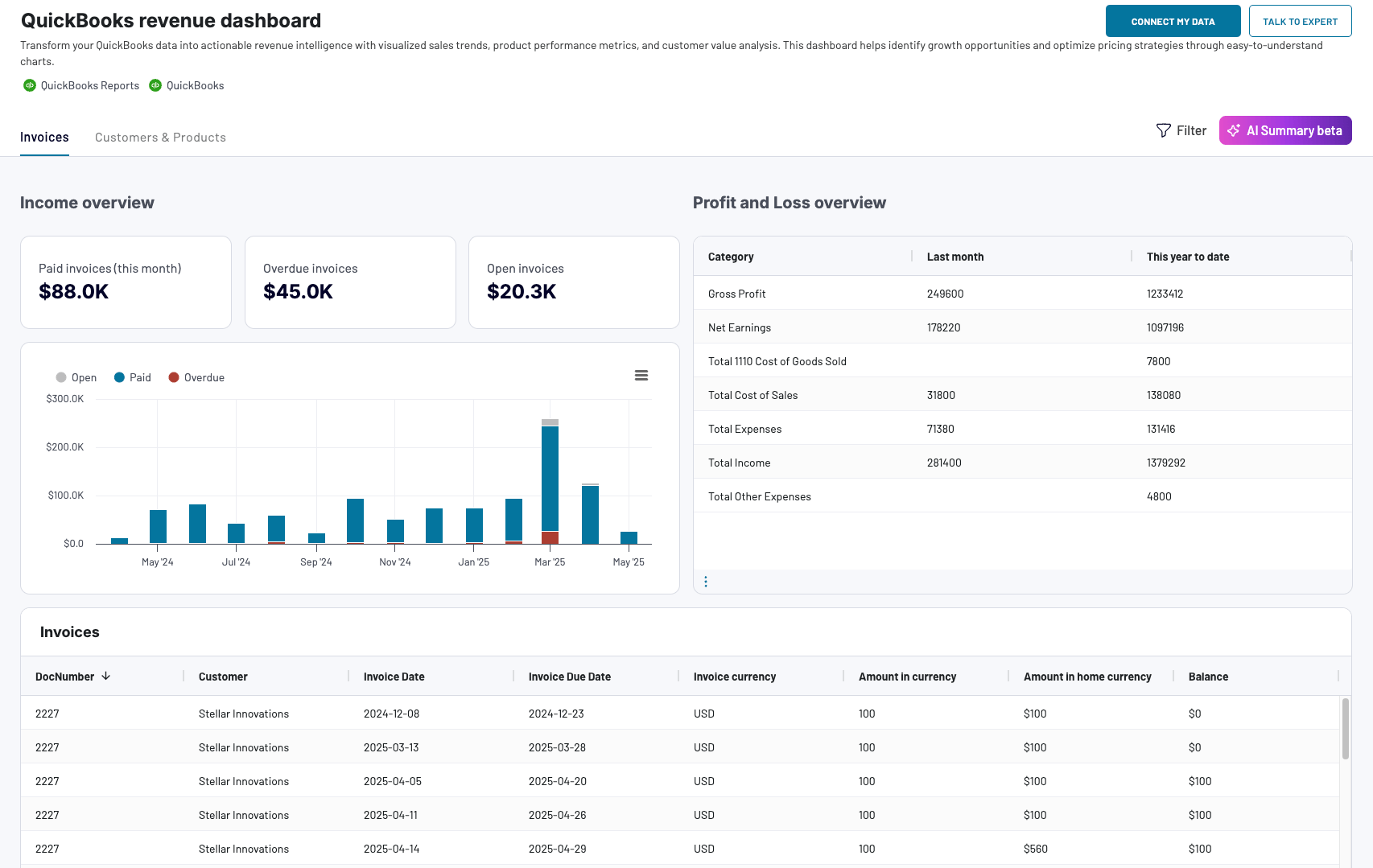
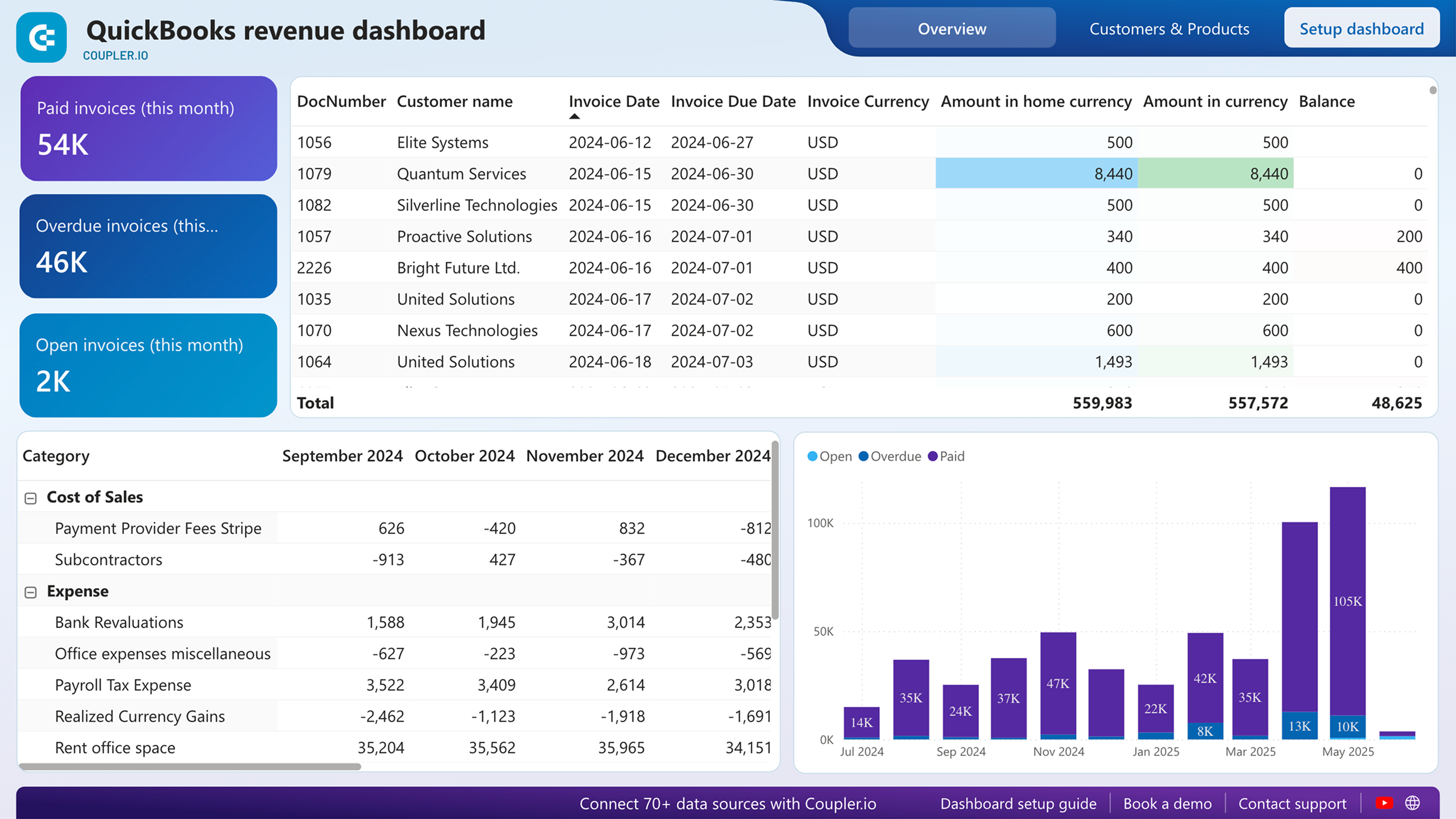
The revenue dashboard helps you monitor your income and expenses while providing detailed breakdowns of revenue by customers and products. This visibility into your income streams enables you to identify which clients and offerings drive the most revenue, track growth trends over time, and make informed decisions about sales strategies and customer retention efforts.
QuickBooks revenue dashboard + AI insights
 Preview dashboard
QuickBooks revenue dashboard + AI insights
Preview dashboardWith this dashboard, you can:
- Track overall revenue trends for the last 12 months to identify seasonal fluctuations, peak revenue periods, and unexpected dips that may signal collection issues or changing customer demand.
- Compare revenue and expenses to assess how well your business manages costs relative to income, providing insights for budget planning and identifying whether profitability is improving or declining over time.
- Identify your most valuable customers by revenue contribution to design targeted marketing efforts, develop customer retention strategies, and provide loyalty incentives for high-value clients who drive significant business.
- See which products or services generate the most revenue to understand demand patterns, manage inventory effectively, and adjust sales strategies based on the performance of high or low-performing offerings.
Use this QuickBooks revenue dashboard to identify top-selling products or services, track revenue growth, and pinpoint areas for potential sales improvement. It is available natively in Coupler.io UI (+ AI insights feature) or as a template in Google Sheets, Looker Studio, and Power BI.
QuickBooks revenue dashboard
Transform your QuickBooks data into actionable revenue intelligence with visualized sales trends, product performance metrics, and customer value analysis. This dashboard helps identify growth opportunities and optimize pricing strategies through easy-to-understand charts.

QuickBooks revenue dashboard in Google Sheets
Analyze your revenue through a set of reports collected from QuickBooks Online on a single dashboard.

QuickBooks revenue dashboard in Looker Studio
Get an overview of your revenue based on the data from QuickBooks and unlock in-depth insights to drive informed business decisions.
QuickBooks revenue dashboard in Power BI
Monitor your income and expenses on an all-in-one revenue dashboard connected to your QuickBooks Online account.

Billing dashboard for QuickBooks
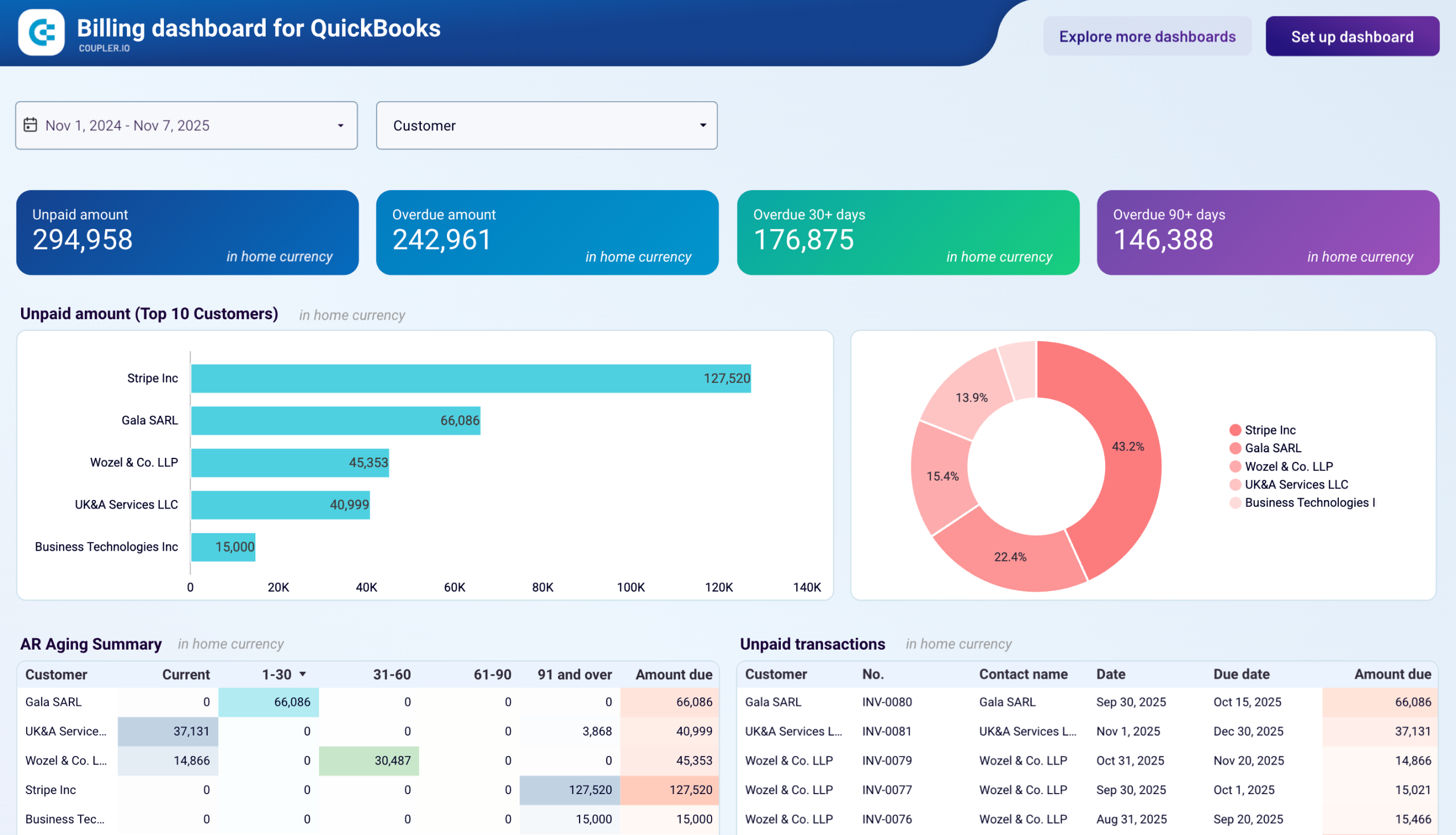
The billing dashboard brings together accounts receivable and accounts payable data to show how customer payments and vendor obligations affect your working capital. By viewing both sides of your cash flow in one place, you can identify timing mismatches between when customers pay you and when you need to pay vendors.
Billing dashboard for QuickBooks
 Preview dashboard
Billing dashboard for QuickBooks
Preview dashboardWith this dashboard, you can:
- See how customer payment delays impact your ability to pay vendors on time by viewing overdue receivables against upcoming vendor bills, helping you decide whether to accelerate collections or request payment extensions from suppliers.
- Determine which customers contribute most to your revenue while simultaneously tracking which vendors consume the largest portion of your cash, giving you clarity on the flow of money through your business.
- Spot patterns in customer payment behavior across multiple months and compare them with your own vendor payment history to identify opportunities for improving cash flow timing through better credit terms or payment scheduling.
- Review all outstanding invoices and unpaid bills together to create accurate cash flow projections and understand your true liquidity position without piecing together information from separate reports.
You can use the Billing dashboard as a Looker Studio template that comes with the Coupler.io connector. Check the setup instructions to link your QuickBooks Online account and load your data into the dashboard.
Billing dashboard for QuickBooks in Looker Studio
Track both customer invoices and vendor bills in one comprehensive QuickBooks dashboard. Monitor aging balances, manage payment schedules, analyze cash flow across bank accounts, and maintain healthy financial relationships by staying on top of all receivables and payables.
Accounts payable dashboard for QuickBooks
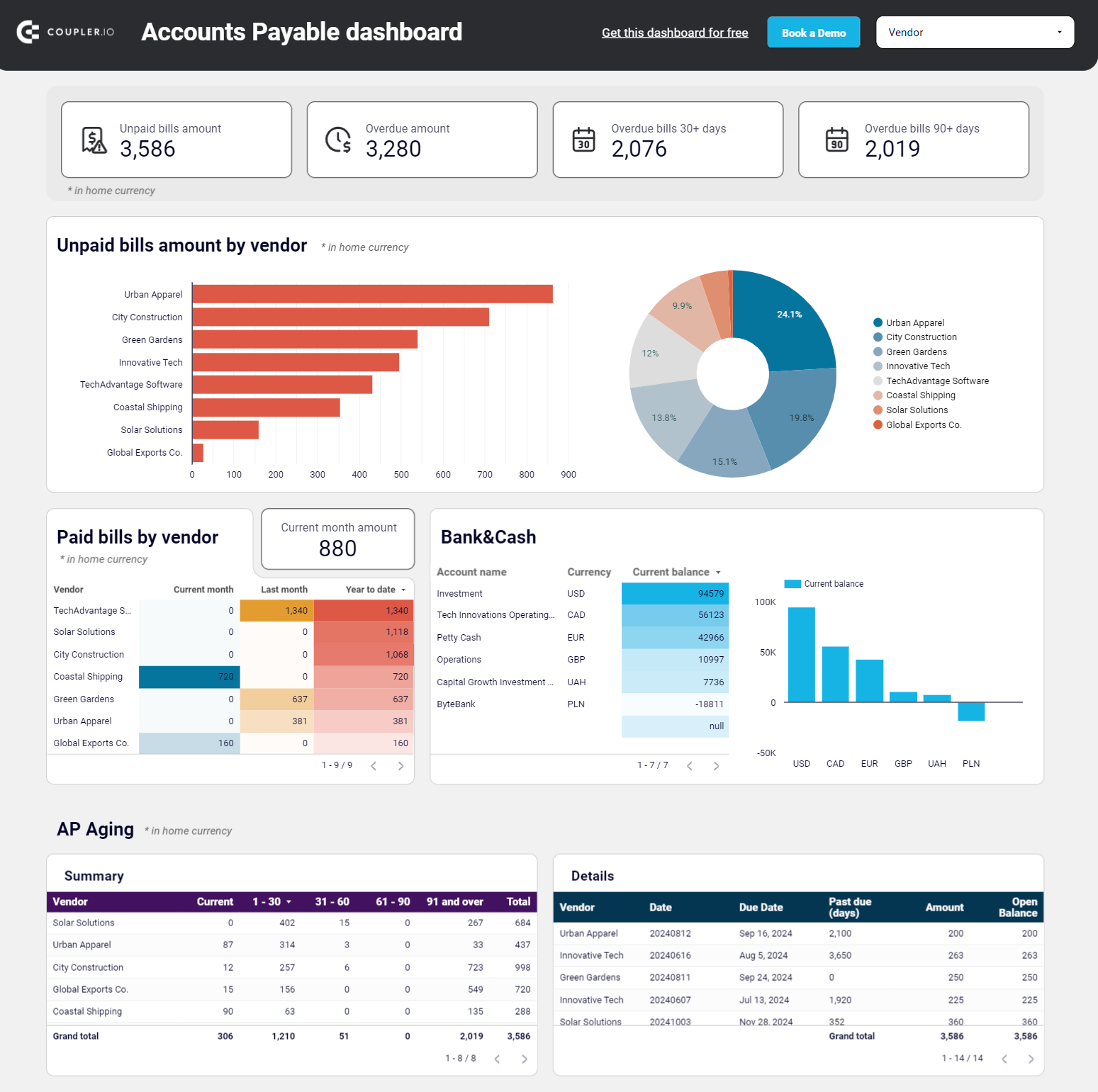
The accounts payable dashboard helps you balance vendor relationships with cash preservation by showing exactly when bills are due and which vendors represent your largest obligations. This visibility prevents late payment penalties while ensuring you don’t pay too early and unnecessarily reduce available cash for other business needs.
Accounts payable dashboard for QuickBooks
 Preview dashboard
Accounts payable dashboard for QuickBooks
Preview dashboardWith this QuickBooks dashboard, you can:
- Track your payment history with each vendor to evaluate vendor relationships, identify suppliers you pay consistently on time, and use this information to negotiate better payment terms or pricing.
- Identify which vendors require immediate payment by reviewing unpaid amounts broken down across current, up to 30 days, 30-60 days, 60-90 days, and 90+ day aging periods to prioritize bills based on how overdue they are and vendor importance.
- See which vendors represent your largest payment obligations and understand spending concentration across your supplier base to identify your major creditors and make strategic decisions about payment priorities.
- Compare your total unpaid bills against current bank balances across accounts and currencies to determine whether you have sufficient funds to cover all obligations or need to prioritize certain payments.
The accounts payable dashboard template is available for Google Sheets and Looker Studio. Try it out yourself by simply connecting your QBO account.
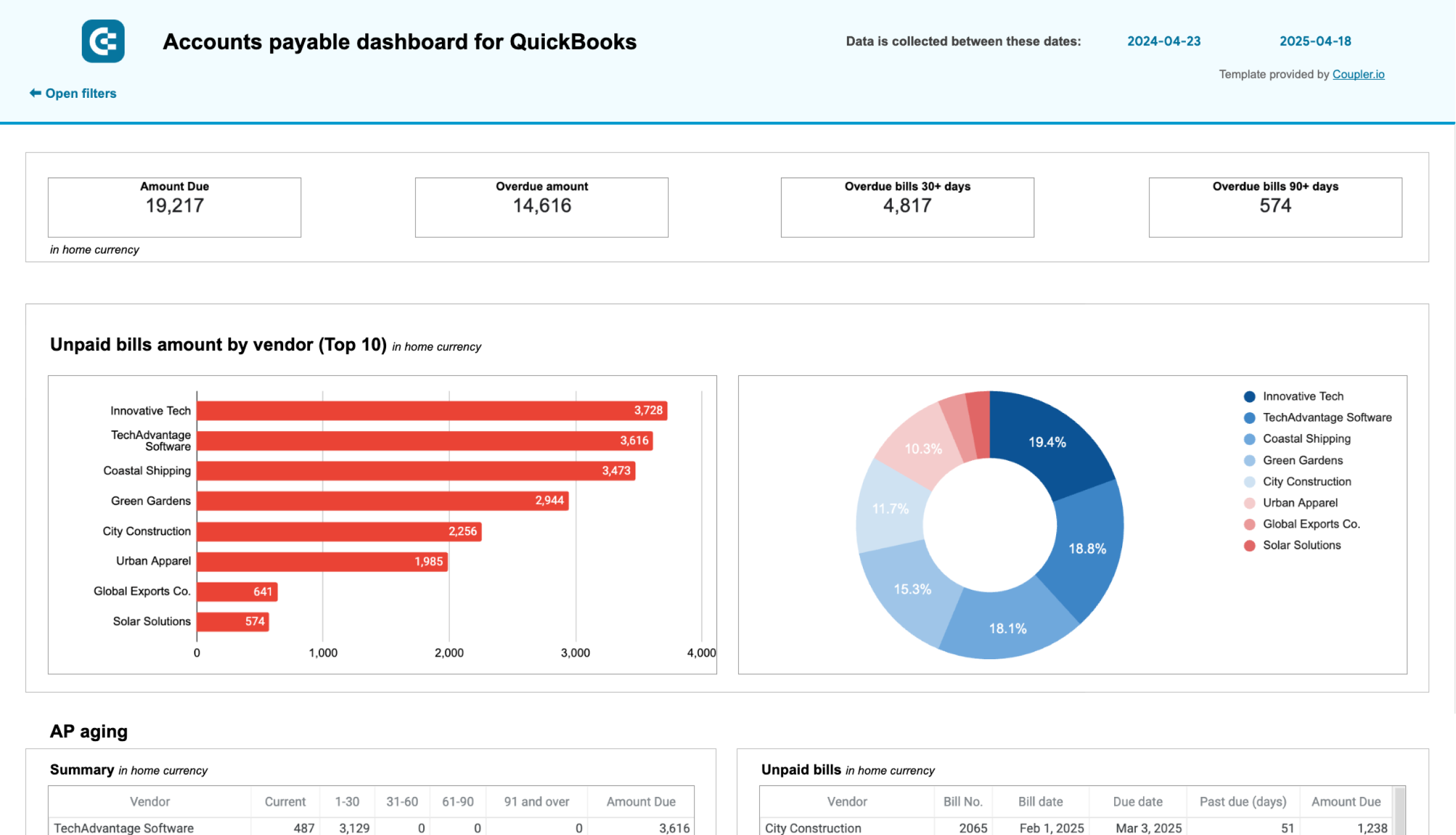
Accounts payable dashboard for QuickBooks in Google Sheets
Track outstanding vendor obligations, payment schedules, and expense patterns with data from QuickBooks. This dashboard helps you manage cash flow, identify payment priorities, and maintain healthy supplier relationships through visualized aging reports.
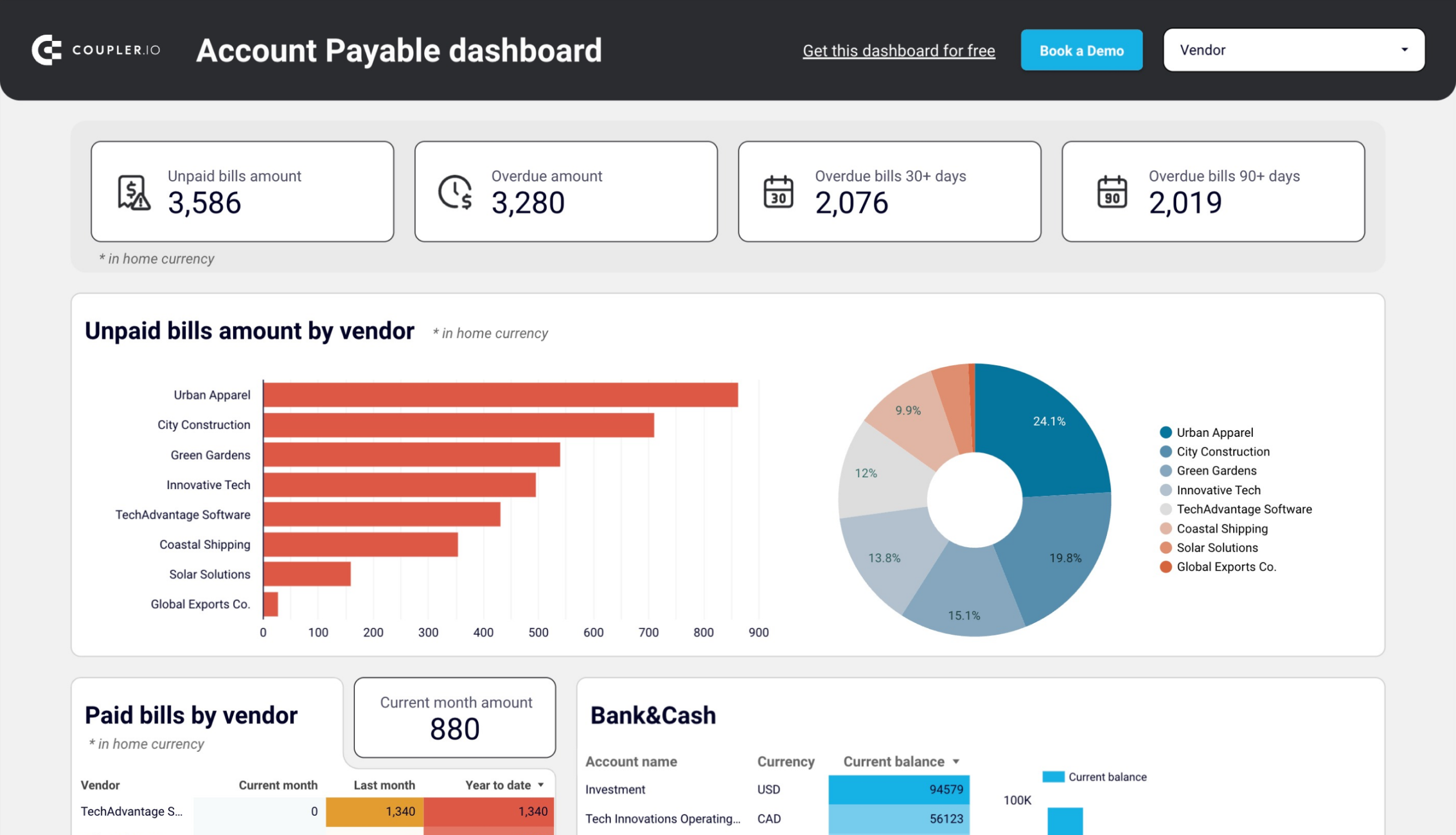
Accounts payable dashboard for QuickBooks in Looker Studio
Get an overview of unpaid, overdue, and paid bills grouped by vendor. The dashboard helps you prioritize payments and improve cash flow management.
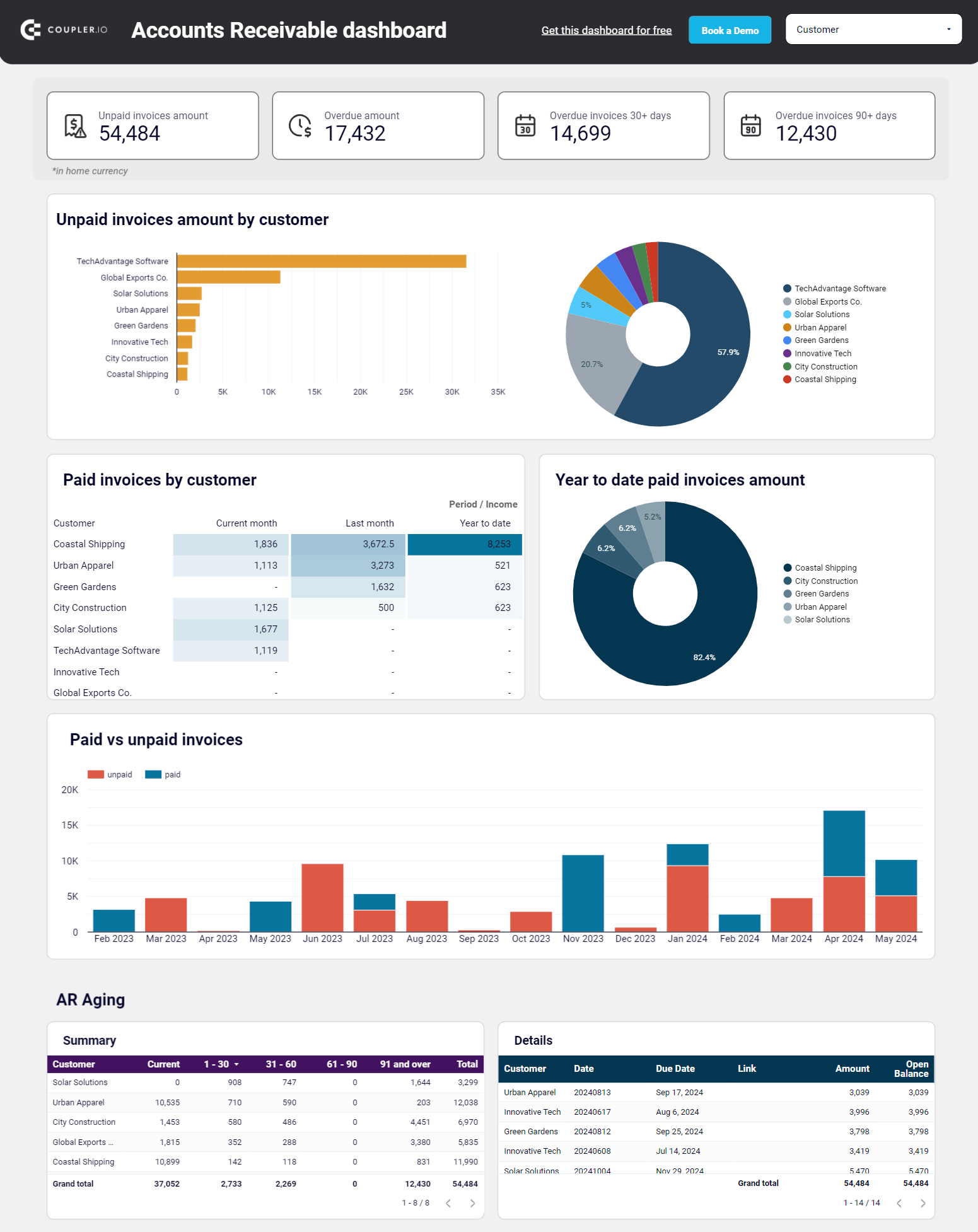
Accounts receivable dashboard for QuickBooks
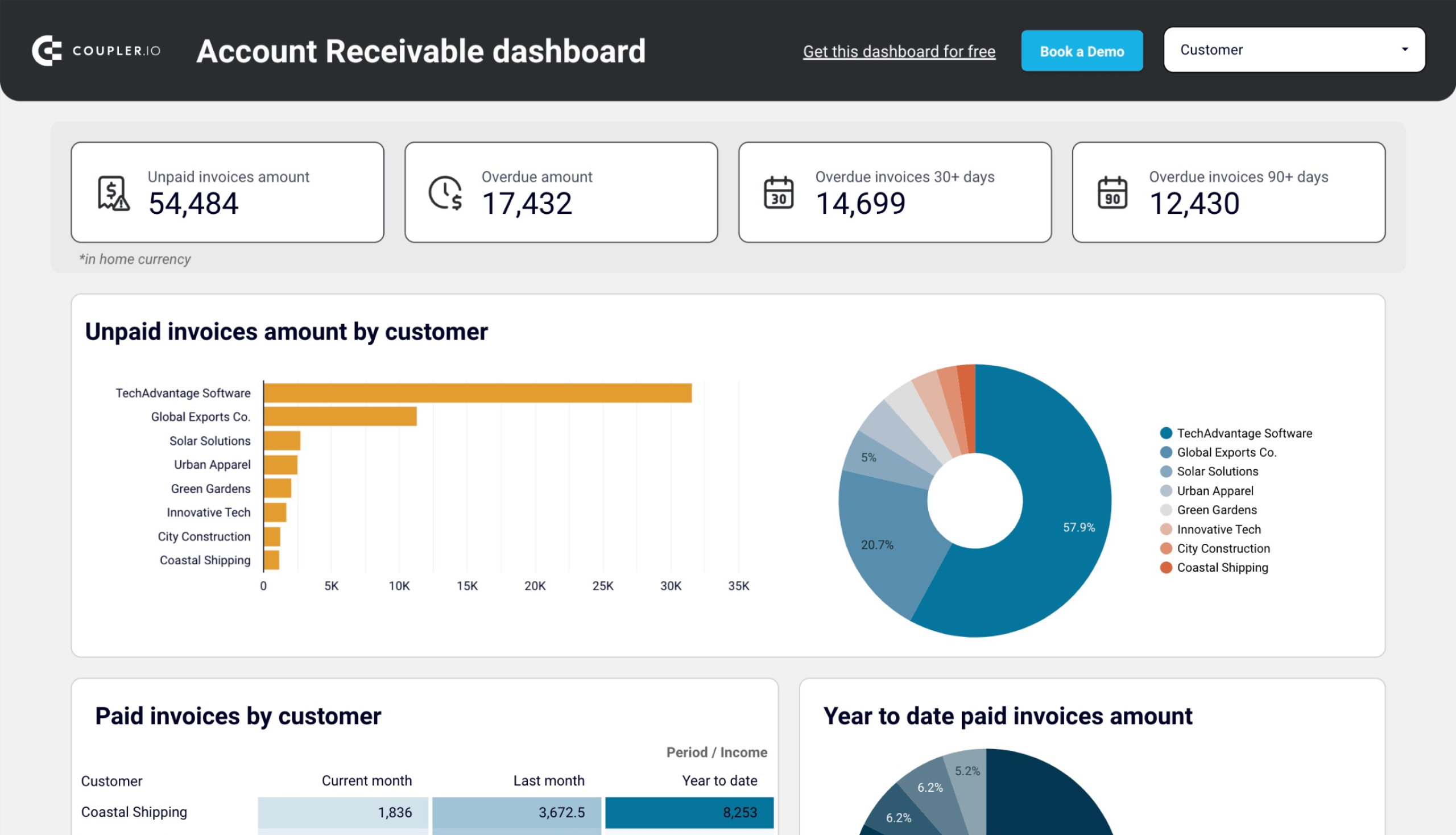
In addition to the AP dashboard, get one for accounts receivable to keep track of your incoming payments and ensure timely collections. This QuickBooks dashboard template showcases your total accounts receivable balance, a comparison of paid and unpaid invoices, and the aging of your receivables. This lets you identify invoices overdue for a certain period.
Accounts receivable dashboard for QuickBooks
 Preview dashboard
Accounts receivable dashboard for QuickBooks
Preview dashboardUse the accounts receivable dashboard to:
- Identify your major debtors by seeing which customers have the largest unpaid balances and their share of your total accounts receivable to prioritize collection efforts based on the size of outstanding amounts and importance to your business.
- Review the aging of overdue amounts across current, up to 30 days, 30-60 days, 60-90 days, and 90+ day periods to determine which accounts need urgent follow-up before they become difficult to collect or turn into bad debt.
- Track the dynamics of paid and unpaid invoices month by month to identify seasonal patterns in customer payment behavior and understand periods when customers struggle to pay so you can plan for potential cash flow challenges.
- Evaluate customer payment reliability by reviewing historical payment data to distinguish between customers who consistently pay on time and those who chronically delay, helping you make informed decisions about credit terms and payment policies.
The dashboard is available as a template in Google Sheets and Looker Studio. Give it a shot and see how it can contribute to your QuickBooks reporting.
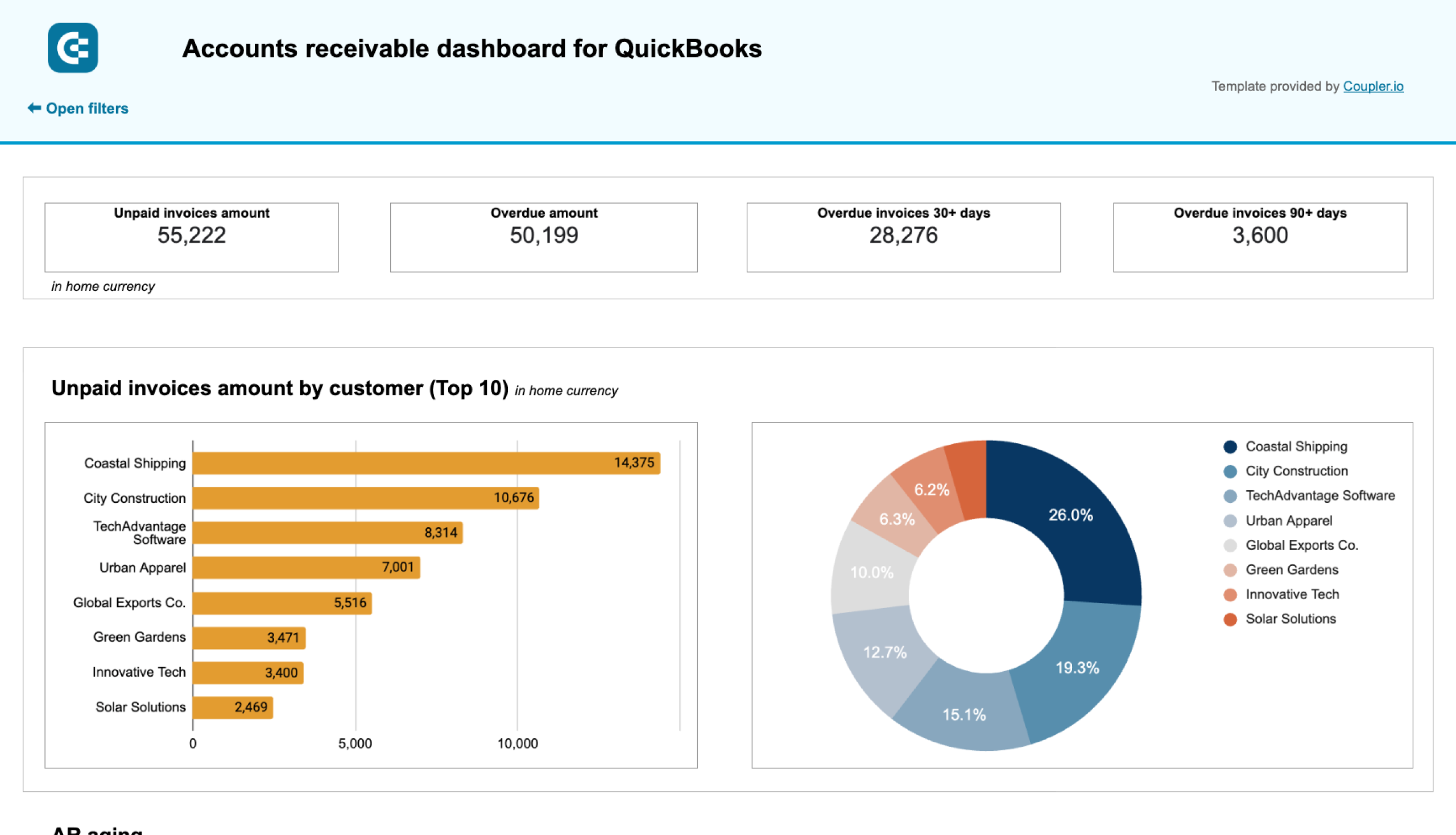
Accounts receivable dashboard for QuickBooks in Google Sheets
Monitor customer payment statuses, overdue invoices, and collection trends with this dashboard connected to QuickBooks. Get clear visibility into your cash flow cycle with aging analysis and customer payment patterns to improve financial forecasting.
Accounts receivable dashboard for QuickBooks in Looker Studio
See which customers accumulate unpaid and overdue invoices, analyze AR aging, and track changes over time. Get useful insights for maintaining financial health.
The native QuickBooks dashboard analytics explained
Let’s get back to the built-in QuickBooks Online dashboard that provides an overview of your business activities right in the software. It includes a collection of metrics that help you analyze your data and track the performance of your operations in a convenient view.
The dashboard is the first thing you see once logged in to QuickBooks. If you’re a new user, the dashboard content will be empty. However, the page will be updated once you start entering transactions. The dashboard displays two tabs: Home and Cash flow.
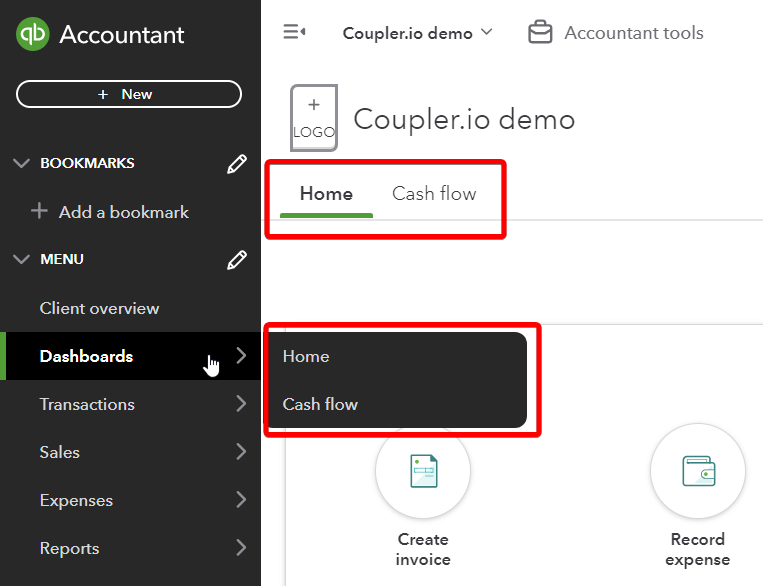
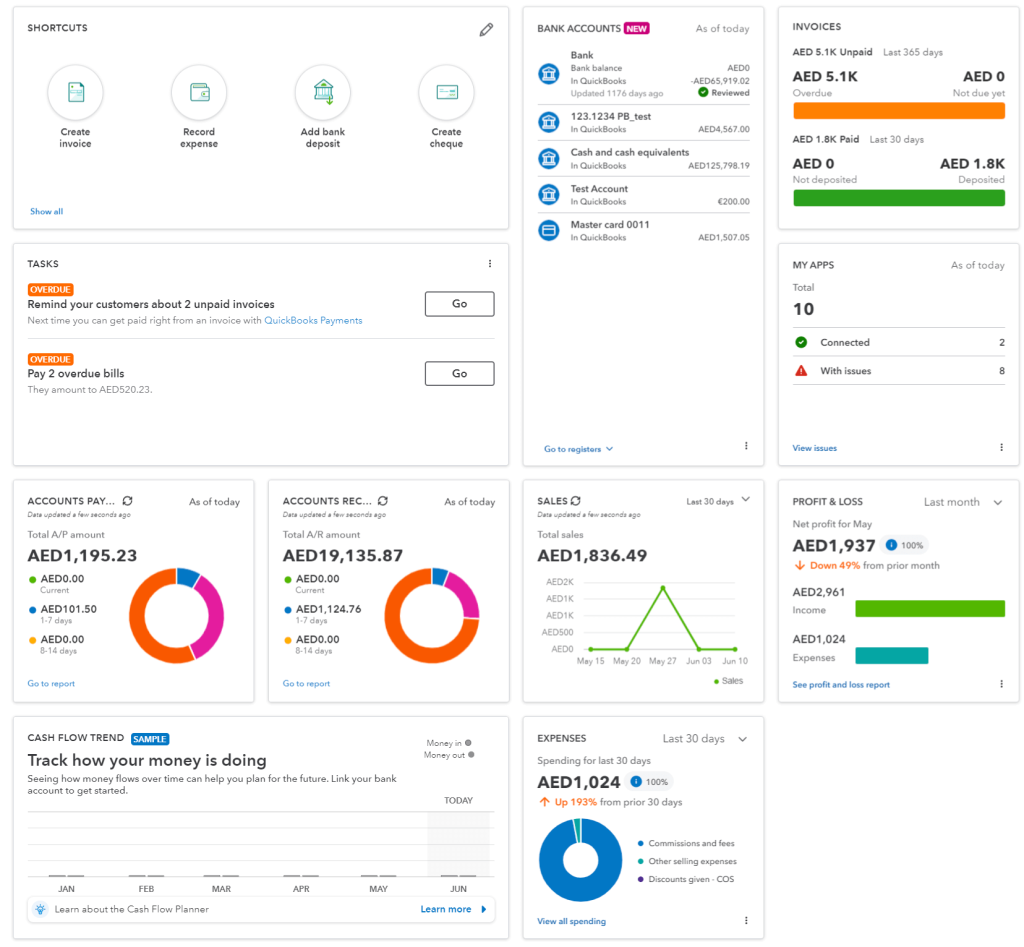
In the Home tab, you will find several widgets. By default, you may have Shortcuts, Bank Accounts, Invoices, Tasks, and Sales. You can add and remove widgets to your liking.
The setup guide will walk you through the process of setting up your company activities, like navigating your account, customizing your invoice template, and setting up your tax information.
Shortcuts are useful for navigating QuickBooks features more easily, eliminating the time to perform tasks you often do. Such tasks include, for example, adding a supplier, an expense, a bill, a new customer, and more.
The bank accounts option shows the balance for the current account that you have connected to QuickBooks Online.
The Cash flow tab offers an overview of your current cash balance including money in (open and overdue invoices) and out (open and overdue bills).
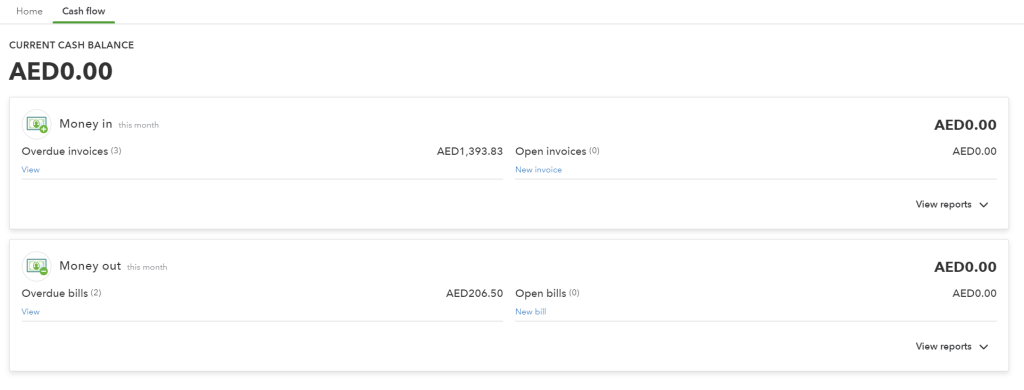
The main idea of the built-in QuickBooks dashboard is to bring essential financial data to the forefront. This allows you to quickly assess your business performance. By the way, with the QuickBooks Online mobile app, you can access your dashboard and stay on top of your finances wherever you are.
How do I customize my dashboard in QuickBooks Online
QuickBooks Online dashboard offers a default set of widgets, but you can also personalize the dashboard to prioritize the most relevant information.
Click Customize Layout in the top right corner of the dashboard. After that, you can relocate the widgets and add/remove widgets.
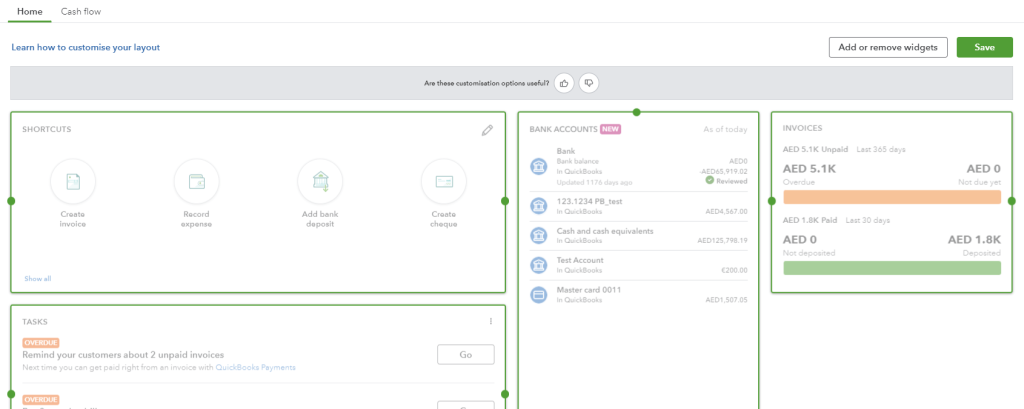
Here are the widgets you can add to your dashboard:
- Accounts Payable
- Accounts Receivable
- Bank Accounts
- Cashflow
- Expenses
- Invoices
- My apps
- Profit & Loss
- Sales shortcuts
- Tasks
Here is what your QuickBooks Online dashboard may look like with all widgets added.
Explore P&L dashboard examples available as free predesigned templates by Coupler.io.
Can I create a custom QuickBooks analytics dashboard from scratch?
As mentioned in a previous section, there is an alternative way to build a dashboard in QuickBooks. A custom dashboard enables you to extend the functionalities and capabilities of QuickBooks to meet the unique needs of your business.
The method of creating a custom dashboard relies on automated exports from QuickBooks using Coupler.io. This reporting automation platform lets you connect QBO to a spreadsheet app or data visualization tool and organize your data before loading it to the destination. Here is what it looks like.
1. Collect data
Select the destination for your data in the form below and click Proceed. You’ll be offered to create a Coupler.io account for free without any payment information required.
We’ve preselected QuickBooks as a data source but Coupler.io also allows you to export existing QuickBooks reports. Choose this option if needed.
With this dashboard, you can:
- Track overall revenue trends for the last 12 months to identify seasonal fluctuations, peak revenue periods, and unexpected dips that may signal collection issues or changing customer demand.
- Compare revenue and expenses to assess how well your business manages costs relative to income, providing insights for budget planning and identifying whether profitability is improving or declining over time.
- Identify your most valuable customers by revenue contribution to design targeted marketing efforts, develop customer retention strategies, and provide loyalty incentives for high-value clients who drive significant business.
- See which products or services generate the most revenue to understand demand patterns, manage inventory effectively, and adjust sales strategies based on the performance of high or low-performing offerings.
Then connect your QuickBooks account and specify what data you’d like to export: Account, Invoice, Payment, and many more.
2. Organize data
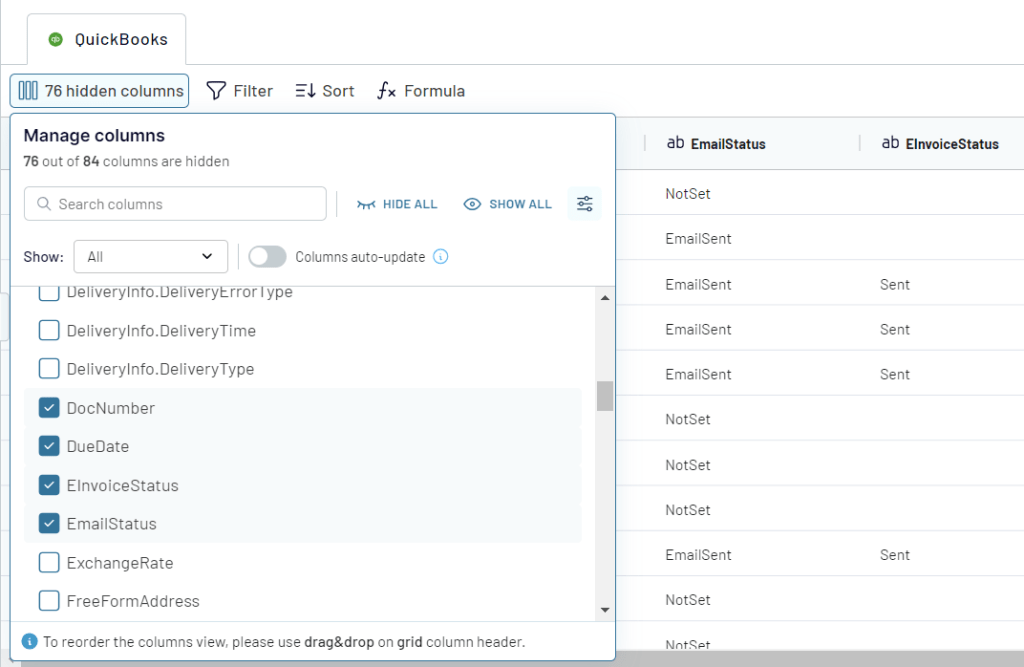
At the next step, you can transform the selected data set to make it analysis-ready:
- Filter or sort data
- Hide unnecessary columns
- Rename existing columns, change their types, or add new calculable columns
- Blend data with information from other sources be it other data entities, QuickBooks accounts or applications.
3. Load data and visualize
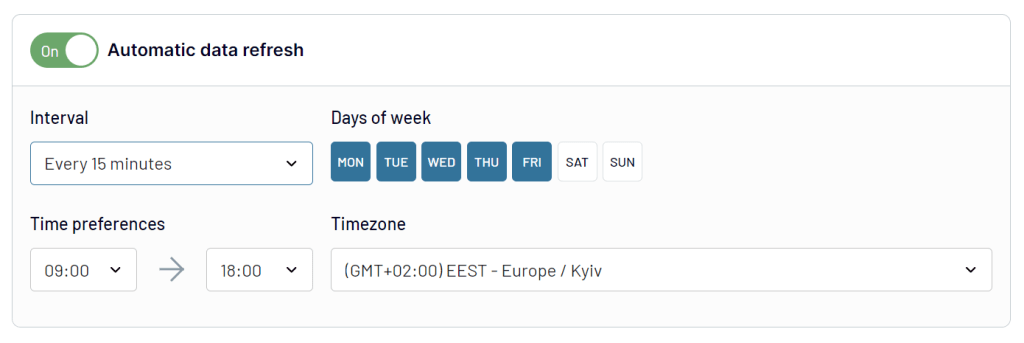
Once the data is ready, connect your destination following the in-app instructions. You can also enable the Automatic data refresh to make your future dashboard self-updating.
With your QuickBooks data loaded to a spreadsheet or a BI tool, you can design your dashboard as you want. Coupler.io supports the following apps for your consideration:
- Spreadsheet apps: Google Sheets, Microsoft Excel
- BI tools: Looker Studio, Power BI, Tableau, Qlik
Which option for a QuickBooks Online dashboard works best?
This article examined the QuickBooks Online dashboard, to help you to get the most out of this software. The platform’s visually appealing and sophisticated dashboard greatly helps take away the pain from business bookkeeping.
However, anyone engaging with financials knows that collecting and organizing data to build dashboards and derive meaningful insight takes a lot of effort. While QuickBooks provides a wealth of features and functionalities, custom dashboards could prove a real boon when you want to save time and do more with your data.