
WooCommerce is an ecommerce platform and Google Looker Studio (former Data Studio) is a data visualization platform. Those who need to connect these two platforms most likely want to build a custom dashboard or report to monitor and analyze their business performance. So, basically, they’d like to automate data flow from WooCommerce to Looker Studio to make a self-updating dashboard. Are you one of these users? I bet you are, so keep reading because I’m going to demonstrate how you can connect WooCommerce to Looker Studio to do some magic with your data.
How can you pull data from WooCommerce to Looker Studio?
When you create a new report in Looker Studio, you’re prompted to connect to data. The most common option is File Upload but it’s not efficient since it includes two steps:
- Download WooCommerce data as CSV to your computer
- Upload this CSV file to Looker Studio
The main drawback of this way is that every time you need to refresh data in your custom dashboard, you’ll have to perform the same operation by hand. This is not what I need, so let’s check out any direct WooCommerce to Looker Studio connectors. Unfortunately, there are no native ones.

However, you can go with one of the partner connectors. Coupler.io is one of these and it allows you to benefit from a custom dashboard with all your WooCommerce data in it. Let’s see how it works!
Connect WooCommerce to Looker Studio to automate data exports
Coupler.io is an all-in-one data integration platform that allows you to gather, transform, and analyze data from WooCommerce. Let’s see how this partner connector works to synchronize Looker Studio and WooCommerce without any coding.
1. Collect data
Click Proceed in the form below where we’ve preselected WooCommerce as a source app and Looker Studio as a destination app. You’ll be prompted to create a Coupler.io account for free.
- In the Source section, you’ll need to connect your WooCommerce account, then select the data entity to export, for example, Customers.
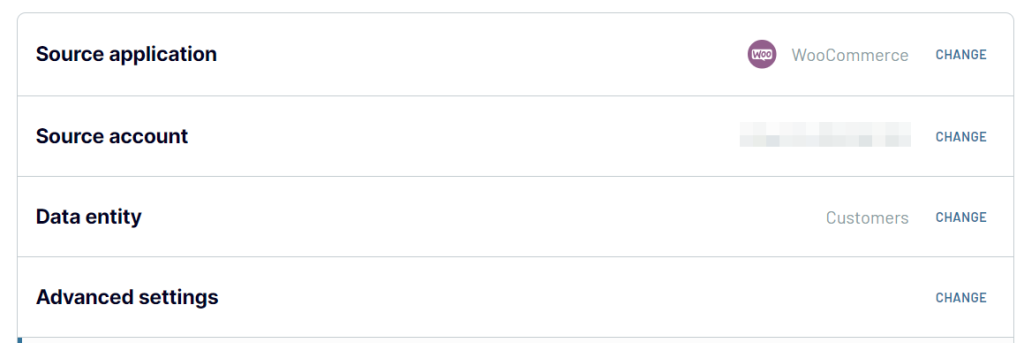
Optionally, you can filter out the data by after/before date, status, and even a search string.
2. Transform data
Coupler.io offers you a preview of the data before importing it into Looker Studio. At this stage, you can also implement additional transformations: hide/add/edit columns, filter records by multiple criteria, sort data, add custom columns, and blend data if multiple sources have been connected.
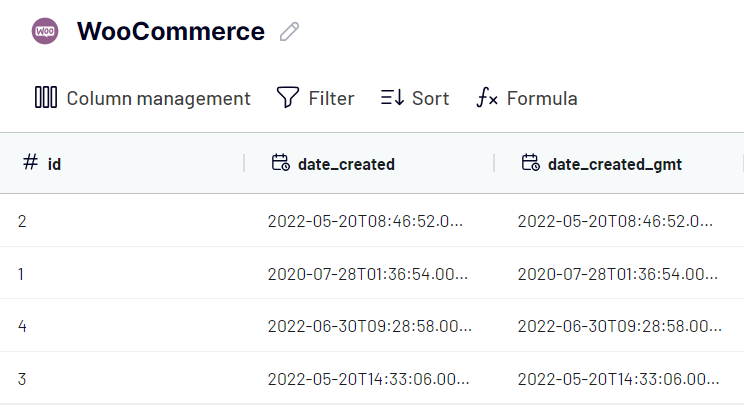
Learn more about the basic transformation options in this video tutorial:
3. Load data and schedule refresh
Once you’re done with the data transformation, proceed to the destination settings. Follow the instructions to connect WooCommerce to Looker Studio.
- You’ll need to authorize the Looker Studio connector. After that, click Connect in the top right corner to create a new data source in Looker Studio.
- Wait till the Coupler.io connector pulls the data from WooCommerce to Looker Studio. Once it’s done, click Create Report.
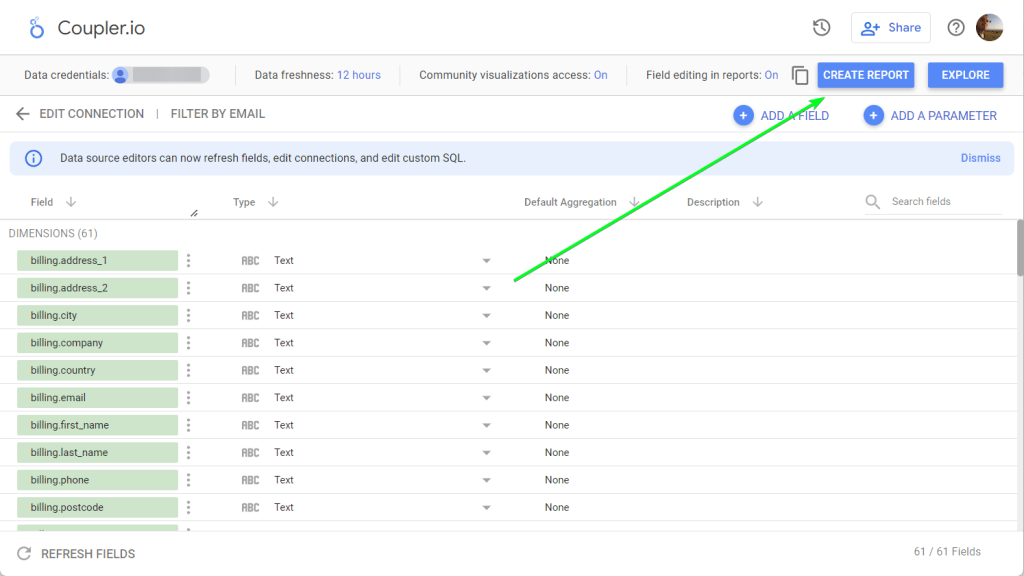
The destination setup flow is different when you connect WooCommerce to Google Sheets.
You can now use the data exported from WooCommerce to build a report in Looker Studio.
Automate data sync between WooCommerce and Looker Studio
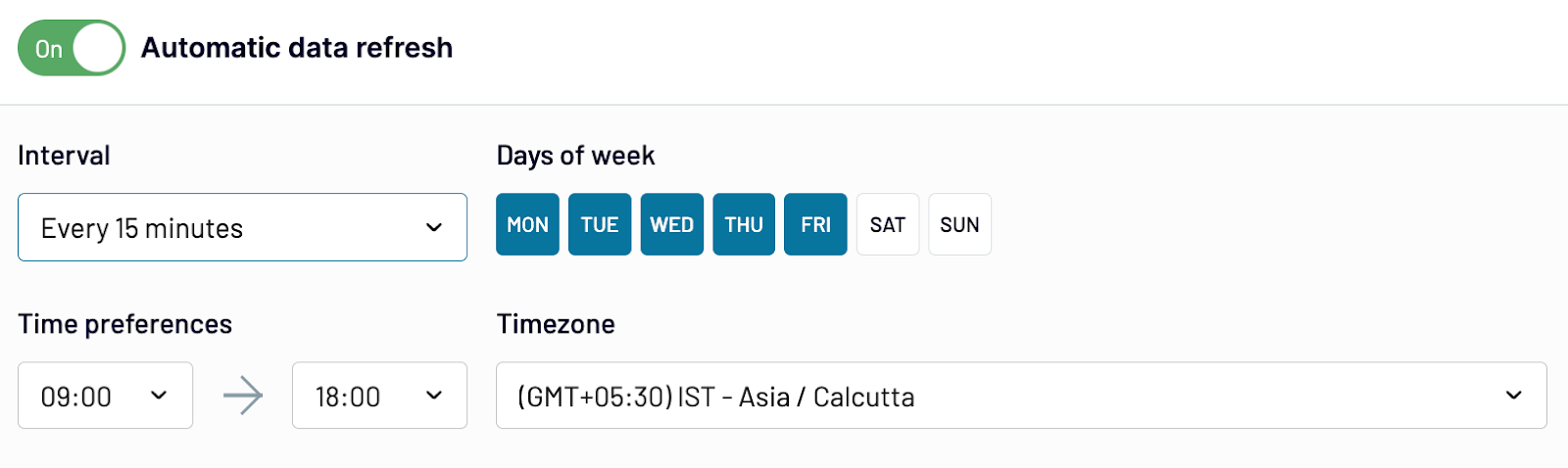
When configuring the WooCommerce Looker Studio importer at Coupler.io, we forgot to enable the automatic data refresh. This feature automates data synchronization between WooCommerce and your newly created data source in Looker Studio. So, toggle it on and configure the schedule you’d like to refresh your data.
What data can you load from WooCommerce to Looker Studio?
In the example above, we mentioned Orders as a data entity to export from WooCommerce to Looker Studio. At the same time, you can count on other entities, raw data and reports, that you can load if you use Coupler.io to connect WooCommerce to Looker Studio.
| Raw data | Reports |
|---|---|
Ready-to-use WooCommerce dashboard templates
Now that you understand how to connect WooCommerce data to Looker Studio, here are three practical examples of what you can build.
WooCommerce marketing funnel dashboard
It’s a marketing funnel dashboard that consolidates your WooCommerce sales data with advertising platform metrics and Google Analytics 4 traffic information.

This pre-built dashboard template demonstrates the full potential of your WooCommerce-Looker Studio connection by combining multiple data sources into actionable insights for e-commerce marketing optimization.
What this dashboard includes:
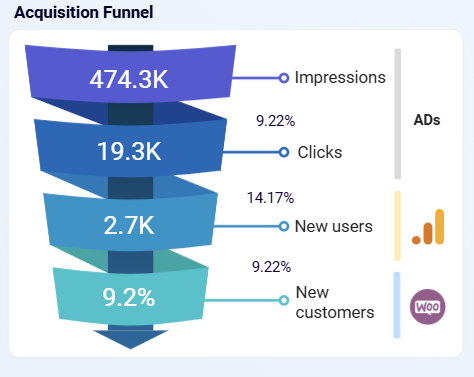
E-commerce acquisition funnel visualization – Shows the complete customer journey from ad impressions to new customers, with conversion rates at each stage to identify bottlenecks in your acquisition process.
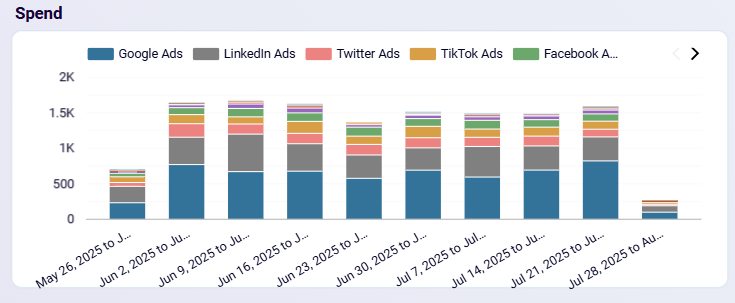
Multi-platform advertising tracking – Displays daily spend distribution across Google Ads, LinkedIn Ads, Twitter Ads, TikTok Ads, and Facebook Ads with performance correlation analysis.
Weekly performance breakdown table – Combines advertising spend, impressions, clicks, and CTR from ad platforms with GA4 traffic data (total users, new users) and WooCommerce sales metrics (orders, revenue, new customers).
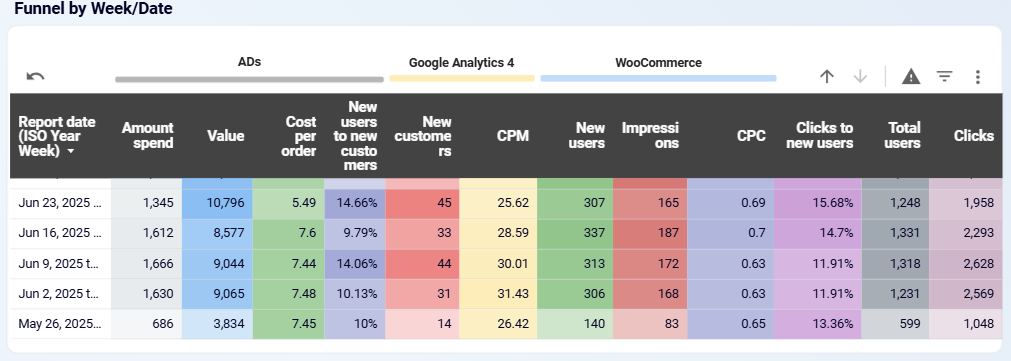
ROI and cost analysis – Tracks new users to new customers conversion rate, return on investment, and cost per order to optimize your advertising budget allocation.
Key insights you can extract:
- Customer acquisition cost optimization – Monitor cost per order trends alongside new customer data to spot when acquisition costs increase and reallocate budgets between platforms for optimal performance.
- Multi-channel budget allocation strategy – Analyze daily spend distribution and use integrated traffic, conversion, and revenue data to determine which platforms deliver the best ROI during specific time periods.
- Conversion funnel leak identification – Track weekly conversion rate trends and traffic-to-sales ratios to pinpoint exactly where potential customers exit your funnel and correlate traffic spikes with acquisition patterns.
- Traffic-to-sales optimization – Use comprehensive traffic and customer data to understand how website visits translate into actual sales, identifying periods where traffic increases don’t correlate with customer acquisition.
This dashboard template is available for free and connects directly to your WooCommerce store, Google Analytics 4, and advertising platforms using the same connection process outlined above. You can set up automatic data refresh to keep your insights current without manual intervention.
WooCommerce store traffic dashboard
Once your WooCommerce data is flowing into Looker Studio, the next question is usually: where is my traffic coming from, and is it actually converting? This dashboard answers that by combining your WooCommerce sales data with Google Analytics 4 session data in a single report, with no manual data joining required.
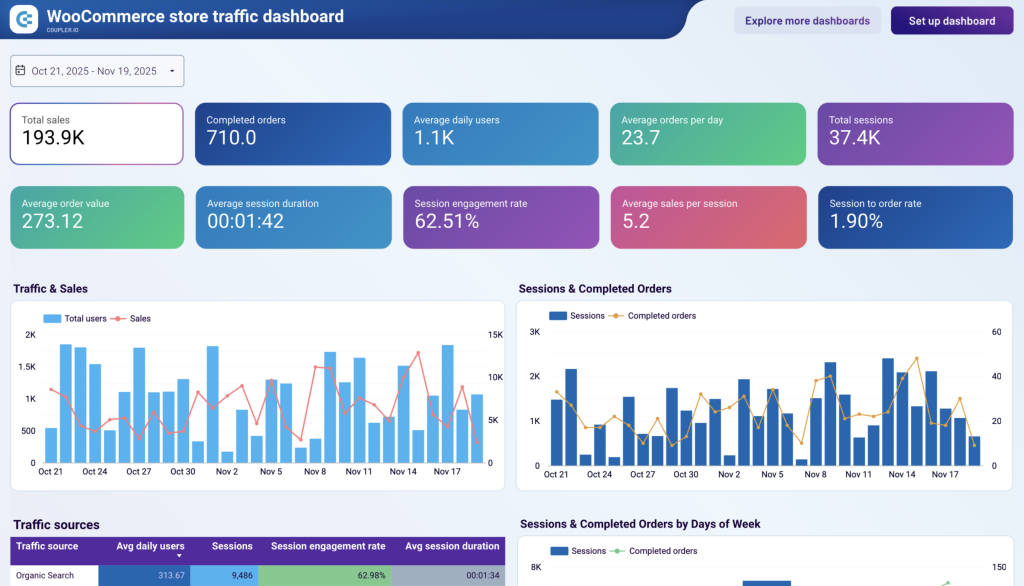
Traffic and sales correlation — The chart overlays daily session volume against completed orders and total sales, making it immediately visible when traffic and revenue move in sync and when they don’t.
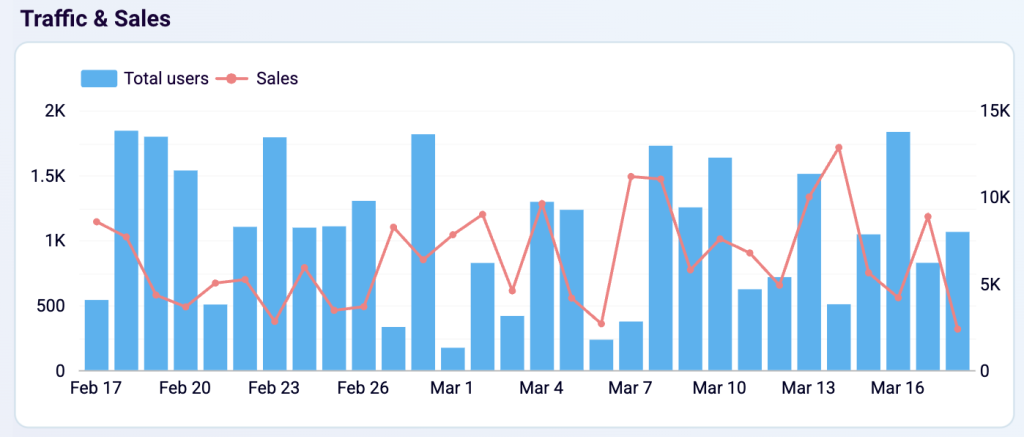
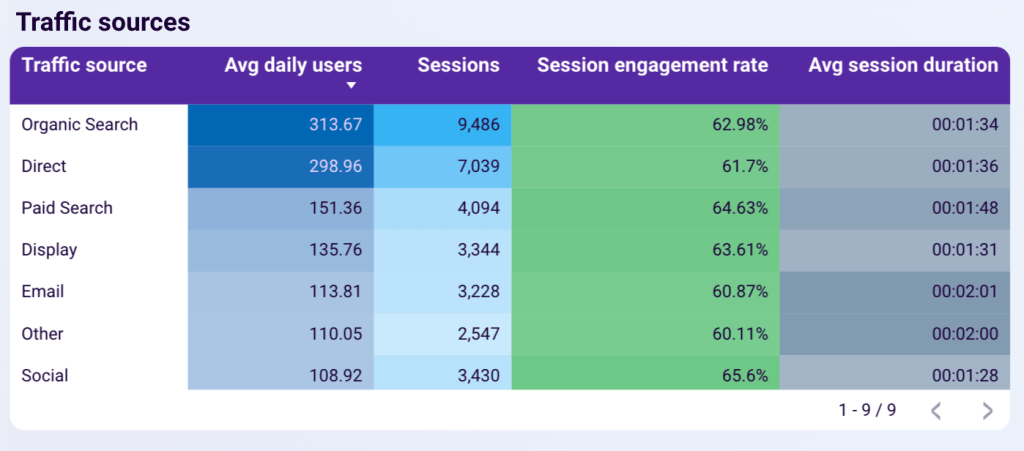
Channel performance breakdown — The table shows average daily users, session engagement rate, average session duration, and session-to-order rate for each acquisition channel. This tells you which sources send buyers versus which send visitors who leave without purchasing.
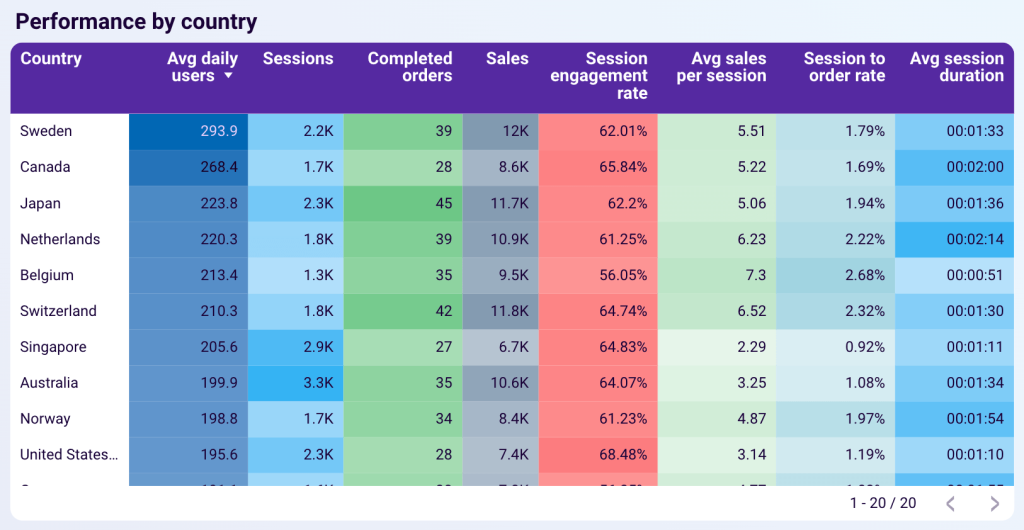
Geographic conversion analysis — The performance-by-country table combines GA4 traffic data with WooCommerce order data per market (sessions, completed orders, average sales per session, and session-to-order rate), so you can compare markets on conversion efficiency rather than traffic volume alone.
Key insights you can extract:
- Identify underperforming channels — compare session-to-order rates across acquisition sources to find channels that generate traffic but not revenue, and adjust budget allocation accordingly.
- Find your best-converting days — the Sessions & Completed Orders by Day of Week chart reveals when your store converts best, useful for scheduling promotions and email campaigns.
- Prioritize geographic expansion — use per-market conversion rates and average sales per session to identify which countries deserve more marketing investment based on how efficiently they convert.
This dashboard template uses the same Coupler.io WooCommerce connector you set up above, plus a GA4 connection. It refreshes automatically on your chosen schedule.
WooCommerce orders dashboard
This template focuses on what happens after a purchase is made. It pulls order data directly from your WooCommerce store (the same source you just connected) and visualizes fulfillment performance, customer purchase behavior, and revenue by geography in one place.
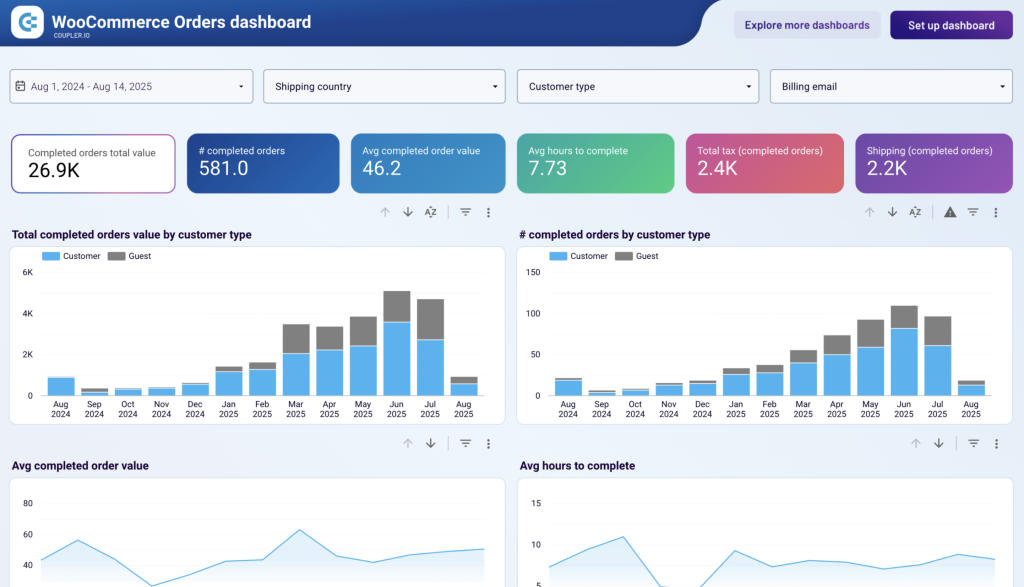
Order value and fulfillment trends — Two trend charts show how the average completed order value and average hours to complete shift over time. These sit side by side so you can spot whether fulfillment slowdowns coincide with high-order-volume periods or happen independently.
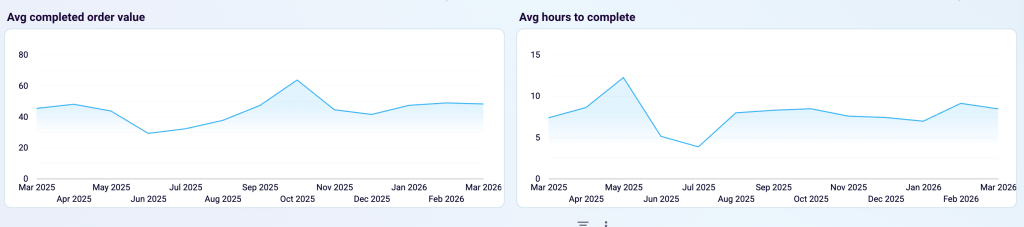
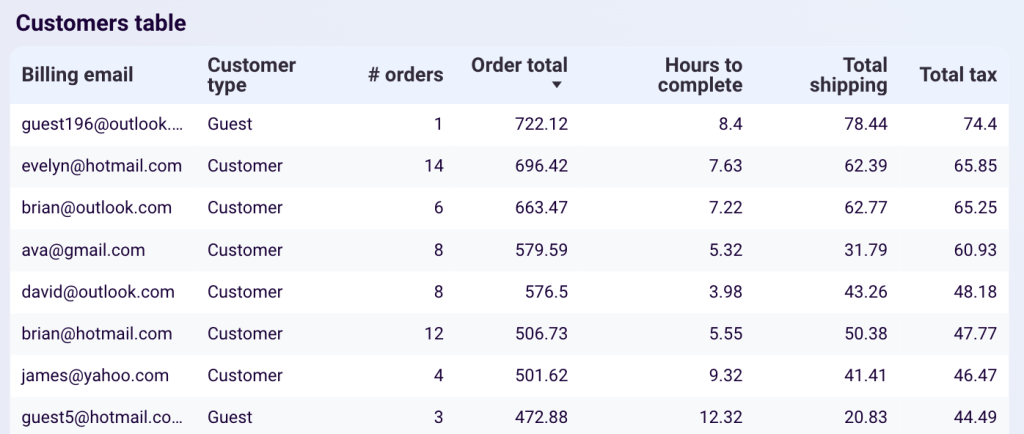
Customer type analysis — Monthly charts split completed order volume and revenue between registered customers and guest buyers, giving you a direct read on whether your store’s registered base generates meaningfully different purchasing behavior.
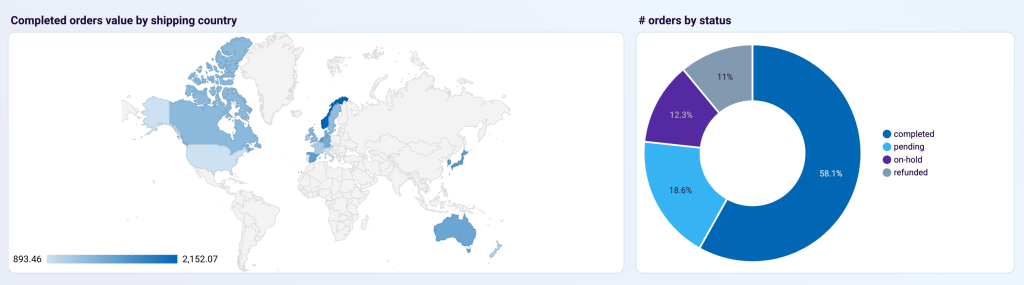
Order status and geographic distribution — A pie chart shows the breakdown of orders by status (completed, pending, on-hold, refunded) while a color-coded geographic map displays completed order value by shipping country.
Key insights you can extract:
- Catch pipeline problems early — monitor the share of pending and on-hold orders over time to identify checkout or payment friction before it becomes a support issue.
- Evaluate the value of account creation — compare registered versus guest buyer revenue and order frequency to decide how aggressively to promote account sign-up at checkout.
- Make data-driven shipping decisions — use the geographic map alongside per-country order data to assess which markets are worth expanding into and which carry costs that outweigh their revenue contribution
This dashboard requires only your WooCommerce connection; no additional data sources are needed. Set up the Coupler.io connector once, and the report stays up-to-date automatically.
Are there other options to connect WooCommerce to Looker Studio?
Well, Coupler.io is not the only partner connector to synchronize WooCommerce to Looker Studio. There are other options presented by Catchr, Funnel, Octoboard, and others.

We can’t say how good or bad they are due to our marketing prejudice. However, if you’re up for experimenting, then you can always try them out. On the other hand, do you really need to do this if you can start with Coupler.io right away and get your job done? Besides WooCommerce, Coupler.io supports plenty of other sources including CRM apps, marketing tools, project management apps, and more.
Automate WooCommerce data export with Coupler.io
Get started for free