
Imagine your GitHub data automatically flowing into a Google Sheets dashboard that’s always up to date. This means no more copying and pasting between tabs, and no more outdated Google Sheets that fall behind the moment you close them. In this post, we’ll explore how to connect GitHub to Google Sheets, starting with the no-code option: Coupler.io.
Connect GitHub with Google Sheets using Coupler.io
Coupler.io is a data integration platform that extracts data from 400+ apps, such CRMs, marketing tools, project management software, DevOps platforms, and more.
You can upload this data to 10+ destinations, including data warehouses, databases, spreadsheets, AI tools, and business intelligence tools on an automated schedule.
We’ve preselected GitHub as the data source and Google Sheets as the destination in the form below. You just have to click PROCEED to get started quickly.
Once your account setup is ready, follow this step-by-step process to connect GitHub to Google Sheets and automate data flow.
Step 1. Collect GitHub data
Connect your GitHub account. Then, select the data entity type you want to export and specify the GitHub repository you want to export data from.
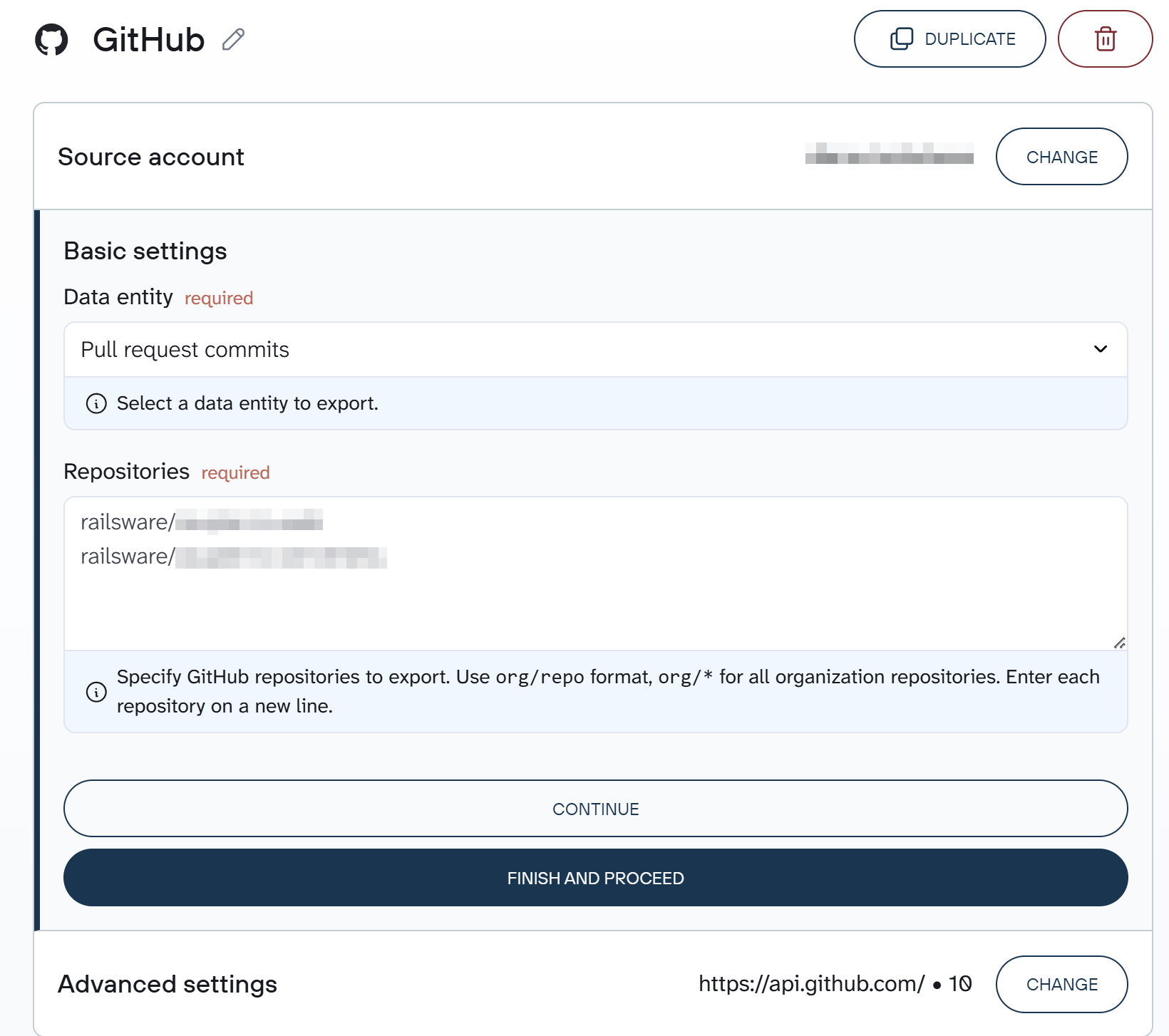
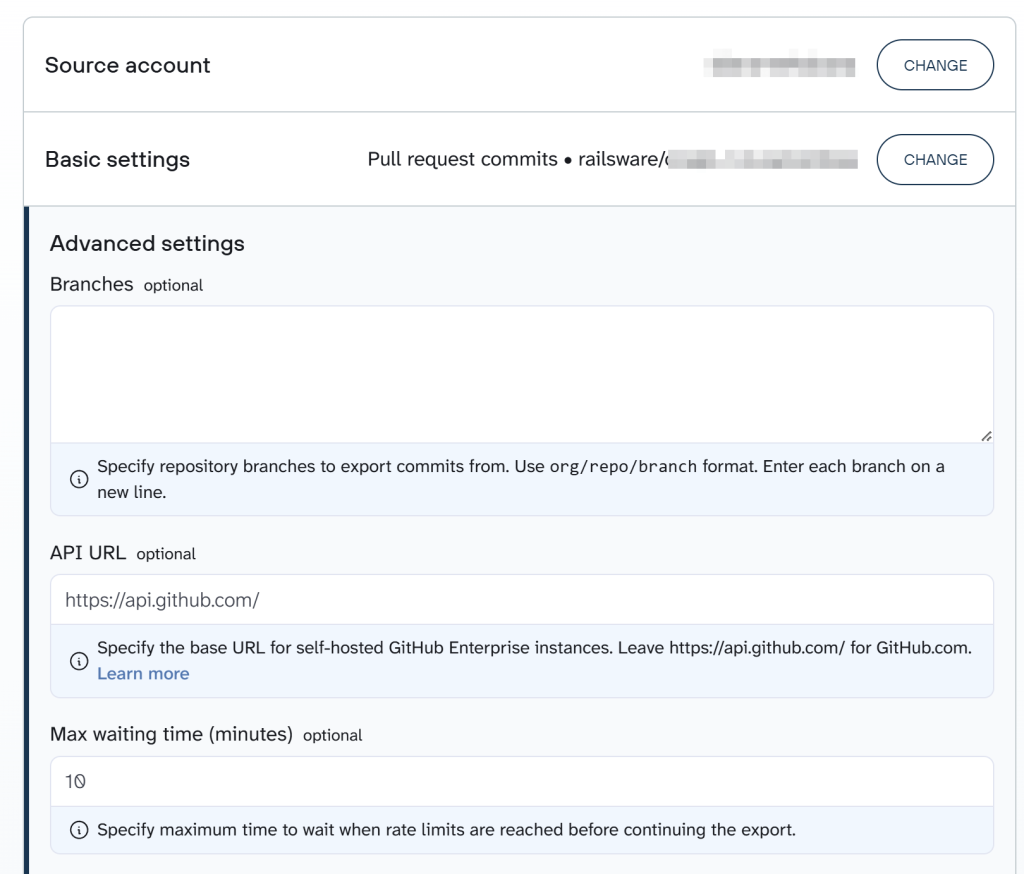
Optionally, you can set a start date, specify repository branches, the API URL, and the maximum waiting time in the Advanced settings.
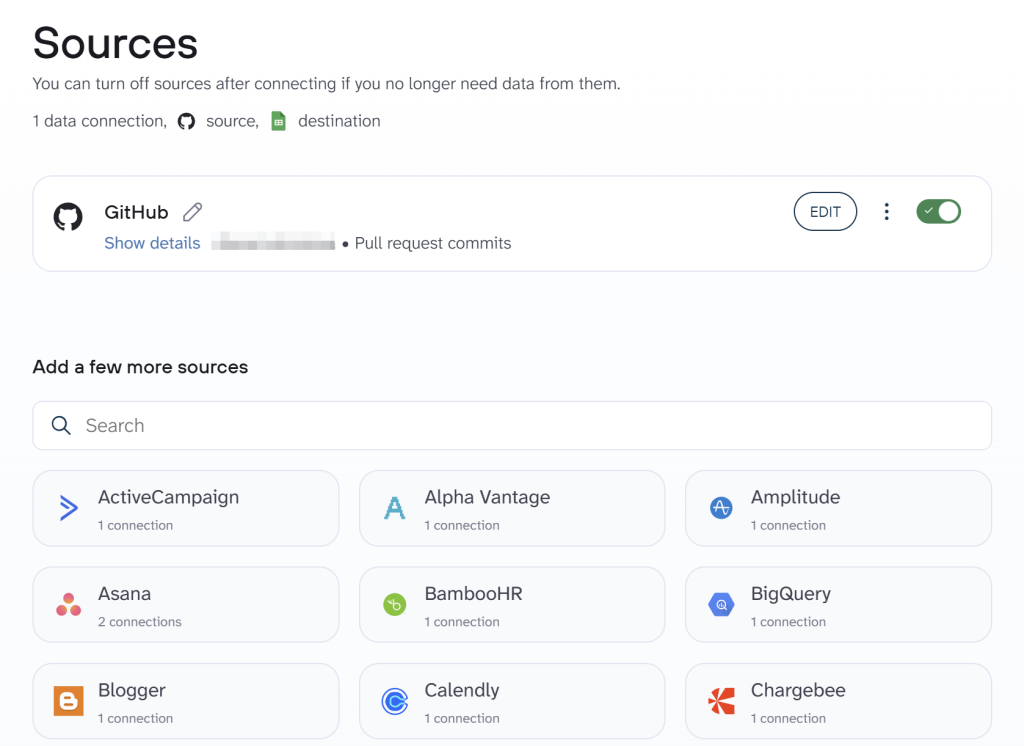
If you want to fetch more than one data entity type from GitHub, you have to add GitHub as a source again and follow the steps mentioned above.
Furthermore, Coupler.io allows you to add multiple data sources to the same data flow to blend data for better insights.
Step 2. Organize the dataset
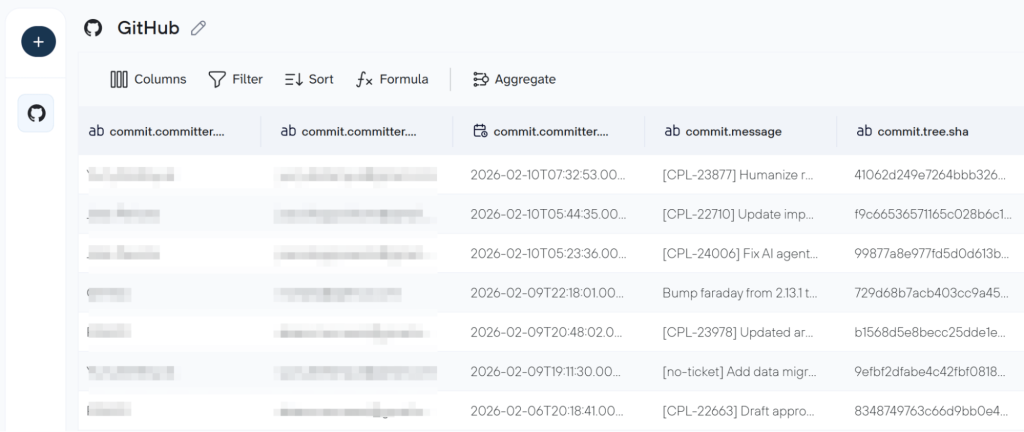
The next step is optional, yet it allows you to organize your GitHub data to make it analysis-ready for a report or even a conversation with AI.
Here you:
- Manage existing columns like hide, rename, edit, etc.
- Sort the rows and apply filters according to the rules you define
- Create new columns using formulas for quick calculations
- Aggregate data to gather rich insights
Step 3. Load GitHub data to Google Sheets and automate refresh
Now, connect your Google account and specify a spreadsheet where you want to upload your data.
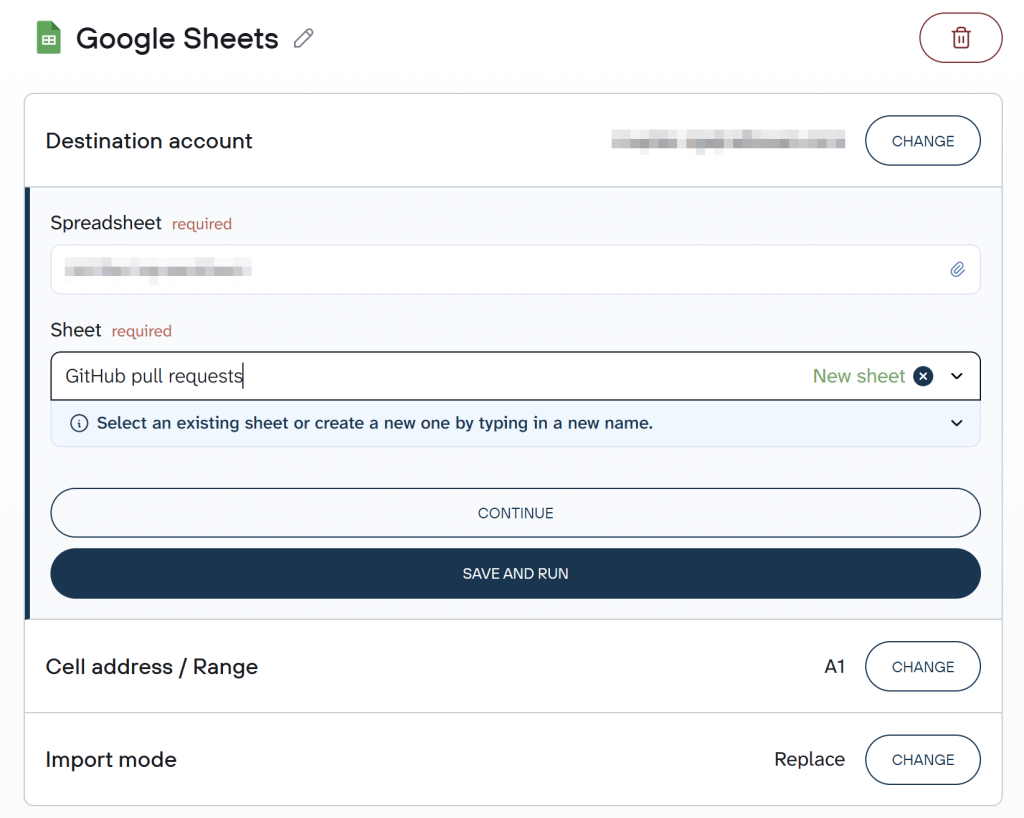
Next, you have to configure the flow settings. Coupler.io lets you refresh your data export flow at various intervals: monthly, daily, hourly, every 30 minutes, or every 15 minutes.
What’s more, you can also customize when your data updates by selecting your preferred time, time zone, and specific weekdays for the refresh to occur.
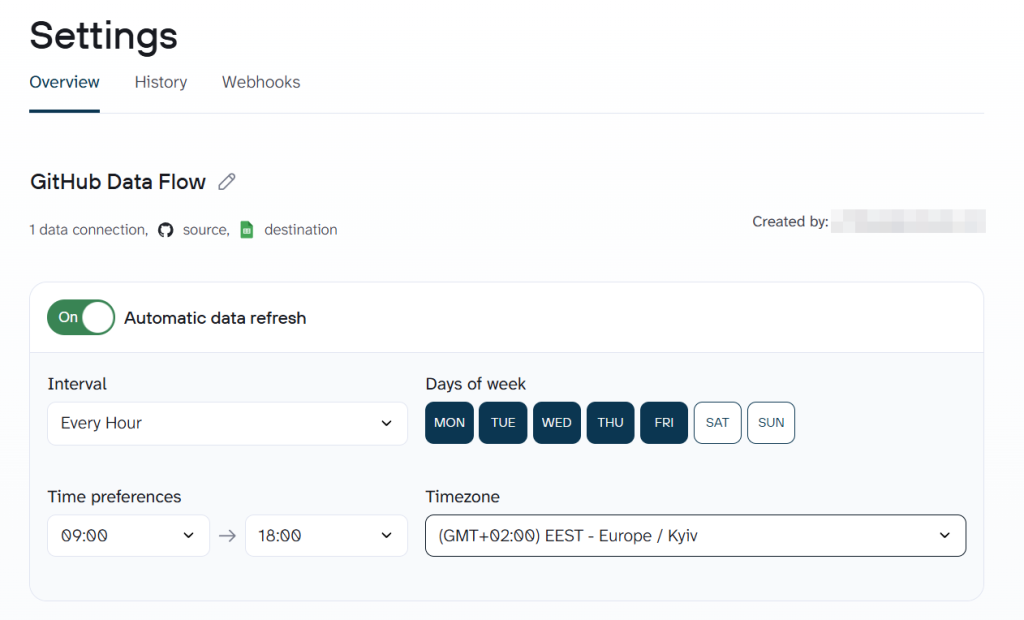
That’s it. Your GitHub data will now export to Google Sheets at your chosen interval.
Which data you can export from GitHub to Google Sheets
The GitHub data connector by Coupler.io allows you to export almost 40 data entities from GitHub. Here are the most common ones:.
| Data entity | Use case |
|---|---|
| Issues | Monitor your project (bugs, features, tasks, etc.) |
| Pull requests | Track code review and merge activity |
| Commits | Measure development velocity and contributions |
| Repositories | Get a catalog of all repos |
| Workflow runs | Monitor CI/CD health and track build success/failure rates |
| Reviews | Assess code review quality |
| Branches | View active development streams, |
| Releases | Track shipping cadence and versioning |
| Deployments | Map release-to-production pipeline and understand deployment frequency |
| Contributor activities | View team productivity distribution (Who is contributing what and where) |

Automate GitHub data export with Coupler.io
Get started for freeOther options to set up GitHub – Google Sheets integration
The Coupler.io GitHub connector covers the most common data entities. But if you need data that the connector doesn’t currently support, GitHub REST API is the way to go. You can access it directly through Coupler.io’s JSON connector or Google Apps Script.
The JSON connector is the easier option as there is no need to build a custom integration in Python or any other tool.
We’ll cover both methods below, starting with the JSON connector. But first, you’ll need a GitHub API token. Let’s walk through that.
How to get a GitHub API token
- Sign in to Github and go to this link. Alternatively, you can go to Settings => Developer settings => Personal access tokens. Click Generate new token.
You will have two options when generating new personal access tokens: fine-grained tokens and classic tokens. For personal API use and using Git over HTTPS, fine-grained tokens are suitable. And classic tokens act like ordinary OAuth tokens, which third-party connectors expect. So, we will create classic personal access tokens.
- On the next screen, you’ll need to configure your access token:
- Specify what the token is for
- Select the expiration period
- Select scopes
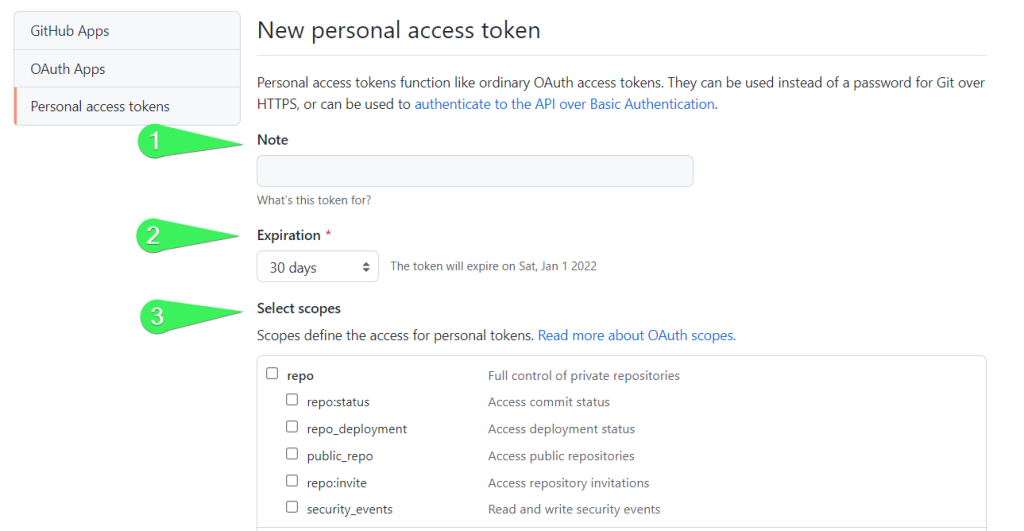
Scopes let you specify exactly what type of access you need. For example, the read:user scope allows you to read ALL user profile data.
- Click Generate token once you’re ready and copy the token you get.
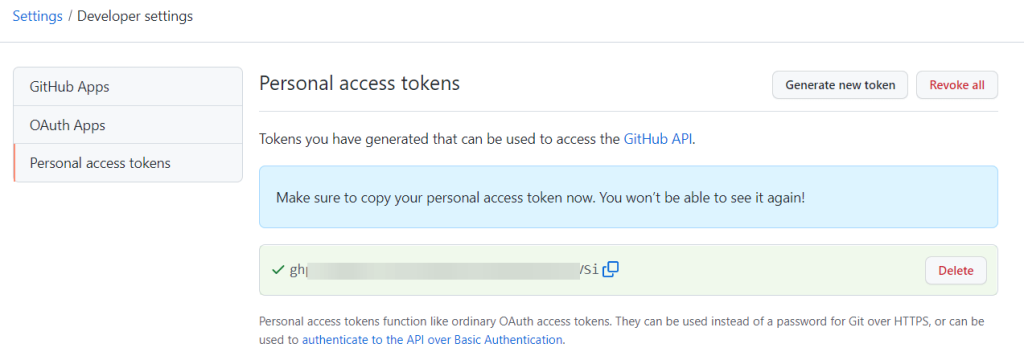
Now, let’s see how to export GitHub data to Google Sheets using it.
Sync GitHub with Google Sheets using JSON connector
We’ve created the following form to help you get started quickly. Click PROCEED, and it will prompt you to create a free Coupler.io account without submitting any card details.
Specify the JSON URL according to the data you want to export from GitHub. Click Continue.
The basic GitHub API URL is:
https://api.github.com/
Depending on the data entity you’re exporting from GitHub, the basic JSON URL will be attached with the respective endpoints. For example, to get a list of GitHub organizations, the JSON URL is the following:
https://api.github.com/organizations
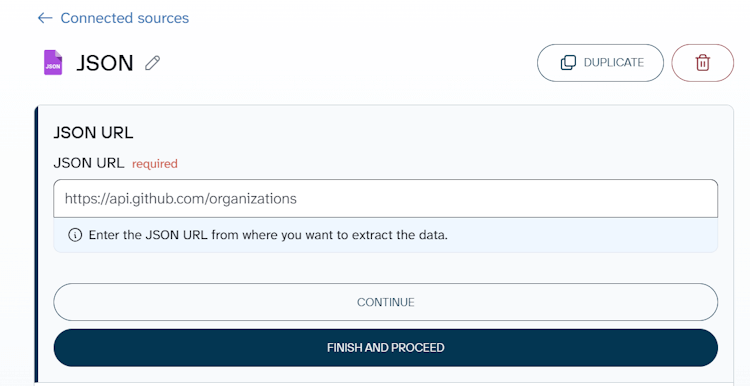
Select GET as the HTTP method. Add the following strings to the HTTP headers field:
Authorization: token {insert-your-token}
Accept: application/vnd.github.v3+json
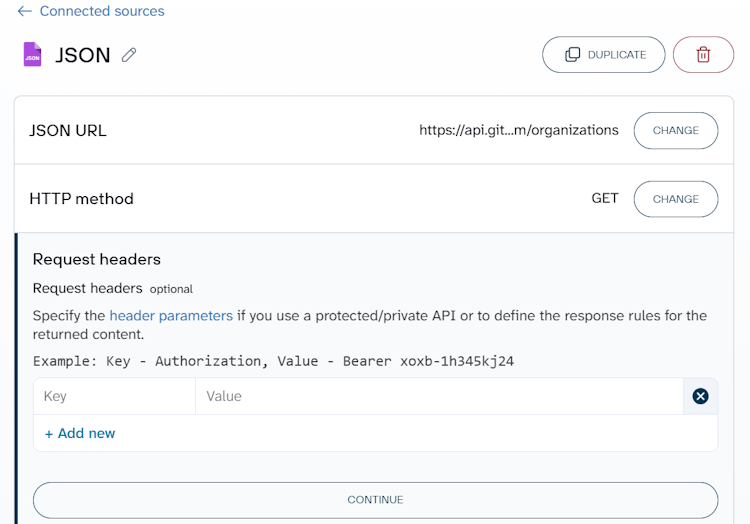
Authentication with the personal access token is not the only way to access the GitHub API. It works well for our case, but for OAuth Apps or GitHub Apps in production, you should authenticate using the web application flow or on behalf of the app installation.
Other parameters, URL query, Request Body, Columns, and Path are optional.
- URL query allows you to query the exported data. For example, to export all closed user projects, you’ll need to specify the following query in the URL query string:
state:closed
All available query options can be found in the GitHub API documentation.
- Request body is not used with GET requests and allows you to specify the request body.
- Columns allows you to specify which columns you want to export.
- Path allows you to select nested objects from the JSON response.
Now you can jump to the destination setup, which is identical to the one we’ve covered above.
What GitHub data you can pull into Sheets
You can export any data available via the GitHub REST API to Google Sheets, including repository, commit, branch, collaborator, issue, pull request, etc. You can find the full information in the GitHub REST API documentation. Here are a few most common options
| Description | Endpoint to add to the basic JSON URL* |
|---|---|
| GitHub stats | |
| Get the weekly commit activity | /repos/{owner}/{repo}/stats/code_frequency |
| Get the weekly commit count | /repos/{owner}/{repo}/stats/participation |
| Get the hourly commit count for each day | /repos/{owner}/{repo}/stats/punch_card |
| Get the last year of commit activity | /repos/{owner}/{repo}/stats/commit_activity |
| Get all contributor commit activity | /repos/{owner}/{repo}/stats/contributors |
| Other actionable resources | |
| List organization repositories | /orgs/{org}/repos |
| Get a repository | /repos/{owner}/{repo} |
| List repository contributors | /repos/{owner}/{repo}/contributors |
| List repository collaborators | /repos/{owner}/{repo}/collaborators |
| List repositories for a user | /users/{username}/repos |
| List repository tags | /repos/{owner}/{repo}/tags |
| List repository teams | /repos/{owner}/{repo}/teams |
| List branches | /repos/{owner}/{repo}/branches |
| List commits | /repos/{owner}/{repo}/commits |
| List pull requests associated with a commit | /repos/{owner}/{repo}/commits/{commit_sha}/pulls |
| List pull requests | /repos/{owner}/{repo}/pulls |
| List commits on a pull request | /repos/{owner}/{repo}/pulls/{pull_number}/commits |
| List repository events | /repos/{owner}/{repo}/events |
Exporting large amounts of records via the GitHub API
Sarah exported a list of pull requests from her repo and only got 30 records. But in fact, the list is much longer. The reason is that each request to the GitHub API is paginated to 30 items by default. To export the rest of the records, you need to use the page parameter in the URL query field specifying the next pages: 2, 3, etc. Omitting the page parameter in the request means that the GitHub API will return the first page.
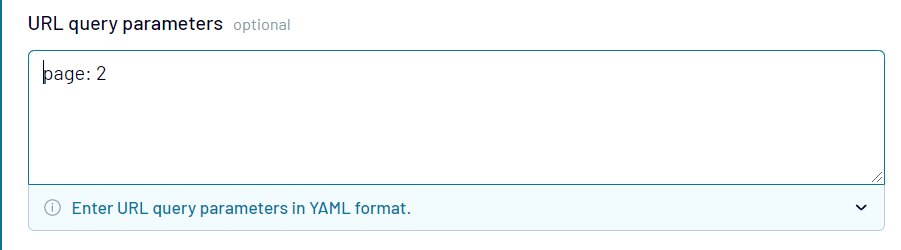
Note: In this case, the append mode offered by Coupler.io is a perfect way to collect all your records in a spreadsheet. It appends the data from the next pages to the previously exported data.
For some data entities, you can use the per_page parameter, which allows increasing the page size up to 100 records.
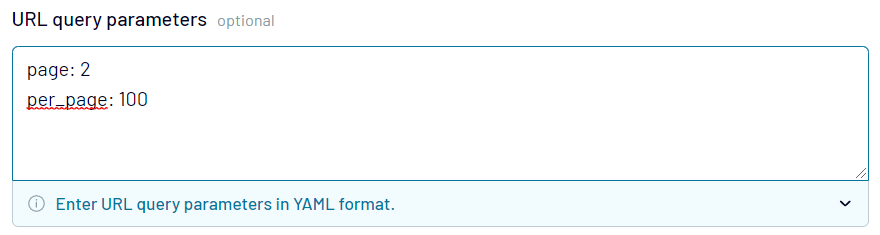
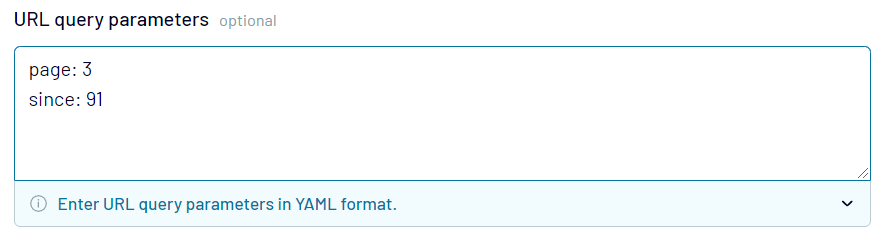
Meanwhile some endpoints use cursor-based pagination which does not allow you to navigate to a specific page using only the page parameter. You’ll need to use additional parameters, such as after, before, since, etc. For example, pagination for exporting a list of users is powered exclusively by the since parameter, so here is how it may look:
Import GitHub data to Google Sheets using App Script
For users comfortable with code, Google Apps Script offers another way to pull GitHub data into Google Sheets.
This method gives you full control over API calls, data transformation, and formatting, but it does require some development effort.
For example, you can create a custom function to fetch data from GitHub to Google Sheets with the following syntax:
=IMPORTAPI("json_url", "api_token")
json_urlis the GitHub JSON URL to fetch data fromapi_tokenis your access token
And here is how it works in action:

The code sample we used for that is the slightly modified ImportJSON by bradjasper:
function ImportAPI(url, api_token, query, parseOptions) {
  var header = {headers: {
                'Authorization': 'token '+ api_token,
                'Accept': 'application/json'}};
  return ImportAPIAdvanced(url, header, query, parseOptions, includeXPath_, defaultTransform_);
}

function ImportAPIAdvanced(url, fetchOptions, query, parseOptions, includeFunc, transformFunc) {
  var jsondata = UrlFetchApp.fetch(url, fetchOptions);
  var object   = JSON.parse(jsondata.getContentText());

  return parseJSONObject_(object, query, parseOptions, includeFunc, transformFunc);
}

function URLEncode(value) {
  return encodeURIComponent(value.toString());
}

function parseJSONObject_(object, query, options, includeFunc, transformFunc) {
  var headers = new Array();
  var data    = new Array();

  if (query && !Array.isArray(query) && query.toString().indexOf(",") != -1) {
    query = query.toString().split(",");
  }

  // Prepopulate the headers to lock in their order
  if (hasOption_(options, "allHeaders") && Array.isArray(query))
  {
    for (var i = 0; i < query.length; i++)
    {
      headers[query[i]] = Object.keys(headers).length;
    }
  }

  if (options) {
    options = options.toString().split(",");
  }

  parseData_(headers, data, "", {rowIndex: 1}, object, query, options, includeFunc);
  parseHeaders_(headers, data);
  transformData_(data, options, transformFunc);

  return hasOption_(options, "noHeaders") ? (data.length > 1 ? data.slice(1) : new Array()) : data;
}

function parseData_(headers, data, path, state, value, query, options, includeFunc) {
  var dataInserted = false;

  if (Array.isArray(value) && isObjectArray_(value)) {
    for (var i = 0; i < value.length; i++) {
      if (parseData_(headers, data, path, state, value[i], query, options, includeFunc)) {
        dataInserted = true;

        if (data[state.rowIndex]) {
          state.rowIndex++;
        }
      }
    }
  } else if (isObject_(value)) {
    for (key in value) {
      if (parseData_(headers, data, path + "/" + key, state, value[key], query, options, includeFunc)) {
        dataInserted = true;
      }
    }
  } else if (!includeFunc || includeFunc(query, path, options)) {
    // Handle arrays containing only scalar values
    if (Array.isArray(value)) {
      value = value.join();
    }

    if (!data[state.rowIndex]) {
      data[state.rowIndex] = new Array();
    }

    if (!headers[path] && headers[path] != 0) {
      headers[path] = Object.keys(headers).length;
    }

    data[state.rowIndex][headers[path]] = value;
    dataInserted = true;
  }

  return dataInserted;
}

function parseHeaders_(headers, data) {
  data[0] = new Array();

  for (key in headers) {
    data[0][headers[key]] = key;
  }
}

function transformData_(data, options, transformFunc) {
  for (var i = 0; i < data.length; i++) {
    for (var j = 0; j < data[0].length; j++) {
      transformFunc(data, i, j, options);
    }
  }
}

function isObject_(test) {
  return Object.prototype.toString.call(test) === '[object Object]';
}

function isObjectArray_(test) {
  for (var i = 0; i < test.length; i++) {
    if (isObject_(test[i])) {
      return true;
    }
  }

  return false;
}

function includeXPath_(query, path, options) {
  if (!query) {
    return true;
  } else if (Array.isArray(query)) {
    for (var i = 0; i < query.length; i++) {
      if (applyXPathRule_(query[i], path, options)) {
        return true;
      }
    }
  } else {
    return applyXPathRule_(query, path, options);
  }

  return false;
};

function applyXPathRule_(rule, path, options) {
  return path.indexOf(rule) == 0;
}

function defaultTransform_(data, row, column, options) {
  if (data[row][column] == null) {
    if (row < 2 || hasOption_(options, "noInherit")) {
      data[row][column] = "";
    } else {
      data[row][column] = data[row-1][column];
    }
  }

  if (!hasOption_(options, "rawHeaders") && row == 0) {
    if (column == 0 && data[row].length > 1) {
      removeCommonPrefixes_(data, row);
    }

    data[row][column] = toTitleCase_(data[row][column].toString().replace(/[\/\_]/g, " "));
  }

  if (!hasOption_(options, "noTruncate") && data[row][column]) {
    data[row][column] = data[row][column].toString().substr(0, 256);
  }

  if (hasOption_(options, "debugLocation")) {
    data[row][column] = "[" + row + "," + column + "]" + data[row][column];
  }
}

function removeCommonPrefixes_(data, row) {
  var matchIndex = data[row][0].length;

  for (var i = 1; i < data[row].length; i++) {
    matchIndex = findEqualityEndpoint_(data[row][i-1], data[row][i], matchIndex);

    if (matchIndex == 0) {
      return;
    }
  }

  for (var i = 0; i < data[row].length; i++) {
    data[row][i] = data[row][i].substring(matchIndex, data[row][i].length);
  }
}

function findEqualityEndpoint_(string1, string2, stopAt) {
  if (!string1 || !string2) {
    return -1;
  }

  var maxEndpoint = Math.min(stopAt, string1.length, string2.length);

  for (var i = 0; i < maxEndpoint; i++) {
    if (string1.charAt(i) != string2.charAt(i)) {
      return i;
    }
  }

  return maxEndpoint;
}


function toTitleCase_(text) {
  if (text == null) {
    return null;
  }

  return text.replace(/\w\S*/g, function(word) { return word.charAt(0).toUpperCase() + word.substr(1).toLowerCase(); });
}

function hasOption_(options, option) {
  return options && options.indexOf(option) >= 0;
}

function parseToObject_(text) {
  var map     = new Object();
  var entries = (text != null && text.trim().length > 0) ? text.toString().split(",") : new Array();

  for (var i = 0; i < entries.length; i++) {
    addToMap_(map, entries[i]);
  }

  return map;
}

function addToMap_(map, entry) {
  var equalsIndex = entry.indexOf("=");
  var key         = (equalsIndex != -1) ? entry.substring(0, equalsIndex) : entry;
  var value       = (key.length + 1 < entry.length) ? entry.substring(key.length + 1) : "";

  map[key.trim()] = value;
}

function toBool_(value) {
  return value == null ? false : (value.toString().toLowerCase() == "true" ? true : false);
}

function convertToBool_(map, key) {
  if (map[key] != null) {
    map[key] = toBool_(map[key]);
  }
}

function getDataFromNamedSheet_(sheetName) {
  var ss = SpreadsheetApp.getActiveSpreadsheet();
  var source = ss.getSheetByName(sheetName);

  var jsonRange = source.getRange(1,1,source.getLastRow());
  var jsonValues = jsonRange.getValues();

  var jsonText = "";
  for (var row in jsonValues) {
    for (var col in jsonValues[row]) {
      jsonText +=jsonValues[row][col];
    }
  }
  Logger.log(jsonText);
  return JSON.parse(jsonText);
}
You can customize this script or write your own one in App Script or Python. Meanwhile, you can save time by using Coupler.io, a solution that lets you export GitHub to Google Sheets with just a few clicks. This is what Sarah will go with to meet her needs.
Which method should you use?
Use the Coupler.io GitHub connector if you want a quick, no-code setup to export common GitHub data like issues, pull requests, or commits to Google Sheets on an automated schedule. This method is the best fit for project managers, team leads, and anyone who needs a live dashboard without having to touch code or API tokens.
And if you need data that the standard GitHub connector doesn’t cover, explore the Coupler.io JSON connector. The setup gives you Coupler.io’s scheduling feature. But you’ll need to work with GitHub API endpoints and generate an access token.
Google Apps Script is another way to pull GitHub data into Google Sheets. However, it requires coding skills and ongoing maintenance, so it’s best suited for developers with custom requirements.
Automate GitHub data export with Coupler.io
Get started for free