
Klaviyo’s native reporting and analytics features are impressive. But, they come with limited customization support. You may need to connect Klaviyo to Looker Studio (Data Studio) to build an easily shareable dashboard and visualize campaign performance.
Since there is no native Looker Studio connector for Klaviyo, use Coupler.io. This data integration platform with AI analytics support automates data load from over 400 different sources, including Klaviyo. You can combine data from Klaviyo with other information, organize data on the go, and load your data sets to Looker Studio and other destinations within a single data flow. Check out what it looks like in practice.
Connect Klaviyo to Looker Studio using Coupler.io
To set up a Klaviyo to Looker Studio connection, click Proceed in the form below. You’ll be asked to create a Coupler.io account for free with no credit card required.
Alternatively, you can connect Klaviyo to Power BI and many other destinations.
Once your Klaviyo to Looker Studio data flow is created, ensure to get a Klaviyo API get to connect your account.
Step 0. How to get Klaviyo API key?
Follow these steps to get the Klaviyo private API key from the dashboard:
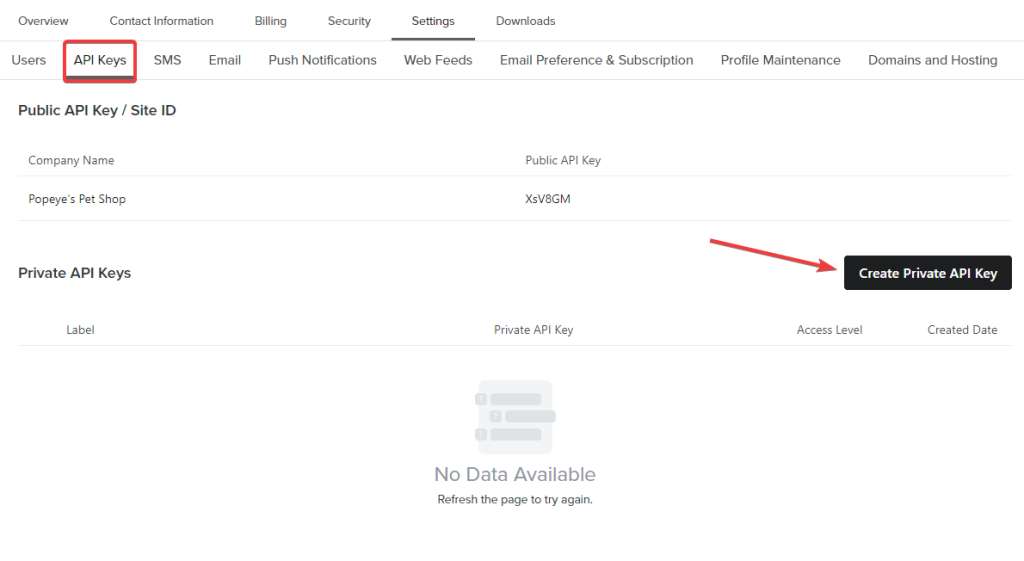
- Go to Settings > API Keys, and click Create Private API Key.
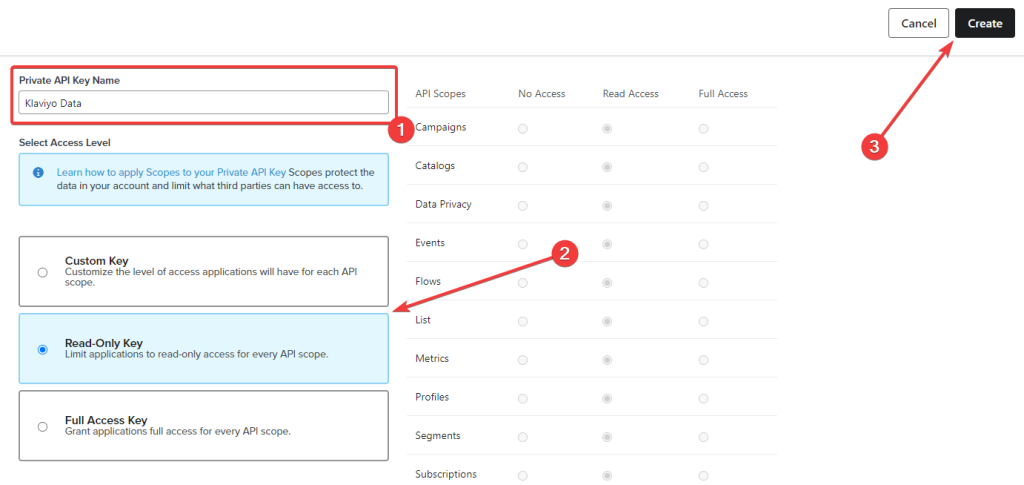
- Now, enter a name for the API key, for example, Klaviyo Data. Then select the appropriate access level and click Create.
- The Klaviyo API key will appear on your screen. Copy it or download it as a .txt file on your computer.
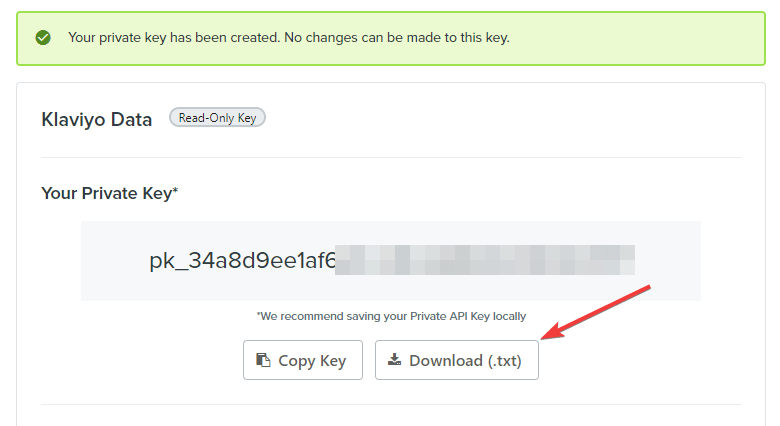
You can also find it in the Settings > API Keys section of your Klaviyo account.
Once you have the private API key, you can use it to connect Klaviyo to Looker Studio.
Step 1. Connect Klaviyo data
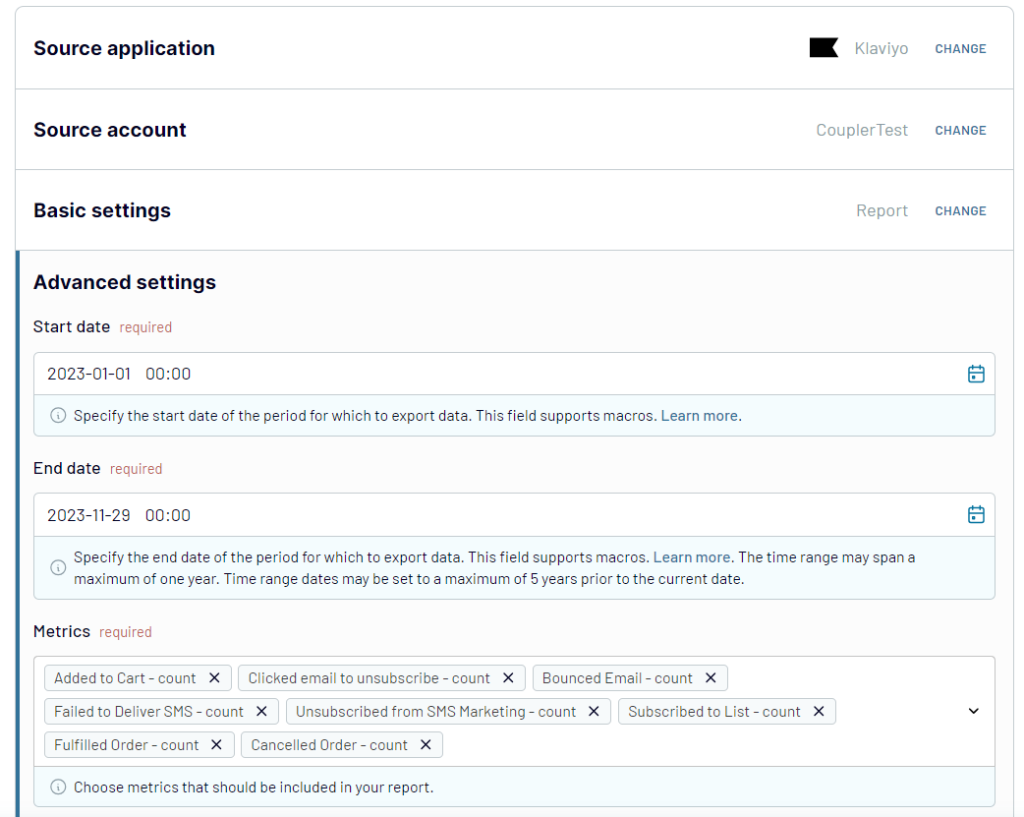
- Connect your Klaviyo account. You’ll need to enter your private API key and its name.
- Select a data entity: Campaigns list, Profiles list, or Report. For the Report, you’ll also need to specify start and end dates, as well as metrics to include in the report.
Coupler.io allows you to merge data from multiple sources. So, you can add more Klaviyo accounts or combine Klaviyo data with the records from other apps and sources. We won’t be doing this here, but feel free to check out how to connect multiple data sources to Looker Studio.
Step 2. Organize your Klaviyo data before Looker Studio
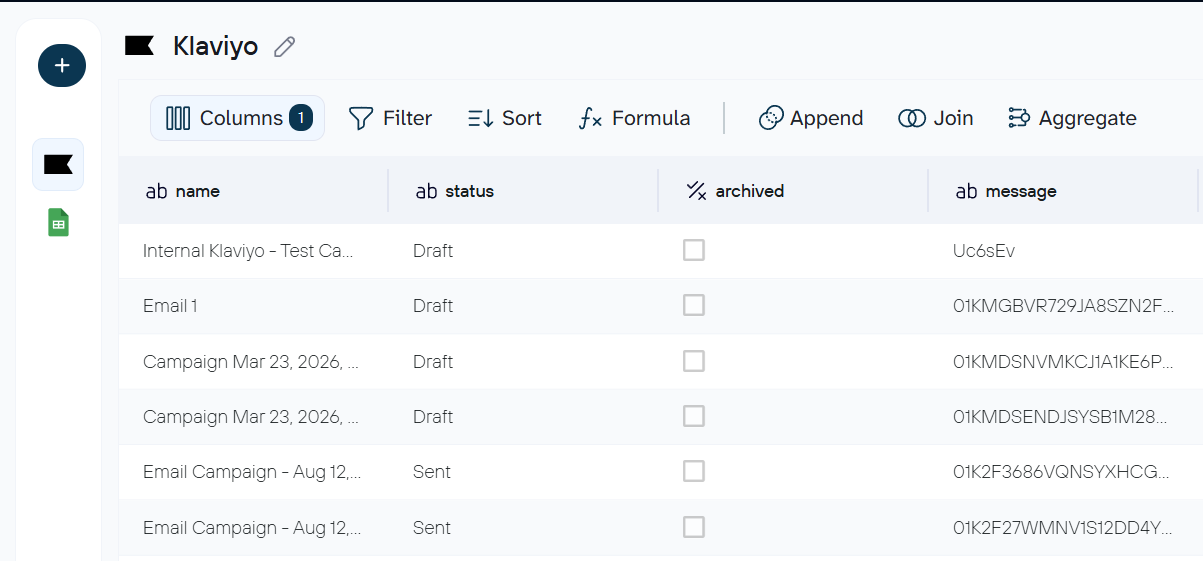
Now, you have the possibility to preview the Klaviyo data before loading it to Looker Studio. In addition to the preview, Coupler.io allows you to perform some transformations to make the data analysis ready:
- Manage columns: Hide/unhide columns, edit their names and types, etc.
- Filter: Filter your selection based on conditions. Using the AND/OR conditions, you can have one or more condition-based filtered data.
- Sort: Sort columns in ascending or descending order.
- Formula: Add new columns using the computable formulas. Learn more about adding formula-based custom columns.
- Aggregate: Group and summarize data — for example, total revenue by campaign or average open rate by segment.
- Blend data: Combine datasets from multiple sources or accounts into one table before it reaches Looker Studio.
Step 3. Load data and schedule refresh
Follow the instructions to load data from Klaviyo to Looker Studio. You’ll get a new data source in Looker Studio that you can build reports on. Click the respective button, and there you go.
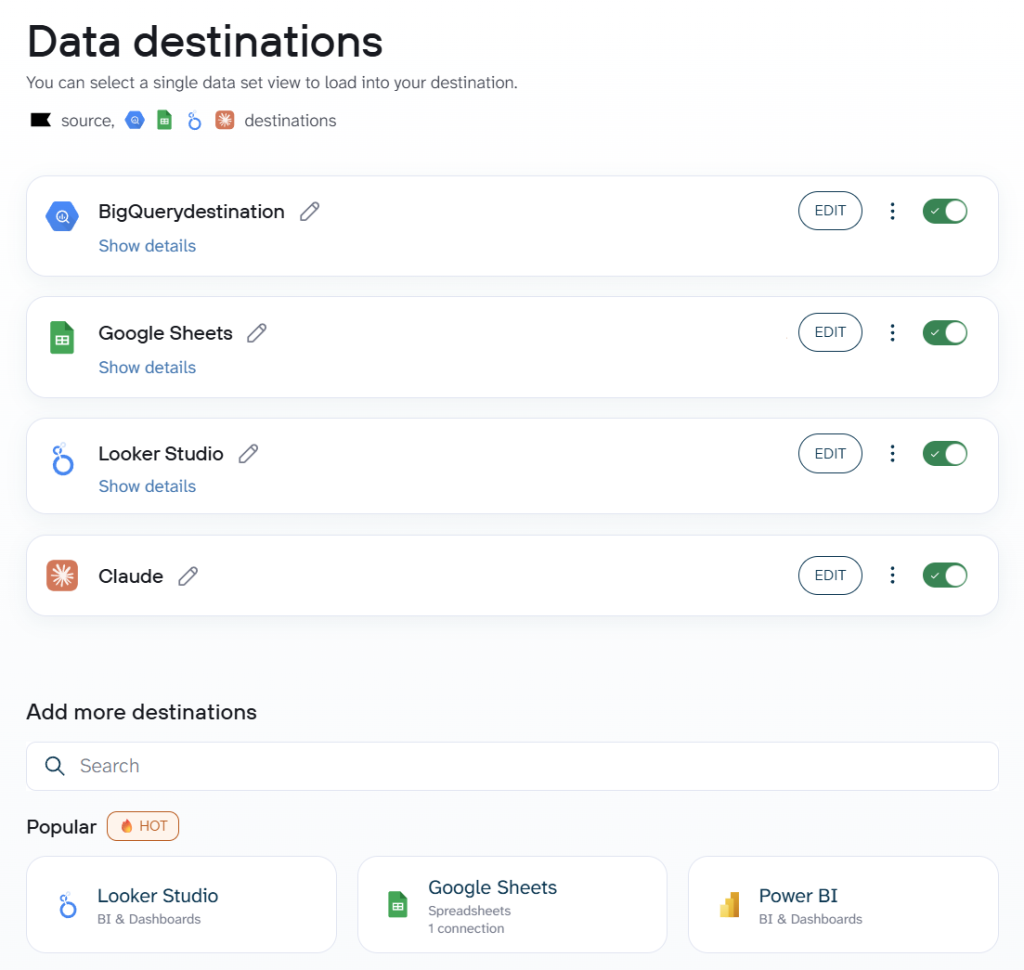
Coupler.io also supports multiple destinations from the same data flow. This means that the same Klaviyo data can go to Looker Studio, BigQuery, Google Sheets, Claude, or another destination at the same time.
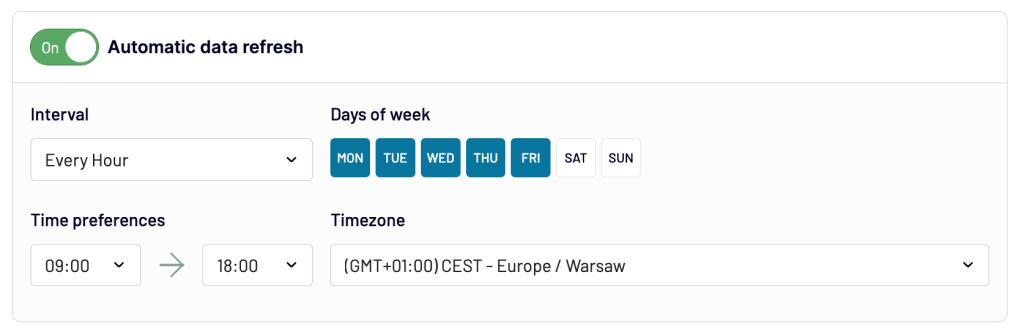
Automate data flow from Klaviyo to Looker Studio. For this, get back to Coupler.io, toggle on the Automatic data refresh, and set up the desired schedule. You can have your data refreshed as frequently as every 15 minutes!
Bonus step. Analyze your Klaviyo data with AI Agent
In a Looker Studio dashboard, you can see your open rates, click trends, campaign comparisons, and other metrics and their progress. But when you want to know why a specific campaign underperformed, or which subscriber segment had the highest click-to-order rate last month, you need to ask a question, not build another chart.
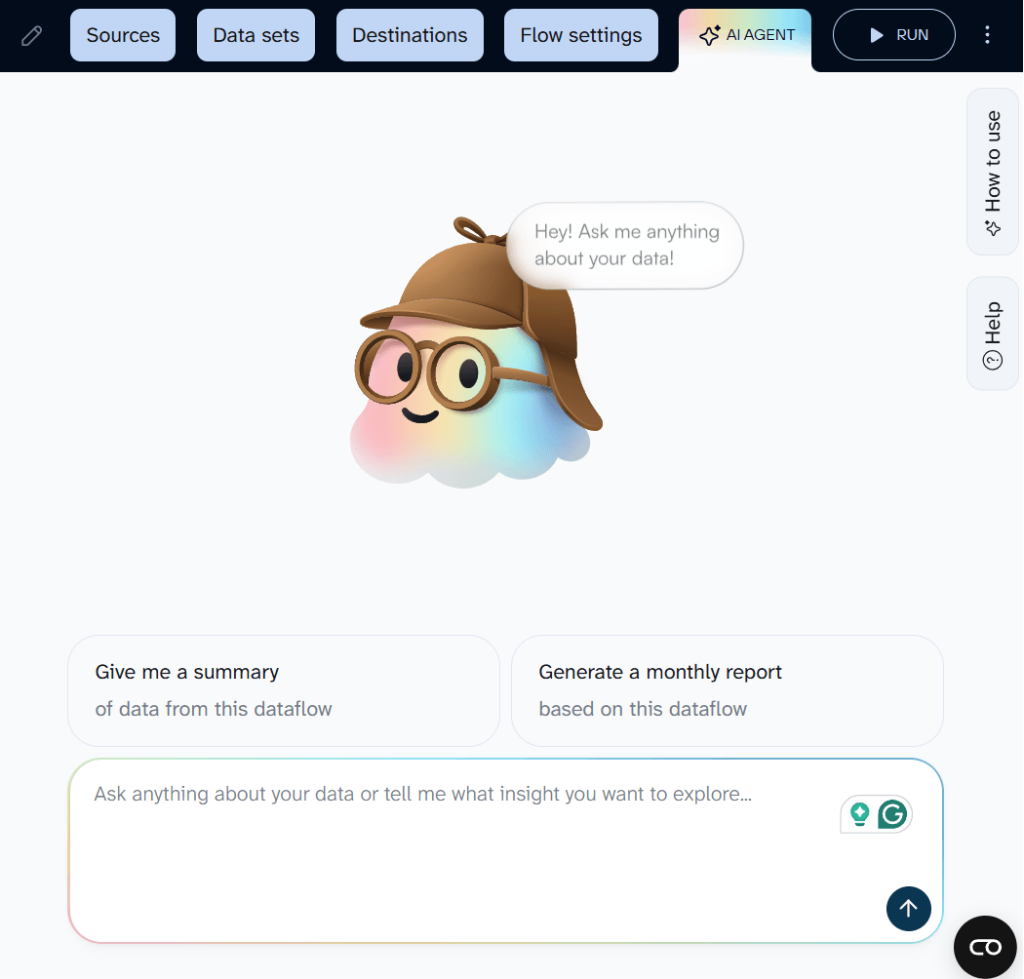
Coupler.io has a built-in AI Agent for that. Click the AI Agent tab next to your Klaviyo data flow and type your question in plain English. The Analytical Engine queries the dataset, runs the math, and passes confirmed results to the LLM.
For those who prefer external AI tools, you can connect the same data flow to Claude, ChatGPT, or other AI platforms via Coupler.io AI Integrations. The data stays structured and filtered the same way you set it up in Step 2.

Connect Klaviyo to Looker Studio and other tools with Coupler.io
Get started for freeWhat data you can import from Klaviyo to Looker Studio with Coupler.io
When you set up a data flow, you pick a data entity that determines which dataset reaches Looker Studio. There are two groups: reports (aggregated performance data over a date range) and core entities (raw records you can filter and transform).
Reports
| Name | Description |
|---|---|
| Metrics analytics | Account-wide event data (counts, sums, unique users) for events like “Placed Order,” “Opened Email,” or “Clicked SMS.” Works well as a base for trend charts and funnel visualizations in Looker Studio. |
| Campaign performance report | Delivery, opens, clicks, conversions, and revenue per campaign. The go-to entity for campaign comparison tables and performance-over-time charts. |
| Segment performance report | Member counts, additions, removals, and net changes per segment with hourly through monthly breakdowns. Useful for audience growth charts in Looker Studio. |
| Flow performance report | Delivery, opens, clicks, and conversions per automated flow over a date range. Lets you build flow comparison dashboards. |
| Forms performance report | Views, submits, submit rate, and closures per sign-up form. Good for tracking lead generation performance across forms. |
Core entities
| Name | Description |
|---|---|
| Campaigns | One-time email sends — message content, recipient estimates, send status, channel settings. Use this when you need a raw campaign log rather than aggregated stats. |
| Profiles | Subscriber records — contact info, predictive analytics (churn risk), consent history, push tokens. Feeds subscriber-level breakdowns and segmentation charts. |
| Flows | Automated journey configurations — welcome series, abandoned carts, post-purchase sequences. Useful when you want to audit or compare flow setups side by side. |
| Segments | Dynamic audience groups with their conditions and rules. Gives you a snapshot of targeting criteria to reference alongside performance data. |
| Forms | Sign-up form configurations, targeting rules, and submission data. Handy for comparing acquisition forms in a single Looker Studio view. |
Free ready-to-use dashboard templates for Klaviyo
You can use the Klaviyo data available in Looker Studio to build visual dashboards and custom reports. However, Coupler.io has got you covered, offering ready-to-use dashboard templates for Klaviyo. Let’s explore how to use them to turn raw data into insights.
Klaviyo dashboard template
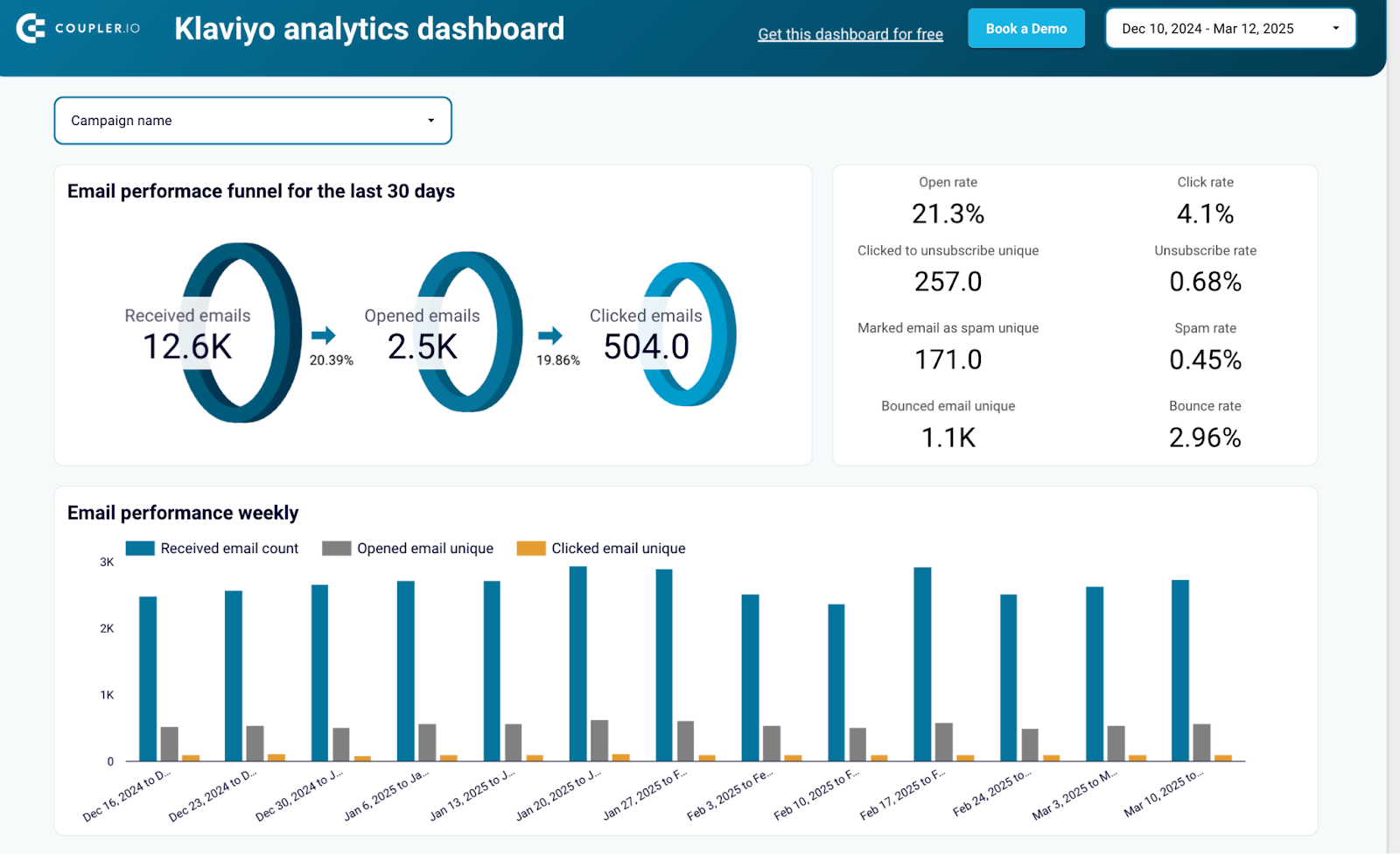
This ready-to-use dashboard template helps you monitor and analyze your Klaviyo email marketing performance with intuitive visualizations. Perfect for marketers who want to quickly understand campaign effectiveness without building reports from scratch.
What insights you can get
- Email marketing funnel visualization: See how your audience moves from receiving emails to taking action
- Campaign effectiveness metrics: Compare open rates, click-through rates and conversion metrics across campaigns
- Audience engagement tracking: Monitor how subscribers interact with your content over time
- Performance trend analysis: Identify seasonal patterns and long-term trends in email engagement
- Campaign ROI measurement: Understand which email initiatives deliver the best return on investment
How to use this dashboard
After connecting Klaviyo to Looker Studio using Coupler.io as described above, you can access this pre-built dashboard template. The connector automatically pulls and refreshes your Klaviyo data according to your schedule, populating the dashboard with your actual metrics. No manual data importing or dashboard configuration required.
Email marketing analytics dashboard template for Klaviyo
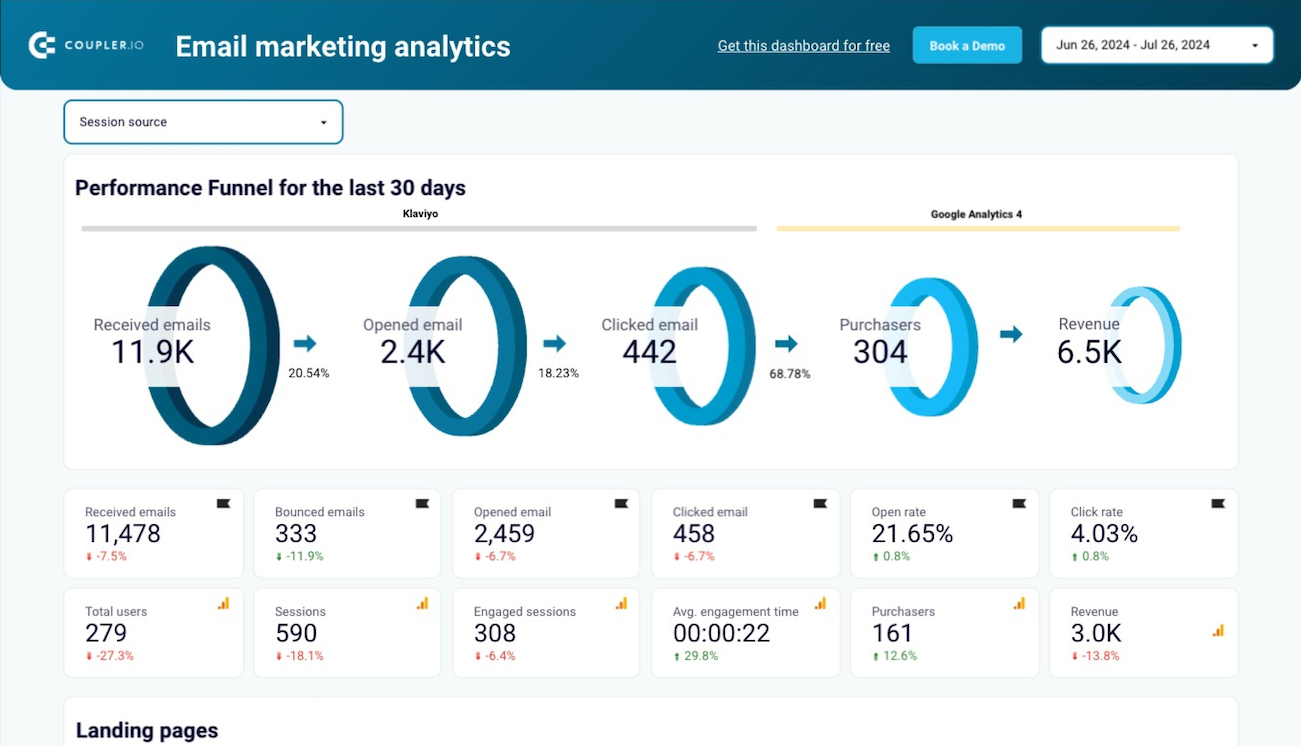
This dashboard bridges the gap between email engagement and website behavior by combining Klaviyo data with Google Analytics 4. It provides an overview of how your email campaigns influence user actions on your website.
Klaviyo email marketing analytics dashboard
 Preview dashboard
Klaviyo email marketing analytics dashboard
Preview dashboardWhat insights you can get
- Cross-platform performance tracking: Monitor how email campaigns drive traffic and engagement on your website
- Attribution analysis: Understand which emails and content types generate the most valuable website sessions
- Conversion path visualization: See the journey from email click to conversion with path analysis
- Content effectiveness comparison: Identify which email content generates the most website engagement
- Channel synergy metrics: Measure how email marketing complements and enhances other marketing channels
How to use this dashboard
Once you’ve set up the Klaviyo to Looker Studio connection using the Coupler.io method outlined in this guide, this template can be implemented with a few clicks. The dashboard automatically pulls data from both Klaviyo and GA4 to create a unified view of your marketing performance, with scheduled data refreshes to keep insights current.
Klaviyo email performance dashboard for eCommerce stores
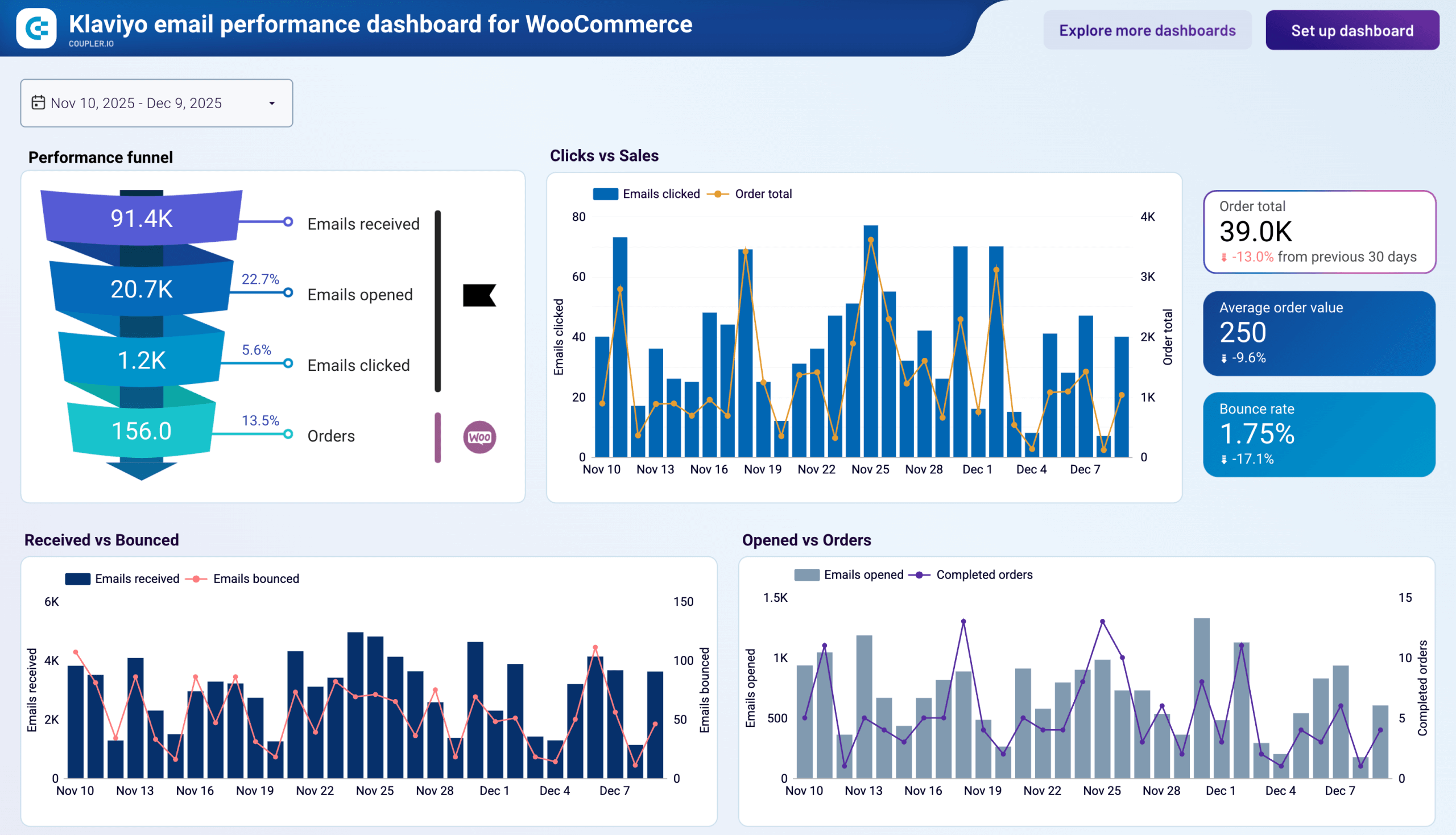
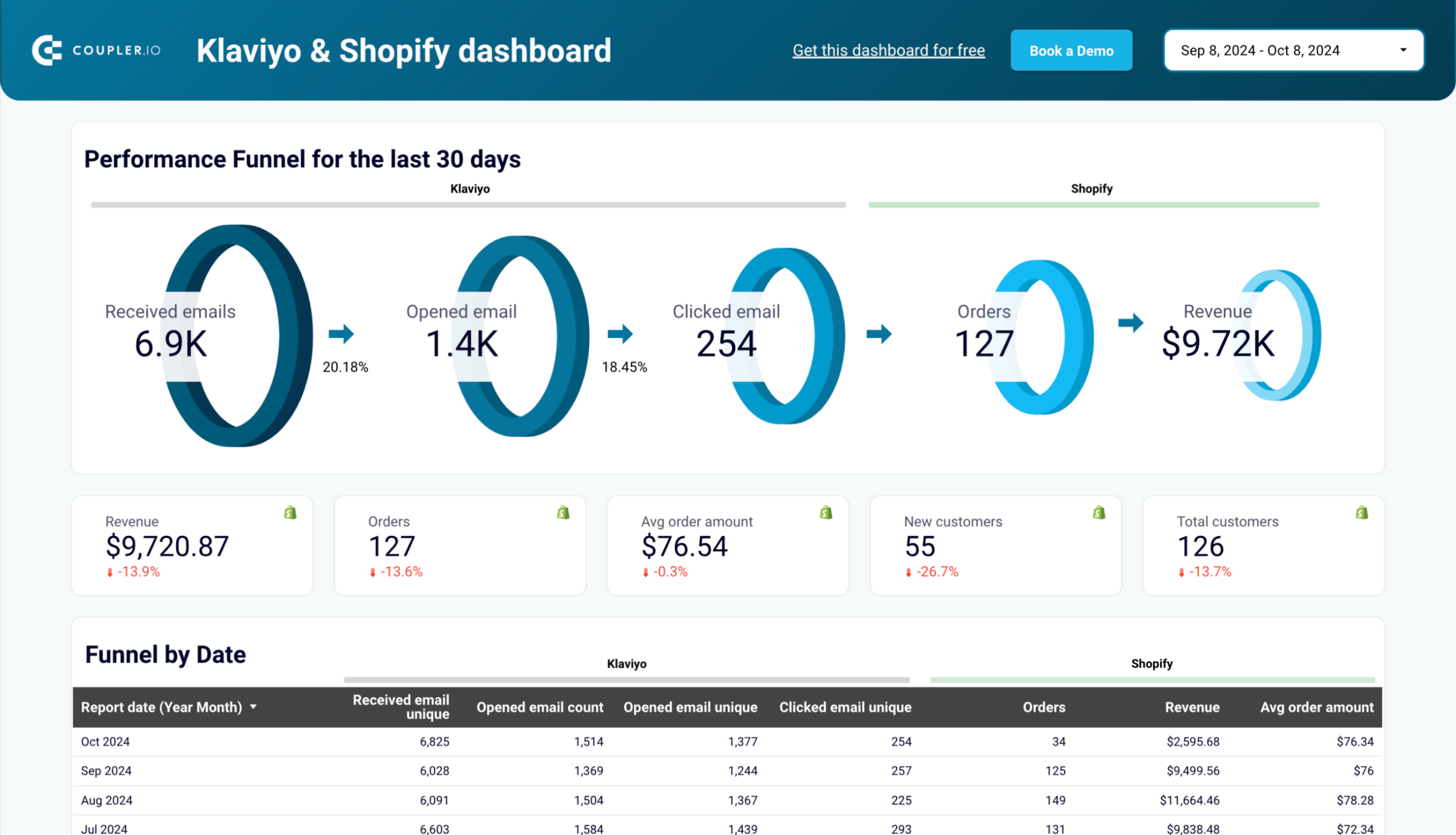
Neither Klaviyo nor your store platform can tell you on their own whether email clicks are producing actual orders or just traffic. Coupler.io provides a Klaviyo email performance dashboard for Shopify and WooCommerce. Each version connects your email activity with store order data to show the complete path from email delivery to completed purchase. You can also spot the timing gap between when people click and when they actually buy.
Klaviyo email performance dashboard for WooCommerce
 Preview dashboard
Klaviyo email performance dashboard for WooCommerce
Preview dashboardWhat insights you can get
- Email-to-order funnel analysis: See where the biggest drop-offs happen between delivery, opens, clicks, and completed orders to focus optimization on the right stage
- Click-to-revenue timing: Find out whether email clicks produce same-day purchases or lag by a day or two, which helps you set more accurate attribution windows
- Bounce rate and list health trends: Catch rising bounces before they trigger deliverability restrictions from your ESP
- Send day performance patterns: Identify which days of the week consistently produce the best open rates to schedule campaigns with more confidence
- Revenue attribution by campaign: Track how much order revenue each email campaign generates to justify spend and prioritize top performers
How to use this dashboard
Connect your Klaviyo account and your store platform (Shopify or WooCommerce) through the built-in Coupler.io connector. Both dashboard versions follow the same setup method described in this article and update on your preferred schedule.



Other options to connect Klaviyo to Looker Studio
Coupler.io’s Looker Studio connector is the most direct way to get Klaviyo data into your reports, but there are two other options.
- Google Sheets integration – Connect Klaviyo to Google Sheets and use it as a data source in Looker Studio. Supports auto-refreshing data at regular intervals.
- Klaviyo API with Apps Script lets you write a custom script that pulls data into Google Sheets, which then feeds Looker Studio. This gives you full control over what you extract and how you process it, but requires coding and ongoing maintenance.
To set up a Klaviyo to Looker Studio connection with any of these methods, you’ll need to provide the private API key.
Import Klaviyo data into Looker Studio using the Google Sheets integration
Looker Studio offers native integration with Google Sheets, which can be used as a mediator between Klaviyo and Looker Studio. Using this method, you can also access the raw data manually in Google Sheets. This can serve as a data backup and can also be used for other calculations.
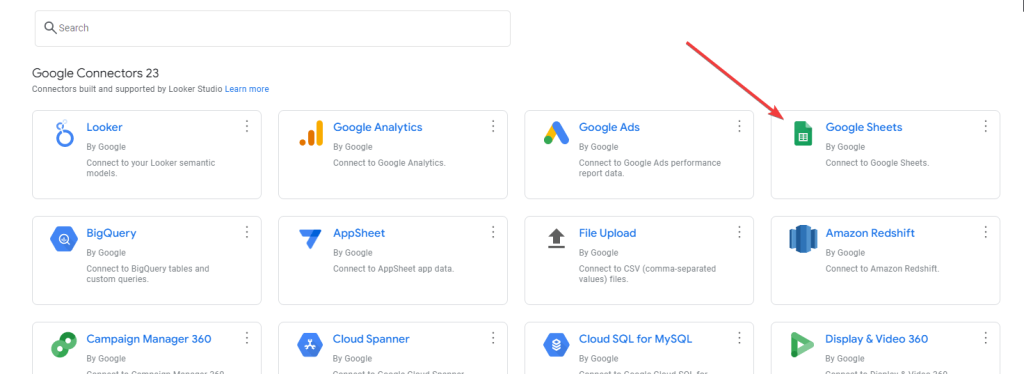
Coupler.io will help you connect Klaviyo to Google Sheets. To load data from Google Sheets to Looker Studio, you can use either Coupler.io as well or the native Looker Studio connector. We’ll use the latter just to demonstrate how it works.
We’ve already described the flow to connect Klaviyo to Google Sheets in our blog post. It looks pretty much the same as when connecting Klaviyo to Looker Studio. Click Proceed in the form below to try it out.
You’ll need to select a spreadsheet and a sheet where to load data from Klaviyo. Coupler.io will also auto-update the Google Sheet every day as per the schedule so that you can always stay on top of the latest data. Now, you can easily use this Google Sheet to visualize Klaviyo data in Looker Studio.
Let’s see how to do it.
Connect Google Sheets to Looker Studio
Open the Looker Studio Report where you want to visualize the Klaviyo data and follow these steps:
- Add a new Google Sheets data source.
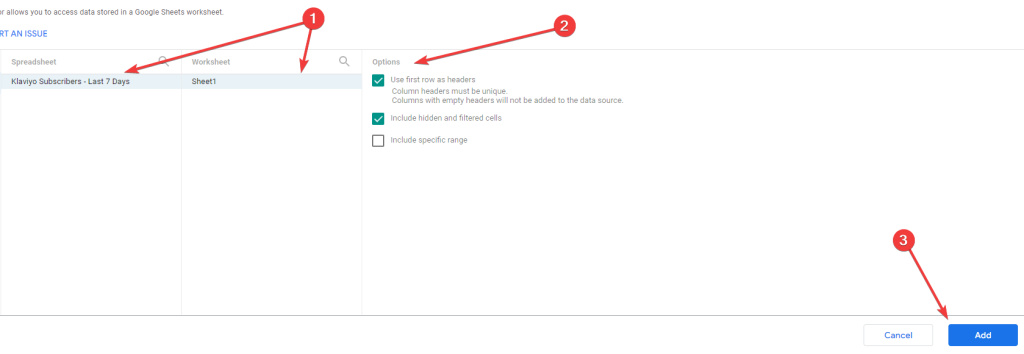
- Select the Google Sheet & Worksheet that you used to import Klaviyo data, tick the appropriate options, and click Add.
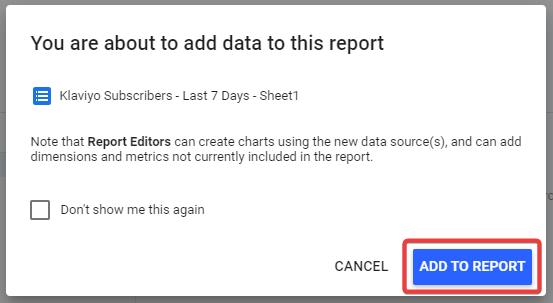
- Finally, click Add to Report to get the Klaviyo data into Looker Studio.
This will import Google Sheets data into Looker Studio, which you can visualize as you want!
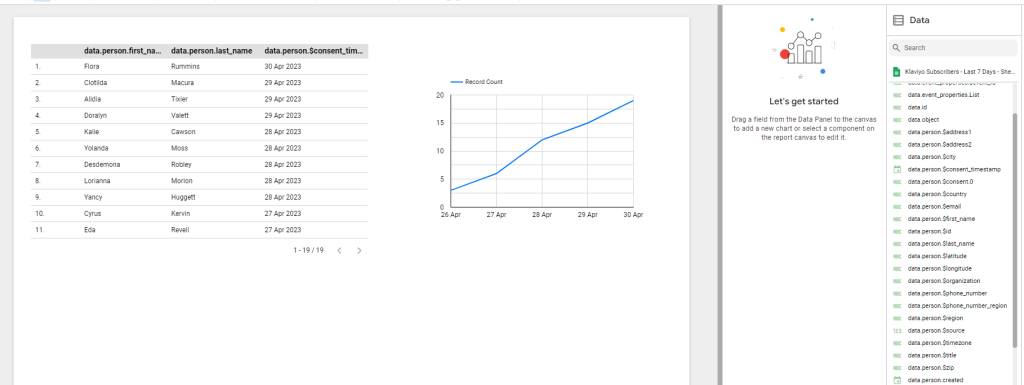
You’ve successfully connected Klaviyo to Looker Studio via Google Sheets.
Set up Klaviyo Looker Studio data sync using Coupler.io
The Looker Studio auto-refreshes the data from Google Sheets every 15 minutes by default. You can change this by using the following steps:
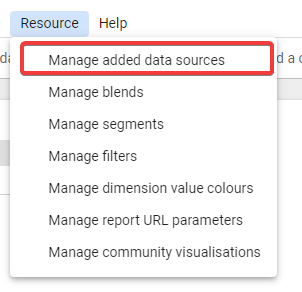
- In the Looker Studio report, go to Resource > Manage added data sources.
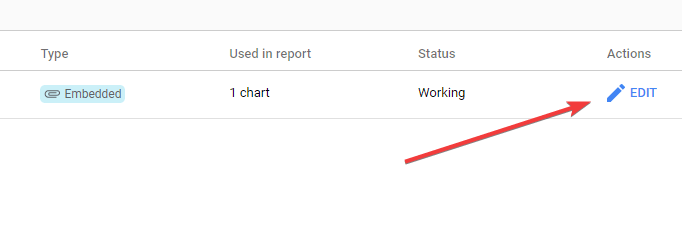
- In the list of connected sources, click Edit against the Google Sheets that we used to connect Klaviyo to Looker Studio.
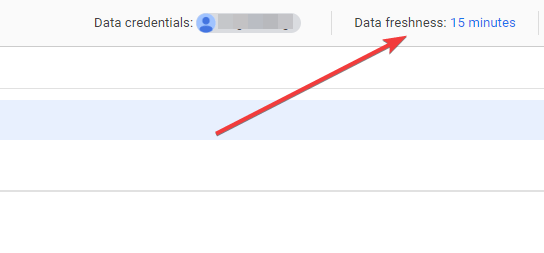
- Now, in the top-right corner of the section, the data refresh interval of the connection will appear. Click on it.
- Choose the preferred data refresh interval, and click Set Data Freshness.
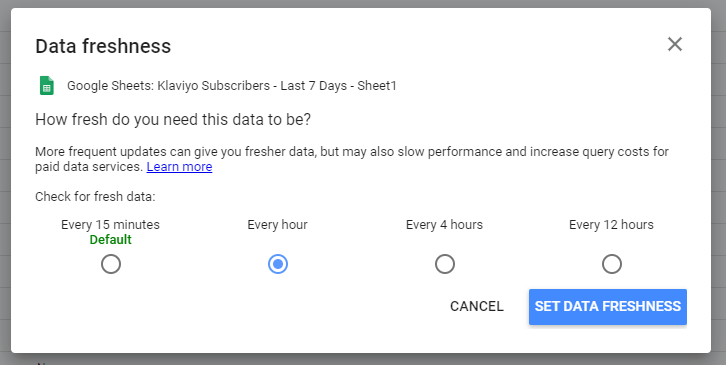
Now, Looker Studio will update the data from Google Sheets every hour.
You’ve successfully automated the Klaviyo to Looker Studio connection using Coupler.io. Now, just sit back, relax, and let the importer pull the data regularly for you!
Connect Klaviyo to Looker Studio programmatically using Apps Script
Google Apps Script can be used to call the Klaviyo API and pull the required data into Google Sheets. Later on, the Google Sheets can be used as a data source in Looker Studio.
This method demands really high coding skills and knowledge of REST API. Therefore, it is the least preferred method to import Klaviyo data into Looker Studio.
Let’s say you want to get Klaviyo subscribers’ list data for the last seven days. Here’s how you can do this:
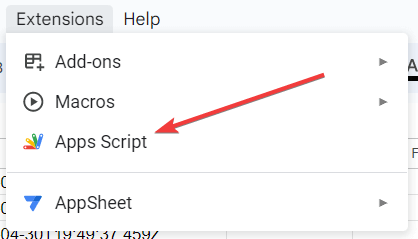
- Open the Google Sheets where you want to import the Klaviyo data and go to Extensions > Apps Script.
- Now, in the script editor, paste the following code:
function fetchFromAPI() {
var sheet = SpreadsheetApp.getActiveSheet();
var url = 'https://a.klaviyo.com/api/v1/metric/{Metric_ID}/timeline?data_type=c×pan=LAST_7_DAYS&api_key={Your_Klaviyo_API_KEY}';
var response = UrlFetchApp.fetch(url);
var json = response.getContentText();
var data = JSON.parse(json);
sheet.clear(); // clear sheet before each run
var rows = data.data.map(function(item) {
var person = item.person;
var firstName = person.$first_name;
var lastName = person.$last_name;
var email = person.$email;
var consentTimestamp = person.$consent_timestamp;
return [firstName, lastName, email, consentTimestamp];
}).filter(function(row) {
return row !== null; // Filter out null rows
});
sheet.getRange(sheet.getLastRow() + 1, 1, rows.length, rows[0].length).setValues(rows);
}
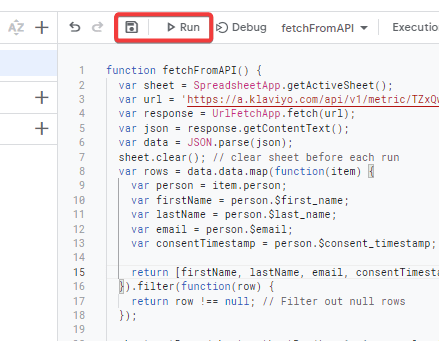
- Save the script and click Run to execute it.
- Upon successful execution of the script, the required columns will be imported to the sheet.
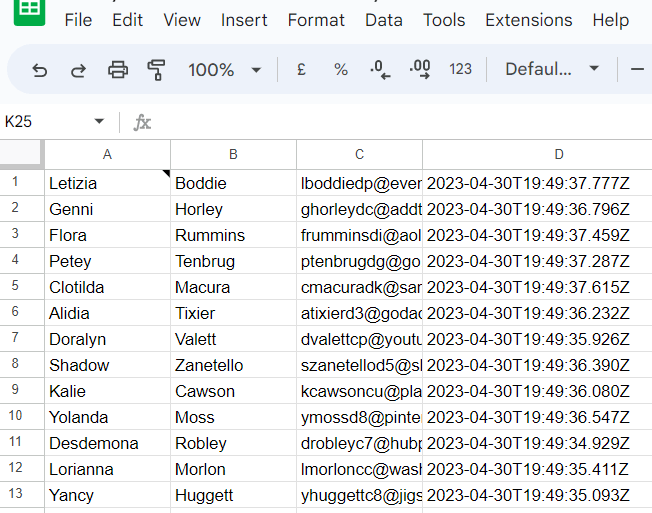
Now, you can connect this Google Sheets as a data source to visualize Klaviyo data in Looker Studio.
Auto-import Klaviyo data into Looker Studio at regular intervals
Google Apps Script supports time-based triggers that we can use to import data from Klaviyo to Google Sheets at regular intervals. Just follow these steps to do that:
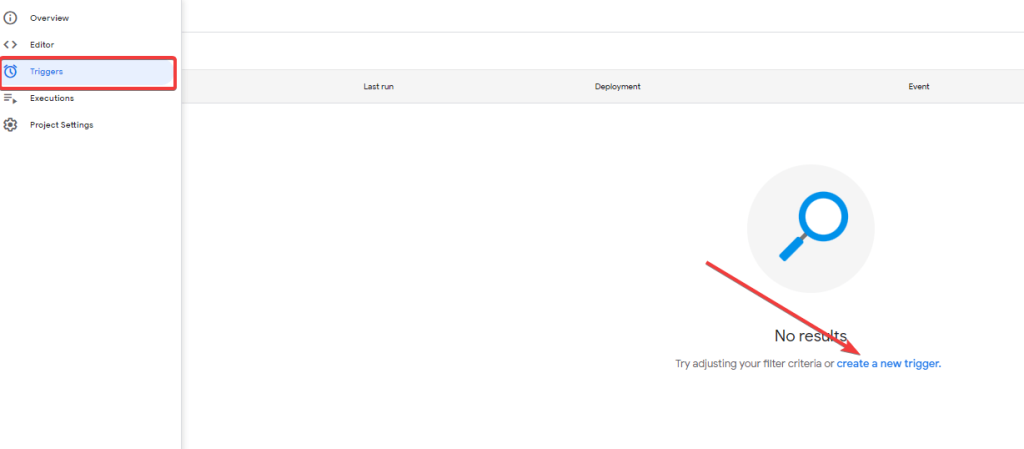
- In the Apps Script window, go to Triggers from the left menu and Create a new trigger.
- Now, select Time-driven as the event source, select the preferred interval, and click Save.
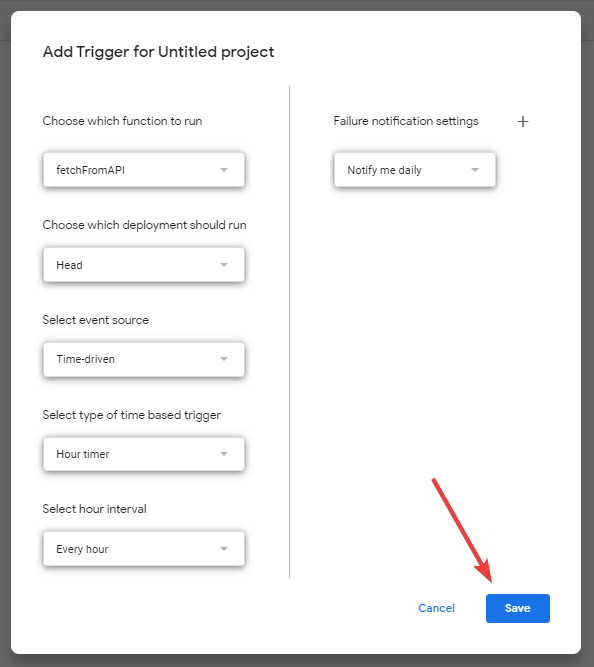
At this point, the Apps Script will run the function at regular intervals and keep updating the data in the Google Sheet. Connect the Google Sheets with Looker Studio, and configure the data refresh interval in Looker Studio as well to sync the data.
Which is the best method to analyze your Klaviyo data with Looker Studio?
In this article, we’ve discussed three possible ways to connect Klaviyo to Looker Studio and automate the data flow.
The Google Apps Script method demands coding proficiency and can be too complex for non-technical users. In conclusion, the Coupler.io connector is the most convenient and user-friendly way to connect Klaviyo to Looker Studio without any technical hassle.
Furthermore, Coupler.io supports importing data from multiple sources, which means you load data from multiple Klaviyo accounts or even different sources for your report. Overall, it is the best way to create data-rich reports in Looker Studio.
Automate Klaviyo reporting with Coupler.io
Get started for free