
We love Coda for what it does inside the doc. We hate what happens when the data has to leave. The good news is that in 2026, you don’t have to choose between manual torture and complex code. A no-code connector can now pull your tables (filters, relations, lookups, etc.) straight into Google Sheets with the clean view you need, on a schedule you control. In this article, you’ll discover the fastest no-code way to export Coda to Google Sheets using Coupler.io.
How to connect Coda to Google Sheets with Coupler.io
Coupler.io is a trusted data integration platform that offers over 420 Google Sheets integrations with various tools. Coupler.io is ideal for teams that need dependable, recurring exports from Coda to Google Sheets. It connects directly to your Coda workspace, transfers table data, and keeps everything fresh on your preferred schedule, whether you’re syncing small trackers or company-wide datasets.
To build your automated Coda → Google Sheets pipeline right now, click Proceed in the form below and create a free Coupler.io account instantly, no credit card needed.
Follow the detailed guidelines below to set up automatic exports of your data from Coda to Google Sheets on the schedule you need.
Step 1: Collect data from Coda
- Connect your Coda account. To do this, you’ll be asked to insert your Authentication token.
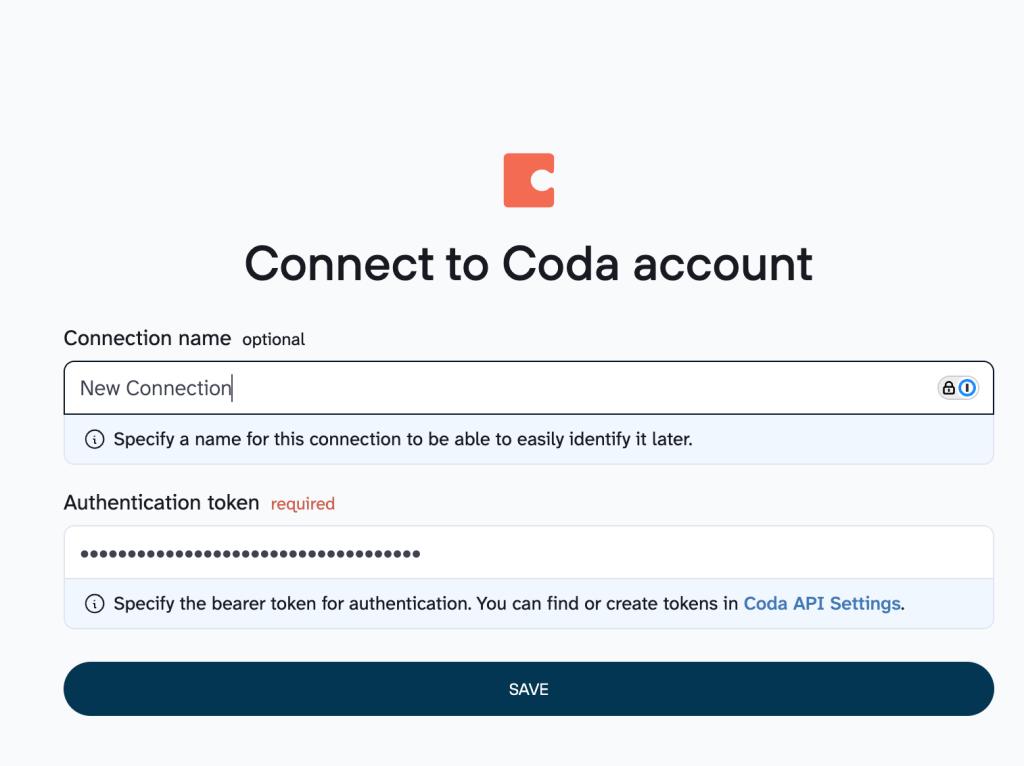
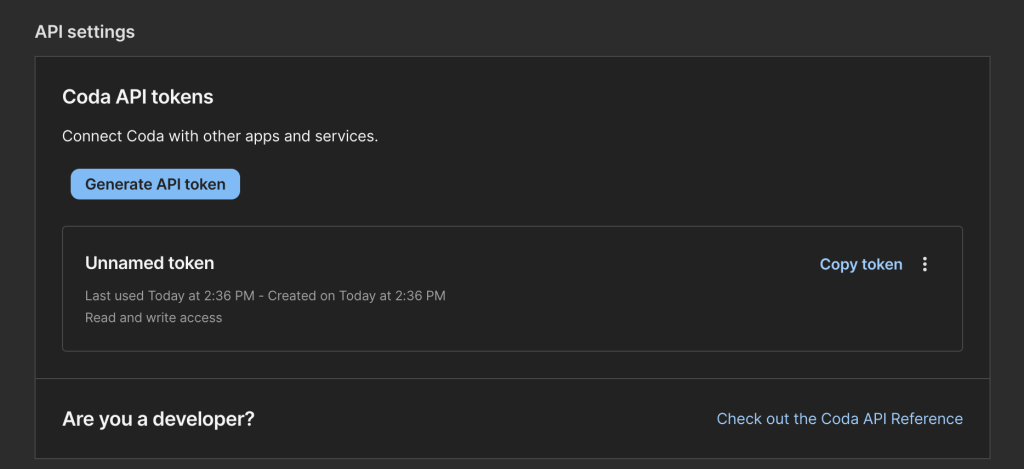
You can easily find the token in your Coda API settings. Just click Generate Token and copy it.
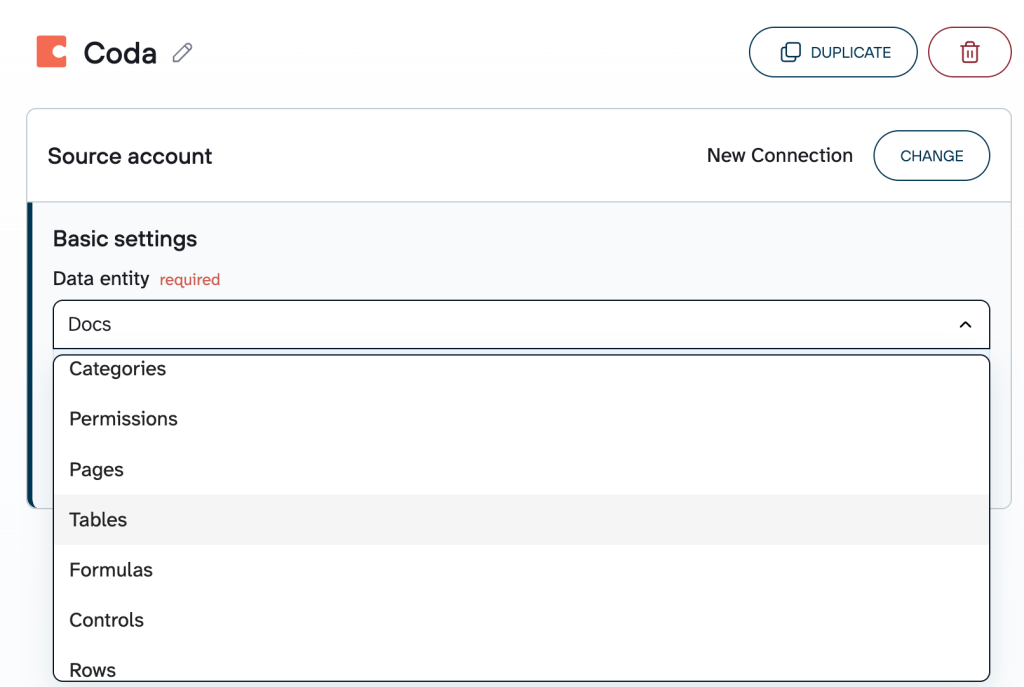
- Select the data entity you want to export from the dropdown list.
Step 2: Organize and transform data
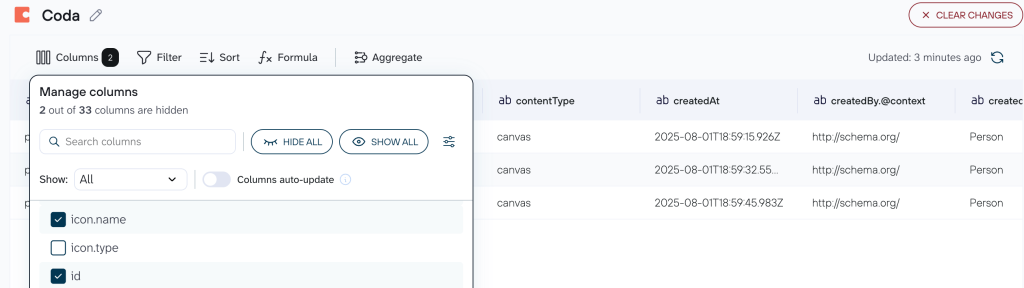
Switch to the Data sets tab to prep your Coda data before export:
- Clean up columns (rename them, hide irrelevant ones, reorder for better readability)
- Filter rows using simple rules (e.g., only the items updated this week)
- Sort the output so the most important data appears first
- Add calculated columns (e.g., % Complete”) and eliminate the need to build extra formulas in Sheets later
- Blend data the way you need with information from other Coda accounts or even other sources
Step 3: Connect Google Sheets as a destination
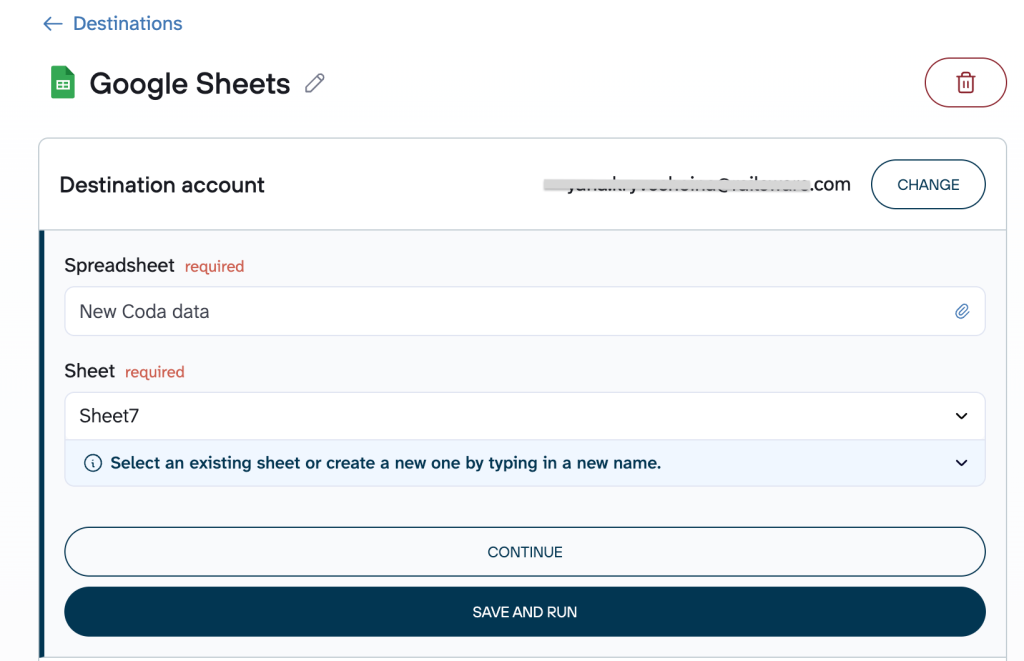
Connect your Google account, select the Spreadsheet, and specify the exact Sheet.
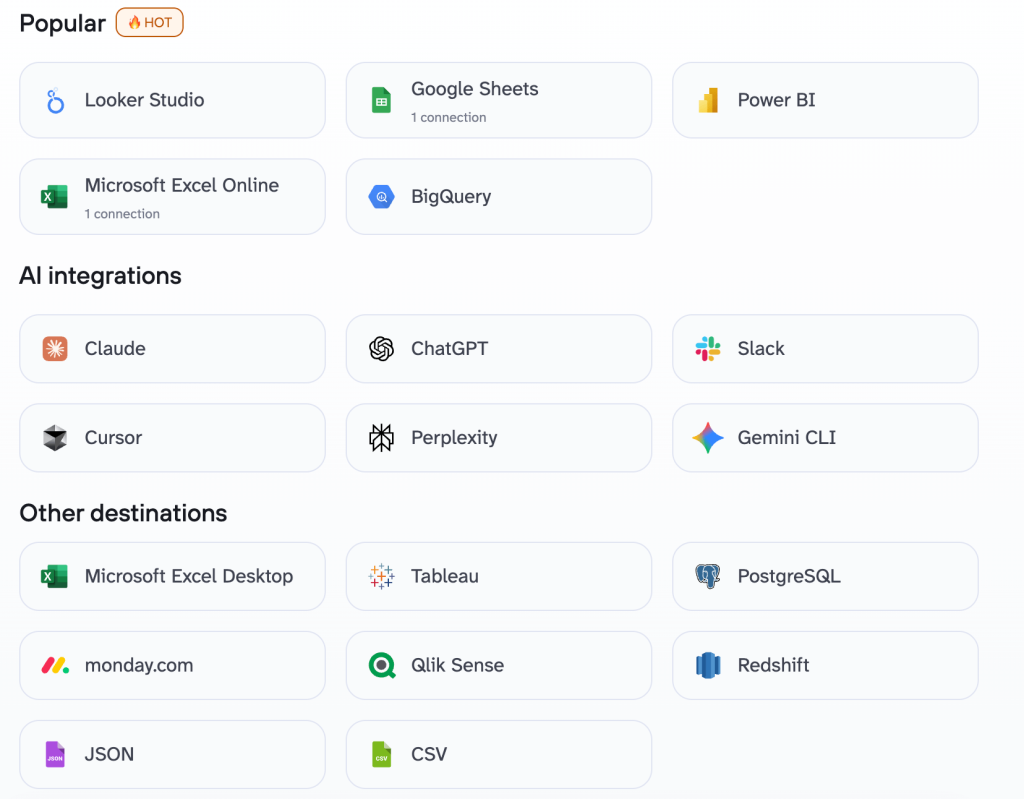
Except for Google Sheets, Coupler.io gives you way more destinations to level up your data flows. Among them:
- Microsoft Excel is perfect for desktop lovers and macro fans
- BigQuery is serious data warehouse power
- Looker Studio, Power BI, Tableau are great for data visualization
- AI destinations (integrations with Gemini, ChatGPT, Claude & more) allow you to send your Coda data straight to AI for instant summaries, trend spotting, or smart Q&A
Step 4: Schedule automatic data refresh
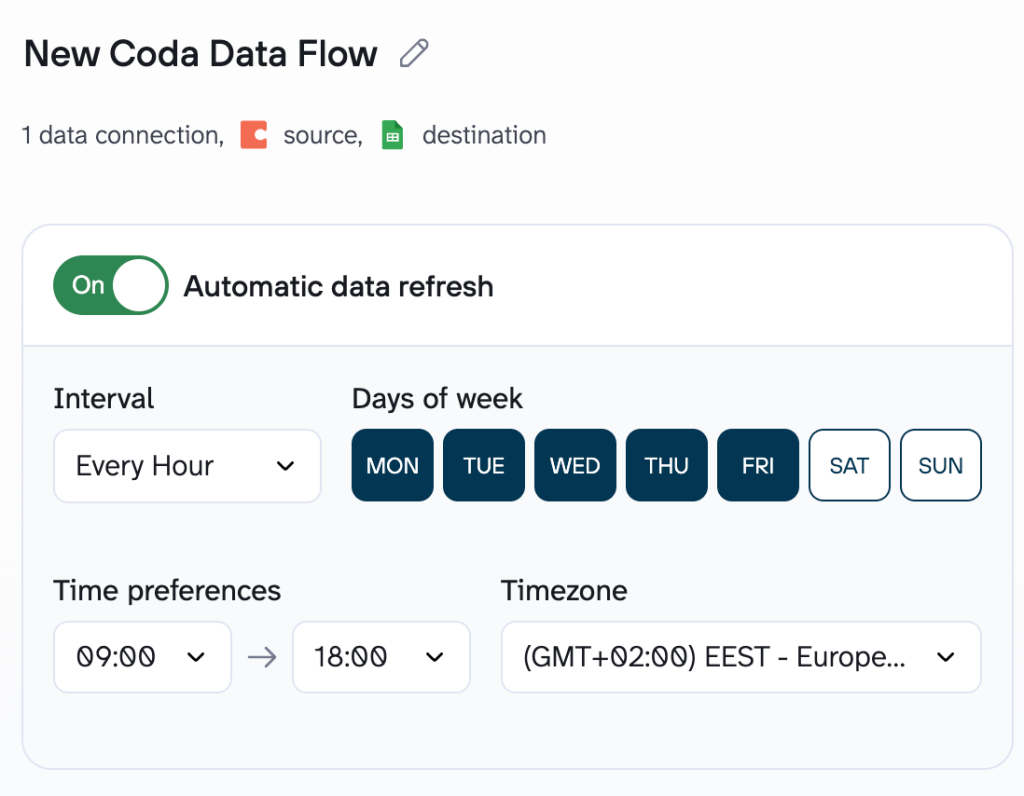
The setup flow ends with the automation section. Enable the automatic data refresh and set your preferred schedule for data transfer from Coda to Google Sheets.
Bonus step : Turn data into a conversation with AI Agent
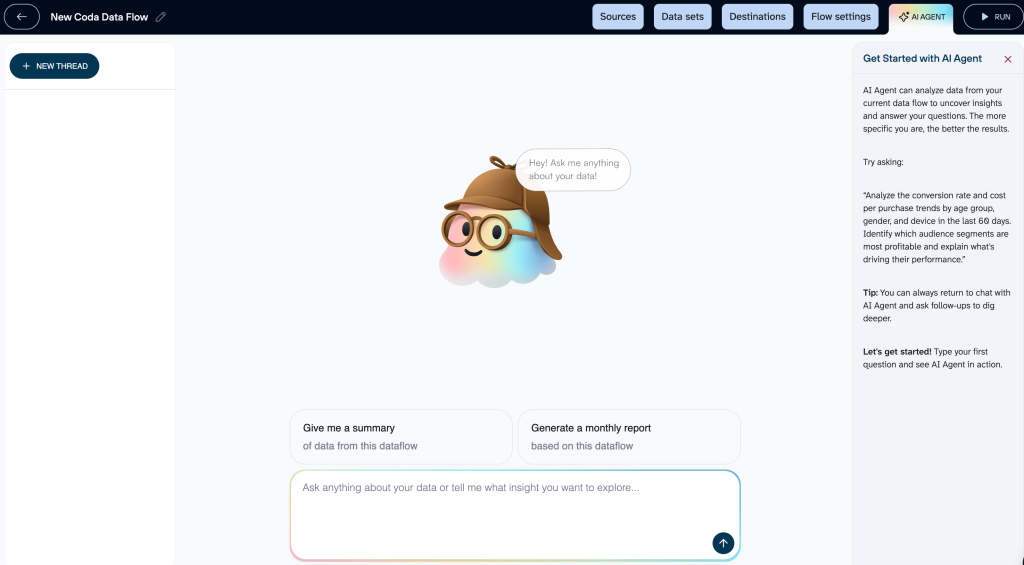
Your Coda data is already syncing smoothly via Coupler.io (to Google Sheets or any other destination). Now you can level up your data flow with the native AI Agent.
Just click “Ask AI” within your data flow in Coupler.io, and start chatting in plain language:
- “What are the biggest delays in our project tracker?”
- “Show me trends in task completion rates this quarter”
- “Any red flags in our OKR progress?”
It queries your refreshed data using Coupler.io’s Analytical Engine, runs real calculations, skips hallucinations with verified facts, and delivers precise, instant answers. Zero technical skills needed. One-click launch.

Sync Coda to Google Sheets with Coupler.io
Get started for freeWhat data you can export from Coda to Google Sheets with Coupler.io
During your data flow setup in Coupler.io, the required Data entity field lets you select exactly what to import:
- Docs → document list with metadata for workspace inventory and governance.
- Categories → document categorization data for better organization.
- Permissions → access rights and ACL information for security oversight.
- Pages → structured page lists and hierarchy within a document.
- Tables → full tables or table schemas (most common choice for operational data).
- Formulas → named formulas for review and reference.
- Controls → interactive element configurations.
- Rows → detailed row data from tables, with filtering options, which are ideal for trackers, lists, and databases.
Setup is simple and code-free. Just connect once, choose the entity, refine with filters if needed, link to Google Sheets, and enable scheduled updates. This flexibility makes Coupler.io the most straightforward and powerful way to bring your essential Coda content into Google Sheets for analysis, reporting, or collaboration.
Other ways to import data from Coda to Google Sheets
Even though automation tools for seamless export have already been here for a while, many people start with simpler (or more familiar) approaches, namely:
- Manual export → You download a CSV or copy-paste directly from Coda.
- Coda Packs → Built-in tools like Export Tables or Export to Google Workspace for generating files and pushing them to Drive/Sheets with a button click.
- Google Apps Script → Custom JavaScript code using the Coda API to pull data programmatically.
- API connectors → Third-party add-ons (like API Connector or Coefficient) for building API requests to fetch Coda data into Sheets.
The comparison chart below shows the main differences between these data export methods to help you make the best choice for your data workflows.
| Export type | Setup speed | Tech skills required | Key limitations | Best for |
| Manual export | Seconds to minutes | None | One-time only;No automation;Repeated CSV downloads + manual cleanup (formatting, lost relations); No scheduling | Quick one-offs;Small tests |
| Coda Packs | 5–15 min | Low (point-and-click) | Manual trigger each time; No native scheduling/filters/transforms; Row limits; Static snapshots only | Button-triggered shares;Occasional client exports |
| Google App Script | Hours+ | High (JavaScript coding, API handling) | Fragile to API changes;Error-prone for big data; No built-in transforms;Ongoing maintenance | Custom bidirectional logic; Teams with dev resources |
| API connectors | 15–60 min | Medium (API keys, request config) | Manual request setup; Potential row/frequency limits;Transformations vary; Possible rate limits | Semi-automated pulls;Combining multiple sources |
| Coupler.io | 5–15 min | None to low (visual UI) | All sources included but account limits vary by plan The minimum refresh interval is 15 minutes | Recurring, reliable automation;Scheduled refreshes; Filters + transformations + error alertsDaily/weekly flows regardless of data volumesConversational analytics with AI |
If you’re exporting once in a blue moon, manual export or Packs might suffice. But the moment you need reliable, recurring flows (daily metrics, weekly reports), these methods start feeling like chores. Coupler.io shines here because it connects once via API, shapes your data exactly how you want (filters, sorting, new columns), sets your schedule, and lets it run.
What data can you transfer from Coda to Google Sheets manually?
Coda allows you to move several types of content to Google Sheets, depending on your needs (for deeper analysis, pivots, reporting, or simply getting data into a familiar spreadsheet format).
The primary exportable content includes:
- Table data & views: The most commonly exported type that covers rows and columns from tables or layouts like card views, detail views, calendars, tasks, etc.
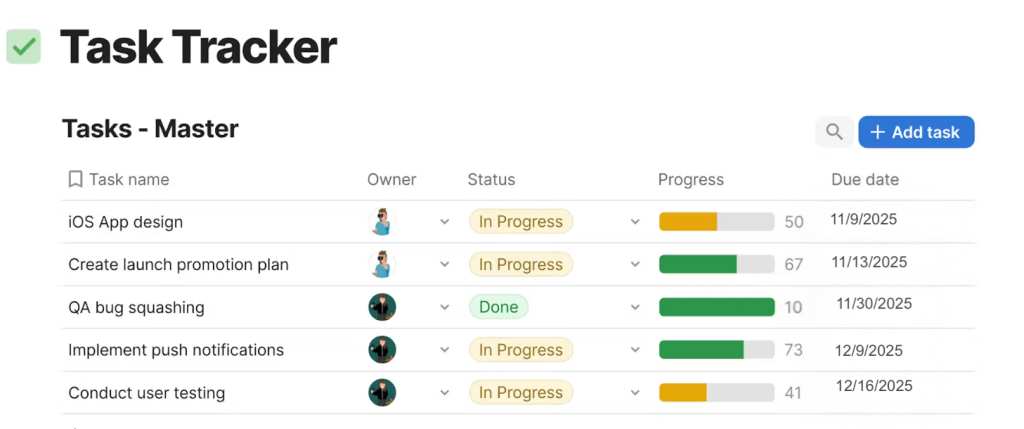
Supported column types include:
- Strings/text
- Numbers (including percentages and currency)
- Dates
- Booleans/checkboxes
- Select lists (single values as text; multiples typically as comma-separated strings)
Other elements are more limited:
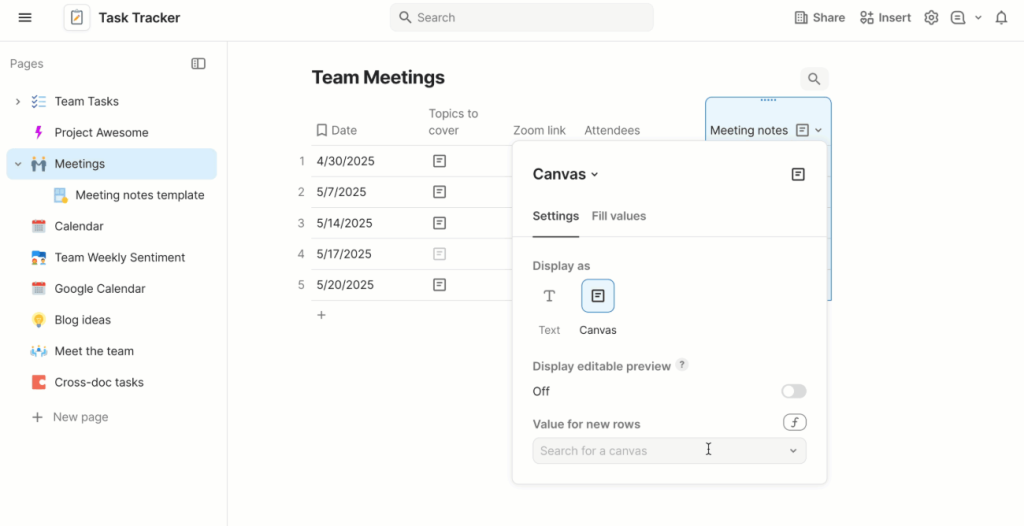
- Canvas content: Text and simple embedded snippets can be manually copied and pasted. However, Coda’s free-form canvas doesn’t translate to Sheets’ rigid grid. Layout, colors, icons, buttons, and interactive elements are lost or reduced to plain text.
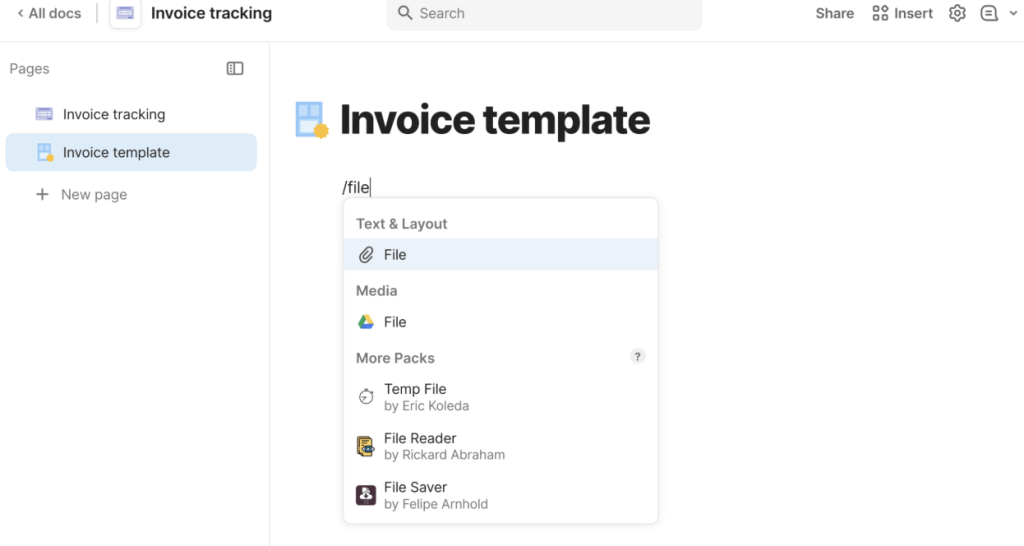
- Files/images (attachments): Attachments usually export as hyperlinks, file names, or URLs (via CSV/XLSX or Packs). Google Sheets can’t embed or preview files/images natively as Coda does, so you get a link instead of visual content or inline thumbnails.
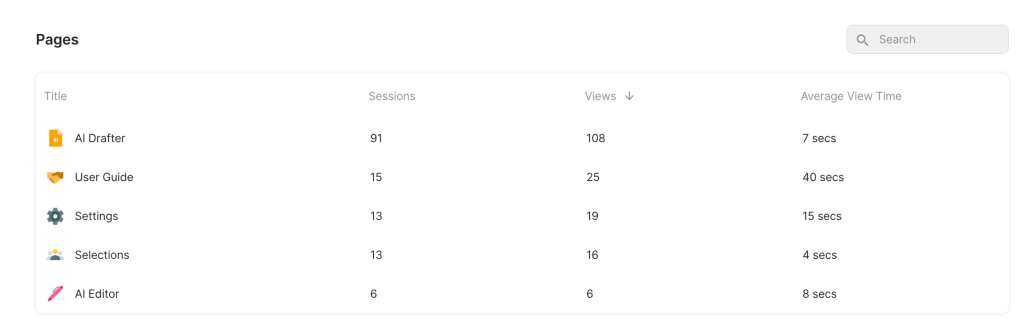
- Embedded data/analytics: Visual charts, gauges, or complex embeds don’t transfer fully; only raw underlying data may come through (via API/scripts). Coda’s dynamic visuals rely on its own rendering engine, but Google Sheets has no equivalent, so charts disappear and leave just numbers or text to rebuild manually.
Key challenges of Coda to Google Sheets data export and how to successfully address them
Coda-to-Google-Sheets transfers are essential… and notoriously painful when done repeatedly. Here are the four biggest recurring challenges users face and the straightforward ways Coupler.io solves them, so you never have to fight the export battle again.
The manual export marathon
❌Challenge: Every week (or worse, every day) you’re back in the doc: select table → export CSV → open in Sheets → fix dates/numbers-as-text/broken lookups → repeat forever. One missed Monday, and the whole report is out of sync.
✅Solution with Coupler.io: Set it once and walk away. Choose your table, pick a schedule (hourly, daily, etc.), and the data flows automatically. Your Google Sheets are always up-to-date, so you can actually trust the numbers during Monday stand-ups.
Coding barriers for non-developers
❌Challenge: You want automation, but Google Apps Script, Zapier limits, or raw Coda API calls feel like learning a new language. One small Coda update breaks the script, and suddenly, you’re the (unpaid) “developer” on the team.
✅Solution with Coupler.io: Zero code required. The point-and-click interface handles authentication, API calls, and scheduling behind the scenes. If you can drag columns and type a filter rule, you’re already an expert. Teams that hated scripting now run daily syncs without ever opening the script editor.
Formatting and data loss
❌Challenge: Lookups arrive as plain text instead of linked values, relations flatten, multi-selects become comma strings, and attachments turn into URLs. As a result, you spend time rebuilding context or splitting cells just to make the data usable for pivots or charts.
✅Solution with Coupler.io: Clean the data before it reaches Sheets. Rename confusing column headers, hide junk columns, reorder for better flow, change types (force strings to real dates/numbers), add calculated columns (e.g., “Days Late” or “Total Spend”), and filter rows so only meaningful records arrive.
Stale data = Stale decisions
❌Challenge: By the time someone notices the dashboard is using last week’s numbers, the meeting is half over, or the budget call has already been made wrong. Manual methods and fragile automations mean the data either becomes outdated or quietly stops refreshing with no alert to tell you.
✅Solution with Coupler.io: Reliable scheduling + real error notifications. If anything goes wrong (token expired, row limit hit, API hiccup), you get a timely notification, not three days later. Plus, automatic timestamps (Created at / Modified at) are added to every row and help you audit freshness at a glance.
Turn Coda Tables into Google Sheet Reports with Coupler.io
Get started for free