
Business data often gets stuck across too many apps: sales in Salesforce or HubSpot, finance data in QuickBooks, ecommerce data in Shopify, and marketing performance in Google Ads, Meta Ads, or GA4. Gemini can help analyze business data in natural language, but only when that data is connected, structured, and actually ready to use.
Read on to learn how to integrate data from business apps with Gemini. I’ll cover five methods from a no-code workflow using Coupler.io to source-specific MCP servers. Pick the one that fits your setup or combine them.
Connect Gemini to business apps with Coupler.io
Coupler.io is a no-code data integration and AI analytics platform. It supports 400+ data sources and connects datasets to AI tools, including Gemini CLI.
For this workflow, Coupler.io sits between your business apps and Gemini CLI.
Business apps → Coupler.io → Gemini CLI via MCP
Gemini, Gemini CLI, and Gemini Enterprise are different interfaces.
Gemini app is the web experience where users can upload files or use Connected Apps such as Google Drive and Gmail.
Gemini CLI is the command-line version built for technical workflows, including MCP connections.
Gemini Enterprise is the organizational tier available to Google Workspace Business, Enterprise, and Education customers. It runs inside the same Workspace environment your team already uses.
Coupler.io supports both the Gemini CLI path and Gemini Enterprise (through MCP). The walkthrough below uses Gemini CLI as the example, but the data flow setup in Coupler.io is the same for both. The only difference is which destination you pick in the final step.
Your data is prepared before it reaches Gemini CLI, so you skip manual exports, spreadsheet cleanup, and custom API work. With scheduled refresh turned on, your data can update automatically, so Gemini CLI analyzes business data instead of stale snapshots. This is the simplest way to connect business apps data to Gemini when you need more than a one-time file upload.
Step 1: Ask Coupler AI to connect your data to Gemini CLI
It only takes two steps to connect data to Gemini with Coupler.io. To get started, create a free Coupler.io account and tell Coupler AI what data you want to bring into Gemini CLI. For example:
I want to spot deals that are stuck before they slip out of this quarter. Bring our Salesforce pipeline and closed deals from the last 90 days into Gemini CLI, refreshed every morning.Let Coupler AI do the data work for you
Tell Coupler AI what you need to know, from which source, and how often. It connects your account, sets up the data flow, keeps it refreshed, and lets you analyze the results in Gemini, inside Coupler.io or another AI tool.
Try for free
Coupler AI sets up the dataset from that request. If something is missing, such as which Salesforce account to use or which fields matter, it asks. If Salesforce isn’t connected yet, it asks you to authorize it first. AI can’t connect accounts for you.
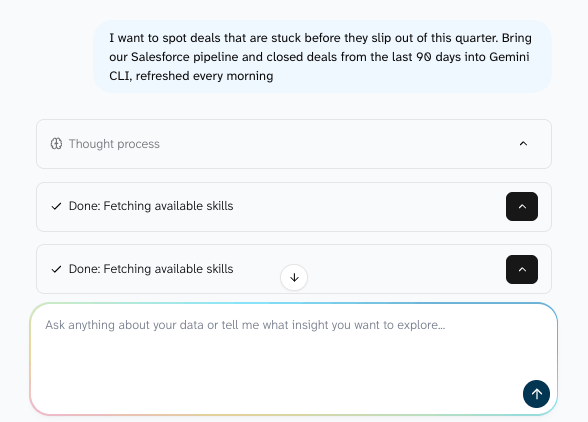
You can keep shaping the data in the same conversation: ask it to add HubSpot, drop a field, filter out test deals, or rename columns. Before anything runs, Coupler AI shows you the setup so you can double-check and request changes. Depending on your plan, refresh can run daily, hourly, or at higher-frequency intervals. You can also tell Coupler AI what your numbers mean, for example:
Update the dataset context: a deal is stalled if it hasn't changed stage in 14 days.
It saves this with the dataset, so Gemini works from your team’s agreed metric definitions. That way, when you ask which deals are stalled, Gemini applies your 14-day rule instead of guessing.
Step 2: Finish the connection in Gemini CLI
Coupler AI prepares the data, and the last step happens in Gemini CLI. The Coupler AI agent points you to the destination settings, where you follow the in-app instructions to complete the Gemini CLI MCP or Gemini Enterprise MCP setup.
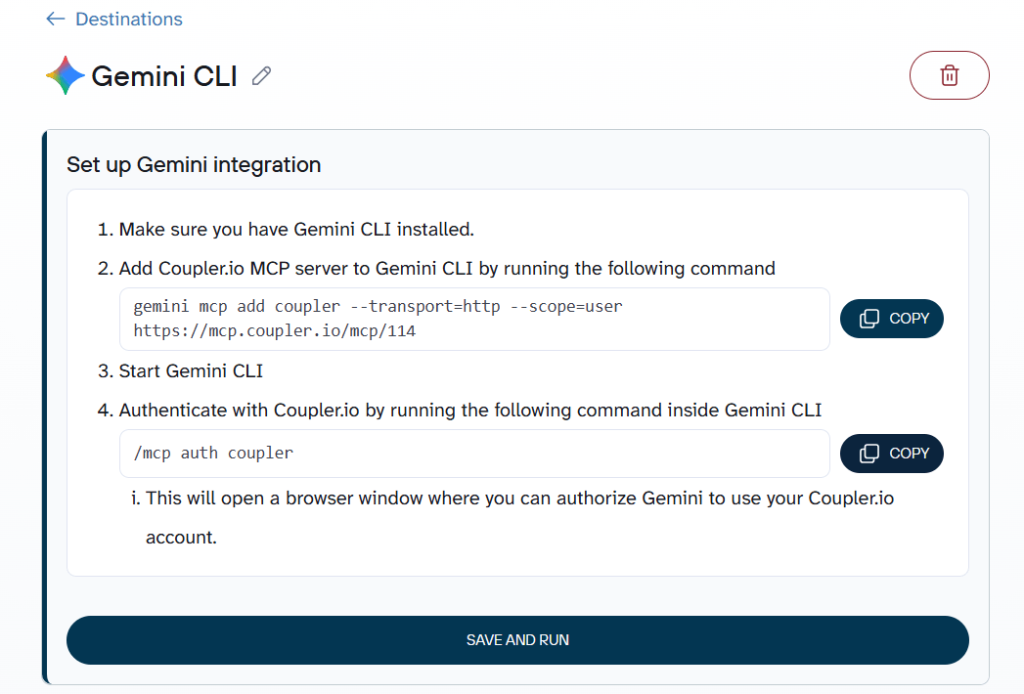
Troubleshooting note: In most cases, you can use the MCP command shown in Coupler.io. If the connection does not work as expected, use this workaround:
gemini mcp add --transport http --scope user coupler https://mcp.coupler.io/mcp |
This version removes the numbered suffix from the MCP URL and connects Gemini CLI to the Coupler.io MCP server at the workspace level. After running it, restart Gemini CLI and check the MCP connection before asking questions about your data.
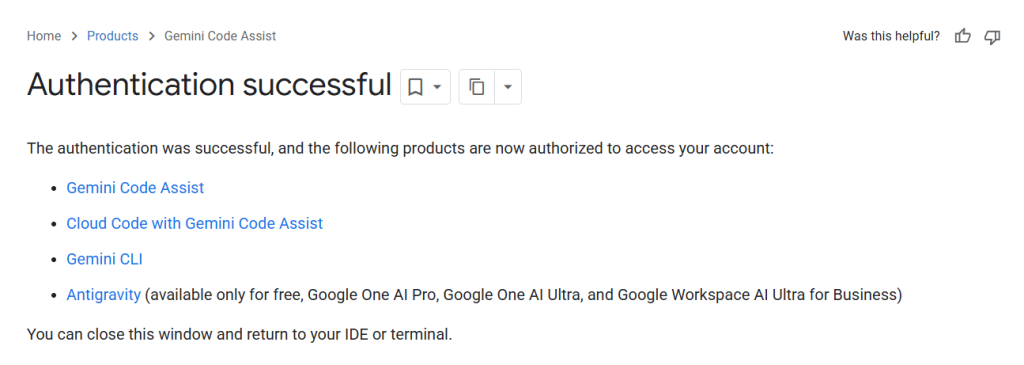
After the connection is active, you can ask Gemini CLI questions about your connected dataset and use it for recurring business analysis.

Connect your data to Gemini CLI/Enterprise using Coupler.io
Get started for freeAnalyze business data with Gemini after setup
This is where you move from simply connecting data to actually using Gemini with business data. To show how this workflow looks in practice, I’ll use Salesforce as the example source. It’s a common enterprise app where revenue teams store pipeline activity, deal stages, account records, owner details, and forecast data.
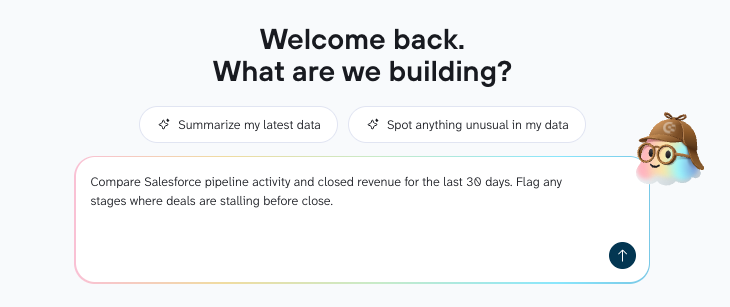
Once your Salesforce data reaches Gemini CLI, you can ask about it in plain language. Coupler.io handles the data ingestion, preparation, permissions, and scheduled refresh, while Gemini CLI becomes the place where your questions get answered. Each time the data refreshes, Gemini works with the latest version, so there’s nothing to re-export before the next question. You can also put the same questions to Coupler AI, without opening another tool.
This same approach can work across a wider business data ecosystem, including HubSpot, Shopify, Google Sheets, SharePoint, and other sources. Salesforce is just a useful example because it shows how connected app data can move from static CRM reports into direct analysis.
Here are a few ways to use Salesforce data in Gemini CLI.
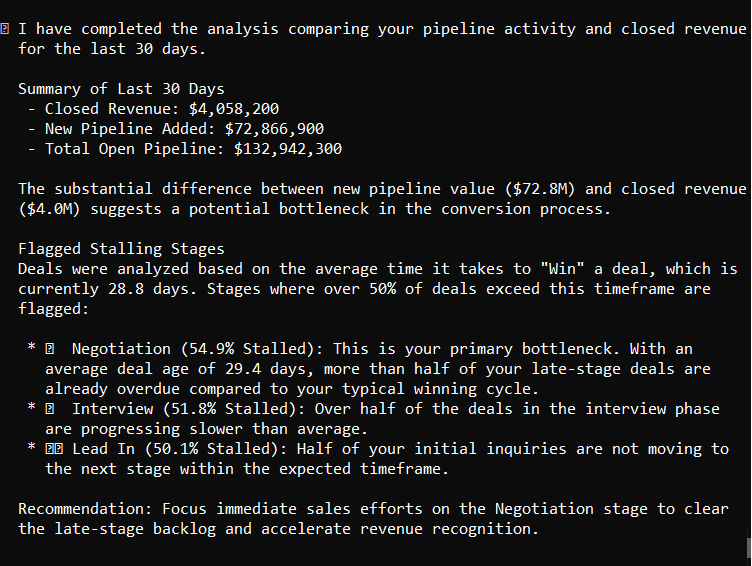
Compare pipeline activity against revenue outcomes
Salesforce reports can show activity. Revenue reports can show closed deals. The useful insight is often in the gap between the two.
With Salesforce data connected, you can ask Gemini CLI to compare pipeline activity with closed revenue and find where deals are slowing down.
Type this into the Gemini CLI prompt bar:
Compare pipeline activity and closed revenue for the last 30 days. Flag any stages where deals are stalling before close. |
Identify declining sales trends early
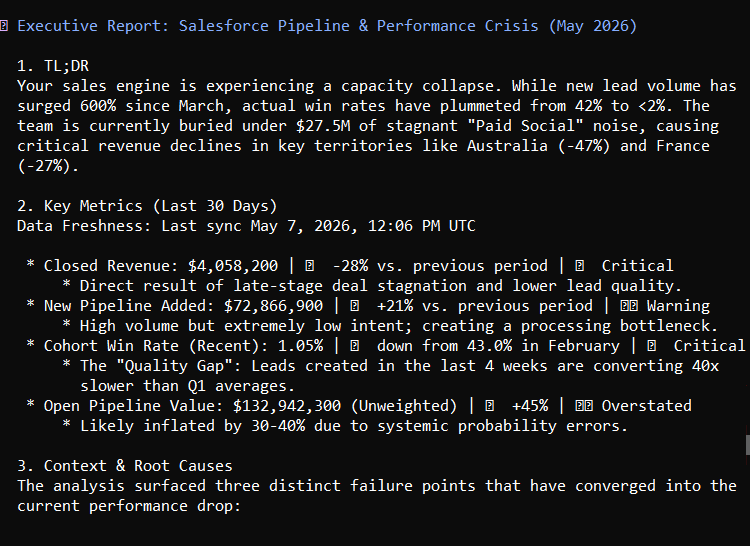
A revenue drop that shows up in a monthly board report was visible in the data weeks earlier. With your pipeline and sales data connected, Gemini can surface those early signals before they become a bigger problem.
This is particularly useful for sales managers who need to monitor performance across multiple reps, regions, or product lines without building a separate report for each.
Use Coupler.io to get my Salesforce data. Review monthly revenue and pipeline movement for the last two periods. Which segments or territories declined compared to the previous period? |
Detect churn risks in CRM pipelines
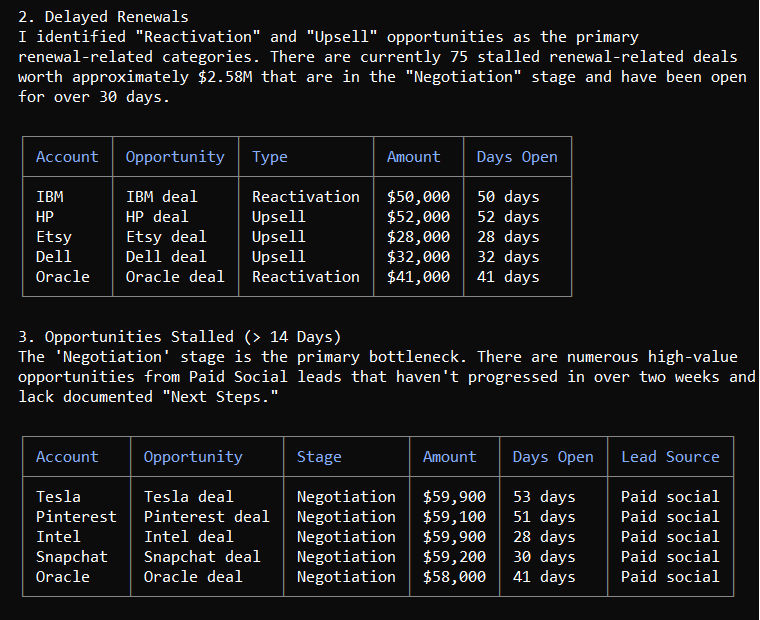
Stalled deals and inactive accounts are easy to miss when you’re managing a large pipeline. Manually reviewing every account each week isn’t realistic, but leaving at-risk accounts unattended is expensive.
With your CRM data connected, Gemini can scan the full dataset and flag the accounts that need attention, so your team focuses outreach where it actually matters.
Use Coupler.io to get my Salesforce data. Find accounts with no activity in the last 30 days, delayed renewals, or opportunities that haven't moved stages in over two weeks. |
Forecast inventory demand from ecommerce data
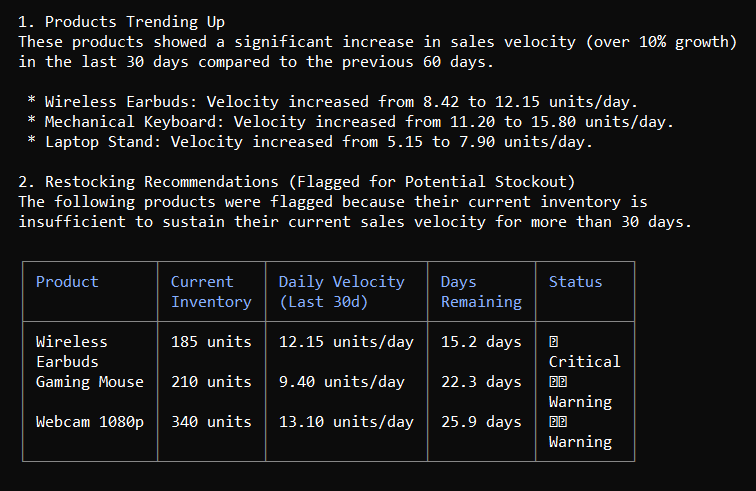
Inventory decisions made on gut feel or lagging reports lead to either stockouts or excess. With your ecommerce data connected, Gemini can analyze recent sales trends, seasonality patterns, and product-level movement to give you a data-grounded starting point for planning.
The output is a plain-language summary of what the data suggests, which is often exactly what operations and buying teams need to make a call. Don’t mistake it for a formal forecast model.
Use Coupler.io to get my Shopify data. Based on the last 90 days of product sales, which products are trending up and may need restocking next month? Flag anything that looks like it could run out based on current velocity. |
Summarize financial performance without manual reports
Finance teams spend a disproportionate amount of time compiling summaries of what already happened. With accounting data connected through Coupler.io, Gemini can generate that summary on demand in plain language. No spreadsheet formatting for once.
You can paste the output directly into a stakeholder update, a Slack message, or a weekly review without reformatting anything.
Use Coupler.io to get my QuickBooks data. Summarize revenue, expenses, and profit for this month compared to last month. Highlight the biggest drivers of any changes. |
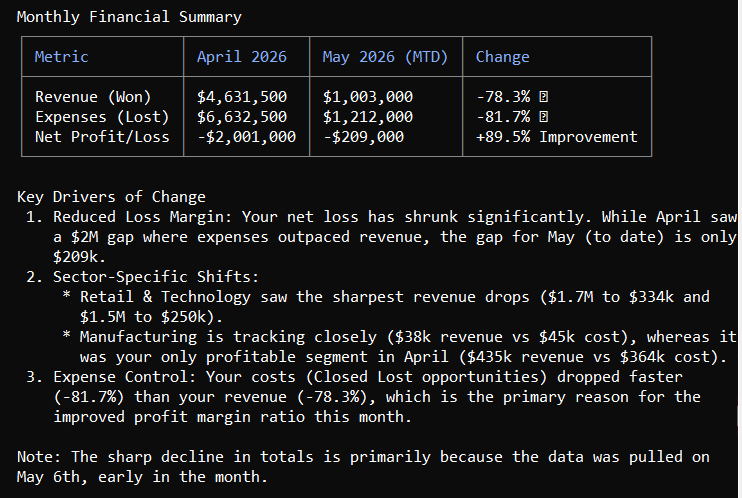
These examples show the main value of connecting business app data to Gemini CLI: you move from static reports to direct business analysis. Gemini AI can answer follow-up questions, compare segments, summarize changes, and help teams spot issues without rebuilding the same reports each time.
The quality of the output still depends on the quality of the connected dataset. Clean fields, relevant metrics, and updated data make the analysis more useful. That is why the connection layer matters as much as the AI model itself.
Analyze your data in Gemini CLI using Coupler.io
Get started for freeUse source-specific MCP servers to connect certain apps to Gemini CLI
MCP (Model Context Protocol) is an open standard that lets Gemini CLI talk to external tools and data sources through a standardized bridge. Coupler.io’s Gemini integrations also use this MCP-based approach, but it wraps the setup in a no-code data pipeline where you can connect, prepare, combine, and refresh datasets before Gemini CLI accesses them. This is another way to connect Gemini to data sources, especially when a specific app already offers an MCP server.
Source-specific MCP servers work differently. When an app publishes its own MCP server, you can configure Gemini CLI to connect to that app directly, usually through a local or hosted server setup.
This approach works well for single-source workflows where you have some technical comfort and do not mind terminal configuration. For example, you might connect Salesforce through its MCP server to query CRM data, or use another MCP server for GitHub, GA4, Confluence, Jira, or similar tools.
The main difference is scope. Coupler.io uses MCP as part of a broader data integration workflow, while source-specific MCP servers usually connect Gemini CLI to one system at a time.
Prerequisites:
- Gemini CLI installed (
npm install -g @google/gemini-cli) - Node.js and npm installed
- An authorized Salesforce CLI (
sf) with a connected org
Step 1: Locate your Gemini CLI settings file
All MCP server configurations live in a single JSON file. Open your terminal and navigate to it:
# macOS/Linux
~/.gemini/settings.json

# If the file doesn't exist, create the directory and file
mkdir -p ~/.gemini && touch ~/.gemini/settings.json
Step 2: Add the MCP server configuration
Open ~/.gemini/settings.json in a text editor and add the mcpServers block. For the Salesforce MCP server:
{
  "mcpServers": {
    "salesforce": {
      "command": "/usr/local/bin/npx",
      "args": [
        "-y",
        "@salesforce/mcp@latest",
        "--orgs", "DEFAULT_TARGET_ORG",
        "--toolsets", "orgs,metadata,data,users"
      ]
    }
  }
}
Important for Mac users: Use the absolute path to npx rather than just “npx“. Gemini CLI spawns MCP servers as child processes that don’t always inherit your shell’s full $PATH. To find your absolute path, run which npx in your terminal and use that output.
Step 3: Verify the connection
Launch Gemini CLI and run the /mcp command to check that your server is connected:
gemini
> /mcp
You should see your server listed with a green connected status. If it shows as disconnected, run the npx command directly in your terminal first to confirm it works outside of Gemini, then check that the path in your settings.json is correct.
Step 4: Start querying in natural language
Once connected, you don’t need to reference the server by name in your prompts. Just ask questions naturally, and Gemini routes them to the right tool:
“Show me all open opportunities in the pipeline over $50,000.““ Which accounts haven't had any activity in the last 60 days?““ Summarize deal stages and win rates for this quarter.“ |
Gemini will ask for your confirmation before executing each tool call. Don’t think of this as an error. It’s just standard behavior.
Other available source-specific MCP servers:
| App | MCP server package | What you can query |
| GitHub | github/github-mcp-server | Repos, PRs, issues, code |
| Salesforce | @salesforce/mcp | CRM data, orgs, metadata |
| Google Workspace | Built into Gemini CLI extensions | Drive, Docs, Gmail, Calendar |
| Confluence | Community MCP packages | Pages, spaces, documentation |
| Jira | Community MCP packages | Issues, sprints, projects |
The real limitation to understand: Each MCP server connects to one source. If you need Salesforce data alongside Shopify revenue alongside Google Ads performance, you’re managing separate MCP server configurations for each, and a database like PostgreSQL with AI adds yet another server to that stack. Moreover, there’s no built-in way to blend that data into a unified dataset inside Gemini. For multi-source analysis, a pipeline like Coupler.io handles that at the data layer before it ever reaches Gemini.
Upload CSV exports into Gemini for one-time analysis
If you need a fast way to get business app data into Gemini without any setup, a manual CSV export is the most direct option. There’s nothing to configure, no accounts to connect, and no credentials to manage. You just download your data and hand it to Gemini directly.
This method works when you only need to integrate business apps data with Gemini once, not maintain a live or recurring workflow.
All you need is the Gemini account. File uploads work on the free tier, though the Gemini Advanced plan (part of Google One AI Premium) supports larger files and longer context.
Step 1: Export your data from the source app
Every major business tool has a CSV export option. Here’s where to find it in the most common ones:
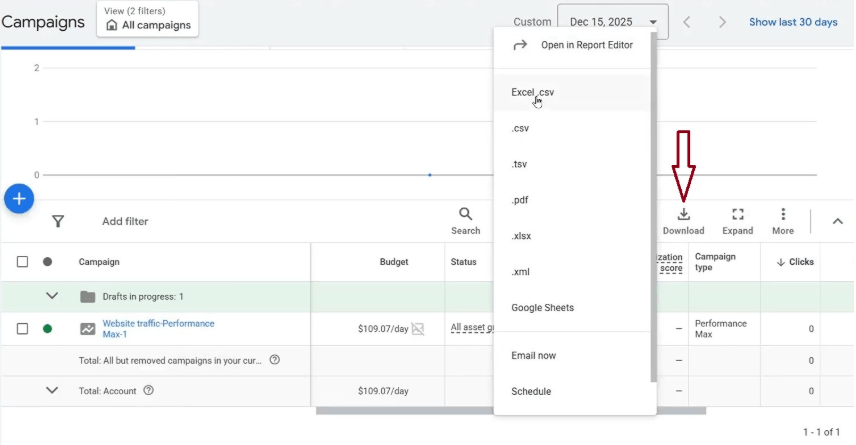
- Google Ads: Go to your Campaigns, Ad Groups, or Keywords table → click the download icon (top right of the table) → select CSV
- Shopify: Go to Analytics > Reports → select your report → click Export
- Salesforce: Open any report → click the Export button → choose Formatted Report or Details Only (Details Only exports cleaner tabular data)
- HubSpot: Go to Reports → open your report → click Actions > Export
- QuickBooks: Open a report → click Export (top right) → select Export to Excel (.xlsx also works in Gemini)
Before you export, clean up the view: set the date range you care about, remove columns you don’t need, and filter out irrelevant rows. The cleaner the file, the more precise Gemini’s analysis will be.
Step 2: Upload the file into Gemini
Go to gemini.google.com and start a new conversation. Click the paperclip icon (or the + button on mobile) in the message input area to attach your file. Select your CSV or spreadsheet and add your question in the same message.
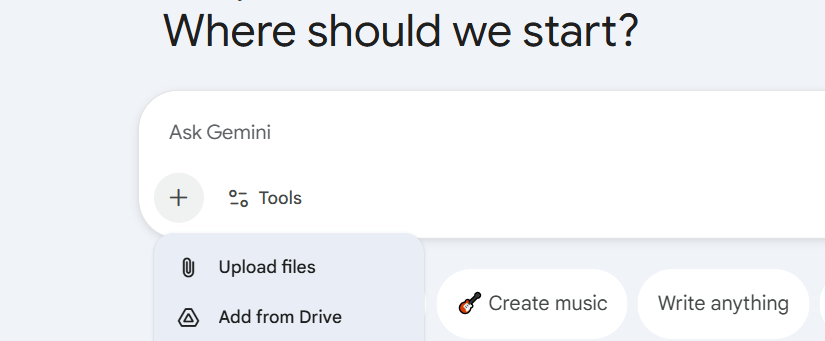
Gemini supports CSV, XLSX, and Google Sheets files. For very large exports (tens of thousands of rows), consider filtering to a focused subset before uploading. Gemini works better with targeted datasets than with everything at once.
Step 3: Ask your question
Type your analysis prompt alongside the upload. Be specific about what you want:
- “
Find campaigns where spend increased by more than 20% but conversions dropped.“
Gemini reads the file structure automatically. You don’t need to explain column names unless they’re ambiguous.
Step 4: Iterate in the same conversation
Gemini retains the context of your uploaded file for the entire conversation. You can ask follow-up questions without re-uploading:
- “
Now break that down by region.“ - “
Which of those accounts are in the Enterprise segment?“ - “
Rewrite the bottom three ad descriptions based on what's working in the top performers.“
The limitation becomes obvious the next time you need fresh data. There’s no connection to the live source because every new analysis cycle means a new export. For a one-off audit, that’s completely fine. For weekly or monthly recurring reviews, it compounds into real overhead.
This is the point where a no-code pipeline starts to make more sense. If the same export becomes part of a weekly or monthly workflow, Coupler.io removes the repeat work by pulling the data from the source, preparing it once, and keeping it refreshed for Gemini CLI through MCP.
Use this method when:
- You’re doing a one-time analysis or audit
- You’re working with a focused, relatively small dataset
- You want to test what Gemini can do with your data before investing in automation
Gemini Connected Apps: what’s available and how to use it
Gemini Connected Apps (previously called Gemini Extensions) let you connect the Gemini app to Google Workspace services so Gemini can reference your actual content without you manually uploading anything. I’m talking about your emails, documents, files, and calendar events.
In Google Workspace, Connected Apps let Gemini reference files from Google Drive, Docs, Gmail, Calendar, Tasks, and Keep, depending on account settings and permissions.
To use Gemini with business data analysis, Google Drive and Google Docs/Sheets are the most relevant. You can store your business app exports in Drive, and Gemini can access them directly from there.
This method is less direct for teams using SharePoint or Microsoft tools because Gemini Connected Apps are mainly built around Google Workspace files.
Step 1: Enable Connected Apps
Go to gemini.google.com and sign in with the same Google account you use for Google Workspace.
- For personal accounts: Connected Apps should be available by default. Click your profile icon → Settings → Connected Apps to verify which apps are active.
- For work or school accounts (Google Workspace): Your administrator must enable the feature in the Google Admin Console under Generative AI > Gemini app > Google Workspace apps. If you can’t access Connected Apps on a work account, contact your Workspace admin.
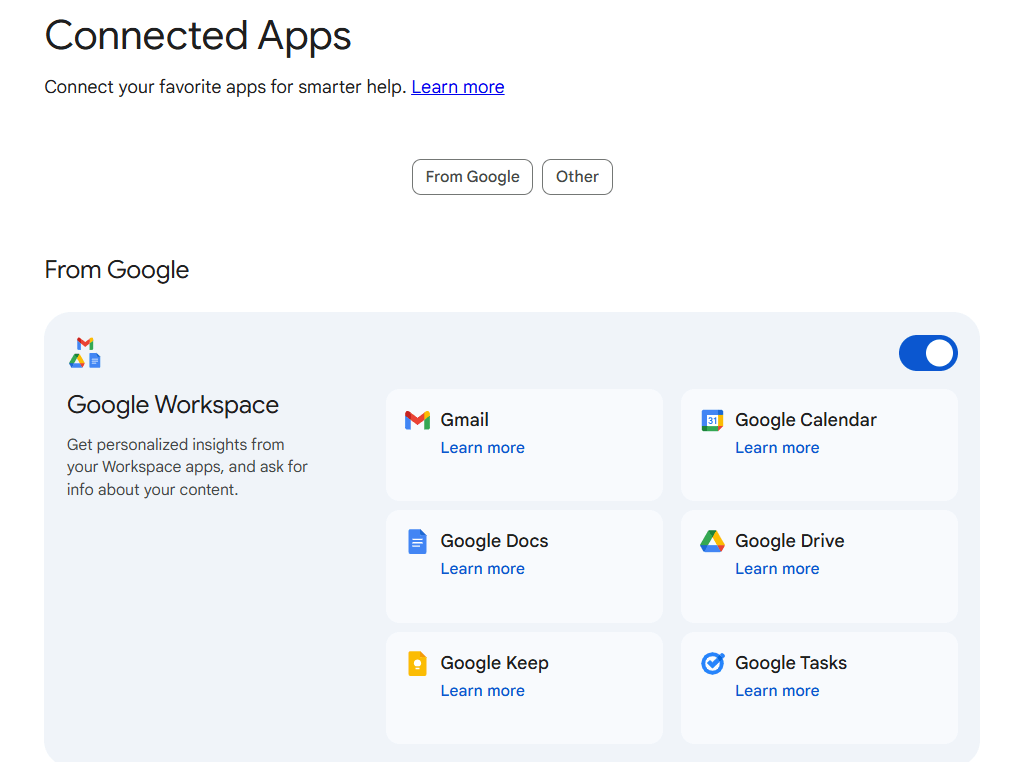
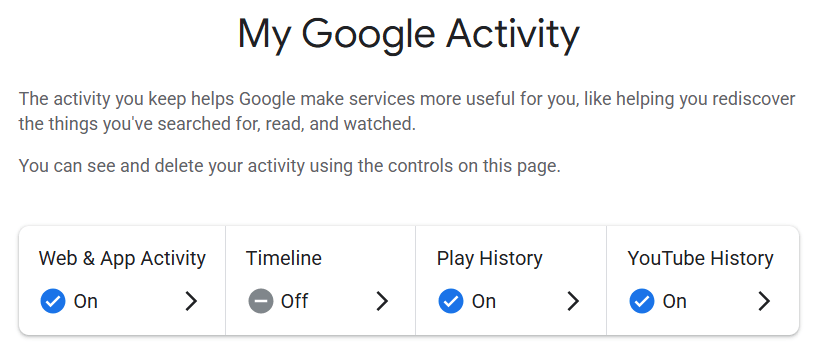
You also need Keep Activity turned on. To check: go to myactivity.google.com → Web & App Activity → confirm Google Keep Activity is enabled. Connected Apps might not work without this setting.
Step 2: Save your business data to Google Drive or Sheets
Export your data from whichever business app you’re working with (see the CSV export steps in the previous section for how to export from Google Ads, Shopify, HubSpot, etc.). Then:
- Save the CSV to a clearly named folder in Google Drive (e.g.,
Marketing Reports > Google Ads > May 2026) - Or paste/import the data into a Google Sheet and save it in Drive
If you’re repeating this process regularly, use consistent file names so you can replace the previous file and reference it by the same name in your Gemini prompts.
Step 3: Reference your Drive file in Gemini
Open a new Gemini conversation. To point Gemini to a specific file, type @ in the message input and select Google Drive from the dropdown. Then describe the file using keywords from its title:
@Google Drive Find my Google Ads performance report from May 2026 and summarize which campaigns had the highest ROAS |
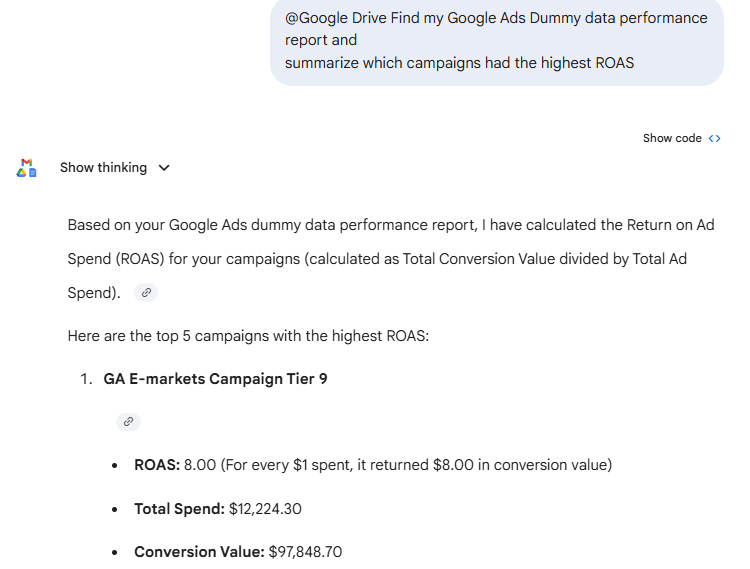
You can also reference a Google Sheet directly:
@Google Drive Look at my Shopify monthly sales spreadsheet and identify which product categories are trending up versus last month |
Gemini searches your Drive for matching files and pulls the content directly. You don’t have to worry about manual uploads here either.
Step 4: Ask follow-up questions
Just like with file uploads, Gemini maintains context within the conversation. You can ask follow-up questions without re-referencing the file each time.
Note: For every new conversation, you need to reference your Drive file explicitly again. Gemini doesn’t remember which files you used in previous sessions.
Connected Apps make the workflow slightly more reusable. Your file lives in Drive rather than disappearing after a chat session. But the data is still only as fresh as the last time you updated the file. There’s no live sync to Google Ads, Shopify, HubSpot, or other business tools. If your data changes, you update the file manually.
If your team only needs Gemini to read files stored in Google Drive, Connected Apps are enough. But if the data lives across several business tools, Coupler.io connects those sources directly, prepares the dataset, and keeps it updated. From there, Gemini CLI or Gemini Enterprise accesses it through MCP.
Connect your business data to Gemini with Coupler.io
Get started for freeBuild a custom integration using business APIs and the Gemini API
This is closer to a developer-led ingestion workflow where your team controls the API calls, data store, permissions, IAM policies, and outputs. For teams with engineering support and a need for full control over what data flows where and when, building a direct integration between your source APIs and the Gemini API is the most flexible option available. You write the code, you control the pipeline, and you decide exactly what Gemini analyzes and how often.
This is the highest-effort method in this guide, but it’s also the most powerful for teams embedding AI-driven analysis into internal tools, products, or automated reporting workflows.
What you’ll need:
- Python 3.9+ (recommended)
- A Gemini API key from Google AI Studio
- API credentials for your source apps (Salesforce, Shopify, HubSpot, etc.)
- Basic familiarity with REST APIs and Python
Step 1: Get your Gemini API key
Go to aistudio.google.com, sign in with your Google account, and click Get API key. Copy the key and store it securely as an environment variable. Never hardcode it in your scripts.
# macOS/Linux — add to ~/.zshrc or ~/.bashrc for persistence
export GOOGLE_API_KEY="your-api-key-here"

# Windows PowerShell
setx GOOGLE_API_KEY "your-api-key-here"
Step 2: Install the Gemini Python SDK
pip install google-genai
Step 3: Pull data from your source app
Each business app has its own API. Here’s a practical example using the Shopify Admin API to pull recent orders:
import requests
import pandas as pd
import os

SHOPIFY_STORE = "your-store.myshopify.com"
SHOPIFY_TOKEN = os.environ["SHOPIFY_ACCESS_TOKEN"]

def fetch_shopify_orders():
    url = f"https://{SHOPIFY_STORE}/admin/api/2025-01/orders.json"
    headers = {"X-Shopify-Access-Token": SHOPIFY_TOKEN}
    params = {
        "status": "any",
        "limit": 250,
        "created_at_min": "2026-04-01T00:00:00Z"
    }

    response = requests.get(url, headers=headers, params=params)
    orders = response.json()["orders"]

    # Structure into a clean dataframe
    df = pd.DataFrame([{
        "order_id": o["id"],
        "created_at": o["created_at"],
        "total_price": float(o["total_price"]),
        "source": o.get("source_name", "unknown"),
        "financial_status": o["financial_status"]
    } for o in orders])

    return df
The same pattern works for other sources. HubSpot, Salesforce, and QuickBooks each have well-documented REST APIs. The key is to pull only the fields you need and structure them into a clean, tabular format before sending anything to Gemini.
Step 4: Send the data to Gemini for analysis
With your data structured and ready, pass it to Gemini using the google-genai SDK. Include a summary of the data alongside your analysis prompt:
from google import genai
import os

client = genai.Client(api_key=os.environ["GOOGLE_API_KEY"])

def analyze_with_gemini(df, question):
    # Summarize the data to keep the prompt focused
    summary = df.describe().to_string()
    sample = df.head(20).to_csv(index=False)

    prompt = f"""
You are a business analyst. Here is a summary of recent Shopify order data:

Data summary:
{summary}

Sample rows (first 20):
{sample}

Question: {question}

Provide a clear, concise analysis with specific numbers where relevant.
"""

    response = client.models.generate_content(
        model="gemini-2.5-flash",
        contents=prompt
    )

    return response.text

# Usage
df = fetch_shopify_orders()
analysis = analyze_with_gemini(
    df,
    "Which sales channels are driving the most revenue, and which have the highest average order value?"
)
print(analysis)
Step 5: Automate with a scheduled job
To keep the analysis up-to-date without manual runs, wrap this in a scheduled script. On Linux/macOS, use a cron job:
# Run every morning at 7am
0 7 * * * /usr/bin/python3 /path/to/your/analysis_script.py >> /var/log/analysis.log 2>&1
Or use a cloud scheduler (Google Cloud Scheduler, AWS EventBridge, GitHub Actions) if you need more reliability and logging than local cron provides.
Combining multiple sources:
To blend data from two sources, say Shopify revenue and Google Ads spend, you will fetch both datasets separately, merge them on a common key (like date or campaign UTM source), then pass the merged dataframe to Gemini:
import pandas as pd

shopify_df = fetch_shopify_orders()
ads_df = fetch_google_ads_data()  # your Google Ads API function

# Convert created_at to date
shopify_df["date"] = pd.to_datetime(shopify_df["created_at"]).dt.date

# Merge on date
shopify_daily = shopify_df.groupby("date")["total_price"].sum().reset_index()
ads_daily = ads_df.groupby("date")["spend"].sum().reset_index()

merged = pd.merge(shopify_daily, ads_daily, on="date", how="outer")
merged["roas"] = merged["total_price"] / merged["spend"]

analysis = analyze_with_gemini(
    merged,
    "On which days was ROAS below 2.0? What patterns do you see around those dates?"
)
API schemas often change. Shopify, Salesforce, and HubSpot all release API versioned updates periodically. Authentication tokens expire. Rate limits can interrupt scheduled jobs. Plan for someone to own this pipeline and monitor it. If that’s not realistic for your team, a no-code tool like Coupler.io handles all of that for you automatically.
Use this method when you:
- Need fully custom data logic or multi-step transformations
- Are embedding Gemini analysis into an internal product or dashboard
- Have engineering support to build and maintain the integration
- Are working at scale across large accounts or multiple data sources
Google Gemini data integration methods compared: Which should you choose?
If you’re choosing how to integrate data points into Gemini, the answer depends on where those data points live and how often they need to update.
| If you need… | Use this method |
| A quick one-time analysis of exported data | CSV upload |
| A file-based workflow inside Google Workspace | Gemini Connected Apps |
| A single-source workflow in Gemini CLI | Source-specific MCP server |
| A fully custom internal data pipeline | Business APIs + Gemini API |
| Recurring analysis across multiple business apps | Coupler.io |
CSV uploads and Gemini Connected Apps work well when the data is small, file-based, or used occasionally. Source-specific MCP servers are useful when you only need one system connected to Gemini CLI. API-based workflows give technical teams full control, but they also require ongoing maintenance.
For recurring business analysis, Coupler.io is the most practical option. It connects data from 400+ sources to Gemini CLI , prepares datasets before analysis, and keeps them updated on a schedule.
If your team is still exporting reports from different apps before every analysis, Coupler.io is the better starting point. It helps you connect Gemini to business apps quickly, keep datasets refreshed, and ask questions without rebuilding the same reporting workflow every week.