
How to Connect Shopify to Claude For Conversational Analysis of Ecommerce Data

Every week, store owners make practical decisions from Shopify data. Which products kept the most revenue after refunds? Are returning customers buying more than first-time customers? And more.
Claude can work through these questions conversationally, but only if the data arrives in the right shape. Shopify data is relational. A single order connects line items, discounts, shipping, and refunds. A product links to variants and inventory levels. Paste a flat CSV export, and Claude loses that structure.
Recurring analysis requires an automated pipeline to keep your data structured and up to date. Below, I’ll walk through how to connect Shopify store to Claude with Coupler.io and introduce other methods to consider.
Choose the right option to analyze Shopify data with Claude
Your choice depends on your reporting frequency and whether you are doing business reporting or store development.
| Connection method | Setup effort | Who does the math | Best for | Watch out for |
|---|---|---|---|---|
| Coupler.io | Low | Coupler.io prepares and calculates the data. Claude explains the results. | You still need to select the right Shopify entities and keep the business context clear | You still need to select the right Shopify entities and keep business context clear |
| Manual export | Low once, repetitive later | You clean the export, then Claude works with the uploaded file | One-off checks with small Shopify exports | No refresh schedule, easy to miss related data such as refunds or inventory |
| Shopify AI Toolkit / Dev MCP | Medium to high | The developer tool or custom setup handles the connection | Developers working with Shopify APIs, Liquid, GraphQL, apps, and store operations | Better suited to development tasks than merchant-facing analytics |
| API scripts and function calling | High | Your code prepares the data before Claude receives it | Custom internal workflows with engineering support | Requires API maintenance, auth handling, scopes, and error monitoring |
| Custom MCP server | High | Your MCP layer controls the data and tool access | Internal analytics tools with strict access rules | You need to build, host, secure, and maintain the server |
Manual exports are fine for quick checks. Shopify developer tools make sense when the task is about building, editing, or managing Shopify through code.
Since Claude for Shopify merchants works best when the data is prepared before the conversation starts, use Coupler.io. It allows you to create a pipeline for recurring business analysis without asking your data analytics team to do this.

Connect data from Shopify to Claude with Coupler.io
Get started for freeConnect Shopify to Claude.ai with Coupler.io
Coupler.io is a no-code data integration platform and AI analytics solution. In this workflow, the Claude Shopify connector gives Claude access to prepared ecommerce data, so it can query Shopify through Coupler.io instead of working from pasted exports.
Coupler.io fits this workflow because it pulls Shopify data into a data flow first. You select the Shopify entities (data types), prepare the dataset, and then make it available to Claude. Coupler.io handles the data connection, refresh cycle, and calculations through the Analytical Engine. Claude handles the conversation.
Step 1: Create a data flow for Shopify data
Sign up for Coupler.io and create a new data flow with Shopify as the source.
Or use the form below to get started right away for free. Click Proceed and create a Coupler.io account with no credit card required.
Connect your Shopify account and choose the Shopify data you want to analyze.
While connecting the Shopify store data to Claude, think about the questions you want Claude to answer. Sales and refund questions need order data. If you’re going to use Claude for Shopify inventory management, you need product and inventory data. You don’t have to stop at one entity. The Basics entities include Shopify Orders, Products, Inventory, and Customers.
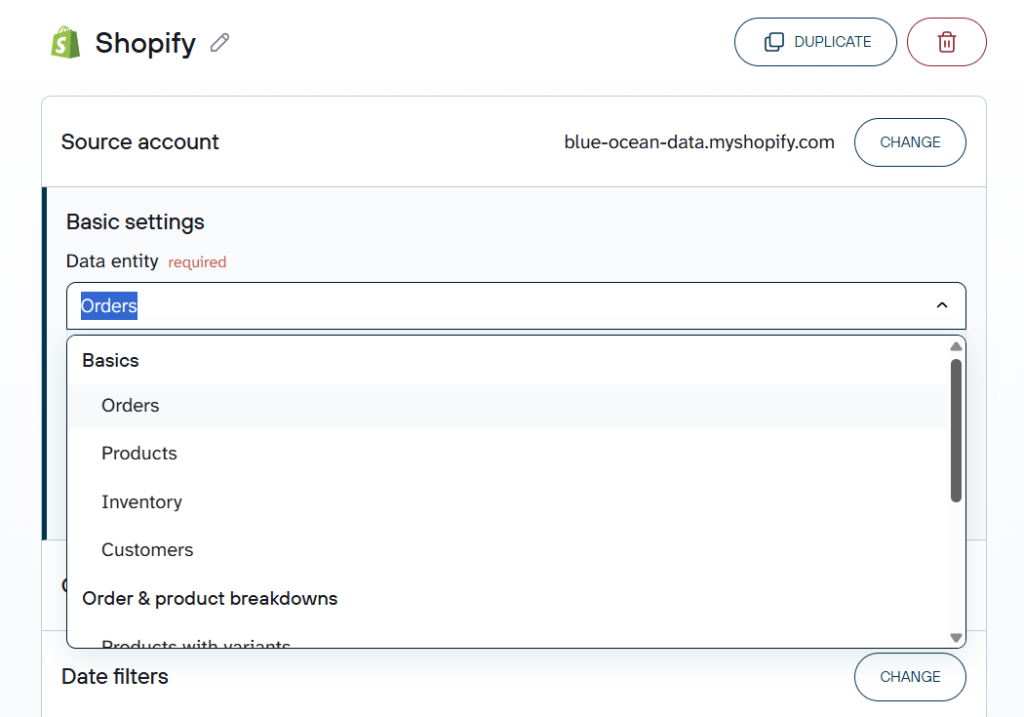
Beyond these you also have Order & Product breakdowns which include:
- Products with variants
- Orders with line items
- Orders with activities
- Orders transactions
- Order fulfillments with line items
- Orders with shipping lines
- Orders refunds transactions
- Orders with refunded items
For example, if you want Claude to analyze revenue after refunds, select orders with line items and refund transactions. Need inventory recommendations – include product, variant, and inventory data. For customer retention analysis blend customers together with order history.
Step 2: Organize your Shopify data and add context
This is not a mandatory step, but it’s useful if you want to prepare your data before Claude queries it. You can filter and sort data, hide unnecessary columns, aggregate rows, or blend data from different sources. Every time the data flow runs, Coupler.io applies those transformations automatically.
For Shopify, I’d focus on three things: aggregation, data blending, and business context.
Aggregate summarized views like revenue by product, refunds by SKU, or sales by customer segment. Fewer rows per query means fewer tokens and faster answers.
If you’re analyzing Shopify alongside Google Ads, TikTok, or GA4, blend the sources into a single data set, so Claude works from one table.
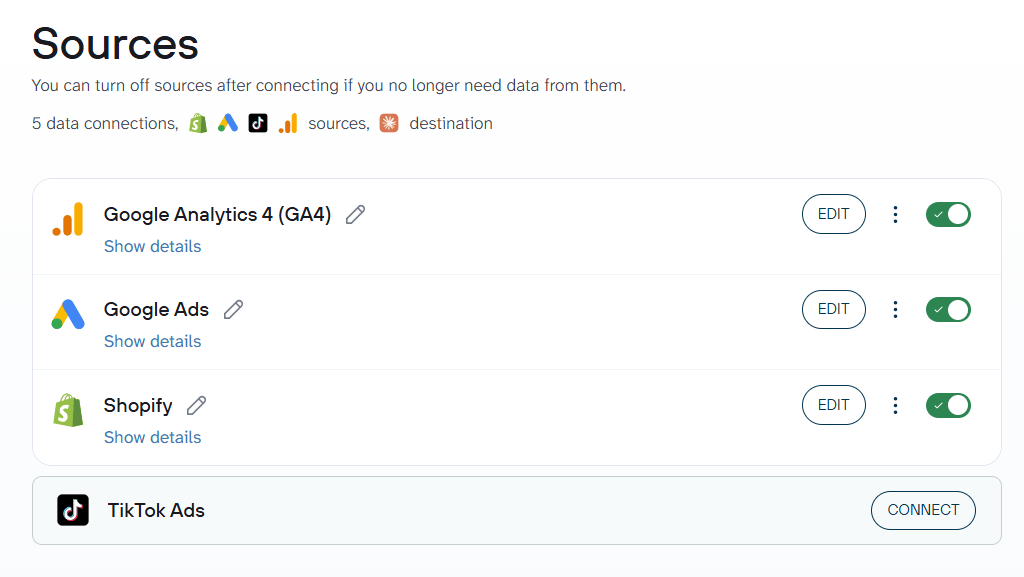
The business context is what keeps Claude from misreading the data. Shopify fields do not explain your internal rules on their own. For Shopify revenue analysis, Claude needs to know how your store defines net revenue, whether gift cards count as revenue, how refunds should be handled, which product tags map to actual categories, and whether some orders are test or wholesale.
Coupler.io has a Context option where you write your store’s business rules in a Markdown editor. The rules are passed to the AI model with each query, so you don’t repeat yourself in every conversation.
Then Claude works with a cleaner analysis-ready view instead of joining everything during the conversation.
Step 3: Connect Claude and start your conversation
Once the Shopify data flow is ready, choose Claude as the destination. Click Get connector.
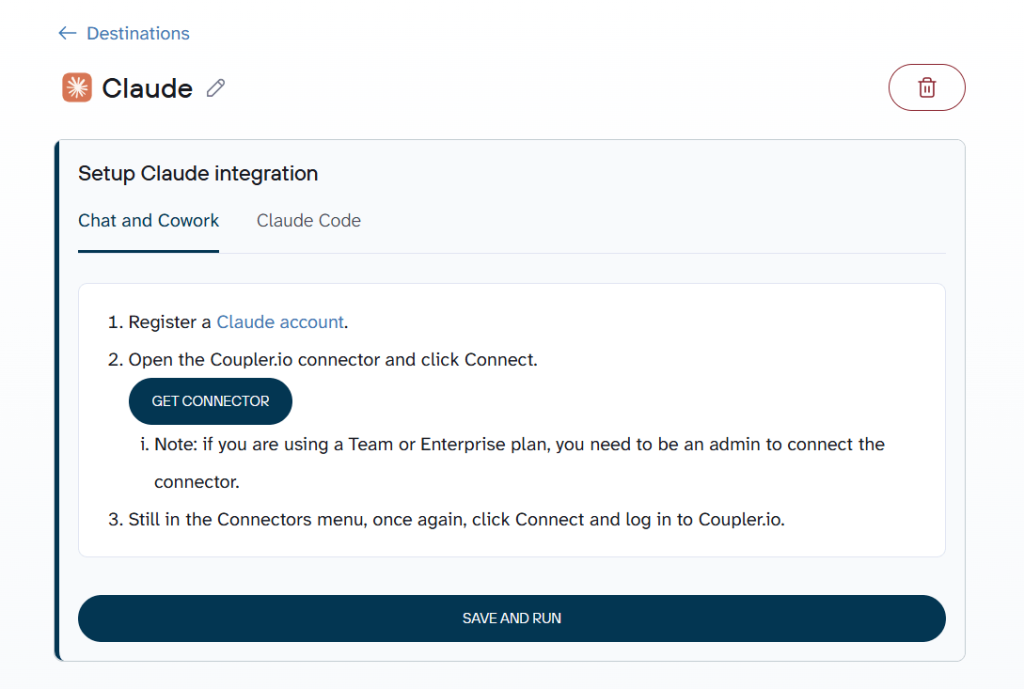
Coupler.io opens the connector page inside Claude. Click Connect and authorize the connector. This gives Claude read access to the data shared through Coupler.io, not permission to change your Shopify store.
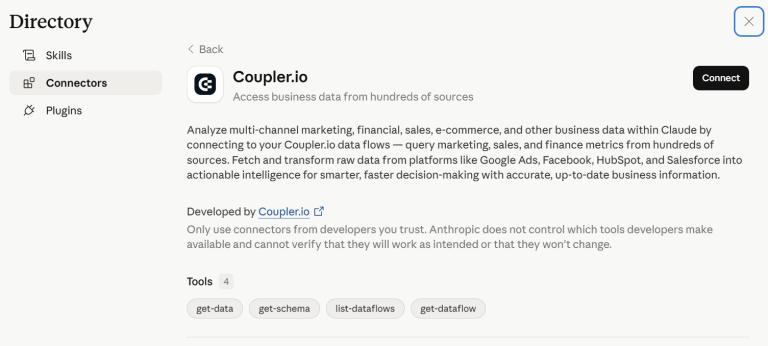
Go back to Coupler.io, set the refresh schedule, and run the data flow. The schedule is what makes Claude integrations useful for recurring work. Instead of exporting Shopify data again every Monday, Claude works with the refreshed dataset.
Open Claude and ask a question about your Shopify data. When the question needs data from the Coupler.io connector, Claude asks for permission to connect to the Coupler.io MCP server.
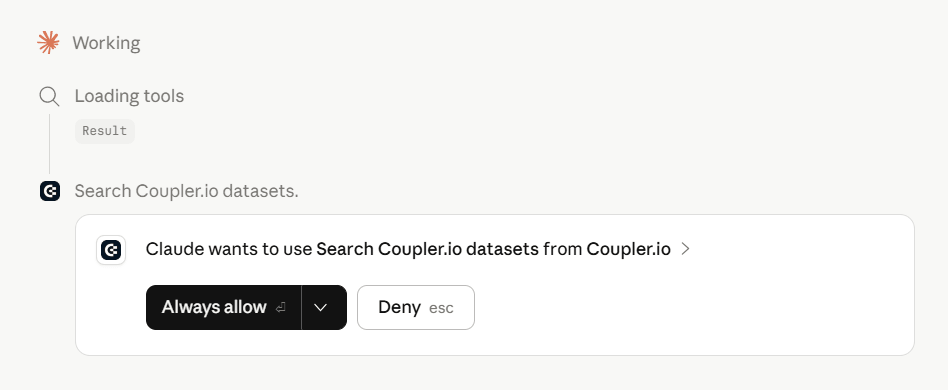
After you confirm, Claude queries the Shopify data flow and explains the results in plain English.
Connect your data from Shopify to Claude with Coupler.io
Get started for freeExamples of how to use Claude with Shopify store
Once Shopify data is connected through Coupler.io, Claude can help with product revenue, inventory, customers, and refunds.
The best Shopify prompts are not broad. “Analyze my Shopify store” gives Claude too much room to guess. Ask about a real decision instead: what to restock, what to fix, which customers to focus on, or which product is losing revenue through refunds.
Find products that drive net revenue after refunds
Gross sales can hide product problems. A product with high order volume may look like a winner until refunds, discounts, and returned units are included.
This is where Shopify orders, line items, product variants, and refund transactions need to work together. Connecting Shopify orders to Claude is useful here because the model needs order totals, discounts, and refunds to separate gross sales from retained revenue.
Instead of only ranking products by sales, Claude can show where refunds and discounts are changing the picture.
I asked:
“Which products generated the most net revenue last month after discounts and refunds? Return product name, SKU, gross sales, discounts, refunds, net revenue, units sold, and refund rate.”
Claude returned:
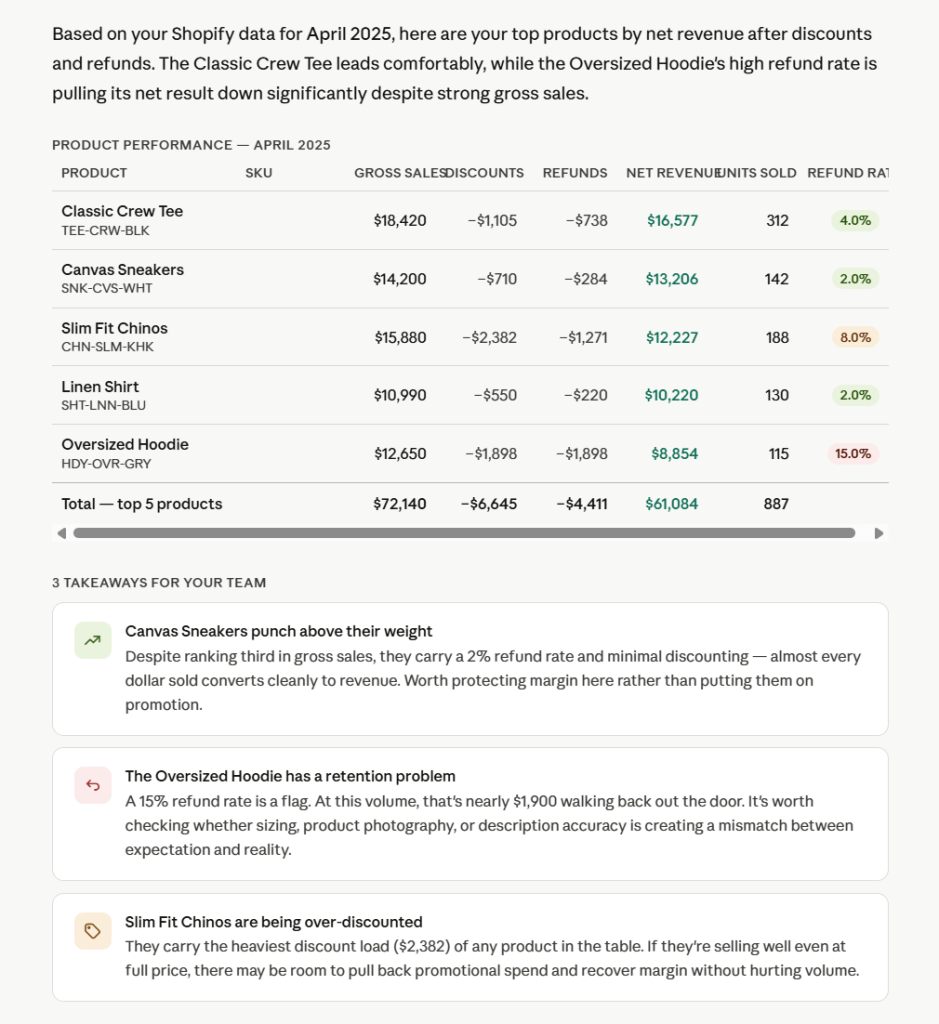
Claude returns a product-level table and separates gross sales from net revenue. The useful part is the takeaway section: it highlights high-impact strategies we can immediately implement with the team.
Connecting your orders, products, discounts, and refunds allows Claude to deliver this level of Shopify revenue analysis automatically.
Spot low-stock bestsellers before they sell out
Inventory problems often show up too late. A product has strong sales for two weeks, then the store runs out of stock just as demand is rising.
Claude can help here if it sees both sales velocity and inventory. The useful output is not only a list of products with low stock. It should estimate days of stock left and recommend which SKUs need action first.
Connecting data about Shopify products to Claude also gives the model SKU, variant, and inventory context. That makes the recommendation more specific than a basic sales report.
My question was:
“Find products that sold well in the last 30 days but have low stock remaining. Return product name, SKU, units sold, current inventory, average daily sales, estimated days of stock left, and recommended action.”
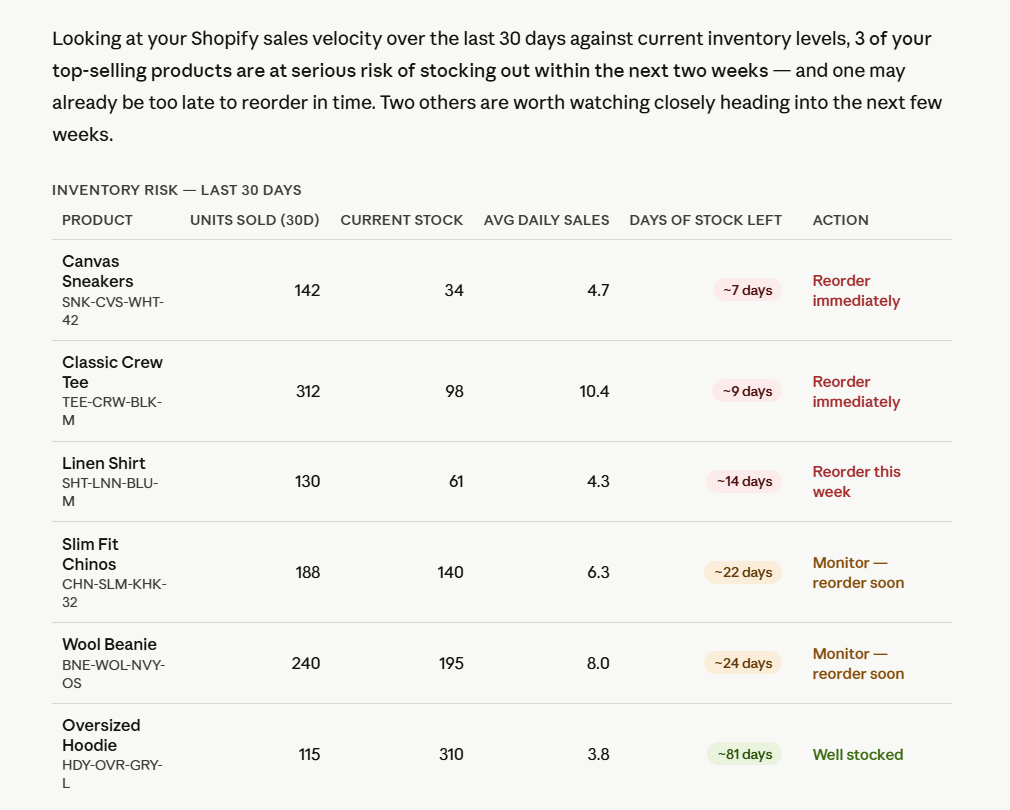
This response is useful because it turns inventory into a timing question. Instead of only showing which products have low stock, Claude compares current inventory with recent sales velocity. That makes it easier to see which SKUs need a reorder now and which ones can wait.
Compare first-time and returning customers
Claude can compare the two groups using revenue, orders, AOV, repeat purchase rate, and product preferences. A simple revenue split is not enough because returning customers may place fewer orders with higher value, or first-time customers may buy heavily during discounts.
You can also use this setup for Shopify cohort analysis with AI by grouping customers by first purchase month. For retention work, Shopify LTV calculation with Claude works best when customer IDs, order dates, revenue, and repeat purchases are part of the connected dataset.
When you connect data about Shopify customers to Claude together with order history, Claude can compare acquisition, repeat purchase behavior, and retention patterns more clearly.
I ran this by Claude:
“Compare first-time customers and returning customers over the last 90 days. Show revenue, number of orders, average order value, repeat purchase rate, top products bought by each segment, and which segment deserves more attention.”
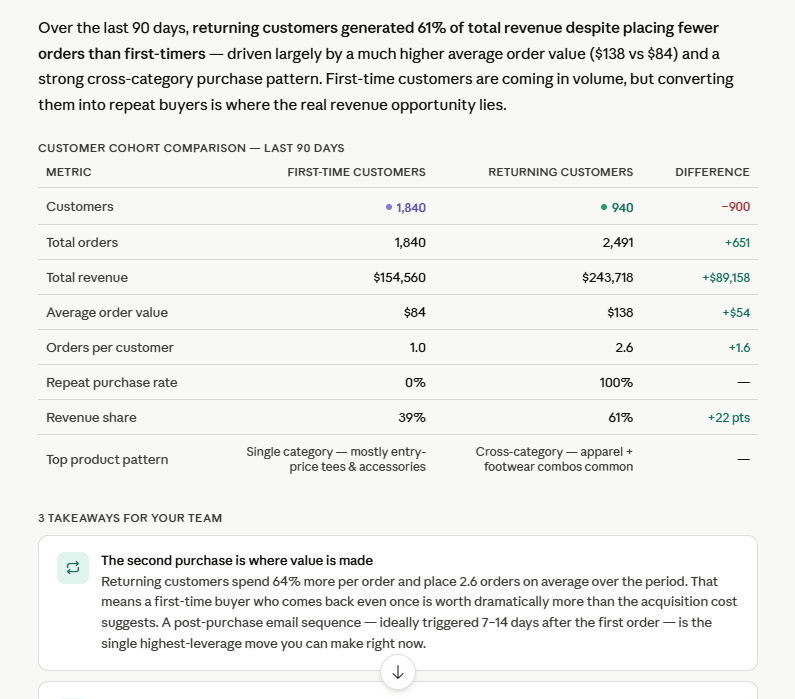
Claude doesn’t just split the data in two: it tells you where the real revenue opportunity is hiding. The response makes clear that returning customers are worth dramatically more per head, and the takeaways translate that into a concrete retention strategy rather than leaving a manager to draw their own conclusions.
Identify products with high refund rates
Refunds are not always bad. A low refund rate is normal for most stores. The problem starts when a product sells well and refunds climb faster than the category average.
For this analysis, Claude needs order line items, product data, and refund transactions. The result should name the products to investigate and explain what to check next.
I challenged Claude to:
“Identify products with strong sales but unusually high refund rates. For each product, show units sold, refunded units, refund amount, refund rate, net revenue impact, and the most likely issue to investigate.”
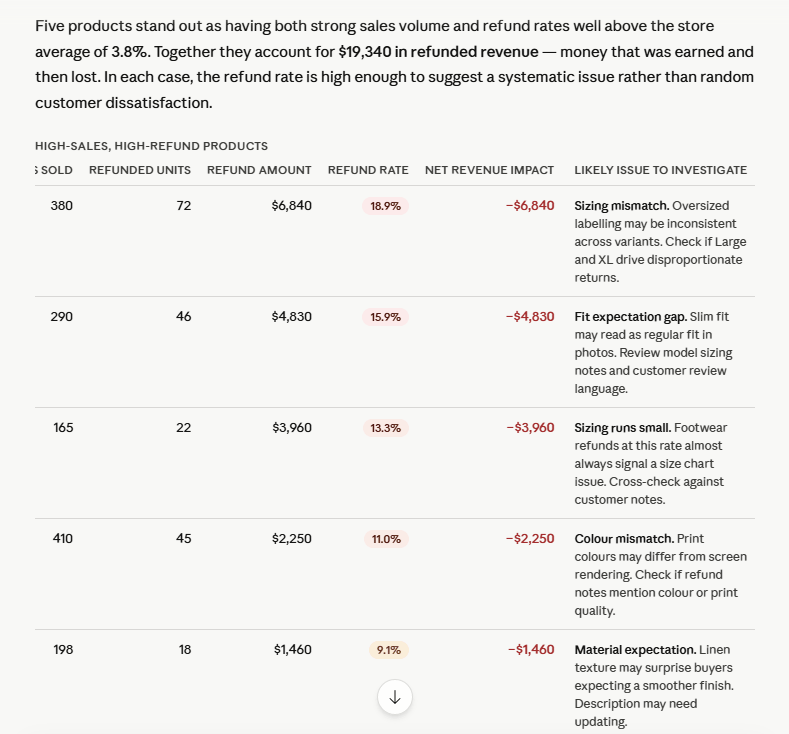
Rather than simply listing return numbers, Claude cross-referenced sales volume with refund rates to surface only the products where both signals were high. At the same time, it filtered out noise and focused attention where it matters most.
For each flagged product, it went beyond the data to suggest a likely root cause, and turned a reporting question into a diagnostic one. The color-coding shows exactly what to fix first, pointing ecommerce managers straight toward the solution.
Ask Claude questions about your Shopify store data
Try Coupler.io for freePrompts to generate Shopify insights with Claude AI
Use these prompts to chat with your data from Shopify connected to Claude through Coupler.io.
Product net revenue
Analyze Shopify orders from the last 30 days and rank products by net revenue after discounts and refunds. Show gross sales, discounts, refunds, net revenue, units sold, and refund rate. |
Low-stock bestsellers
Find Shopify products with strong sales velocity and low inventory. Estimate days of stock left based on the last 30 days of sales and recommend which SKUs to reorder first. |
First-time vs returning customers
Compare first-time and returning Shopify customers over the last 90 days. Show revenue, orders, AOV, repeat purchase rate, and the products each group buys most often. |
High-refund products
Identify Shopify products with high refund rates. Compare each product against the store average and explain what the team should check next. |
Shopify conversion rate analysis AI
Analyze Shopify conversion rate by product category. Show which categories attract orders but underperform on revenue, AOV, or repeat purchases. |
Store, region, or brand comparison
Compare Shopify revenue by store, region, or brand for the last 30 days. Show growth rate, AOV, refund rate, and the best-selling products in each store. |
Customer cohort and LTV analysis
Find customer cohorts with the highest lifetime value. Group customers by first purchase month and show repeat purchase rate, total revenue, AOV, and top products. |
Products to pause from promotion
Review Shopify orders and inventory together. Which products should I stop promoting until stock improves? |
What matters for Shopify sales analysis with Claude
Business context
Raw Shopify data does not explain how your store defines net revenue, whether gift cards count as revenue, how refunds should be treated, or which product tags map to real categories. In Coupler.io, attach context like metric definitions, naming conventions, and product grouping rules. The context is passed to the AI model with each query, so you write the rules once.
For a Shopify dataset, useful context could look like this:
Net revenue = gross sales - discounts - refunds. Gift card purchases are not product revenue.- Exclude orders tagged “
test“, “internal“, or “wholesale_sample” from performance analysis. - Exclude orders where cancel_reason is not null or
financial_statusis “voided” from sales volume and AOV. Refund rate = refunded units divided by units sold, not refund transactions divided by orders.- Traffic sources containing “
instagram“, “facebook“, or “fb” should be grouped under “Meta Ads.”
Calculations belong outside the AI model
Claude can interpret ecommerce performance, but it is not the right place to calculate net revenue across large order, line item, and refund datasets from scratch. Coupler.io’s Analytical Engine runs the calculations and sends Claude the processed results. Claude then explains why one SKU is profitable, why another is at risk, and where the team should look next.
Repeatable analysis matters when the same questions come back every week. An ecommerce team may regularly check bestsellers, low-stock products, refund patterns, and customer segments. With Coupler.io, the dataset structure and business context stay consistent, so Claude does not need a new explanation every time someone asks for a report.
One connector, multiple destinations
Claude is useful for asking questions in plain language, but the team may still need a spreadsheet for finance, a dashboard for weekly reporting, BigQuery for deeper analysis, or a Shopify + ChatGPT setup for colleagues who prefer that interface. Coupler.io lets the same data flow feed Claude and other destinations, so the numbers do not have to be rebuilt separately for each reporting format.
Other ways to export data from Shopify to Claude
AI integrations by Coupler.io are the strongest fit for recurring analysis, but it is not the only route. The other methods work when the use case is smaller, more technical, or not really about business reporting.
Manual export from Shopify
Manual export is the simplest way to get Shopify data into Claude once. Export the report or dataset from Shopify, upload the CSV to Claude, and ask your question.
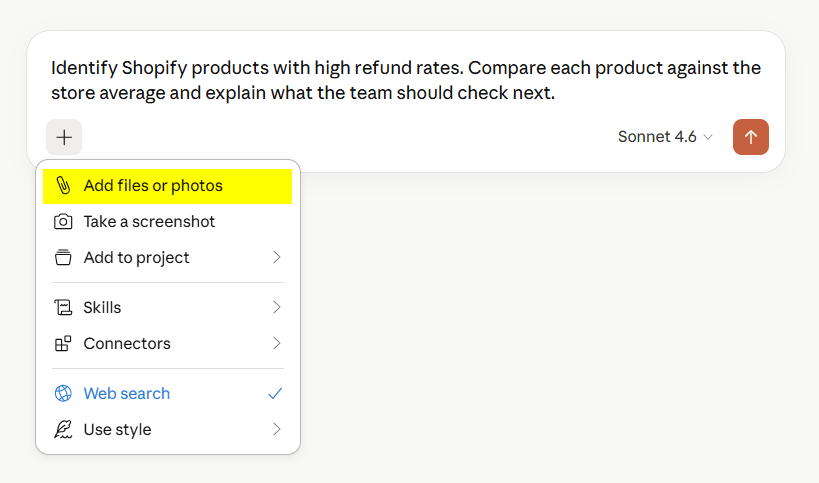
This works for quick checks, especially when you only need one dataset. For example, you might export a product list, order report, or customer list and ask Claude to summarize patterns.
The method starts to break when you need recurring work. You have to export again, clean the file again, and make sure the dataset includes the right related tables. If you upload orders without refunds, Claude cannot calculate net revenue properly. If you upload products without inventory, it cannot identify low-stock bestsellers.
Manual exports also make it easier to misread totals. Shopify exports may include metadata, summary rows, report totals, refunds, or discounts that do not belong in the same table as order or product rows. Remove those extra rows before uploading the file to Claude, otherwise Claude may treat them as real units, orders, or revenue values and skew the analysis.
Shopify AI Toolkit and Dev MCP
Shopify has developer-focused AI tooling for Claude Code and other coding agents. It is useful if your task is about Shopify development: working with docs, API schemas, GraphQL, Liquid, extensions, or store operations through supported tooling.
That is a different job from merchant analytics. A developer may use Shopify’s Dev MCP to build or validate Shopify work. A store manager who wants Shopify sales analysis with Claude usually needs prepared business data, scheduled refreshes, and clear metric definitions.
I would use Shopify AI Toolkit for development tasks. I would use Coupler.io when the question is about sales, customers, inventory, refunds, or store performance.
API scripts and function calling
A custom script gives you control over what Shopify data goes to Claude. Your team can call the Shopify Admin API, prepare the data, and send it to Claude through a custom workflow.
This makes sense when you already have engineering support and a specific internal process to automate. It is usually too much work for a marketing, ecommerce, or operations team that mainly wants recurring analysis.
Function calling follows a similar logic. Claude can decide which function to call based on the user’s question, but your team still has to build and maintain the functions, authentication, API scopes, and error handling.
Custom MCP server
A custom MCP server gives you the most control. You decide which Shopify tools or datasets Claude can access, how permissions work, and how the data is returned.
This route fits teams building internal analytics tools or strict AI access layers. It also comes with the highest maintenance burden. You need hosting, security, monitoring, version updates, and someone who understands both Shopify data and MCP.
Coupler.io’s connector is also MCP-based, but it is available as a ready-to-use Claude connector. That is the difference: you get the MCP workflow without building the server yourself.
Which method should you choose?
The right method depends on what you’re analyzing, how complex the data is, who on your team will maintain the setup, and other crietia.
One-off, single-table question. Export the data manually from Shopify, upload the CSV to Claude, and ask. This works when the question only needs one dataset like a product list, a recent order export, a customer segment, etc. But you must keep the file clean, i.e., remove summary rows, strip unnecessary personal fields, more.
Recurring analysis across related Shopify data. Use Coupler.io. Most useful ecommerce questions need more than one data type. For example, revenue after refunds needs orders, line items, and refund transactions together. Coupler.io pulls those entities, keeps them structured, refreshes on schedule, and runs calculations through the Analytical Engine before Claude sees the data. You also set the business context once instead of re-explaining your metric definitions in every conversation.
Custom access rules or internal tooling. API scripts or a custom MCP server give full control, but your team has to build and maintain everything from authentication to error handling. I’d only go this route when the business case clearly justifies the engineering cost.
For most ecommerce teams, Coupler.io is the practical choice. Not because of one feature, but because it handles the three things that make Shopify analysis in Claude actually work: relational data stays connected, calculations happen before the conversation, and the setup doesn’t reset every time someone has a new question.
Set up a recurring Shopify to Claude workflow
Sign up for freeFAQs
Is it safe to connect Shopify to Claude?
Claude only works with the data you make available through the connection. In a Coupler.io setup, Shopify data goes through Coupler.io before Claude queries it. That gives you a controlled layer between the store and the AI tool.
For Shopify, I would be especially careful with customer data. Claude does not need every field to answer most business questions. Remove unnecessary personal fields before the data reaches Claude, and keep the dataset focused on the metrics needed for analysis.
A practical setup might include customer ID, customer type, order count, revenue, and cohort month. It may not need full names, phone numbers, or shipping addresses for performance analysis.
Can I connect multiple Shopify stores to Claude?
Coupler.io allows you to connect data from multiple Shopify stores as separate data flows or combined in one data flow like this:
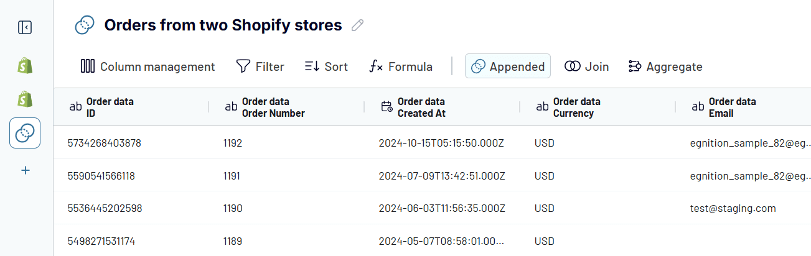
If you manage several Shopify stores, make sure each row keeps a clear store identifier, such as store name, region, brand, or market.
This configuration lets Claude know exactly where each order came from. Without a store identifier, it may combine all orders into one total and miss differences between stores, such as one market having higher AOV, lower refund rates, or faster-selling products.